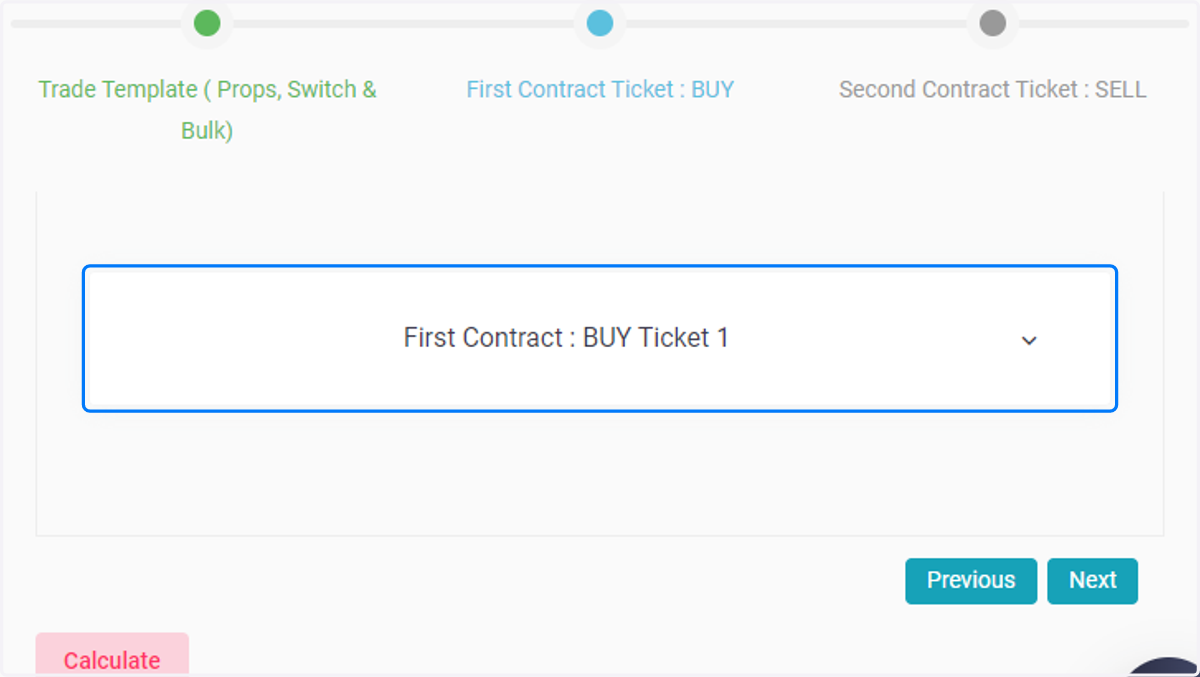
Workflow for enhancing the Trade Template Create Page with Wizard & Accordion
Dashboard | C5[Demo Securities & Asset Limited]
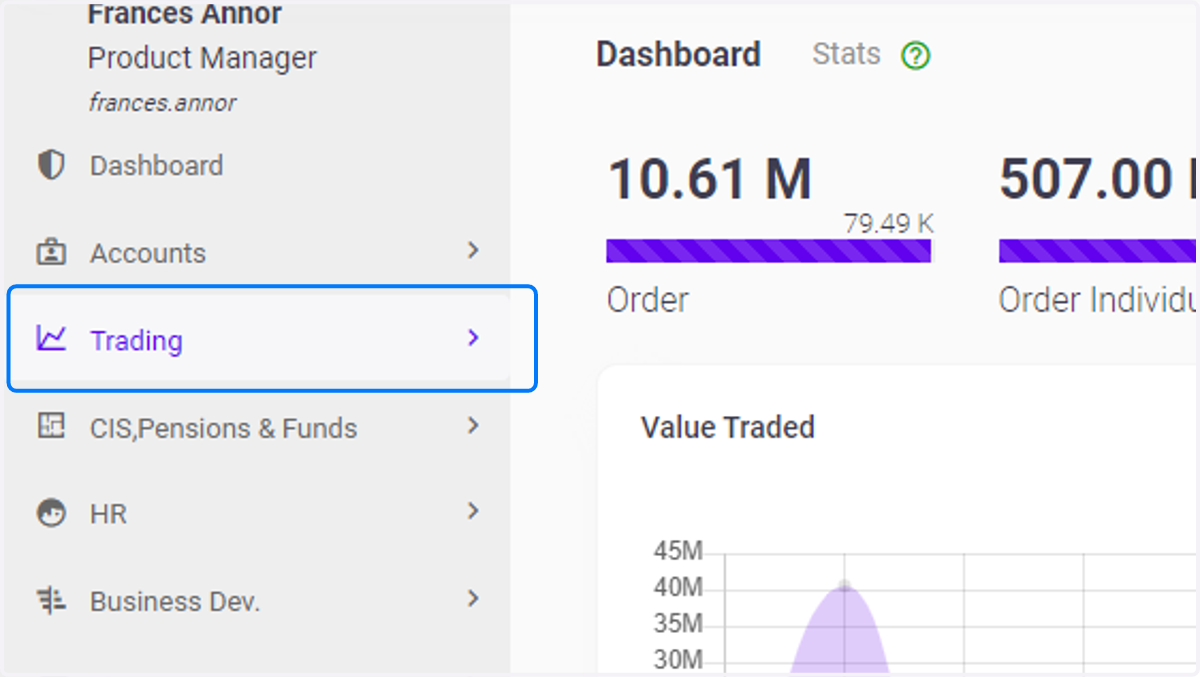
1. Click on Trading
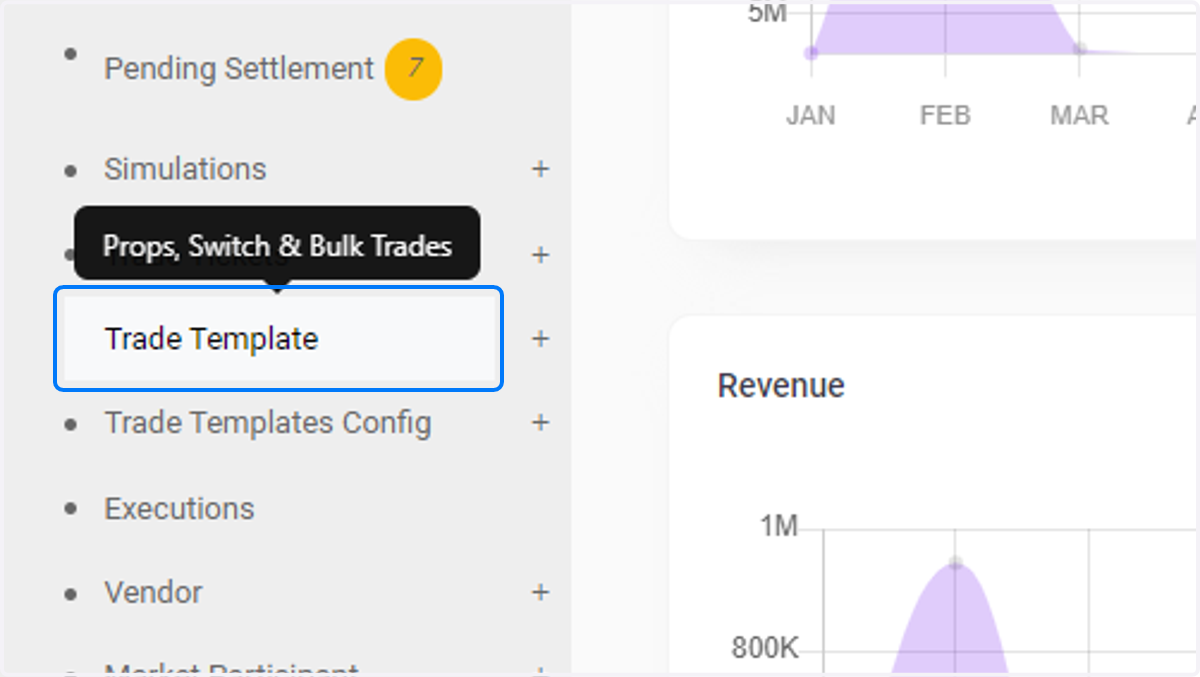
2. Click on Trade Template under Trading
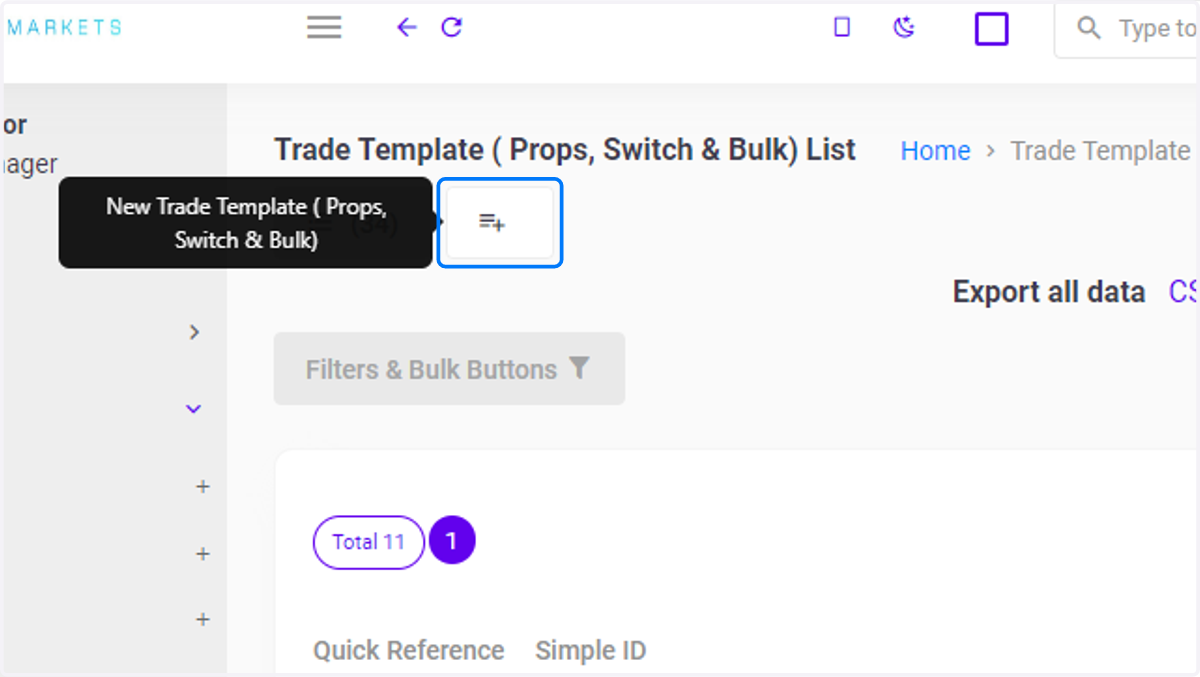
3. Create Trade Template
Click on New Trade Template ( Props, Switch & Bulk)
4. Create Trade Template
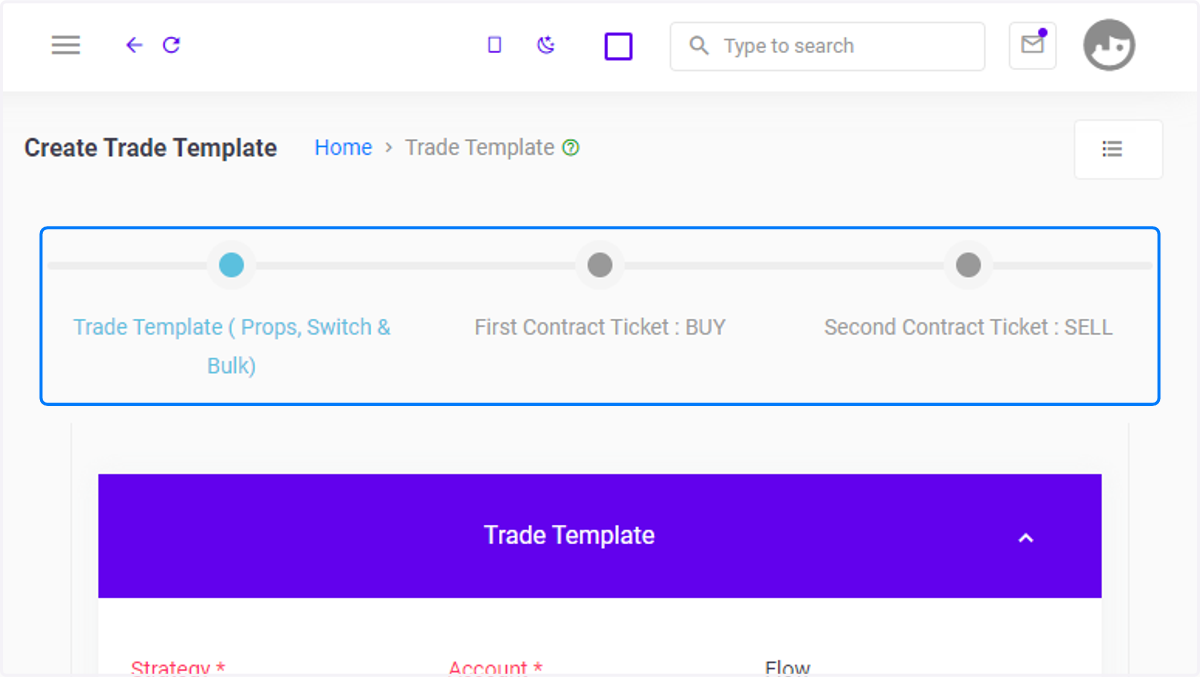
Just below the "Create Trade Template" text, there is a wizard that displays the navigation between different trade template steps. This is the Trade Template (Props, Switch & Bulk), First Contract Ticket: BUY, Second Contract Ticket: SELL , respectively
5. Trade Template Accordion
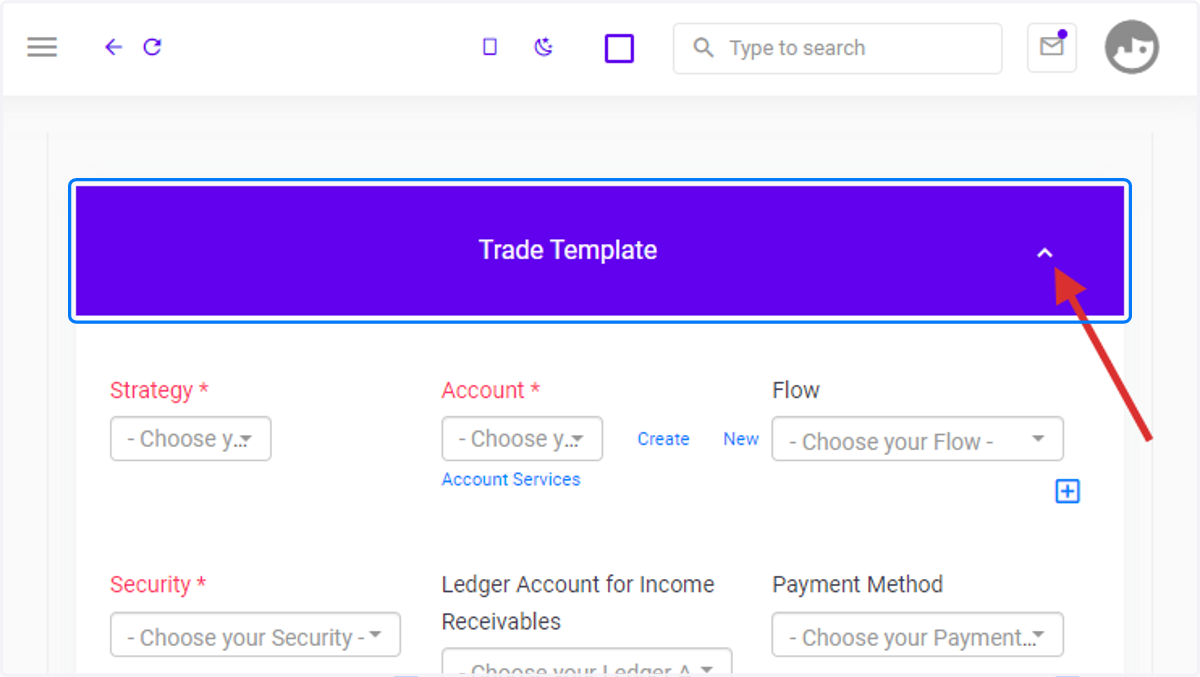
Additionally, there is an accordion corresponding to the wizards shown in the previous step. When you click the arrow on the far right of the heading As indicated in the image, the accordion expands or collapses.
6. Click on Next
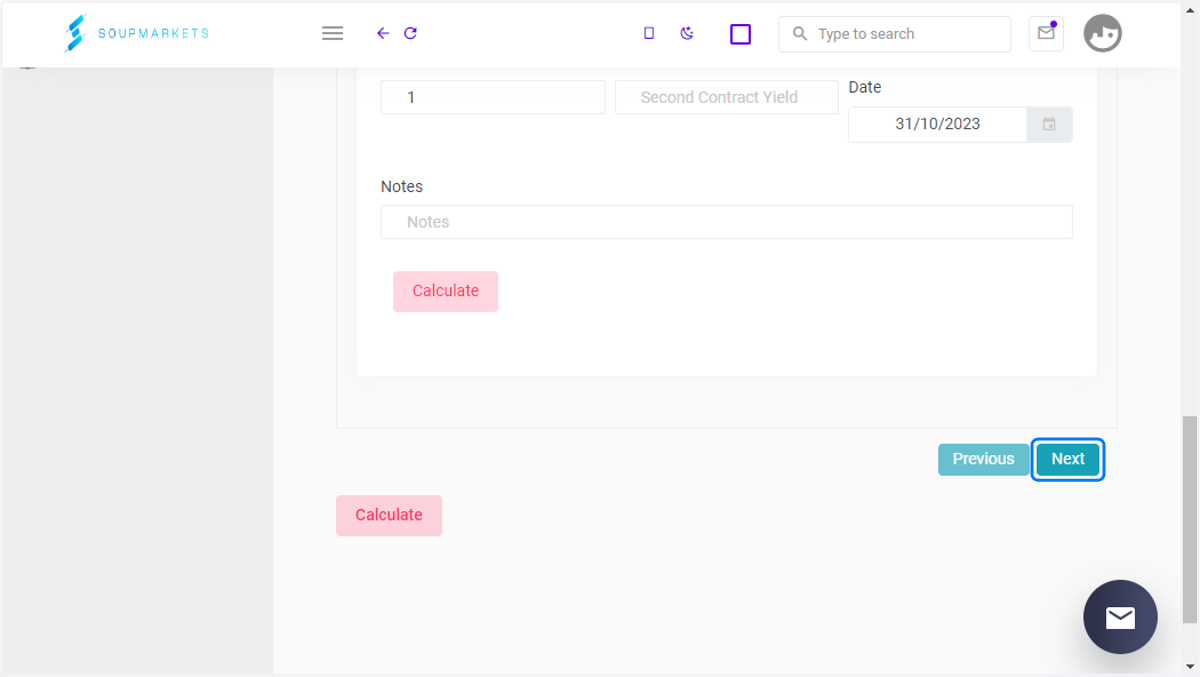
Clicking next, moves you to the next step on the wizard
7. First Contract : BUY Ticket
You are navigated to the First Contract Buy step. This cycle continues for each step...