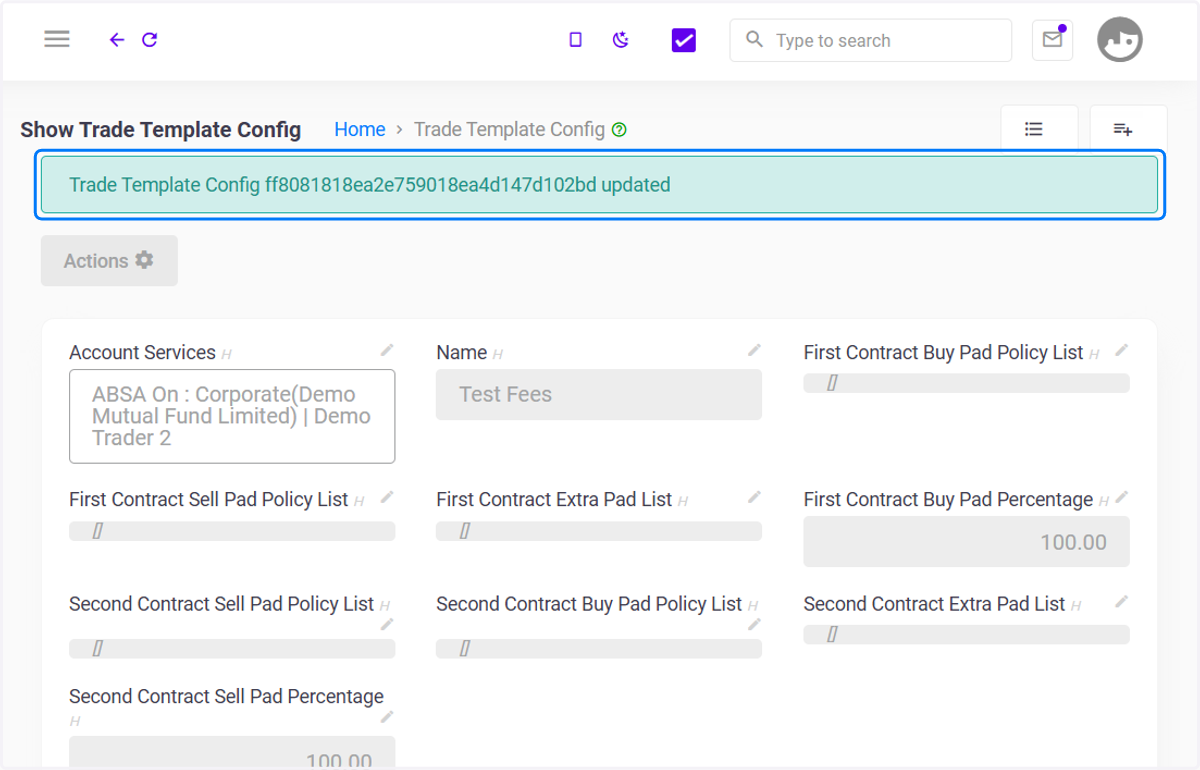
Editing Trade Template in C5 Demo Securities
Login | C5: Demo Securities & Asset Limited
To gain access to the main application, kindly click this link to view the login process
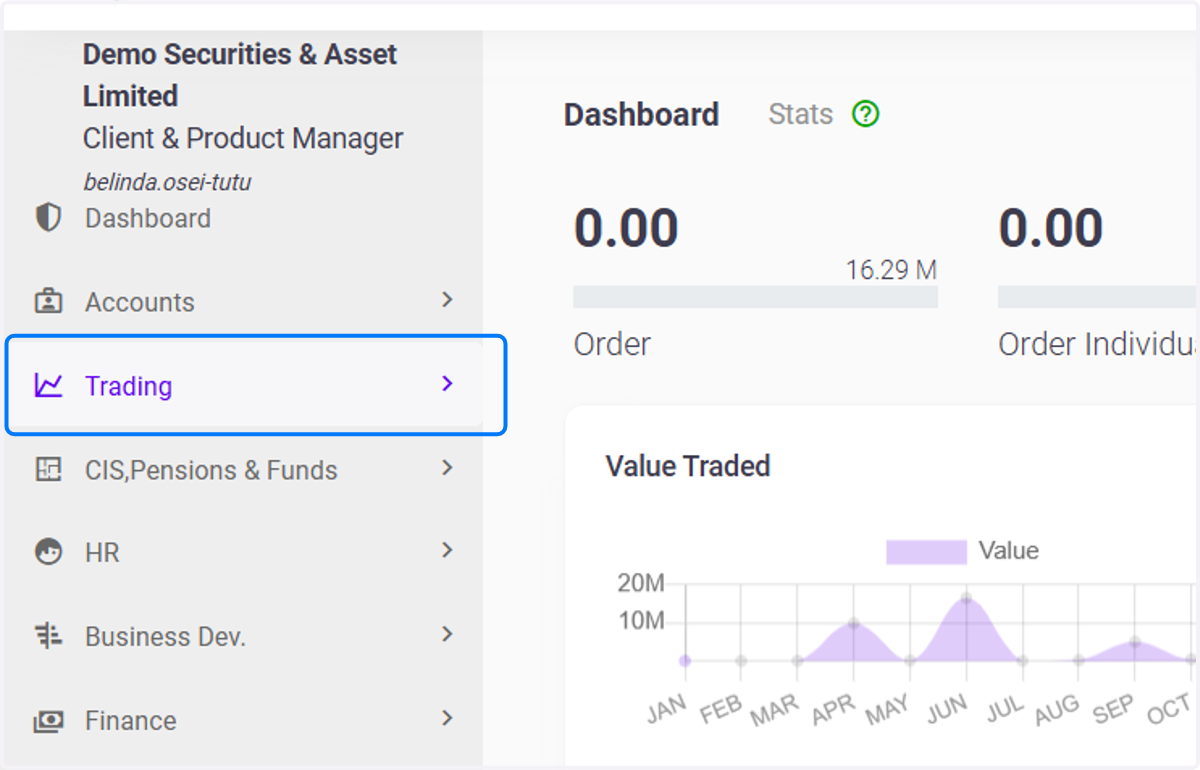
1. Click on Trading
Clicking on Trading typically directs you to a system section dedicated to managing and monitoring trading activities.
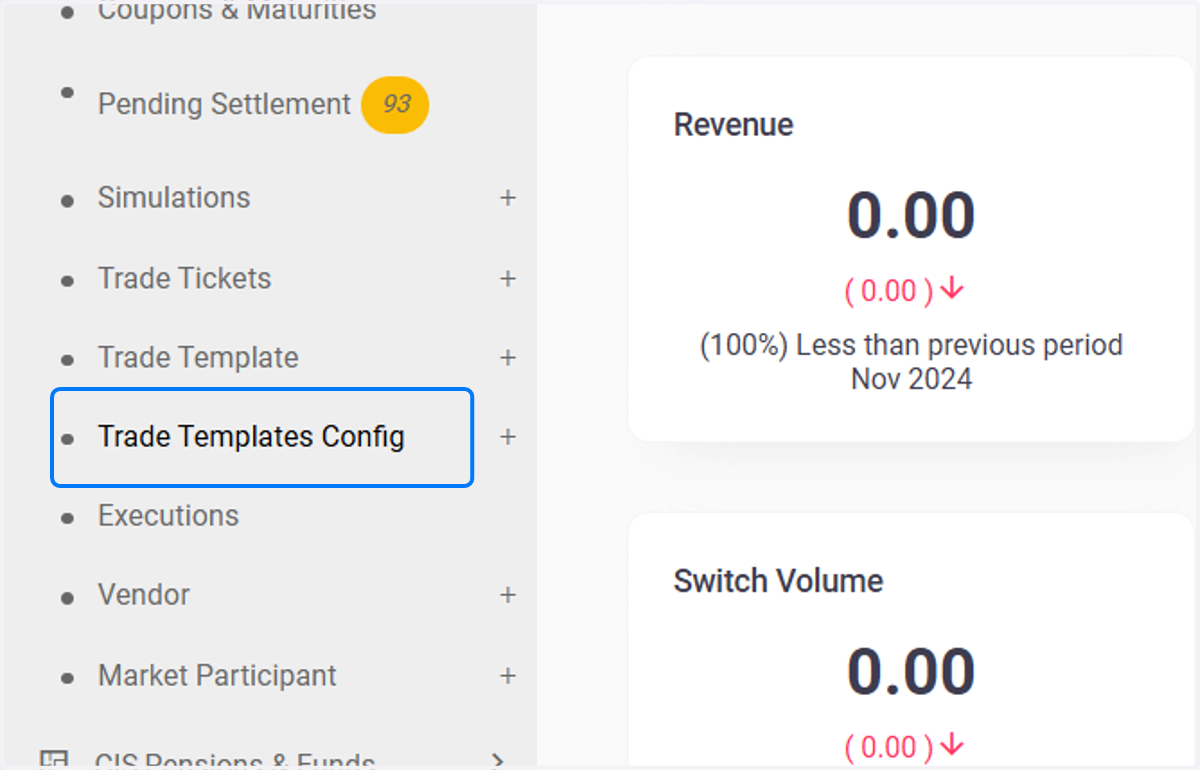
2. Click on Trade Templates Config
The Trade Templates Config section is used to create, manage, and configure templates that streamline the process of generating trade tickets.
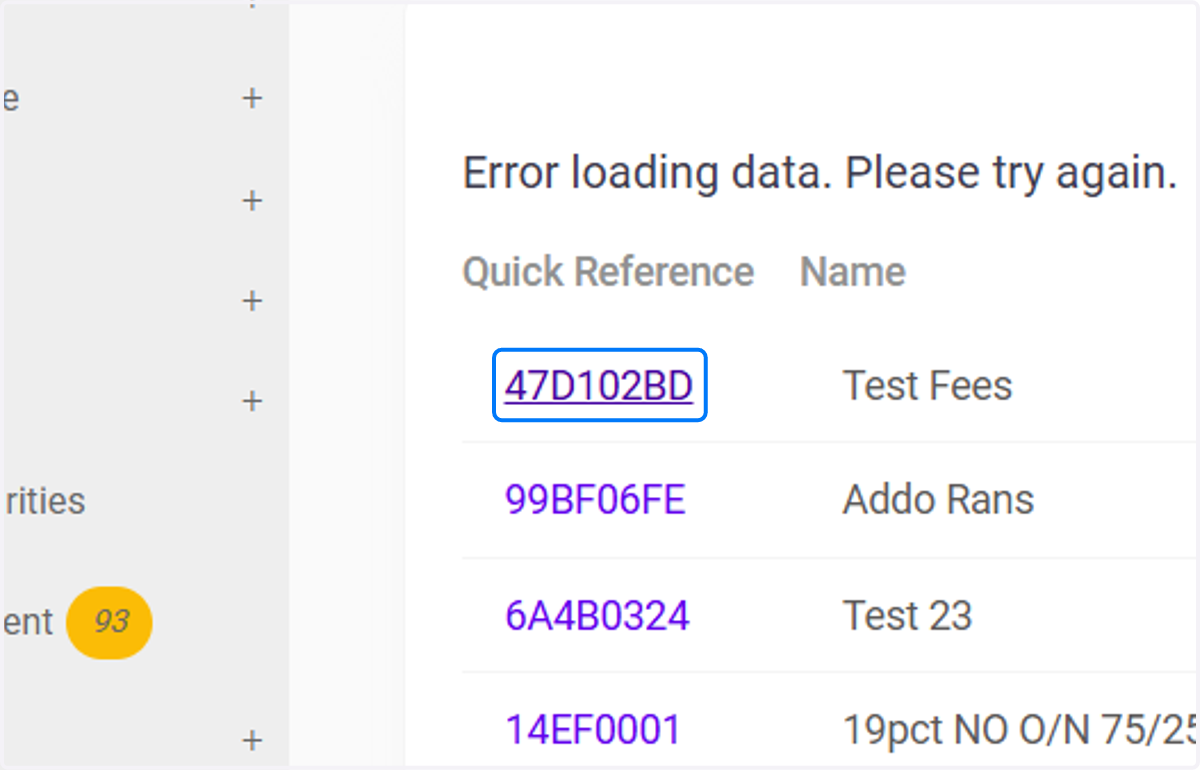
3. Quick Reference Code
The Quick Reference Code in the Trade Tickets section serves as a unique identifier assigned to each trade template configuration.
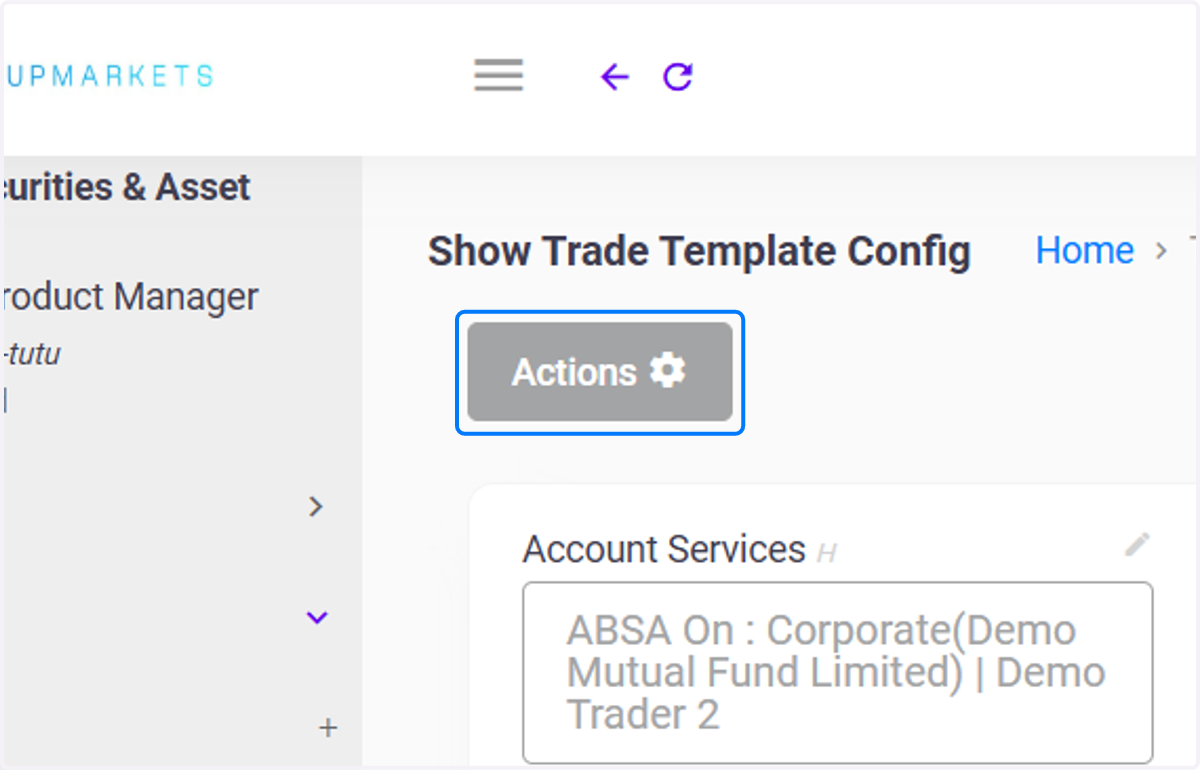
4. Click on Actions
The Actions Button will appear on the show page. Click on the Actions Button to reveal the Edit Icon (usually represented as a pencil or edit symbol).
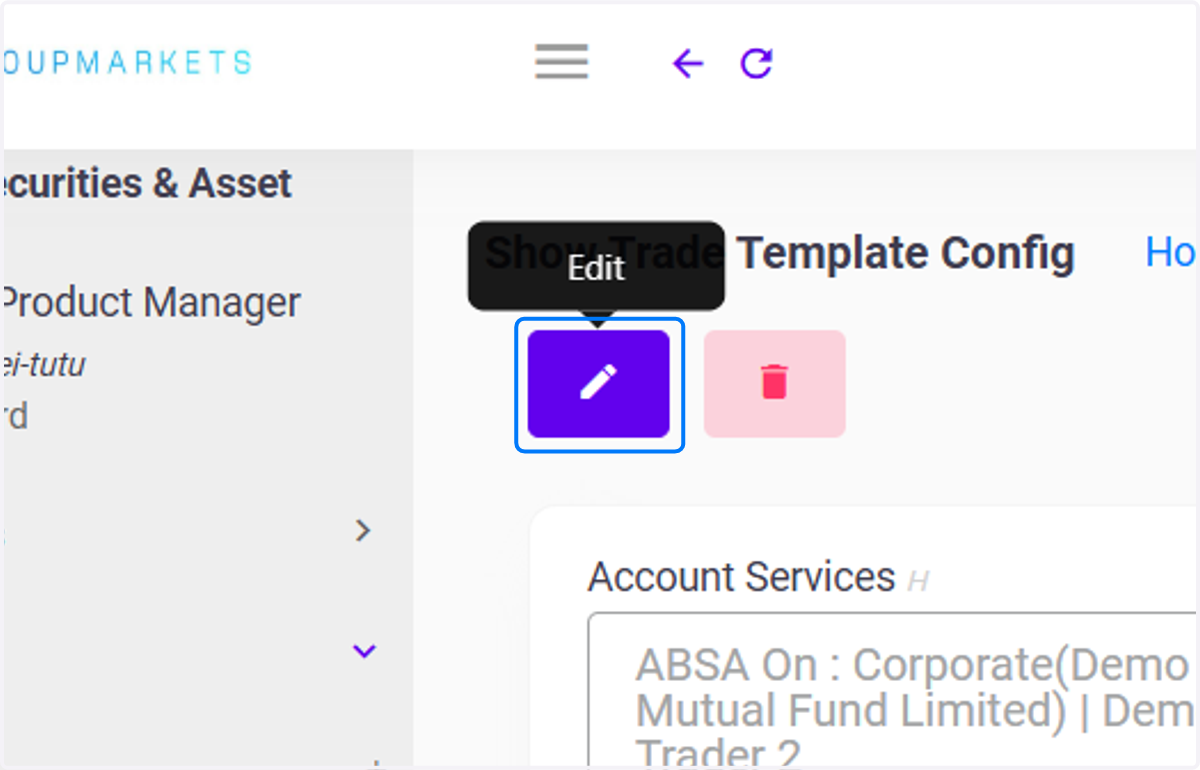
5. Click on Edit
Click on the Edit Button to begin editing.
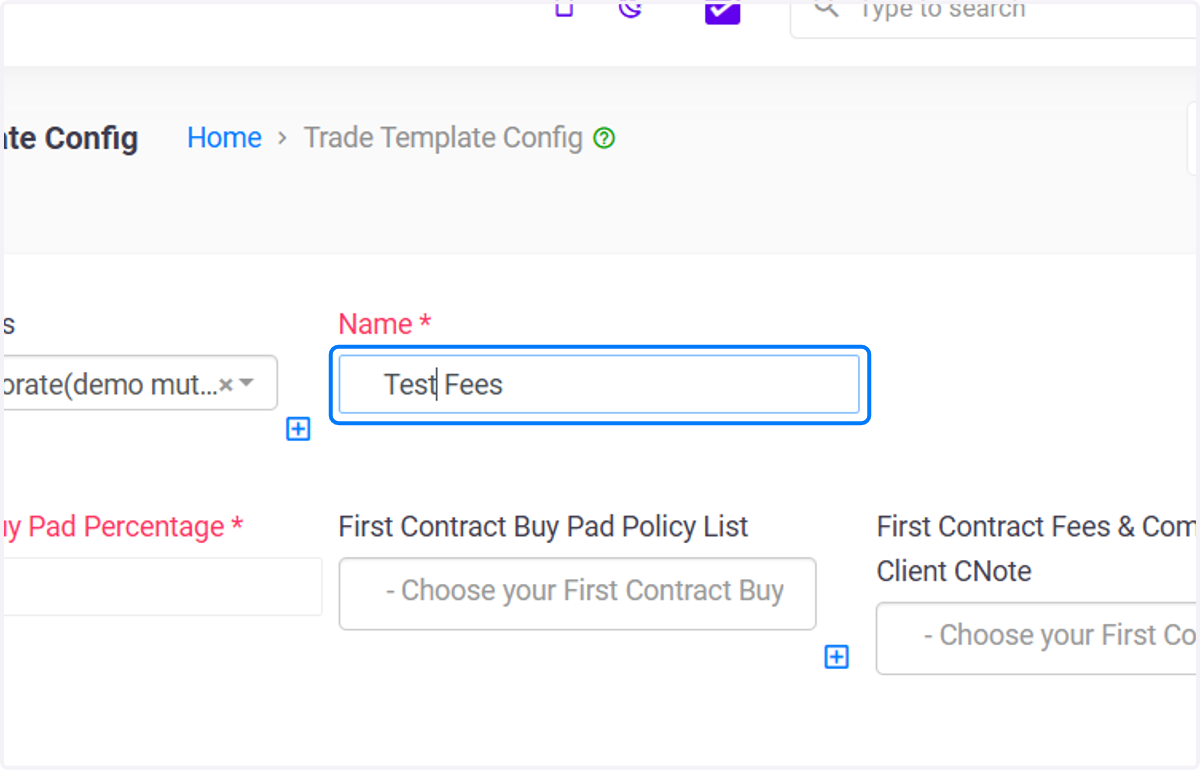
6. Edit Trade Config Name
The Edit Trade Config Name feature allows users to update the name of a specific trade configuration template.
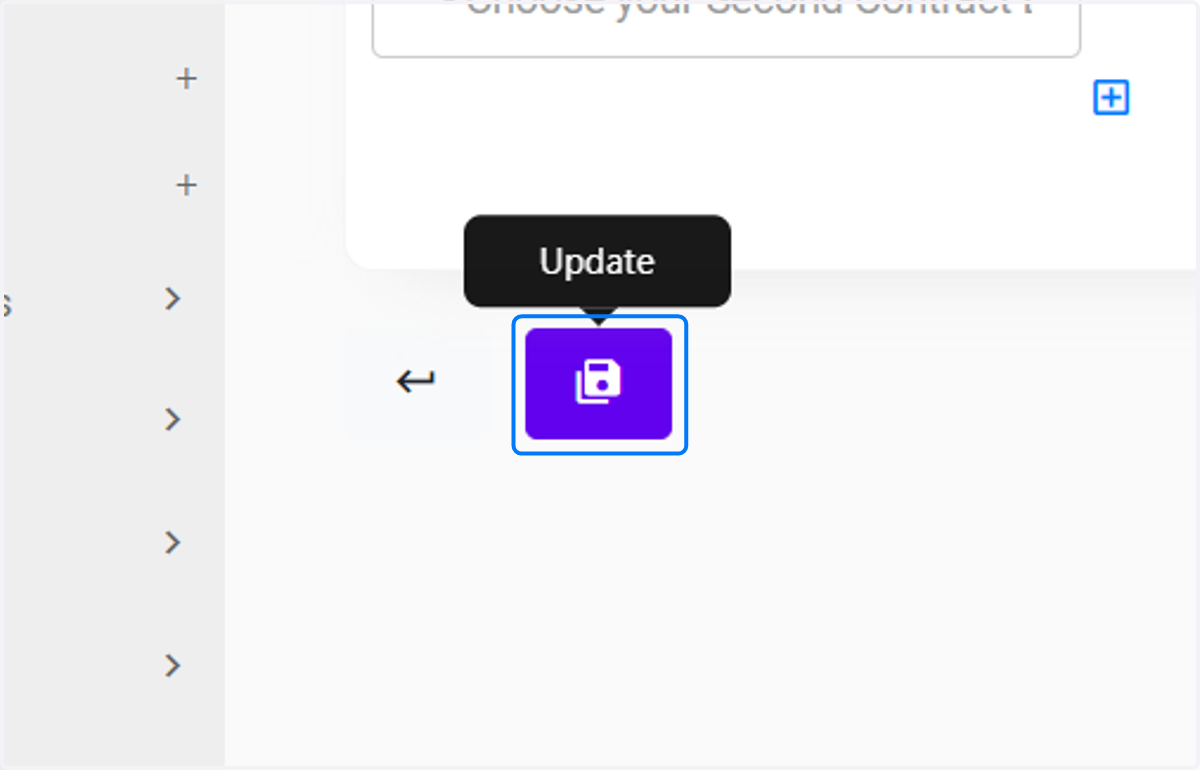
7. Click on Update
The Click on Update action is used to save and apply changes made to a form or configuration. It confirms that all entered or edited information is finalized and updates the system's records accordingly.
8. Click on Trade Template Configuration updated
A confirmation message will appear, notifying you that the changes have been successfully saved. The updated name will now be reflected in the Trade Template Configuration Index Page.