C5 Demo Securities & Asset Limited Login Instructions for Prop Trading
Login | C5 : Demo Securities & Asset Limited
Afia opens her web browser and types in the following URL: https://demo.soupmarkets.com/. This action grants her access to the Soup Markets login page, where she can sign in to her account.
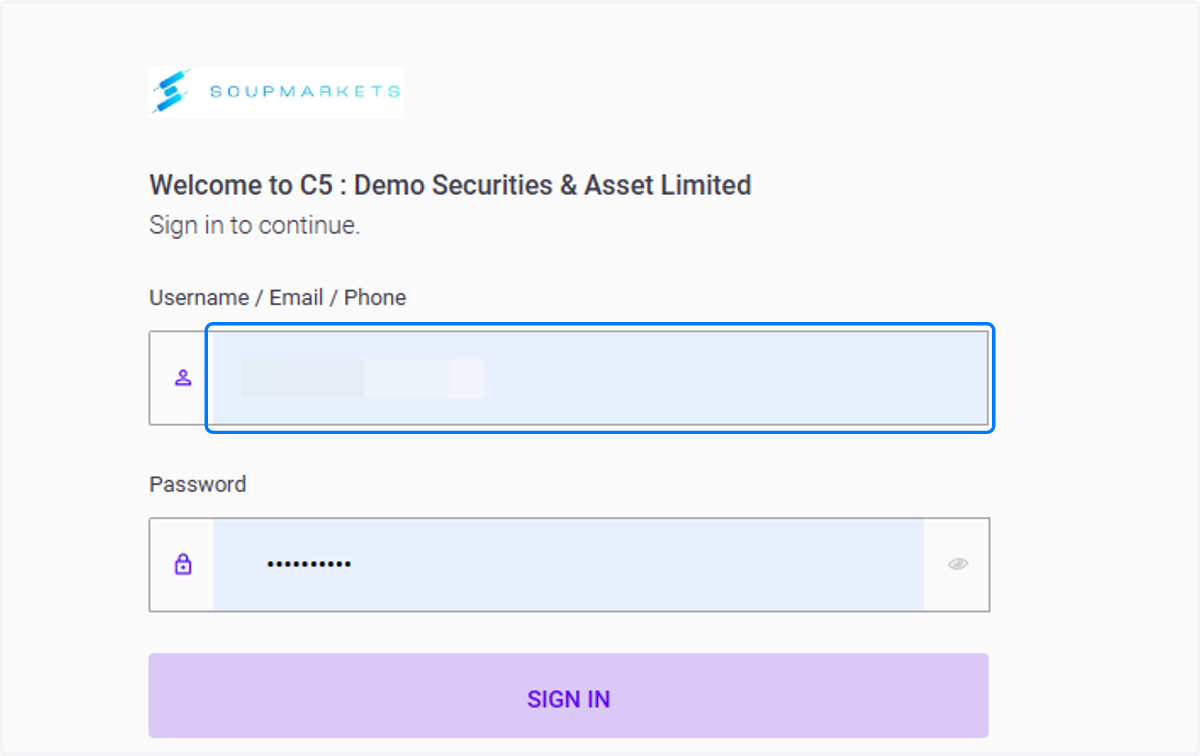
1. Type username
Afia, after accessing the main application's login page, she enters her username into the designated field. This step ensures that she is properly identified and authenticated within the system.
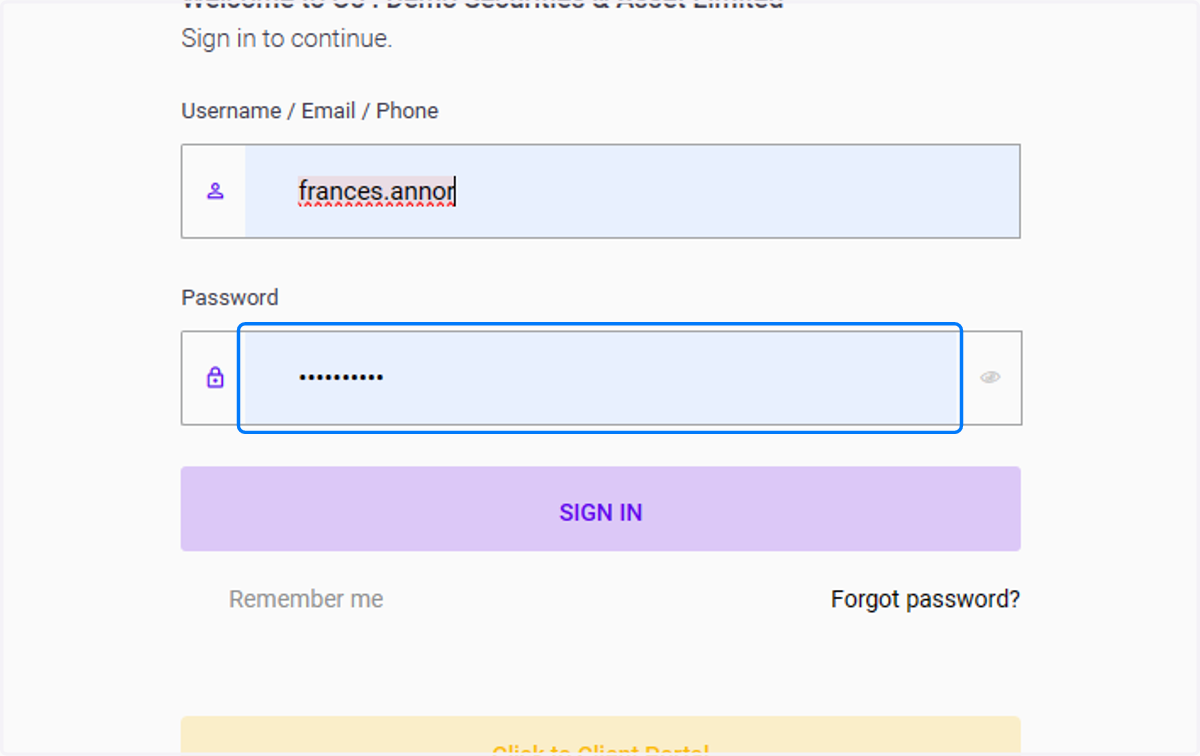
2. Type password
Fab proceeds by typing her password into the password field. This step is crucial for verifying her identity and granting access to her account's features and functionalities.
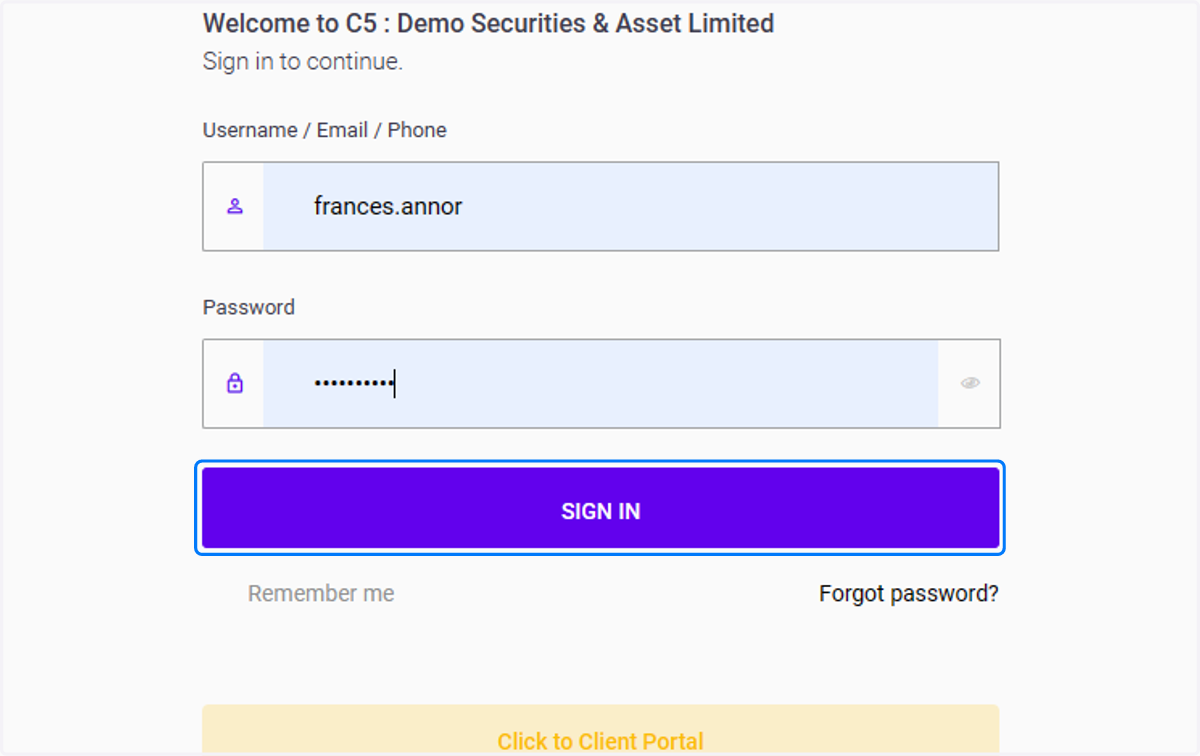
3. Click on SIGN IN
Afia clicks on the "Sign In" button to proceed with logging into her account. This action submits her username and password for authentication, allowing her to access the main application's dashboard and features.
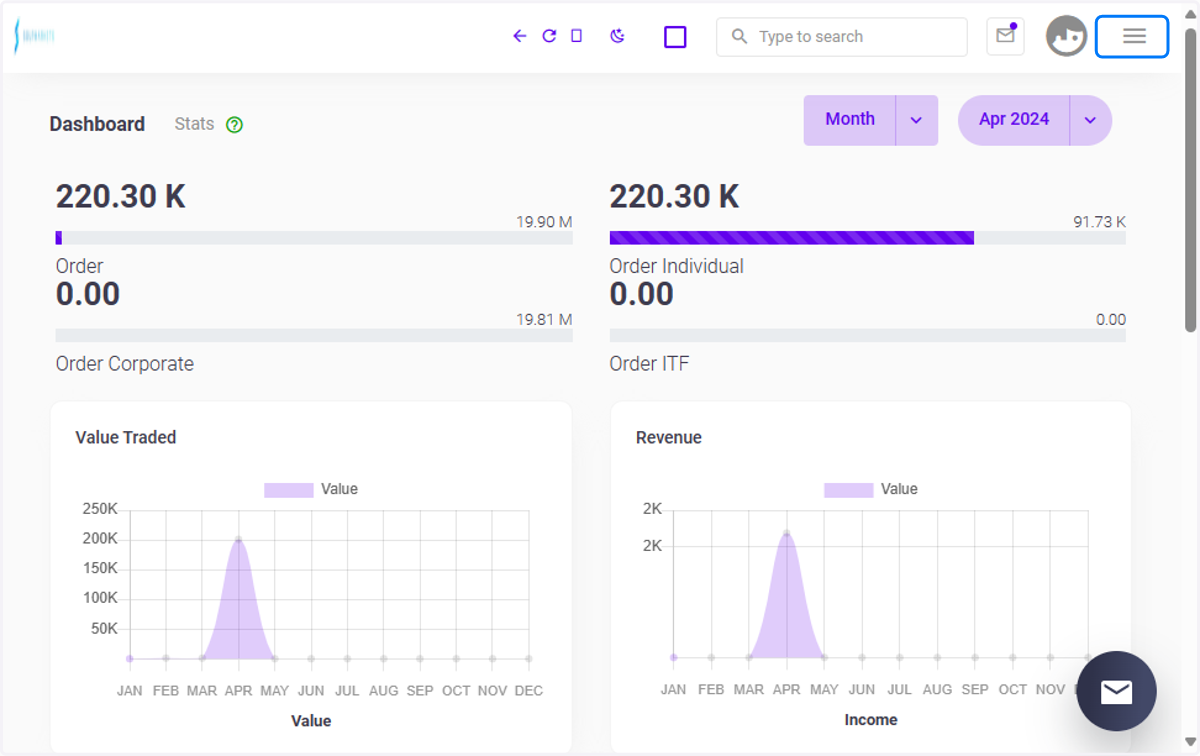
4. Menu
Afia clicks the three-barred button at the top right corner to view the menu of modules.
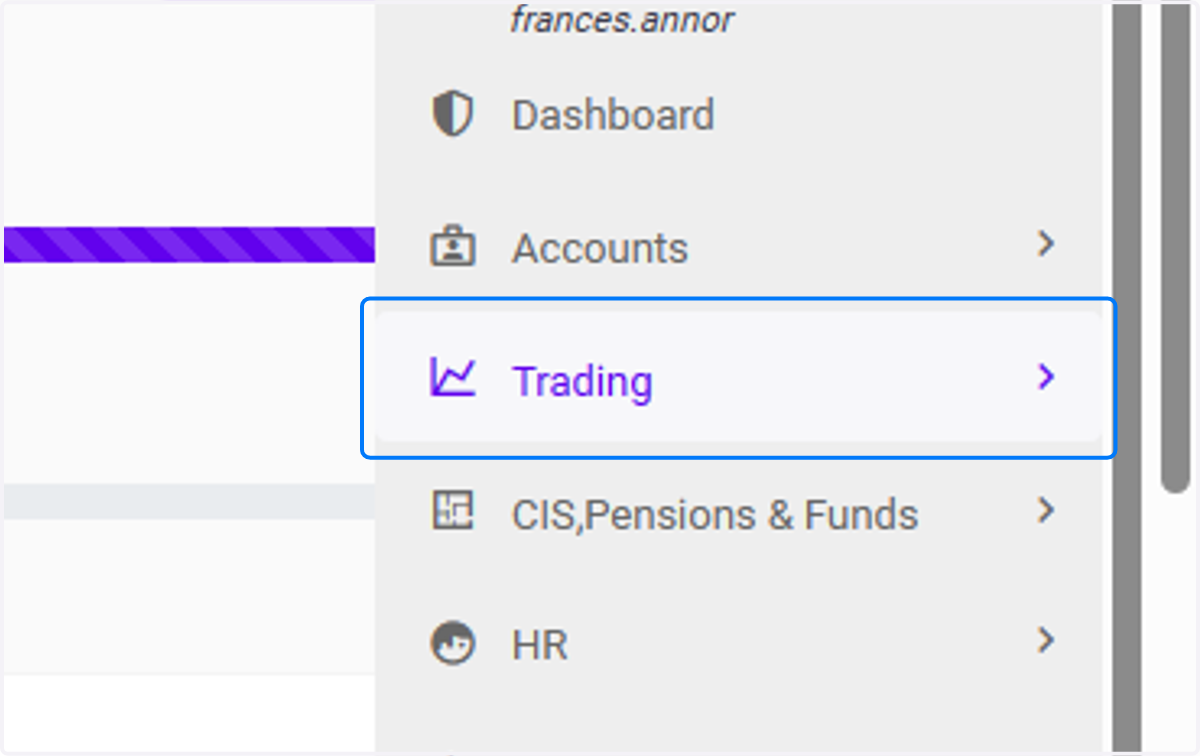
5. Click on Trade Template under Trading
Afia continues by clicking on the "Trade Template" option within the Trading section. This action takes her to the Trade Template page, where she can create, modify, or select predefined trade templates for her trading activities.
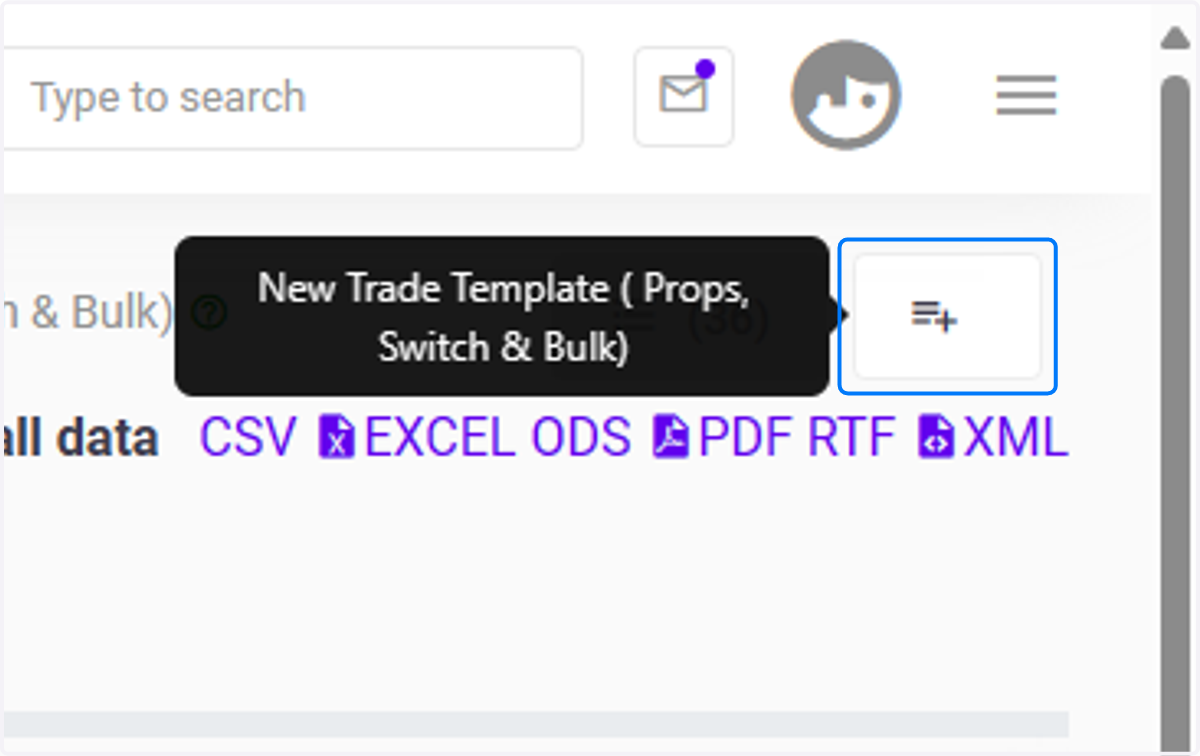
6. Create Trade Template
Afia proceeds by clicking on the plus button located at the top right corner of the Trade Template page. This action initiates the trade creation process, allowing her to define the parameters and details of the trade she wishes to execute.
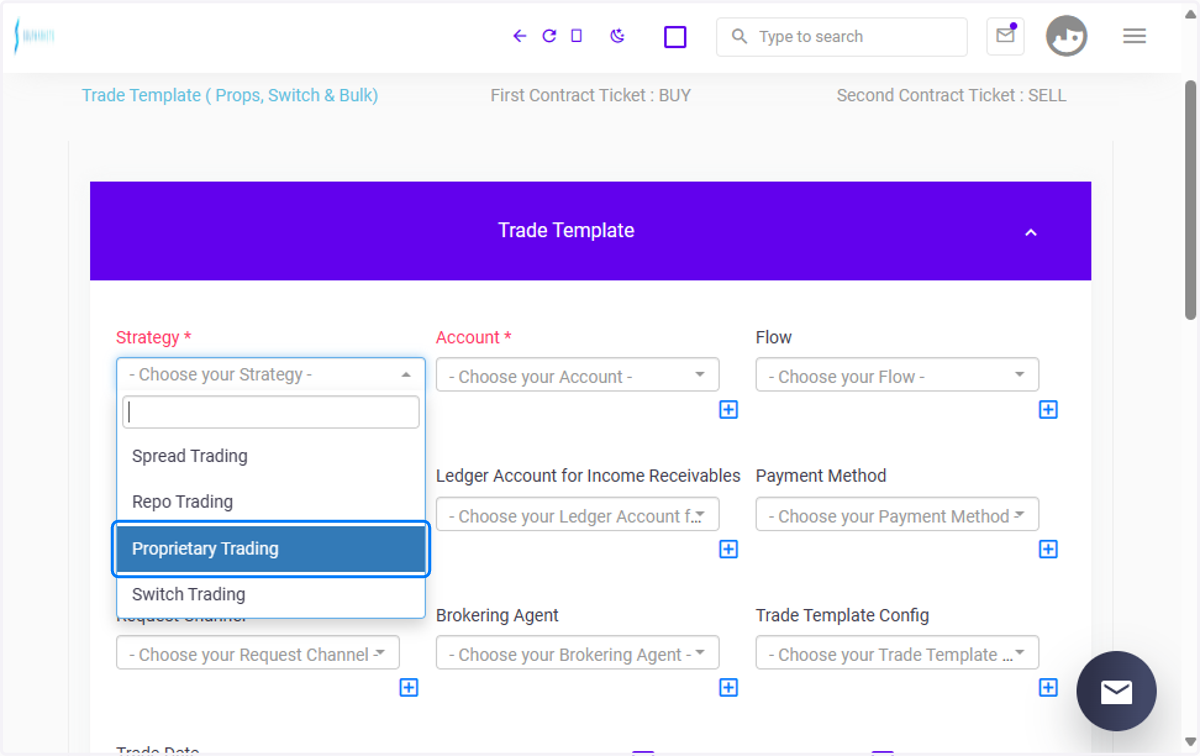
7. Choose your Strategy
At this stage, Afia selects her preferred trading strategy. Here, she chooses the type of trade she wants to perform, such as a buy, sell, or hold strategy. This step defines the approach she will take in executing her trade within the market.
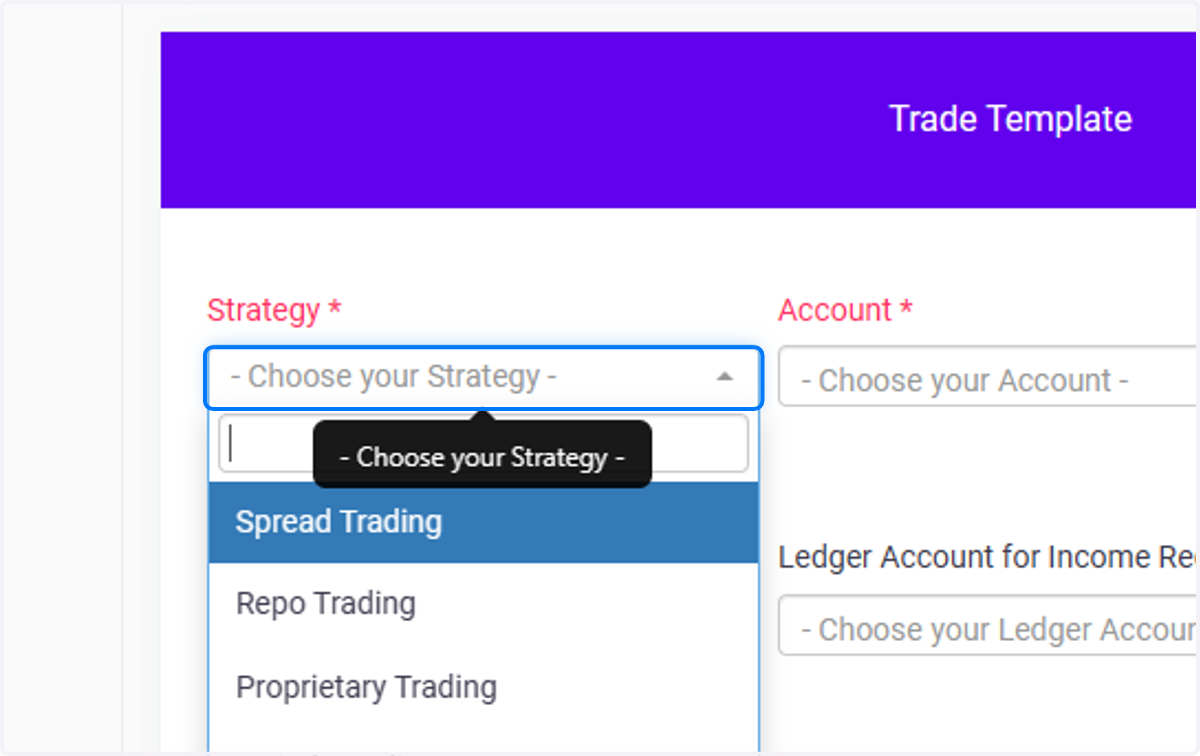
8. Click on Proprietary Trading
Prop trading involves traders within the firm making investment decisions and executing trades using the firm's money to generate profits.
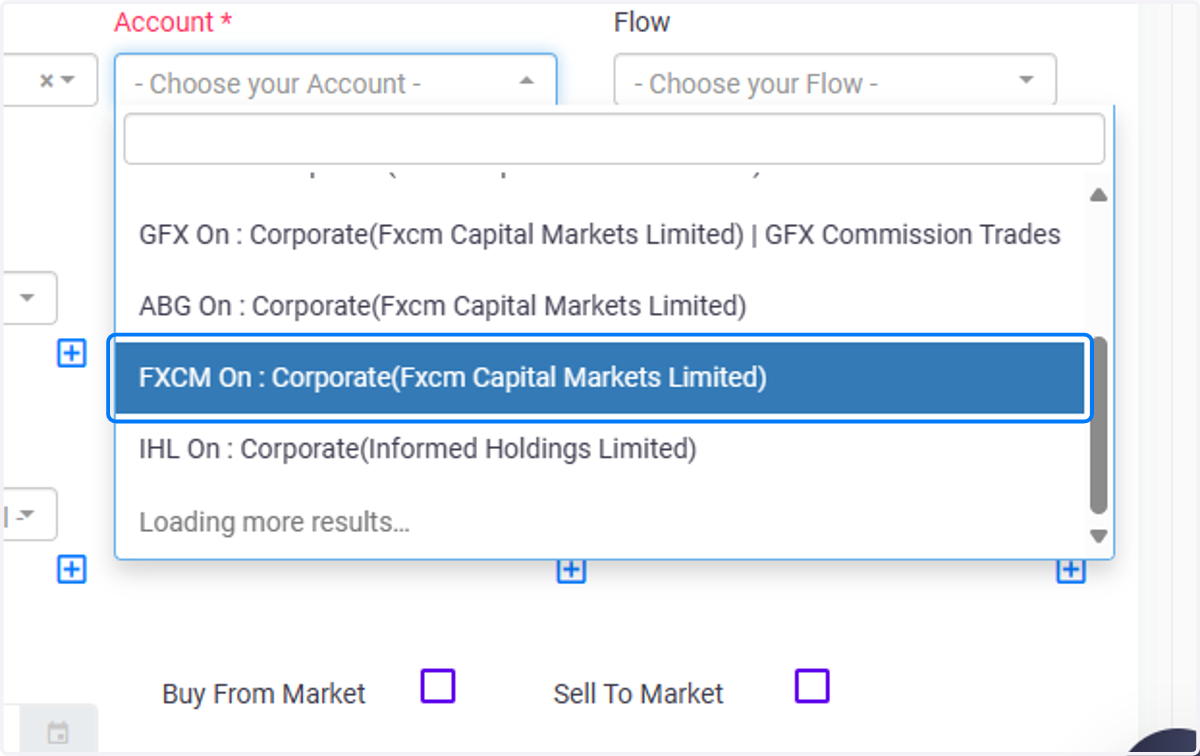
9. Account
Afia now selects the account on which she intends to perform the trade. This step is crucial as it specifies the specific account from which funds will be utilized for the trade execution and where any resulting assets or proceeds will be allocated.
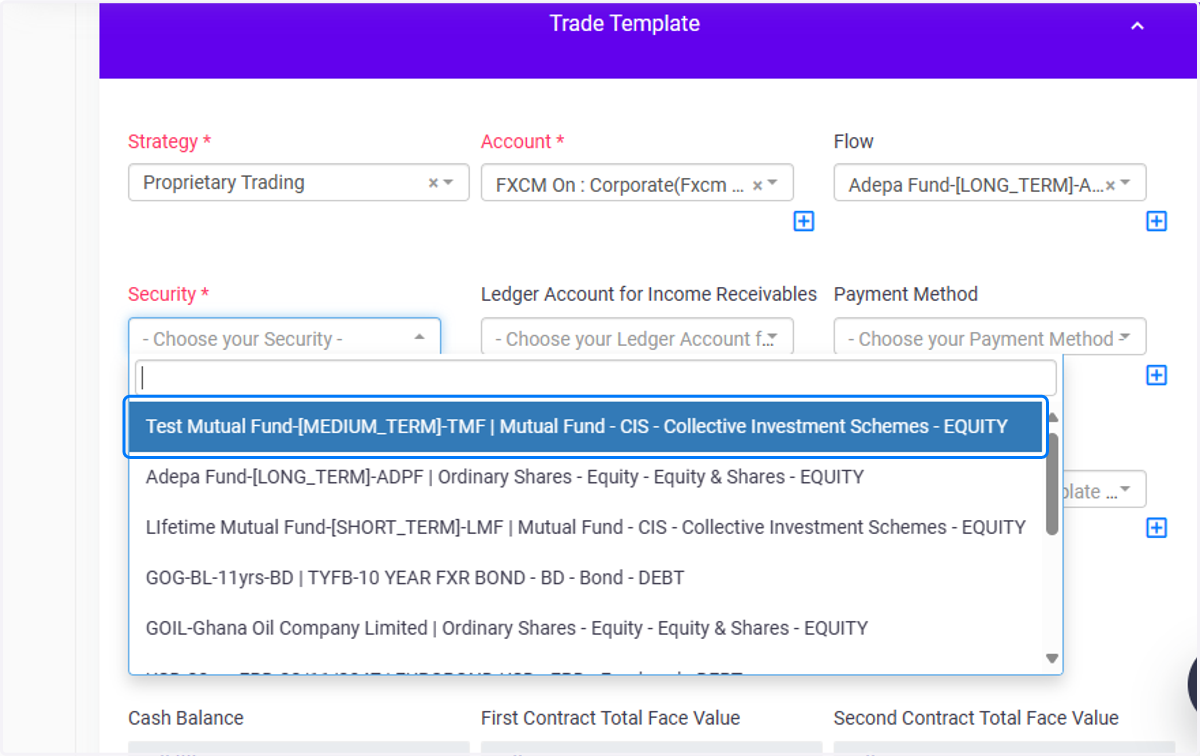
10. Security
Next, Afia selects the security involved in performing the trade. Choosing the security ensures that the trade is executed with the intended asset in the market. Here, a bond was chosen.
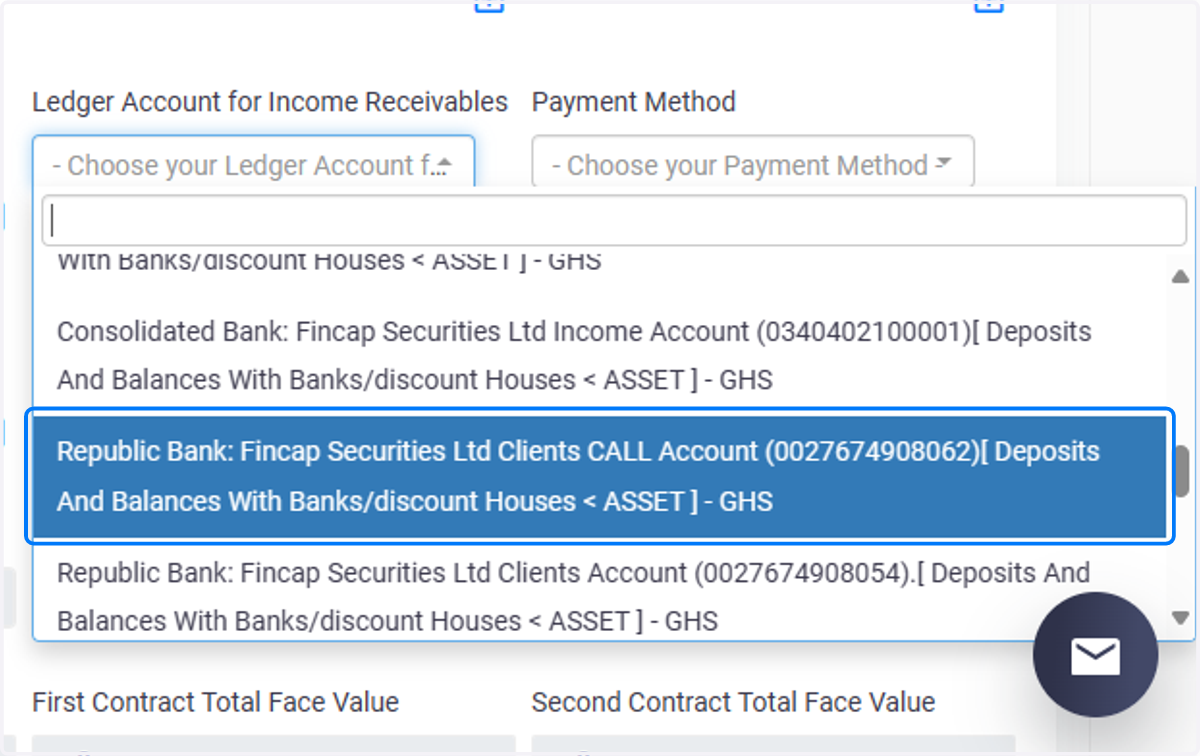
11. Choose your Ledger Account for Income Receivables
Now, Afia selects the Ledger Account for Income Receivables. This specific account is designated for receiving the funds resulting from the trade. Choosing the appropriate ledger account ensures that the income generated from the trade is accurately recorded and allocated within the accounting system.
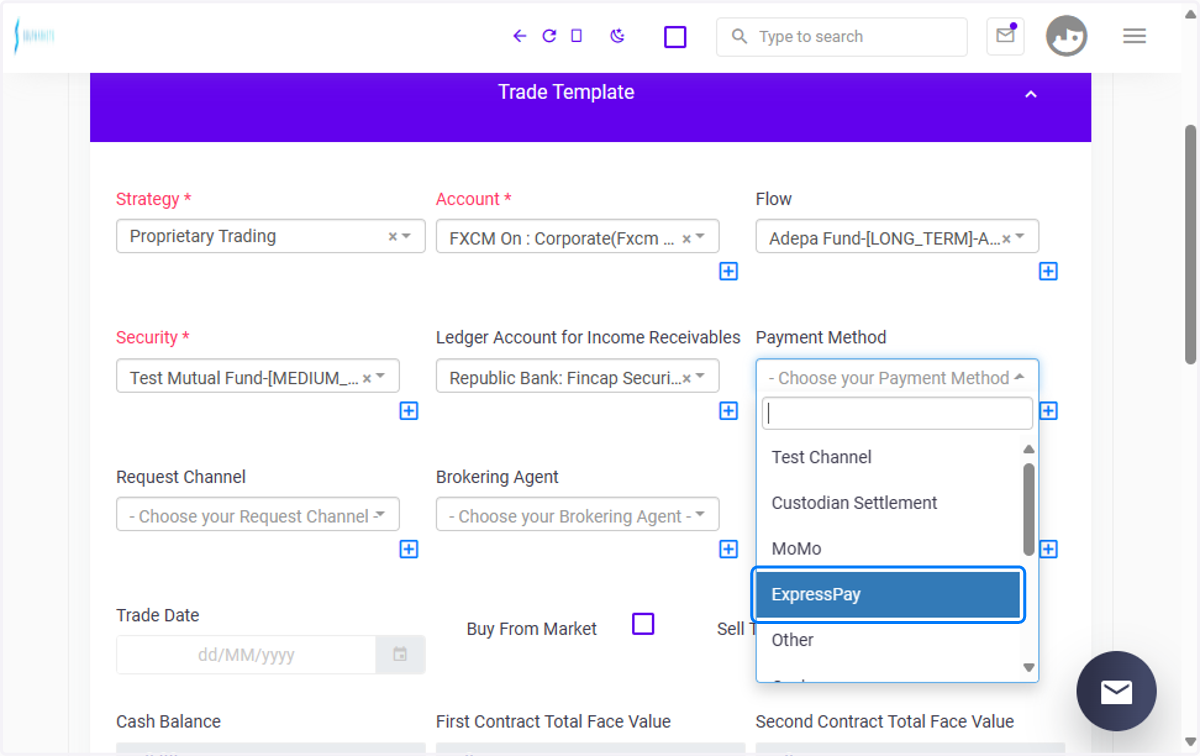
12. Payment Method
Choose your payment method. Afia proceeds by selecting her preferred Payment Method. This step determines how she will fund the trade or receive proceeds from it. Whether it's through bank transfer or another payment method, choosing the appropriate option ensures a smooth transaction process. Here, MoMo was chosen.ent Method
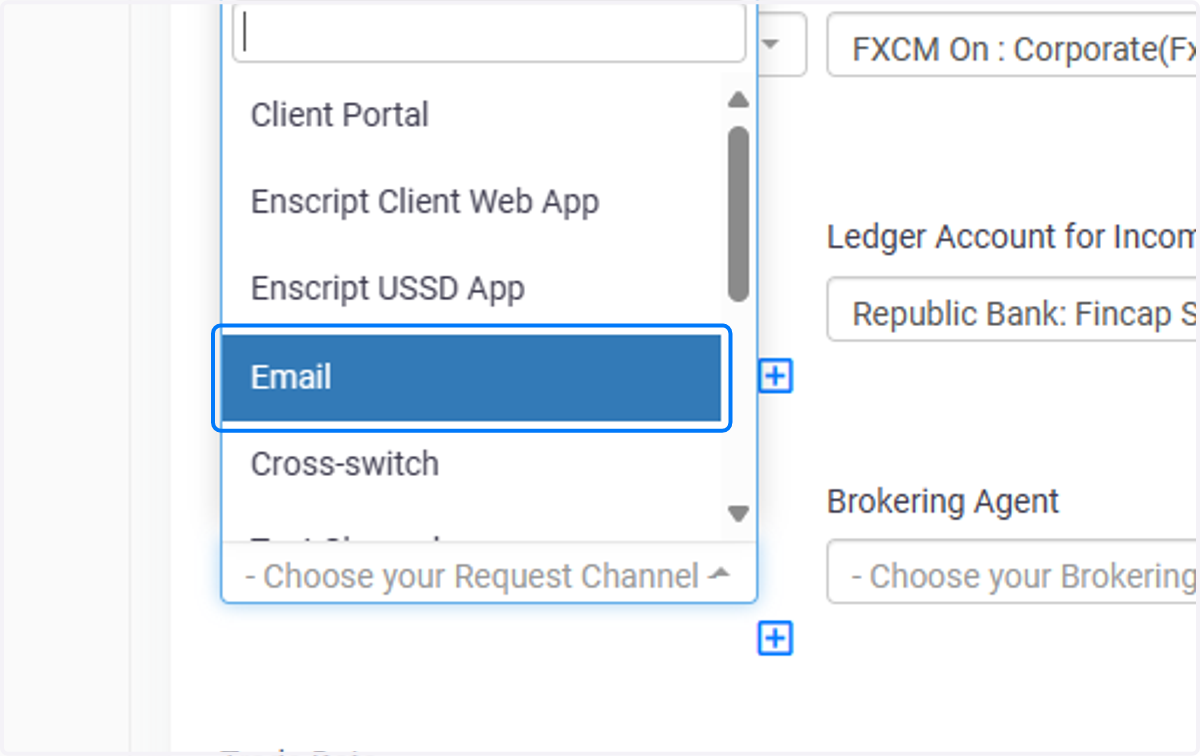
13. Request channel
Afia now selects her Request Channel. This is the channel through which the trade was requested. Whether it's through an online portal, mobile app, or direct communication with a broker. Here, USSD was chosen.
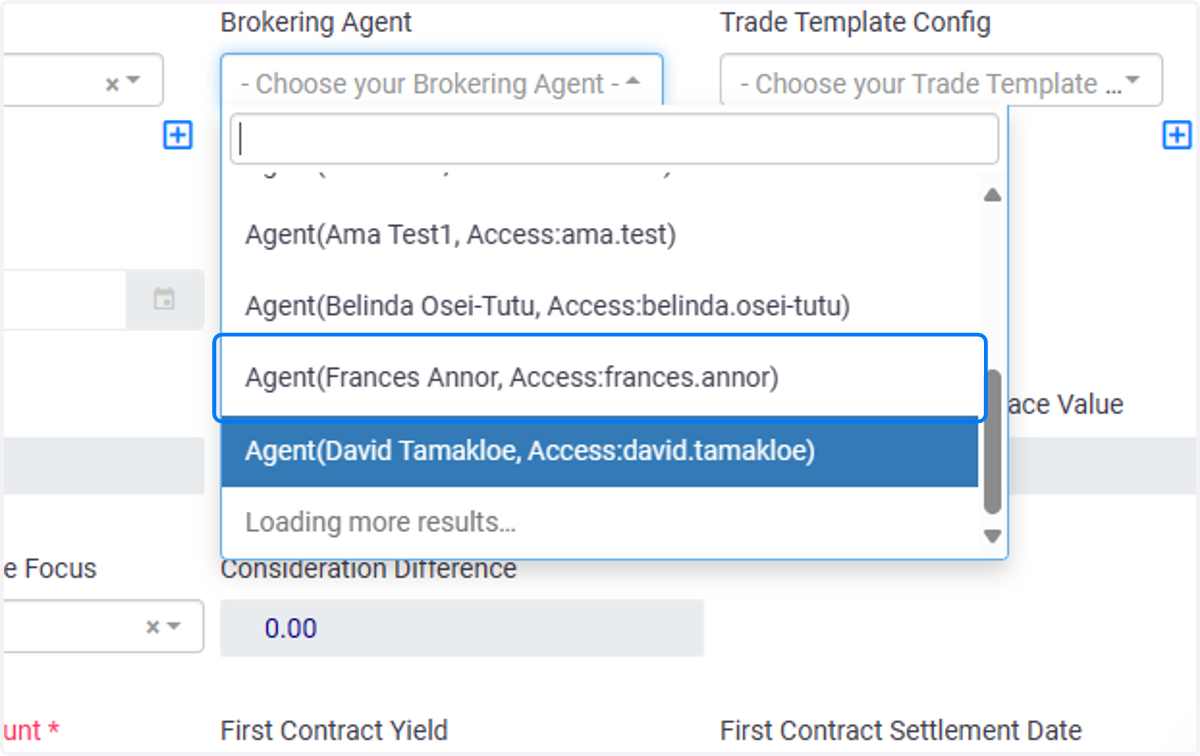
14. Choose your Brokering Agent
Afia proceeds by selecting her Brokering Agent. This is the agent or brokerage firm responsible for executing the trade on her behalf. Choosing the appropriate brokering agent ensures that the trade is executed efficiently and in accordance with her instructions and preferences.
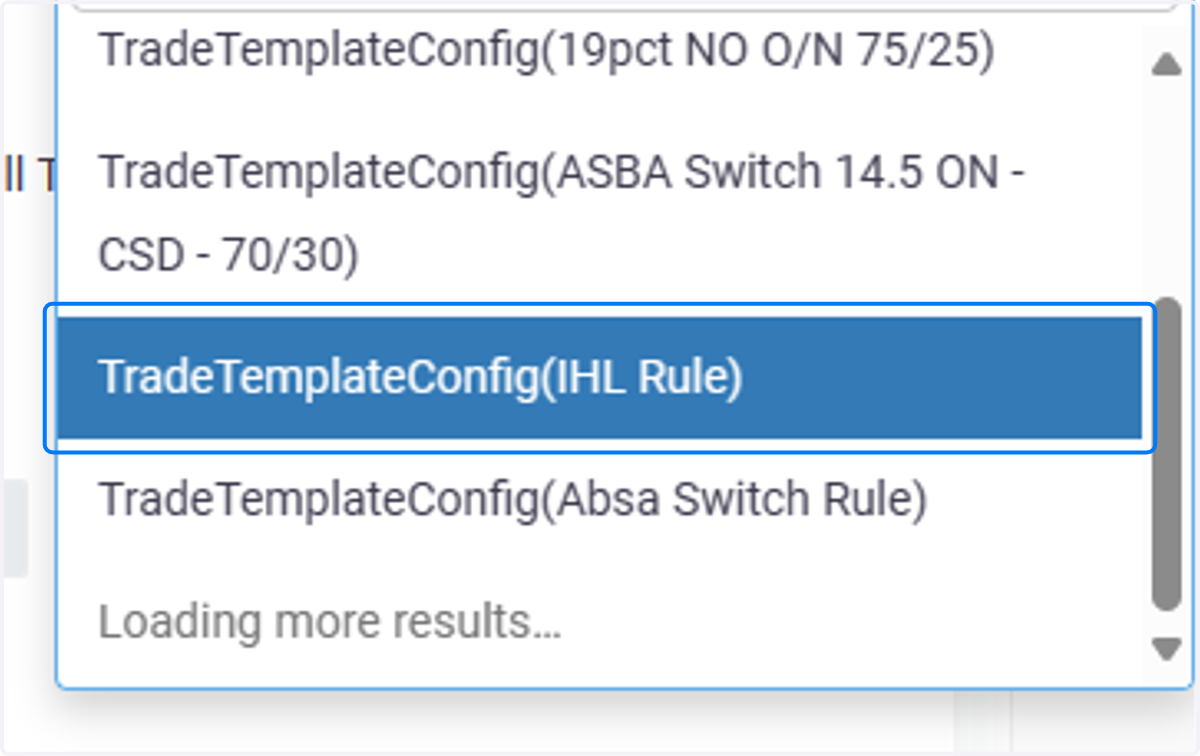
15. Choose your Trade Template Config
Afia continues by selecting her Trade Template Configuration. In this field, she chooses the specific configuration where the fees and agreements between the parties involved in the trade have been established. This ensures that all relevant terms and conditions are applied correctly during the trade execution process.
16. First Contract Ticket count
This is the number of parties involved in the buy side of the trade process. Afia inputs the number of tickets involved...
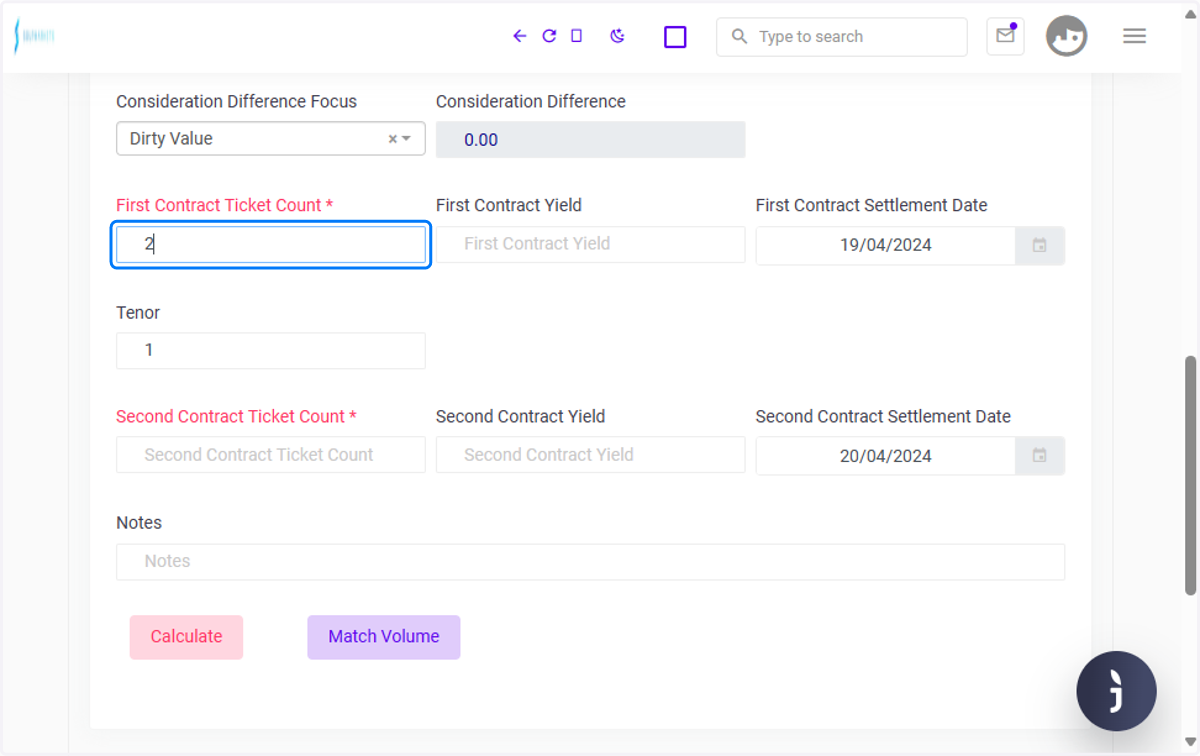
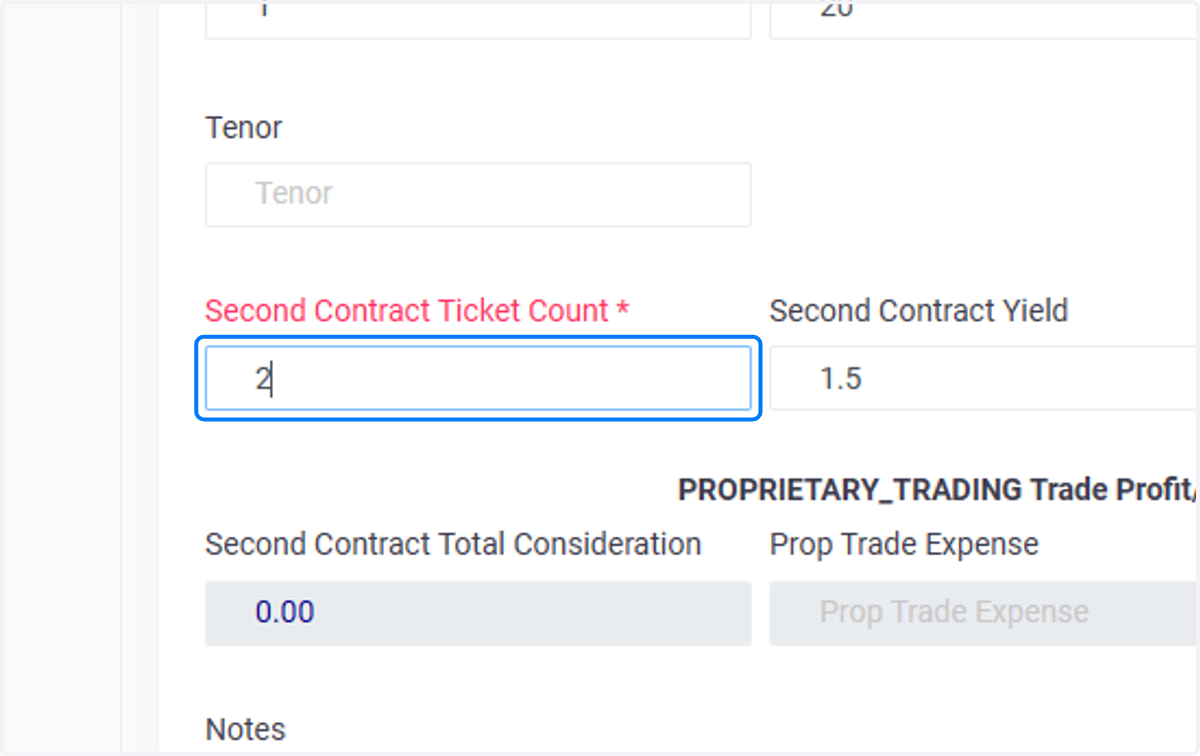
17. Click on Second Contract Ticket Count
This is the number of parties involved in the sell side of the trade process. Afia inputs the number of tickets involved...
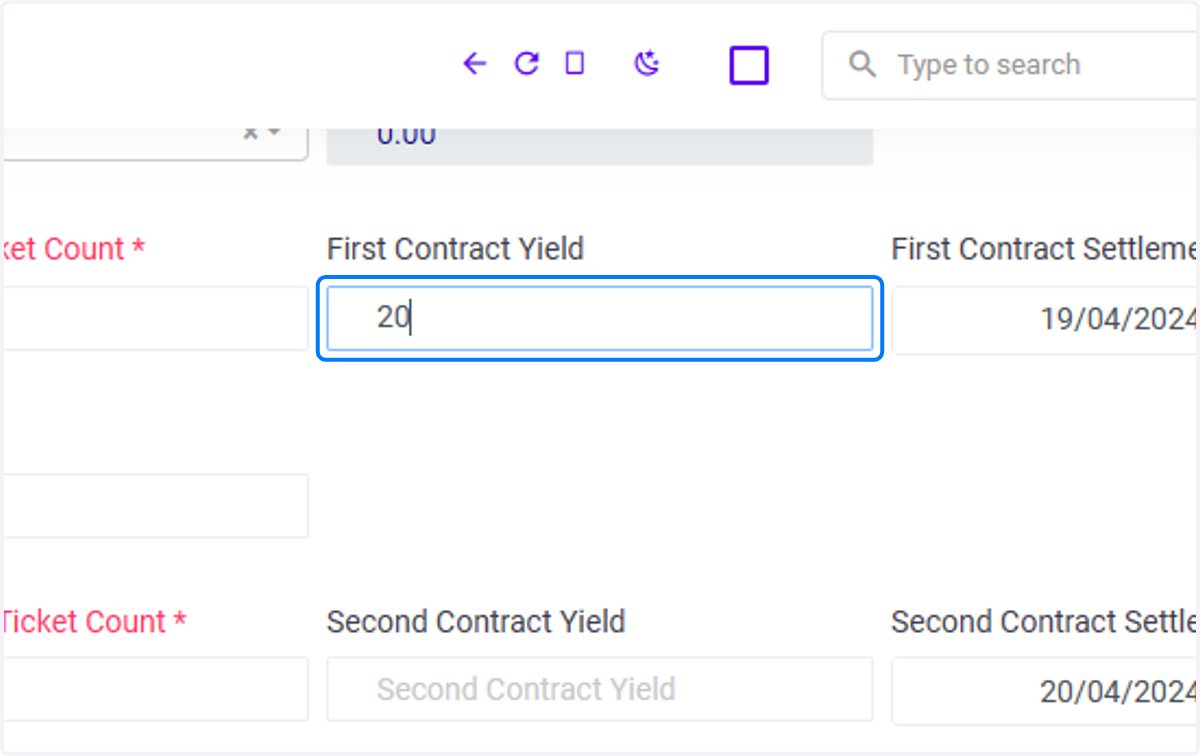
18. First contract Yield
After entering the number of parties involved in the buy side as the first contract ticket, Afia proceeds by choosing the first contract yield. This is the specified yield or return expected from the contract, which may vary depending on market conditions and the terms of the trade agreement.
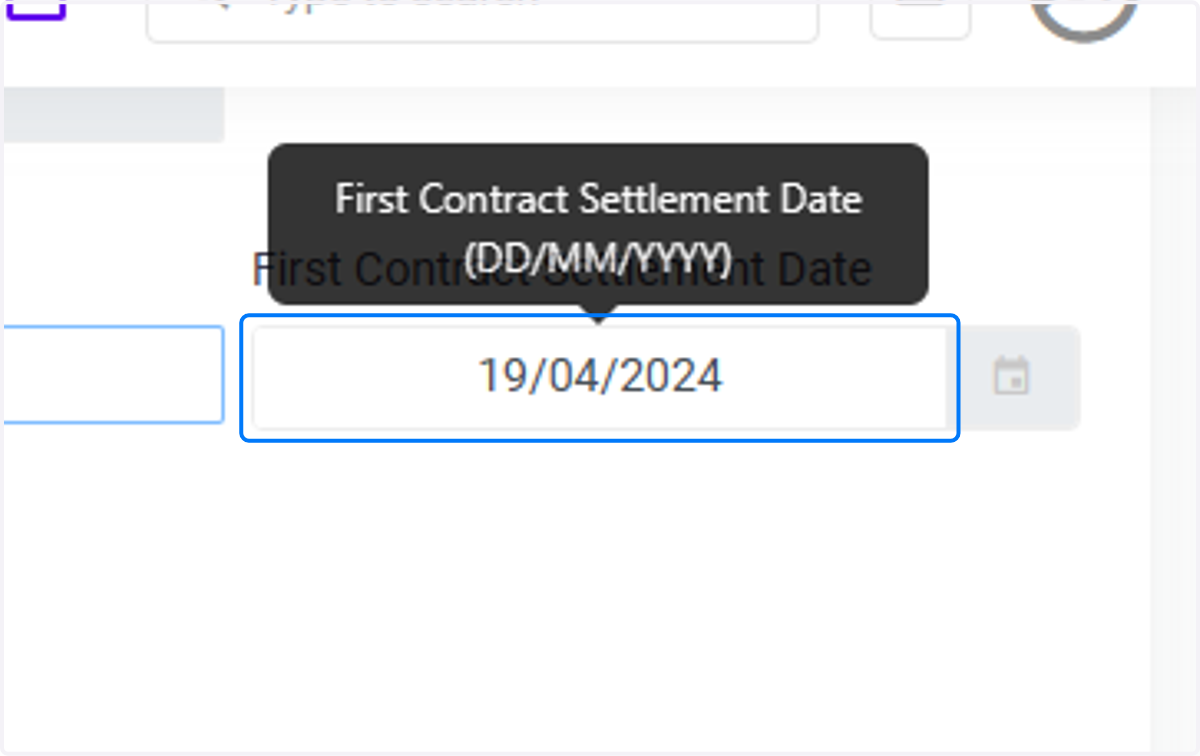
19. First Contract Settlement Date
Afia inputs the settlement date for the first contract count
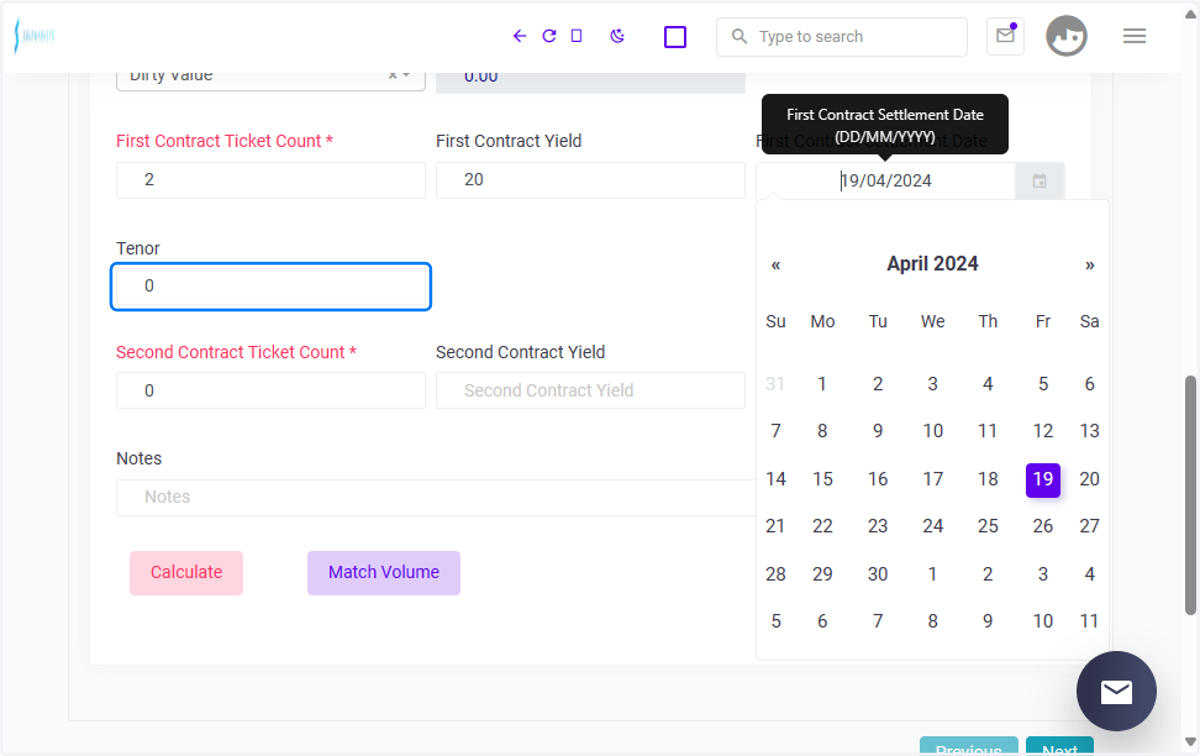
20. Tenor
Afia inputs her desired tenor, which in this case is 2. The tenor refers to the length of time until a financial contract or agreement expires or matures. By selecting a tenor of 2, Afia indicates that the trade agreement will remain in effect for a period of 2 units of time, whether it be days, weeks, months, or years, depending on the specific context of the trade.
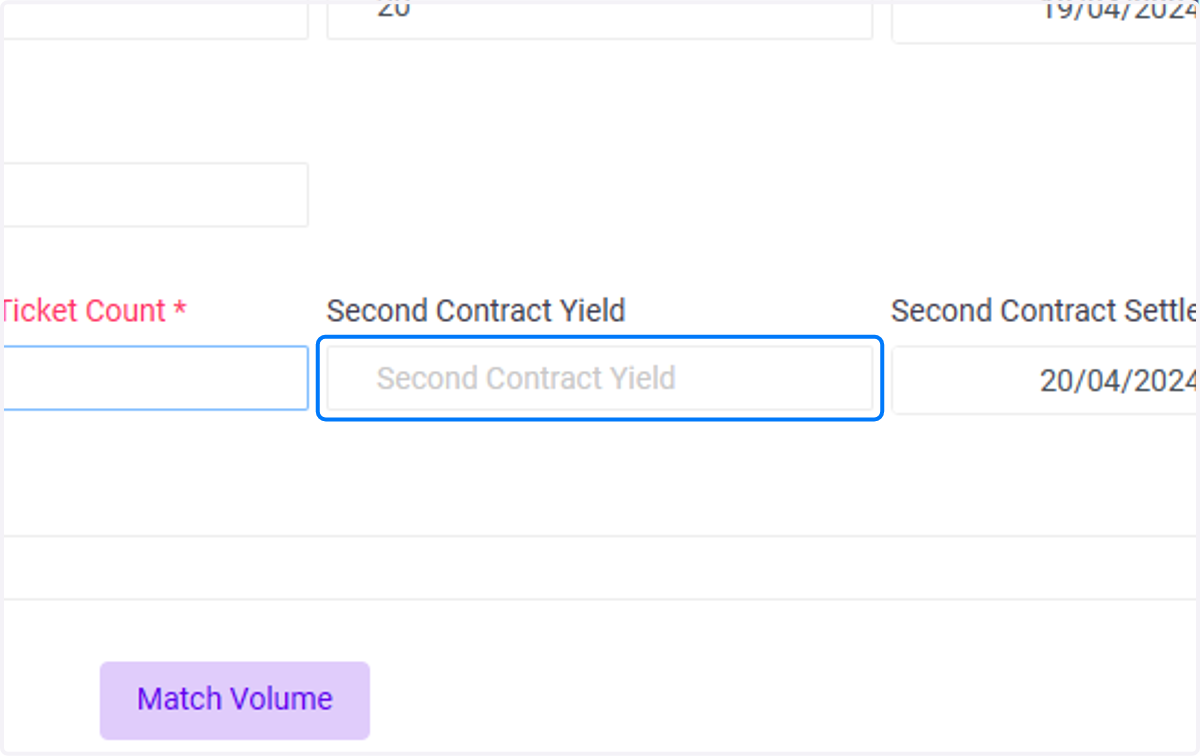
21. Second Contract Yield
Following the entry of the number of parties involved in the sell side as the second contract ticket, Afia proceeds by choosing the second contract yield. This represents the specified yield or return expected from the contract on the sell side of the trade.
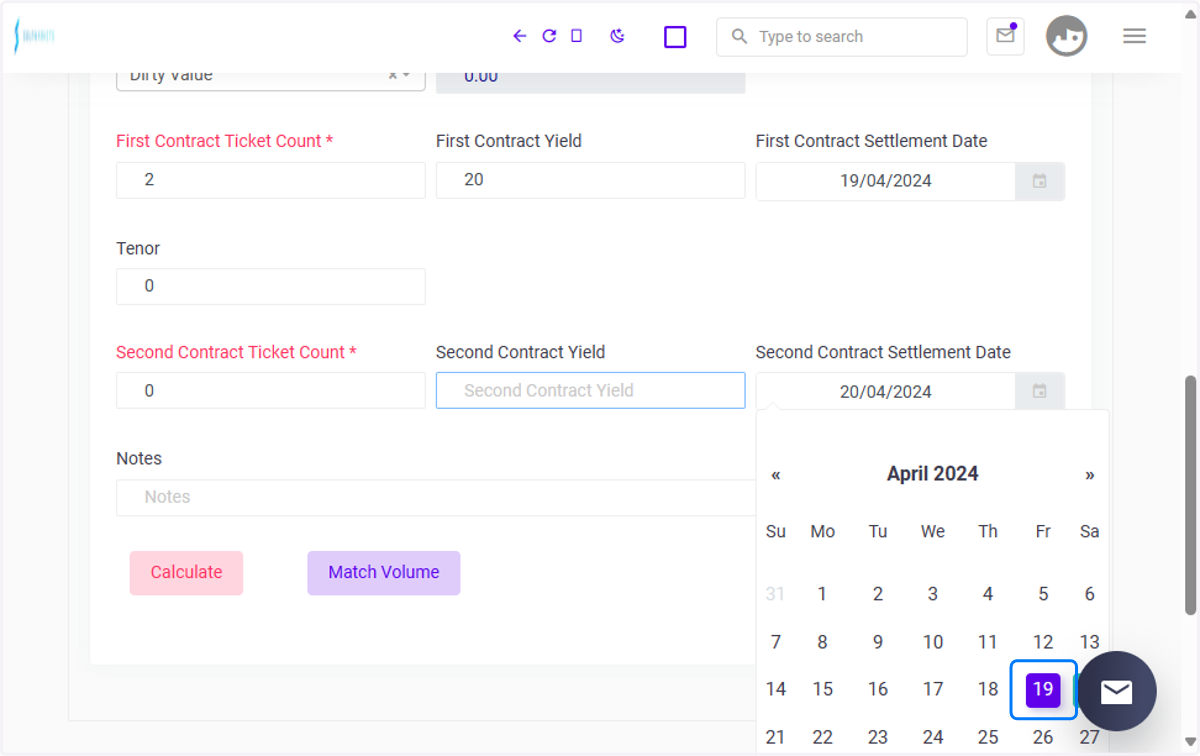
22. Second Contract Settlement Date
Input the settlement date for the second contract count
23. Click on Next
Afia clicks the "Next" button to proceed to the next page of the trade process. This action allows her to review the details entered thus far and proceed with the final steps of completing the trade.
24. First Contract Ticket page
The number of tickets generated here is a result of the number entered on the previous page. (First and Second Contract Ticket Count)
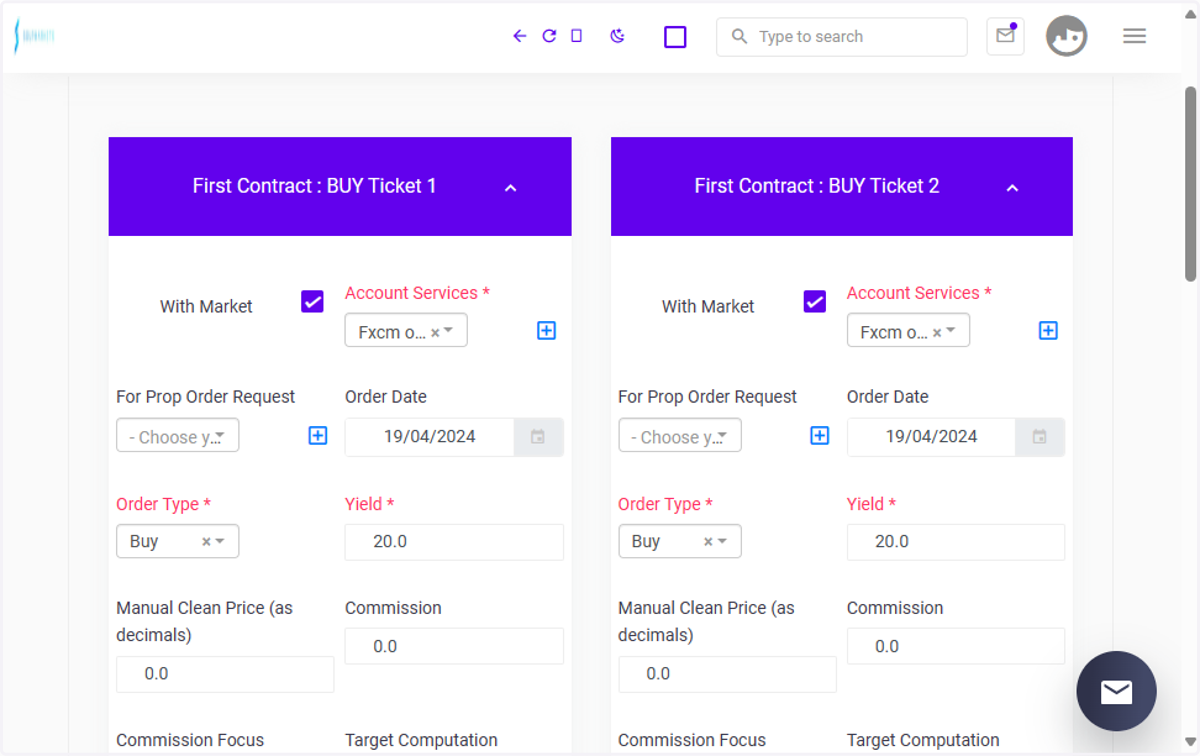
25. Choose your Account Services
Afia chooses the Account (party) involved in the first contract ticket
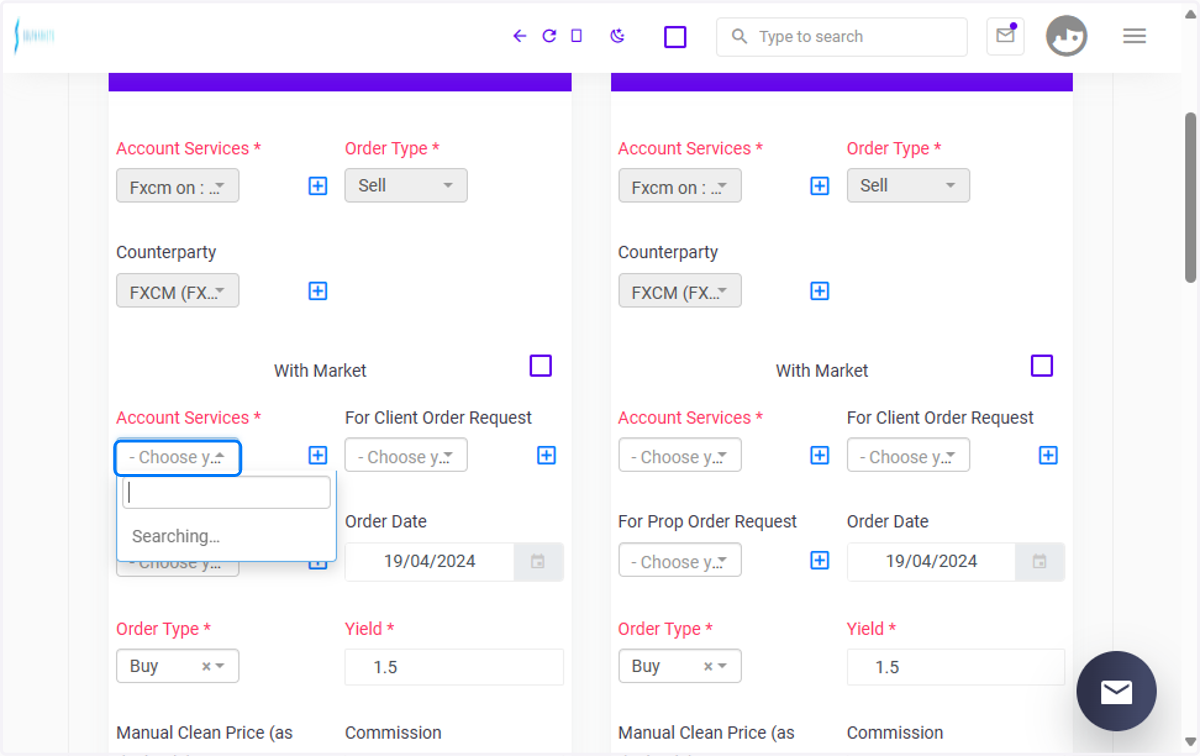
26. Volume
The volume is often displayed as a numerical value, representing the total number of shares or contracts traded during the trade. Afia inputs her volume. This is for the but ticket 1. Note that, you will be entering values in other tickets as done for this ticket.
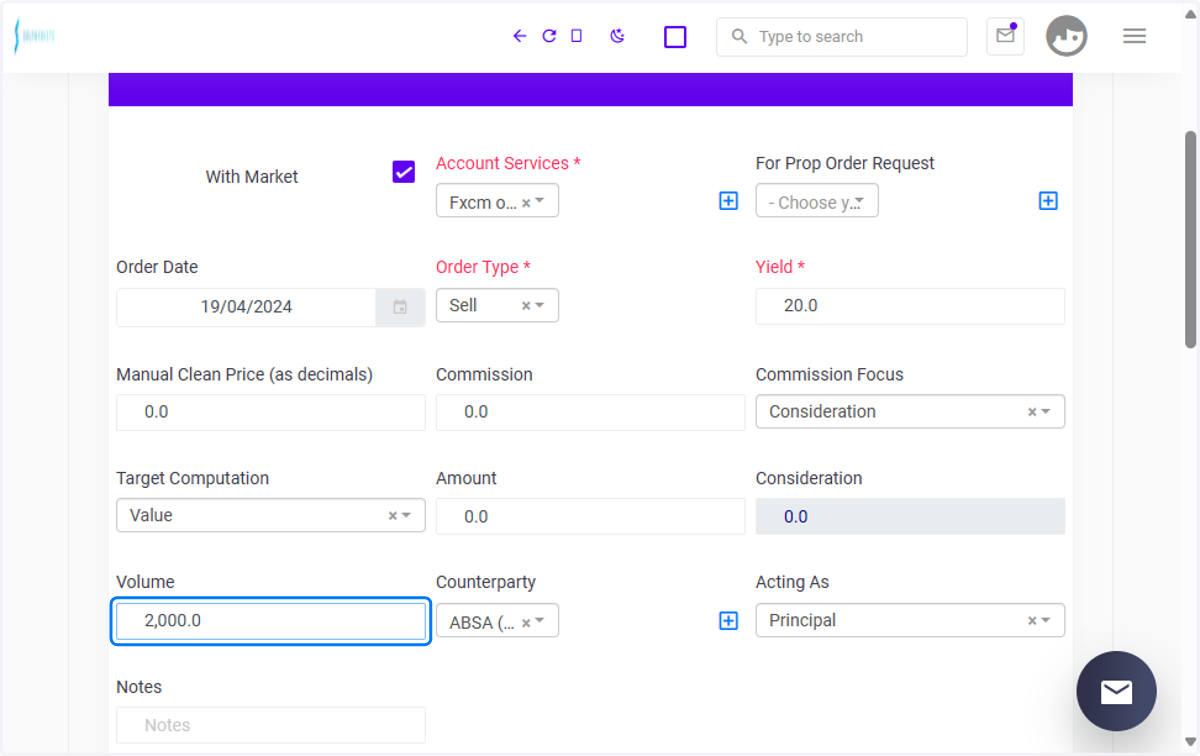
27. Counterparty
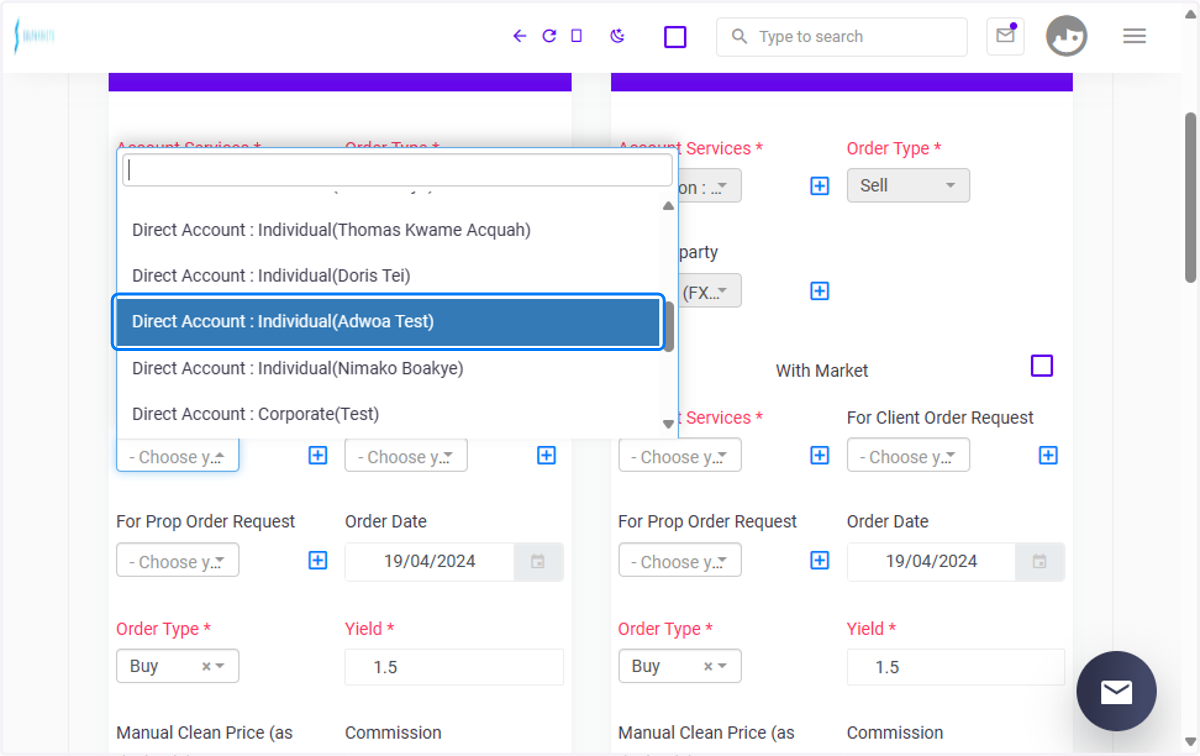
Afia inputs her counterparty for the first contract ticket. This ensures that the trade is executed with the intended party on the buying side of the transaction. Choosing the correct counterparty is crucial for accurate trade execution and recording.
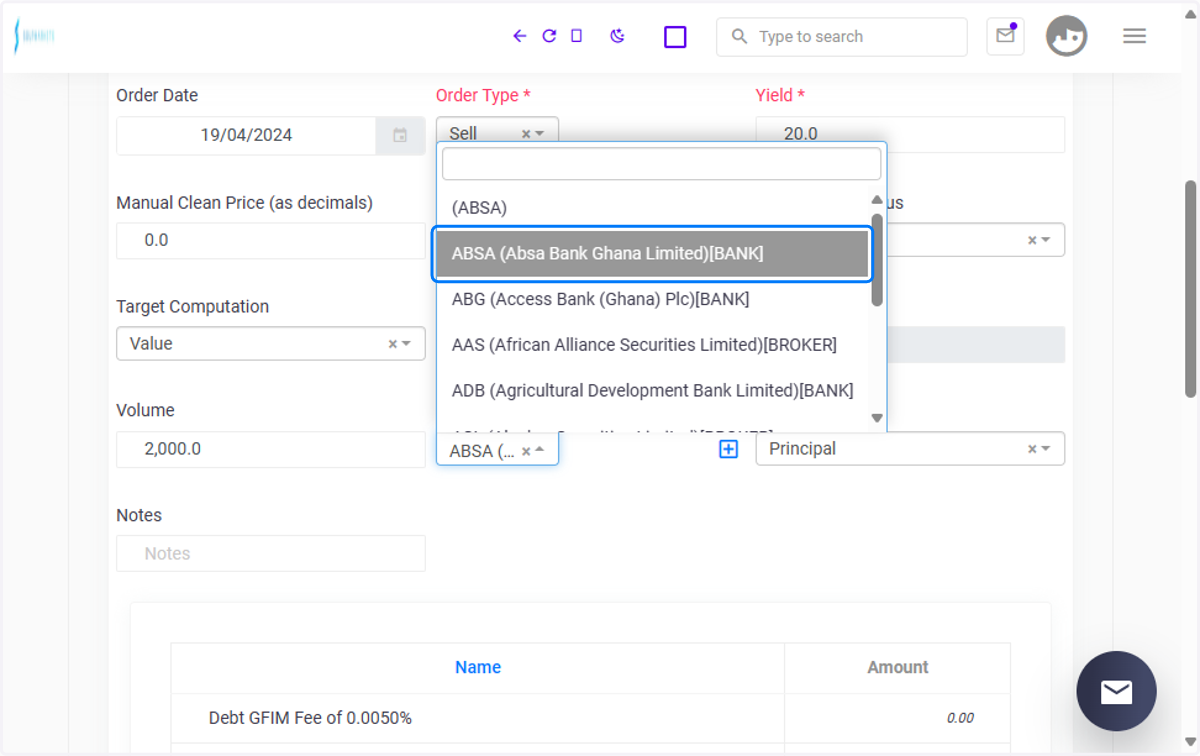
28. Account
Afia selects the account (party) involved in the first contract ticket from the available options. This ensures that the trade is associated with the correct account, facilitating accurate record-keeping and accounting for the transaction.
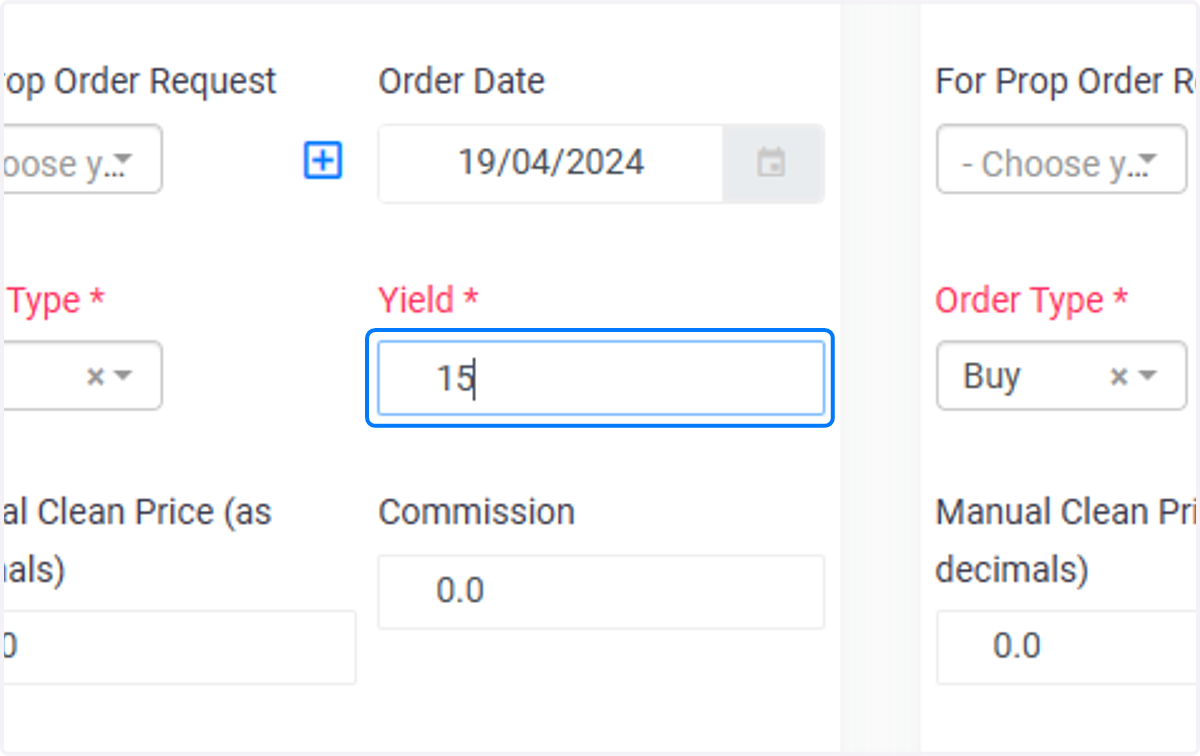
29. Yield
Afia inputs the yield for the first contract ticket into the designated field. This represents the specified yield or returns expected from the first contract, which is crucial for determining the terms and profitability of the trade on the buying side.
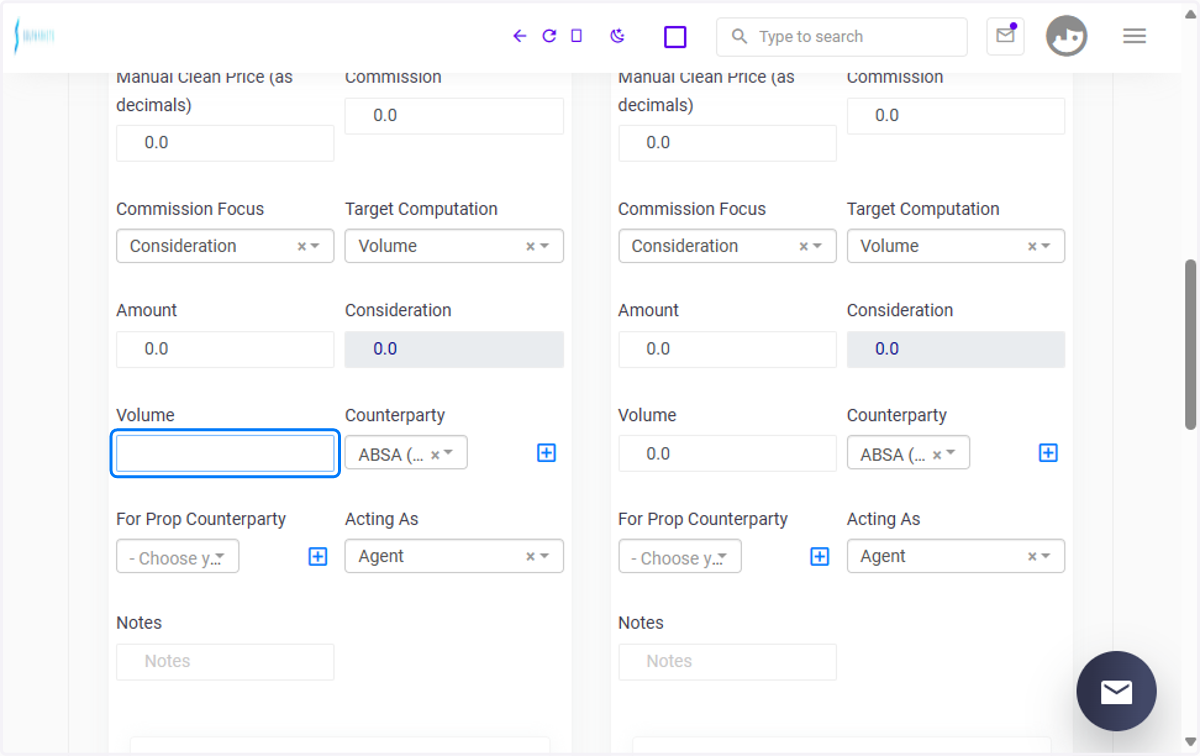
30. Volume
Afia inputs the volume into the designated field. The volume represents the total number of shares or contracts traded during the trade. It is a numerical value that determines the size of the trade and is crucial for accurately recording the transaction.
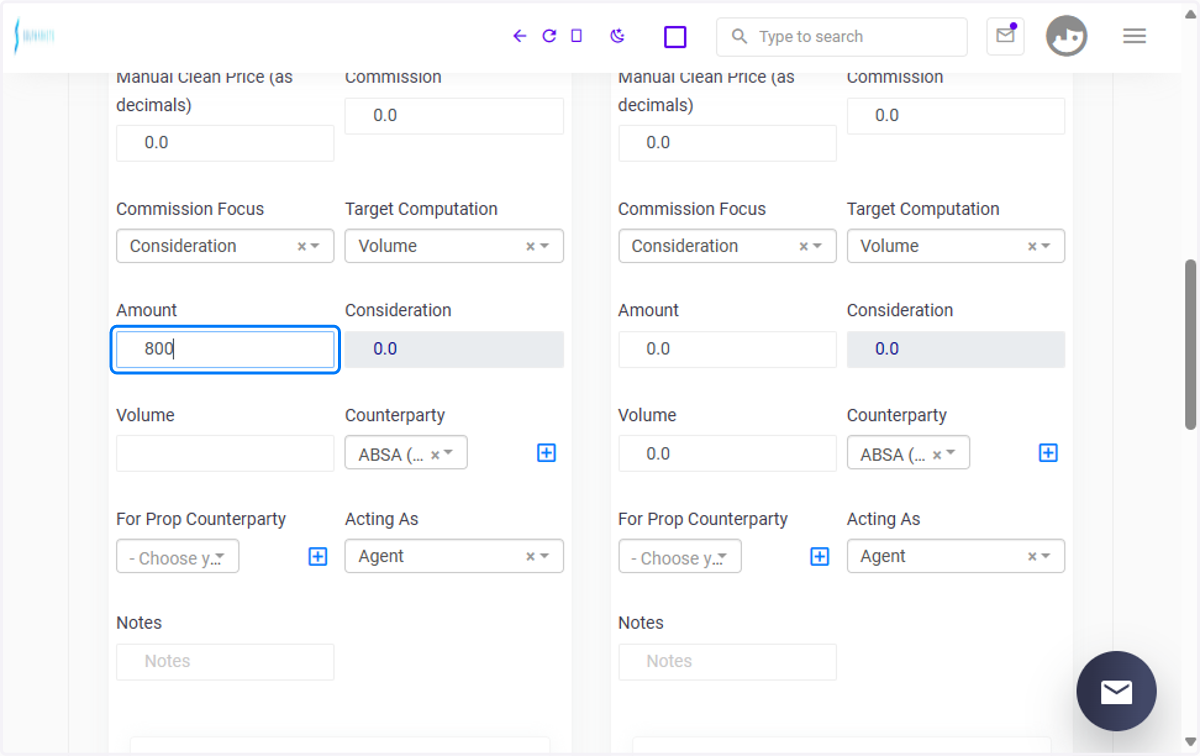
31. Amount
Afia inputs the amount into the designated field. This amount represents the total value of the trade, calculated based on the volume and price of the asset being traded. It is essential for determining the financial impact of the trade and ensuring accurate transaction processing.
32. Choose your Account Services
Afia inputs the account involved in the second contract to sell ticket 1. This ensures that the trade is associated with the correct account on the selling side of the transaction, facilitating accurate record-keeping and accounting for the trade.
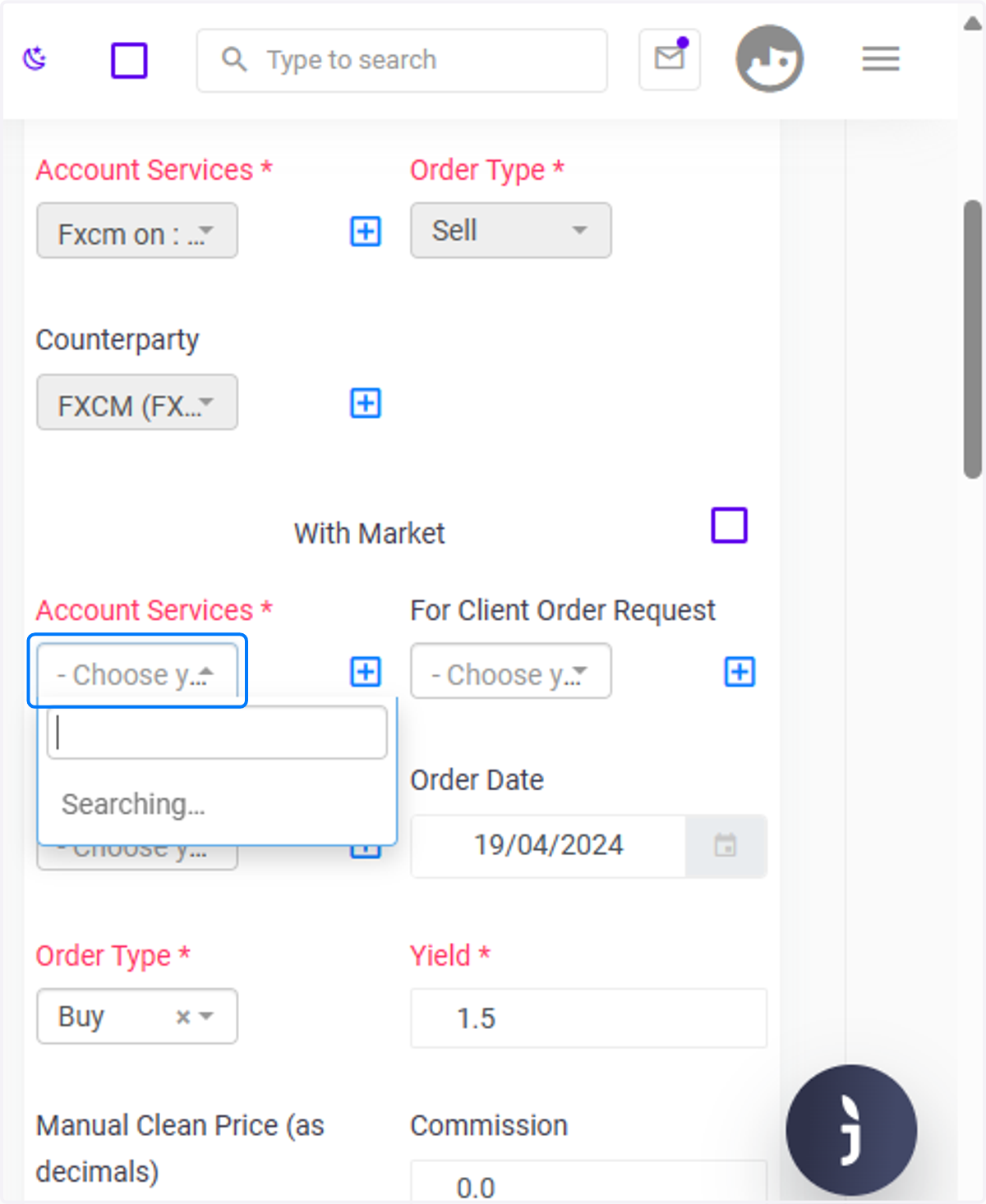
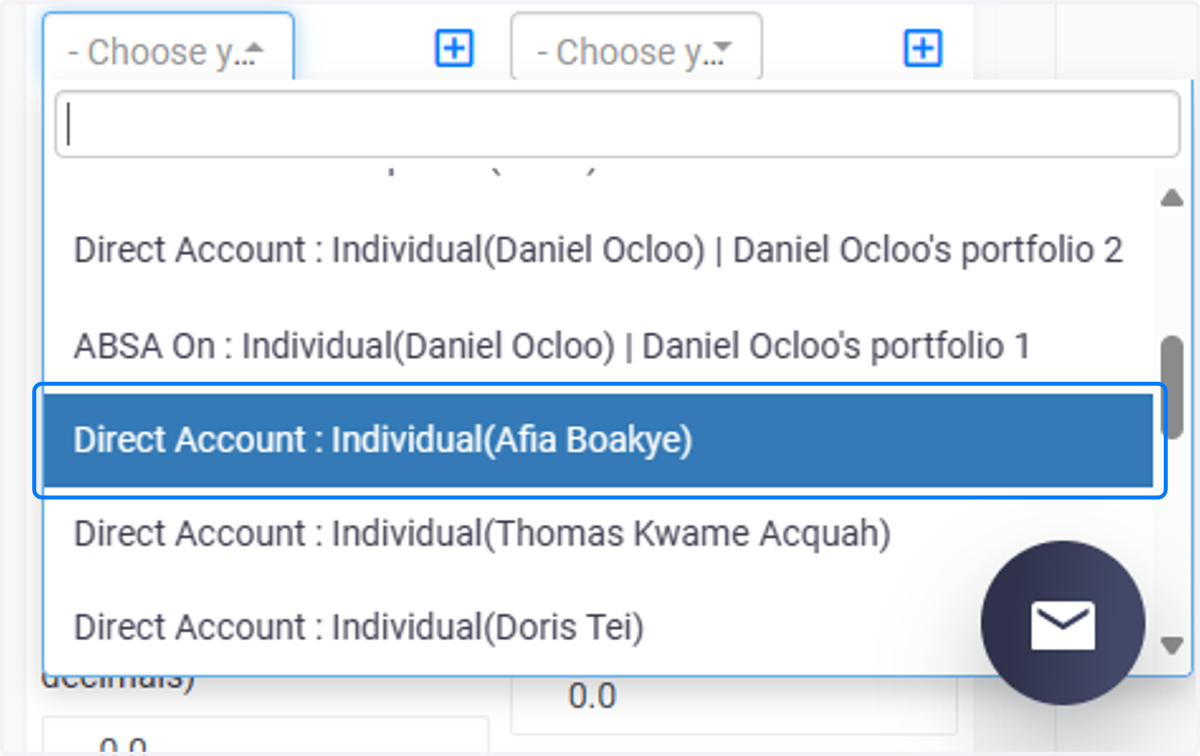
33. Account
Afia inputs the account involved in the second contract sell ticket 2. This ensures that the trade is associated with the correct account on the selling side of the transaction, facilitating accurate record-keeping and accounting for the trade.
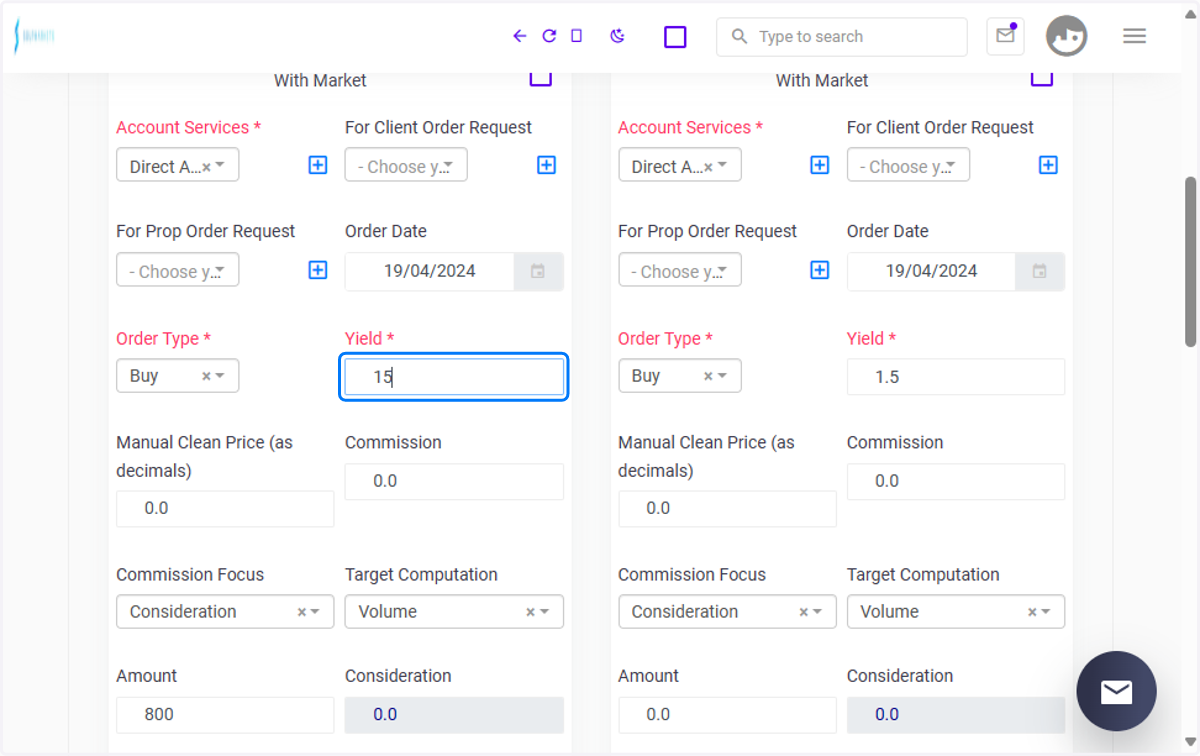
34. Yield
Afia inputs the yield for the second contract ticket 1 into the designated field. This represents the specified yield expected from the second contract, which is crucial for determining the terms and profitability of the trade on the selling side.
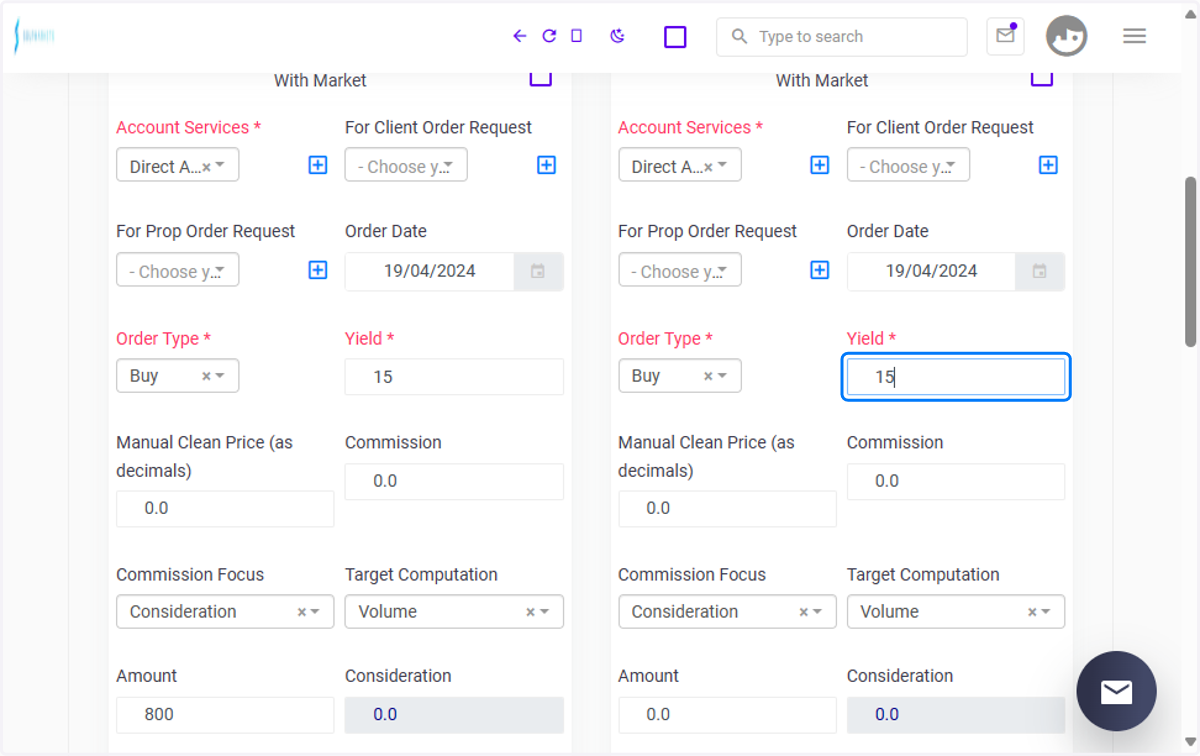
35. Yield
Afia inputs the yield for the second contract ticket 2 into the designated field. This represents the specified yield expected from the second contract, which is crucial for determining the terms and profitability of the trade on the selling side.
36. Amount
Fab inputs the amount for both the first and second ticket into the designated fields. These amounts represent the total value of the trade for each ticket, calculated based on the volume and price of the asset being traded. It is essential for determining the financial impact of the trade and ensuring accurate transaction processing.
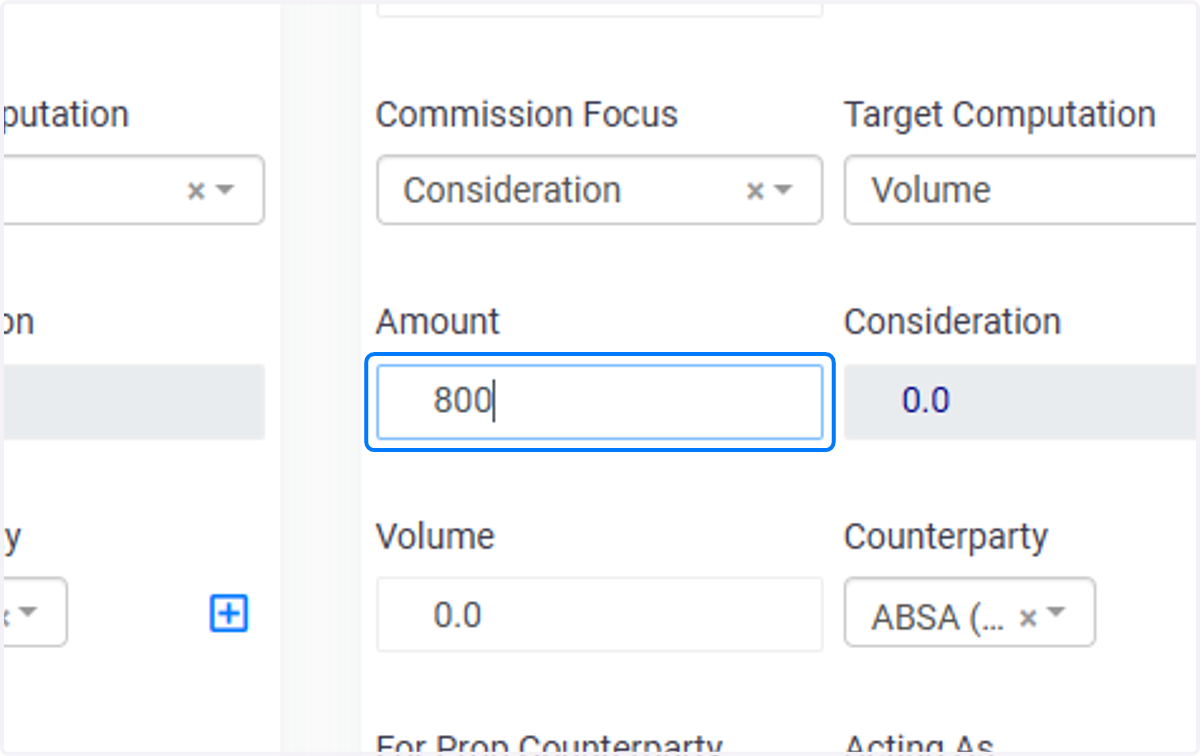
37. Choose Counterparty- second contract-first ticket
Fab selects the counterparty for the sell contract second ticket first ticket. This ensures that the trade is executed with the intended party on the selling side of the transaction. Choosing the correct counterparty is crucial for accurate trade execution and record-keeping.
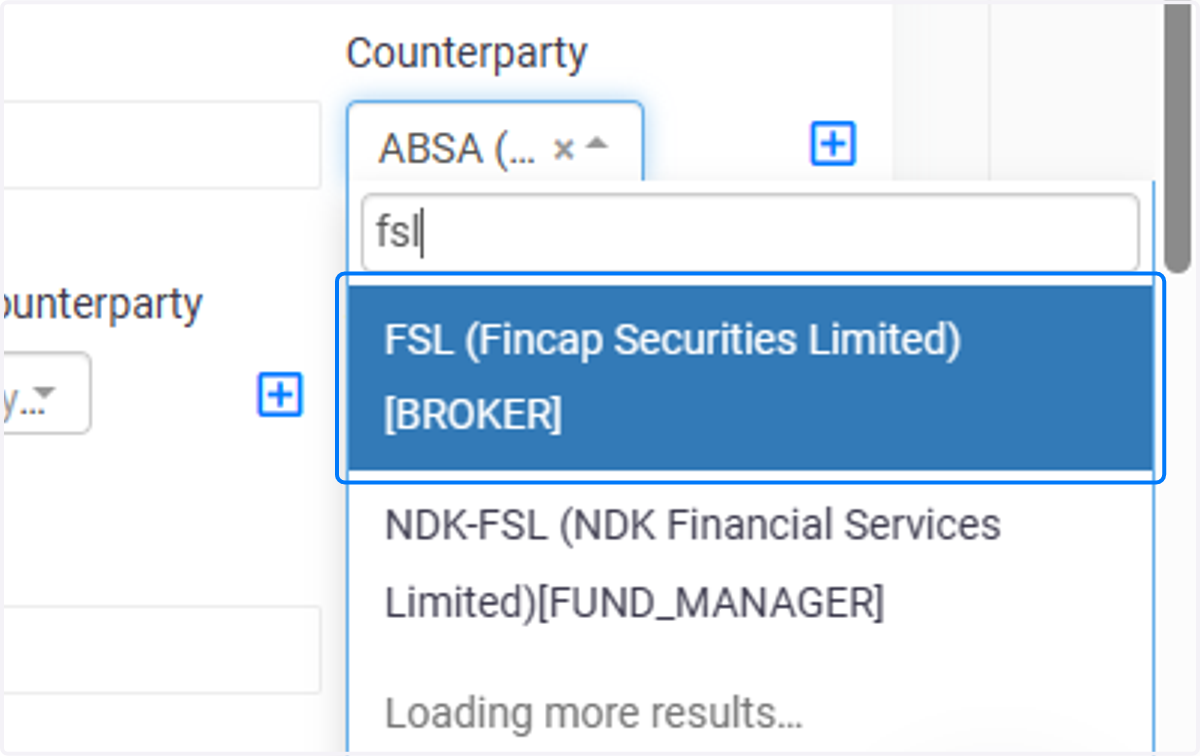
38. Select Counterparty for the Second contract-second ticket
Afia inputs the counterparty for the second contract-second ticket. This ensures that the trade is executed with the intended party on the selling side of the transaction. Choosing the correct counterparty is crucial for accurate trade execution and recording.
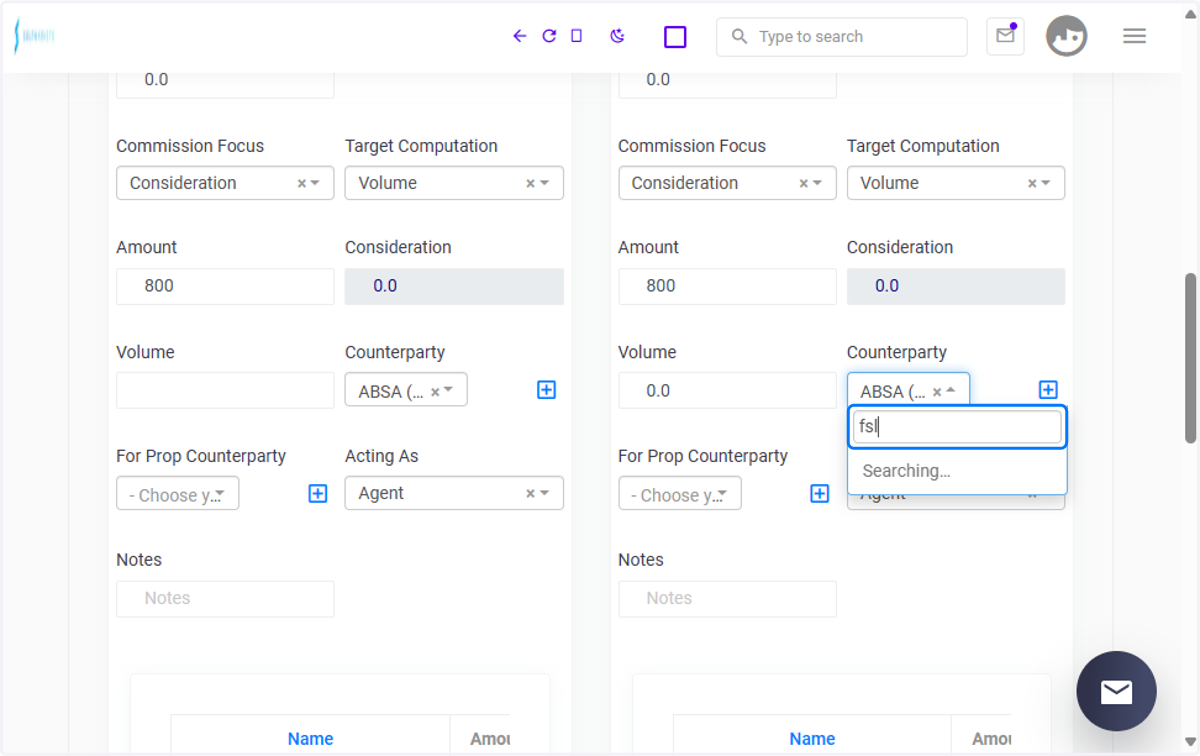
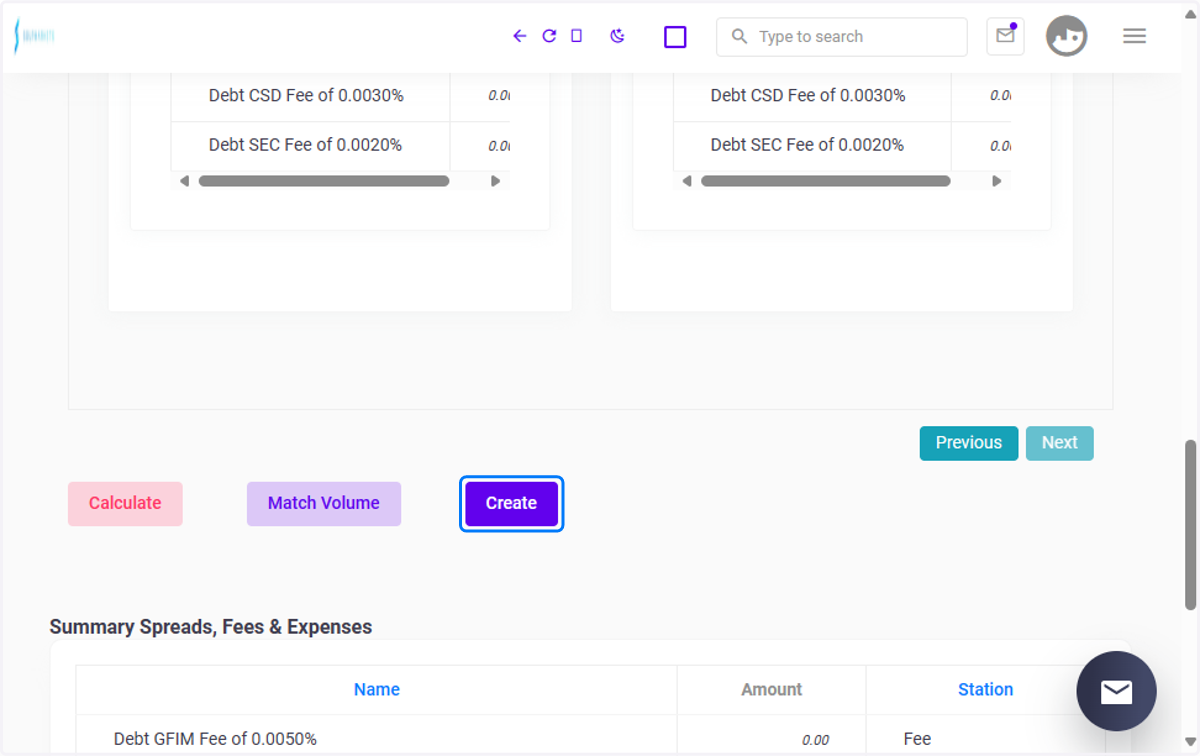
39. Click on Create
Fab clicks the "Create" button to finalize the Prop trade creation process. This action confirms the details of the trade agreement and officially submits the trade for execution, completing the Prop trade creation workflow.