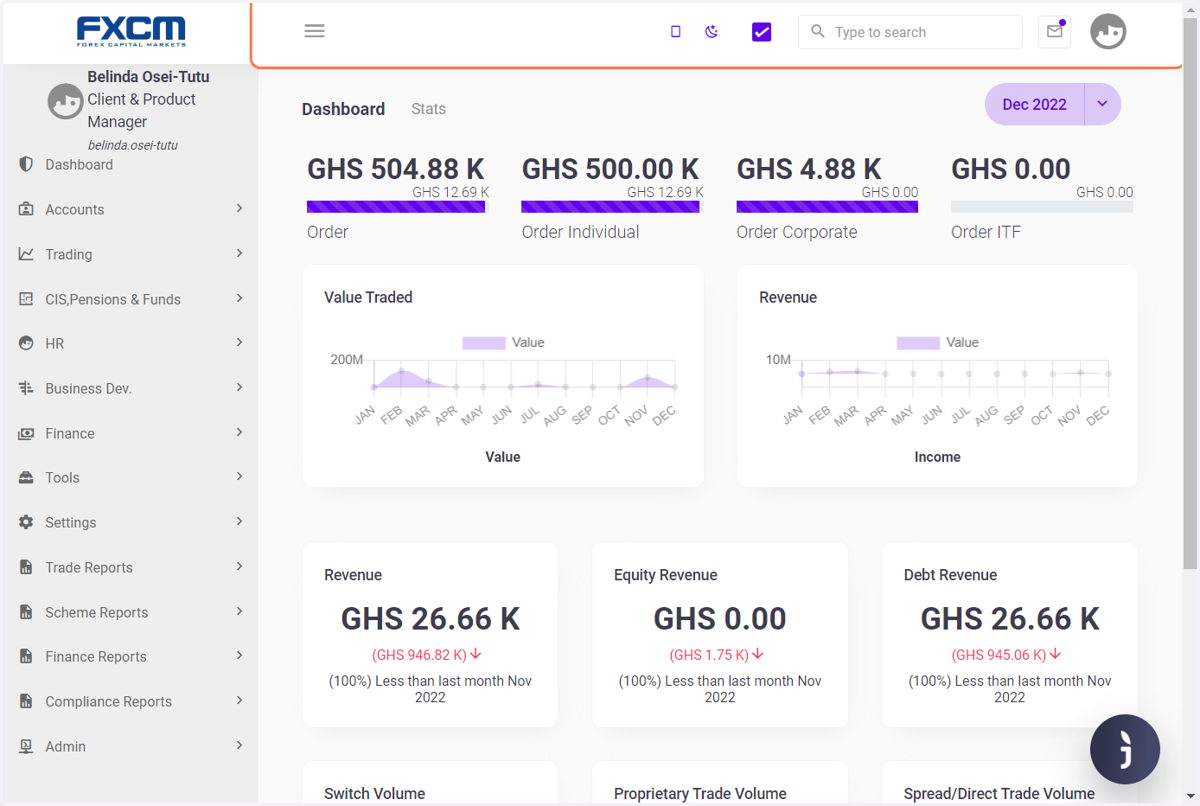
Dashboard Workflow
1. Login | C5: Demo Securities & Asset Limited
To gain access to the main application, kindly click this link to view the login process
2. 2 Factor Authentication
A 2FA authentication is sent after the user's mail after they input their credentials. NB: this feature is not available on the demo application but the live application.
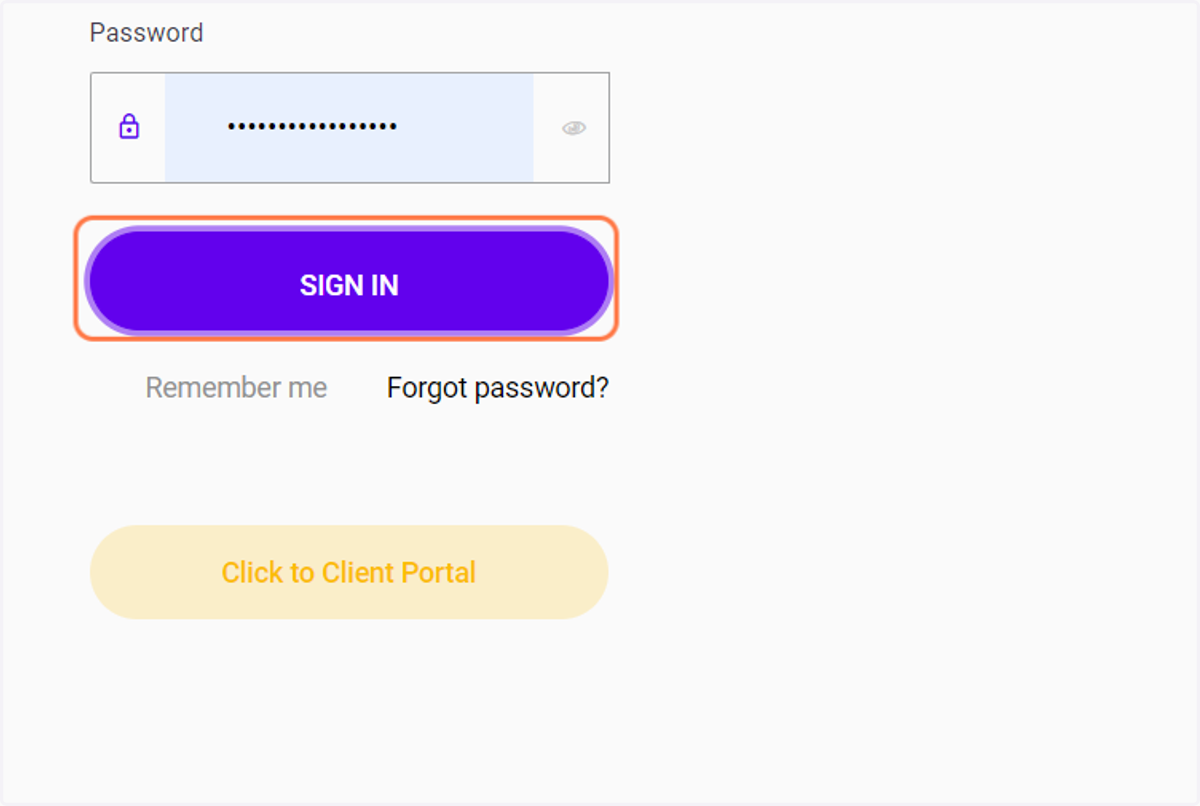
Click sign in to finally log in to the application.
3. Change Page orientation
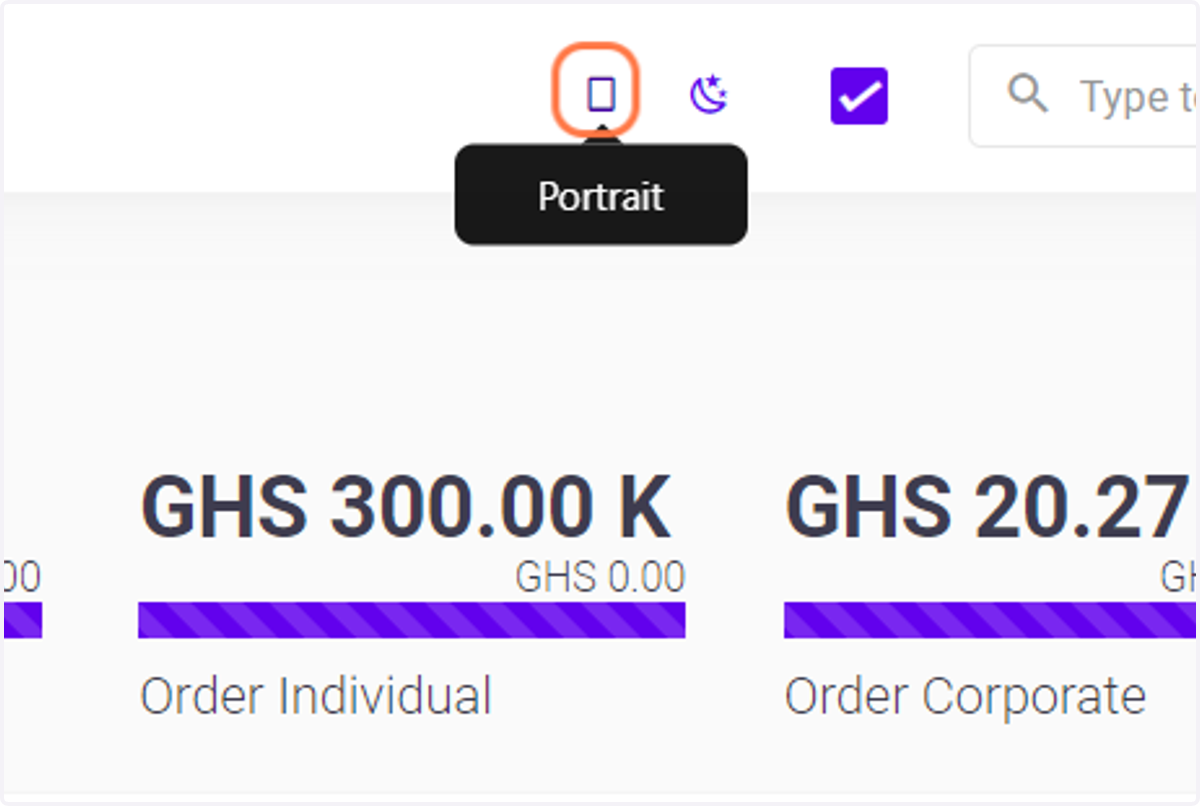
Click the square button highlighted to change page orientation to either portrait or landscape. It controls whether the content is oriented in a portrait (vertical) or landscape (horizontal) layout. This feature is helpful when you have documents with different formatting requirements, and you need to adjust the orientation to best fit the content on the page.
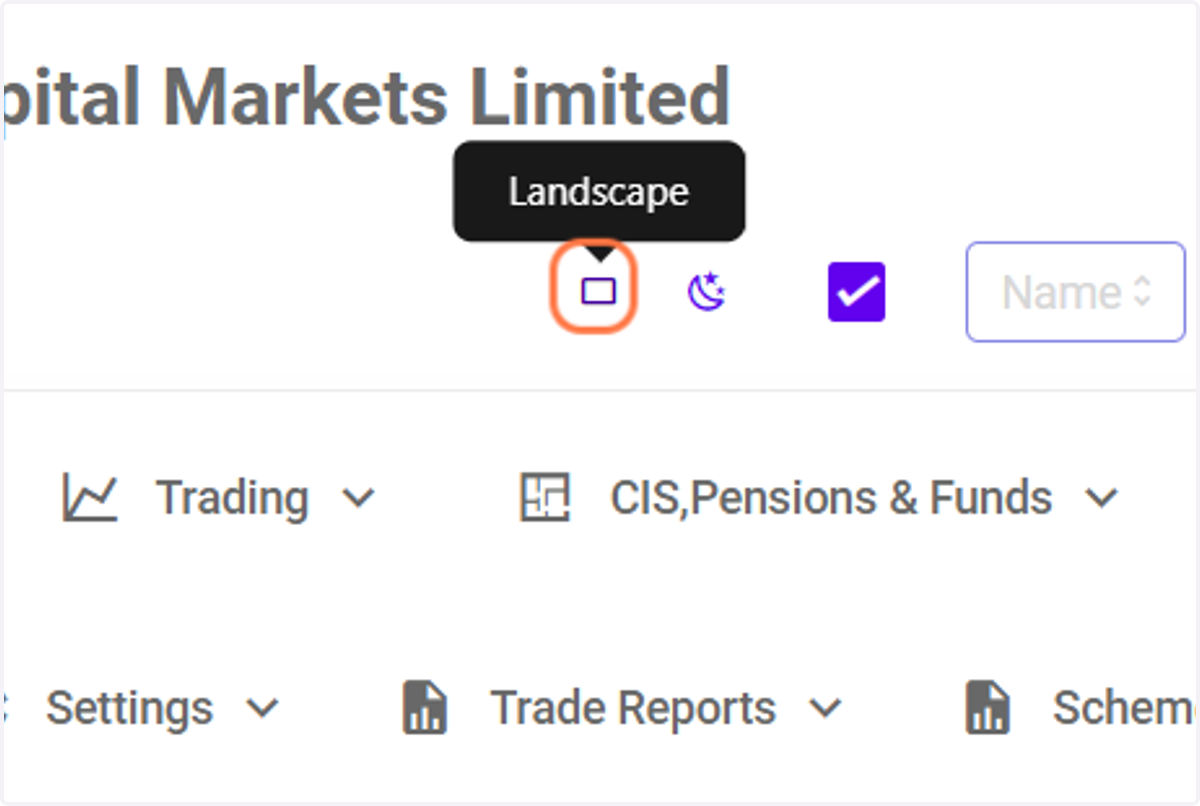
4. Landscape page orientation
This controls whether the content is oriented in a landscape (horizontal) layout
5. Theme
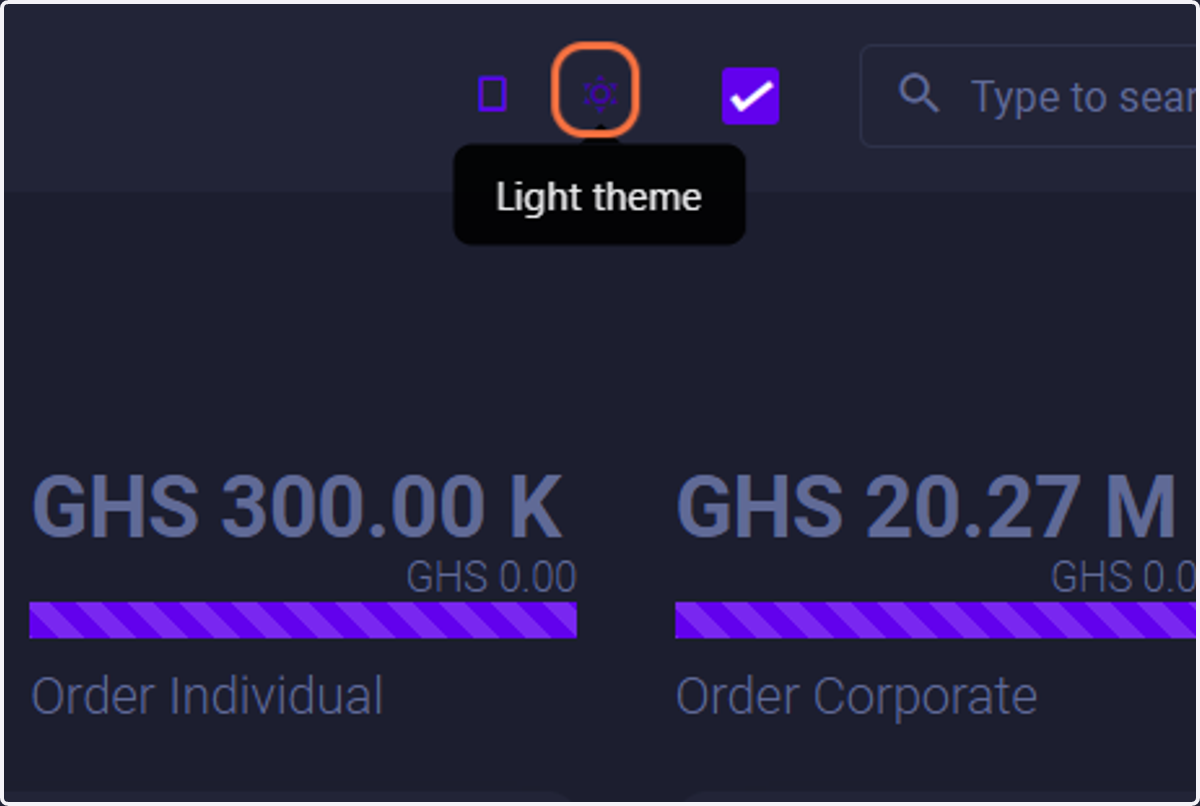
Click on the moon-starred shaped icon to switch between a dark or light themed page.The page theme toggle on the brokerage software lets you switch between a dark and light mode for the user interface. Dark mode uses darker colors, which can be easier on the eyes in low-light environments and may also help conserve energy on devices with OLED screens. Light mode uses brighter colors and is suitable for well-lit surroundings. This feature allows you to personalize your viewing experience based on your preference and the lighting conditions you're in.
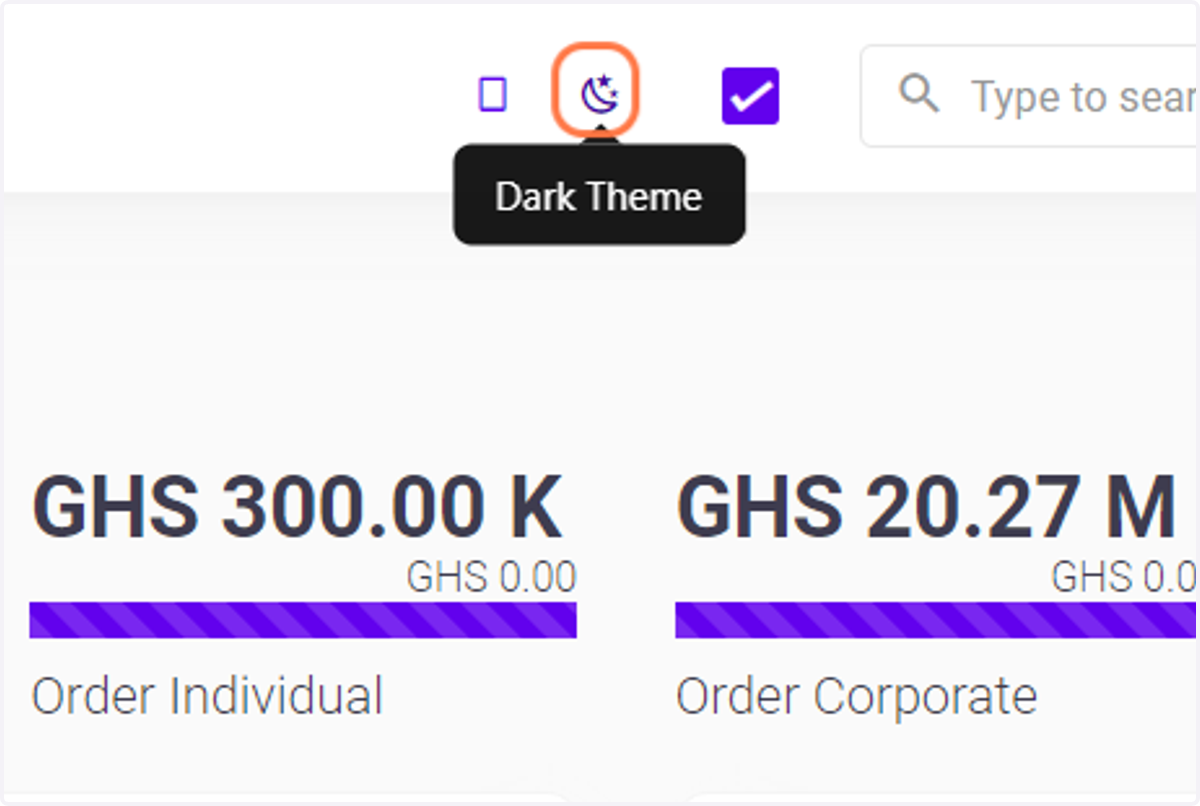
6. Dark themed page
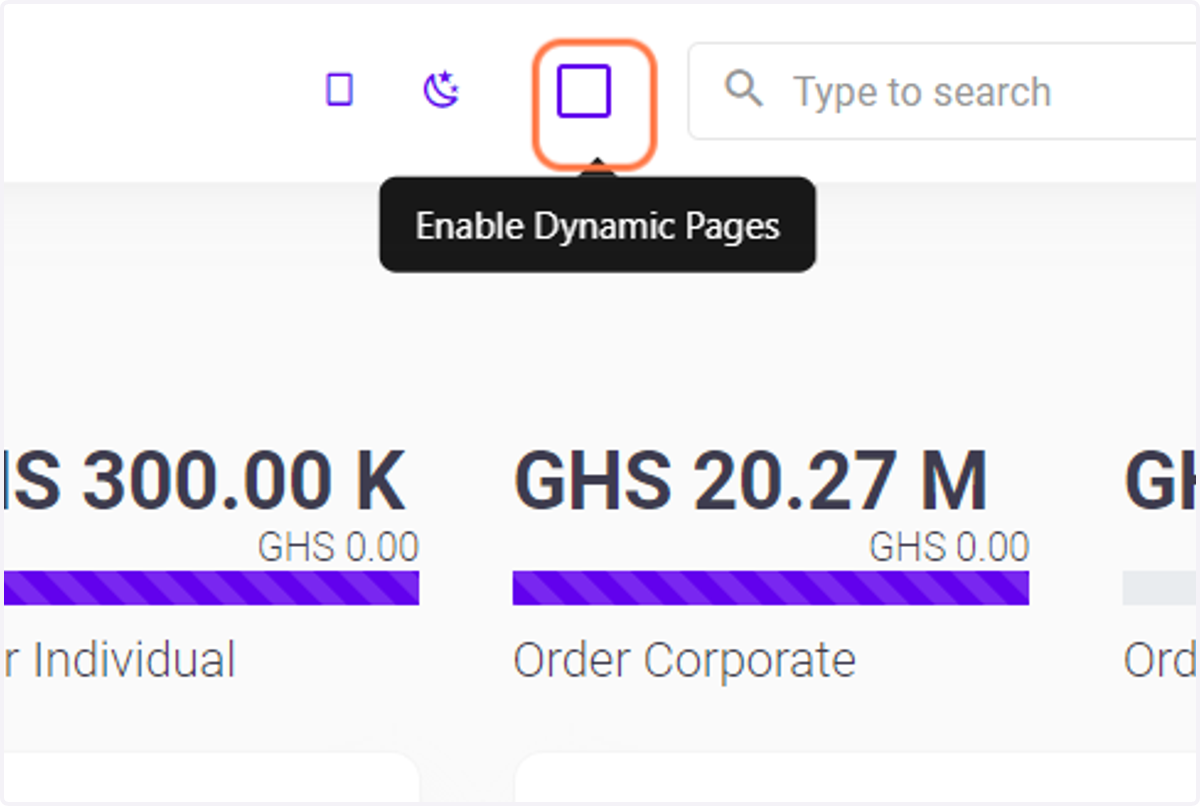
7. Enable Dynamic pages icon
Check the highlighted box icon to load data into the application in real time. Enabling a dynamic page on the brokerage software transforms the static content into an interactive and responsive experience.
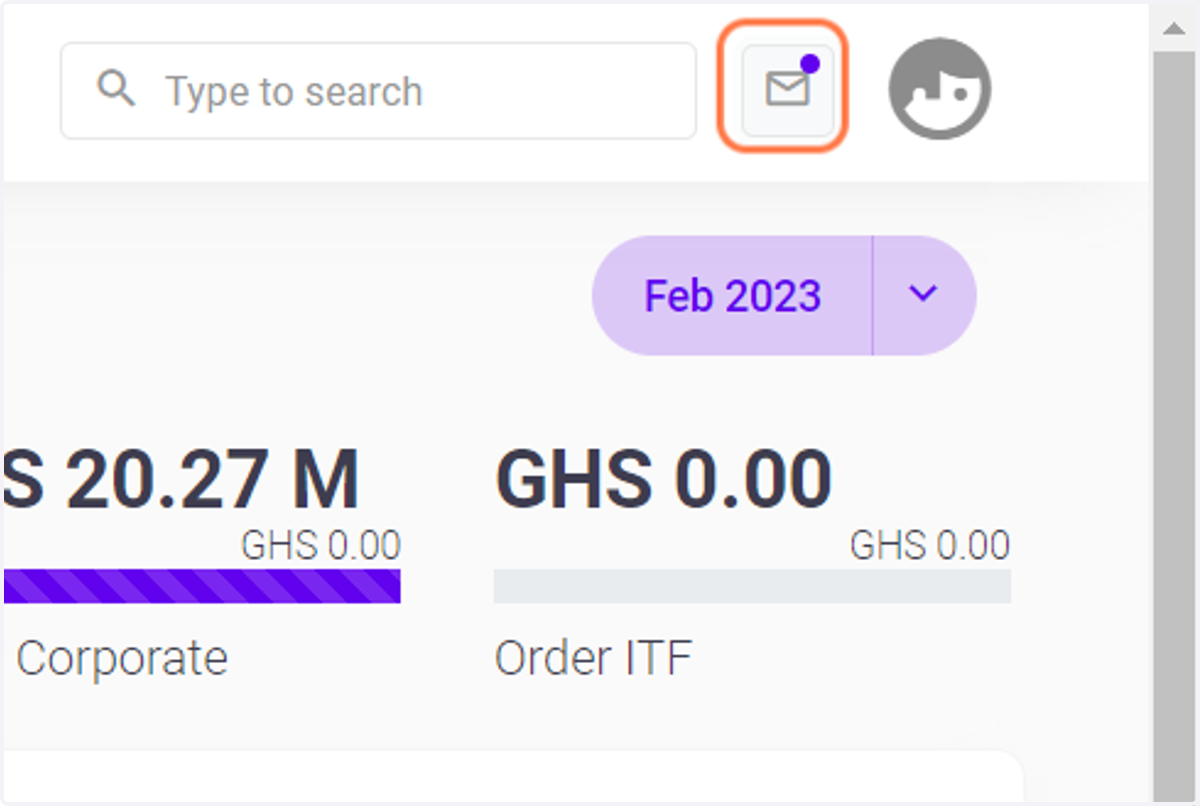
8. Mail icon
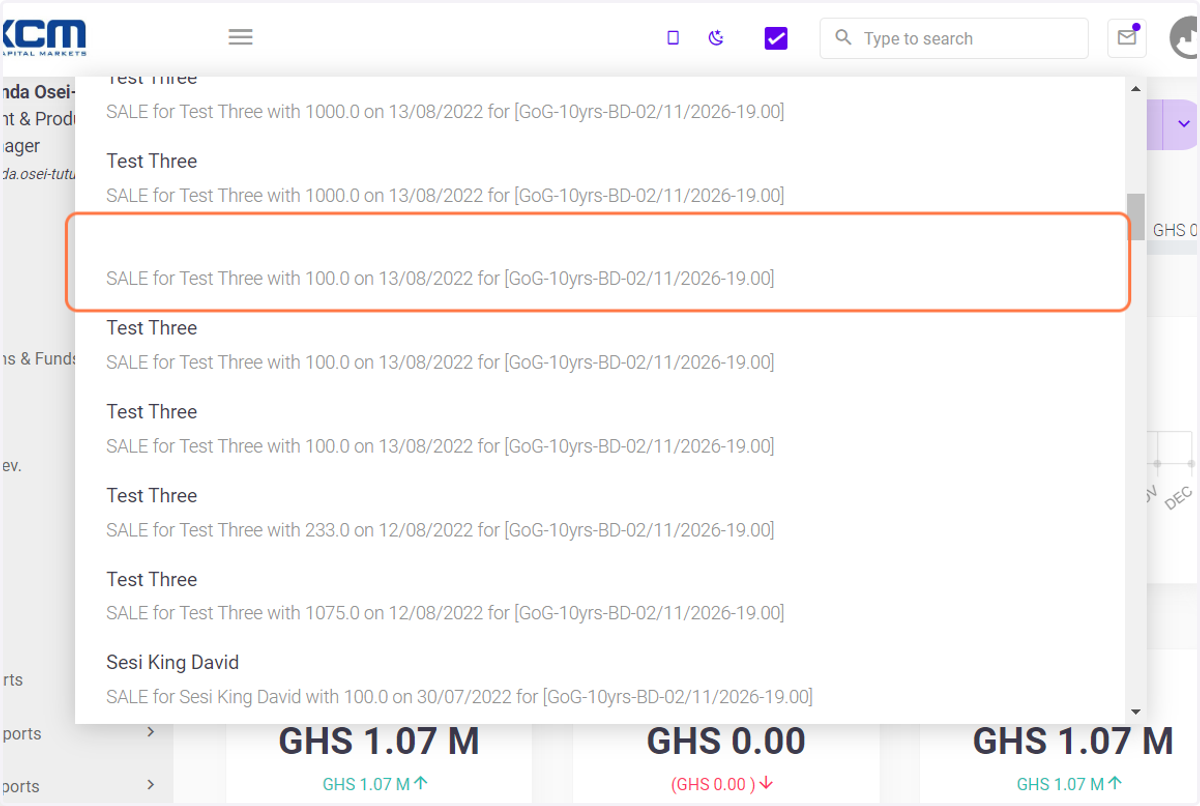
Click the mail icon to grant access to a centralized area displaying pending order requests, pivotal in making well-informed decisions.
9. A modal view of pending order requests after clicking on the mail icon
10. Round icon
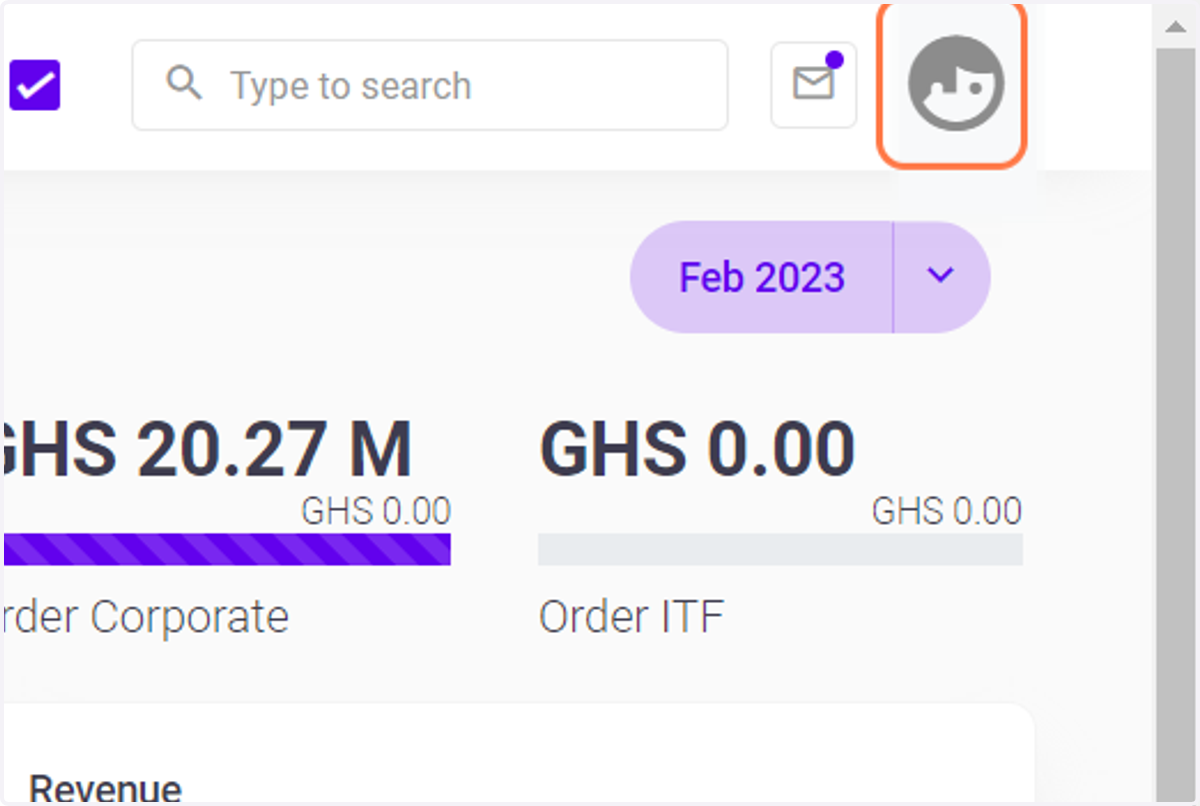
Click on this icon to view your details or logout depending on what is chosen from the drop down menu
11. Date filter for generating data
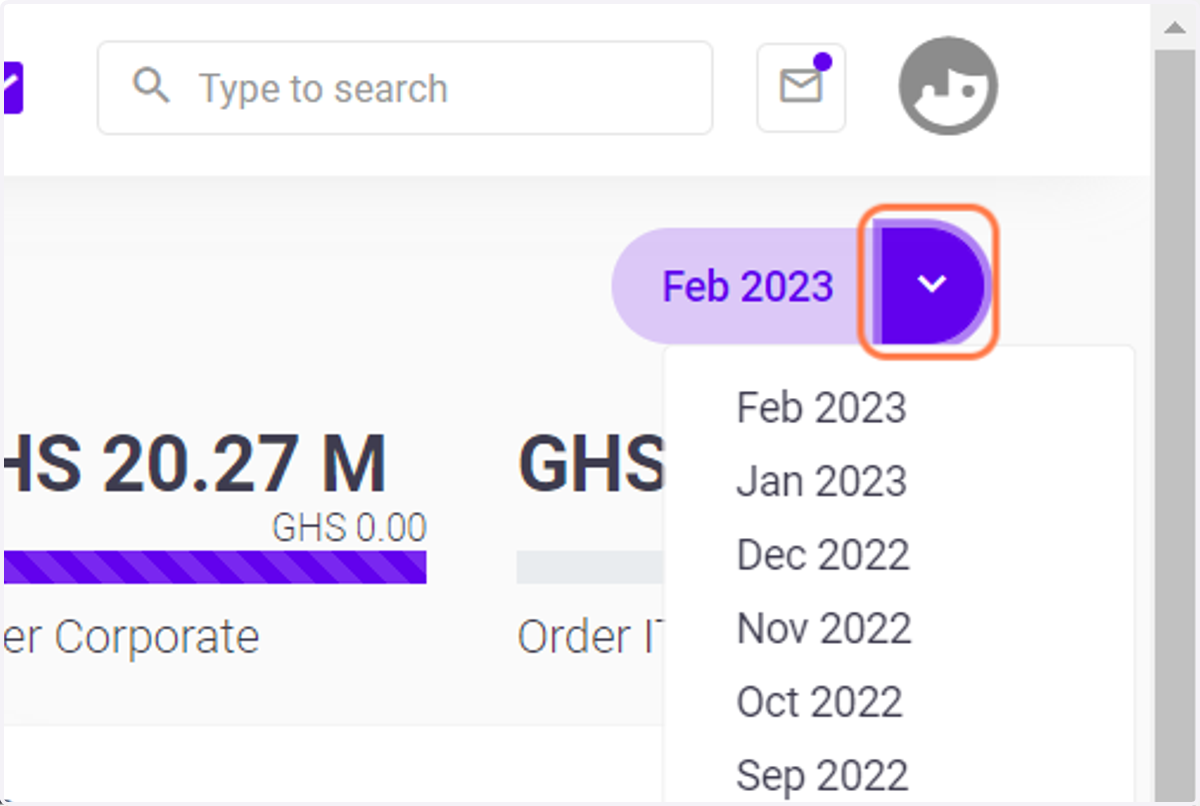
To generate data from the chosen date up to today, simply click the highlighted arrow below. This action initiates the process and ensures you have information spanning the desired timeframe.
12. Search bar
To find what you're looking for in the chosen module, click the search bar and type in the item you're interested in. This will help you locate the information you need more effectively.