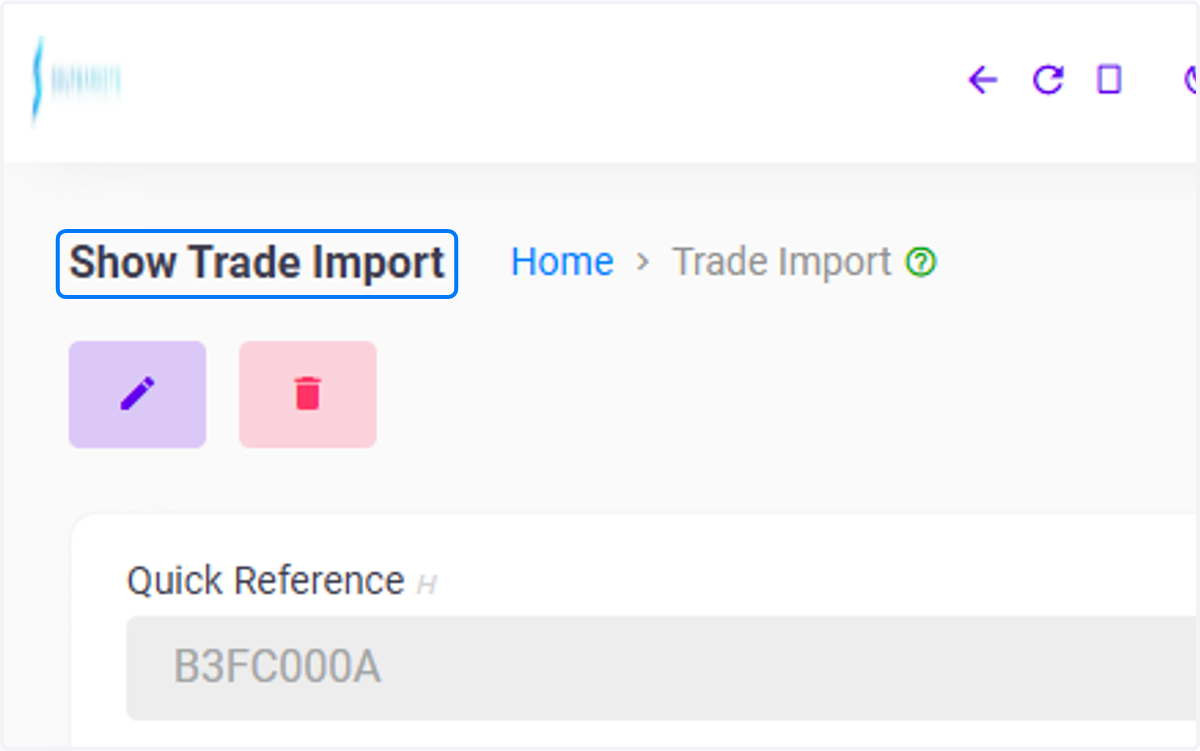
How to Access Trade Import in C5 Dashboard
Dashboard | C5[Demo Securities & Asset Limited]
To gain access to the main application, kindly click this link to view the login process
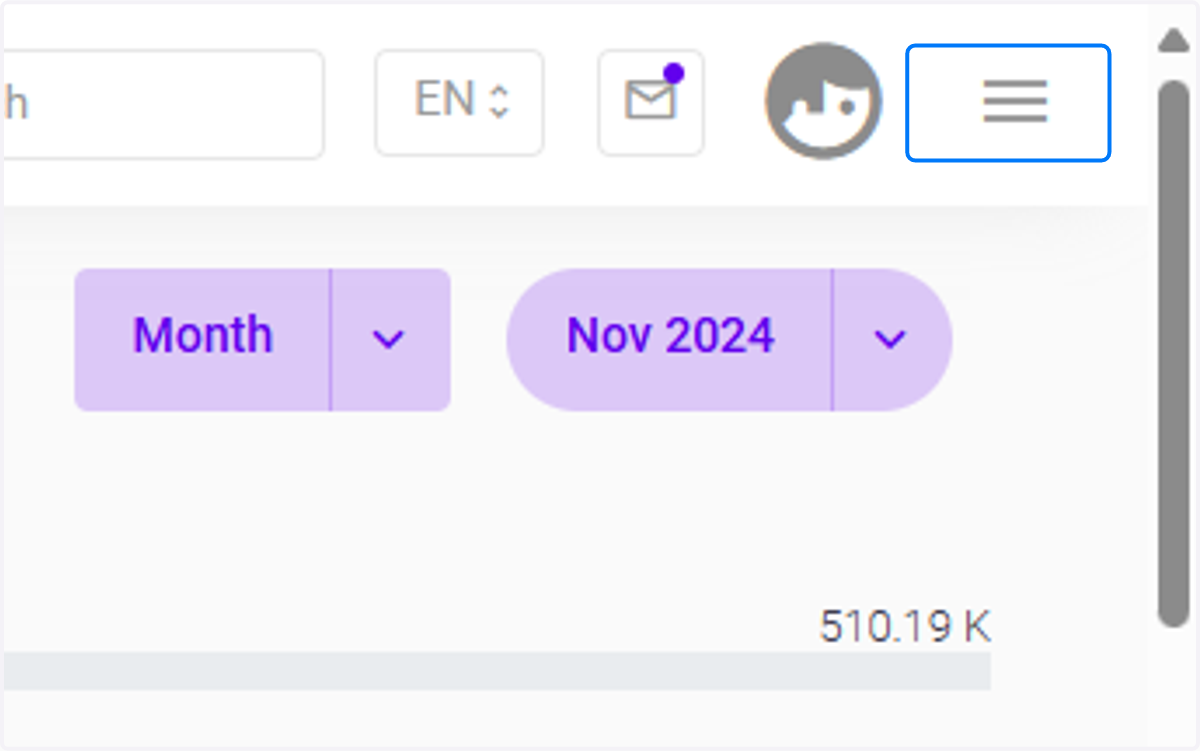
1. Click on highlight
The three-barred button (often referred to as a "hamburger" icon) is typically located at the top-left or top-right corner of a web
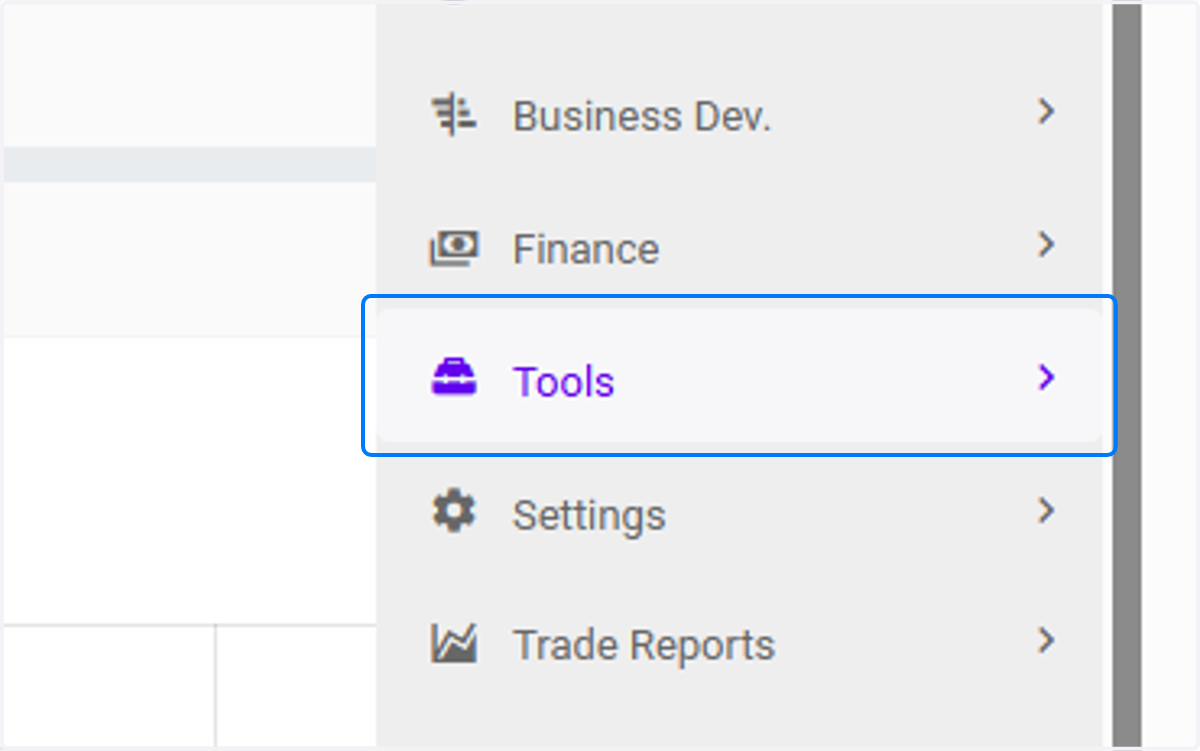
2. Click on Tools
The Tools Module provides a centralized platform for executing supplementary tasks, enhancing workflow efficiency across various operations.
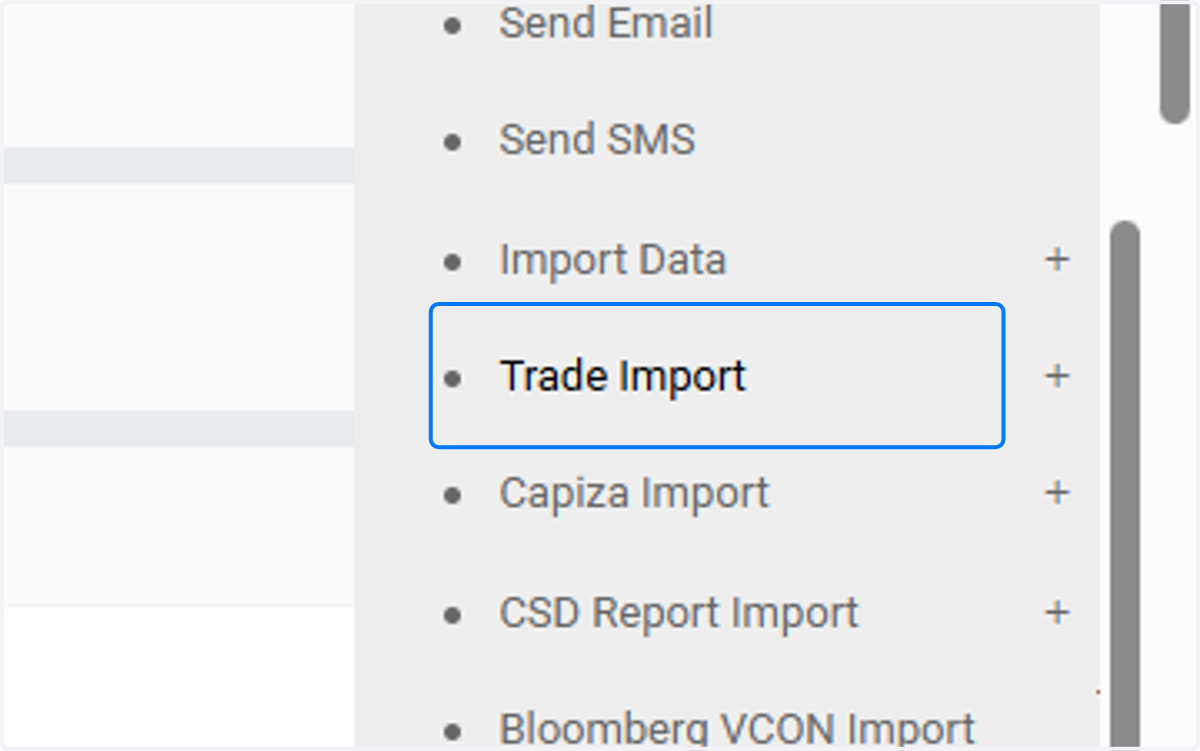
3. Click on Trade Import
Clicking on Trade Import typically allows you to upload or import trade data into the system from an external source, such as a file or external trading platform.
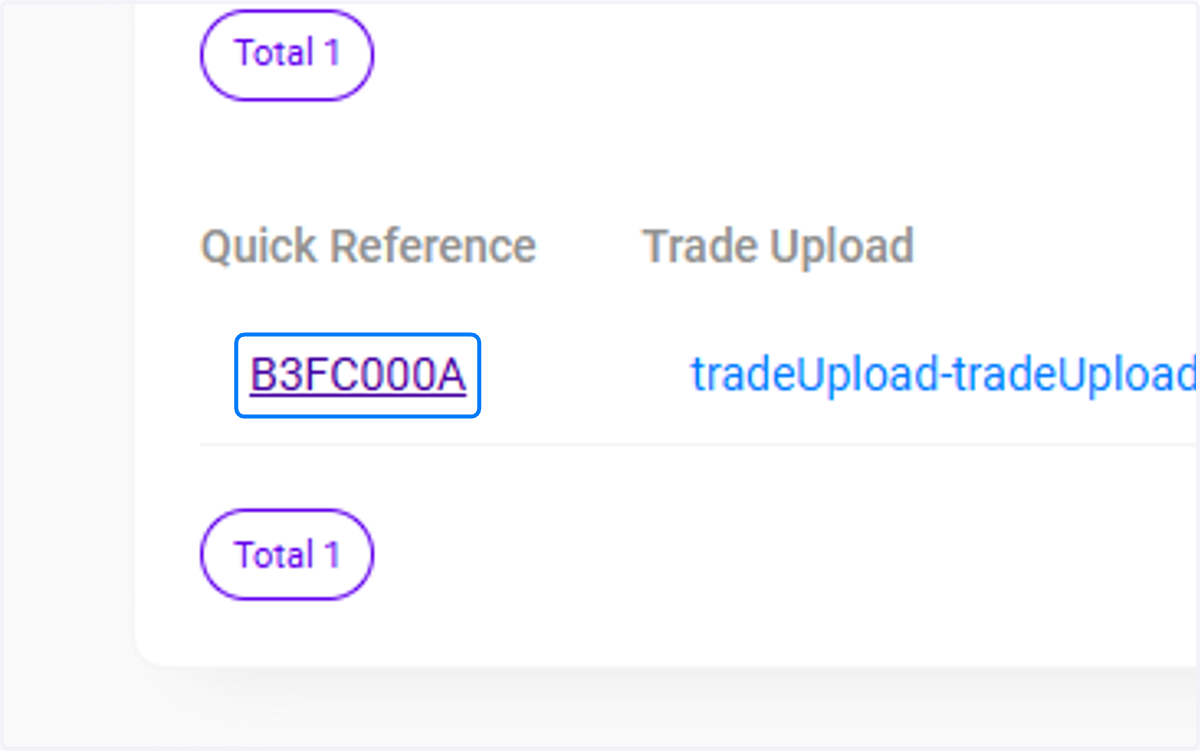
4. Quick Reference Code
Selecting a Quick Reference Code opens a detailed view or additional information related to the specific record or entry.
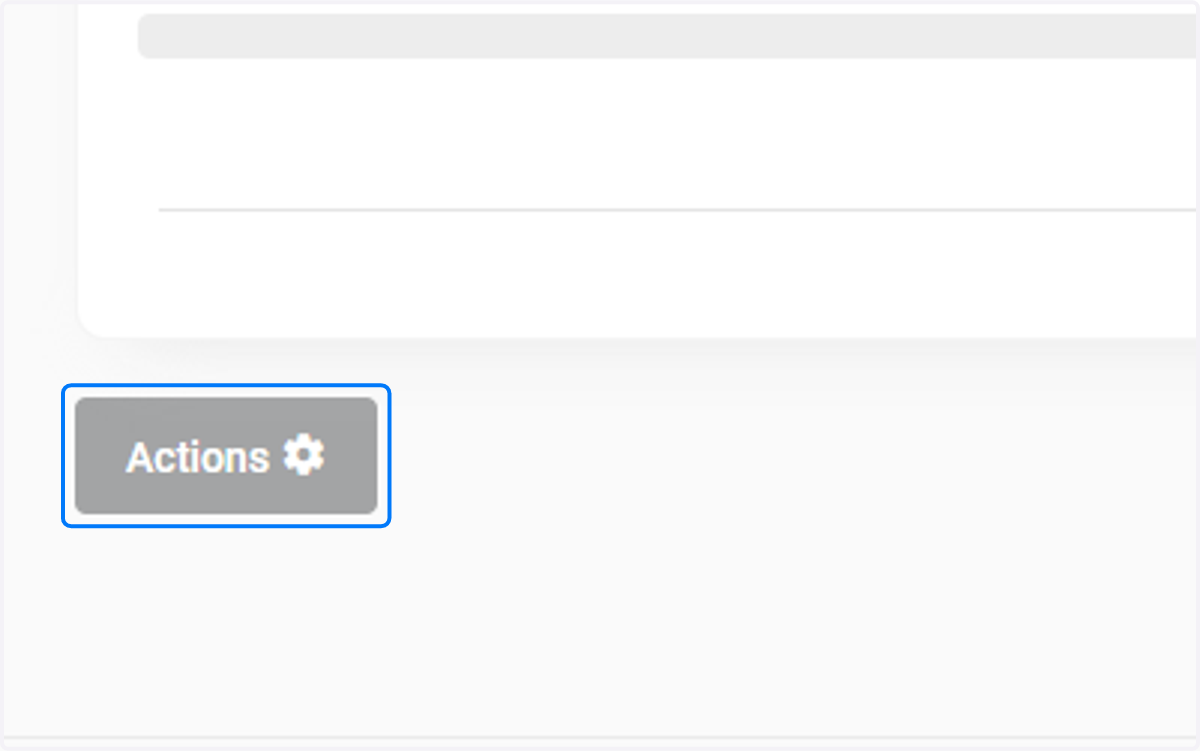
5. Click on Actions…
The Actions button provides a dropdown menu with various options for managing or interacting with the selected record or entry. Click the button highlighted in blue to expand for more functionalities
6. Click on Show Trade Import