Integrate HubSpot and Automate Campaigns
PCM Integrations Portal
In this walkthrough:
You'll connect the PCM Integrations Portal to your HubSpot account. This works best when you have both PCM Integrations and HubSpot logged in at the same time.
We suggest using the Chrome browser for the best experience.
You will also learn how to disconnect the integration if needed.
1. Log into your PCM Integration Portal
If you have never logged into the PCM Integration Portal, you can create a new account using your email address at https://portal.pcmintegrations.com
You will manage your design and campaign parts of the integration from the portal.
Install from HubSpot Marketplace
Our PCM Integration Direct Mail app is approved in the HubSpot Marketplace.
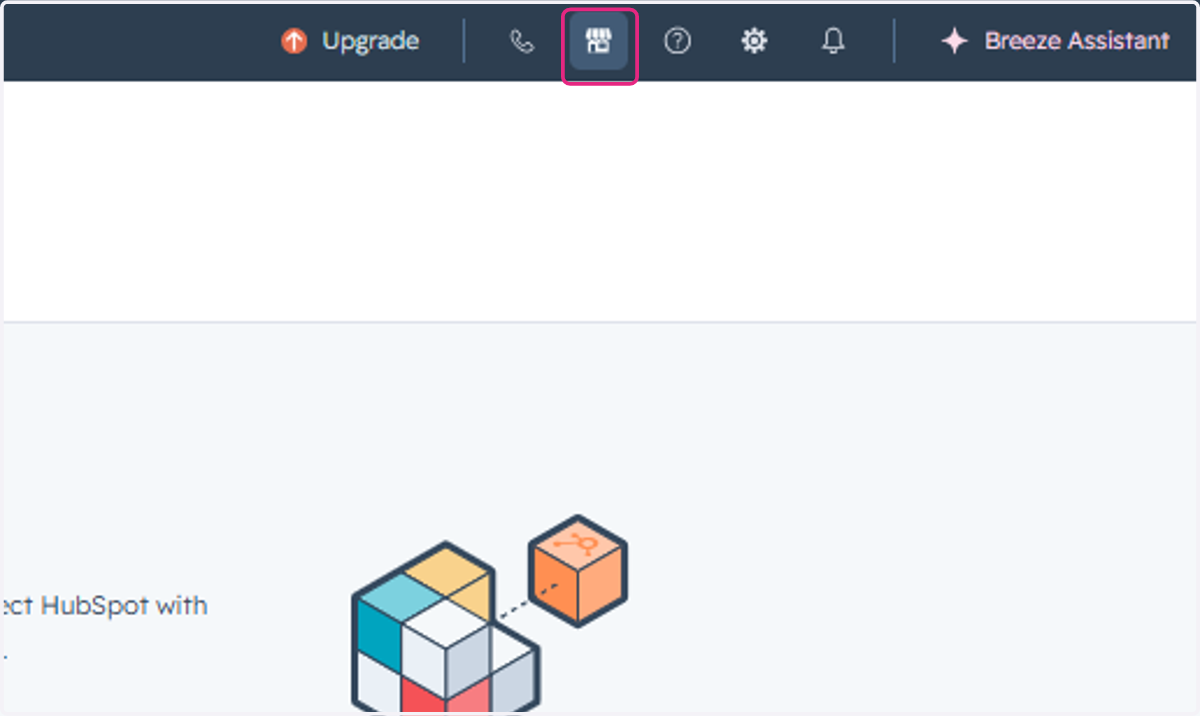
2. Click on Marketplace
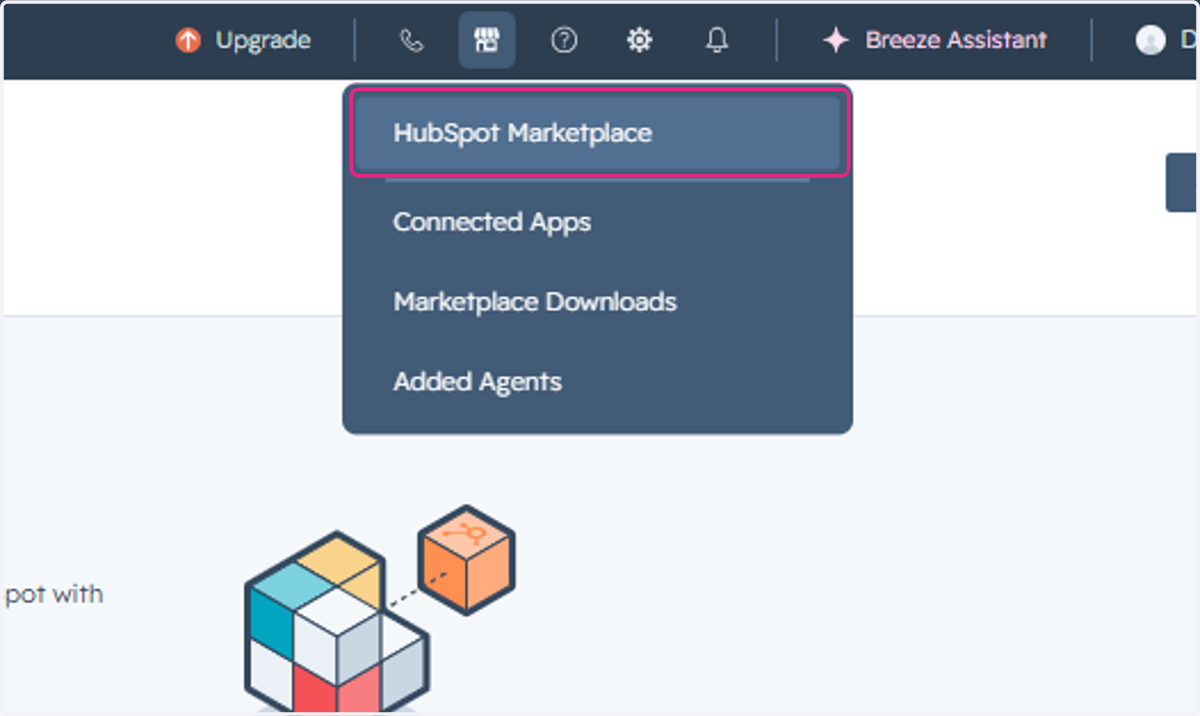
3. Click on HubSpot Marketplace
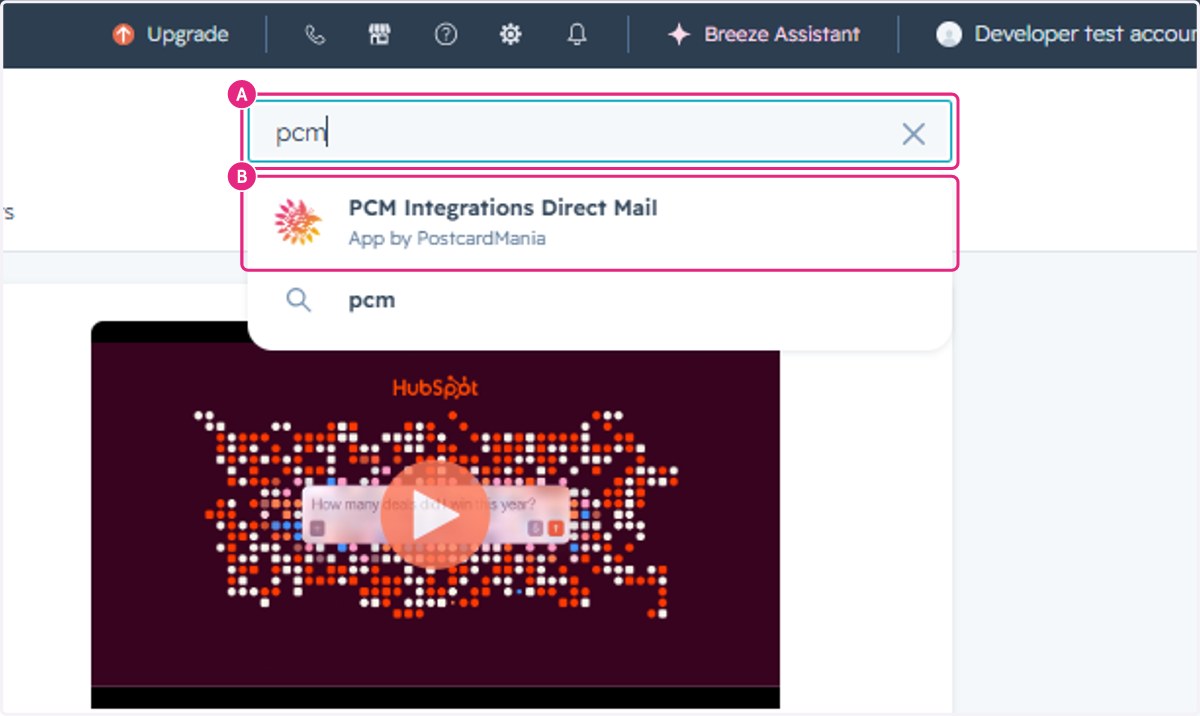
4. A. Type pcm
4. B. Select PCM Integrations Direct Mail
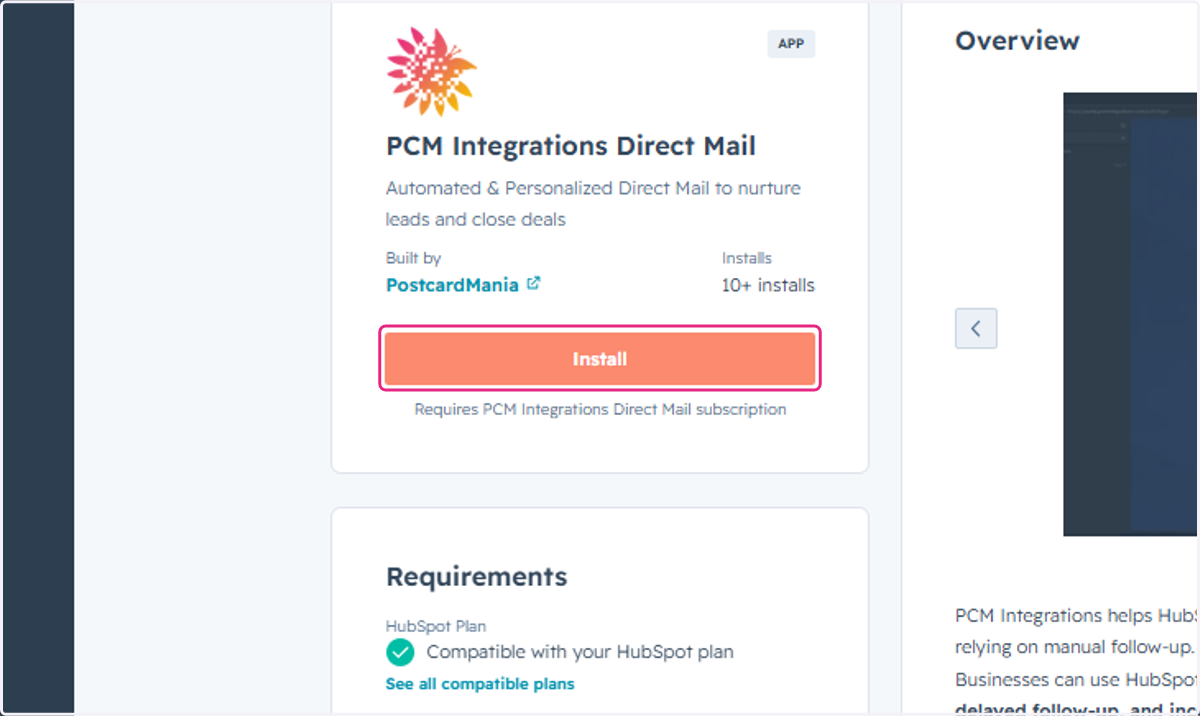
5. Click on Install
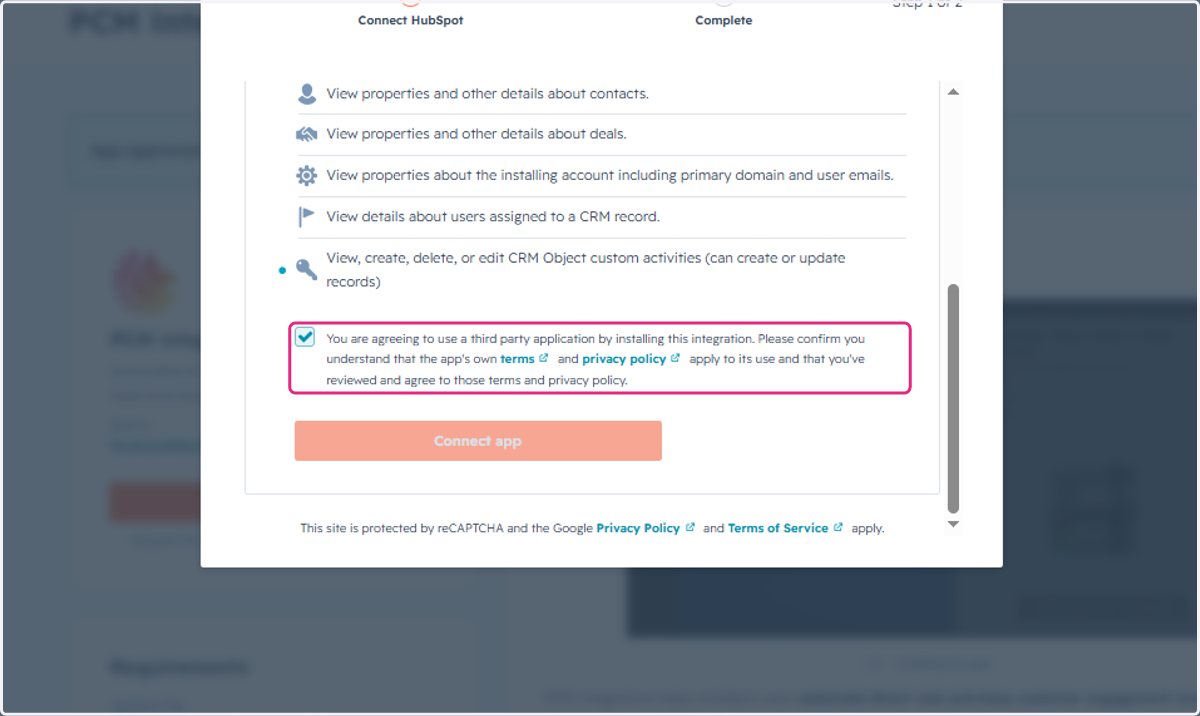
6. Select You are agreeing to use a third party application by installing this integration. Please confirm you understand that the app's own terms and privacy policy apply to its use and that you've reviewed and agree to those terms and privacy policy.
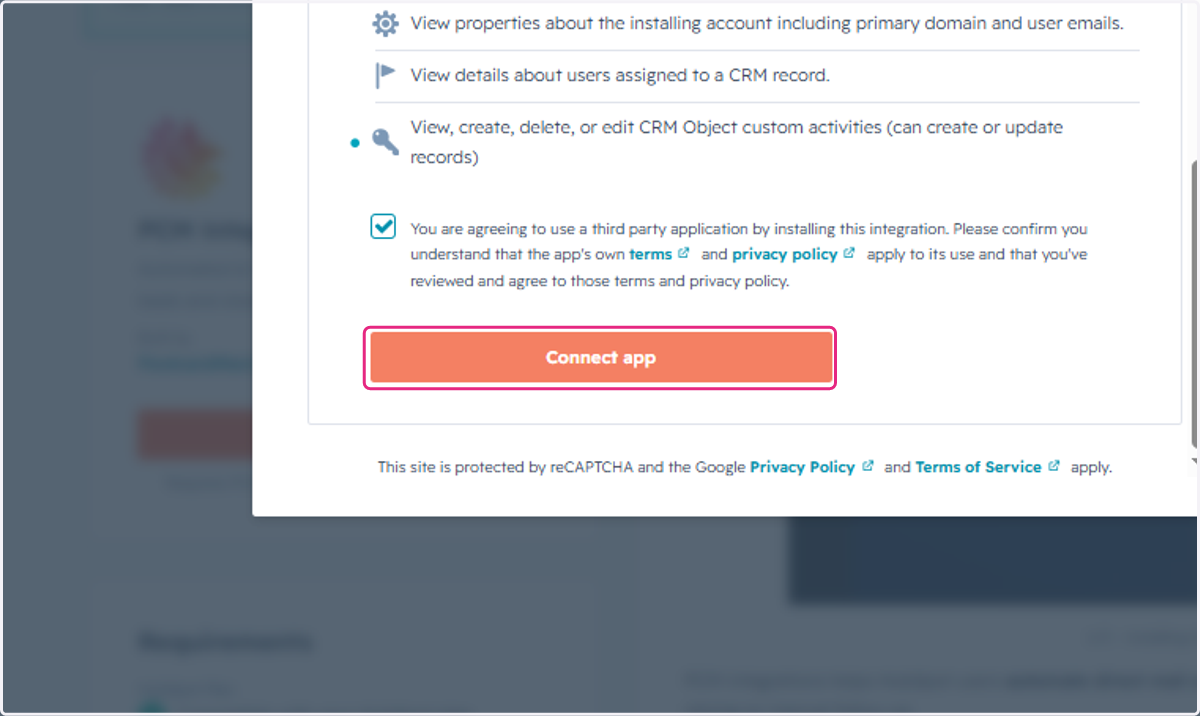
7. Click on Connect app
PCM Integrations DirectMail Portal
In the following steps, you will:
Confirm your account settings
Enter your billing information
Create your Design
Create your Campaign
Account Settings
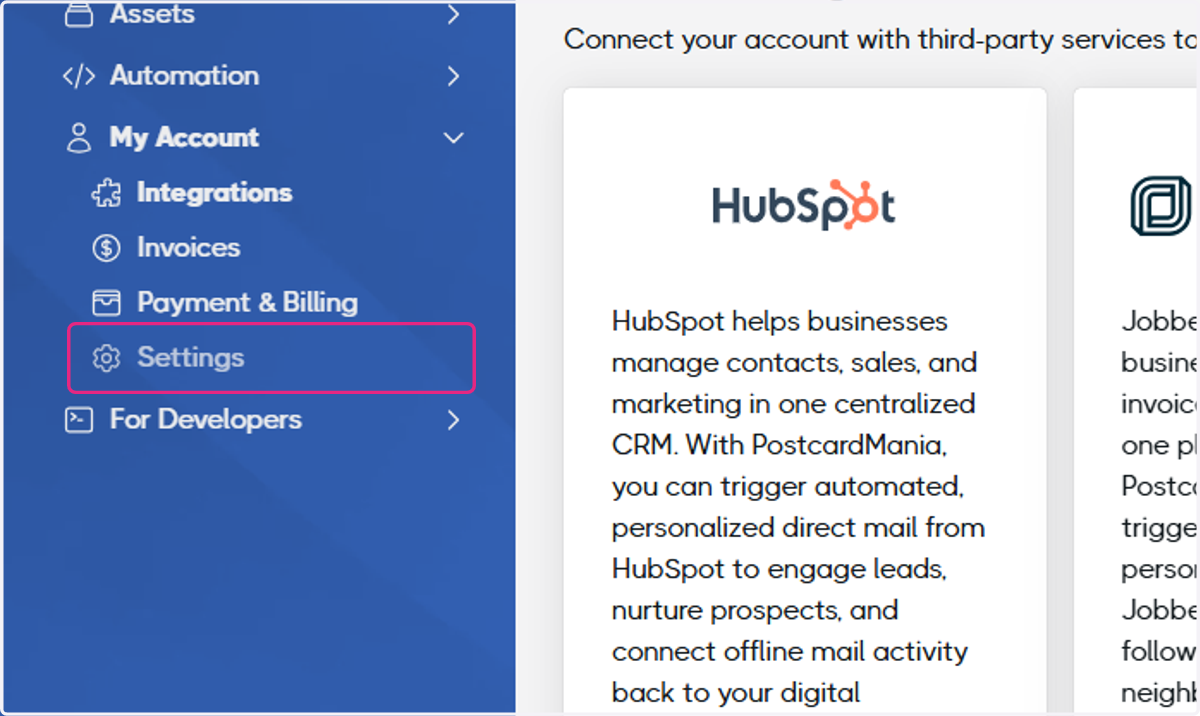
8. Click on Settings
9. Complete or Validate your contact information
The address listed in your contact information will populate the Account information in your workflows and will be the default return address for mailers.
The email address on file will be used for notifications such as when a workflow is activated or a payment fails.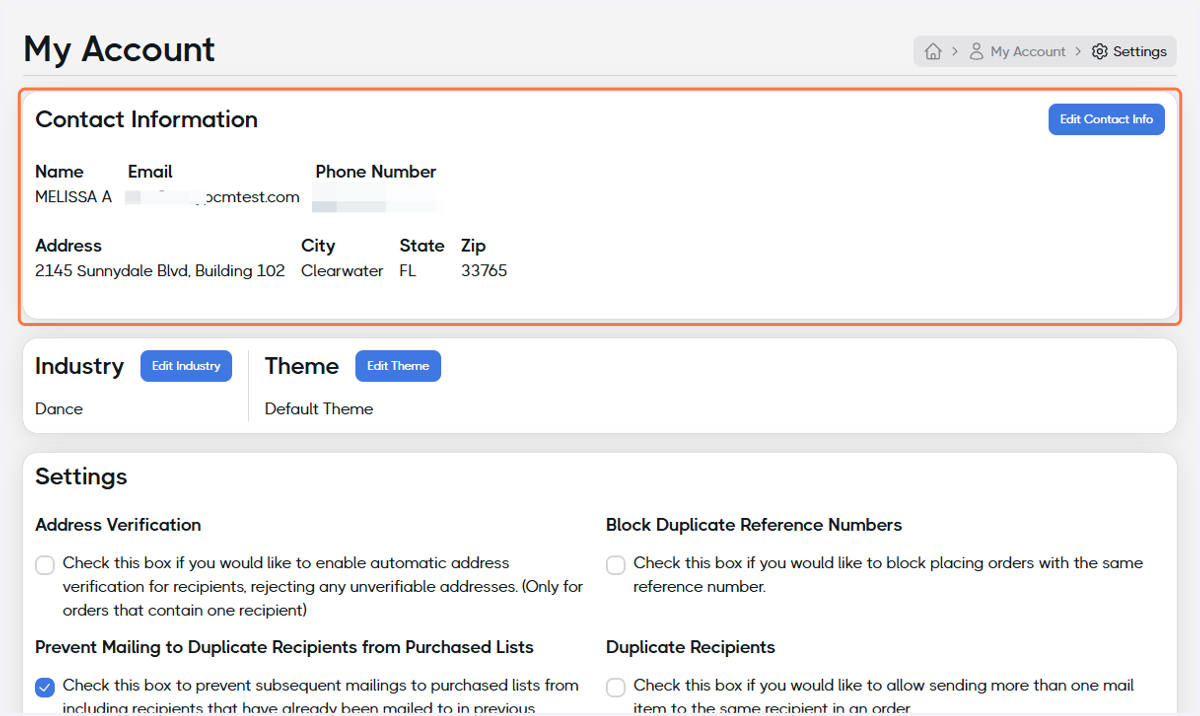
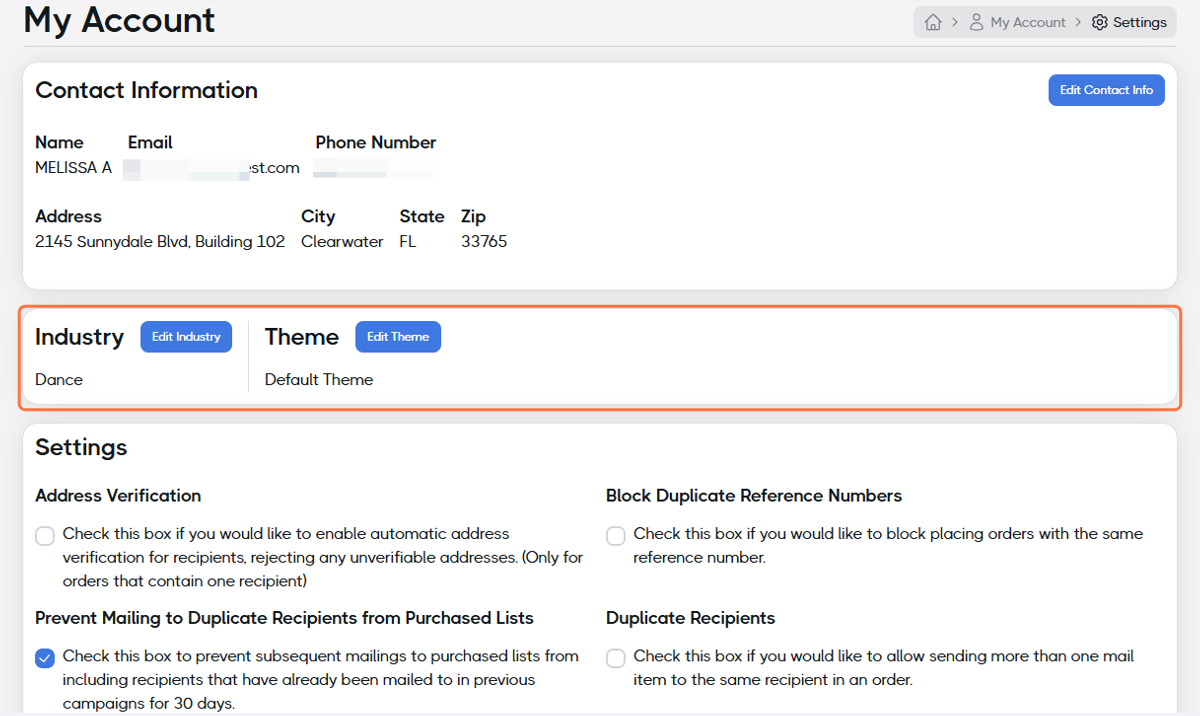
10. Update your industry and edit your theme (optional)
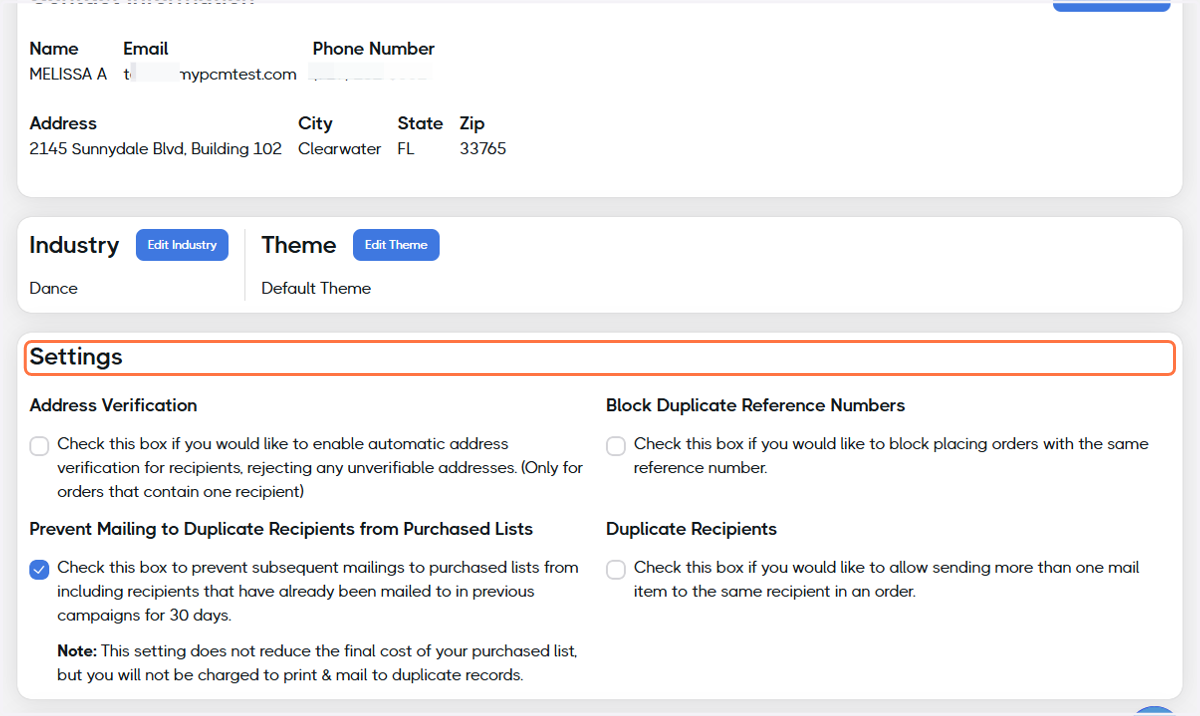
11. Confirm or update your settings
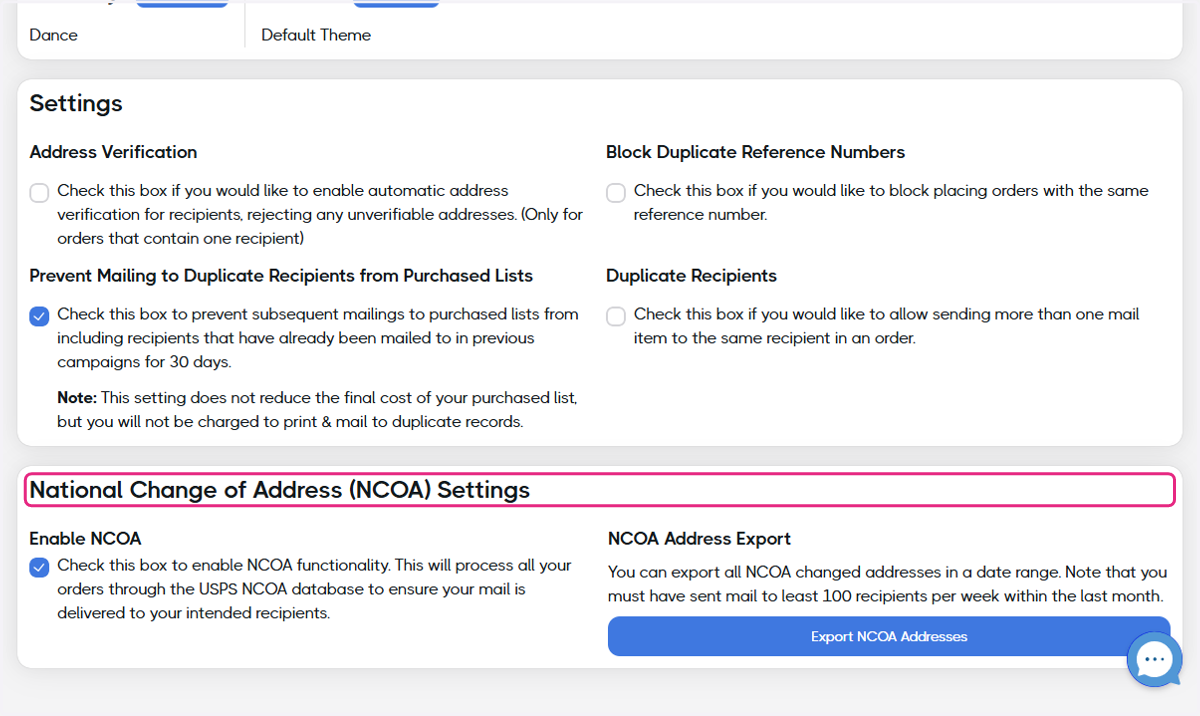
12. Confirm your preference for the National Change of Address (NCOA) Settings
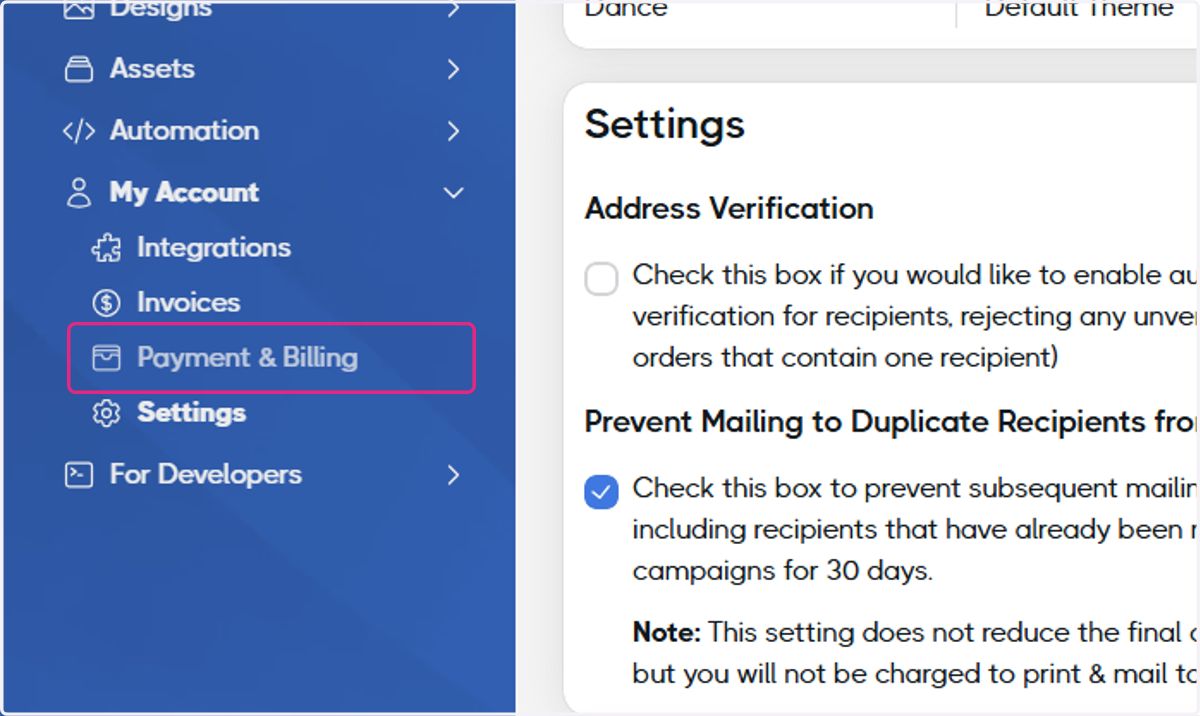
13. Click on Payment & Billing
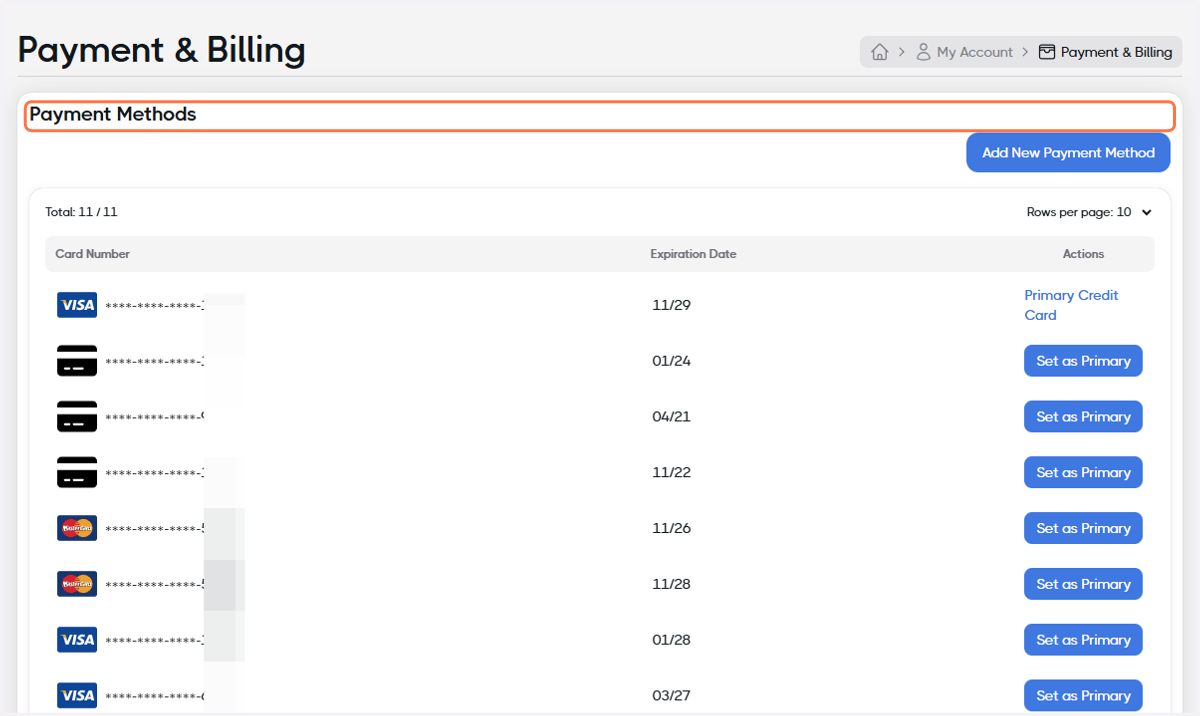
14. Add a Payment Method
We will use the card on file for all billing.
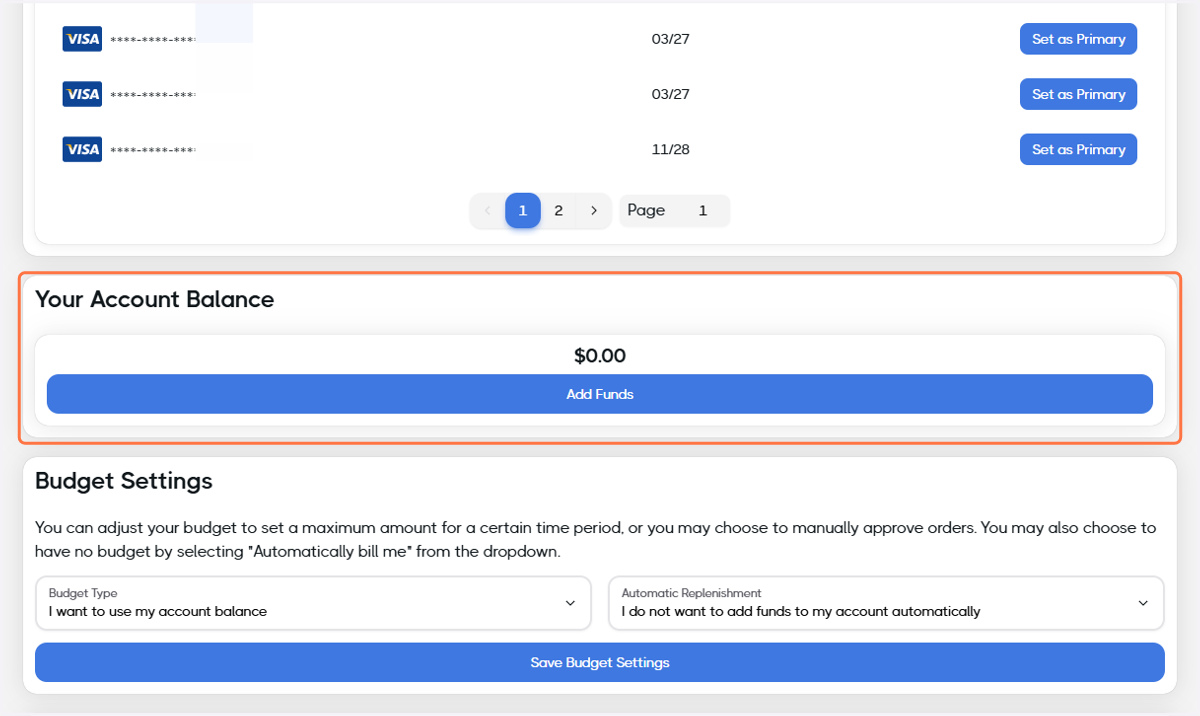
15. Add funds for your account balance (optional)
We will use the account balance for billing depending on your budget settings.
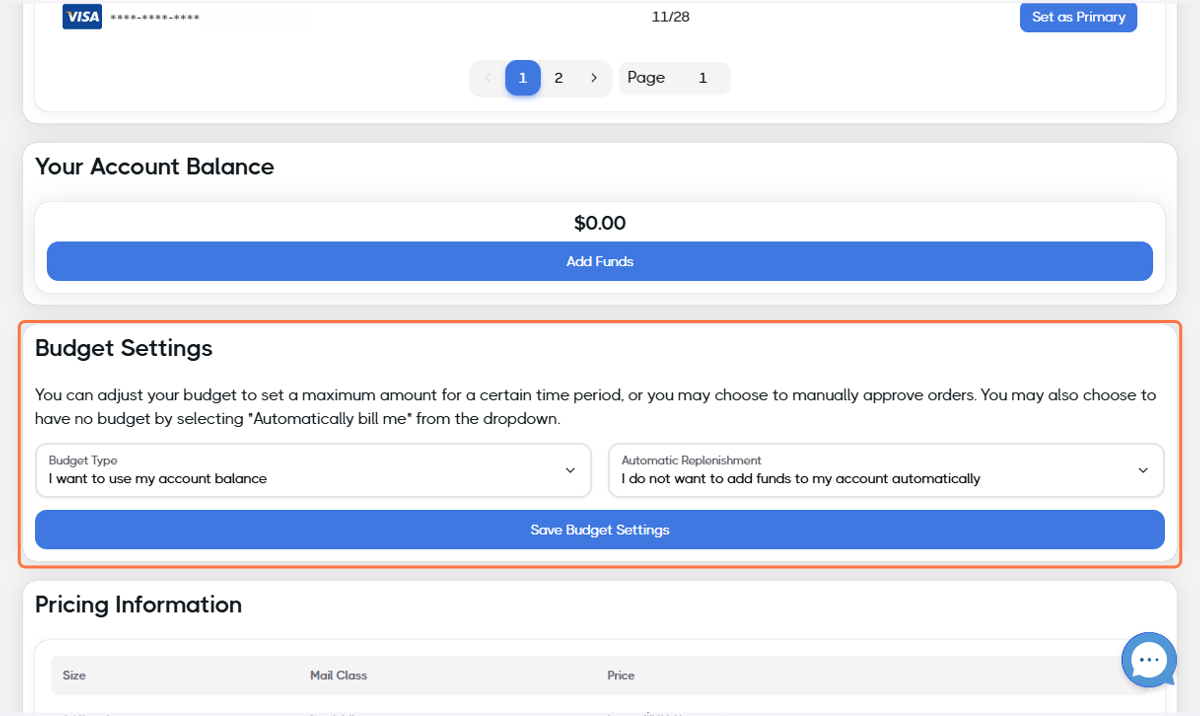
16. Confirm or adjust your budget settings
Set up your Design and your Campaign
Before you can start building, you will need to have a design and a campaign.
Creating your First Design
Working With Design Variables
Create a DirectMail Campaign
Configure your HubSpot Workflows
Add a Contact to Campaign
Remove a Contact from a Campaign
Set up an App Event Triggered Workflow
Disconnecting the HubSpot integration
Should you ever need to disconnect the HubSpot integration, it takes only a few easy steps.
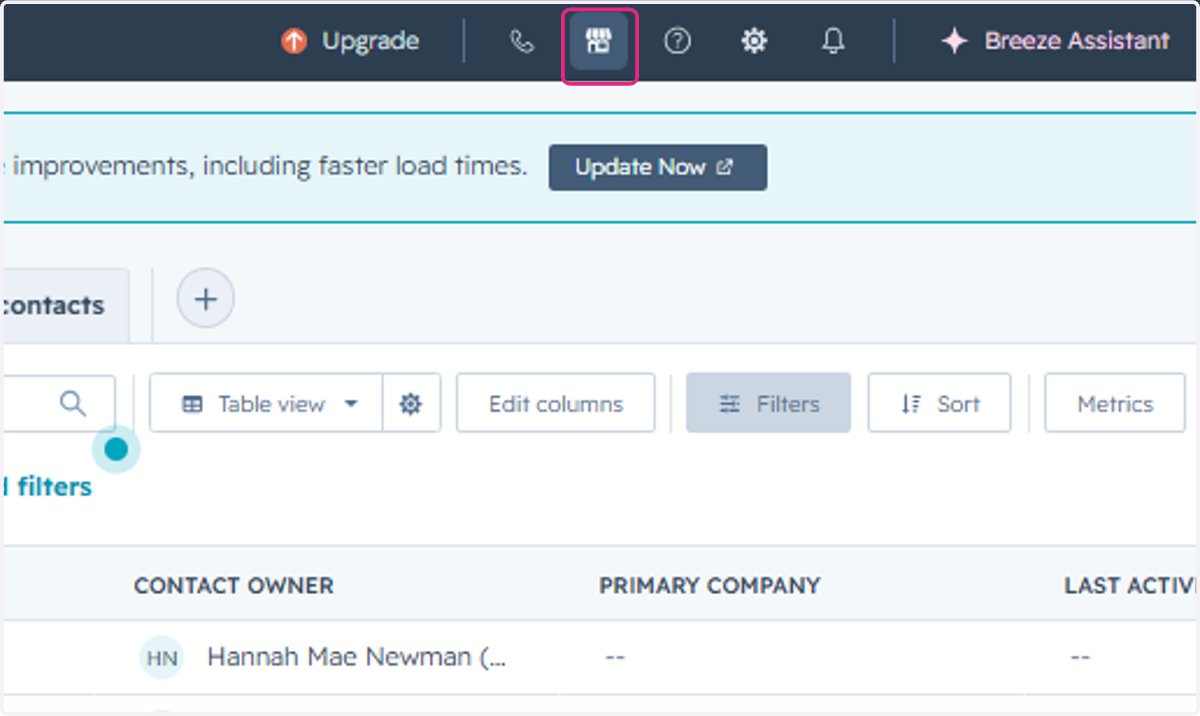
17. Click on Marketplace from within HubSpot
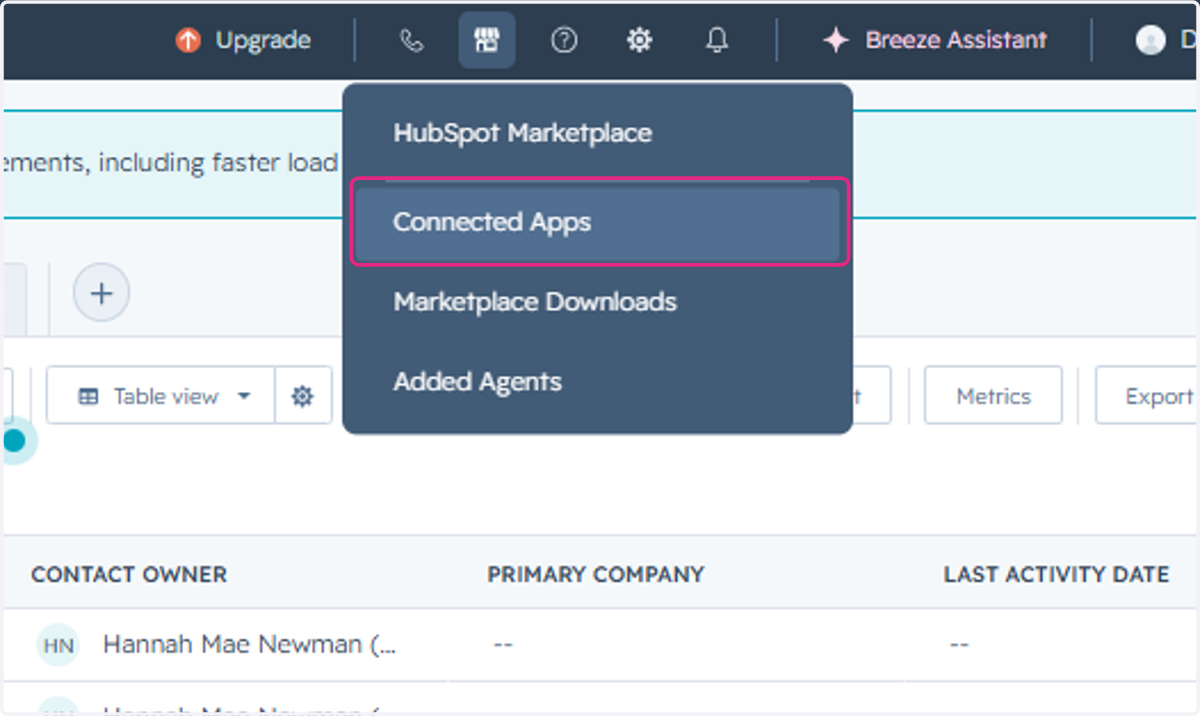
18. Click on Connected Apps
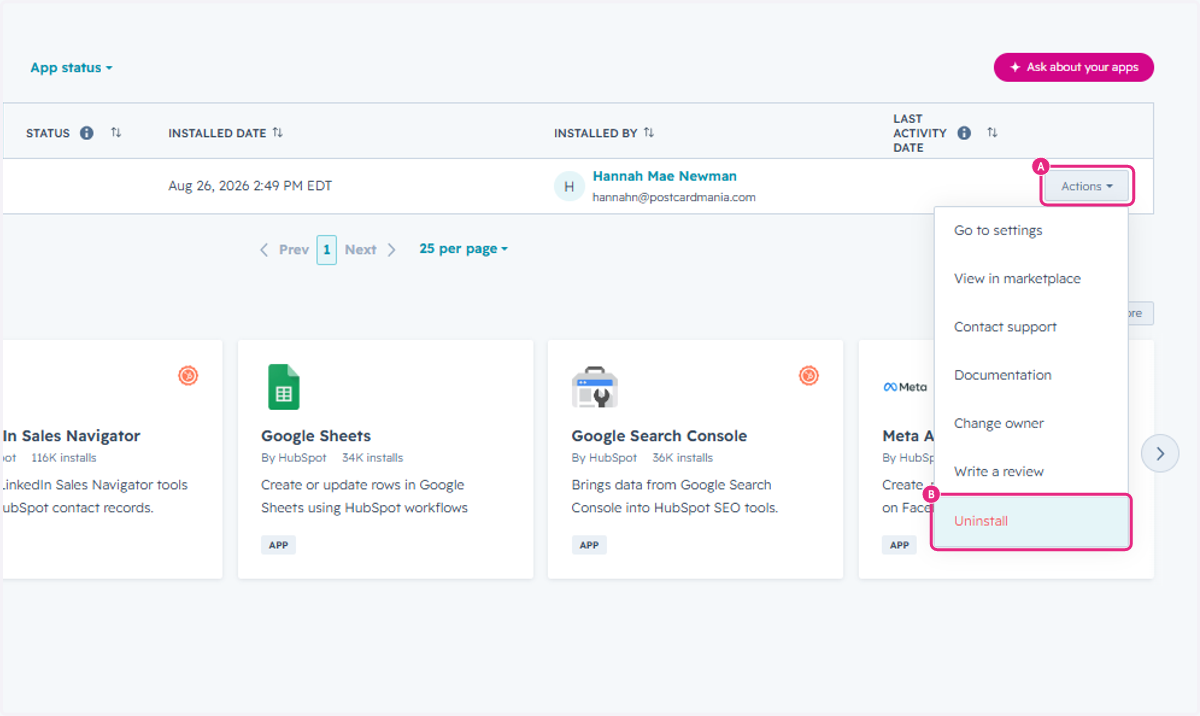
19. A. Click on Actions for the PCM Integrations Direct Mail App
19. B. Click on Uninstall
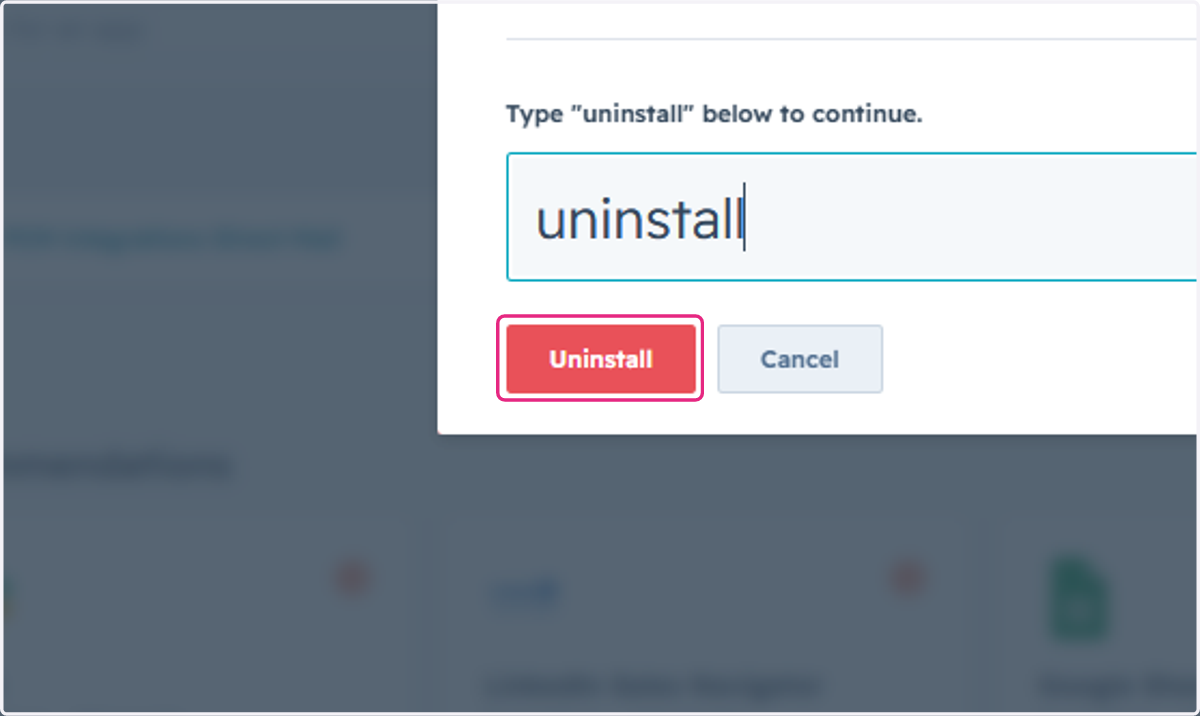
20. Type uninstall
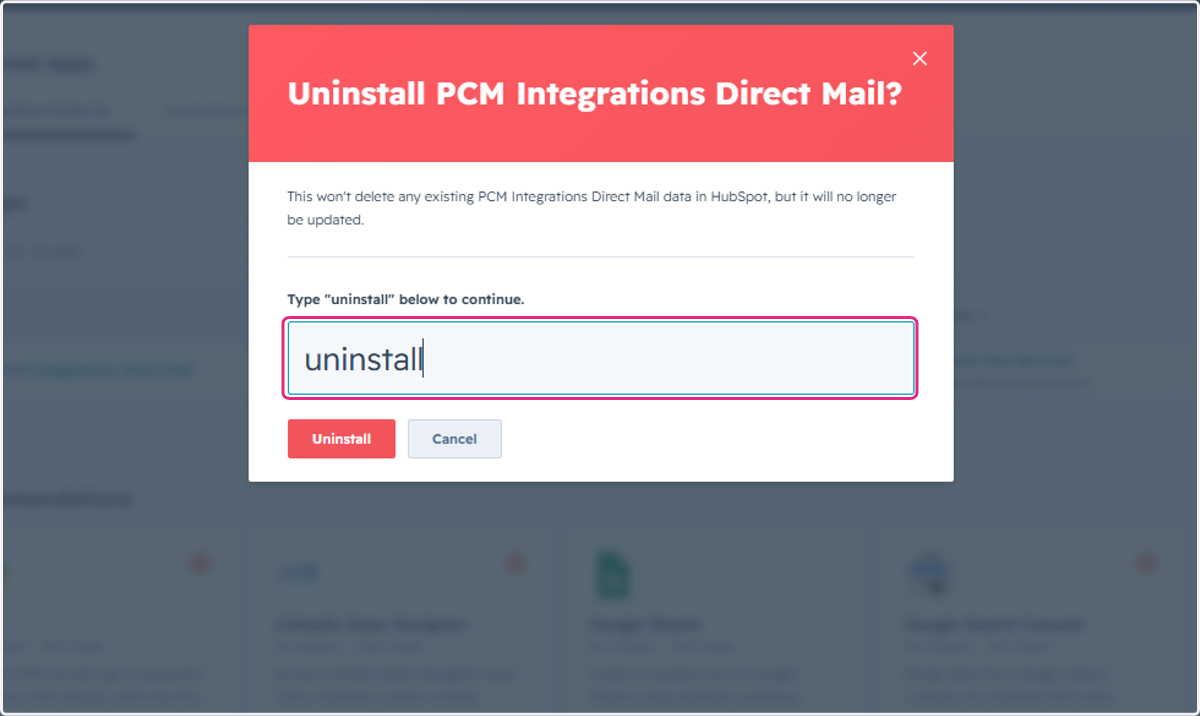
21. Click on Uninstall
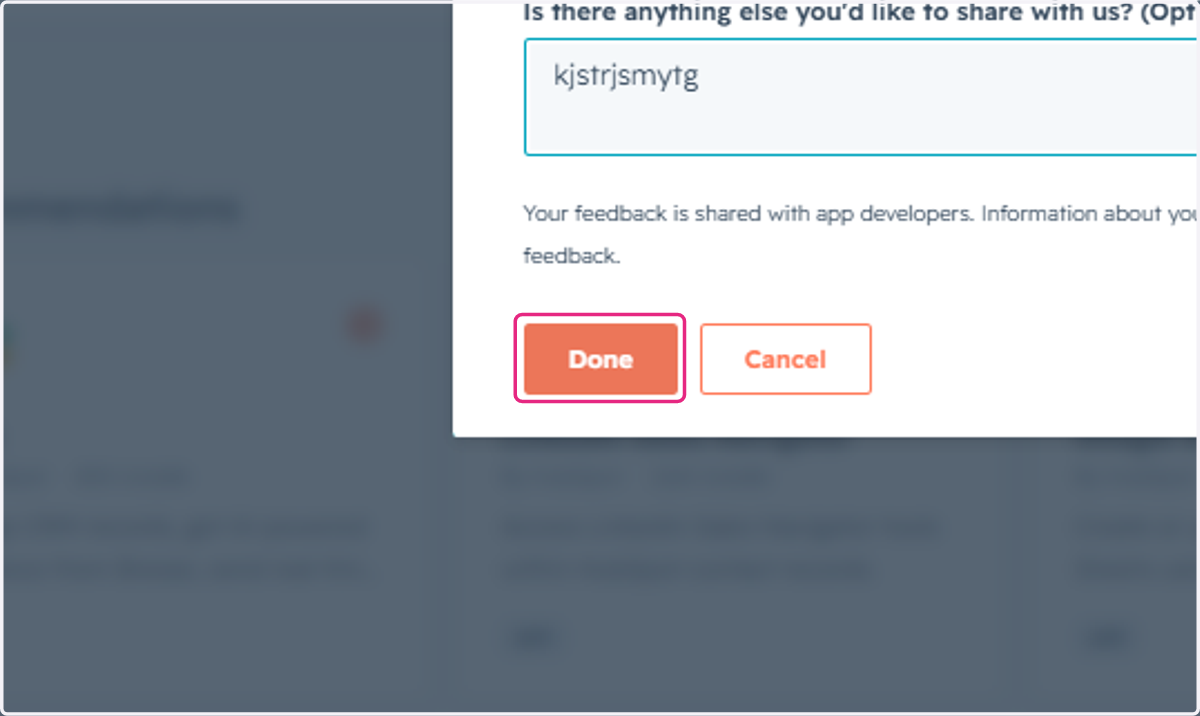
22. Fill out the uninstall reason
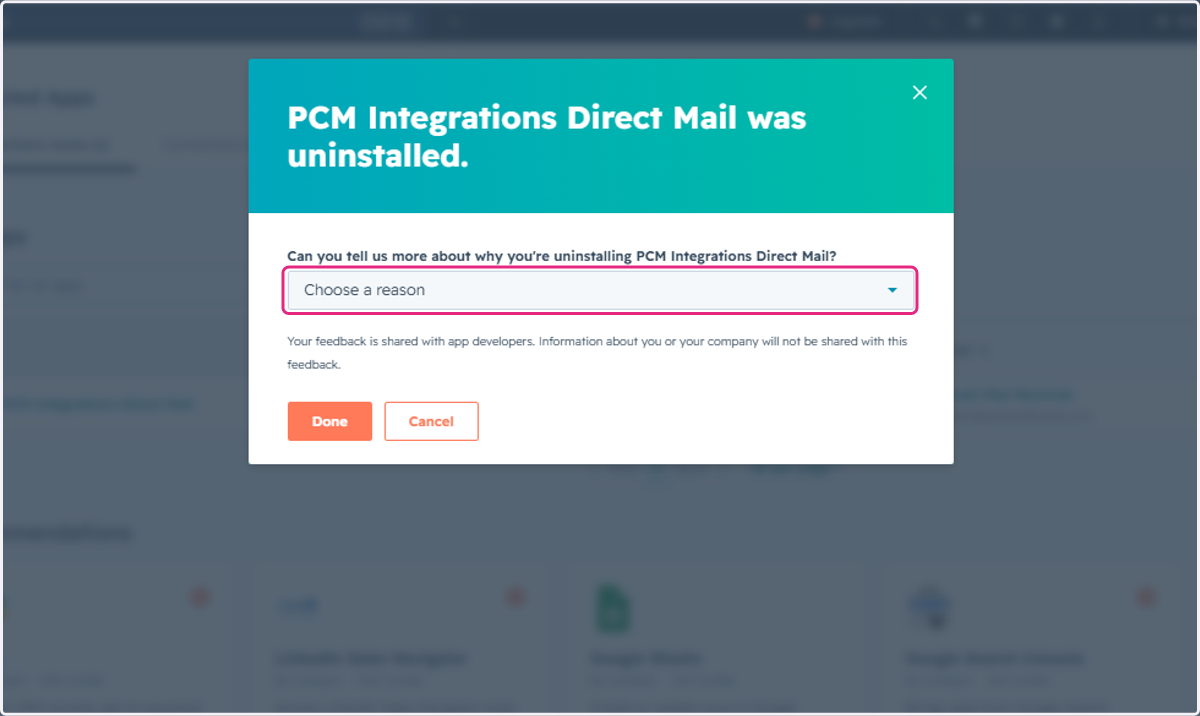
23. Click on Done