How to Use the Design Editor
DirectMail Portal
1. Click on Designs
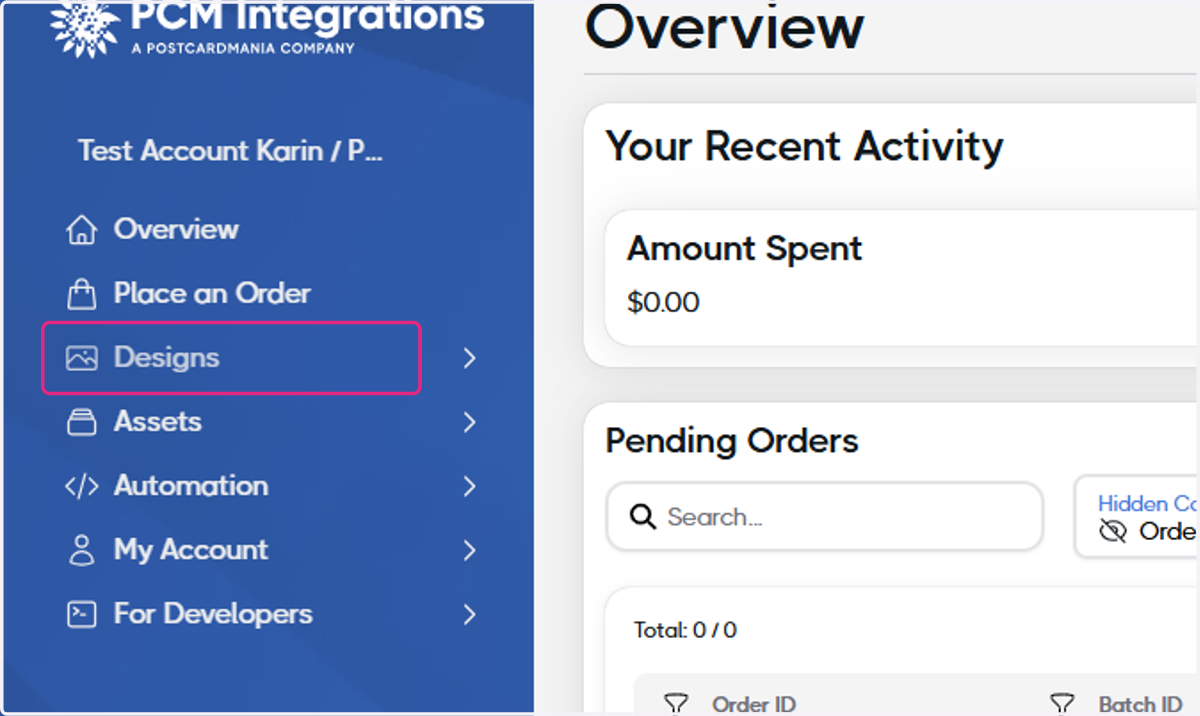
2. Click on New Design
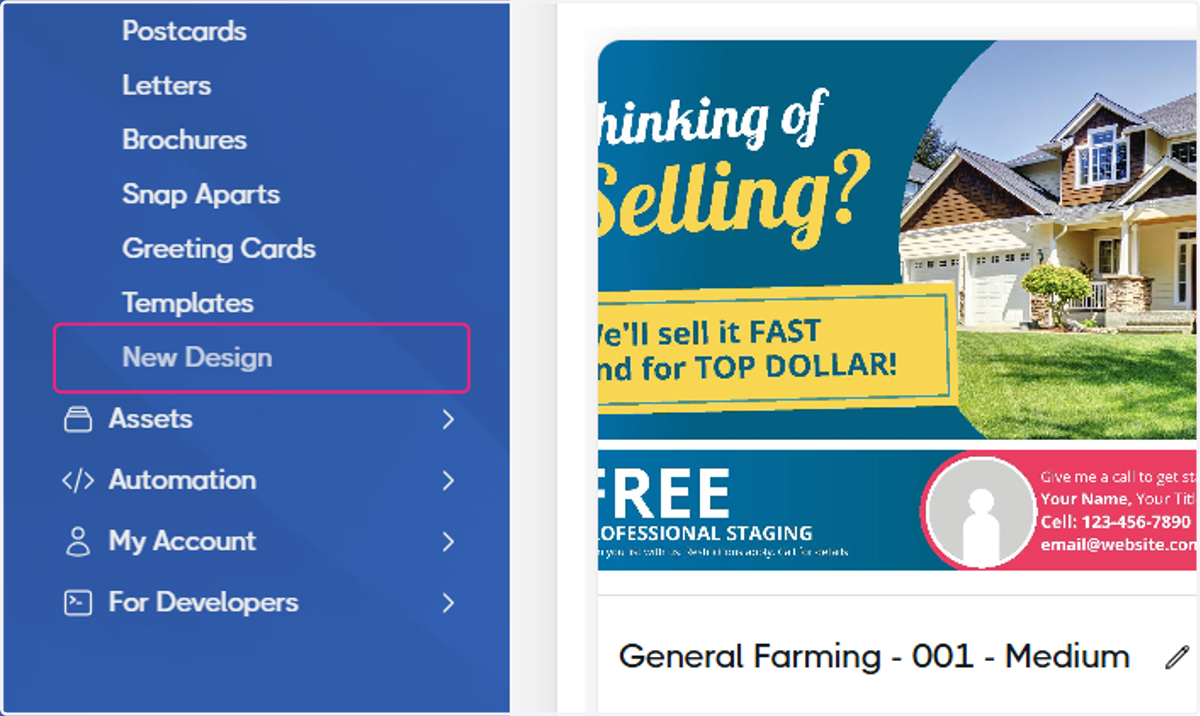
3. Click on Design Your Own…
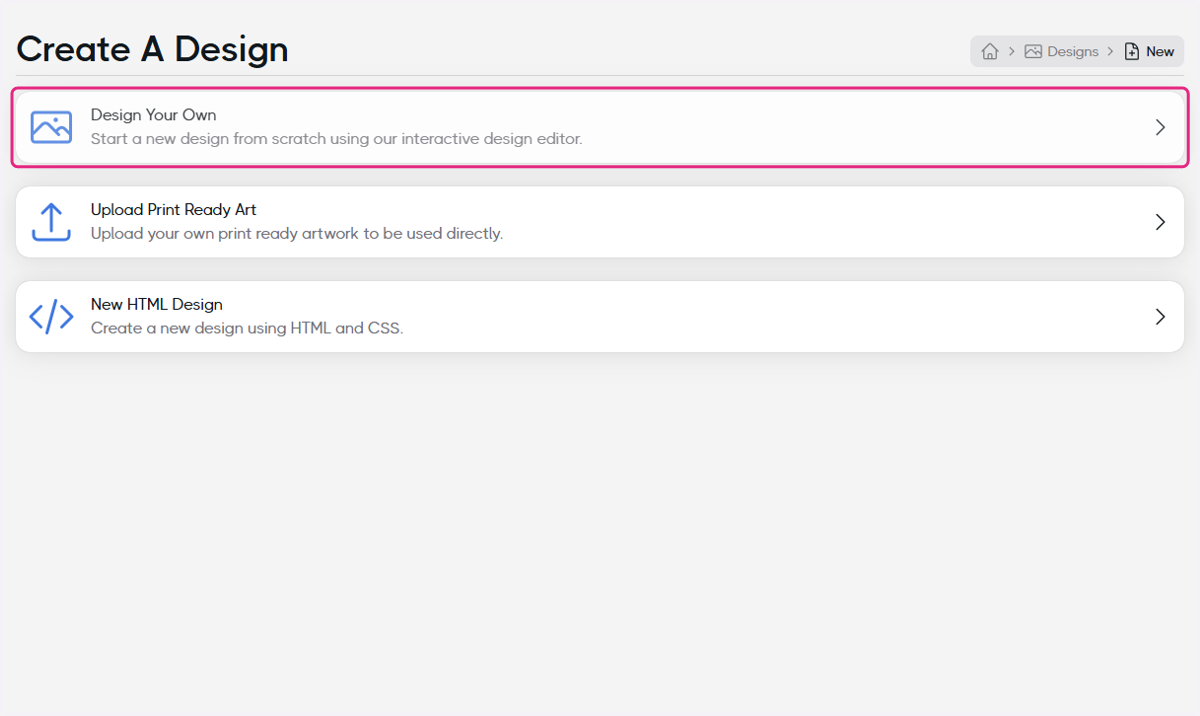
4. Name your Design
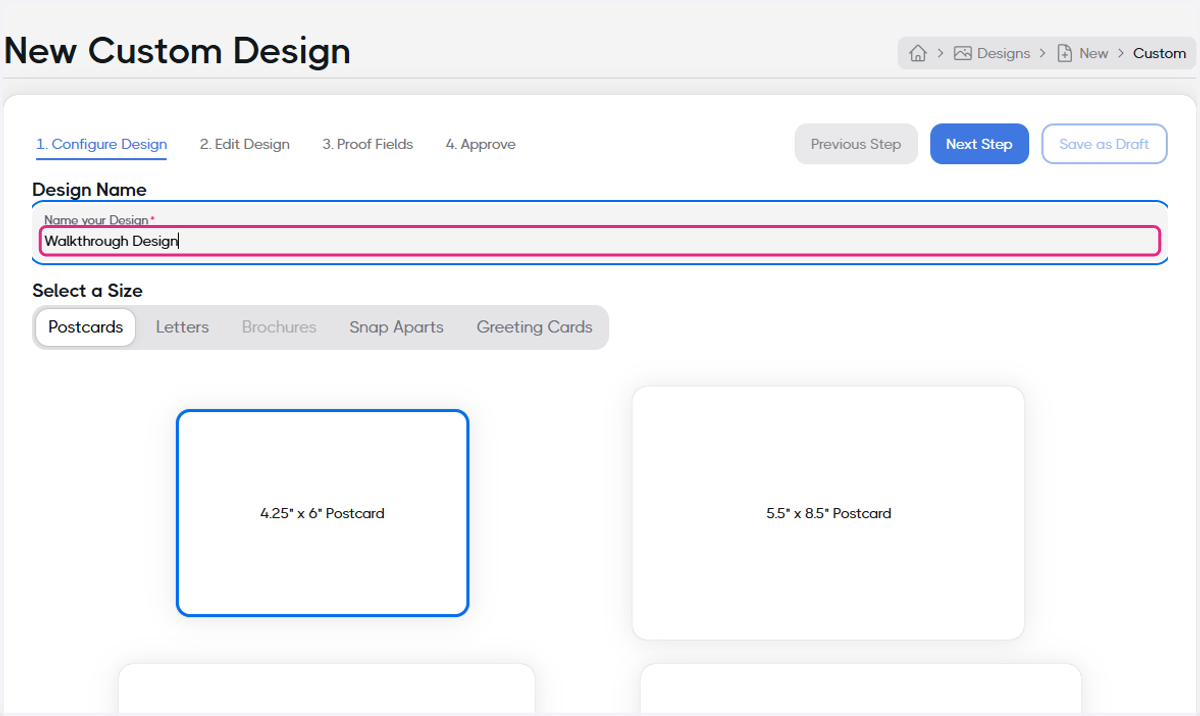
5. Select the type of design
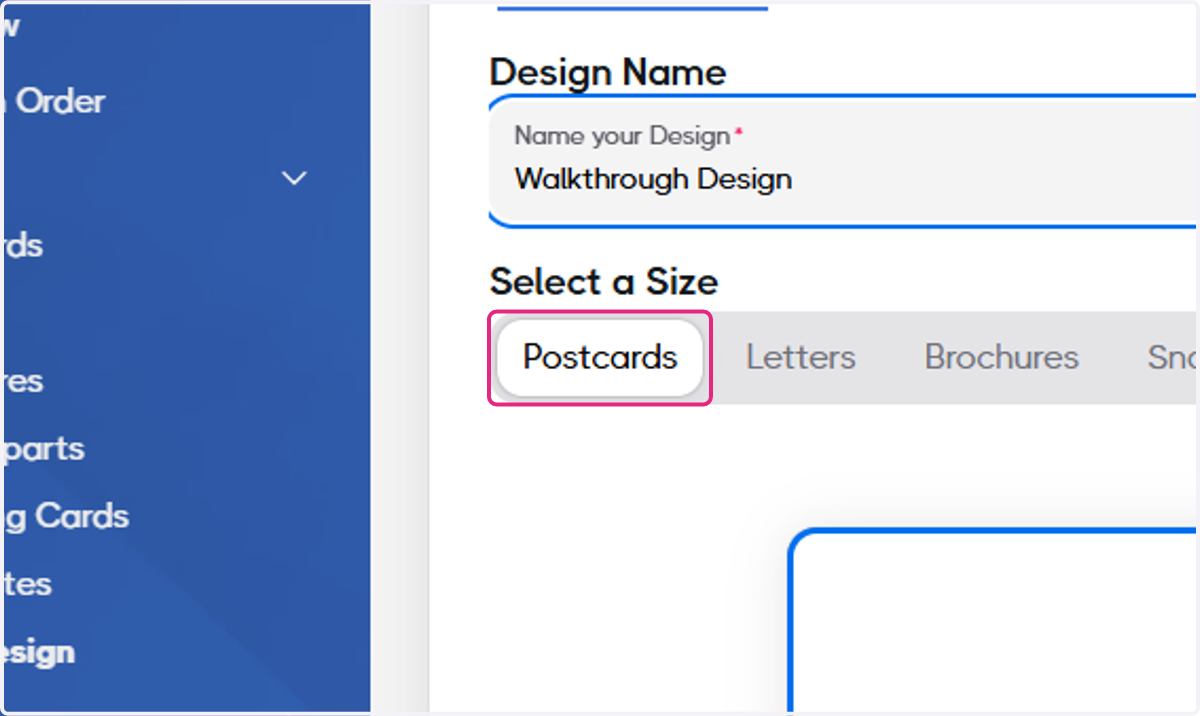
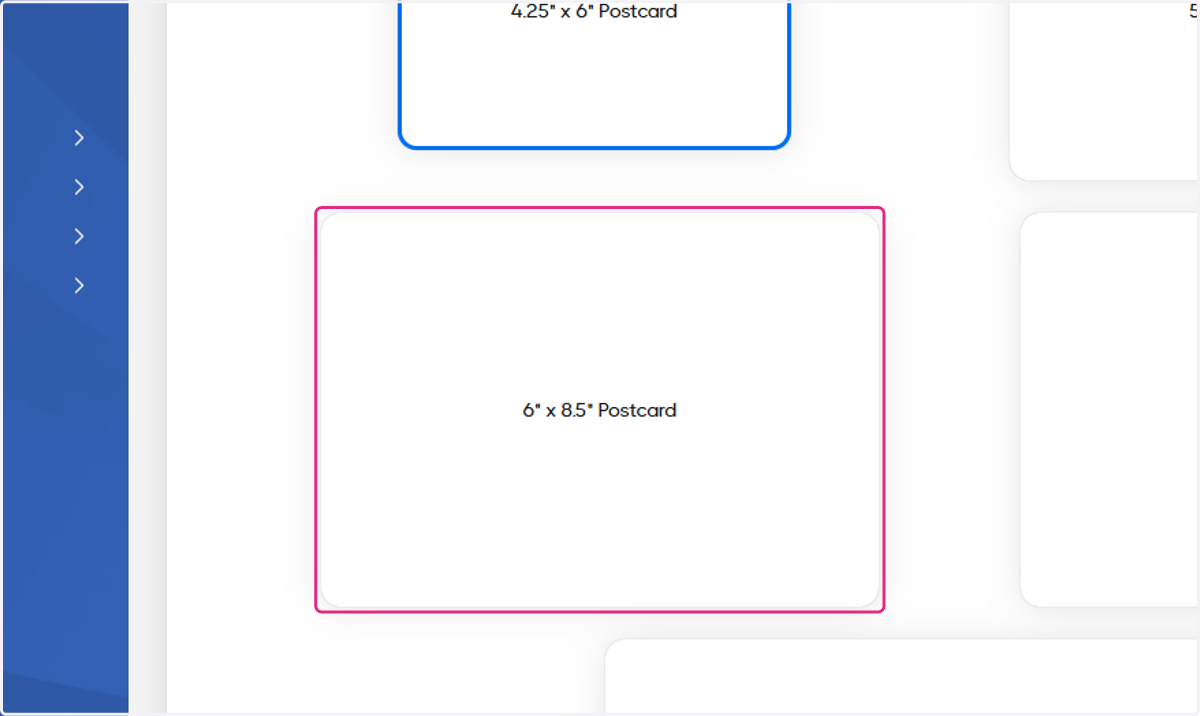
6. Choose a size for your design
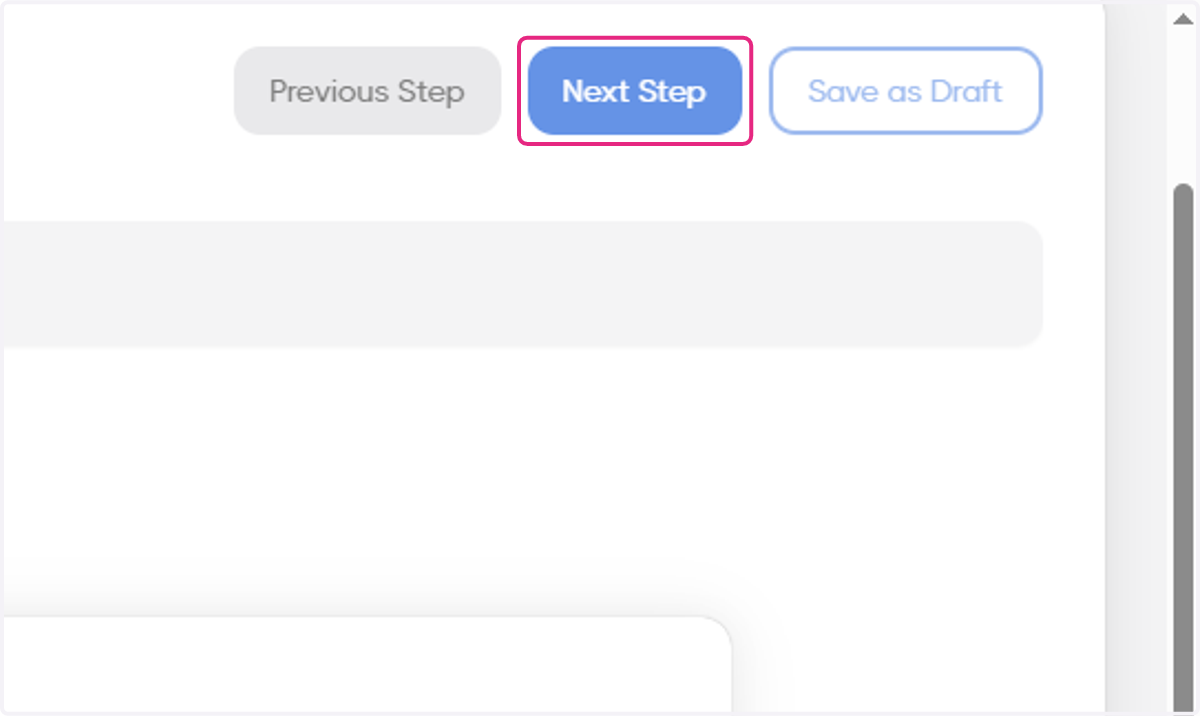
7. Click on Next Step
8. Click on Pages
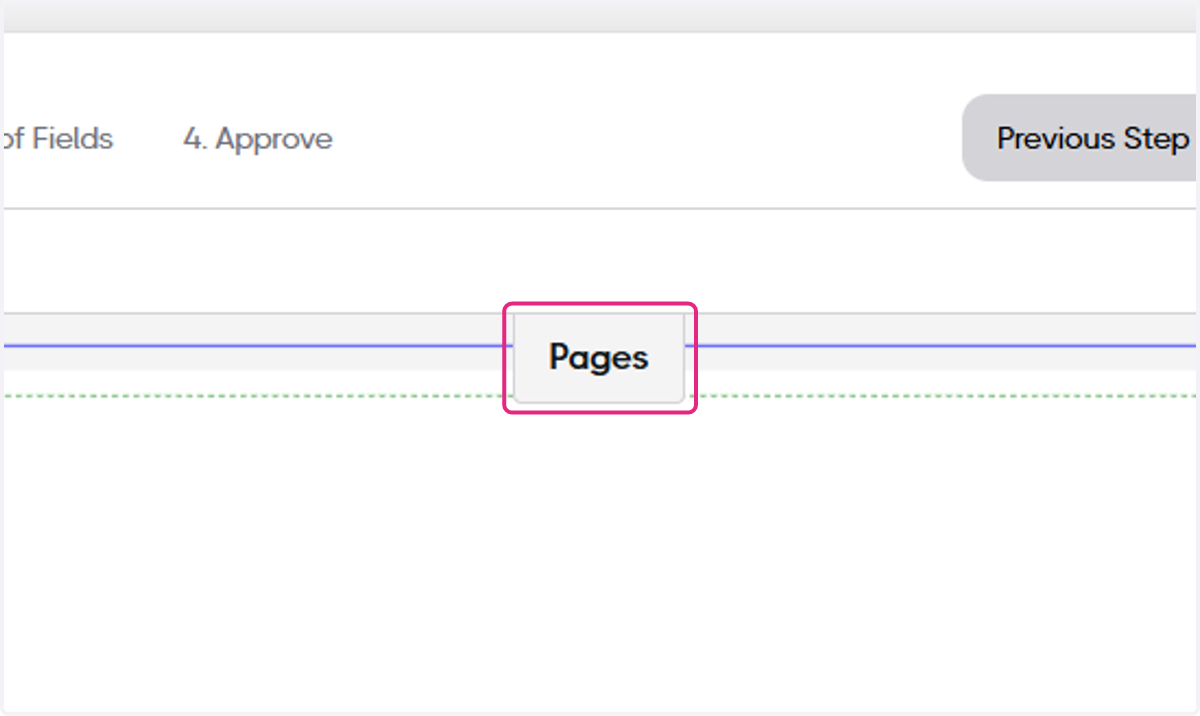
9. You may switch between the pages (or front and back)
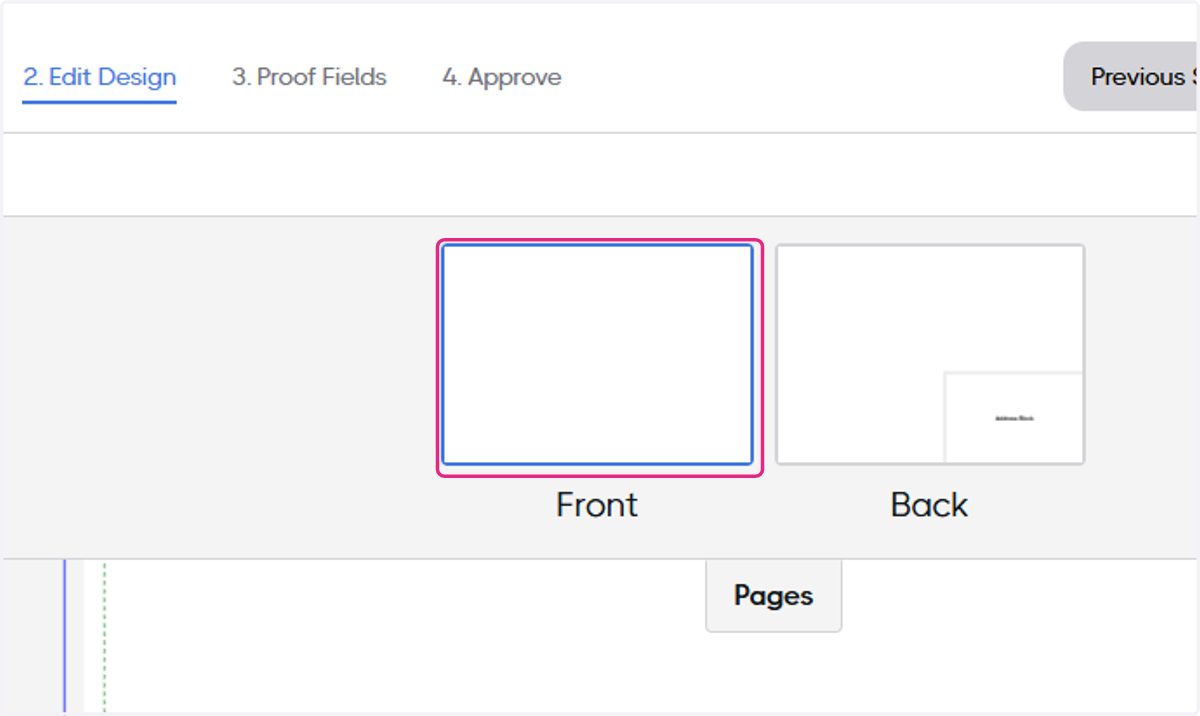
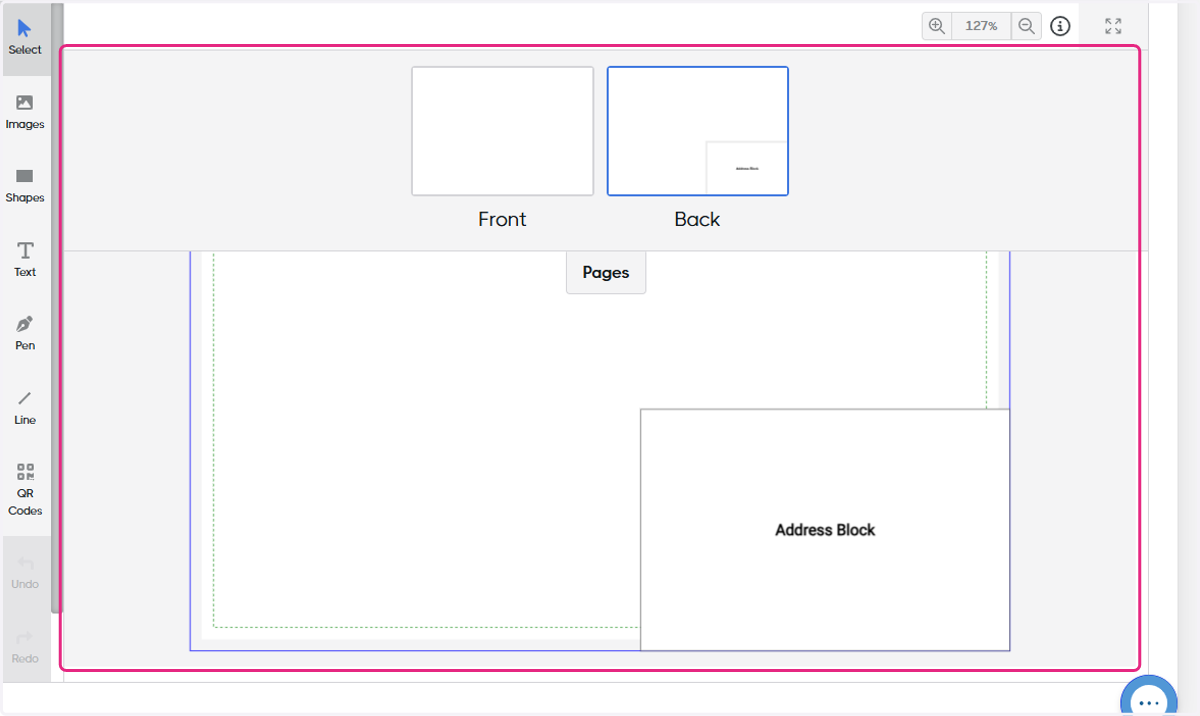
10. Make your design within the template
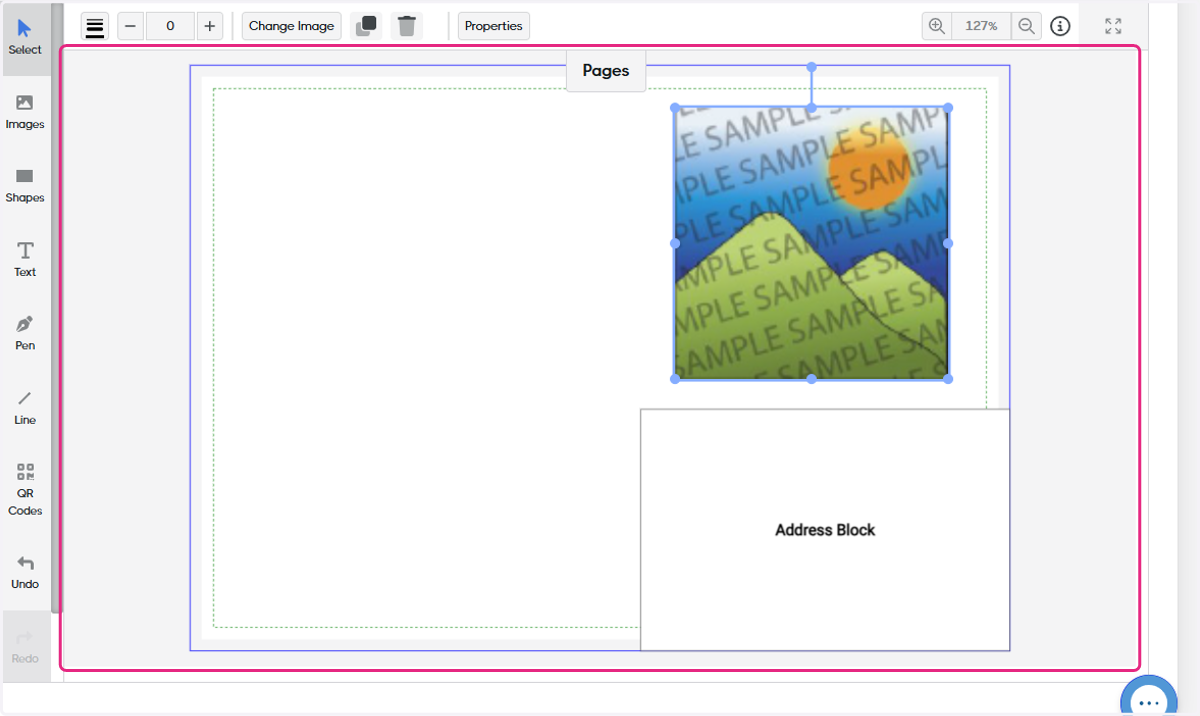
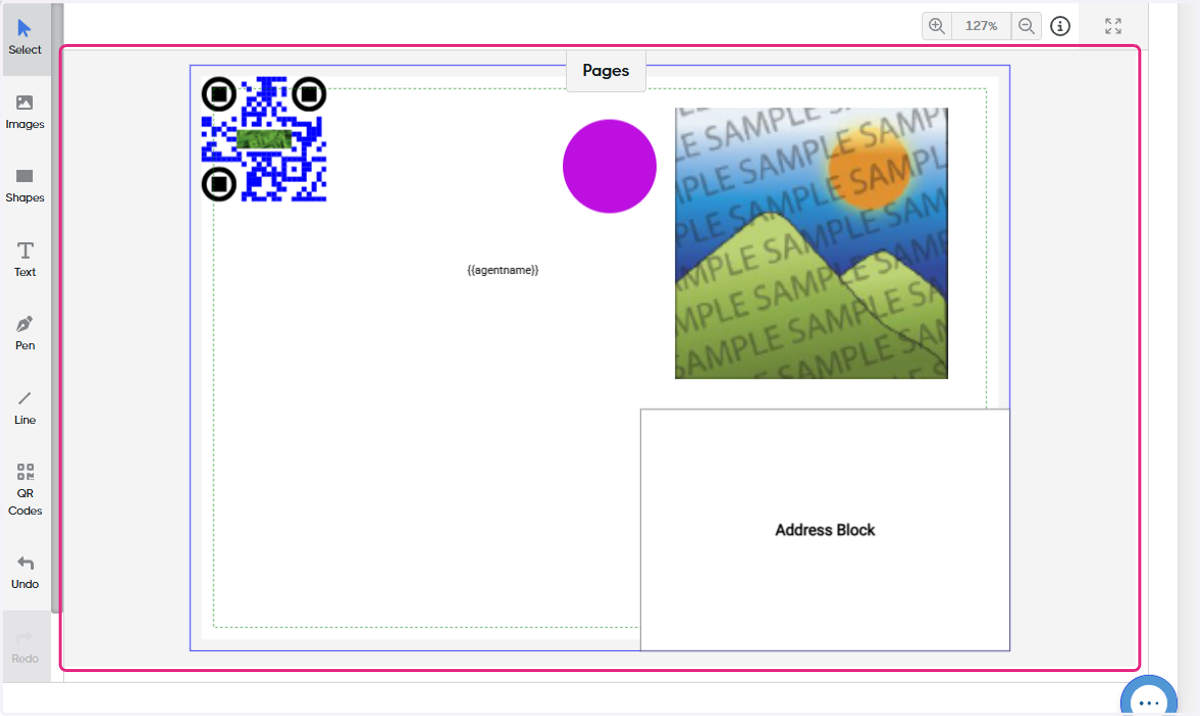
Here you can see the limit and bleed lines. You may also see the reserved area for the address block. You will not be able to overlay elements on the address block.
11. Click on Images
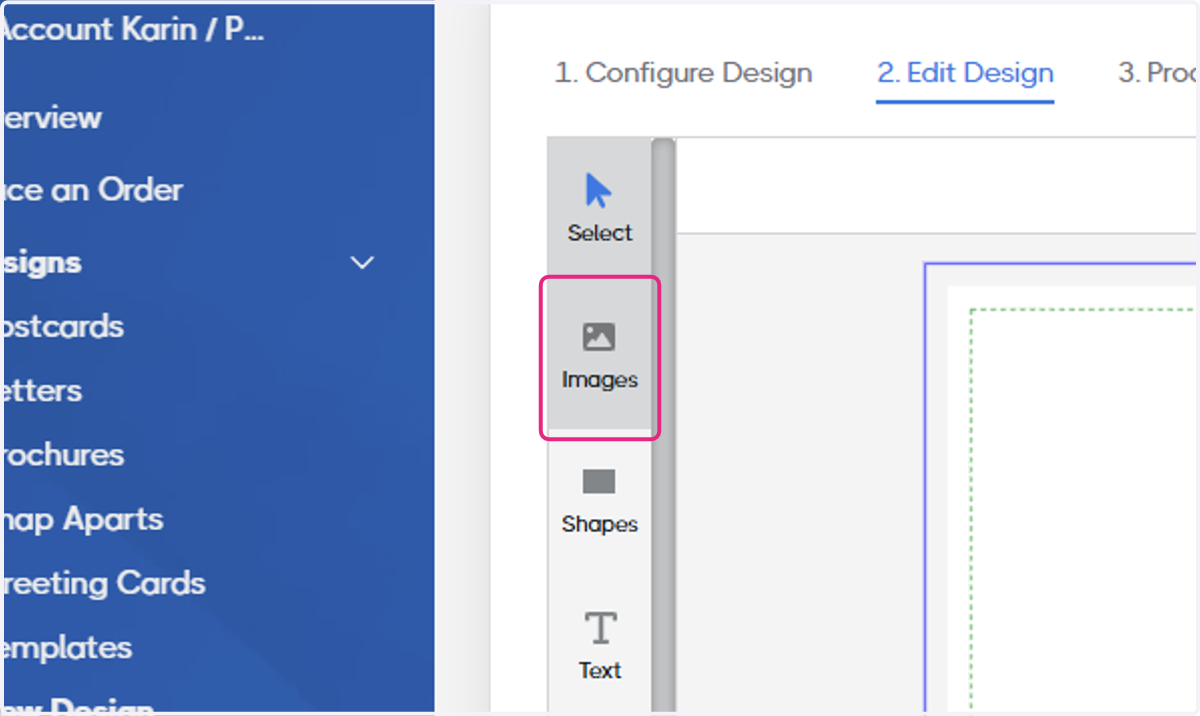
12. You can import images to use in your design
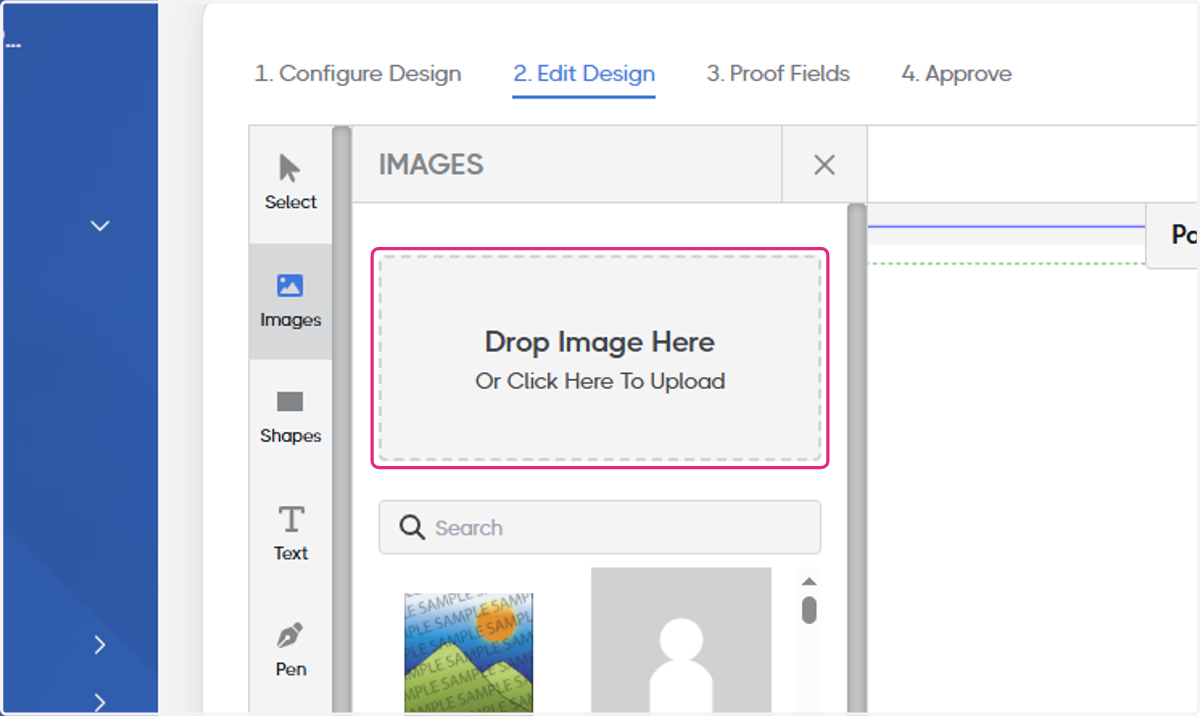
13. Drag and drop the image element to the correct spot in your design
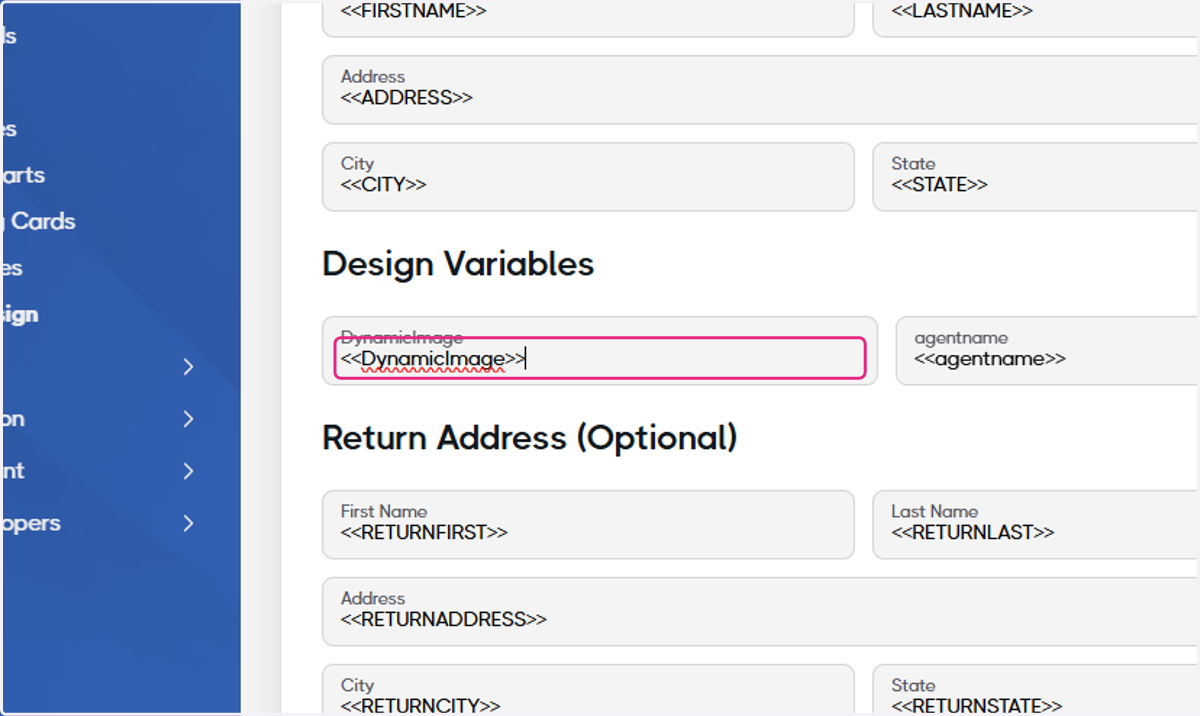
You may resize, rotate, and change the properties of your design. The dynamic image is a placeholder for a hosted image that you intend to pass into the design at the time the order if placed.
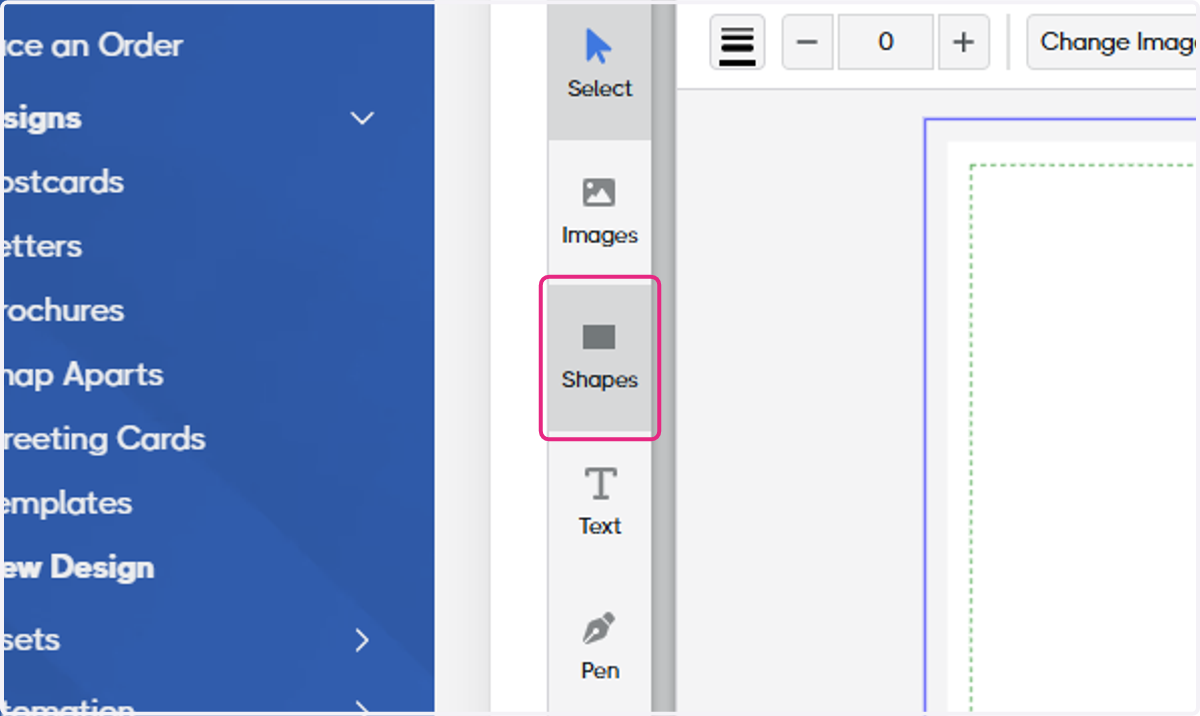
14. Click on Shapes
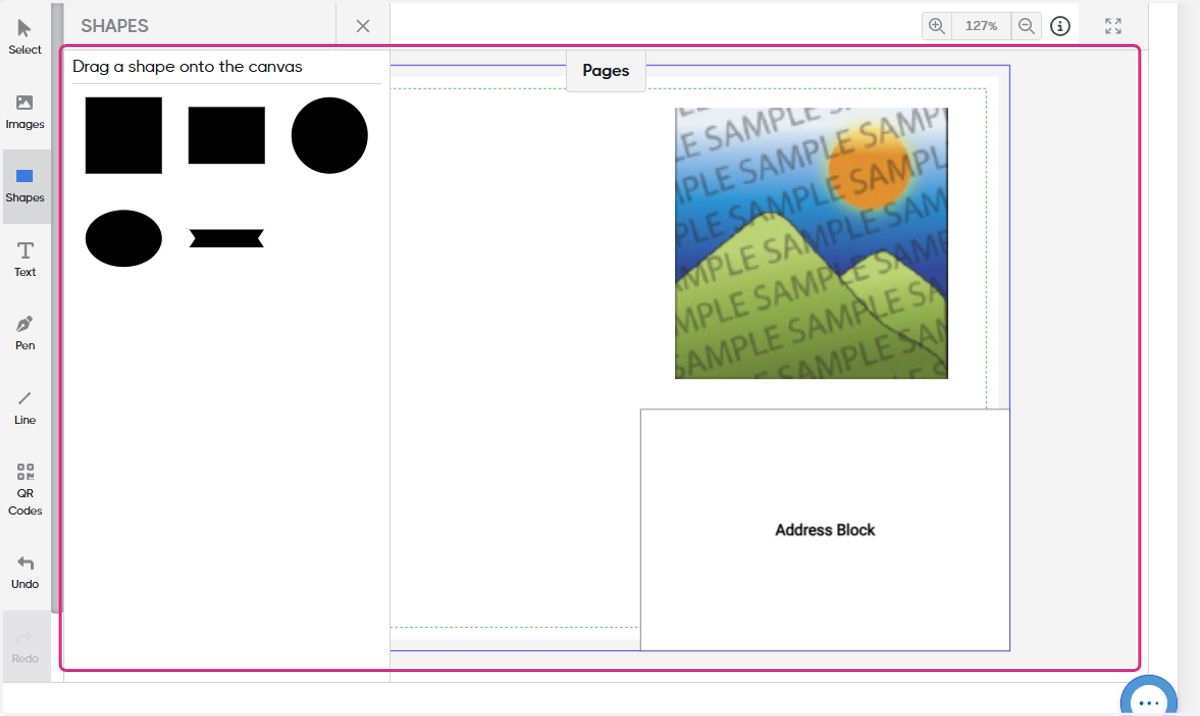
15. Drag highlighted element into the design
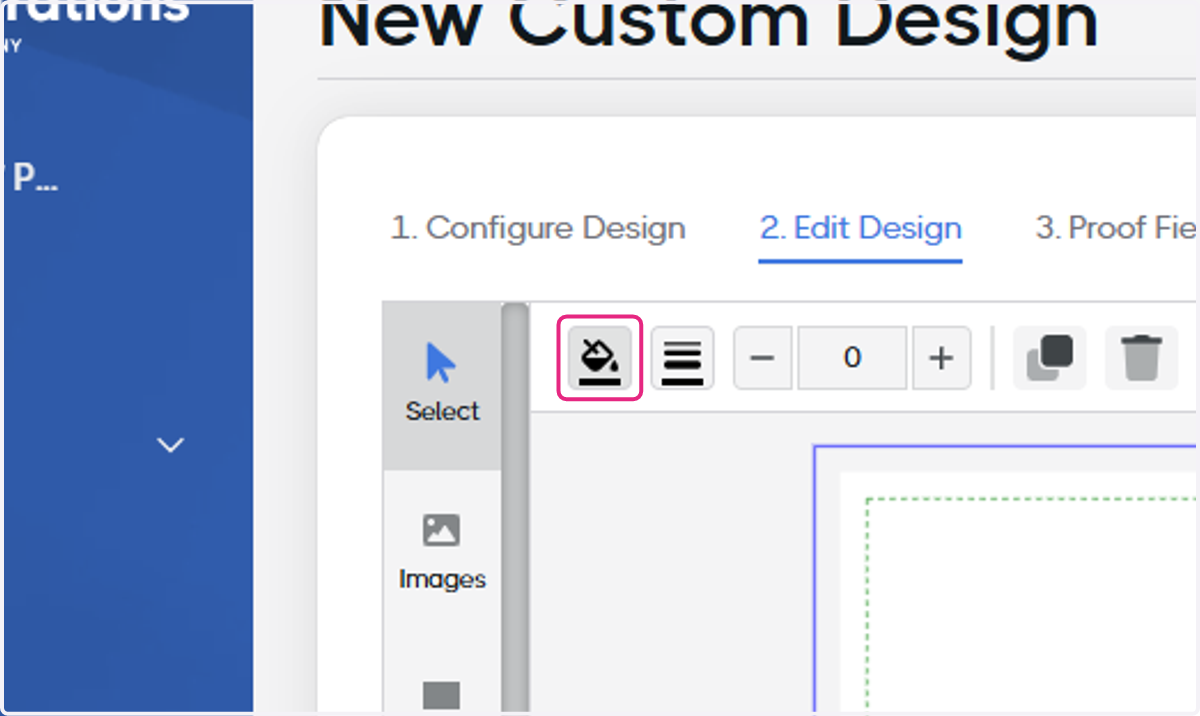
16. Click on the paint bucket to change the element colors
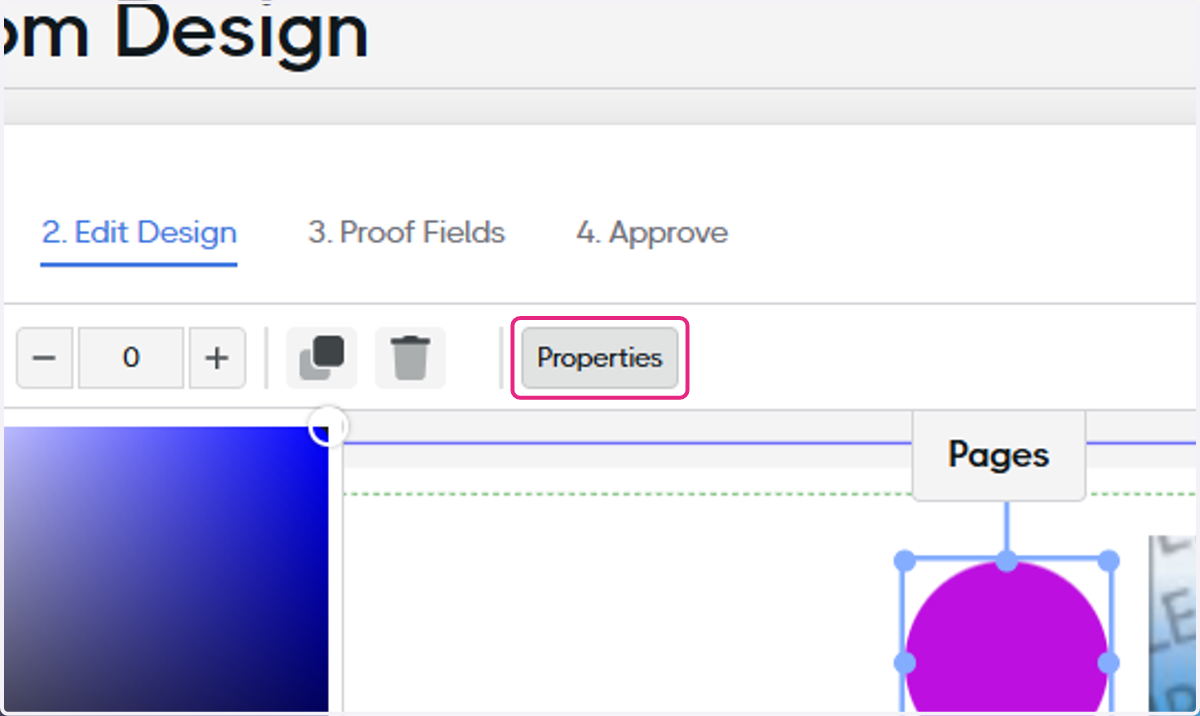
17. Click on Properties
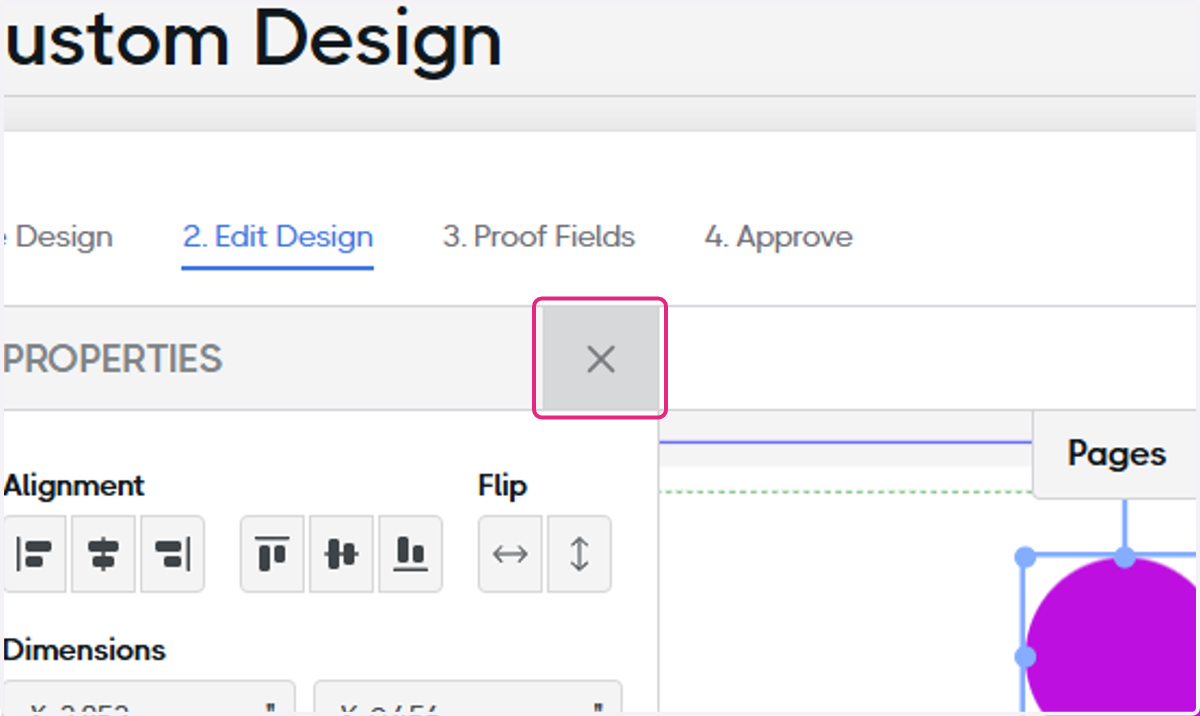
18. You may adjust the properties of any element as desired
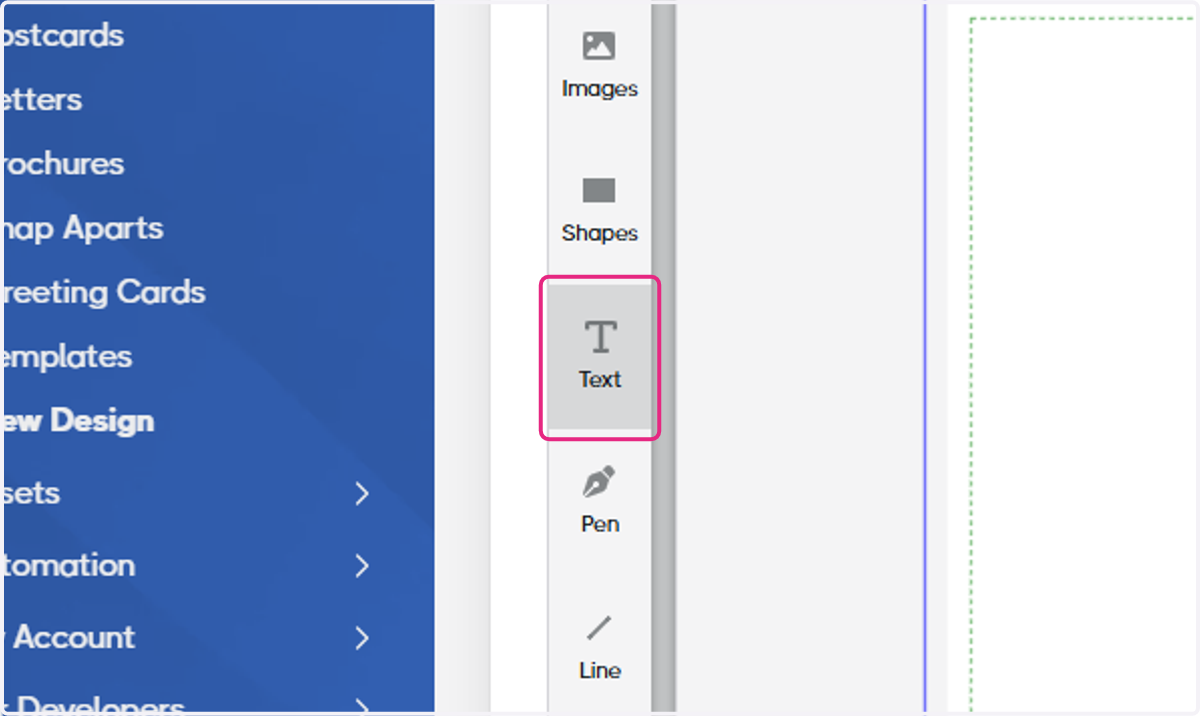
19. Click on Text
20. Click on ADD TEXT
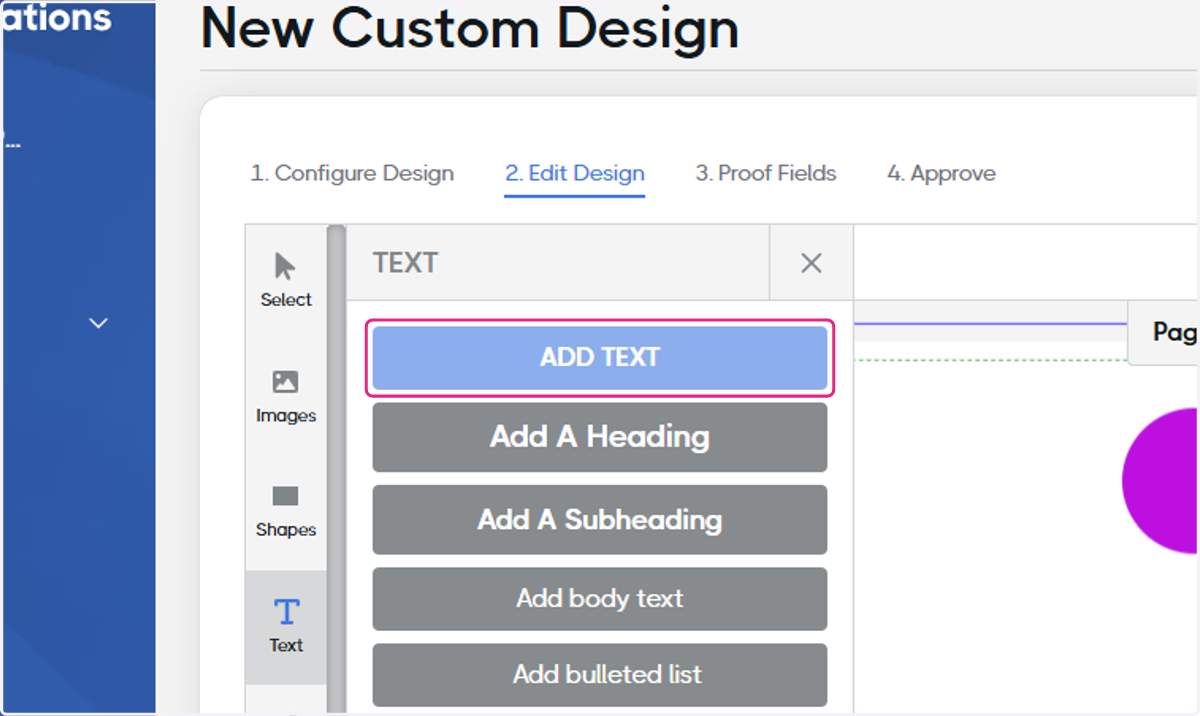
21. Type in the designed text
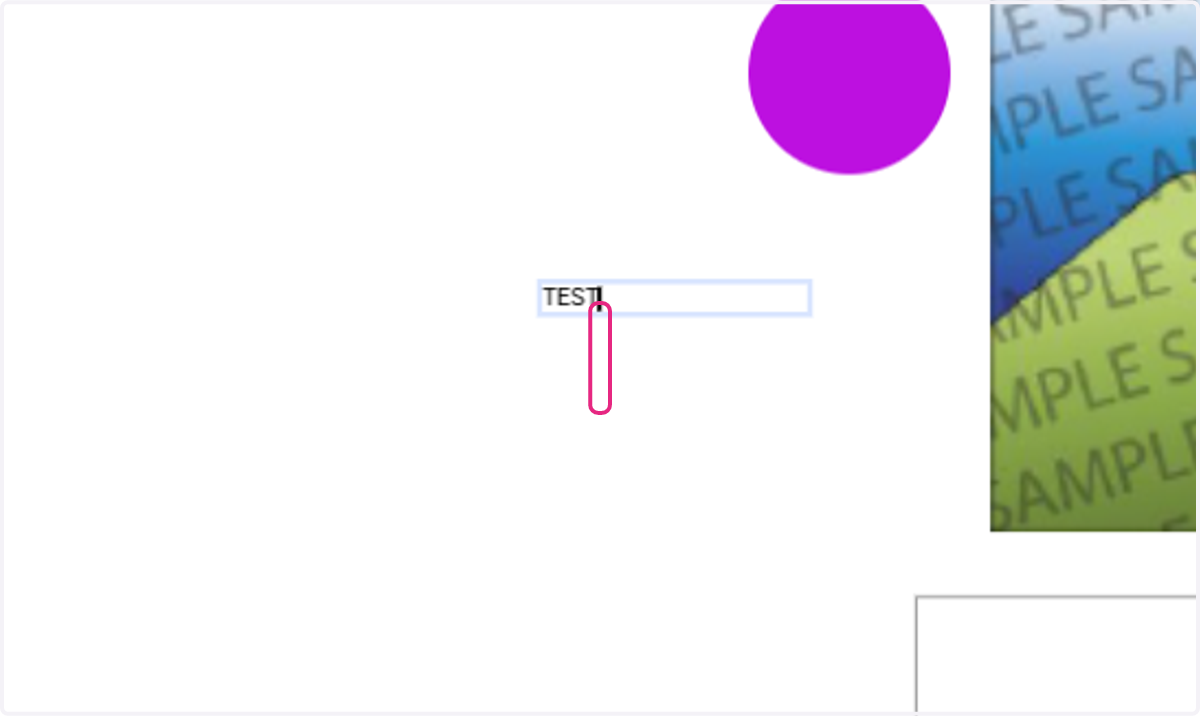
22. Highlight the text you'd like to add a variable to
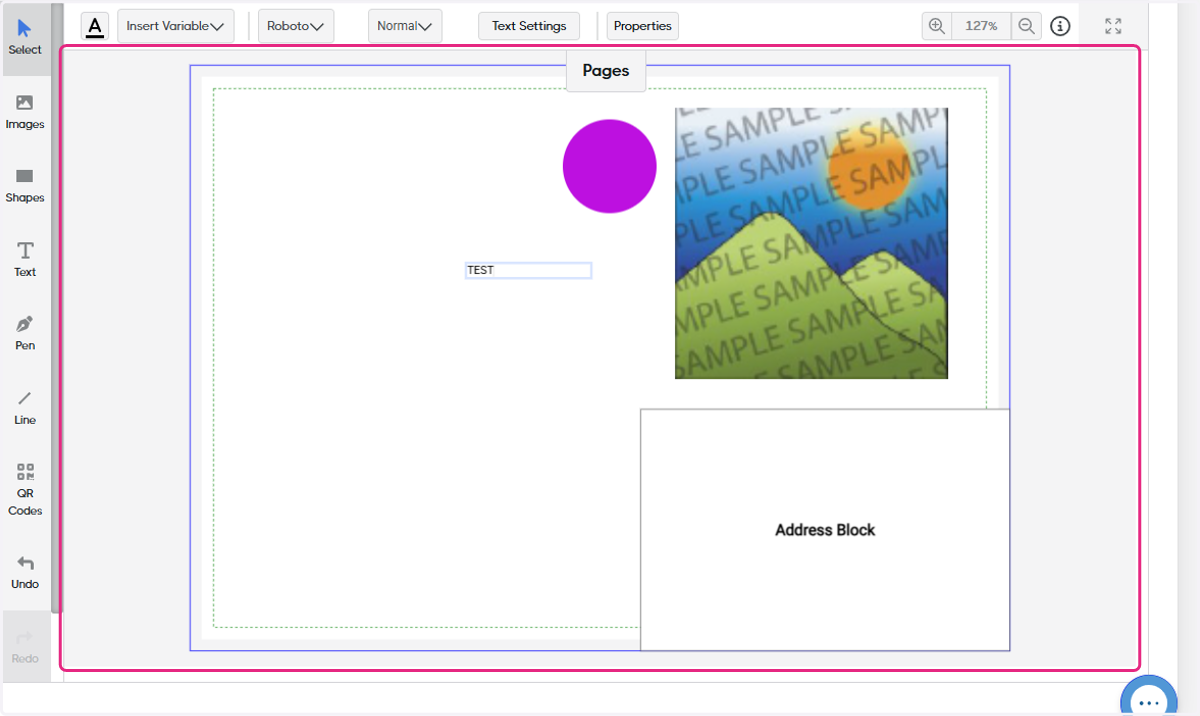
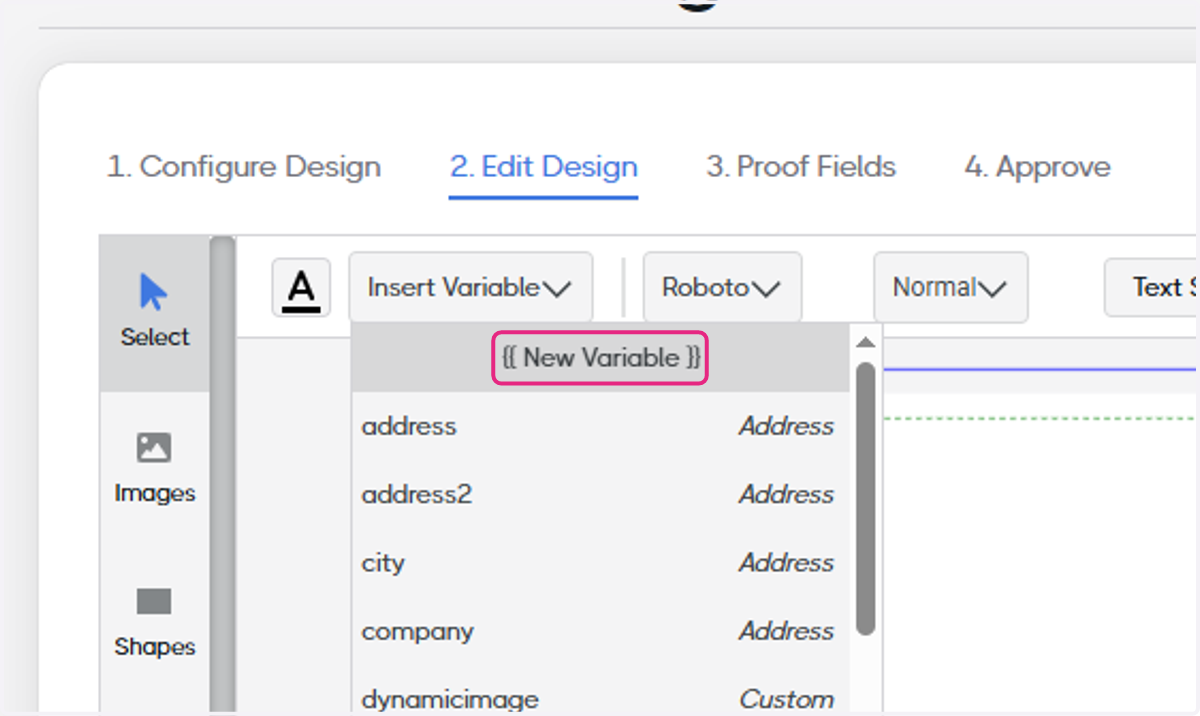
23. Click on Insert Variable
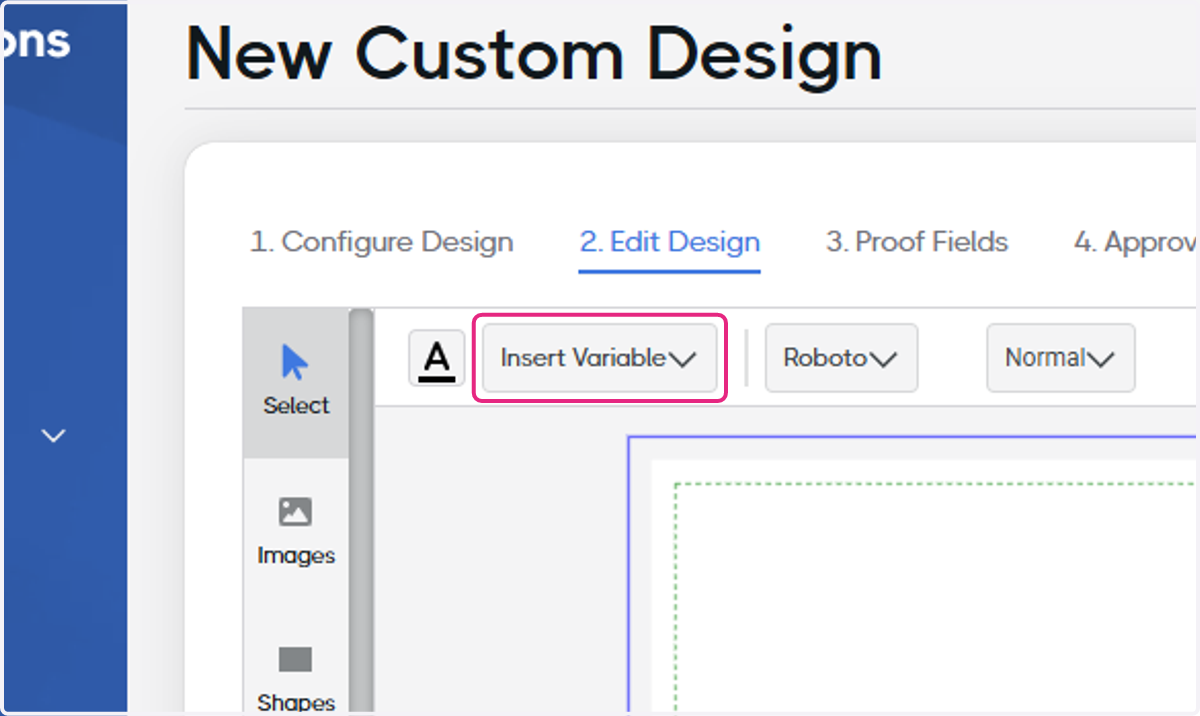
24. You may choose a standard field
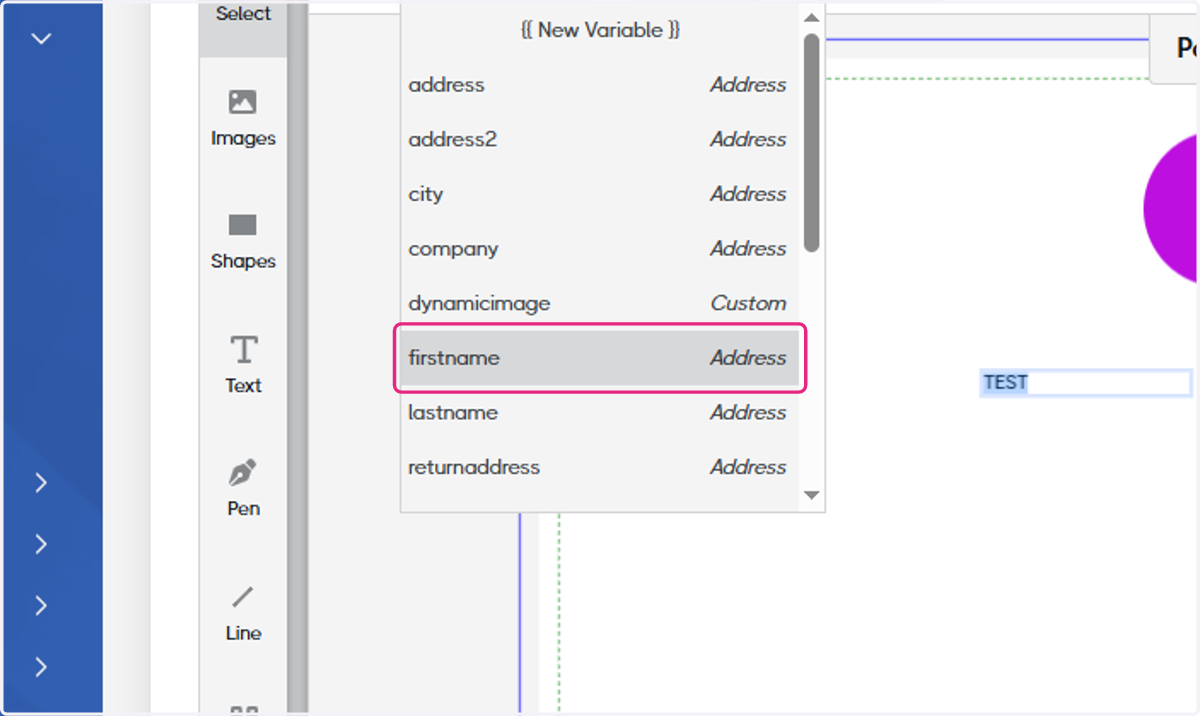
25. Or you may Click on {{ New Variable }}
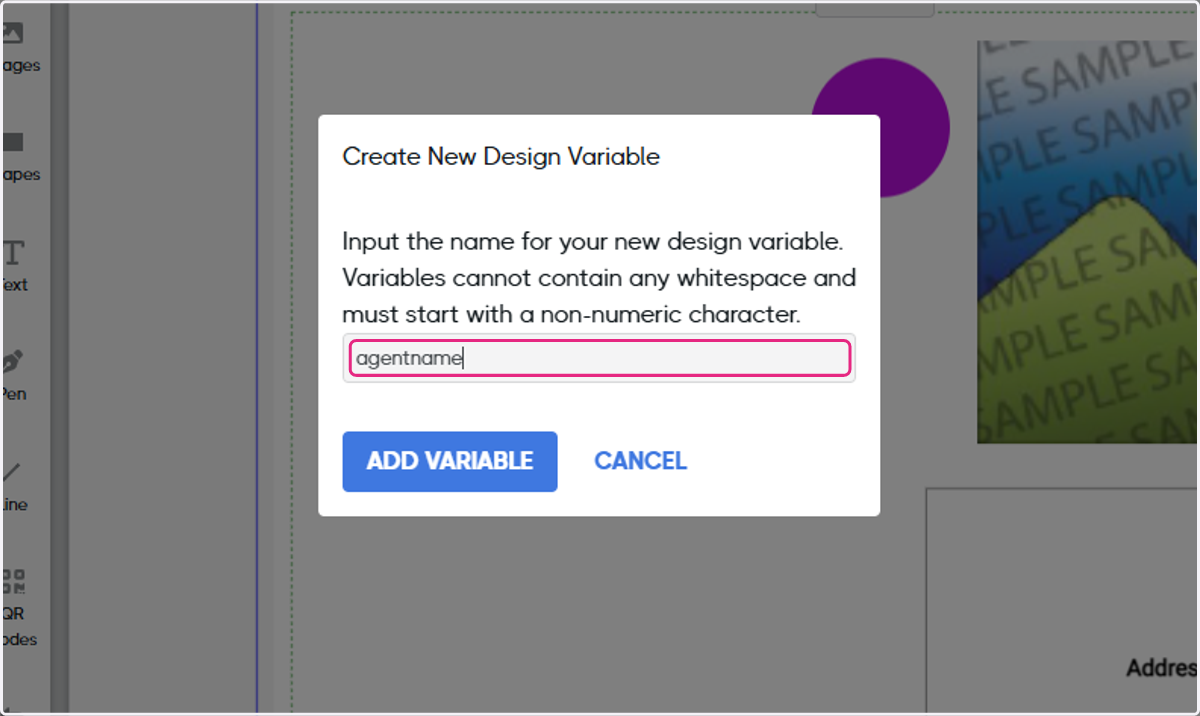
26. Type in the name of the custom field you'd like to add a variable for
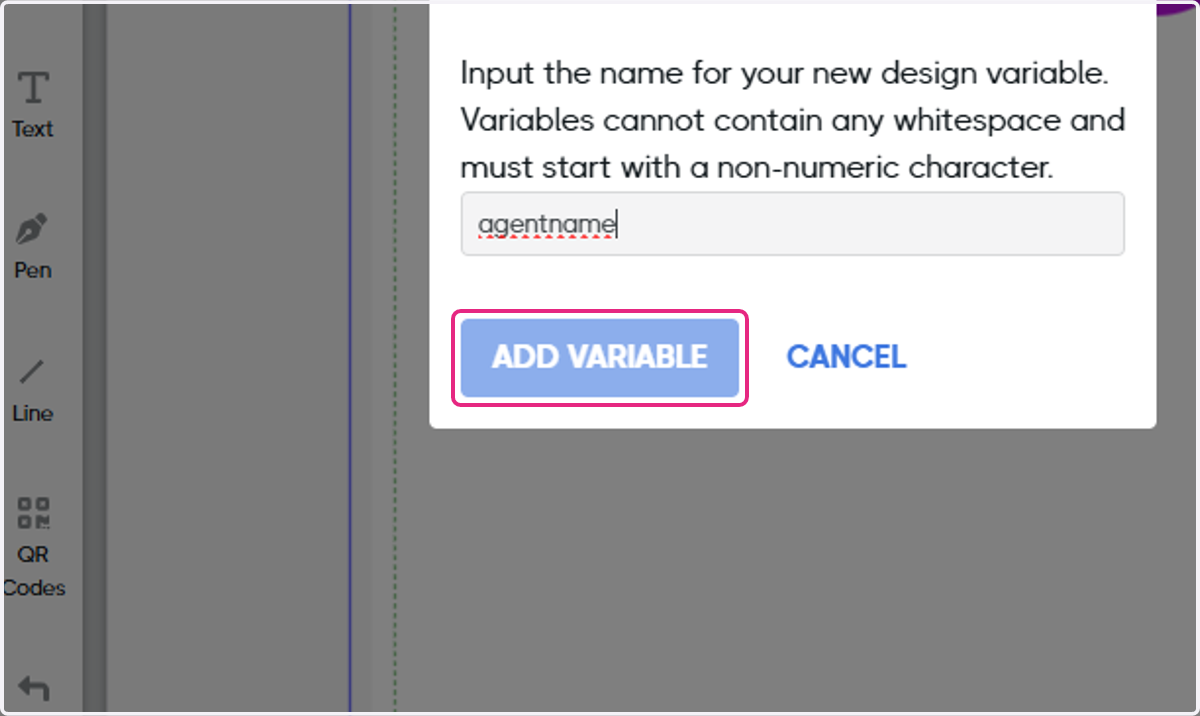
27. Click on ADD VARIABLE
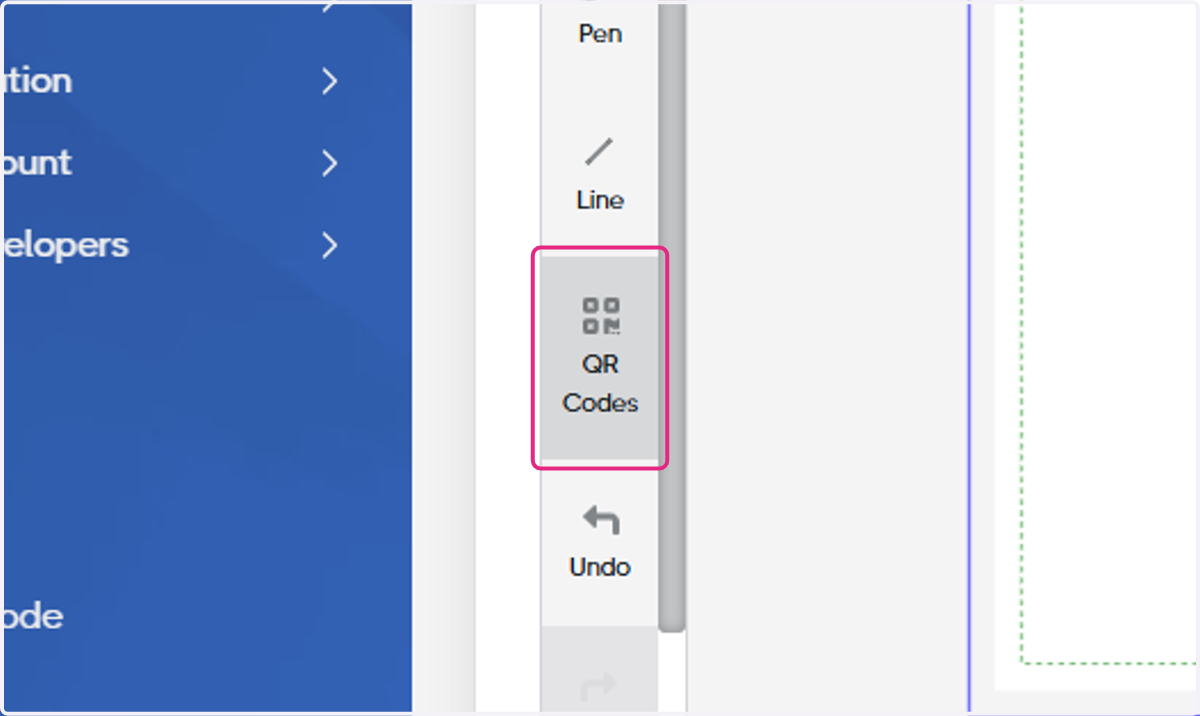
28. Click on QR Codes
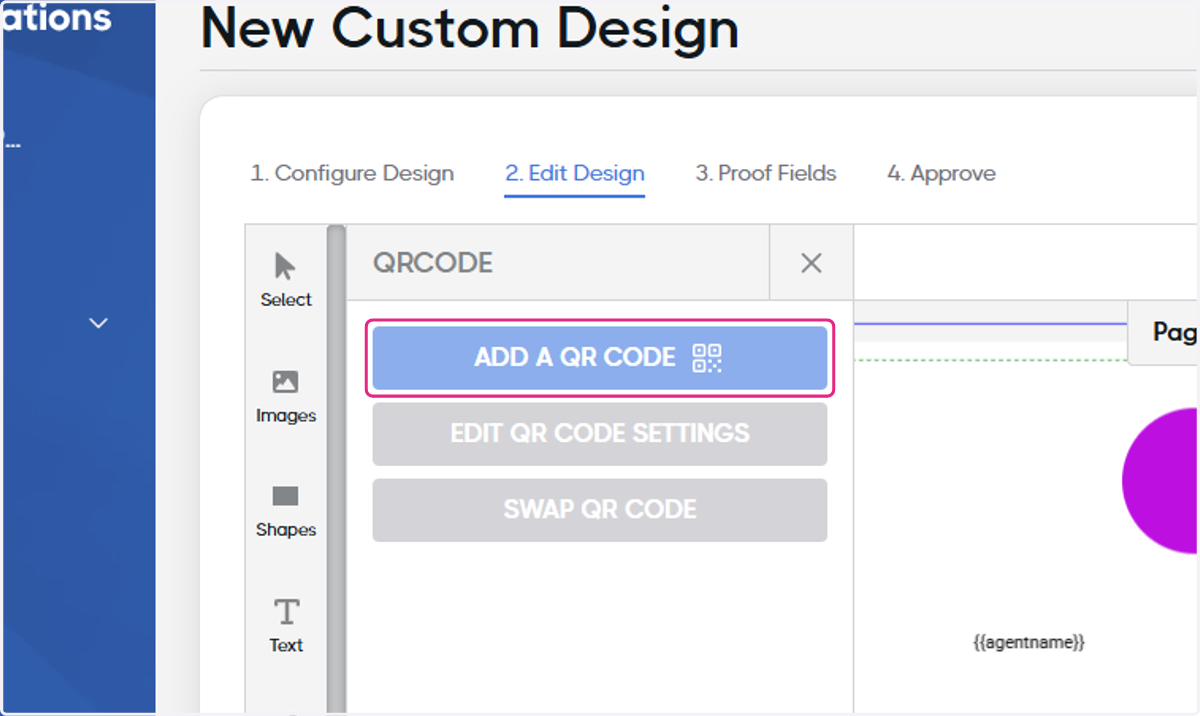
29. Click on Add A QR Code
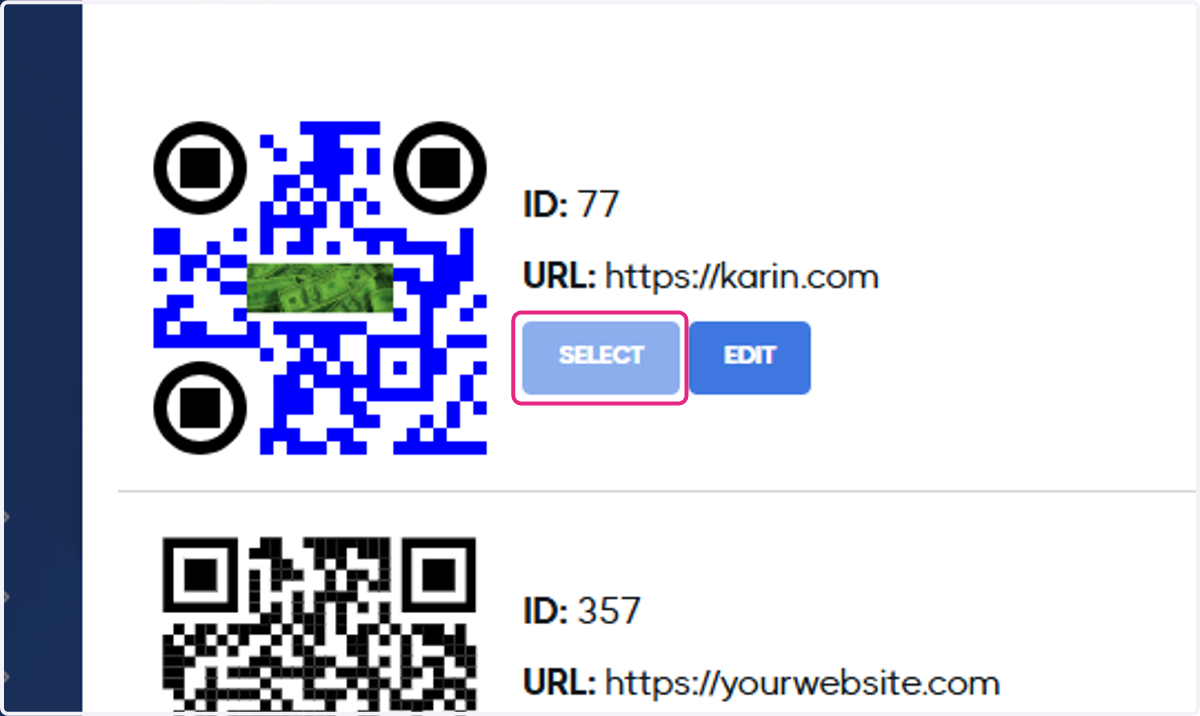
30. Select the QR code you want to use
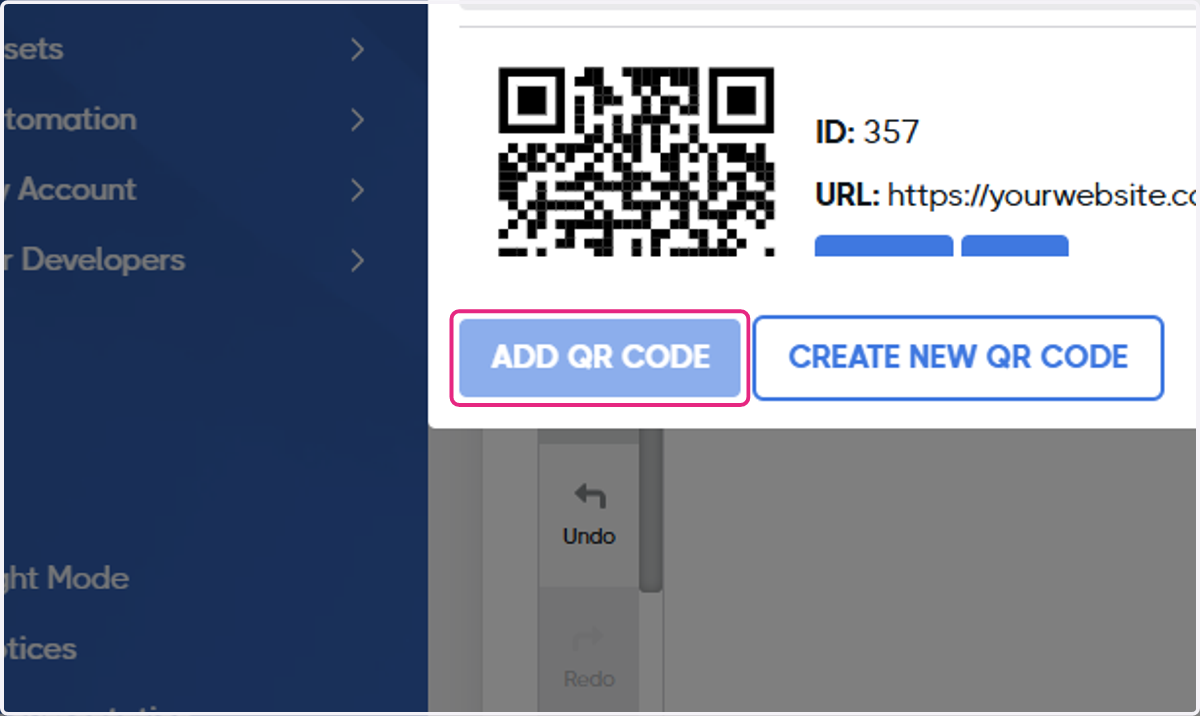
31. Click on ADD QR CODE
32. Drag the QR code to the location of choice and resize as needed
33. Click on Next Step
34. Review your design variables
35. Click on Next Step
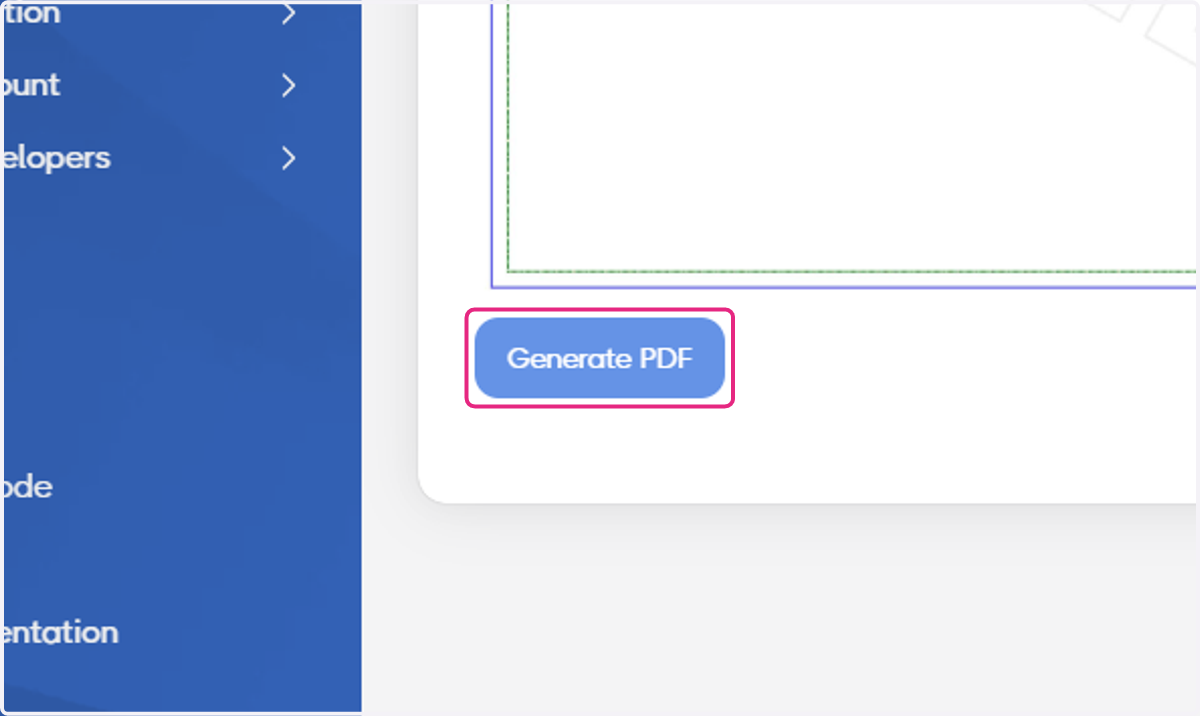
36. Click on Generate PDF
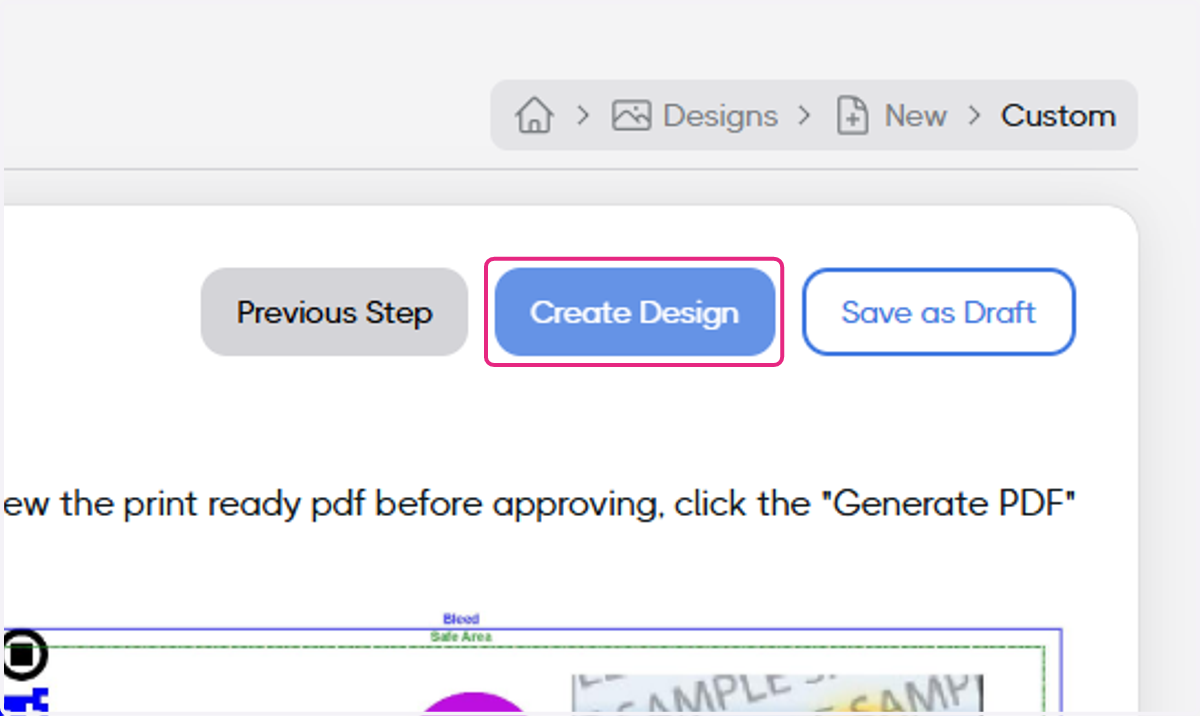
37. Click on Create Design
38. Review the pages of your design proof
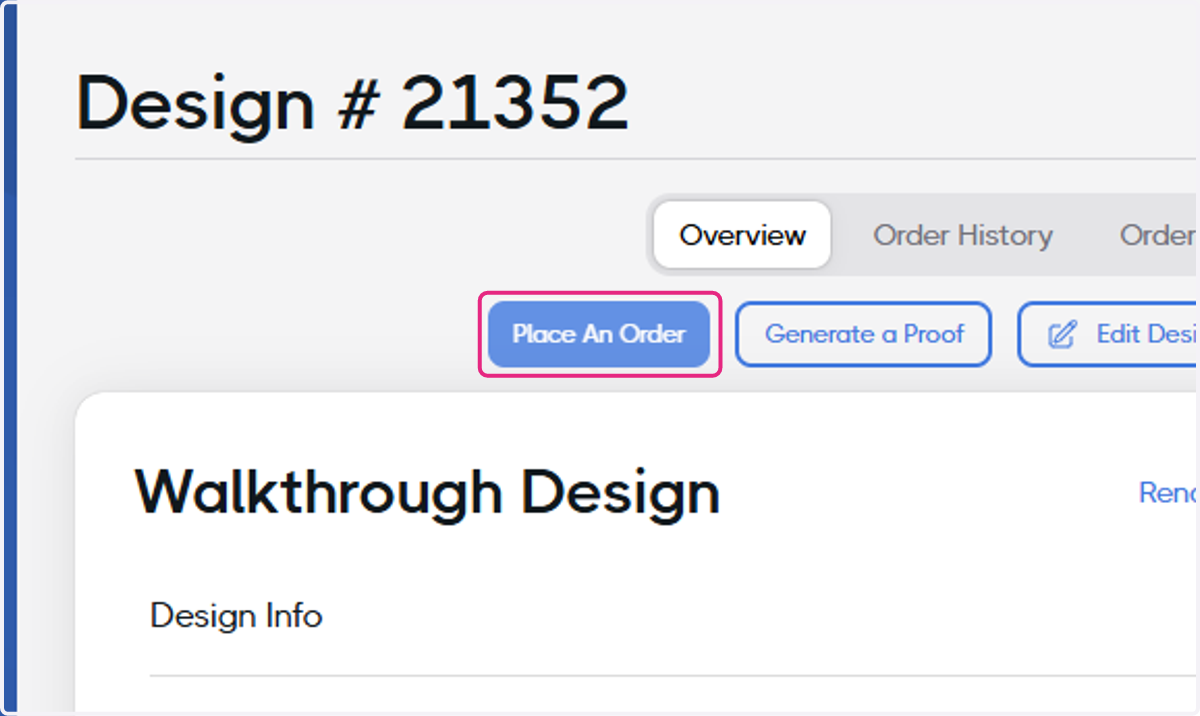
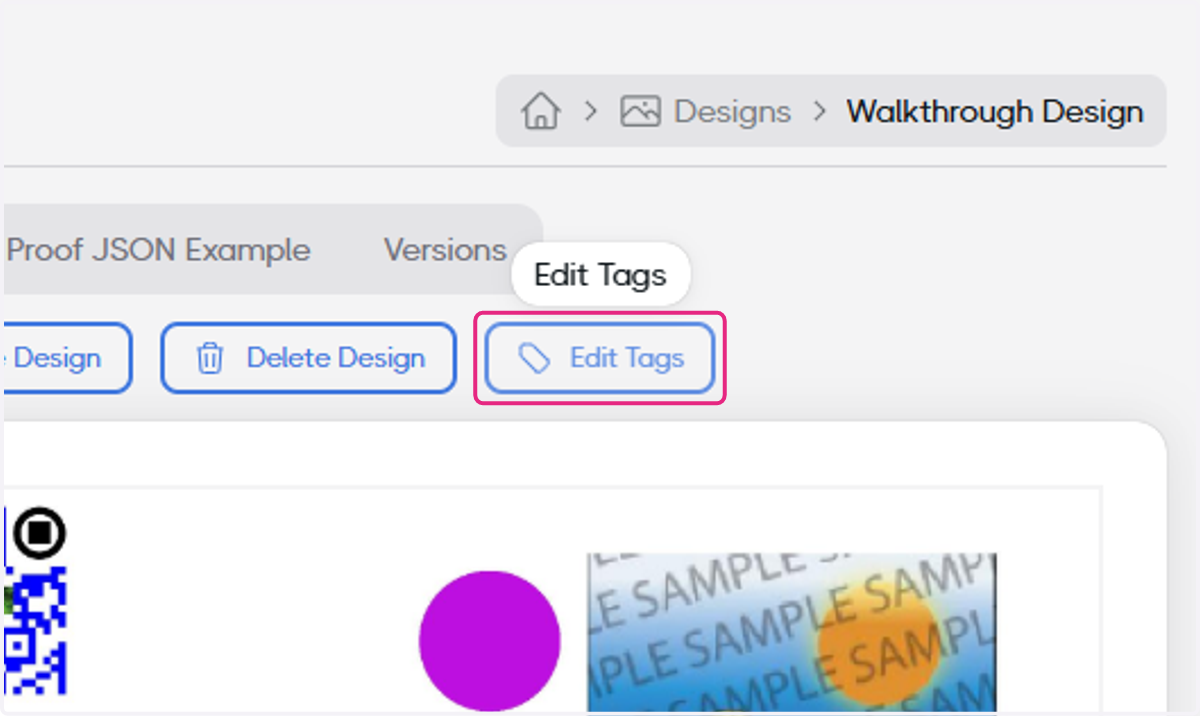
39. Click on Edit Tags
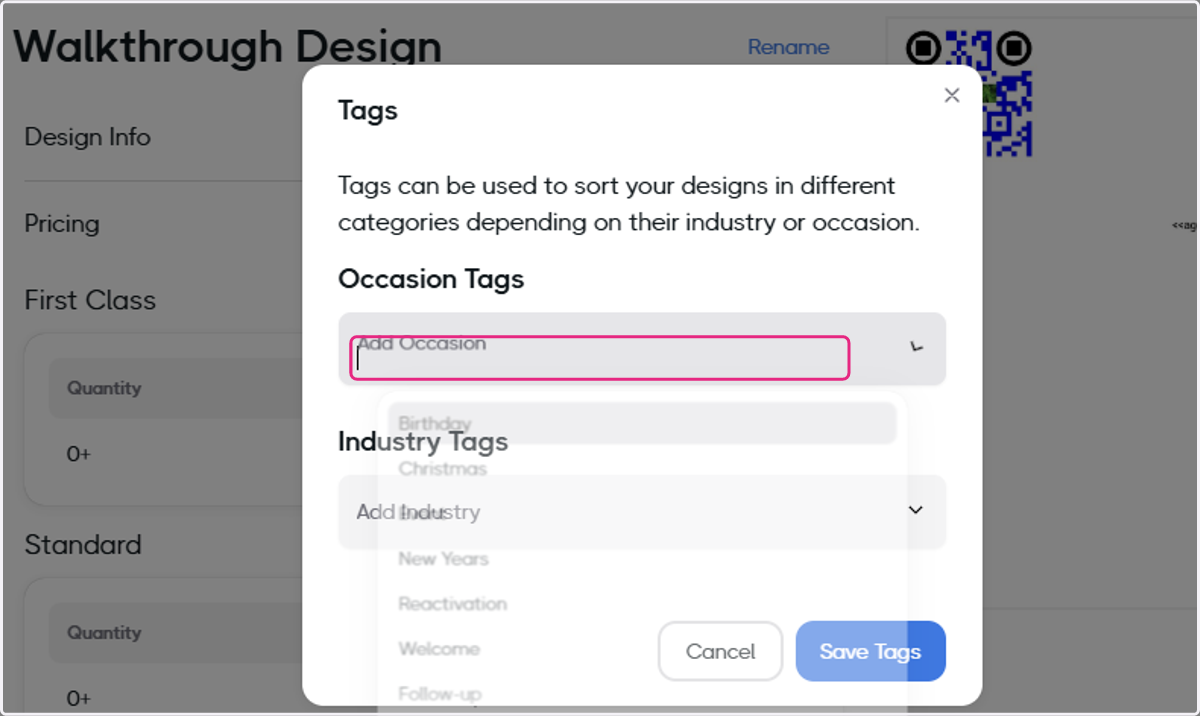
40. Add the Occasion and Industry tags (Optional)
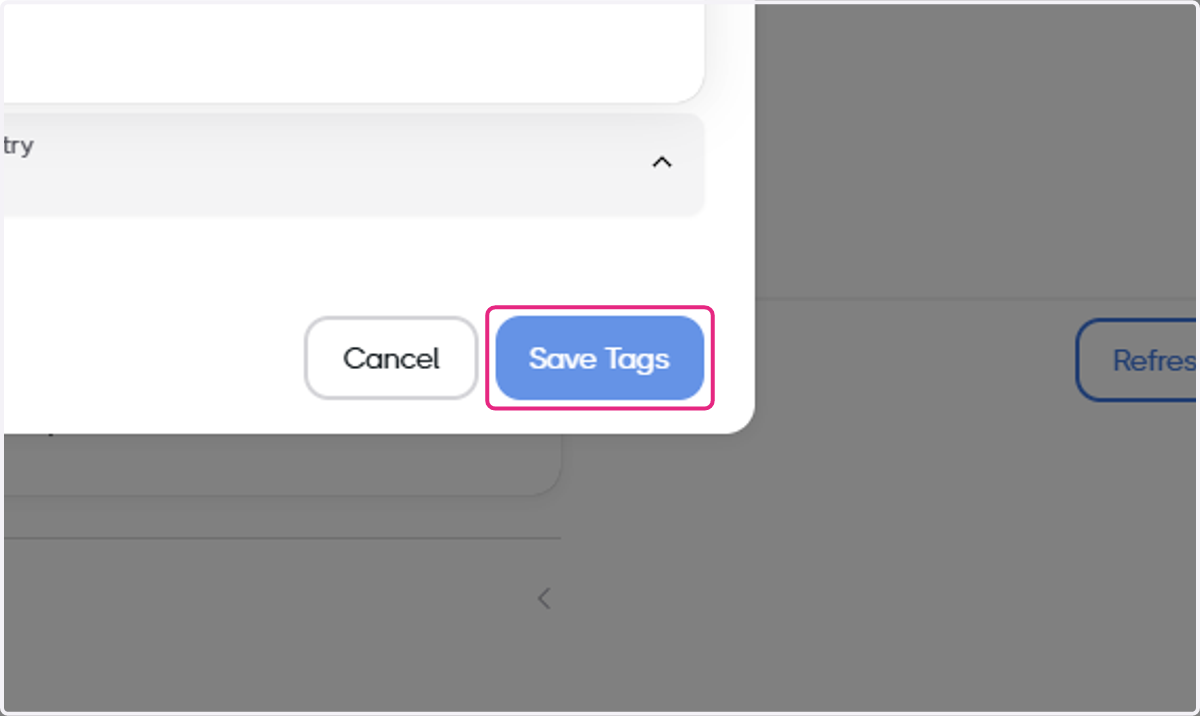
41. Click on Save Tags
42. Success! You may now place an order using this design by clicking on Place an Order