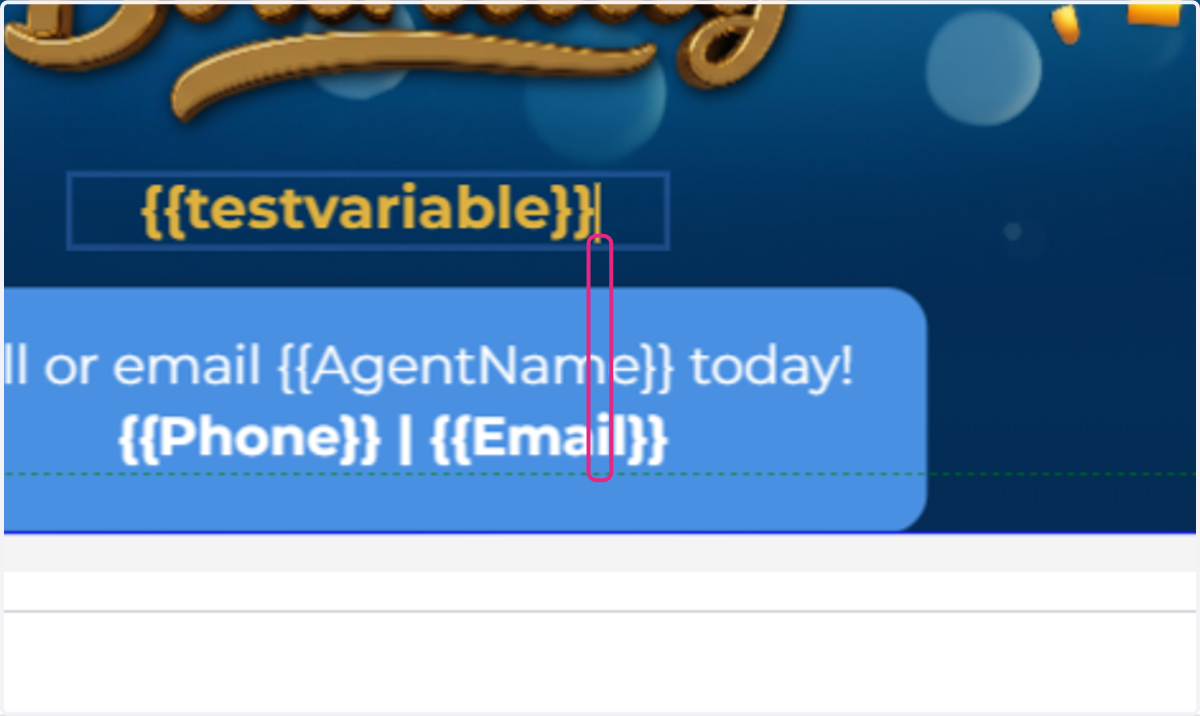
Add Variables to a Design
Designs | DirectMail Portal
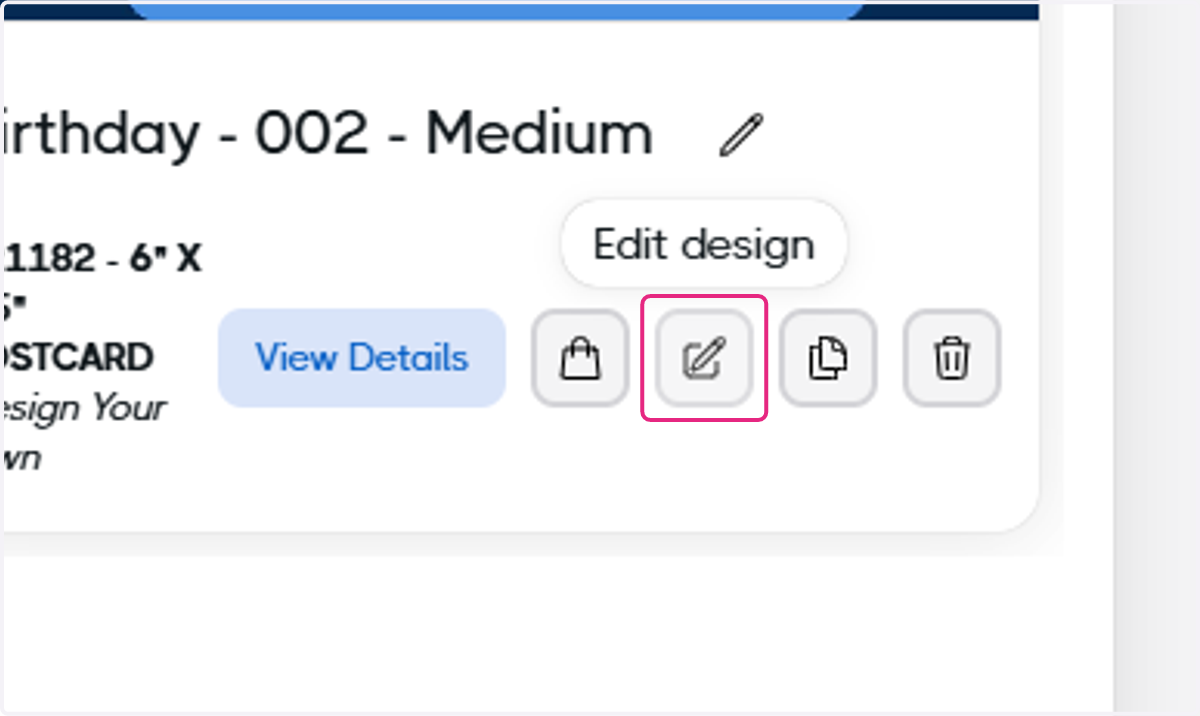
1. Click on the edit design button for your design of choice
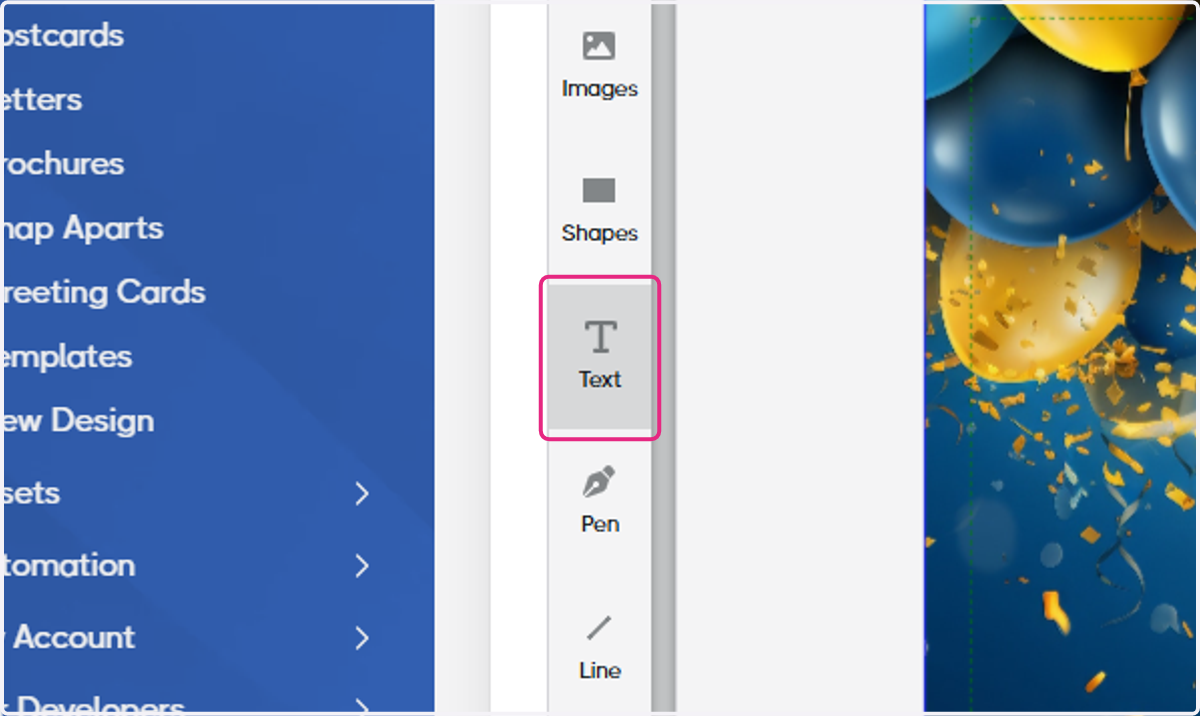
2. Click on Text
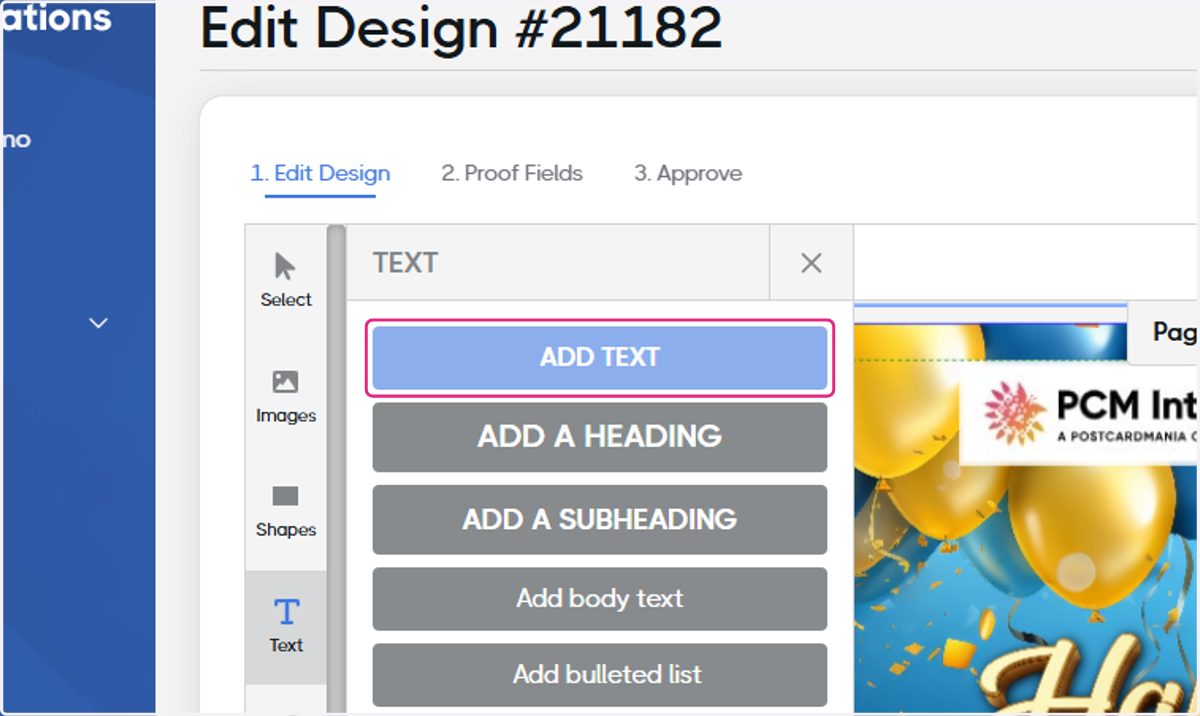
3. Click on ADD TEXT
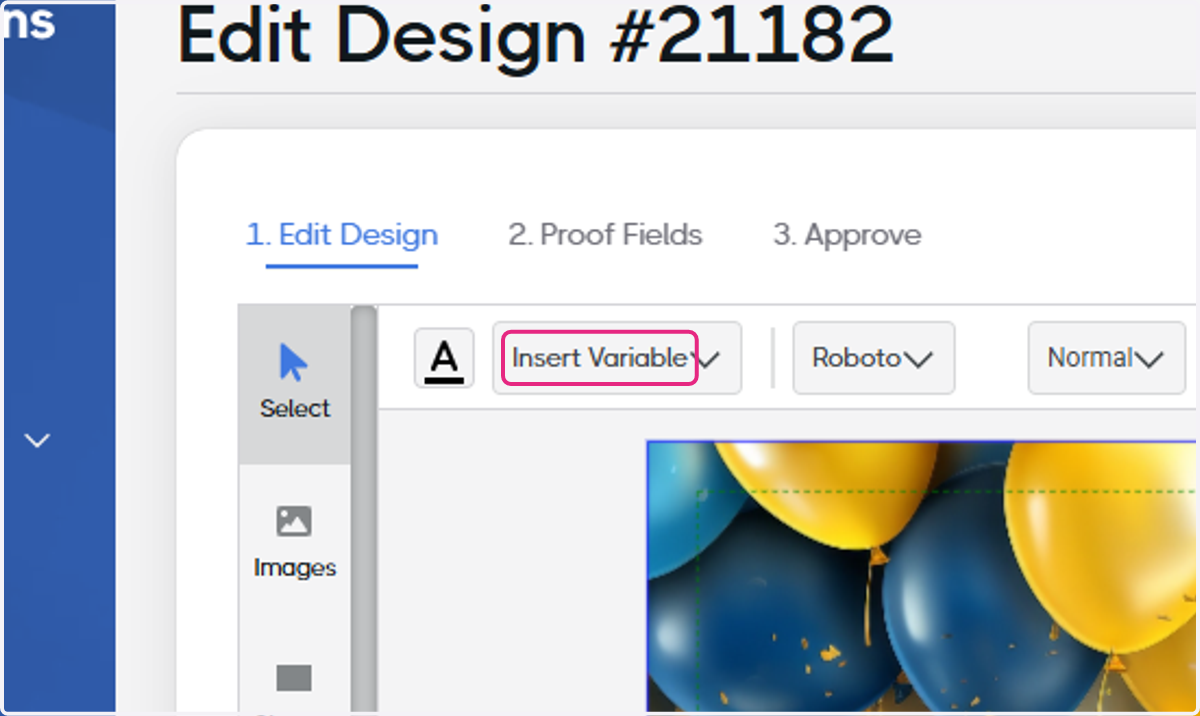
4. Click on Insert Variable
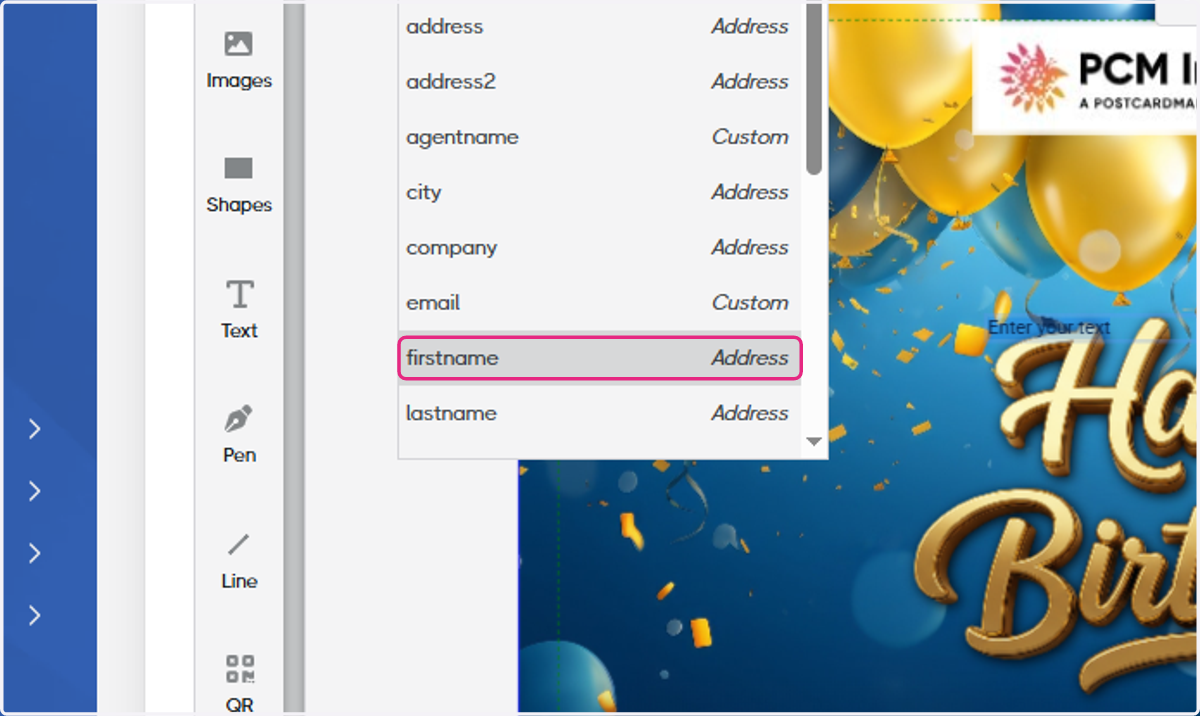
5. To add a standard variable, choose from any of the existing values in the picklist
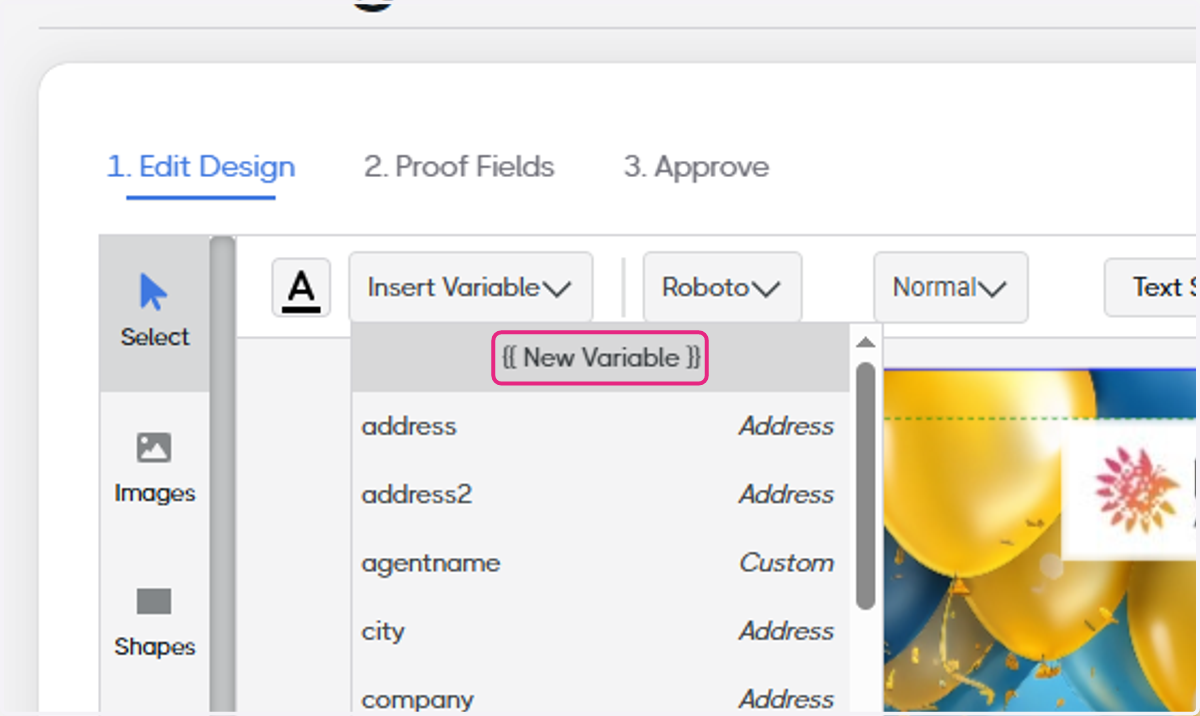
6. To add a custom variable, click on {{ New Variable }}
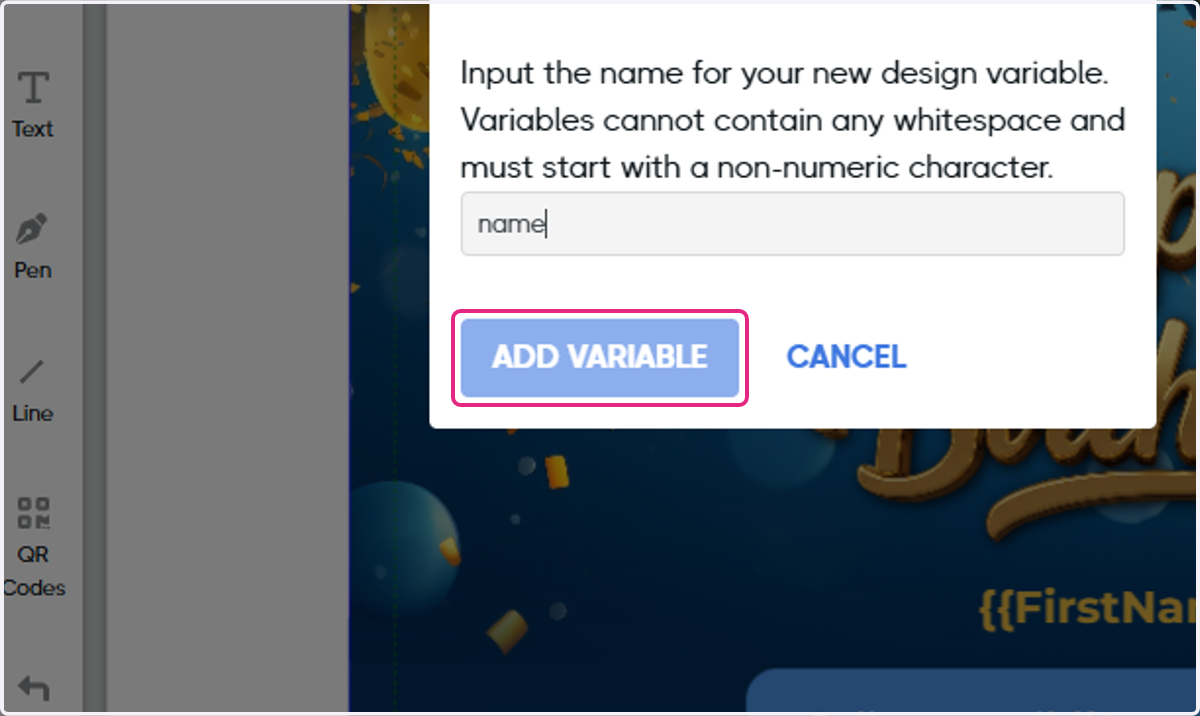
7. Add the name of your variable
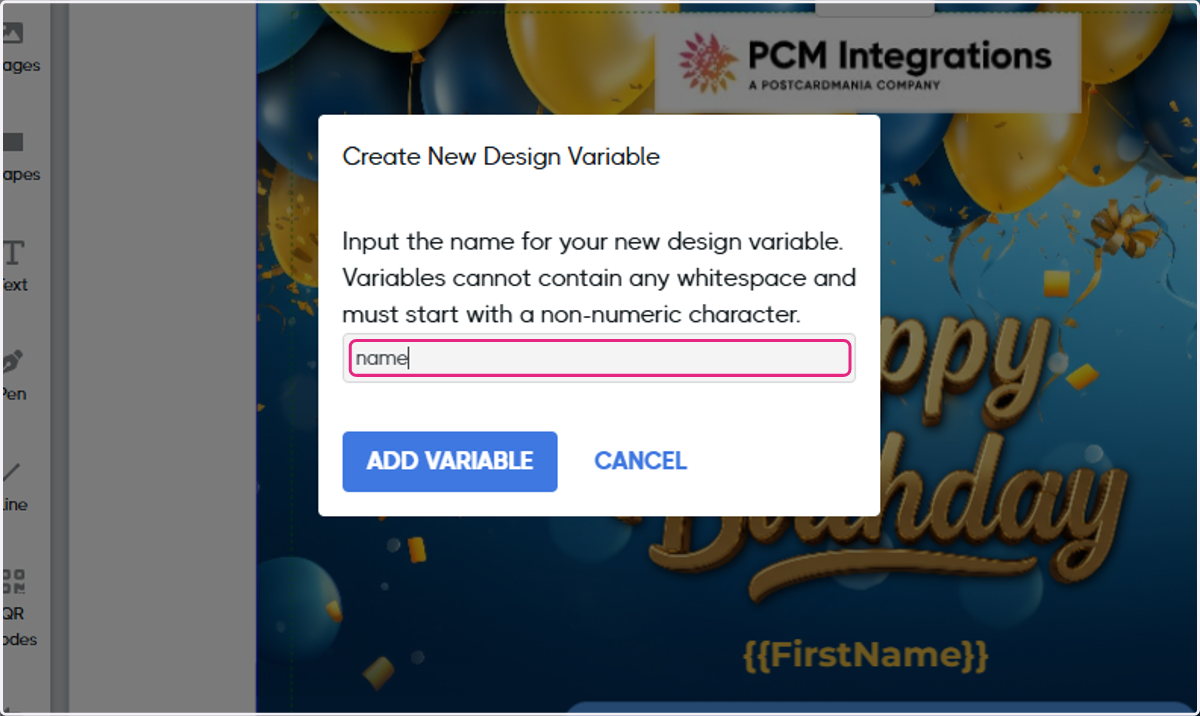
8. Click on ADD VARIABLE
9. You may also manually add a variable by surrounding any text with wavy brackets