Create DirectMail Drip Campaign
Drip Campaigns
A Drip campaign lets you set up a structured mailing schedule that runs automatically. You can decide how many mailings to send, how much time to leave between each one, and even use different designs throughout the campaign.
Once your campaign is set up, you can reuse it anytime without having to rebuild it. You also have flexibility in how you add recipients—you can start them at the beginning or place them into any step, depending on where they should enter the process.
At any point, you’ll be able to see exactly where each recipient is in the campaign, giving you clear visibility and control from start to finish.
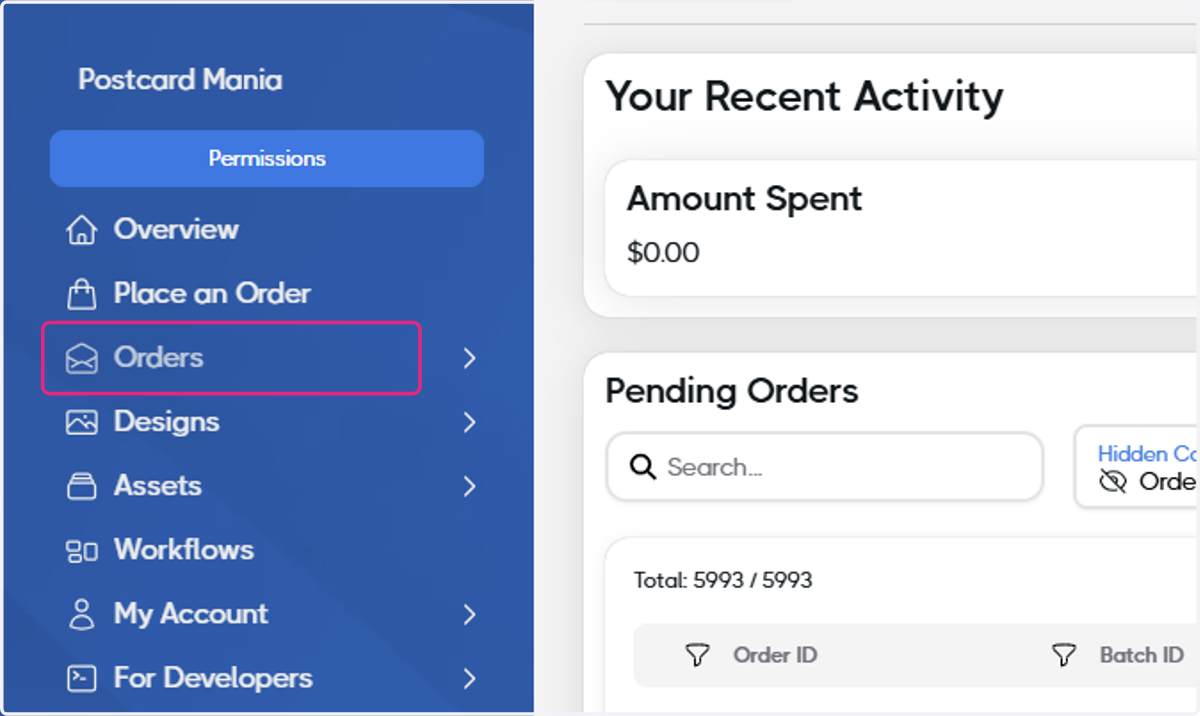
1. Click on Orders
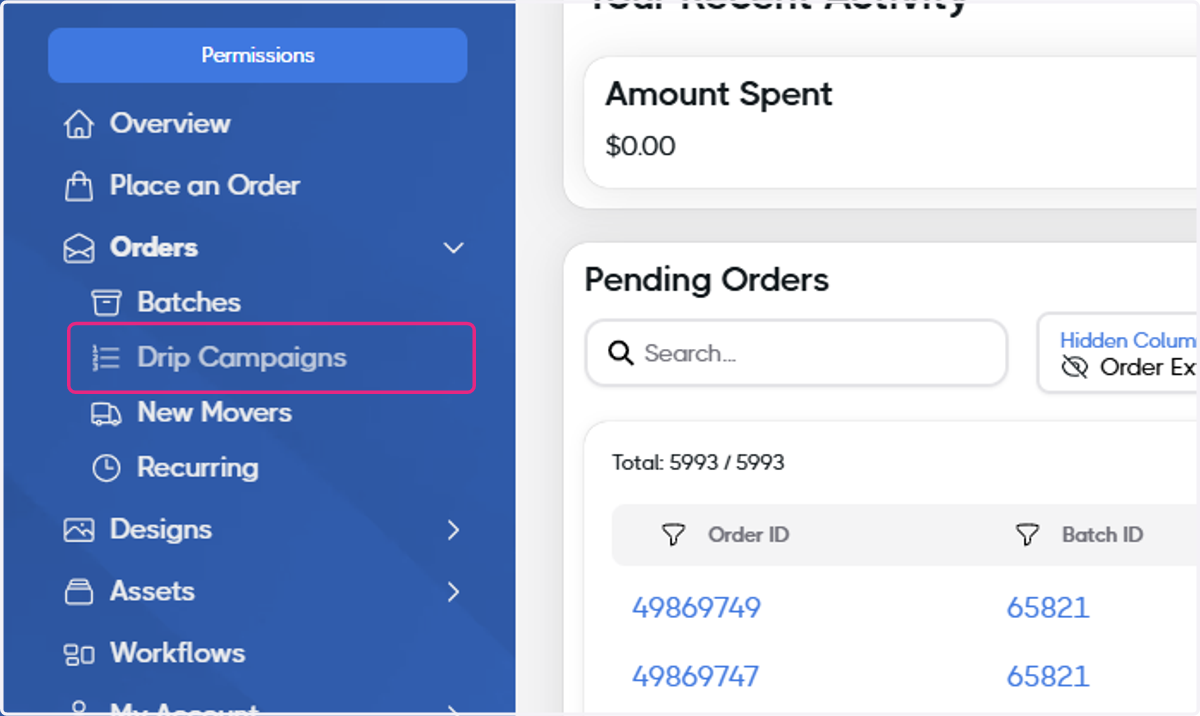
2. Click on Drip Campaigns
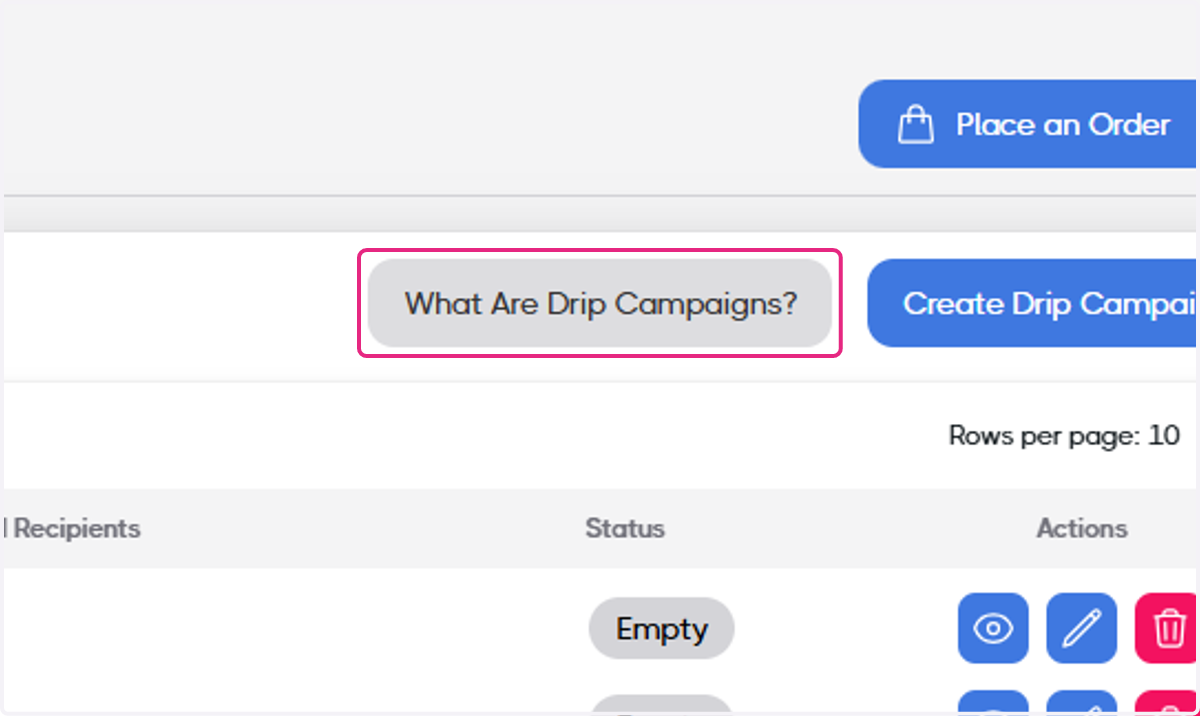
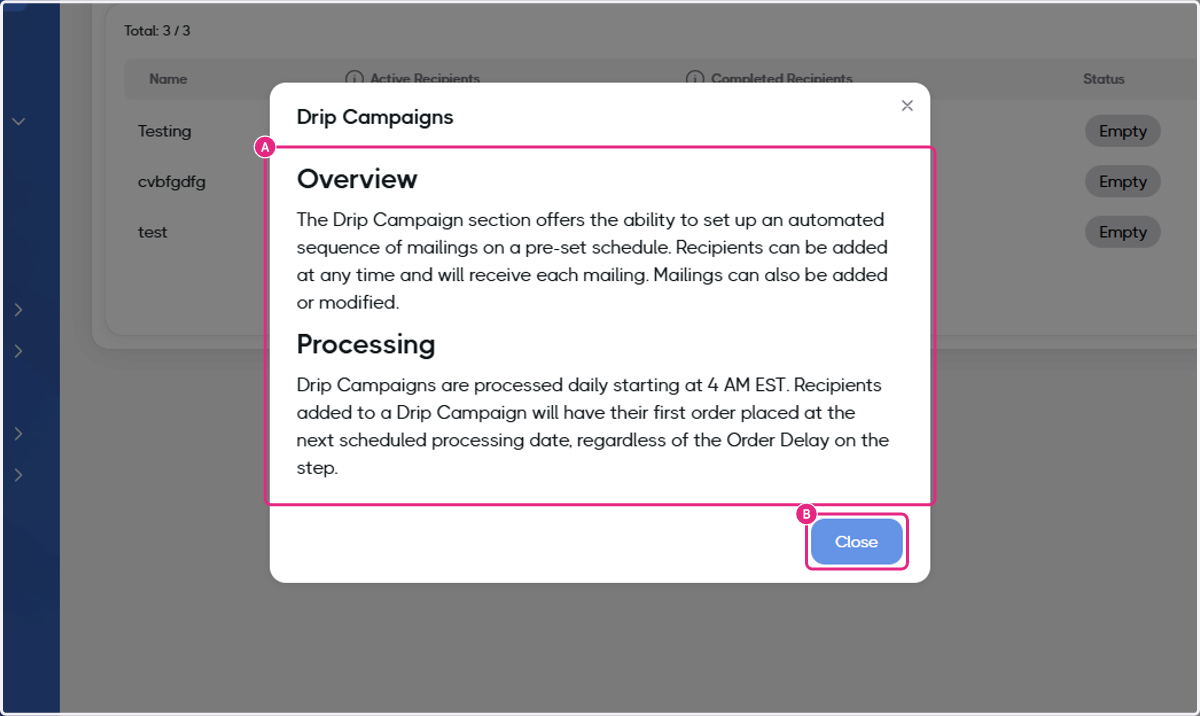
3. Click on What Are Drip Campaigns?
4. A. Click on Overview…
4. B. Click on Close
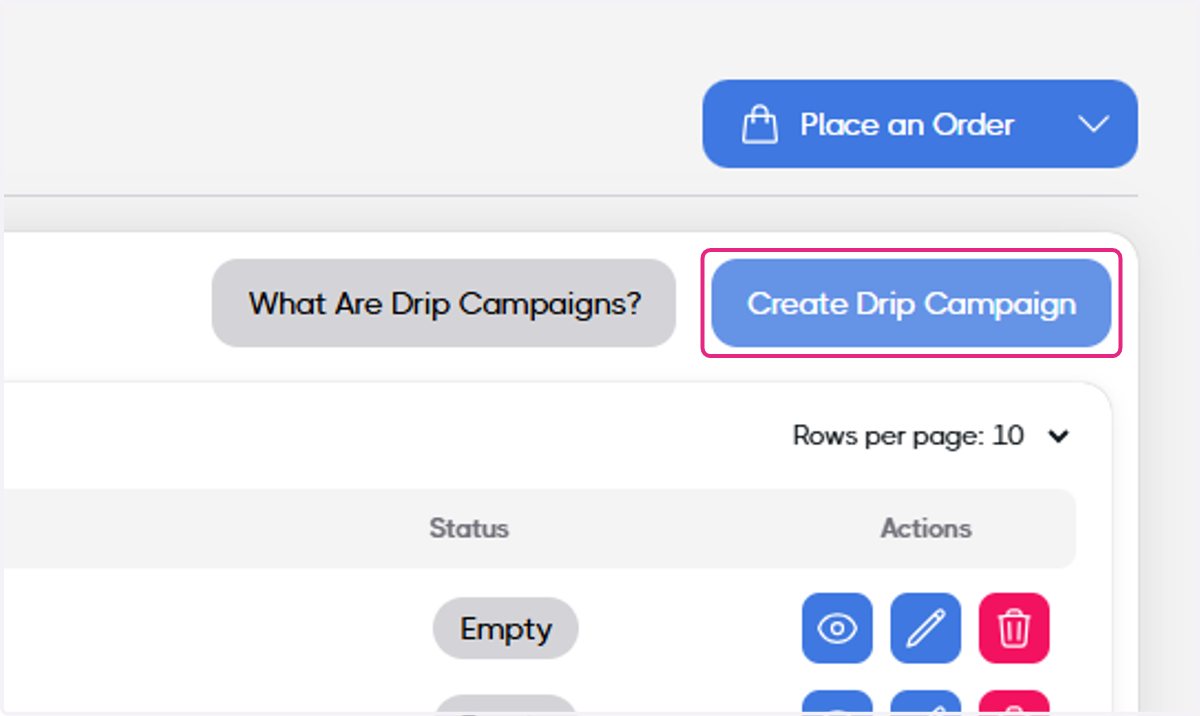
5. Click on Create Drip Campaign
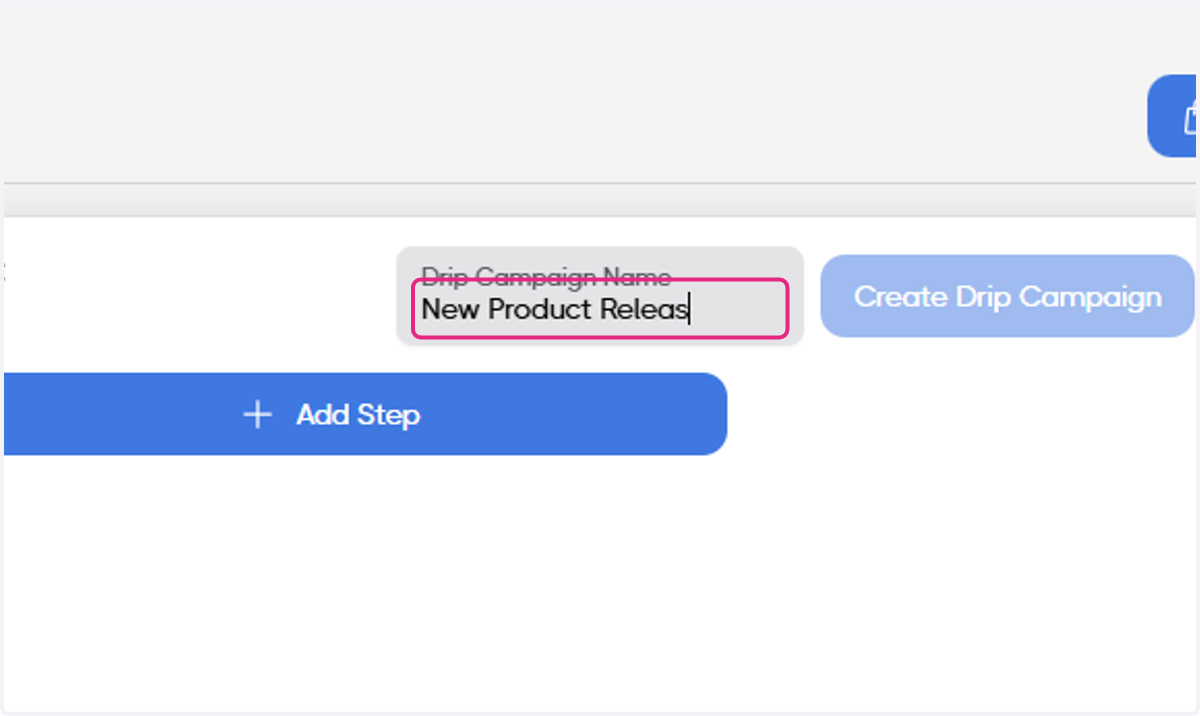
6. Type Drip Campaign Name
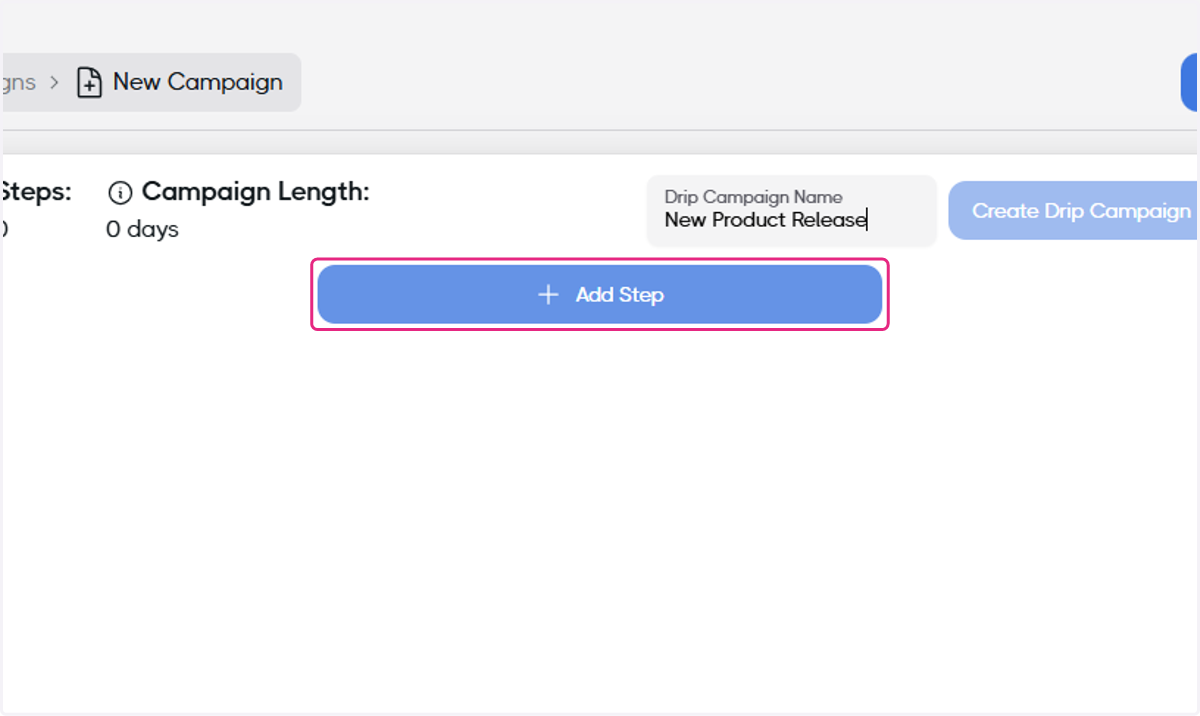
7. Click on Add Step
8. Choose your design from the pop up modal
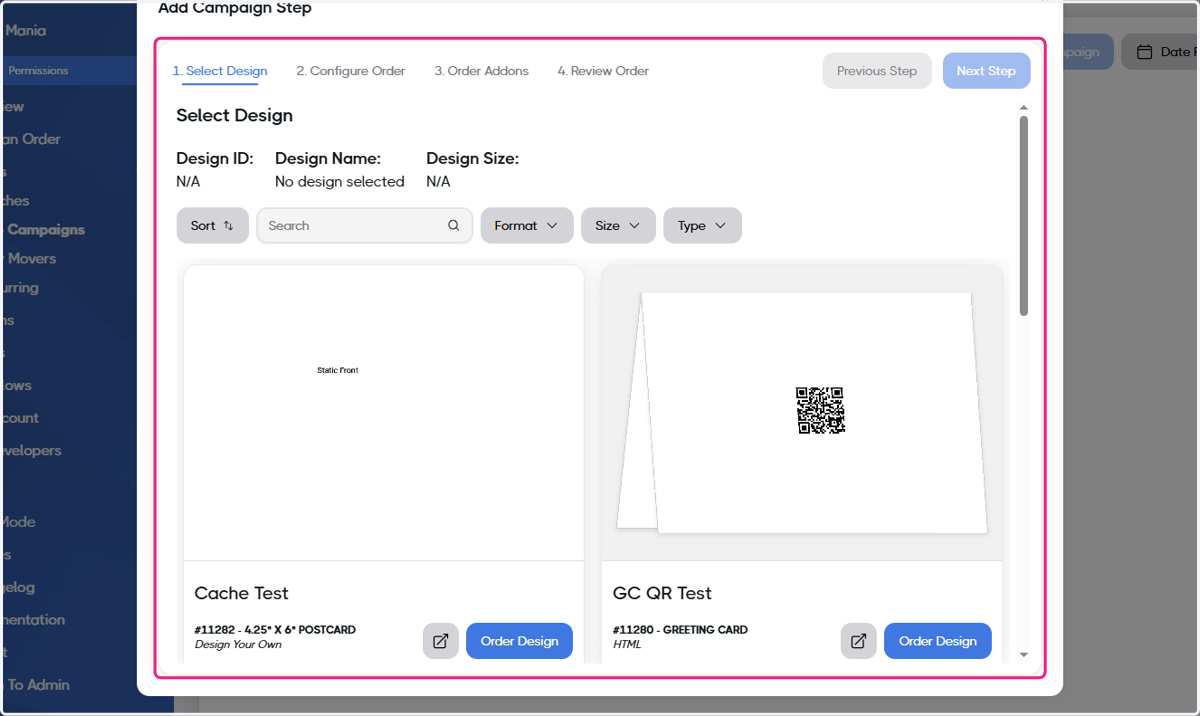
9. Click on Order Design
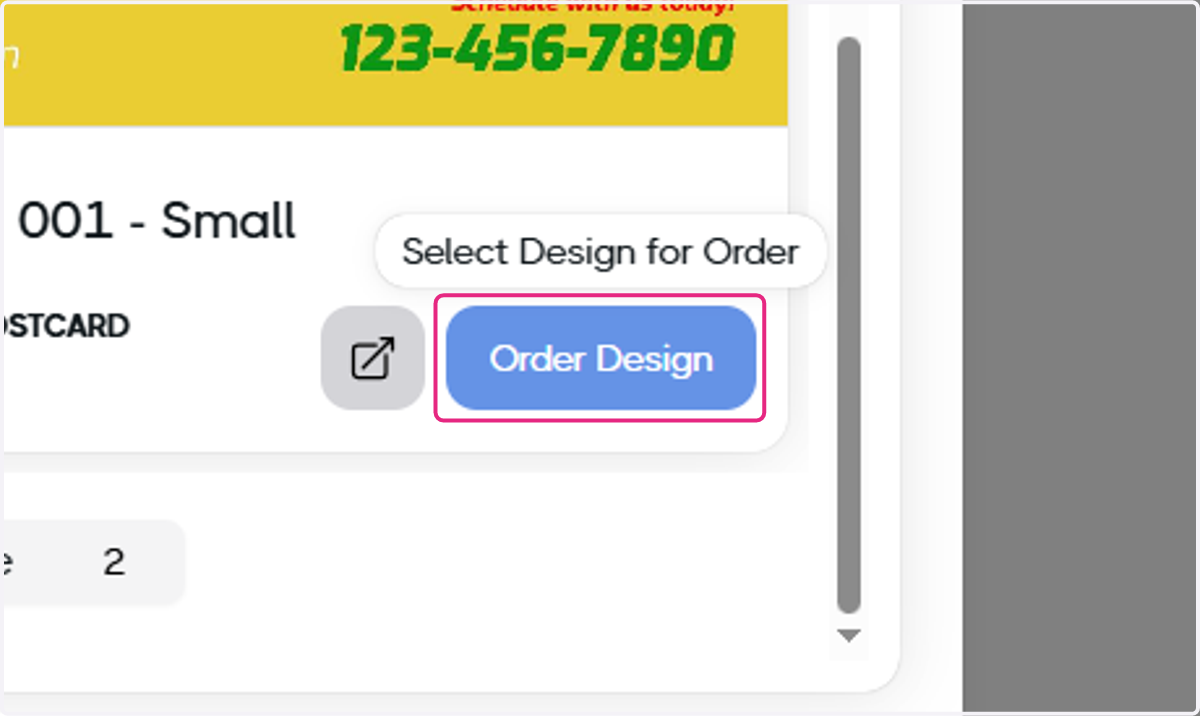
10. Follow the steps for configuration
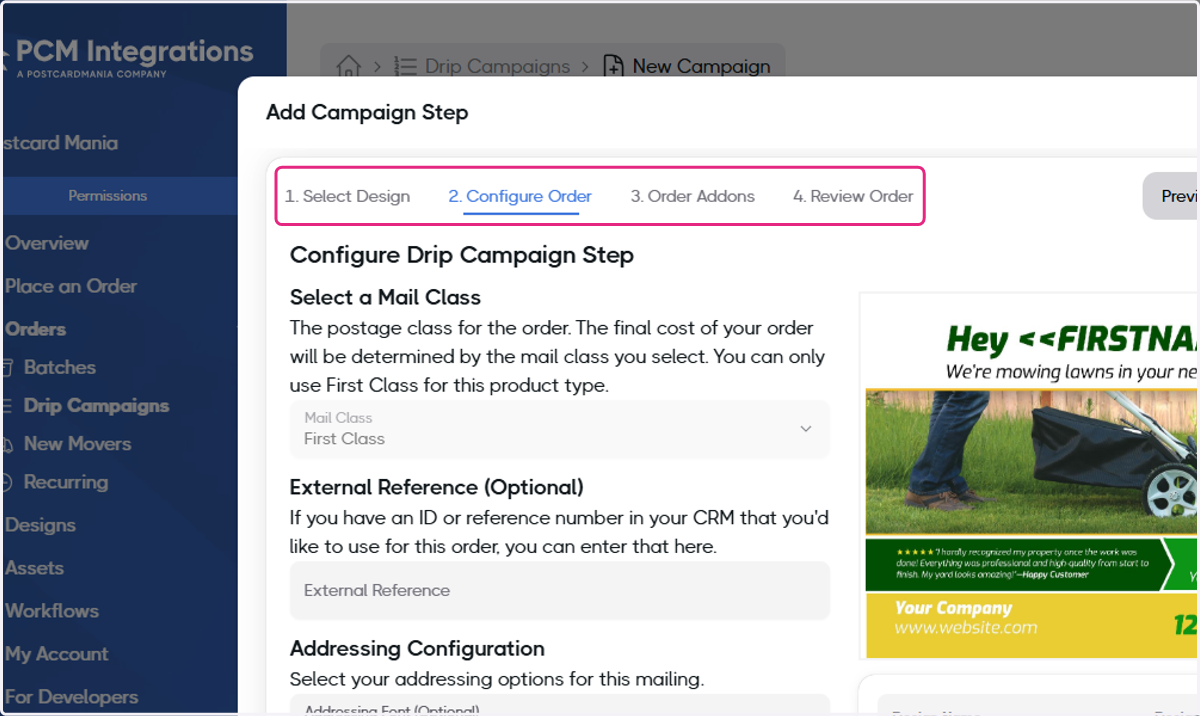
11. Click on Next Step
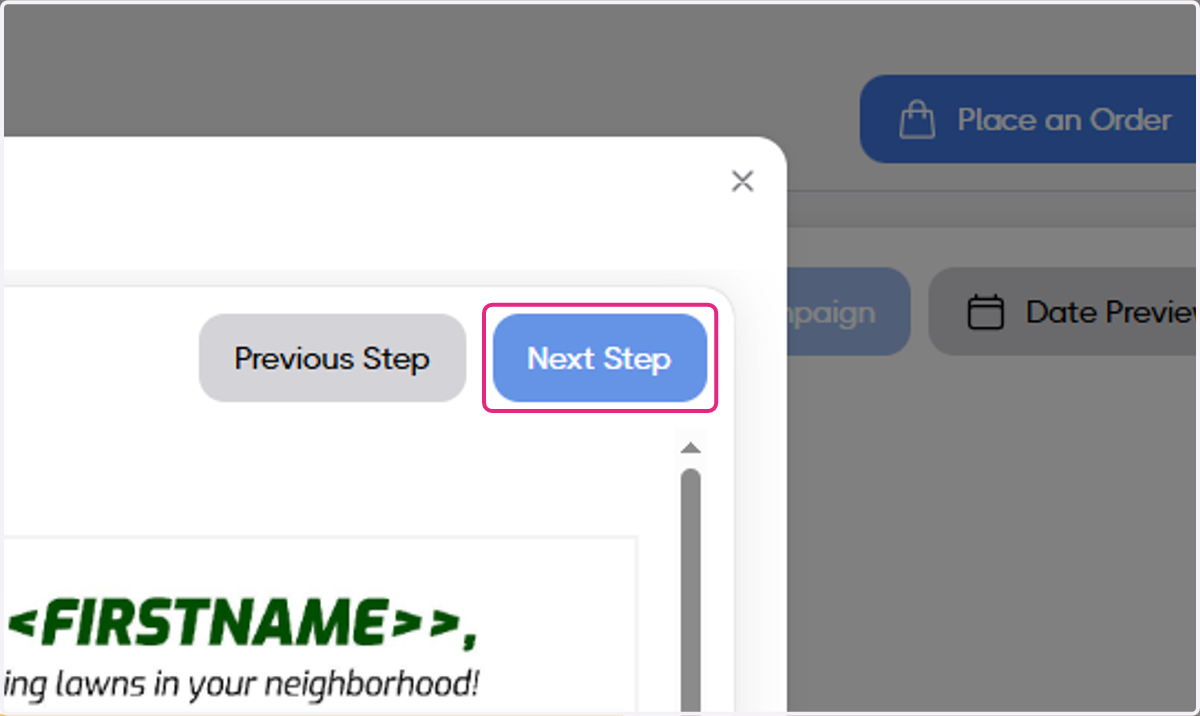
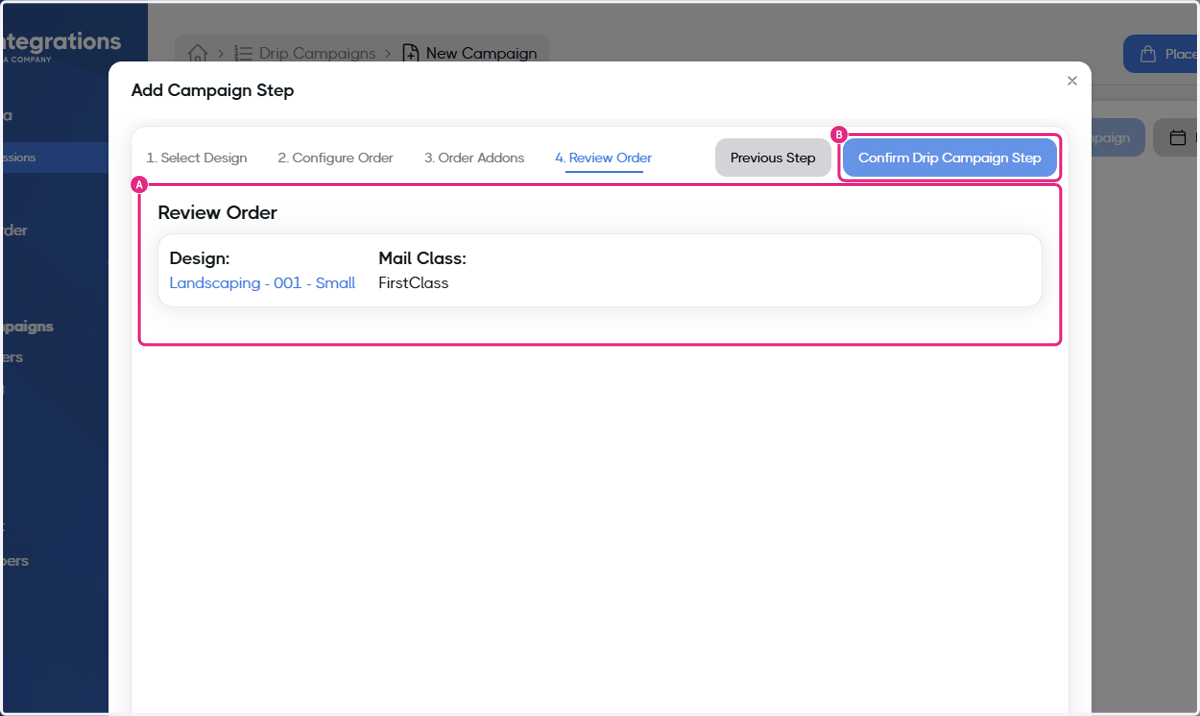
12. A. Review Order…
12. B. Click on Confirm Drip Campaign Step
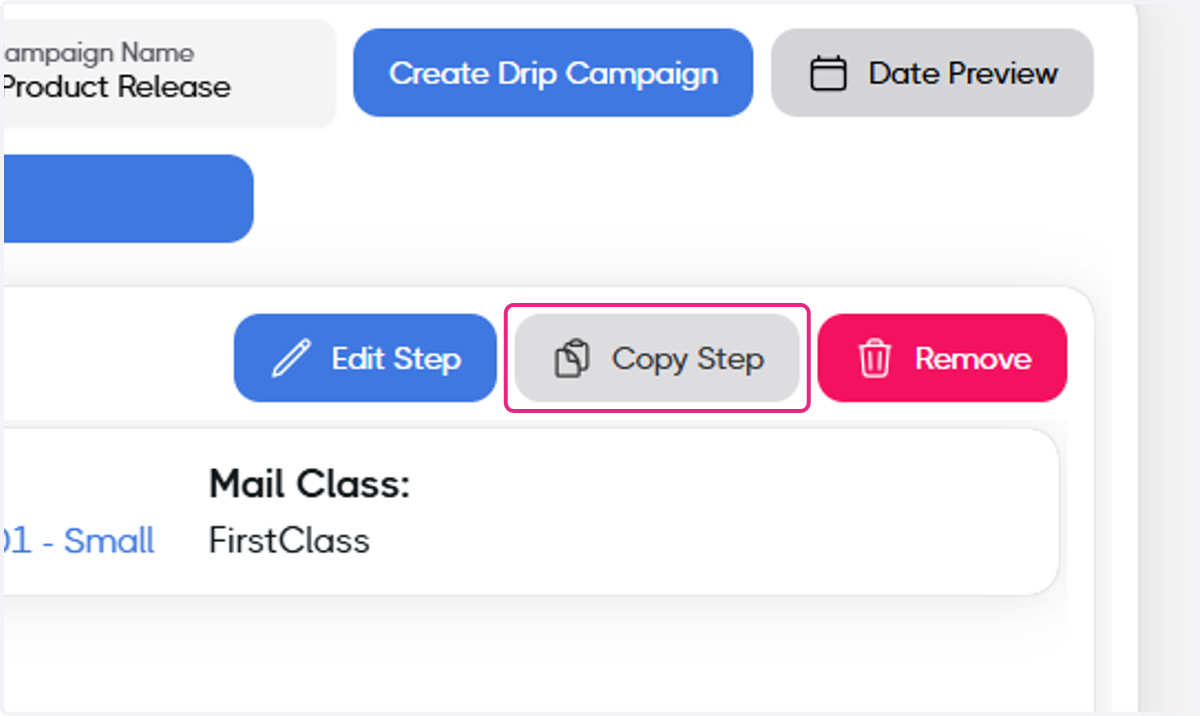
13. You can copy this step if needed
If you will be sending the same design multiple times, the copy step will save you time!
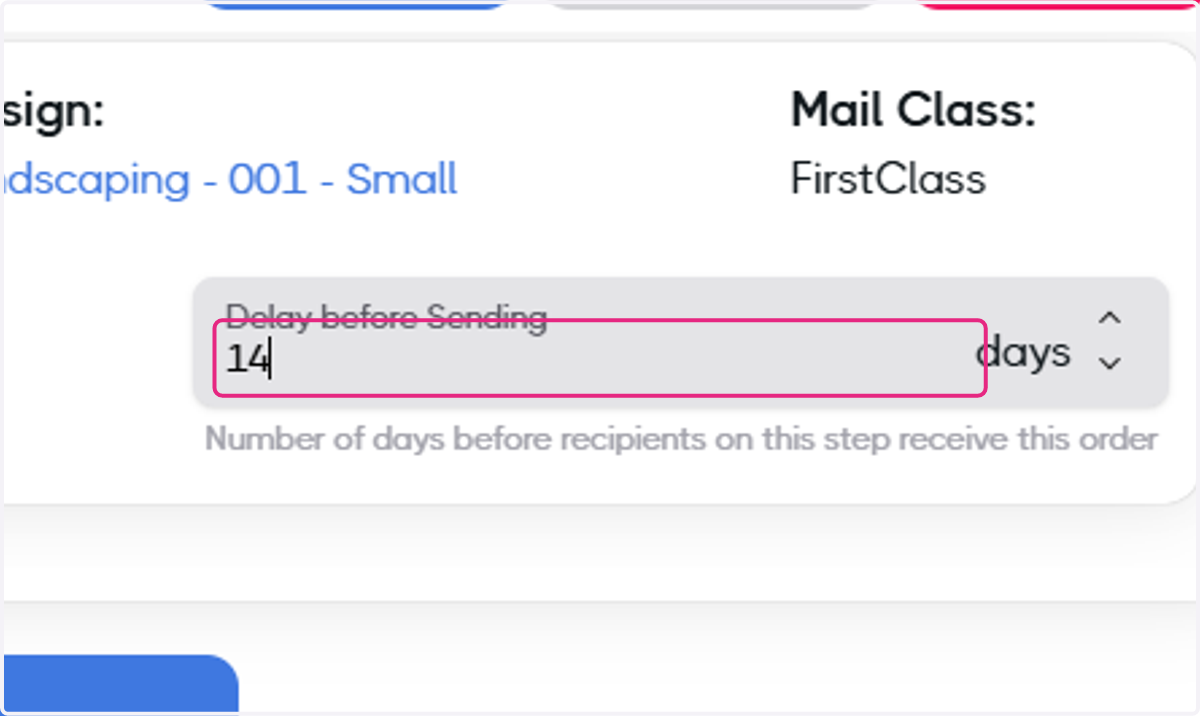
14. Type Delay before Sending
You can choose the number of days between mailings. We do not limit the number of days so choose what makes sense for your use case.
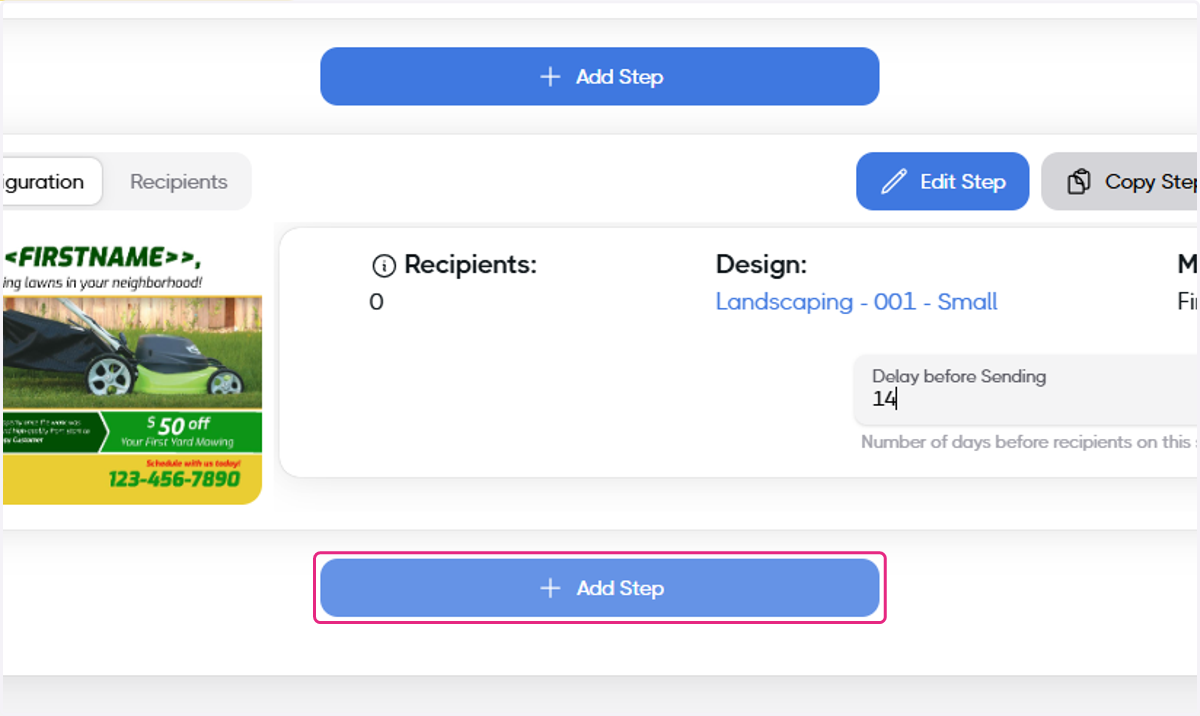
15. To configure another design click Add Step
You can add a step to the beginning, the end, or between existing steps.
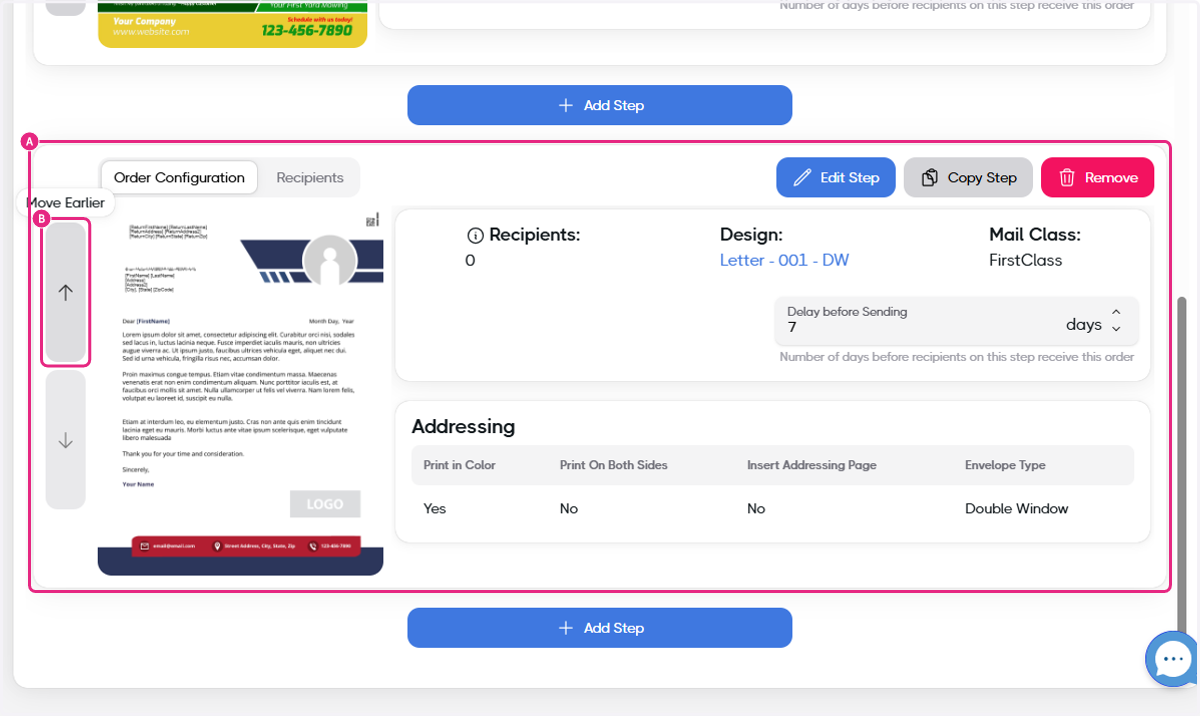
16. A. Click on Order Configuration…
16. B. Click on Move Earlier
You can change the order of your steps using the arrow icons to move the step up or down.
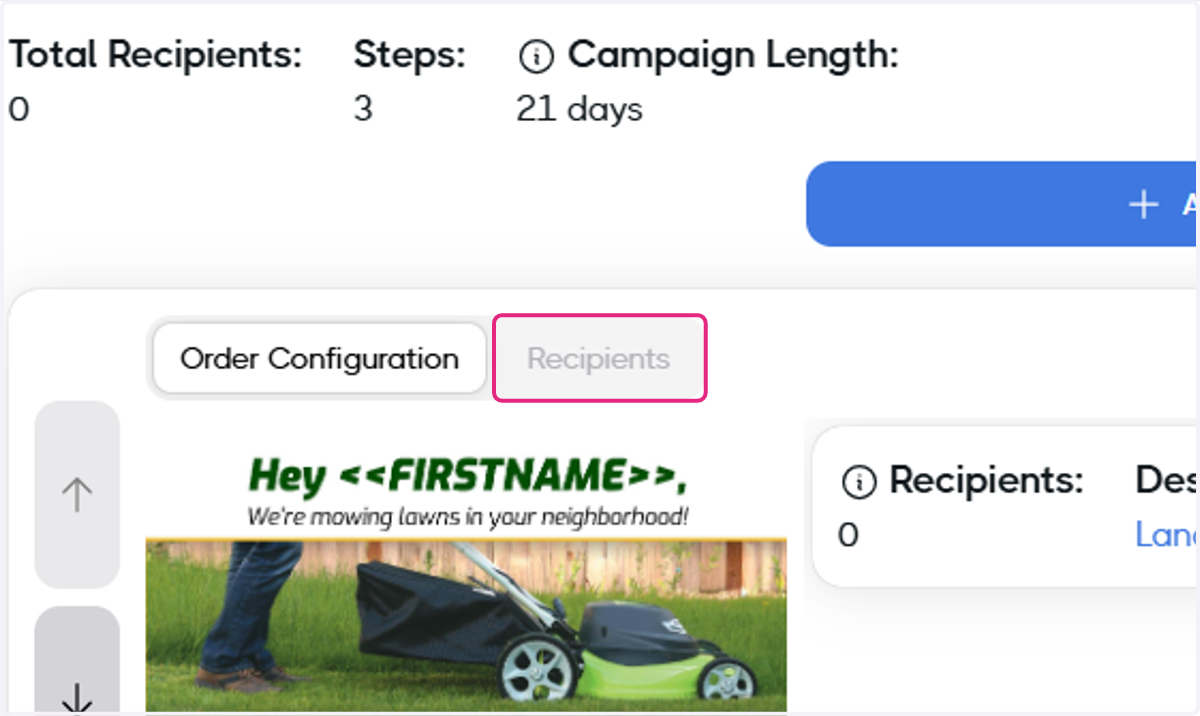
17. Click on Recipients
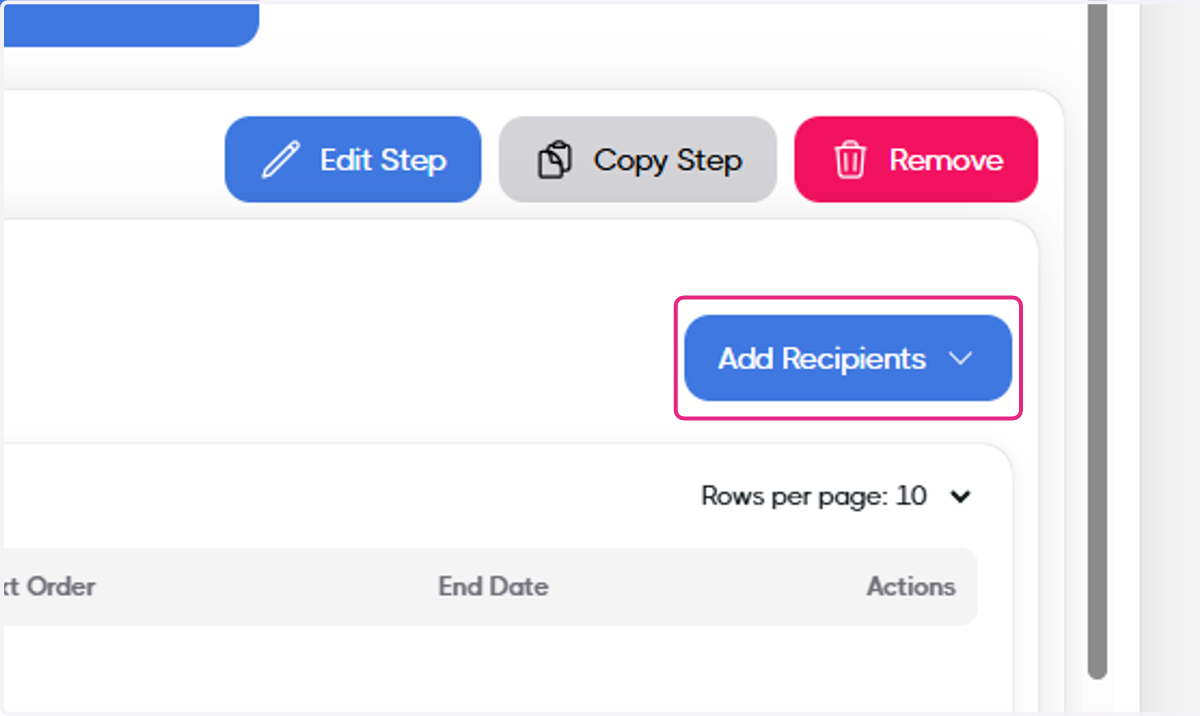
18. Click on Add Recipients
You can add recipients individually to each step, if needed. If not, we recommend waiting until the campaign is fully configured and adding the recipients to the start of the campaign.
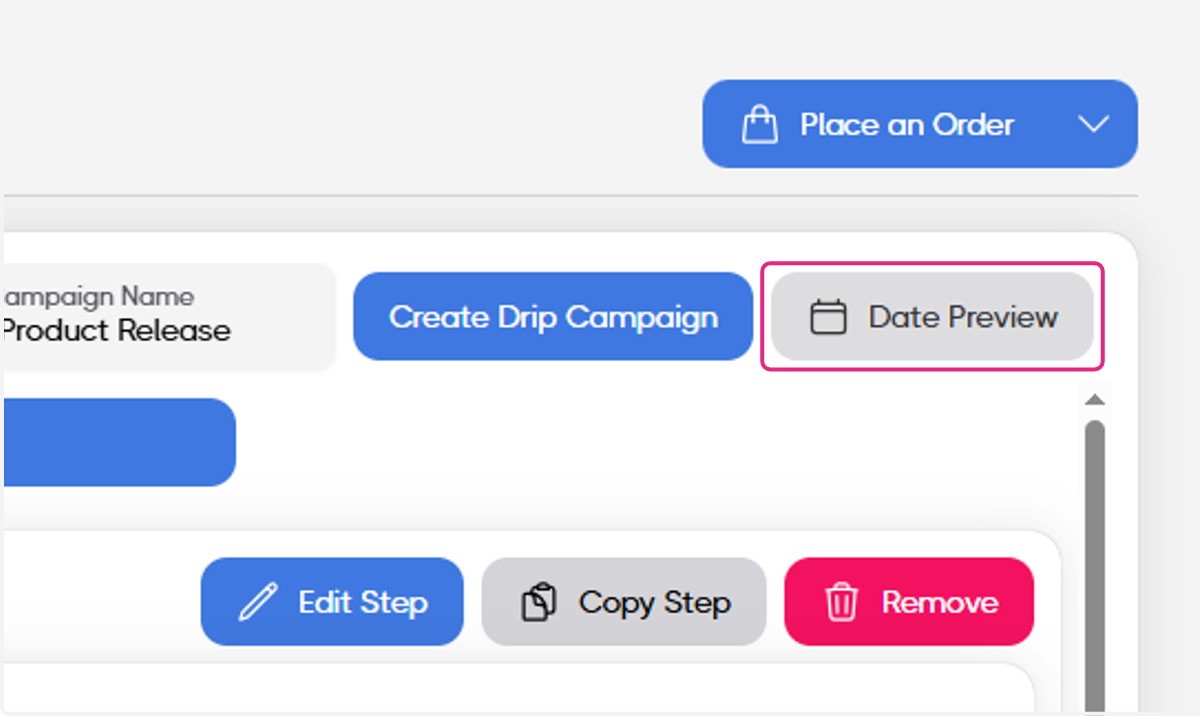
19. Click on Date Preview
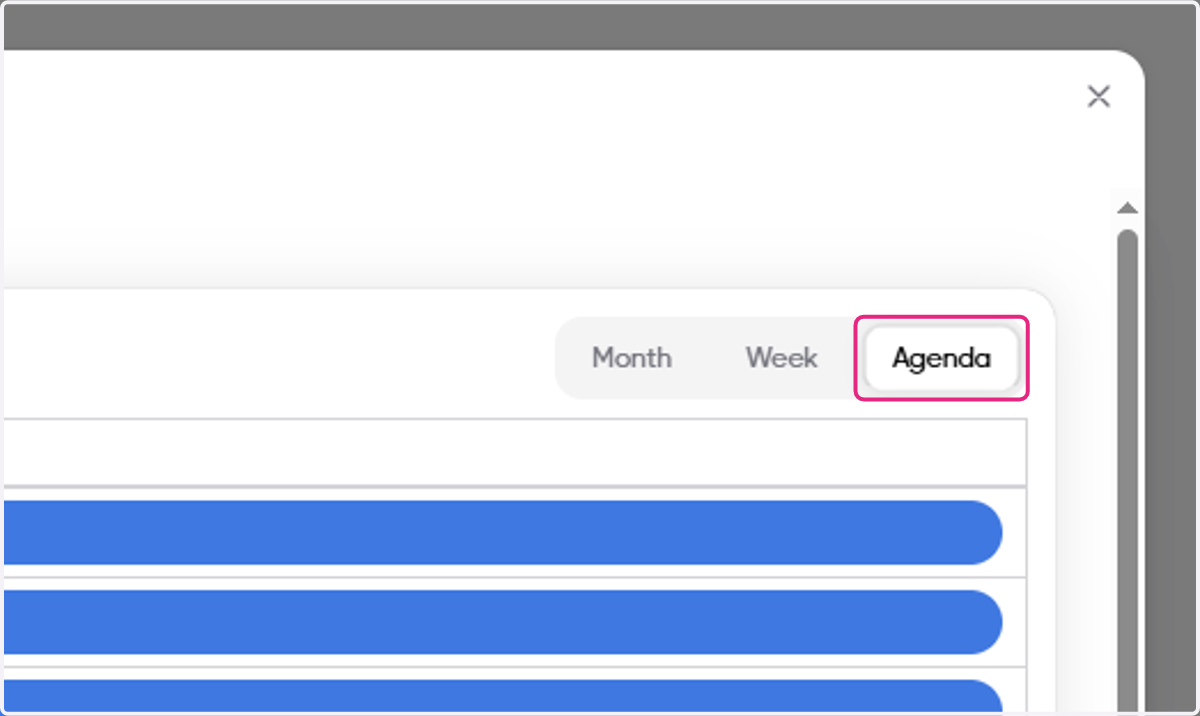
20. Visualize your campaign
You can see when each step will occur based on the general agenda view or broken down by month or week.
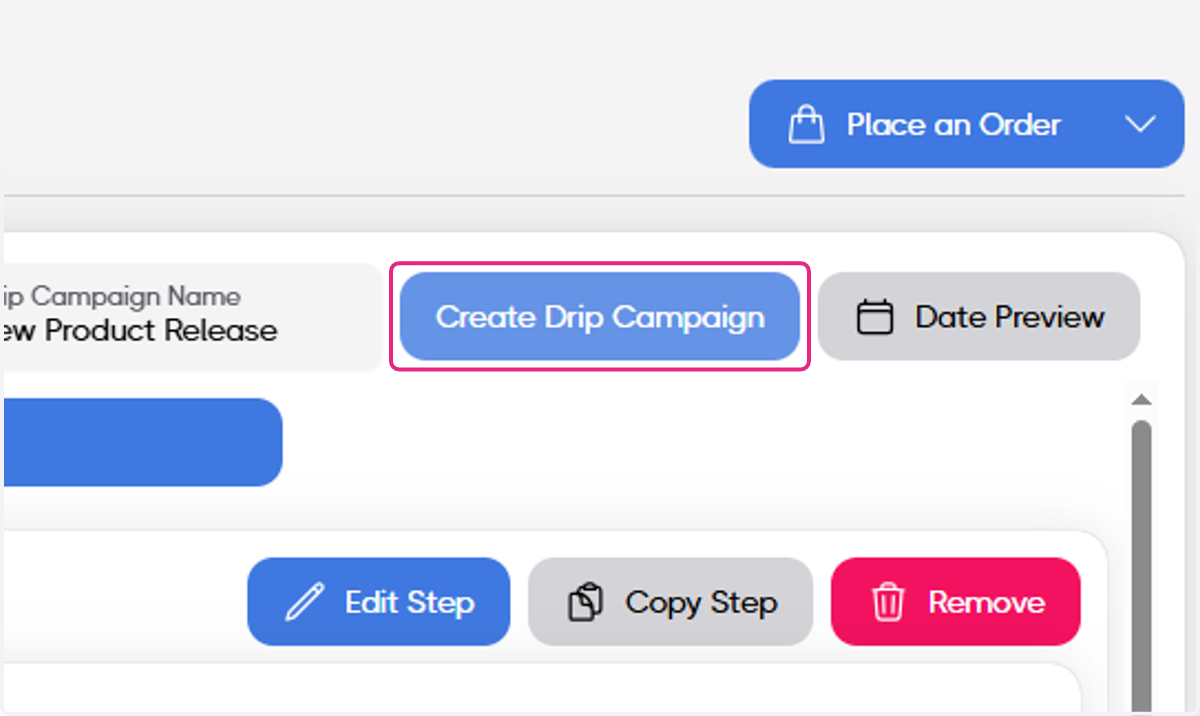
21. Click on Create Drip Campaign
22. Click on Create
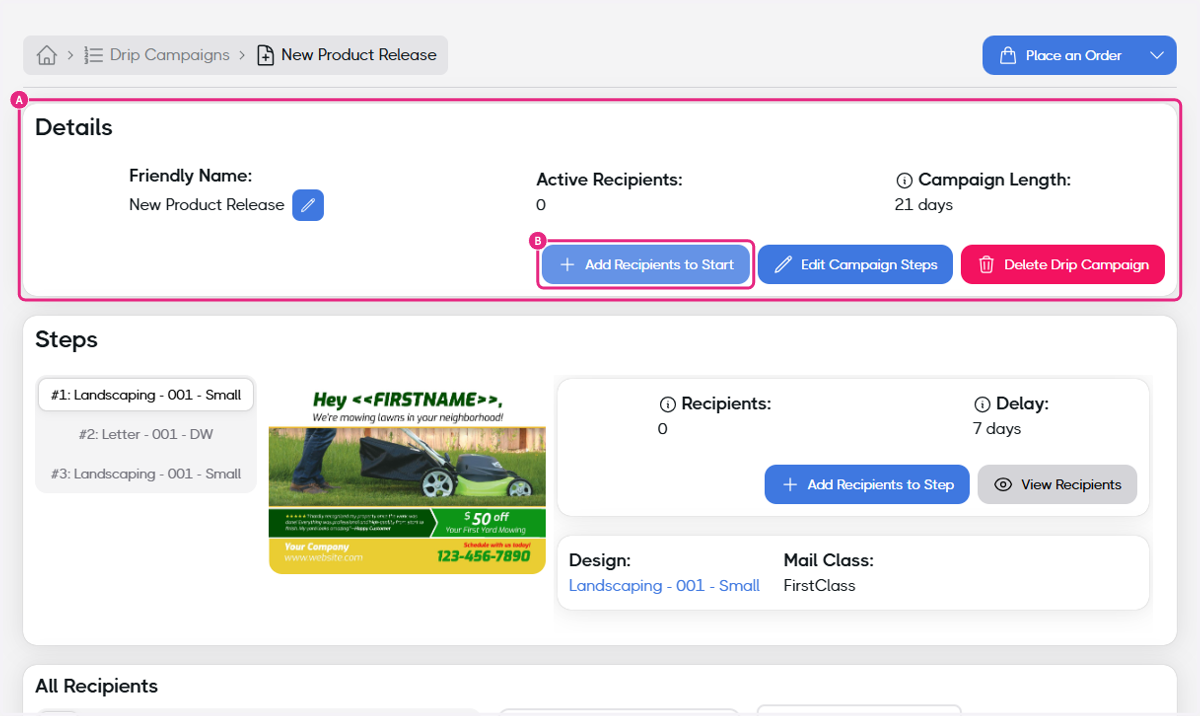
23. A. Click on Details…
23. B. Click on Add Recipients to Start
Adding recipients to the start will send the recipients through the campaign starting with the first step. You may also add recipients to each step individually as needed.
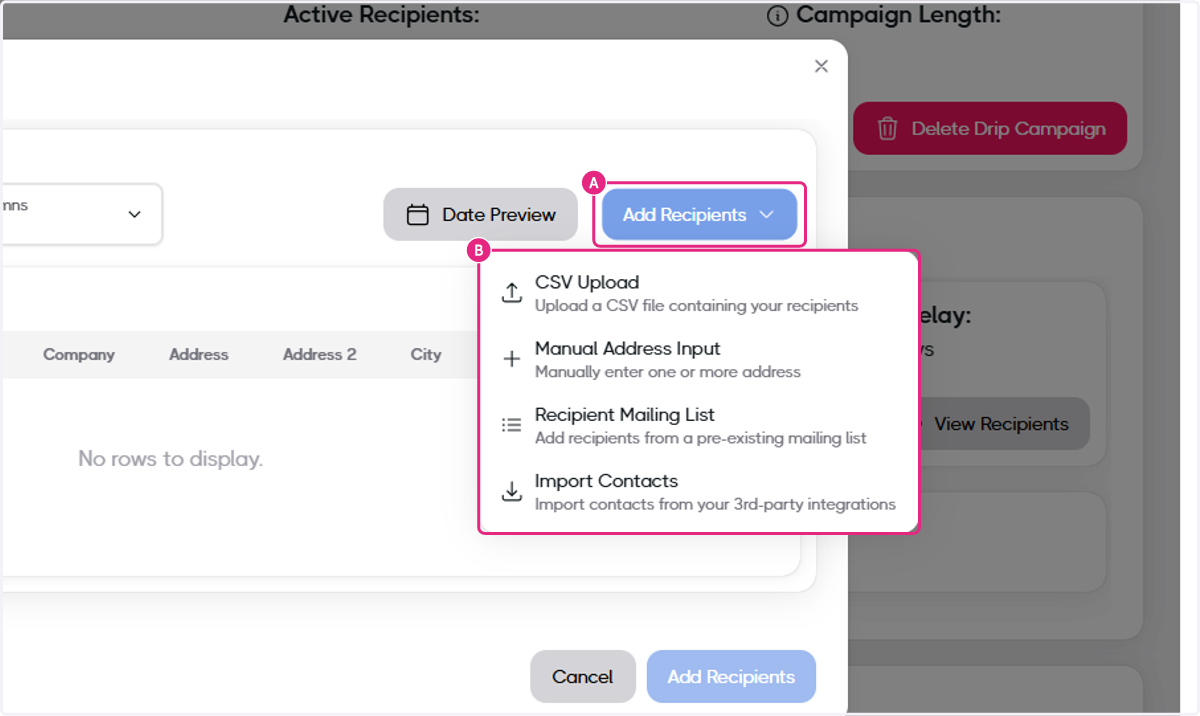
24. A. Click on Add Recipients
24. B. choose an option from the Add recipients selection picklist
You have multiple options for adding recipients.
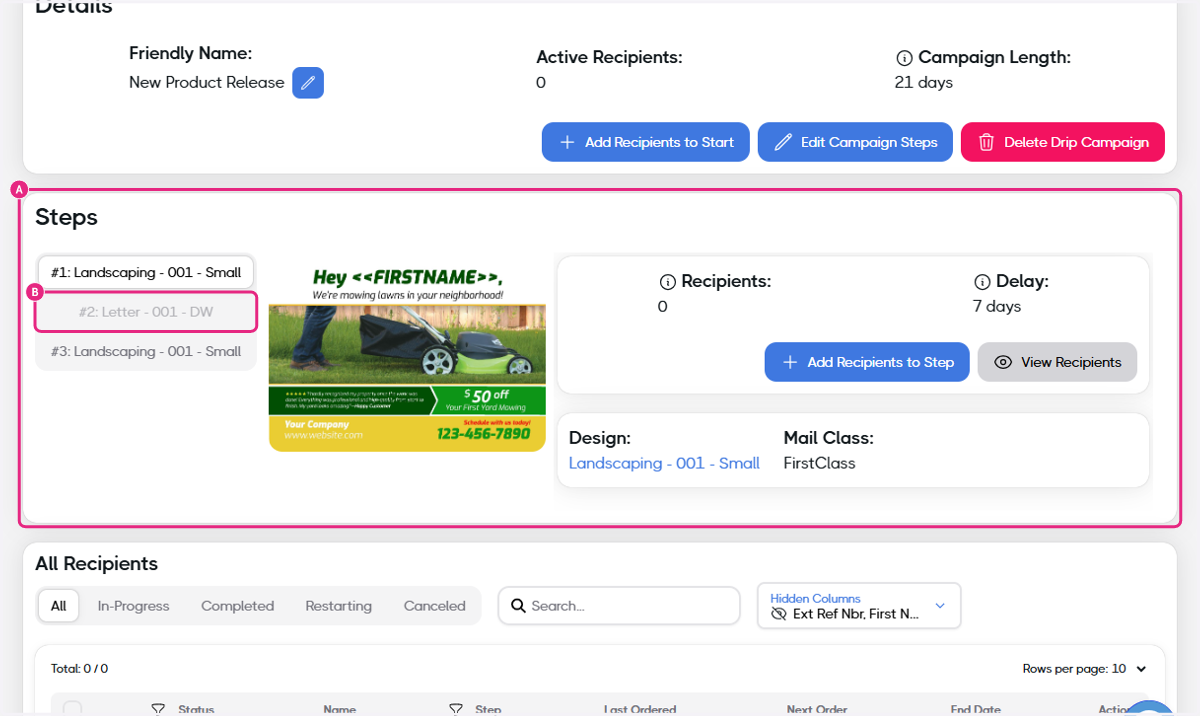
25. A. Click on Steps…
25. B. Move between steps
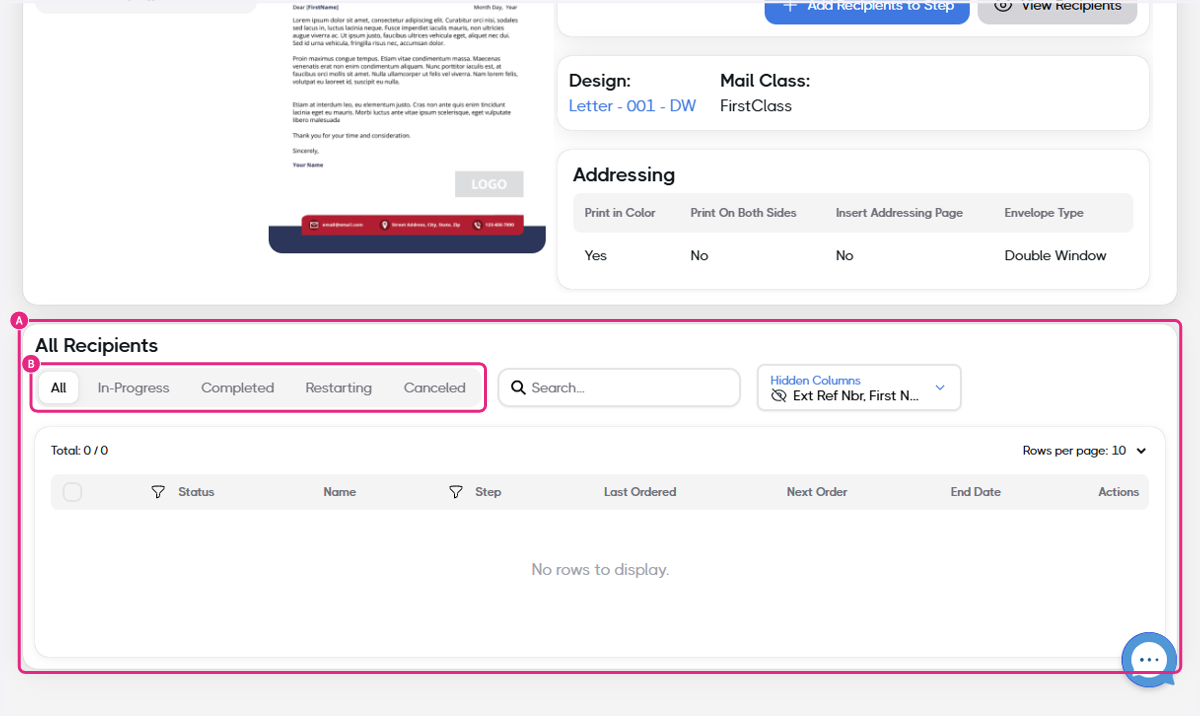
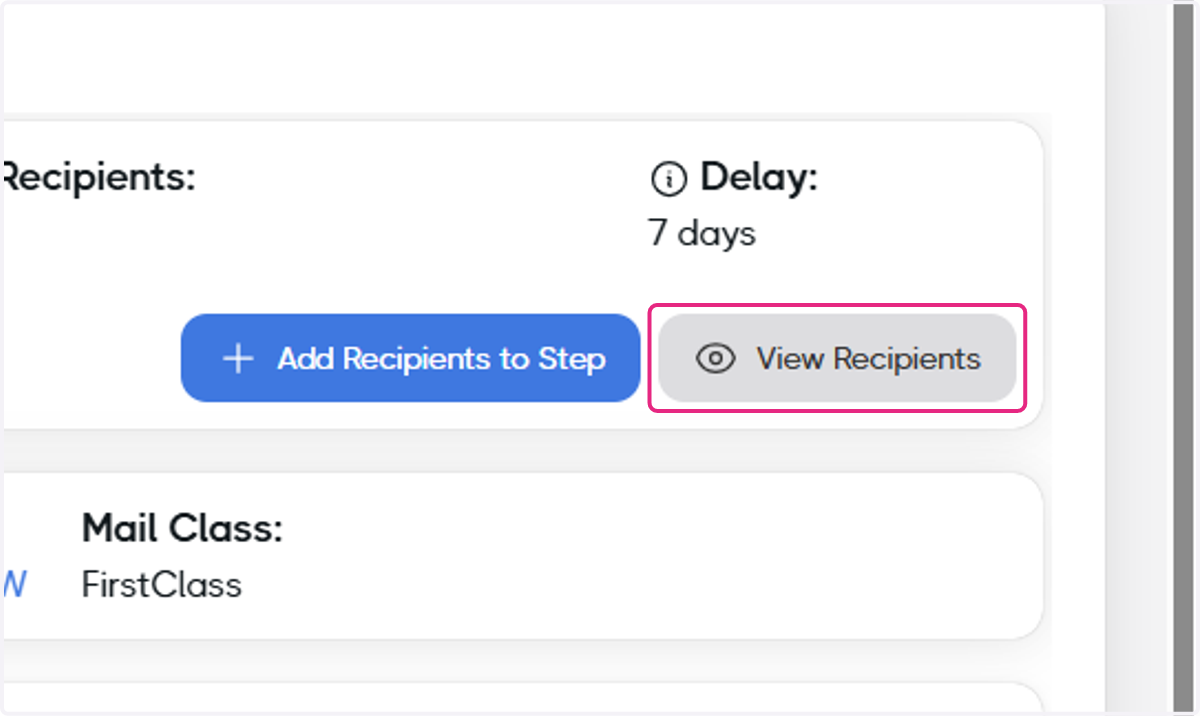
26. Click on View Recipients
You'll be able to see which recipients are currently on this step.
27. A. Click on All Recipients…
27. B. Click on All…
You can move between statuses to see all recipients that are currently on this step but also ones that have completed, restarted, or been canceled.