Getting started at BruntWork: Your step by step Onboarding Guide
The most important thing to ensure during your onboarding is that you know when you need to start on your first day with your client, and that you are ready to work and connect with them.
If you have any questions or are unsure about this, please let the person you are speaking within BruntWork know that you require assistance as soon as possible.
But to make sure you are ready for your Day 1 with your client, here's a step by the step guide to make sure you have completed everything.
Note: To make this walk through interactive, please download the Tango Chrome Extension from https://chromewebstore.google.com/
Just click on each step and it will direct you to the website/s you need to visit and do the task along with the instructions!
If you need help in downloading the Tango Chrome Extension, you can check out this video: https://drive.google.com/file/d/1tnj-T8efzc2meVuZAc_LA4PlfxXDBYph/view?usp=sharing
1. Step 1: Make sure you have provided us your bank details for our payroll team to be able to send your payment. NOTE: You have to log in to your Zoho Mail Account before you can update or do any of the instructions below in your Staff Portal or you will encounter an error.
Log in to the Staff Portal using your BruntWork profile.
https://app.bruntwork.co/staff/login
(Here's a quick guide of what to do https://app.tango.us/app/workflow/Updating-your-Bank-Information-on-the-Staff-Portal-482cb92802364c6c80d636d501089491)
2. Done with this step? Yes - Proceed to Step 2 No - Go back to Step 1, log in to the Staff Portal and follow the instructions to update your bank information. https://docs.google.com/forms/d/e/1FAIpQLSdQxyp8JxbCE6Xa3VXe3OibCBRxiOegt8R85m06dGsj1gl2cg/viewform
3. Step 2: Have you signed your Independent Contractor Agreement?
Before your first working day (or shortly after), we'll send you your official Independent contractor agreement. Please read, sign, and return this to us as soon as possible.
Note: This is different from the initial Job Offer email our recruitment team sent you.
4. Done with this step? Yes - Proceed to Step 3 No - Reach out to your Recruitment officer or Staff Services Partner or via email at people@bruntwork.co
5. Step 3: Go to your personal email account and look for the email sent by the BruntWork Training Team
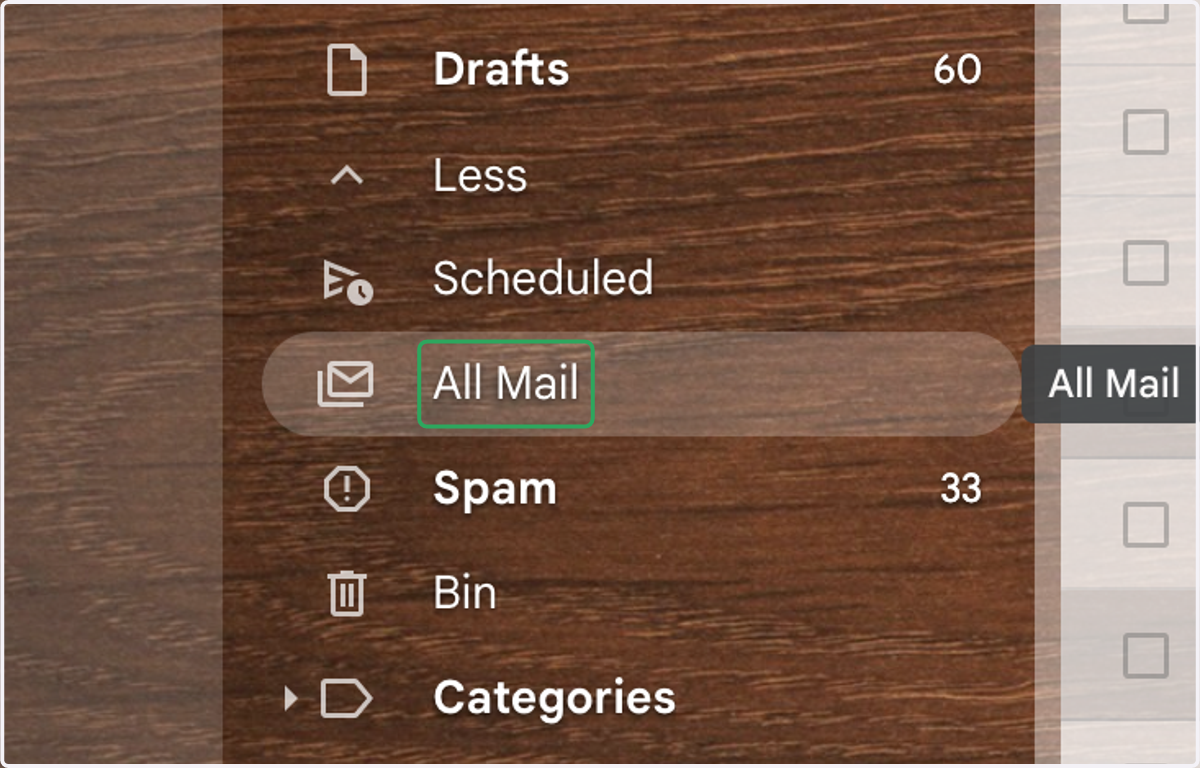
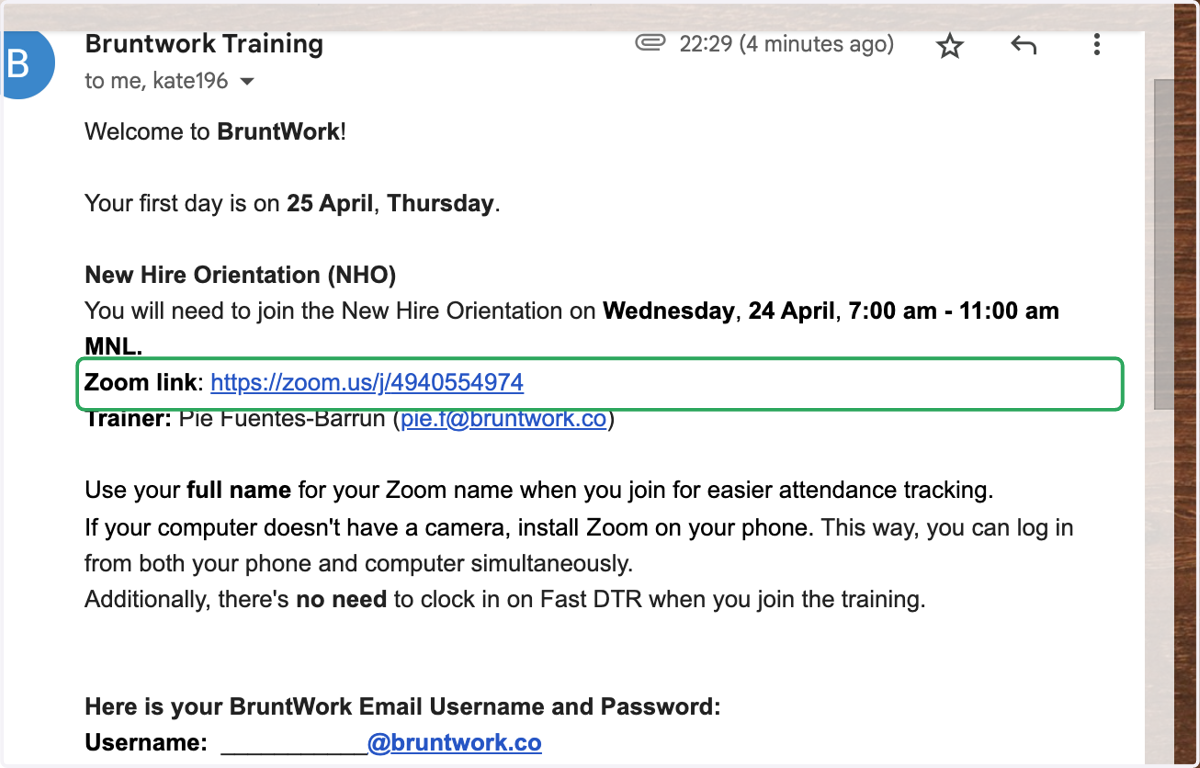
6. You should receive your Bruntwork New Hire Orientation email
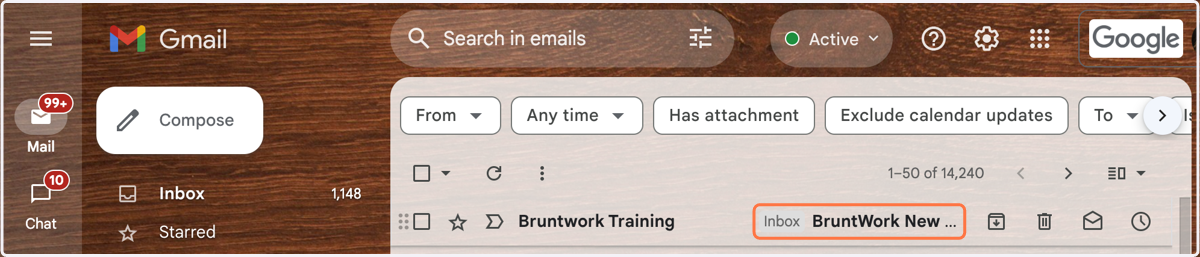
7. You will be able to see when the 1st day of your shift will be.
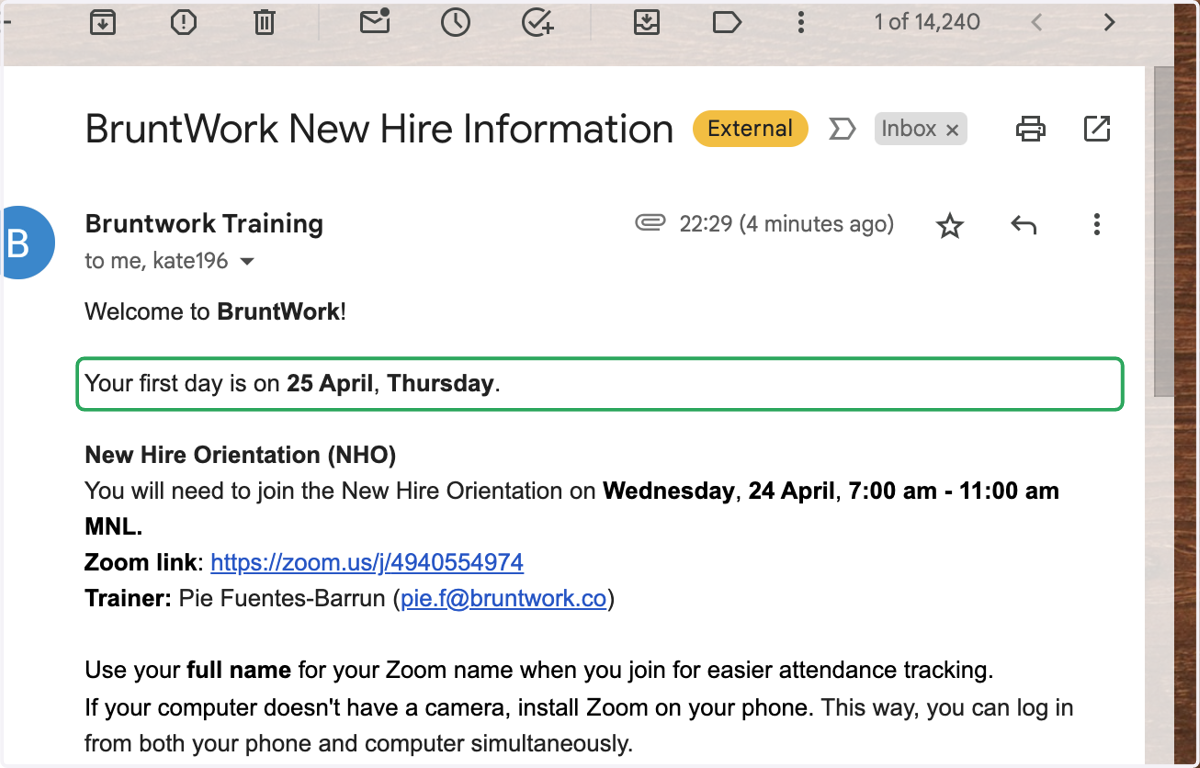
8. You will also have your New Hire Orientation Training schedule
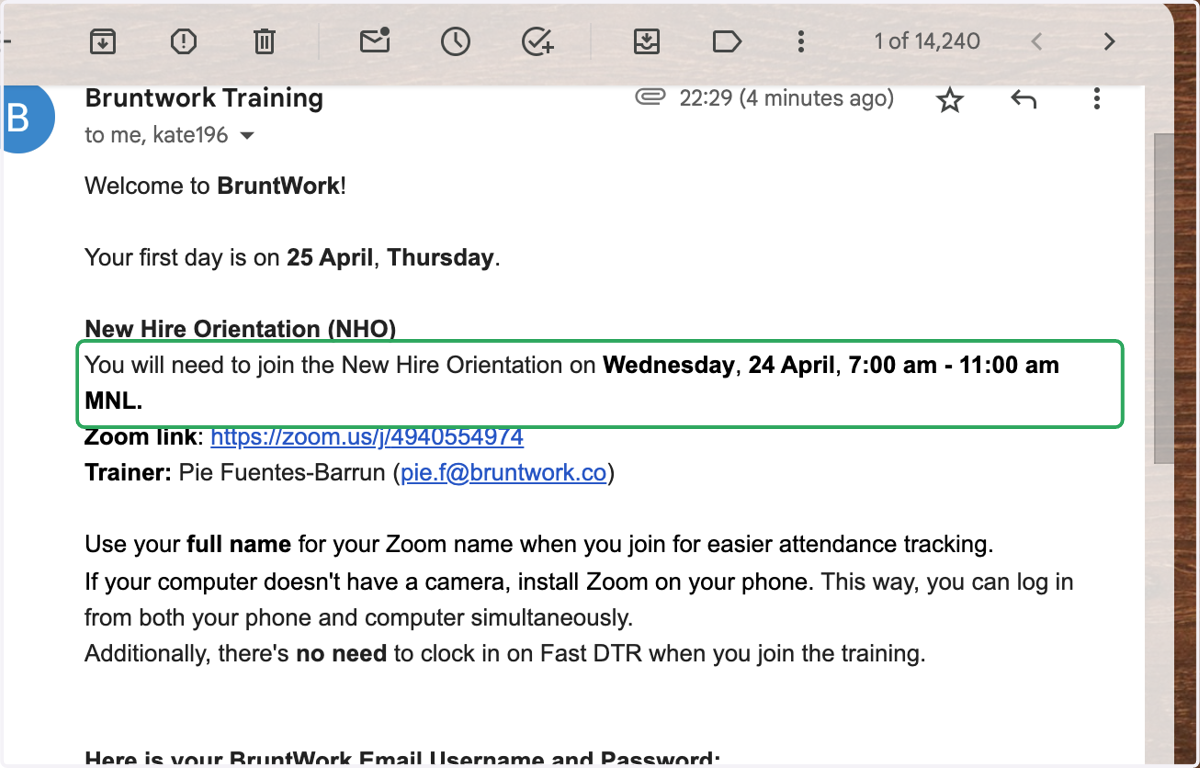
9. The zoom link of your New Hire Orientation class
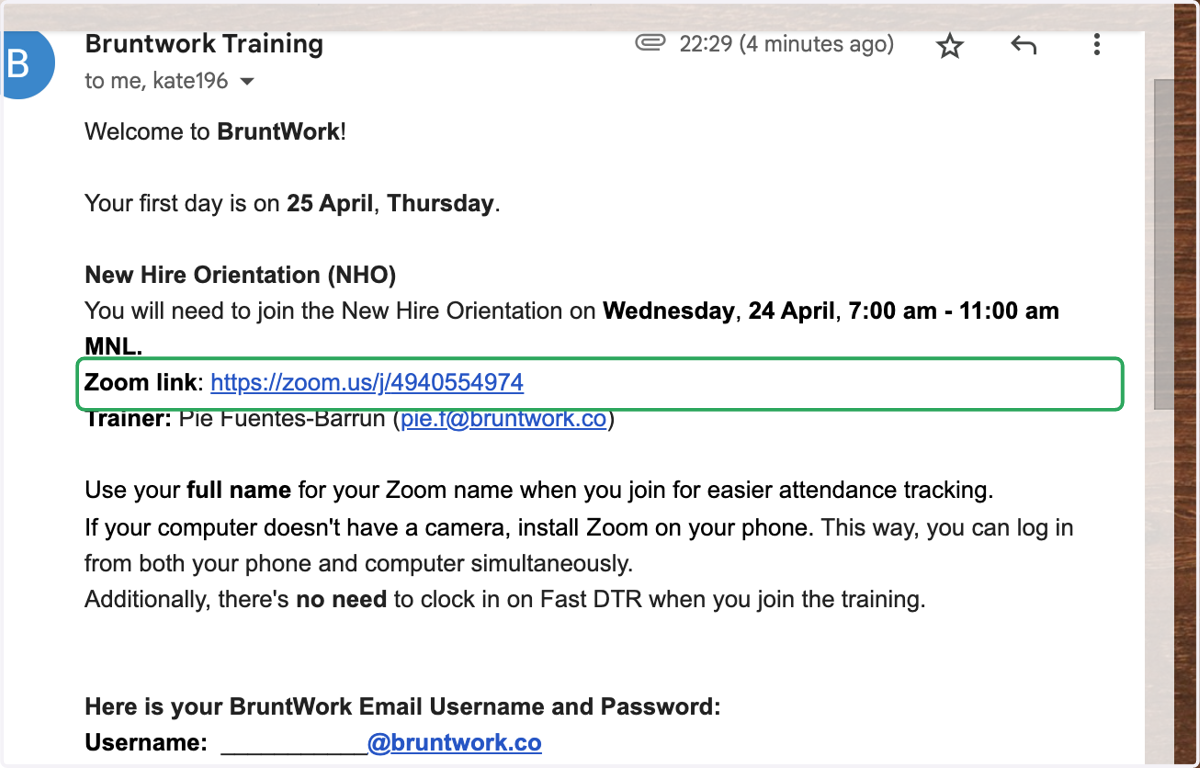
10. And the name and email address of your trainer
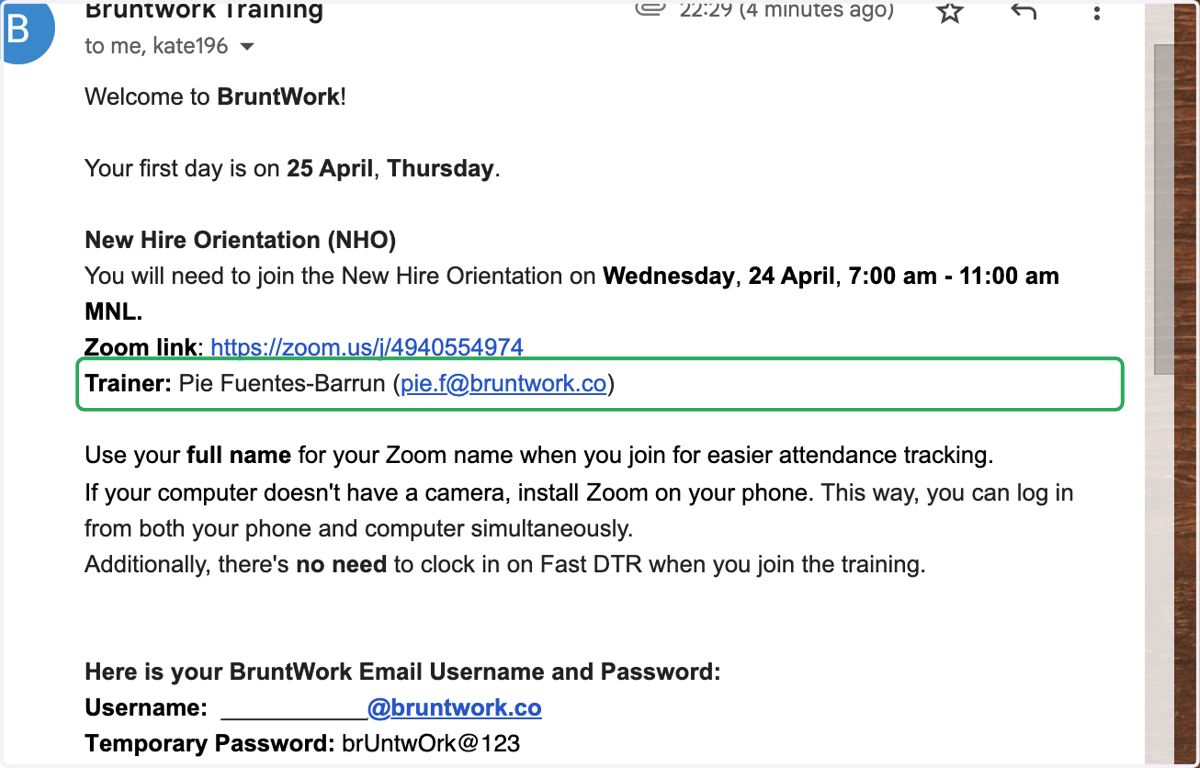
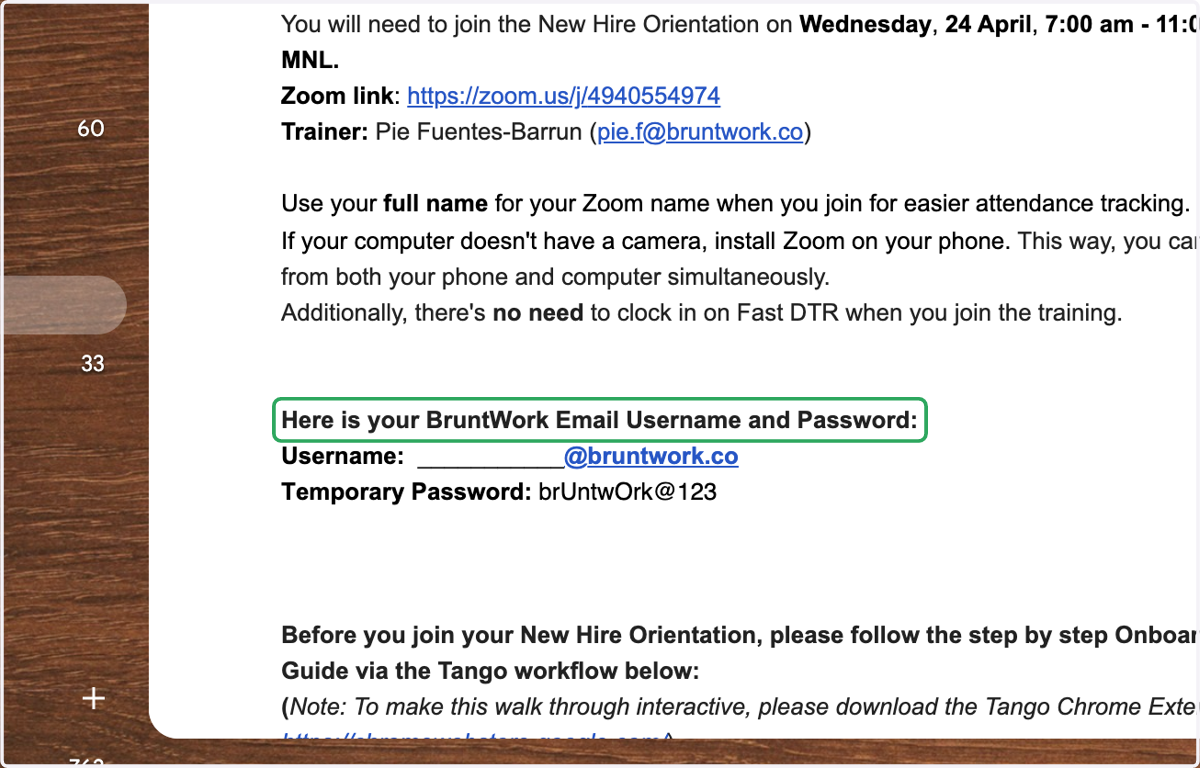
11. You will also have your Zoho Mail User Name and Password.
12. Done with this step? Yes - Proceed to Step 4 No - Reach out to your Recruiter and inform them if: 1. You have not received your New Hire Information email. 2.You won't be able to attend the schedule given to you.
Step 4: Log in to your bruntwork.co account in Zoho - https://www.zoho.com/mail/login.html
As shown a few steps back, you will be able to see your Username and Password in your New Hire Orientation email
13. Click on SIGN IN
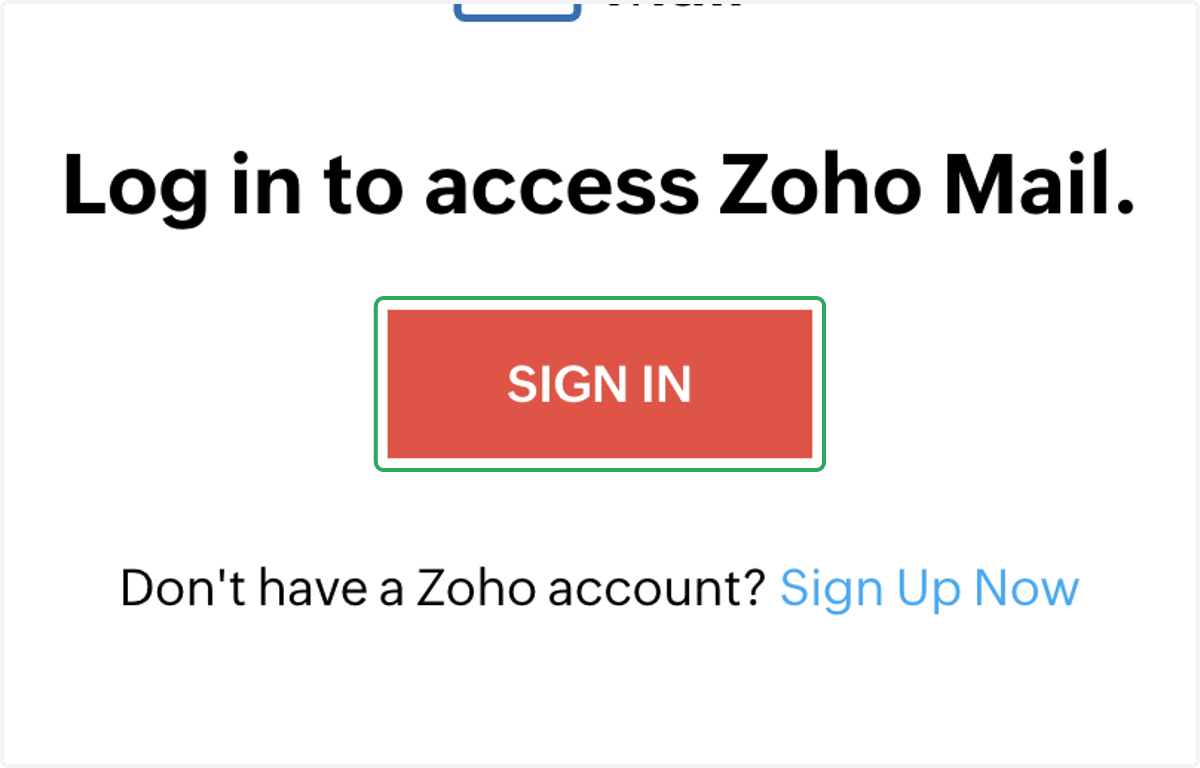
14. Upon your first log in, you will be prompted to change your Zoho password. You have to complete this step before you'll be able to log in to your email.
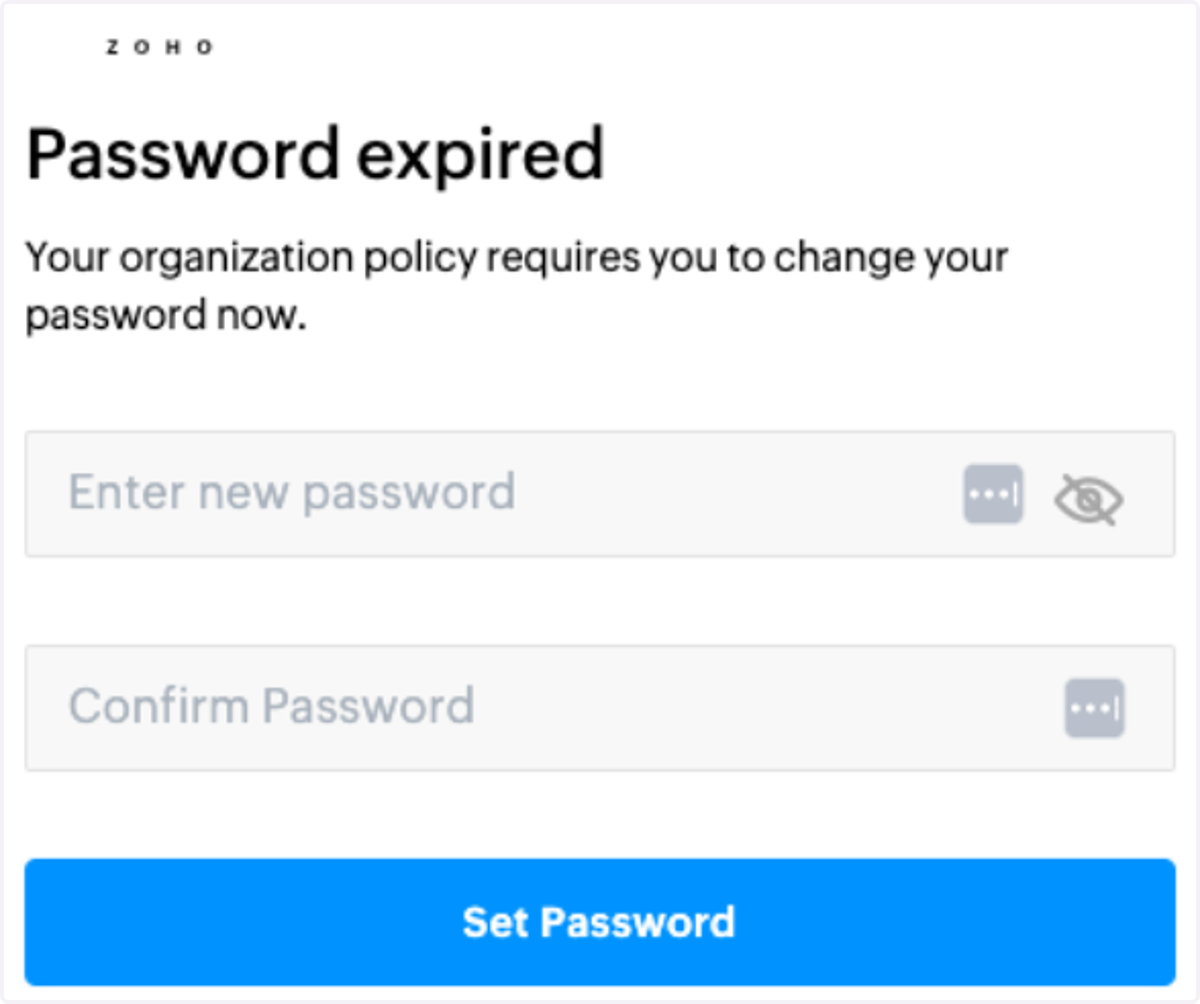
15. Done with this step? Yes - Proceed to Step 5 No - Reach out to our IT Team at itsupport@bruntwork.co if you cannot access your Zoho mail
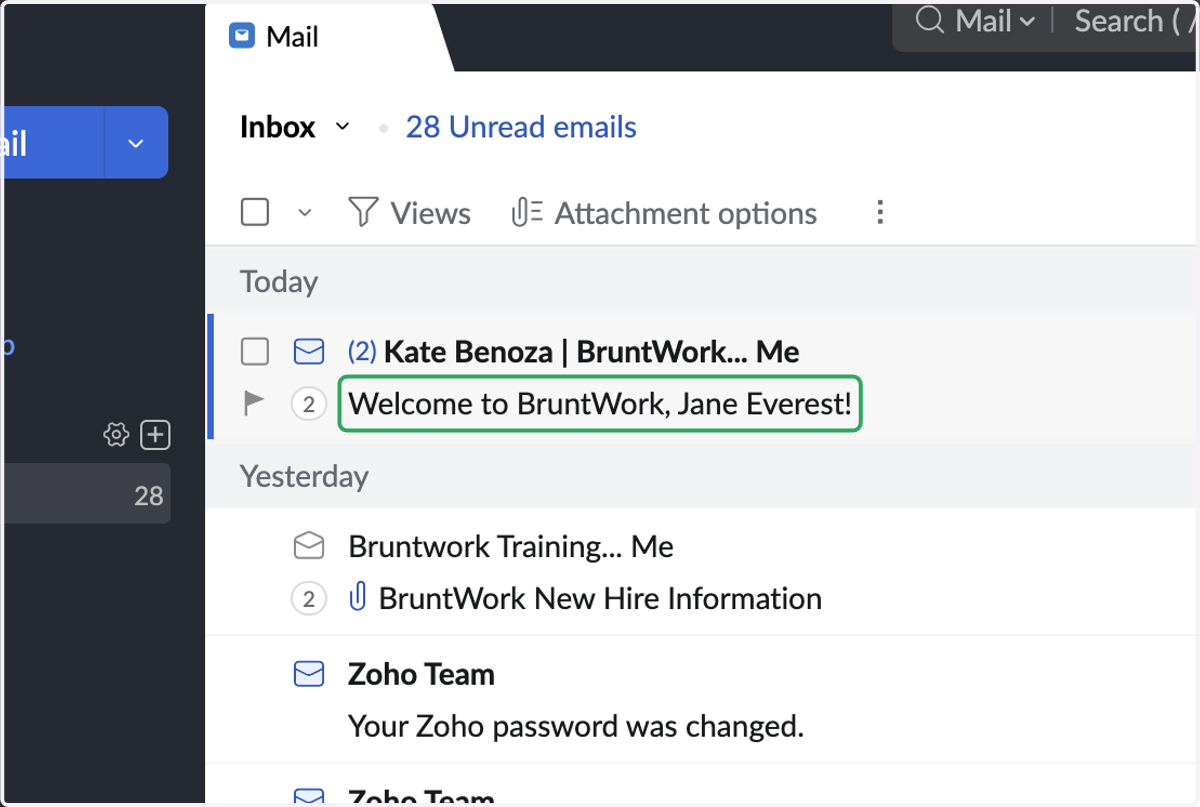
16. Step 5 - Open your Zoho Mail and go to the email and look for your Welcome Email
Zoho Mail
17. You should see an email with the subject line: Welcome to BruntWork, (Your name)
18. You will find the name of your Staff Services Partner
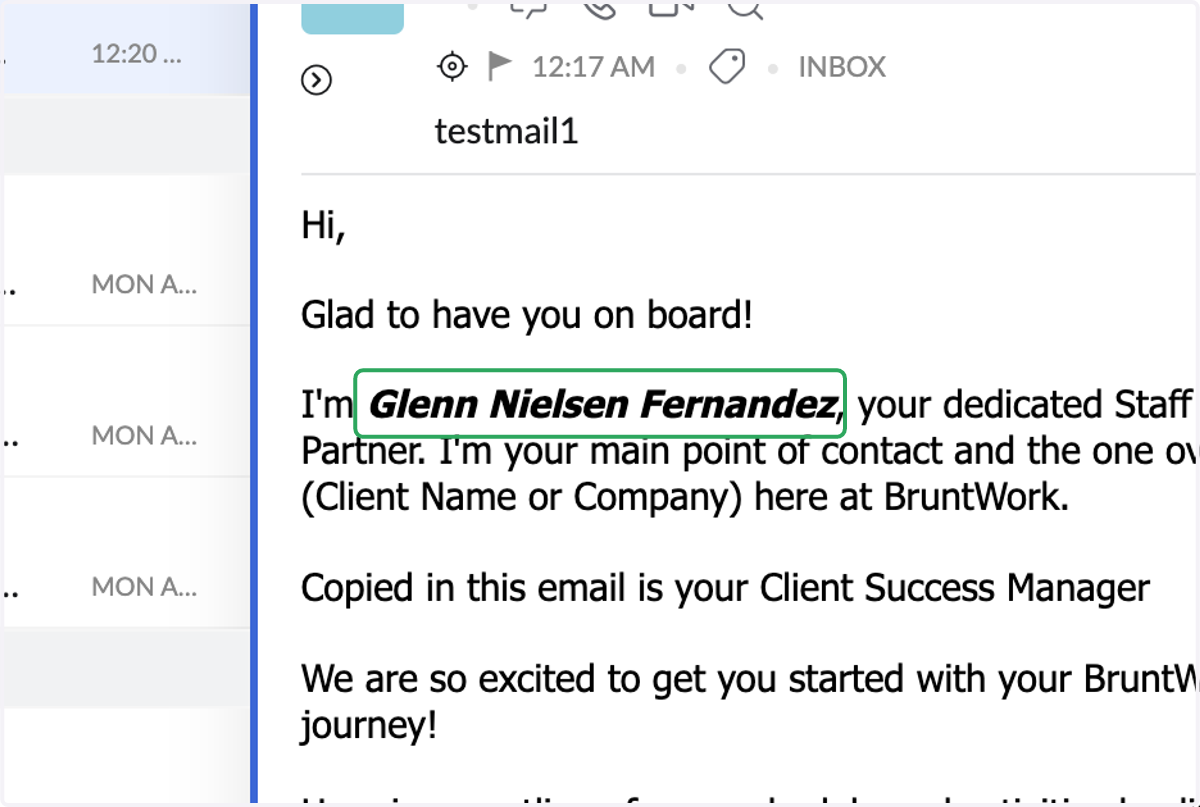
19. The name of your Client Success Manager
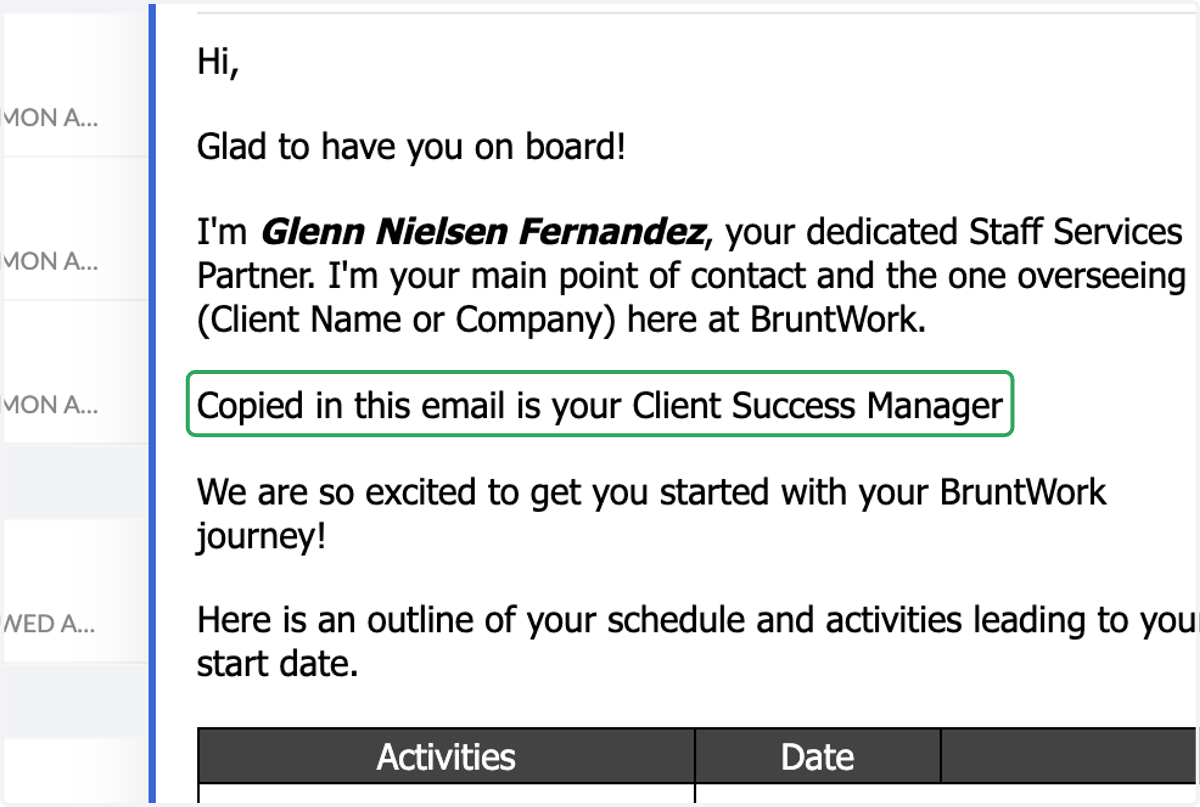
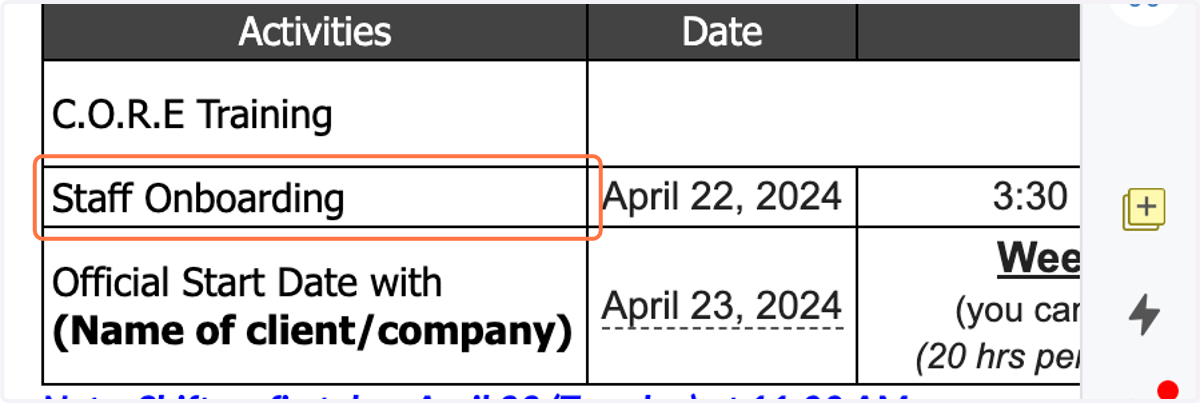
20. In the body of the email you will see the tasks/activities and its schedules which you have to complete after your New Hire Orientation
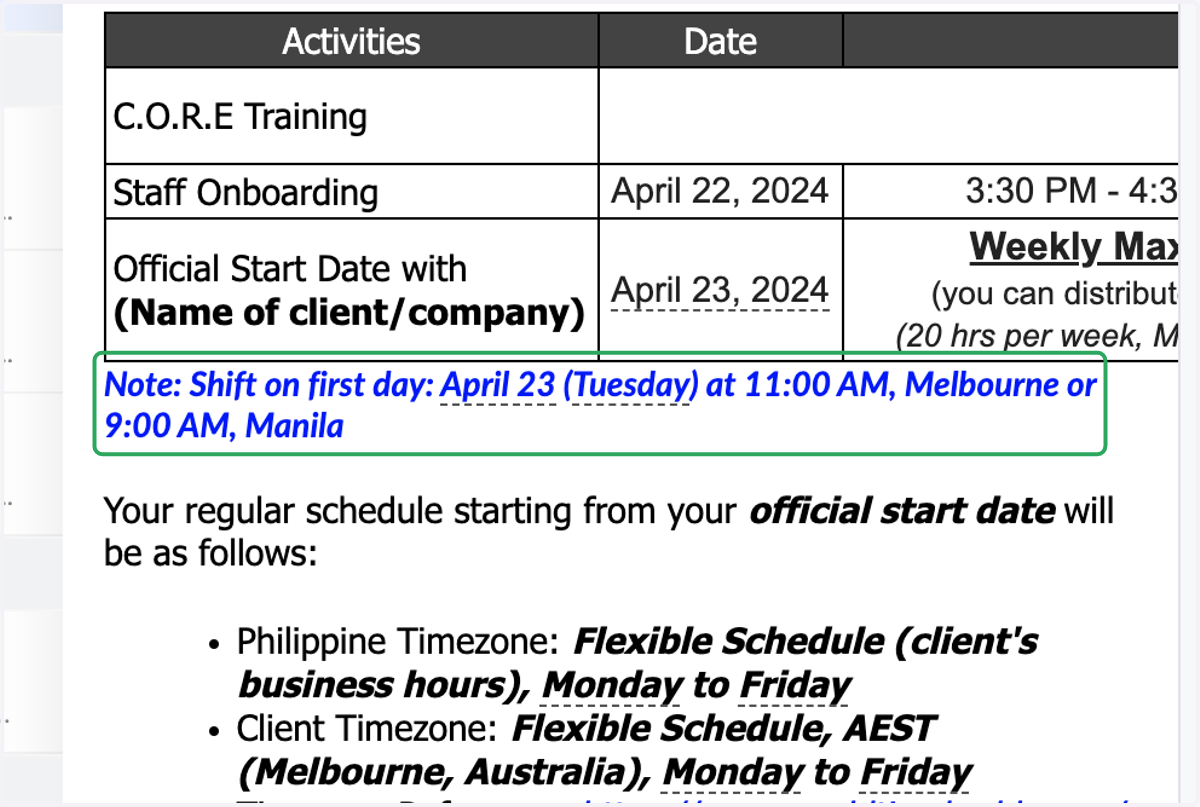
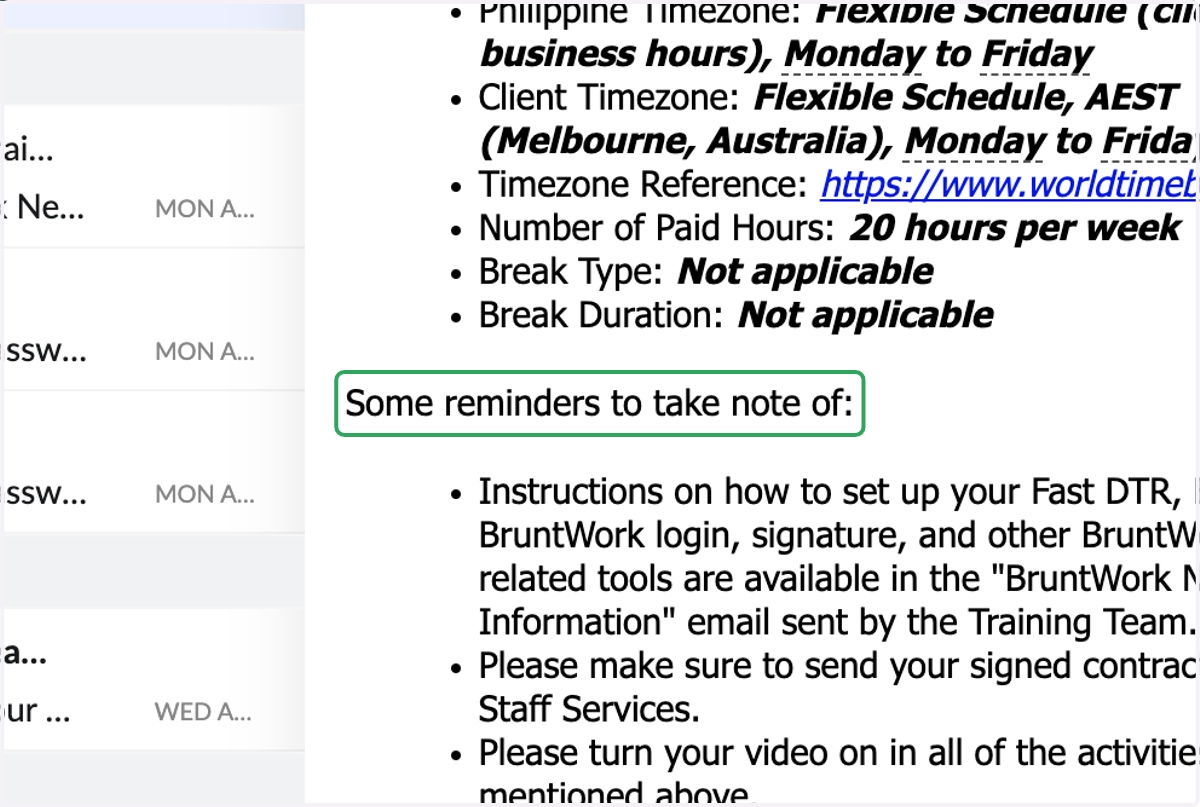
21. And some helpful reminders too:
22. Done with this step? Yes - Proceed to Step 6 No - Wait for your SSP to send out your Welcome Email
23. Step 6: Complete the 4 required Pre NHO Training Videos: (You may click the link or copy the link to a different browser)
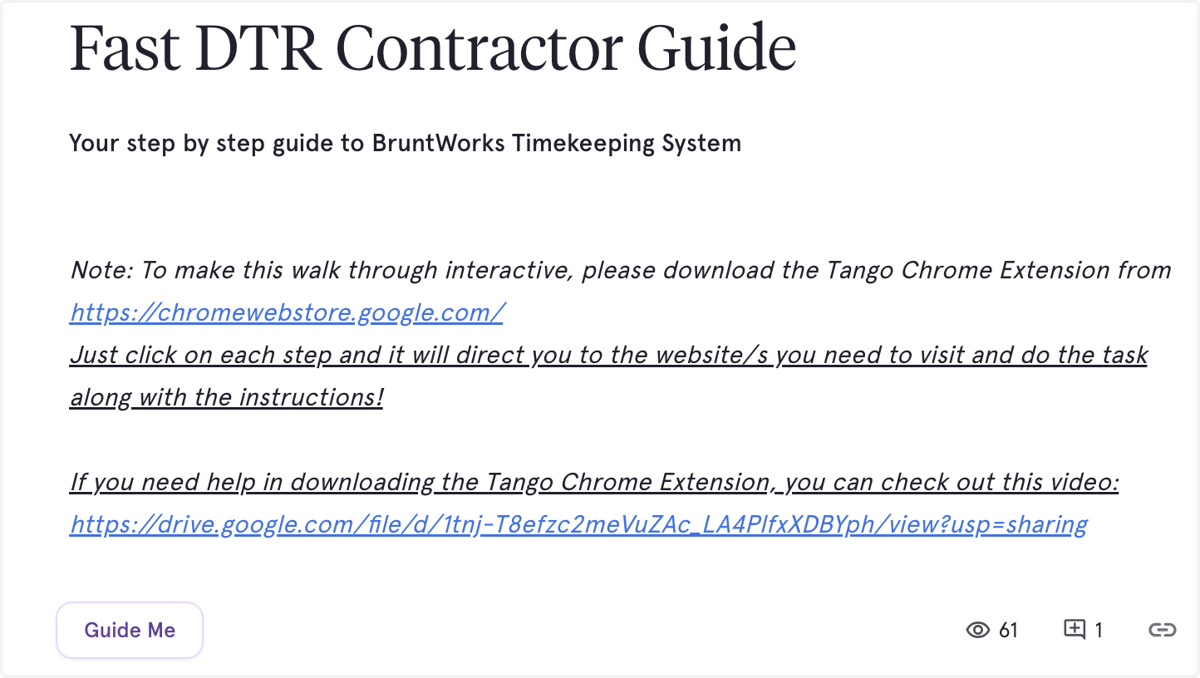
1 - FAST DTR Training
(Click on "Guide Me" to make it interactive)
https://www.loom.com/share/397d886bbb084336bfd445b0e7de1637?sid=781f8f70-e455-4f8a-bfe2-0ad682d75546
24. 2 - Bruntwork Information and Cyber Security and Awareness Training - https://3.basecamp.com/5075800/buckets/44598606/documents/9231941607

25. 2.1 Read BruntWorks policy on the following: BruntWorks Clean Desk Clear Sceen Policy - https://3.basecamp.com/5075800/buckets/44598606/documents/9231962092 BruntWorks Equipment Sitting and Protection - https://3.basecamp.com/5075800/buckets/44598606/documents/9232008928
26. Complete the step by answering the Information Security Questionnaire in this link:
27. 3 - Introduction to Chat GPT https://drive.google.com/file/d/1mpXHeJ2hrvyXnFBE7x4RvyNhPqh8arbC/view
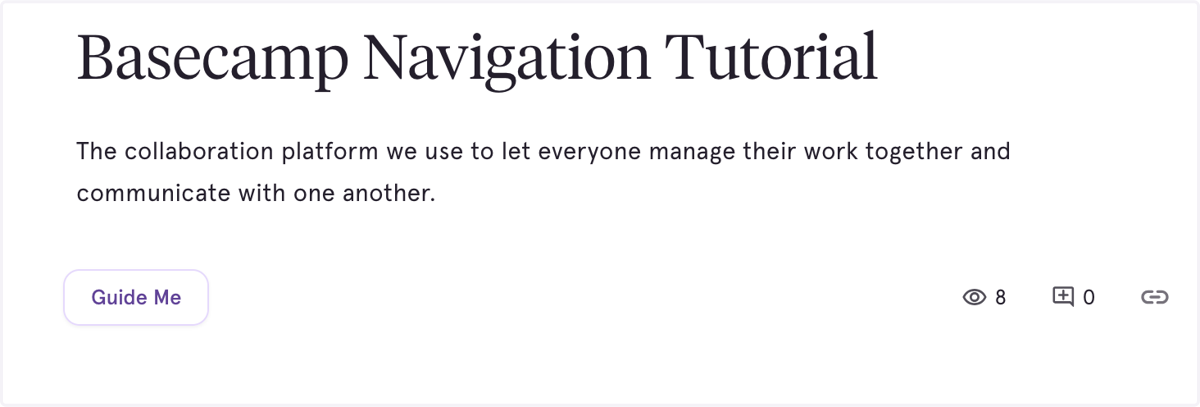
28. 4 - You also need to log in to Basecamp before you join your New Hire Orientation. You may click the link (or copy to a different browser) for your Basecamp tutorial: https://app.tango.us/app/workflow/Basecamp-Navigation-Tutorial-9c365db6ea764e71b2fc4caffc1d1538
29. Done with this step? Yes - Proceed to Step 7 No - Make sure that you have completed these trainings before you attend your New Hire Orientation and Staff Onboarding
30. Step 7: Attend your New Hire Orientation on your scheduled day. Go back to your New Hire Information Email and click the zoom link provided so you can join the class. Make sure you join the link at least 5 minutes before your start time.
31. Done with this step? Yes - Proceed to Step 8 No - Reach out to your Staff Services Partner if you were not able to attend.
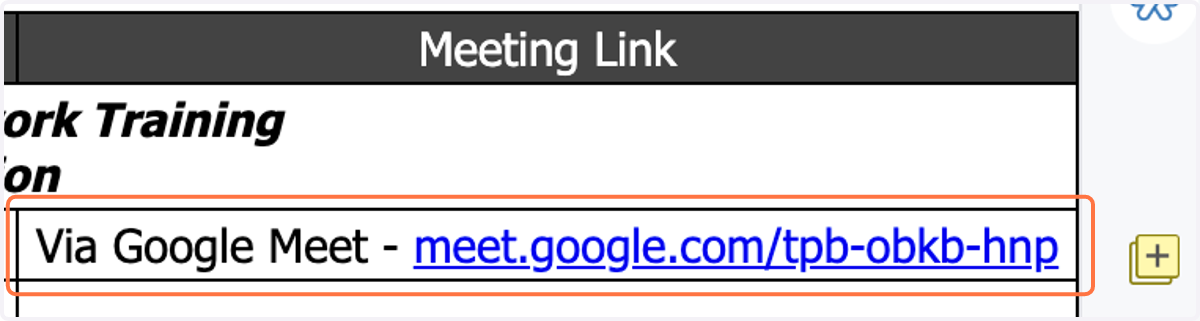
32. Step 8 - Attend your Staff Onboarding Call with your Staff Services Partner Go back to your Welcome Email and click the zoom link provided so you can join the class.
33. Make sure you join the link at least 5 minutes before your start time.
34. Done with this step? Yes - Proceed to Step 9 No - Reach out to your Staff Services Partner for any challenges you have in completing this task
35. Step 9 - Send your "Ready To Work Email" to your client: https://drive.google.com/file/d/1MOywplv5HoR_kilyy3KjazuJxm59vgJN/view
On your Day 1 schedule with your client, your "Ready To Work Email" at least 10-15 minutes before your shift starts. This is to give your client a head up that you are already ready to work.
36. Done with this step? Yes - Proceed to Step 10 No - Reach out to your Staff Services Partner for any challenges you have in completing this task
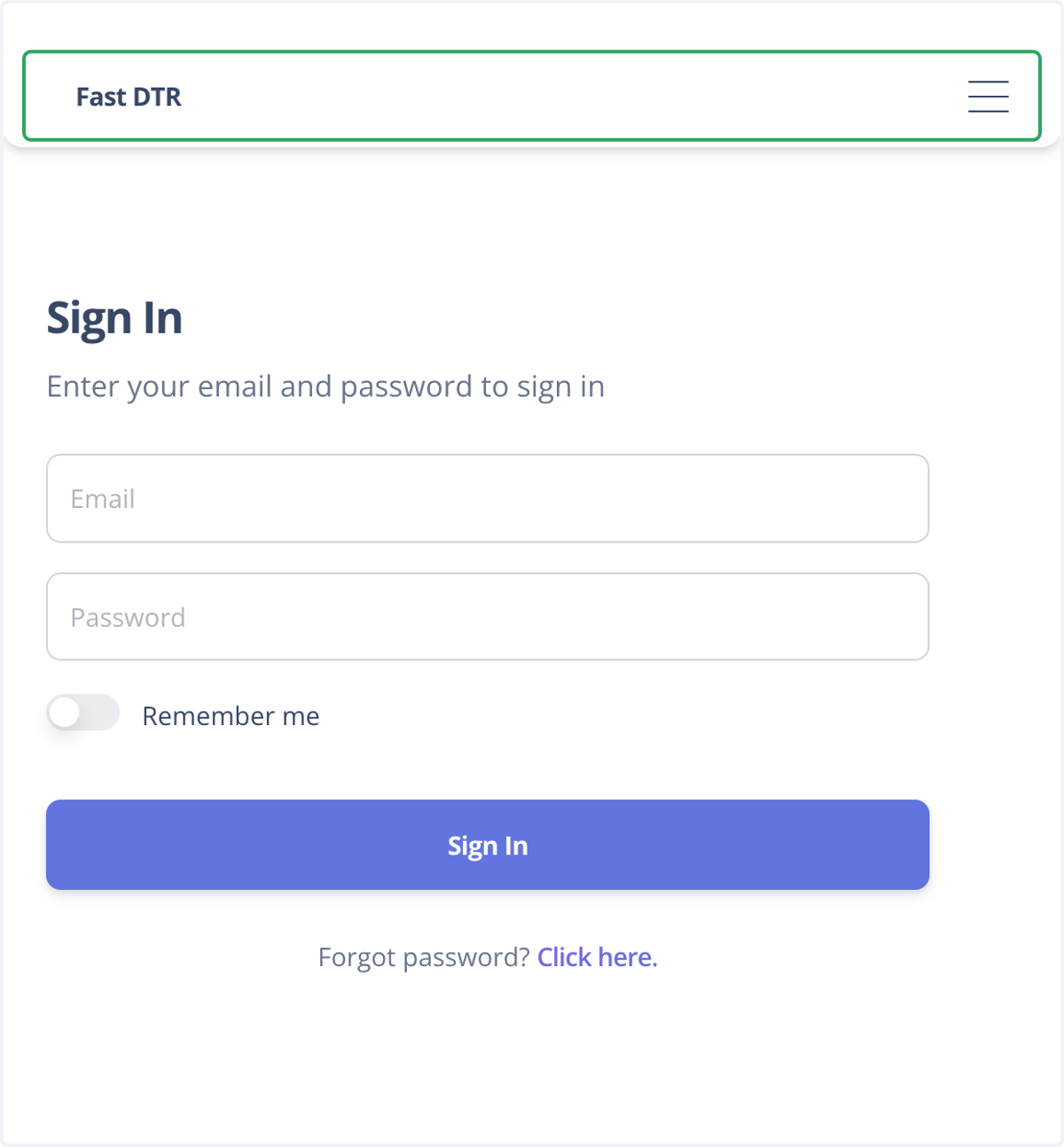
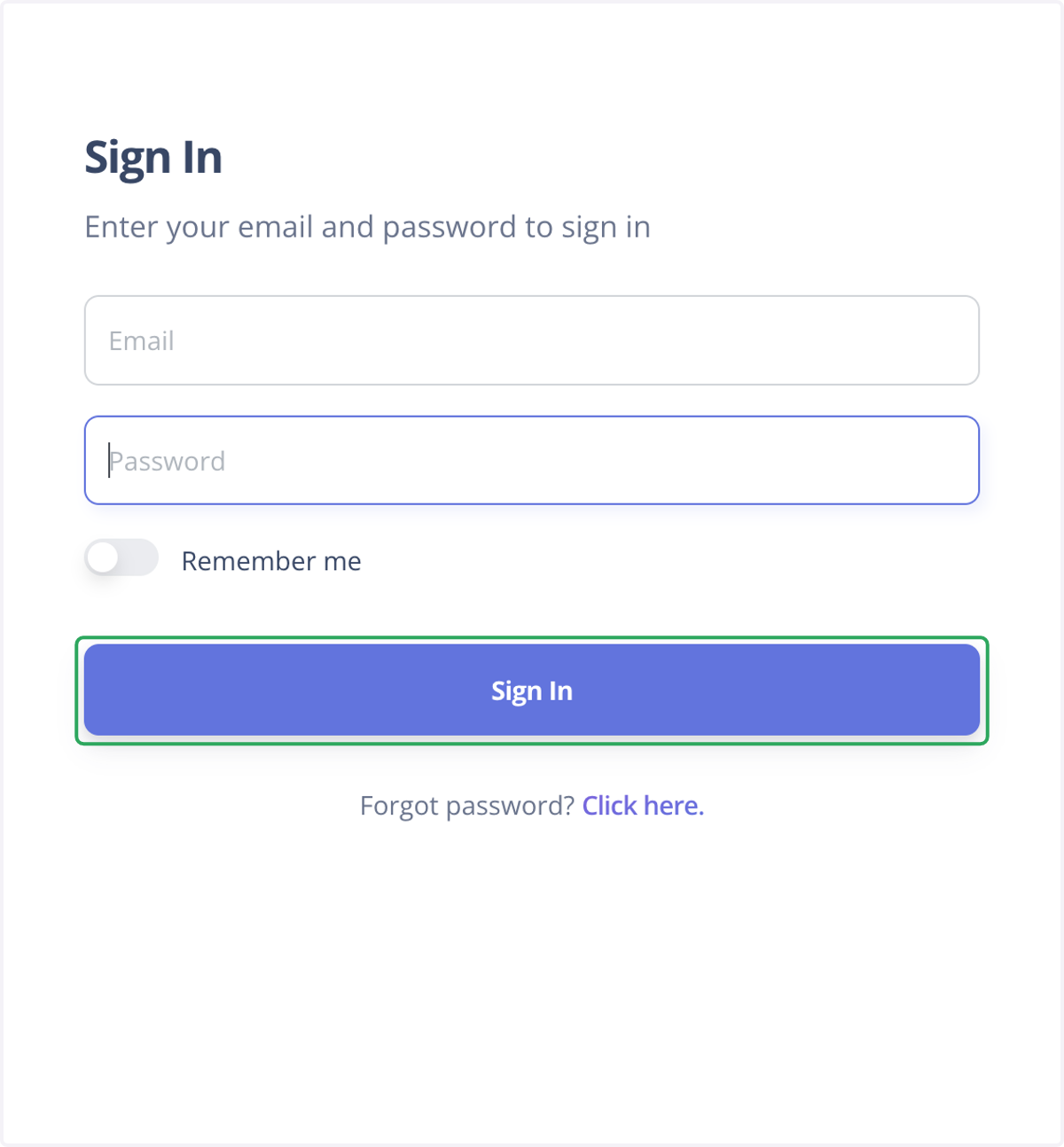
Step 10 - Log in to Fast DTR to log in to start your Day 1.
37. Click on Fast DTR
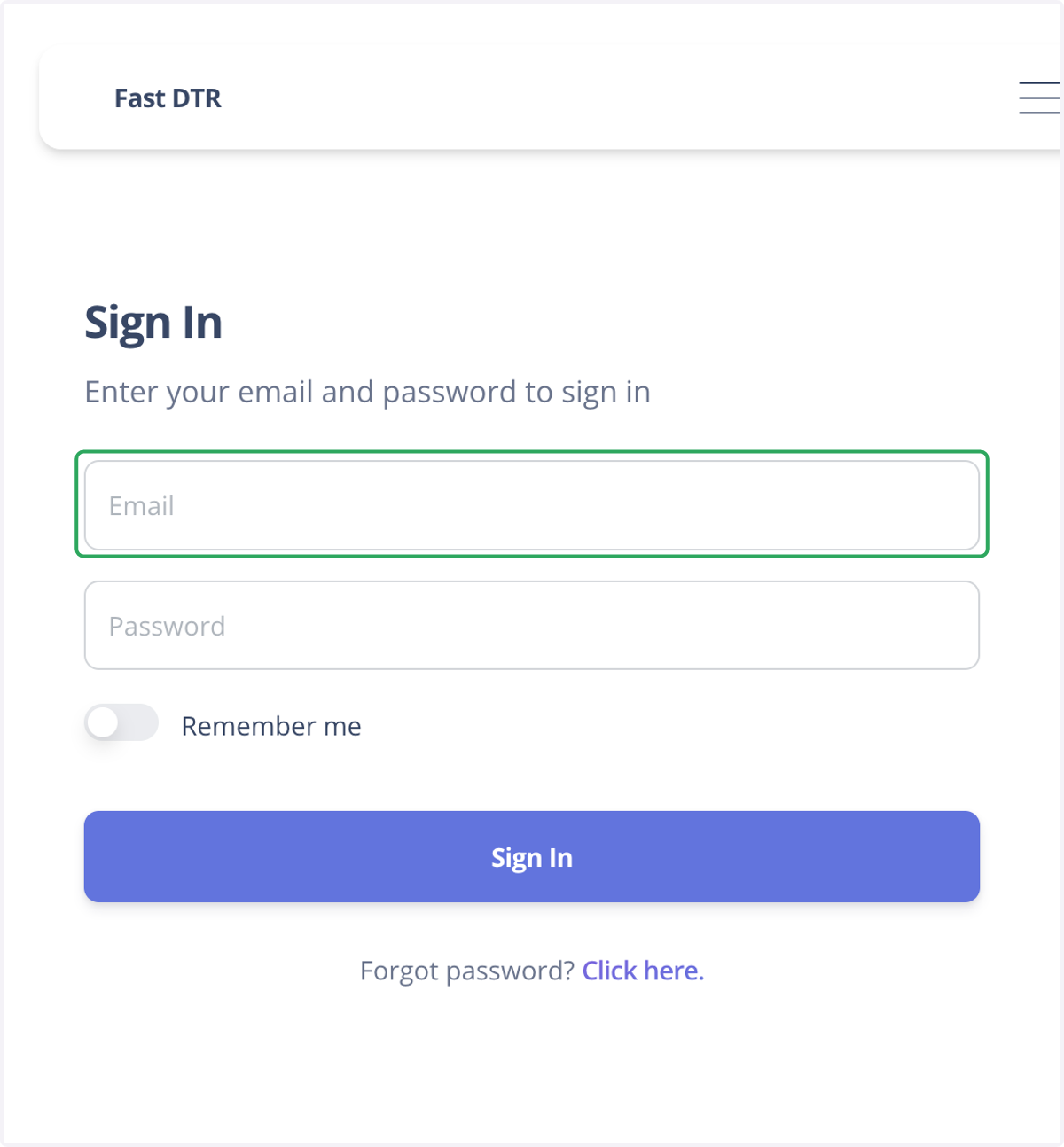
38. Input your Bruntwork Email
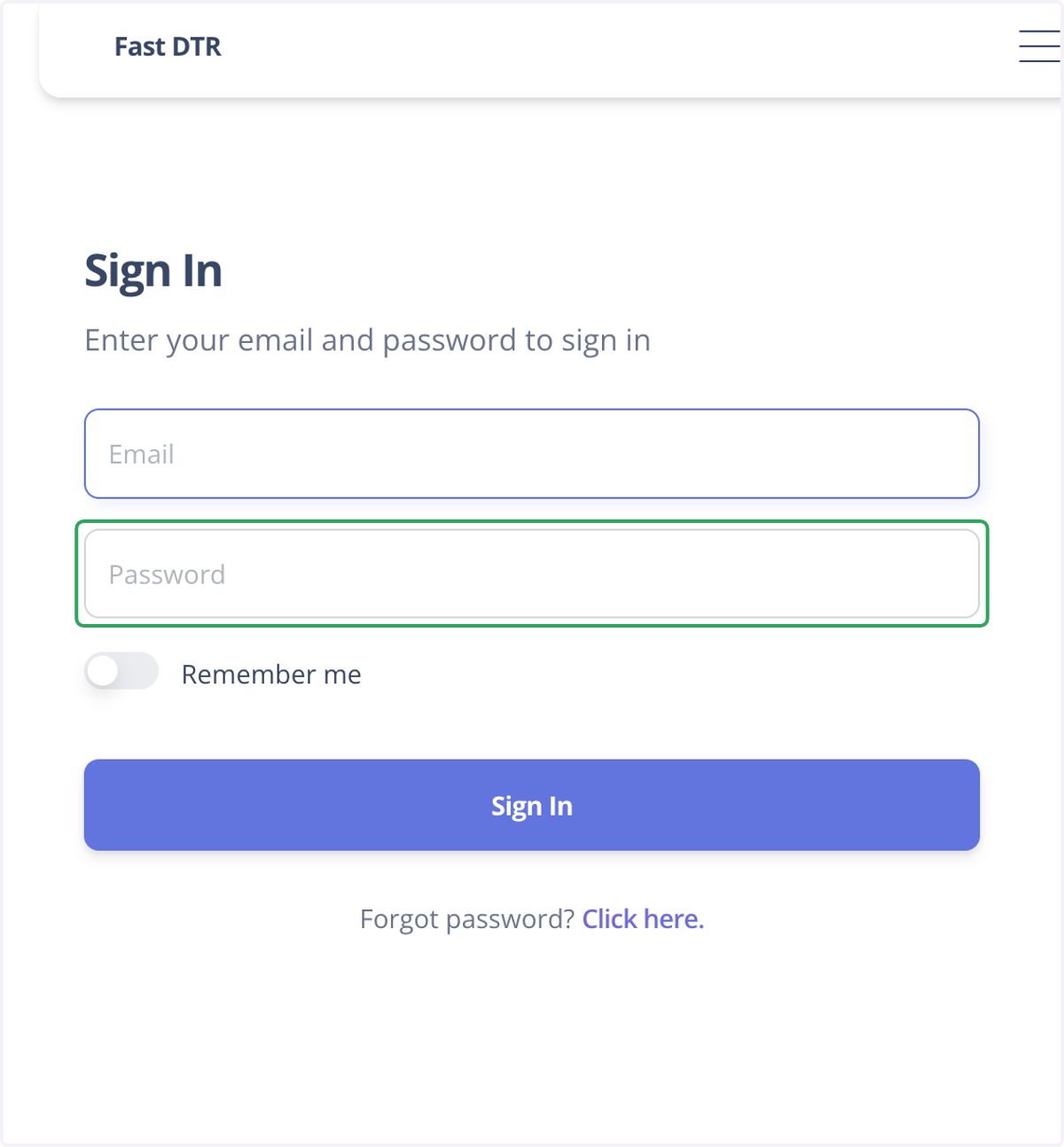
39. Input your Password
40. Click on Sign In
41. Done with this step? Yes - Congratulations! Welcome to BruntWork and we wish you the best of luck on your first day! No - Reach out to your Staff Services Partner for any challenges you have in completing this task.