Updating your Bank Information on the Staff Portal
Staff Portal - Adding / Updating your Bank Information
1. Go to the Staff Portal
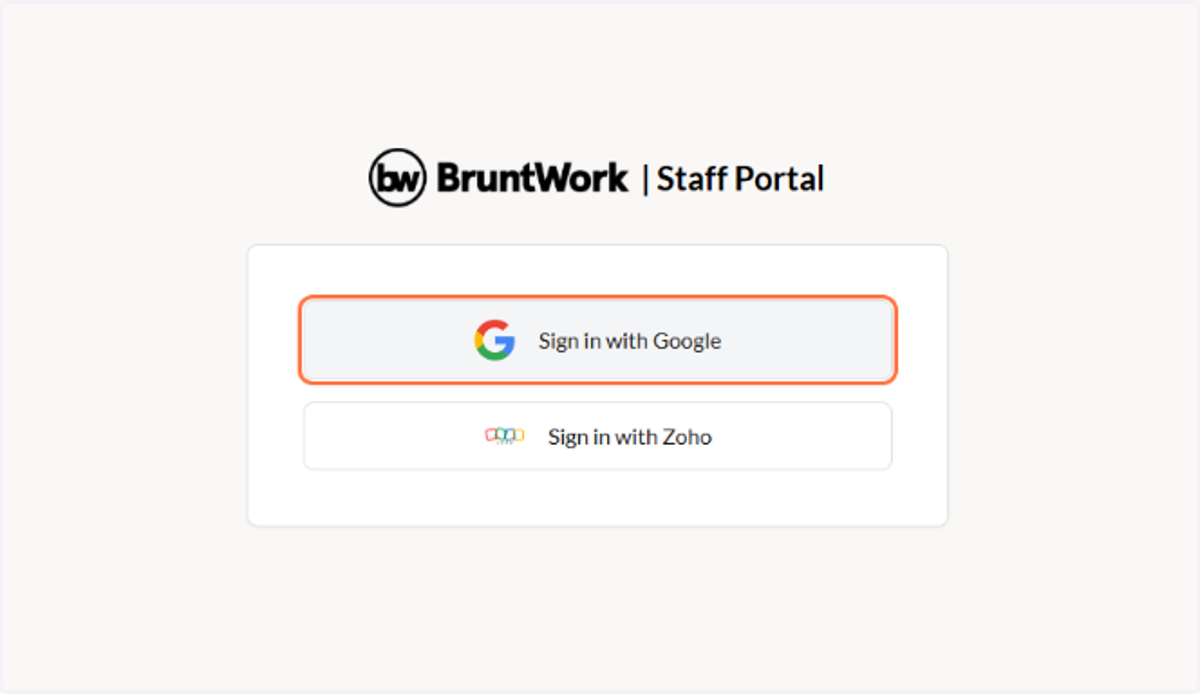
2. Click either Sign in with Google or Sign in with Zoho
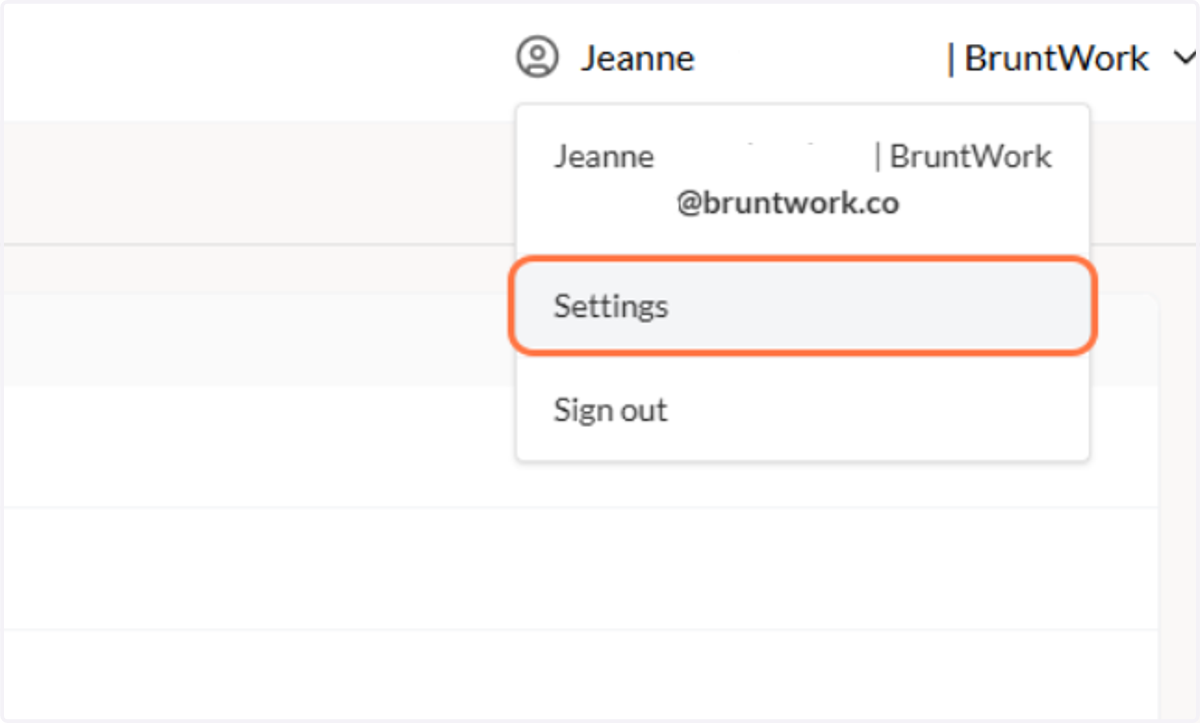
3. Click on your name on the upper right-hand, then click on Settings
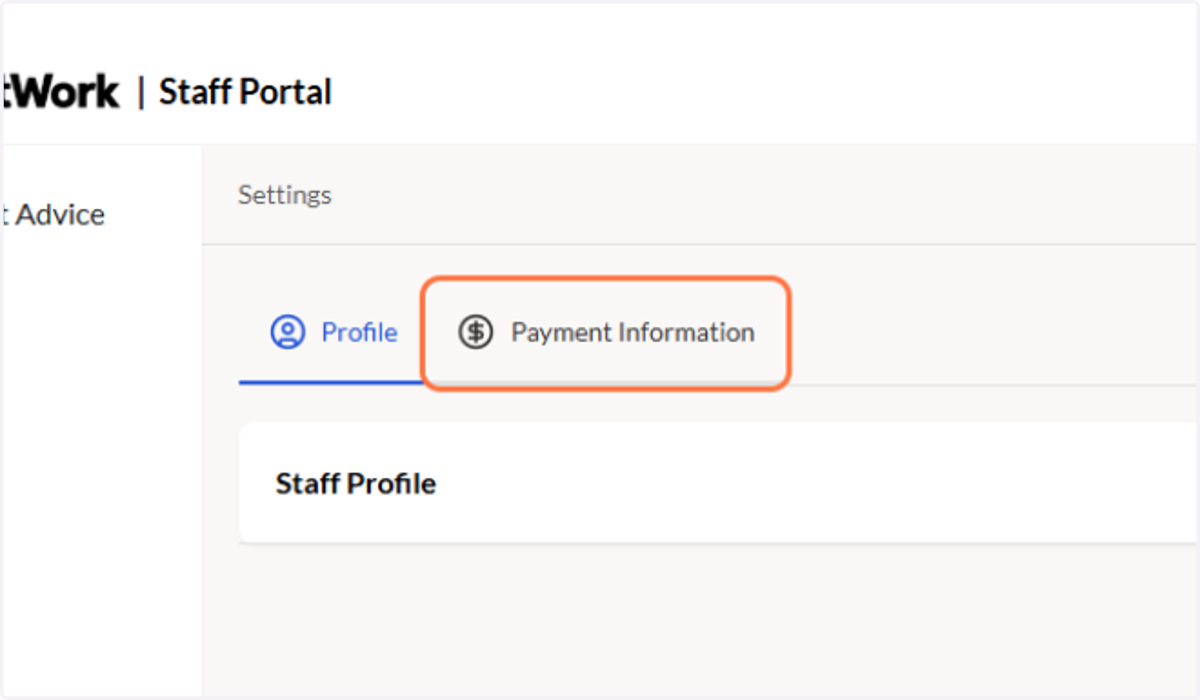
4. Click on Payment Information
5. Click on Update
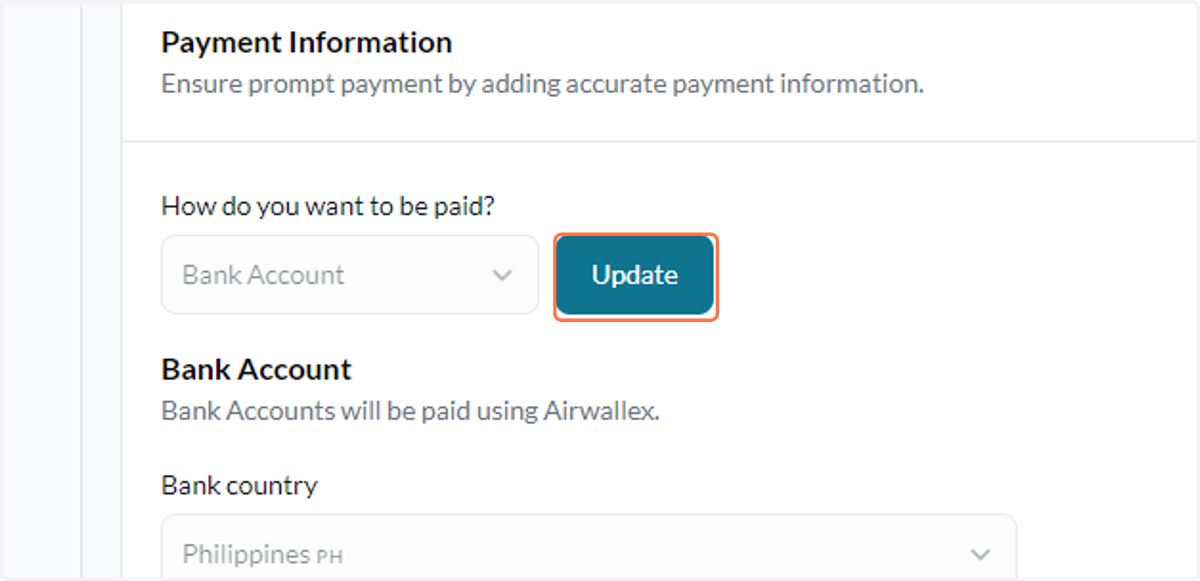
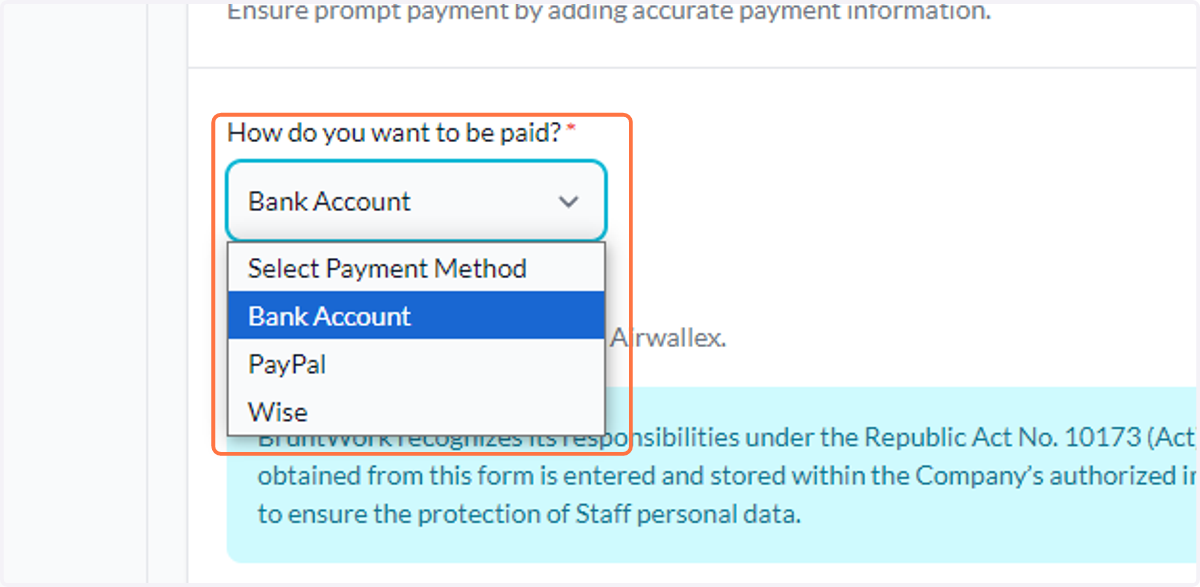
6. Choose Bank Account as your payment method from the dropdown list
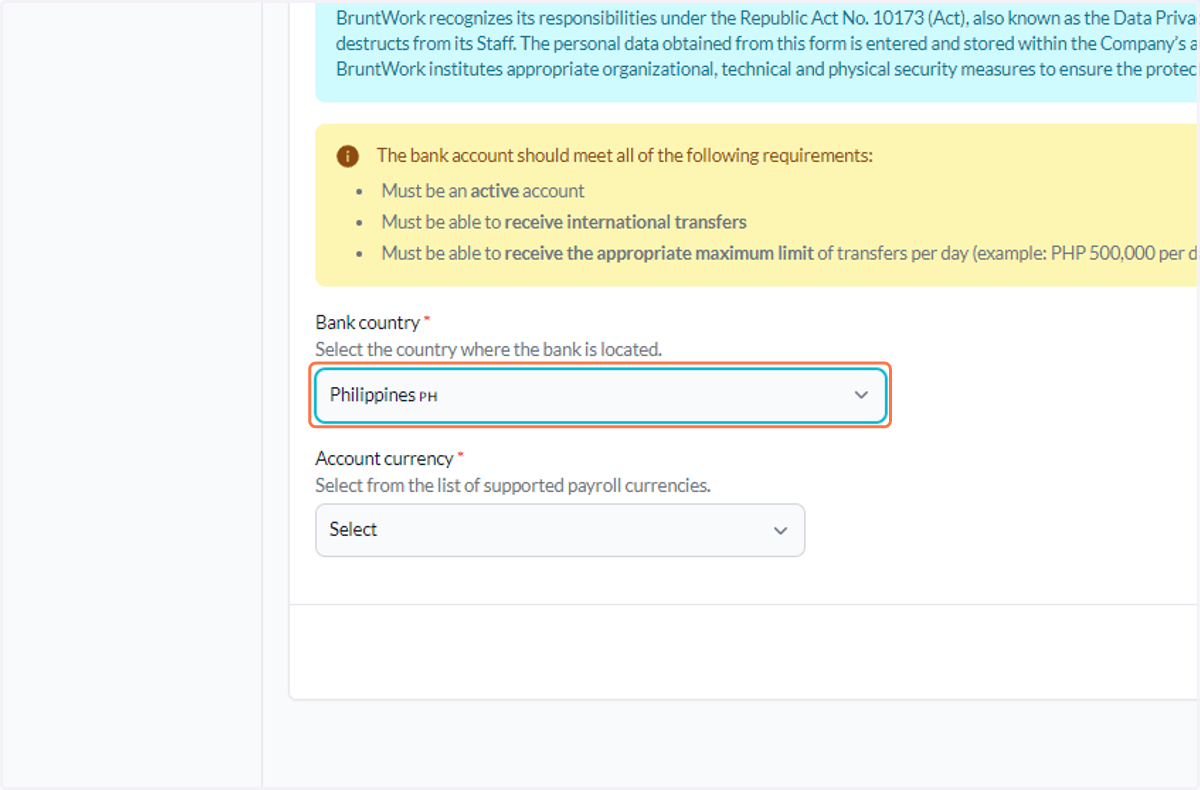
7. Select the country where your bank is located
8. Select your account's currency
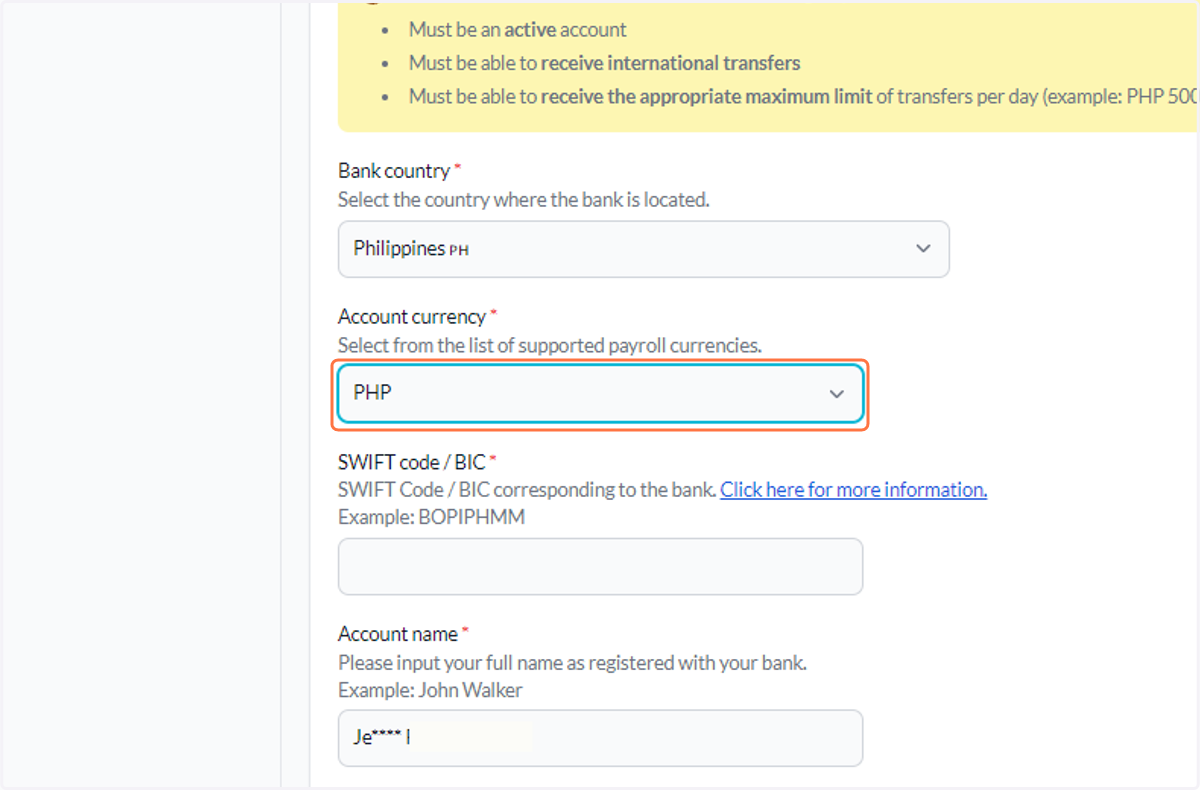
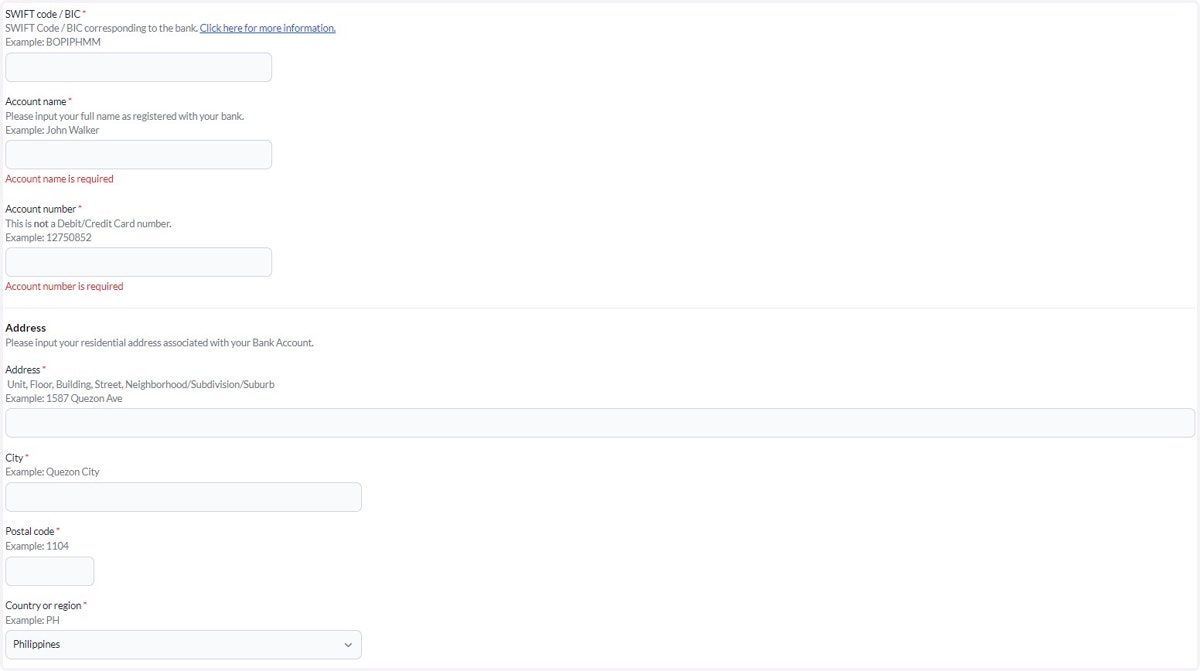
9. Fill-up all the necessary details (details on the screenshot may differ depending your bank's country)
10. Make sure sure to read through the following before agreeing and checking the boxes
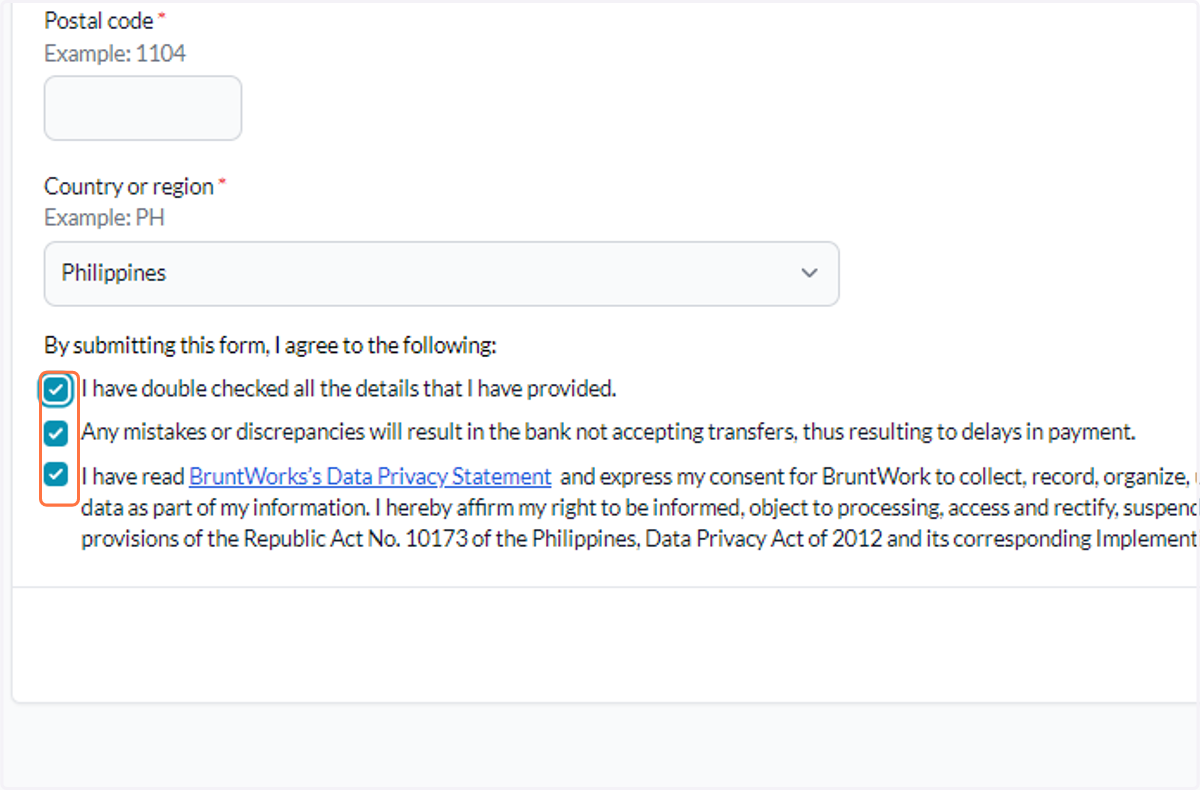
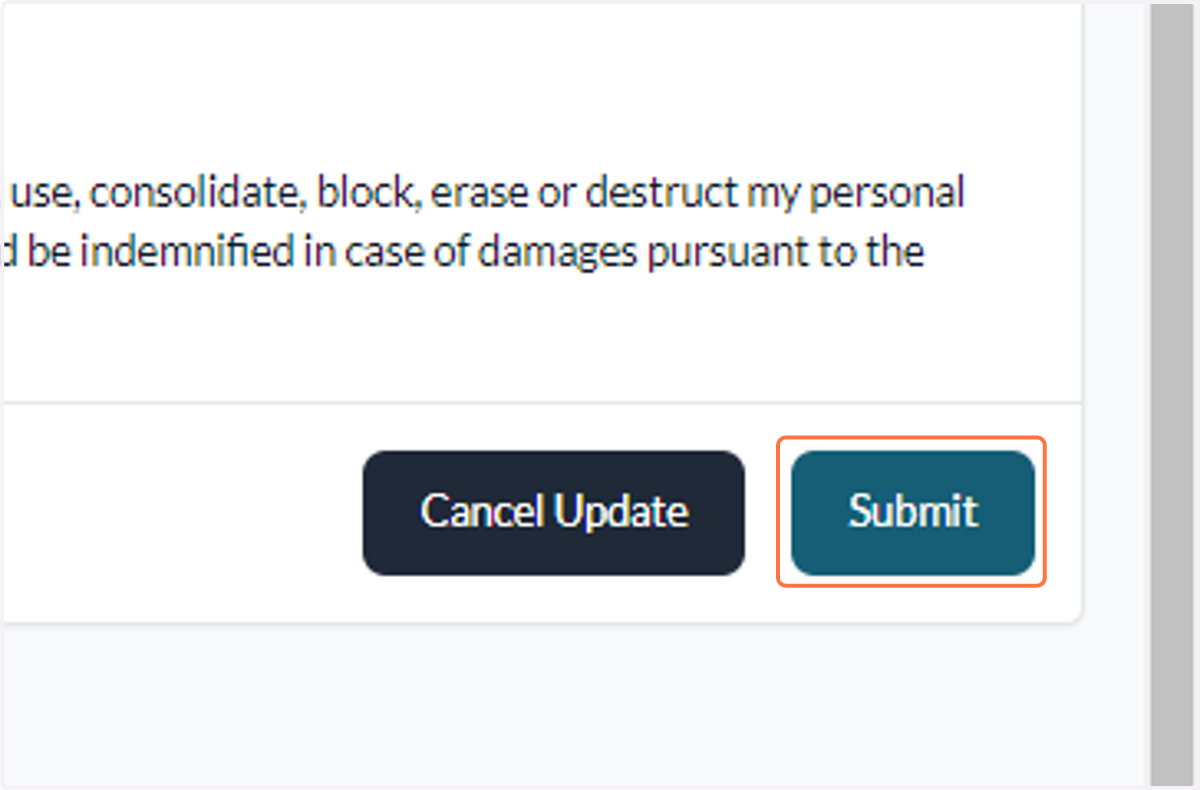
11. Click on Submit