Portal Admin: Annual Return via Excel Template
Submitting an Excel file to the Portal is an easy way to submit your annual return, in this guide the steps will show you how to download and use the excel file which will be used to upload the data into your return.
Other Methods:
Home
1. Let's Start!

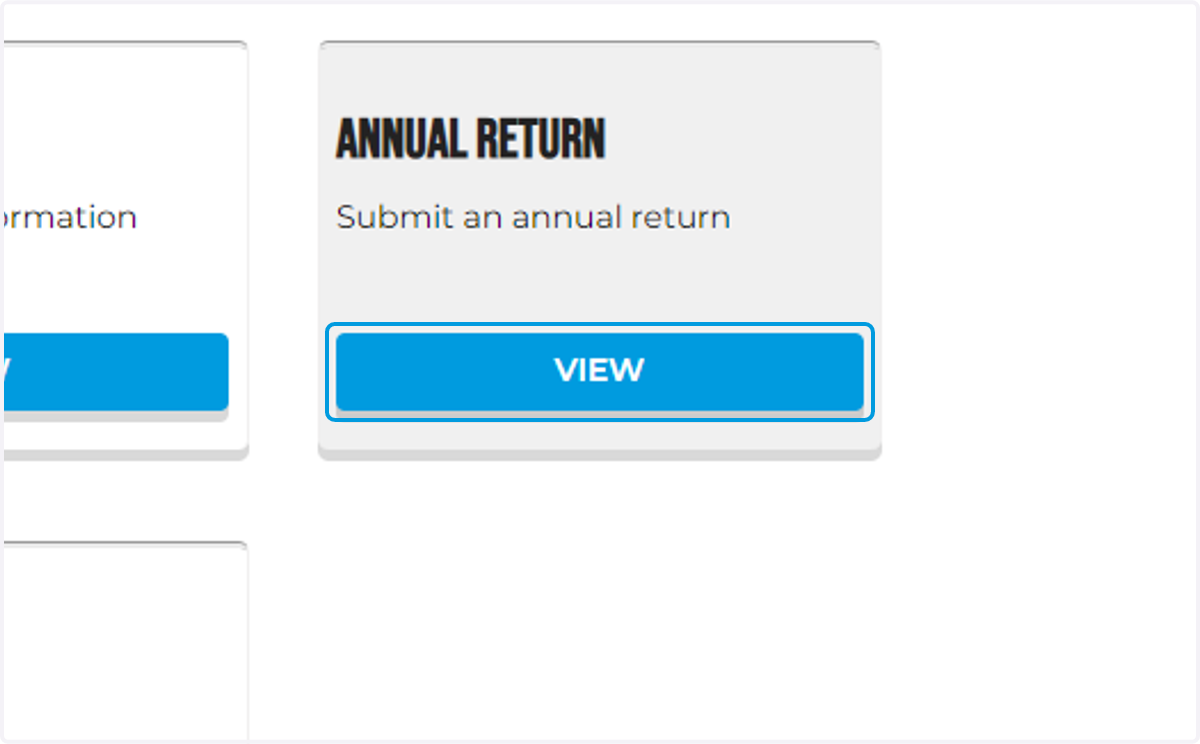
2. Login to your Portal Dashboard and click the view button under Annual Return
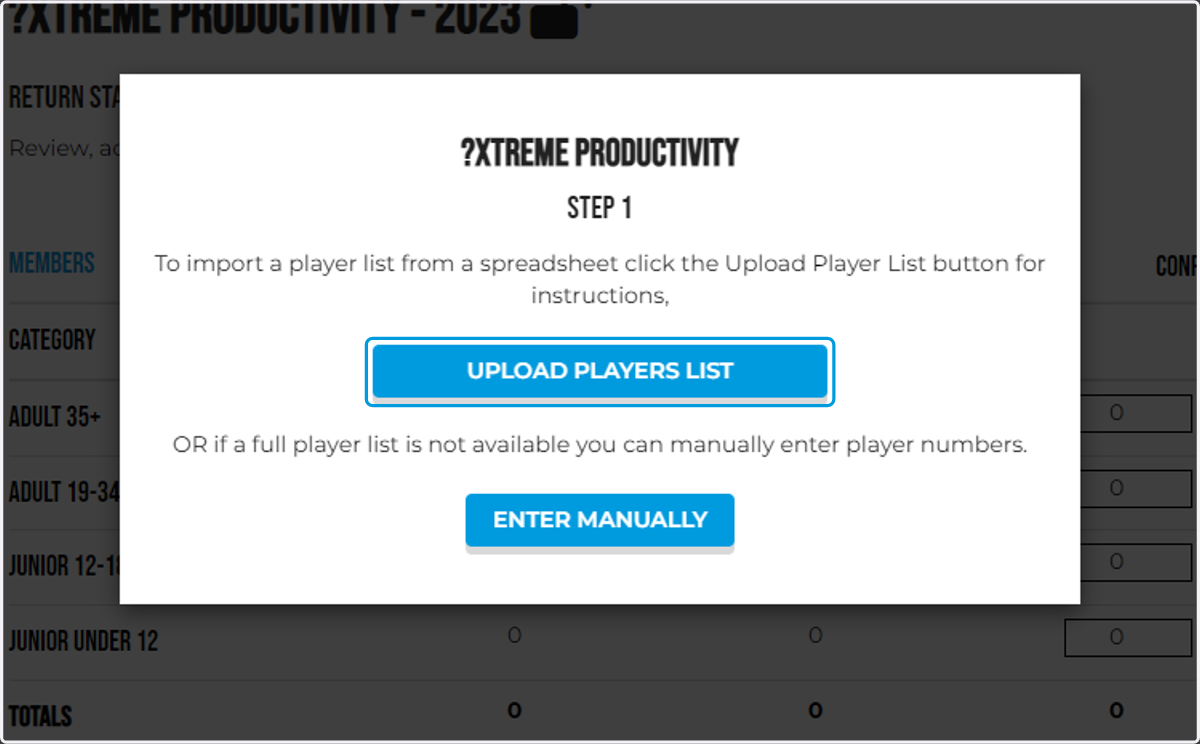
3. A window will appear which will show you two options. Click Upload Player List
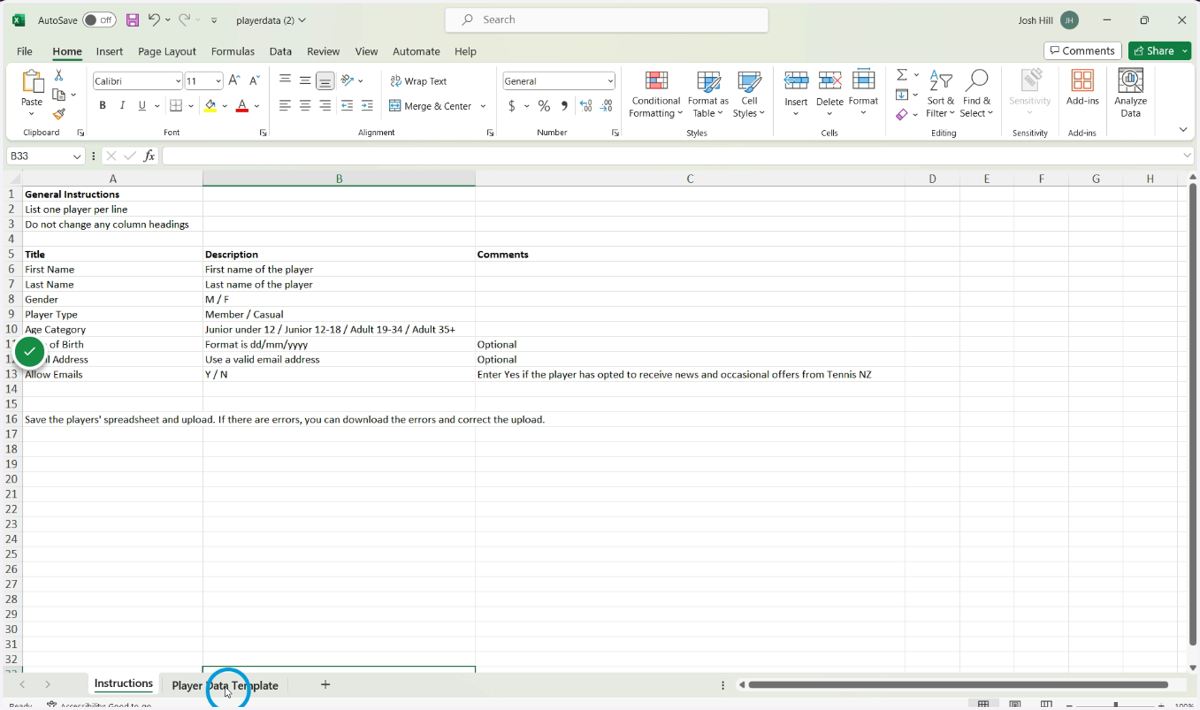
4. Have a read over the instructions on the first page, then click the Player Data Template on the bottom
It's good to read over the instructions as it will provide you the correct formatting for the template,
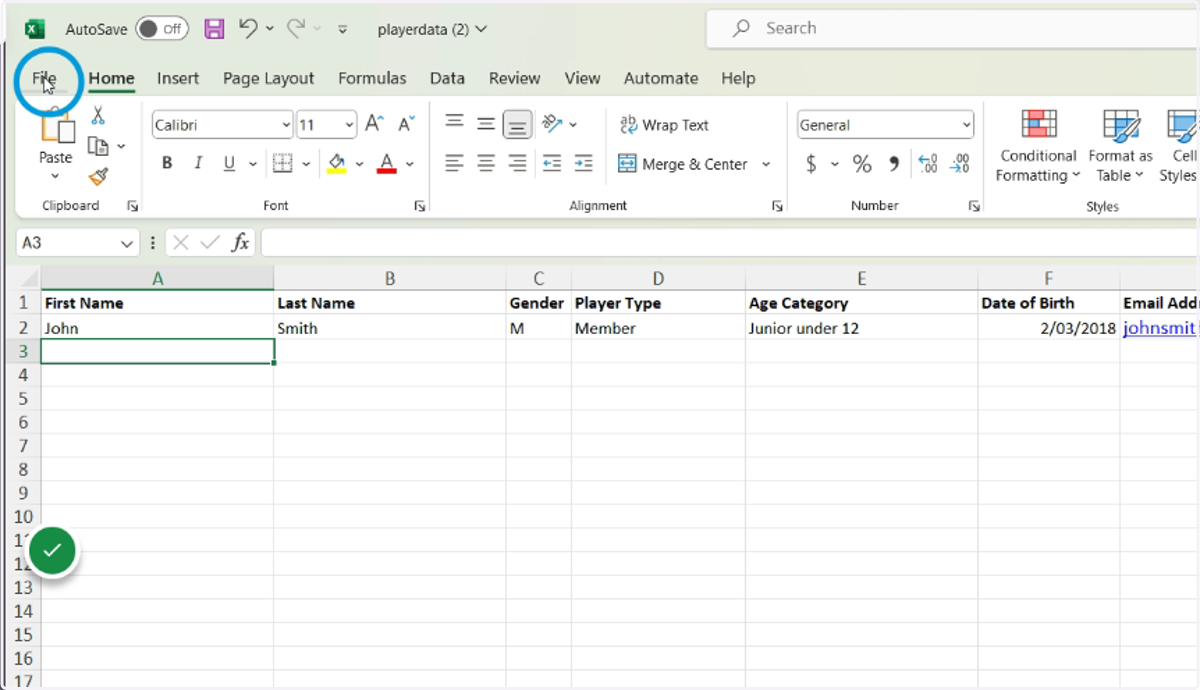
5. Enter your data, then save the file on your computer
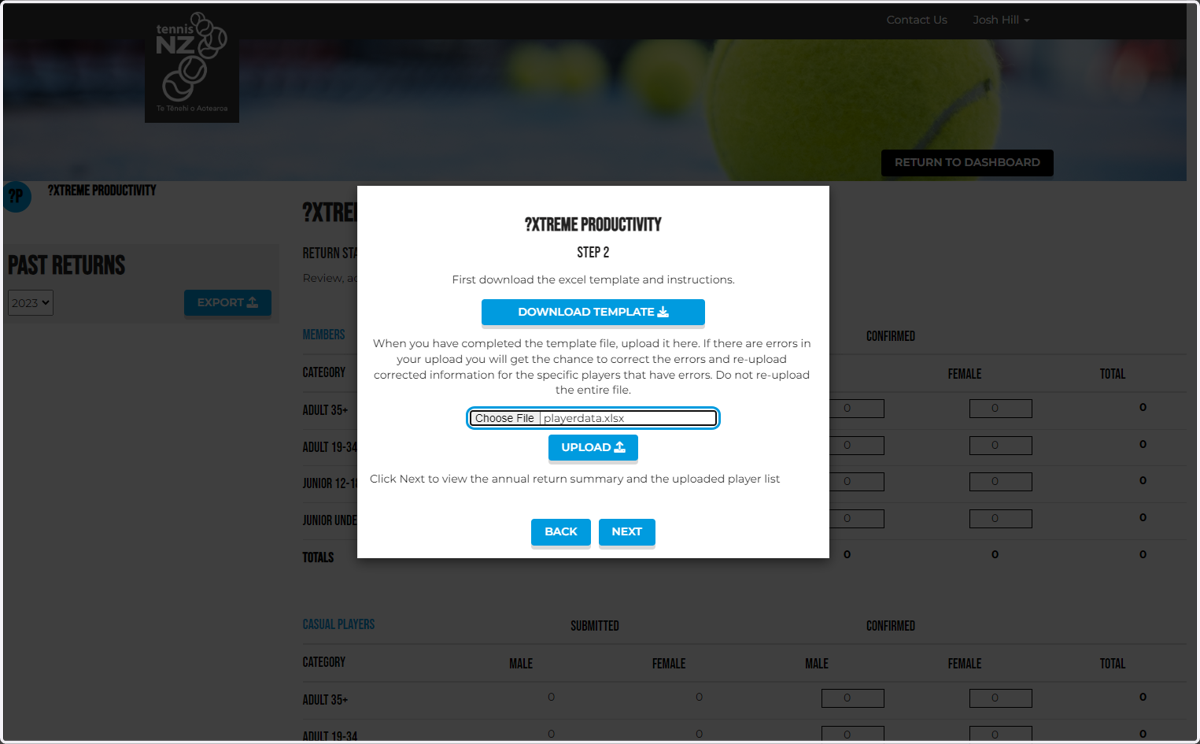
6. Click Choose File and locate your saved Excel Template, click Upload
Once uploaded you will see the name of the template as outlined below
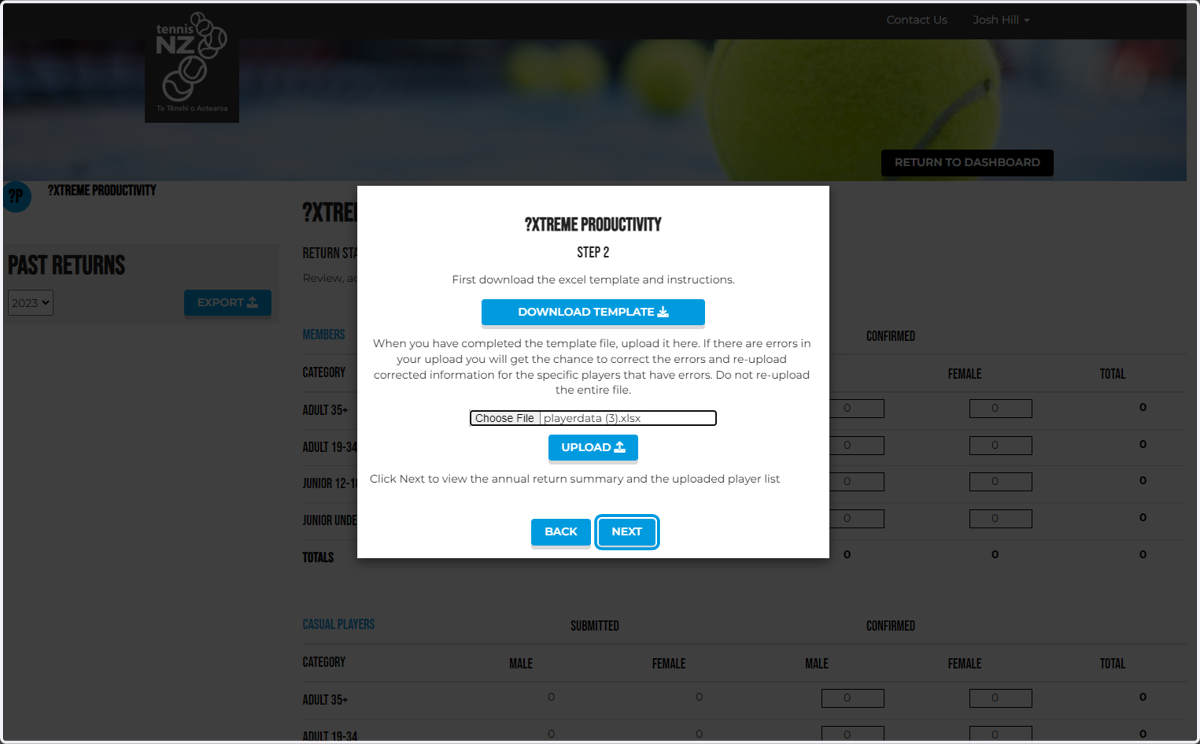
7. Click on NEXT
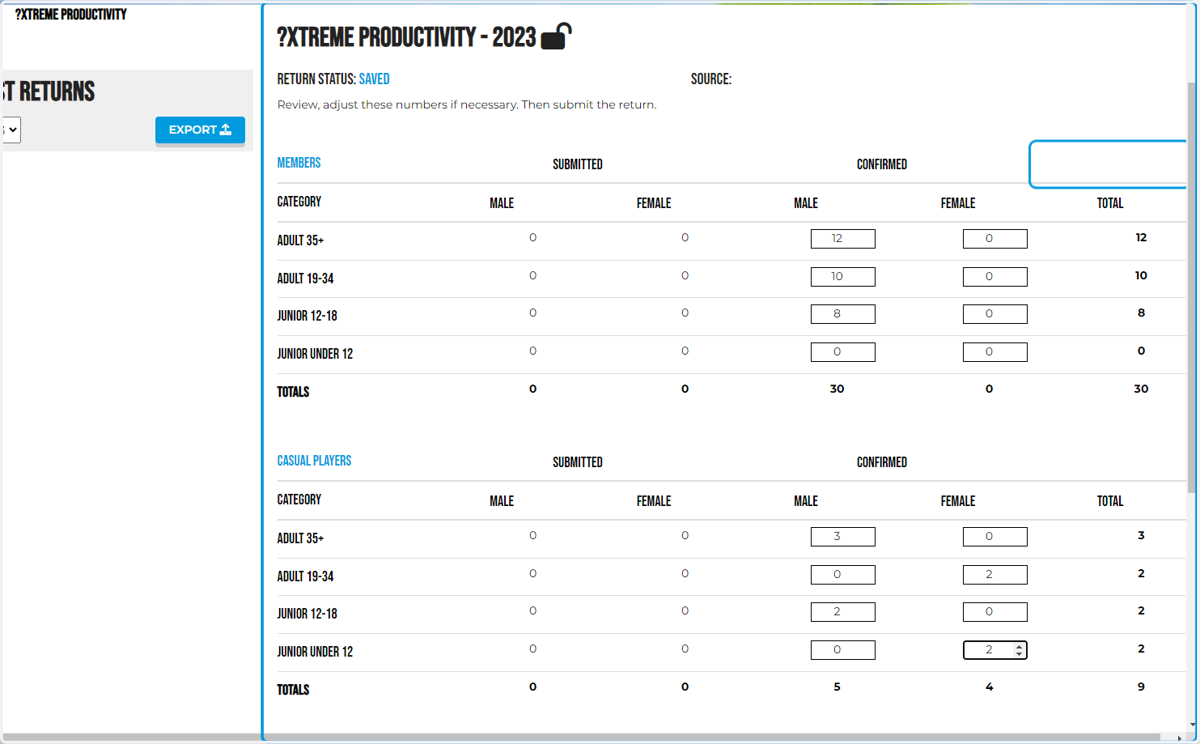
8. To check if the data is updated, you can see numbers populate according to your data under the 'Confirmed' columns
9. Upload More Players? or Save Progress
Click the corresponding options to upload more via a template or manually. To save your progress click Save. To submit your annual return proceed to the next step.
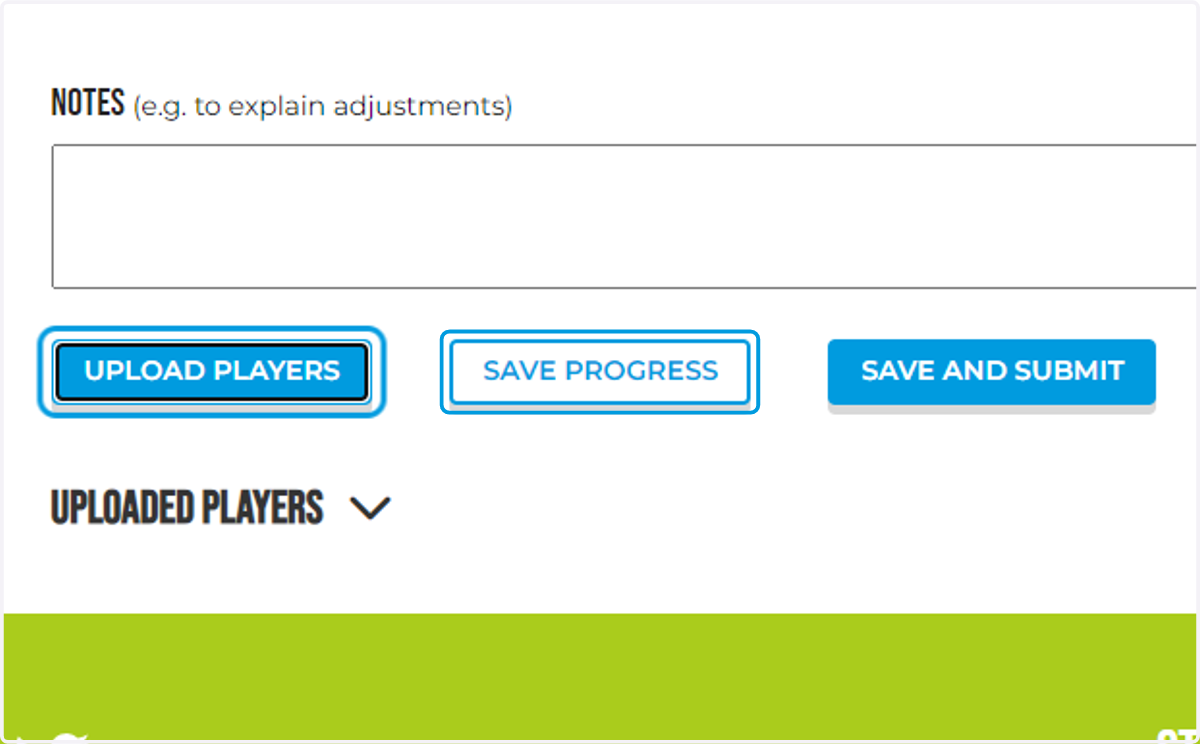
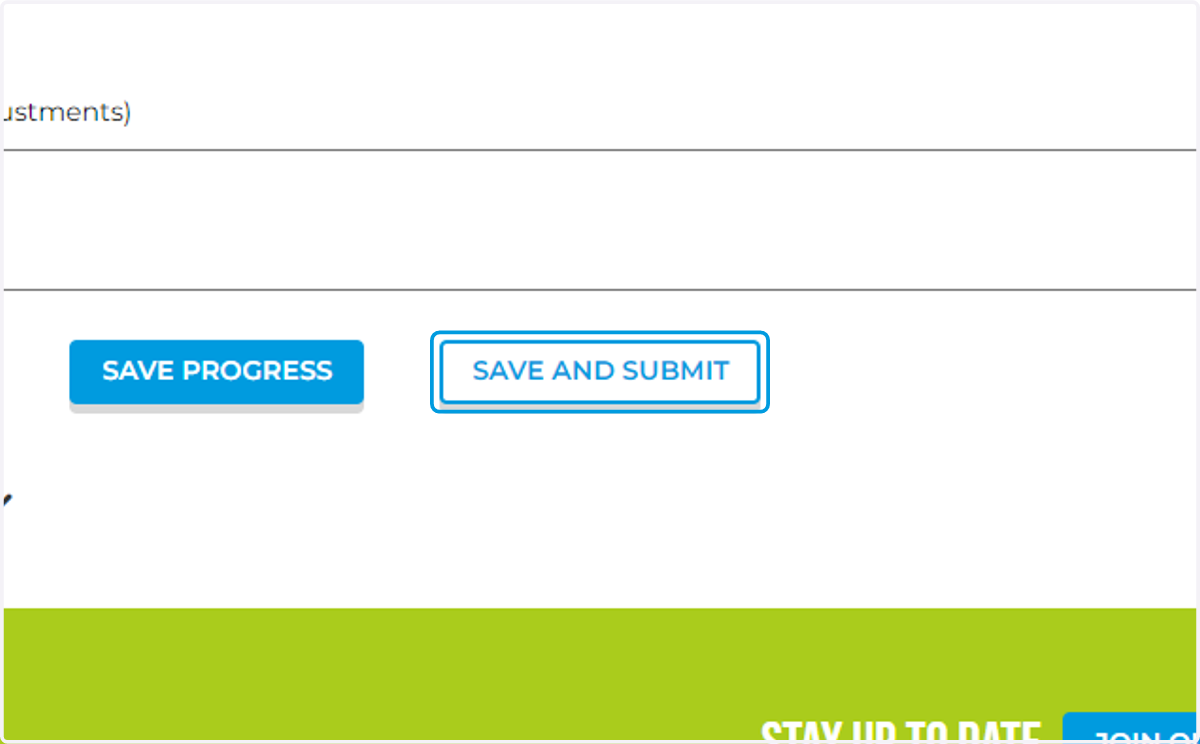
10. Click on SAVE AND SUBMIT to submit your annual return
Please wait as the data saves, this can take up to 1 minute.
11. That's it!
You've successfully uploaded your annual return for your club / venue!