Portal Admin: Manually Submit an Annual Return
This guide will step you through manually processing your annual return for your club / venue
Other Methods:
Home
1. Let's Start!

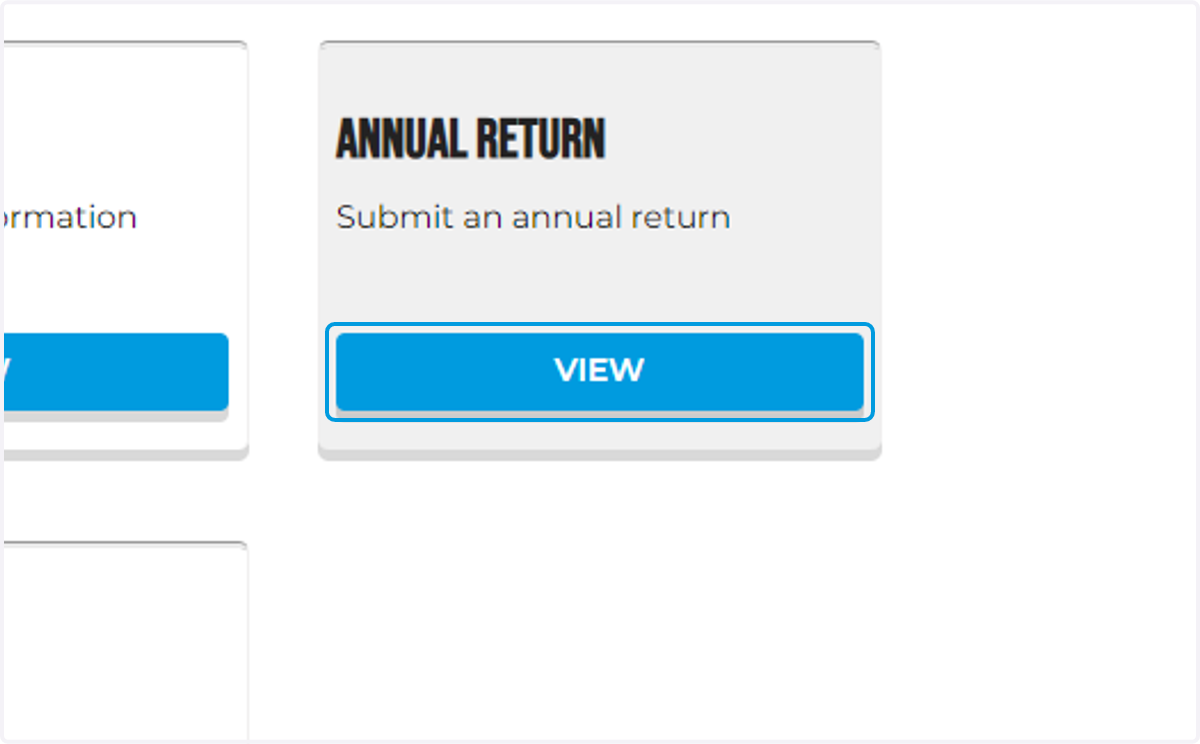
2. Login to your Portal Dashboard and click the view button under Annual Return
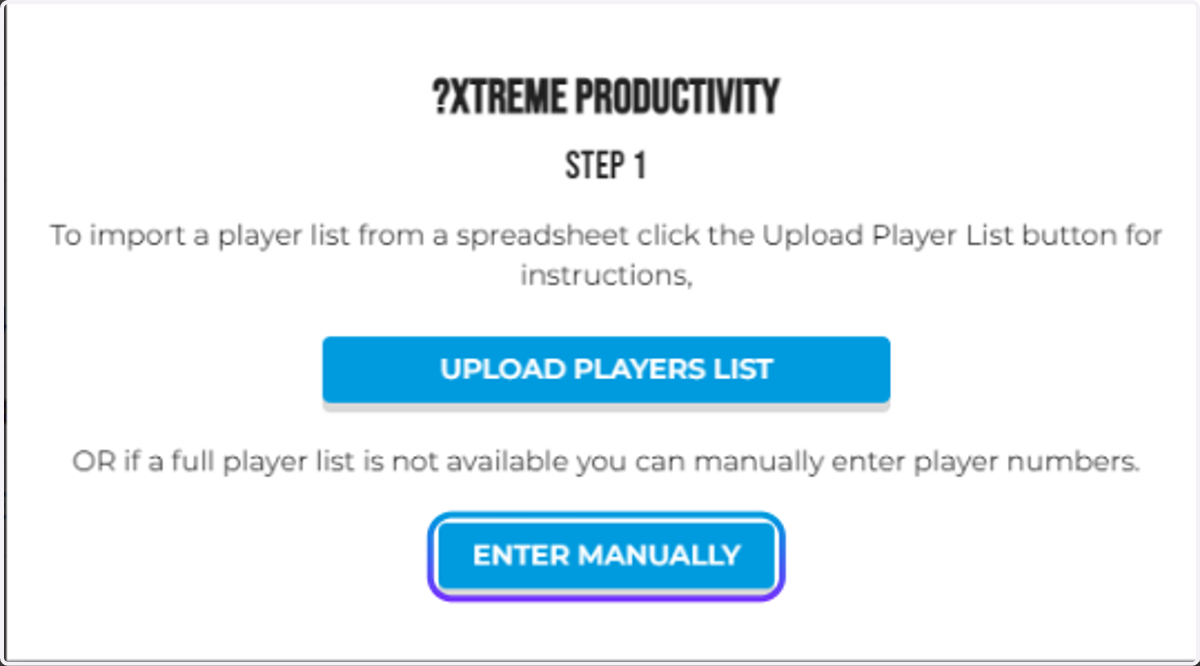
3. A window will appear which will show you two options. Click 'Enter Manually'
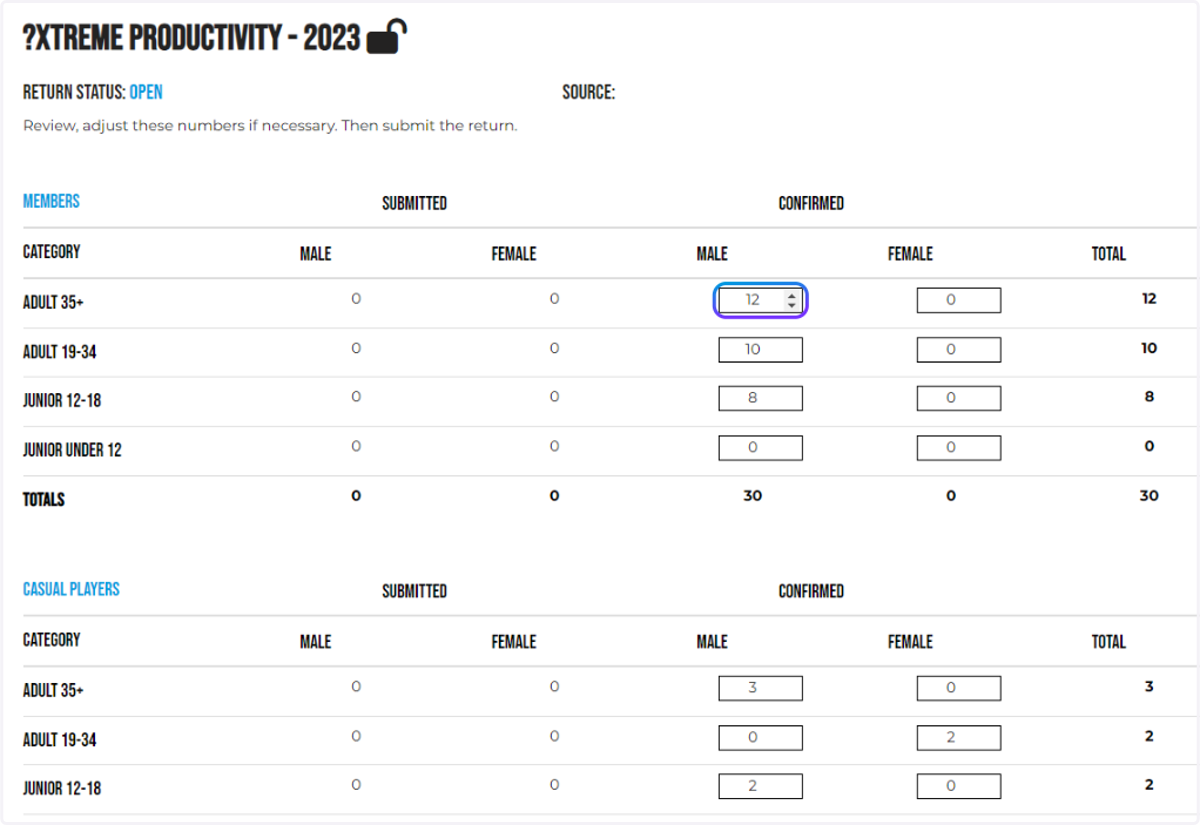
4. Adjust your data according to your records.
5. Save Progress?
Click the corresponding options to upload more via a template or manually. To save your progress click Save. To submit your annual return proceed to the next step.
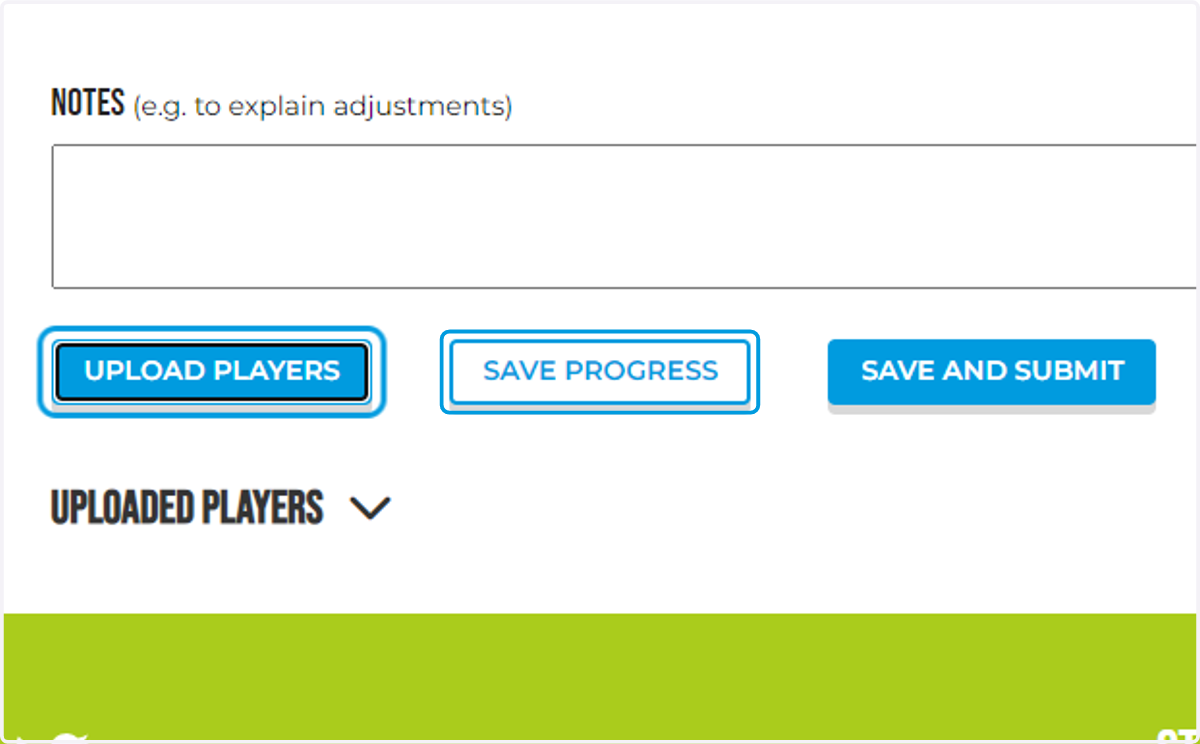
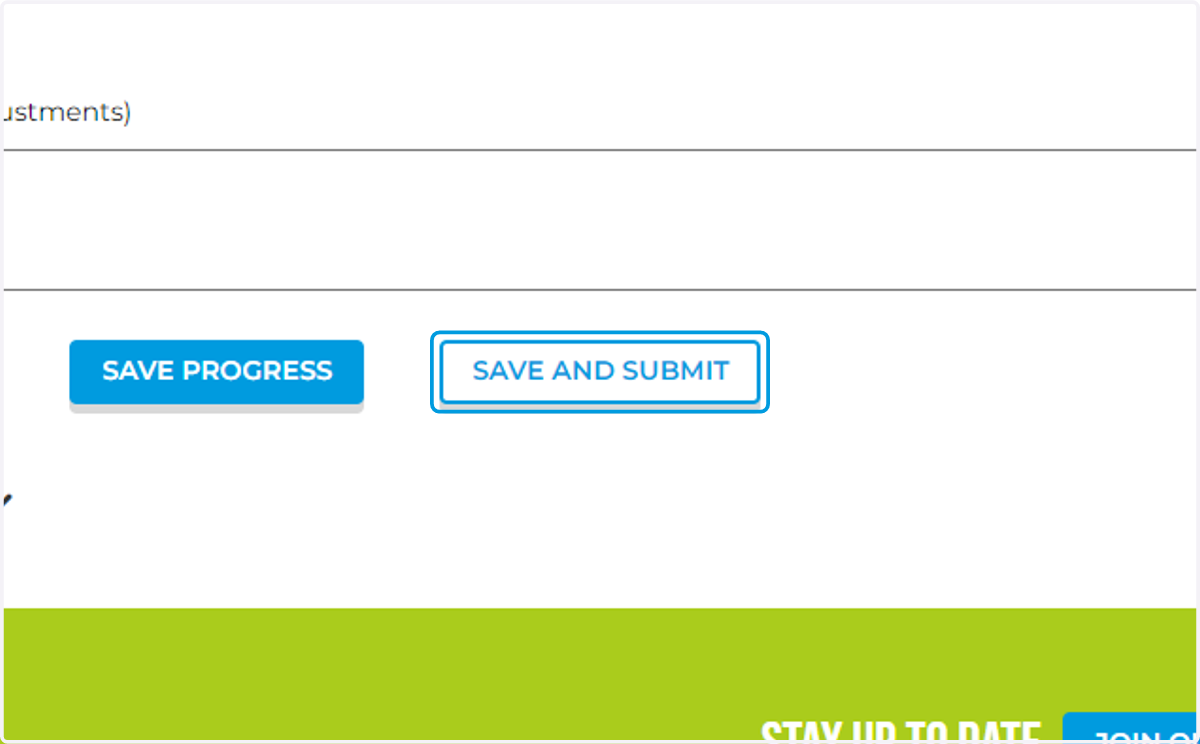
6. Click on SAVE AND SUBMIT to submit your annual return
Please wait as the data saves, this can take up to 1 minute.
7. That's it!
You've successfully uploaded your annual return for your club / venue!