Using Workflow Translations in Tango
Tango
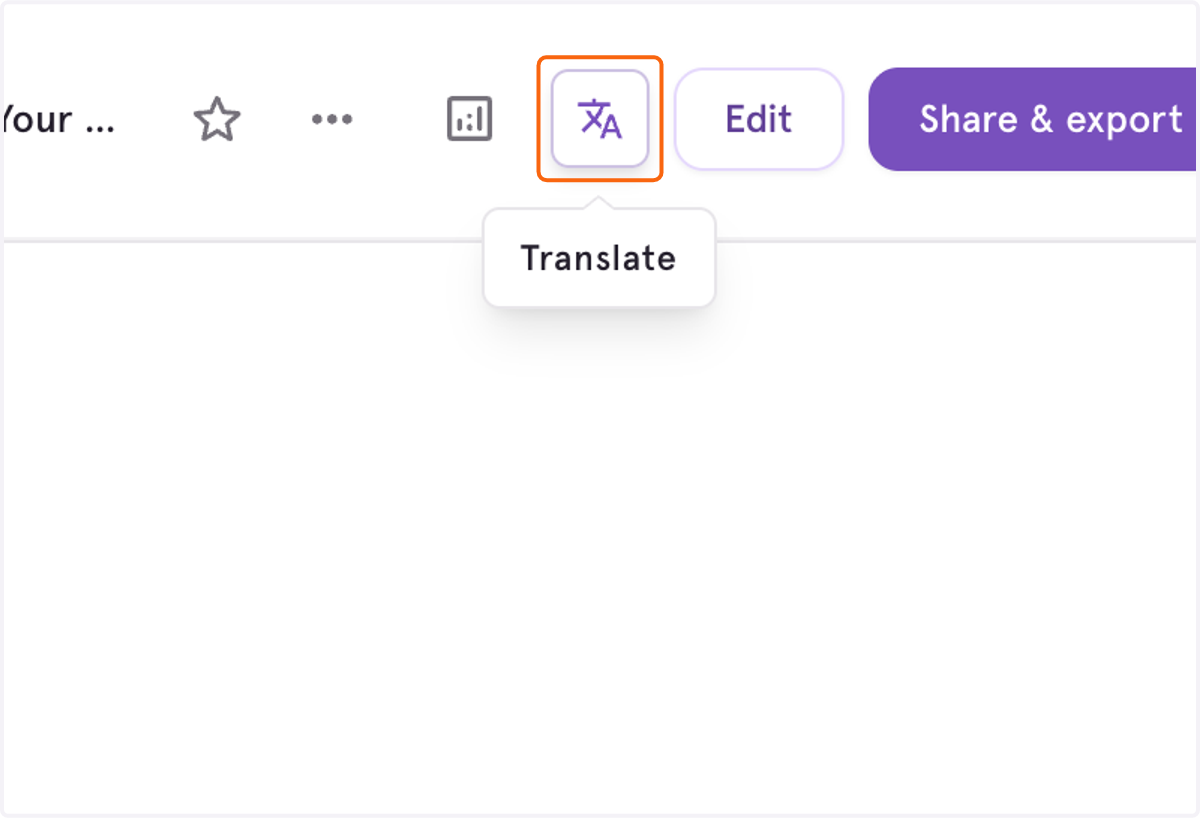
1. Click on Translate
Open up a How-To Guide workflow, and click Translate in the workflow header to open the available languages list.
2. Click on a language from the list.
Select a language to start generating a translation of the workflow content. Translation affect workflow title, step titles, and step descriptions (screenshots and other UI remain unchanged).
This may take a few moments depending on the length of your workflow.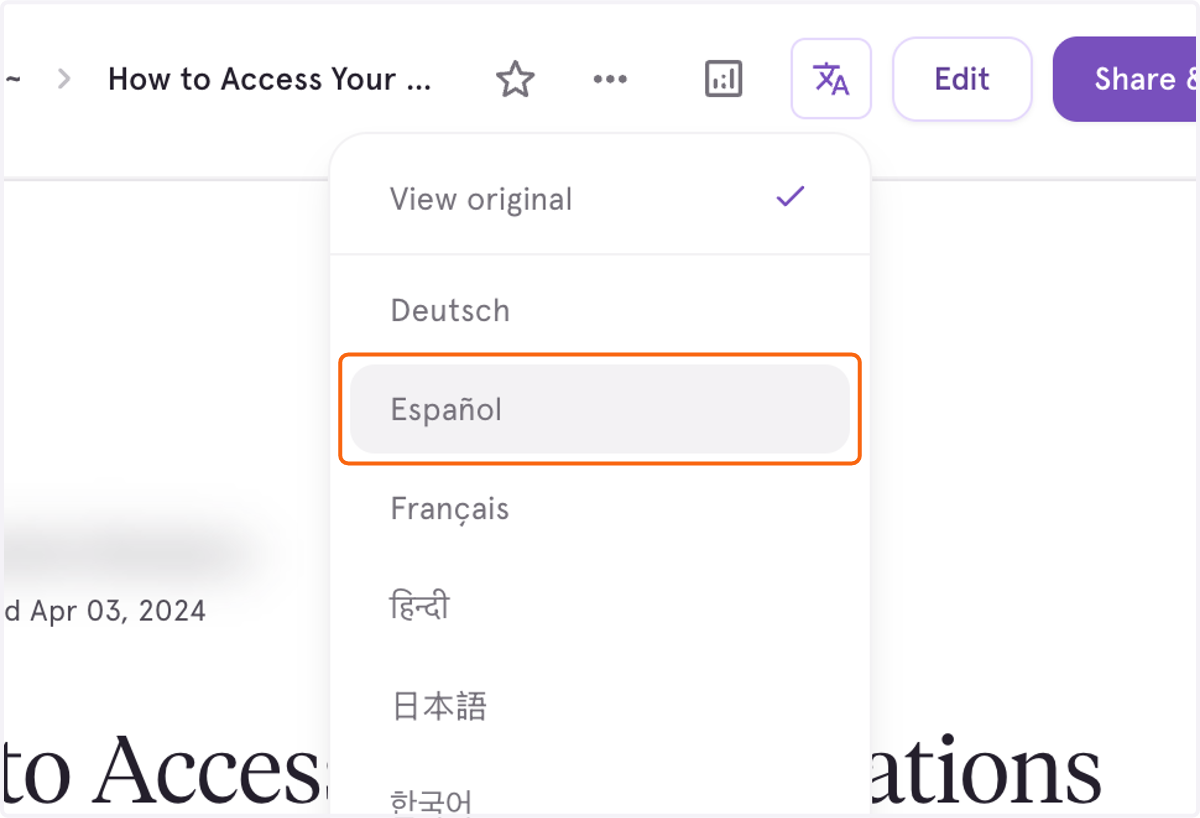
✏️ Editing a Translated Workflow
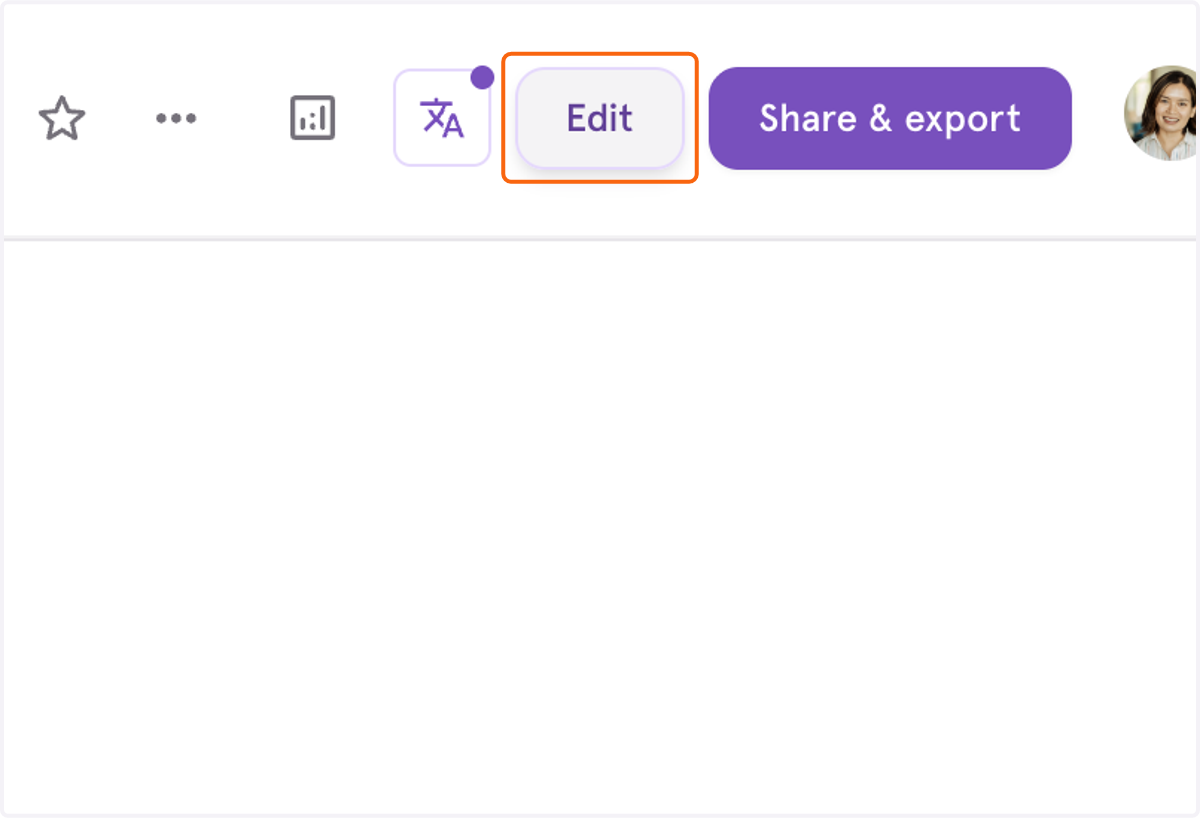
3. If you need to make edits, click on Edit.
Edits can only be made to the original language content.
4. Click on Done editing
Click Done editing to finish changes before switching back to the translated version.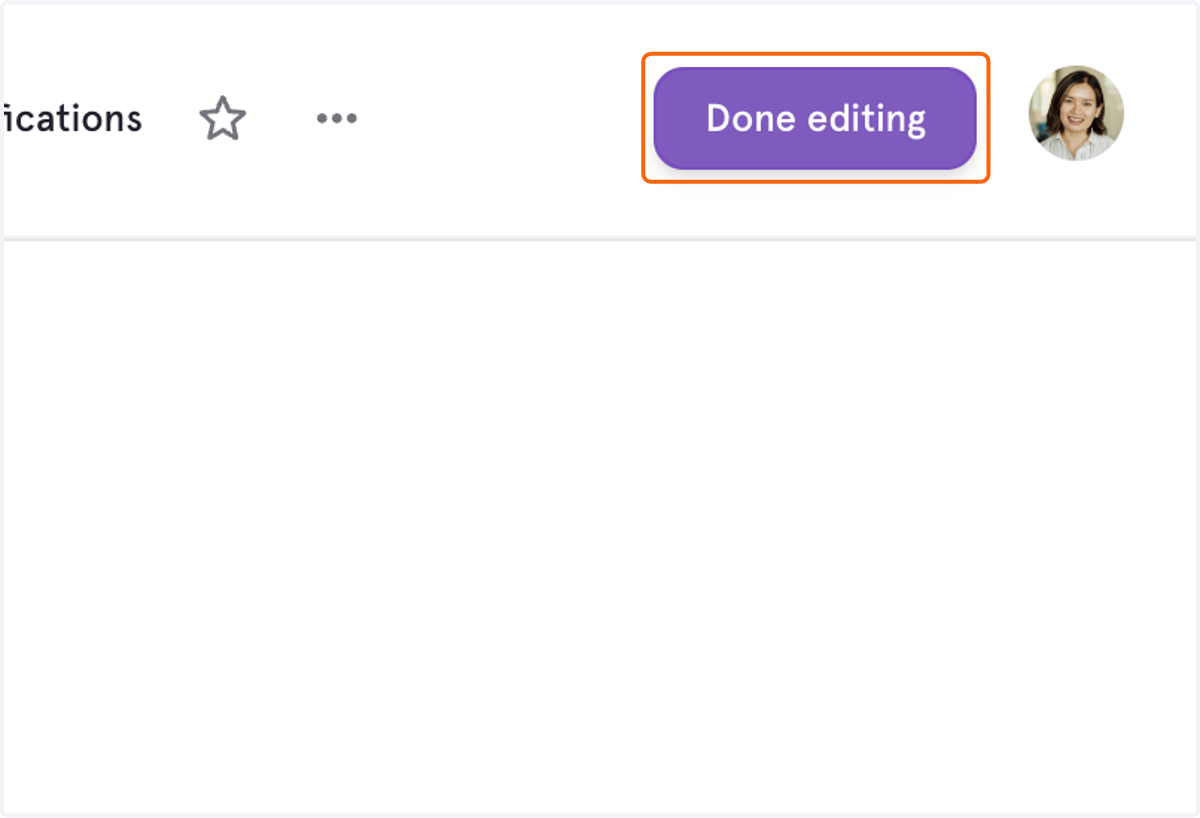
5. Click on Translate
Click Translate again to reapply a language after editing the workflow text.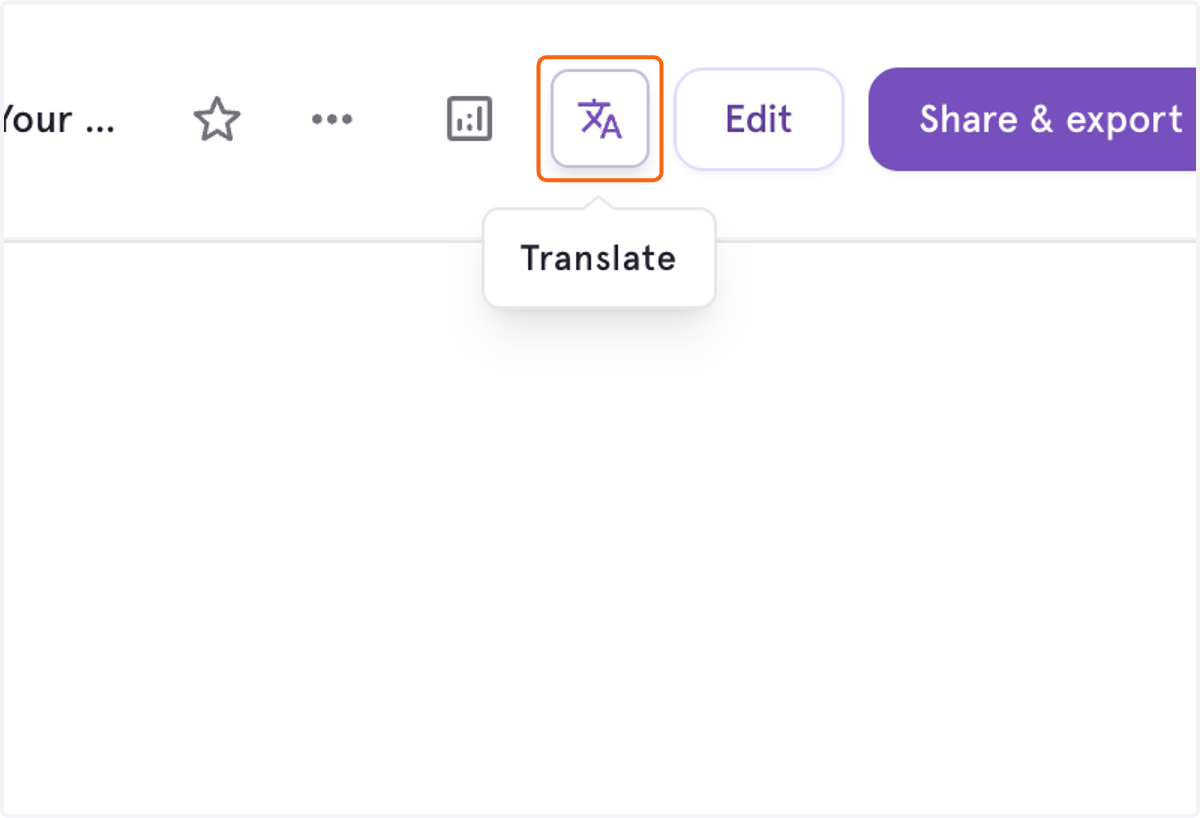
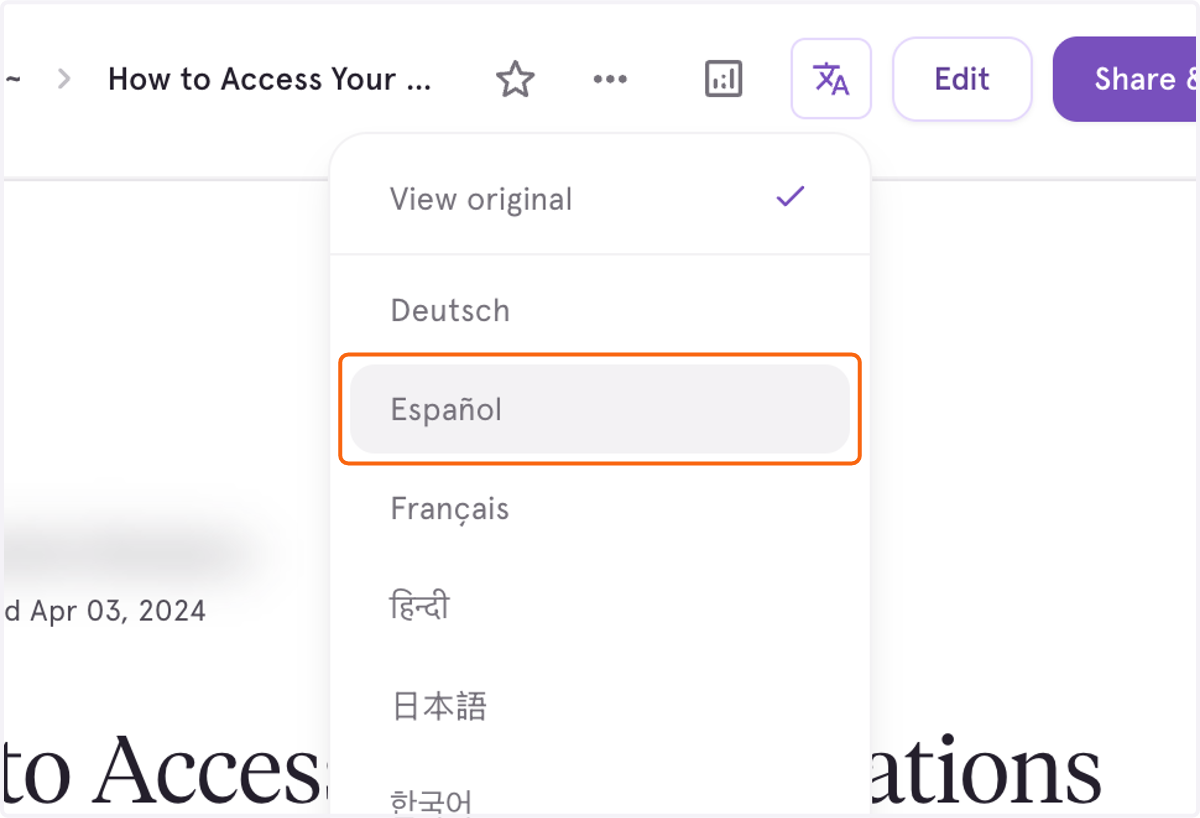
6. Click on a language.
Choose a language again to return to the translated view.
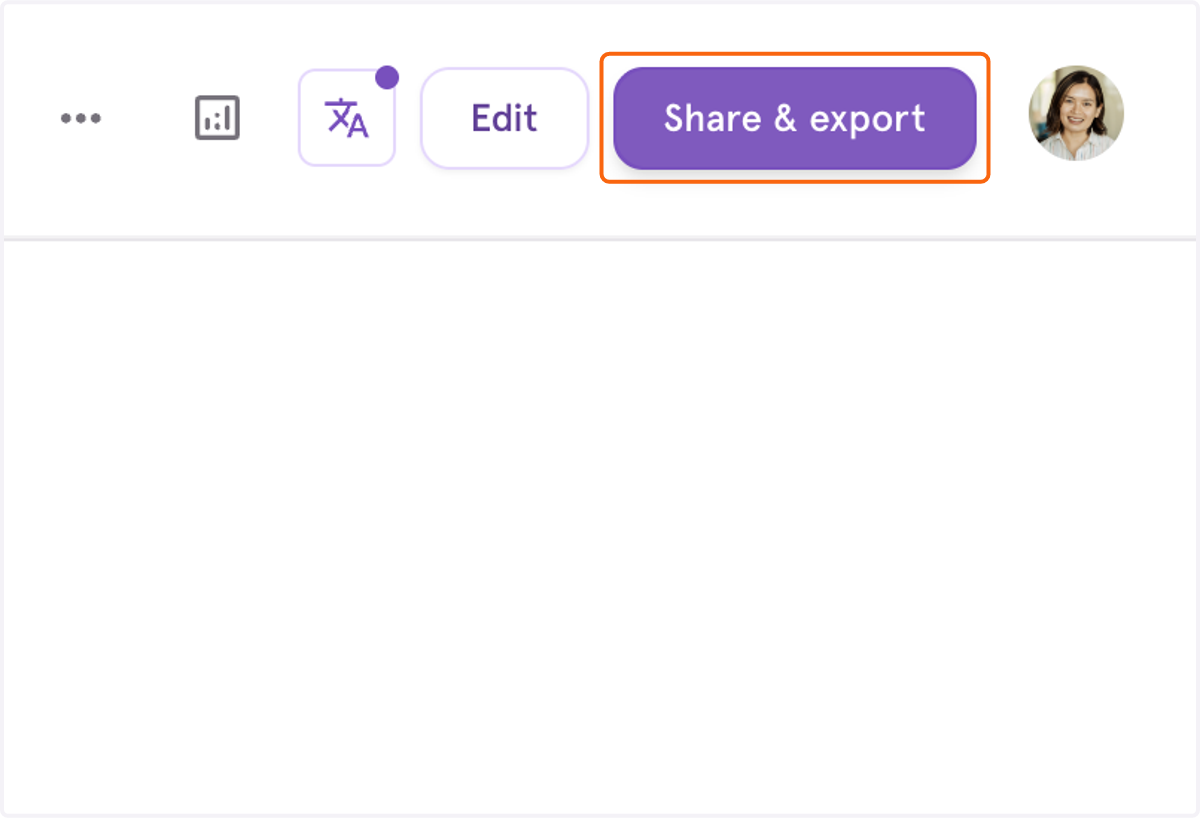
7. To share your translated workflow, click on Share & export
This will share the current language you have opened.
✉️ Sharing a Translated Workflow
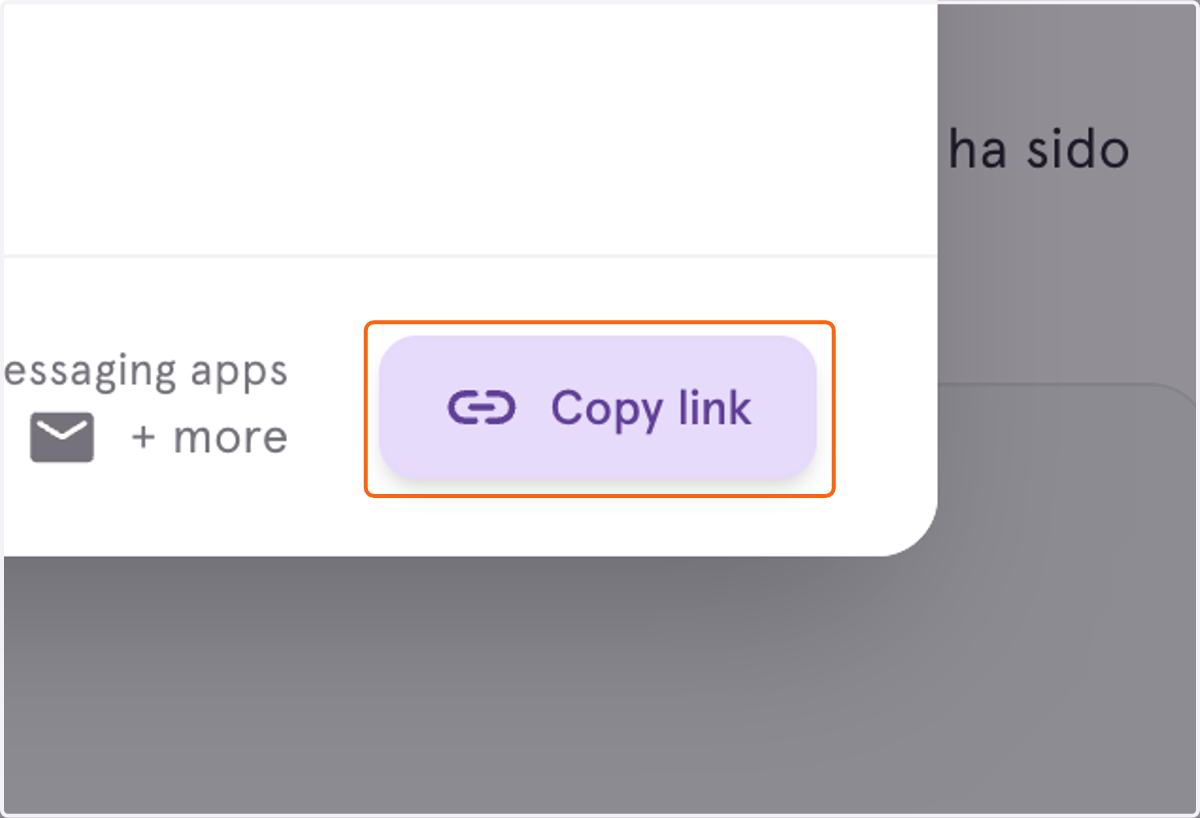
8. Option 1: Click on Copy link
Click Copy link to share this specific translated workflow version directly with teammates.
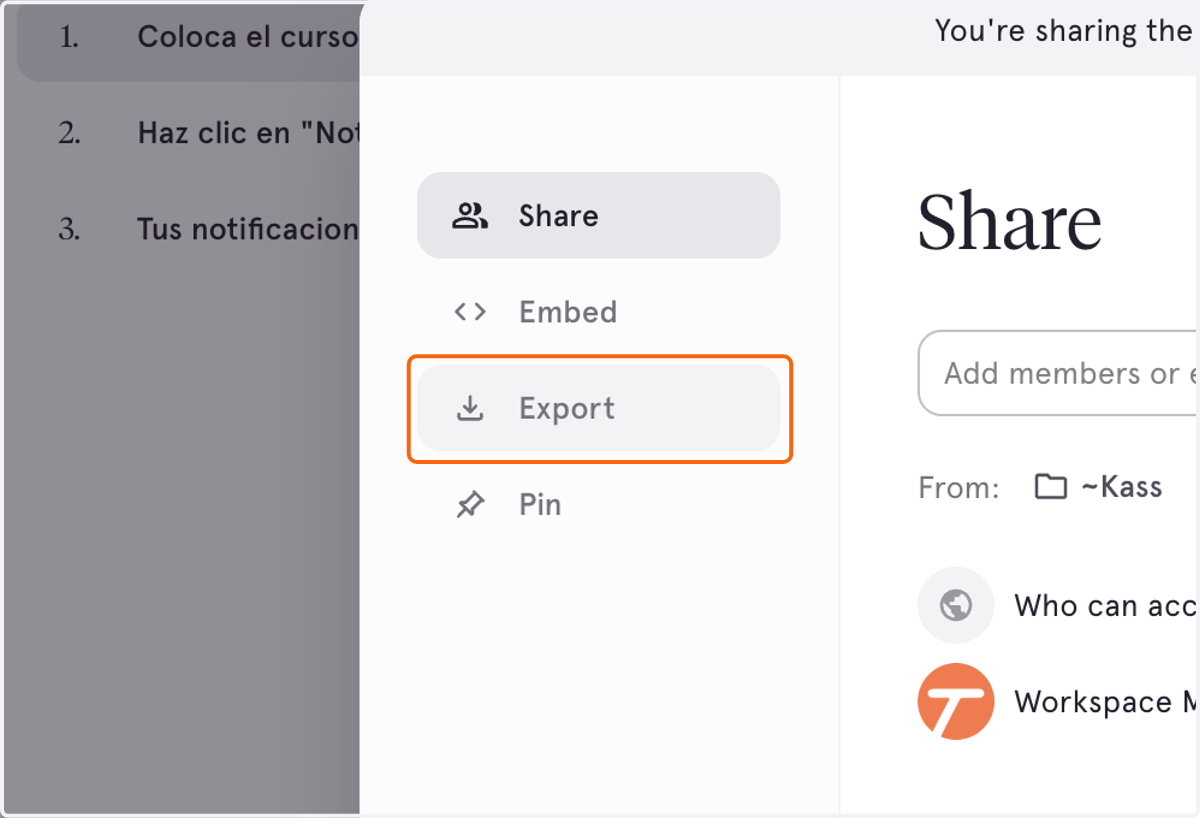
9. Option 2: Click on Export
You have the option of exporting the translated workflow as HTML, Markdown, or PDF.
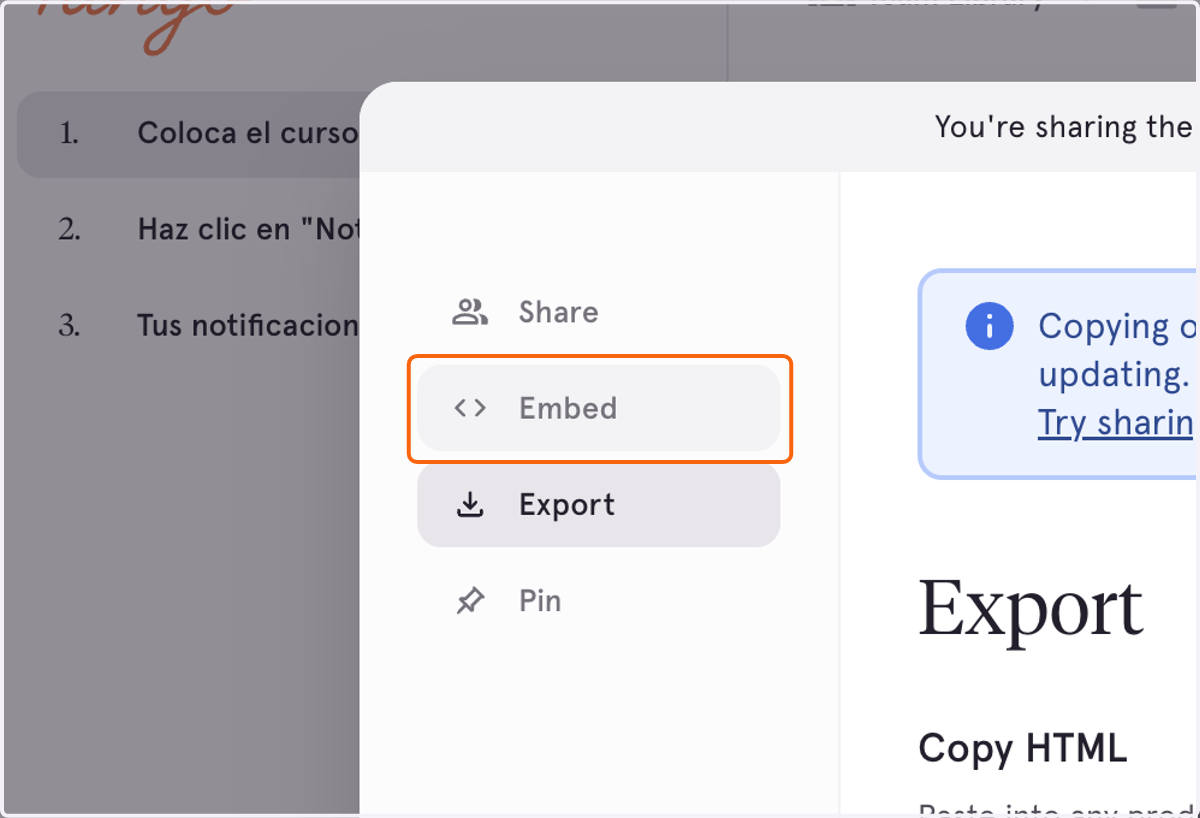
10. Option 3: Click on Embed
To access an embedded version of the workflow, click Embed.
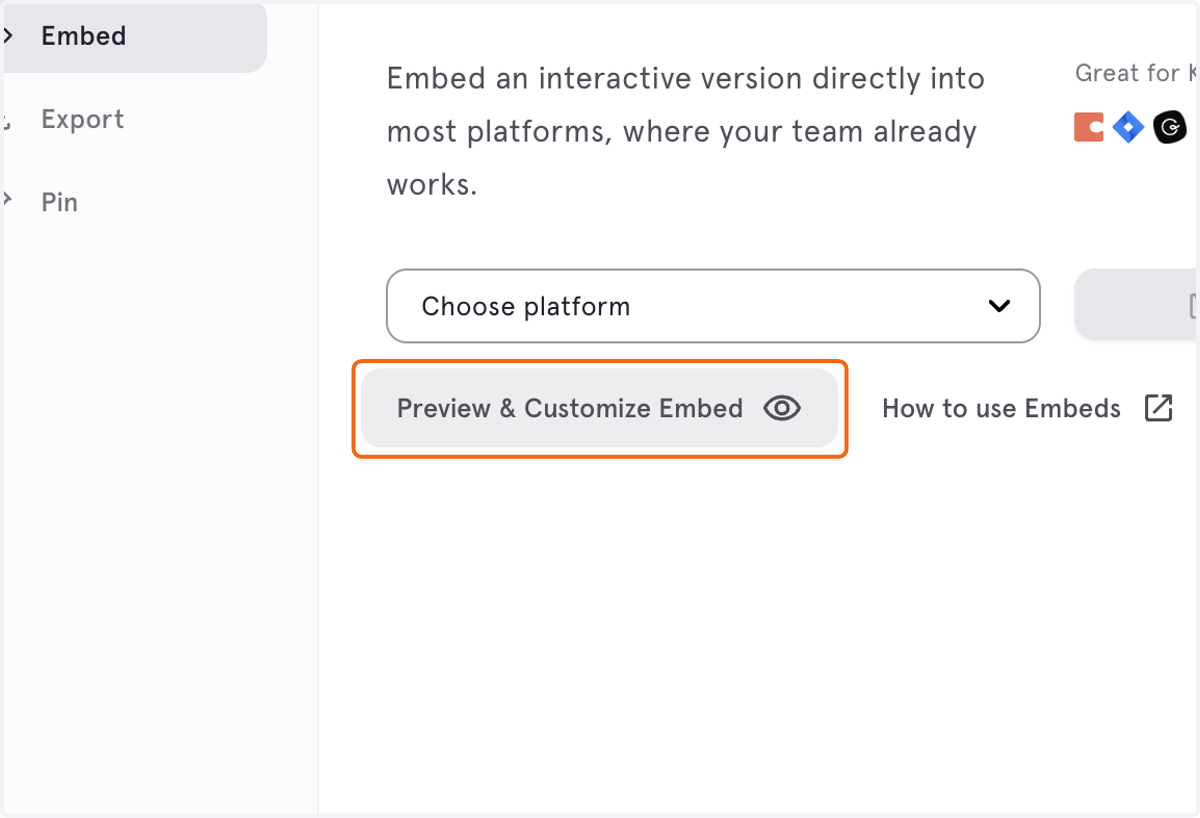
11. To preview it, click on Preview & Customize Embed
To preview it
12. Click View Steps to preview the embedded workflow steps.