Step-by-Step Guide to Creating a Bill in C5 for Demo Securities & Asset Limited
Login | C5 : Demo Securities & Asset Limited
To gain access to the main application, kindly click this link to view the login process
1. Menu bar
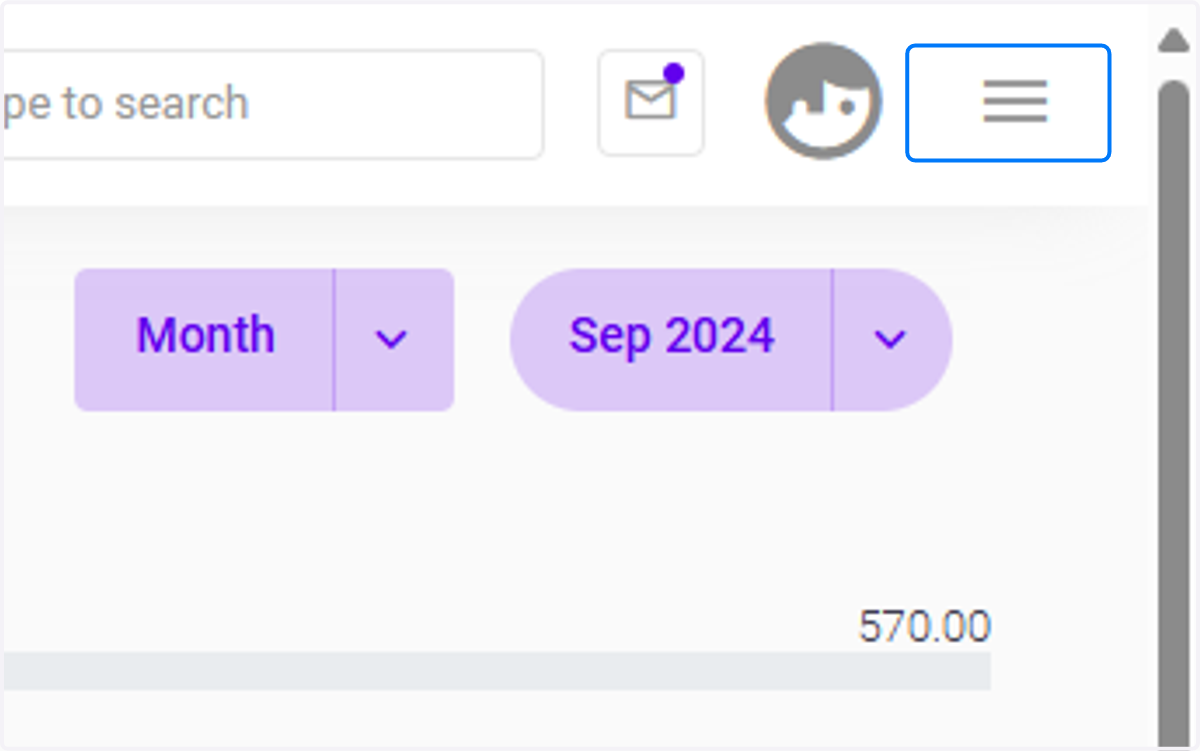
Click the 3 barred button highlighted in blue to have a menu of modules.
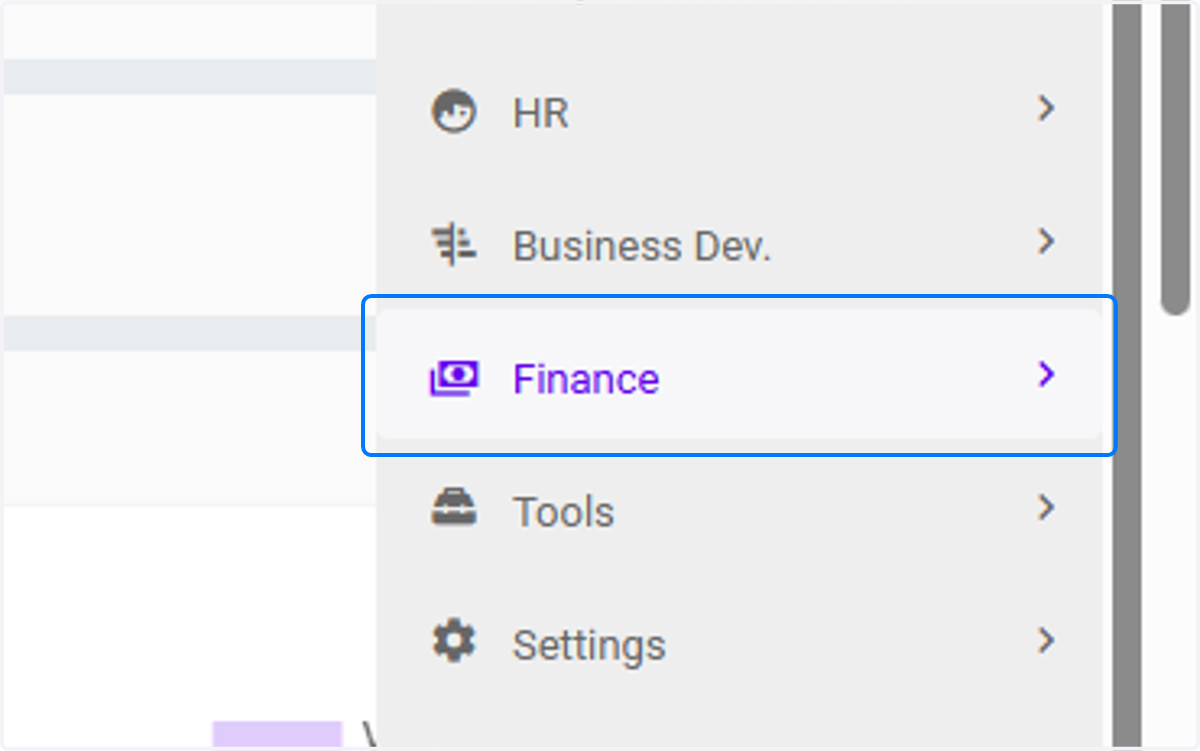
2. Click on Finance
The Finance Module is a core component of the system, designed to manage and track all financial activities related to schemes, investments, and client transactions.
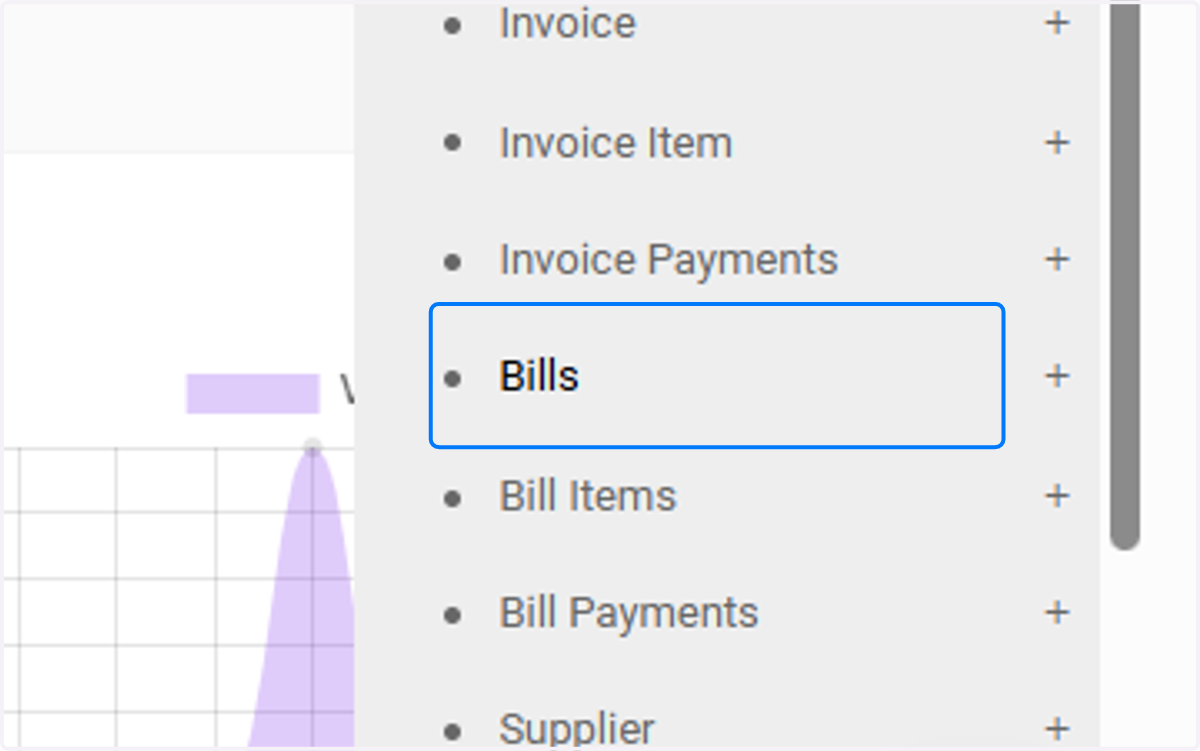
3. Click on Bills
The Bills Module is designed to handle the creation and management of bills related to schemes and investments. It automates the process of generating bills for services and fees incurred during the management of schemes.
4. Click on Bill List
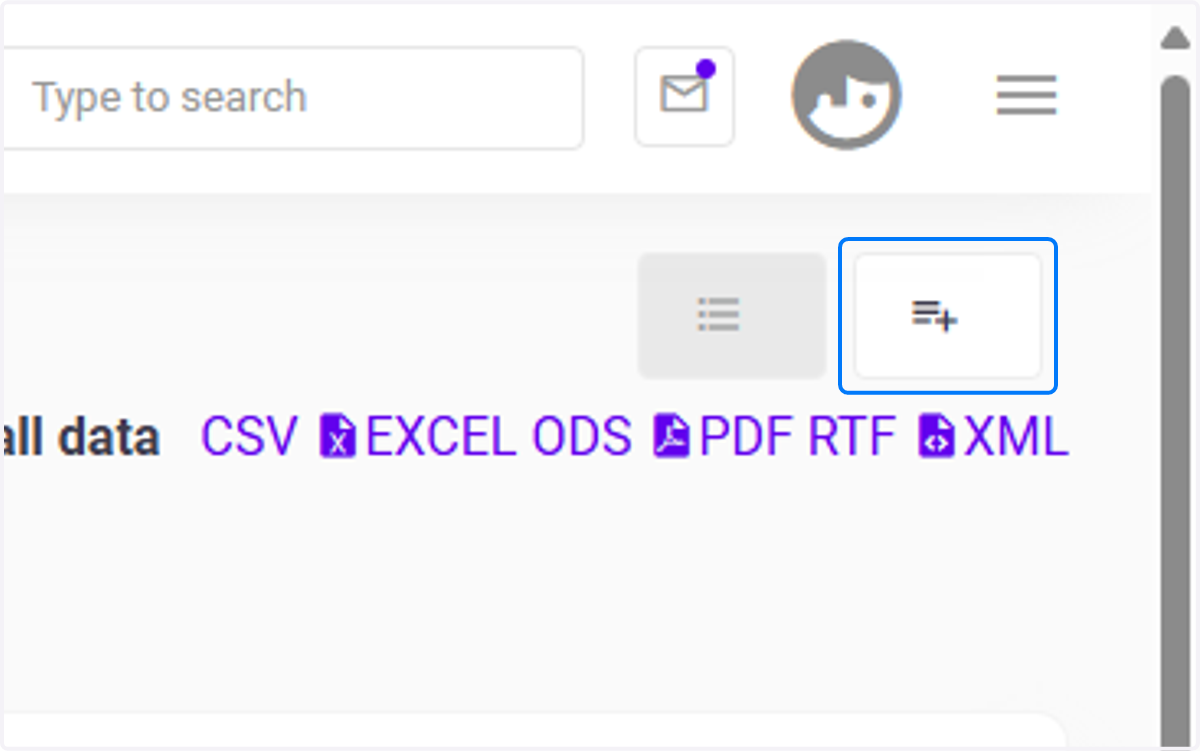
Click the plus button highlighted in blue to gain access to the New Bill Create Page.
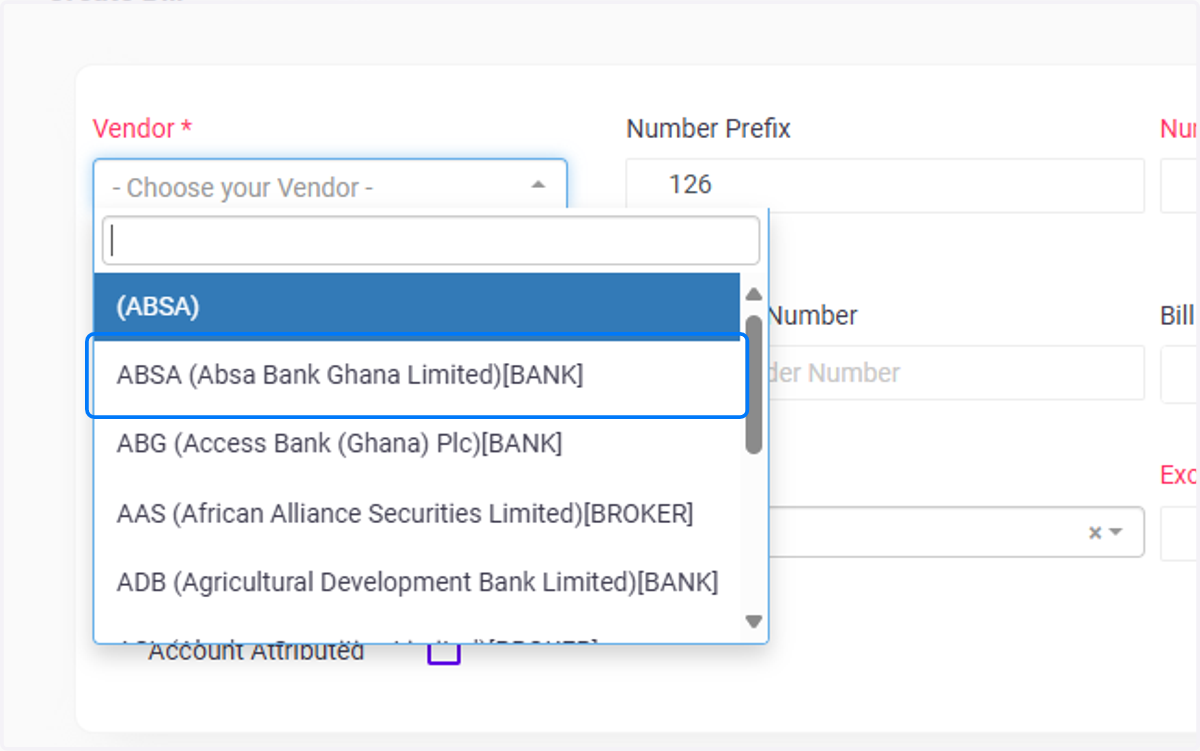
5. Choose your Vendor
Click on ABSA (Absa Bank Ghana Limited)[BANK]. Choose the vendor or service provider (e.g., the entity managing the scheme or providing professional services).
6. Click on Number Prefix
Populate the scheme’s unique identifier using number prefixes (e.g.,
PX)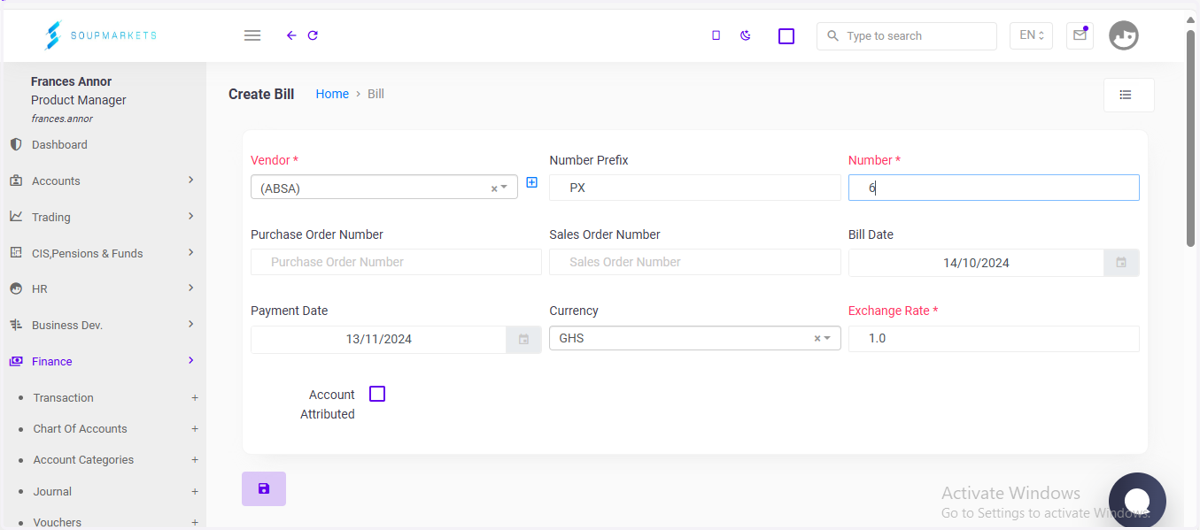
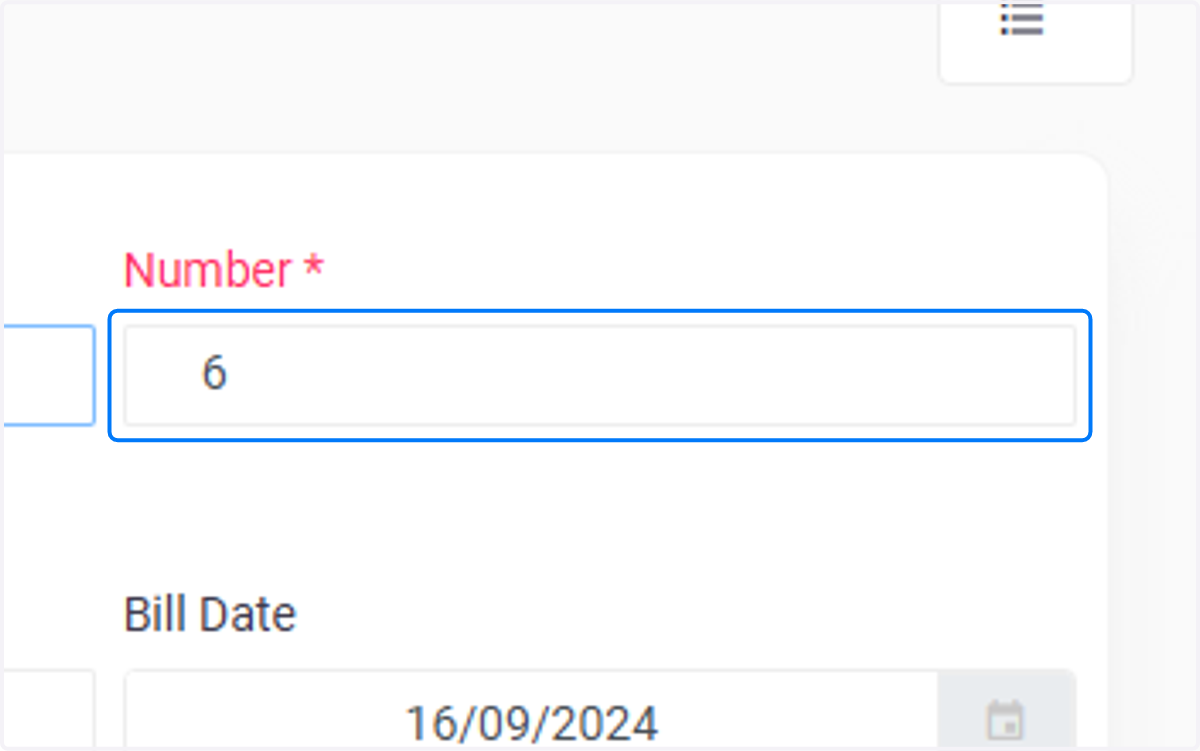
7. Click on Number
Assign the number manually (e.g.,
6).
8. Click on Bill Date
Enter the date on which the bill is being created (e.g., 16/09/2024).
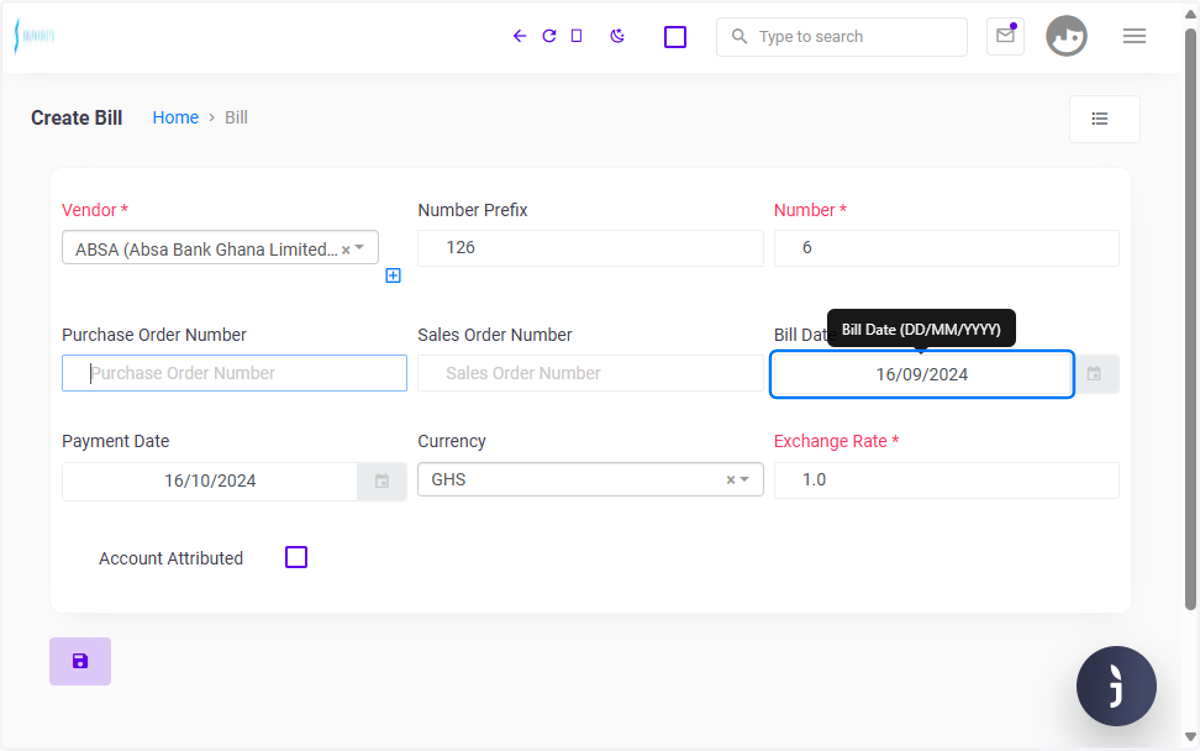
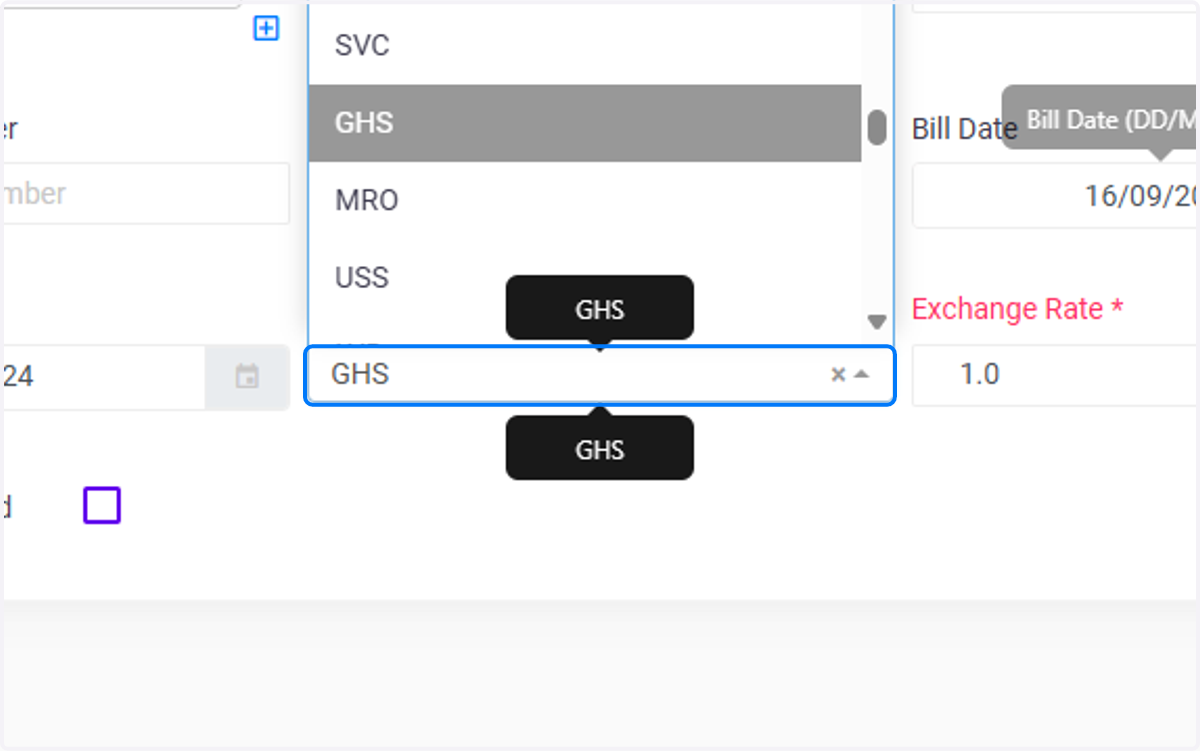
9. Click on GHS
Select the currency (e.g., Ghanaian Cedi)
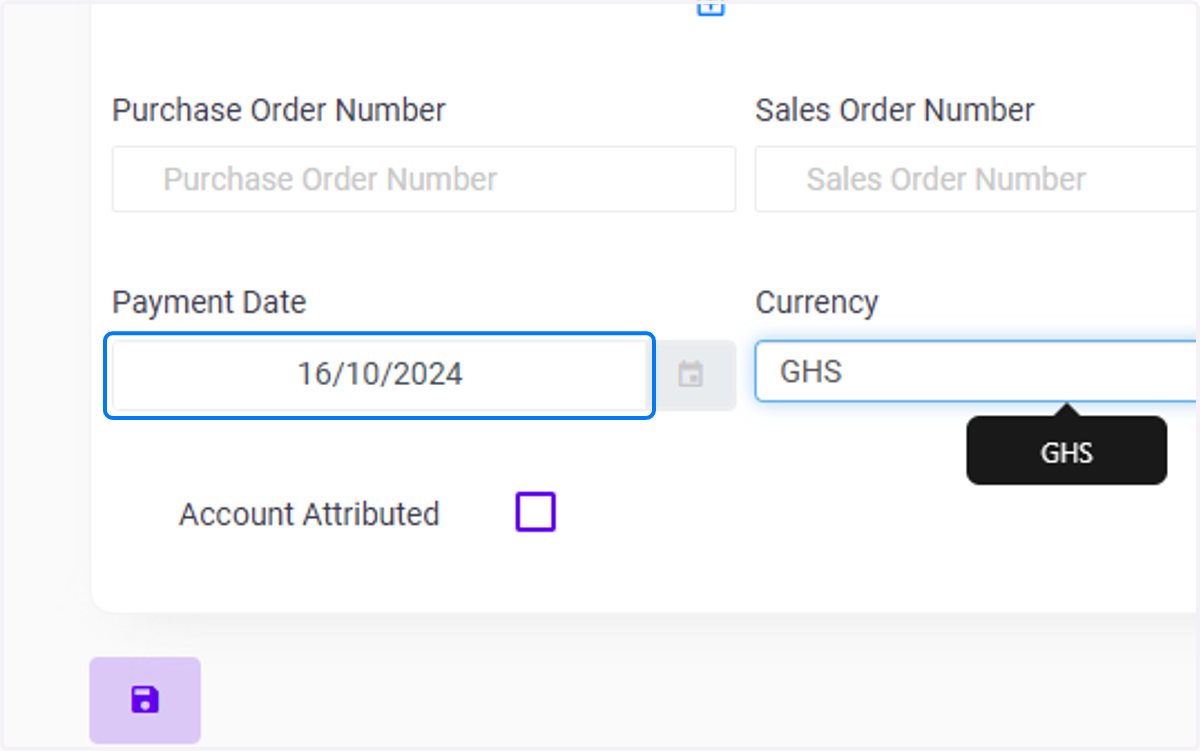
10. Click on Payment Date
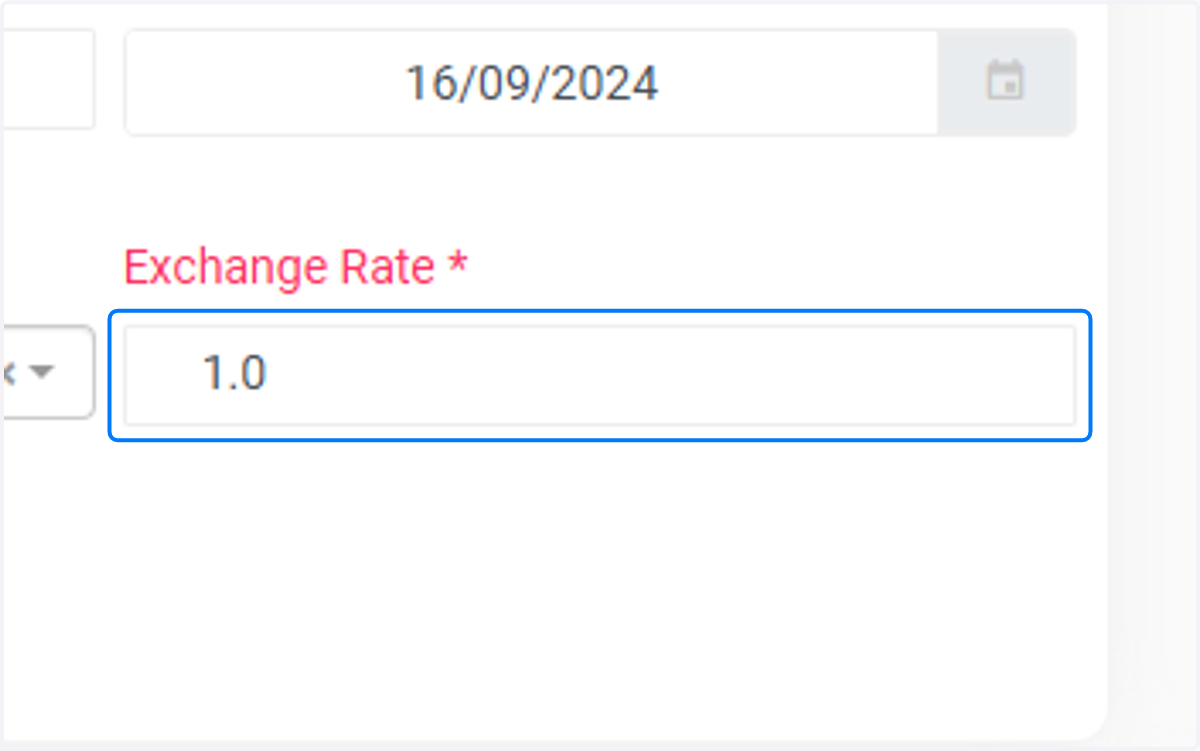
11. Input Exchange Rate
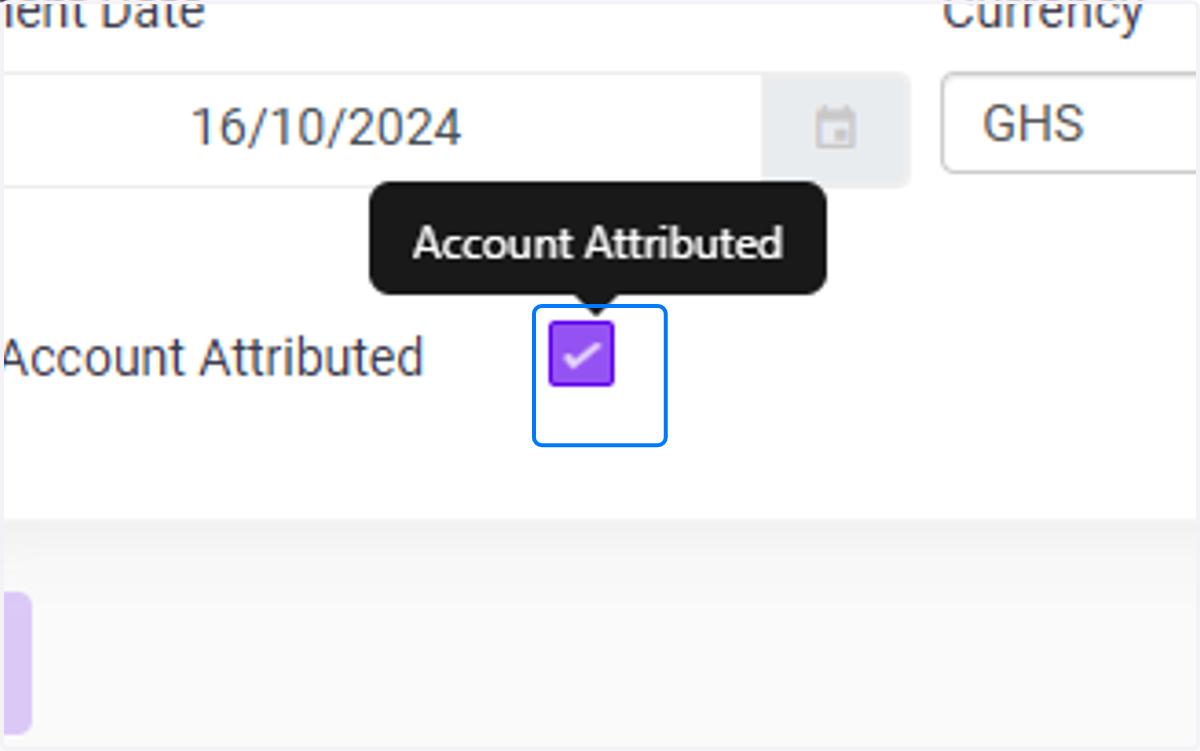
12. Check Account Attributed
Assign the account responsible for handling the transactions related to the scheme, whether it's an internal account or an external one by checking the box highlighted in the image below
13. Choose your Scheme
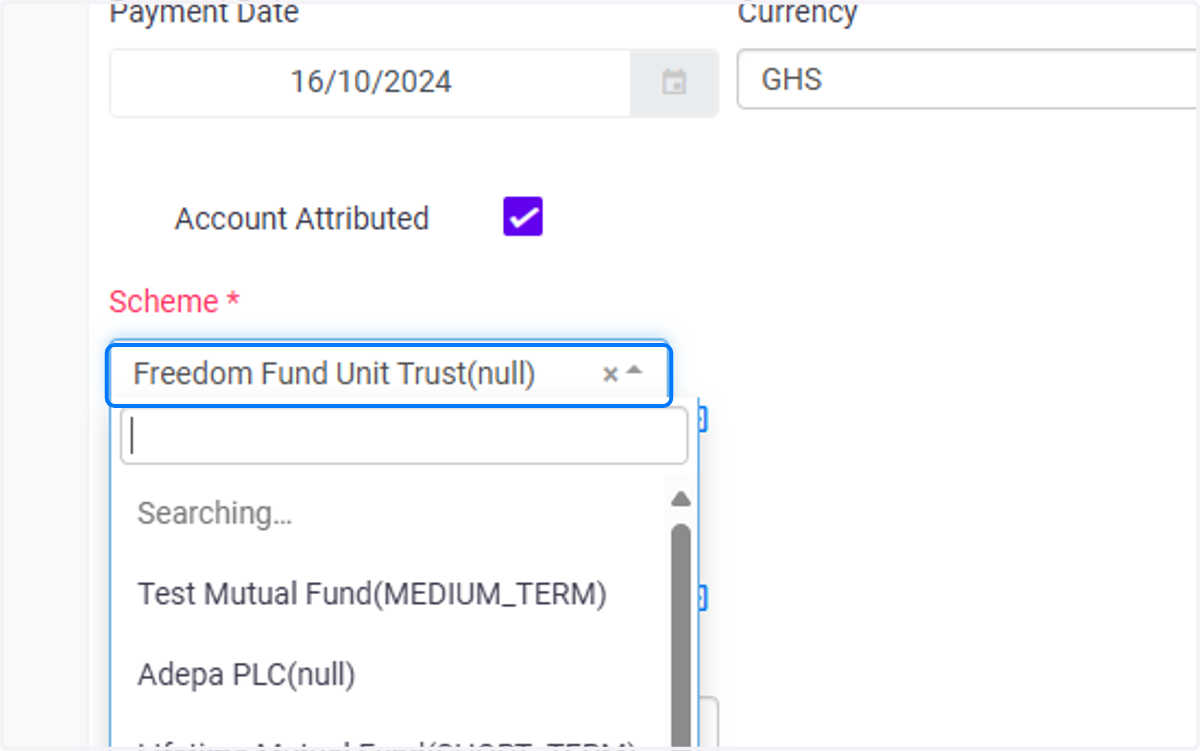
Select the investment scheme for which the fees will be associated. This could be the name of a mutual fund, equity fund, or bond scheme,eg. Click on Freedom Fund Unit Trust (null)
14. Choose your Account Services
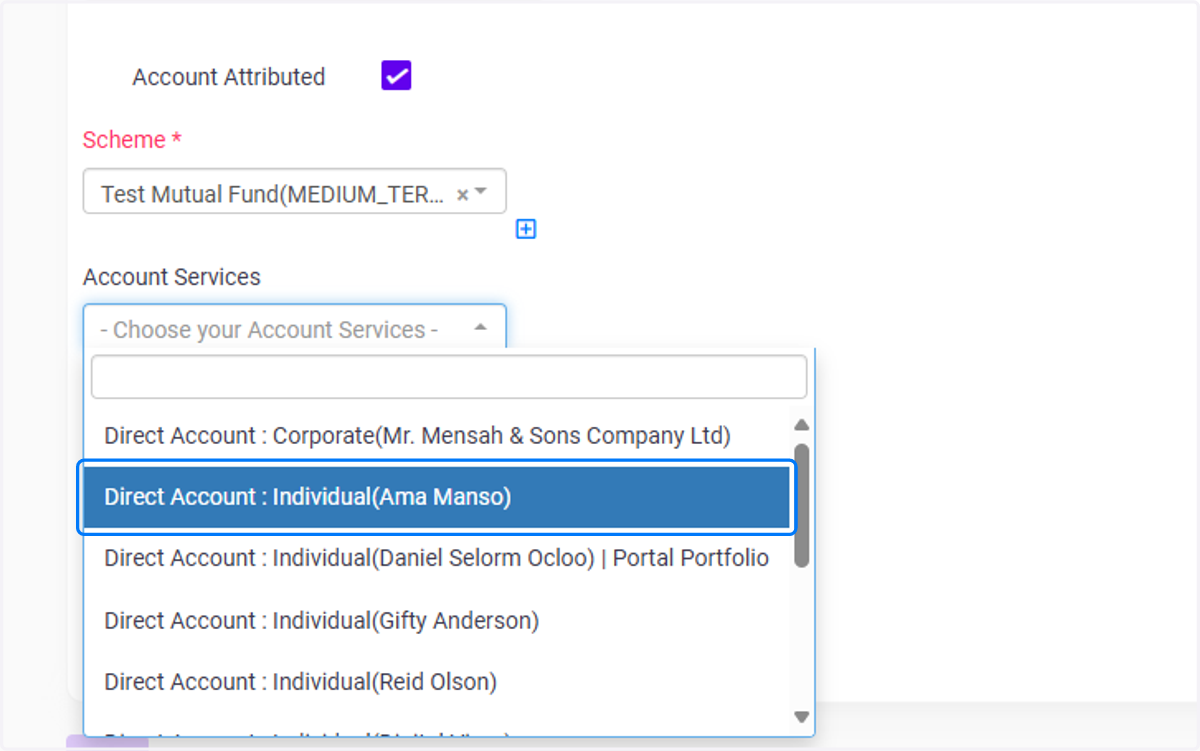
Select the portfolio associated with the Scheme.eg. Click on Freedom Fund Unit Trust(null)
15. Choose your Fee Type
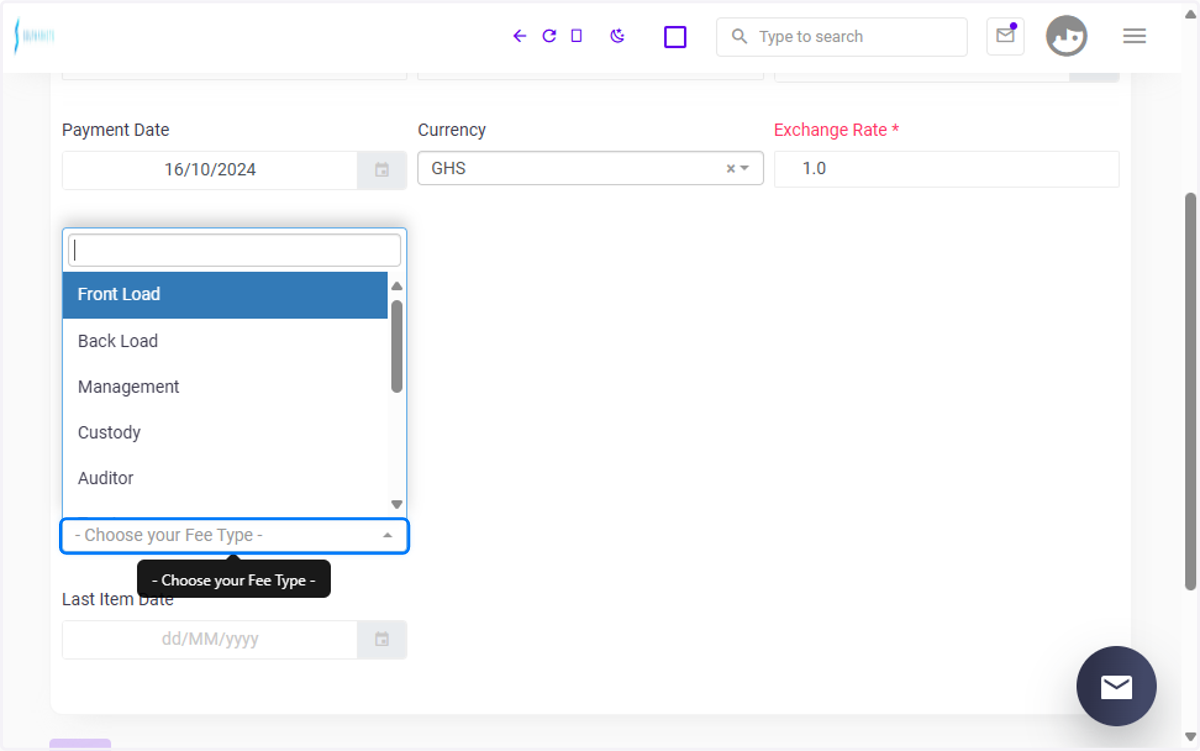
The field allows the selection of multiple fee types, each related to the scheme being created. Users cannot bulk-select various fees at once, and each fee must be individually assigned for every bill creation, ensuring transparency and granularity in financial reporting. Choose the respective fees with their various functionalities
eg.
Management: This is the fee charged for managing the investment portfolio.
Custody: This is the fee charged for safekeeping the assets within the scheme.
Auditor: This is the fees for financial auditing services to ensure scheme compliance.
Trustee: These are the fees for the trustee overseeing the proper management of the scheme's assets
Legal: These are the legal fees incurred for setting up and maintaining the scheme, including regulatory filings.
Registration: These are the fees for registering the scheme with regulatory bodies.
Performance: This is incentive fee based on the scheme’s performance compared to a benchmark or agreed target.
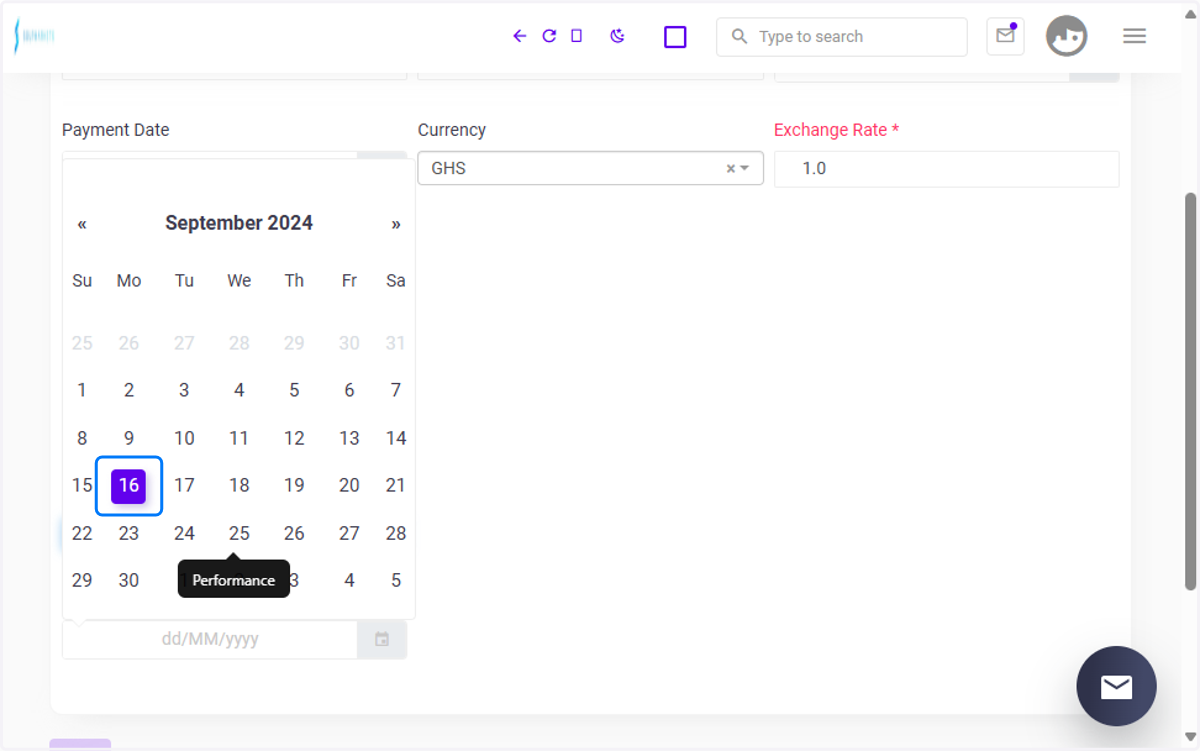
16. Select date
Enter the final date for recording fees related to the scheme (e.g., the date of the last transaction or the end of a billing cycle).
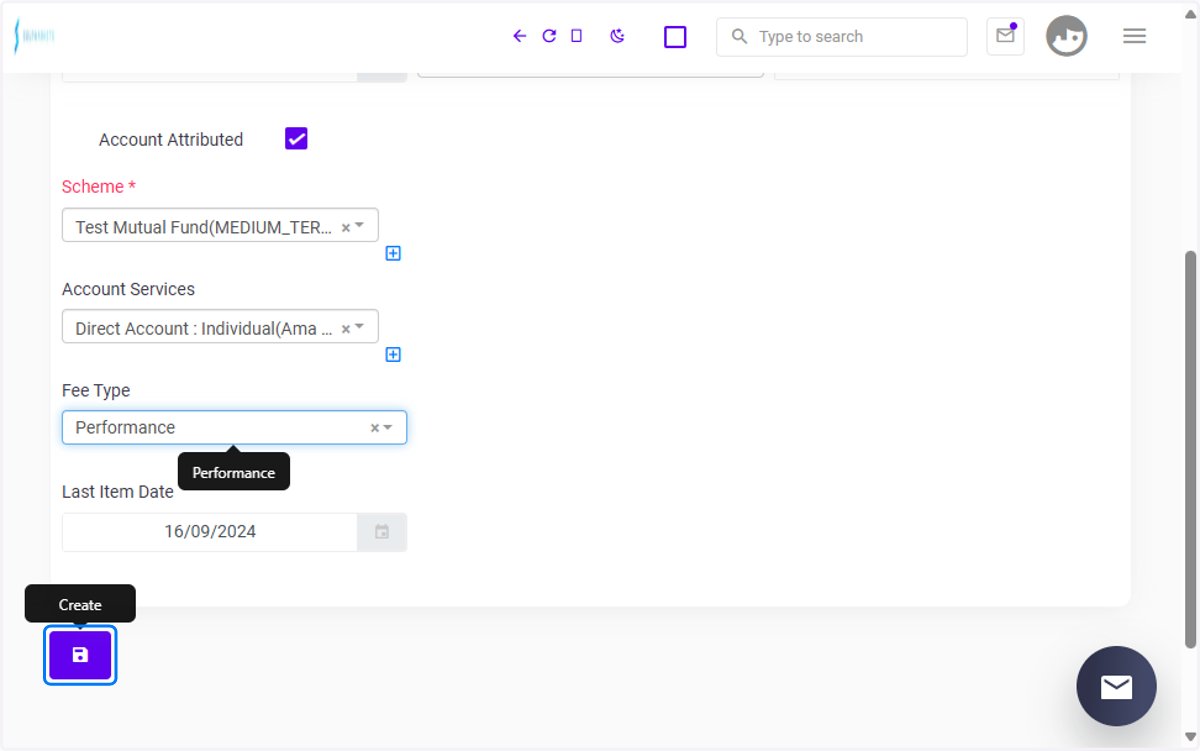
17. Click on Create
Click the create button to finalize the Bill creation
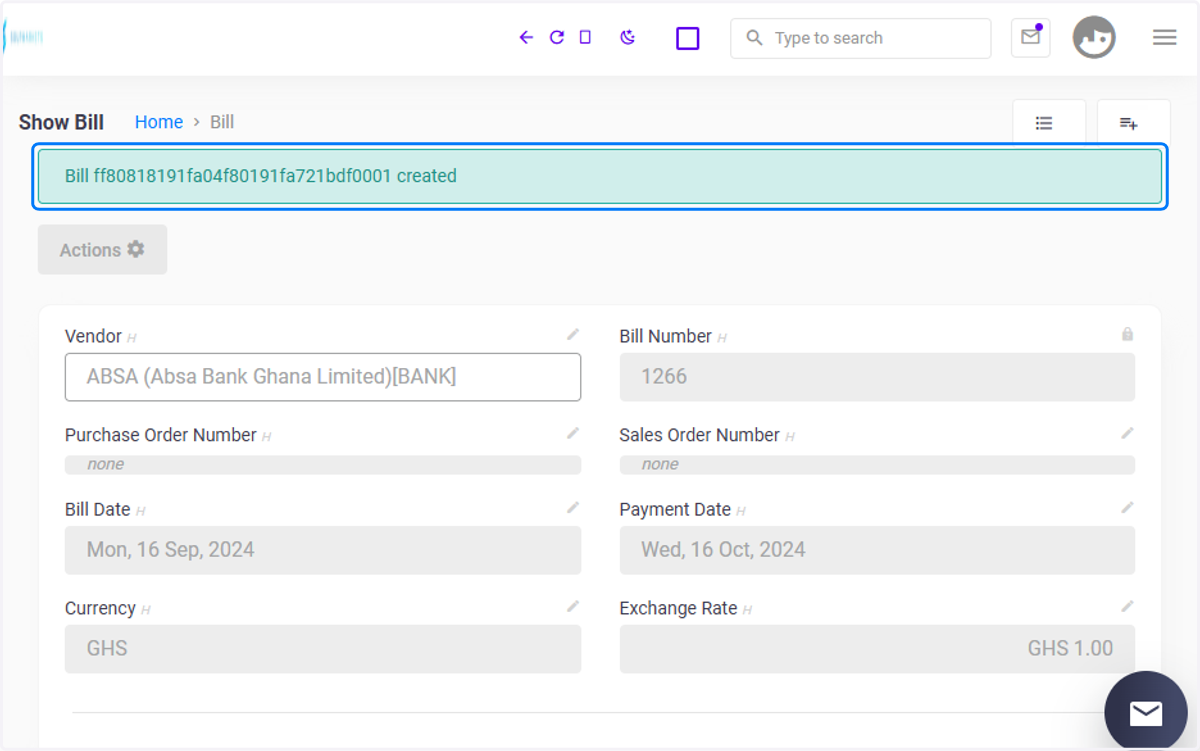
18. Click on Bill created
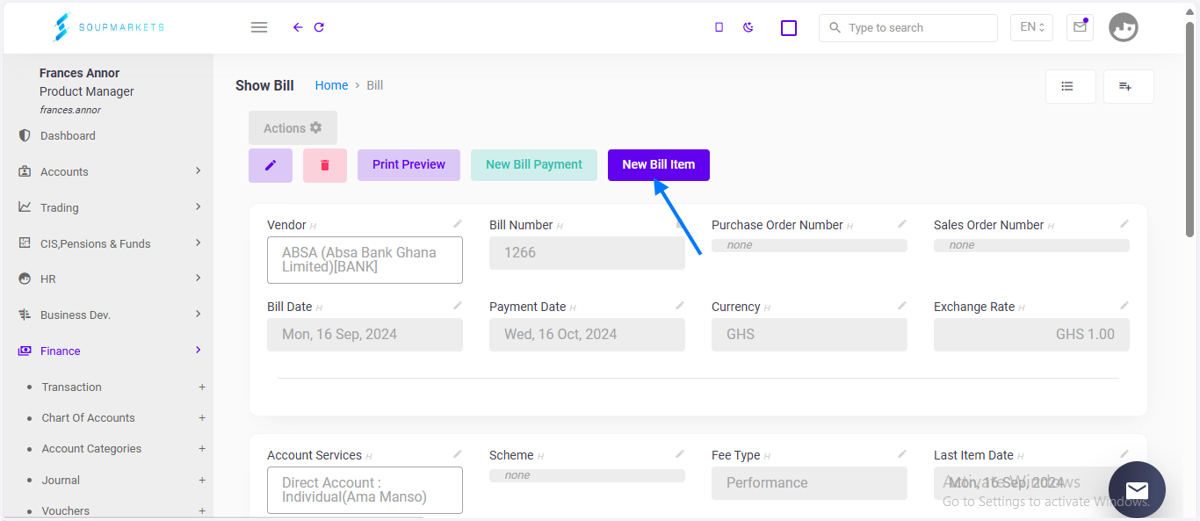
19. Add bill item
Click this link to have access to the bill item creation process to add values to the bills created