Setting up Single Sign-On in Tango
Pro-tip! Use "Guide Me" for an interactive walkthrough of this process.
Tango
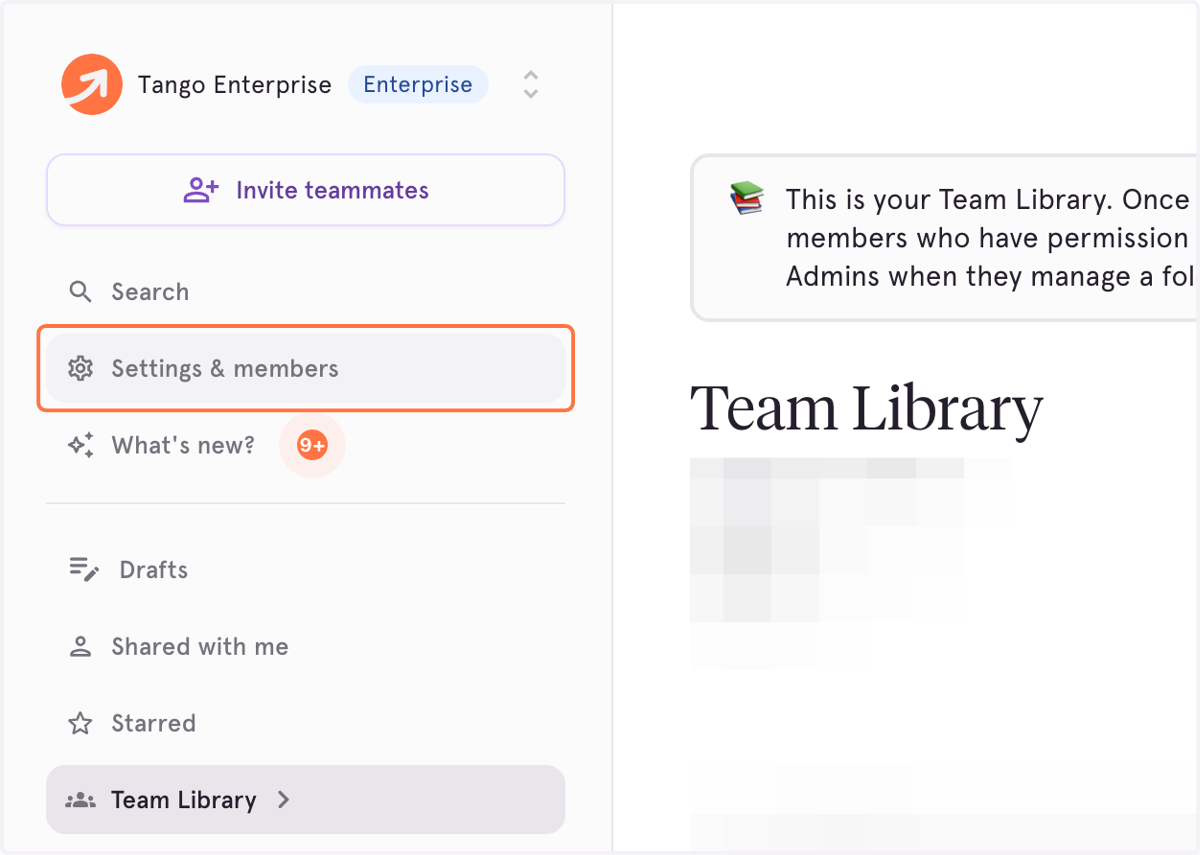
1. Click on Settings & members
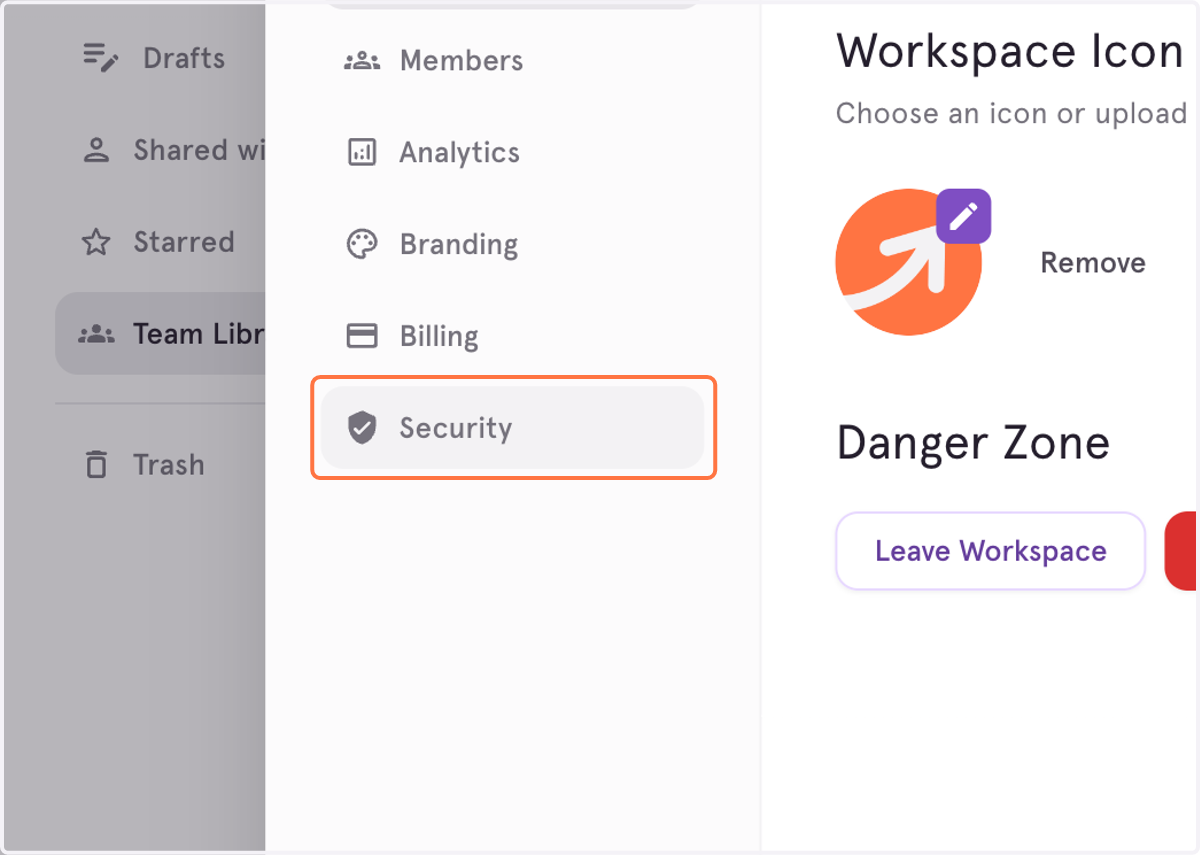
2. Click on Security
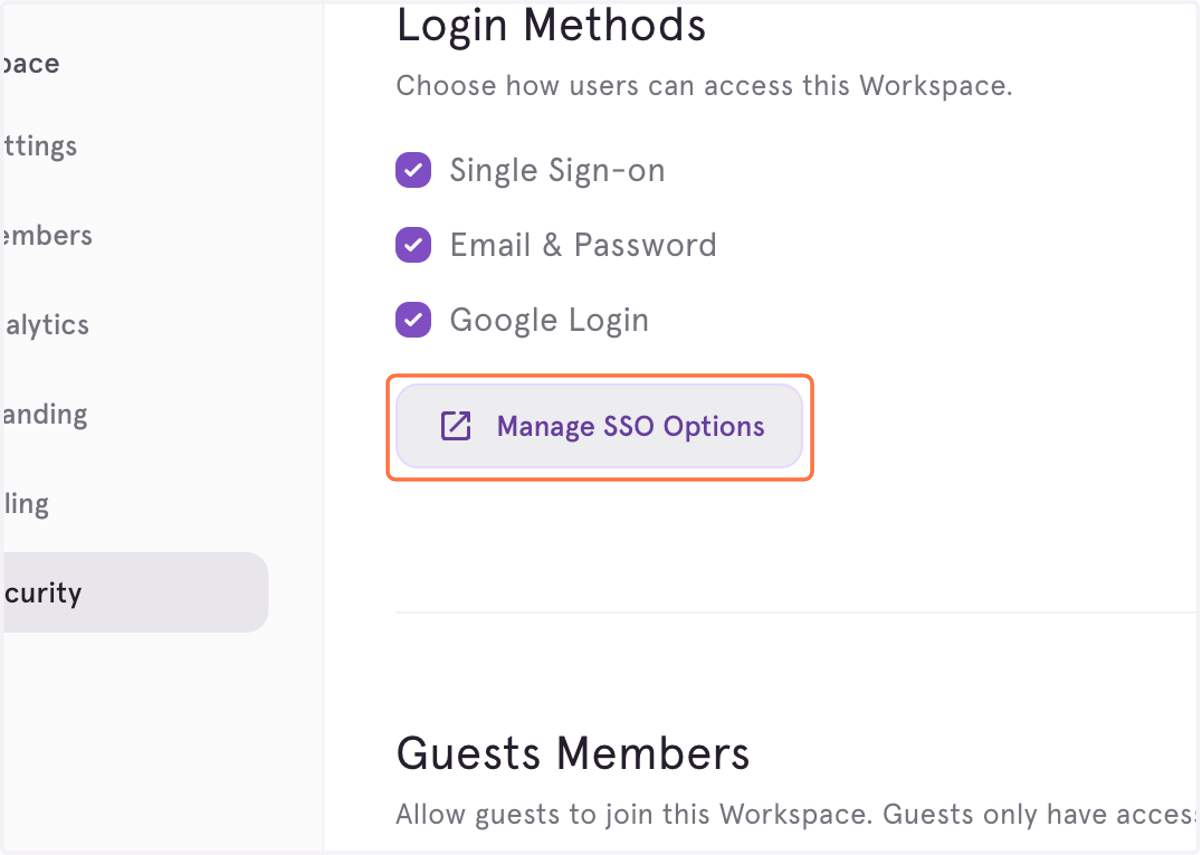
3. Click on Manage SSO Options
🛑 Make sure that the Single Sign-on login method is enabled. If not, check "Single Sign-on" login method and then click on "Update"
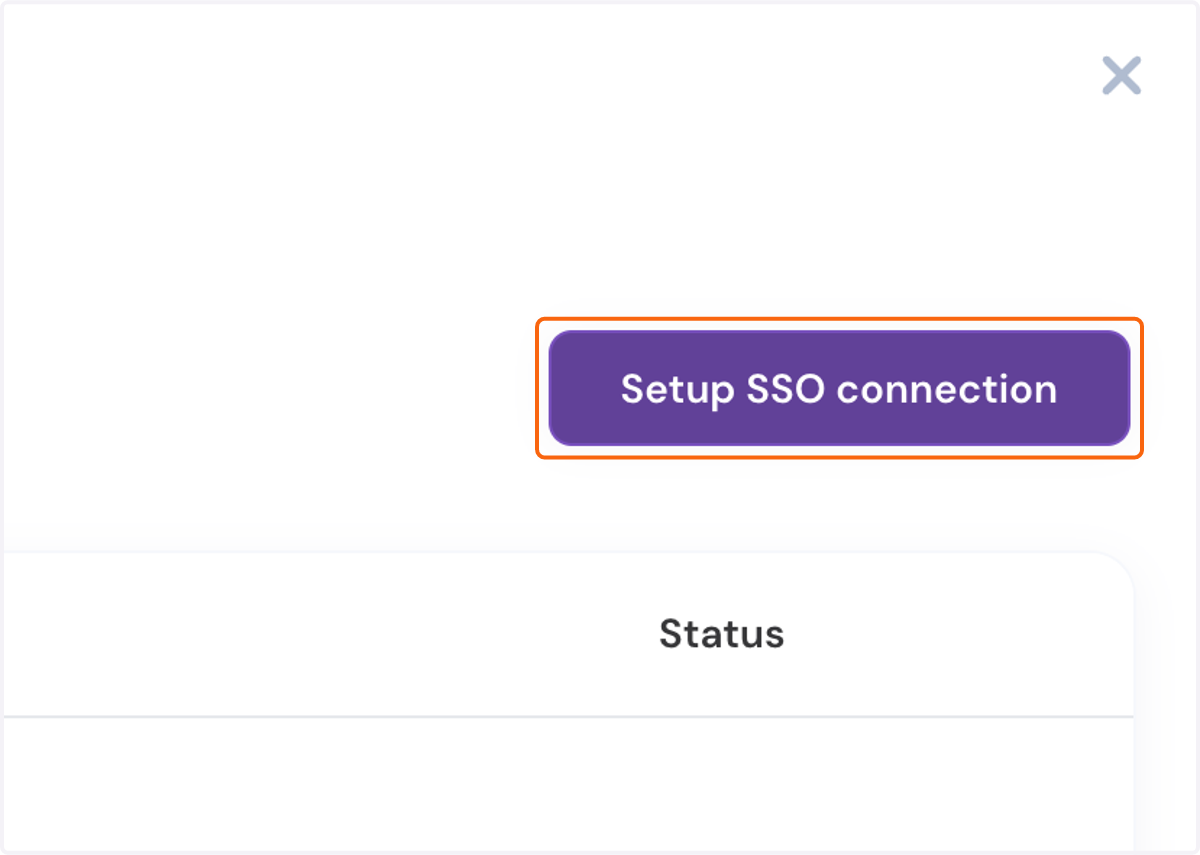
4. Click on Setup SSO connection
5. Click on the configuration that best suits your identity provider. If you do not see your IDP listed, please us Custom SAML or Custom OpenID depending on what's needed.
Follow all the steps from the the in-app guide until you finish "Configure Your IDP".
ℹ For the purpose of this guide, we will configure a SAML Okta application.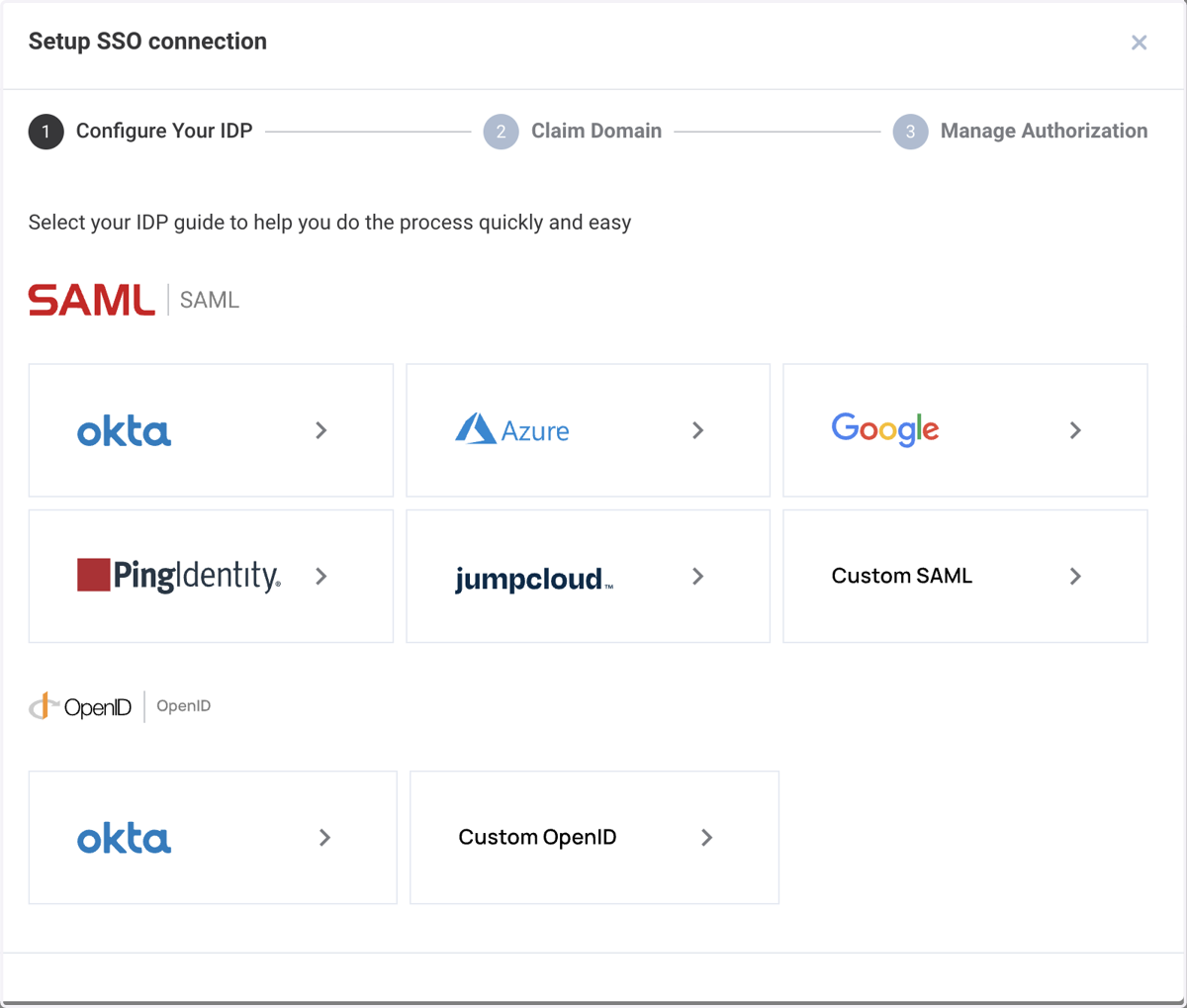
6. Create the SAML Application as instructed and Click on Next
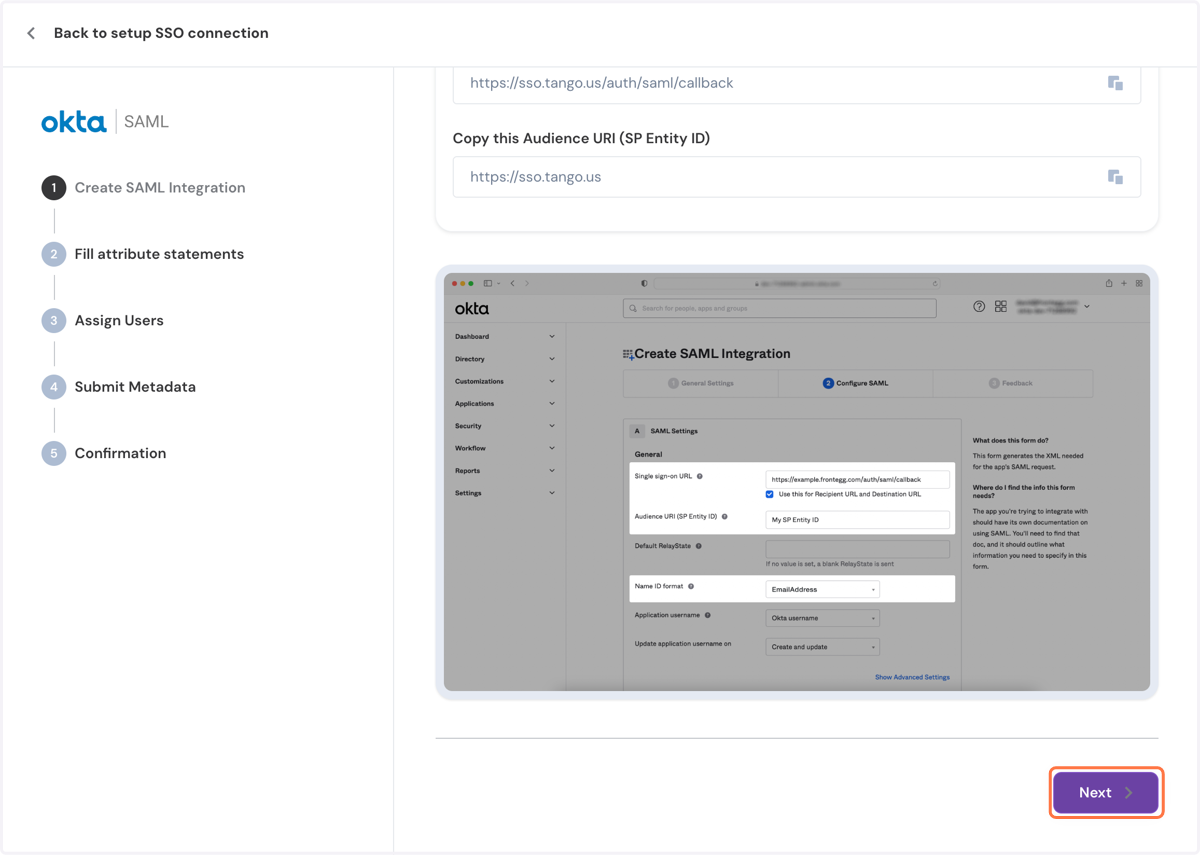
7. Fill out attribute statements, Assign users and finally paste your application metadata url as instructed in the in-app guide.
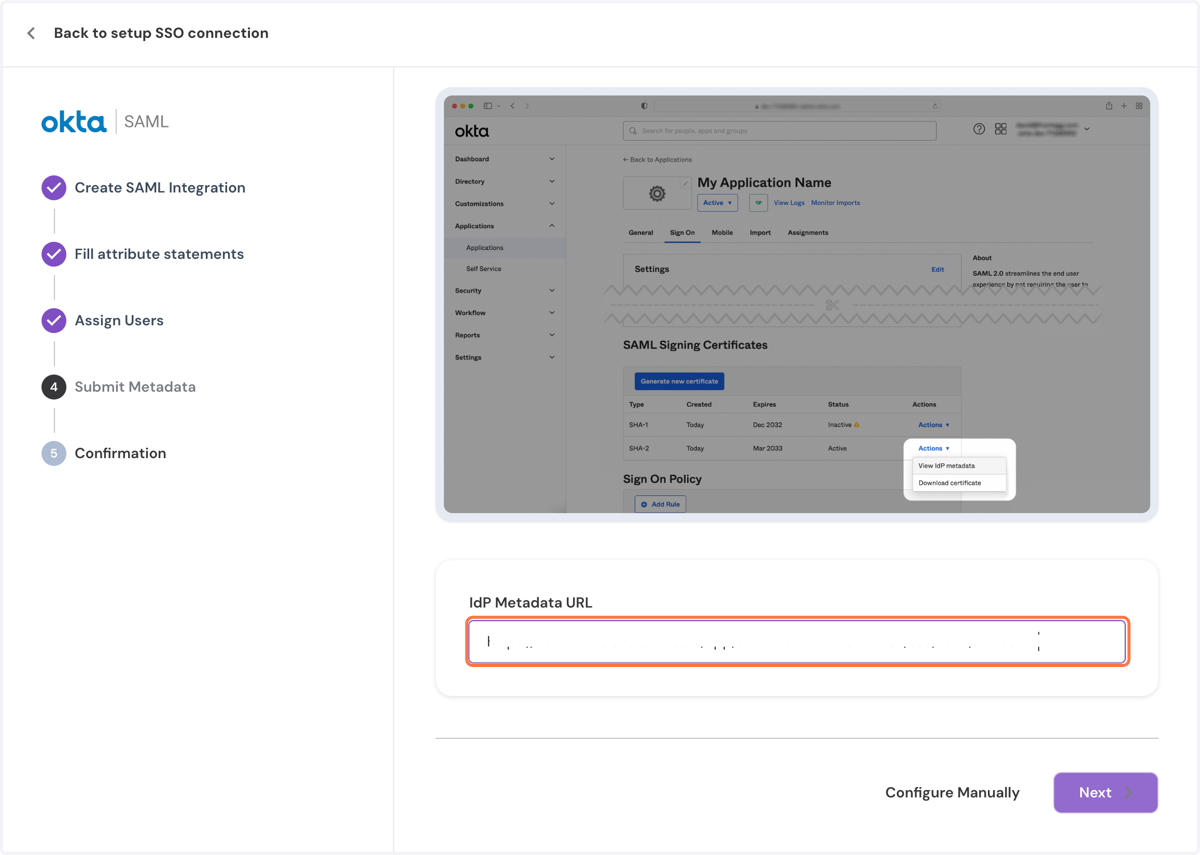
8. Click on Next
9. Click on Continue to claim domain
For security, this is a required step to validate that the domain is owned by the customer. If you are experiencing any issues please contact your Tango account manager.
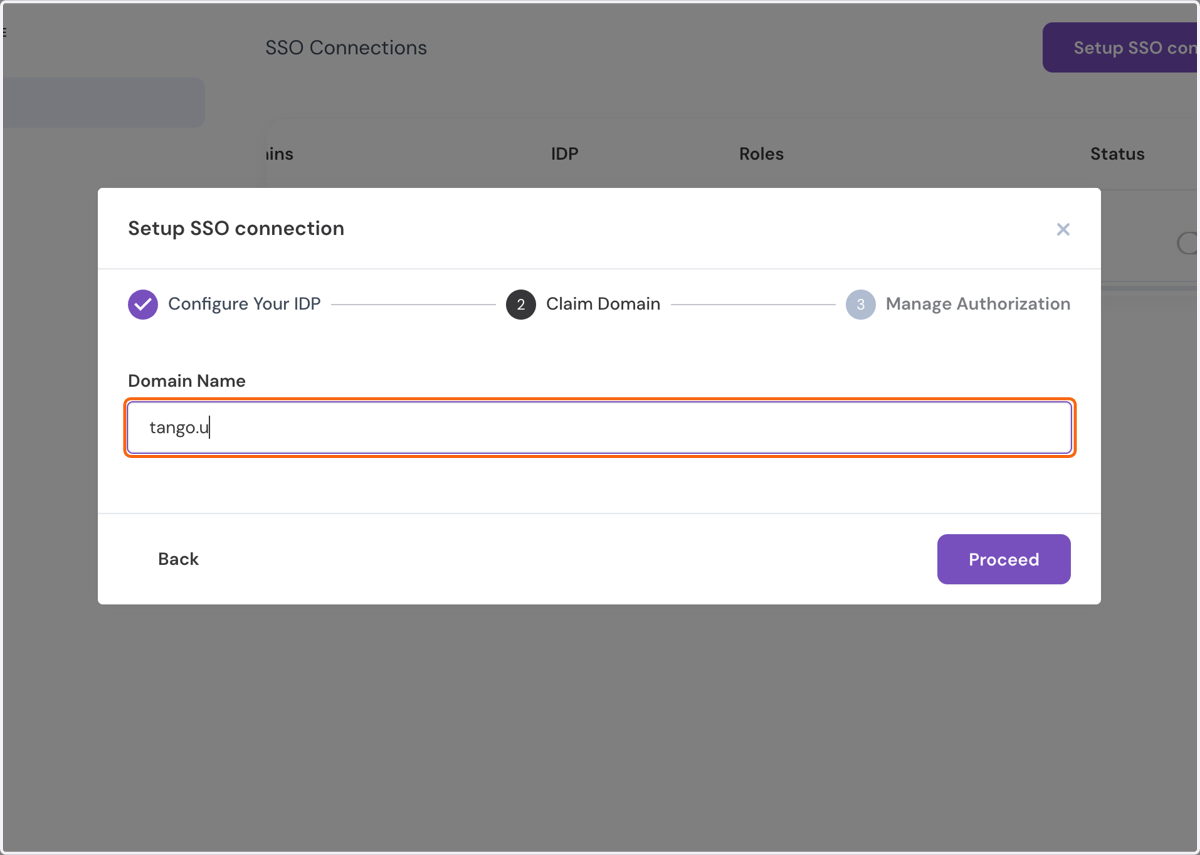
10. Type your organization's domain
This is usually the same as the email domain, AKA everything after @ in an email address
11. Click on Proceed
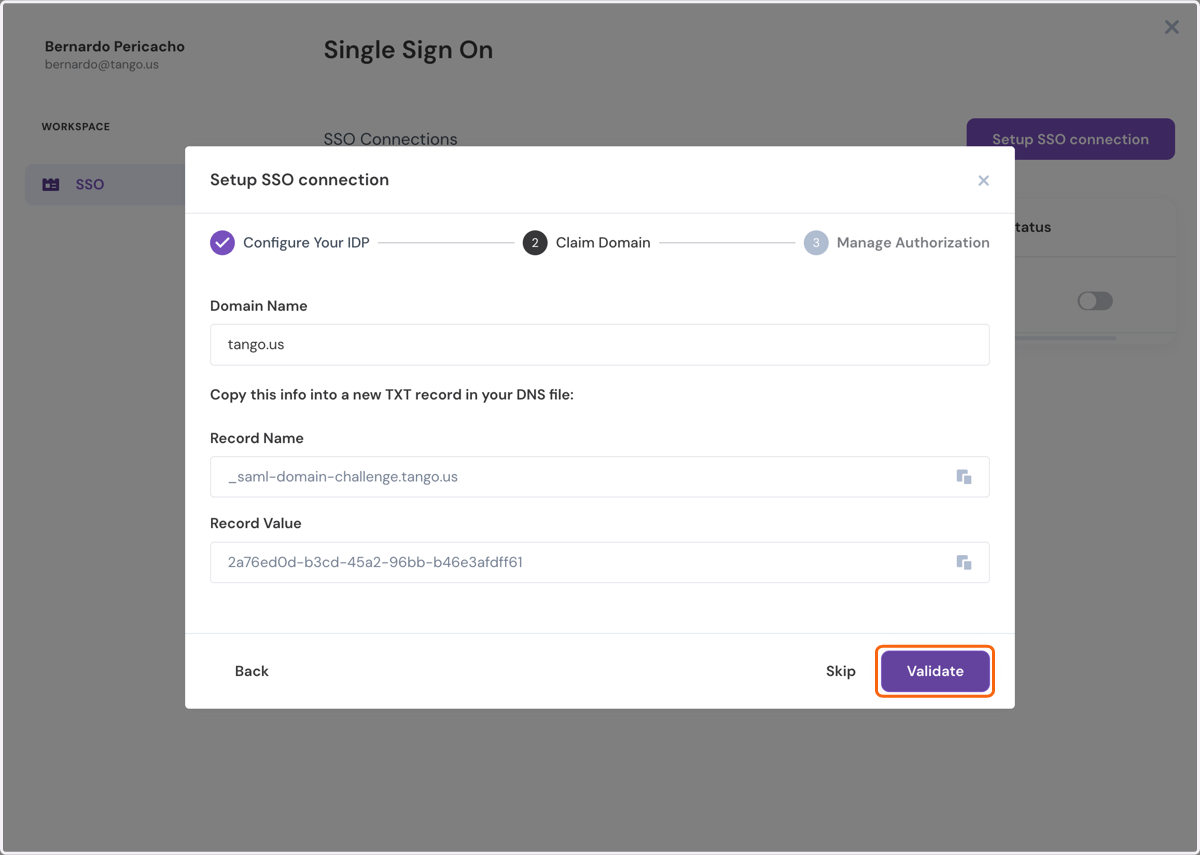
12. Click on Validate
Create a TXT record on your DNS provider following the instructions and click on Validate.
This is mandatory, do not Skip
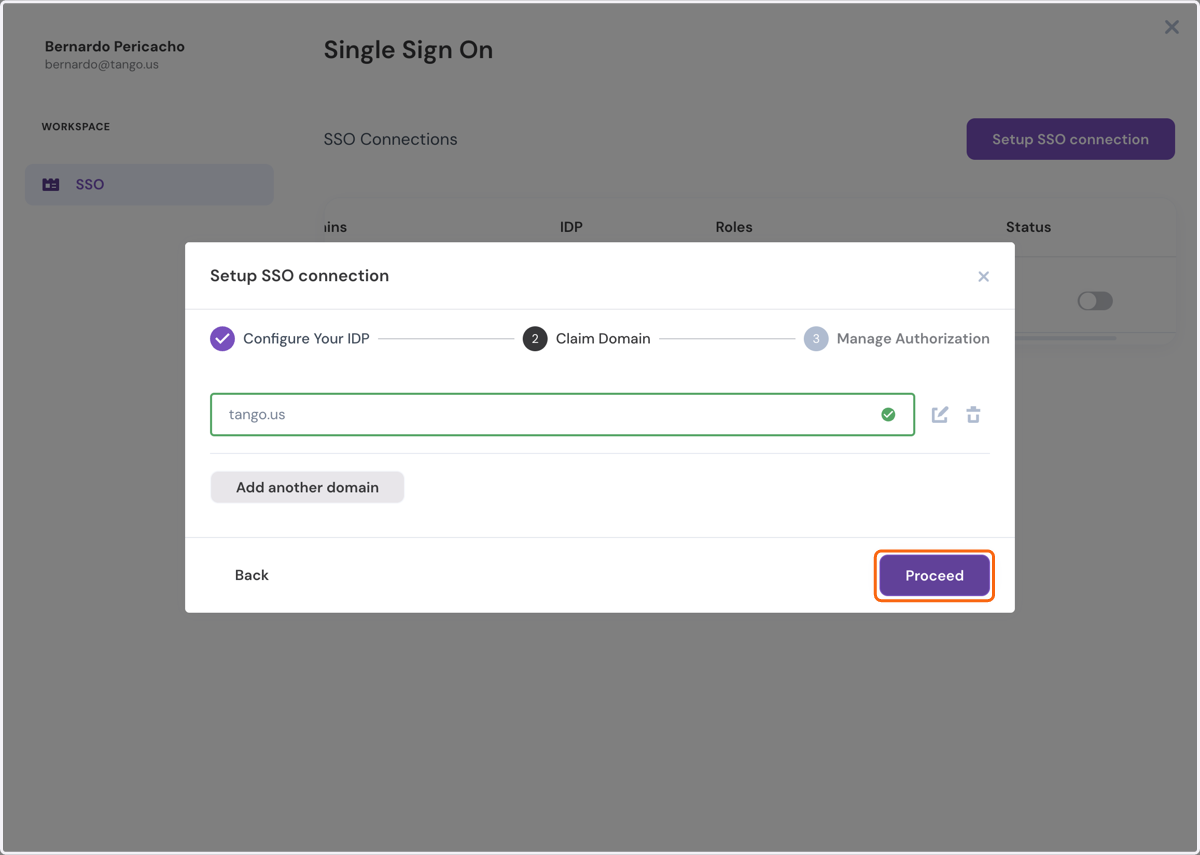
13. Click on Proceed
You'll see a green checkmark next to the domain to confirm the domain has been validated.
OPTIONAL: you can click add another domain if you have multiple domains under your organization.
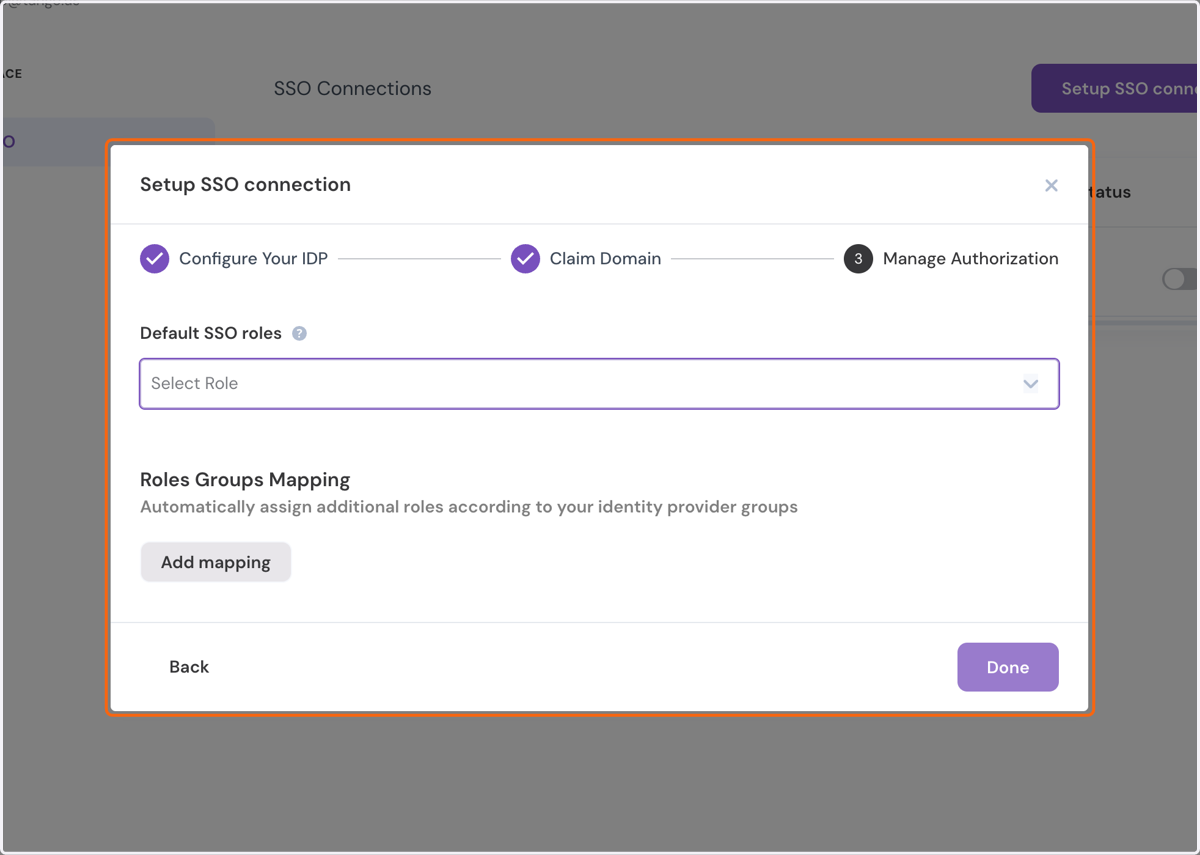
14. Click on Default SSO roles
Default role is not really used. User roles will be granted based on the roles assigned when inviting workspace members, and can always be updated from the Workspace Settings by Workspace Admins.
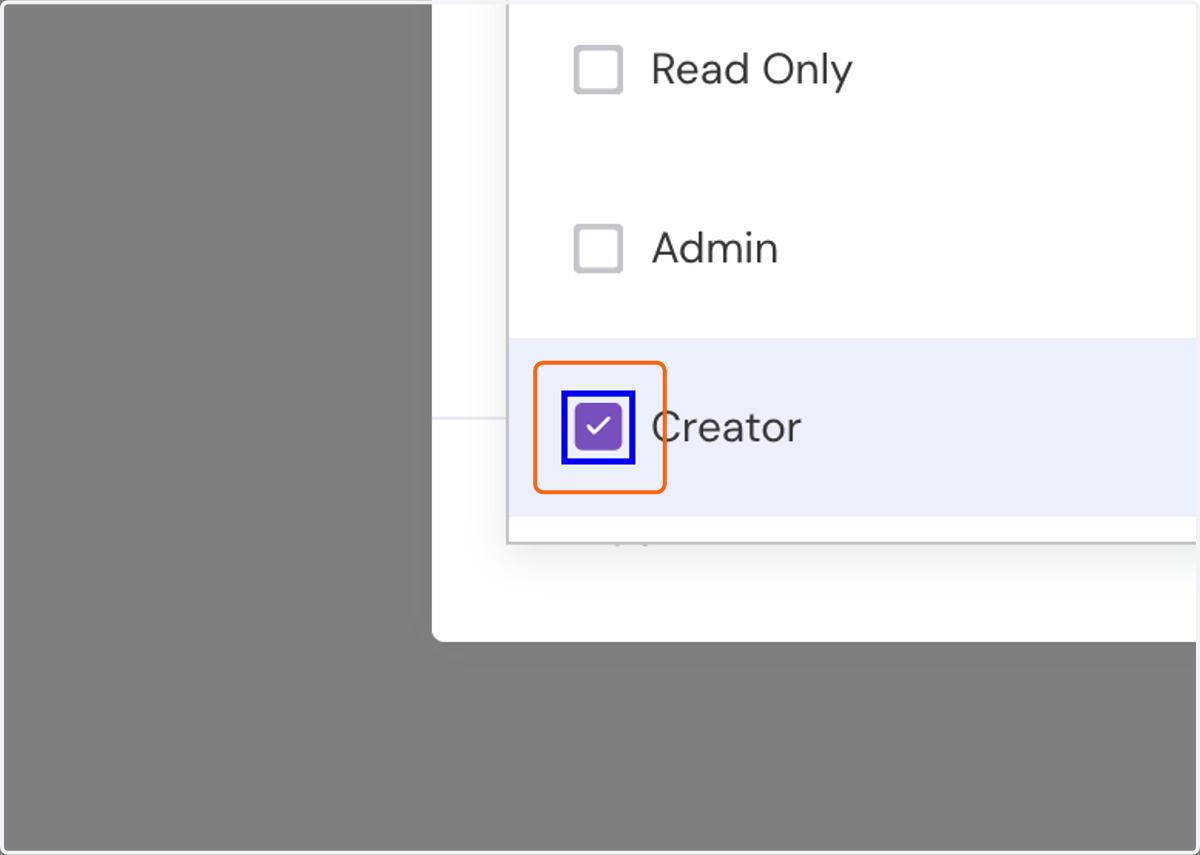
15. Check on "Creator"
16. Click on Done
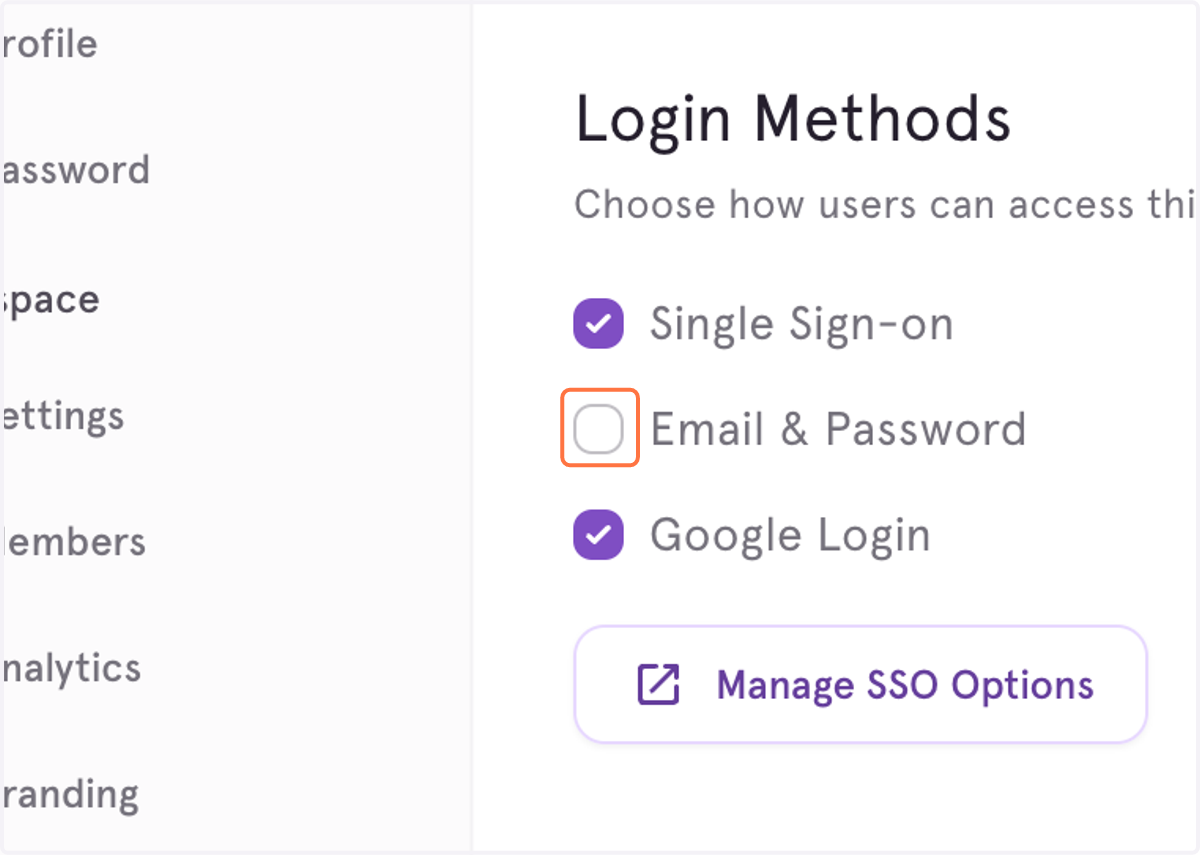
17. Uncheck Email & Password
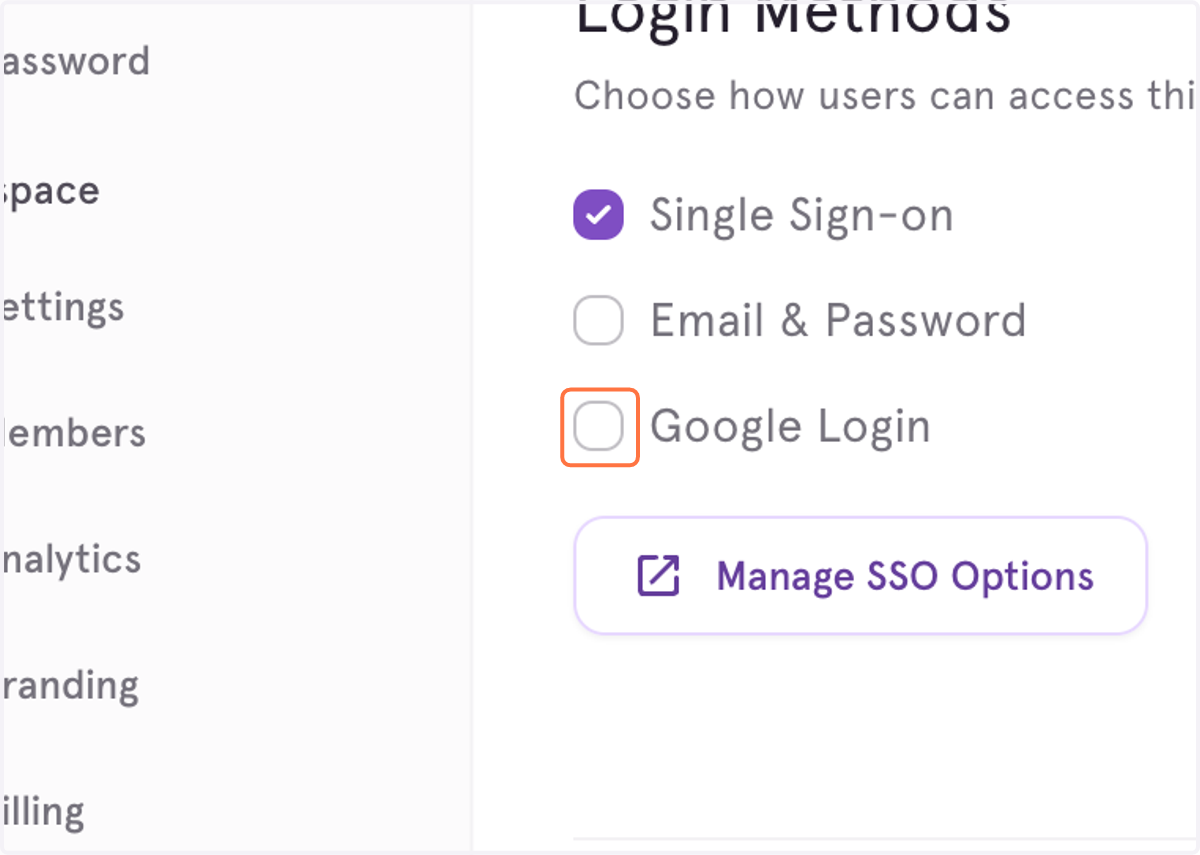
18. Uncheck Google Login
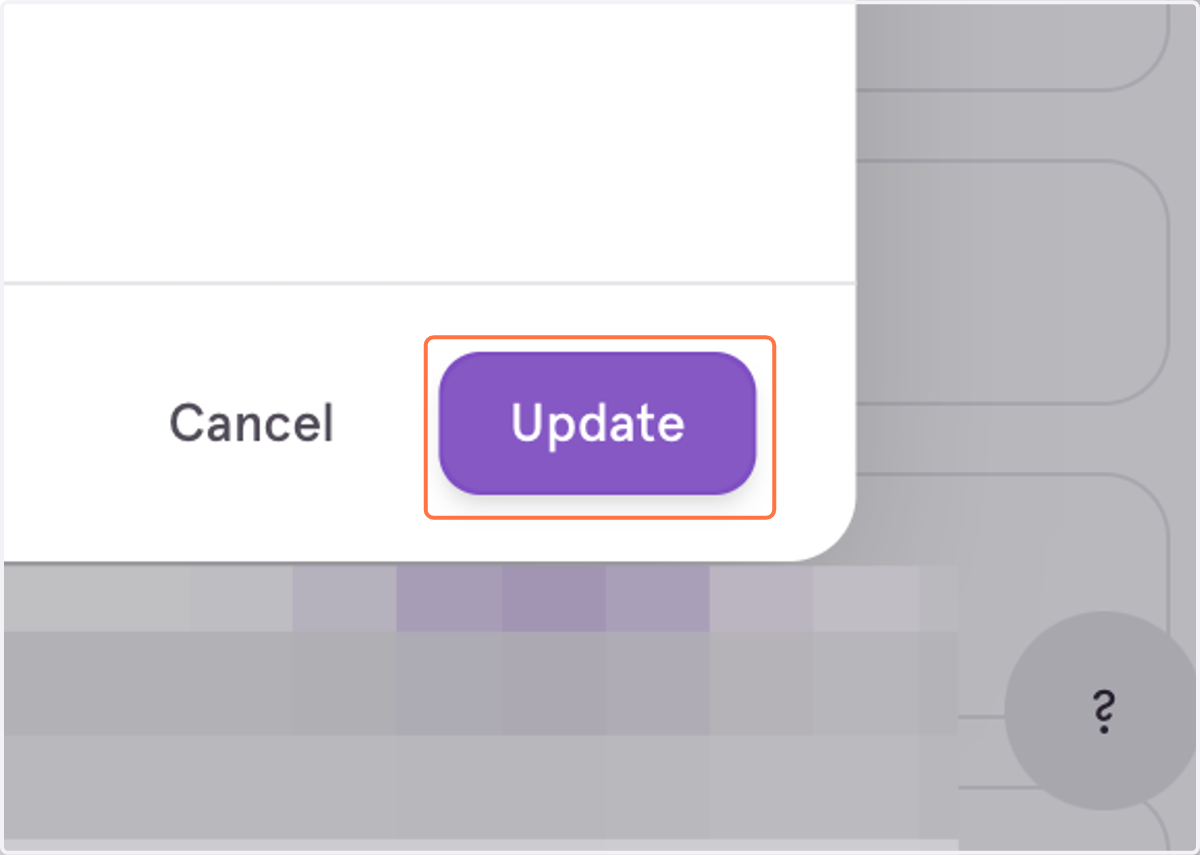
19. Click on Update