Navigating the Cash Balance Report in C5 Dashboard
Dashboard | C5[Demo Securities & Asset Limited]
To gain access to the main application, kindly click this link to view the login process.
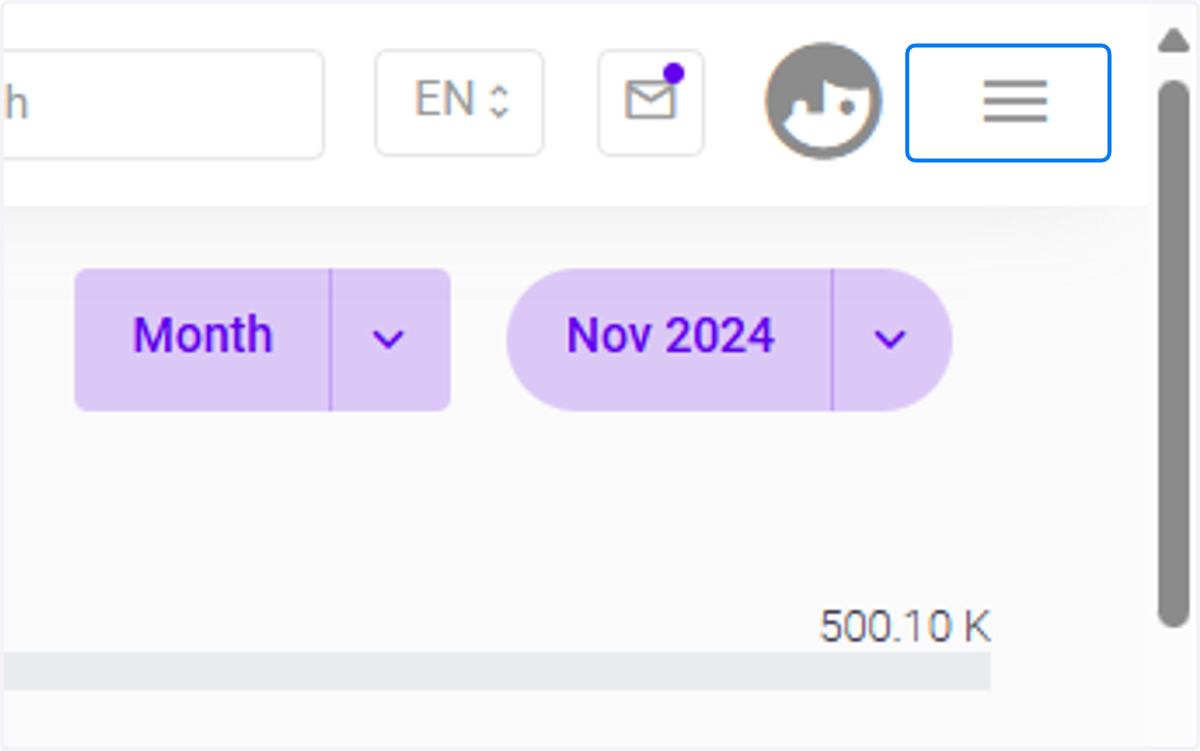
1. Click on the menu bar
Click the 3 barred button highlighted in blue to have a menu of modules.
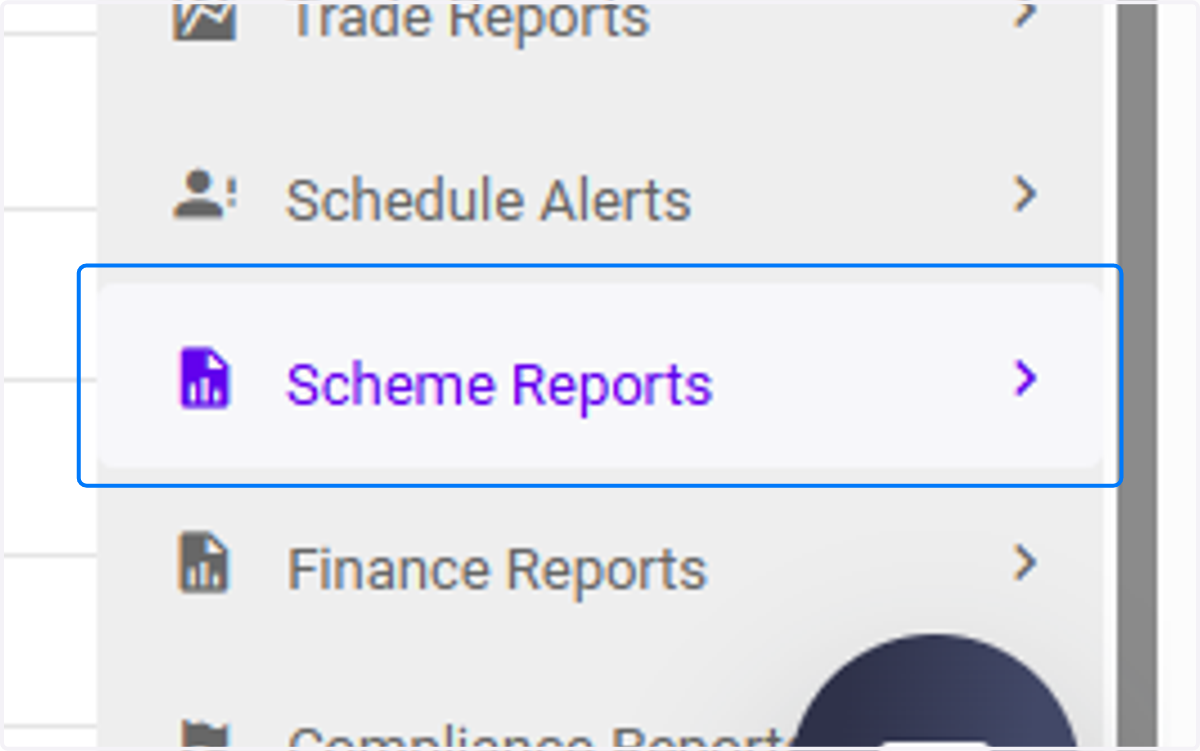
2. Click on Scheme Reports
The Scheme Reports module provides a comprehensive overview of the financial activities and positions related to a specific investment scheme or fund.
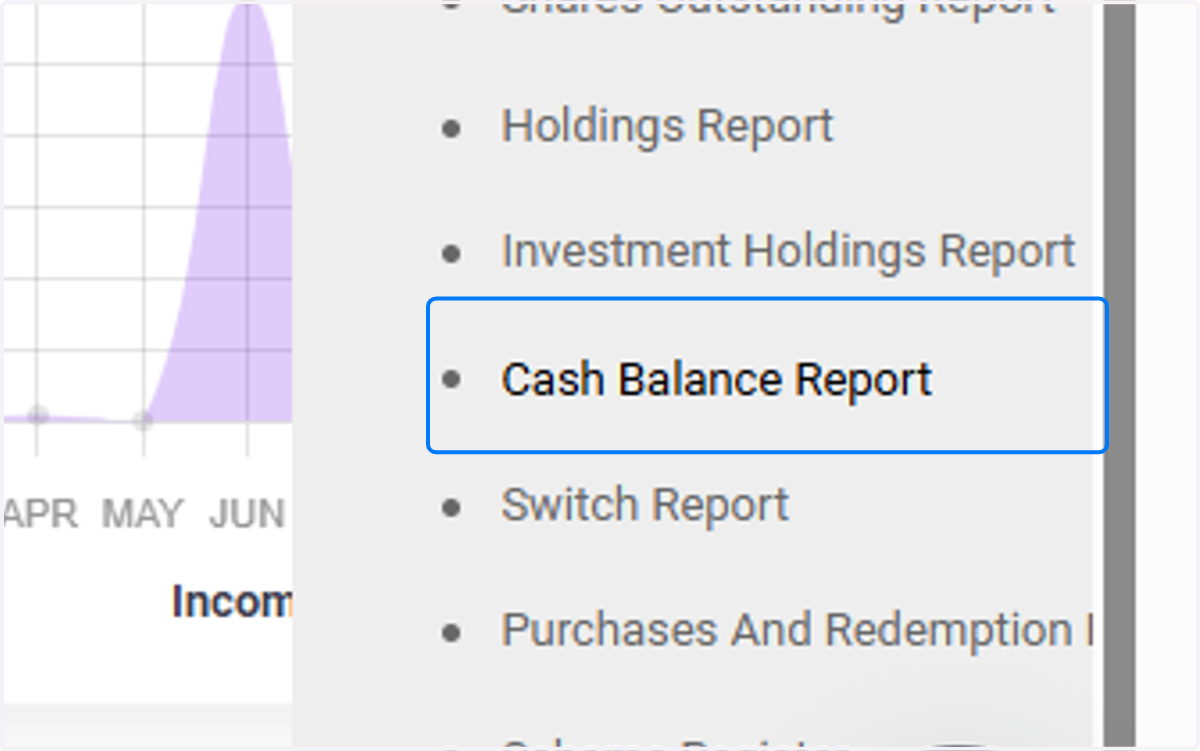
3. Click on Cash Balance Report
The Cash Balance sub-module, found under the Scheme Report Module, helps you view a detailed breakdown of cash activities for the specified account associated with a scheme:
4. Filters & Bulk Buttons
To filter the data to be populated on the page, click Filters & Bulk Buttons.
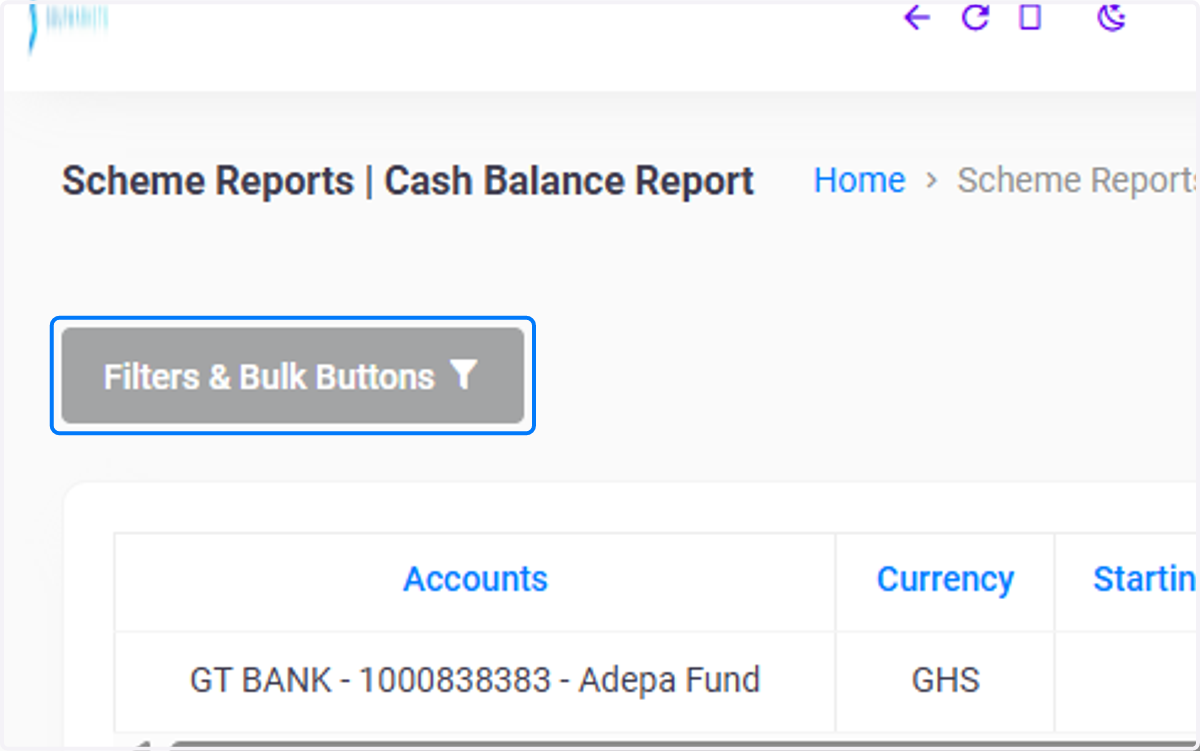
5. Selecting a date
The From filter allows users to set a specific start date for viewing cash balances, effectively narrowing the report’s data range.
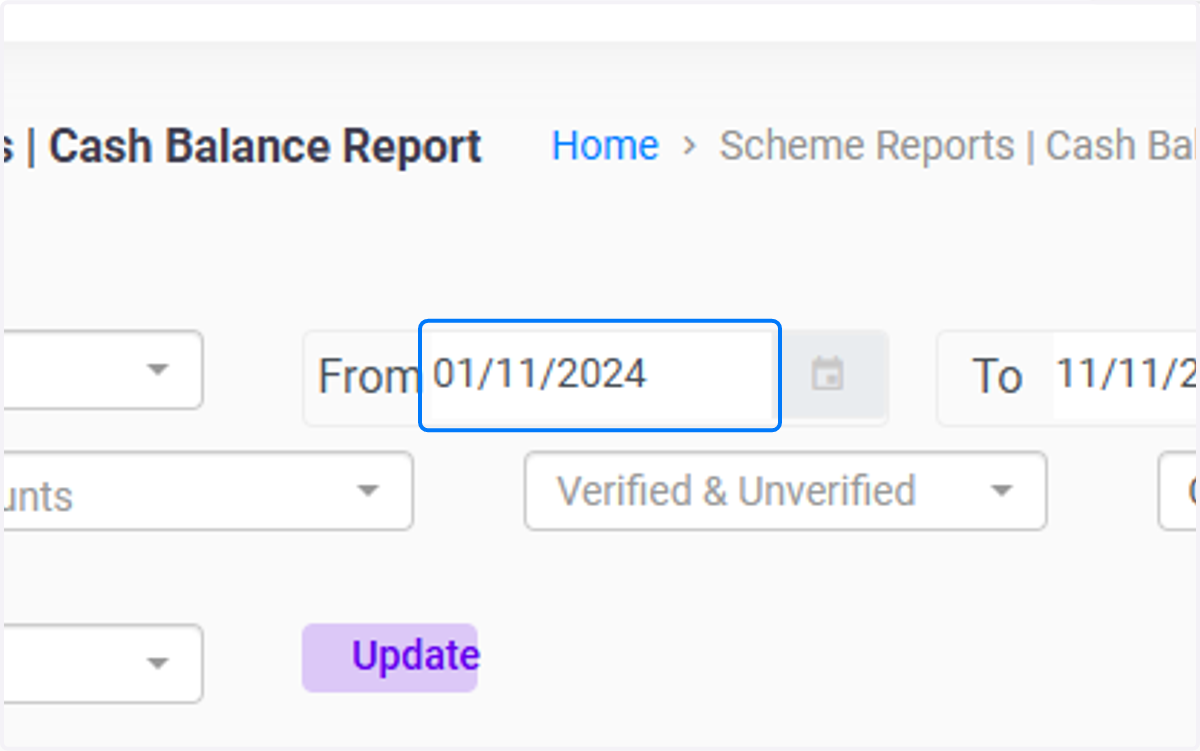
6. Selecting a date
Clicking To, helps set the end date for the reporting period, allowing users to view holdings up until a specific date, which is helpful for generating period-specific reports.
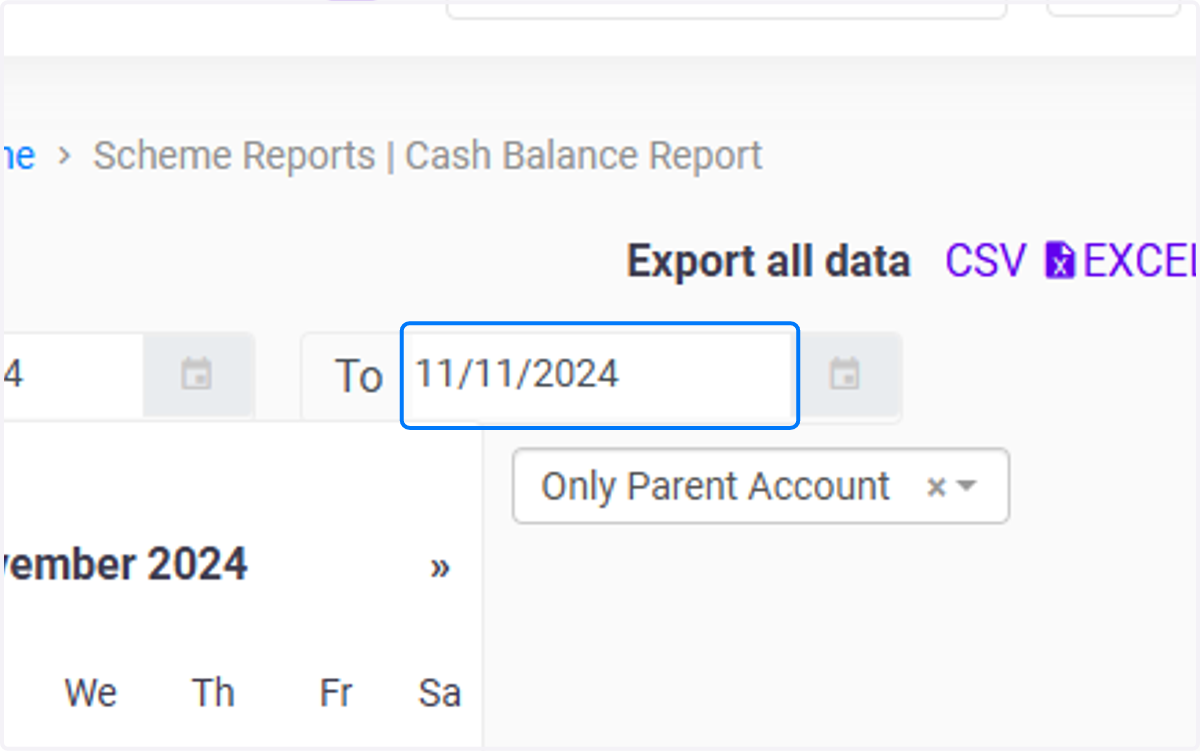
7. Selecting Ledger Accounts
Click on All Ledger Accounts field, This filter lets users choose which ledger accounts to include in the report. Users can select a specific ledger or view all ledgers at once, enabling them to focus on certain accounts or obtain a comprehensive overview of all ledger entries.
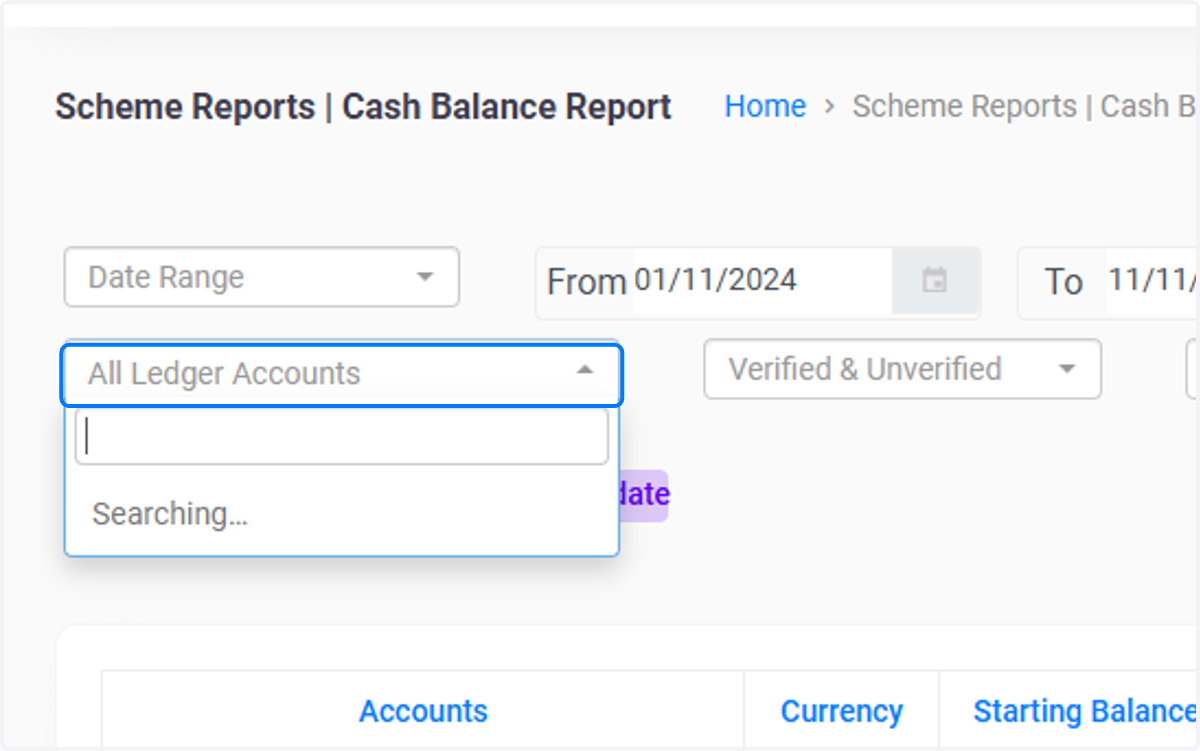
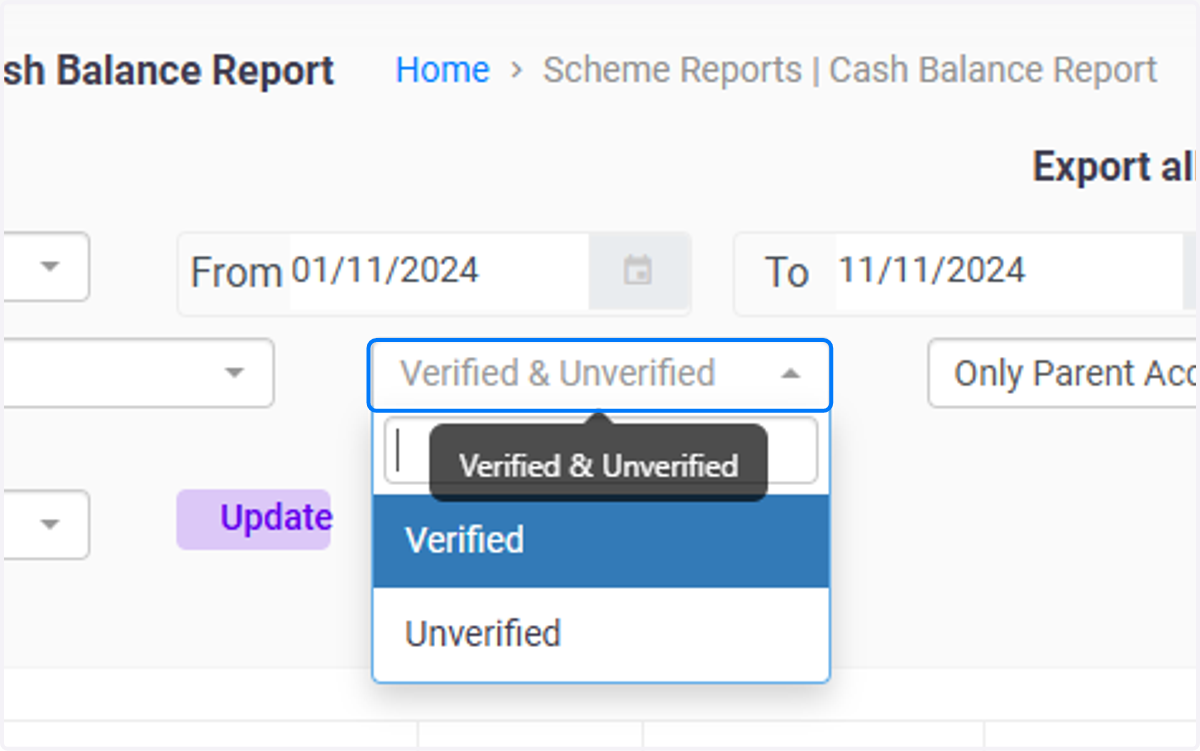
8. Click on Verified & Unverified
This field filters cash balance data based on verification status. Users can view only verified transactions, only unverified transactions, or both
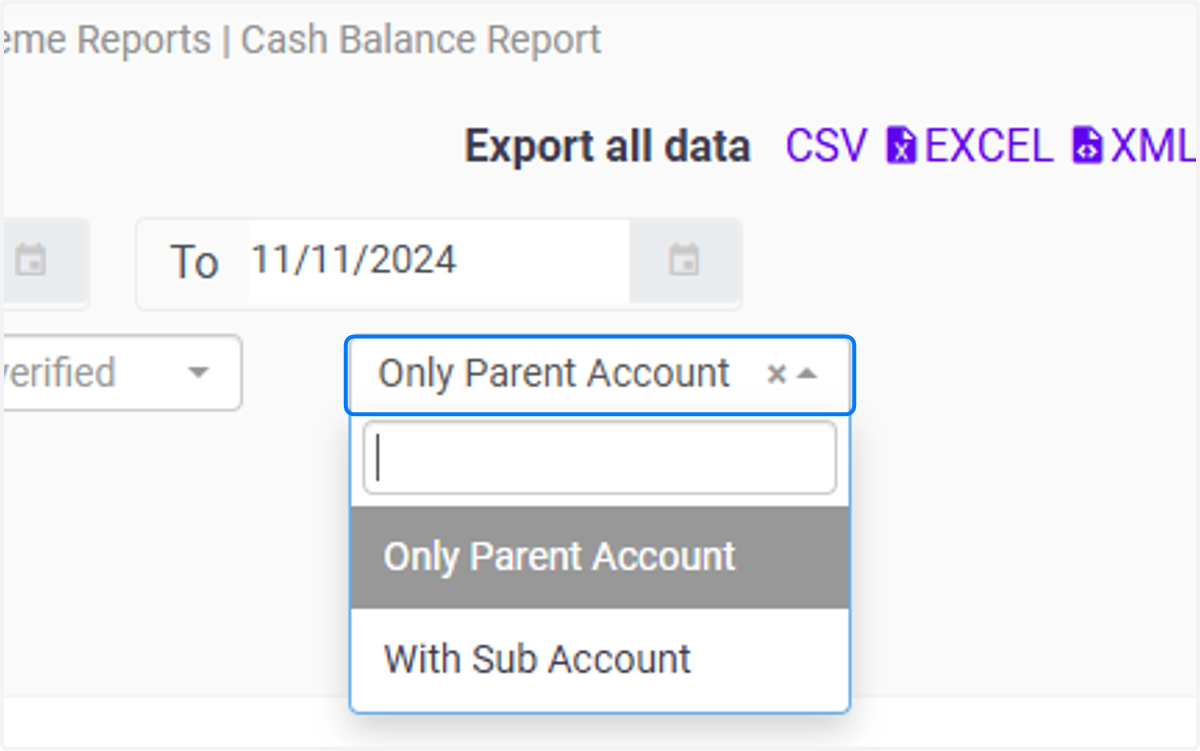
9. Click on Only Parent Account
This field allows users to focus on cash balances within a parent account or drill down to specific sub-accounts.
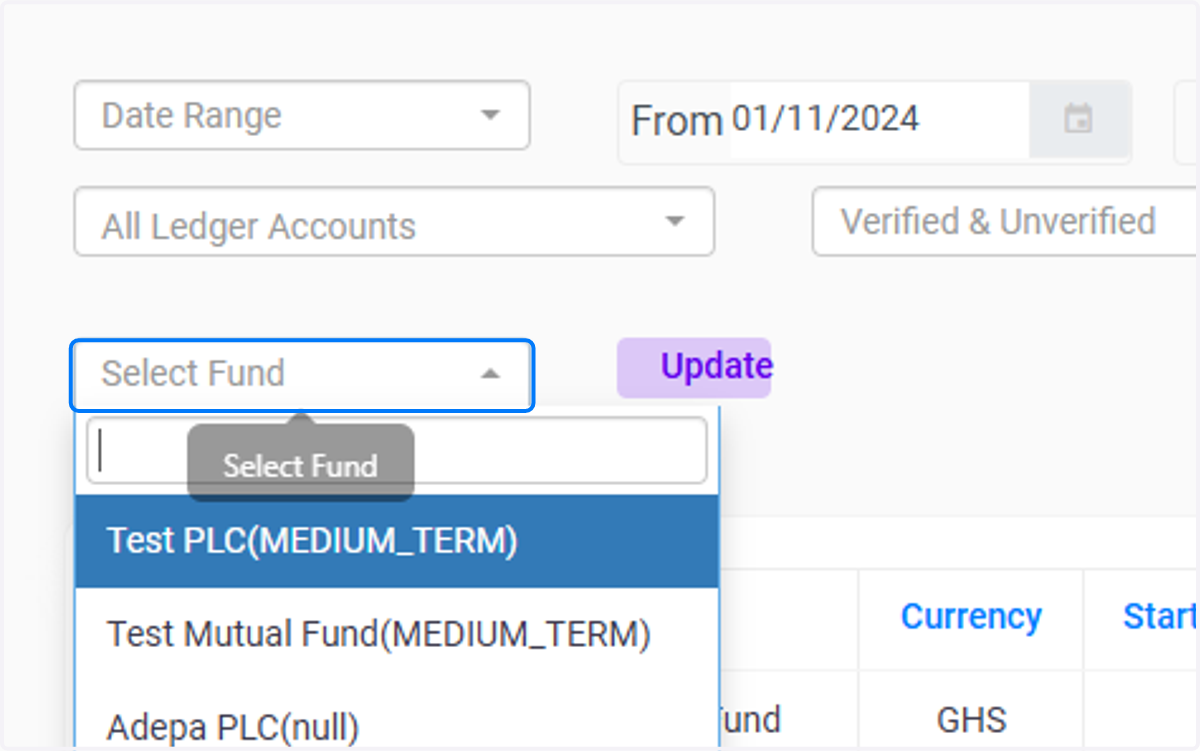
10. Click on Select Fund
This field enables filtering by a specific fund or scheme, ensuring that the report displays only the cash balances associated with the chosen fund. This is essential for fund managers who need fund-specific financial data.
11. Account Column
This column has the information of the institution and account number, such as "GT BANK - 1000838383 - Adepa Fund"
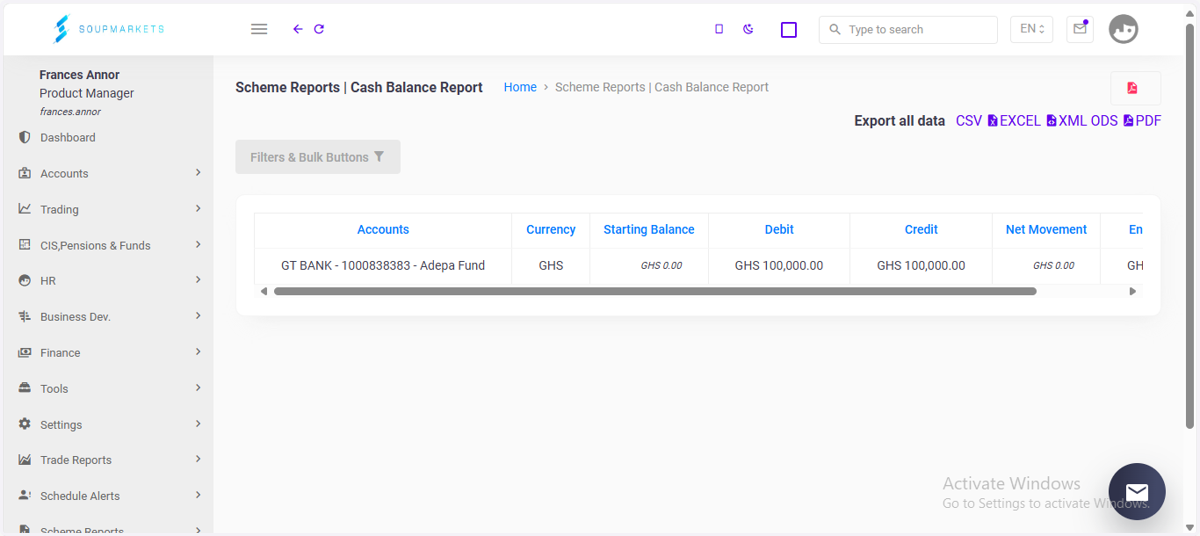
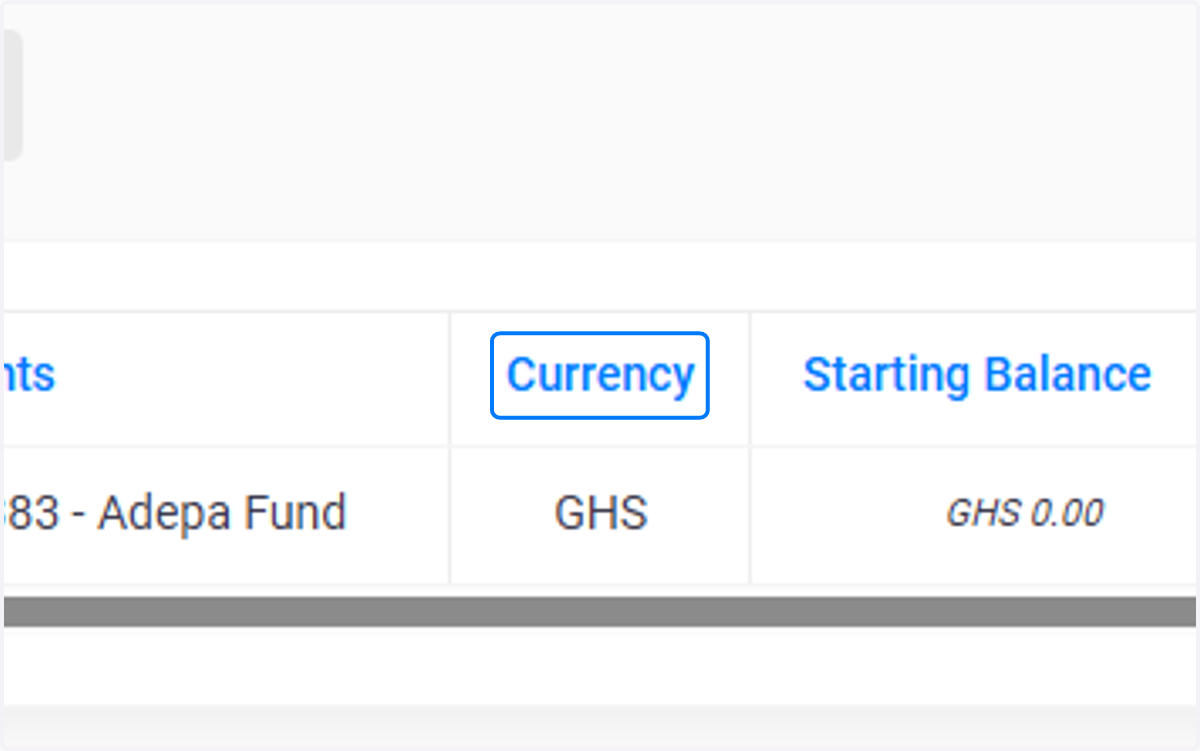
12. Currency Column
This column denotes the currency type shown here as GHS (Ghanaian Cedi).
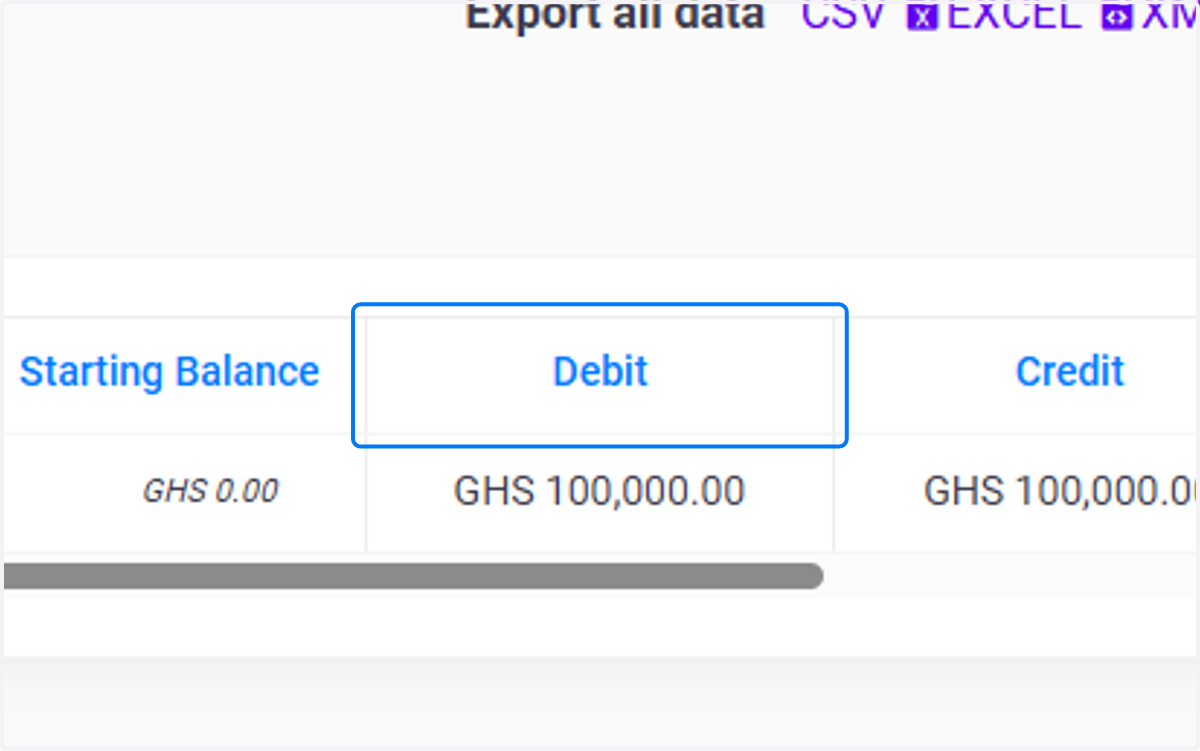
13. Debit Column
This reflects the total outflows or deductions, shown here as GHS 100,000.00 for this period.
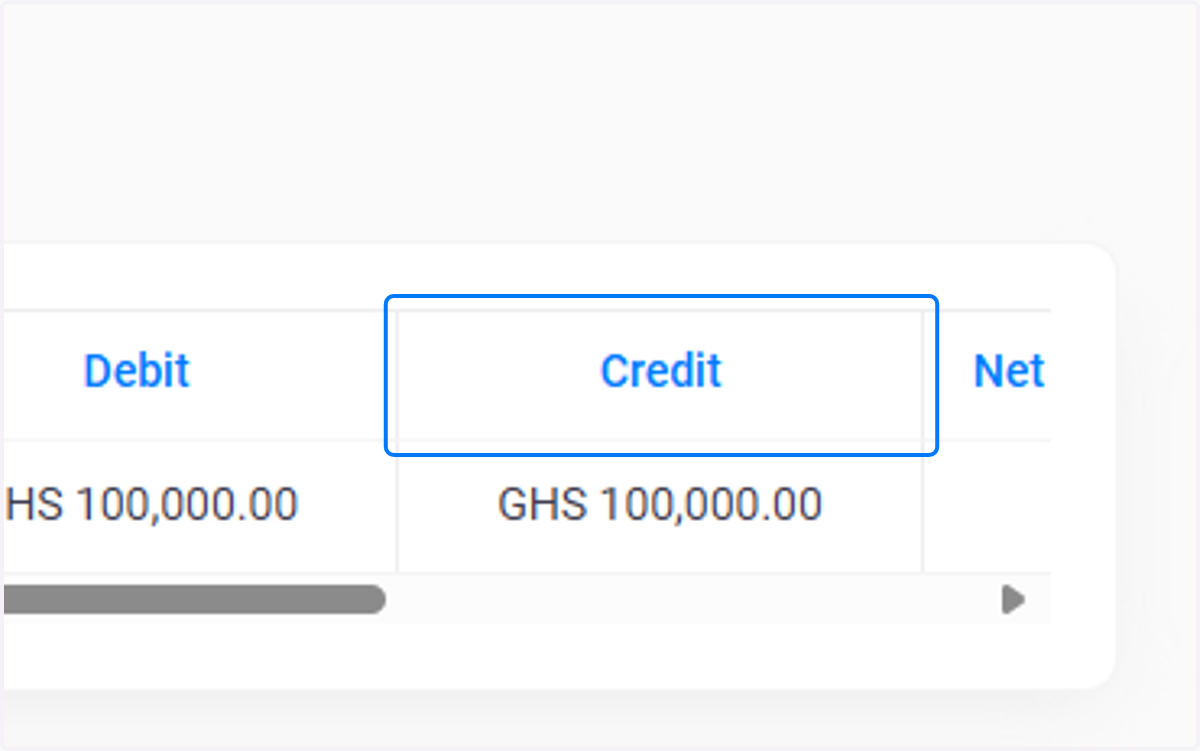
14. Credit Column
This shows the total inflows, also shown as GHS 100,000.00 in this instance.
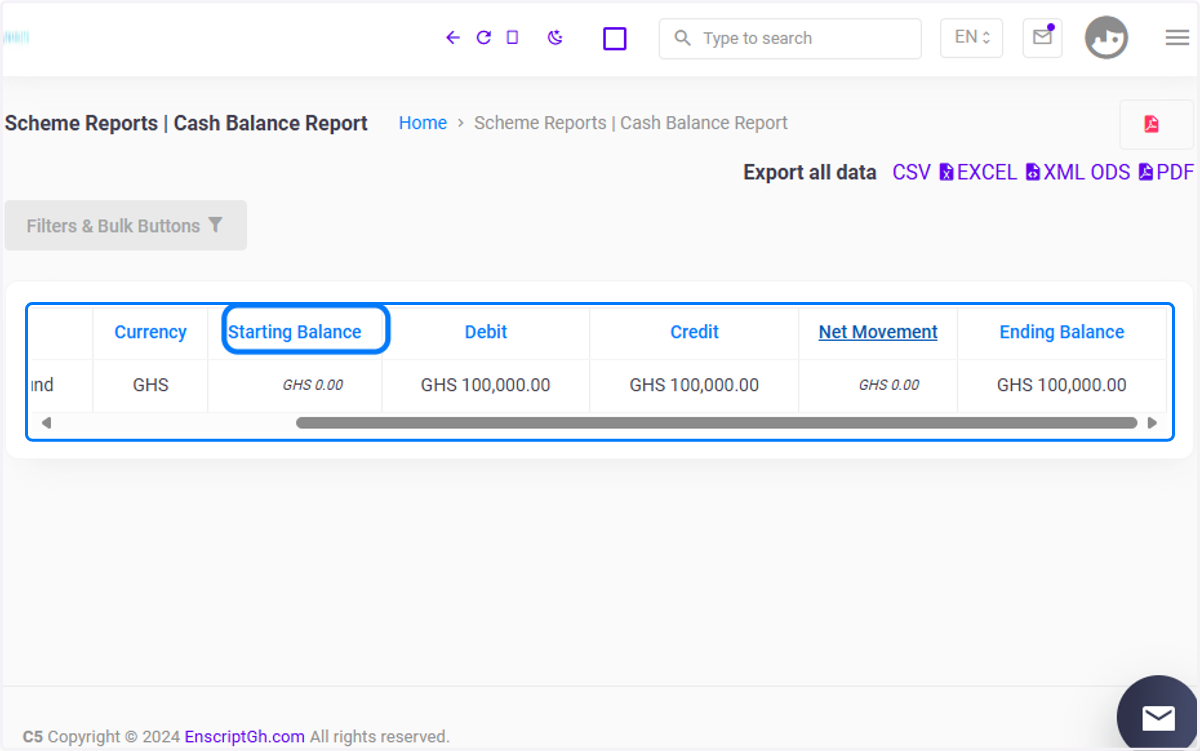
15. Starting Balance Column
This shows the initial balance at the start of the period, which in this case was GHS 0.00.
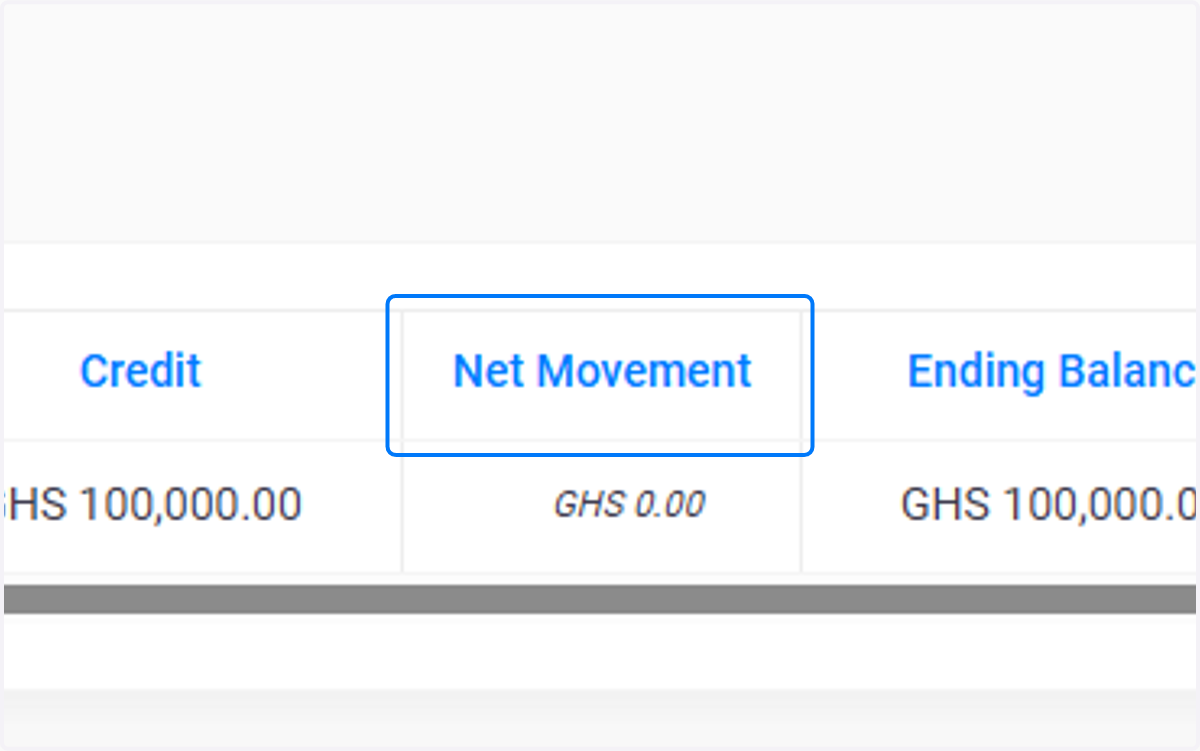
16. Net movement
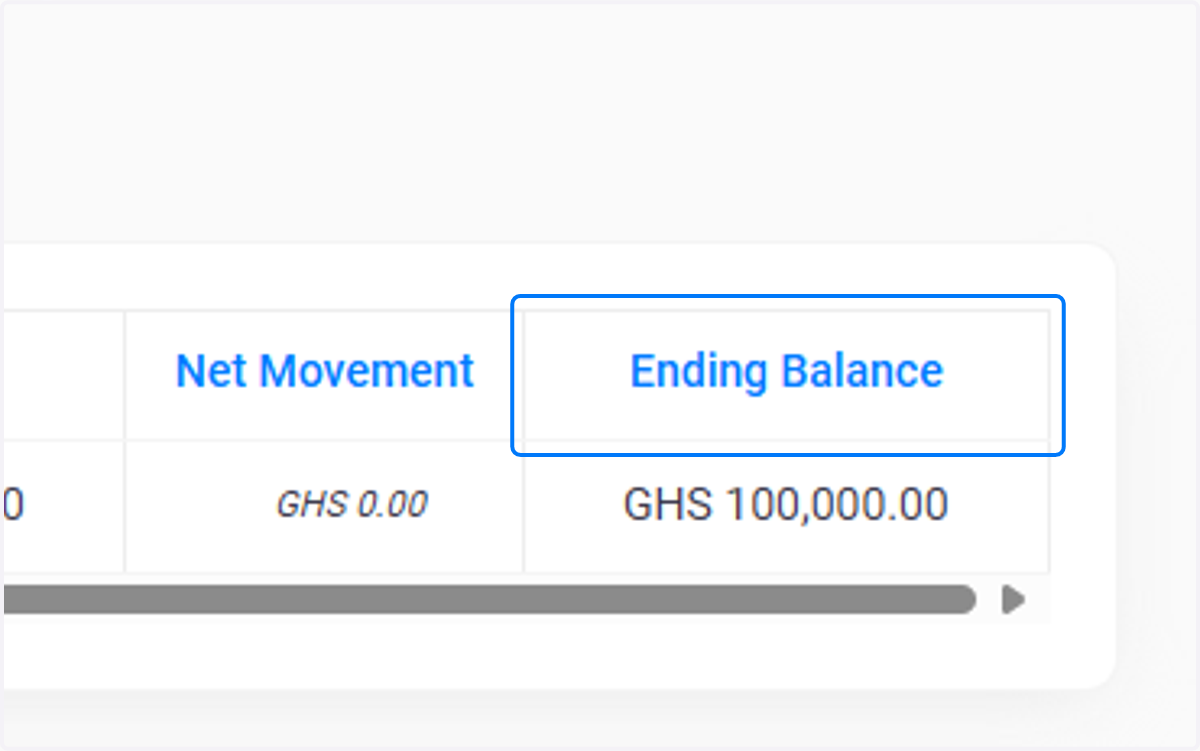
The Net Movement column is calculated as the difference between total credits and debits, indicating balanced inflows and outflows, showing GHS 0.00 here,
17. Ending Balance Column
This is the remaining balance at the end of the period, this is shown as GHS 100,000.00 in the image below