How to send push notifications
These instructions details how to send a push notification via the mobile app content management system.
1. Log in to the mobile app content management system (cms)
The log in credentials for the account can be found in Caliber. You may review this guide on how to locate credentials in Caliber.
2. Select the community app from the dashboard
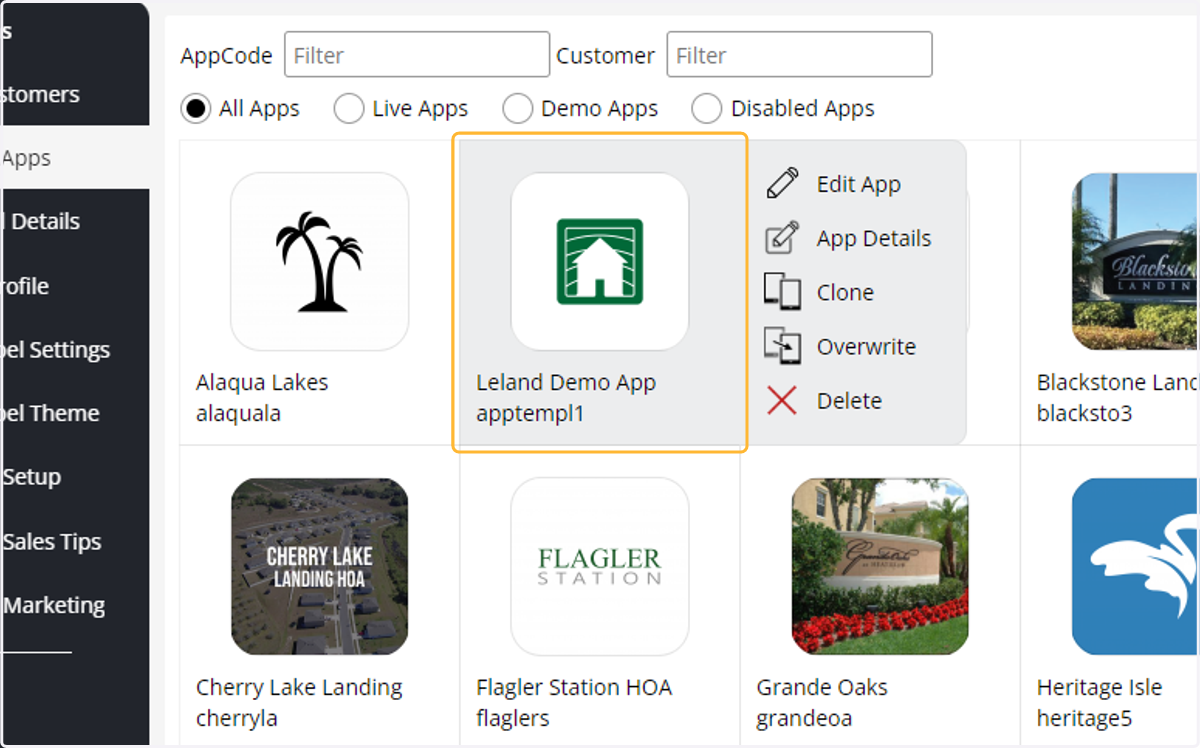
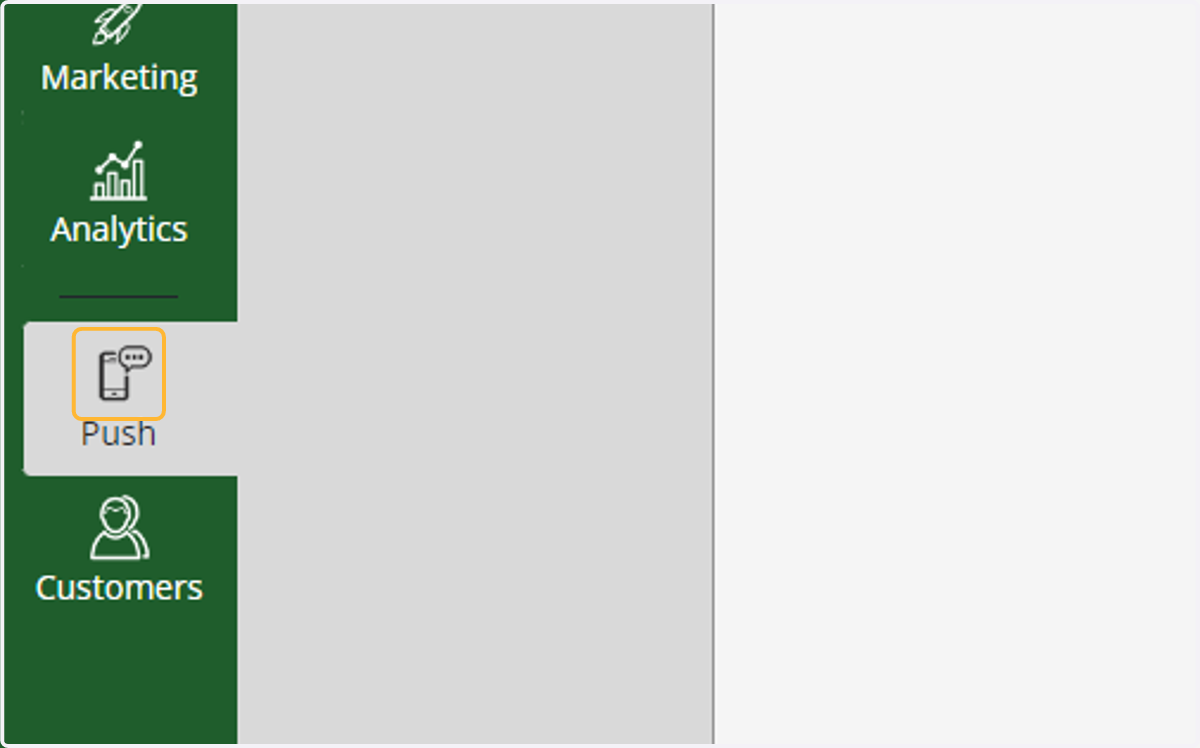
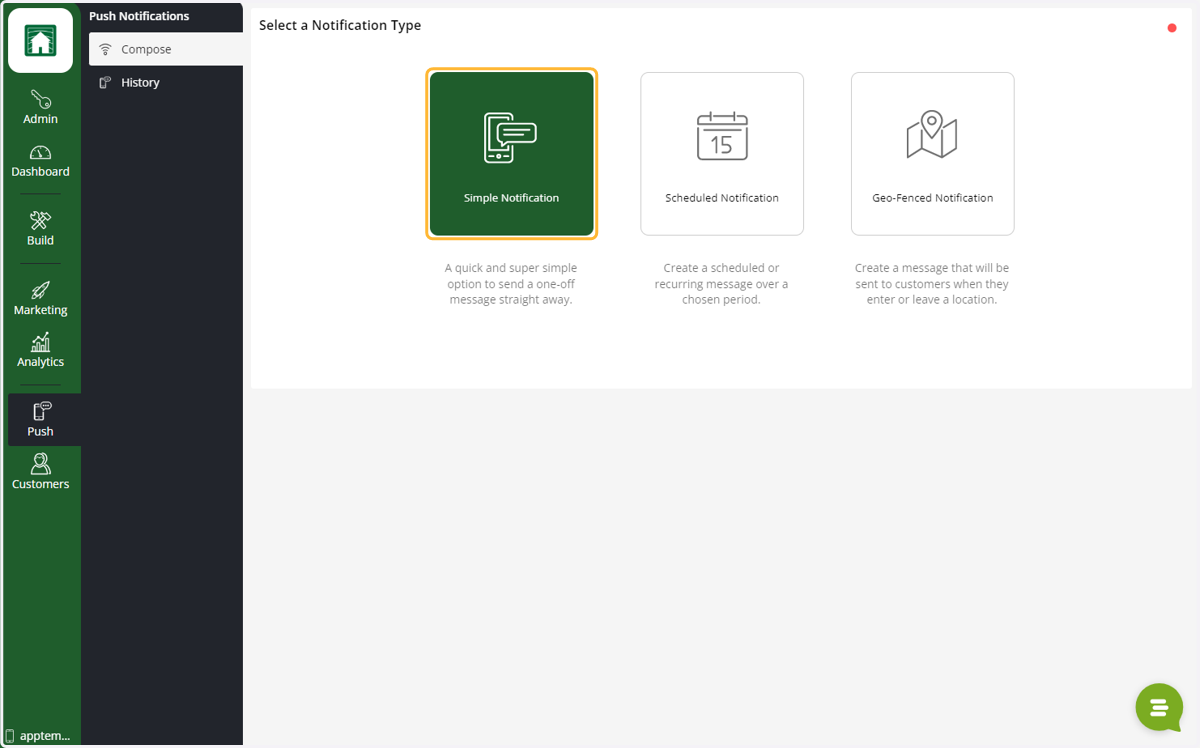
3. Select Push
4. Select Compose
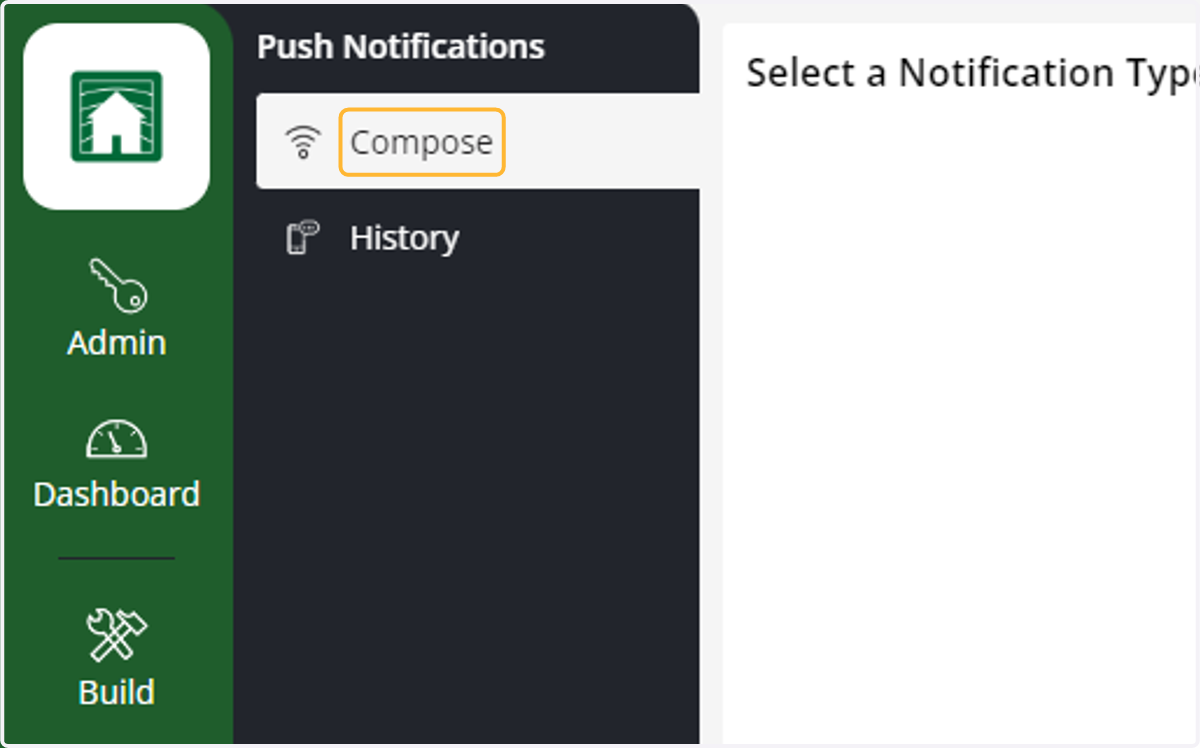
5. Choose a notification type
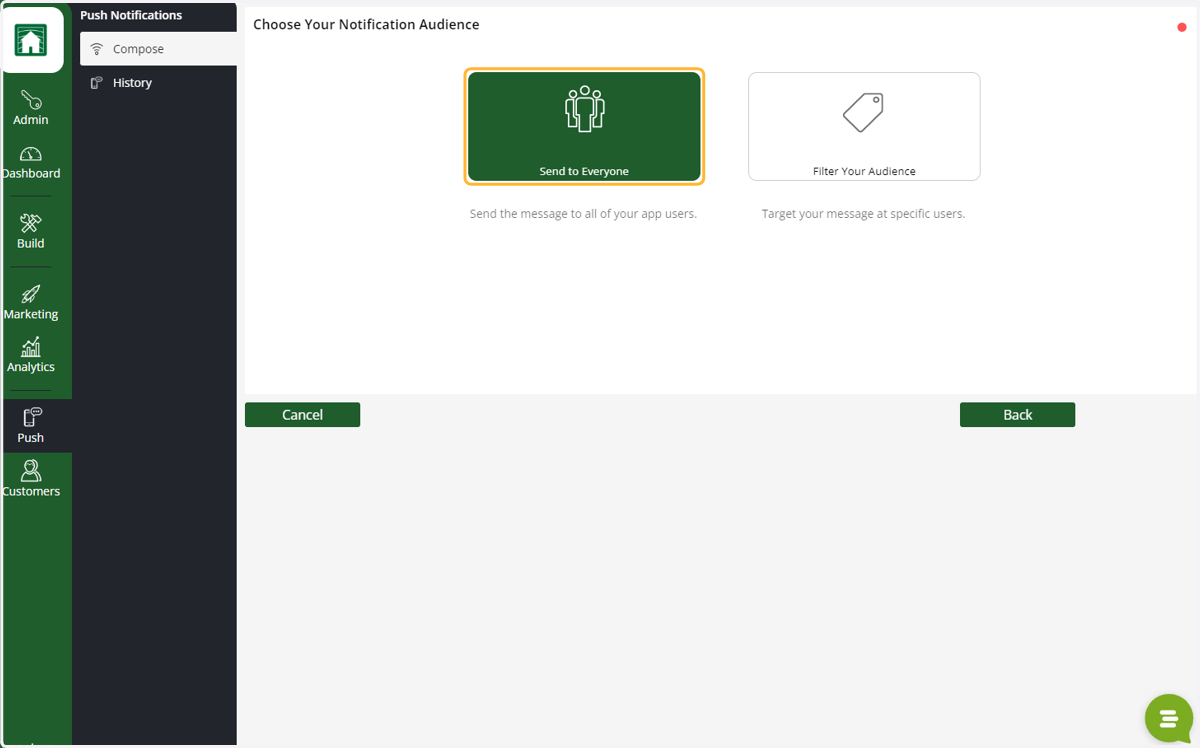
6. Select an audience for the notification
The default would be send to everyone.
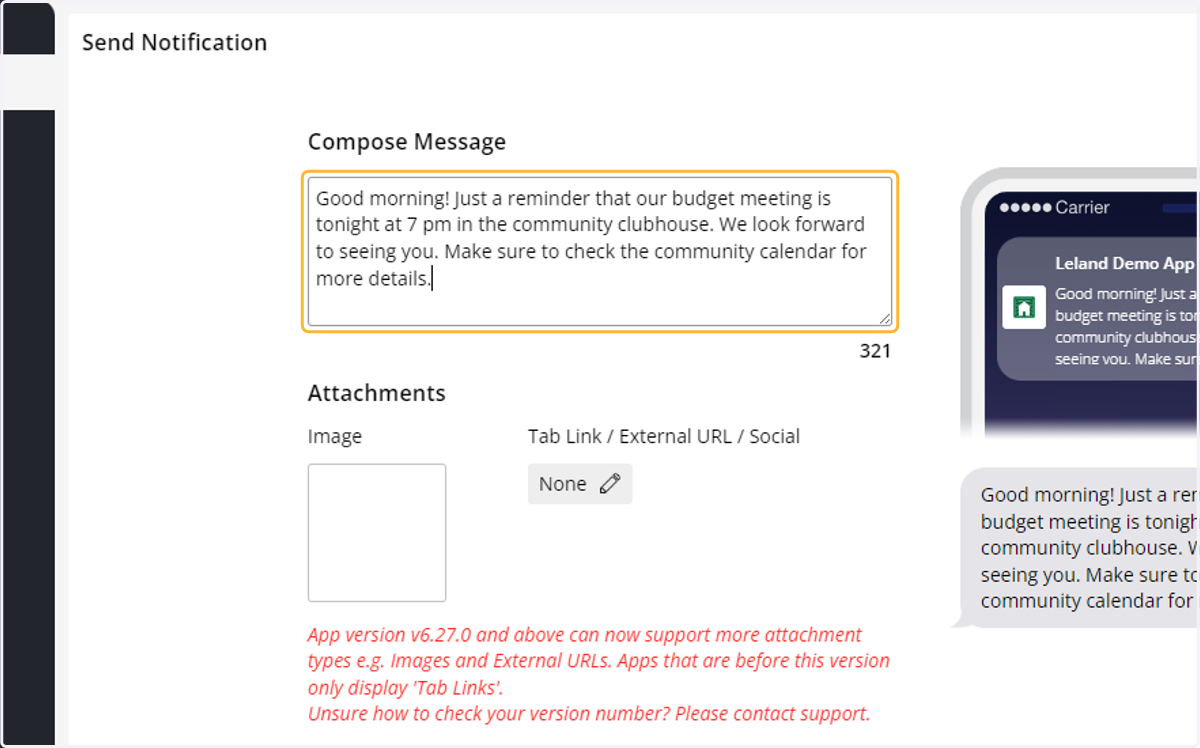
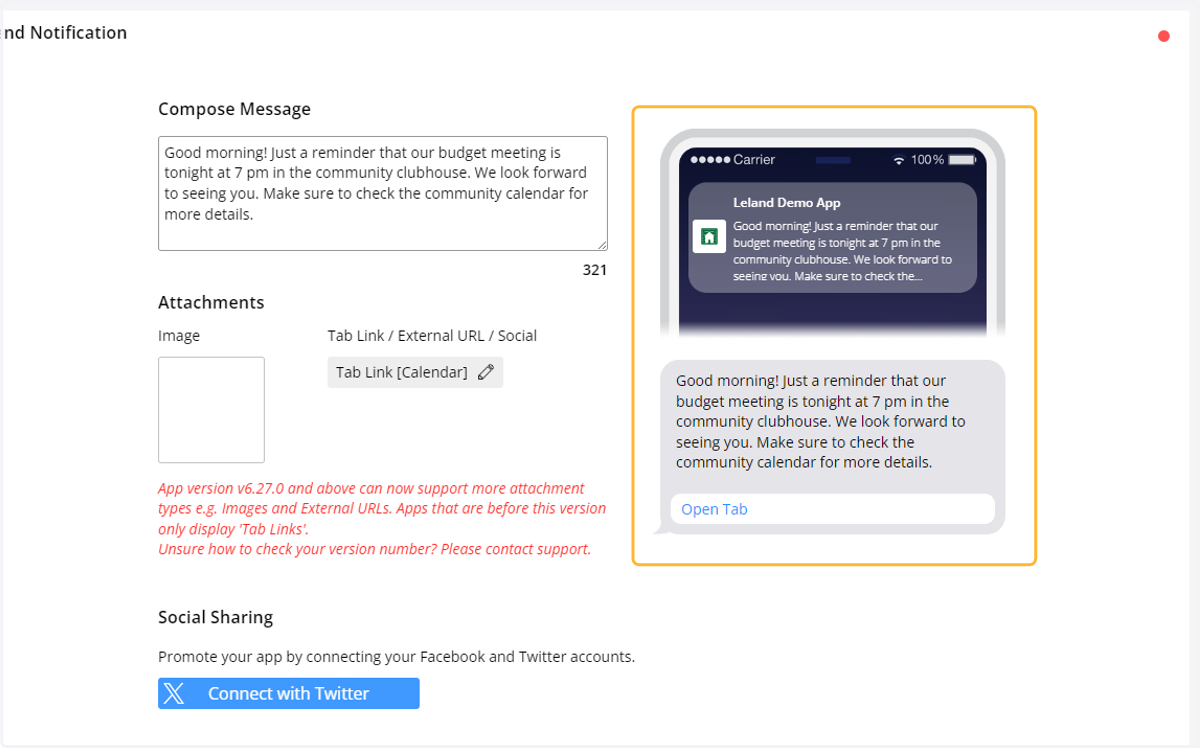
7. Enter the content of your message
There is a 512-character limit
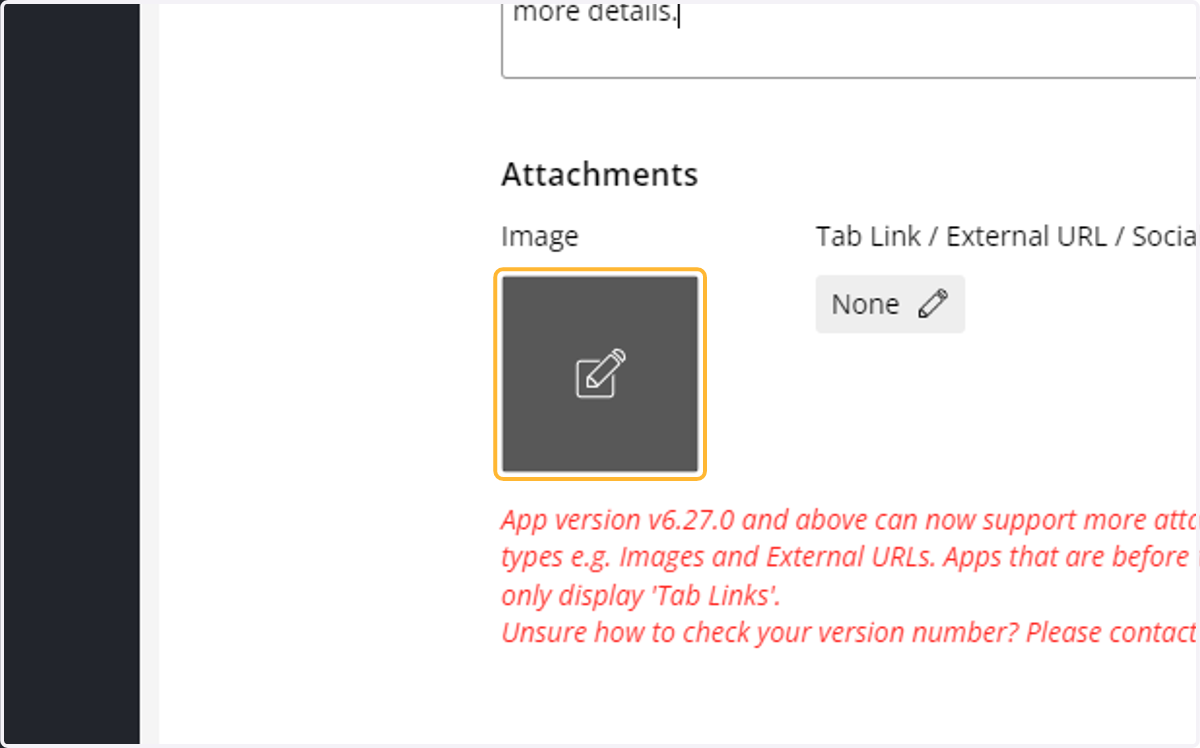
8. You can add an image to the notification (optional)
9. Link the notification to a tab or URL
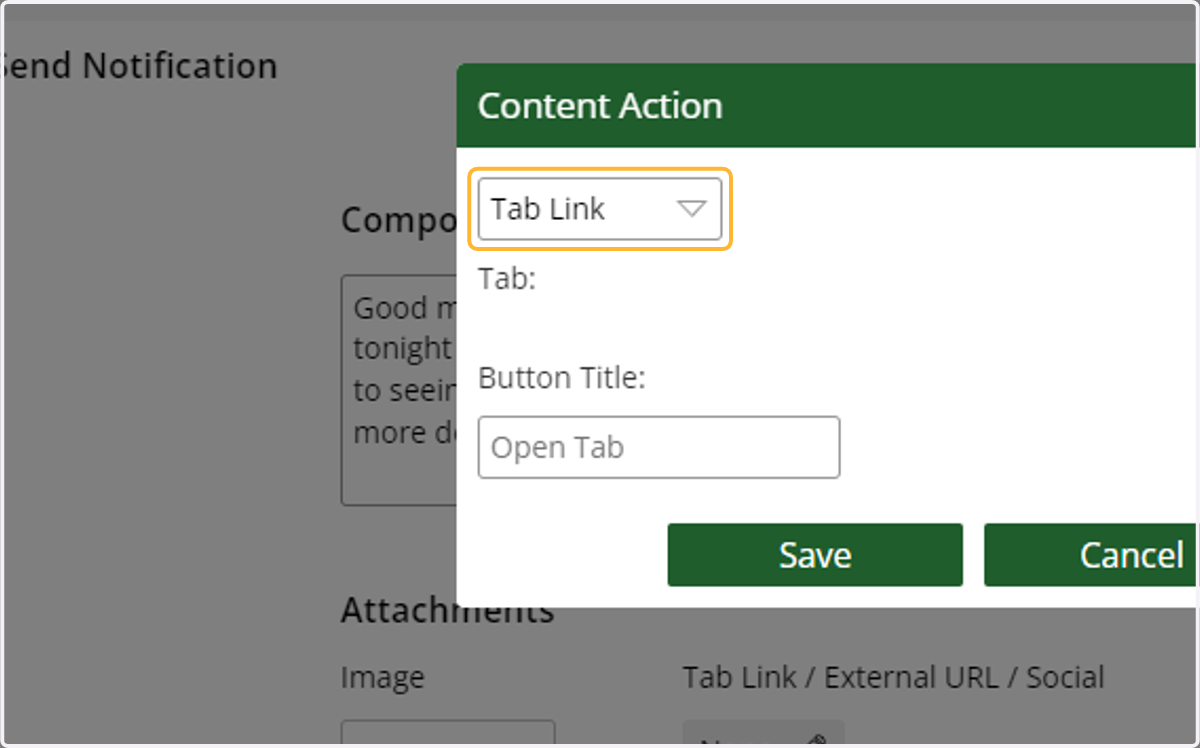
You can make the notification interactive. This will direct the user to a specific URL or tab within the app when they tap the notification.
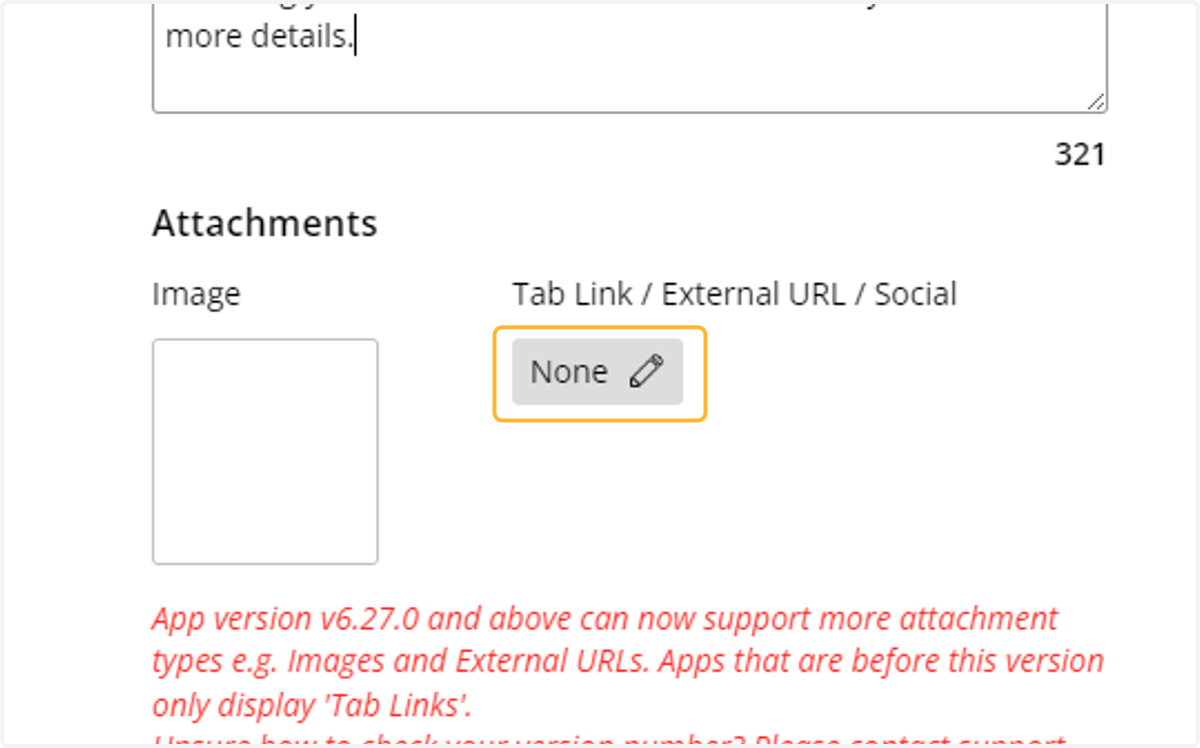
10. Select Tab Link
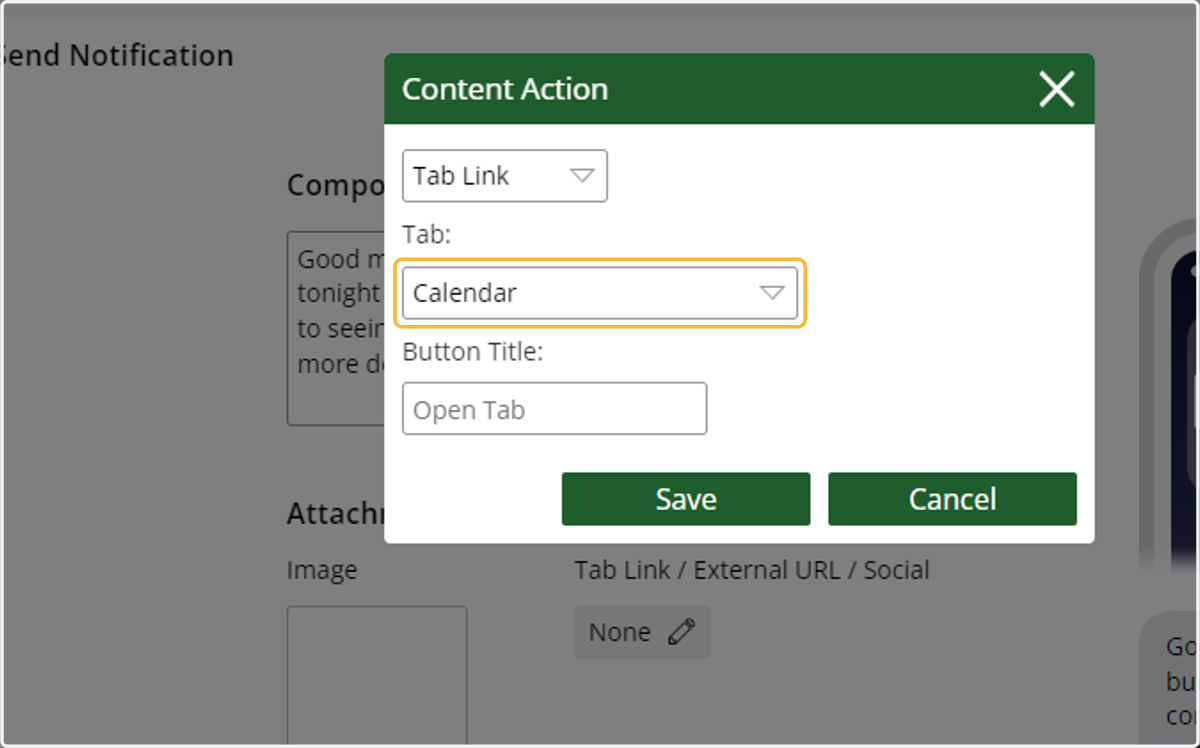
11. Select Calendar
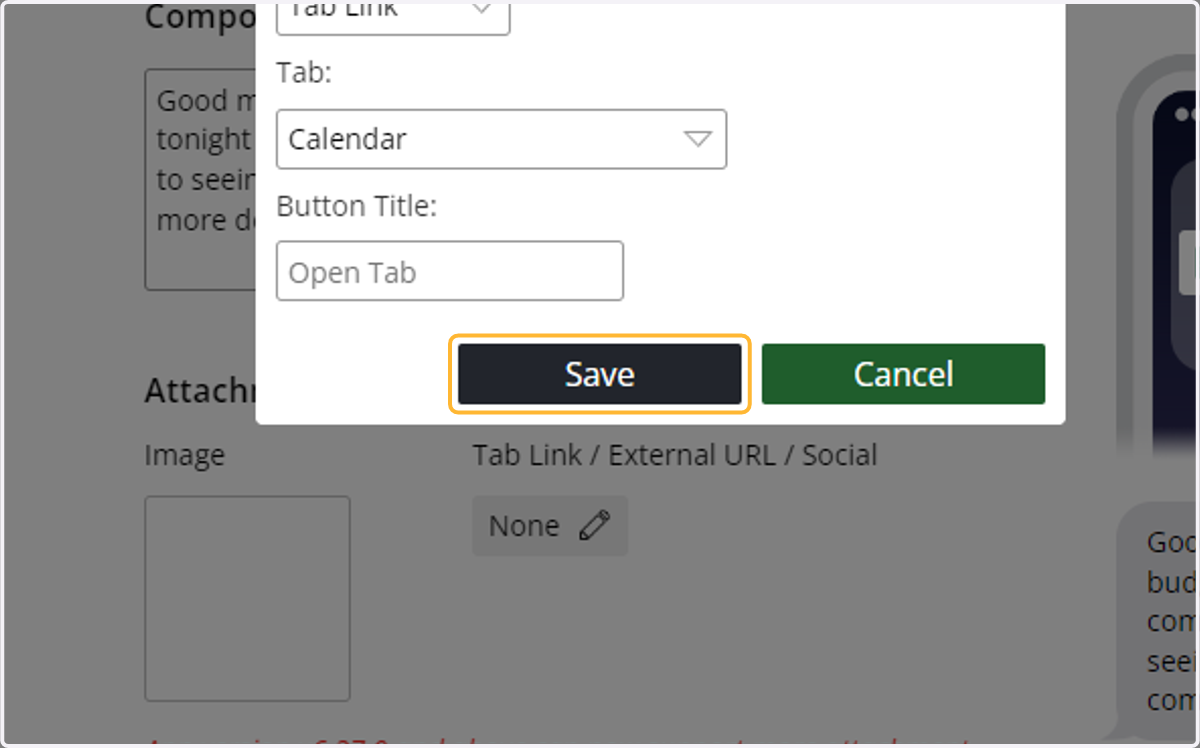
12. Click on Save
13. Review the sample of the push notification
This will show you a sample of how it will appear as a notification and on the notifications tab in the app.
14. Once complete, click "save"
15. View history of notifications
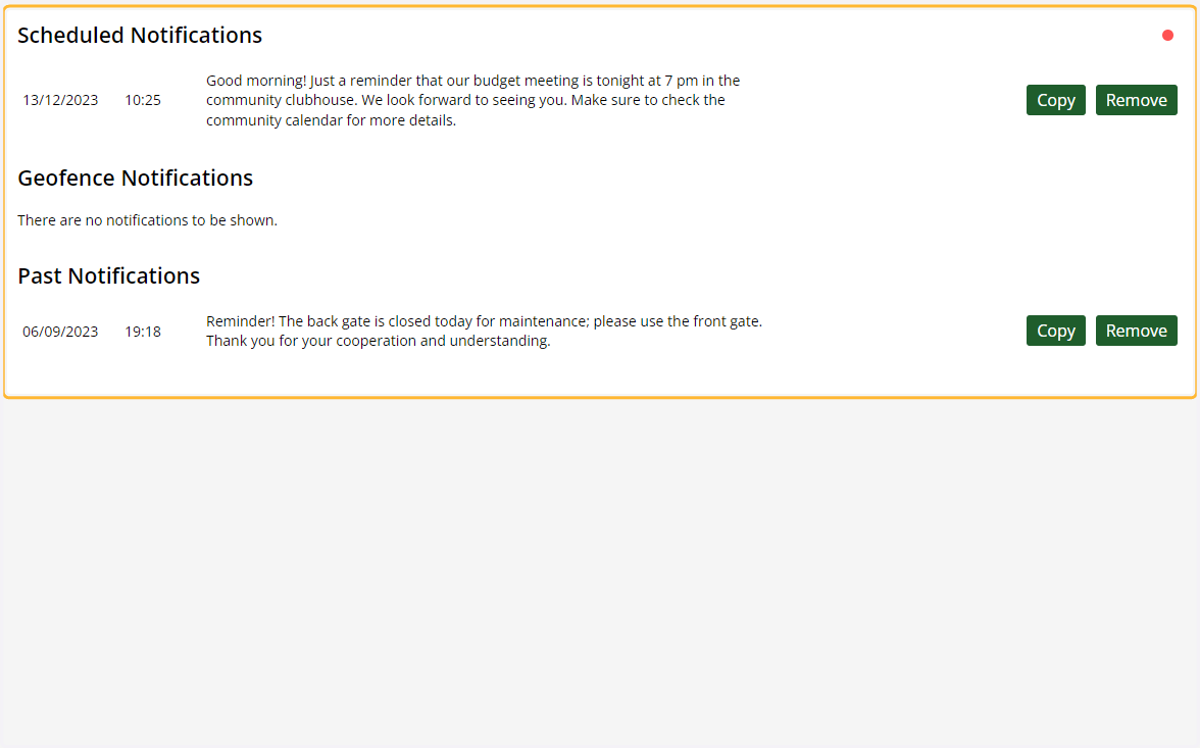
Based on the notification type, you will see when the notification was sent, or will be sent.