How to Reset the Password for your Microsoft Azure Account
Go to https://portal.azure.com
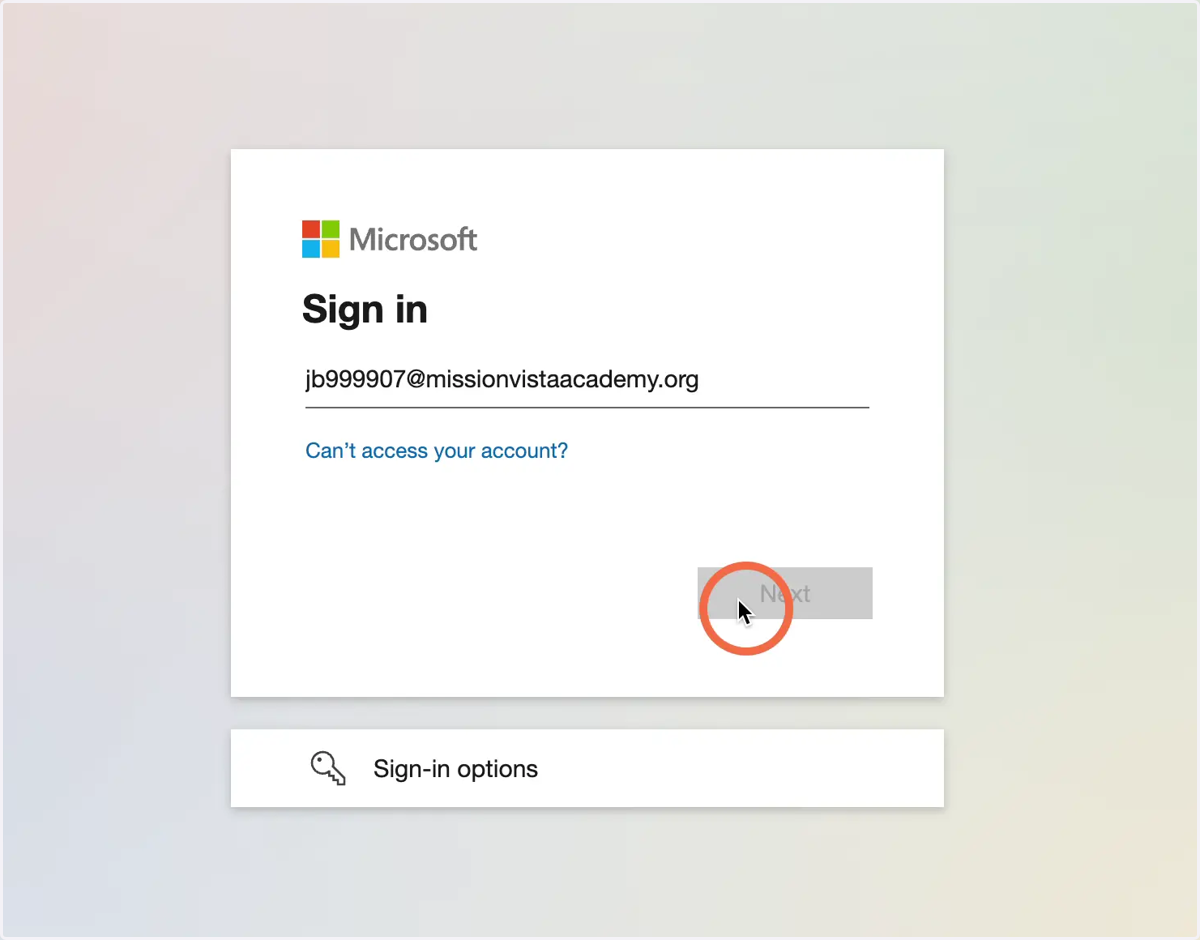
1. Enter your school email address and click Next
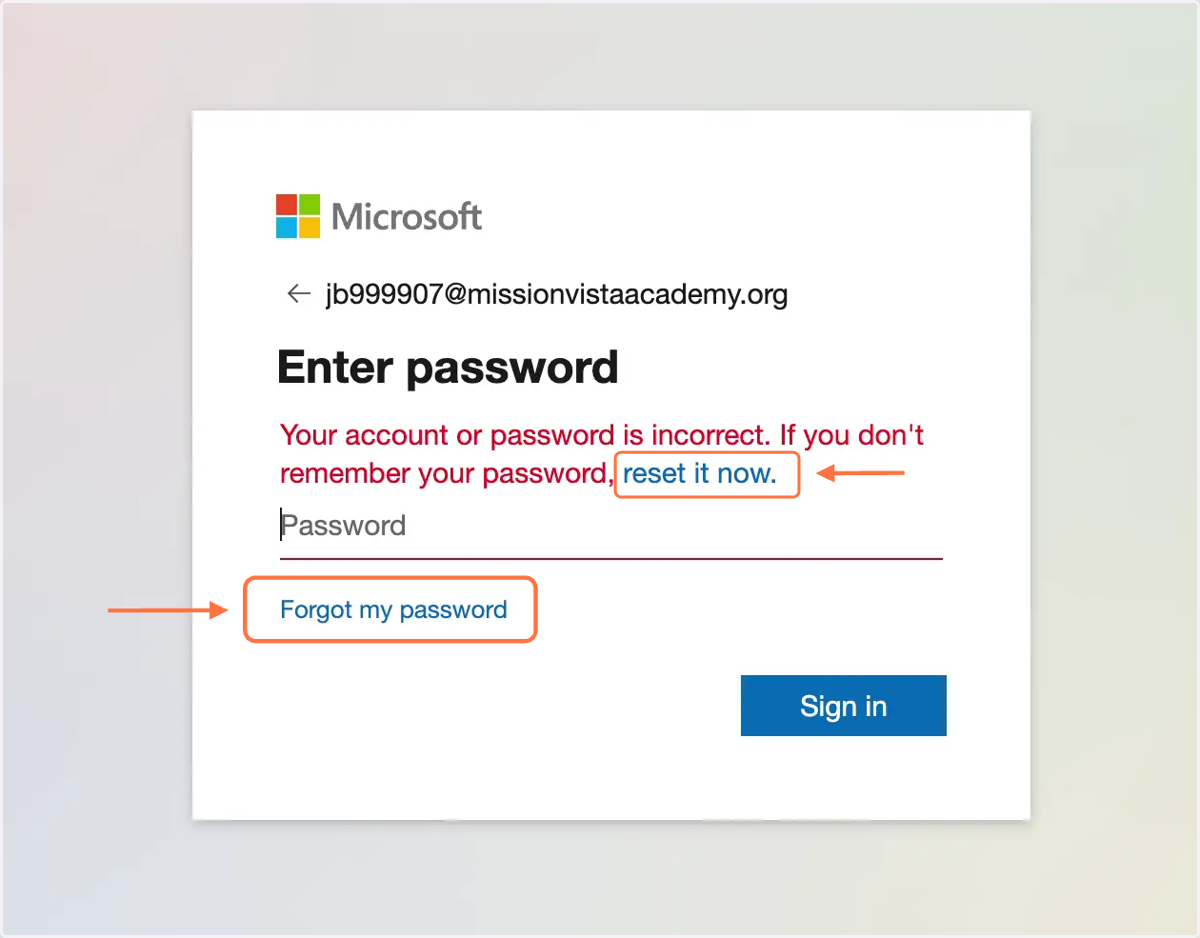
2. If your password is incorrect or you forgot your password...
Click on the "Reset it now" link or click on the "Forgot my password" link to reset your password.
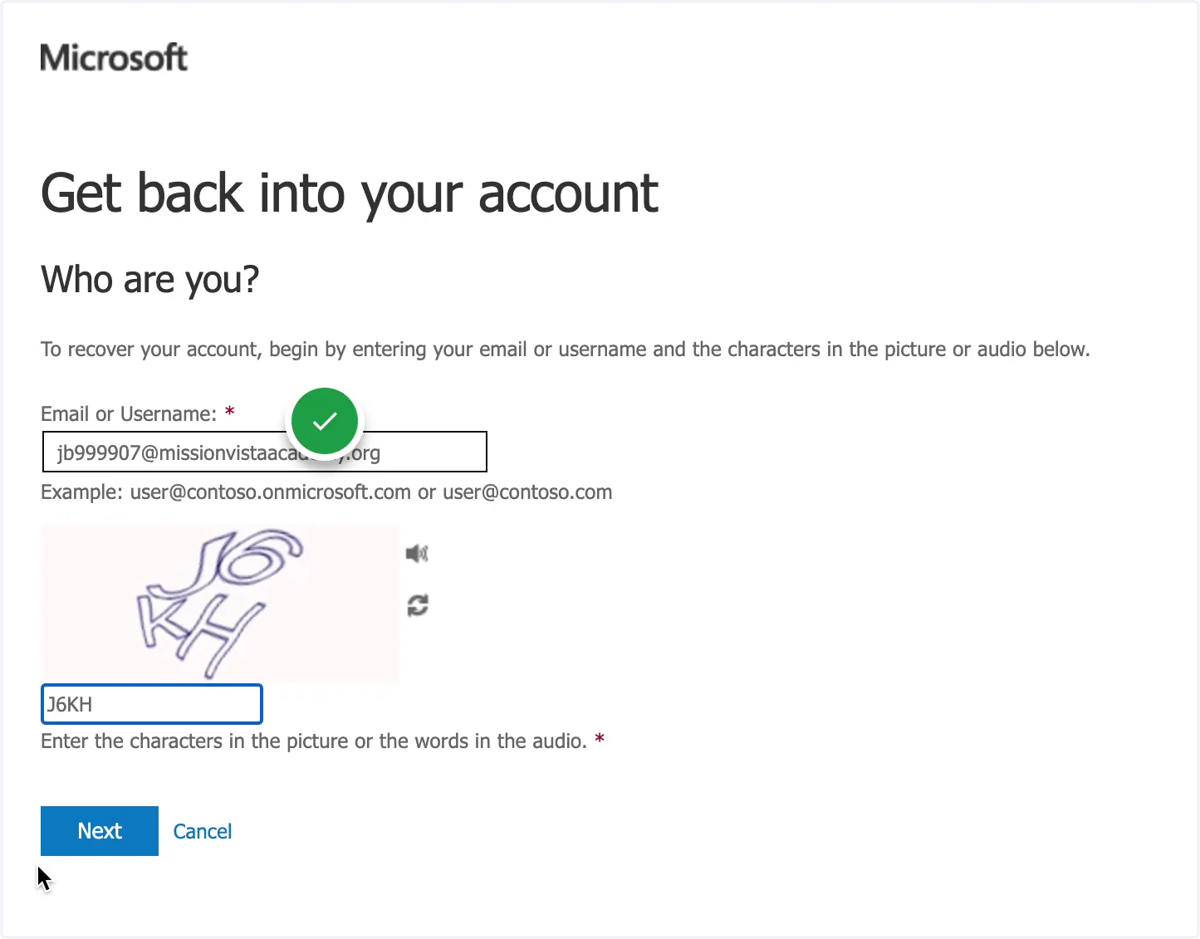
3. Get back into your account...
In the "Email or Username" box, enter your student's school email account and complete the CAPTCHA, then click Next.
IMPORTANT NOTE: This is not the email address the verification code will be sent to. You will select where to send the verification code on the next page.
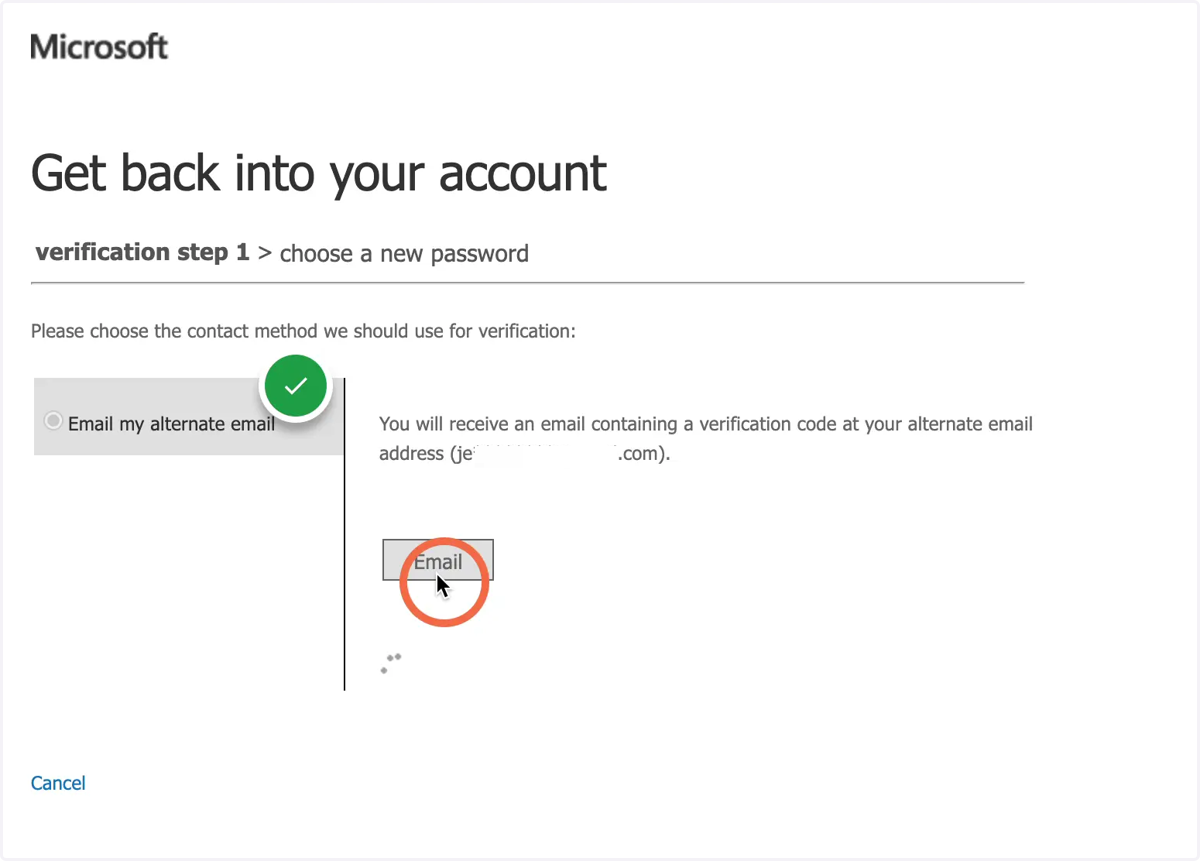
4. Verification email to reset the password
You will have one or multiple options to have a verification code sent to the alternate email address or phone number on file.
5. Check your email inbox or phone for the verification code
Open the email or phone verification from Microsoft Azure and copy the code
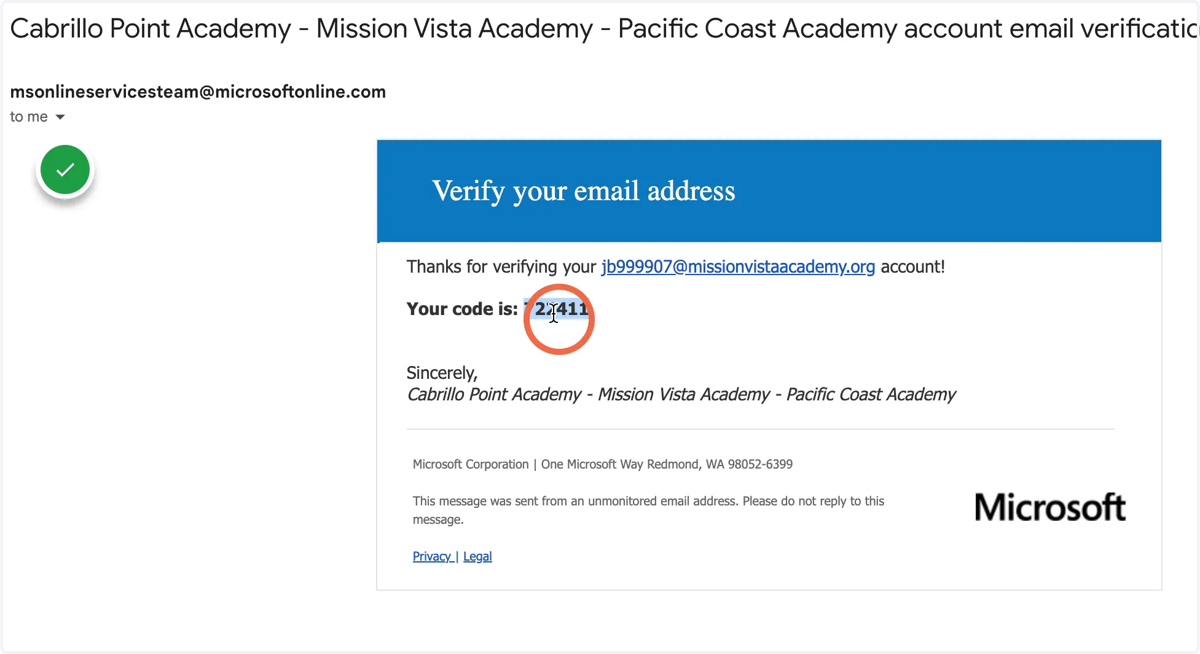
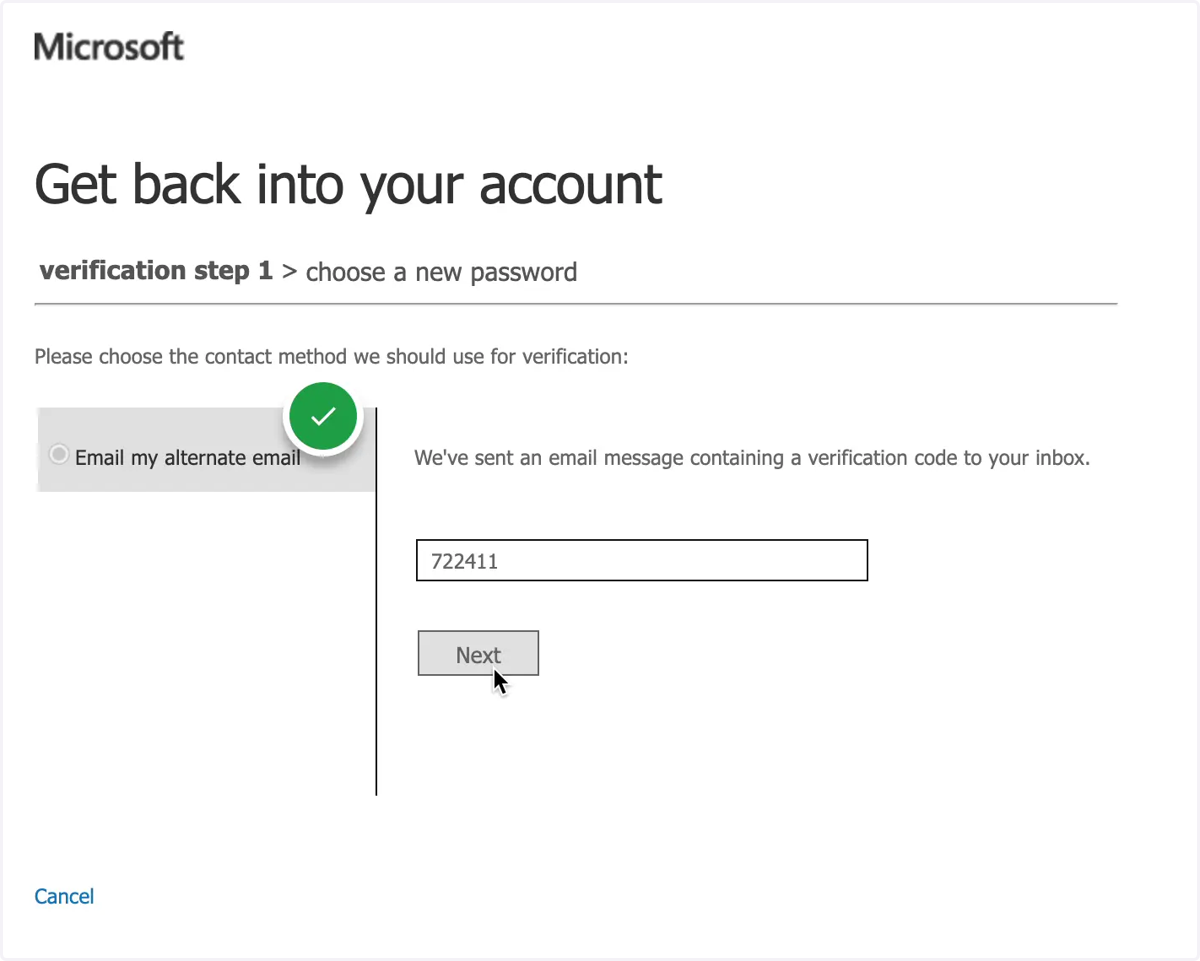
6. Paste or enter the code into the verification box and click Next
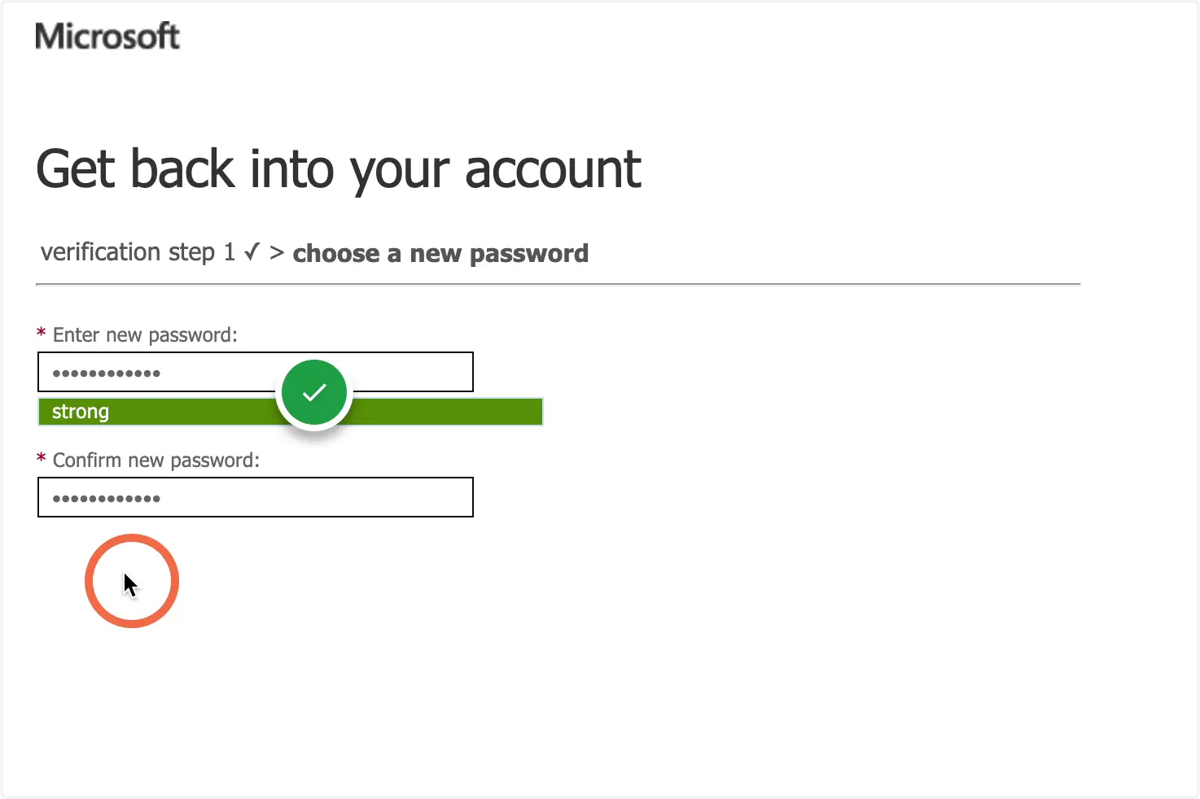
7. Enter your new password and click Submit
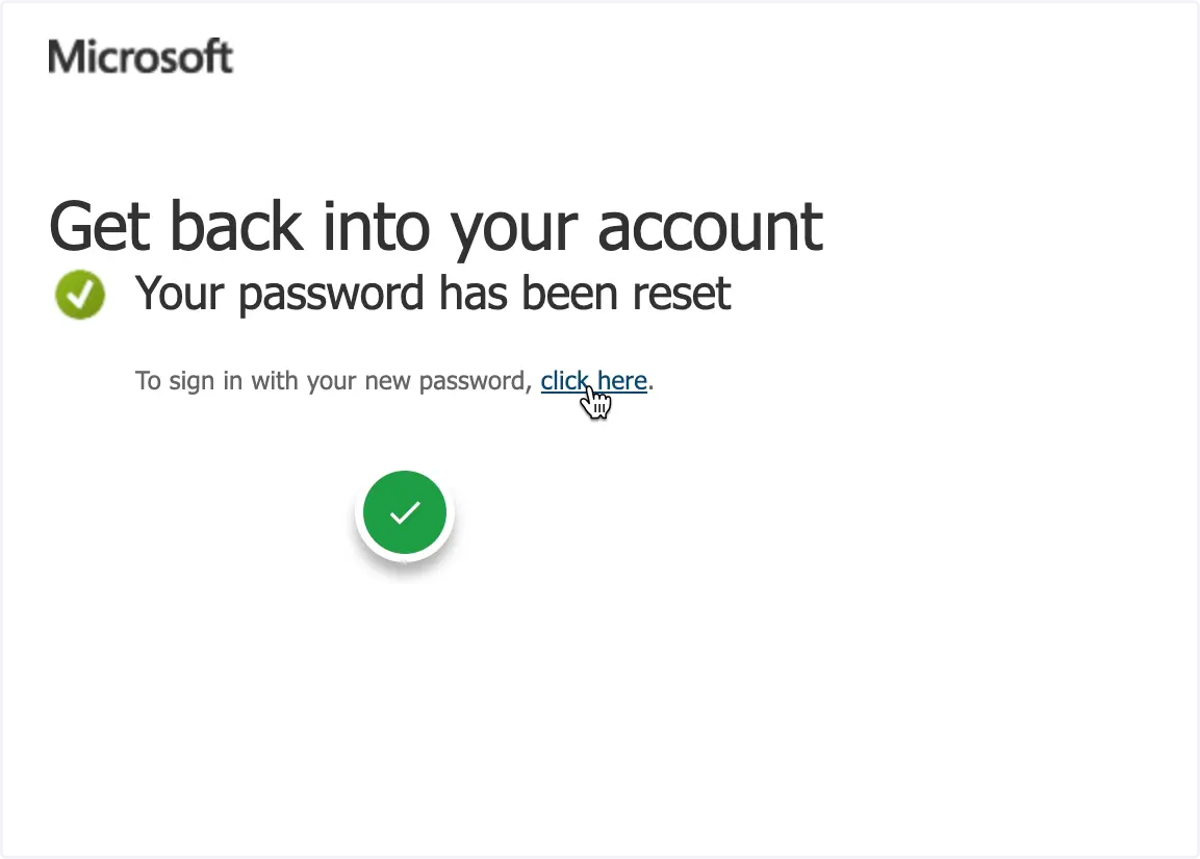
8. Your password has been reset
You will use this new password the next time you need to authenticate with Azure to access a Zoom meeting
💻 Contact Tech Support
9. Tech Support Contact Information
If you experience any issues accessing a Zoom meeting, please reach out to the Tech department for your school.
Submit a ticket:
http://techhelp.cabrillopointacademy.org
http://techhelp.missionvistaacademy.org
http://techhelp.pacificcoastacademy.org
https://scsa.incidentiq.com/guest/YNX9JER8/scsa-remote-ticket-form
Call us:
Cabrillo Point Academy - (619) 782-6464, option 5
Mission Vista Academy - (951) 393-1352, option 5
Pacific Coast Academy - (619) 215-0704, option 5
SoCal Scholars Academy - (619) 215-0704, option 5