How to Access a Zoom Meeting via Microsoft Azure
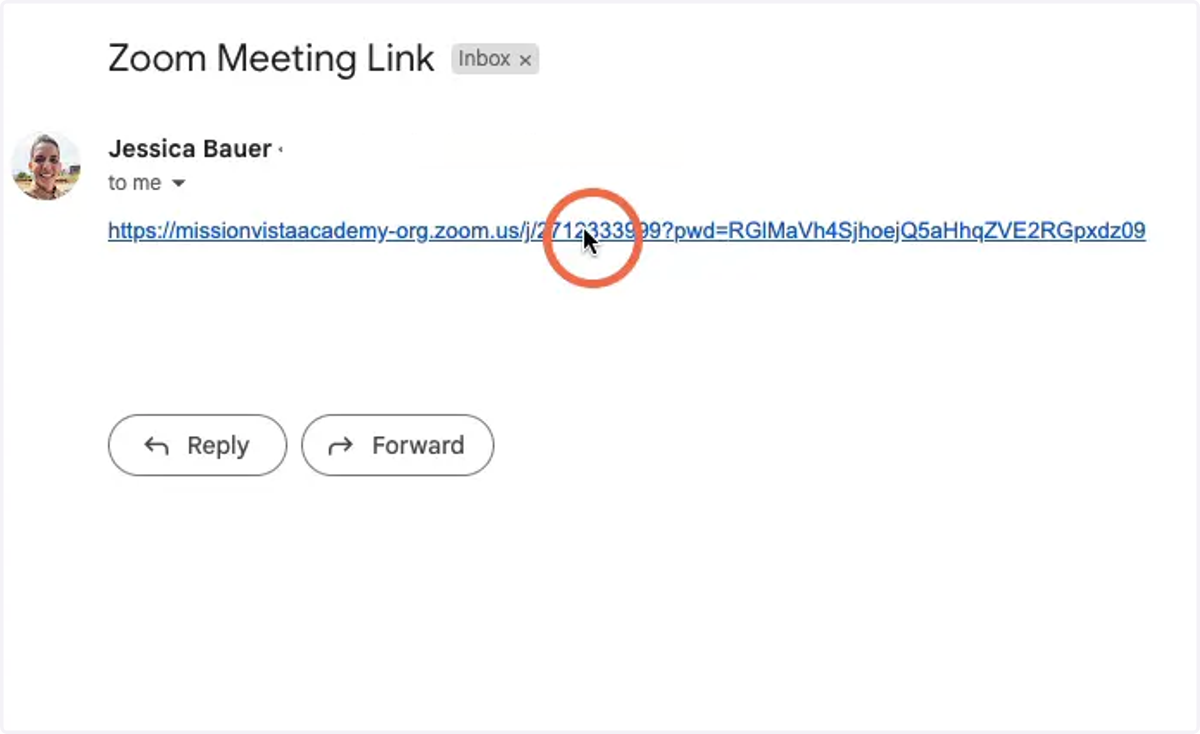
1. Click on the Zoom meeting link provided by your instructor
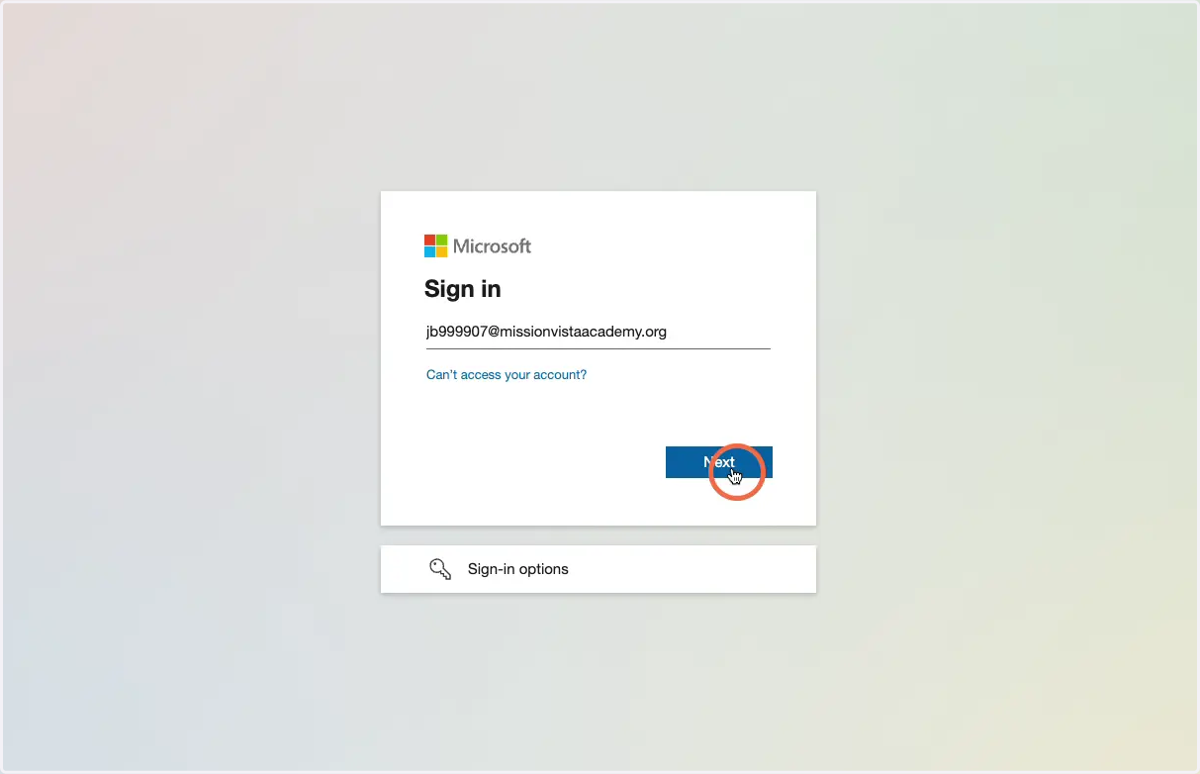
2. Enter your school email address and click Next
Example school email address formats:
jb999907@missionvistaacademy.org
999907@missionvistaacademy.org
10000999@socalscholarsacademy.net
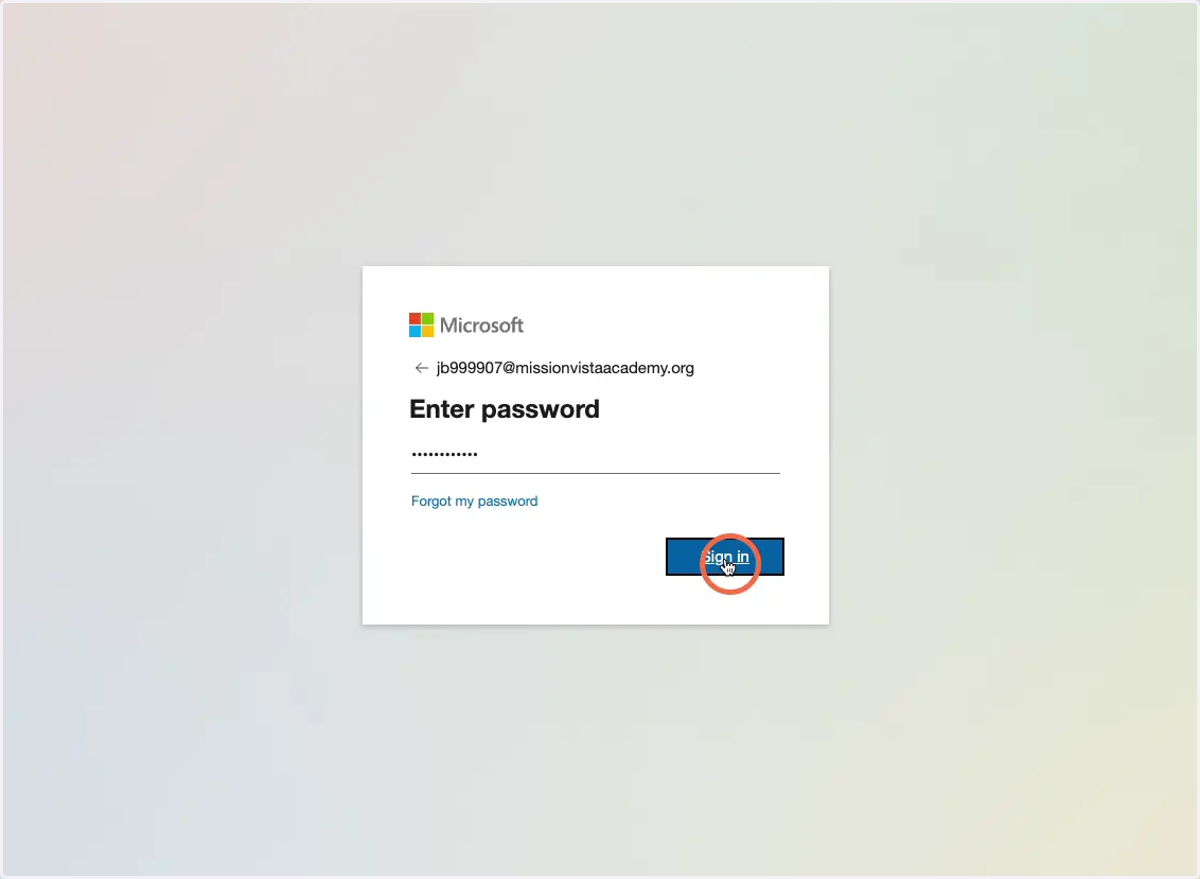
3. Enter your Microsoft Azure password and click Sign In
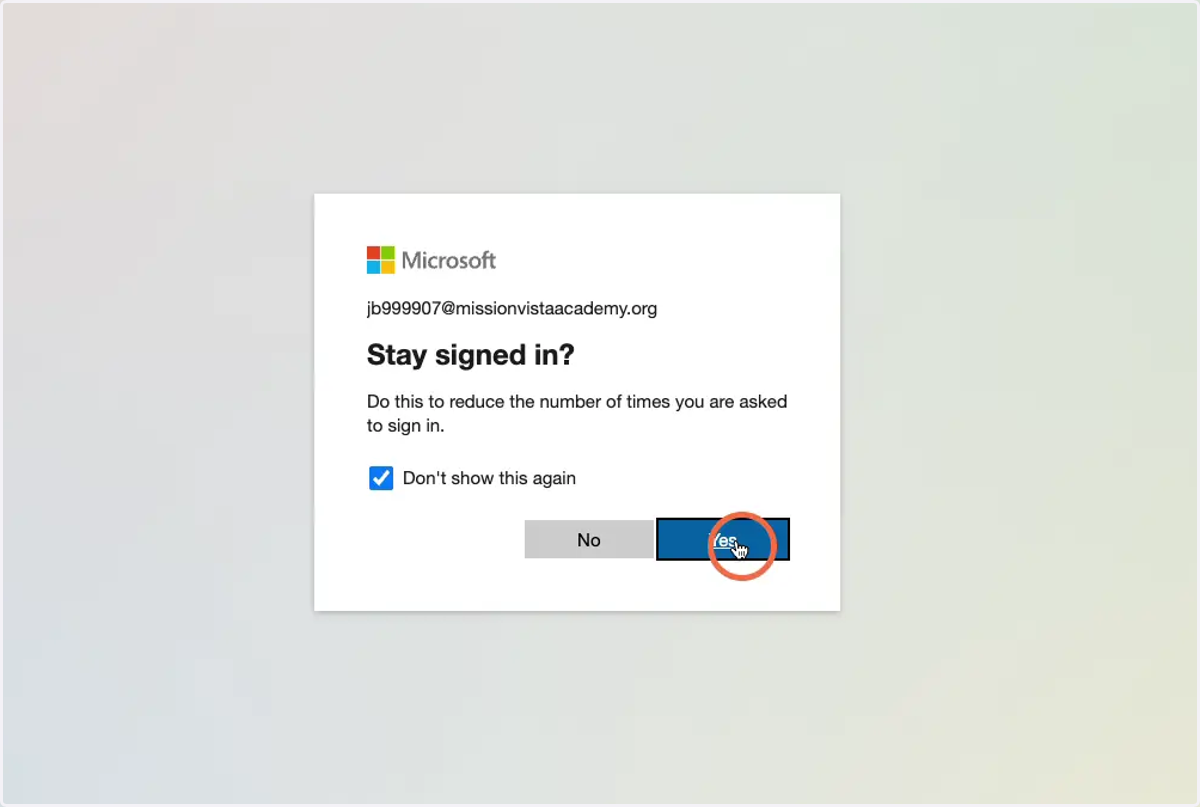
4. Select "Don't show this again"
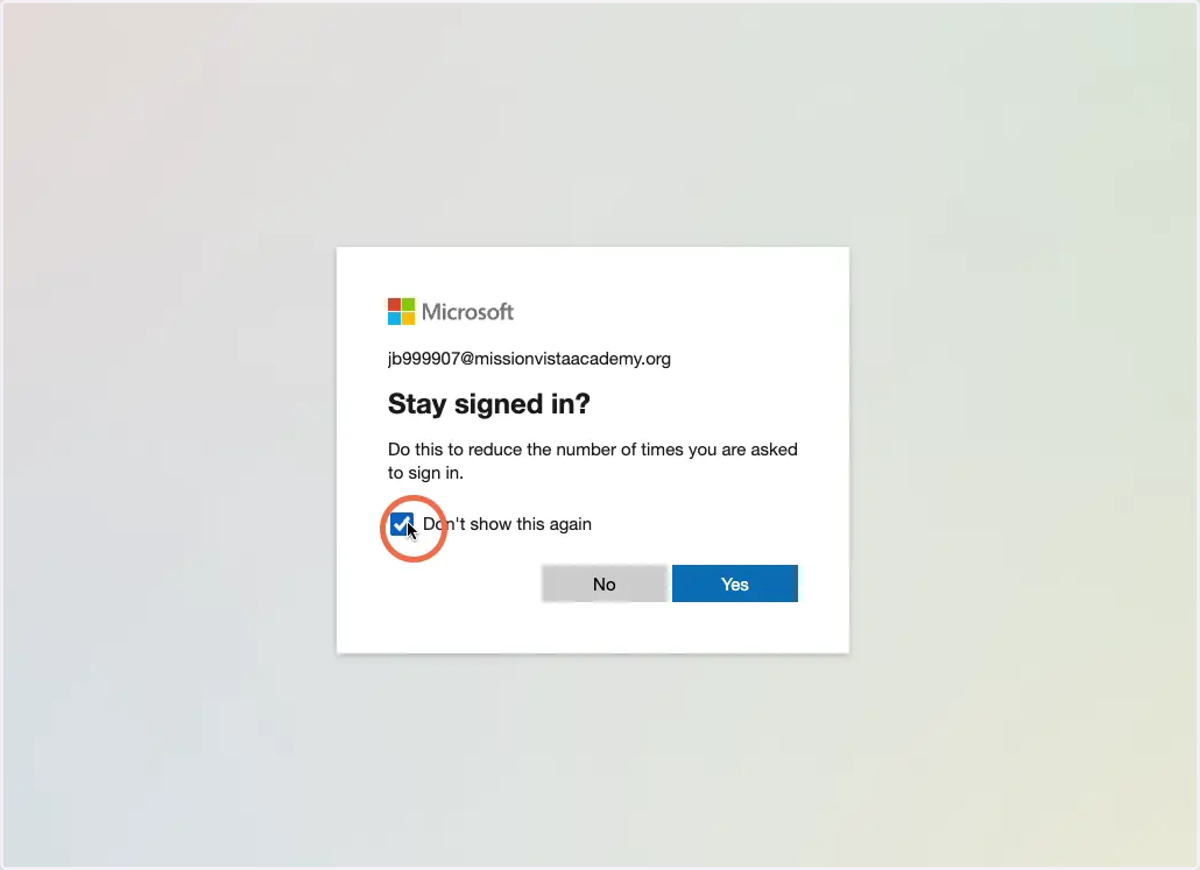
5. Click "Yes"
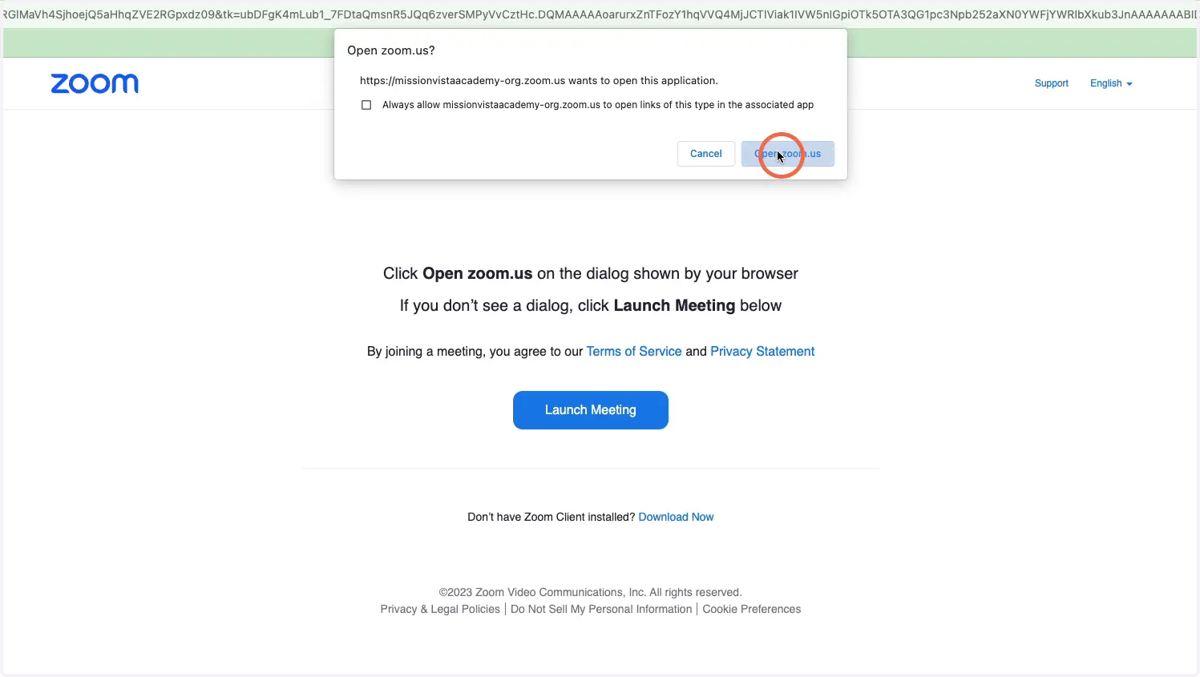
6. Click "Open zoom.us"
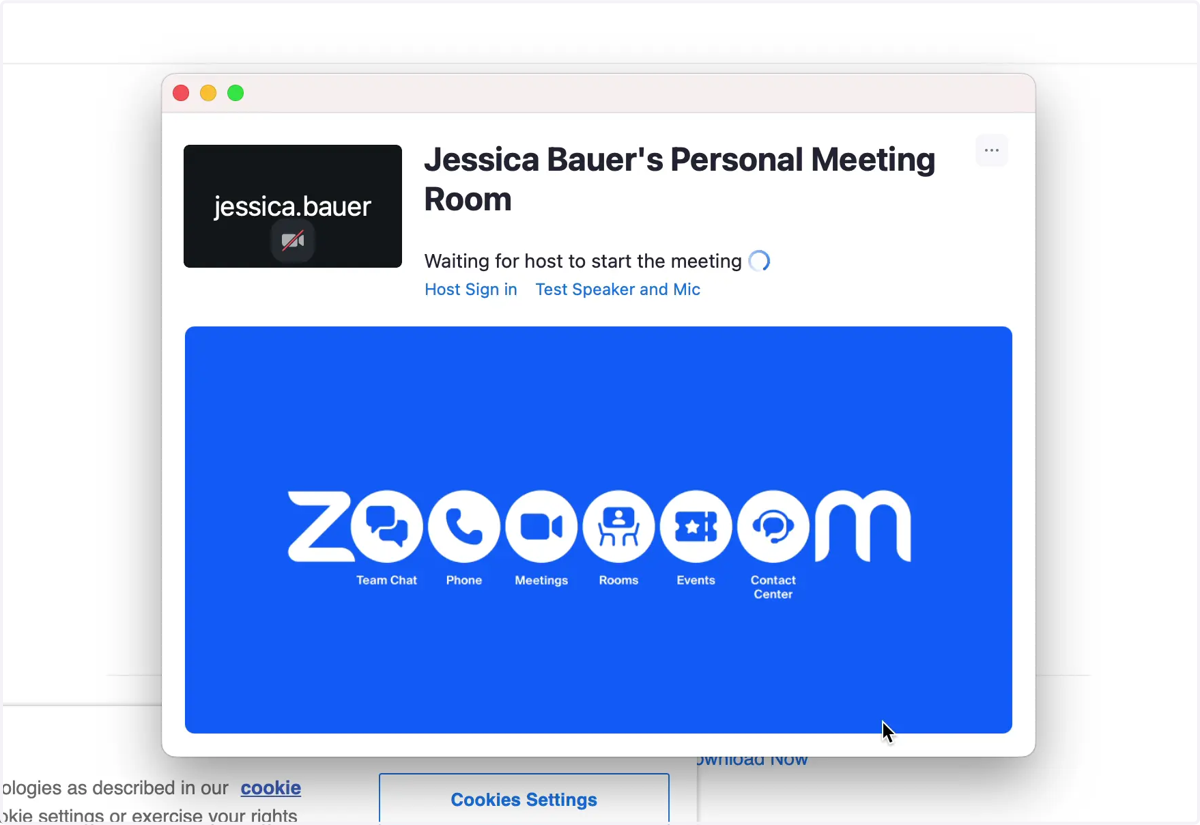
7. The Zoom desktop app will open and you'll be placed in the waiting room
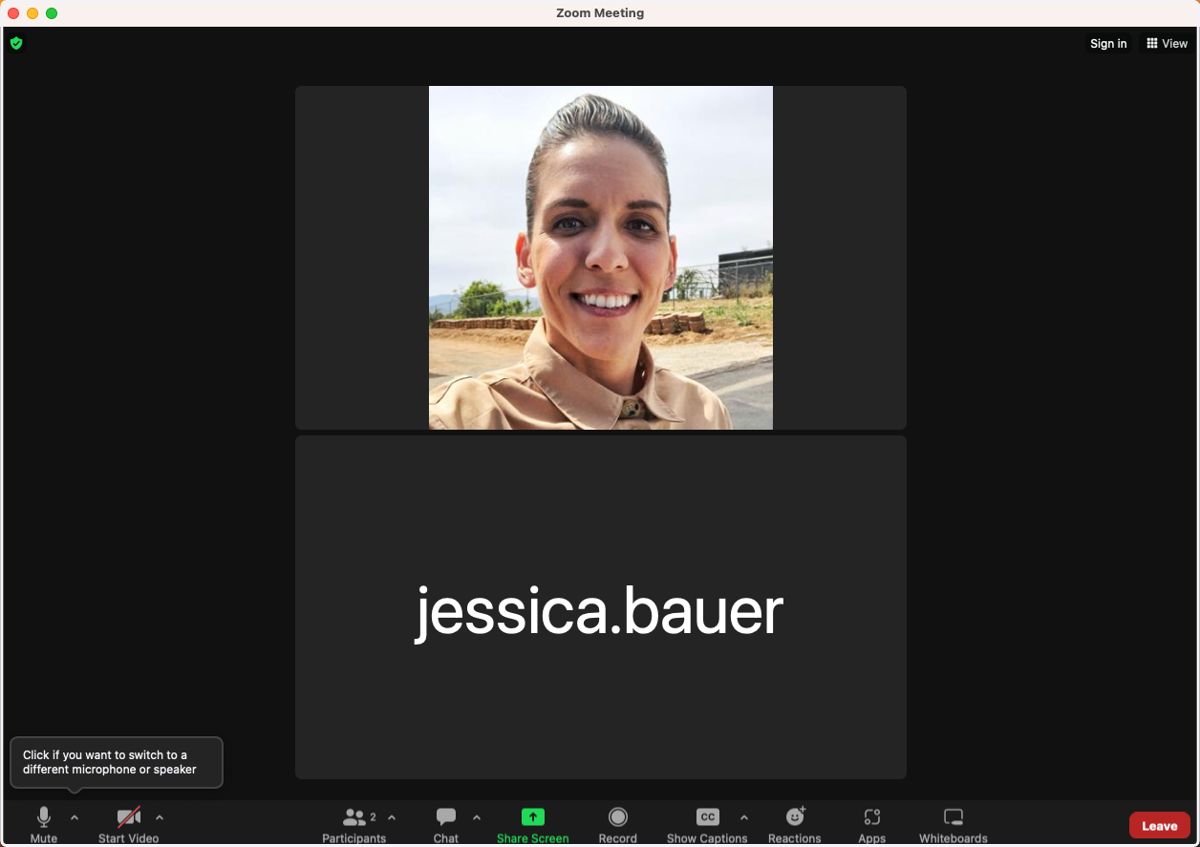
8. You will enter the meeting room once your instructor lets you in
💻 Contact Tech Support
9. Tech Support Contact Information
If you experience any issues accessing a Zoom meeting, please reach out to the Tech department for your school.
Submit a ticket:
http://techhelp.cabrillopointacademy.org
http://techhelp.missionvistaacademy.org
http://techhelp.pacificcoastacademy.org
https://scsa.incidentiq.com/guest/YNX9JER8/scsa-remote-ticket-form
Call us:
Cabrillo Point Academy - (619) 782-6464, option 5
Mission Vista Academy - (951) 393-1352, option 5
Pacific Coast Academy - (619) 215-0704, option 5
SoCal Scholars Academy - (619) 215-0704, option 5