How to Create a Pricing Rule in the Price Engine Settings[Using Price Tags]
This feature is available for those who would like to set up automatic discounts for certain services or certain customers.
1. Go to your RunLoyal staff portal in a google chrome browser.
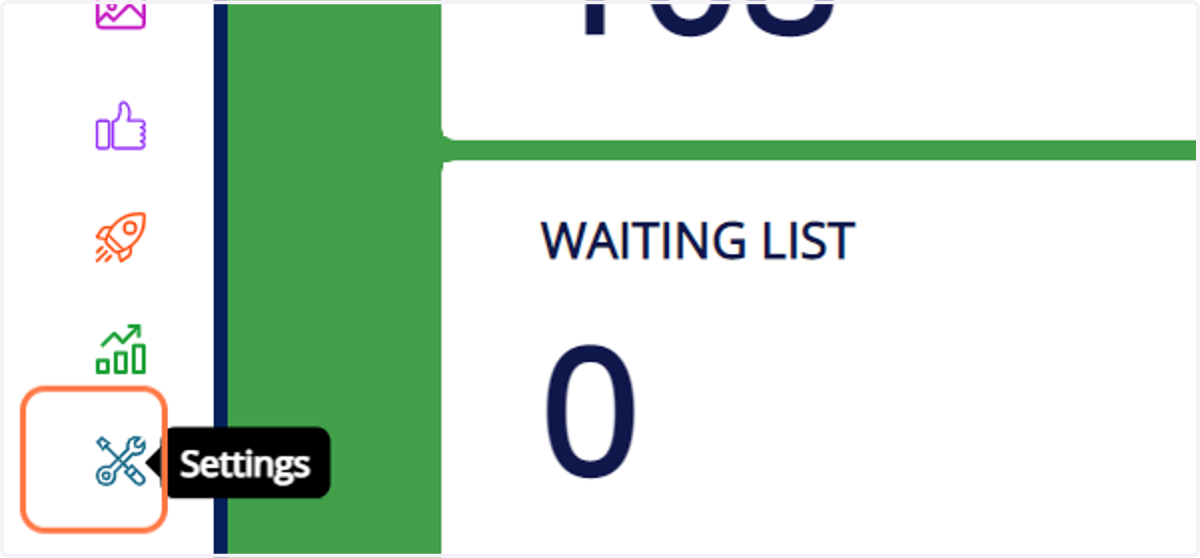
2. Go to settings.
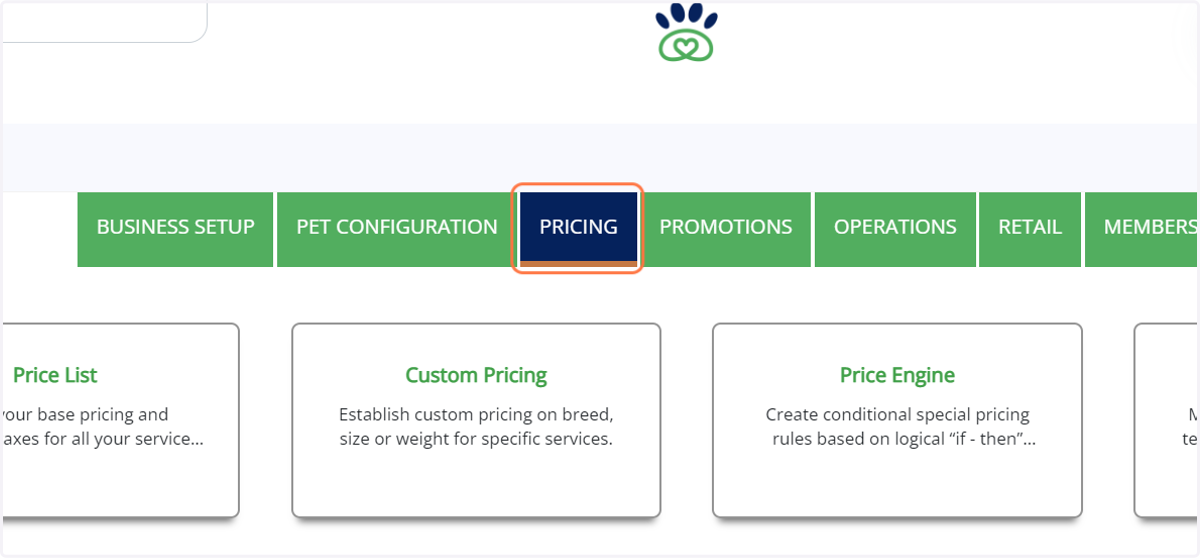
3. Click on PRICING
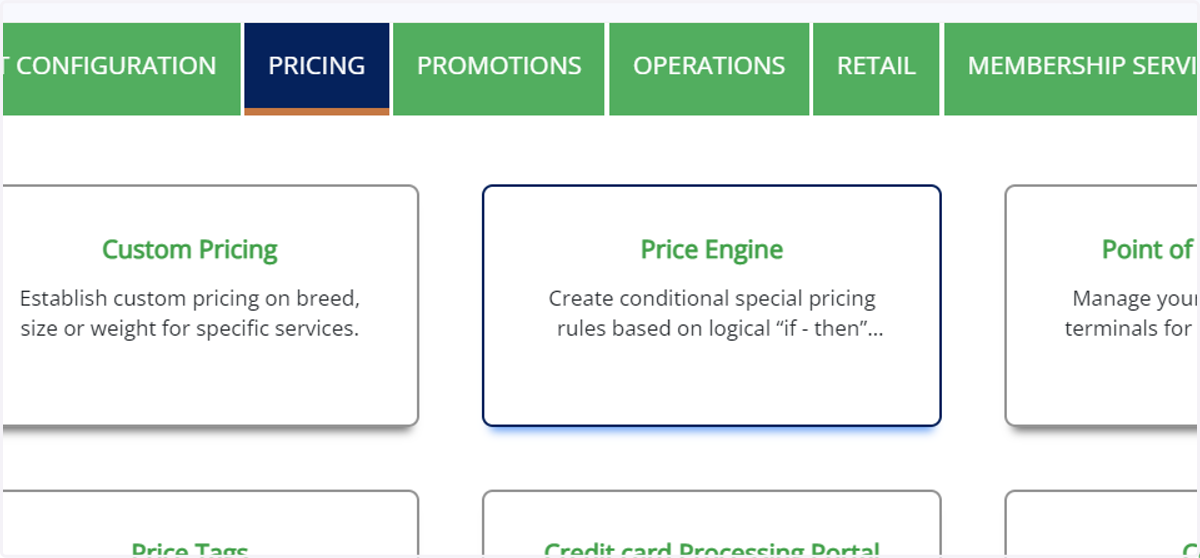
4. Click on Price Engine…
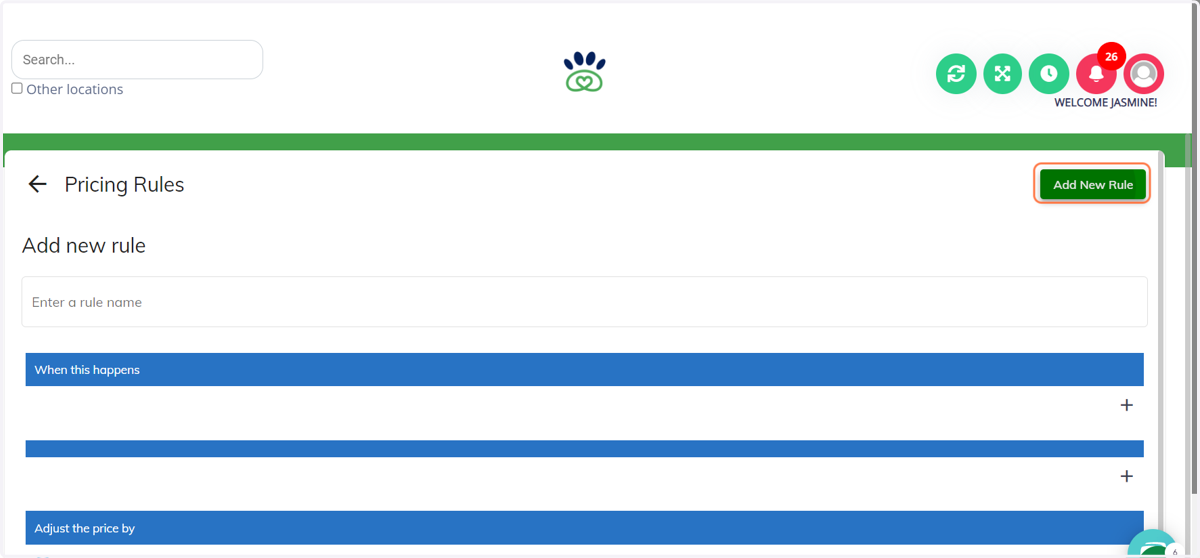
5. Click on Add New Rule
Here is where you can create different price engines for different rules/discounts.
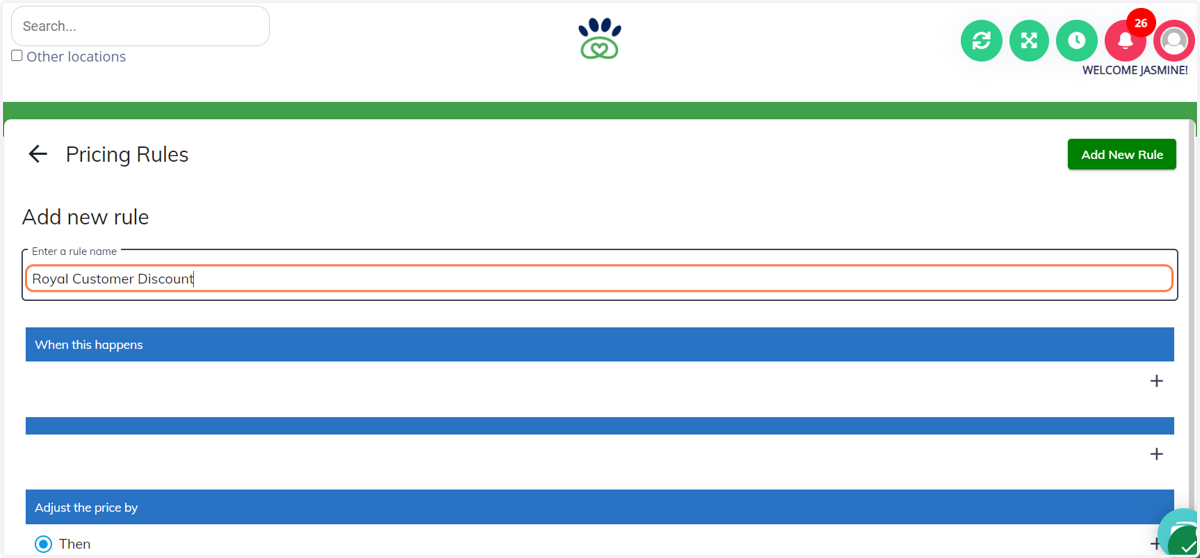
6. Type in the name you would prefer for your new rule. Example: "Royal Customer Discount"
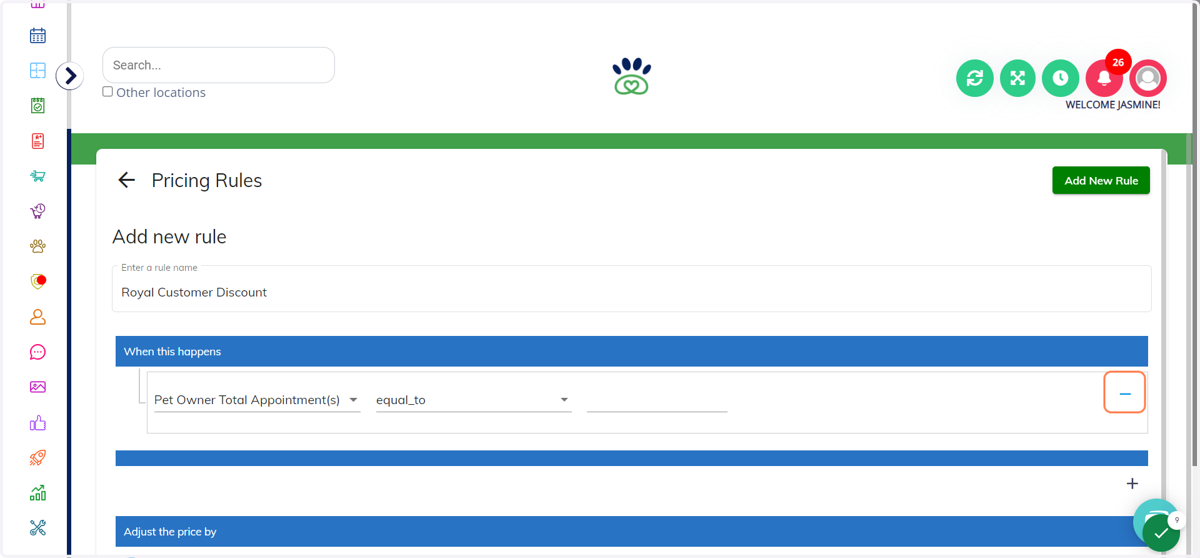
7. Click on the "+" sign to select your rule guidelines.
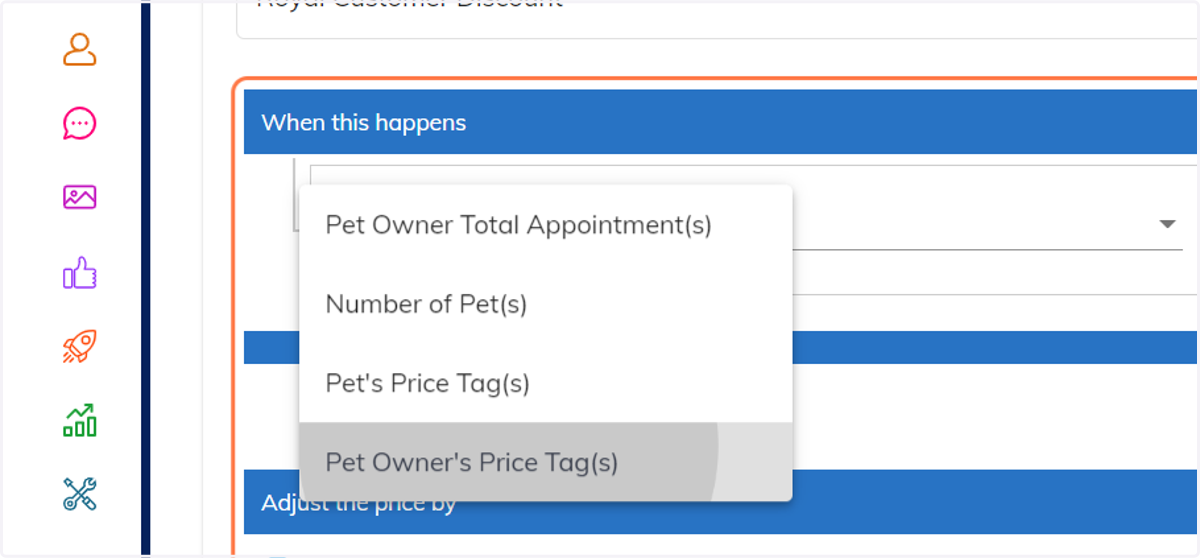
8. Click on the pricing rule that you would like to use. Example: Pet Owner's Price Tag(s)
There are several ways to trigger a pricing rule in the price engine. The most commonly used is the pet owner price tag which will be used in this example. A pet owner price tag will trigger once it is applied to a specific pet owner on their profile.
9. Then select the price tag that you would like to apply. For Example: Royal Customer
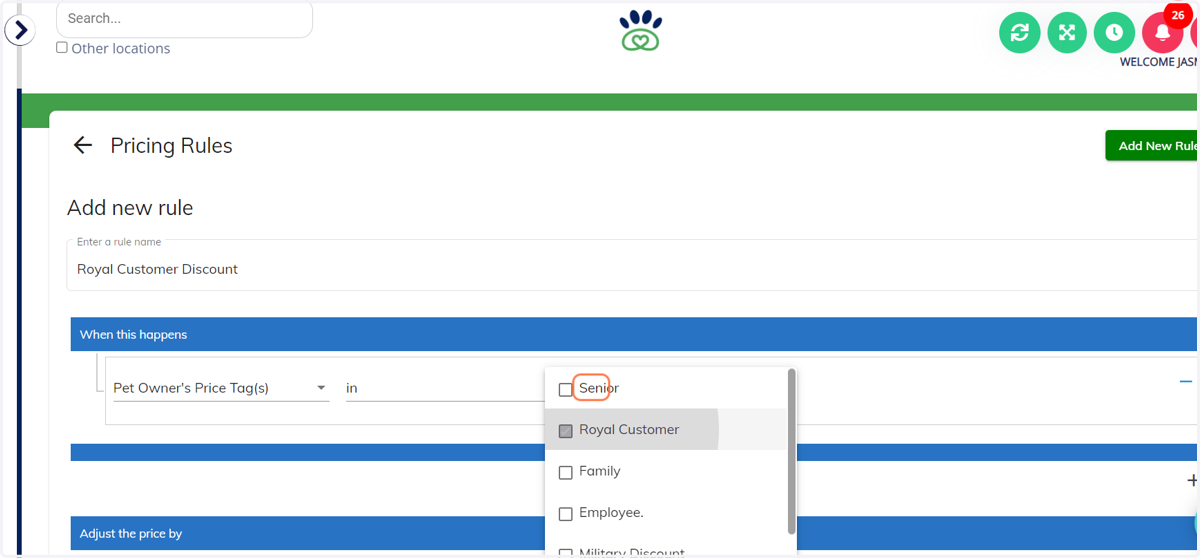
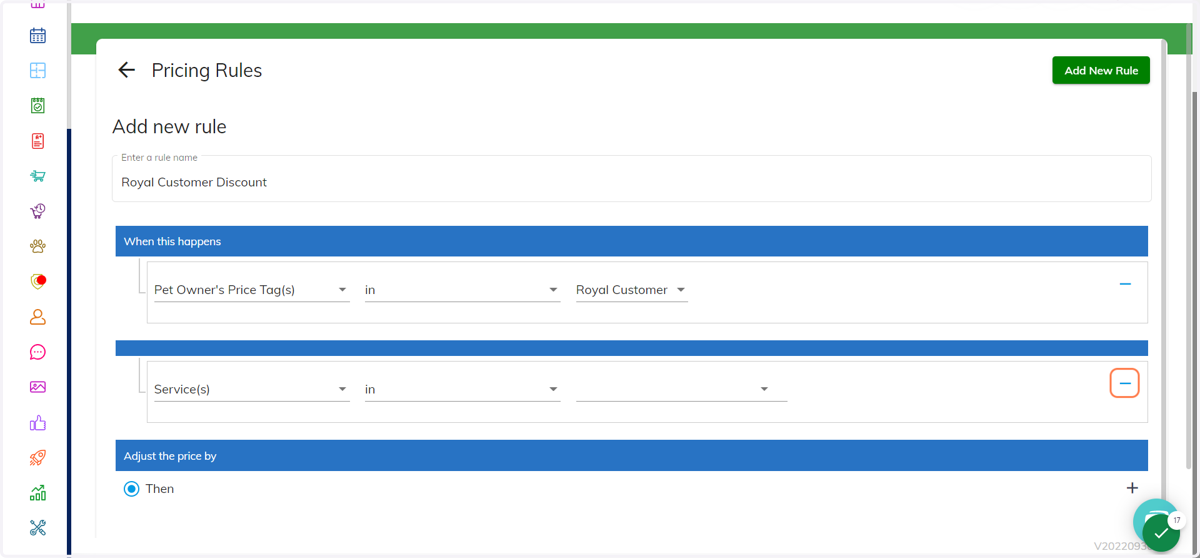
10. Click on the next "+" sign to select which type of services these pricing can apply to.
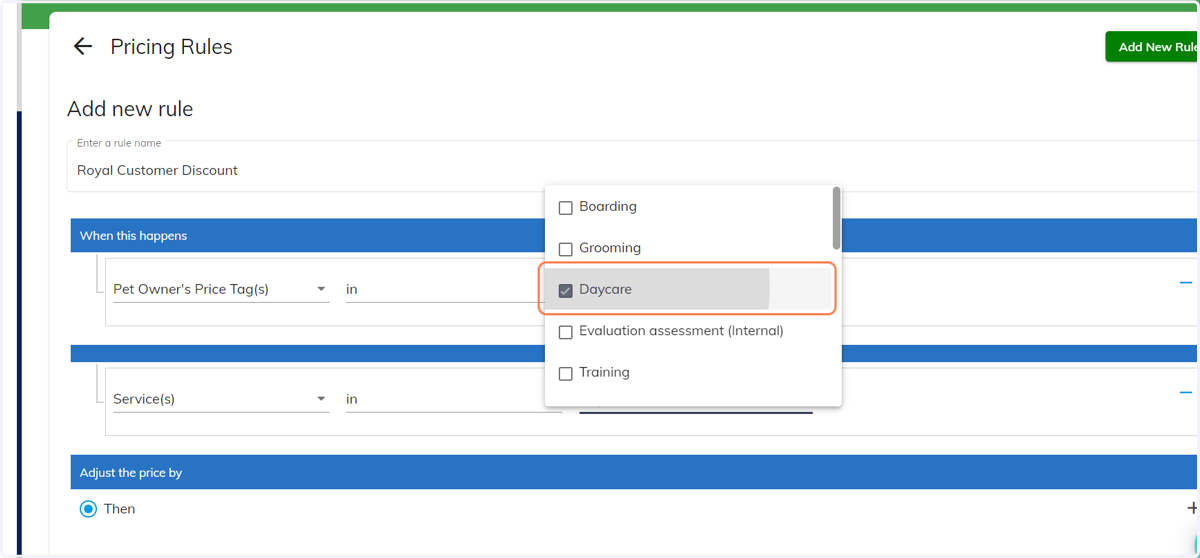
You can select one service or multiple services that you would like this pricing rule to apply to. Pricing rules cannot be applied to quick checkout or package purchases, only appointment services.
11. Click on the service types that you would prefer.
12. Lastly, click on the next "+" sign to select the type of discount you would like to apply.
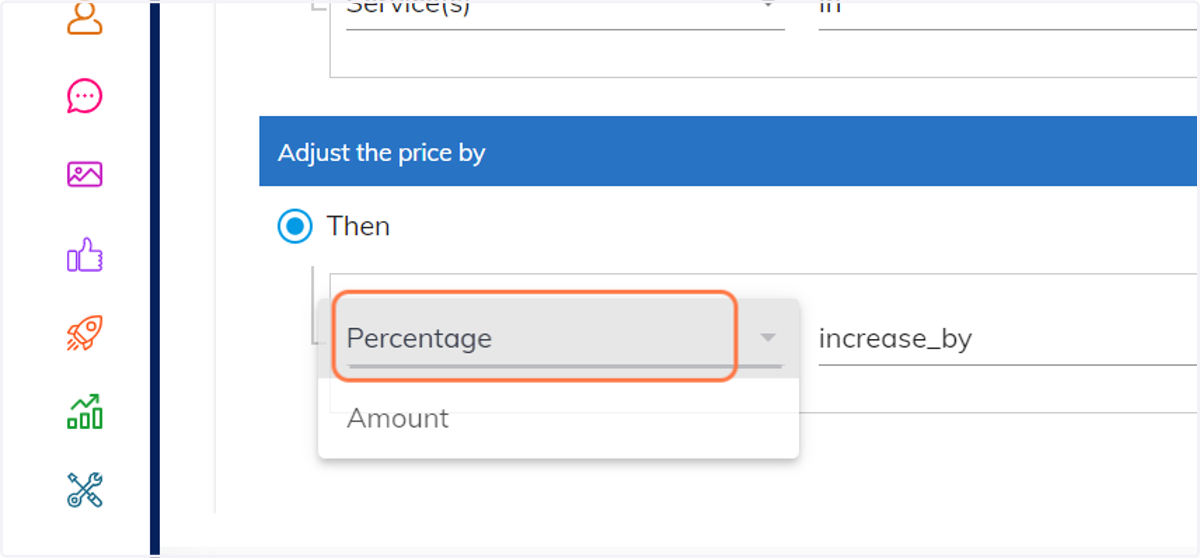
You have the option to apply percentages or dollar amounts.
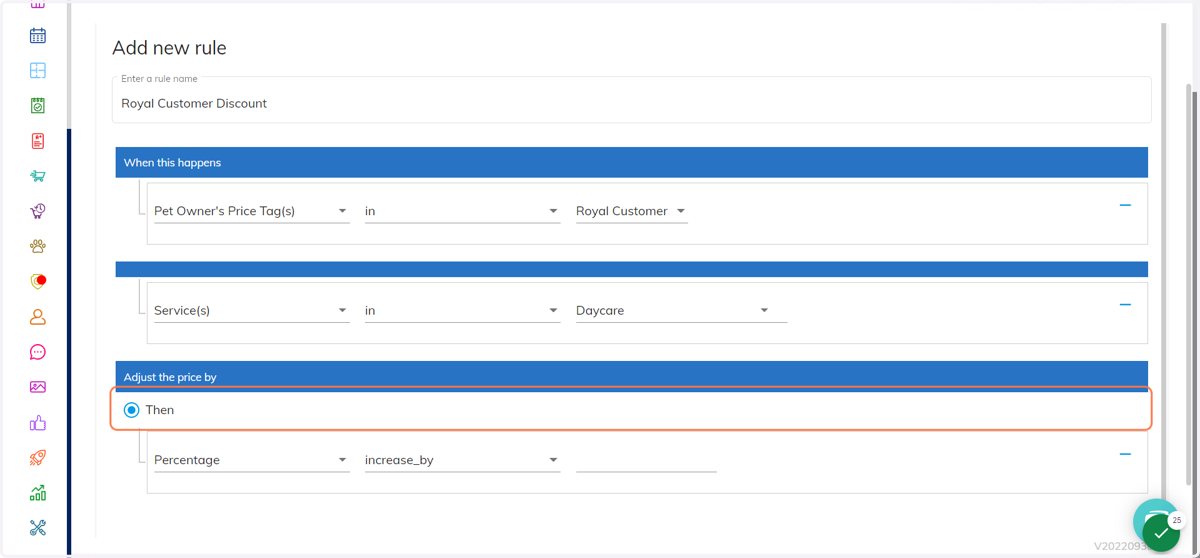
13. Click on which option you would prefer. Example: Percentage
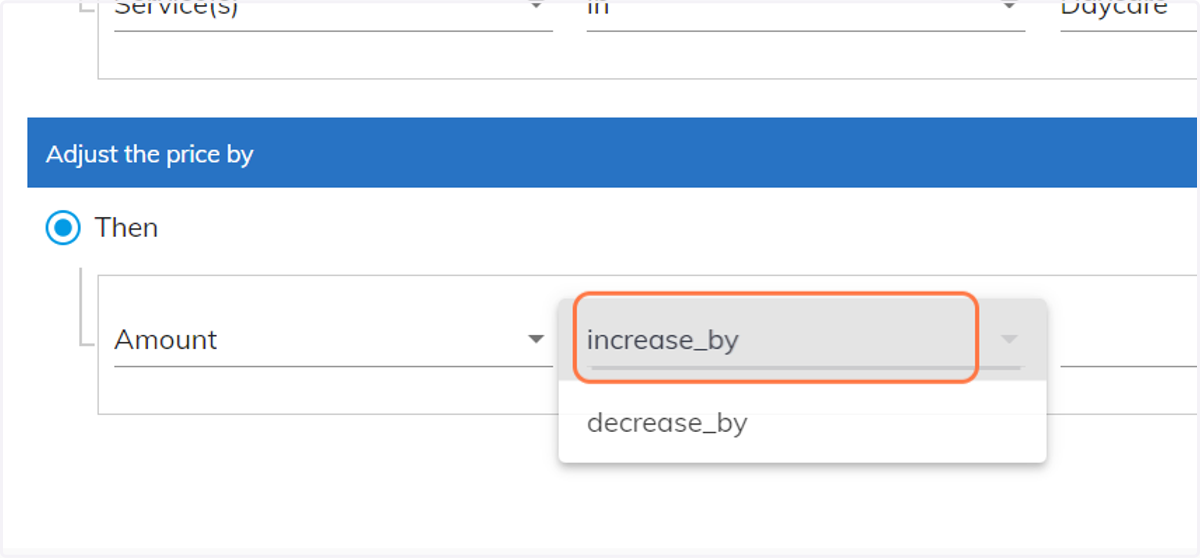
14. Then select if you would to decrease the amount, or if you would like to increase the amount. This is based on your needs.
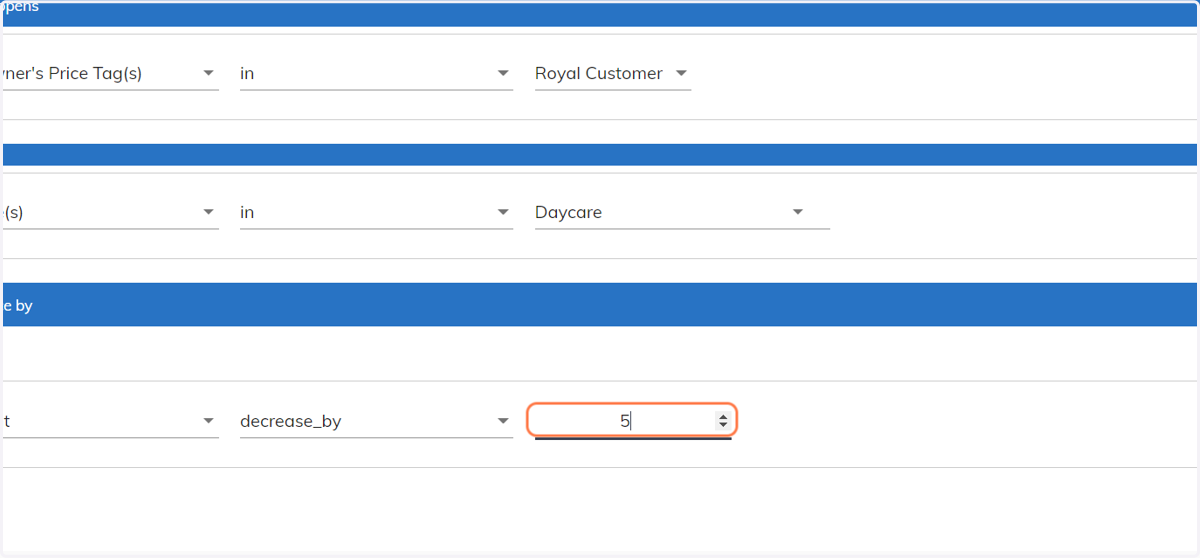
15. Then select the total amount that needs to be decreased or increased. Example: "5"
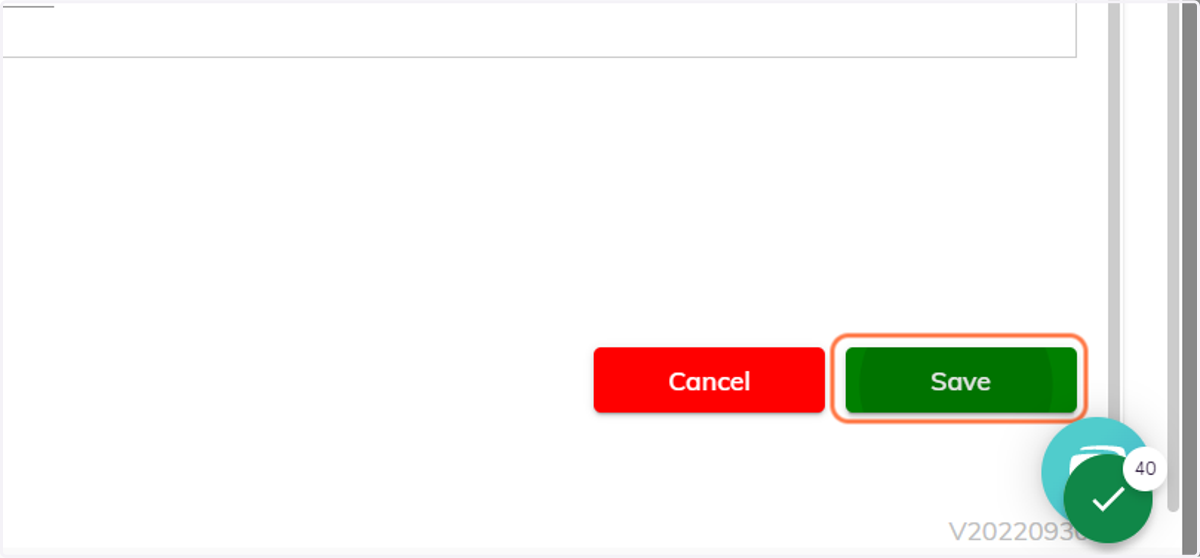
16. Once all final edits are made, click on Save at the bottom corner.
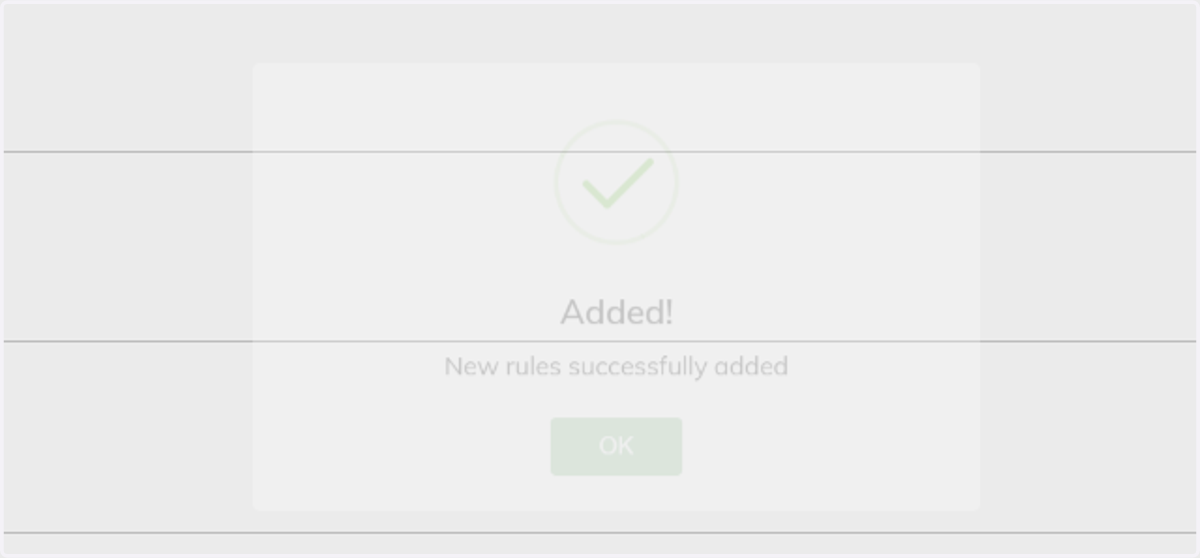
17. Click on OK once you see the "new rules successfully added" screen.