How to create a new Pet Owner/Pet Price tag
1. Go to your RunLoyal staff portal on a Google Chrome browser. **All settings-related items must be updated while on a desktop or laptop.
Accessing Price Tag Settings
2. Click on "Settings"

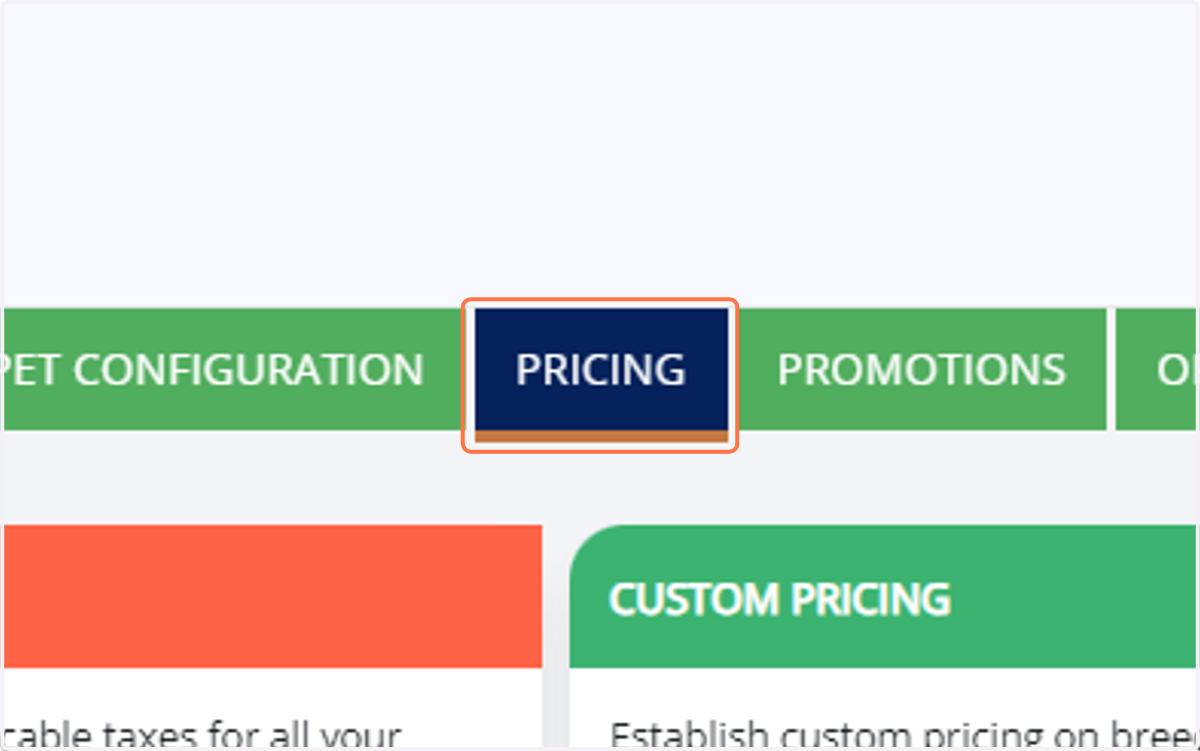
3. Click on "Pricing"
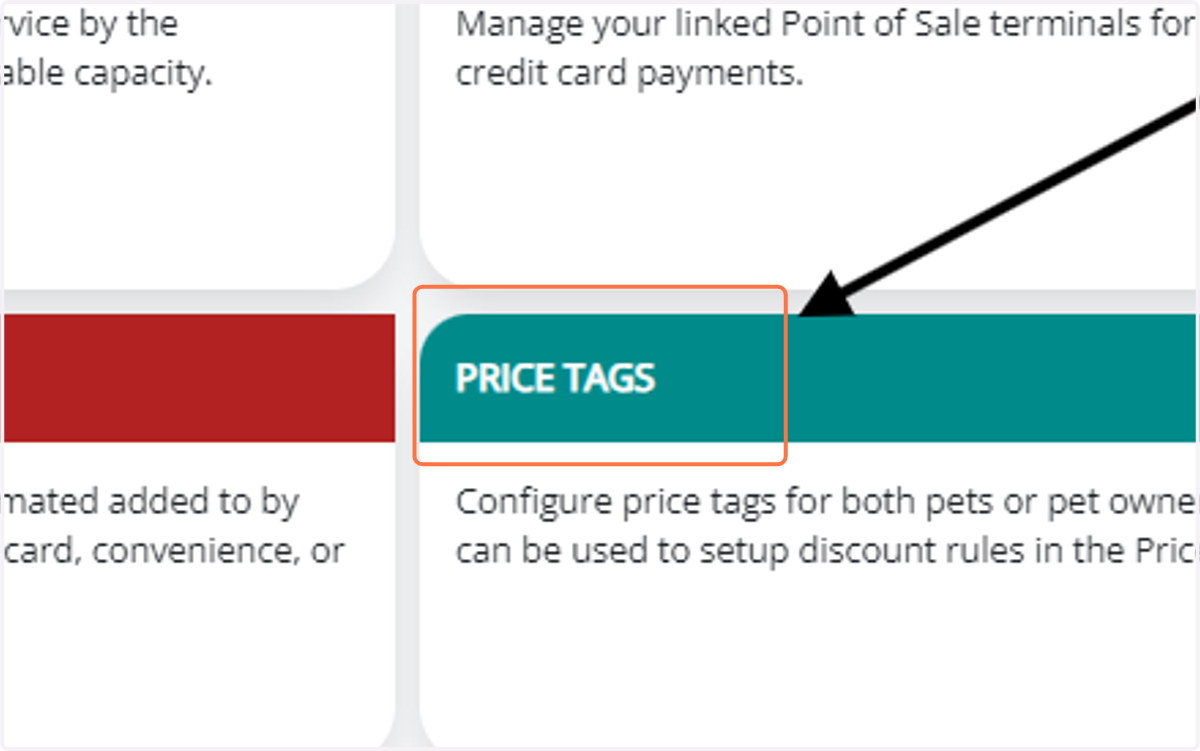
4. Click on "Price Tags"
Creating Pet Price Tags
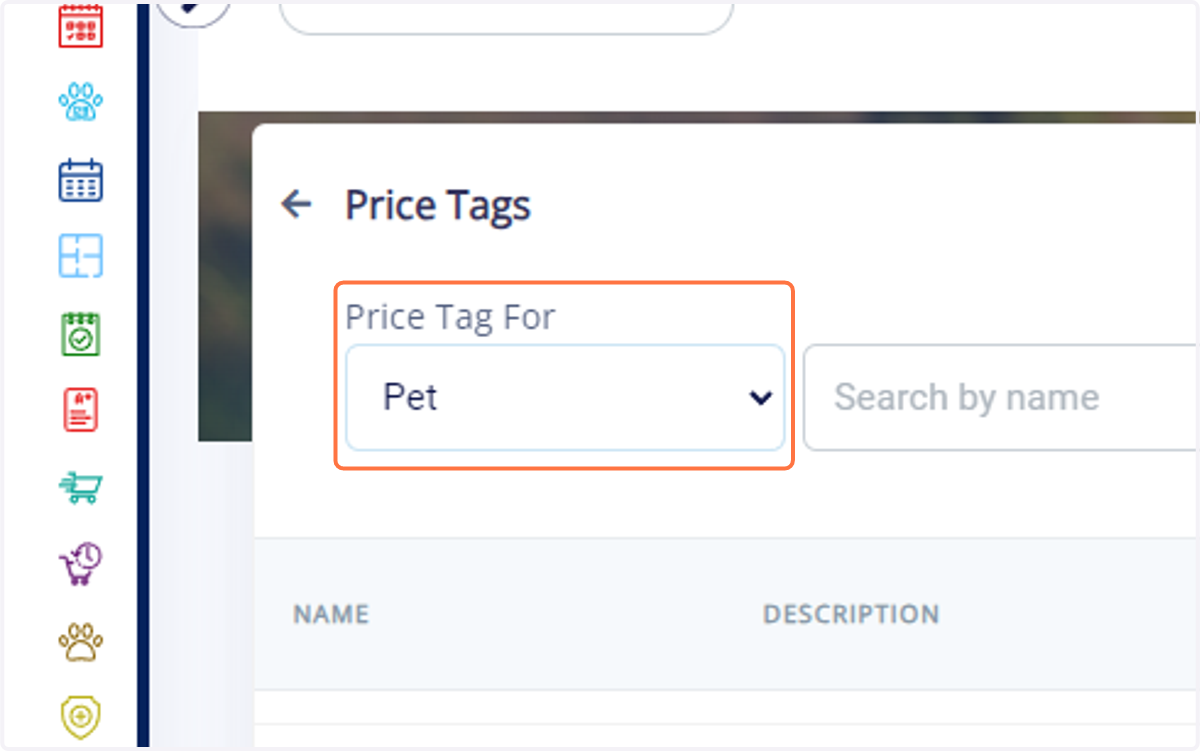
5. From the "Price Tag For" option, select the dropdown menu named "Pet" to specify that you're creating price tags for pets only.
****You would select the "Pet Owner" option if you would like the price tag to be attached to the entire household instead of "per pet".
6. Click on the "Add Price Tag" button at the top right-hand corner in order to initiate the creation process.
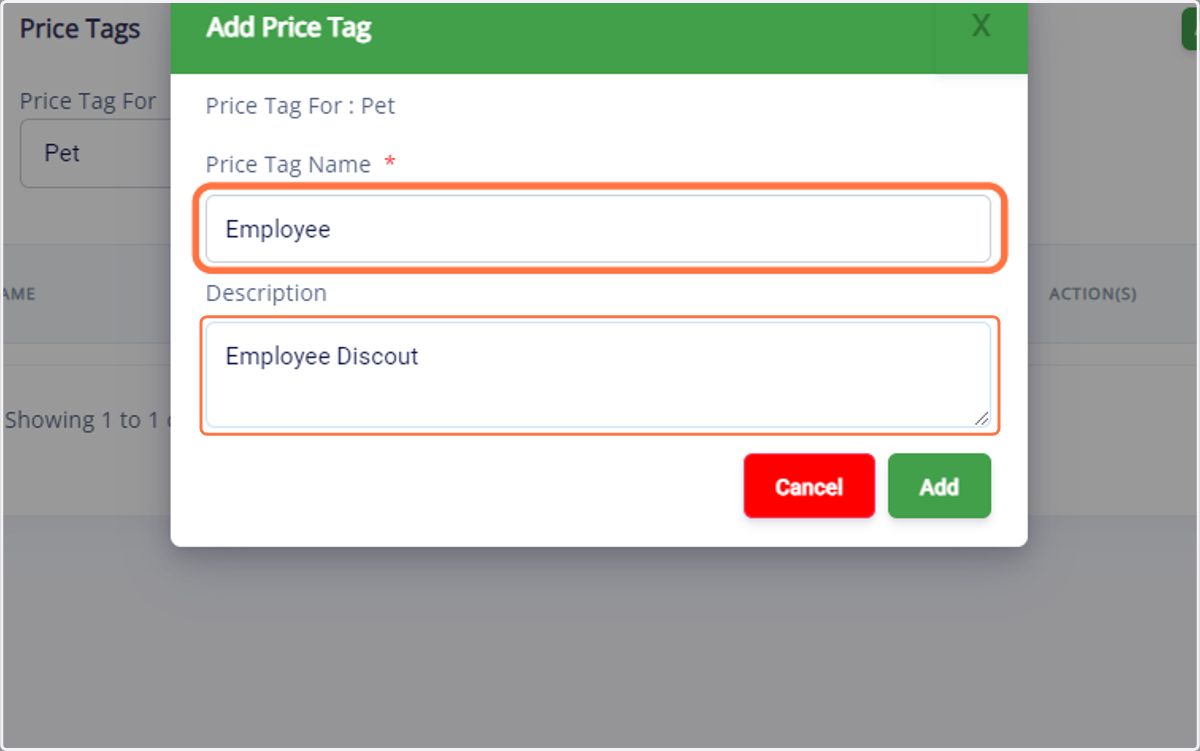
7. Name: Type a descriptive name for the price tag, such as "Employee" or "Senior Pet." Description: Provide a brief explanation of the price tag's purpose or criteria for application.
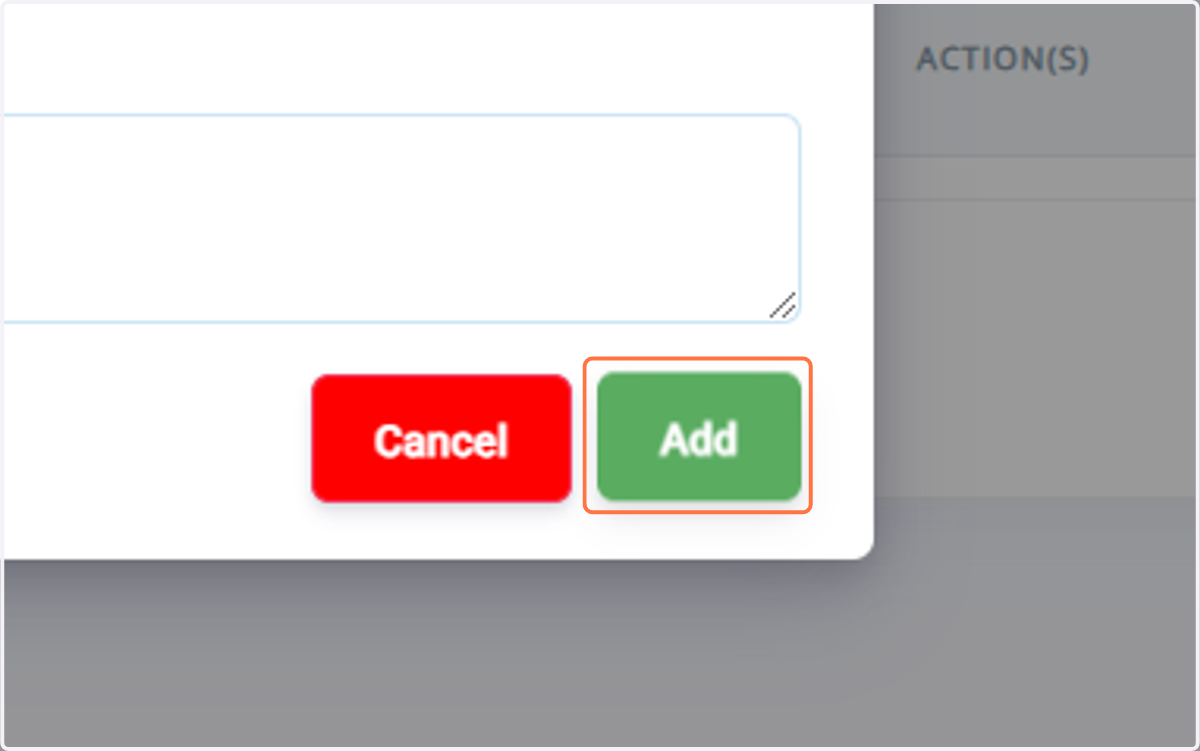
8. Click on the "Add" button to save the newly created pet price tag.
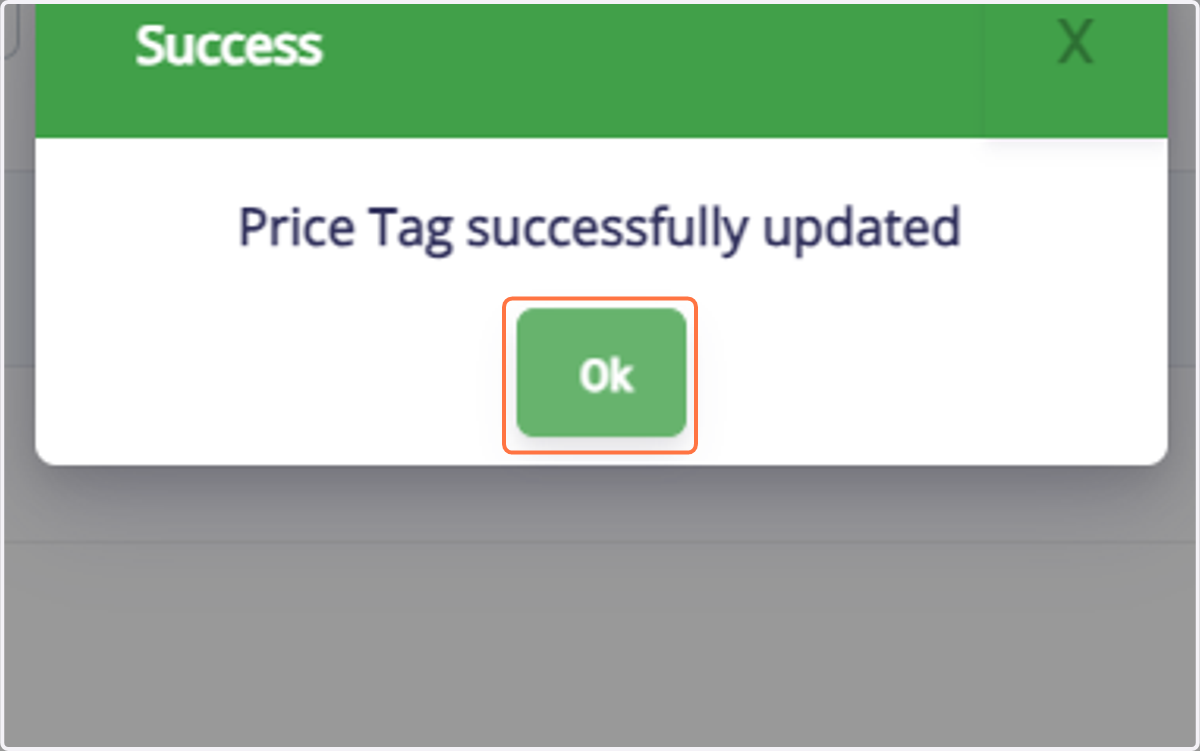
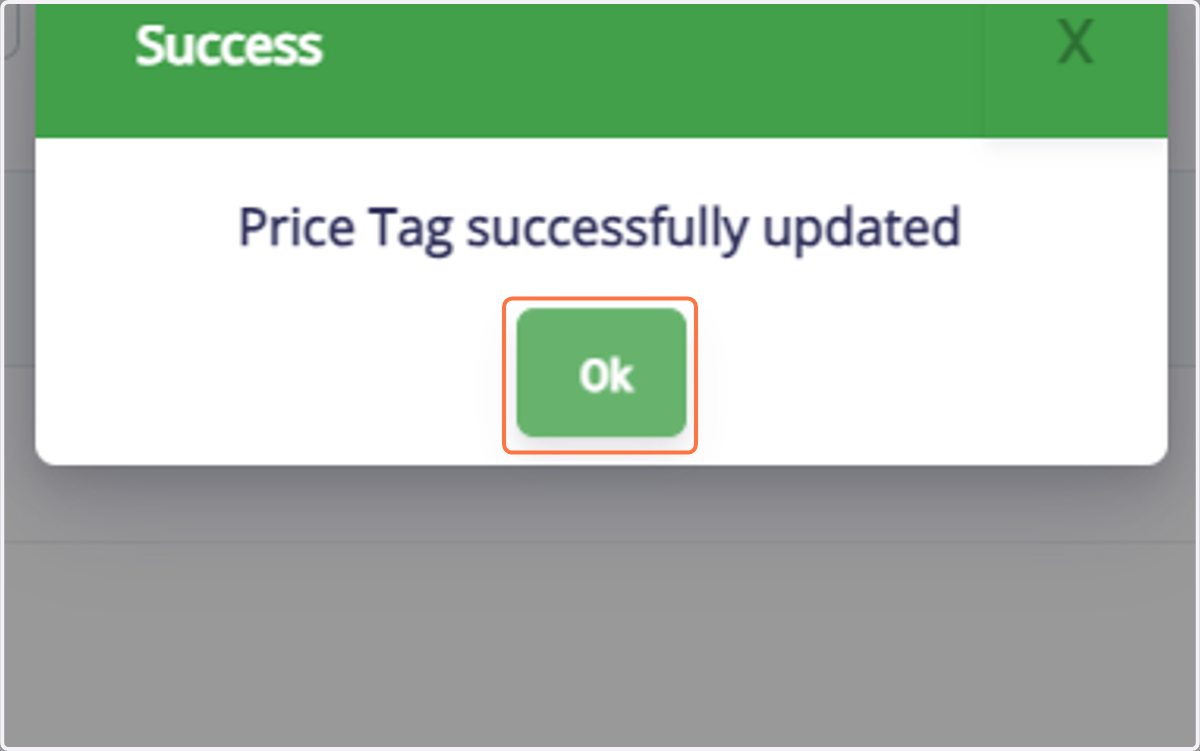
9. Click on "OK" to close the price tag creation window.
Creating Pet Owner Price Tags
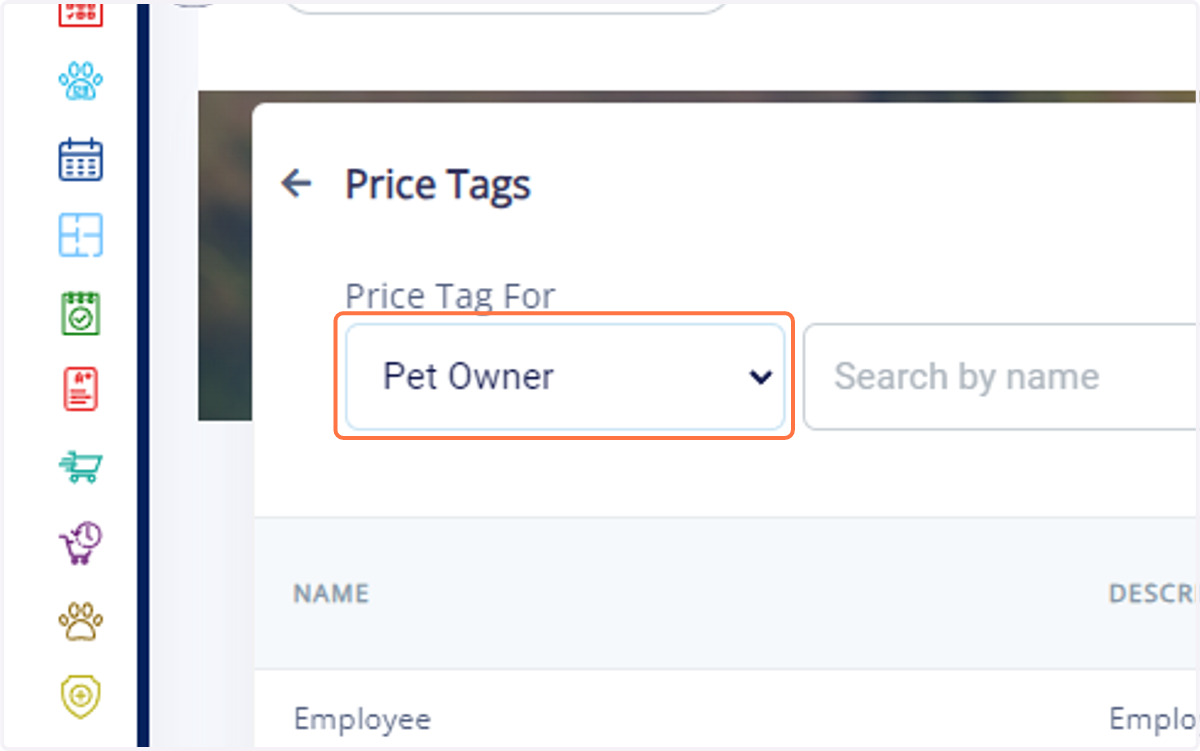
10. From the "Price Tag For" dropdown menu, choose "Pet Owner" to specify that you're creating price tags for pet owners.
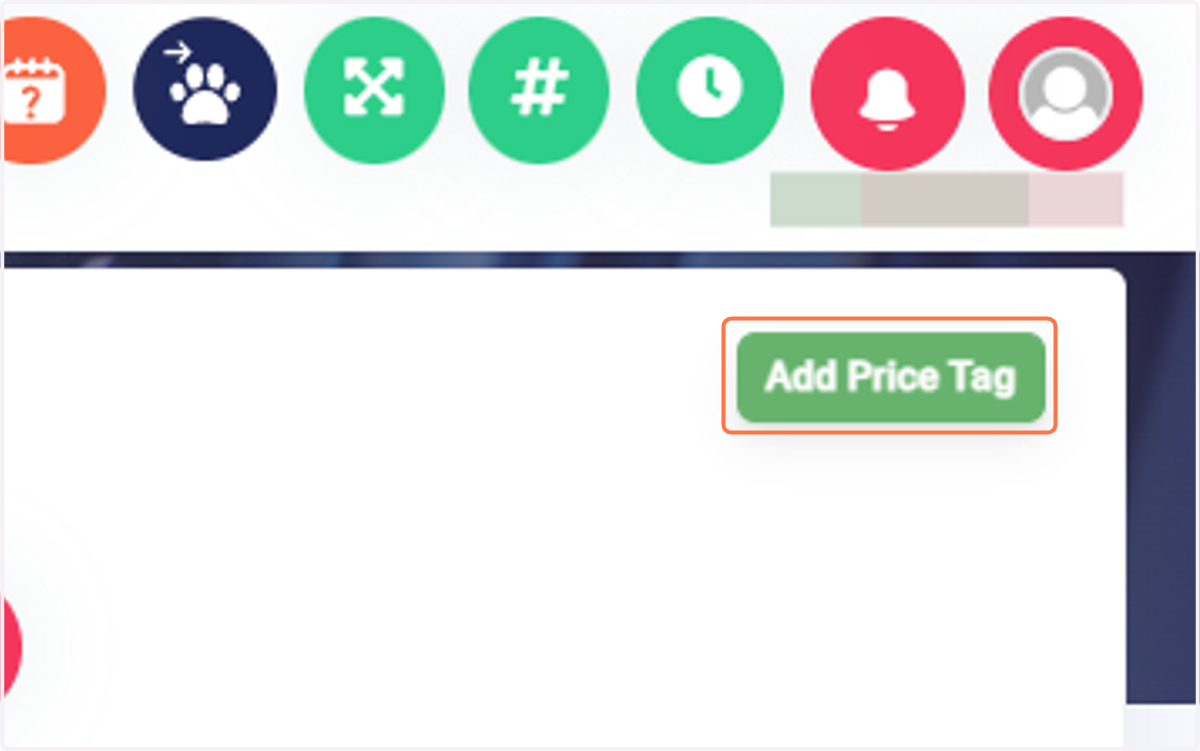
11. Click on the "Add Price Tag" button to start the creation process.
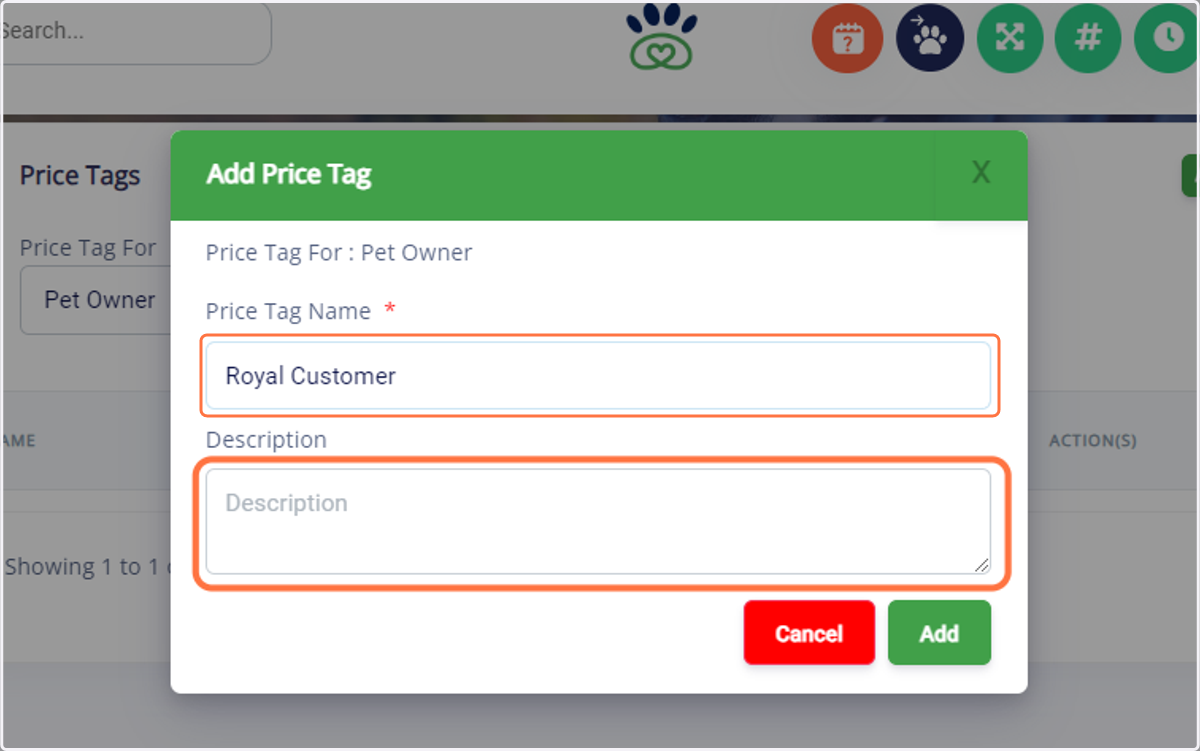
12. Name: Type a clear name for the price tag, such as "Loyalty Member", "First-Time Customer", "Family". Description: Provide a brief explanation of the price tag's purpose or criteria for application.
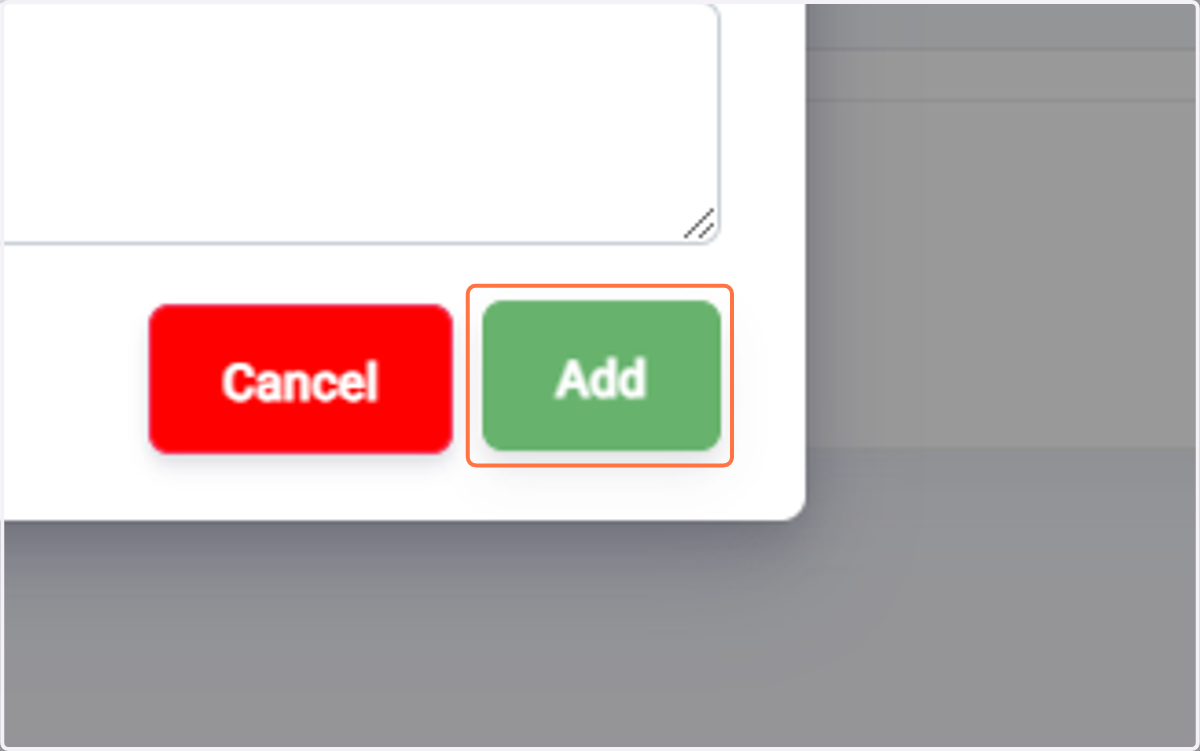
13. Click on the "Add" button to save the newly created pet owner price tag.
14. Click on "OK" to close the price tag creation window.