Employee's Guide: How to Request Sick Leave
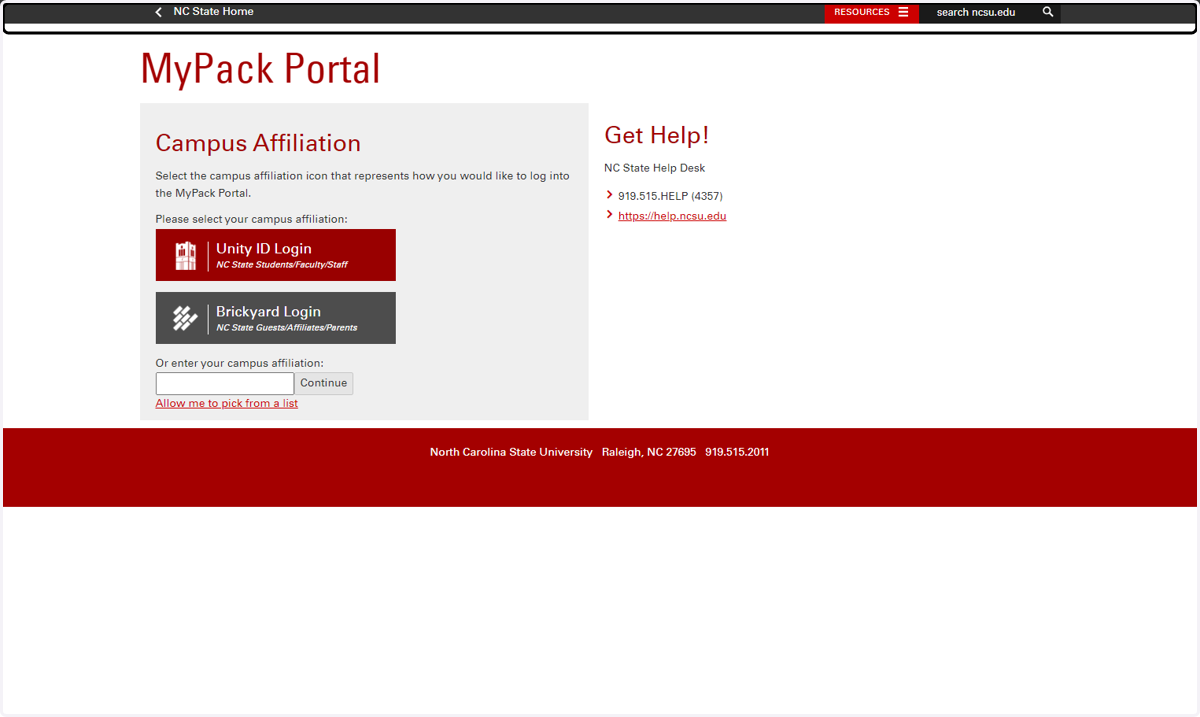
1. Login to MyPack Portal
Navigate to MyPack Portal (http://mypack.ncsu.edu) using a web browser.
Select the NC State Students/Faculty/Staff Campus affiliation.
Enter your Unity ID and Password when prompted to login to MyPack portal
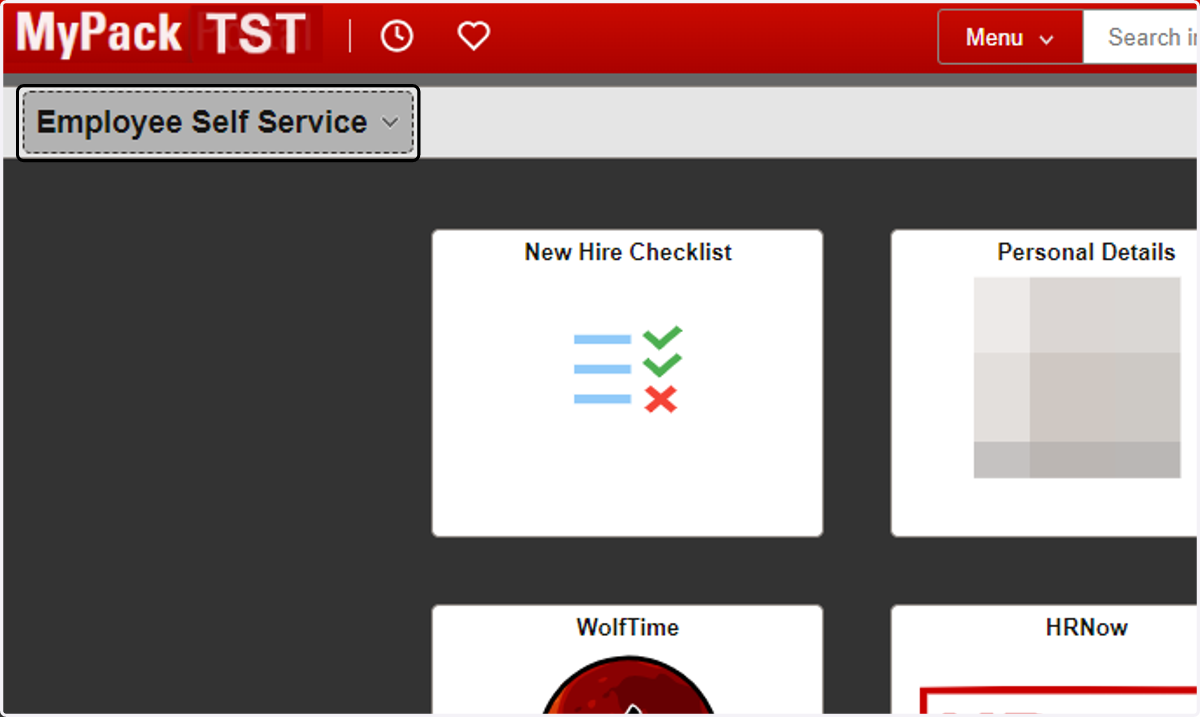
2. Navigate to the Employee Self Service Homepage
Upon successful login to MyPack Portal, if you do not land on the Employee Self Services homepage, select the Employee Self Service option from the dropdown menu in the top left corner of the banner
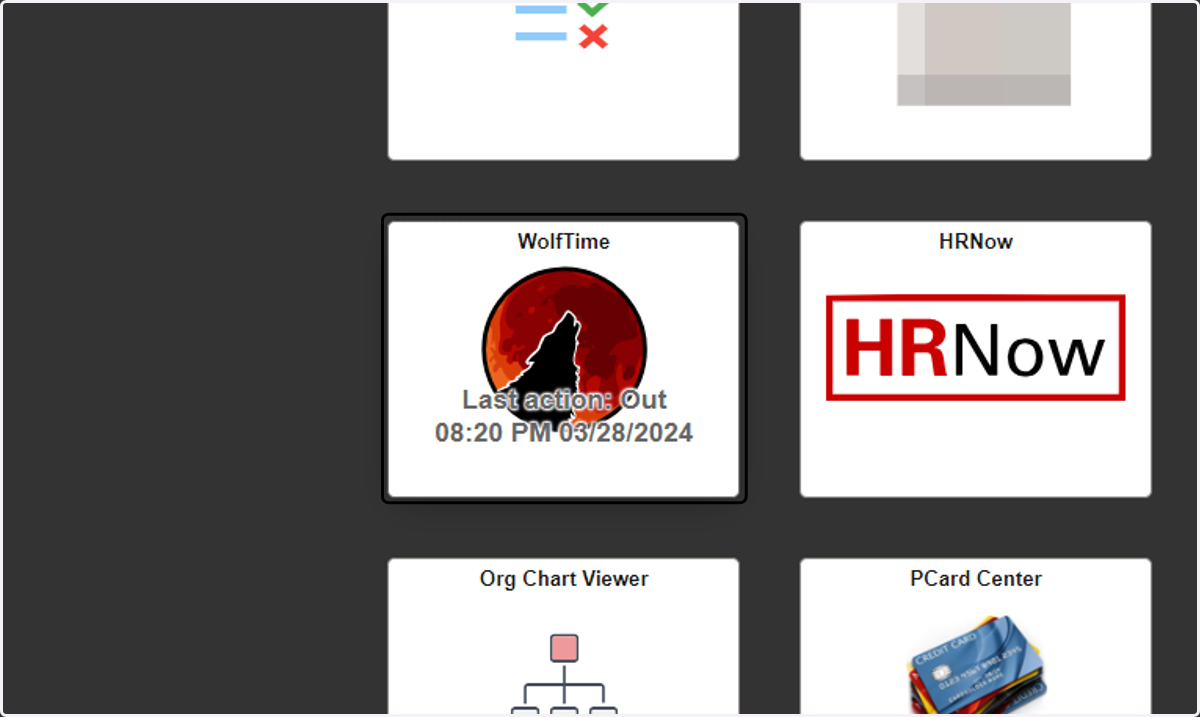
3. Navigate to the WolfTime tile
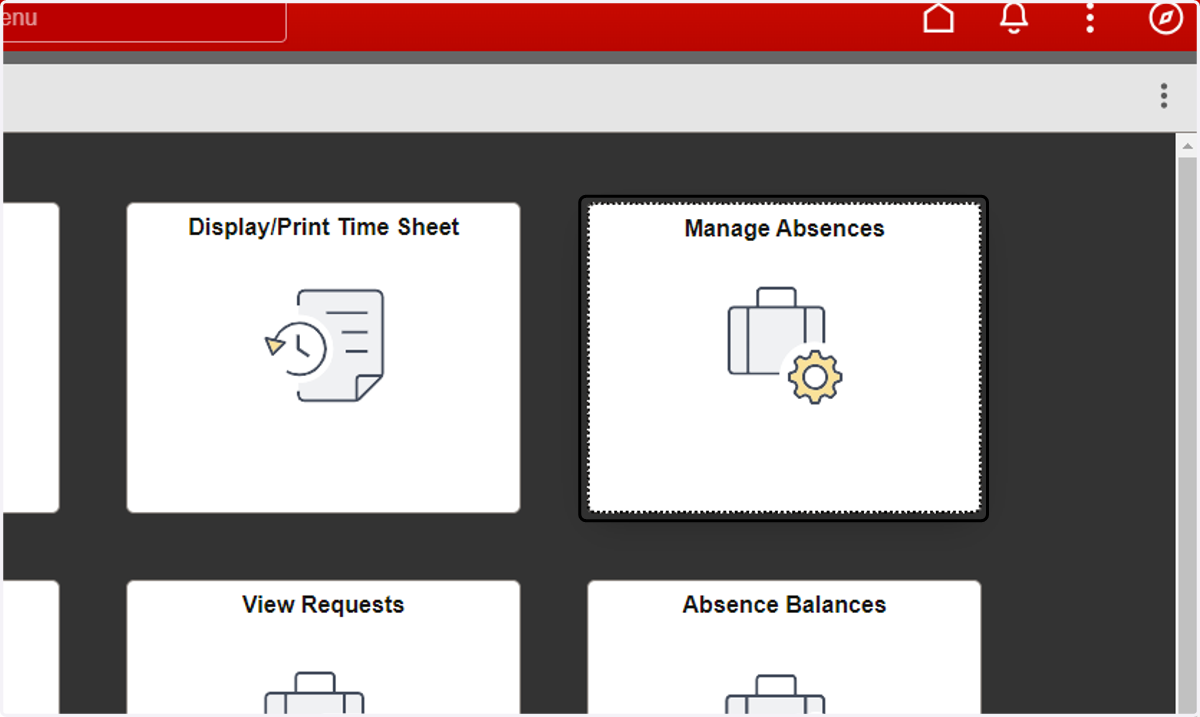
4. Navigate to Manage Absences Tile
Non-Exempt Employee
5. Type Start Date and End Date.
Note:
Start Date and End Date should be the same if the leave request only spans a single day.
Clicking the "+1 Day" button will update the end date by a calendar day.
Absences must be submitted one week at a time (Saturday to Friday) not to exceed your standard work week.
To request absence spanning greater than a week , submit multiple requests - one for each week.
Unless leave was used for a weekend day, leave requests should never be submitted for weekends.

6. Select Sick Leave and click on Apply Absence
This will open up the rest of the absence request fields
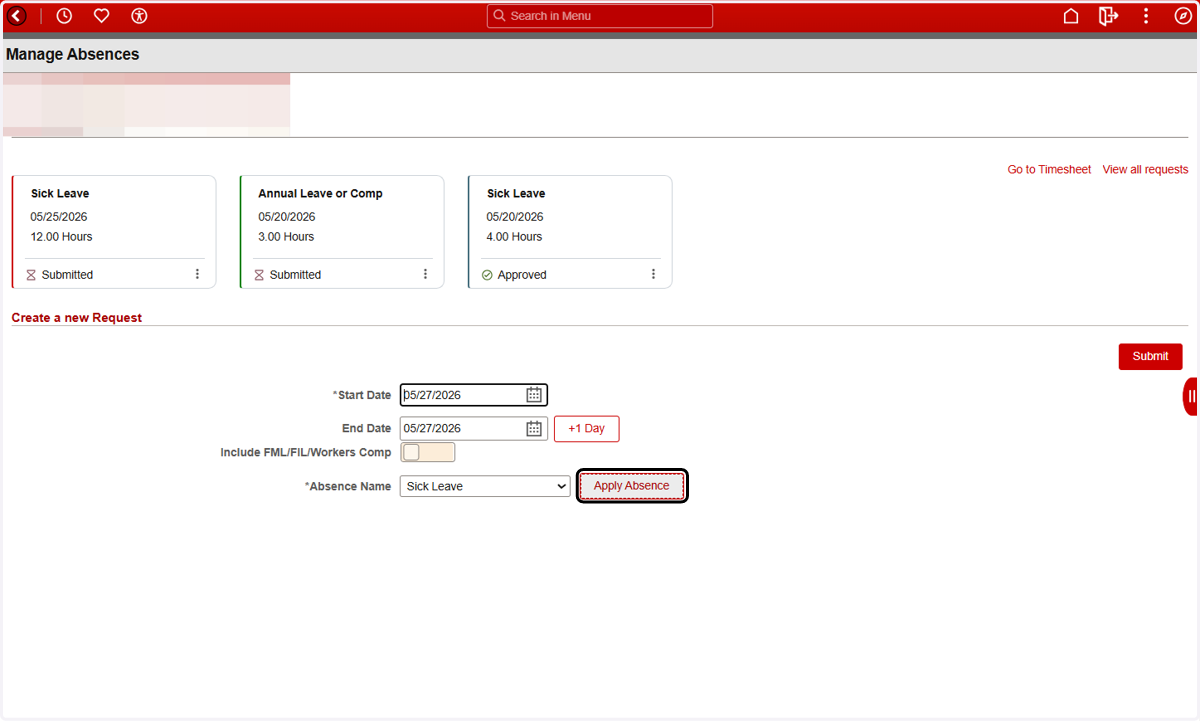
7. Select Reason from the dropdown.
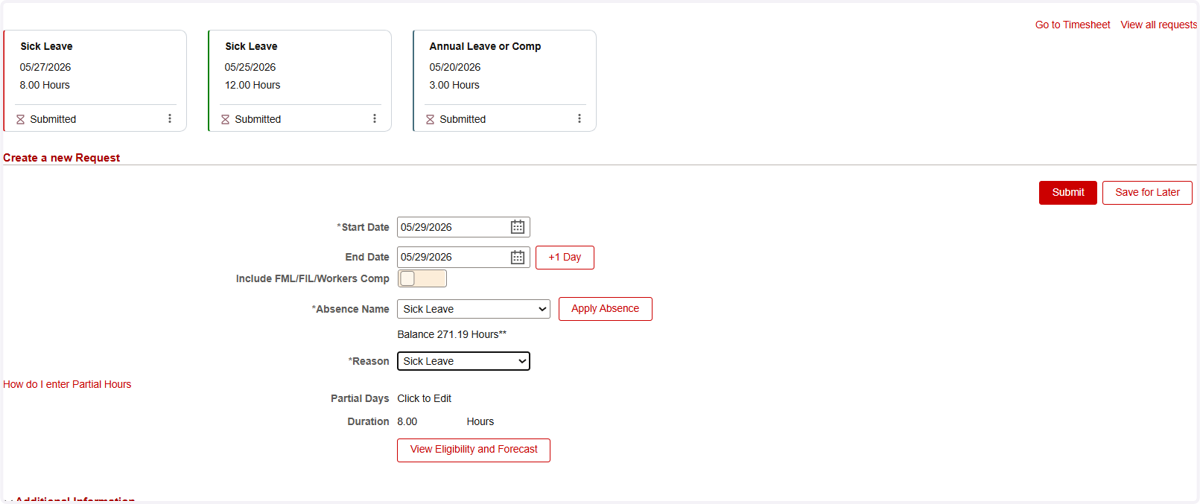
8. Enter the number of hours sick leave was taken
To submit a partial day of leave, view this tango-
If the number of hours is left blank, the system will assume a full day
This can be done for all the days in the absence request.
The below example displays a partial day of sick leave
9. Add comments as necessary.
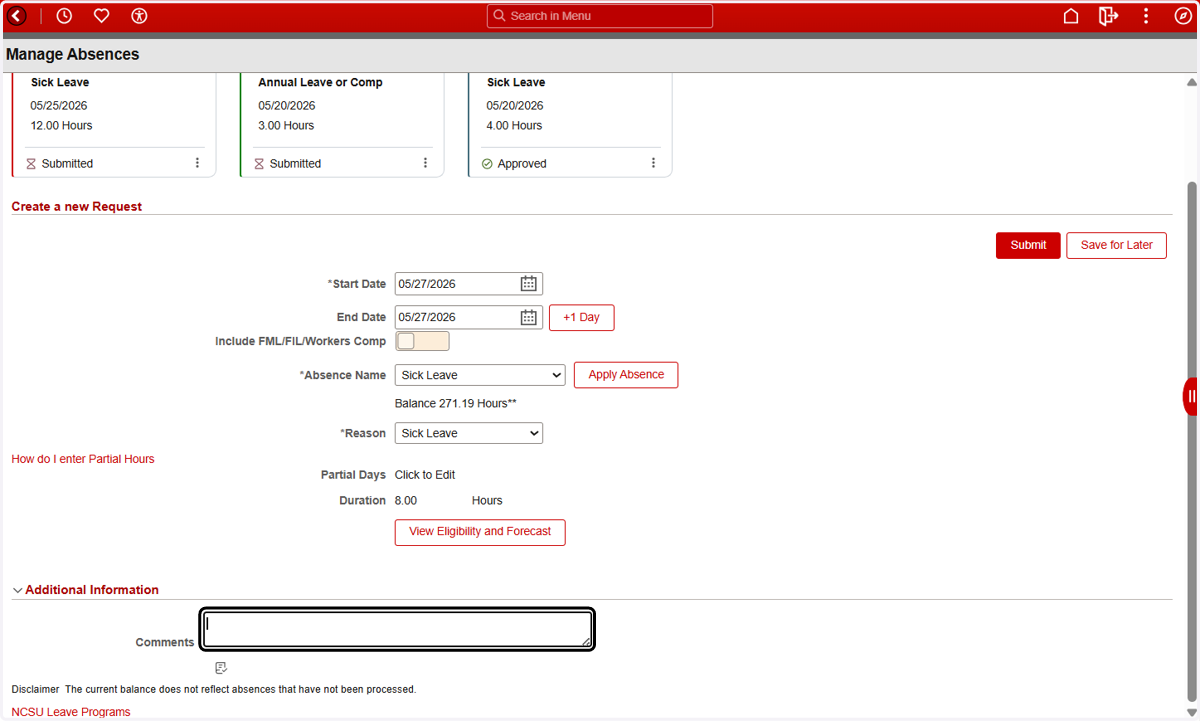
10. Click on View Eligibility and Forecast
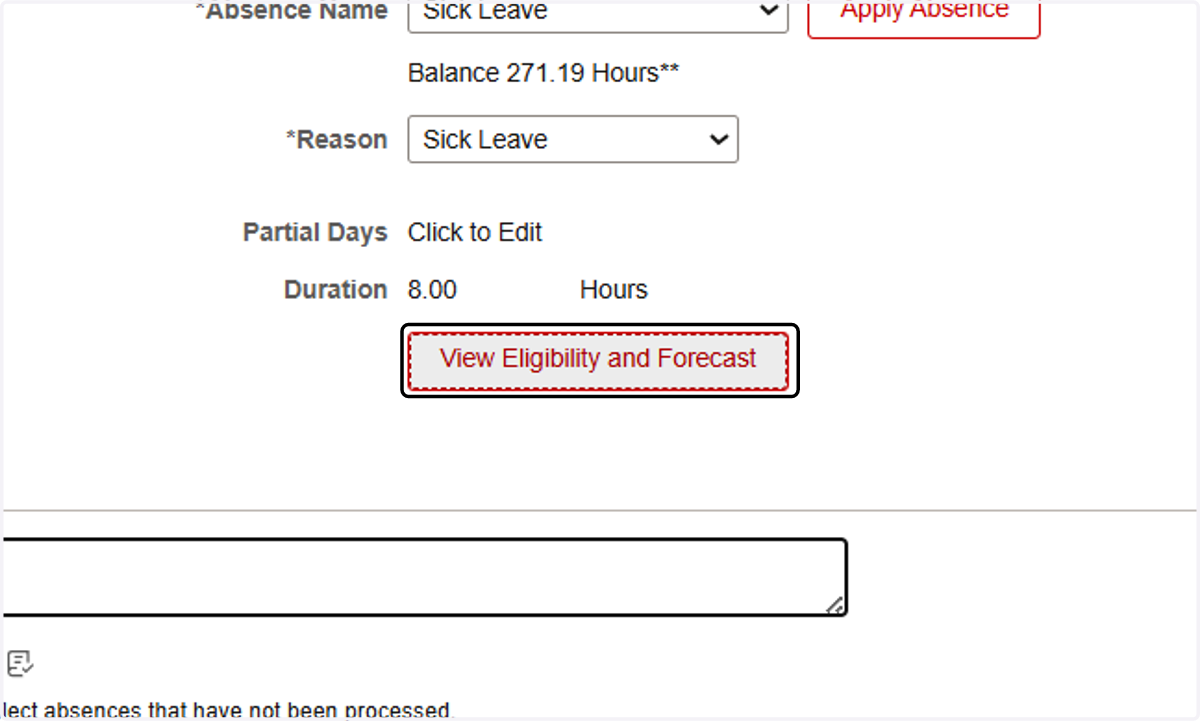
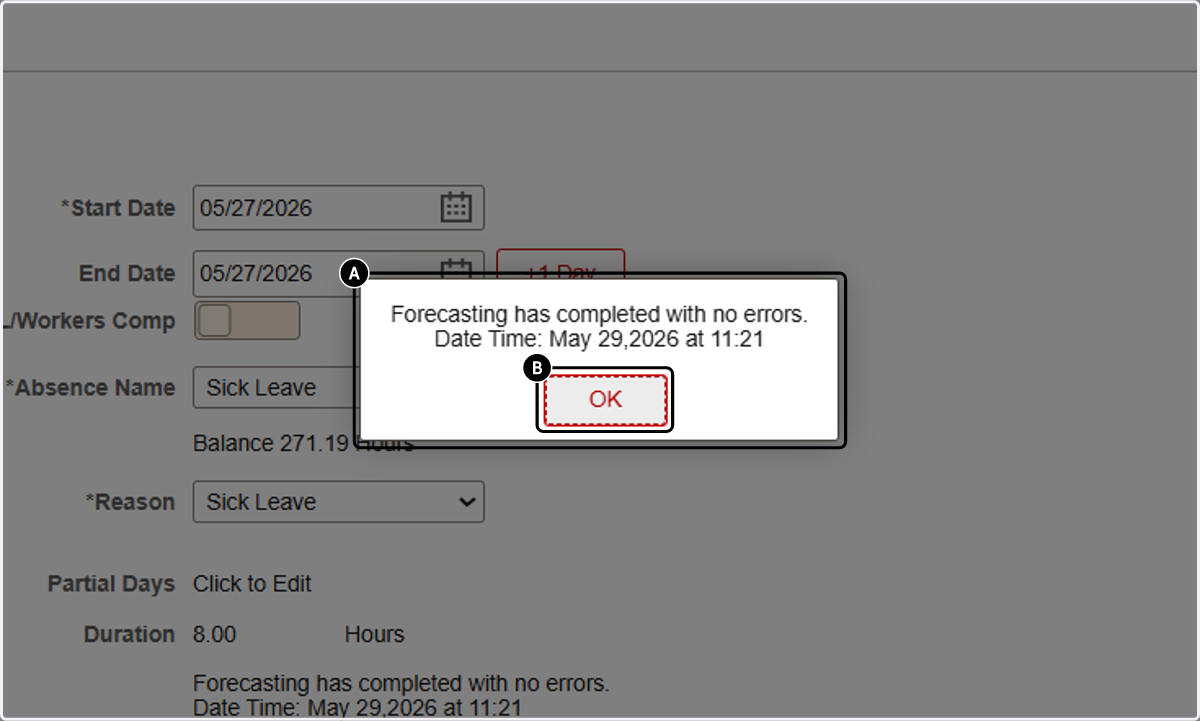
11. A. Forecasting has completed with no errors.…
11. B. Click on OK
Once the forecasting calculation is complete, a system message displays eligibility. Click OK to confirm eligibility.
If you have enough leave balance to cover this absence request, the forecast results are “ELIGIBLE”.
If you do not have enough leave balance to cover this absence request, the forecast results are “INELIGIBLE”
12. Click on Submit
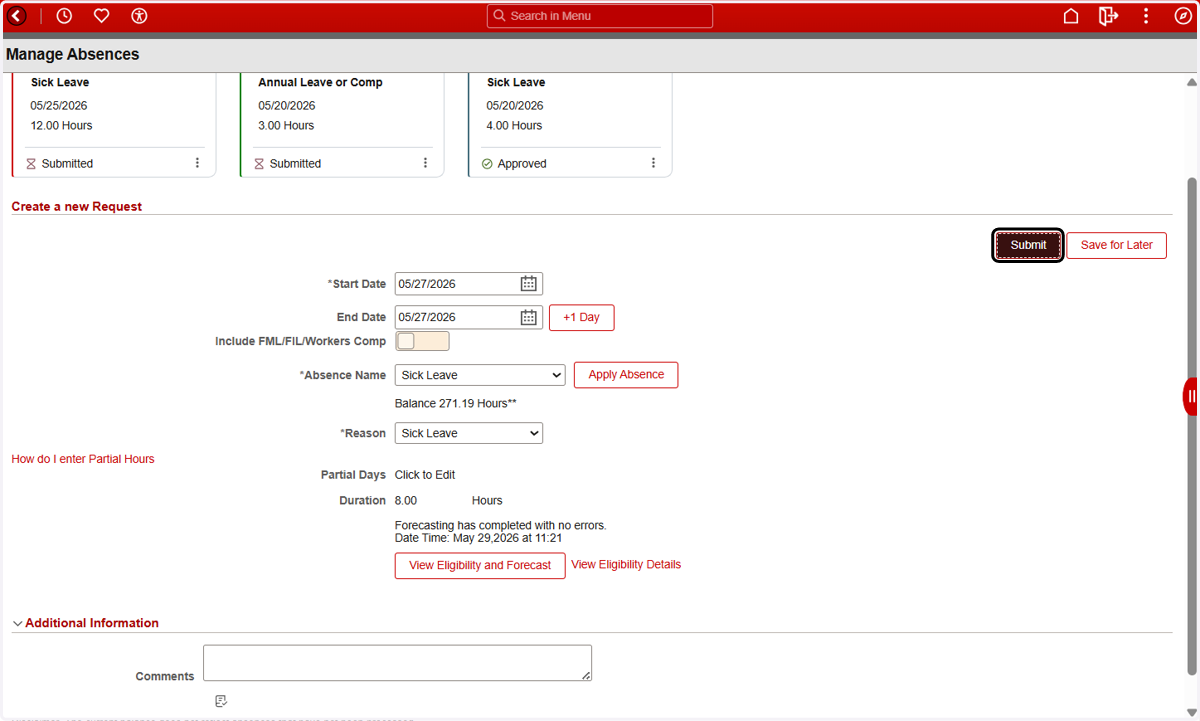
Click the Submit button in the top right corner of the page to submit the absence request for supervisor approval
Note:
The Save for Later button will save the request for the employee to view and submit at a later time. It will NOT submit the request for approval. If the Saved request is not submitted or deleted, then it will impact future balance forecasts.
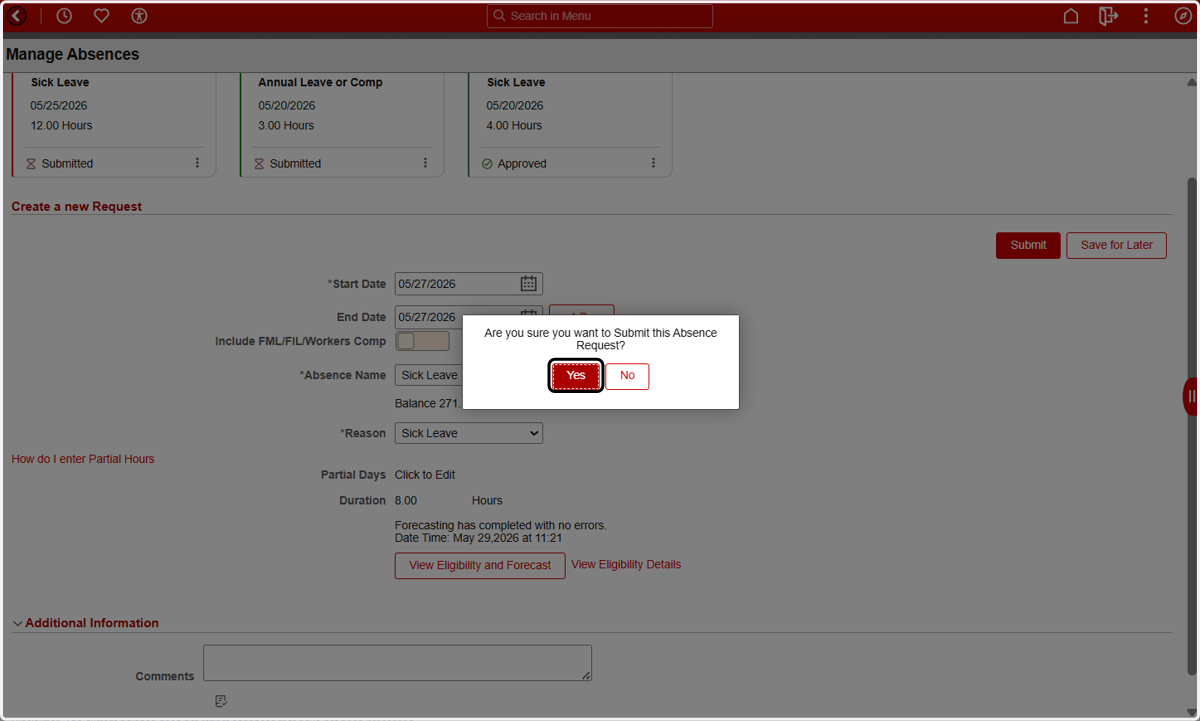
13. Click on Yes
14. The newly Submitted request will now appear among the three most recent requests on the Manage Absences Page and Clicking on the stacked dots will allow you to view or cancel the request
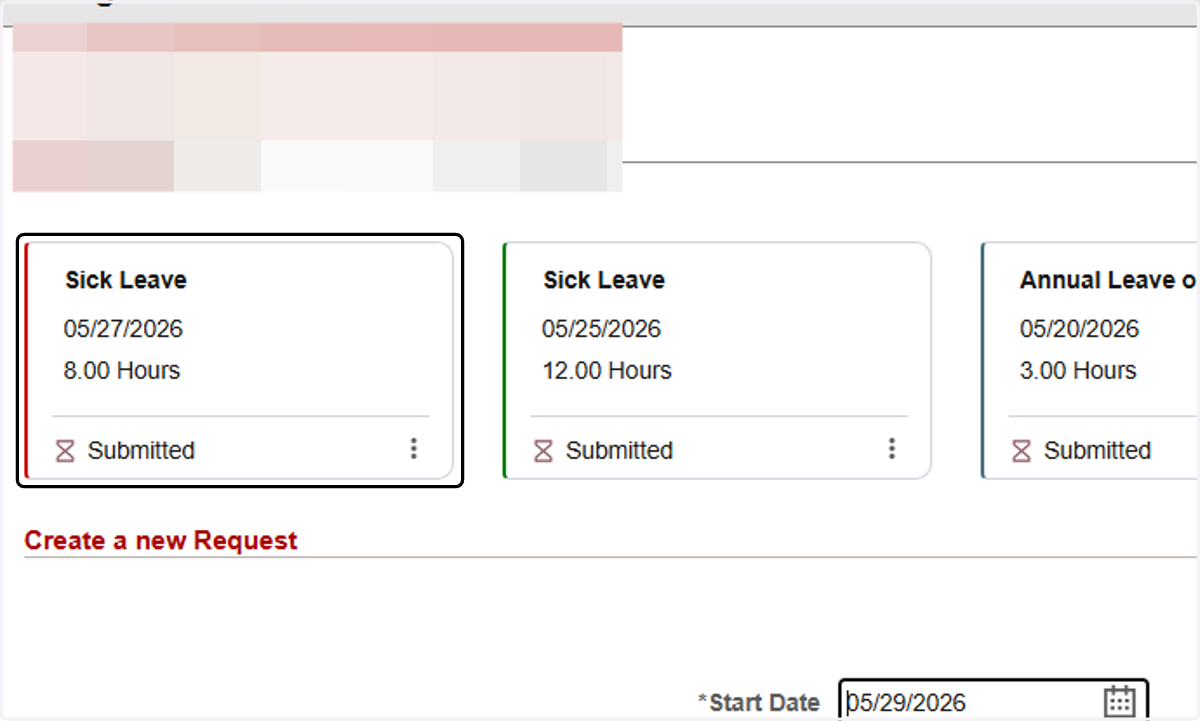
15. You will be returned to the Manage Absences page
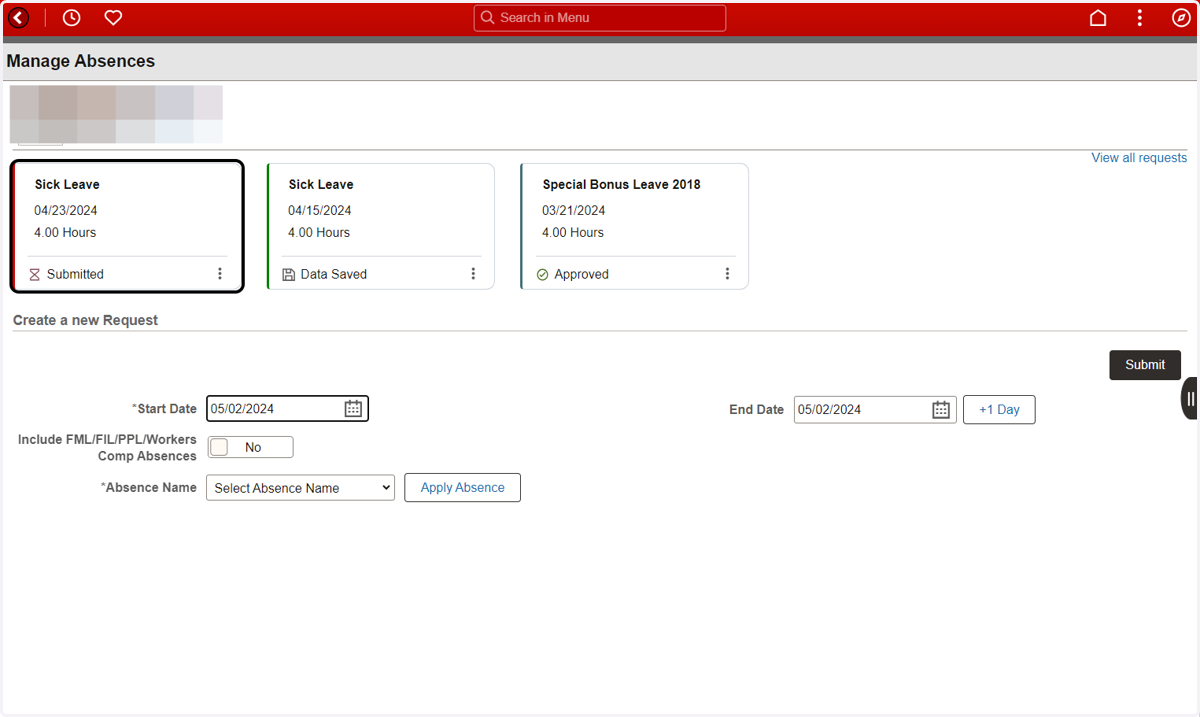
16. Click on View Absence
The newly Submitted request will now appear among the three most recent requests on the Manage Absences Page and Clicking on the stacked dots will allow you to view or cancel the request
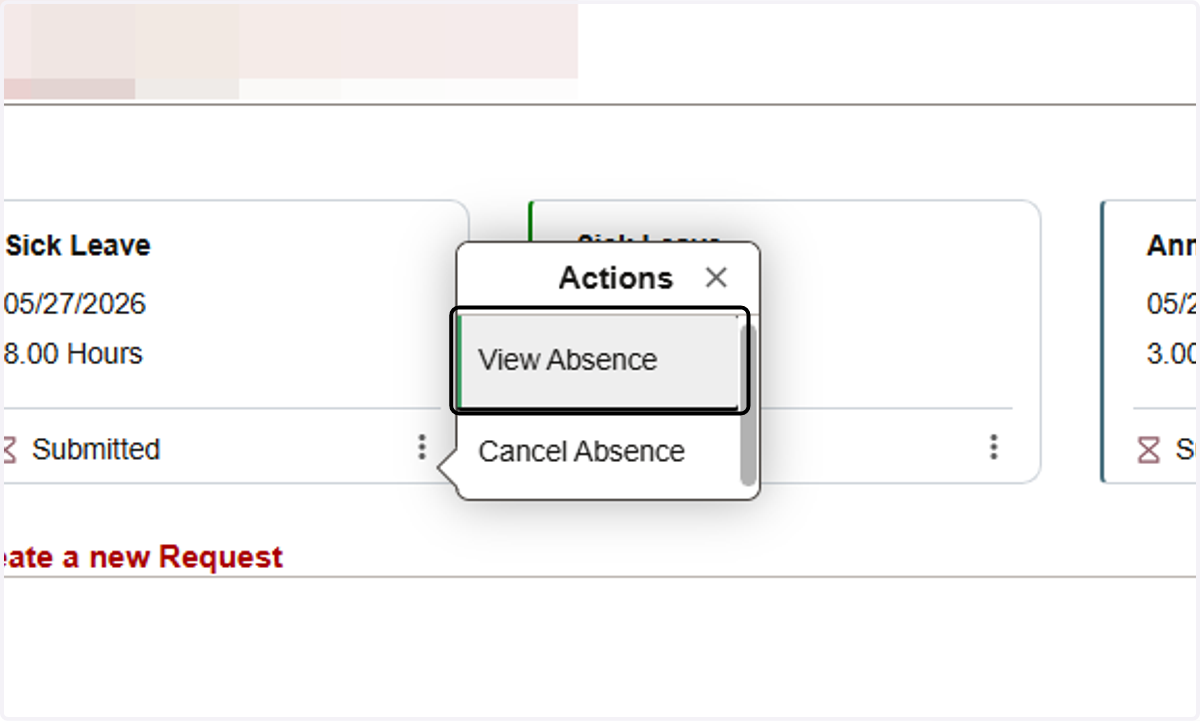
17. View the submitted leave request.
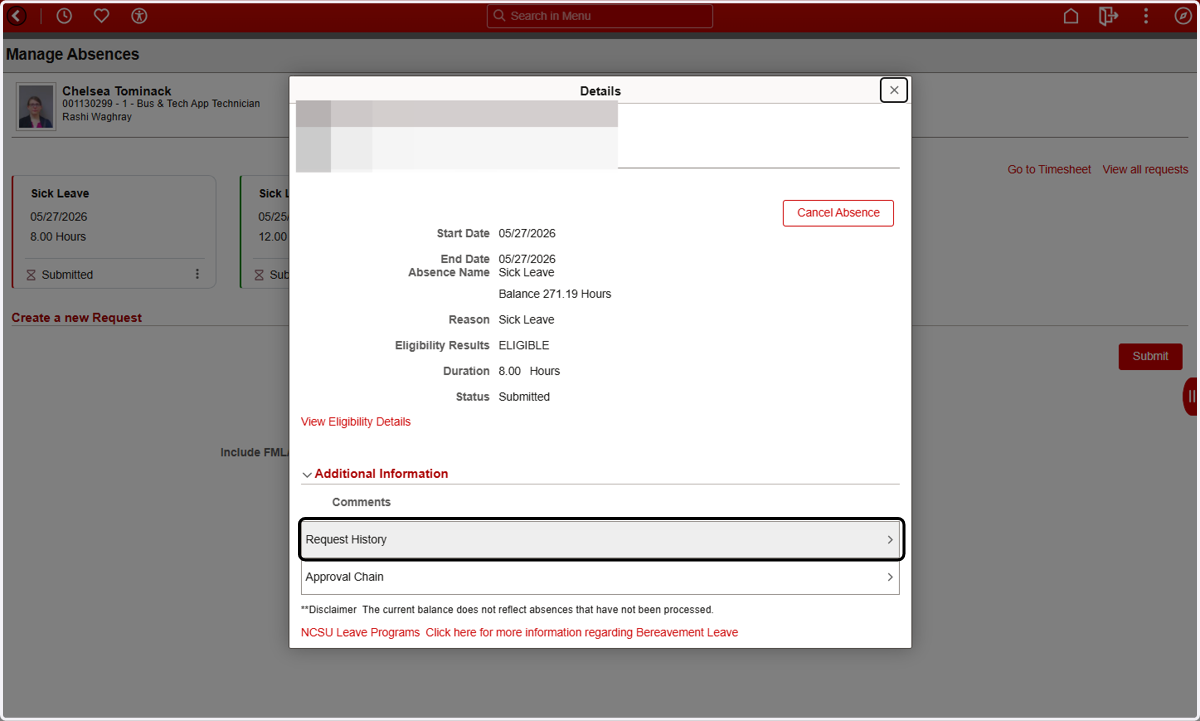
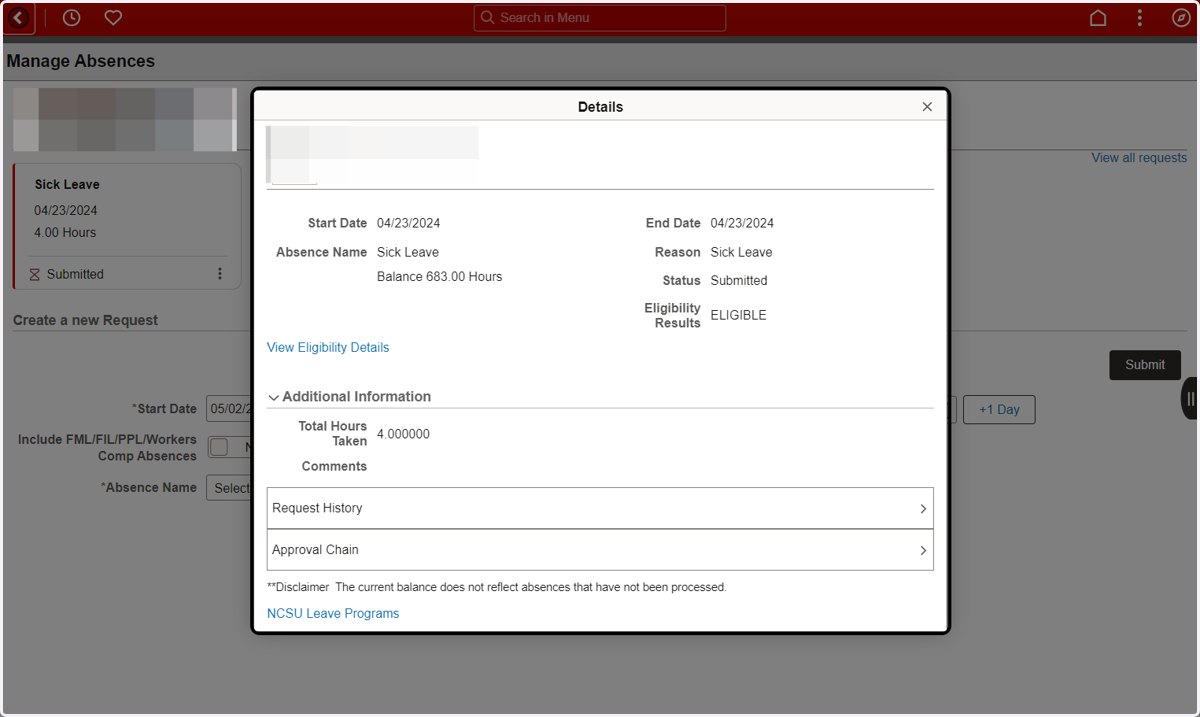
18. The Details of the request contain information such as the Status, Eligibility Status, and Request History
Exempt Employee
19. Navigate to Manage Absences Tile
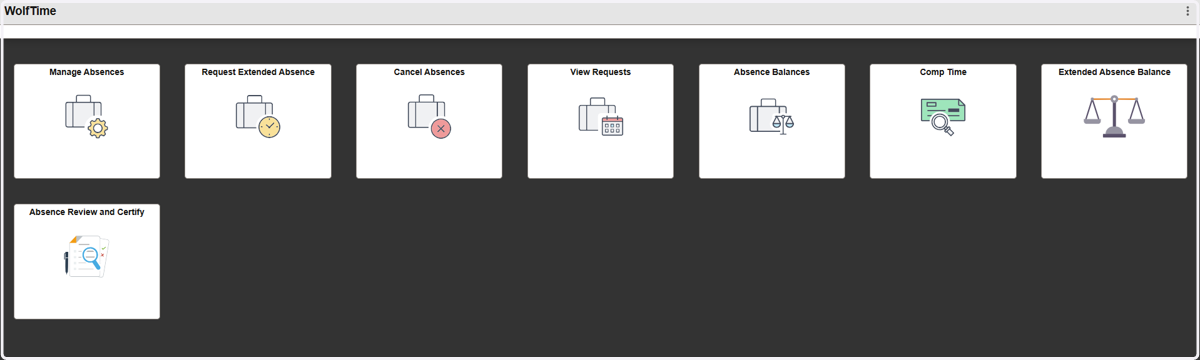
20. Type Start Date and End Date
Note:
Start Date and End Date should be the same if the leave request only spans a single day.
Clicking the "+1 Day" button will update the end date by a calendar day.
Absences must be submitted one week at a time (Saturday to Friday) not to exceed your standard work week.
To request absence spanning greater than a week , submit multiple requests - one for each week.
Unless leave was used for a weekend day, leave requests should never be submitted for weekends.
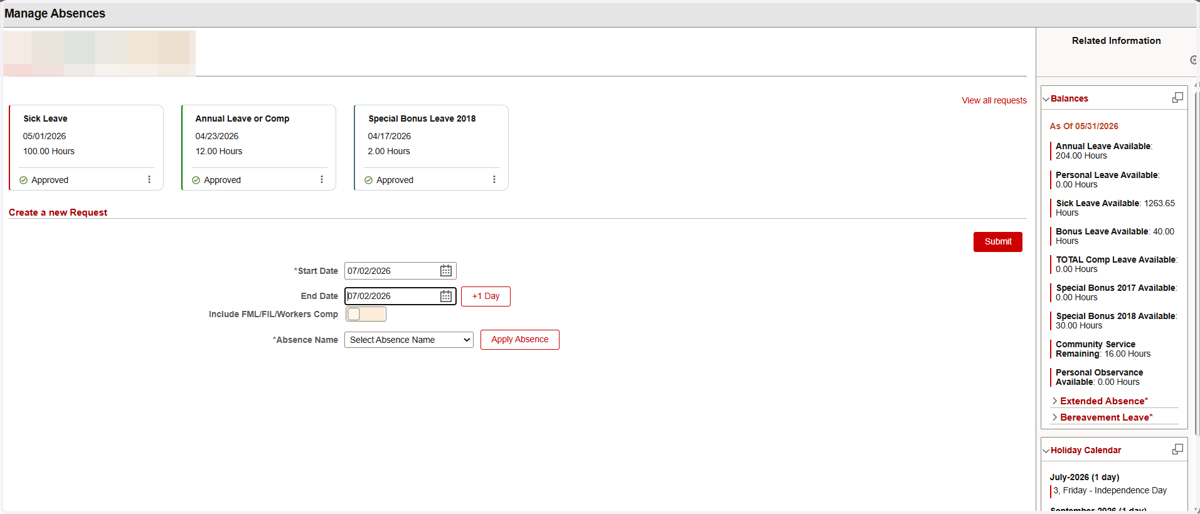
21. Select Sick Leave and click on Apply Absence
This will open up the rest of the absence request fields
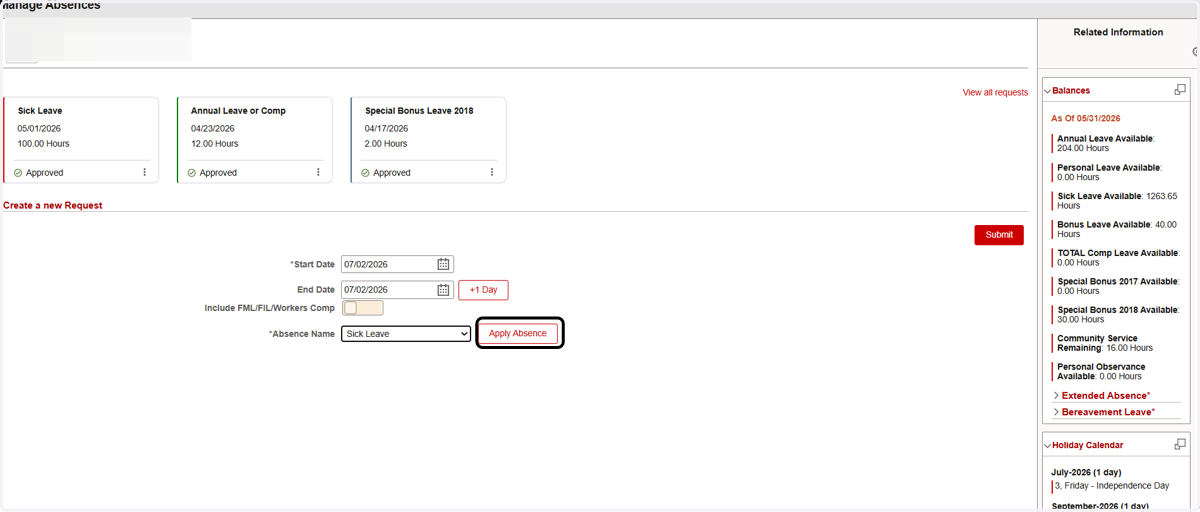
22. Select Reason from the dropdown.
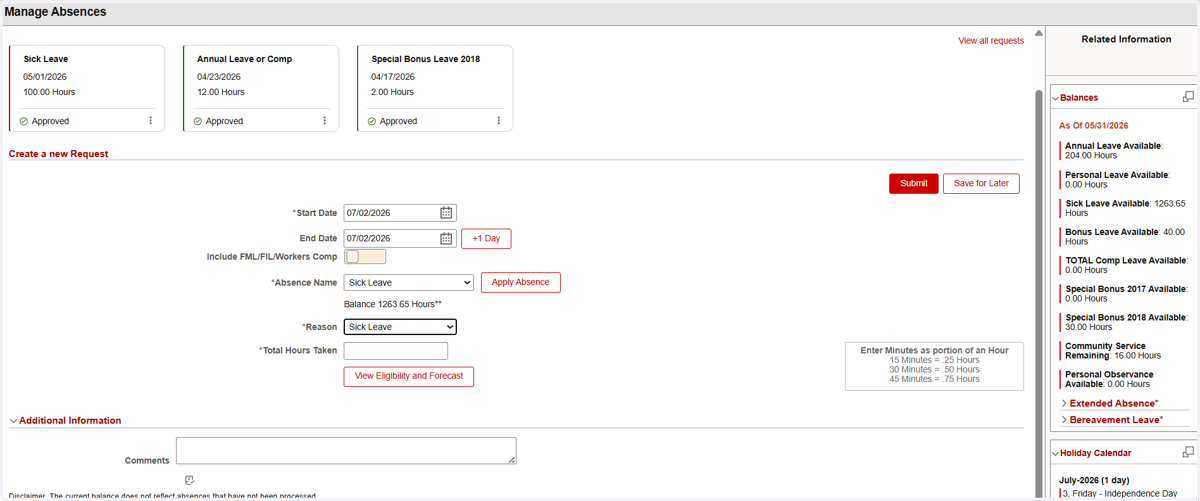
23. Enter the number of hours sick leave was taken
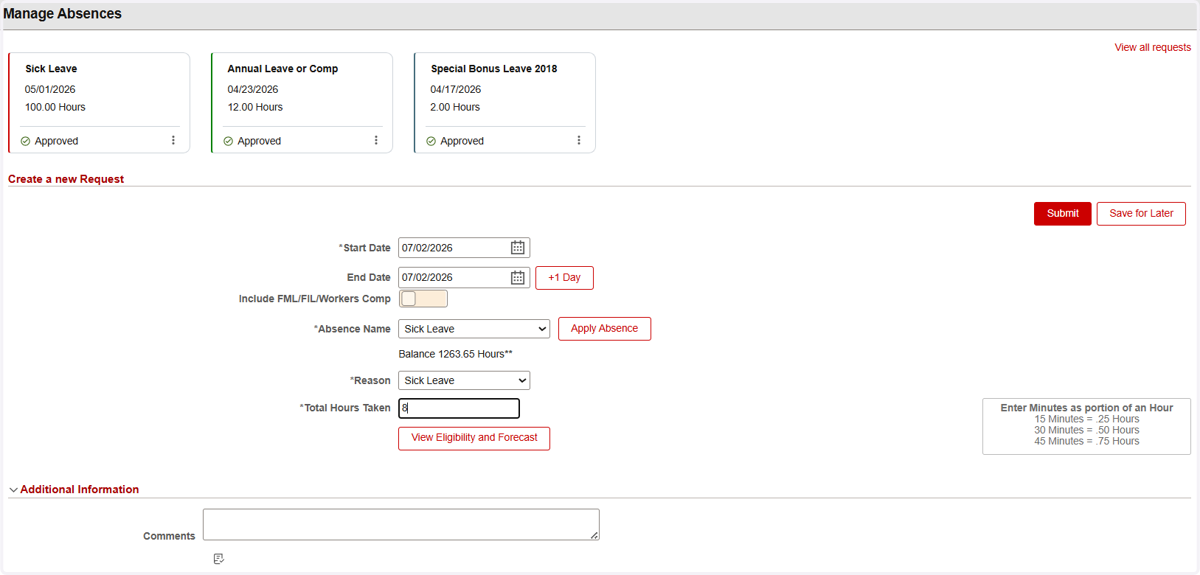
24. Add comments as necessary
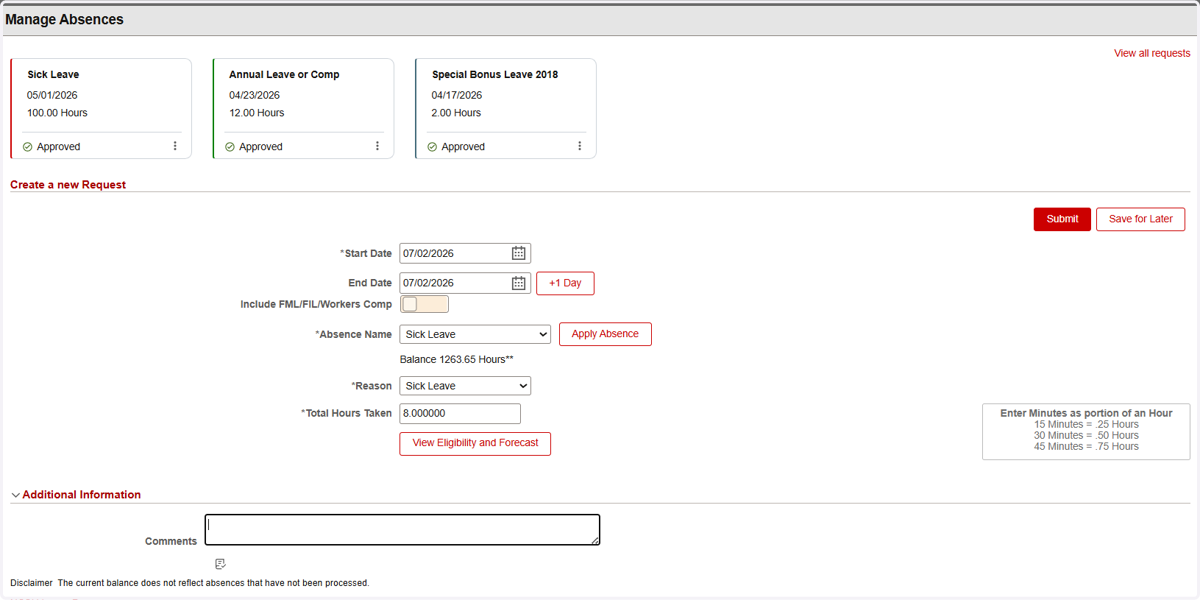
25. Click on View Eligibility and Forecast
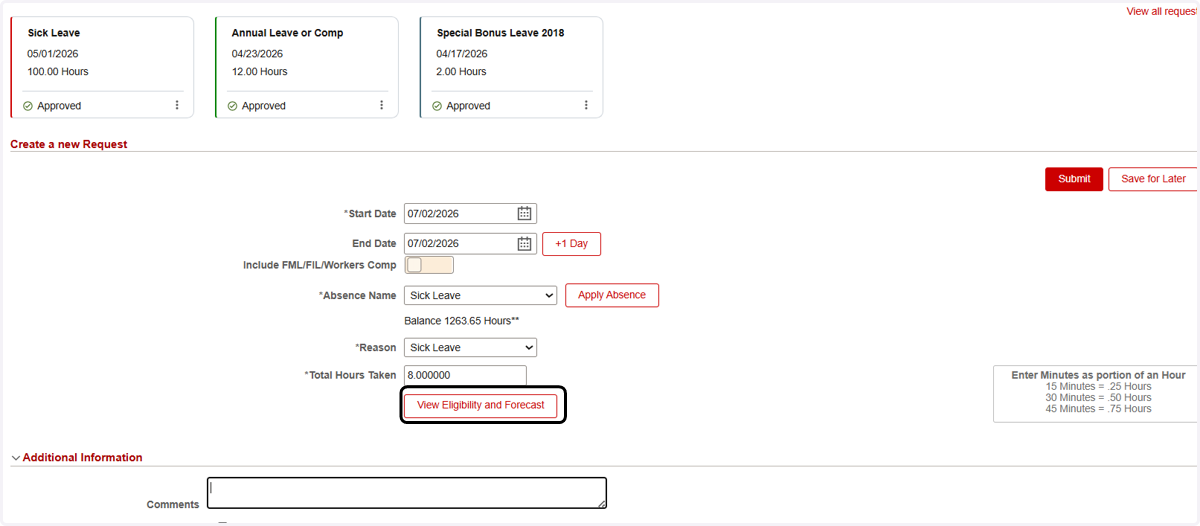
26. Forecasting has completed with no errors
Once the forecasting calculation is complete, a system message displays eligibility. Click OK to confirm eligibility.
If you have enough leave balance to cover this absence request, the forecast results are “ELIGIBLE”.
If you do not have enough leave balance to cover this absence request, the forecast results are “INELIGIBLE”
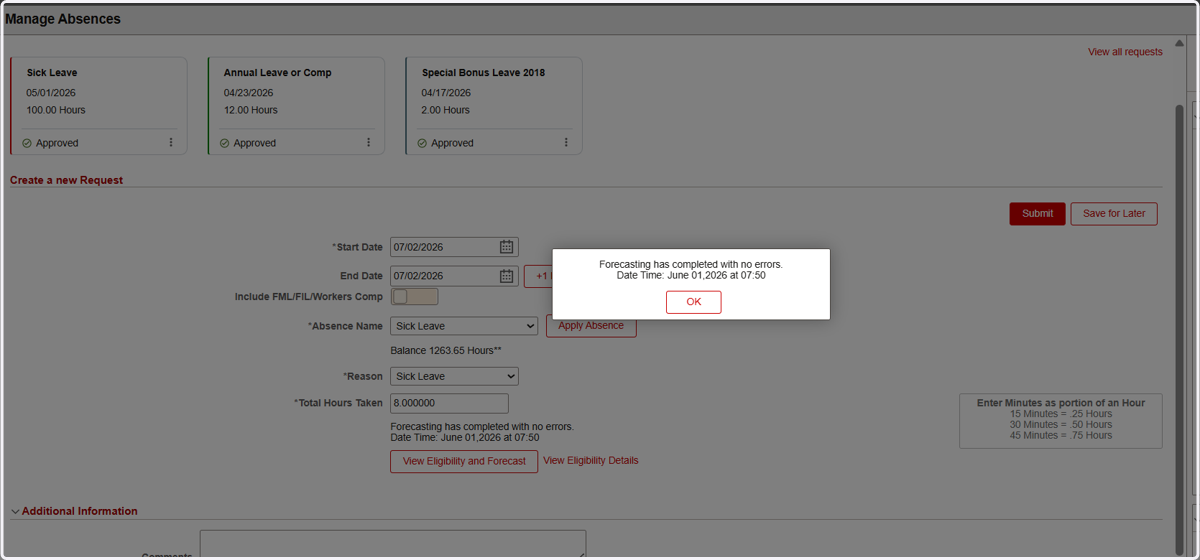
27. Click on Submit
Click the Submit button in the top right corner of the page to submit the absence request for supervisor approval
Note:
The Save for Later button will save the request for the employee to view and submit at a later time. It will NOT submit the request for approval. If the Saved request is not submitted or deleted, then it will impact future balance forecasts.
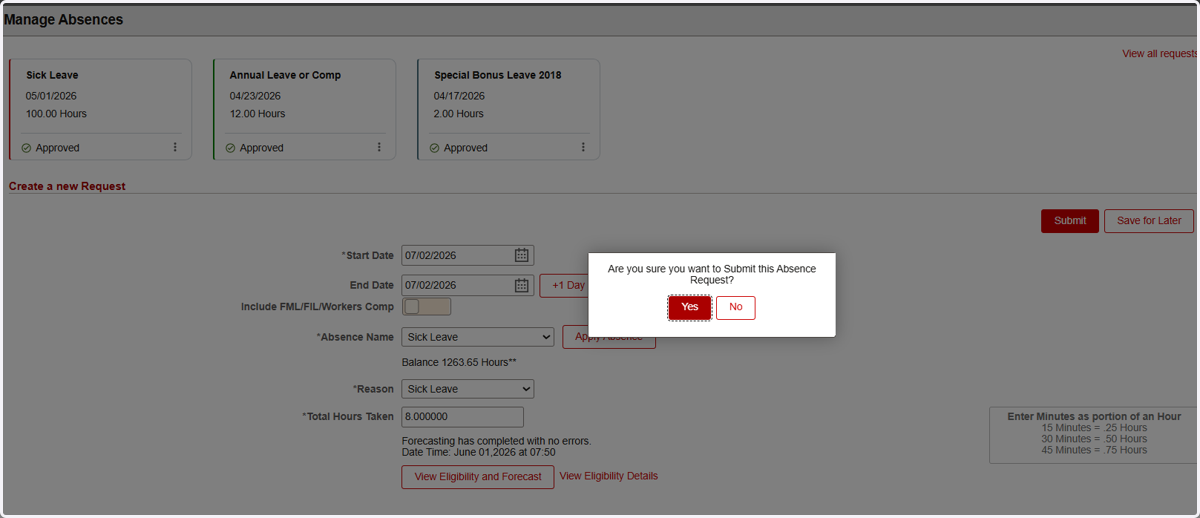
28. The newly Submitted request will now appear among the three most recent requests on the Manage Absences Page and Clicking on the stacked dots will allow you to view or cancel the request
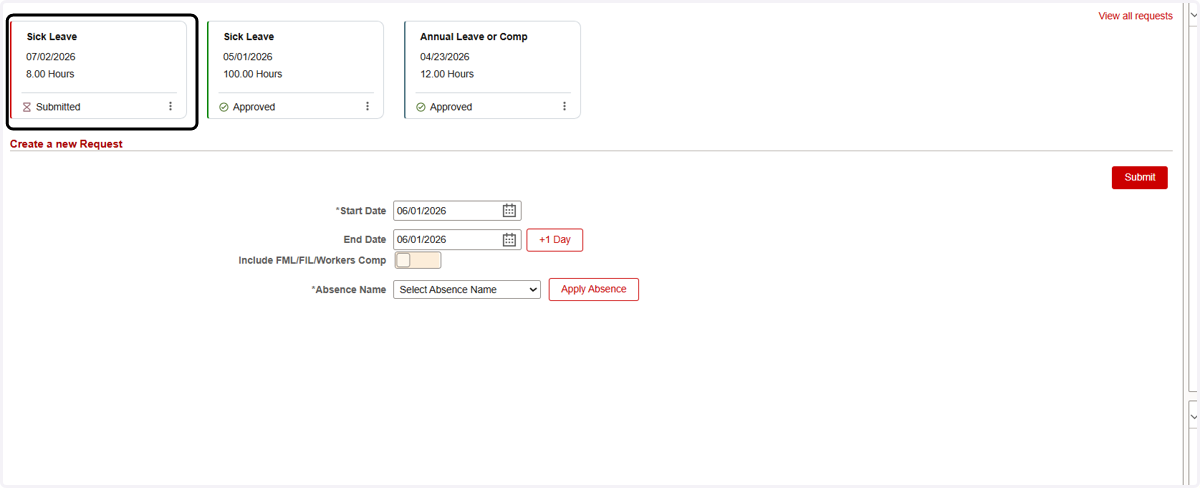
29. Click on View Absence
The newly Submitted request will now appear among the three most recent requests on the Manage Absences Page and Clicking on the stacked dots will allow you to view or cancel the request
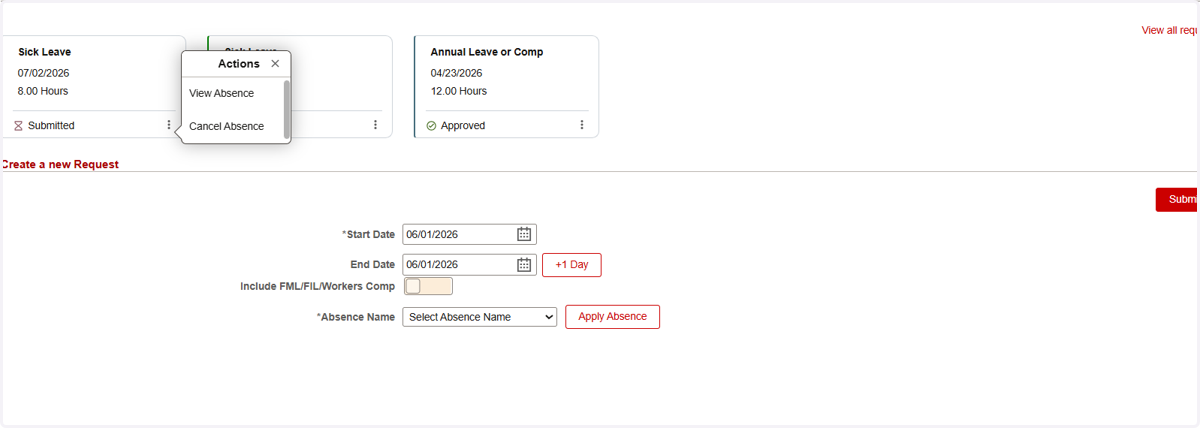
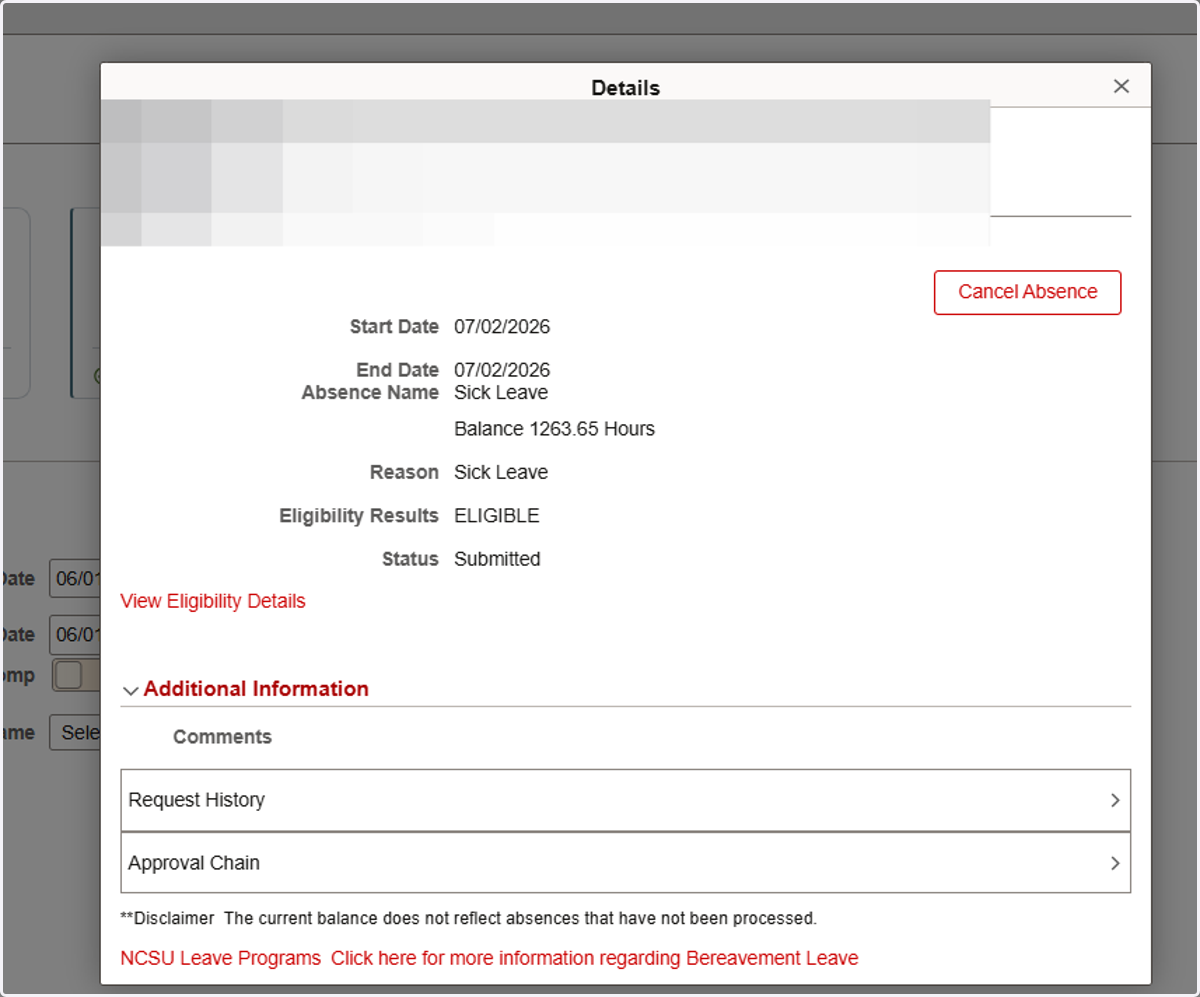
30. View Submitted Request
The Details of the request contain information such as the Status, Eligibility Status, and Request History
31. What happens next?
Once submitted, the absence request will be sent to your Supervisor for approval.
Absence balances will update on the day AFTER the absence request has been Approved.
For future-dated absences, absence balances will update on the start of the month of the absence.