Employee's Guide: How to Use the Custom Daily Hours to Enter a Partial Day of Leave or for Alternative Work Schedules (FLSA Nonexempt)
Custom Daily Hours Field
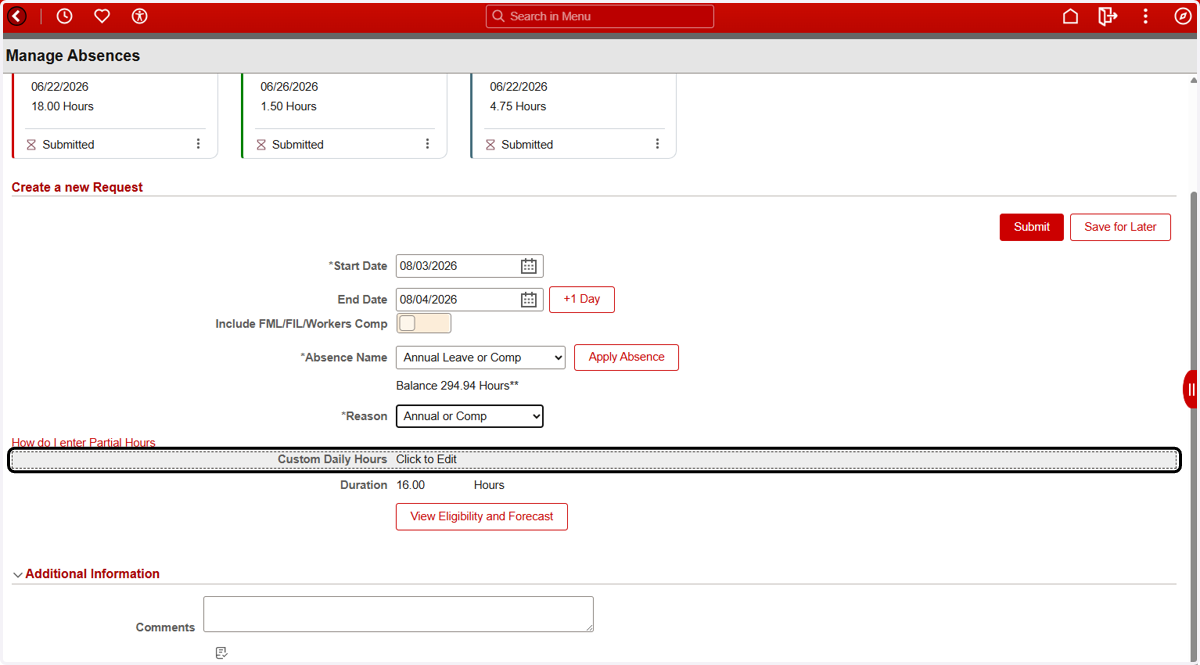
1. Click on "Custom Daily Hours: Click to Edit"
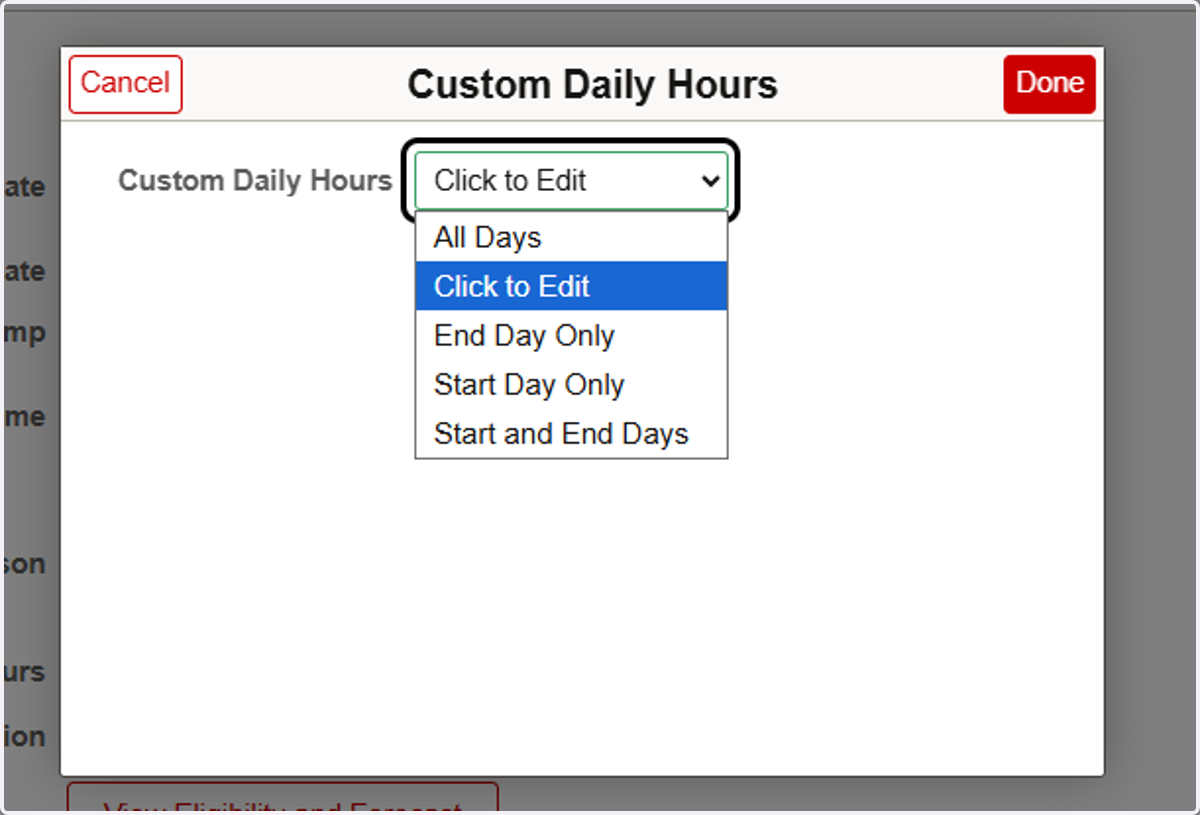
An additional Custom Daily Hours menu will pop-up on the screen.
2. Select the appropriate option from the Custom Daily Hours drop-down
3. Aditional Information
Once an option has been selected from the Partial Days drop down, the Partial Days pop-up window will population with additional fields.
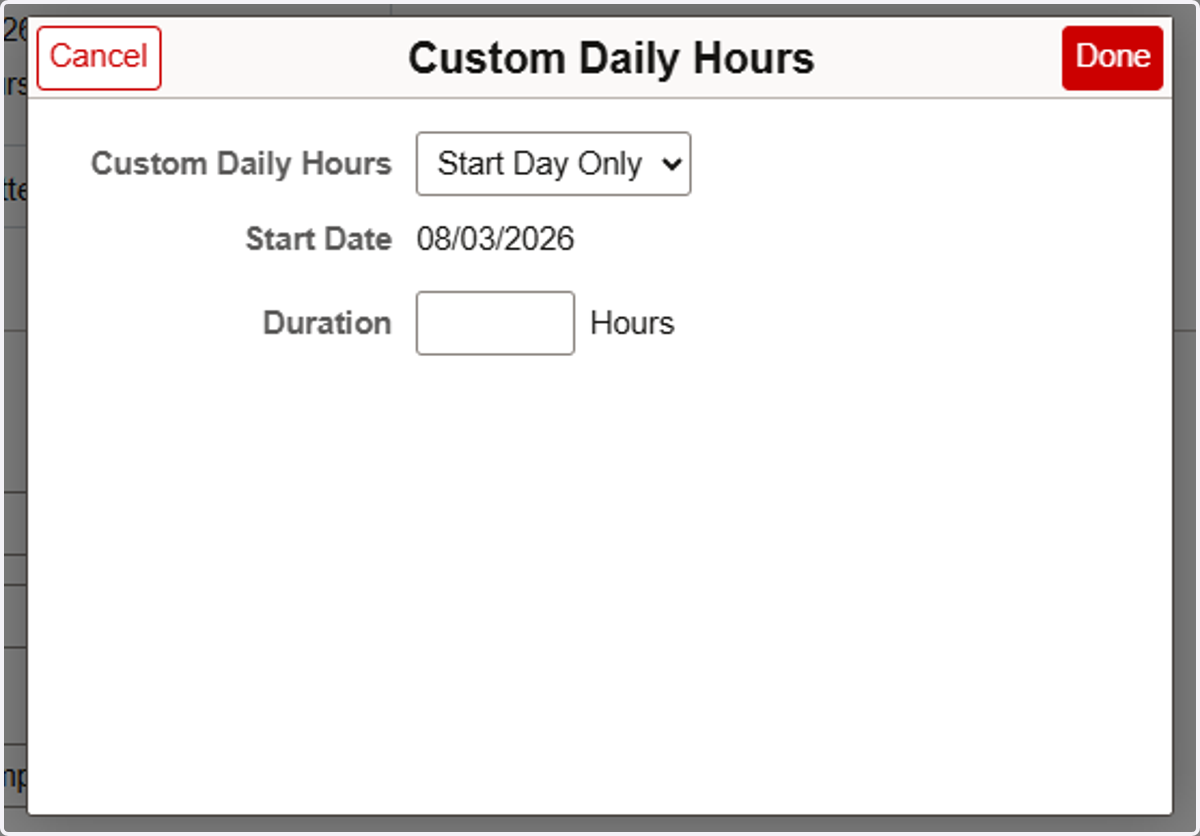
4. To Submit a Partial Day, enter in the number of hours of leave for that day into the Duration field.
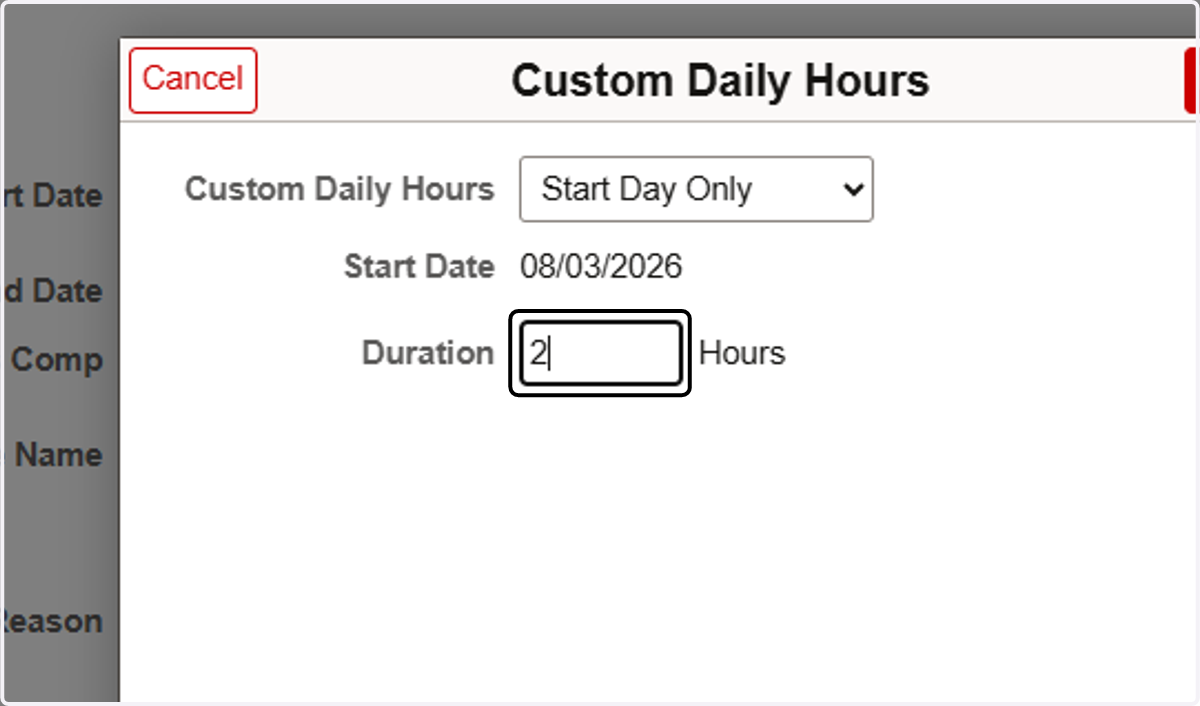
5. For employees with alternative work schedules (e.g. 10 hour workdays)
To take a single day of leave greater than the default duration (e.g. 8 hr days for a fulltime employee, FTE 1.0), enter in the number of hours of leave for that day into the Duration field.
"Start Day Only" is the appropriate selection for a single day of leave.
"All Days" is the appropriate selection for multiple consecutive days of leave with the same duration.
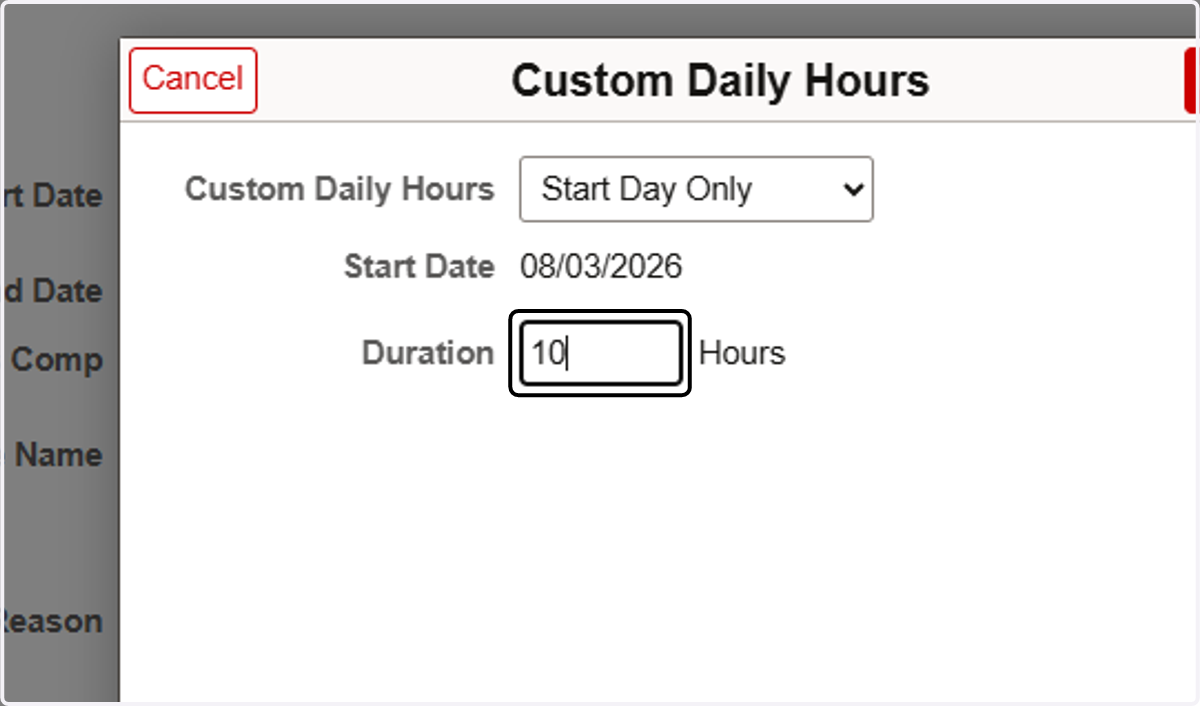
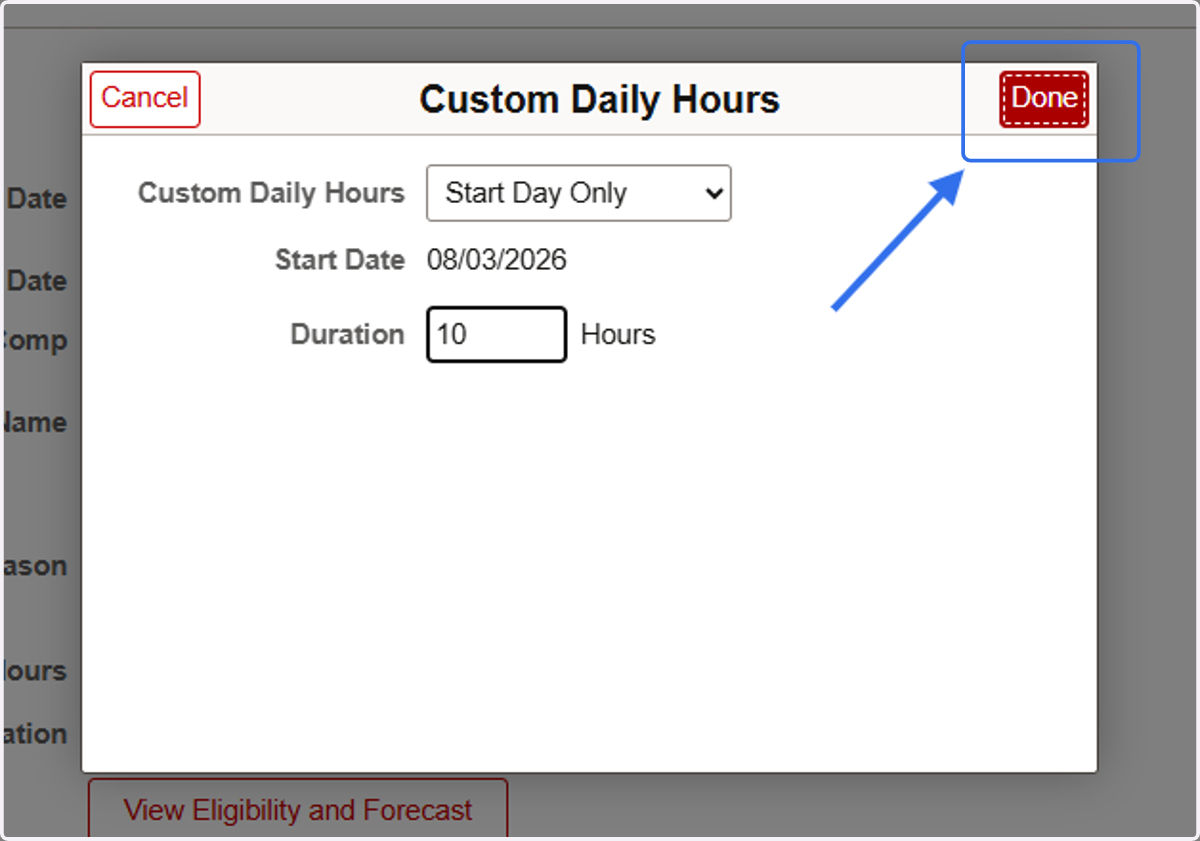
6. Click on Done to Apply the changes to the leave request
Optional: Reference Link
7. Reference Link
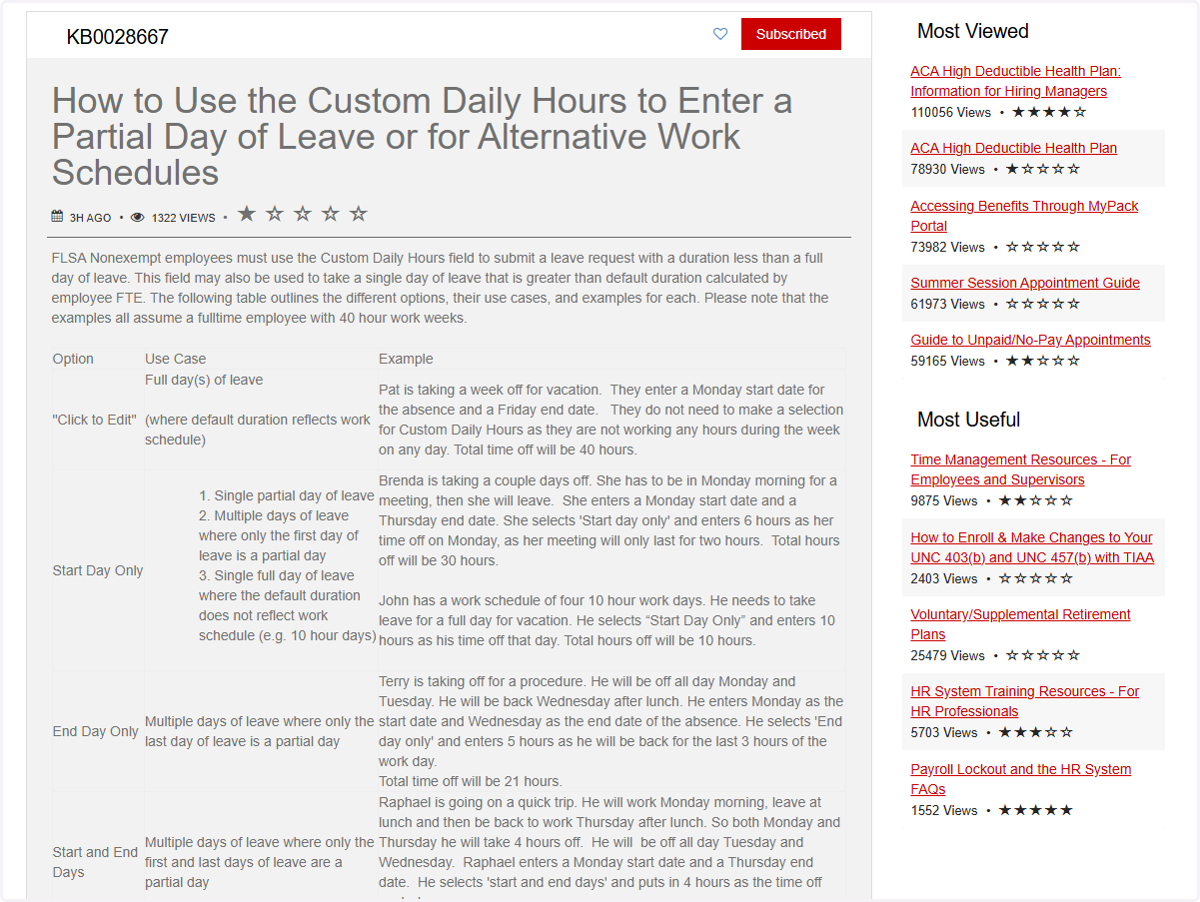
The link titled "How do I enter Partial Hours" opens a new tab with the knowledge article explaining the options in the Custom Daily Hours drop-down menu for employee reference.
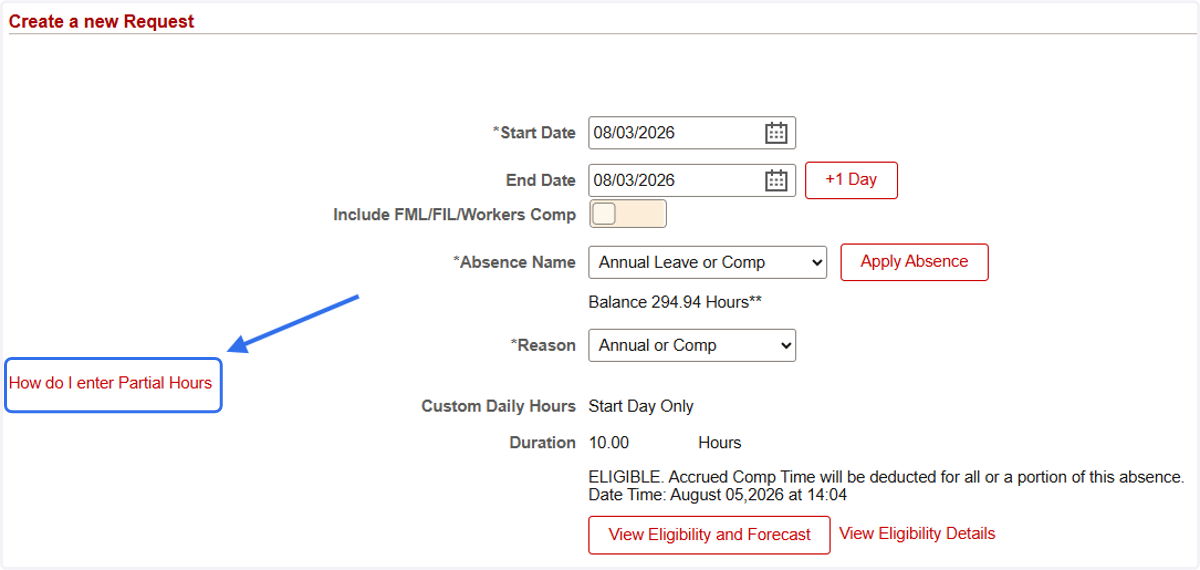
8. Knowledge Article Opened in New Tab for Reference