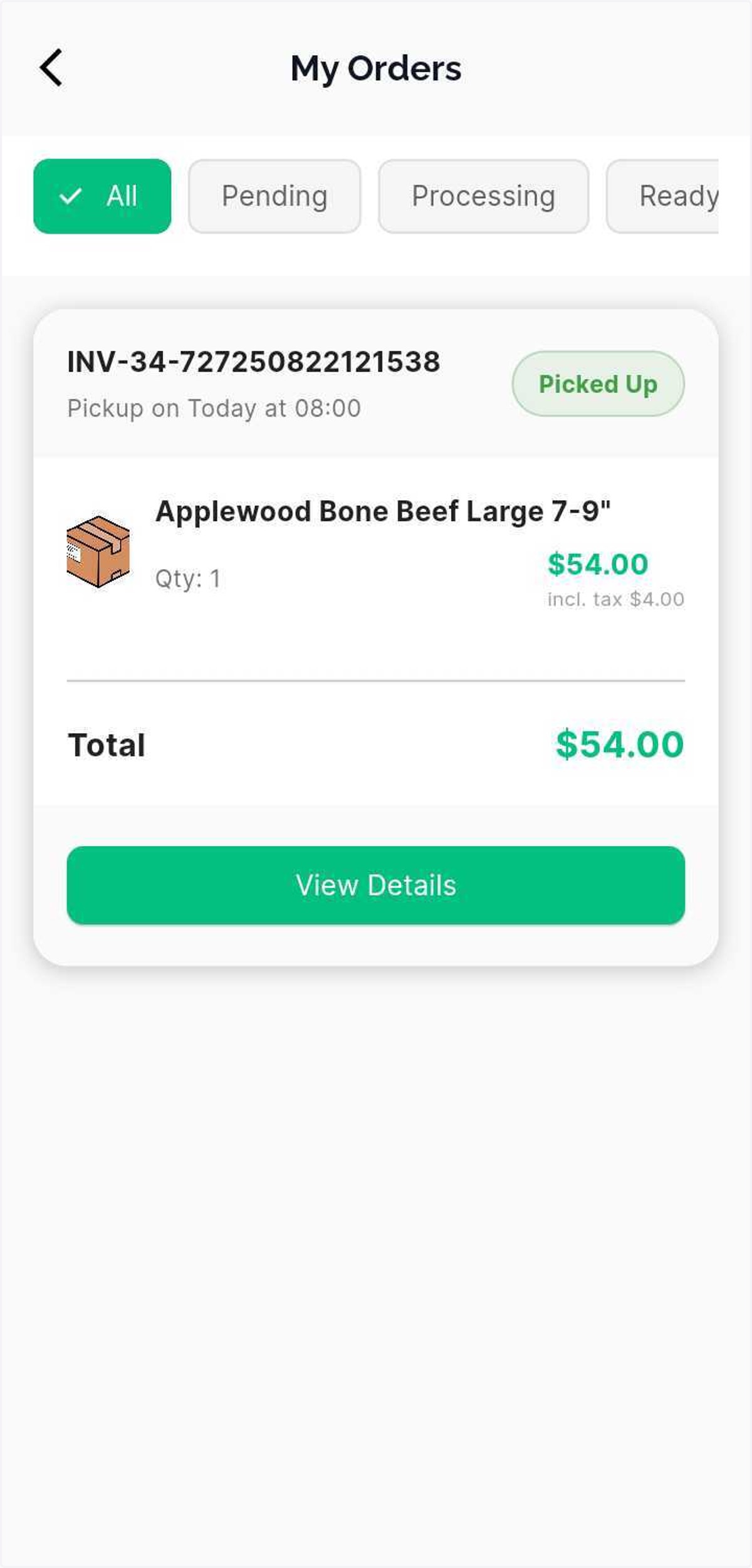
Loyal Cart- Boost sales: Pet Owners Can Buy Retail Directly in the App
Go to your RunLoyal staff portal on a Google Chrome browser. **All settings-related items must be updated while on a desktop or laptop.
1. Setting up Retail Products to Show in the Pet Owner App (as per the setup in Loyal Cart)
1. Navigate to Settings.
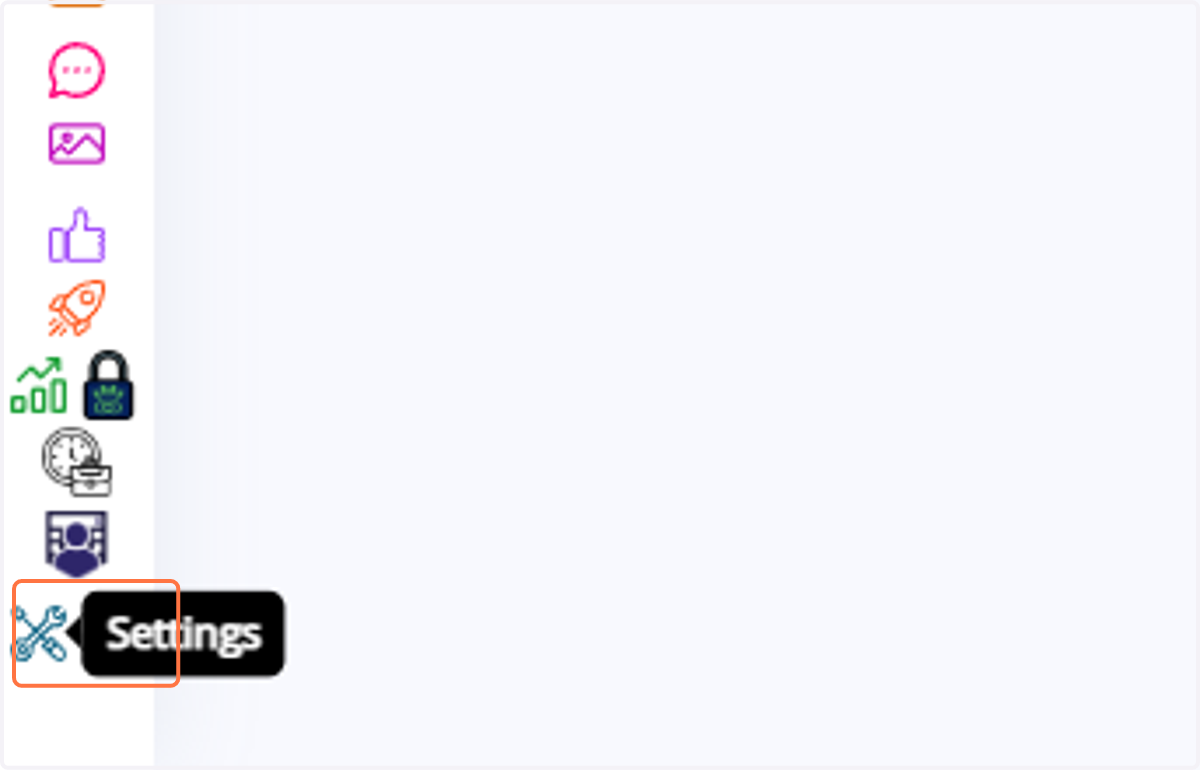
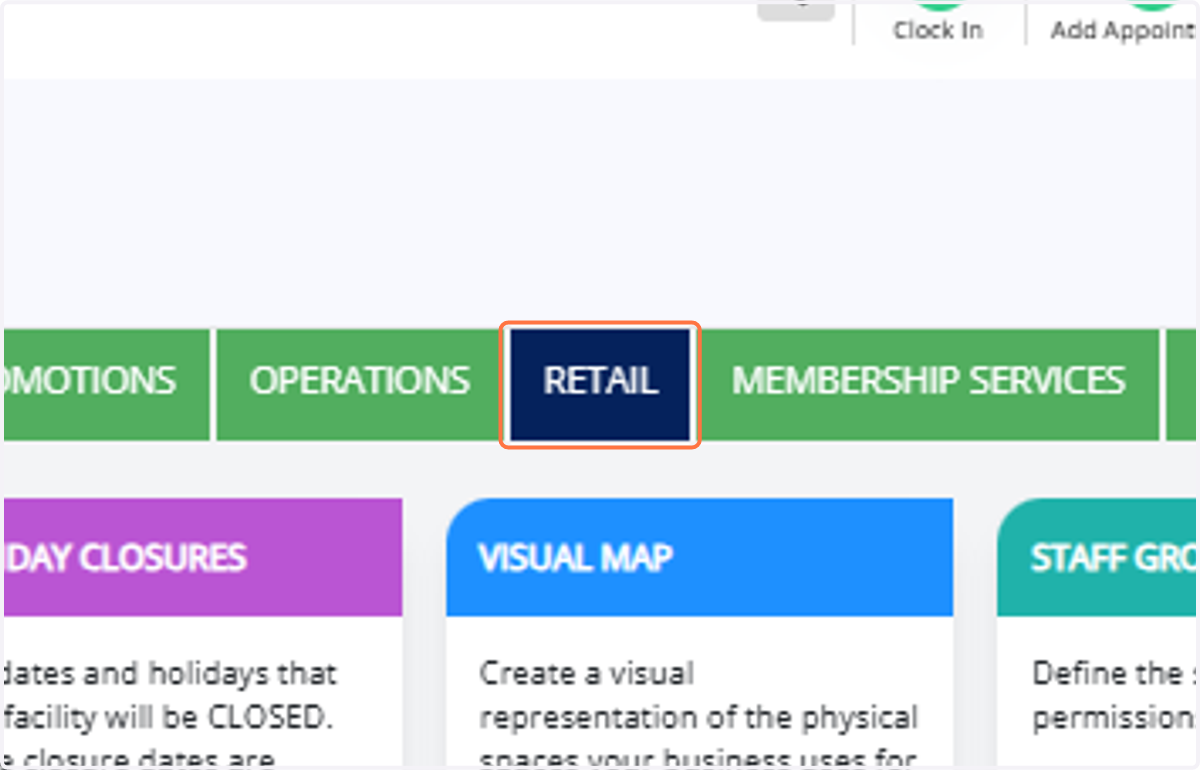
2. Click on Retail.
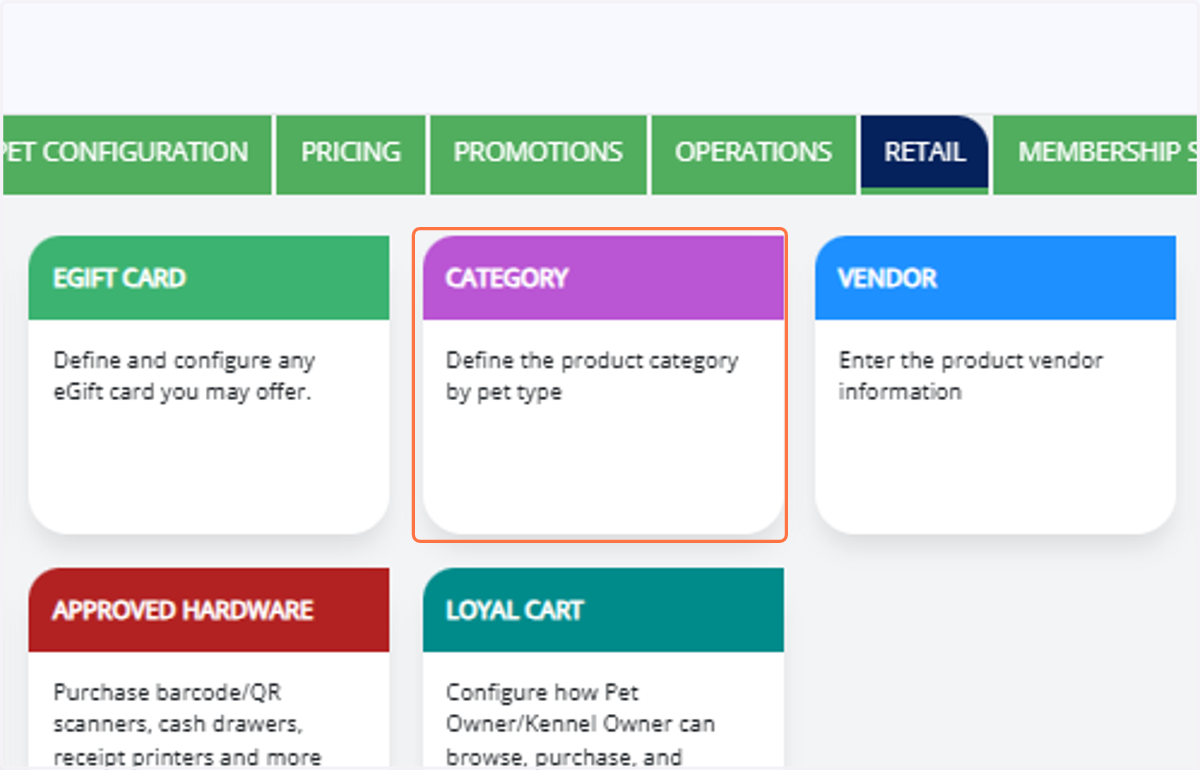
3. Select Category.
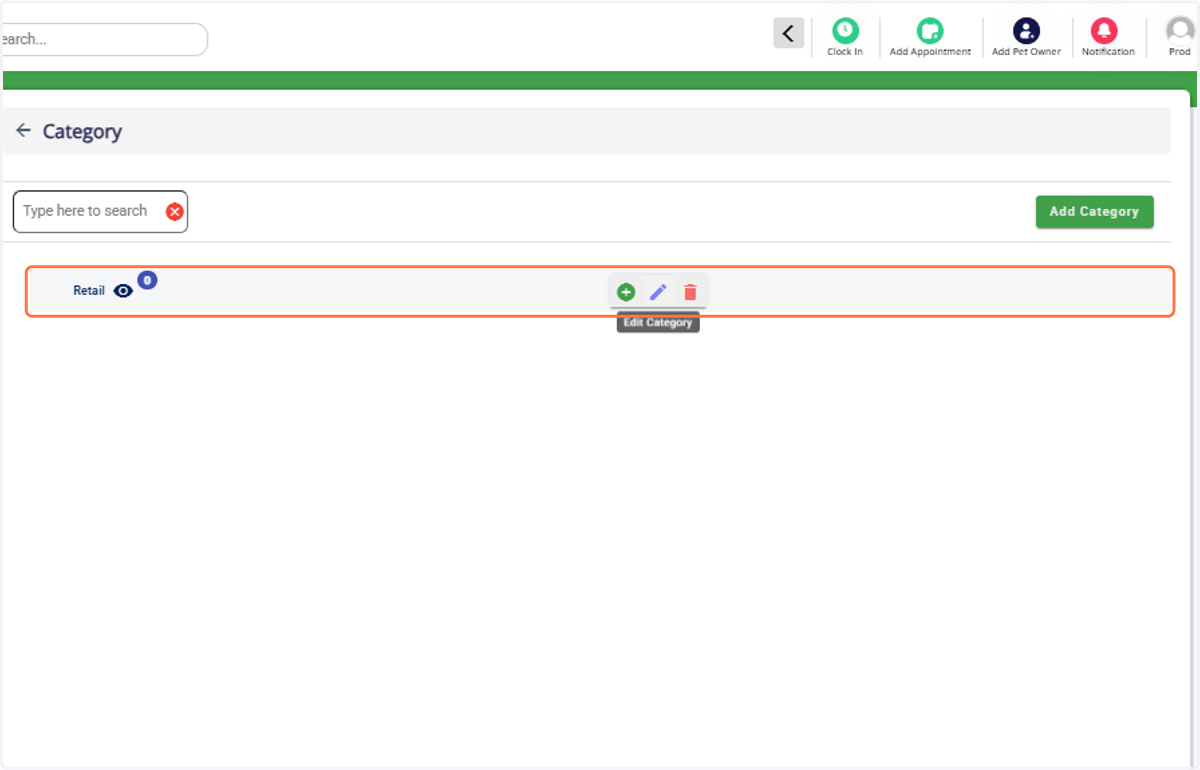
4. If no category is set up, click Add Category. If already exists, click Edit Category to make it visible in the Pet Owner app.
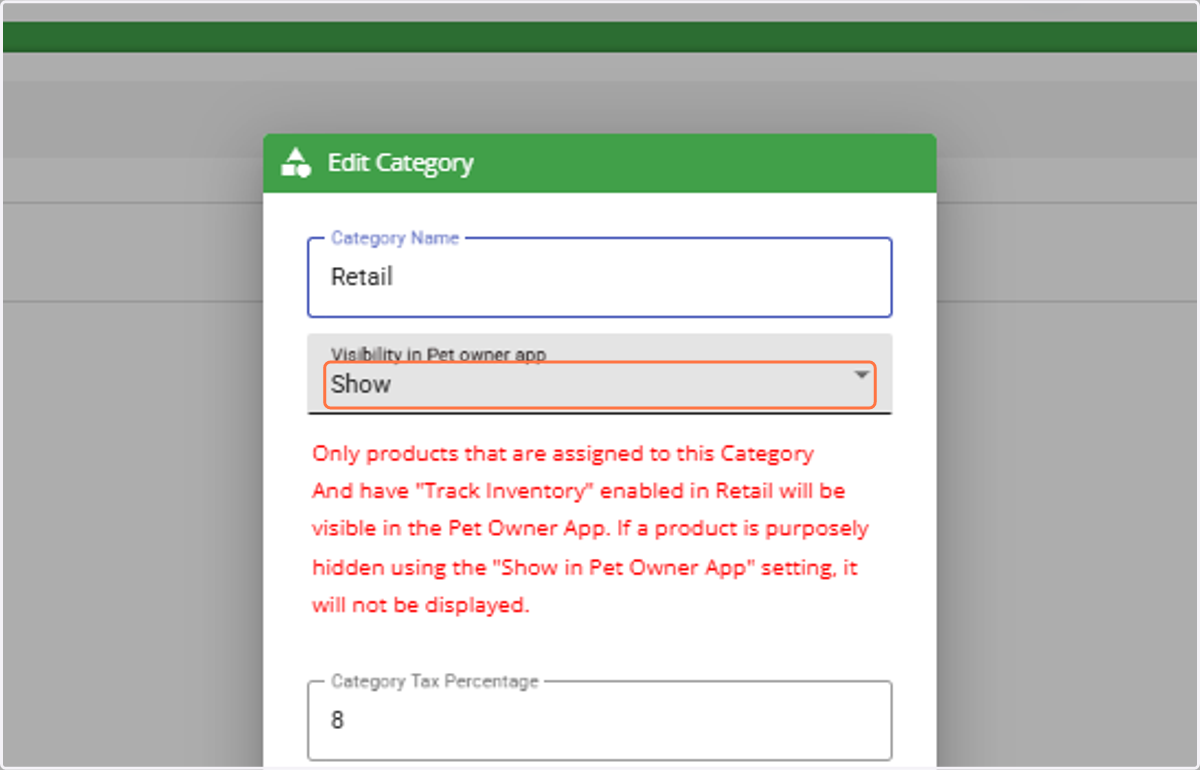
5. In Visibility in Pet Owner App, select Show.
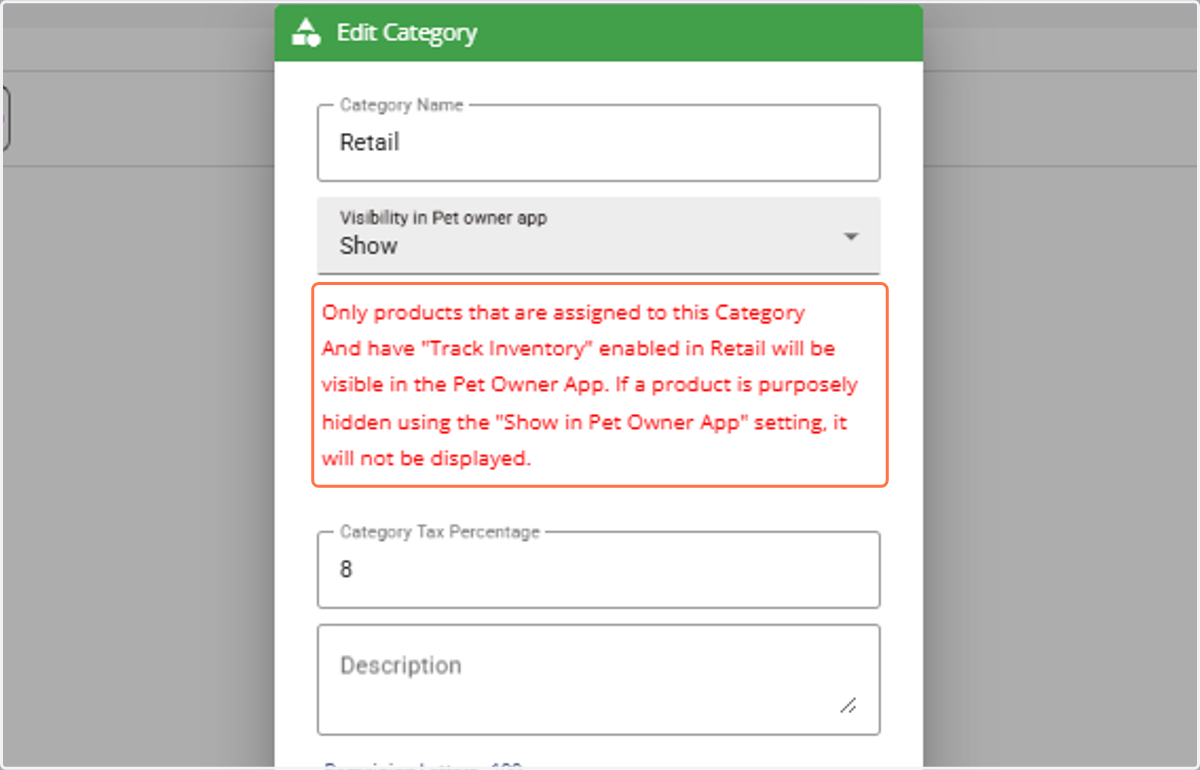
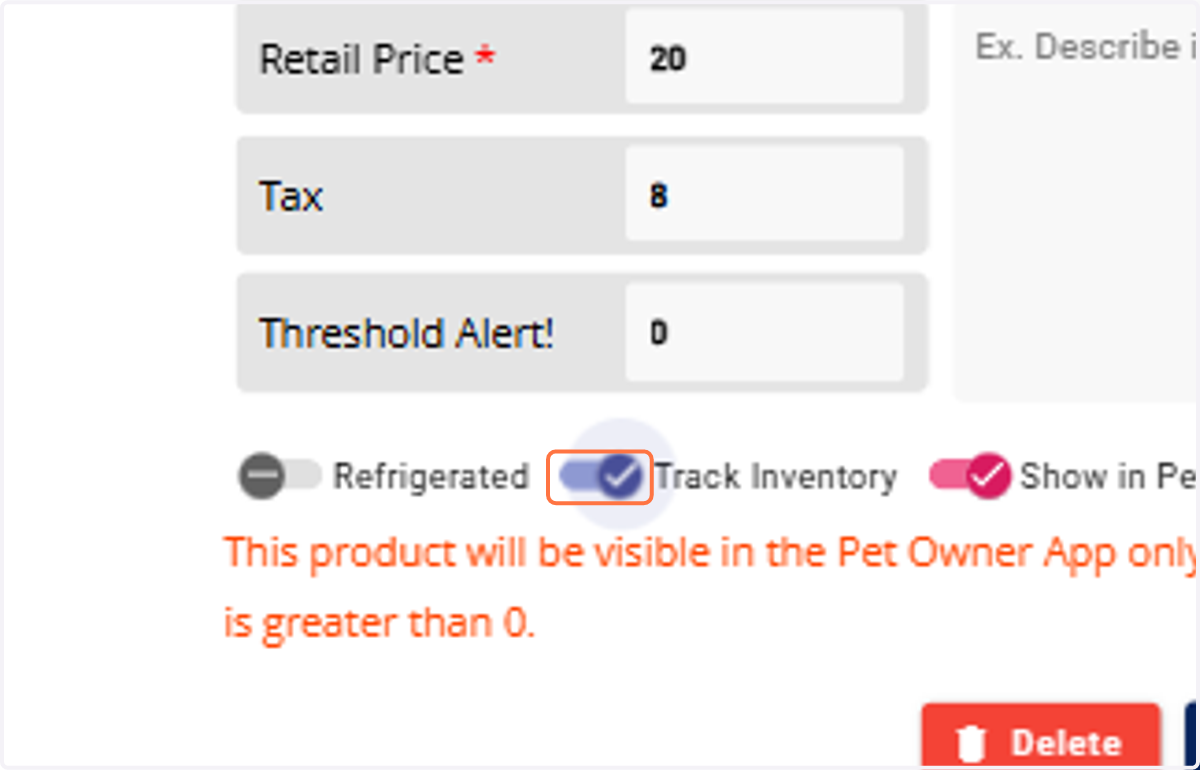
6. Note: Only products under this category with “Track Inventory” enabled will appear in the Pet Owner app. If the product is hidden in the setting it will not be displayed in the Pet Owner app
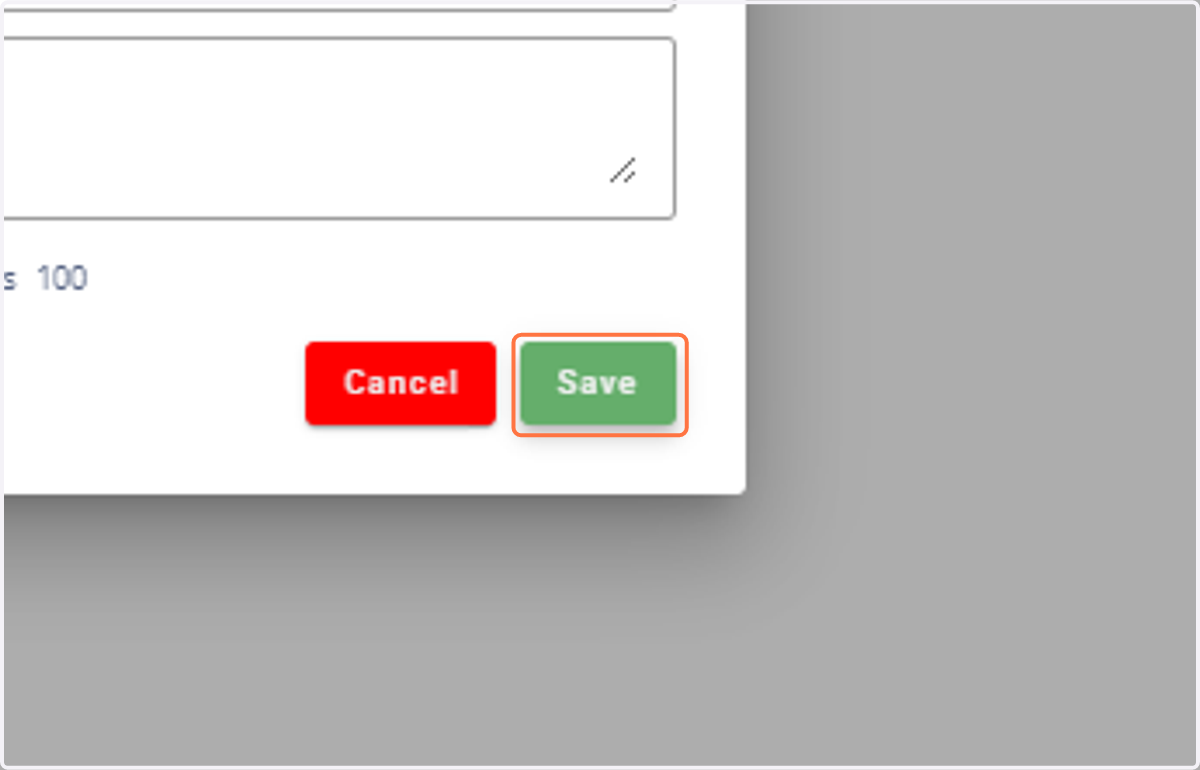
7. Click Save.
8. Go to Product Inventory.
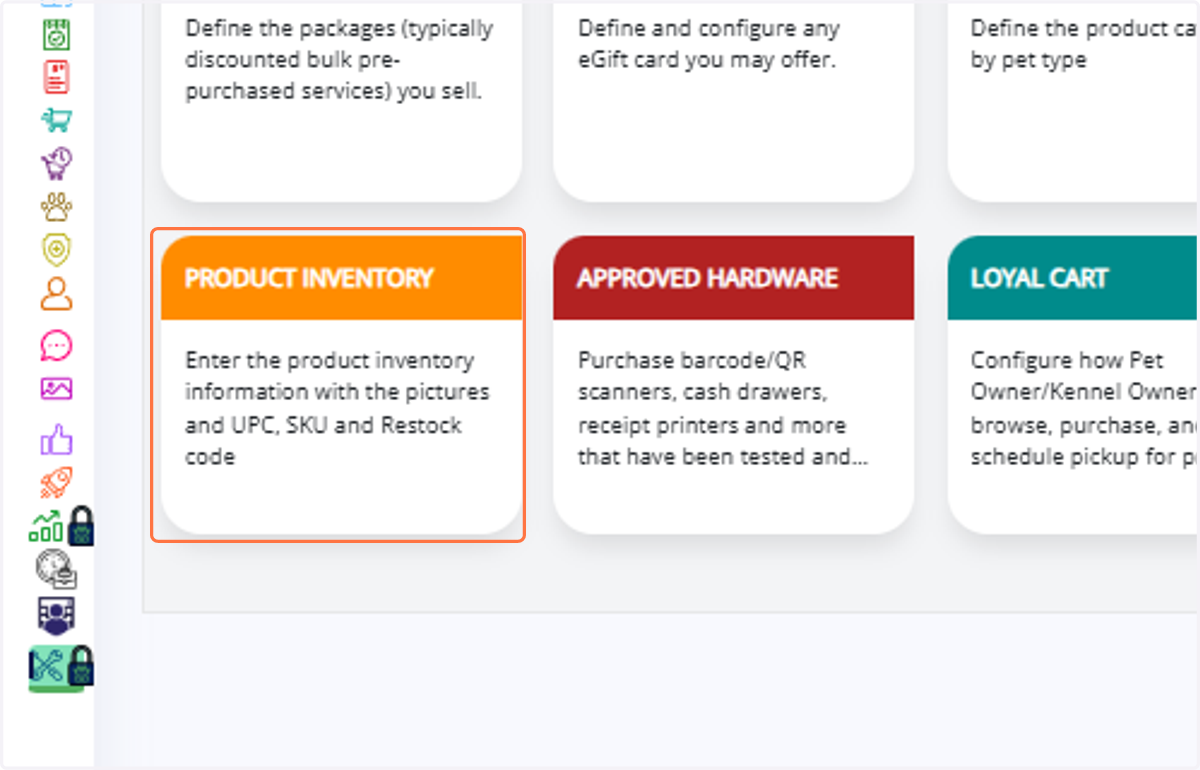
9. Select the product you want to display (e.g., Shampoo Bar).
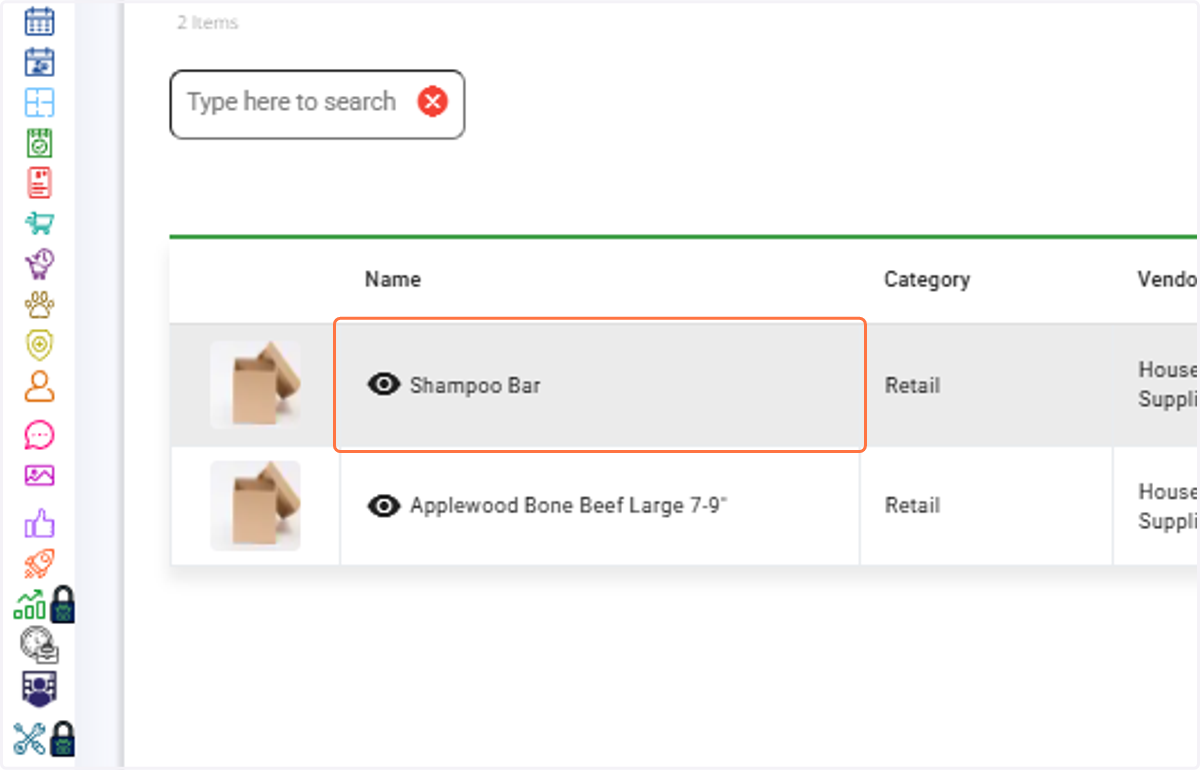
10. Enable the toggles: Track Inventory and Show in Pet Owner App.
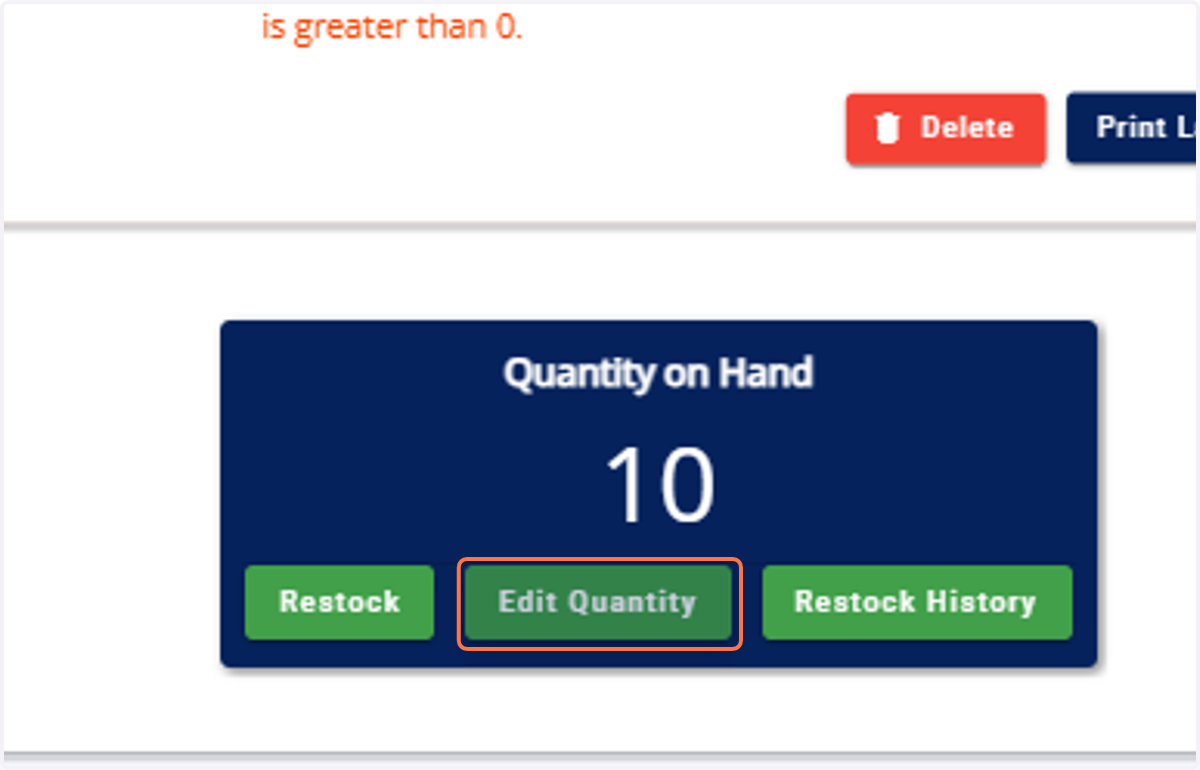
11. Ensure the product has a quantity greater than zero. If not, add or restock inventory.
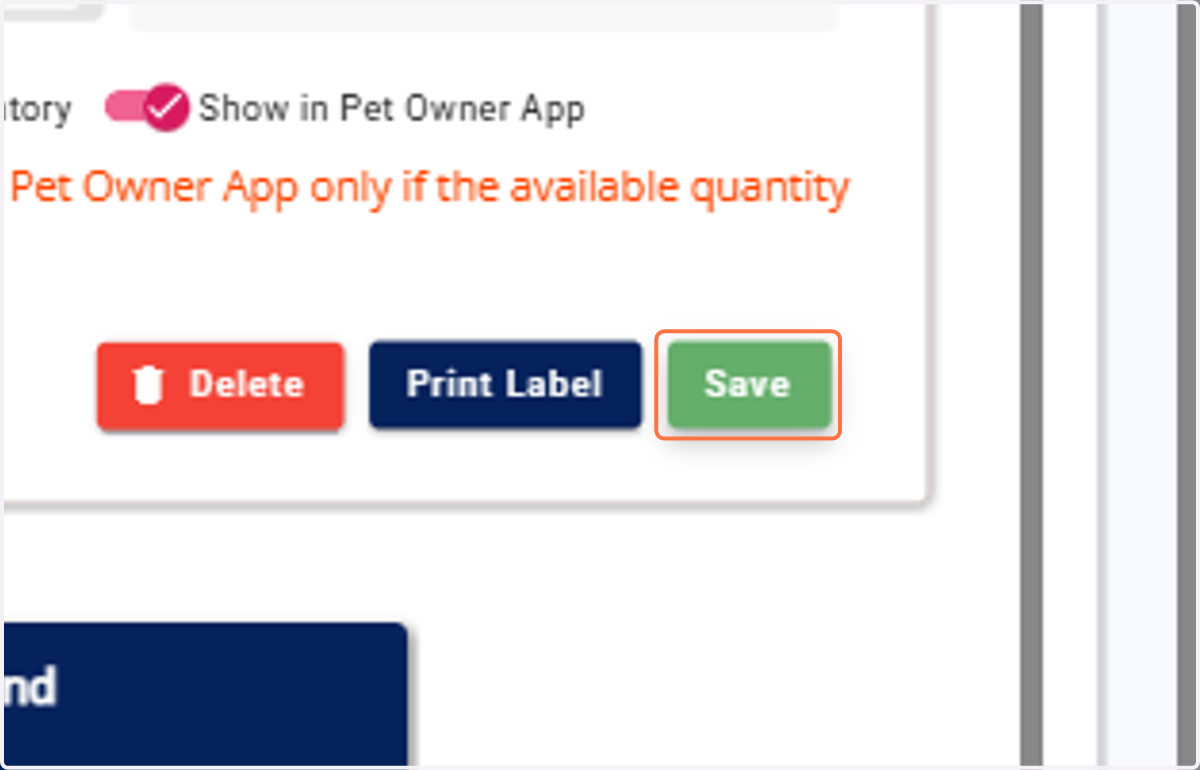
12. Click Save. The product is now ready for sale in the Pet Owner app under the Loyal Cart menu.
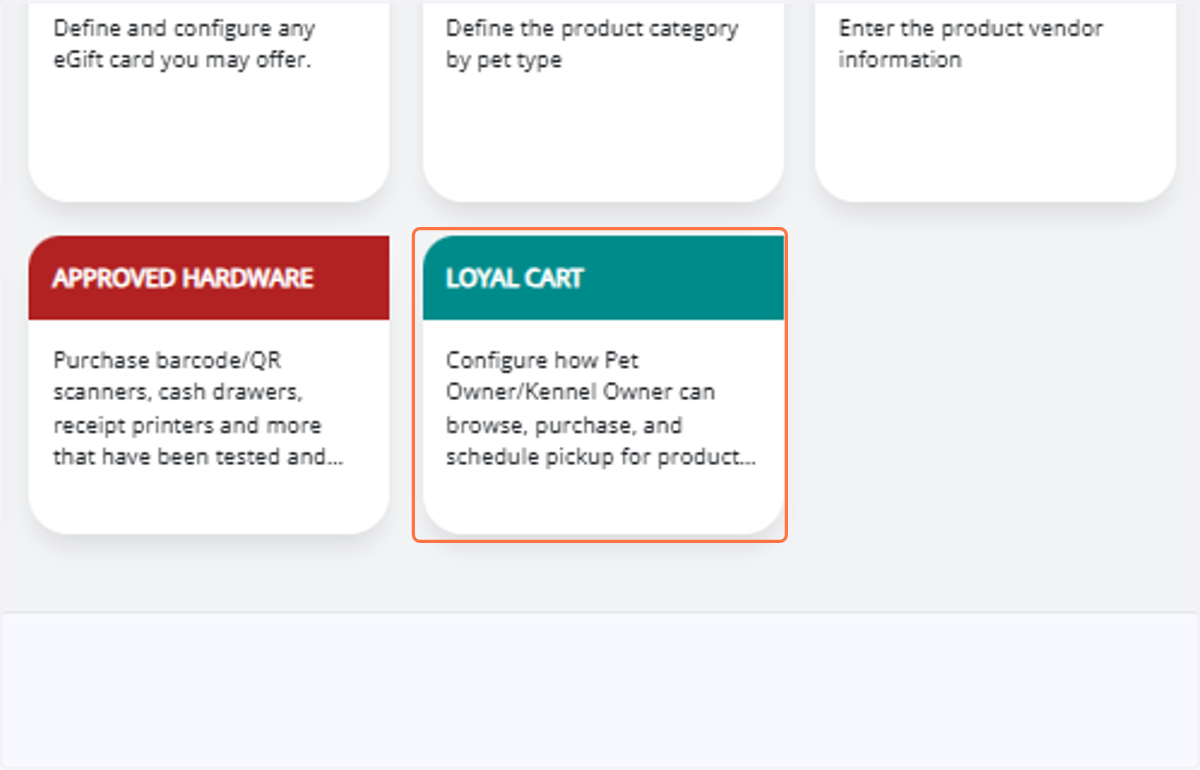
Loyal Cart- To configure purchase and pickup availability.
13. Go to Settings → Retail → Loyal Cart.
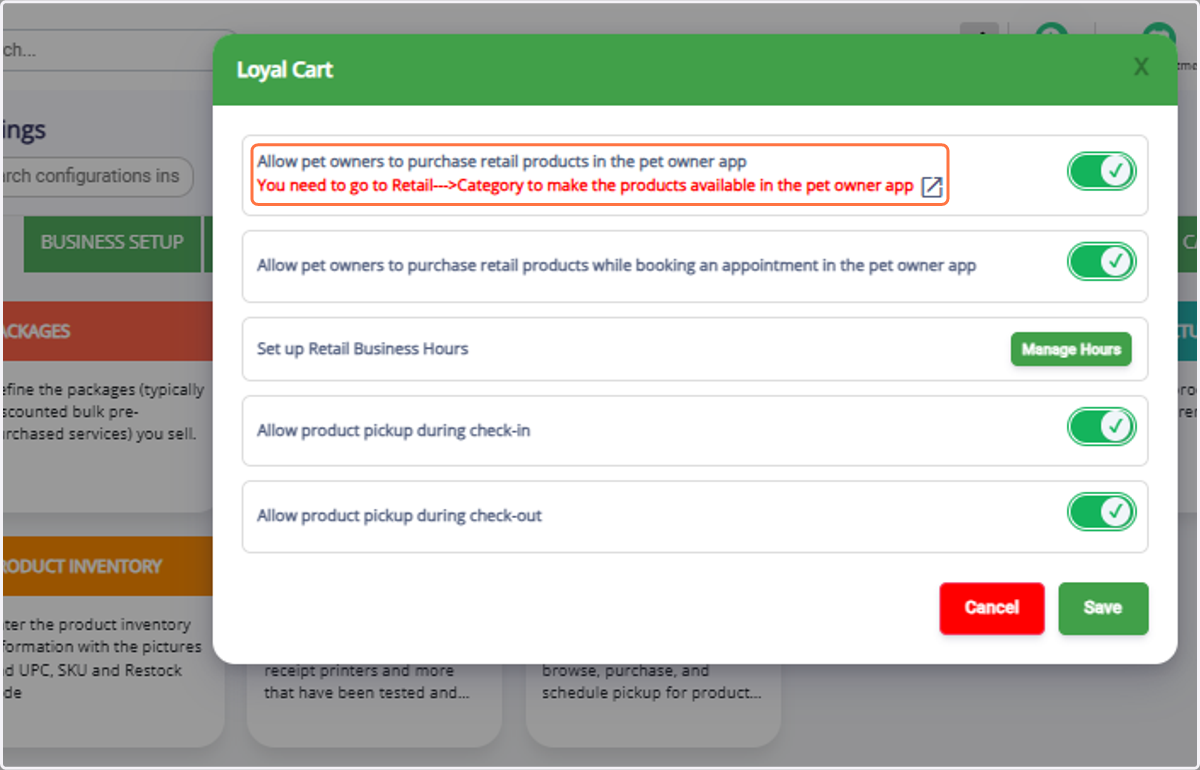
14. In Loyal Cart, enable the Purchase in App toggle to allow Pet Owners to buy retail items.
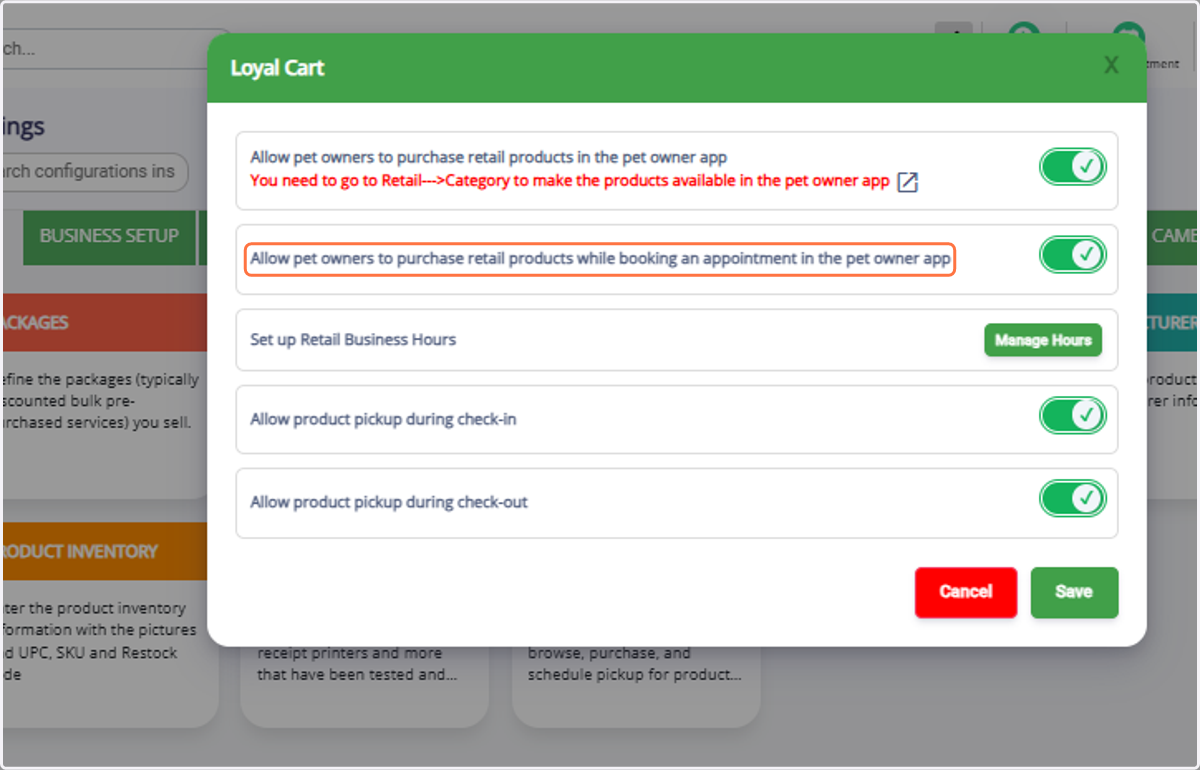
15. Enable the Show During Appointment Booking toggle to display products when owners book appointments (boosts sales).
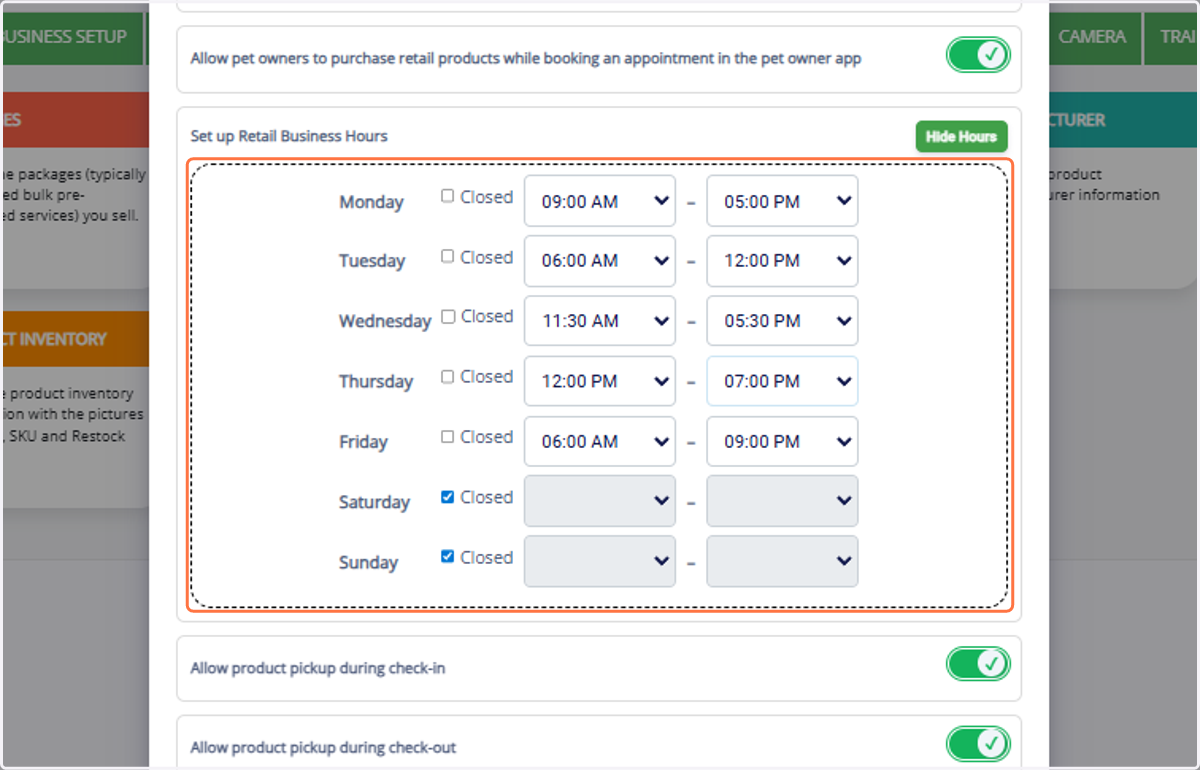
16. Configure Business Hours for when retail products are available for sale.
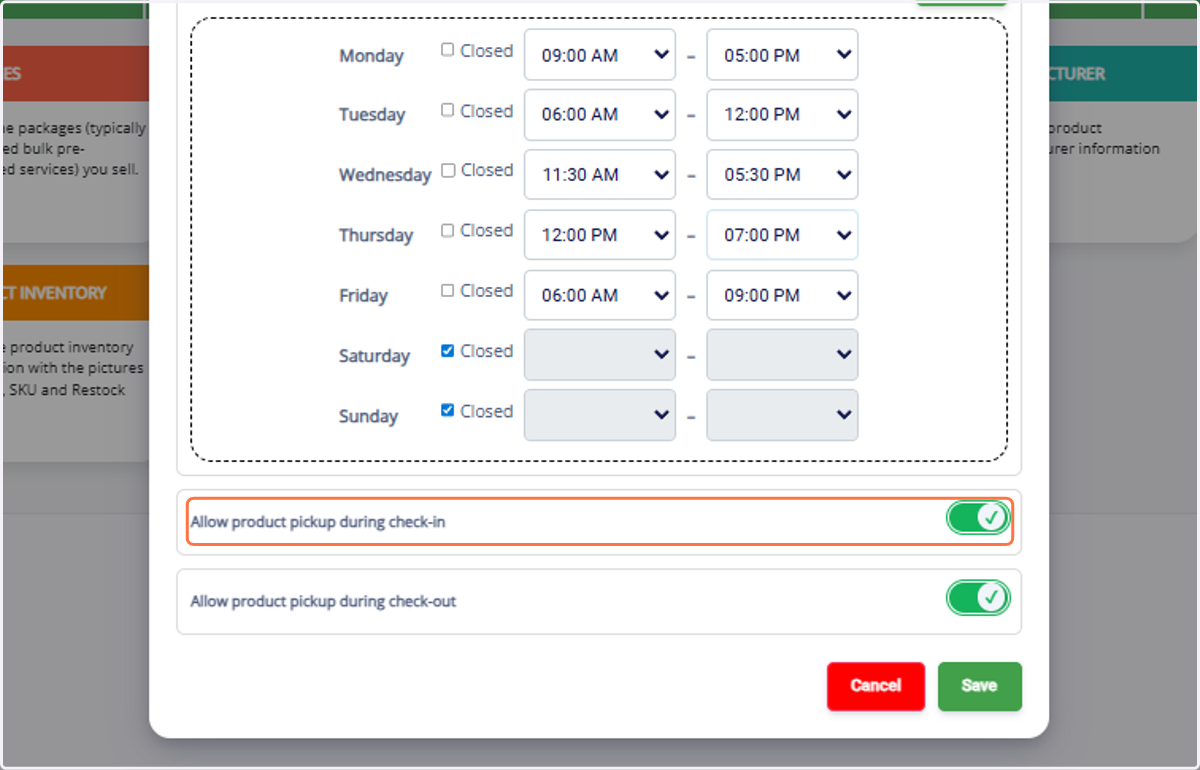
17. Set pickup rules: allow collection during Check-in, Check-out, or both.
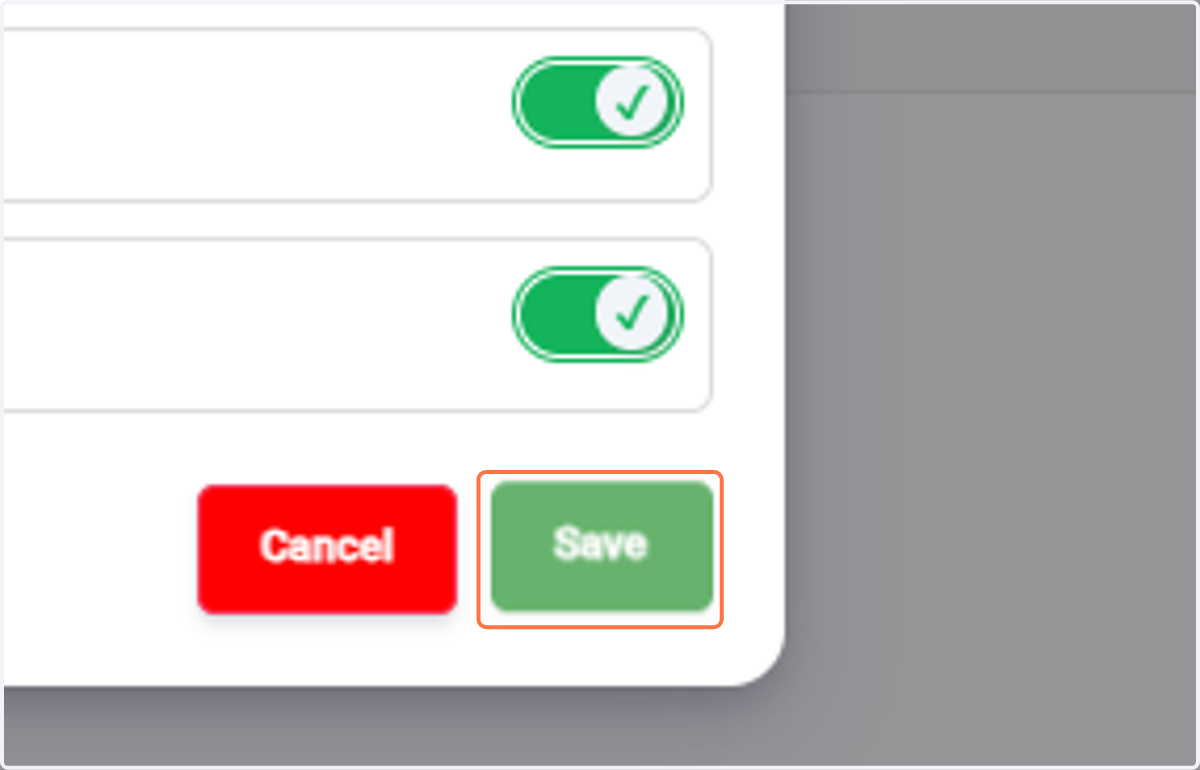
18. Click Save.
Purchasing Retail Products in the Portal
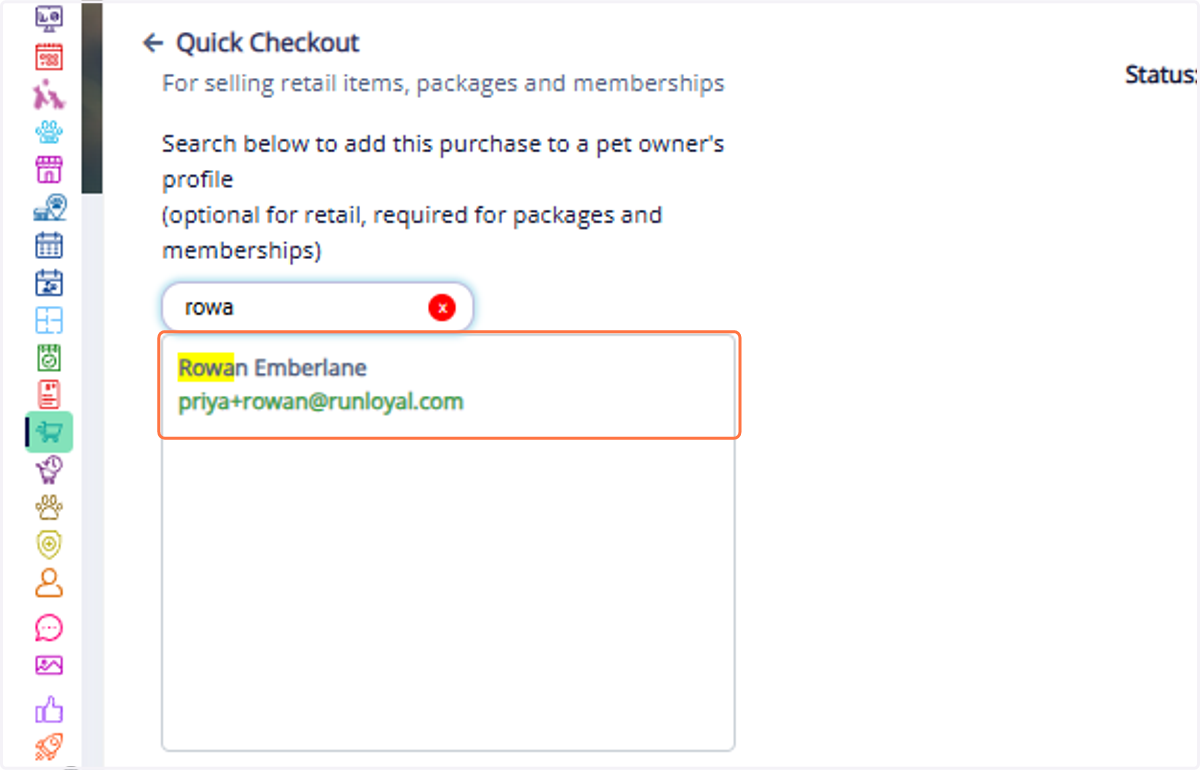
19. Clicking on Create Order button in Retails orders menu,It will navigate to Quick Checkout or navigate directly to Quick Checkout and Search for the Pet Owner
20. Click on Product/eGift Card.
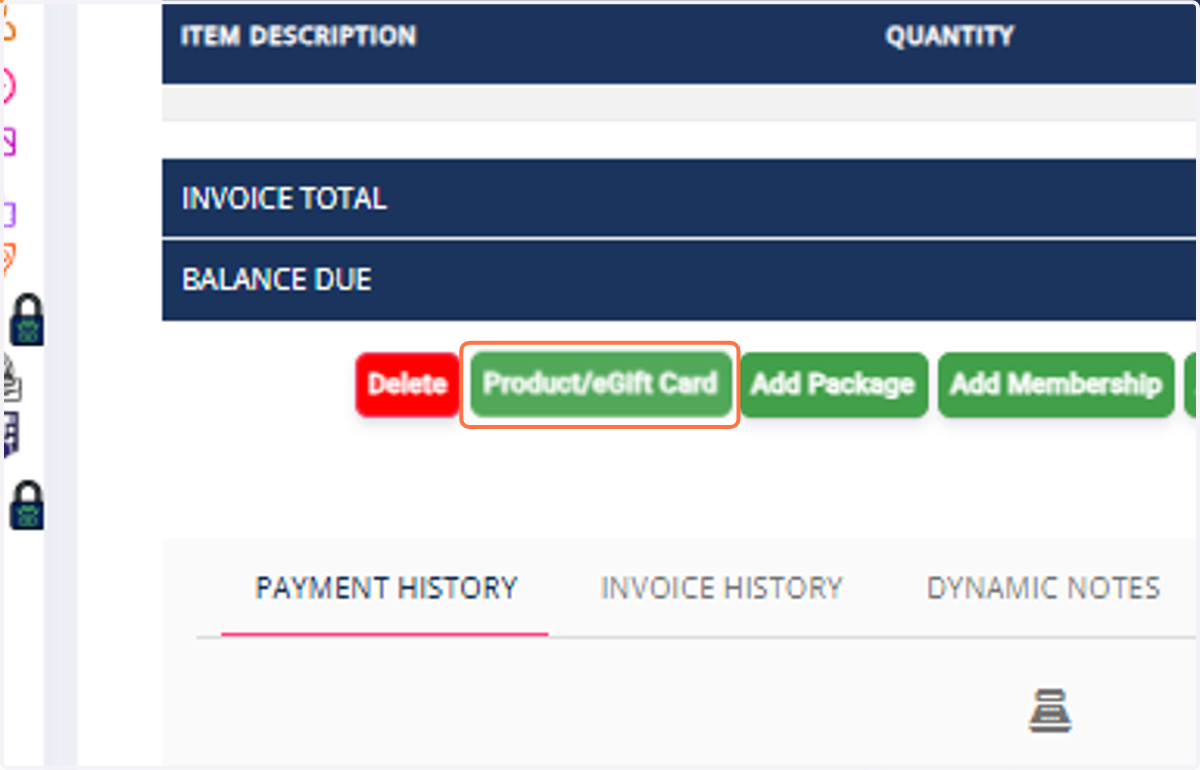
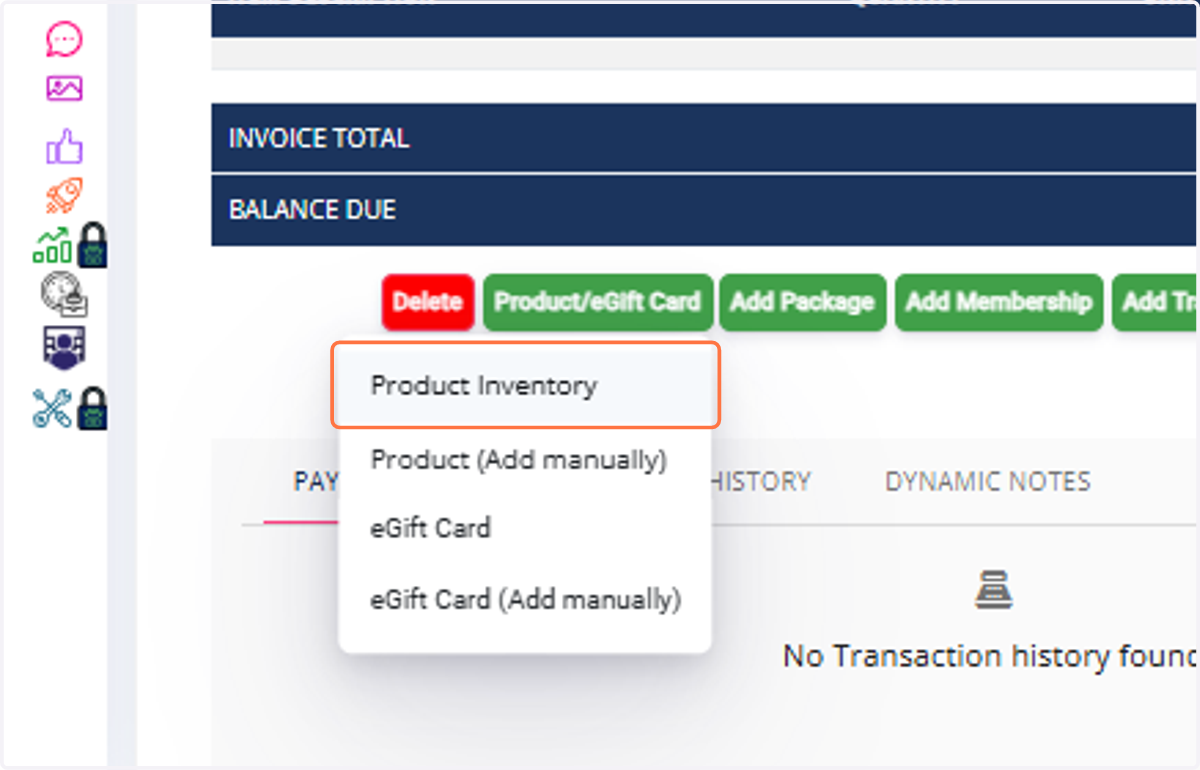
21. Click on Product Inventory
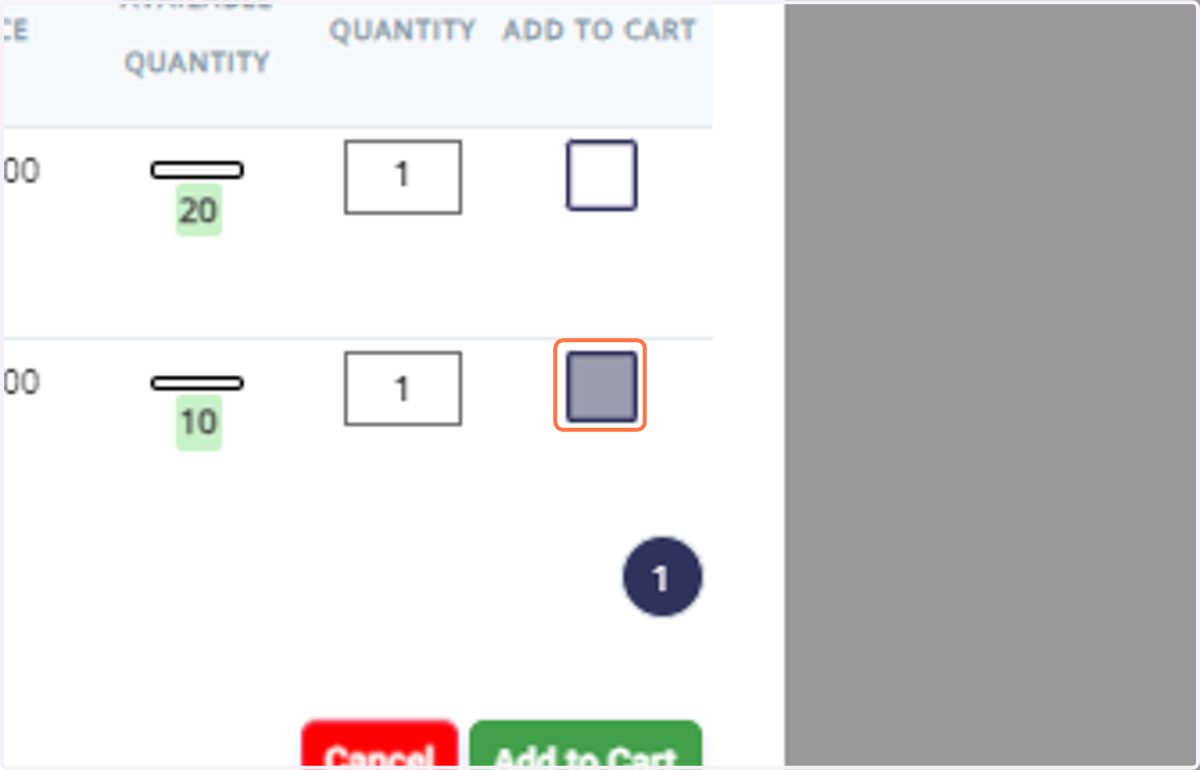
22. Check the box next to the product(s) to add.
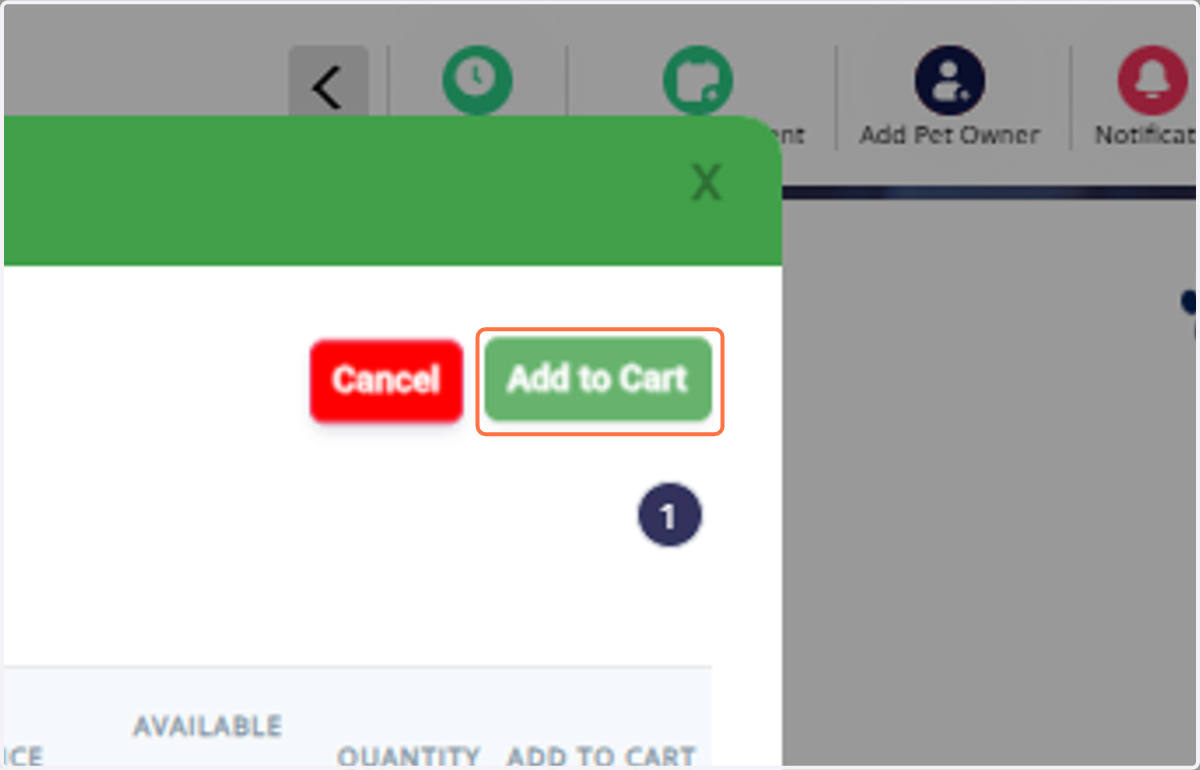
23. Click Add to Cart.
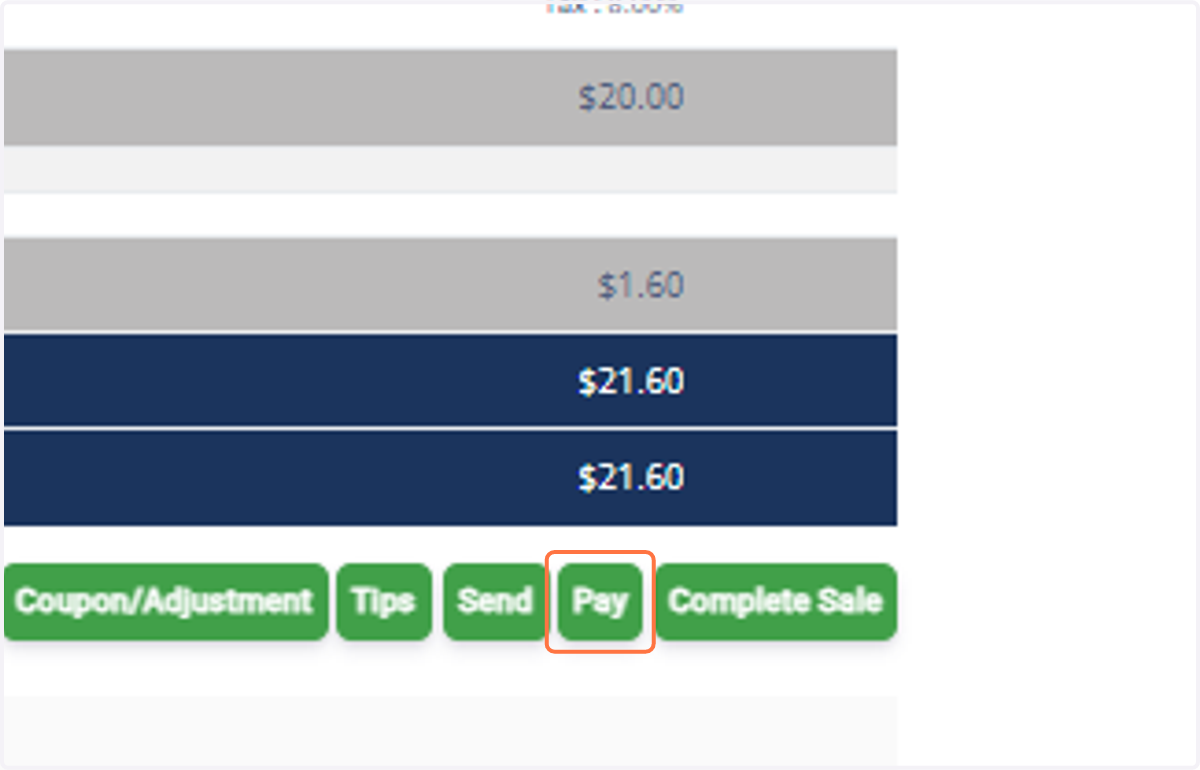
24. Click Pay to complete the order.
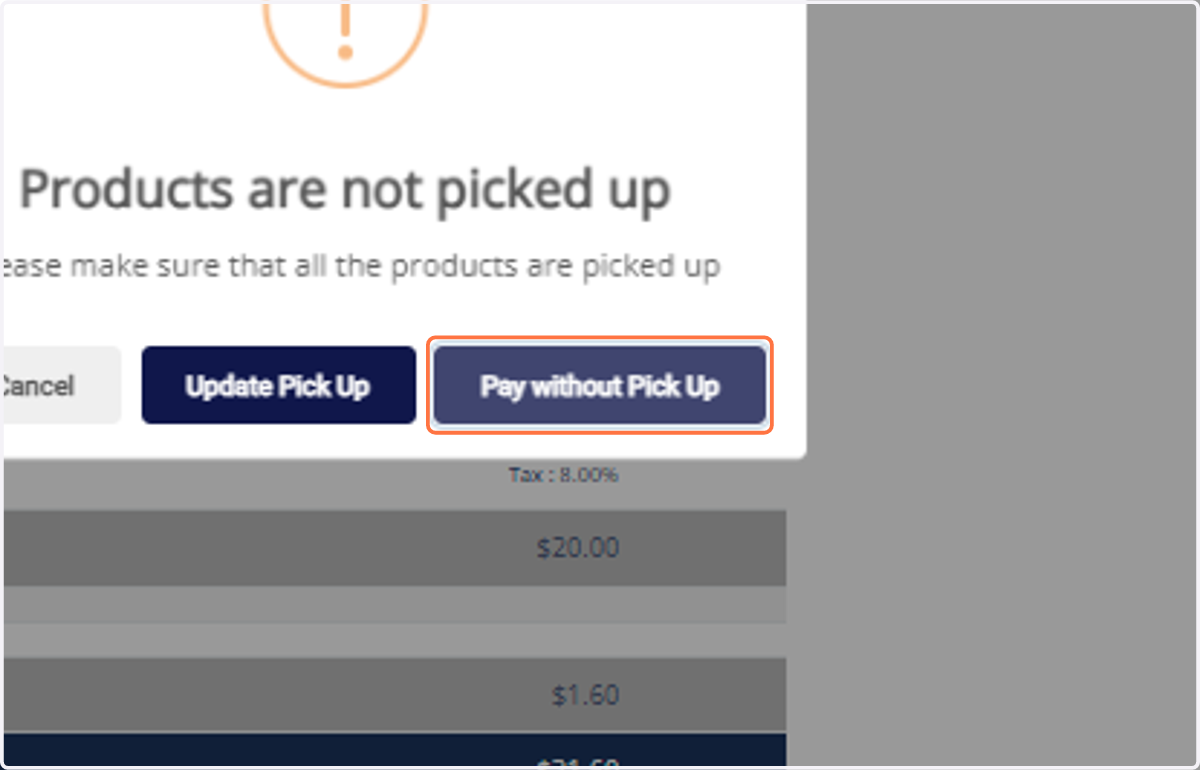
25. Choose fulfillment option: 1. Update Pick-up: Product moves to Completed Orders in Retail Orders menu. 2. Pay without Pick Up: Product stays under Pending Orders.
26. Complete payment using the default options (Cash / Card / Terminal / Other). Once successful, the order displays in Retail Orders.
Managing Retail Orders (Tracking & Status Updates)
27. Go to the Retail Orders menu (left side panel).
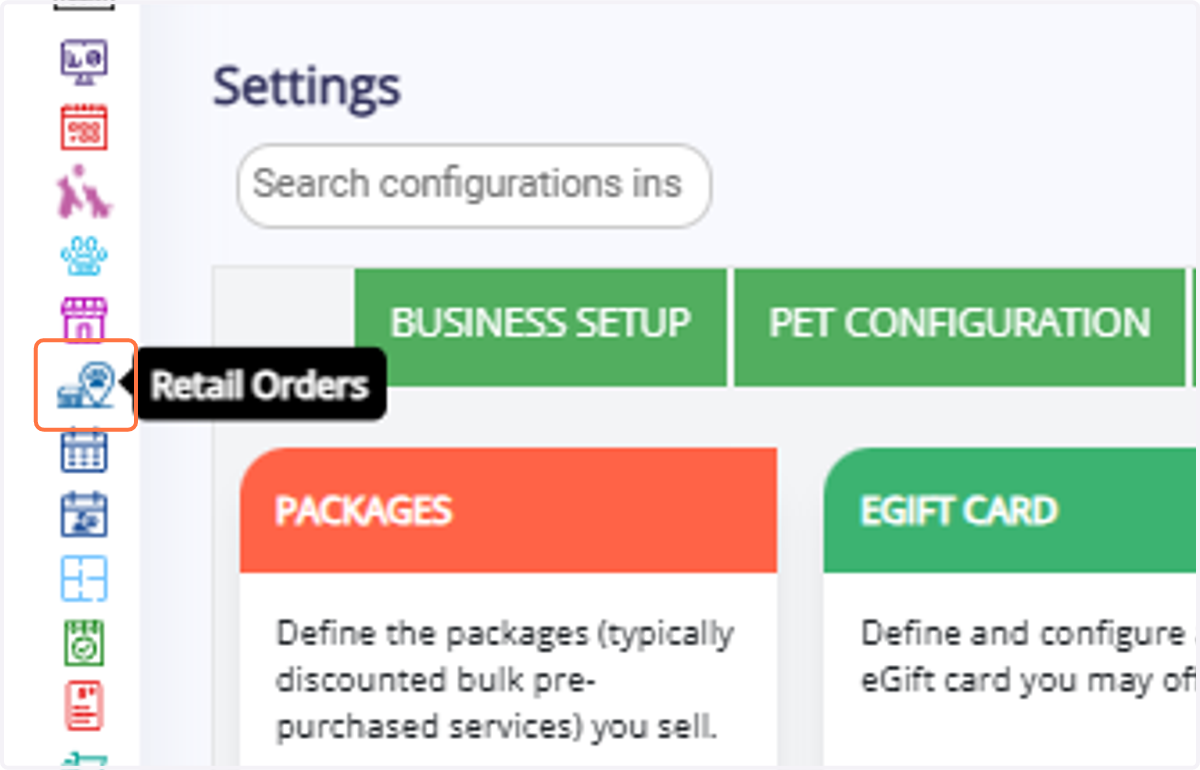
28. View all orders by status: Pending, Processing, Ready for Pickup, Completed.
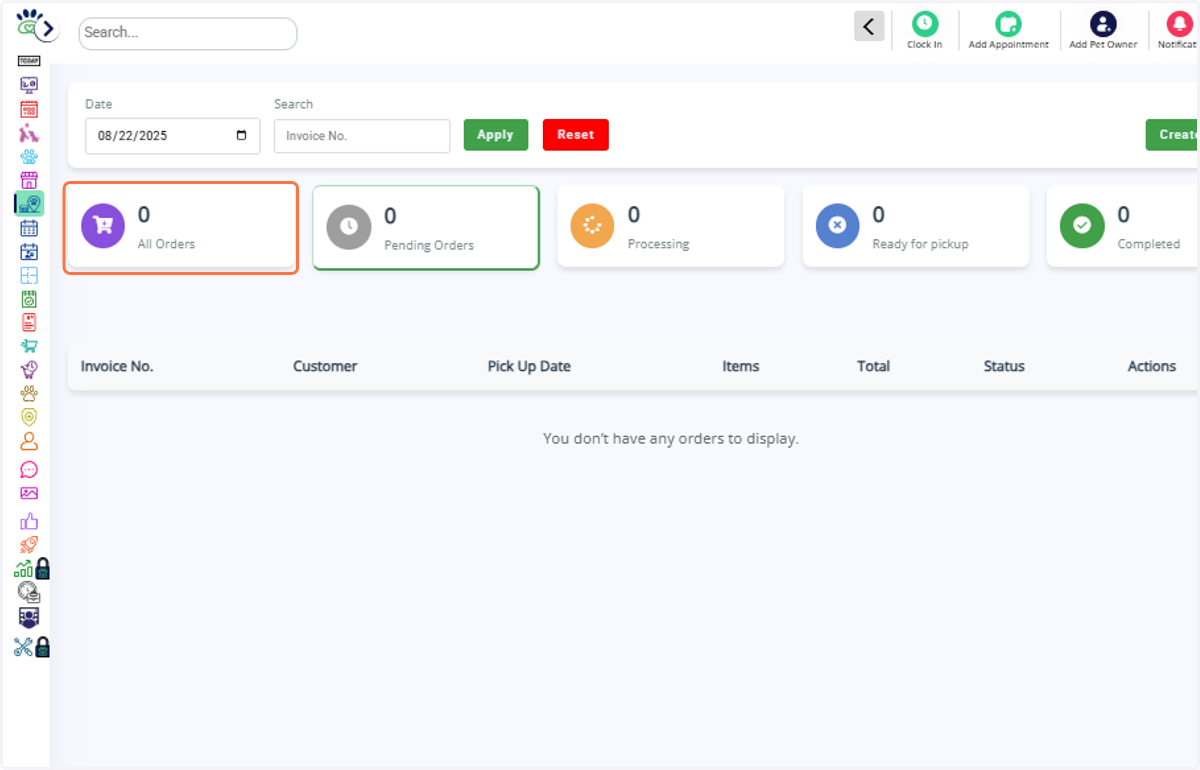
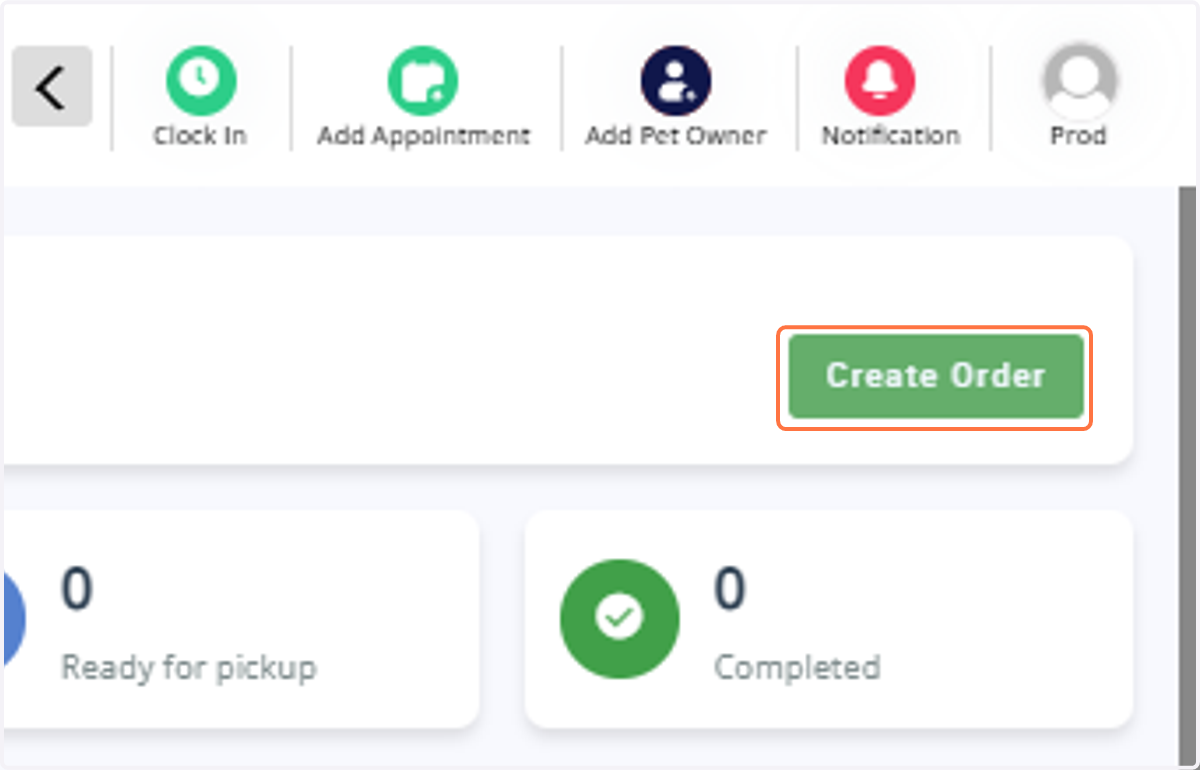
29. To create a new order, click Create Order → redirects to Quick Checkout (https://app.tango.us/app/workflow/Configure-and-Manage-Retail-Products-in-RunLoyal-f20a93a434b64d3ca11583492dbce953#step-96cc109b-9ffd-48e2-b179-98e533b2e801)
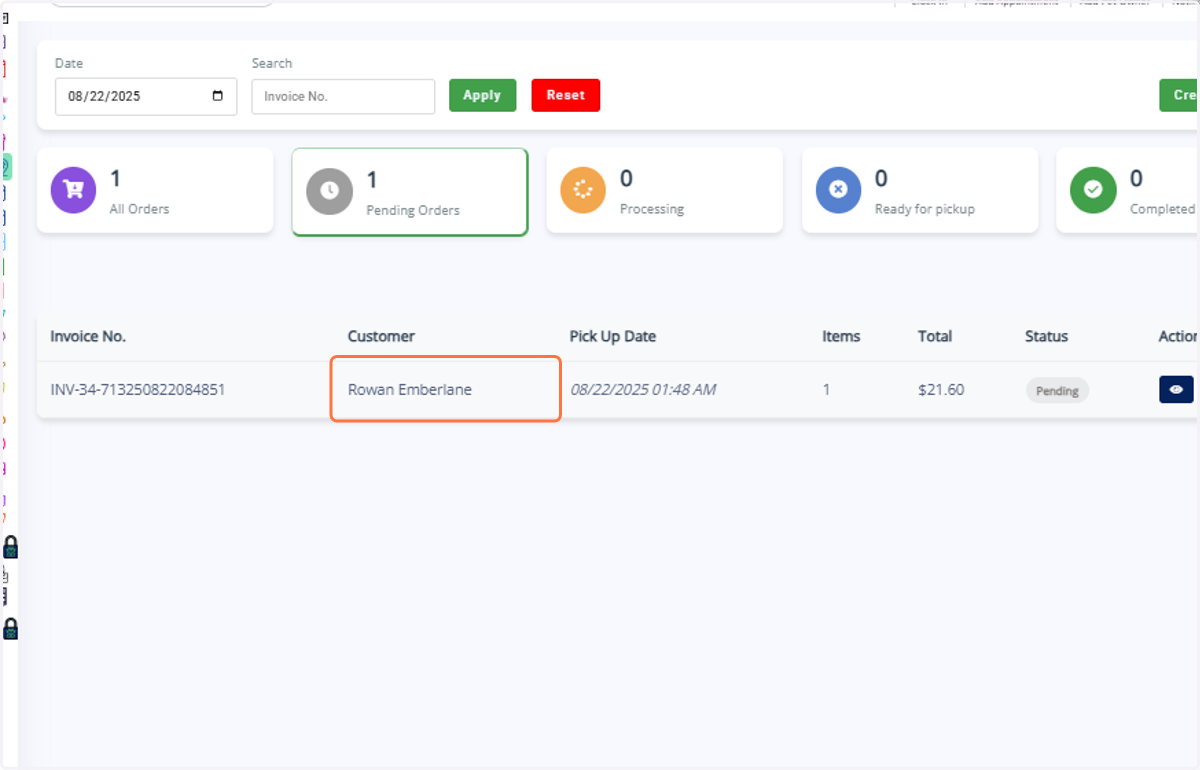
30. Purchased products will appear under Pending Orders with owner details, invoice number, items, total, and status.
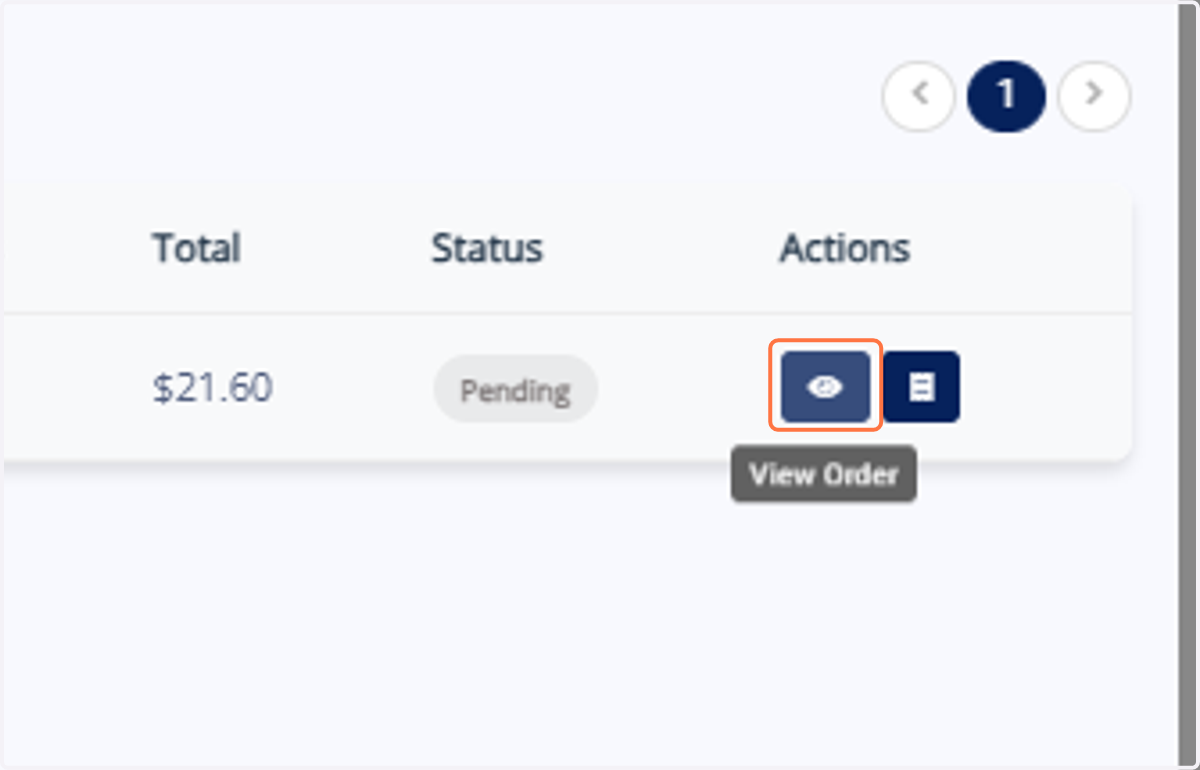
31. Click View Order to see or edit details.
32. Update status: Pending → Processing → Ready for Pickup → Completed.
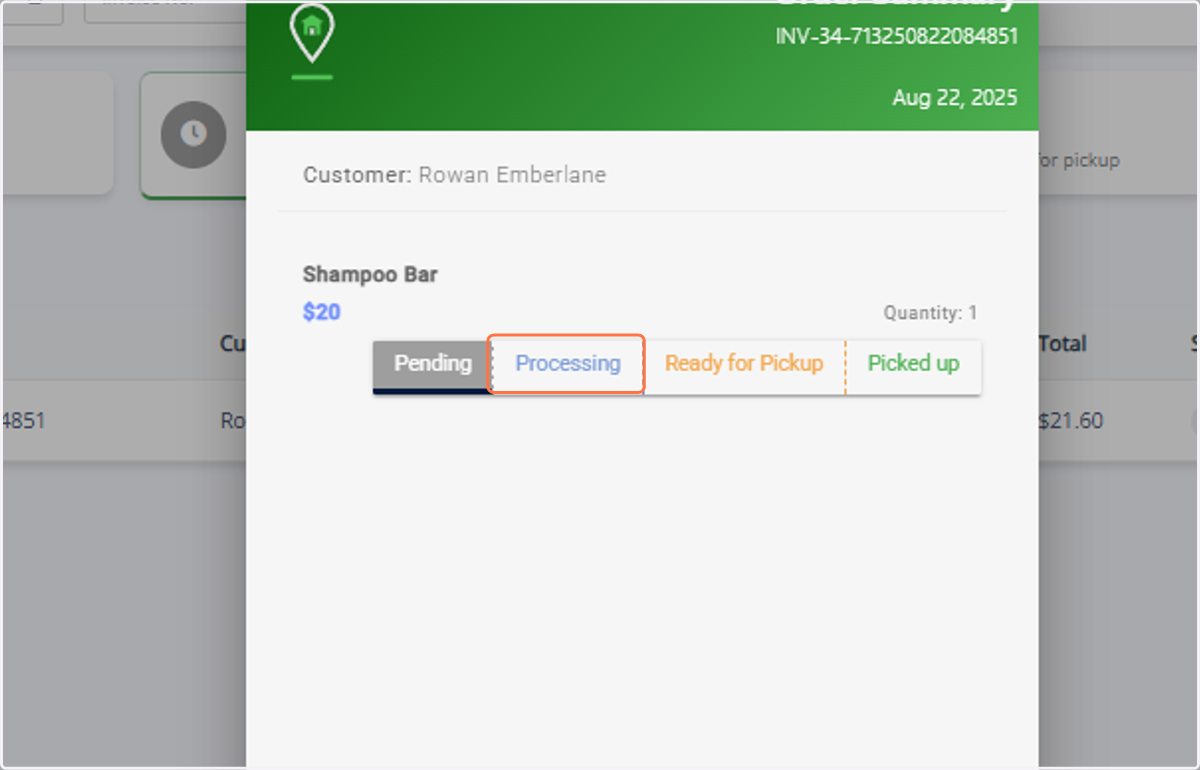
33. Click Update to save changes.
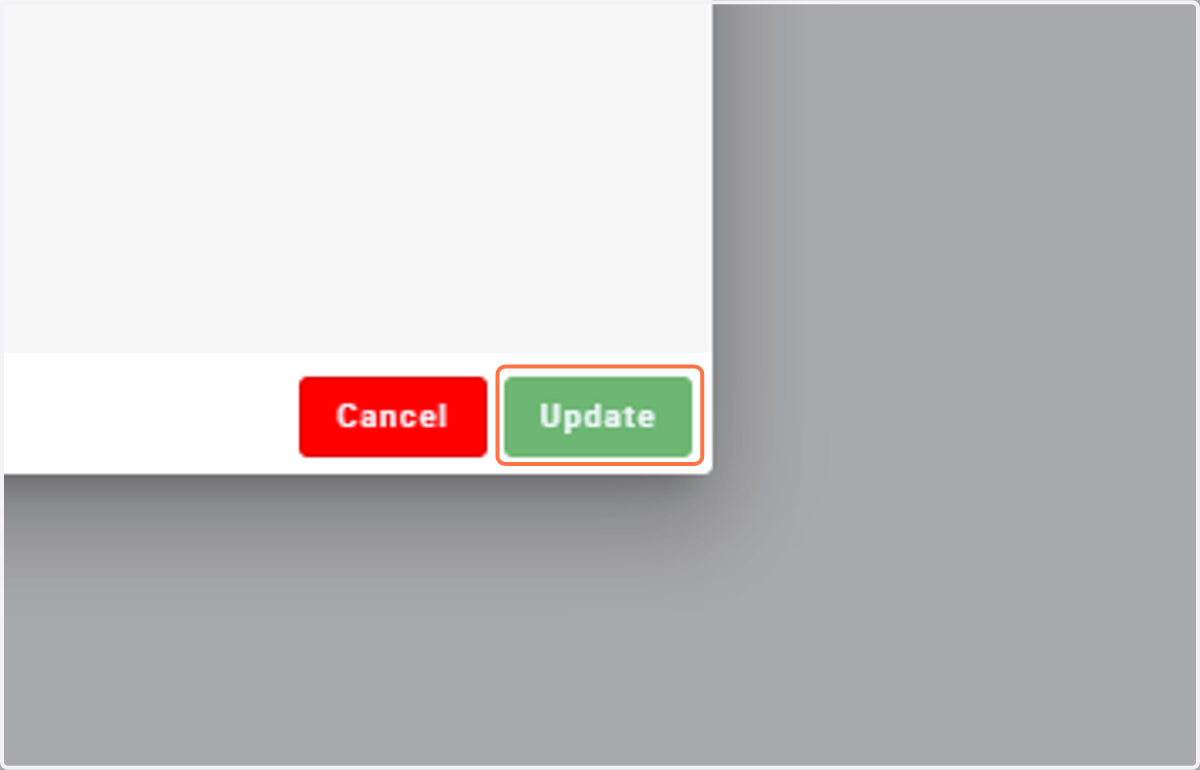
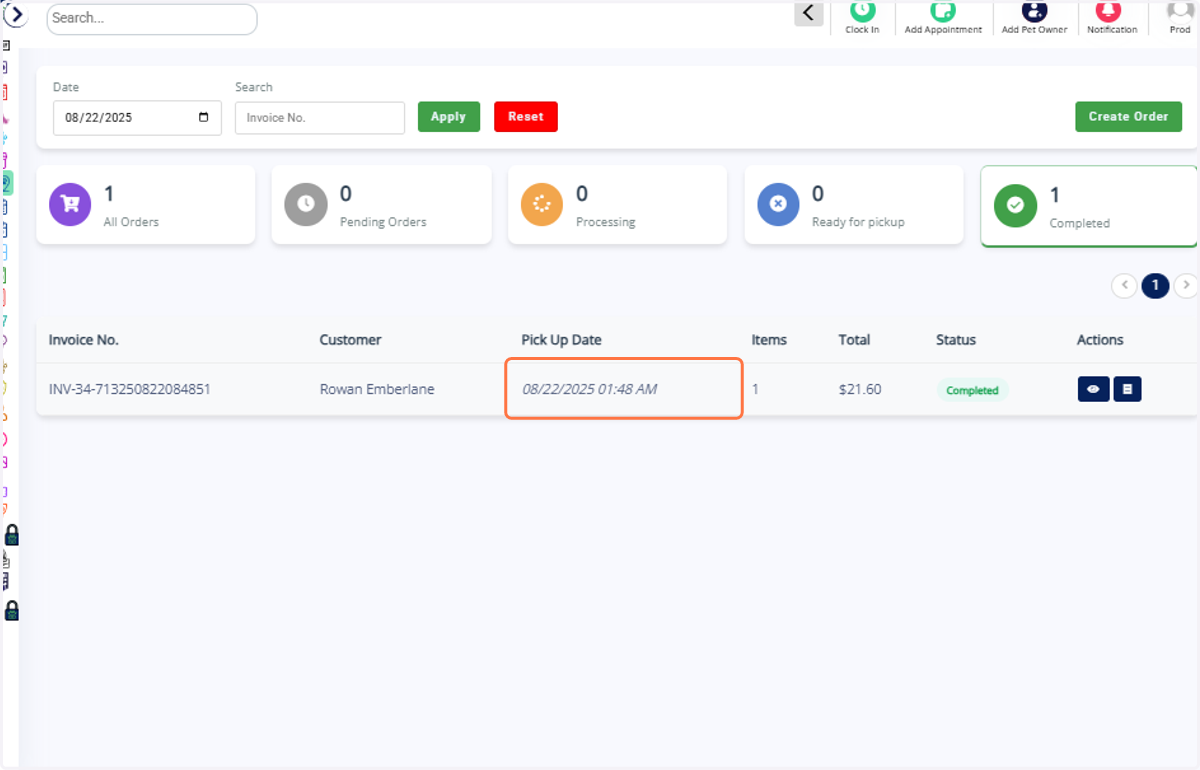
34. The product order status updates accordingly.
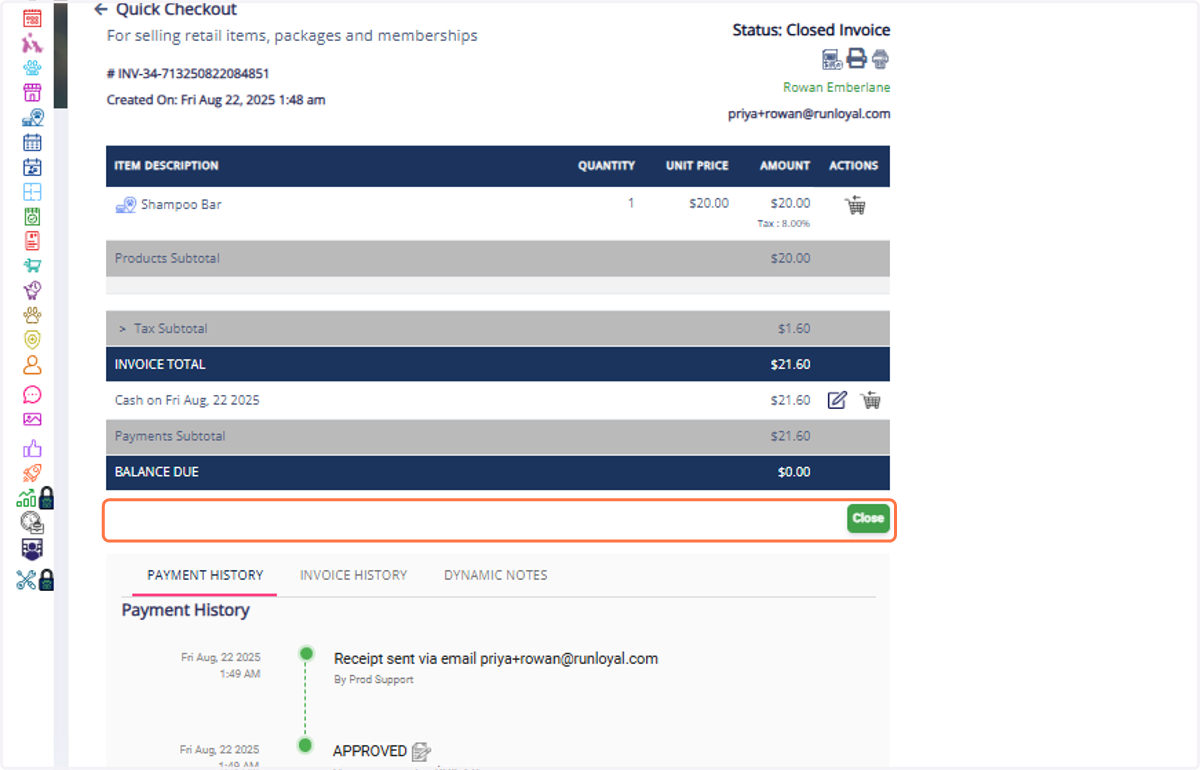
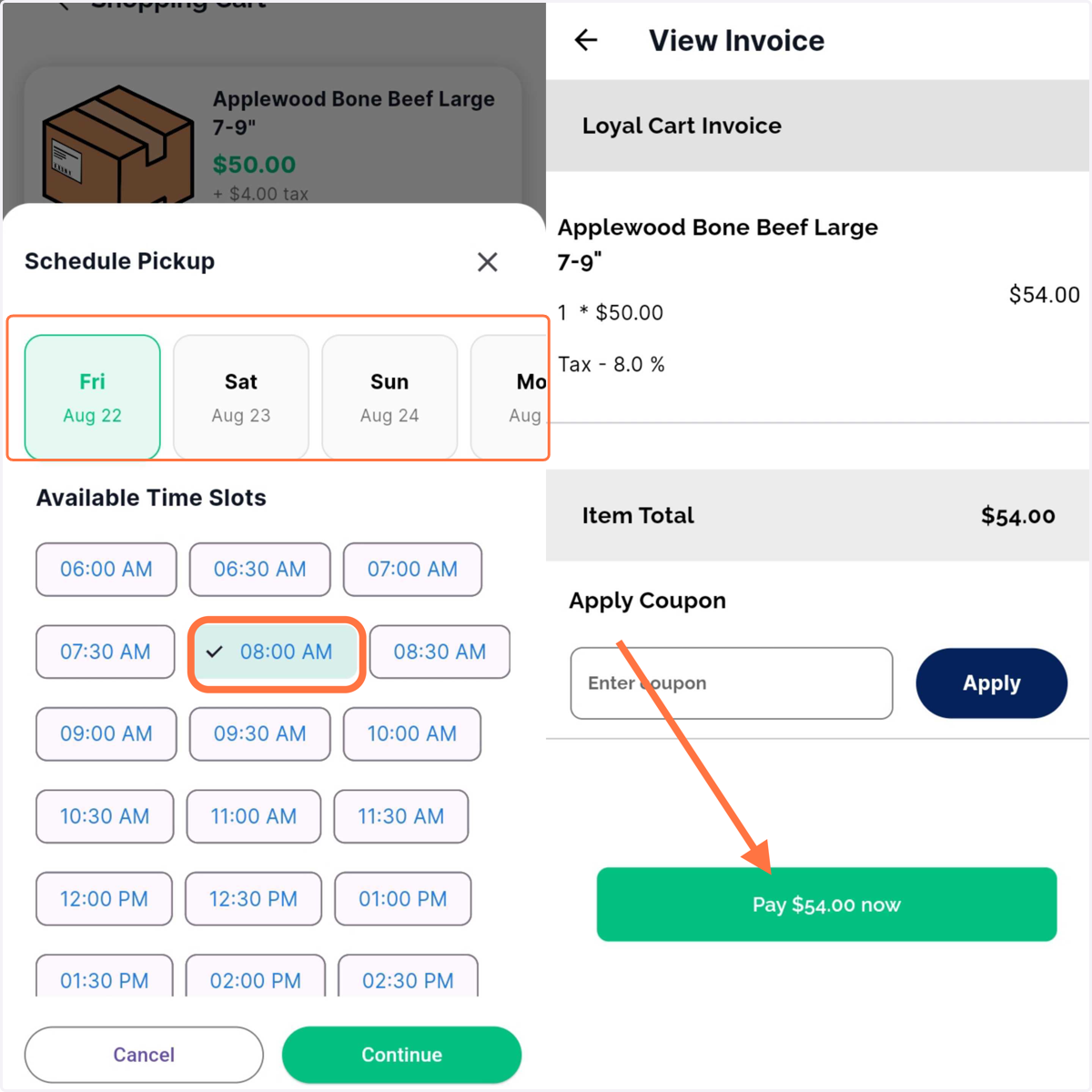
35. To view the invoice, click View Invoice.
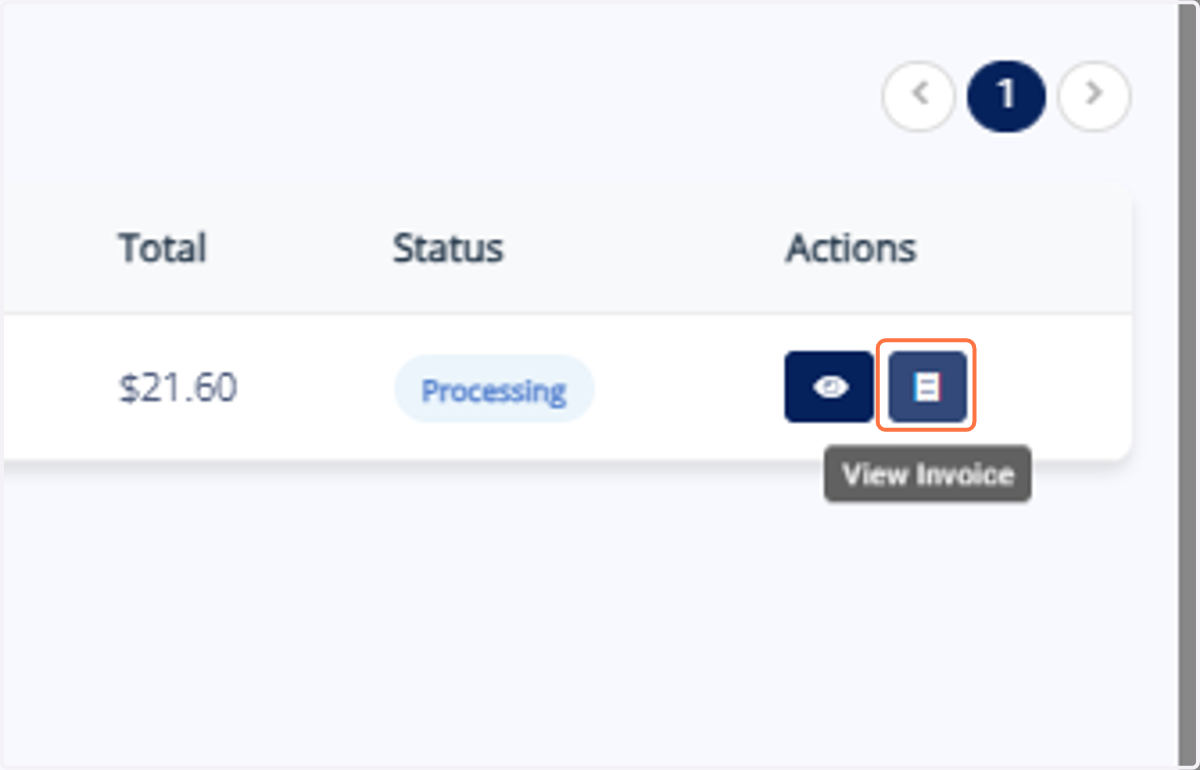
36. The retail product invoice is displayed.
Purchasing Retail Products in the Pet Owner App (via Loyal Cart)
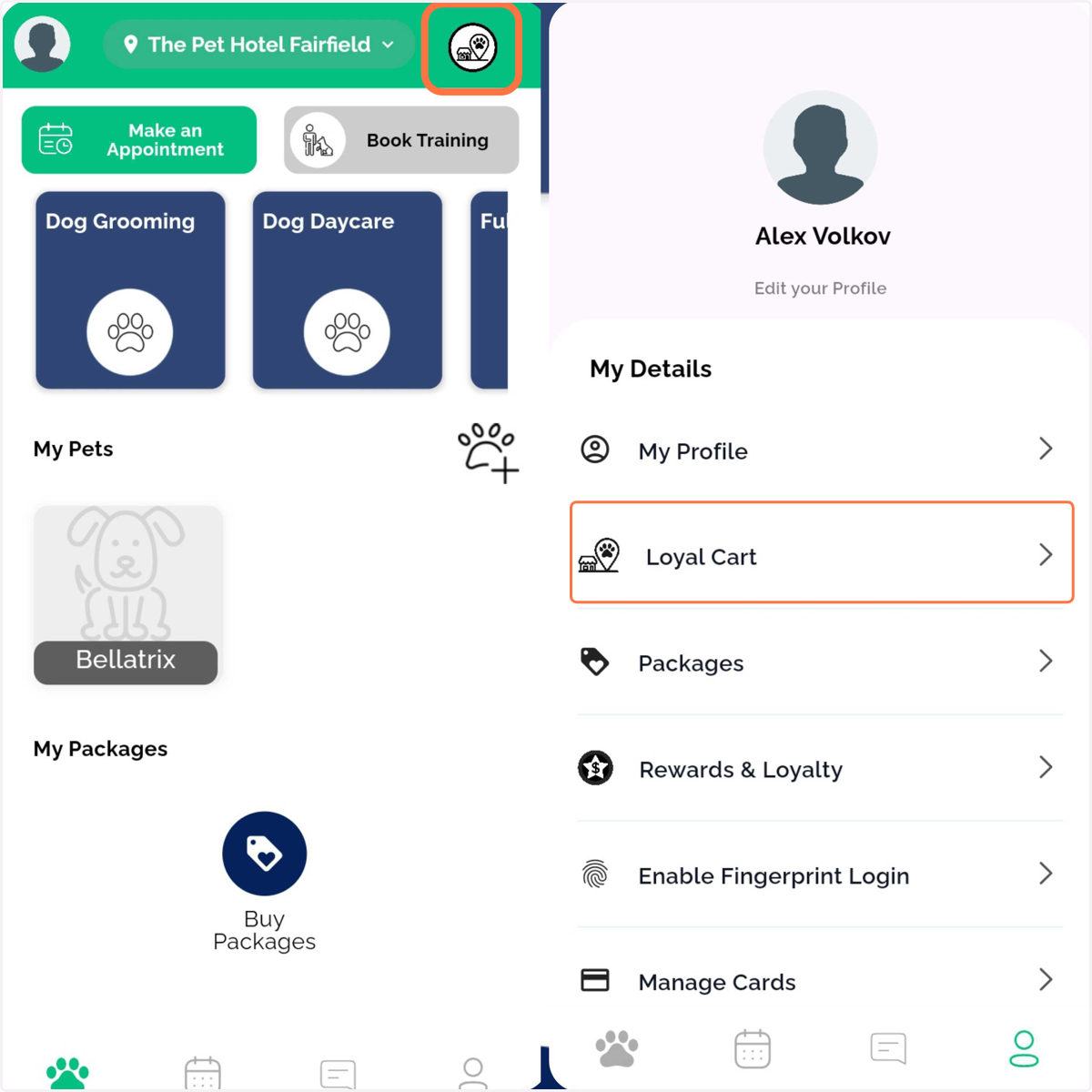
37. Pet Owners can navigate to Loyal Cart from the top-right corner of the home screen or from the menu.
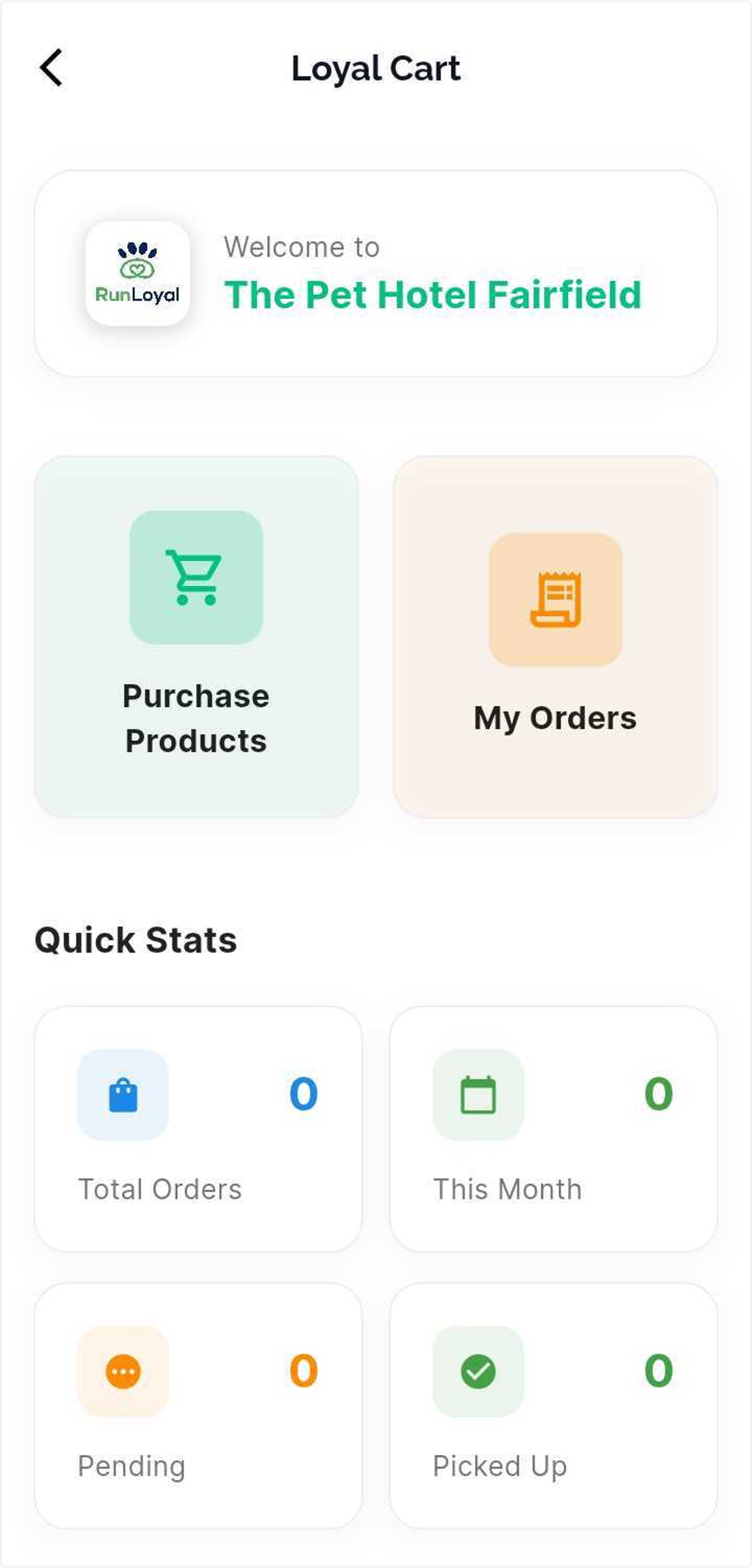
38. In Loyal Cart, they can view available products or check previously purchased products.
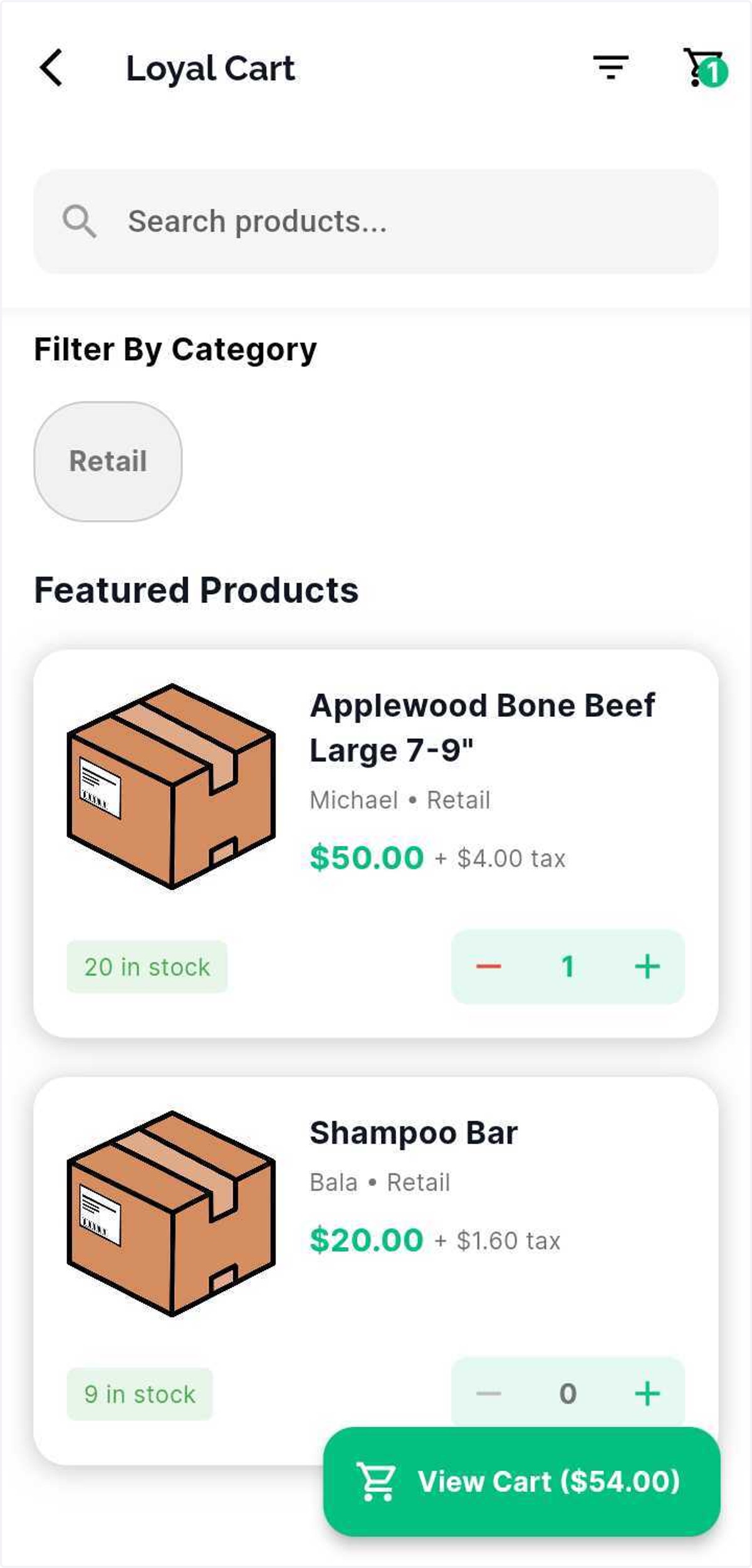
39. Select the desired product(s) → click View Cart to proceed to purchase.
40. Pet owners can choose pickup date and time, then complete payment in the app using a saved card.
41. Purchased products will be listed under My Orders for tracking.