ClubSpark Admin: Adjust Court Hire costs according to roles
This guide will show you how you can adjust the costs according to the role at a venue, In this example We will be setting up Internal (Approved) Coach Rates and External Coach Rates. While keeping the casual player and membership rates the same. This guide will also show you how to add a rule to charge more for indoor courts.
1. This section will show you how to build a court schedule and adjust costs according to roles at the venue.

Clubspark / Admin / Home
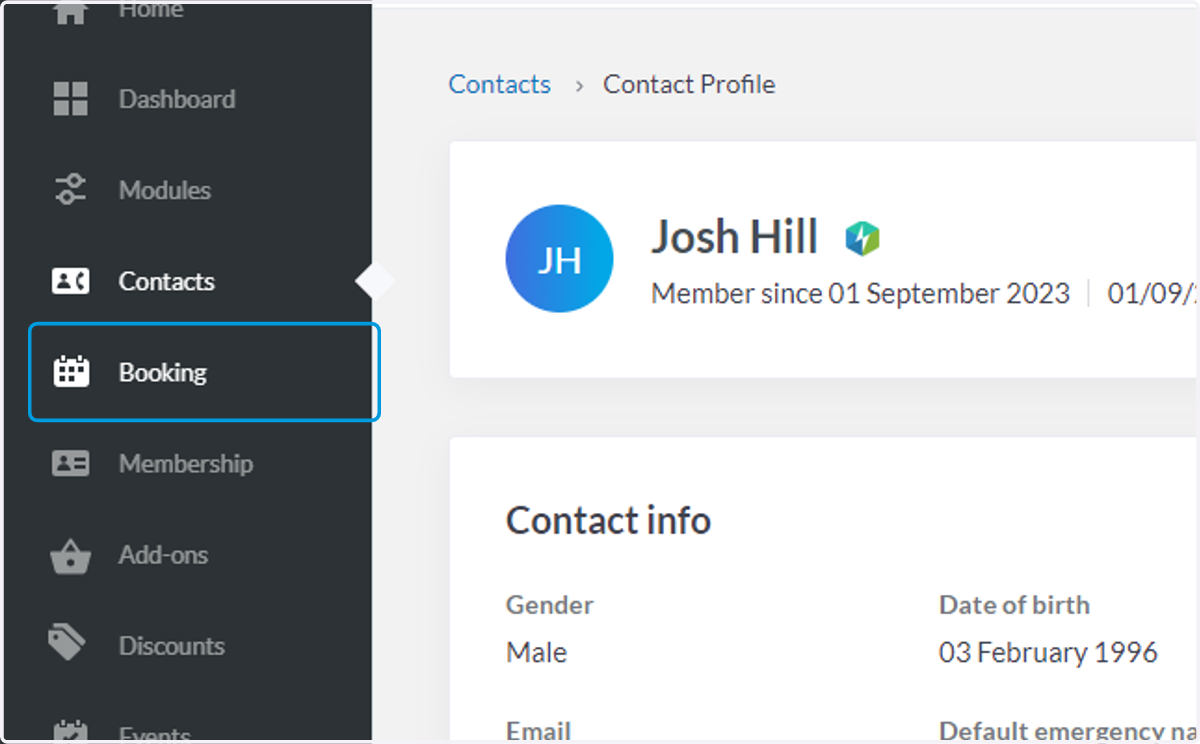
2. Click on Booking
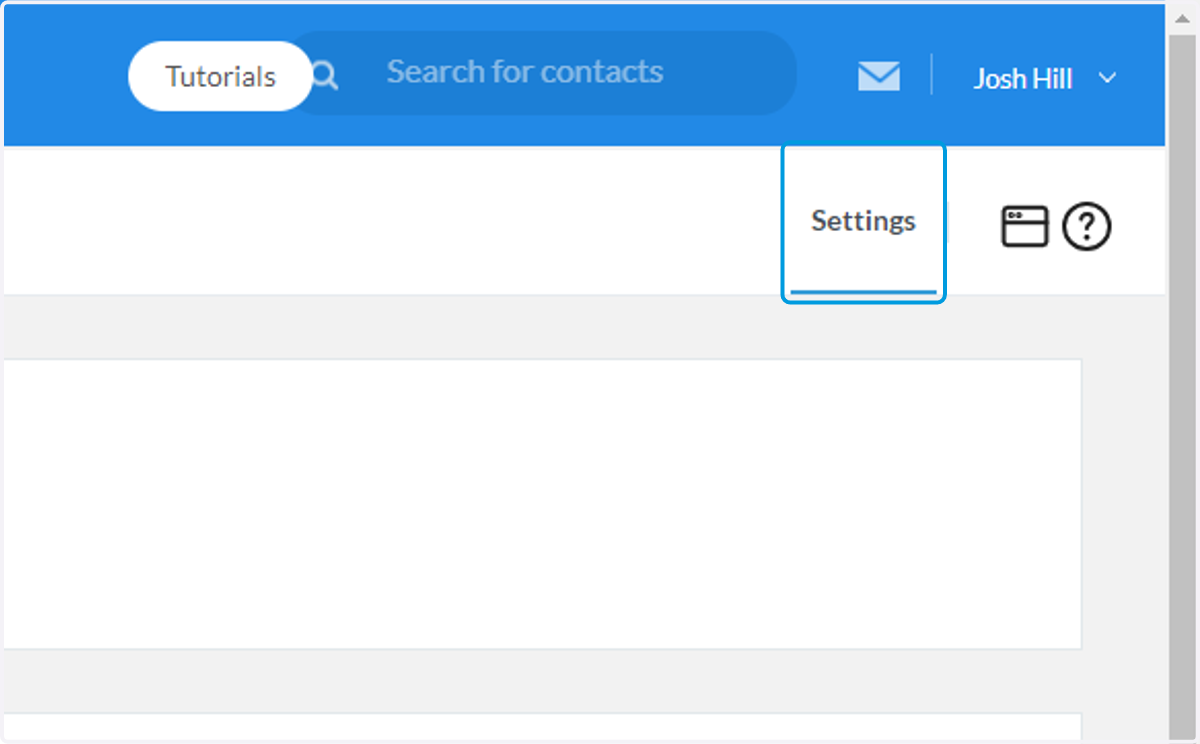
3. Click on Settings
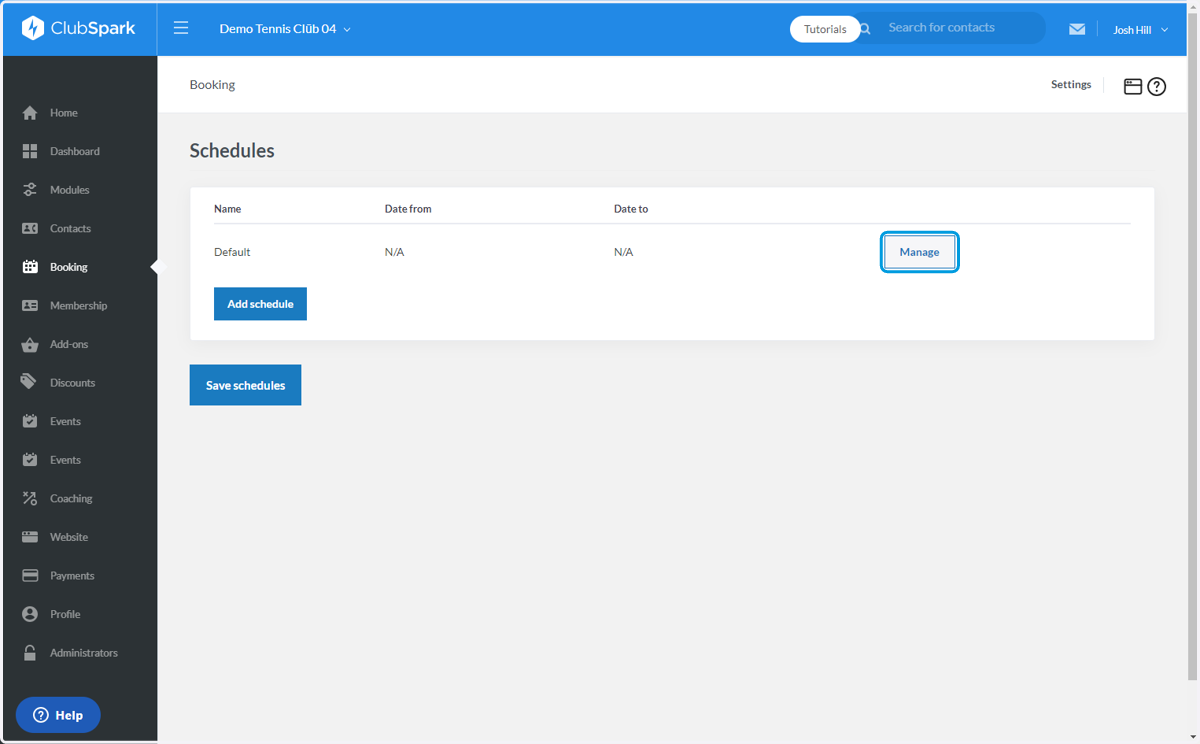
4. Click on Manage schedules

5. On the default row, click on Manage
6. On the right, locate the "Default" selection and click Edit
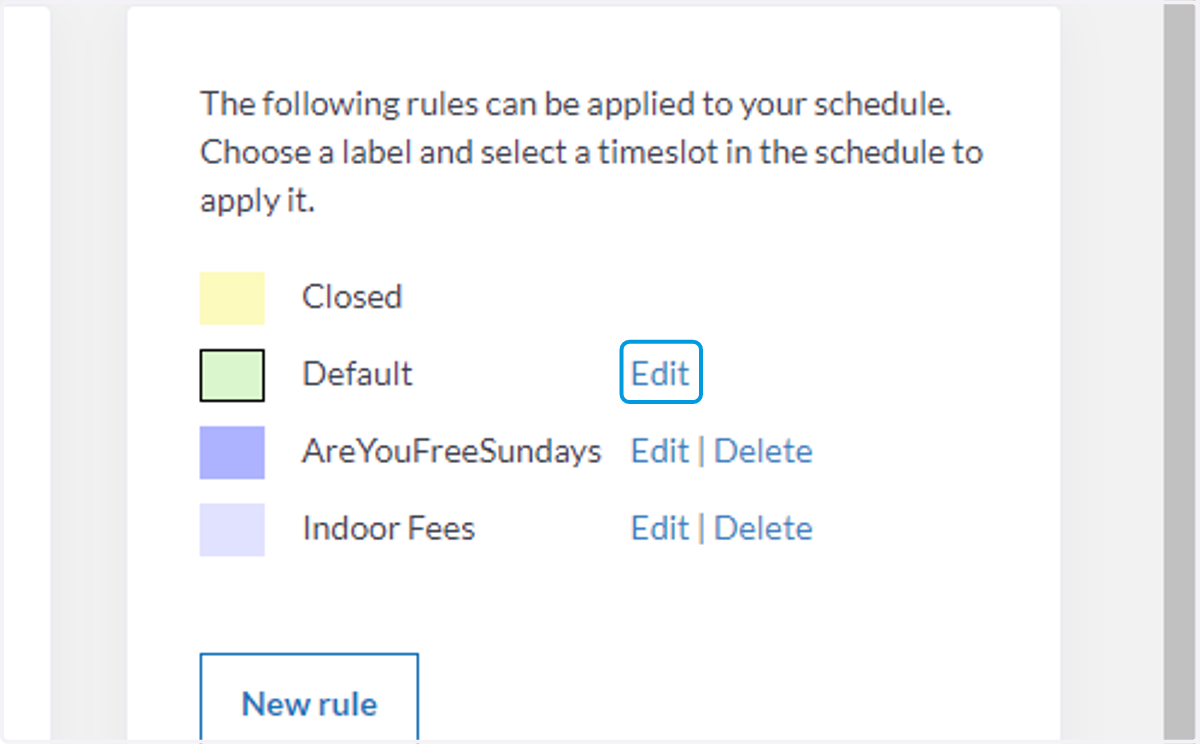
7. Here you can set the price you charge for Casual Players under the resource cost set how much yo wish charge per slot.
Please Note rate is charged per how you have set the booking slots. e.g. You charge $20 per hour but set the booking slots to 30 minute intervals so you would half the price in the cost
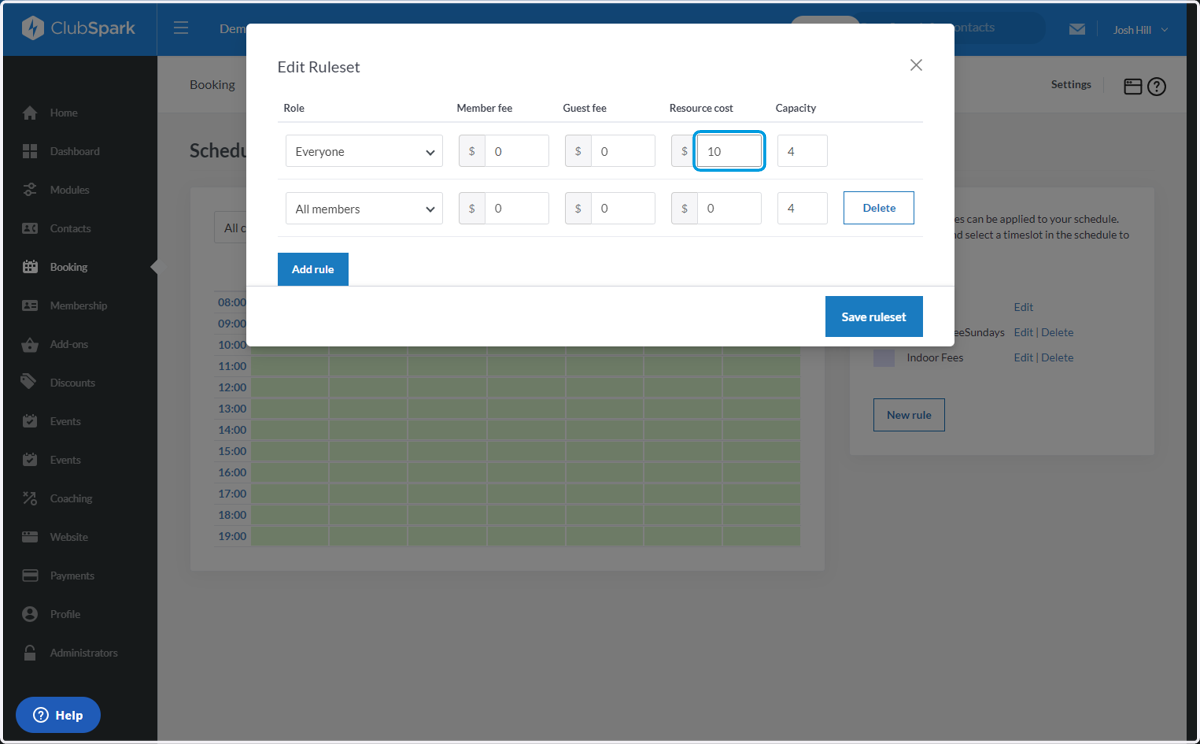
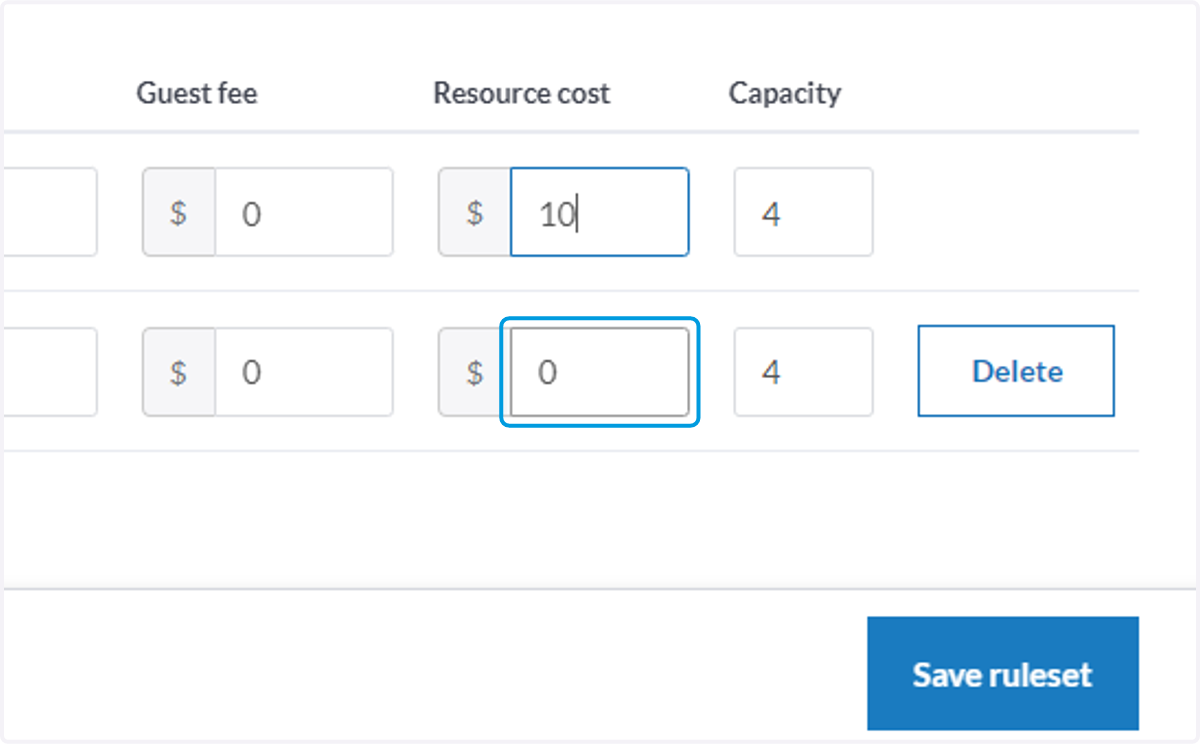
8. If your venue has members, you can adjust the cost according to member fees.
Usually this is set as zero. SKIP this step if the venue has no membership system.
9. To add a Internal / External Coach or another role click Add Rule
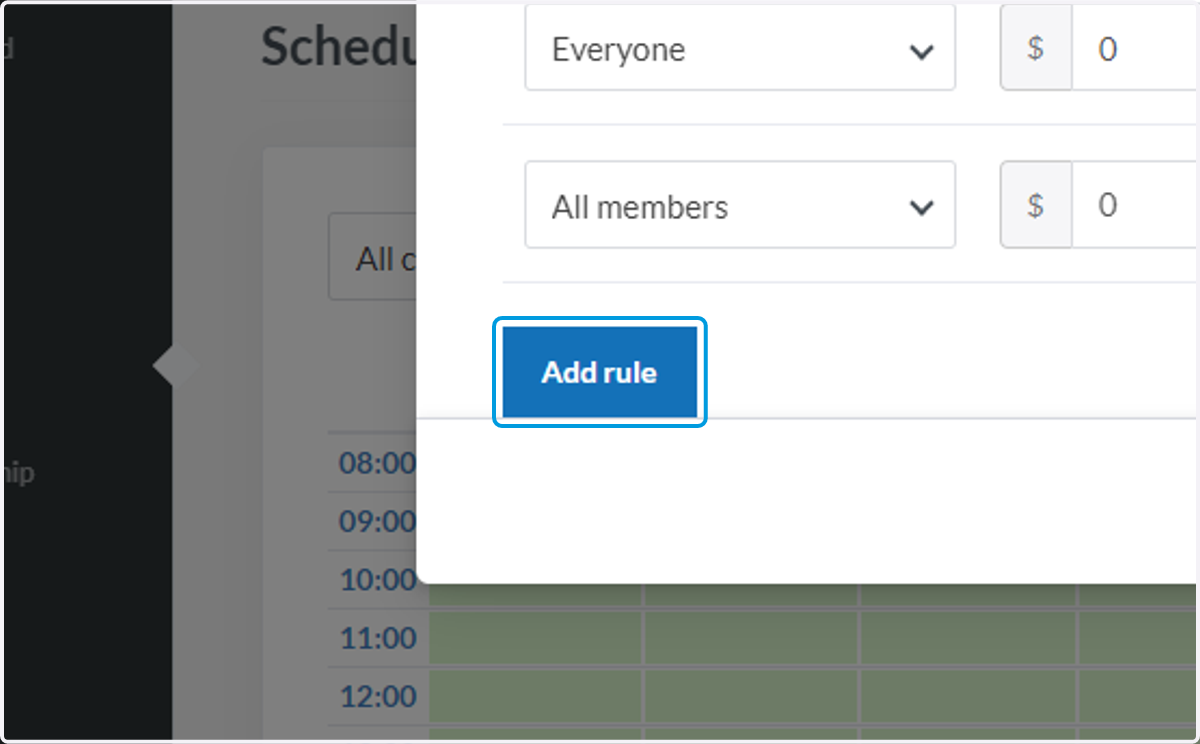
10. On the drop down select the role you set up / allocated in the earlier steps.
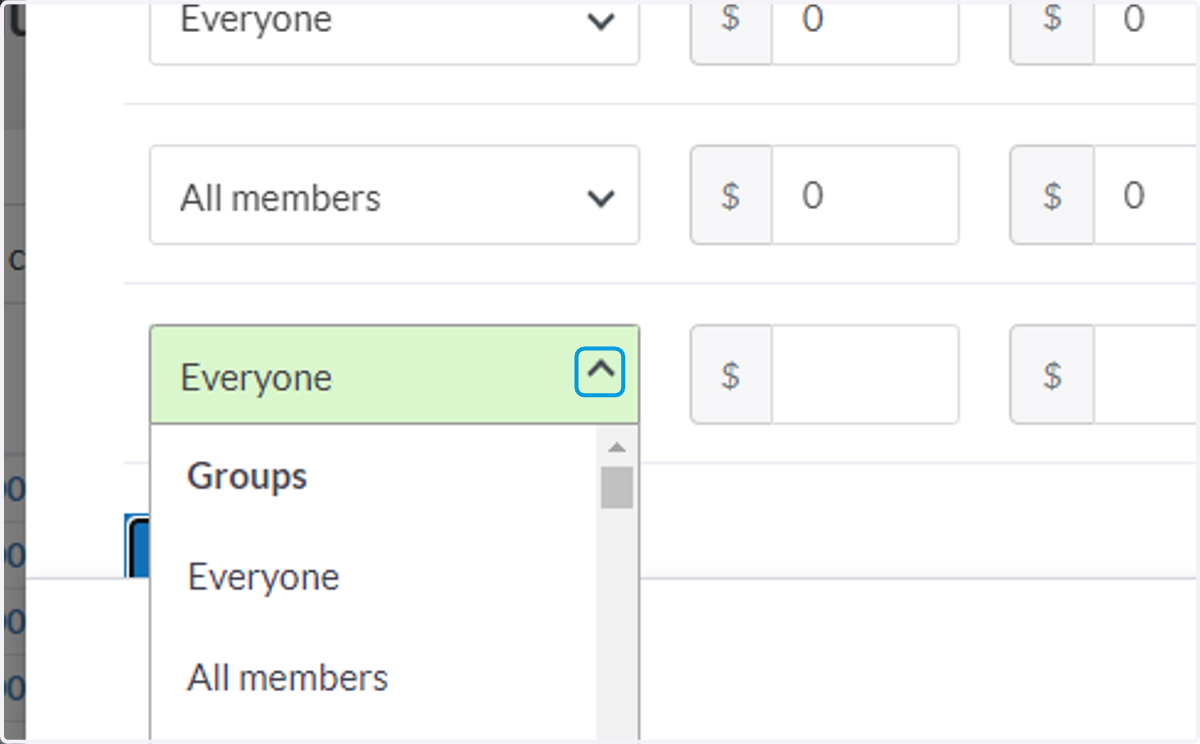
11. For example: Click on Internal Coach
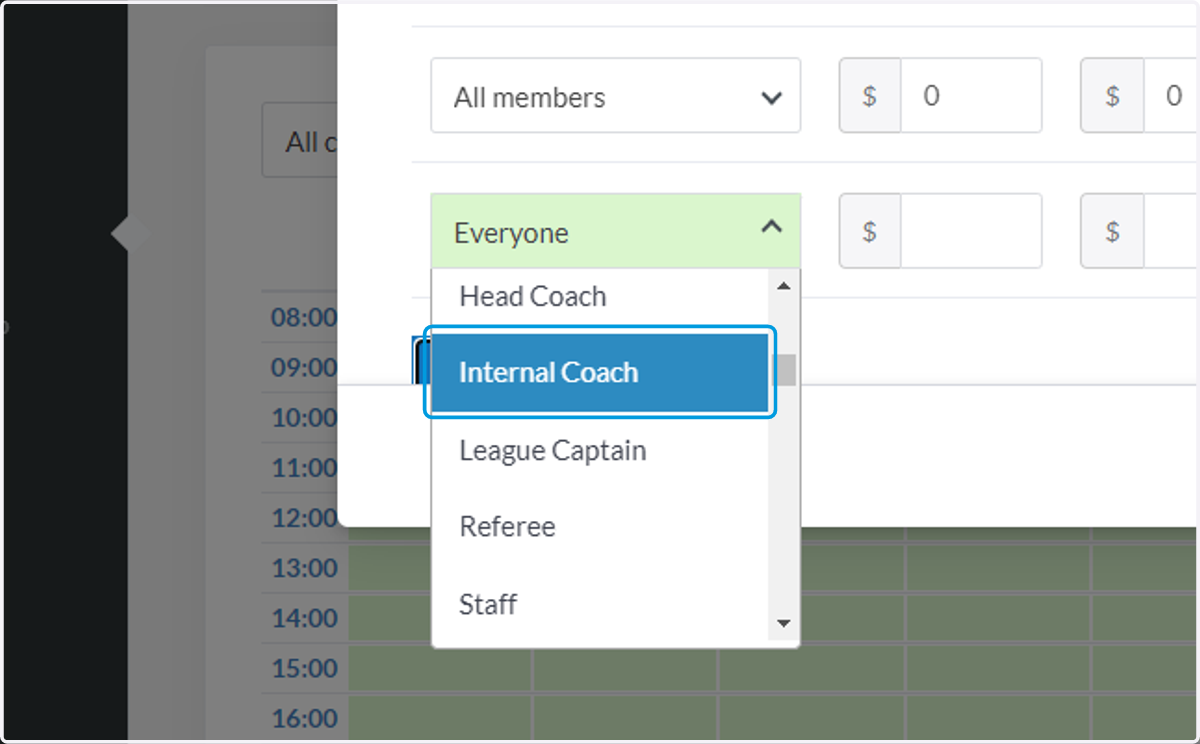
12. Type "0" in the Membership field

13. Type "0" in the Guest field
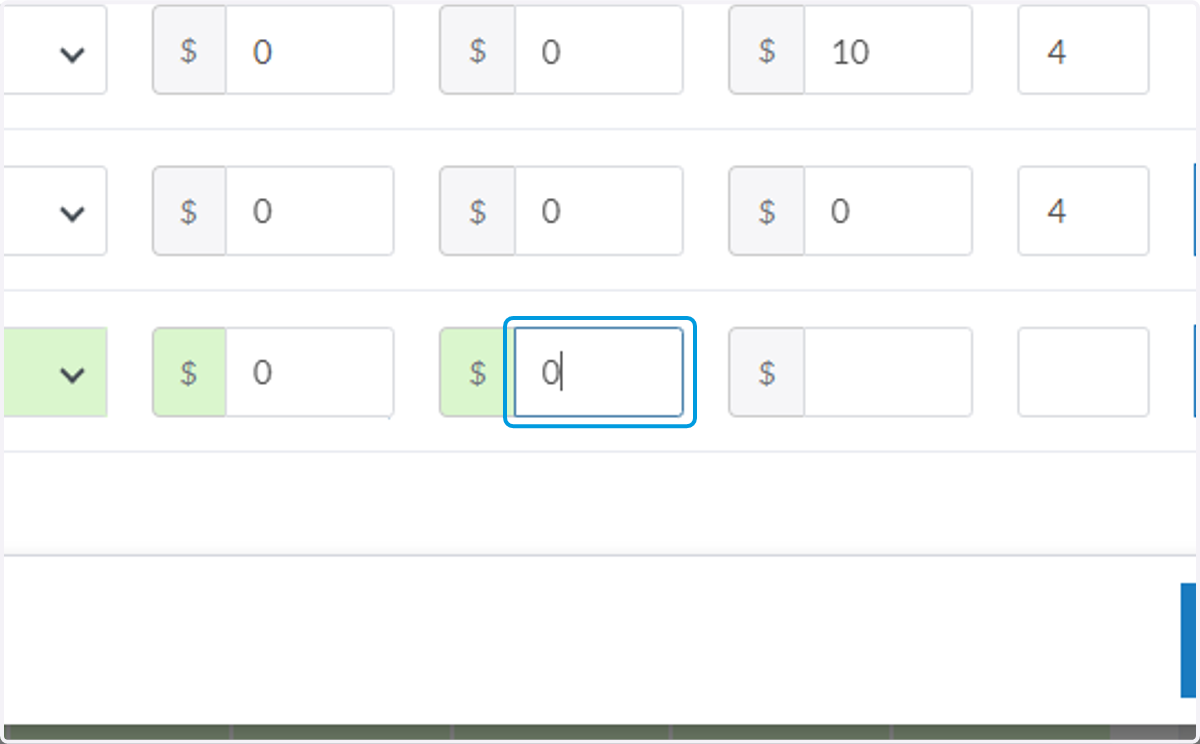
14. Type the rate you want to charge in the Resources field.
Remember how you charge per session duration
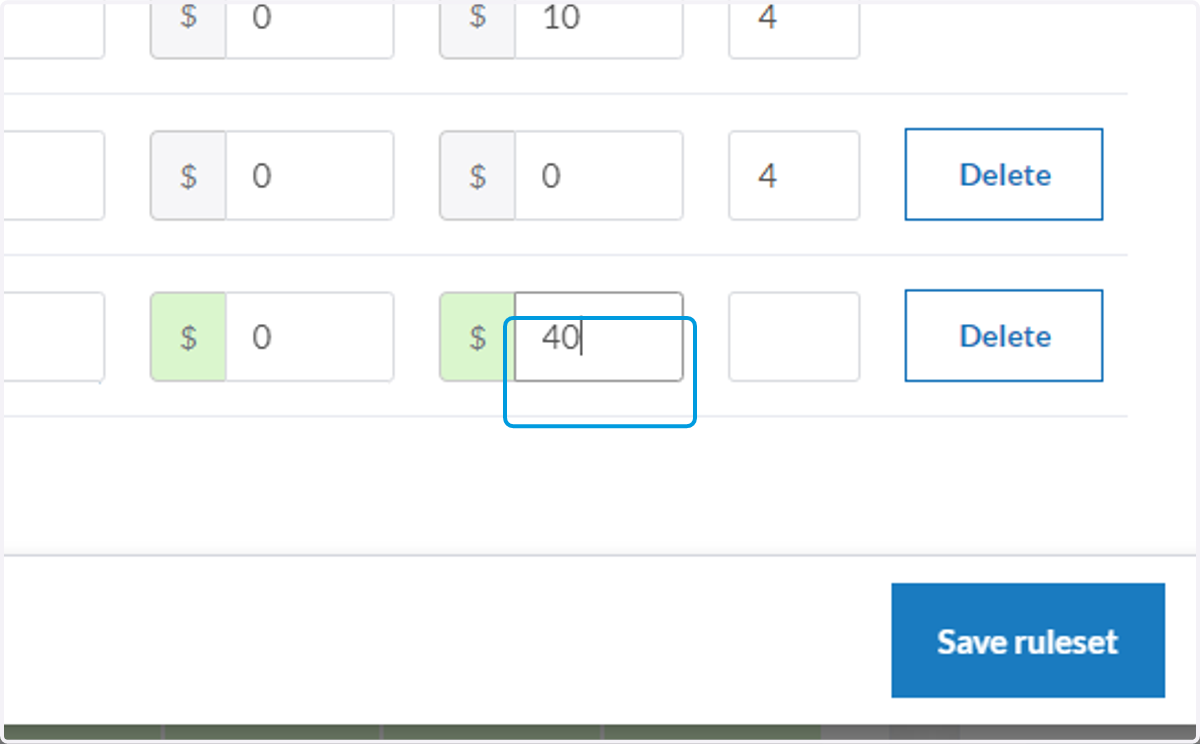
15. Type "4" this is the default
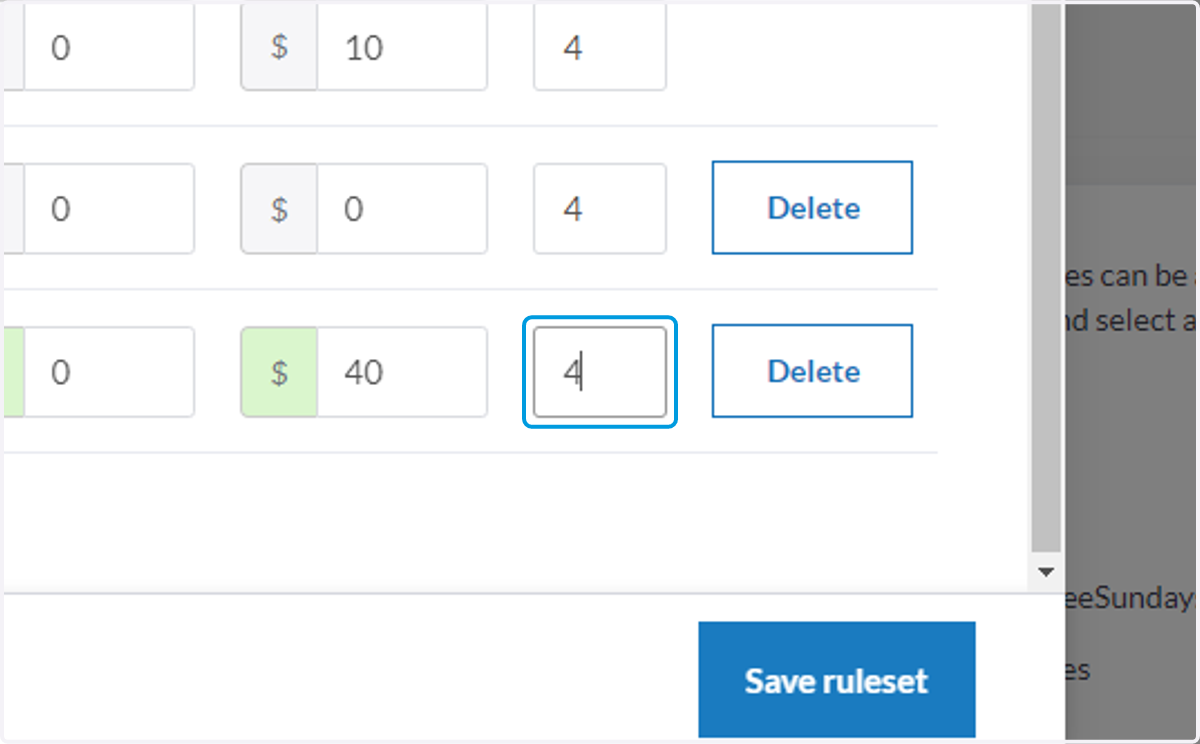
16. If you want to add another rule for another role. repeat the same process
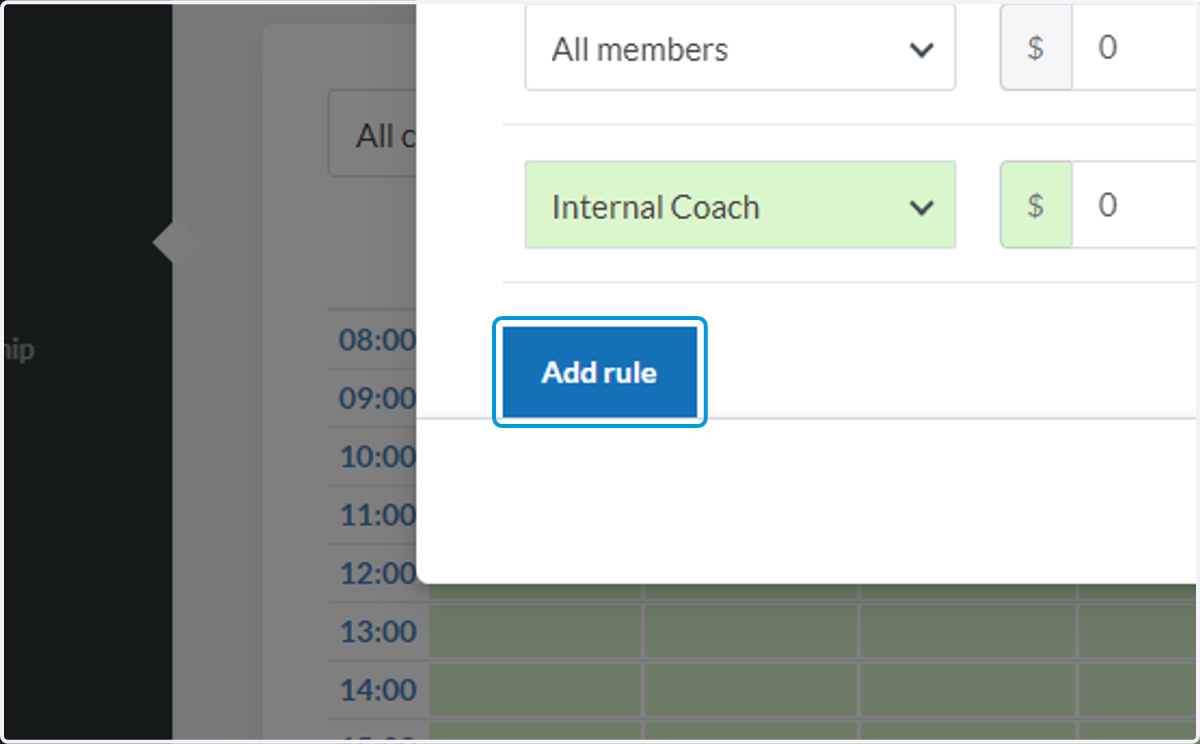
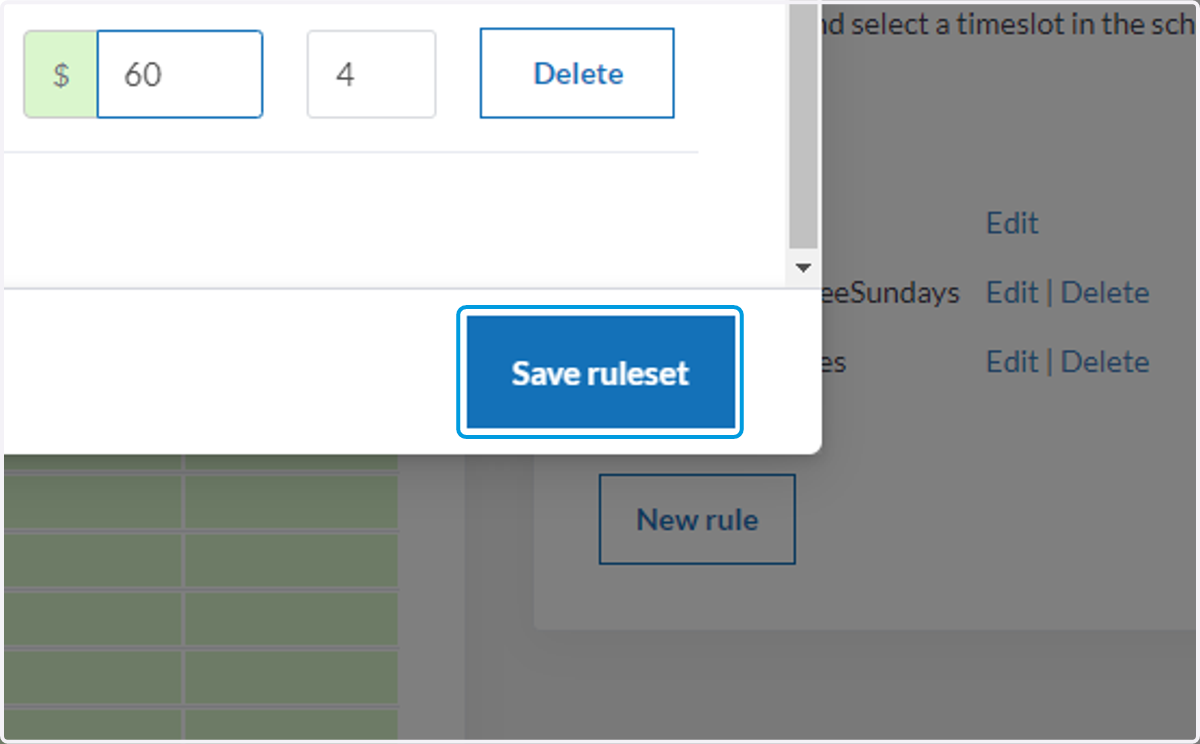
17. Click on Save ruleset
18. This message confirms the ruleset has been added.
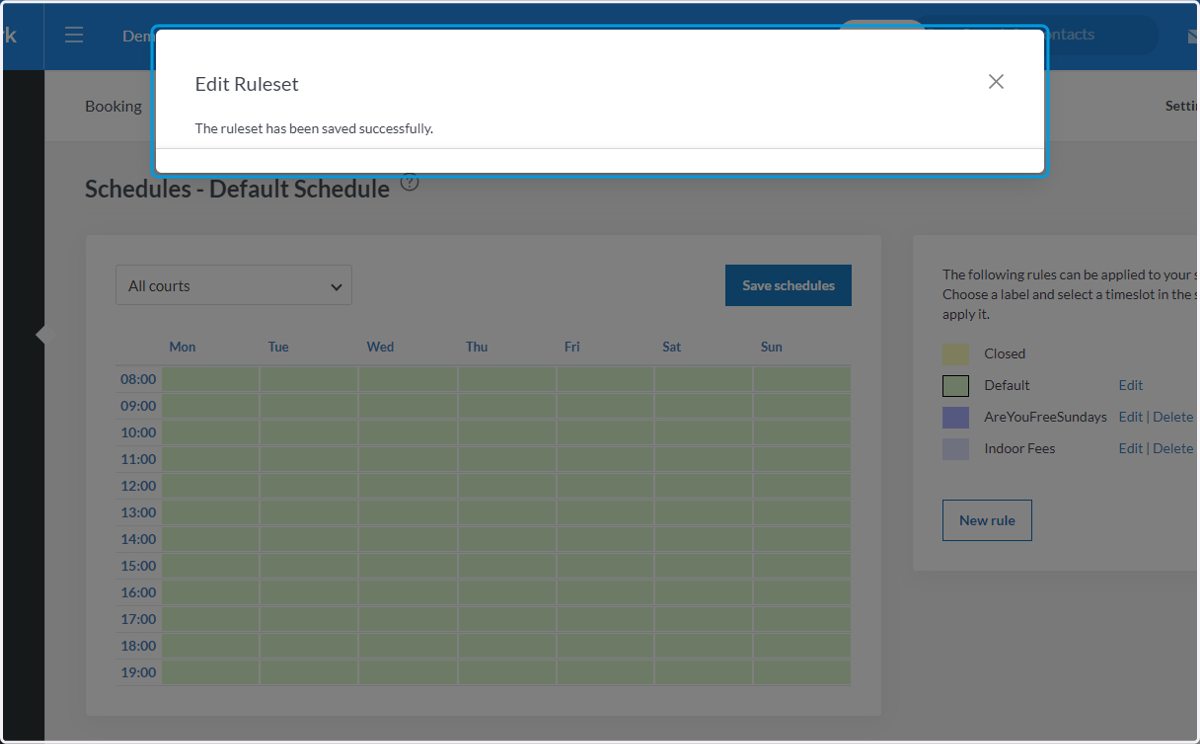
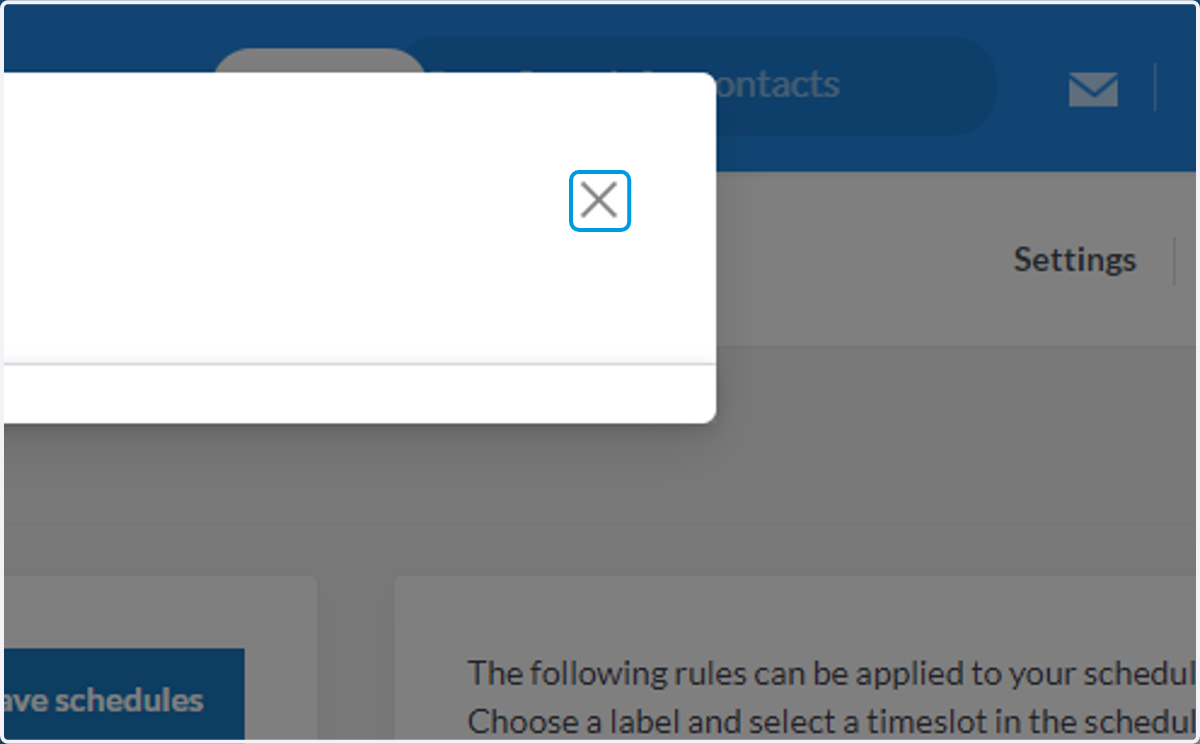
19. Click on ×…
20. Click on Settings

21. Click on Manage schedules

22. Click on Add schedule

23. Type the ruleset you wish to use as reference, in this "Indoor Court Rate"
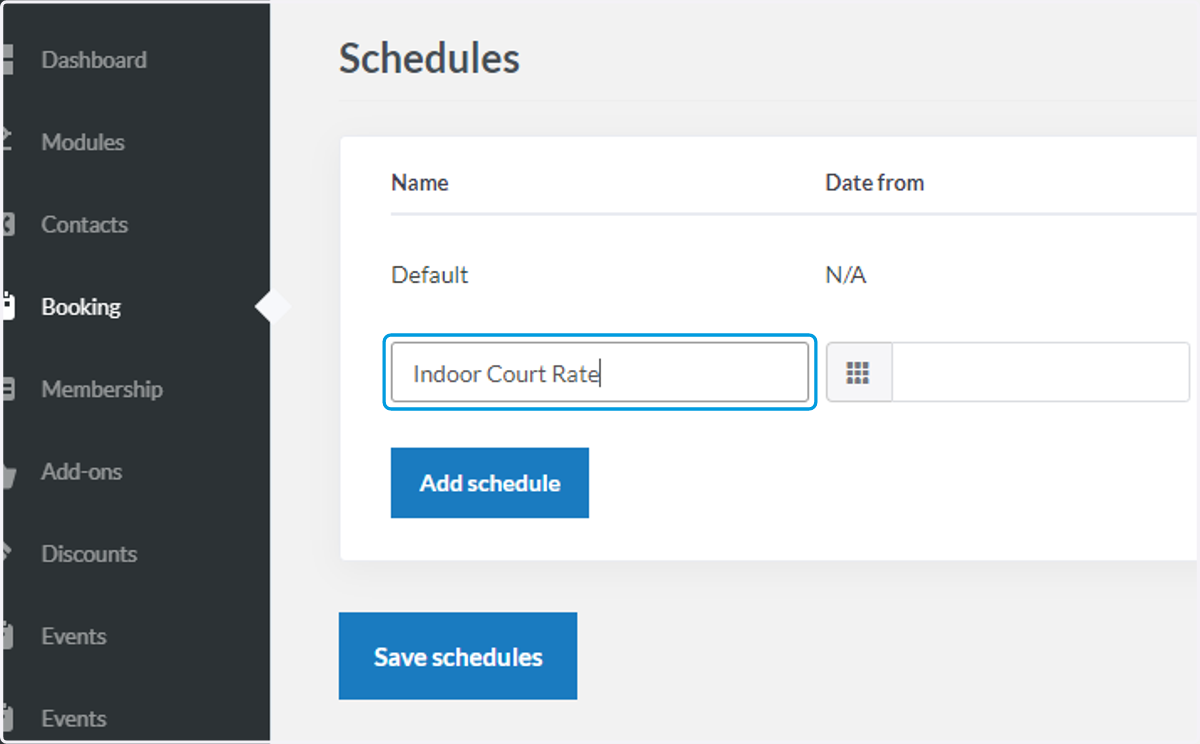
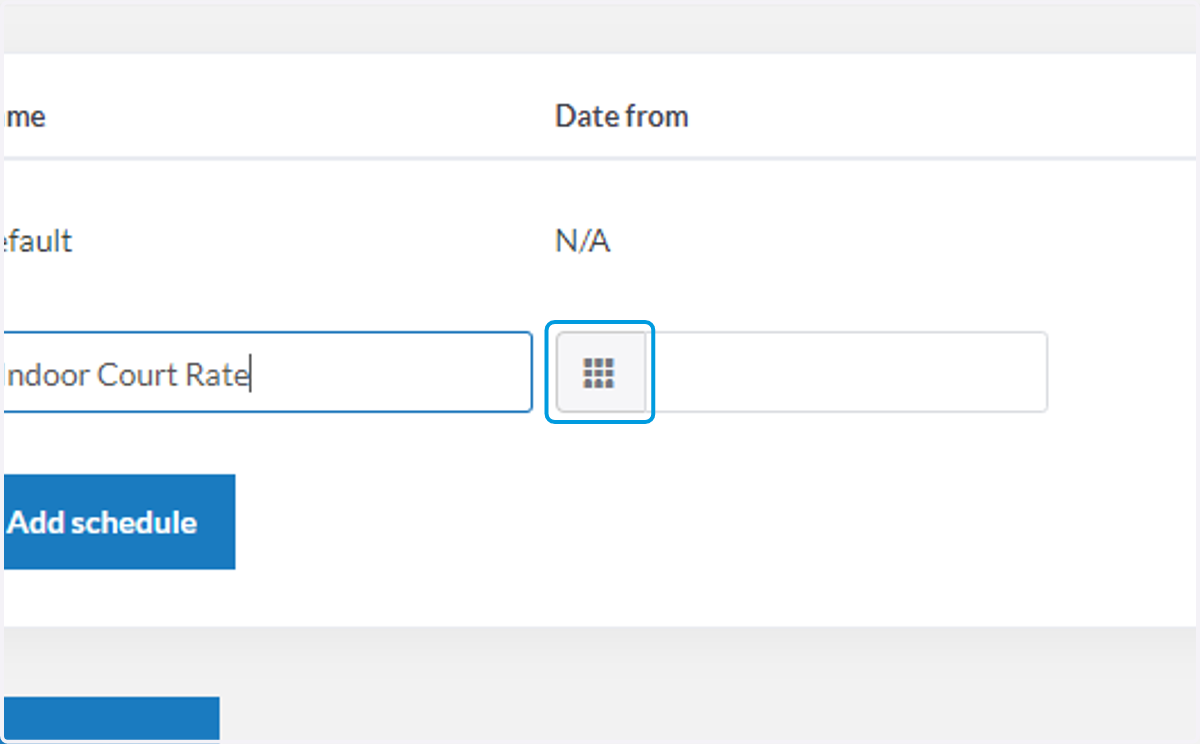
24. Set the Date from
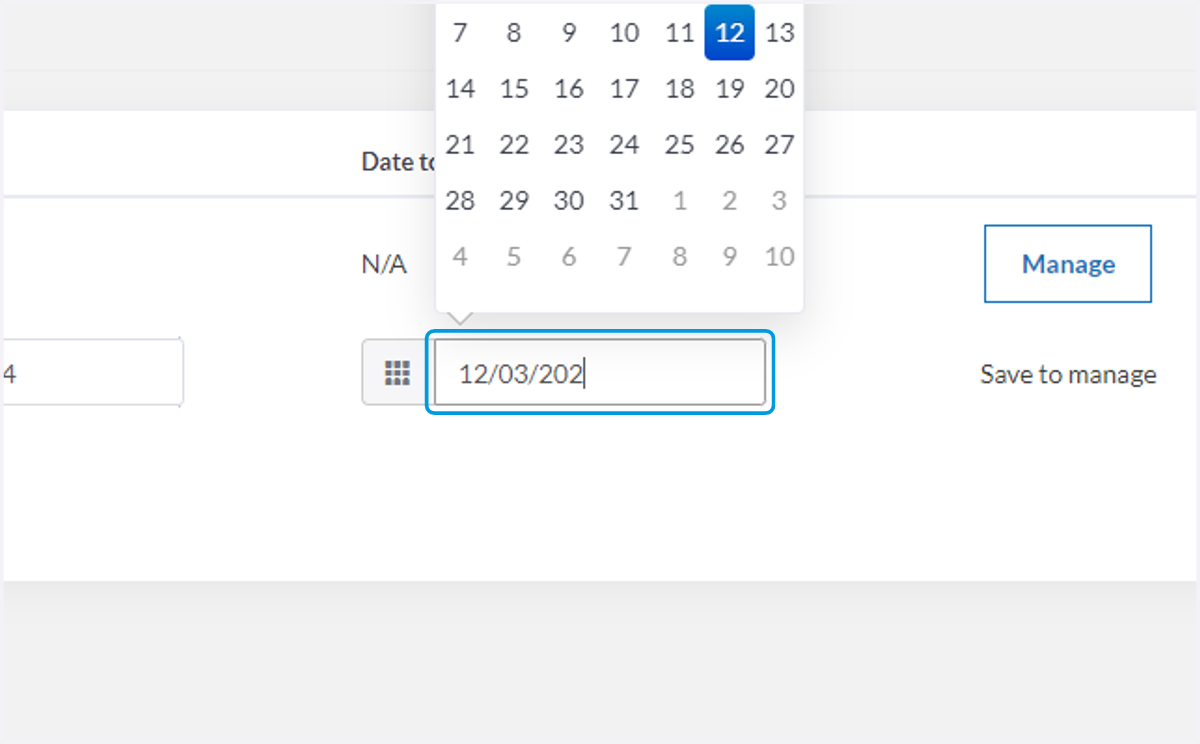
25. Set the "Date to"
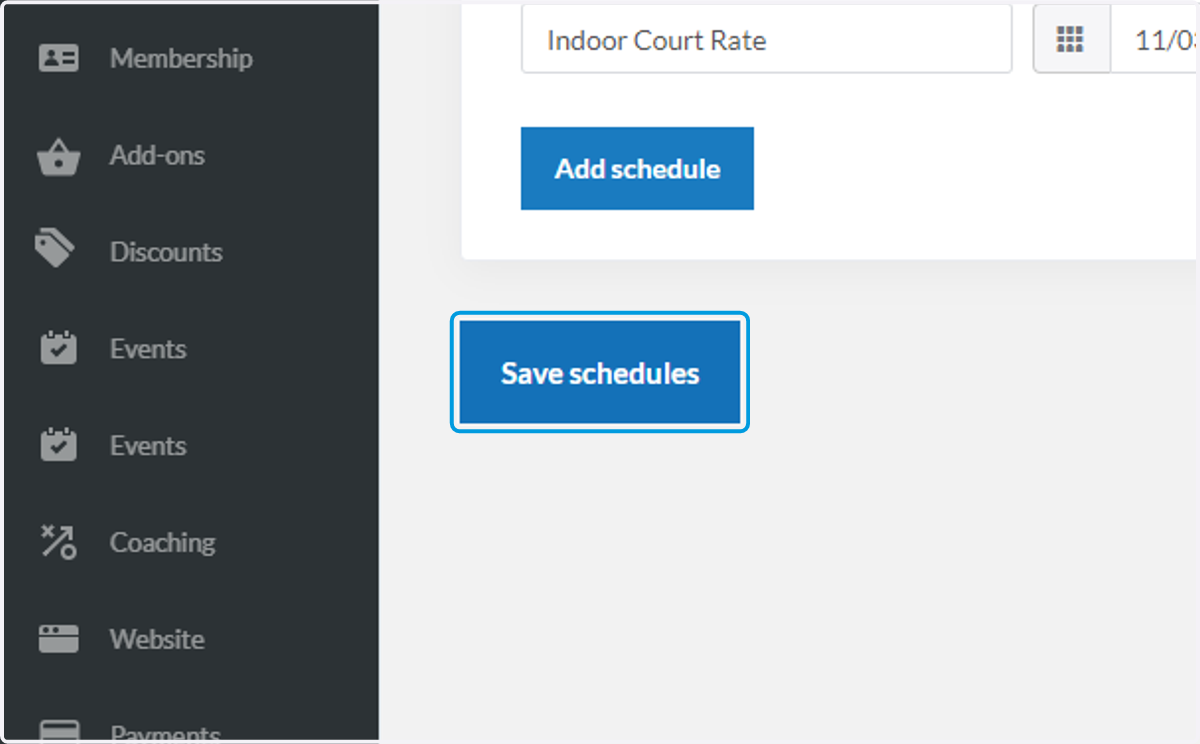
26. Click on Save schedules
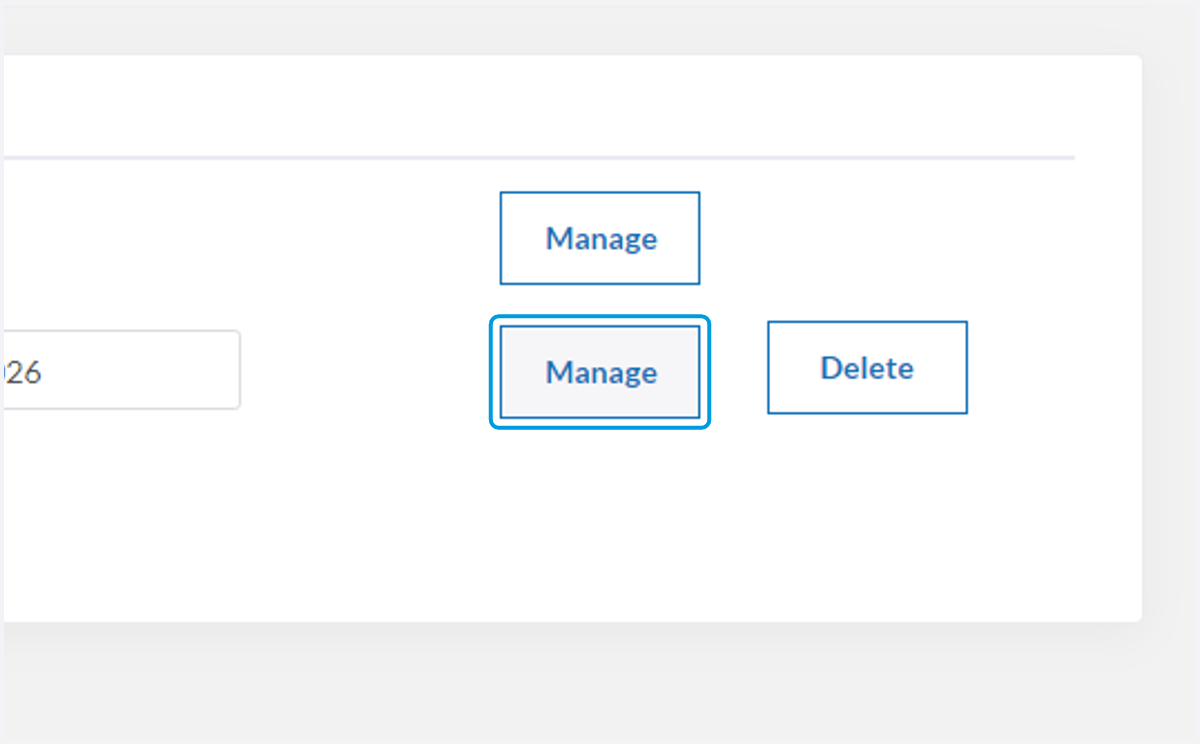
27. Click on Manage on the schedule you have just created,
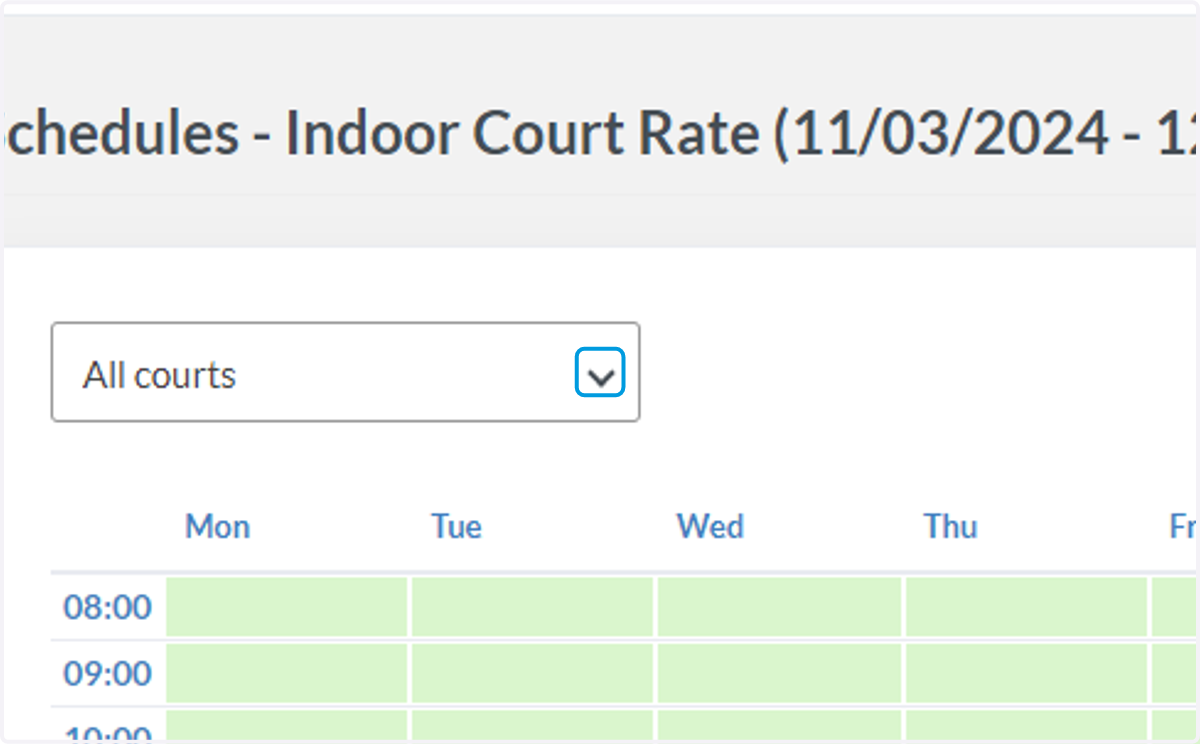
28. Select the Court / First Court you wish to adjust the pricing for.
Use the drop down
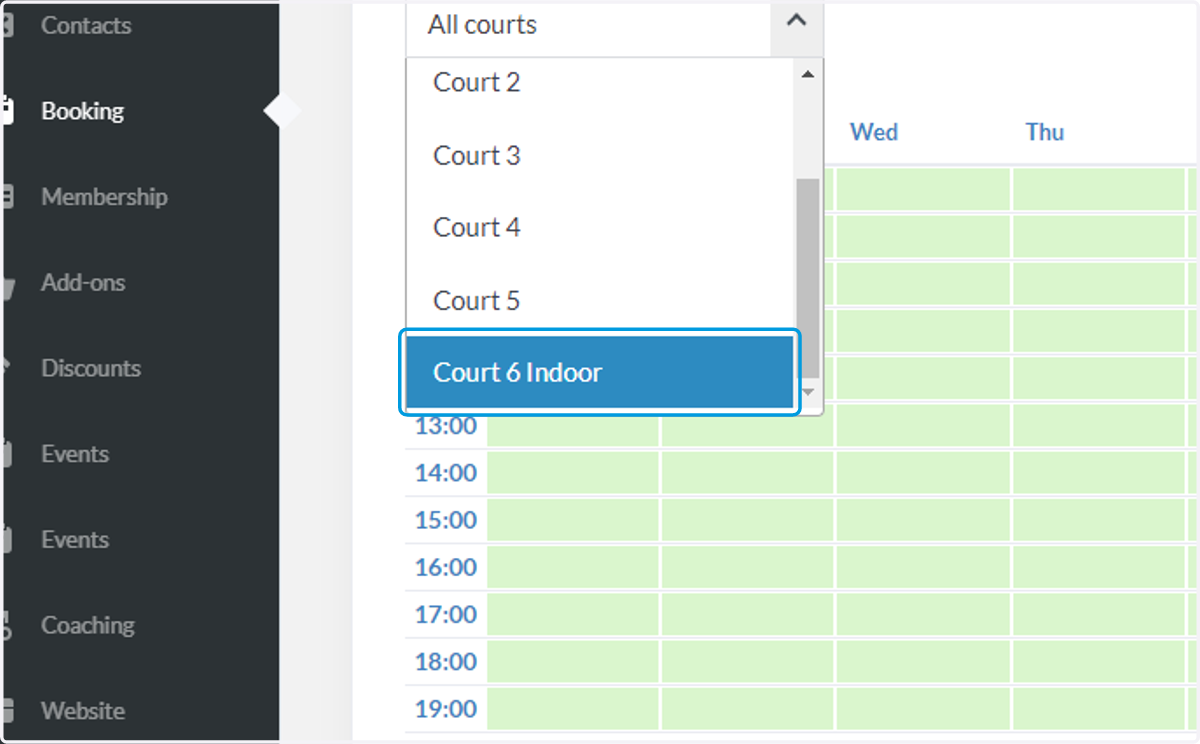
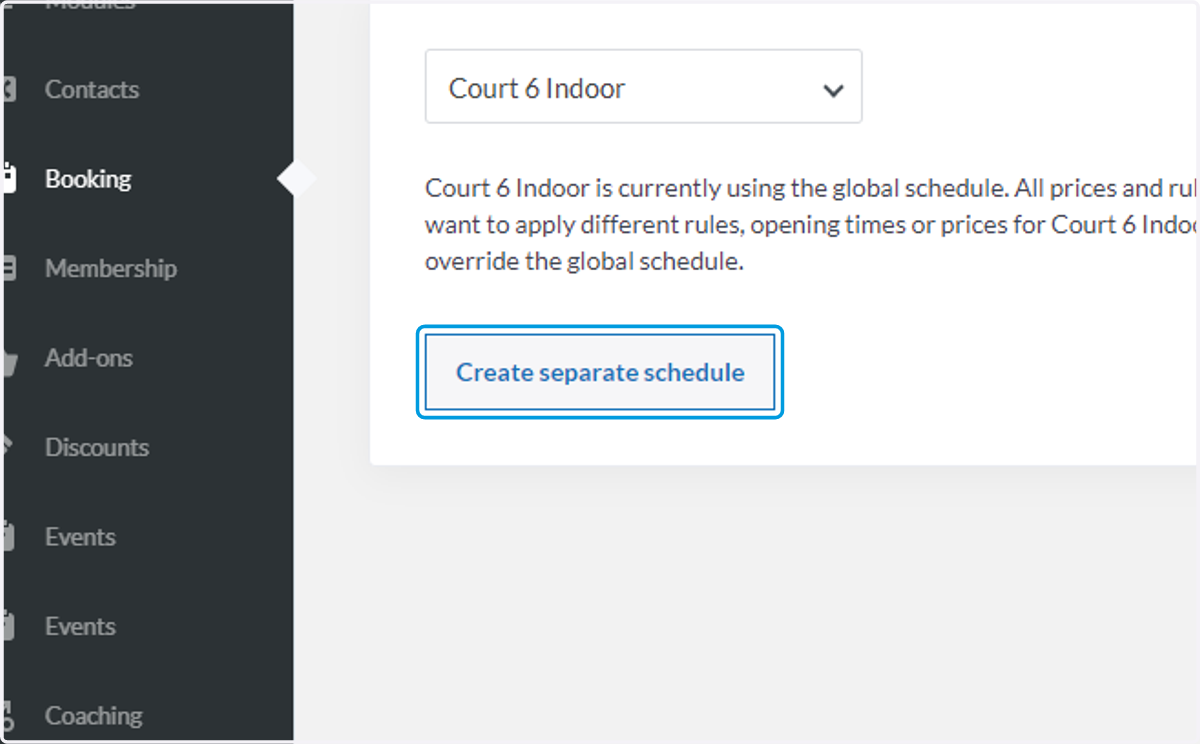
29. Click on Court 6 Indoor
30. Click on Create separate schedule
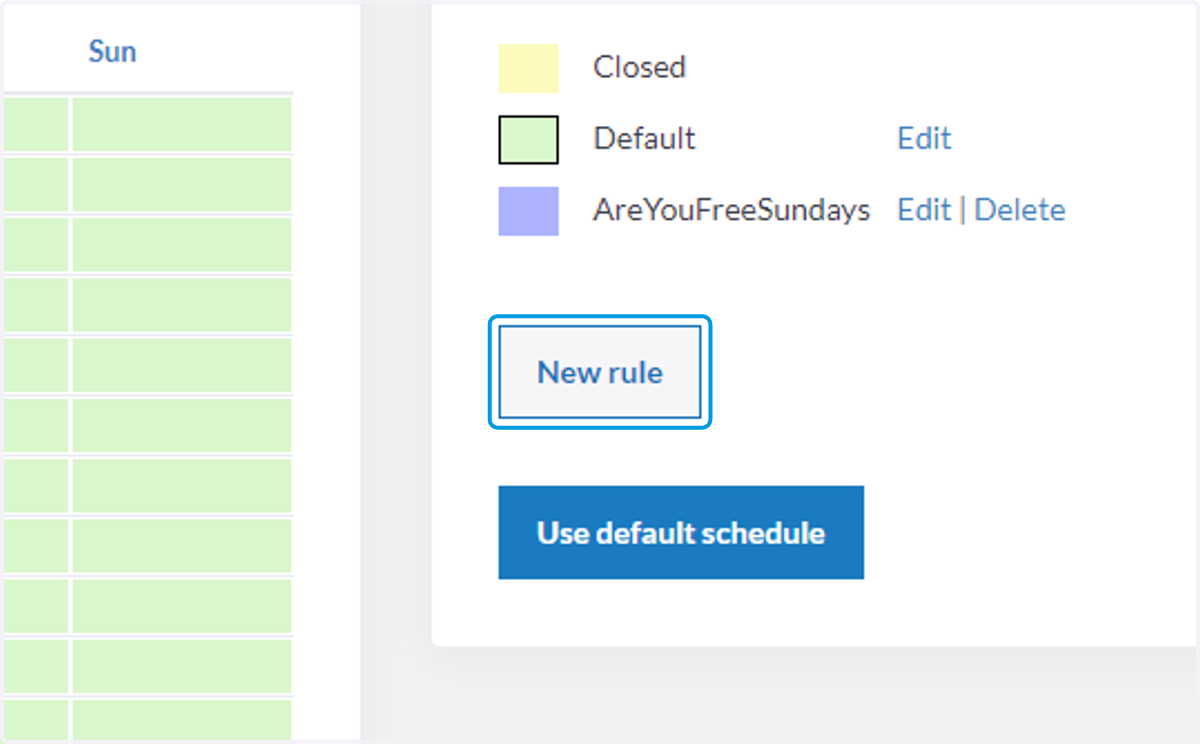
31. Click on New rule
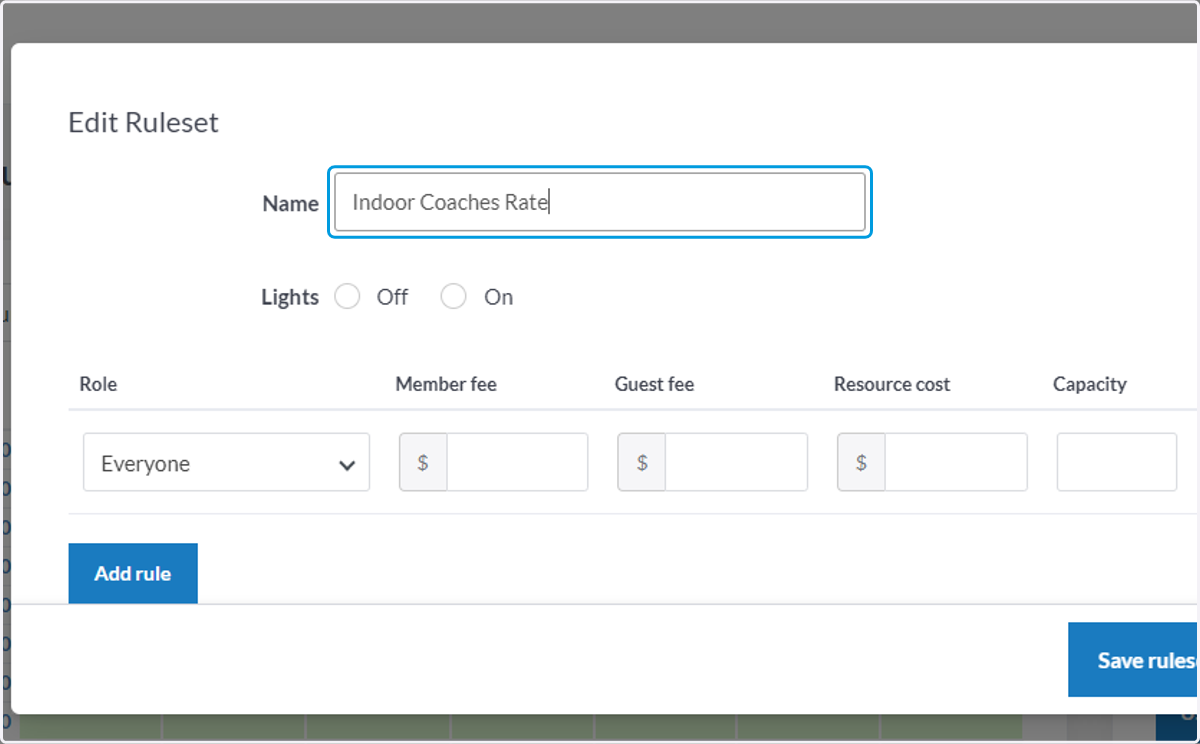
32. Type the name of the rule, For Example: "Indoor Coaches Rate"
33. Click on the drop down box
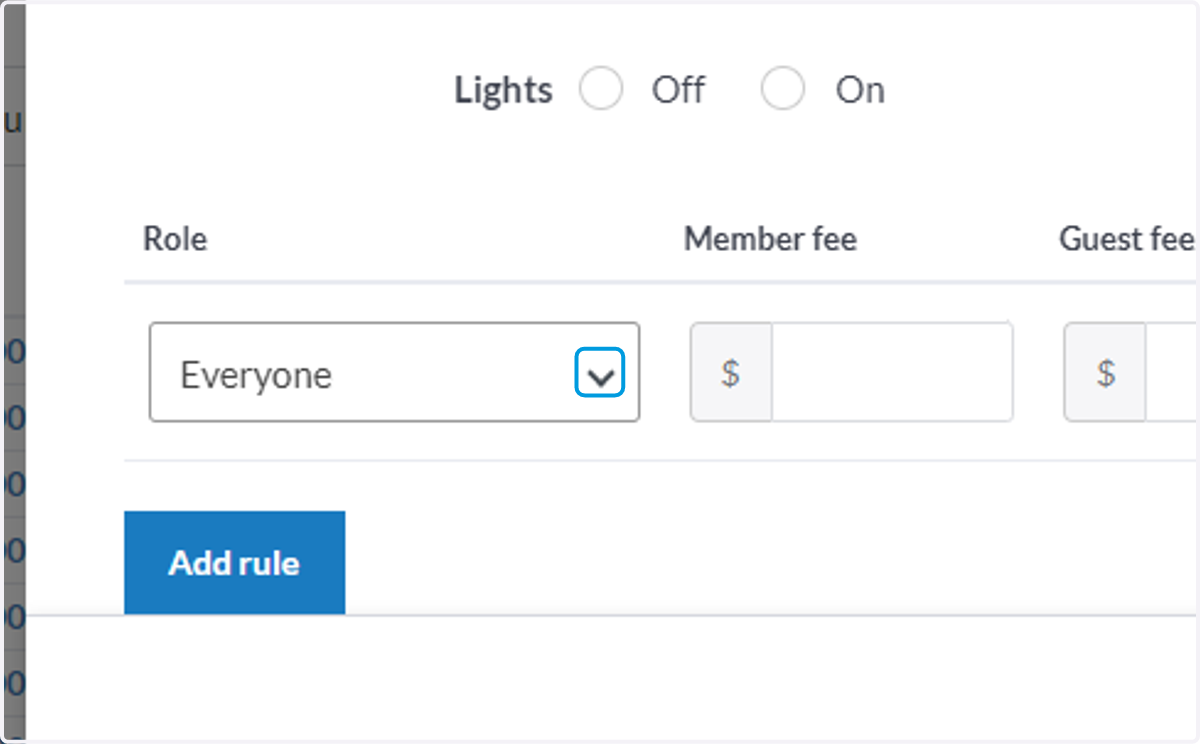
34. Click on Internal Coach (or role)
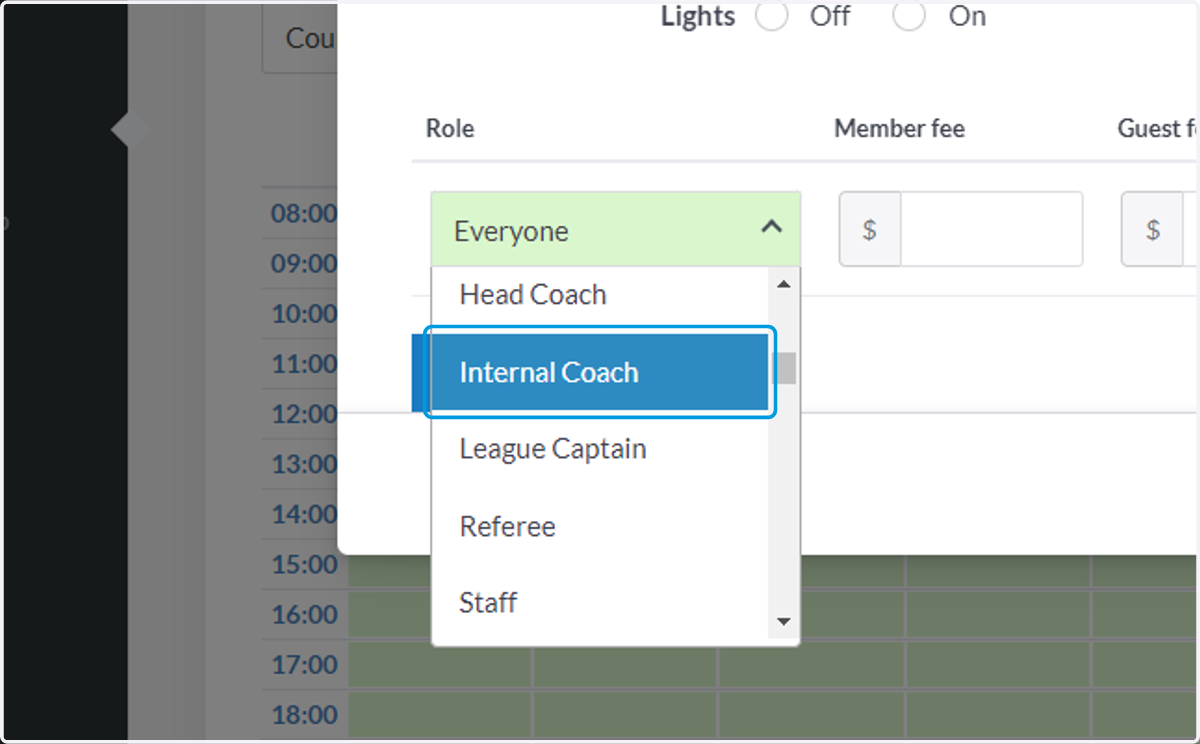
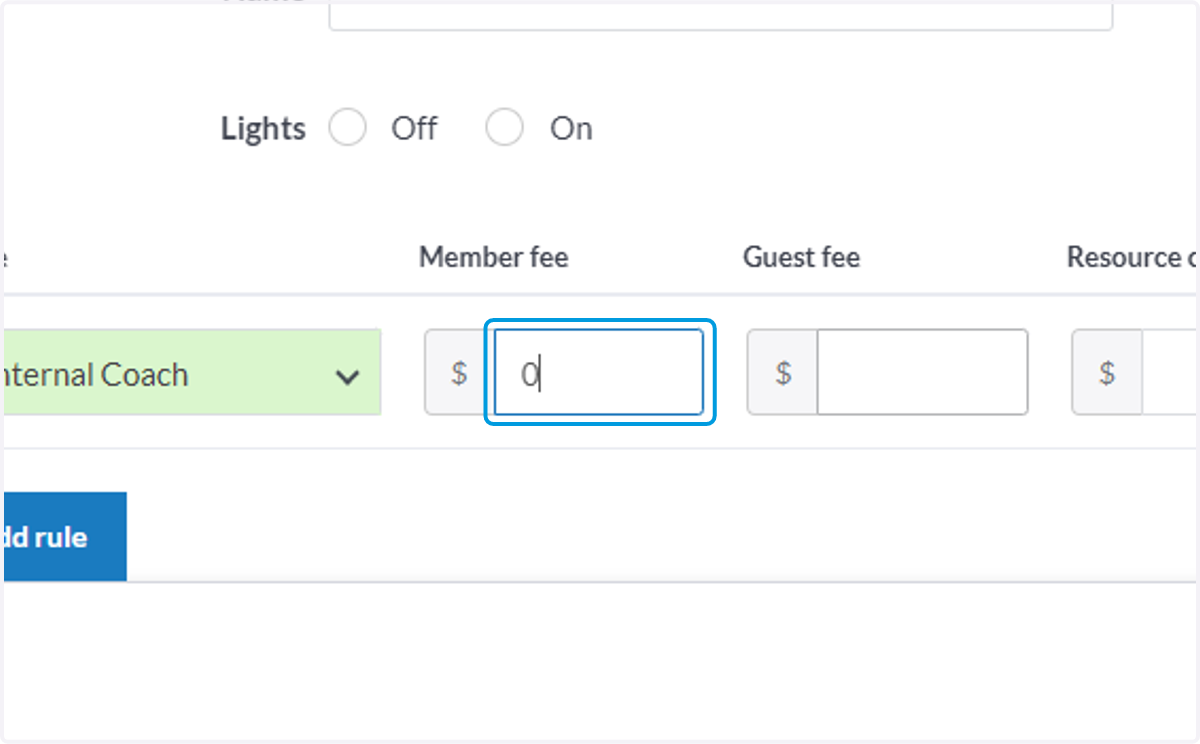
35. Type "0" in Membership Fee
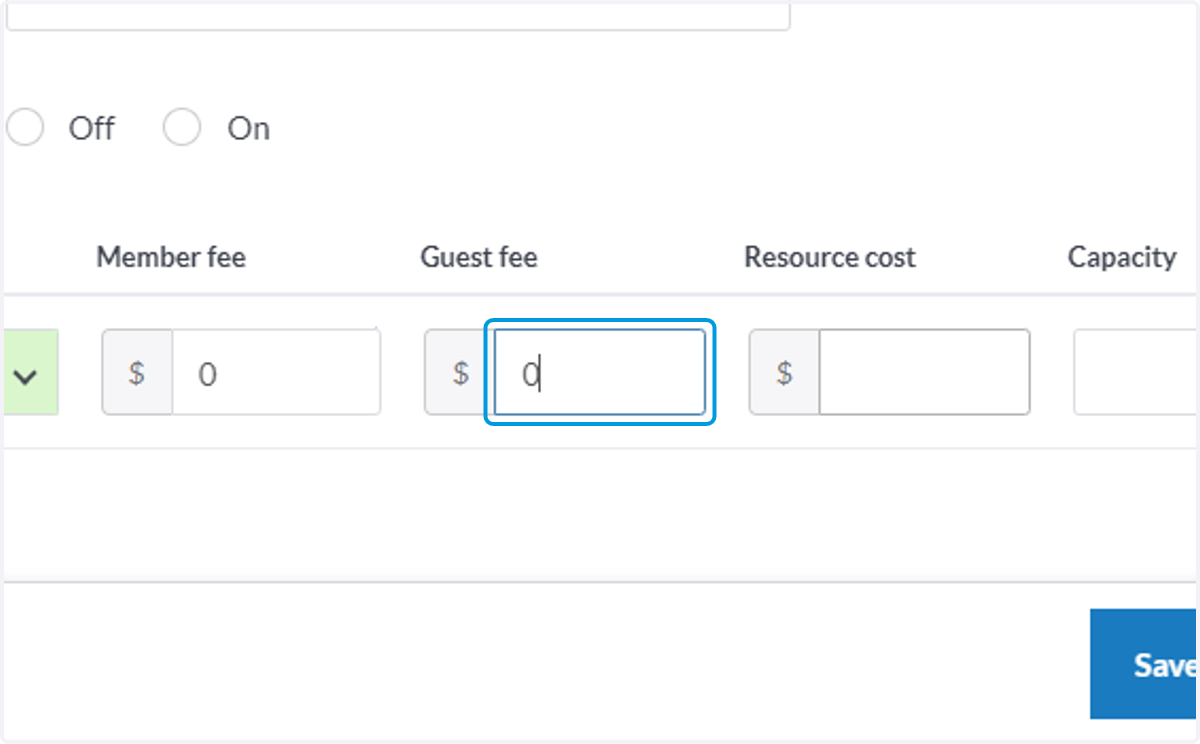
36. Type "0" in Guest Fee
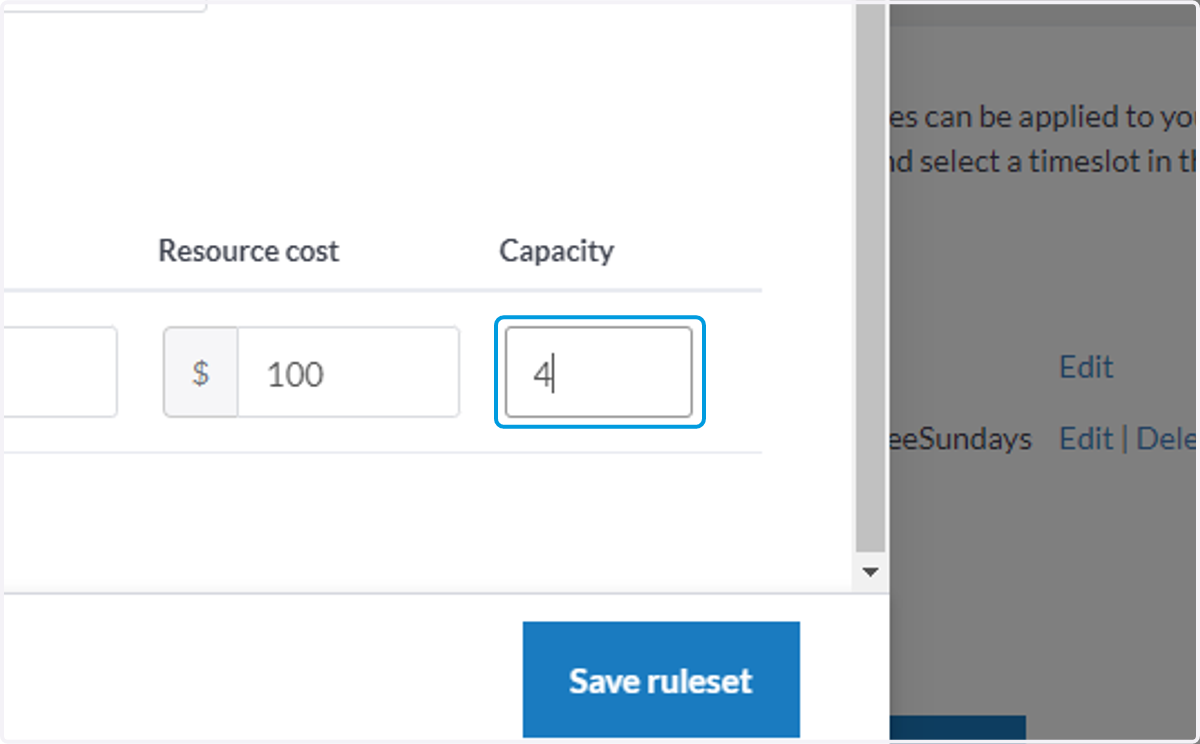
37. Set your indoor court hire rate
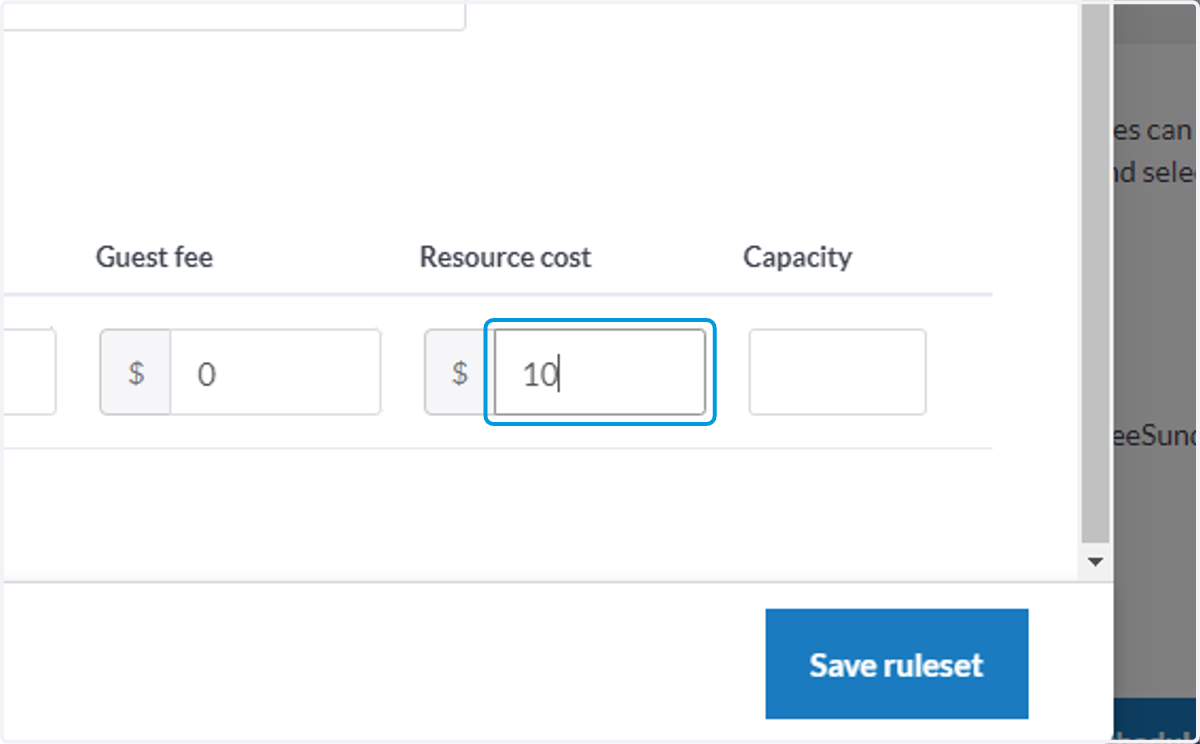
38. Type "4"
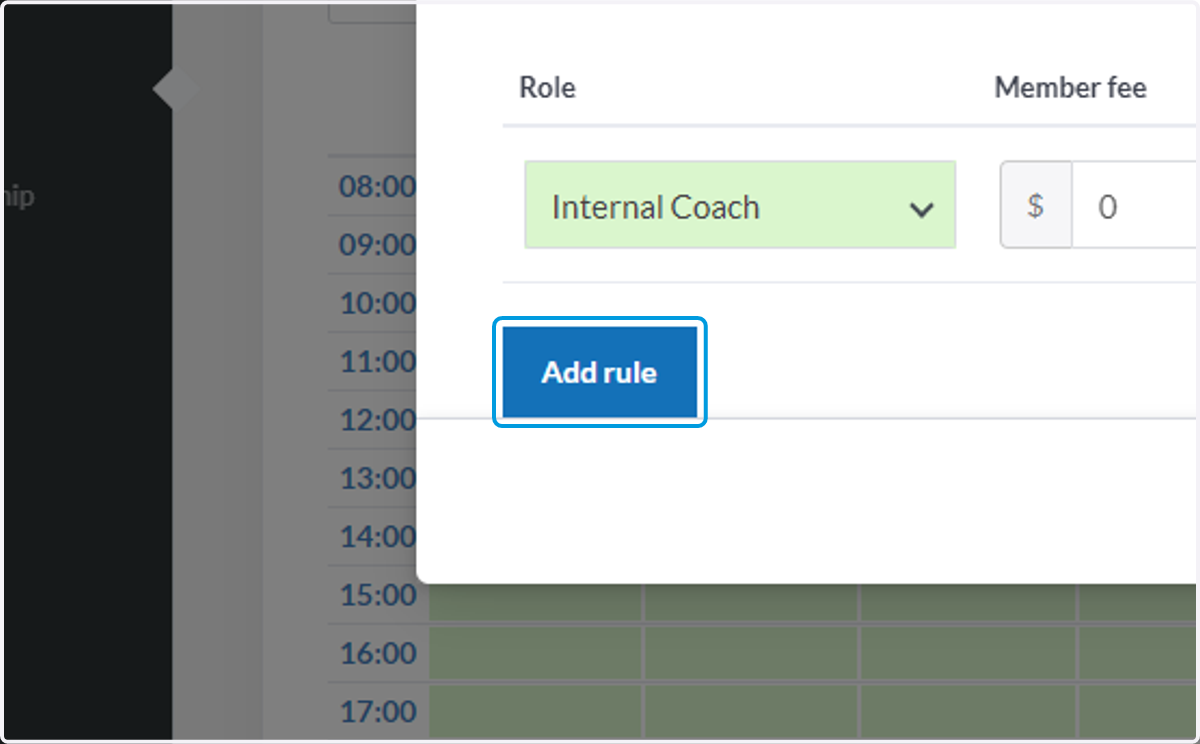
39. Click on Add rule if you wish to add more rules e.g. External Coaches
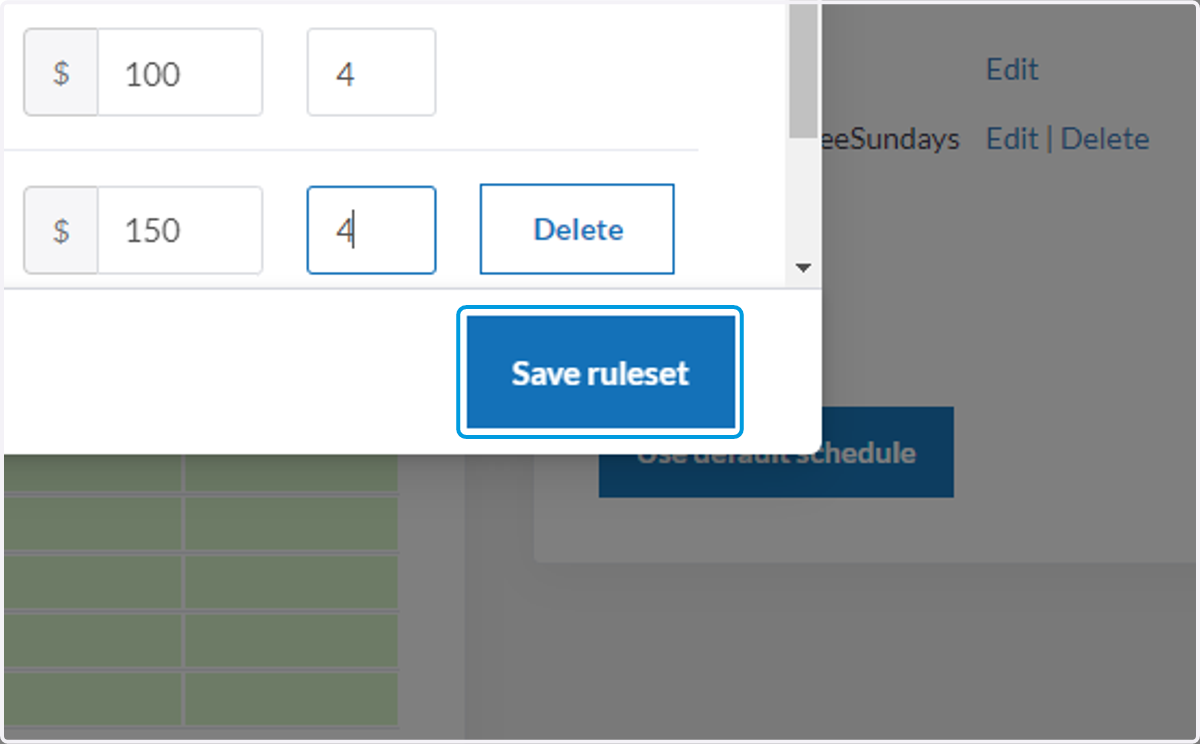
40. Click on Save ruleset
41. Confirm window will appear. Click X to close.
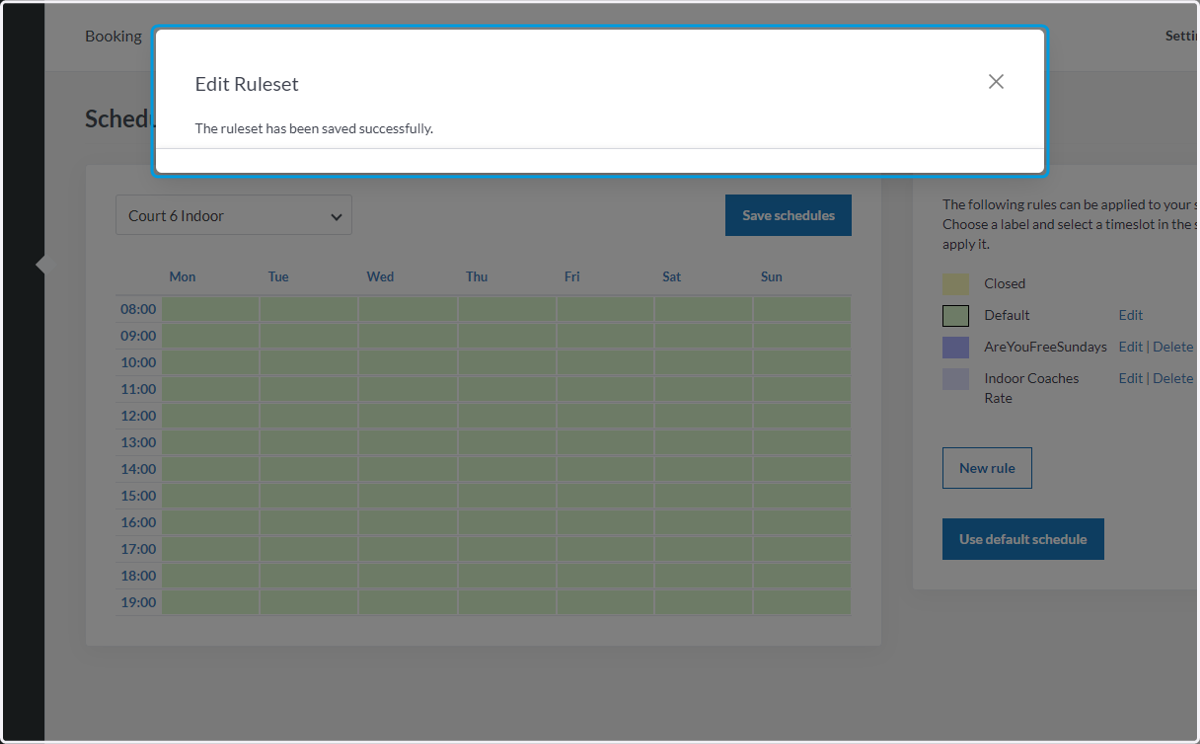
42. Click on the new rule color
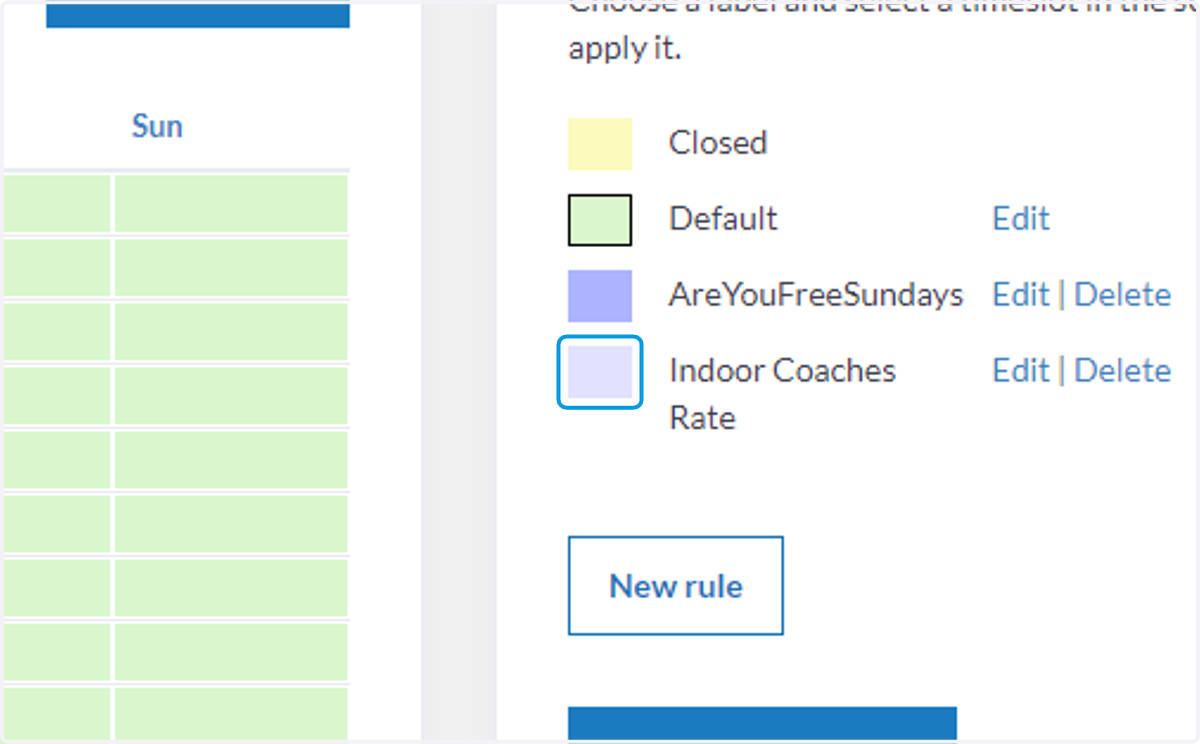
43. Click on the time sheet you wish to set the rule for
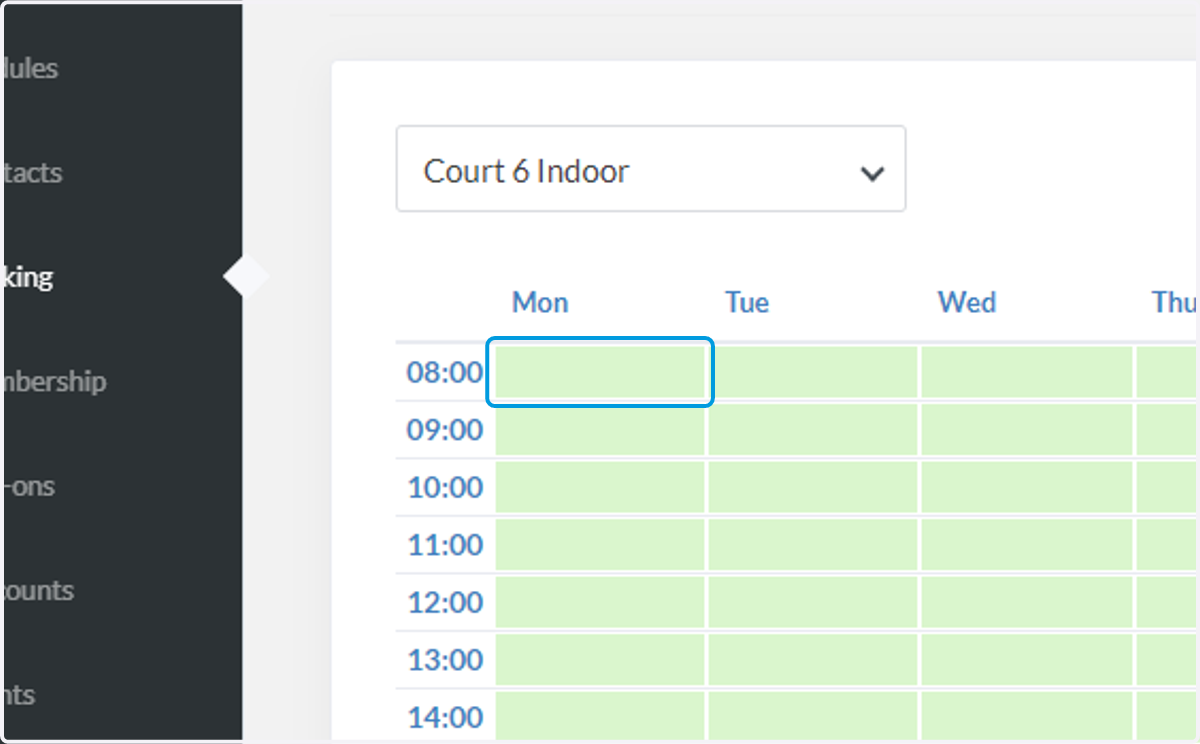
44. Drag highlighted text
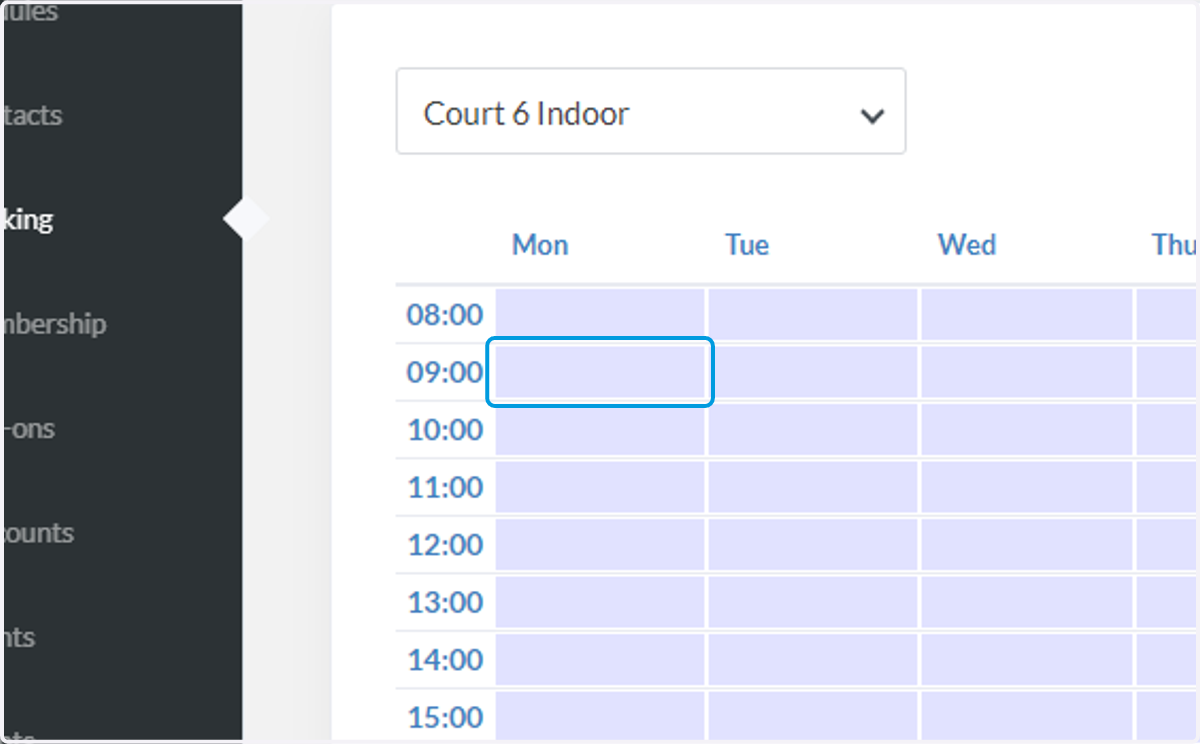
45. Click on Save schedules
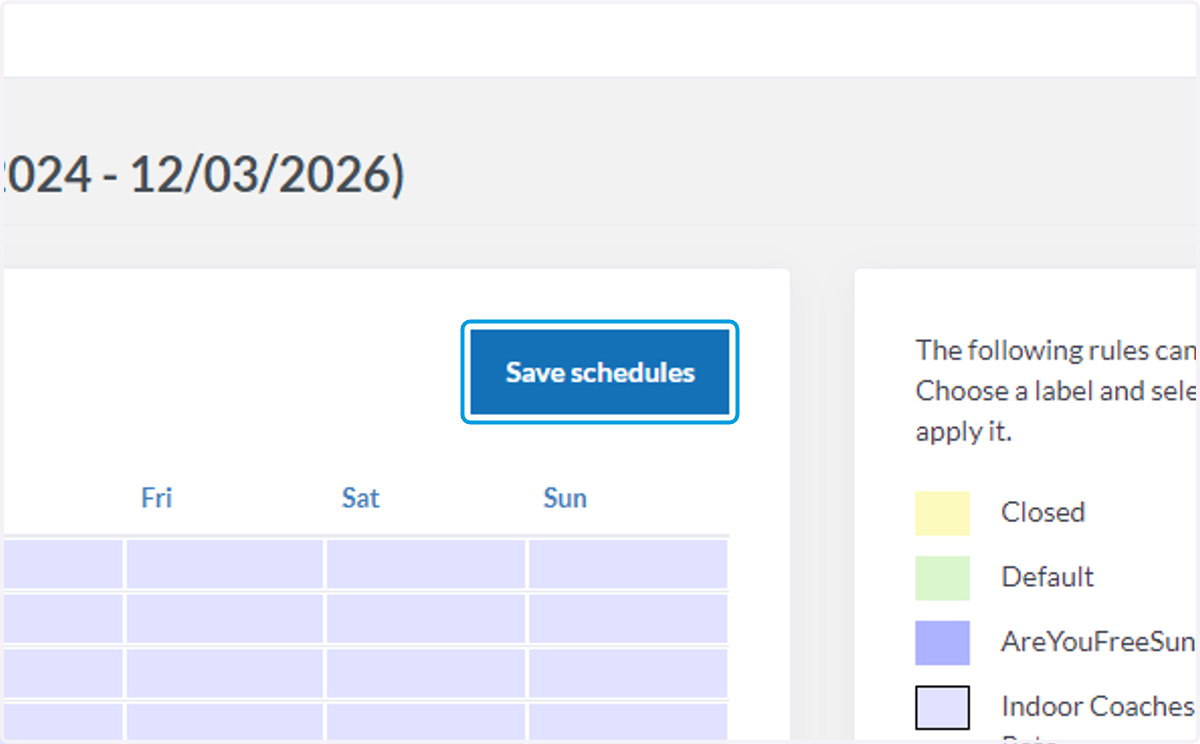
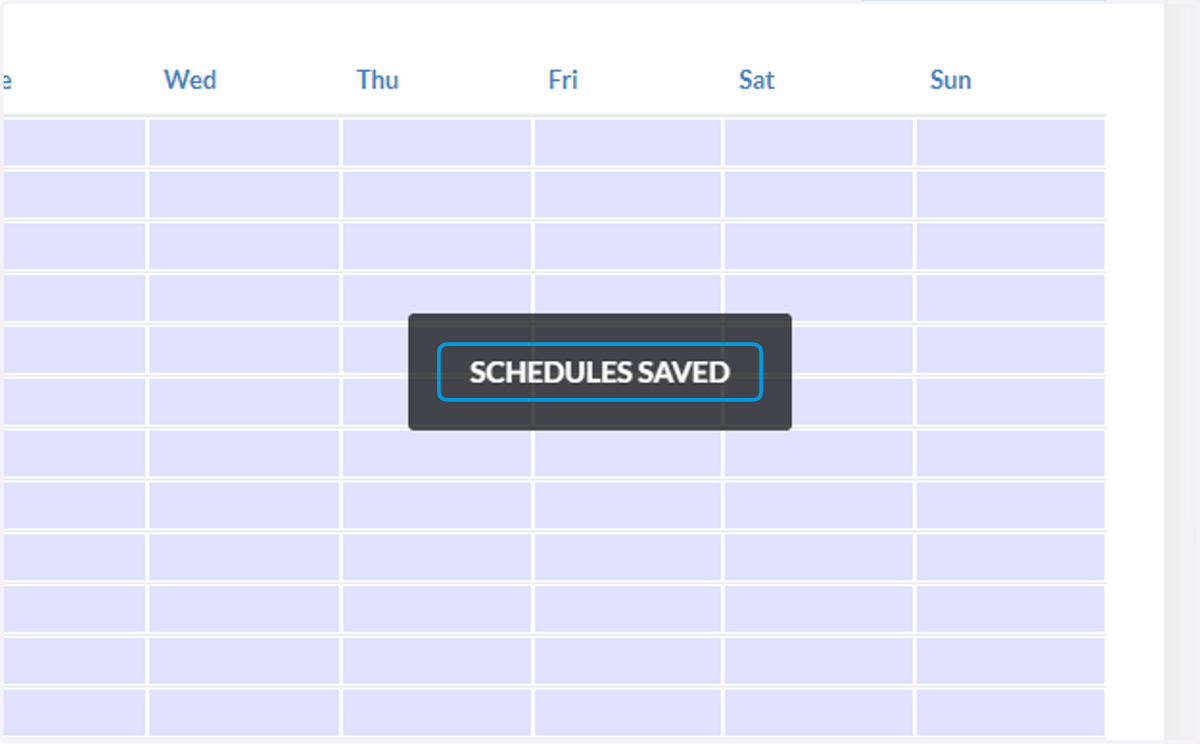
46. SCHEDULES SAVED message will appear which will confirm the rule set.
47. Now! It's time to view the booking sheet.
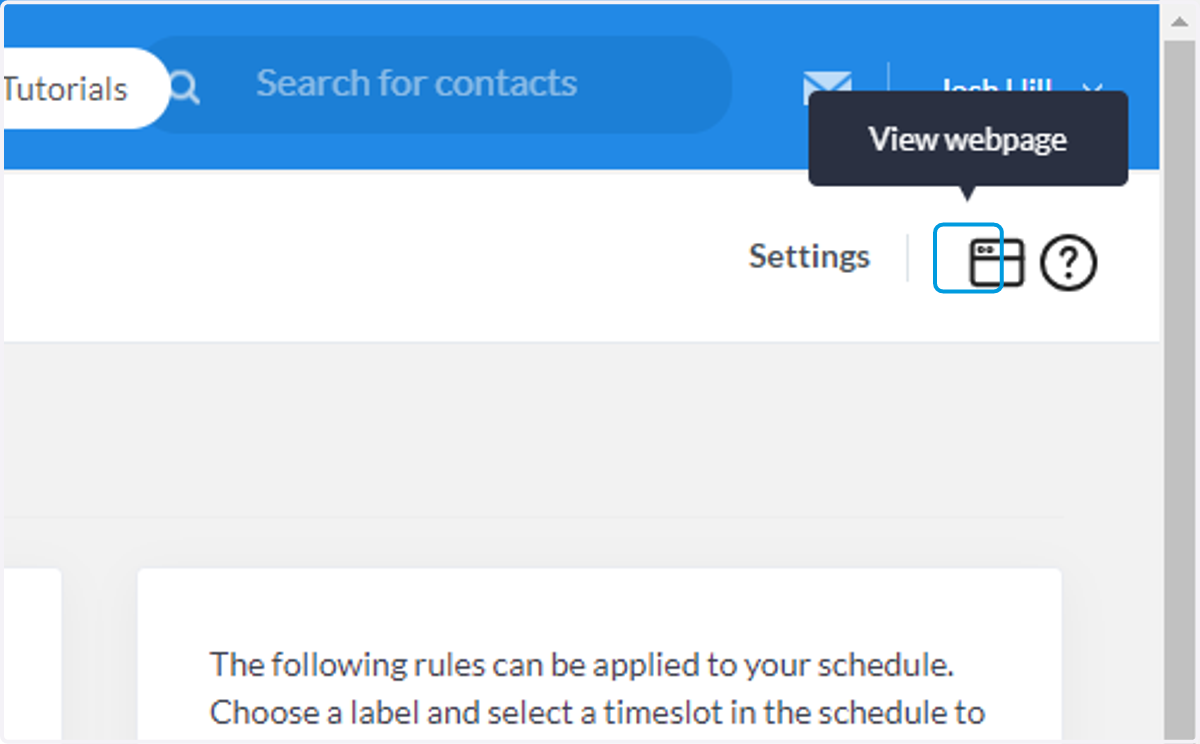
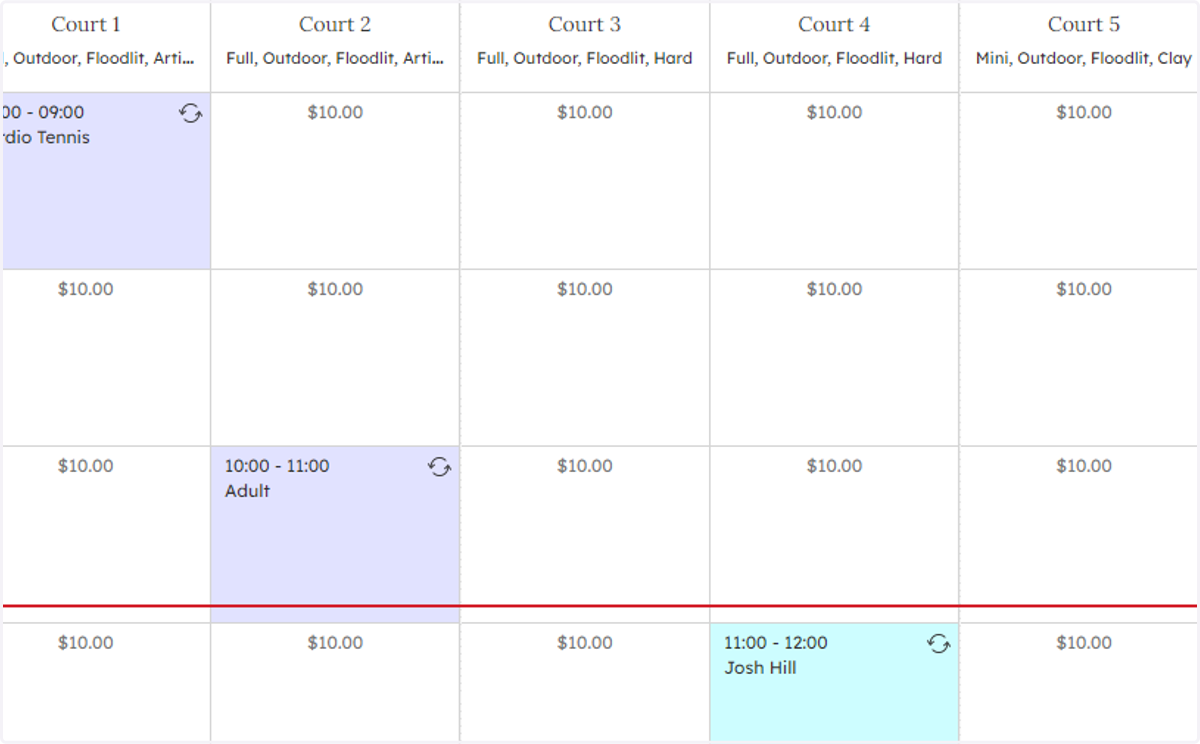
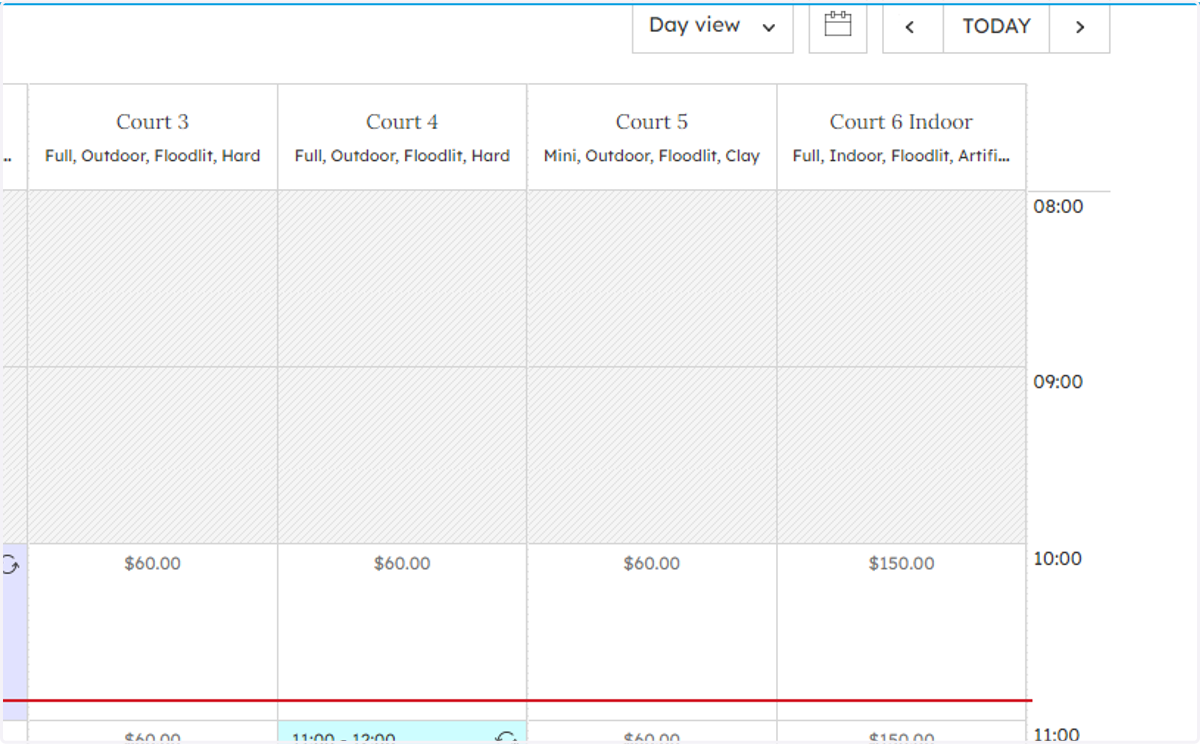
48. You will see here that the Court Rates have been updated for a Contact who is a "External Coach" You will also see that the indoor rate is different than the outdoor courts.
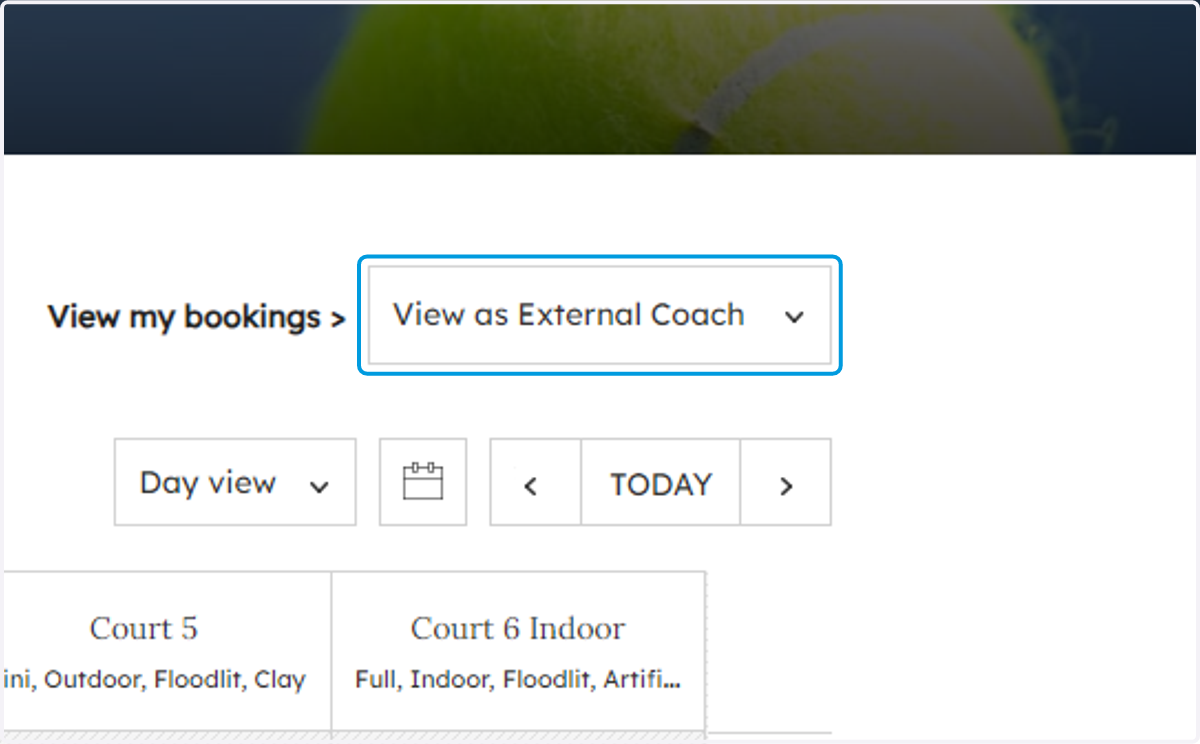
49. Click on the drop down to toggle between admin, guest and any roles you have allocated yourself as an admin
Its good to head into your own contact module and tick the new roles you have created as you can toggle them yourself. Please note if you set a coach as a particular role then they can only see those rates allocated to them.
50. For our casual players, you can see the rates are different.