Canvas Teacher Guide
First Time Registration
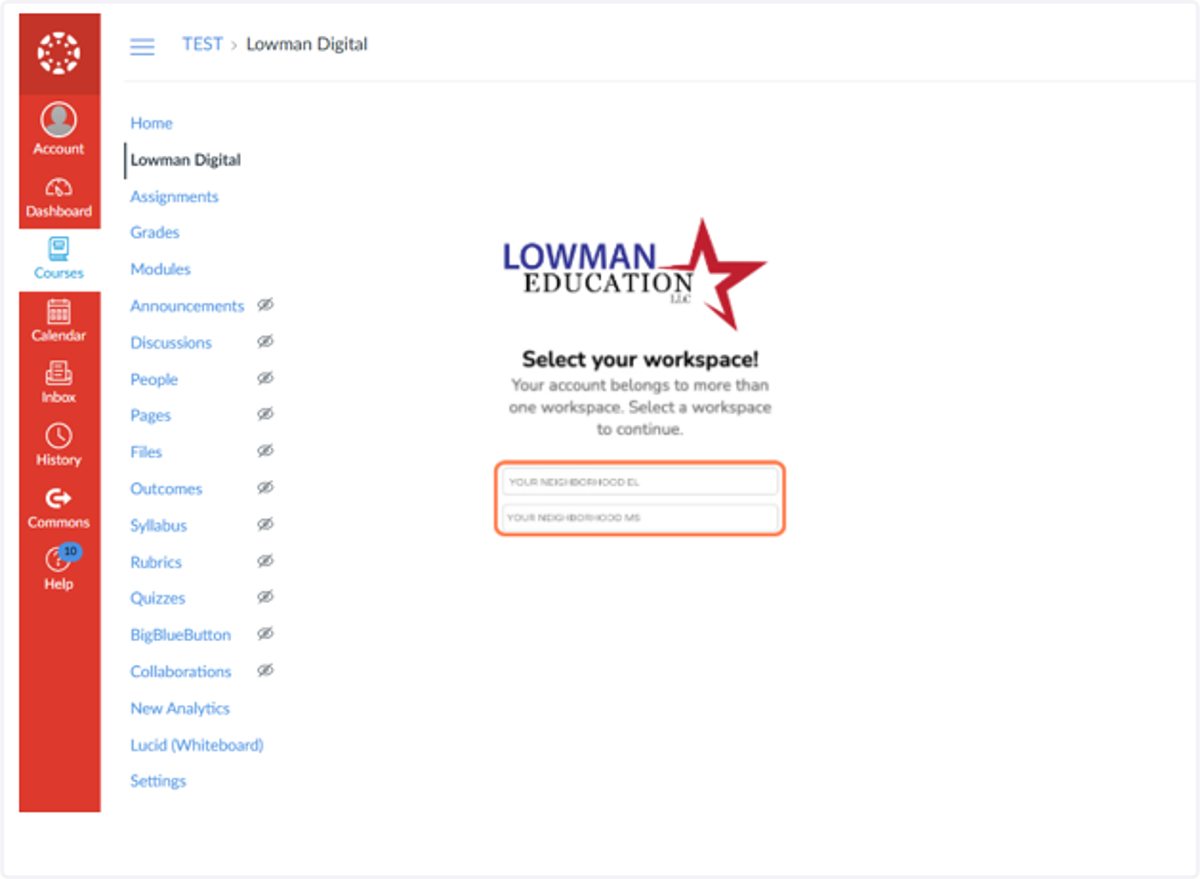
1. Click on Lowman Digital in the left menu under courses
Select the workspace that aligns to your campus.
Note: This step may not be required for all users.
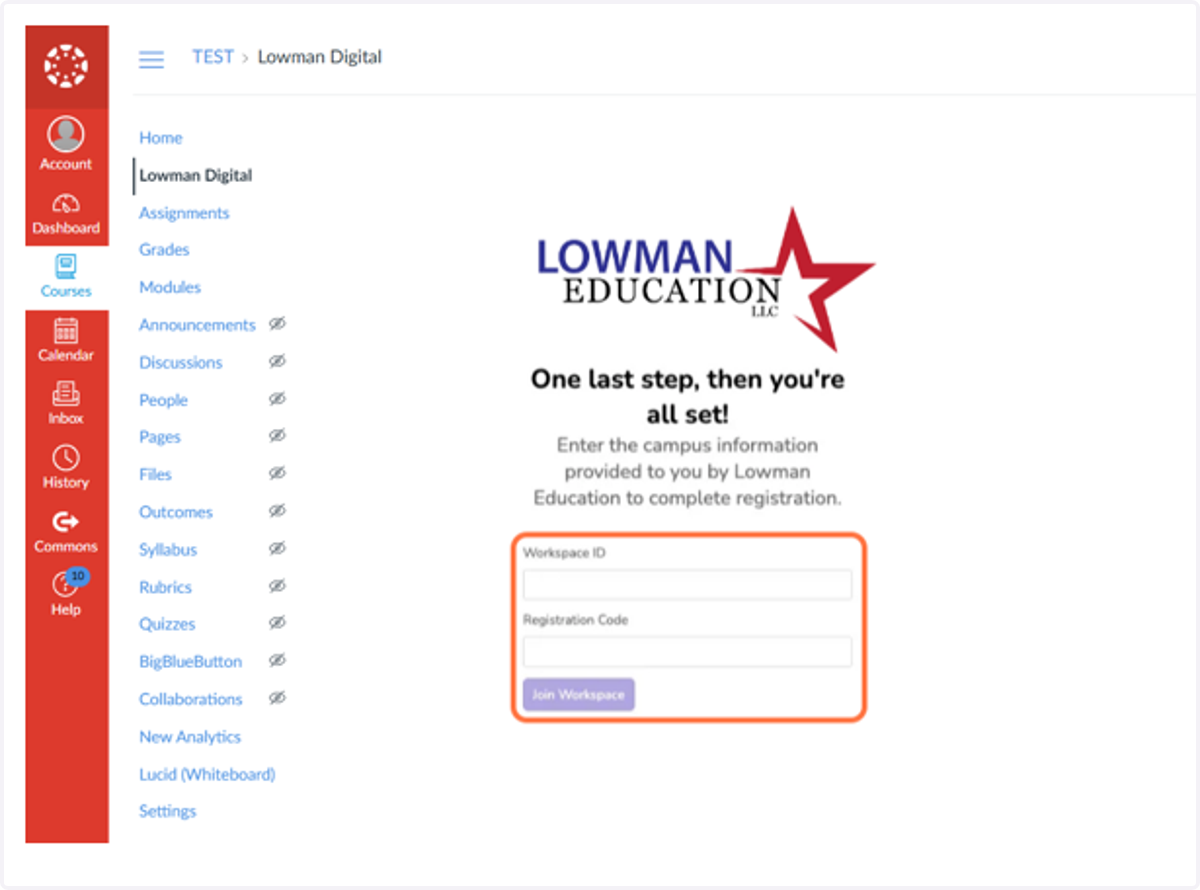
2. Enter your campus-unique information
This information was provided in your welcome email. If you do not have this information, please contact your campus admin or reach out to the Lowman team for support.
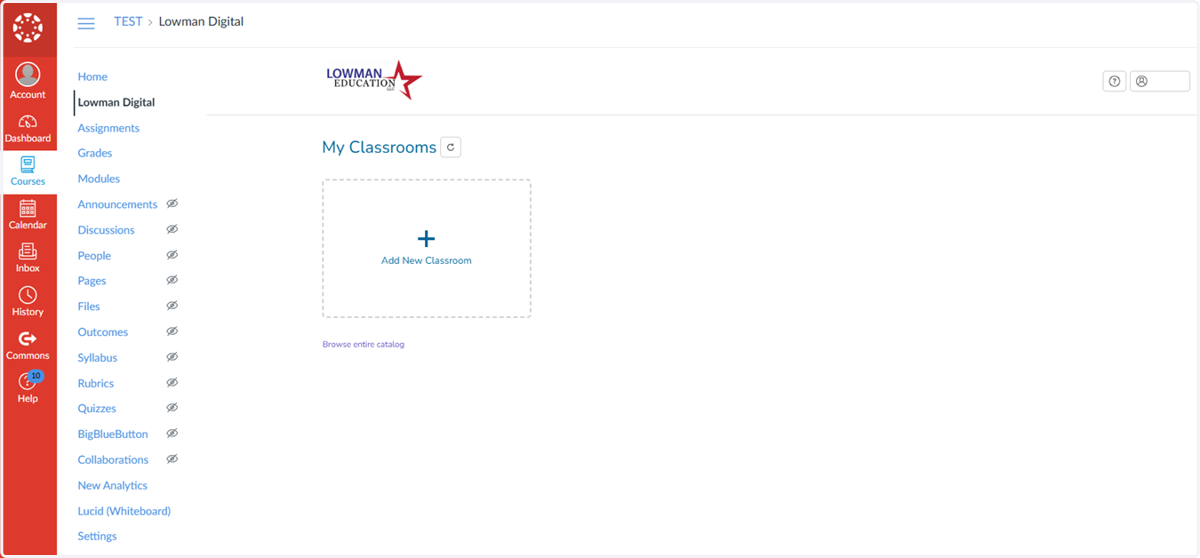
3. Success! Now enjoy the ease of having your favorite resources in your LMS!
Adding a Course
4. Click Start a New Course from the dashboard
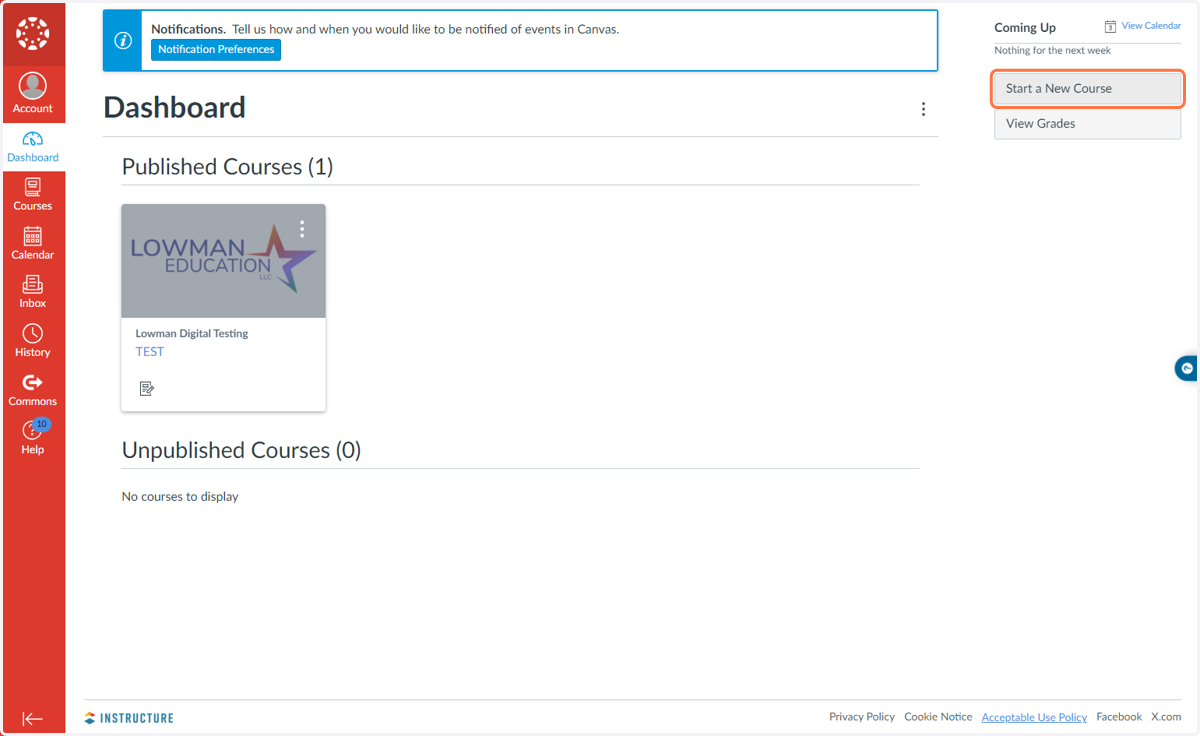
5. Name your course
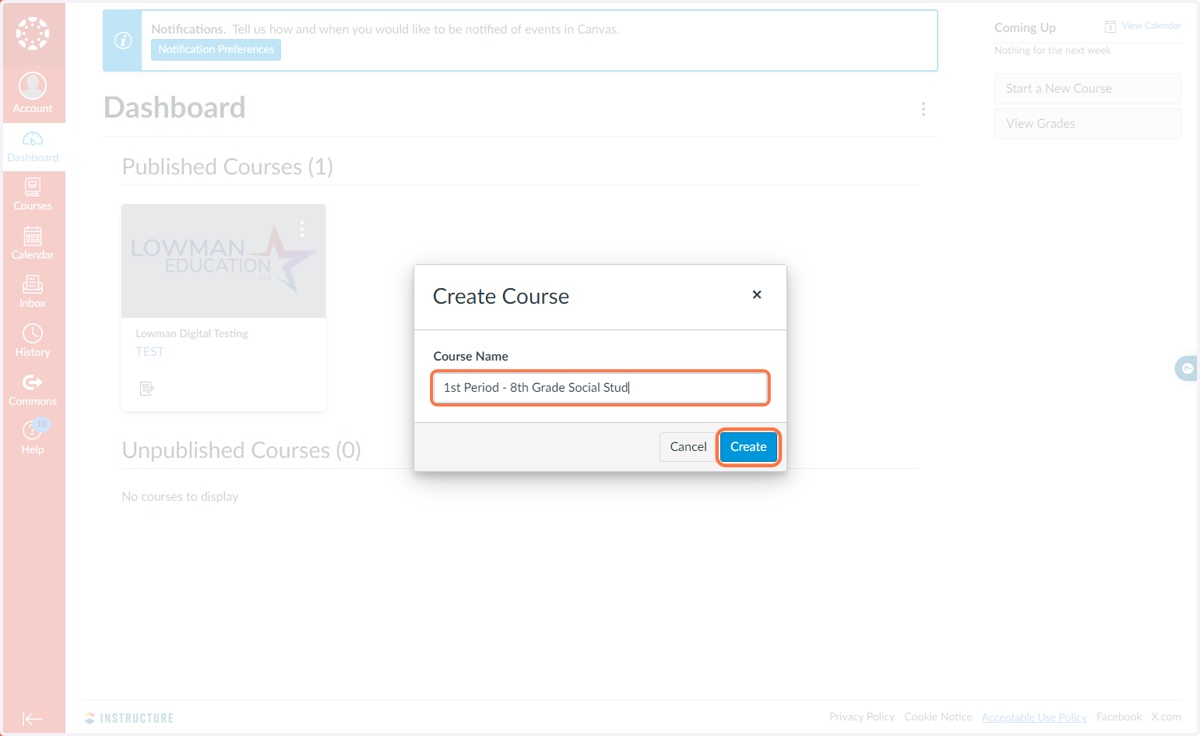
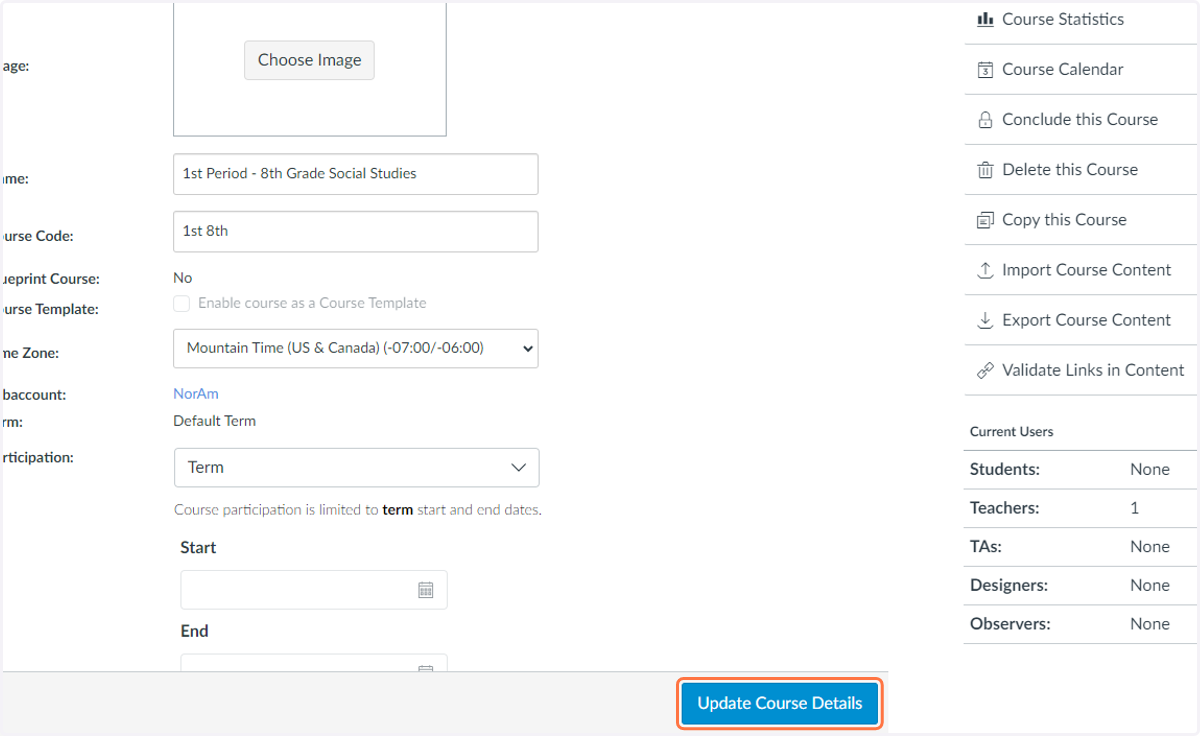
6. Fill in course information and click Update Course Details
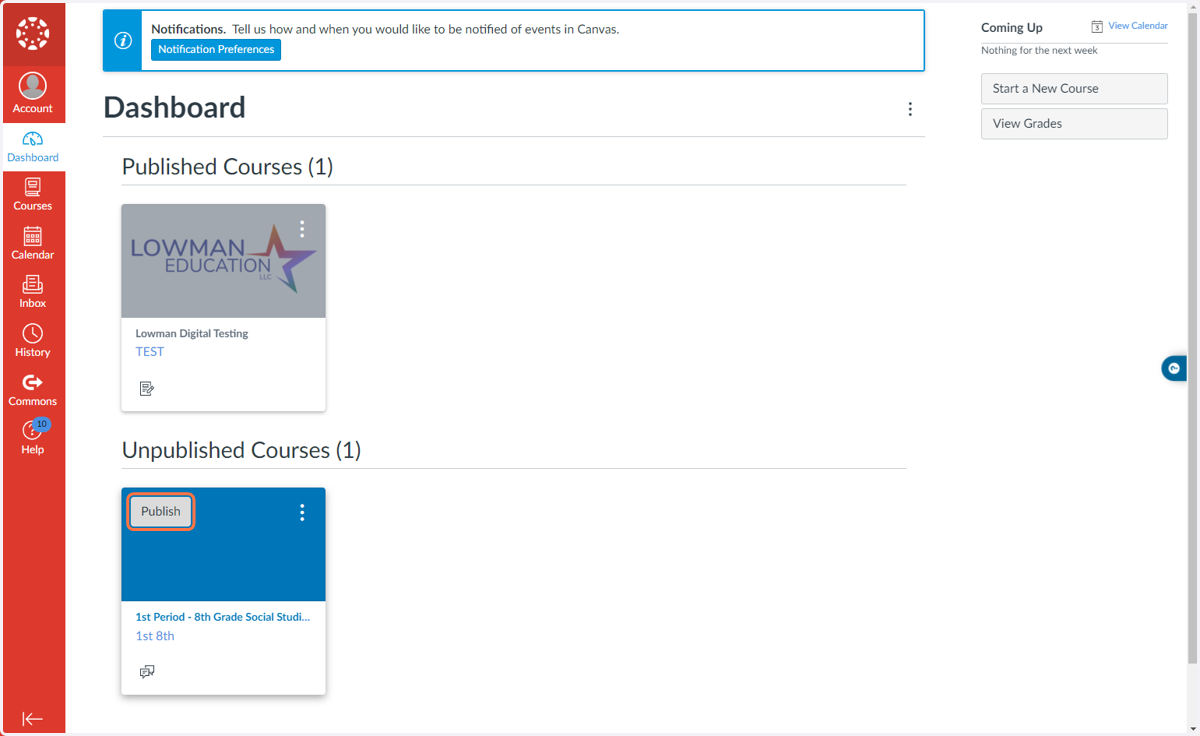
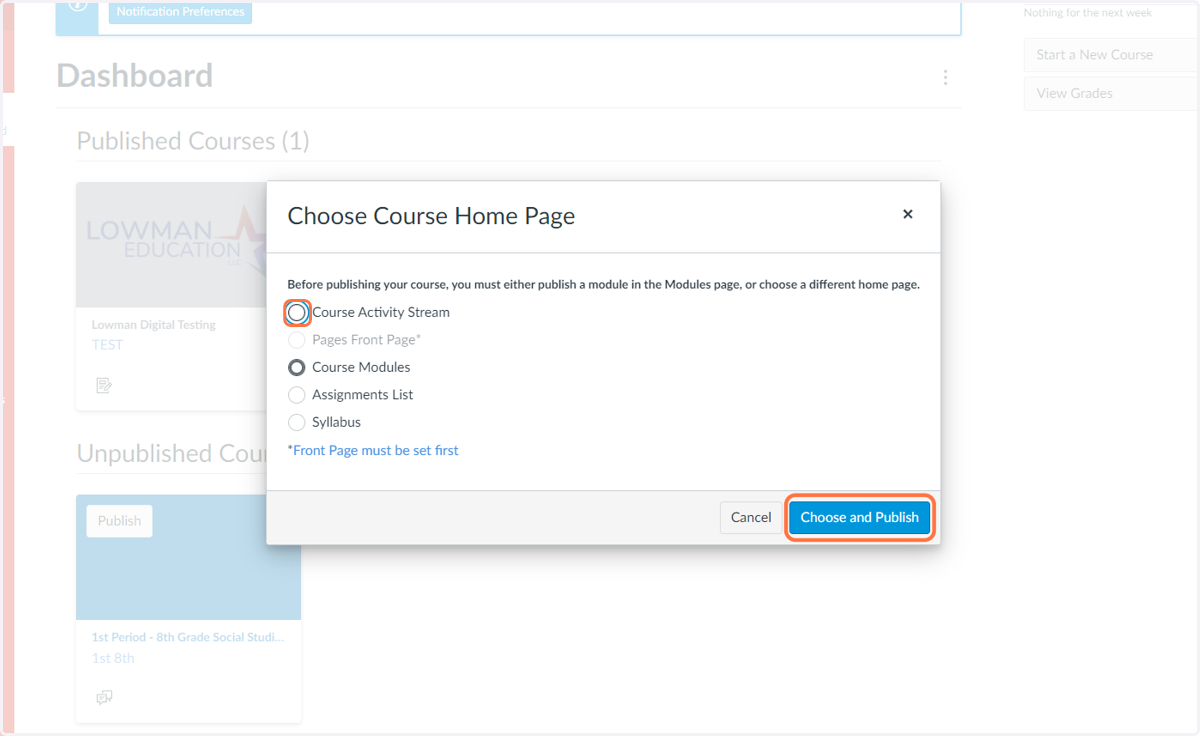
7. Return to the dashboard to publish your course
8. Select Course Activity Stream
Assigning Activities
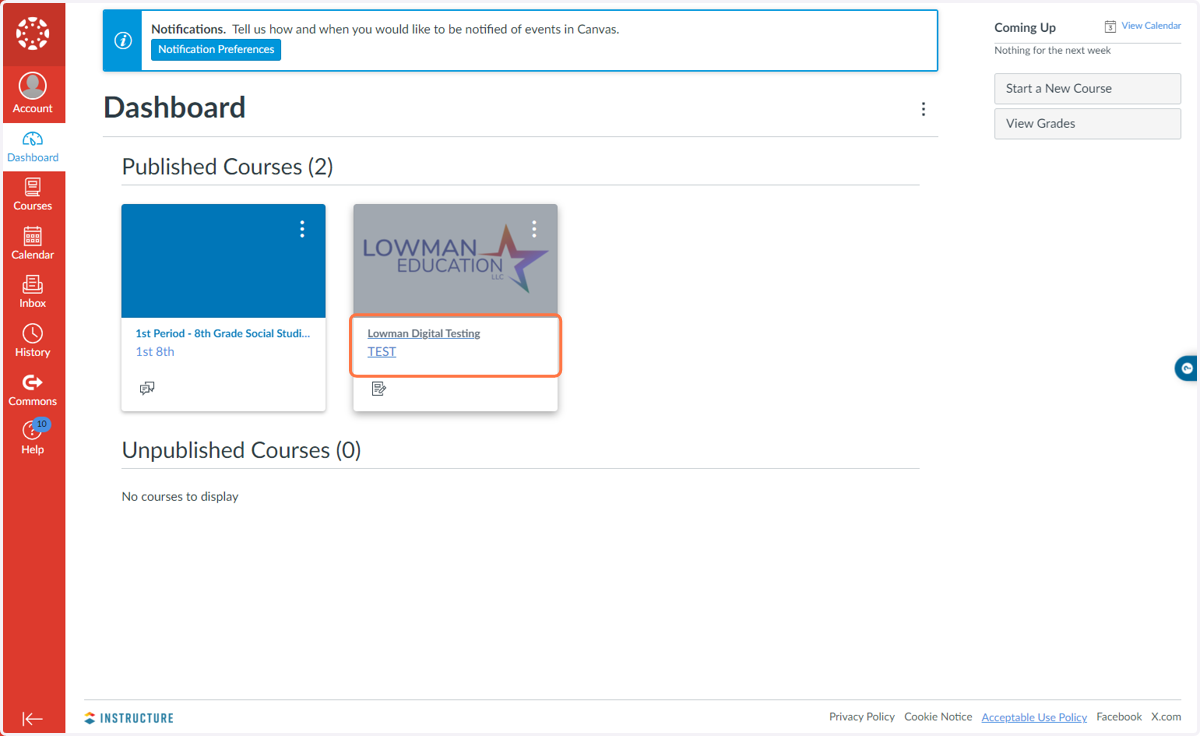
9. Select a published course
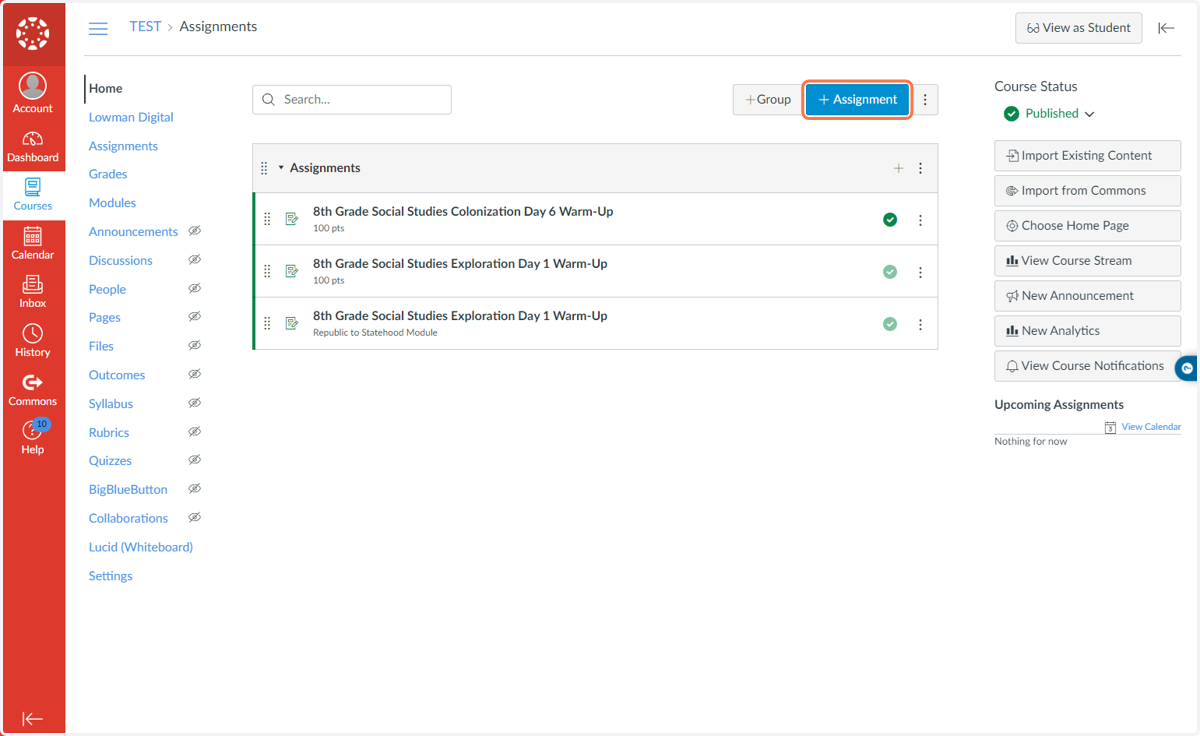
10. Click on +Assignment
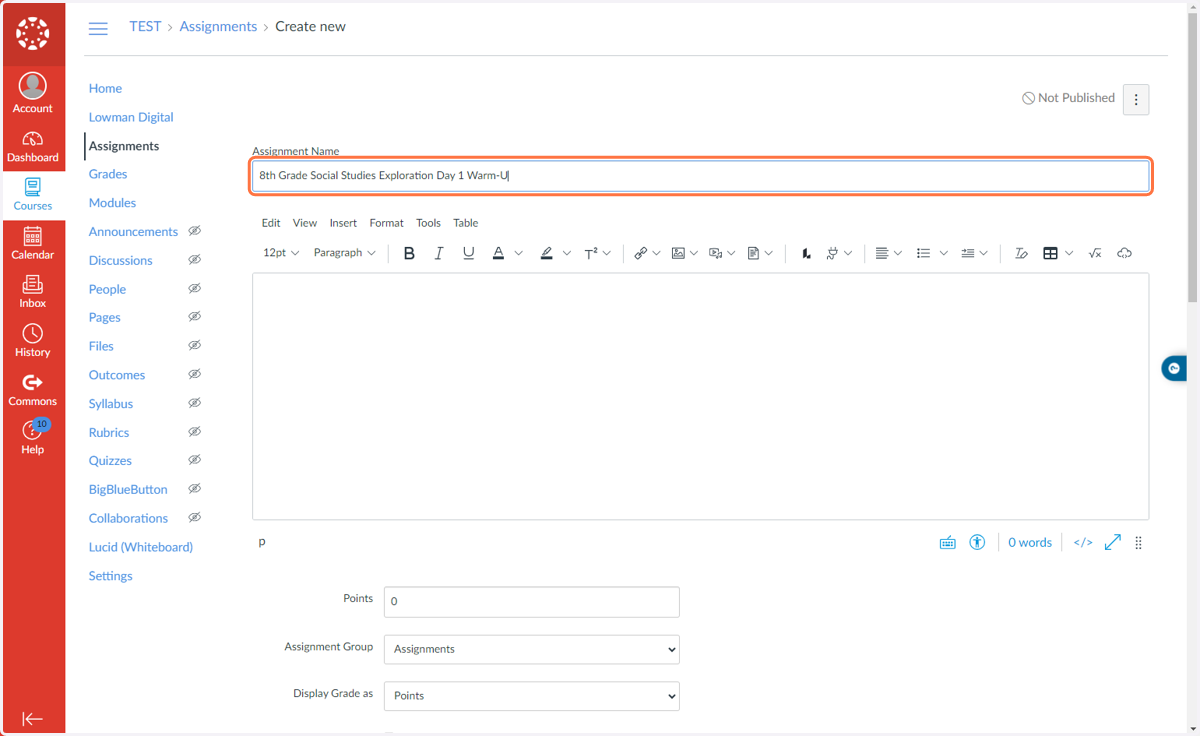
11. Create a name for the assignment
12. Select External Tool under Submission Type
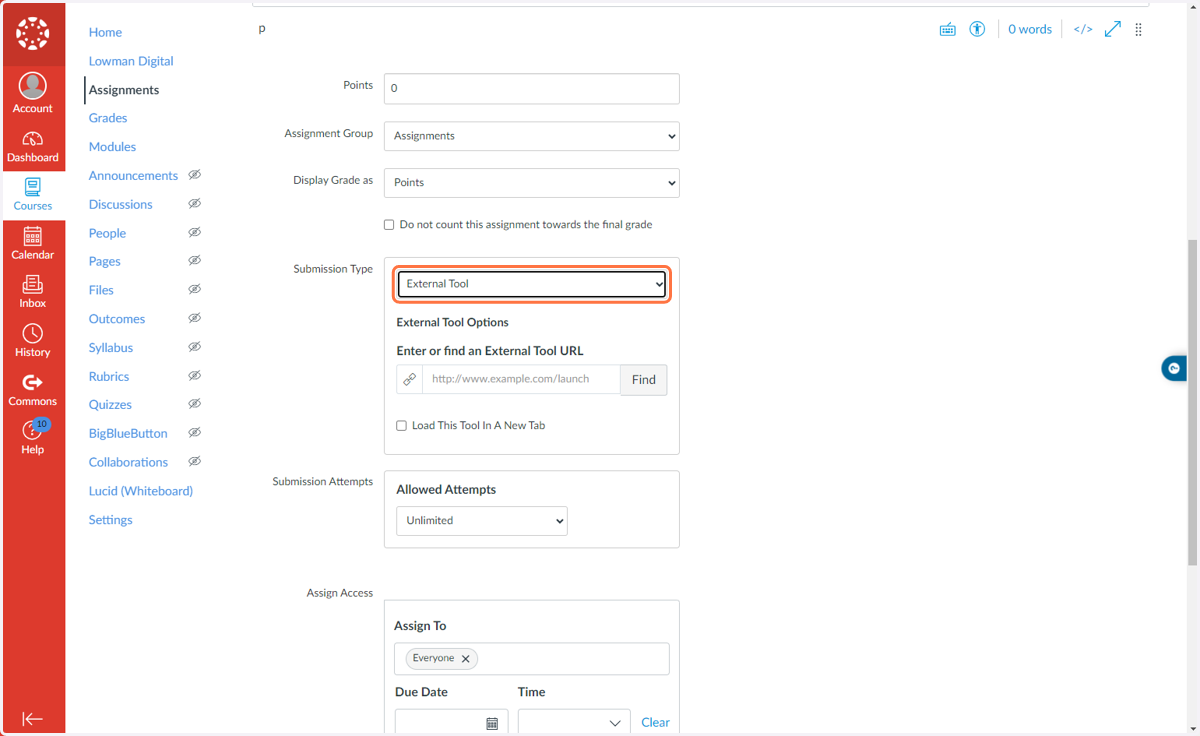
13. Click on Find
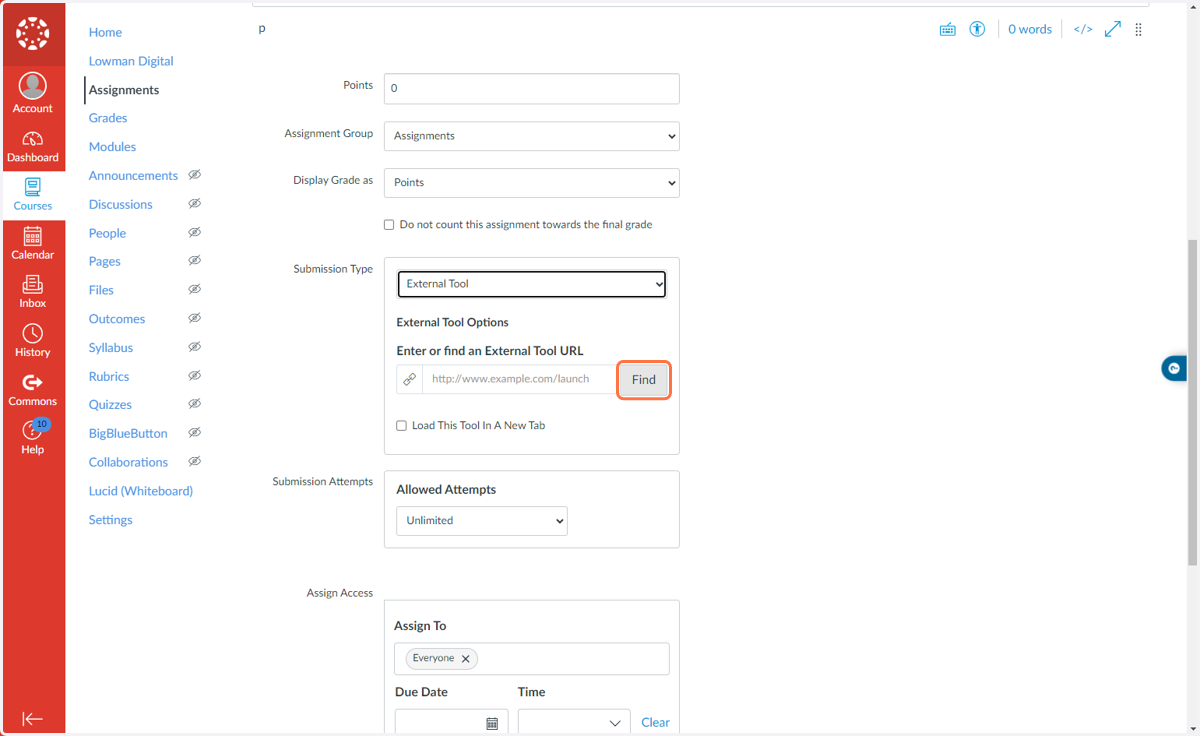
14. Click on Lowman Digital
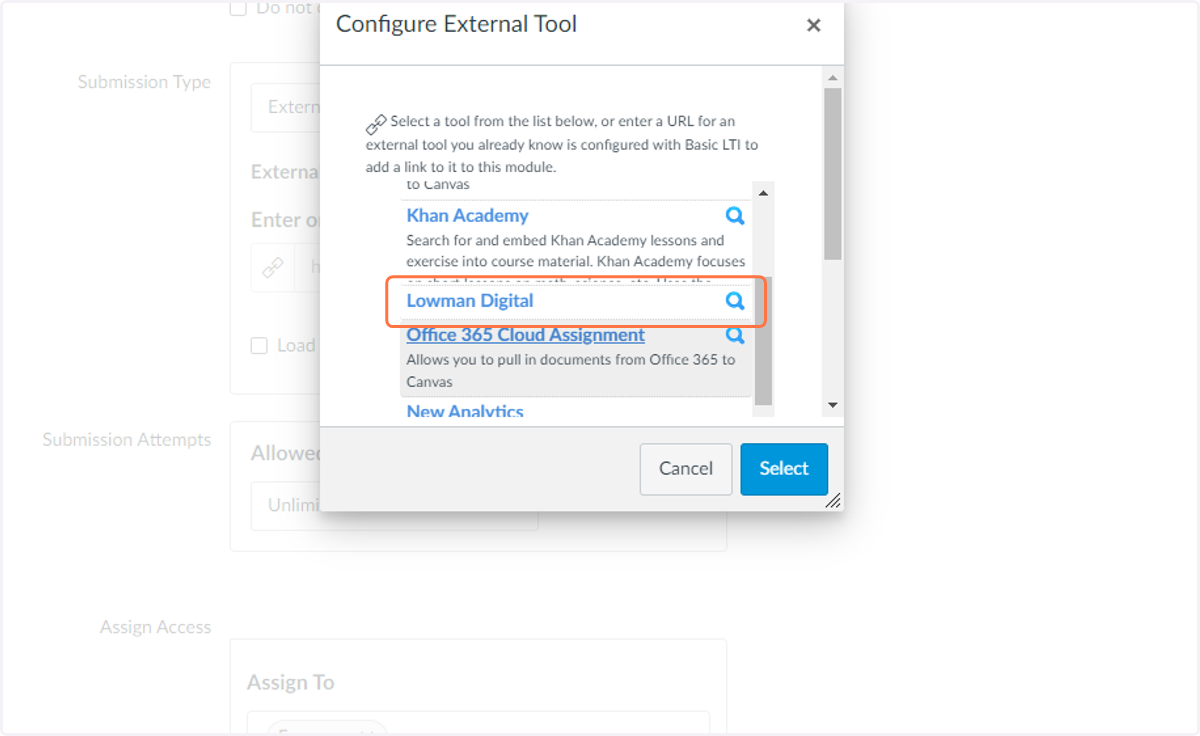
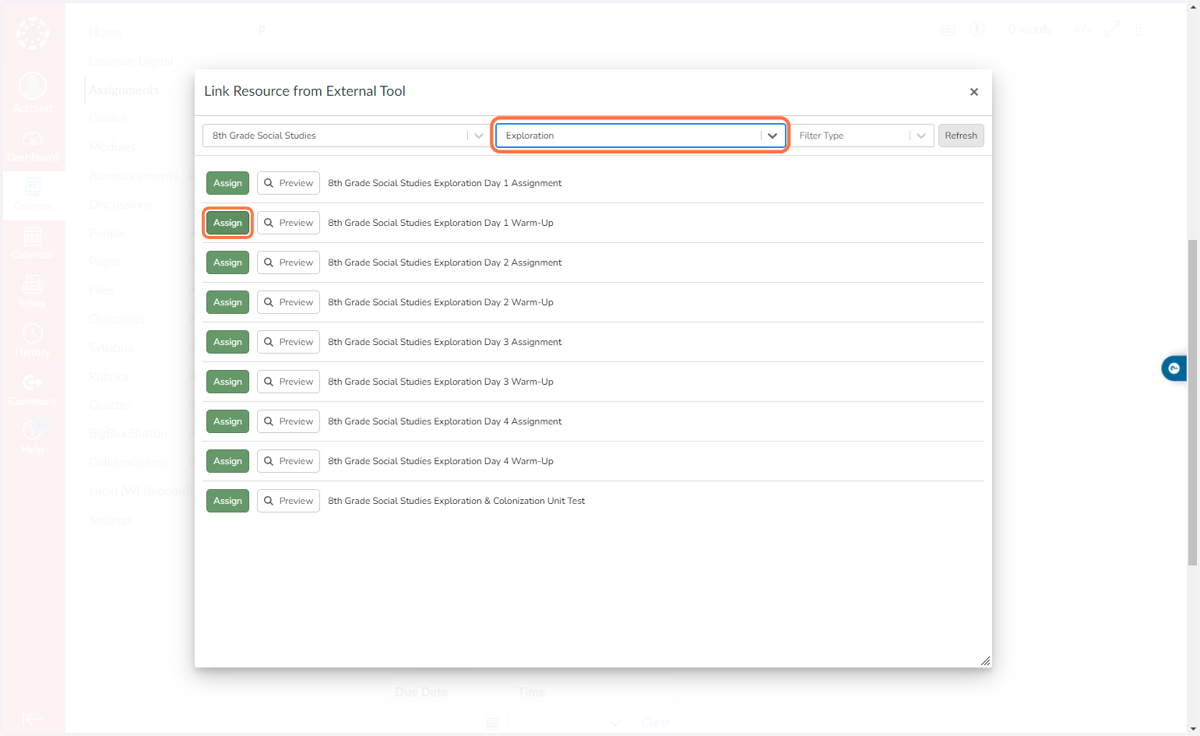
15. Choose the classroom to link
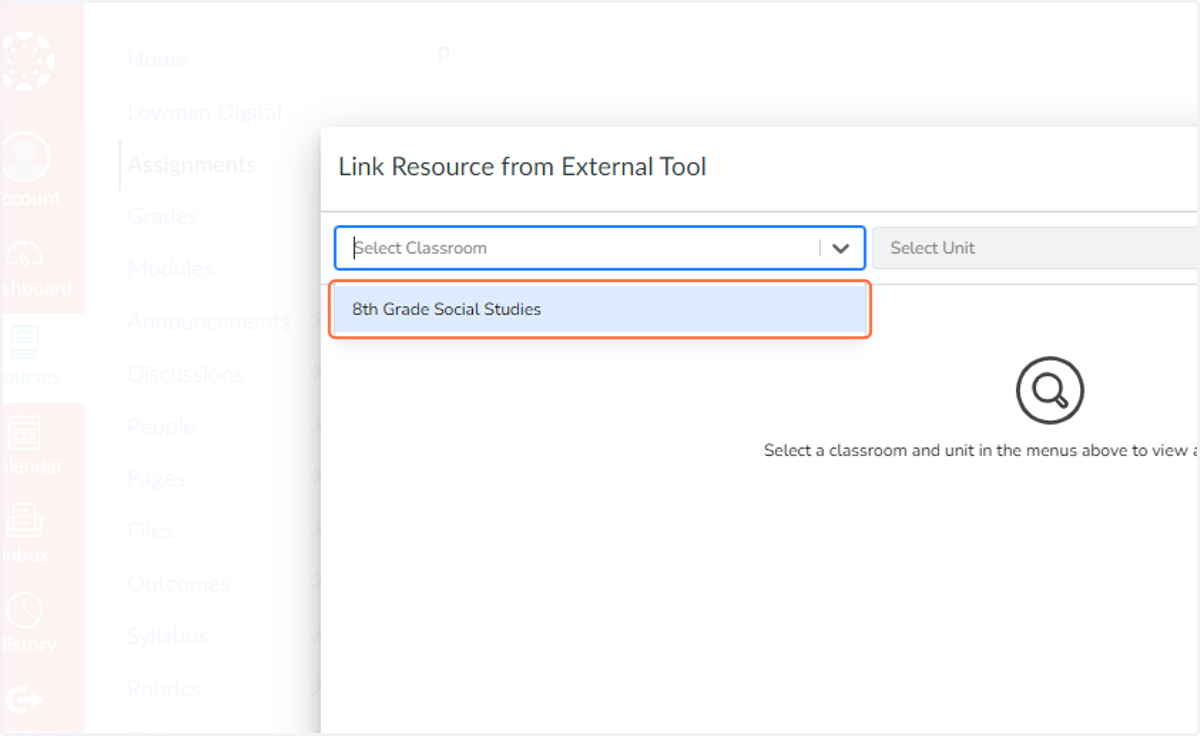
16. Choose the unit and then click Assign
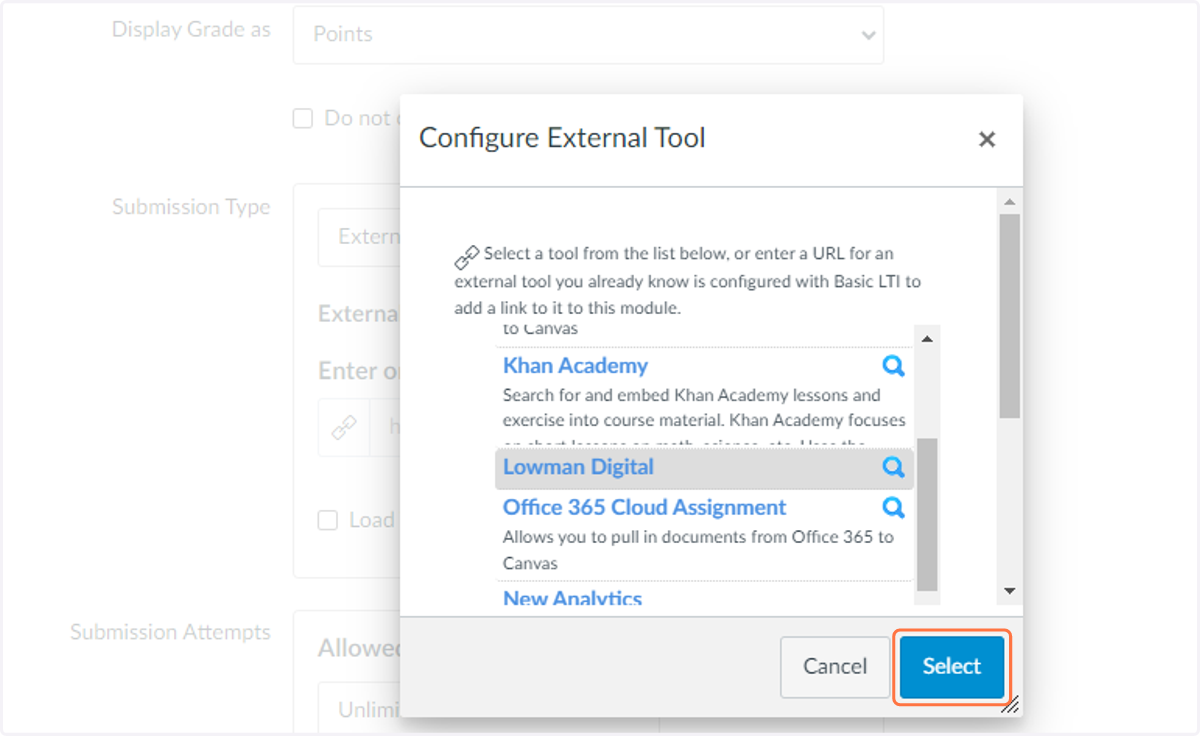
17. Click Select on the next screen
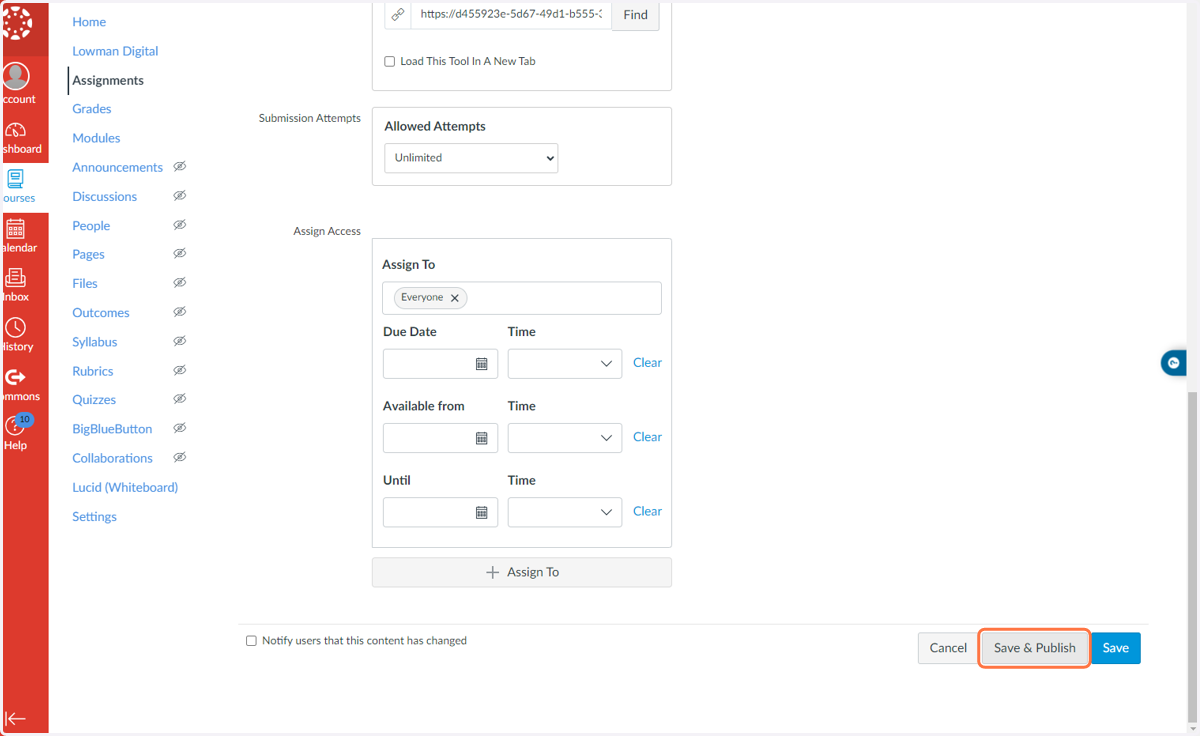
18. Click on Save & Publish
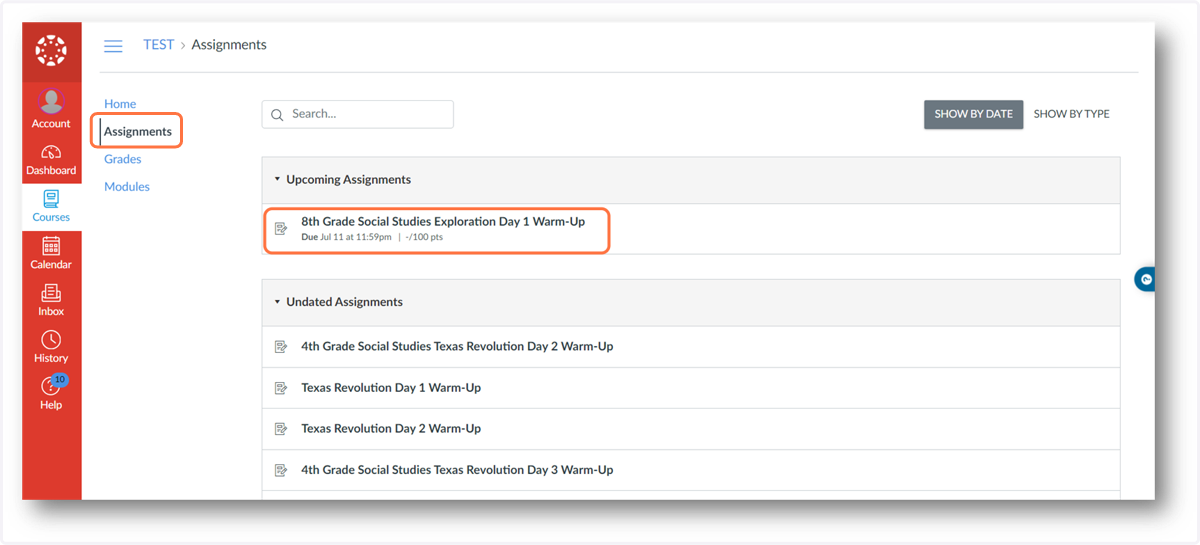
Student View
19. Student clicks on the assignment name to launch the activity
20. Student completes the activity
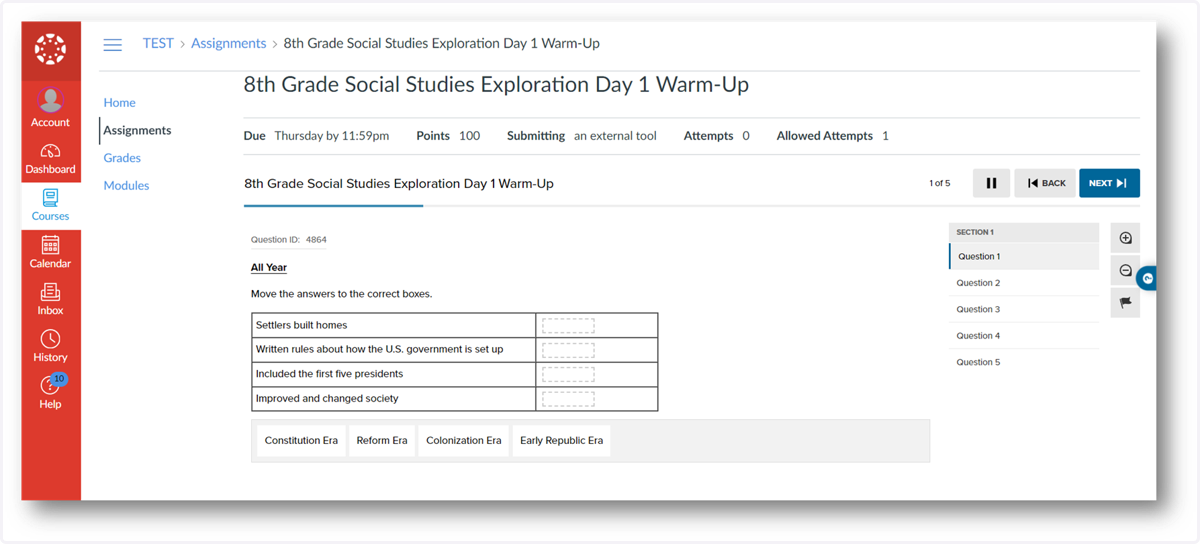
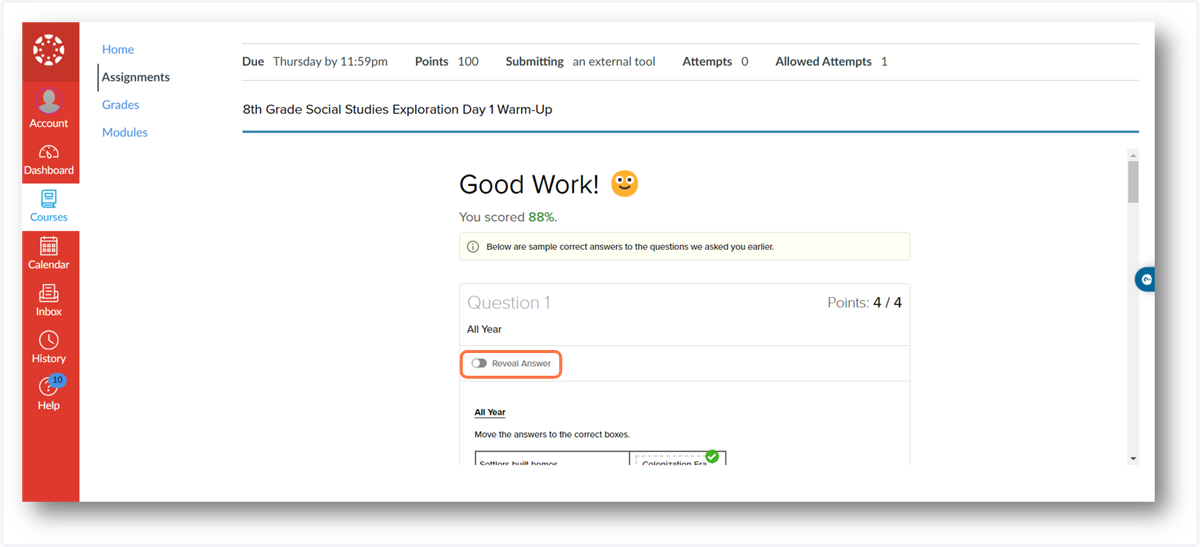
21. Student can review results after the activity is submitted
Grading
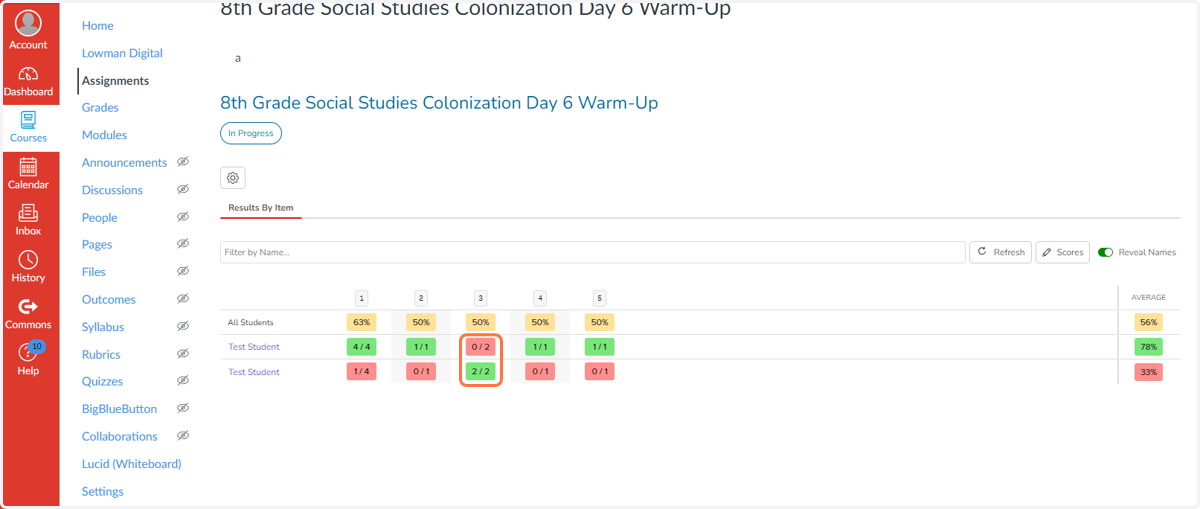
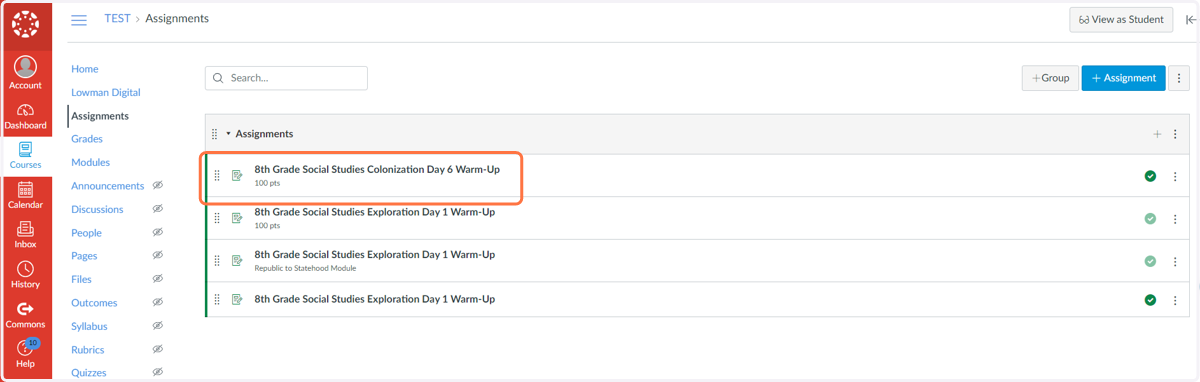
22. Click on the assignment name to view scores
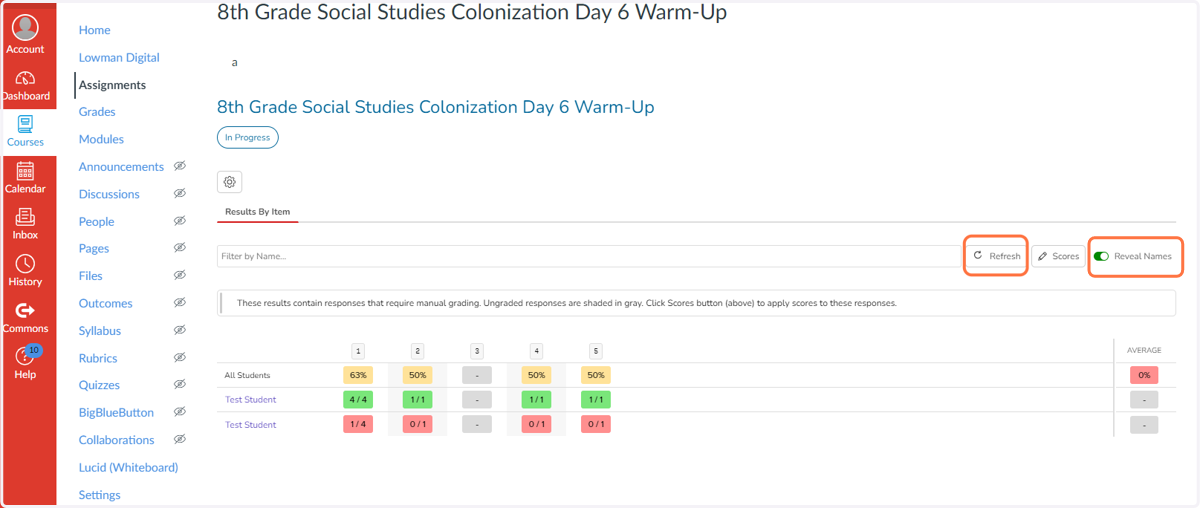
23. View student scores
Results will appear on the screen as each student completes the activity. Periodically click the Refresh button to refresh your screen.
Using the Reveal Names toggle will allow you to view student names.
24. Grading short constructed responses
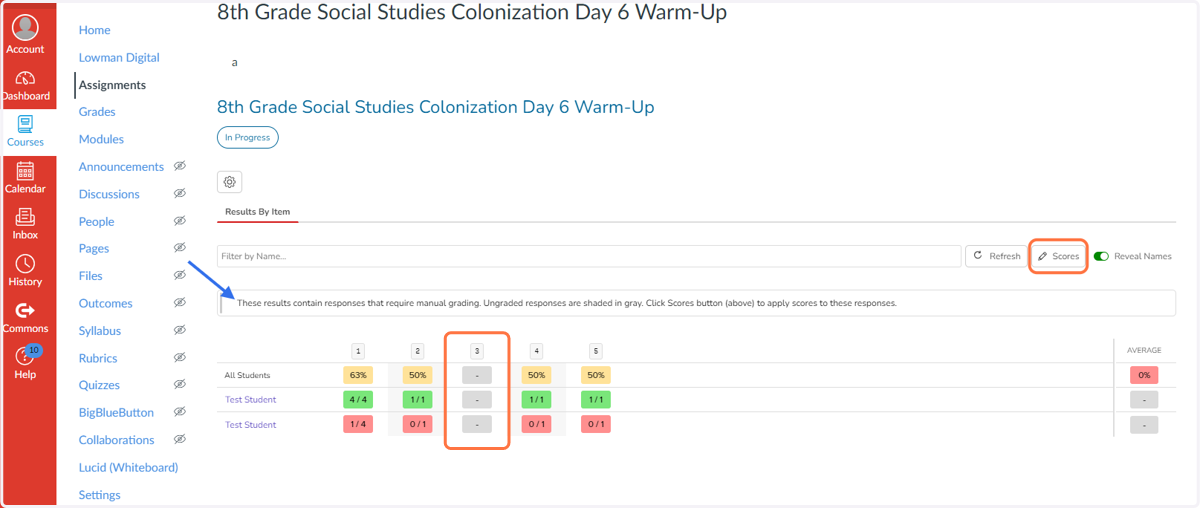
Short constructed responses that require manual grading will appear greyed out.
Click on the Scores button to begin manually grading.
25. Select question to manually grade
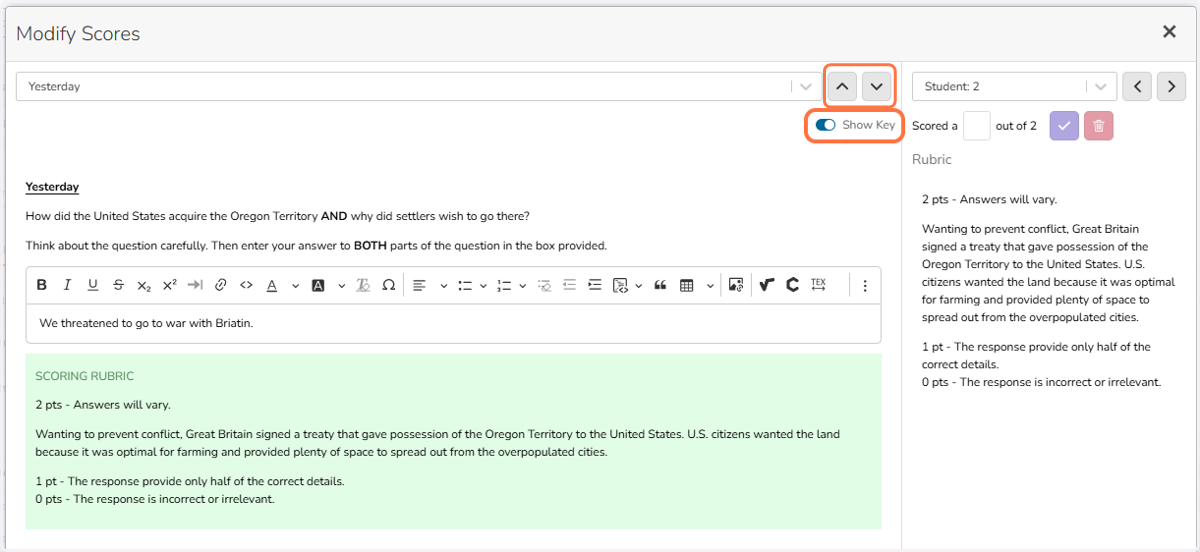
Scroll to find the question that requires manual grading.
Enable the Show Key toggle to view a suggested answer key for reference.
26. Entering manual grades
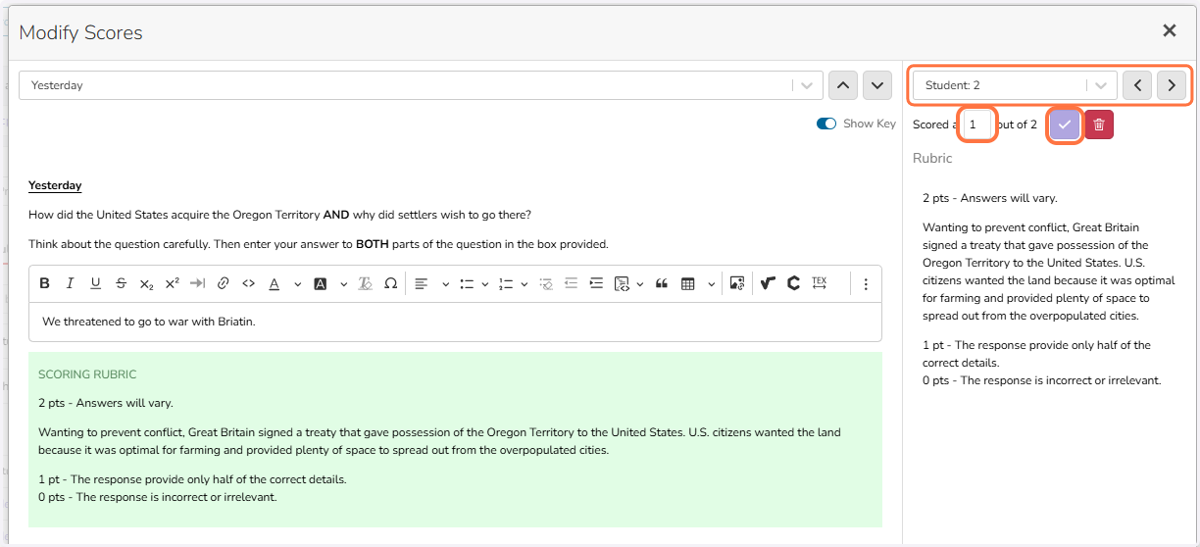
Step 1: Move between students using the scrolling feature in the top right corner.
Step 2: Enter the score.
Step 3: Click the check box to record the score.
Scores will save automatically.
27. Grading complete!