Canvas Activation | District Technology Guide
LMS Activation Steps
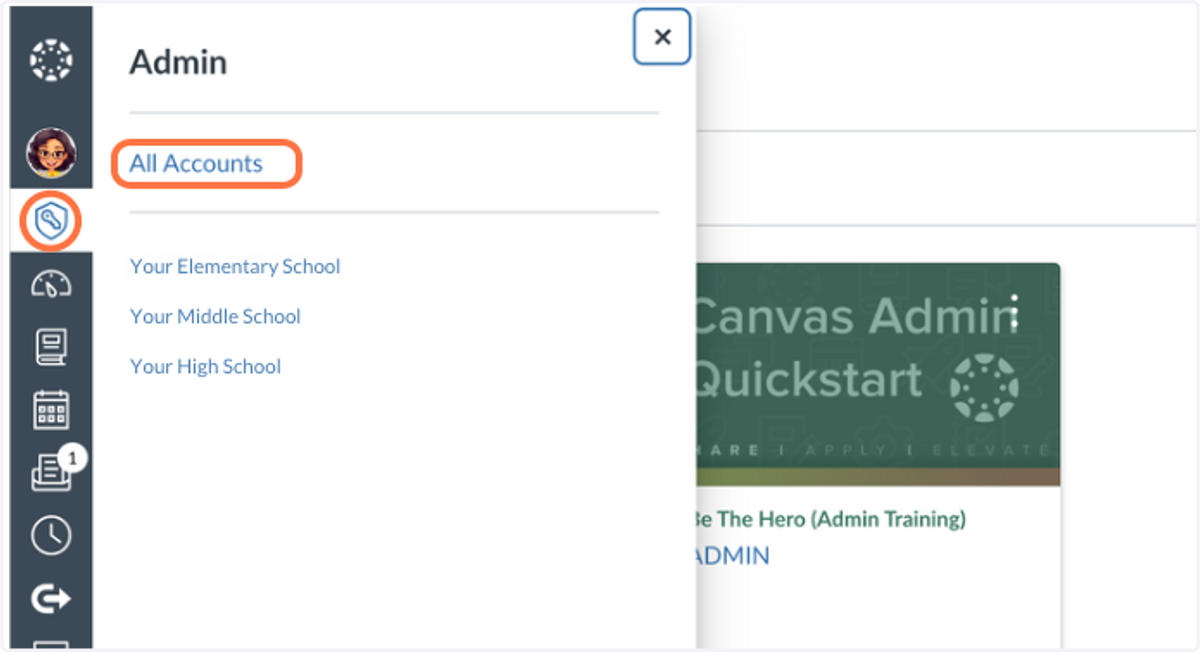
1. In the Admin area, select All Accounts
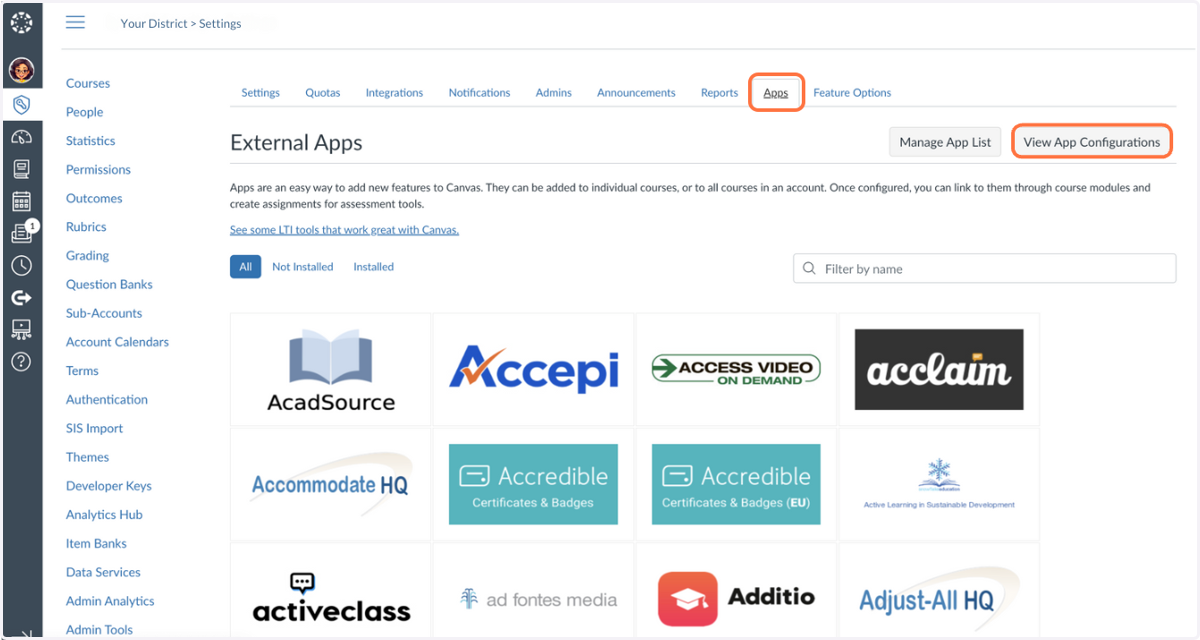
2. Select the Apps tab and then click View App Configurations
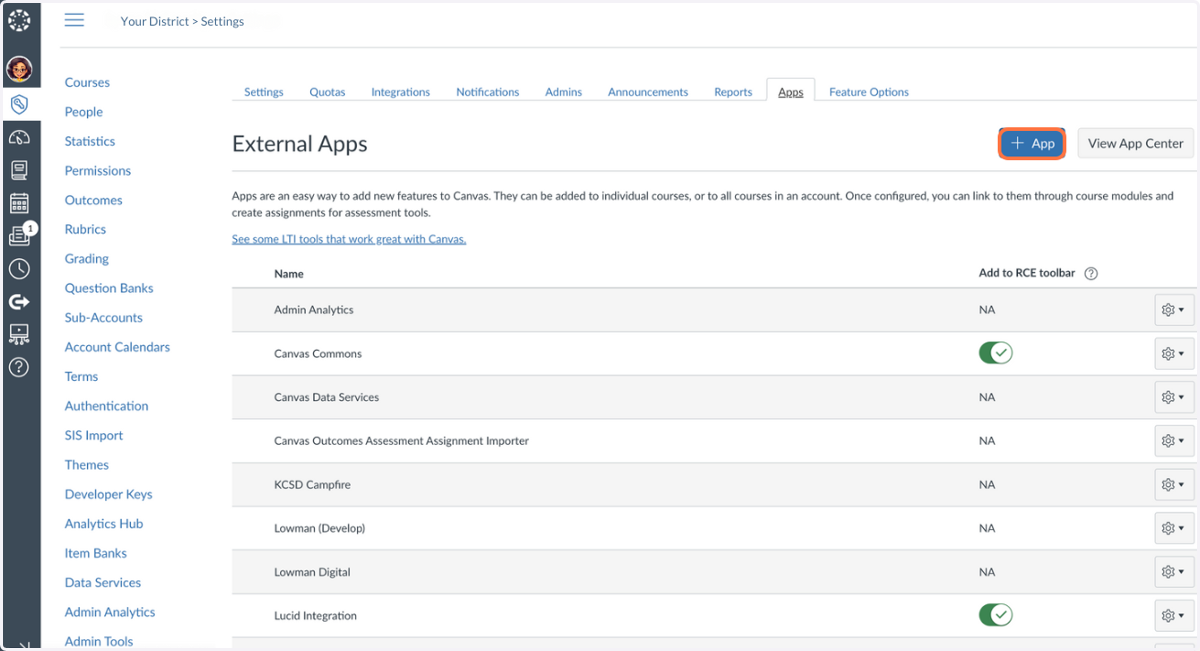
3. Press +App
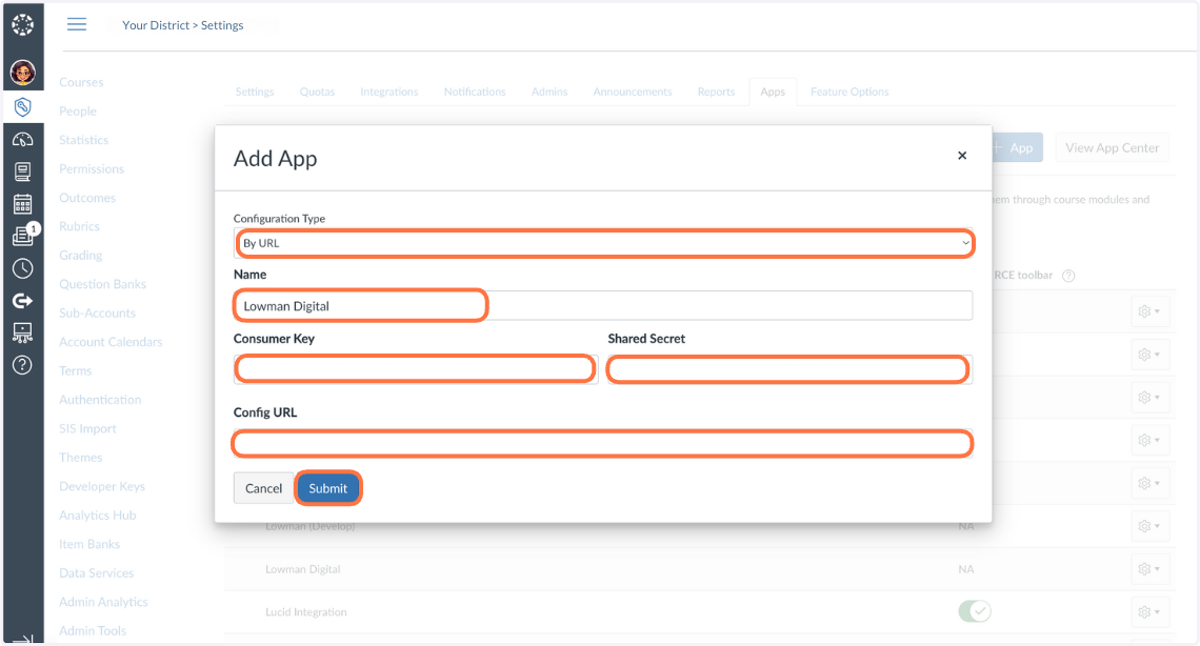
4. In the Add App modal: 1. Select By URL from Configuration Type 2. Name your App "Lowman Digital" 3. Enter the Consumer Key 4. Enter the Shared Secret 5. Enter the Config URL 6. Click Submit
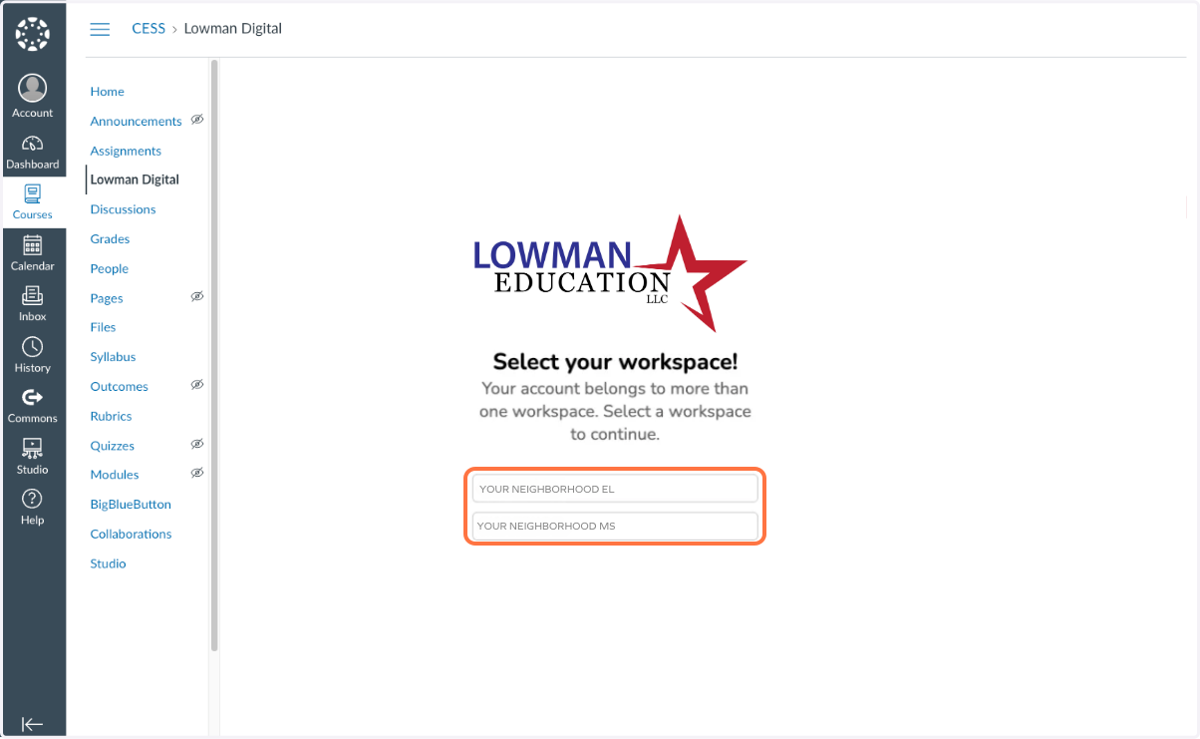
5. Now, when your instructors refresh their browser they will have access to register for Lowman Digital in the left menu!
Domain Allowlist
To ensure unhindered access the following domains must be added to a network's Allowlist (sometimes called a whitelist).
6. Core Functionality
*.lowmaneducation.com*.campfirelearning.com*.campfire.me*.examspark.comexamspark-app-files-master.s3.amazonaws.com*.wiris.netcdn.jsdelivr.net*.launchdarkly.comlogs.browser-intake-datadoghq.com
7. Additional Resources
fonts.googleapis.comuse.typekit.net*.google.com*.gstatic.com
8. In-app Support
widget.intercom.iojs.intercomcdn.comapi-iam.intercom.io
9. Support Documentation
lowmaneducation.comintercom.helphttps://app.posthog.comhttps://api.segment.io*.us-east-1.amazonaws.com*.tango.uscdn.segment.com
10. Email
ExamSpark sends very few emails but one is required for registration in certain workflows. All emails currently come from a single domain.
*@lowmaneducation.com*@examspark.com
11. Optional
The following domains are optional, but preferred as they allow tools that aid in support and development.
*.mixpanel.com*.google-analytics.com*.googletagmanager.com