3. From your homepage, you can view all the projects you have access to in Planning & Self-Study.
4. Scroll down to the program you want to edit.
5. Click on the name of the program or on ENTER PROGRAM to view and update the program information.
6. Next, click on "Curriculum".
7. You will then be redirected to the list of courses that have been added to this program's curriculum as well as the curriculum map. Click on the pencil icon to edit your curriculum map.
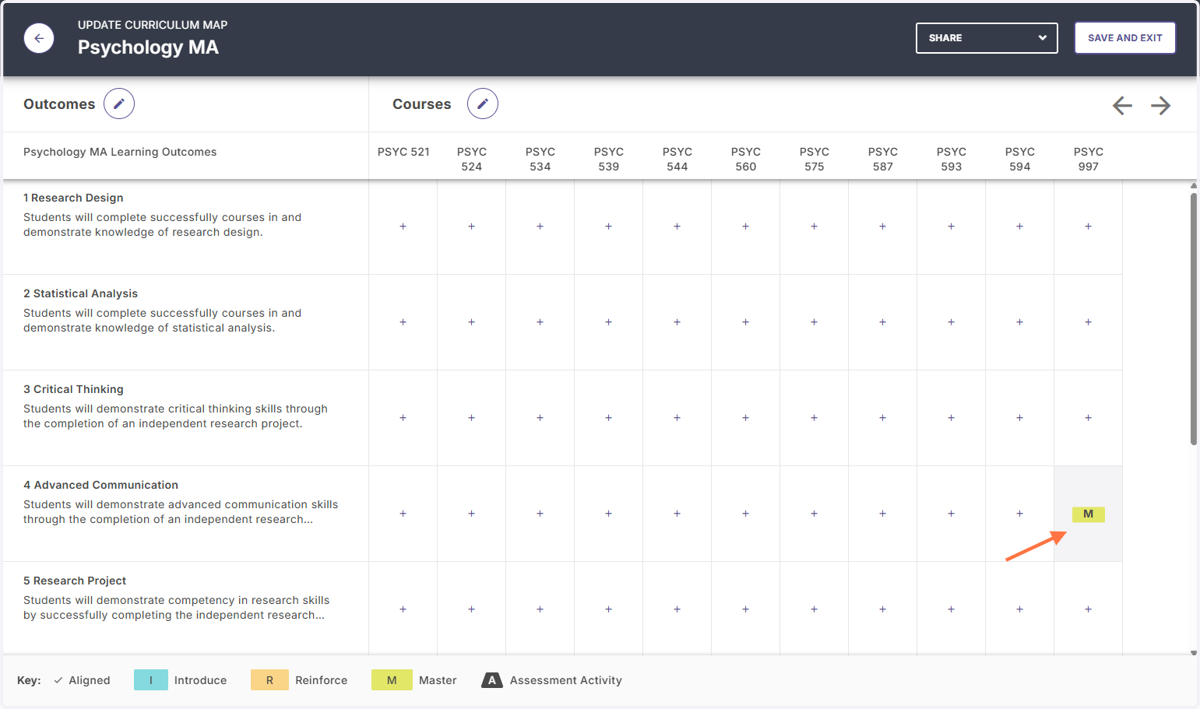
8. You will be redirected to a grid that shows all the outcomes and courses that have been associated with this program. Click on the " +" in the row and column where the outcome intersects with course where it will be measured and assessed.
9. A menu on the right side of the screen will appear. Toward the bottom of that screen click on ADD MEASURE.
10. Then add the measure information, starting with the method of measurement (e.g., "Assignment").
11. Type the title of the assignment (e.g., "Research Project").
12. Provide the target achievement for the assignment (e.g., "80% of students will meet assignment expectations").
13. Briefly describe the assignment and what students will do.
14. When you have finished entering the measure information, click on ADD at the top right corner of the screen.
15. This will return you to the previous menu where you can indicate the alignment of the measure (e.g., "Master"). Because this project is in an upper level course and includes a research project, you can click
16. To complete the process, click on SAVE AND EXIT.