Designing your header
In this tutorial, we will learn how to design your website header, primarily using the Content Templates feature, which allows you to create detailed web page content without having to write HTML code.
For more information on adjusting your header via HTML, please see BG_003_Changing your header logo using HTML:
Step by step guide
Infigosoftware
1. Default Header
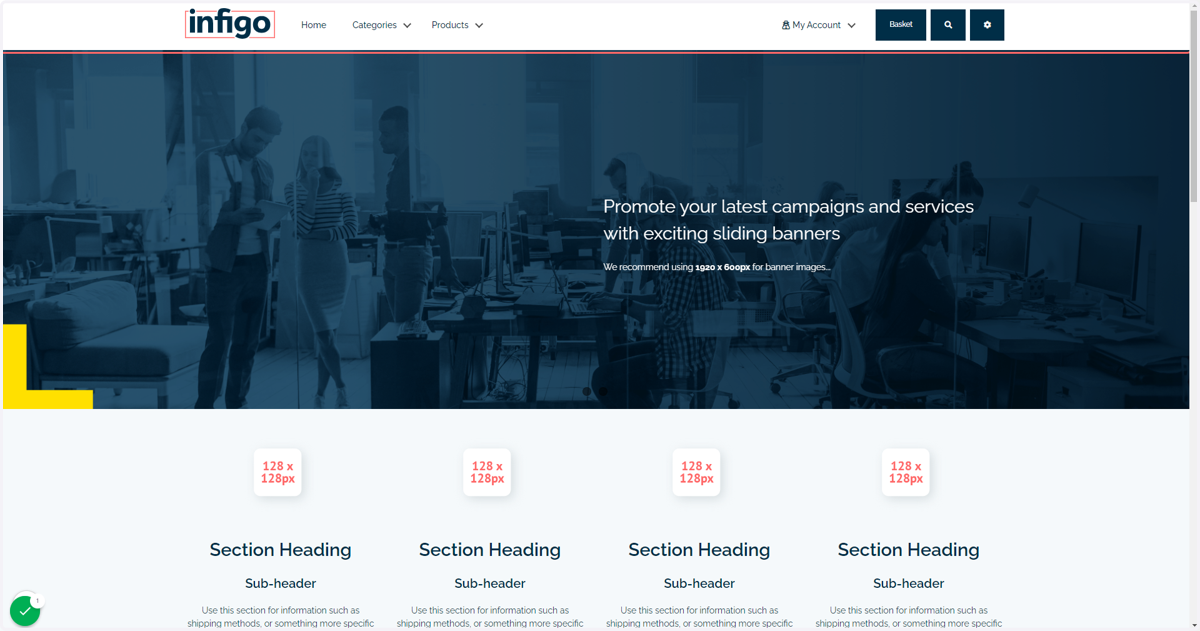
Our default header is shown in the image below, containing a logo and some basic links. Our task in this tutorial will be to understand, modify and further design the header.
To begin, we will ensure our logo's are available for use within Infigo.
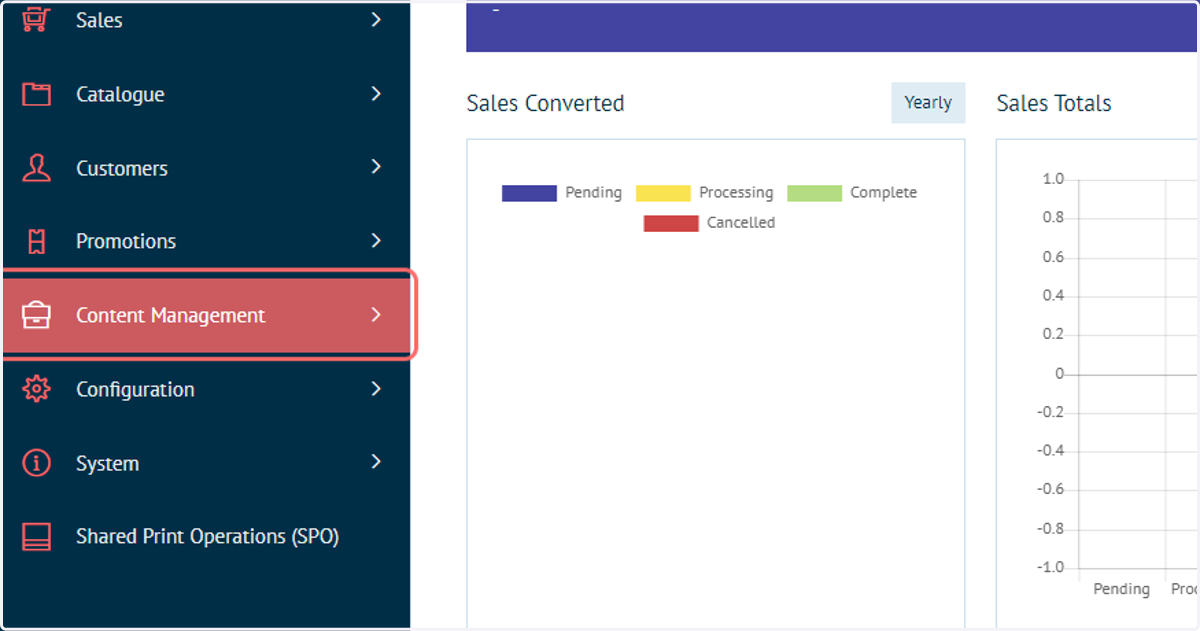
2. Click on Content Management
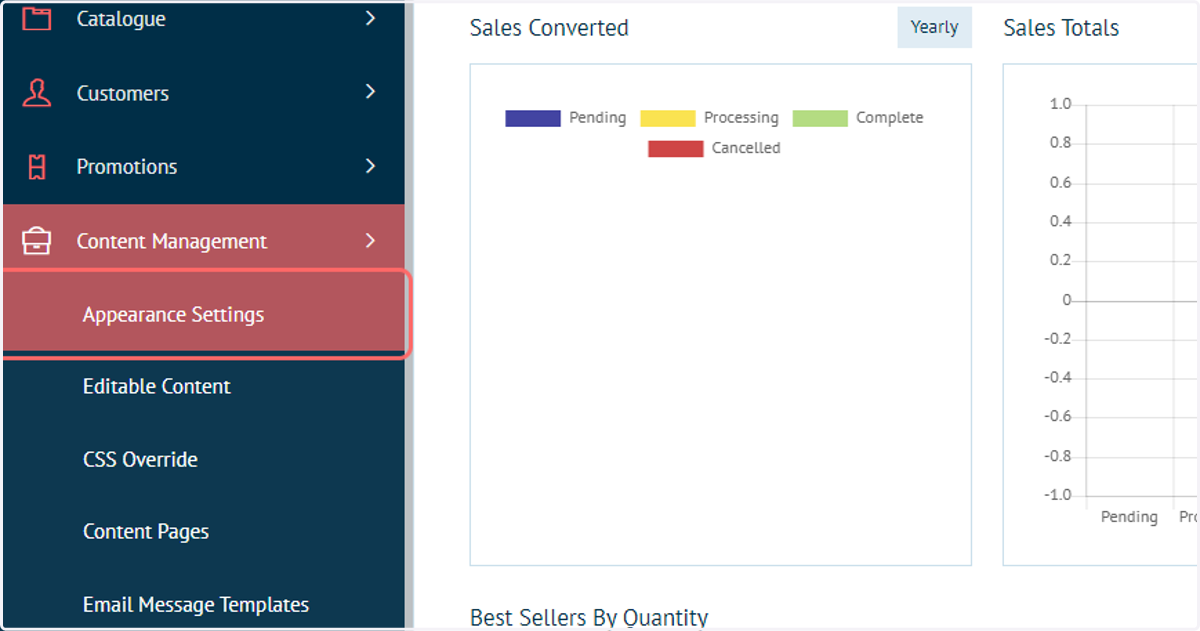
3. Click on Appearance Settings
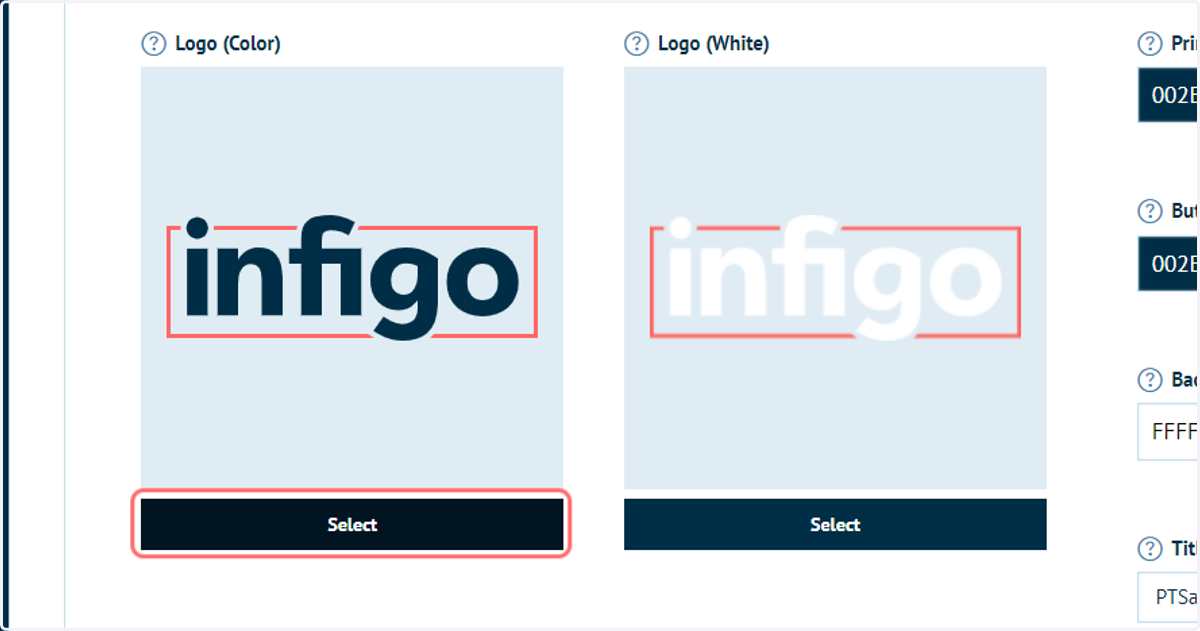
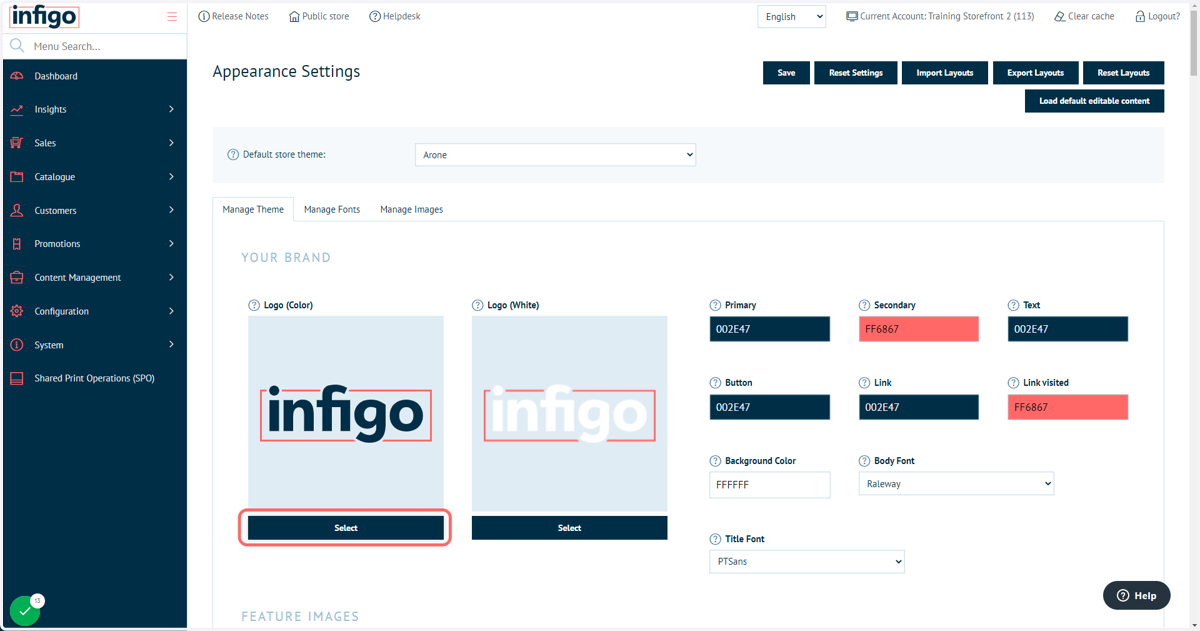
4. Click Select
Two logo options are available on the Appearance Settings screen, covering a colour and a white version (for use on dark backgrounds).
To update the selected logo's, click Select.
Infigosoftware
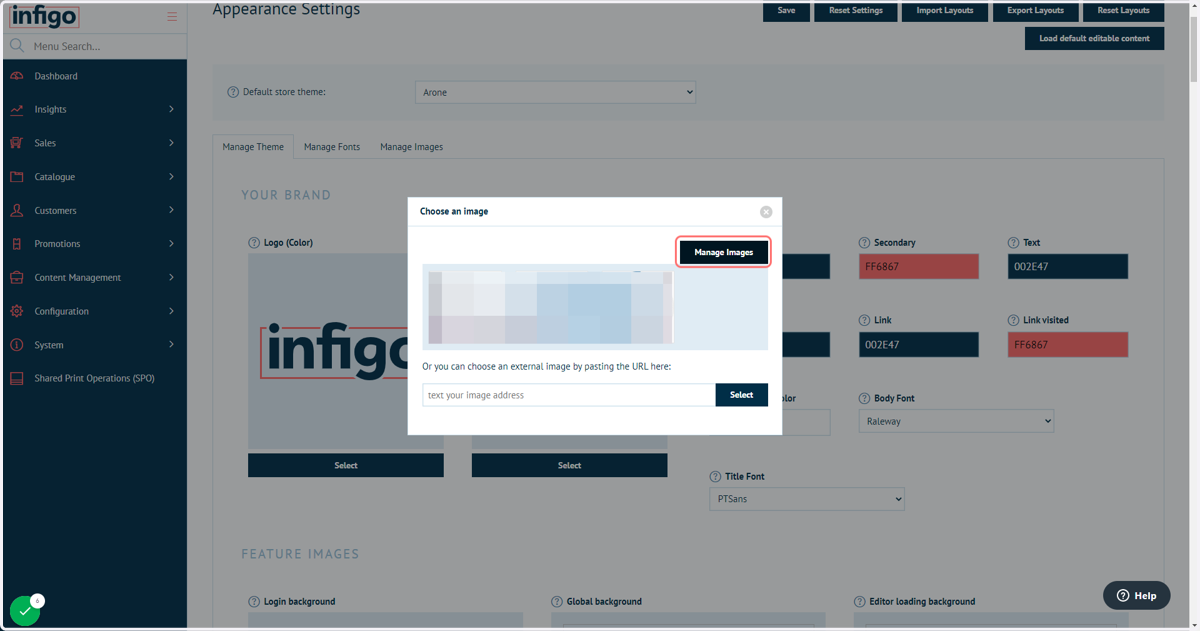
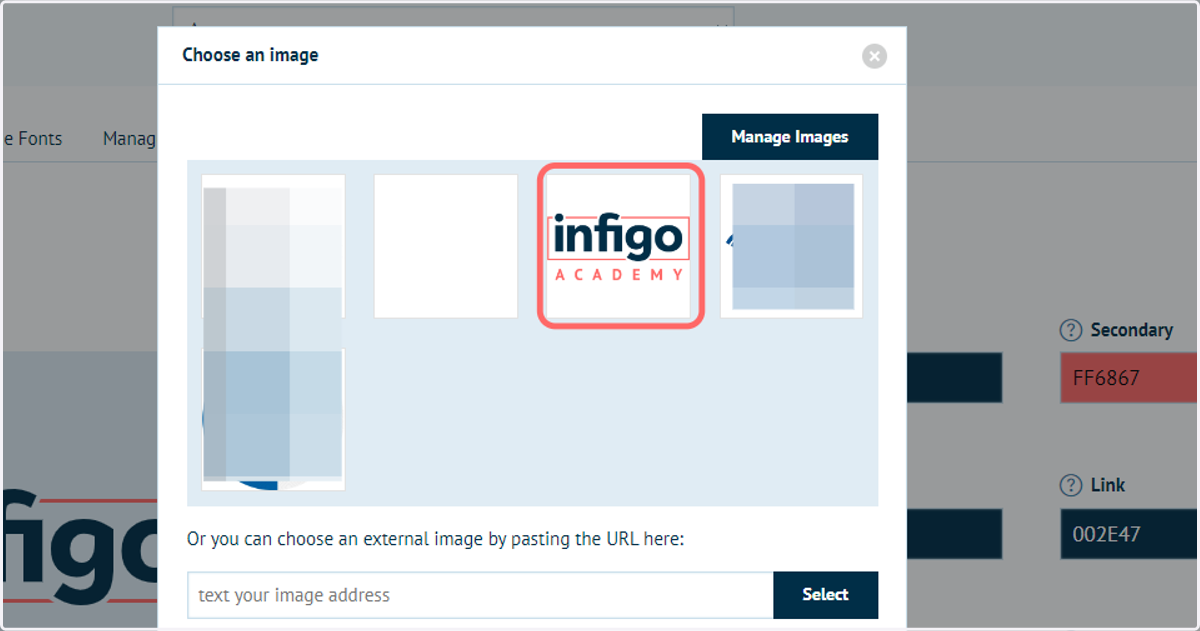
5. Select a logo or click Manage Images
Logo's from every storefront on your platform will be visible in this selector.
Either double click on an existing logo, or click Manage Images to add more.
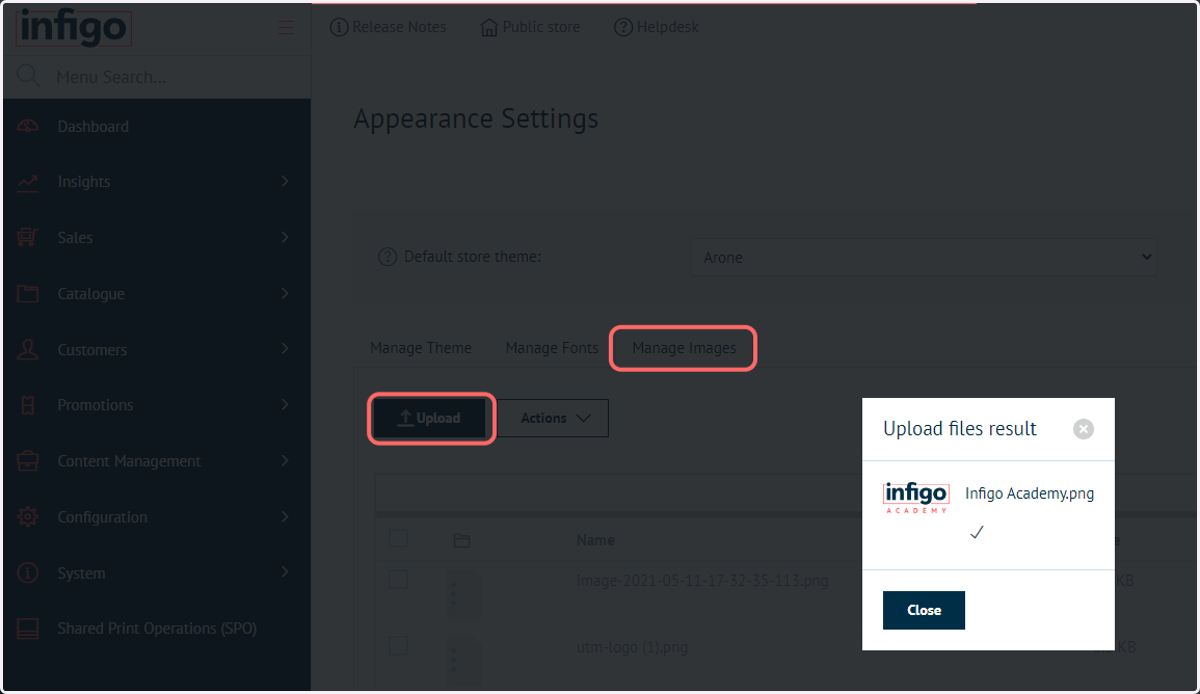
6. Click Upload and choose one or more logos to upload
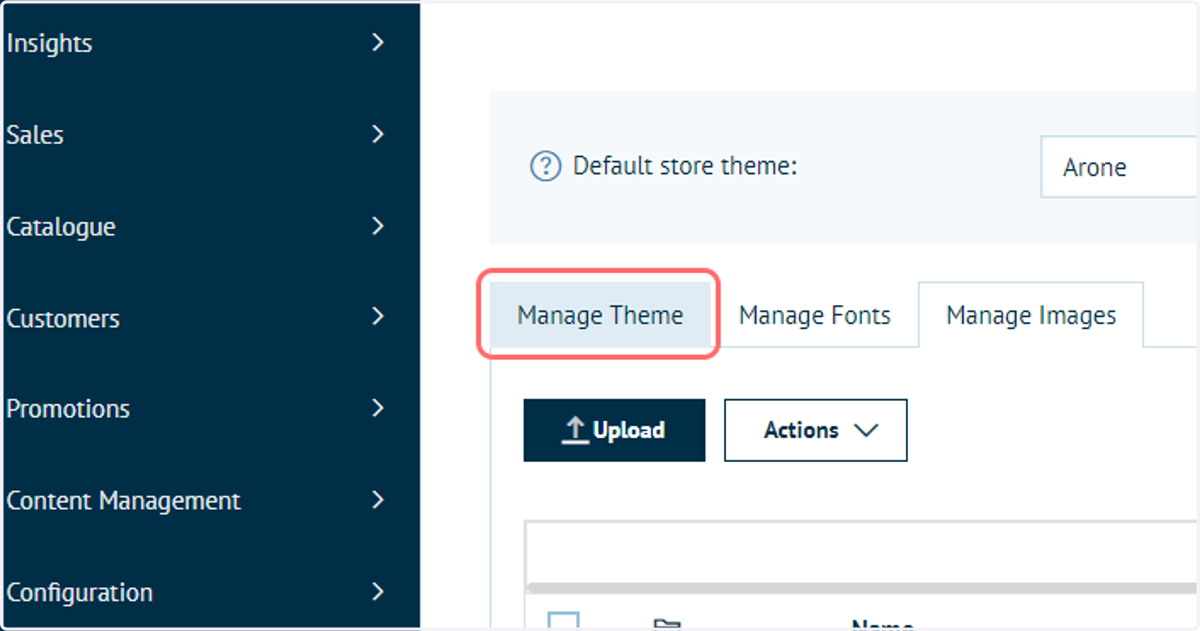
7. Click on Manage Theme
This will return you to the main theme page with logo selection field.
8. Click on Select
Infigosoftware
9. Double click your logo
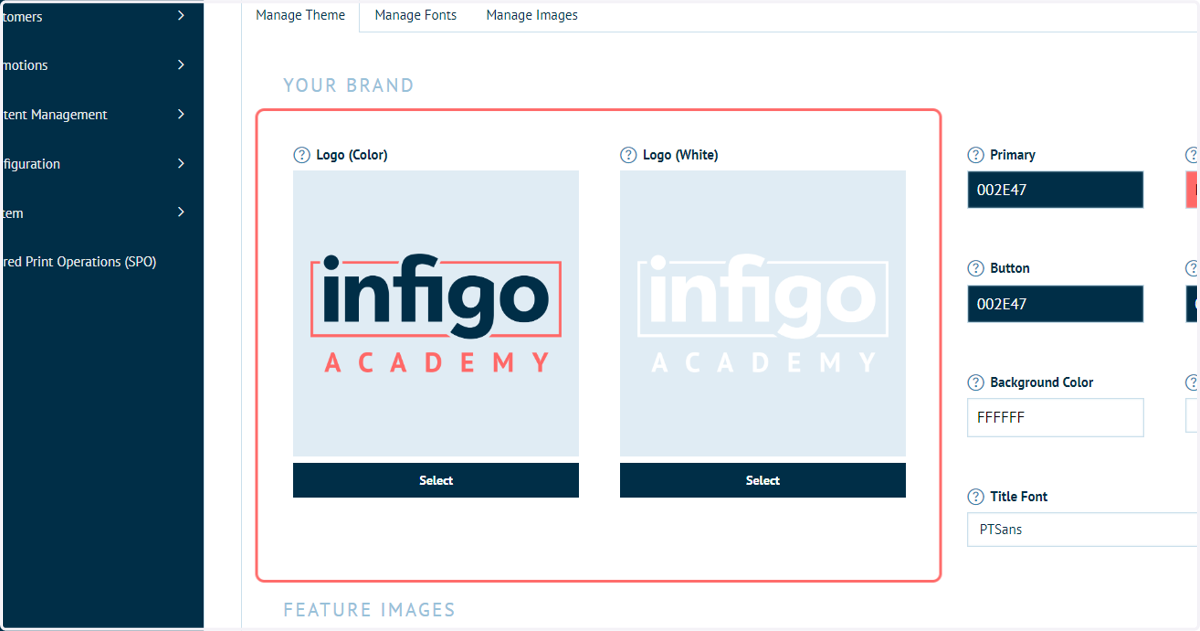
10. These steps can be repeated for the white logo
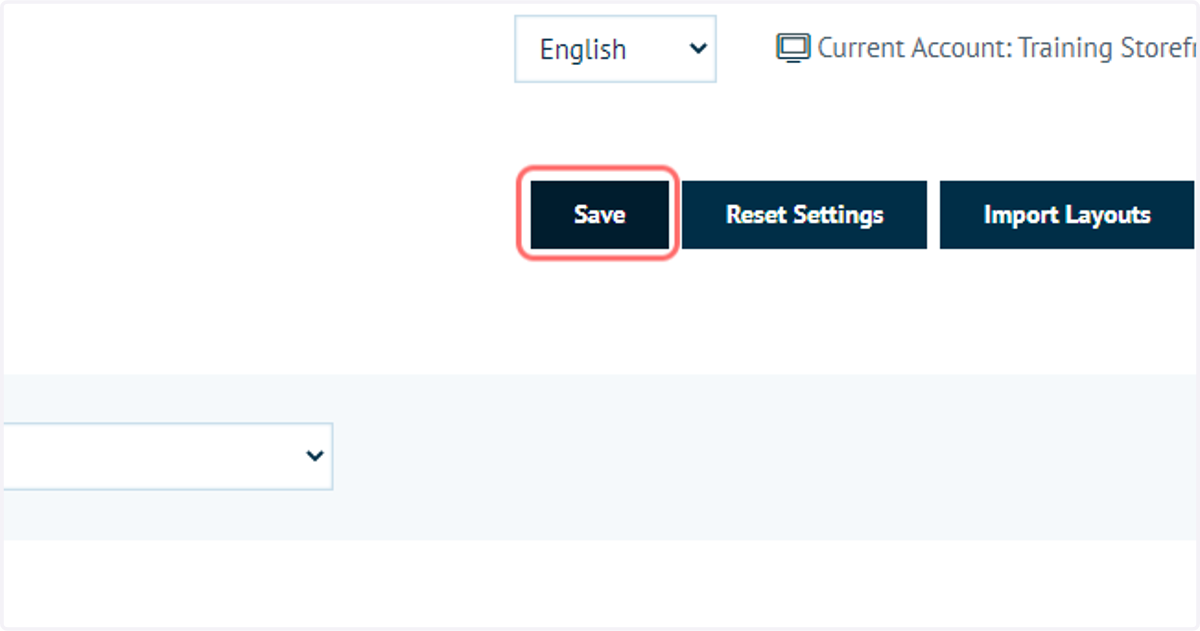
11. Click on Save
12. Header Editable Content
With our logo updated, we will now navigate to our Editable Content area, where we can upload many of the areas on our site such as the Header and Banner.
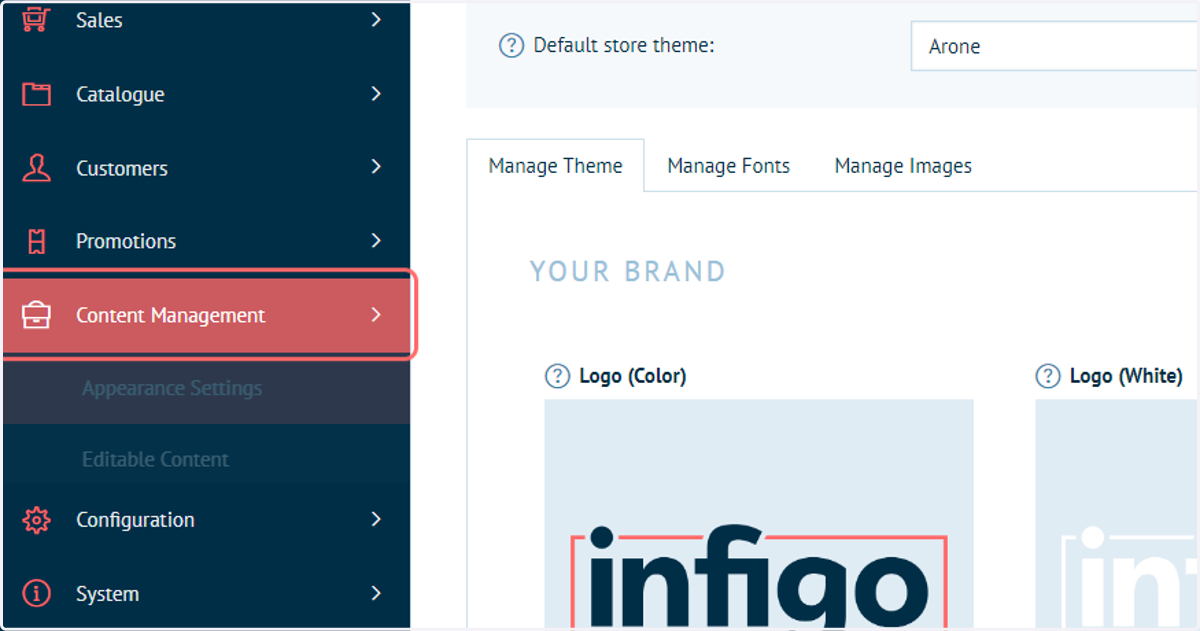
13. Click on Content Management
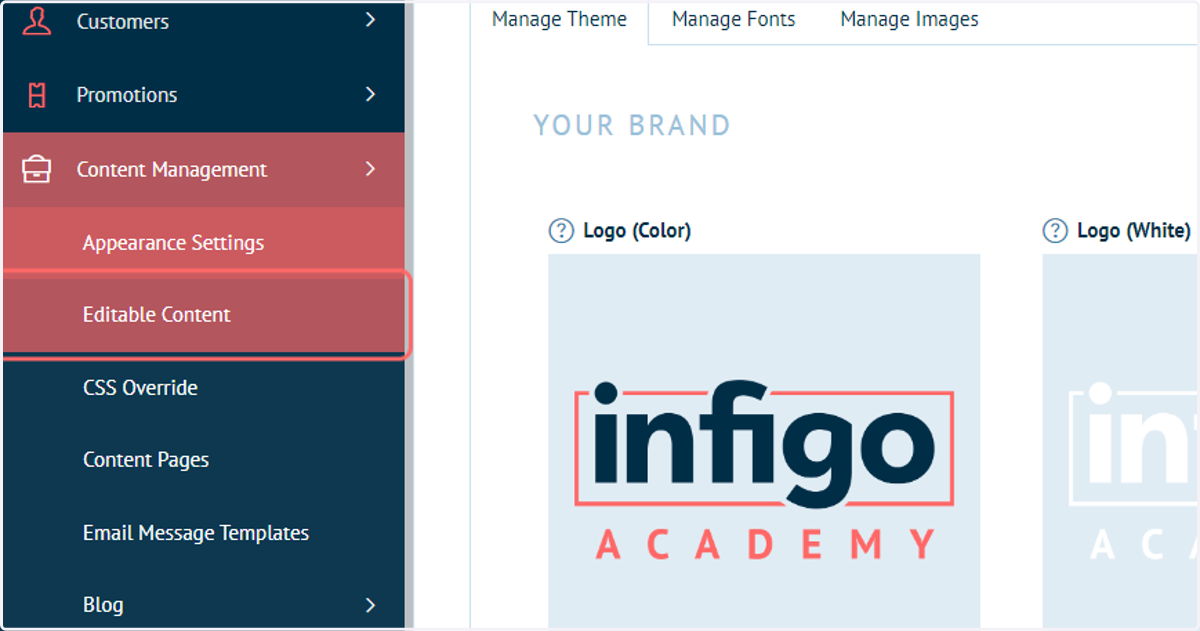
14. Click on Editable Content
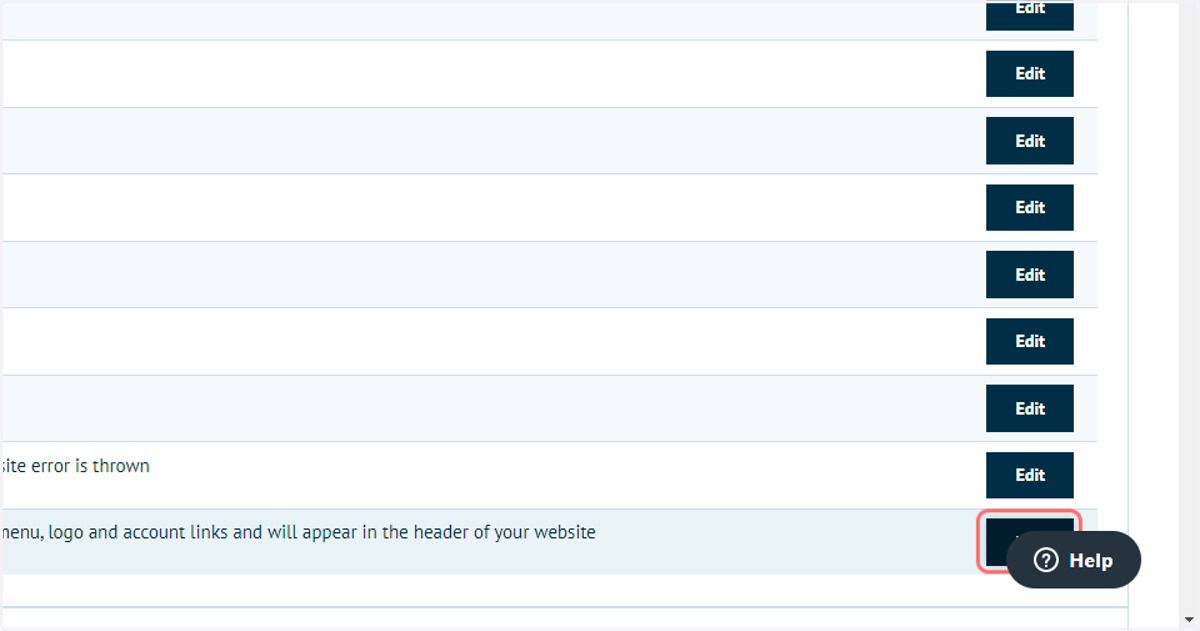
15. Click on Edit next to the Header field
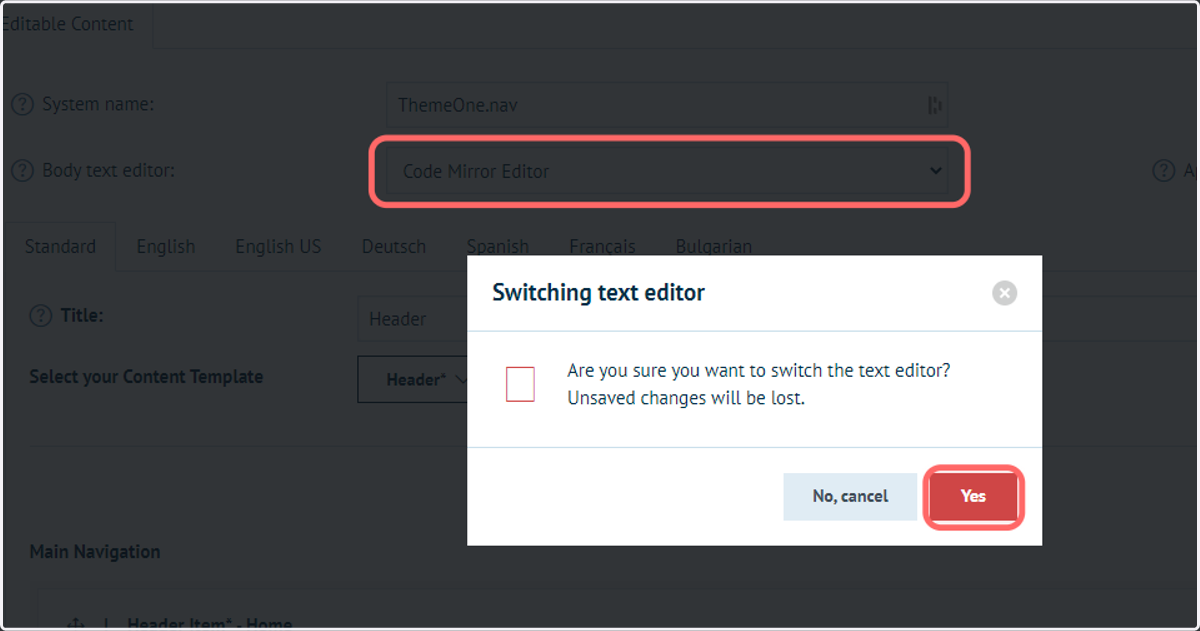
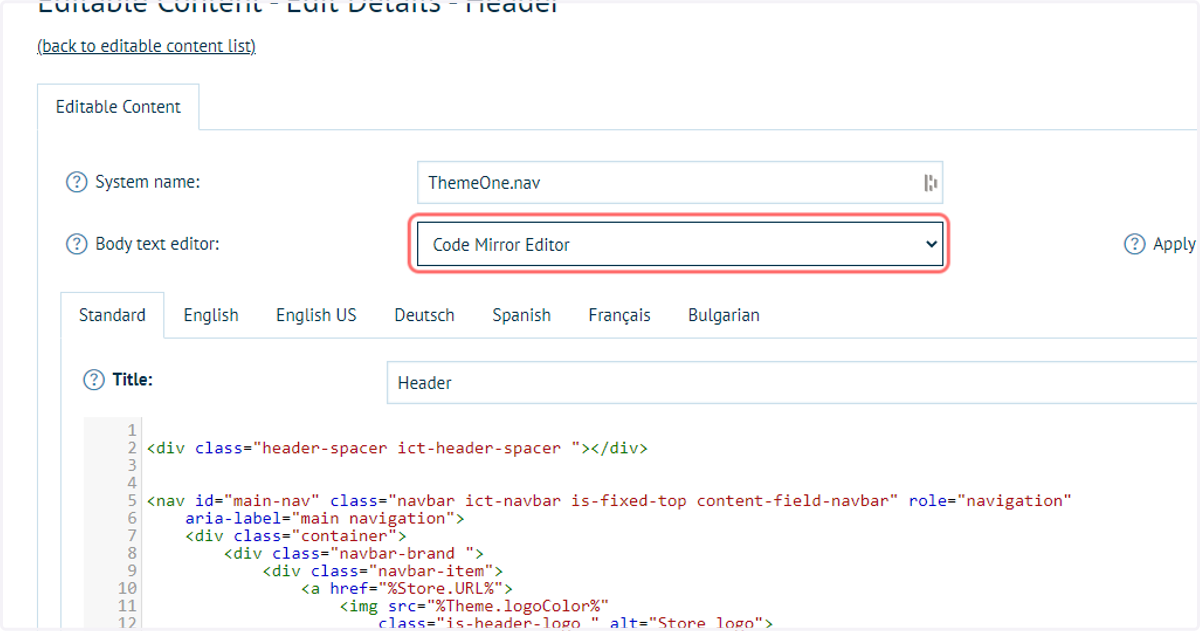
16. Click on Code Mirror Editor from Body text editor then Yes
By default, the specification style for your header will use Content Templates (more on these in a moment), however you are able to select other input styles.
Rich Text Editor: Think of this as a word-processor style input, with direct content formatting options. This will not generally be suitable for something complex such as the header, but may be suitable for general page content.
Code Mirror Editor: A code editor where HTML code can be input. This option may appear to those with HTML coding experience, and can give you greater control over the design and functionality of your header.
Infigosoftware
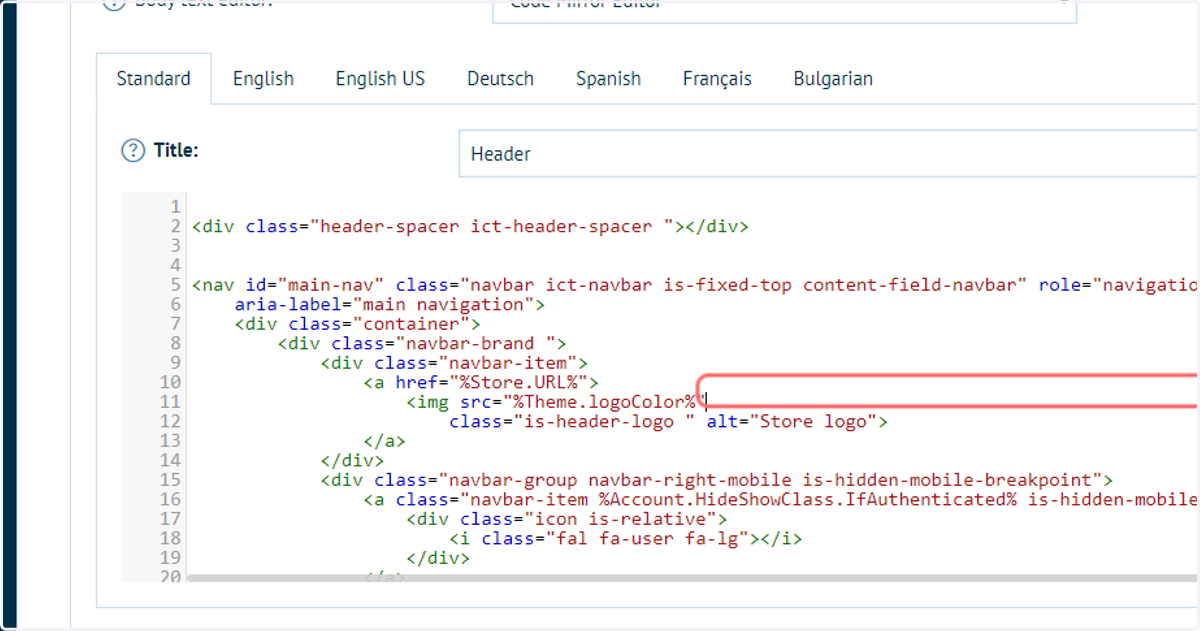
17. HTML code editor
The input will change to a HTML code editor, which can be amended or completely re-written by the administrator.
The HTML editor also allows you the use of Tokens. Tokens are pieces of information which are pre-defined elsewhere in Infigo.
One Token section named "Theme Tokens" contains pre-defined code generally related to storefront appearance.
In the code below, for example, line 11 contains "%Theme.logoColor%". This is a token drawing information directly from the logo selection field we specified earlier.
18. Click on Content Template Editor from Body text editor
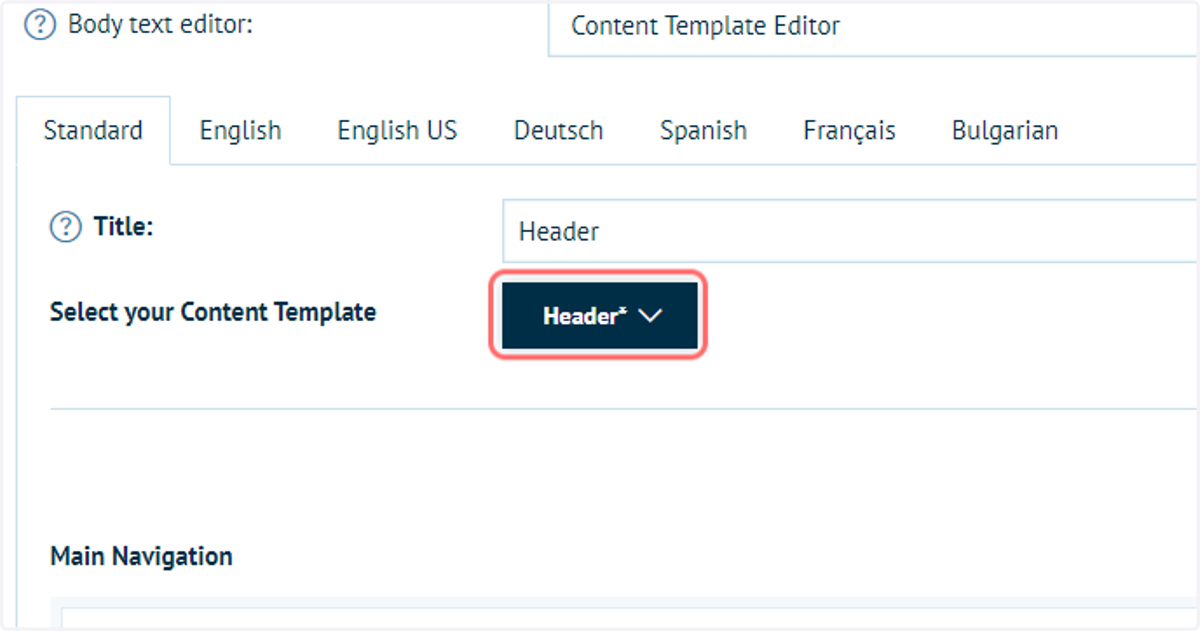
The Content Template functionality eliminates the need for any HTML knowledge, by replacing the standard Code Mirror Editor with a series of simple inputs and controls to create the header that works for you.
This functionality is constantly being improved, meaning the layout of controls may differ slightly from the images shown in this guide. The general methodology, however, will remain the same.
19. Select the Header Content Template
This provides a set of inputs tailored to the creation of a header.
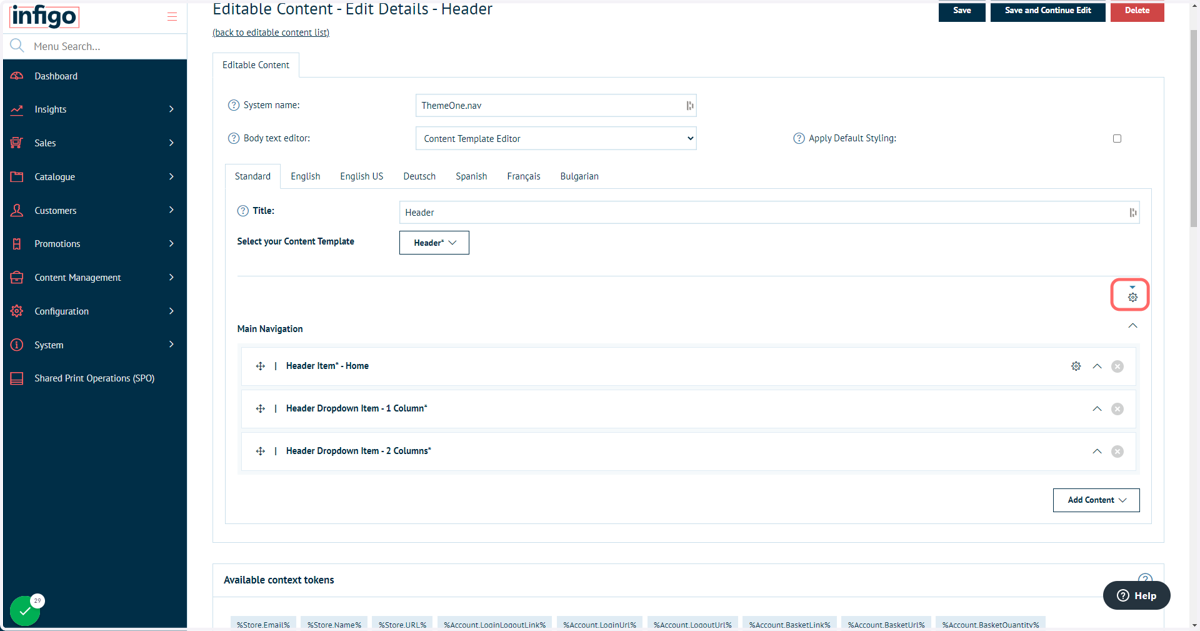
20. Click the gear icon to access the Header template settings
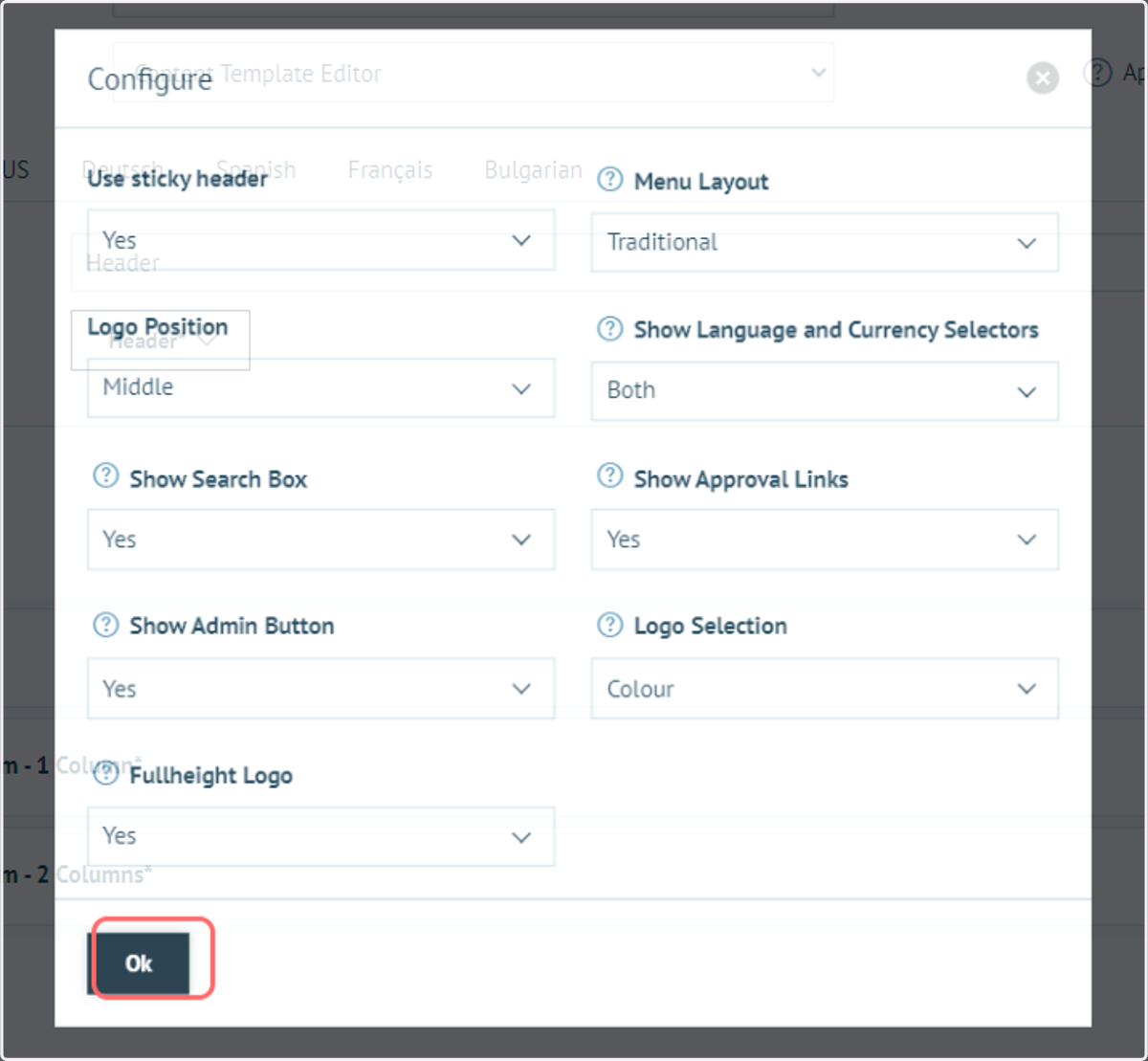
21. Configure your Header settings
This screen provides options for controlling the general content and layout of the Header. It includes options such as:
Menu layout and sub-menu format
Inclusion of language and currency selectors
Inclusion of a search function
Logo position and selection
Click OK once configuration is complete
Infigosoftware
22. Click on Save and Continue Edit
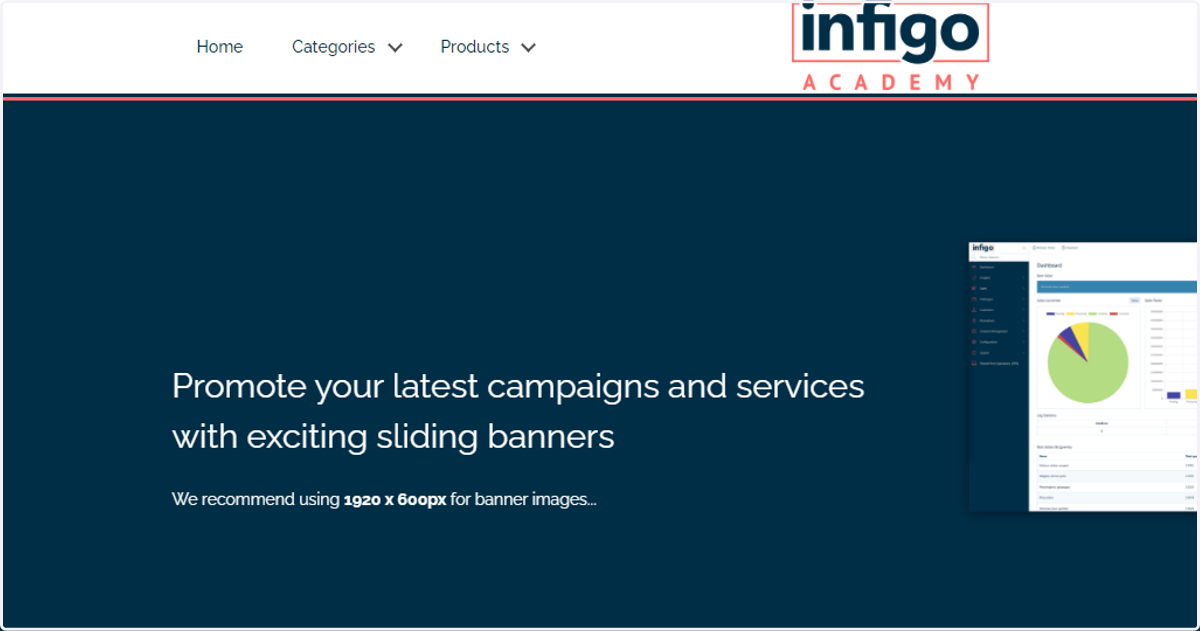
23. View changes on your storefront
Your updated header will be immediately available by refreshing the storefront homepage.
24. Design your header
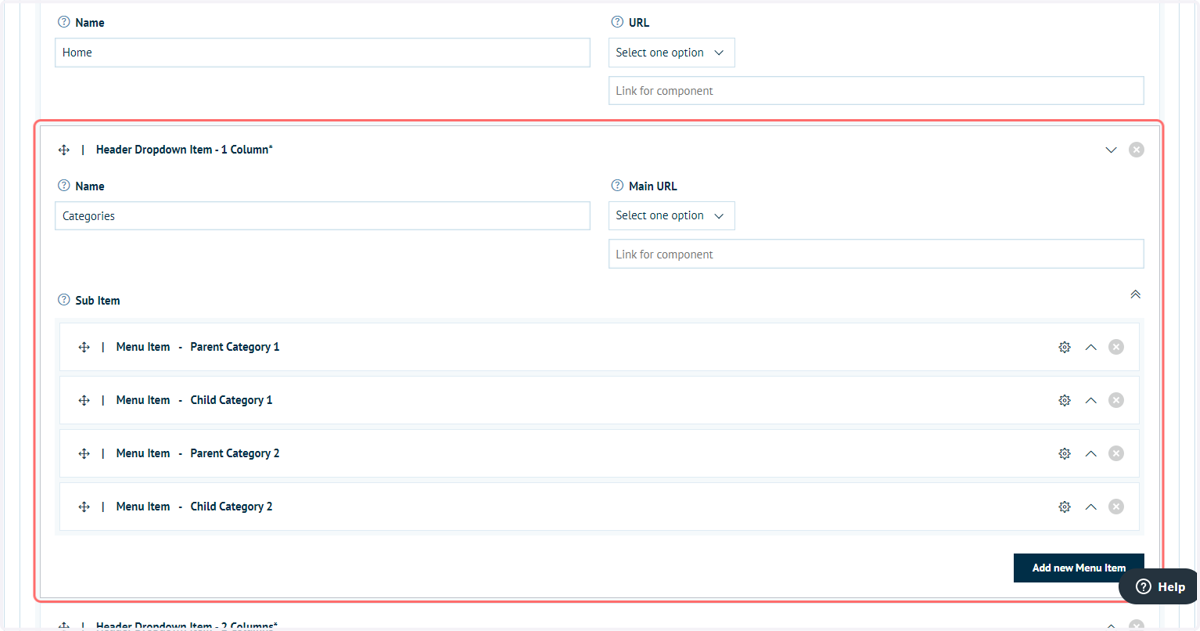
The default header contains three top level navigation items and numerous links as dropdown items.
Existing links can be amended, or new ones can be added.
Infigosoftware
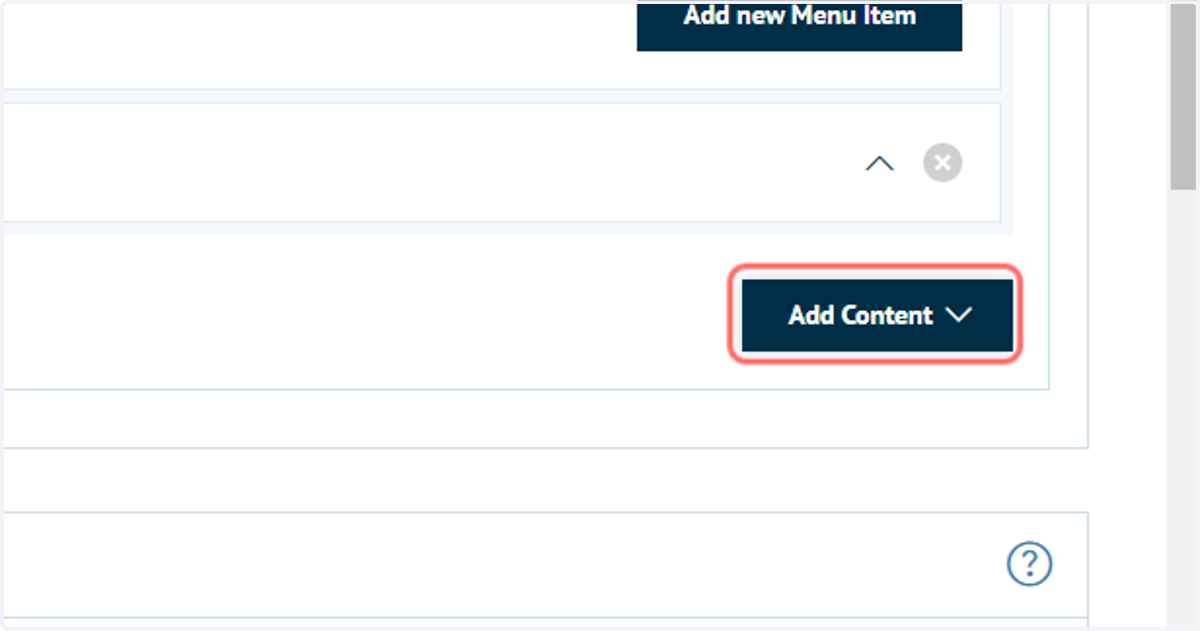
25. To add a new navigation bar link, Click on Add Content
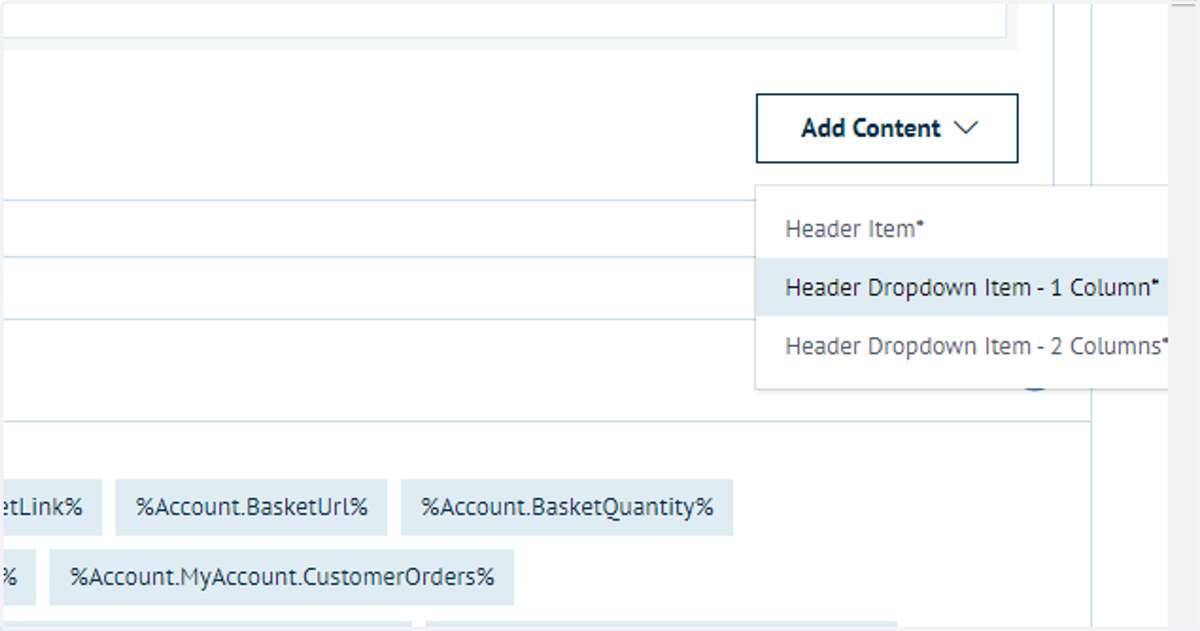
26. Select the type of item to add to the navigation bar
Header Item: Does not provide to option to add dropdown items
Header Dropdown Item - 1 column : A single column of dropdown links, to which multiple links can be added.
Header Dropdown Item - 2 column : Two columns of dropdown links, to which multiple links can be added.
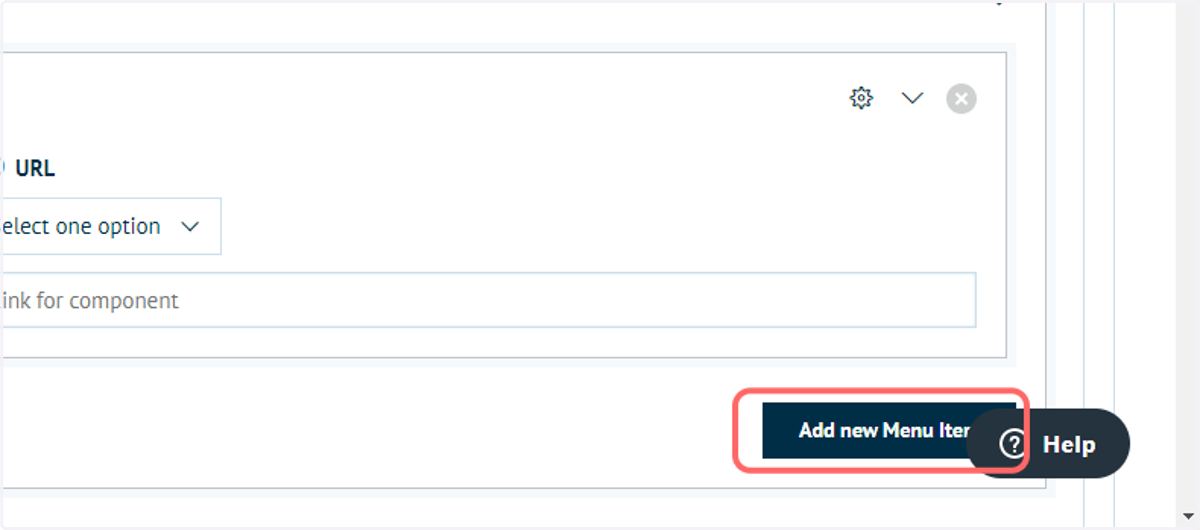
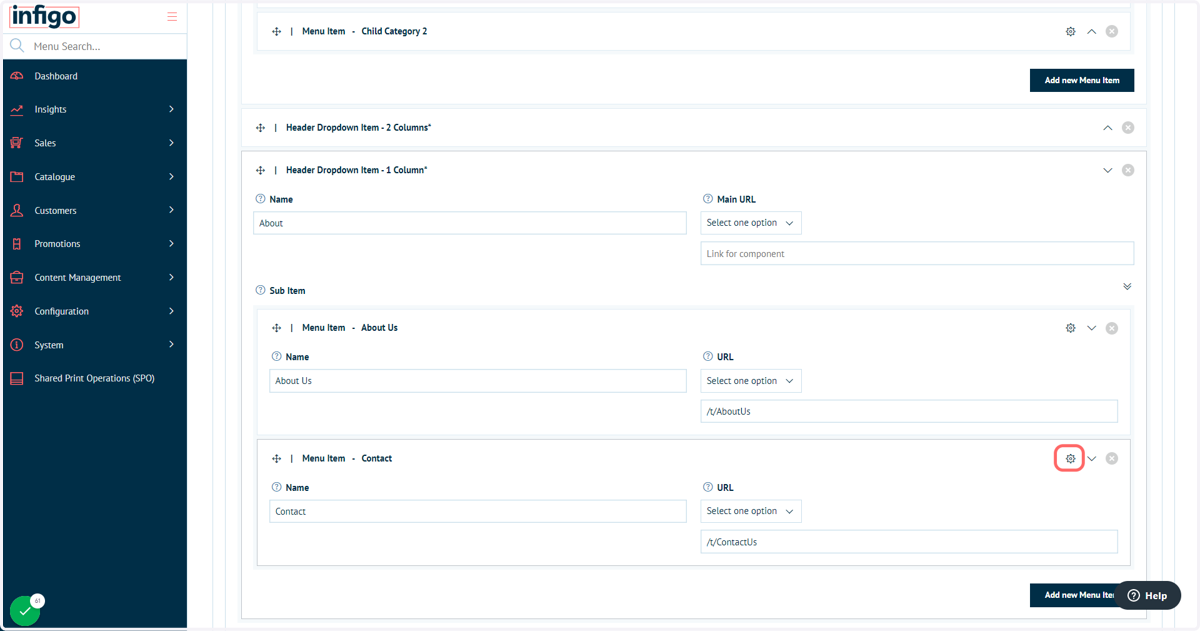
27. To add a dropdown link, click Add new Menu Item
Infigosoftware
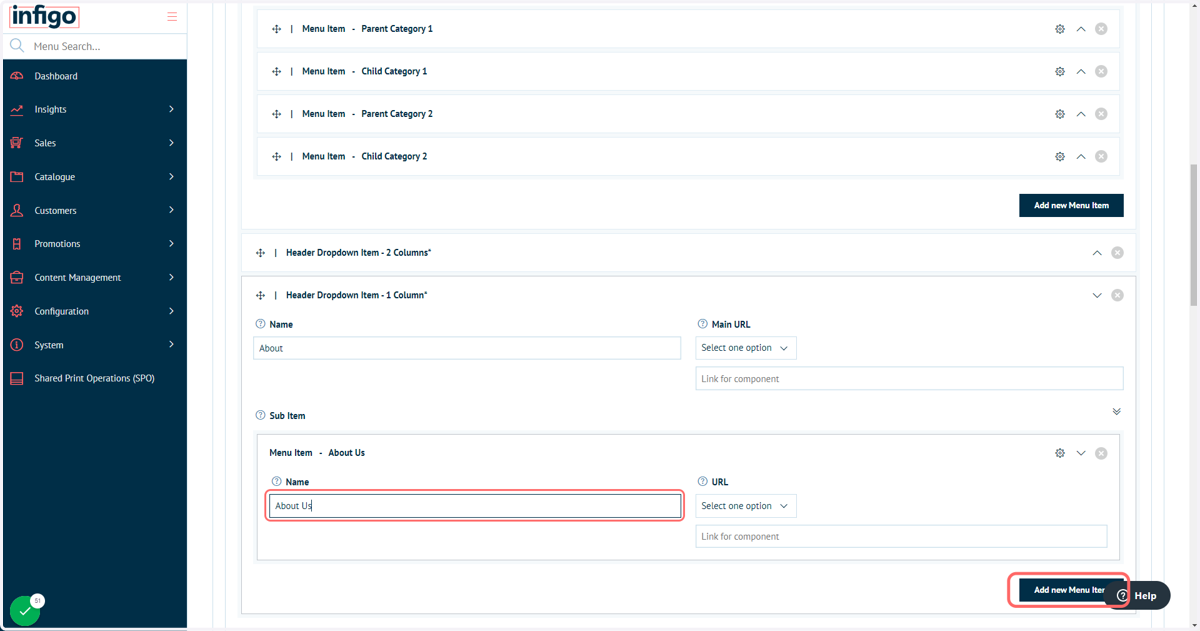
28. Enter a link name to appear on the header
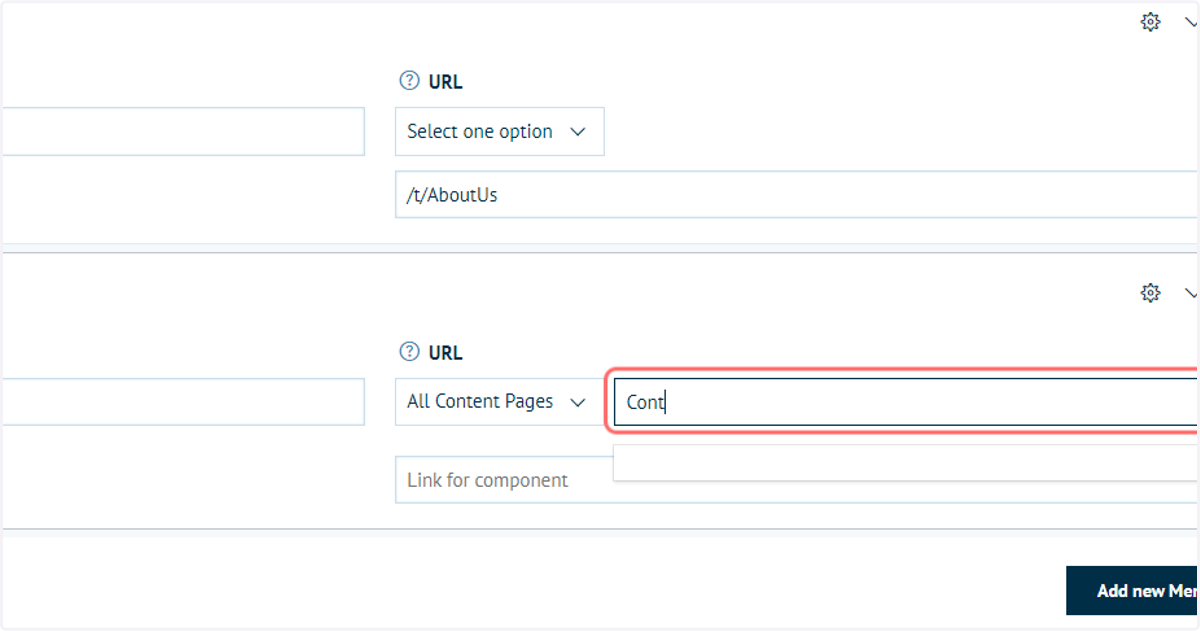
29. Select or define a URL
You can select links from several areas of your storefront setup, including:
Product pages
Content pages
Category pages
You can then begin to search by name, or directly type a URL. Infigo will filter through the URL type selected and allow you to select relevant entries.
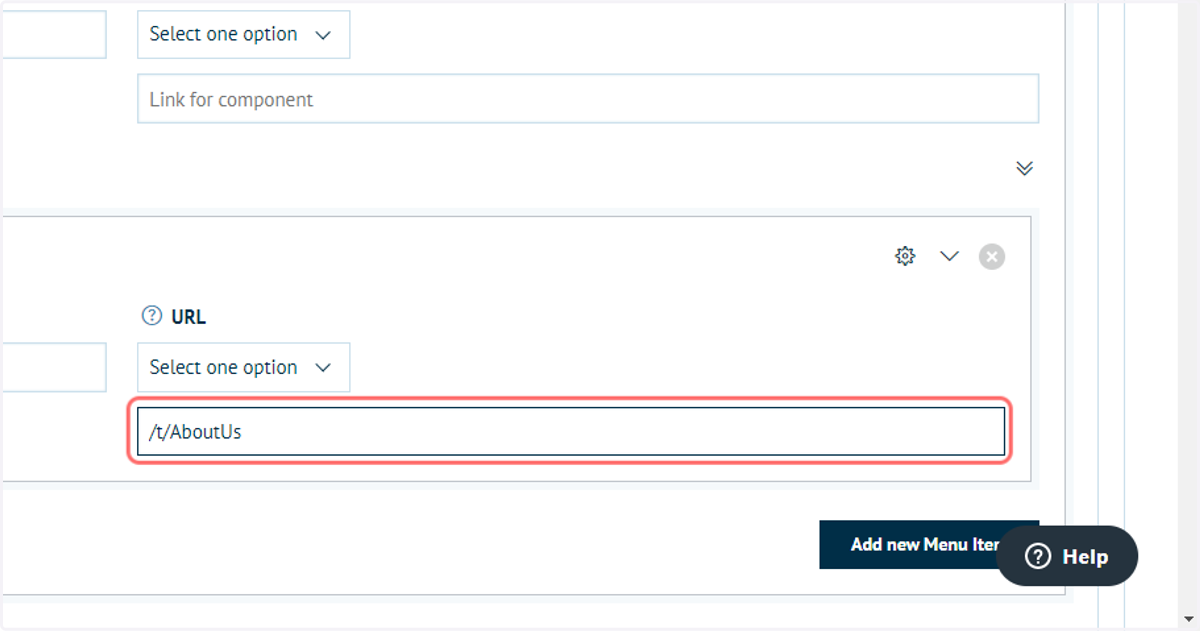
30. Multiple links can be defined
Infigosoftware
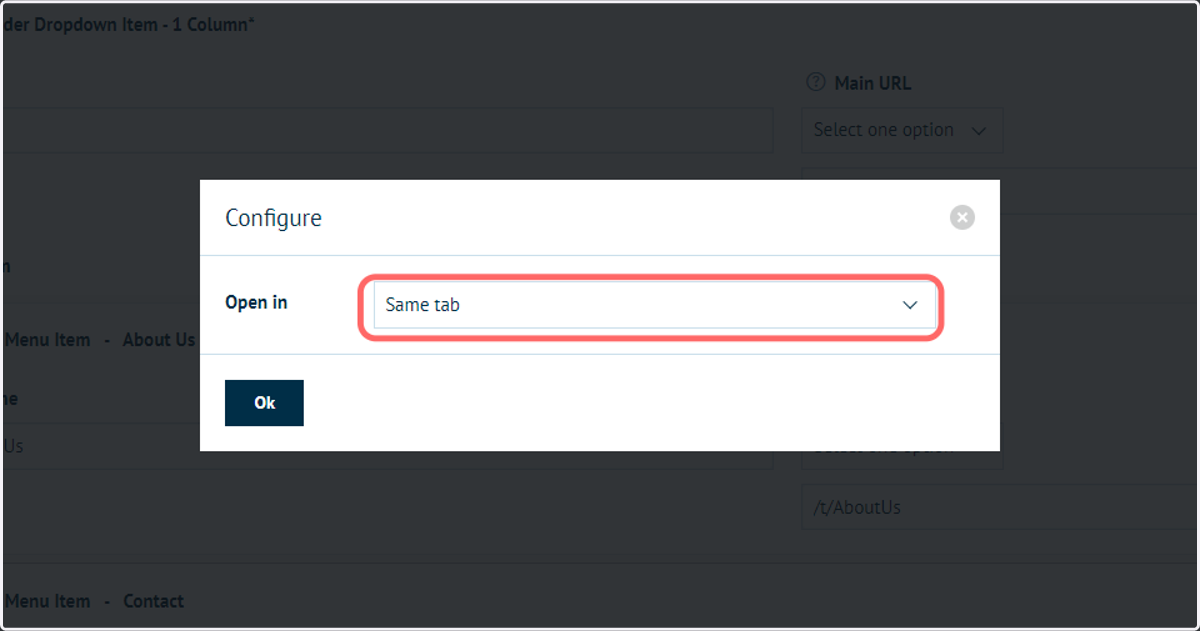
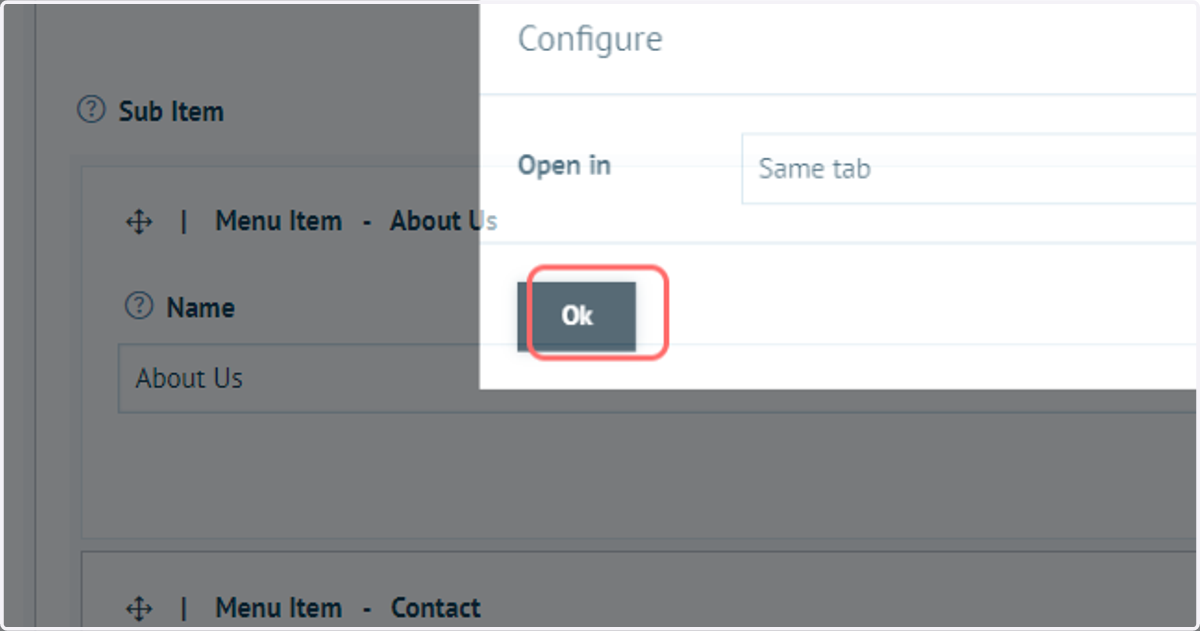
31. The settings icon will allow you to select between opening a link in a new tab or the same tab
32. Select Same tab
33. Click on Ok
34. Click on Save and Continue Edit
35. View changes by refreshing your storefront homepage
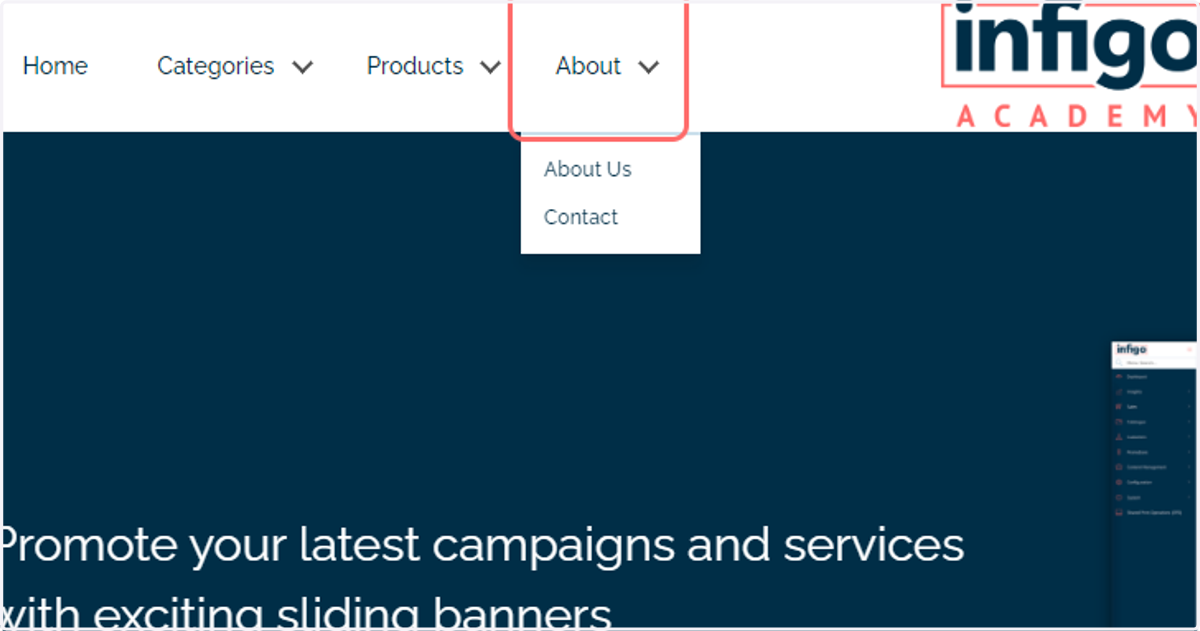
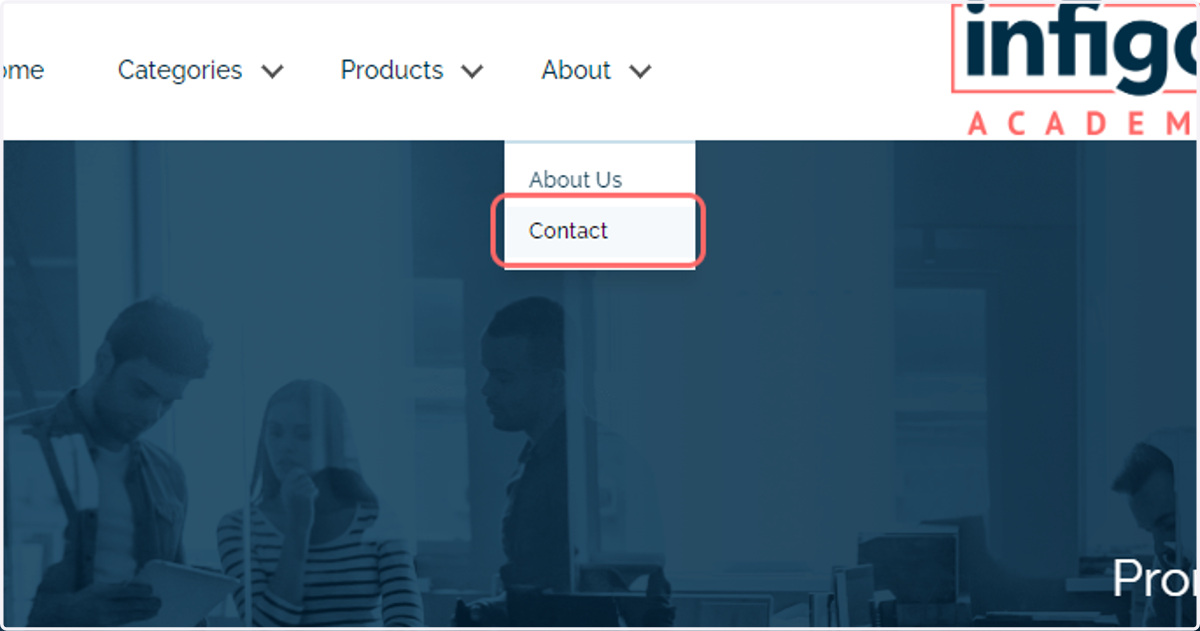
36. Click on Contact