Changing your header logo
Infigosoftware
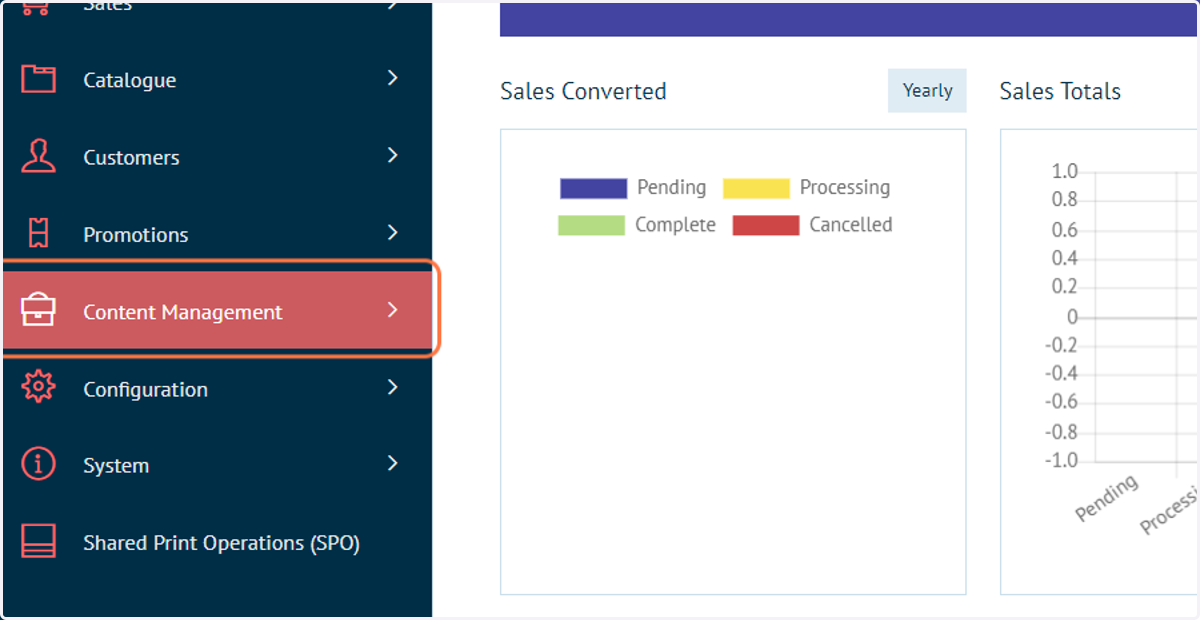
1. Click on Content Management
First, we need to upload your logo.
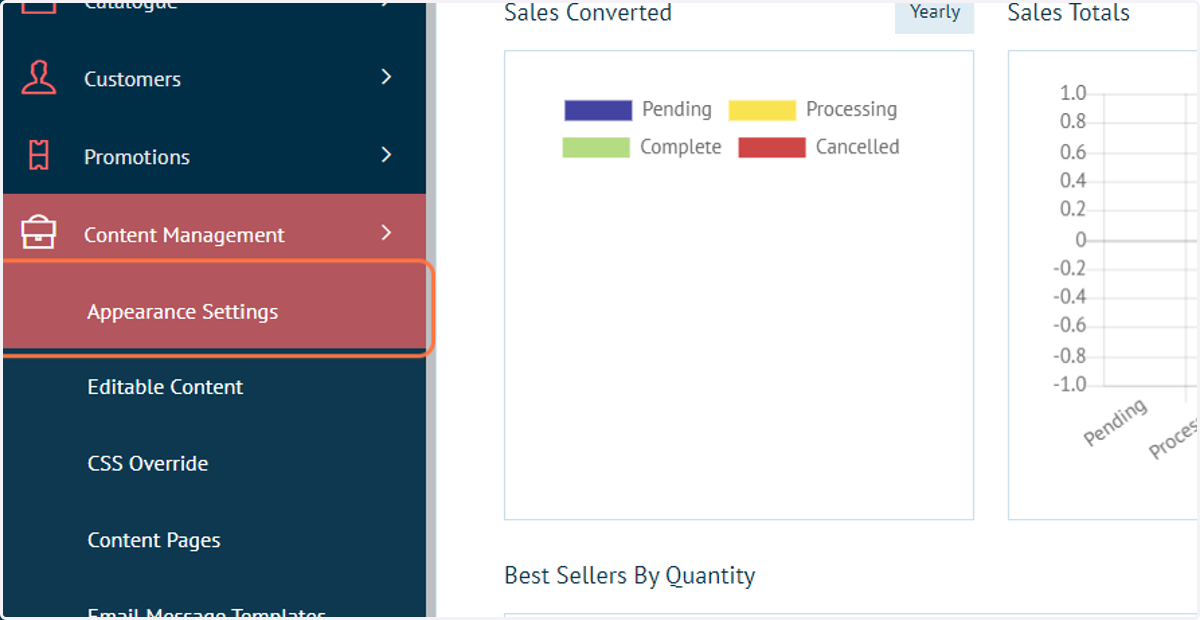
2. Click on Appearance Settings
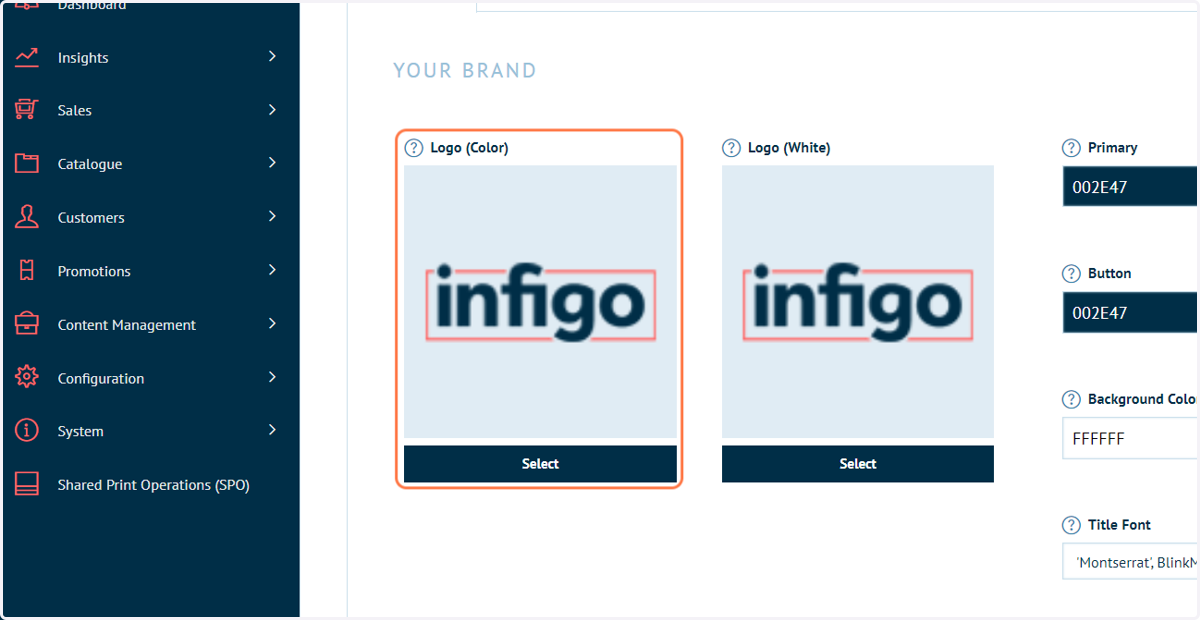
3. The appearance settings contains a control to directly select your brand logo
"Logo (Color)" is for use on light backgrounds
"Logo (White)" is for use on dark backgrounds
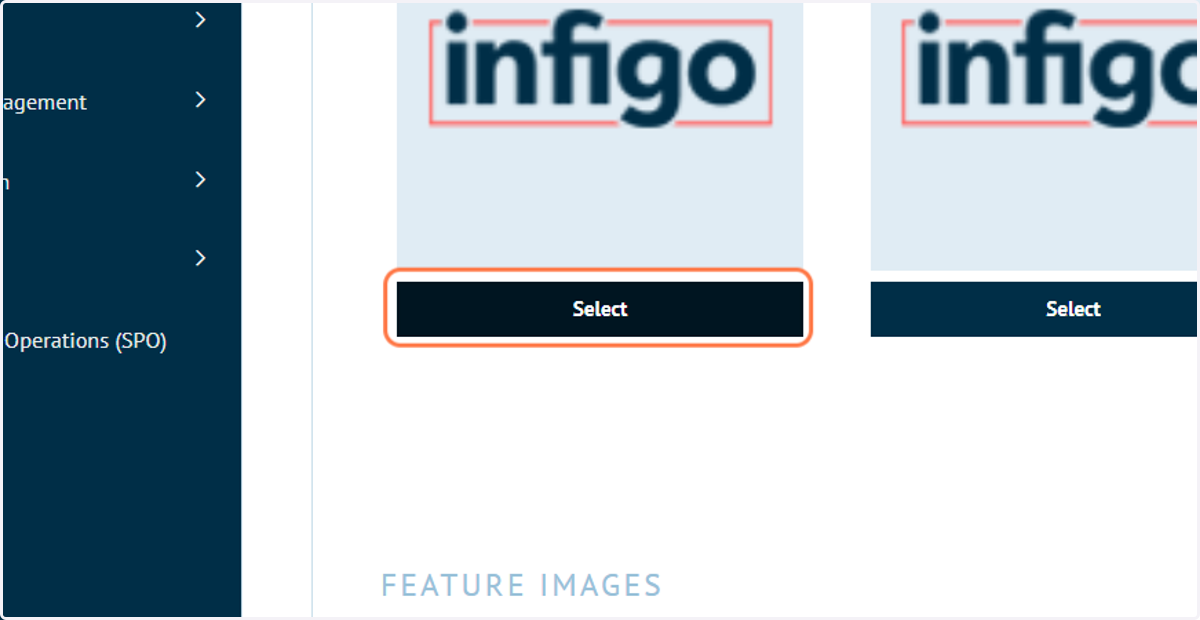
4. Click on Select
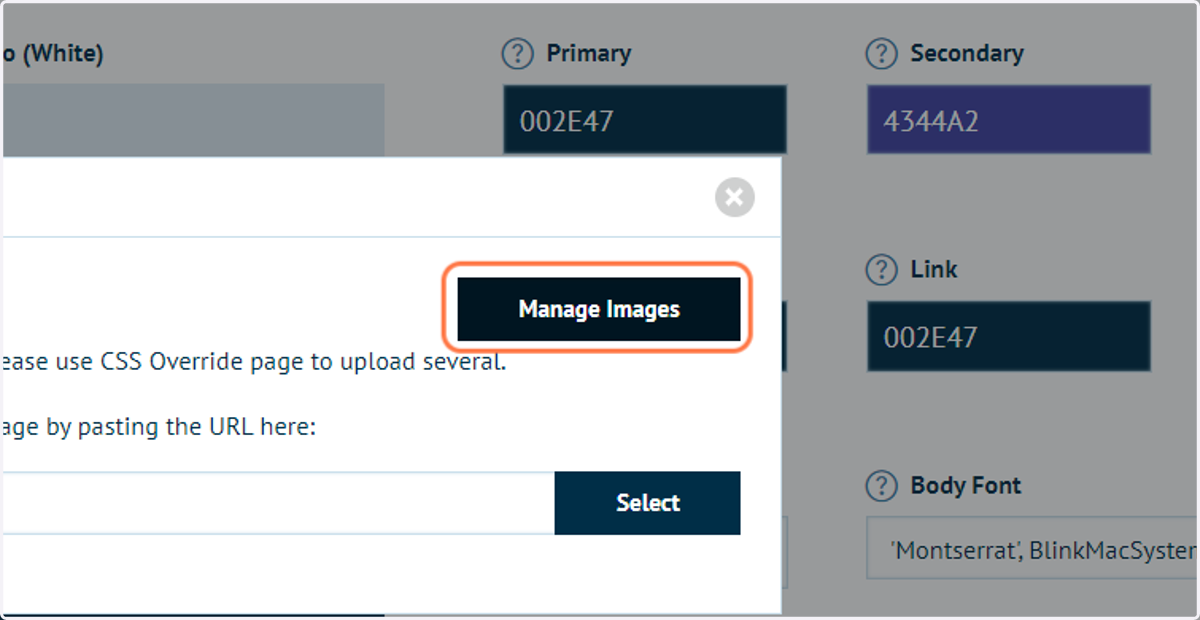
5. Click on Manage Images
All images uploaded to this storefront will be displayed.
If none exist or you wish to add more, click Manage Images.
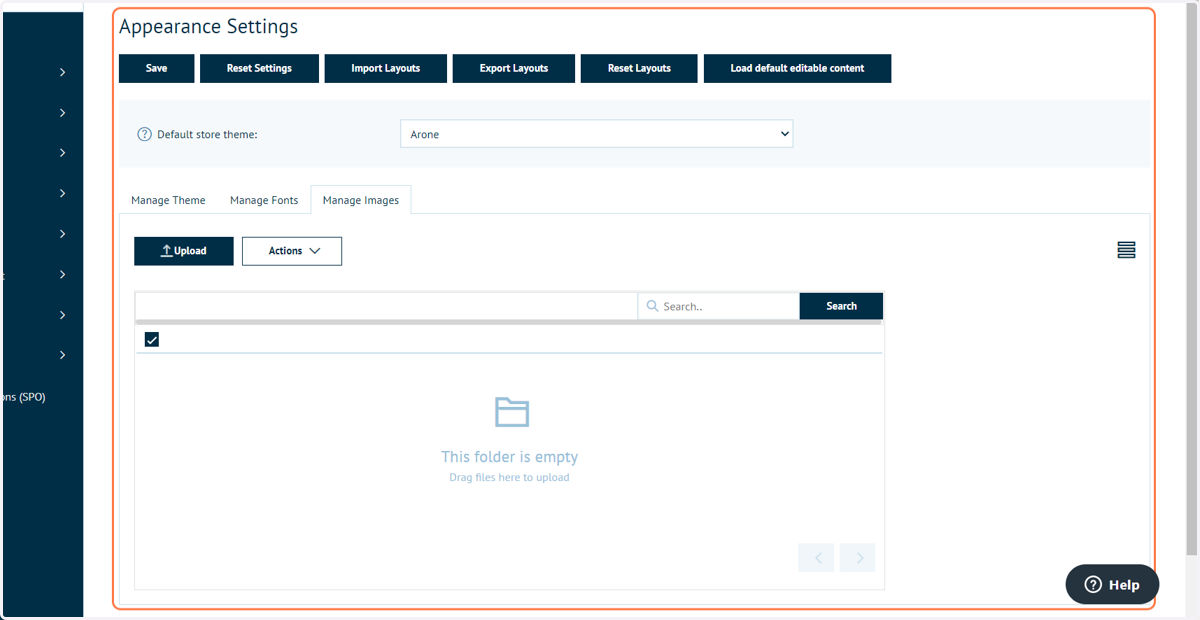
6. Click Upload to add new images
The Manage Images tab will show details on relevant uploaded media
7. Select your logo from the file upload menu
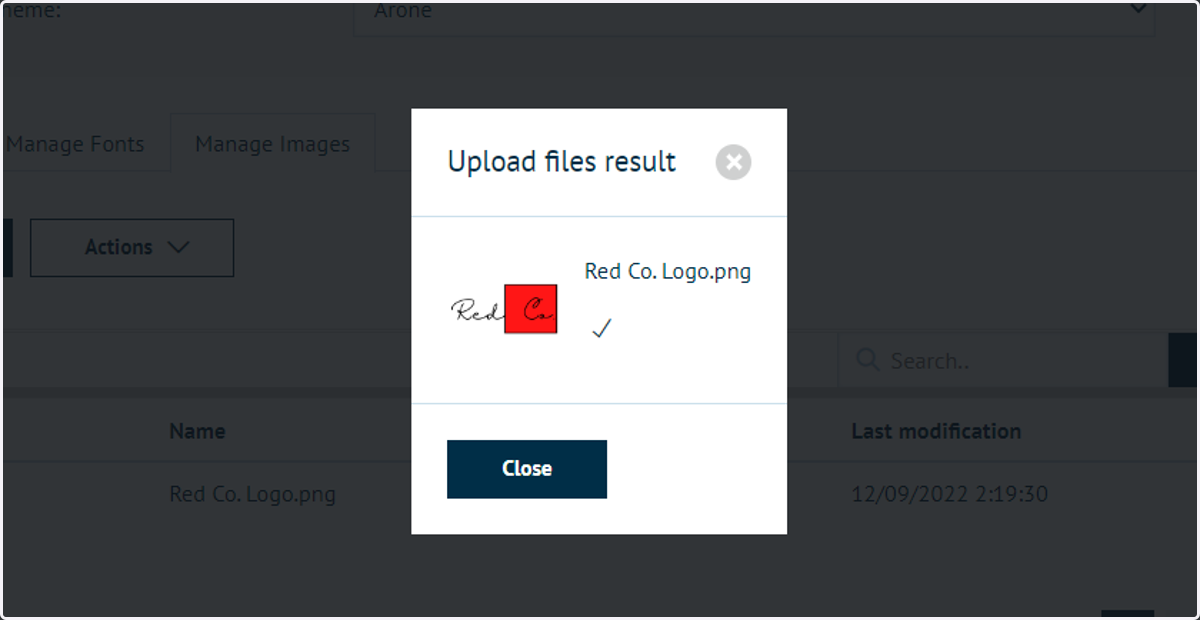
8. Click on Close
9. Click on Manage Theme
10. Click on Select
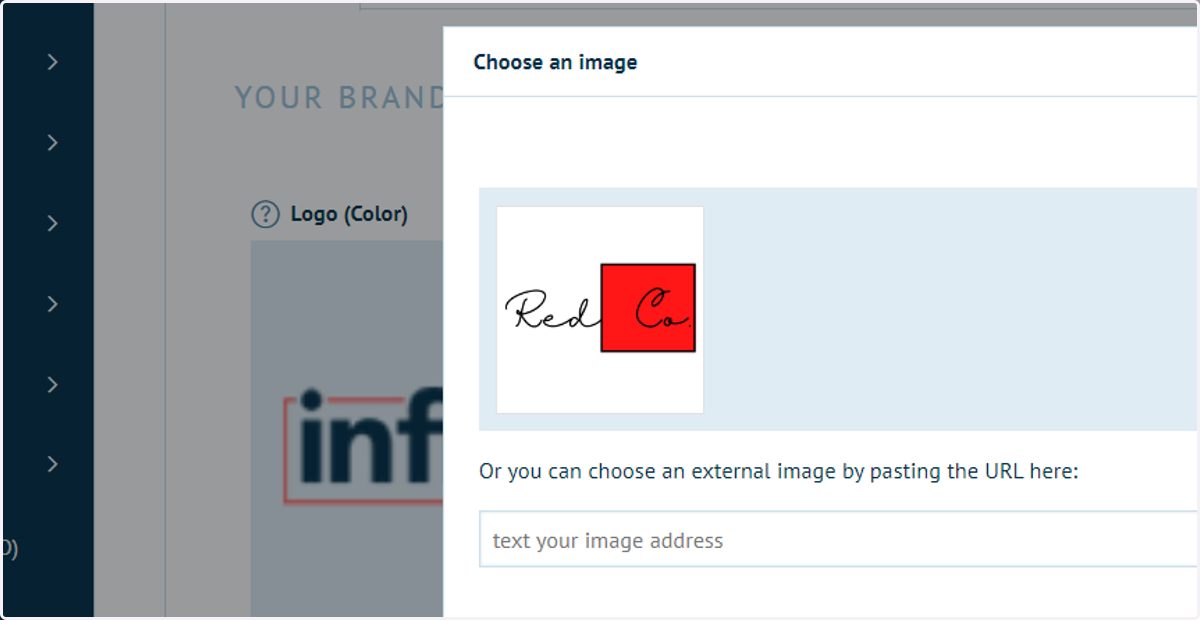
11. Click your logo
12. Click on Save
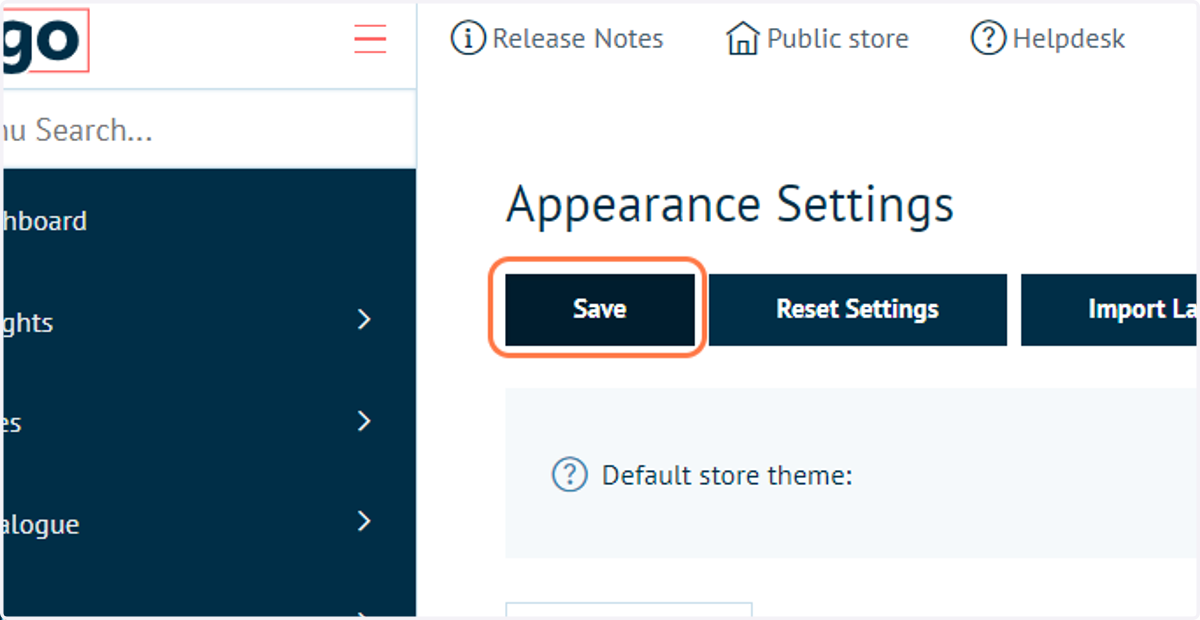
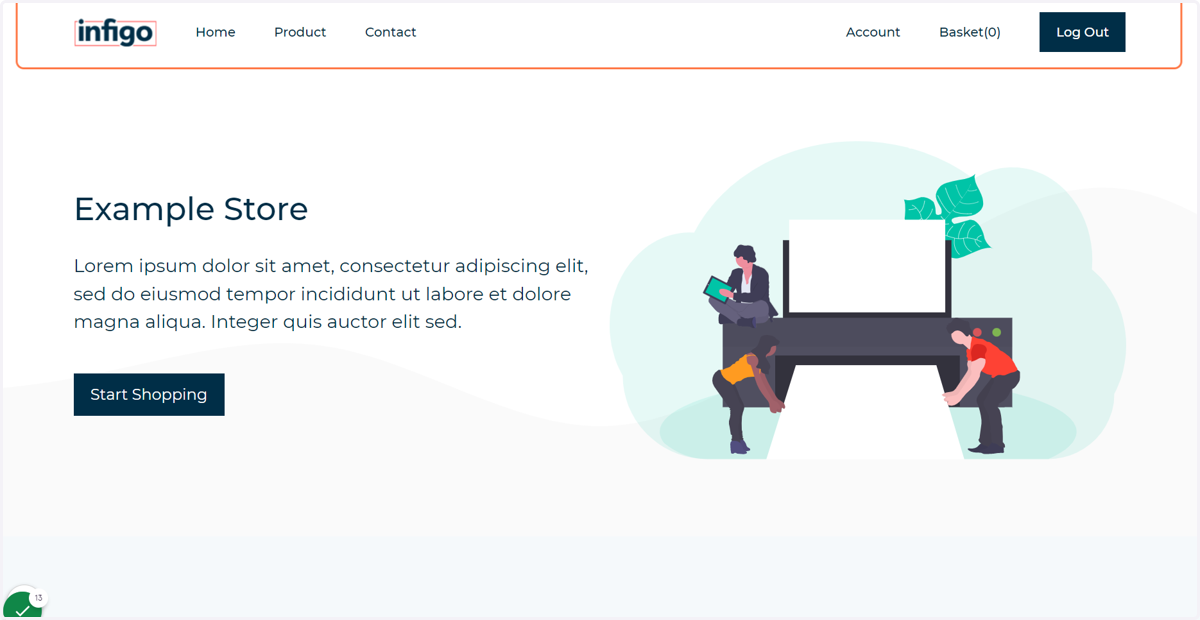
13. Your logo is not yet updated
If viewing your storefront, you will notice the main logo has not updated.
This is because the homepage header is using Editable Content within Infigo. This Editable Content is currently using a static image for the logo.
We will update this now.
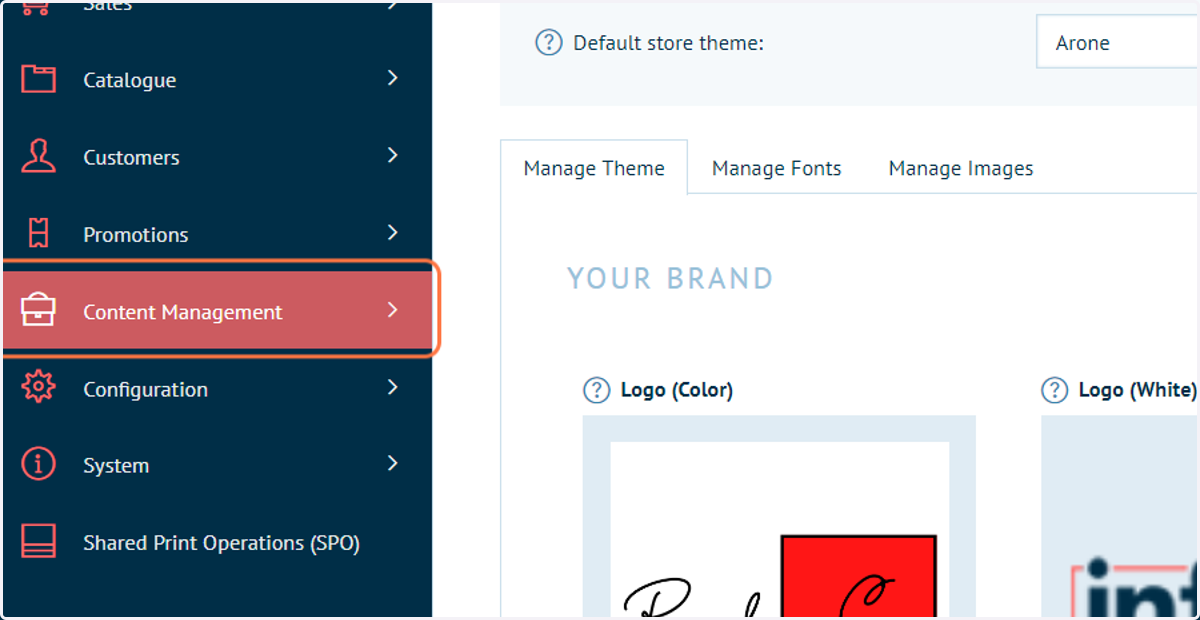
14. Click on Content Management
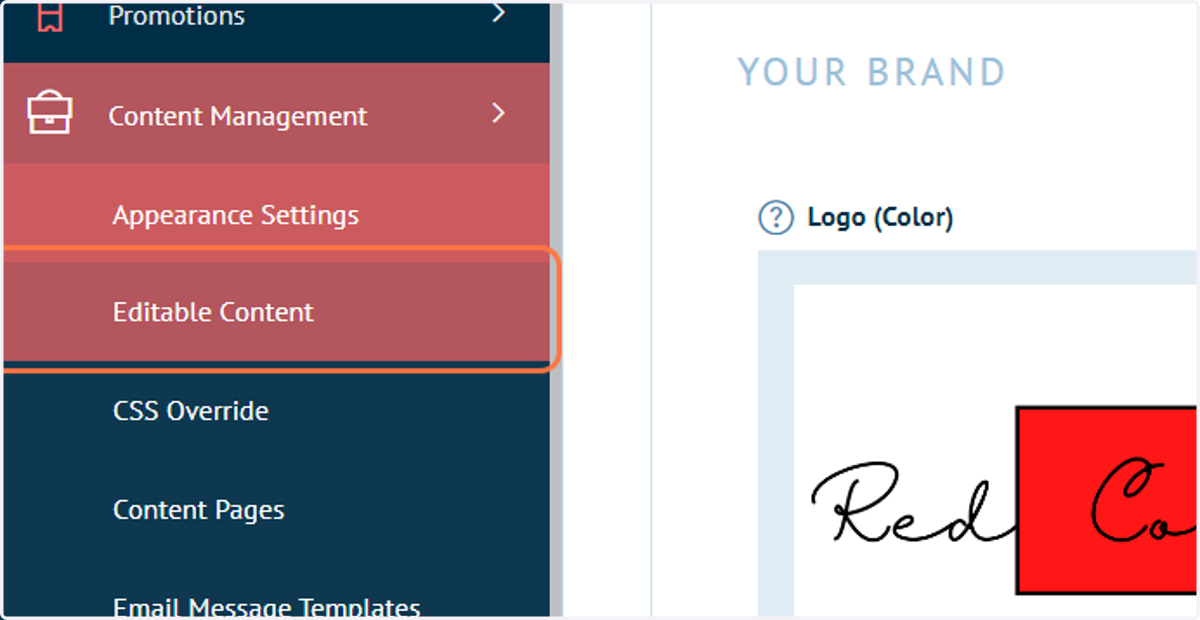
15. Click on Editable Content
16. Click on Edit
Locate the Header section within the Editable Content screen and click Edit
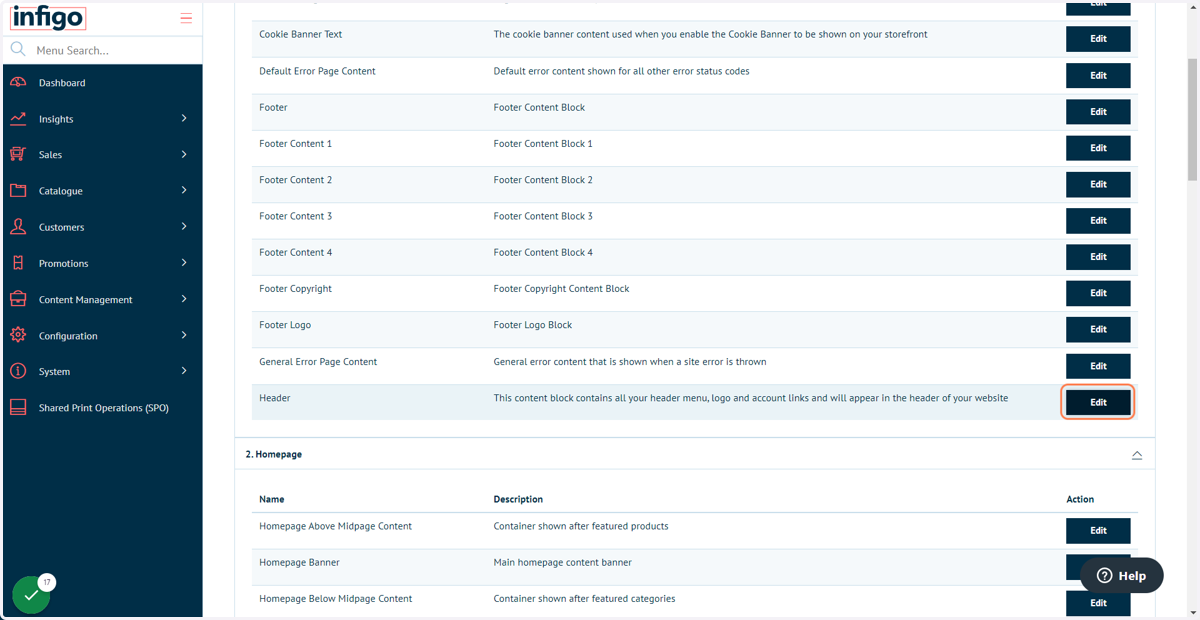
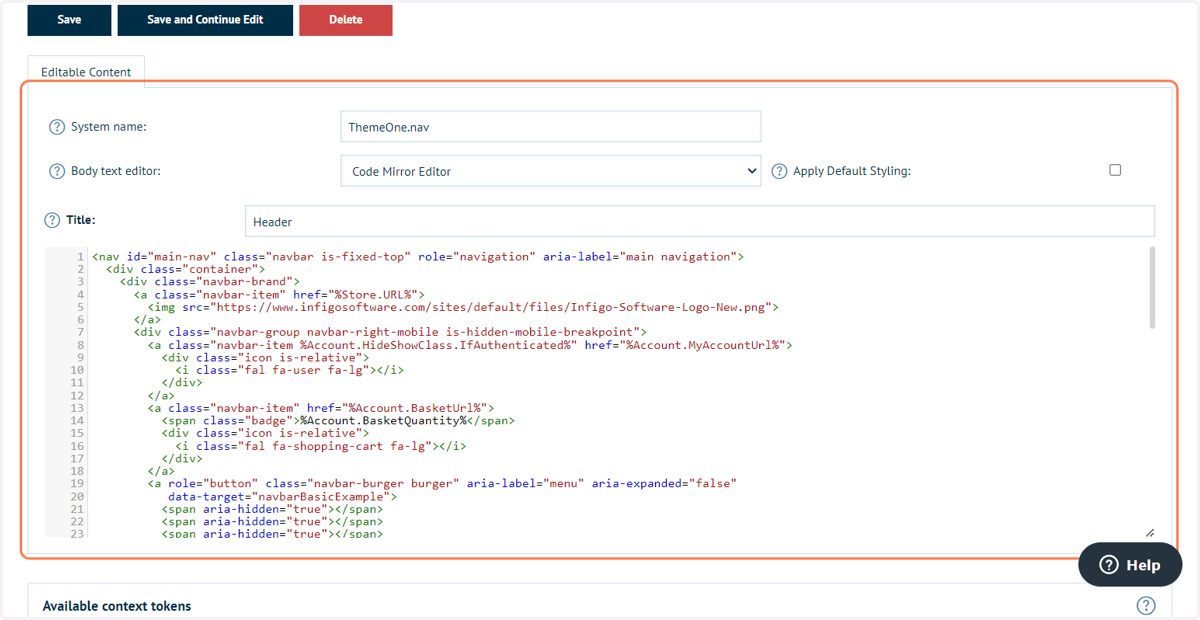
17. This will open a code editor for the page header
As a default header exists on your storefront, the code editor will be pre-populated.
You are able to add to, adjust or remove sections of this code to make changes to your web page header.
18. Tokens
Tokens are pieces of information which are pre-defined elsewhere in Infigo.
One Token section named "Theme Tokens" contains pre-defined code generally related to storefront appearance.
One available option is related to the logo we set up earlier.
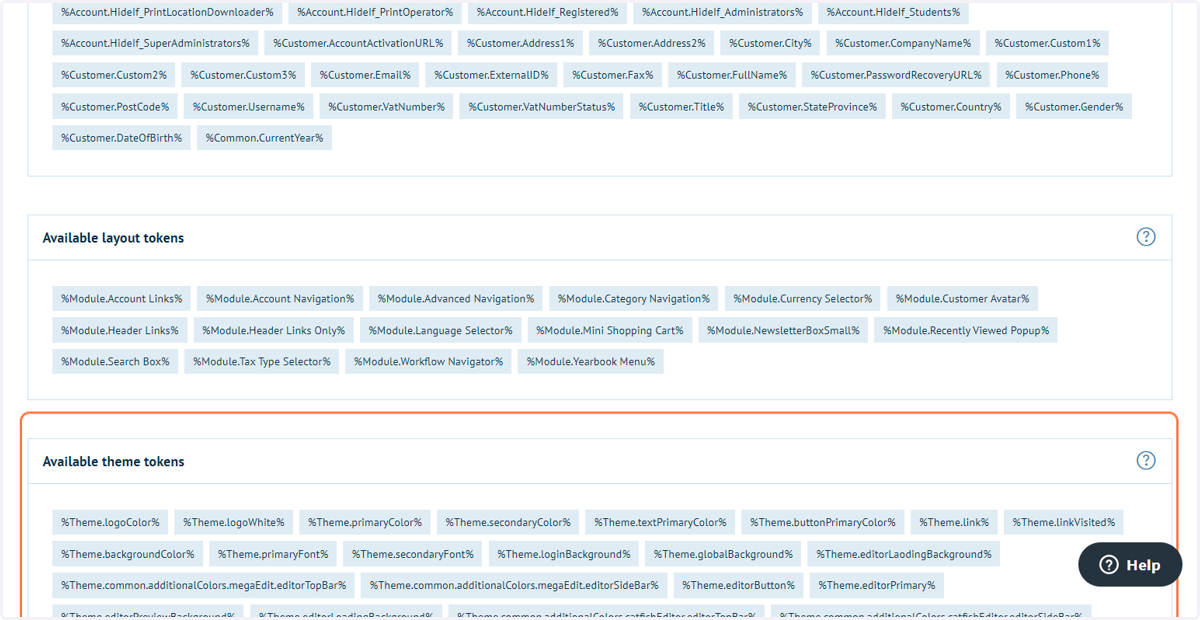
19. Copy text titled "%Theme.logoColor%"
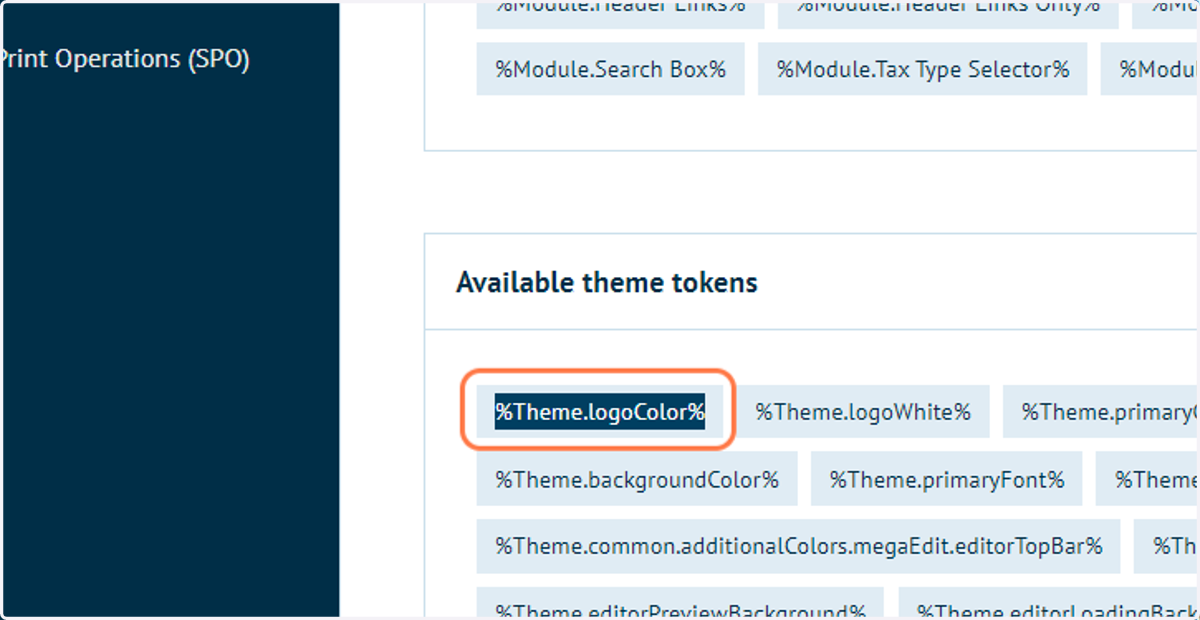
20. Drag highlighted text
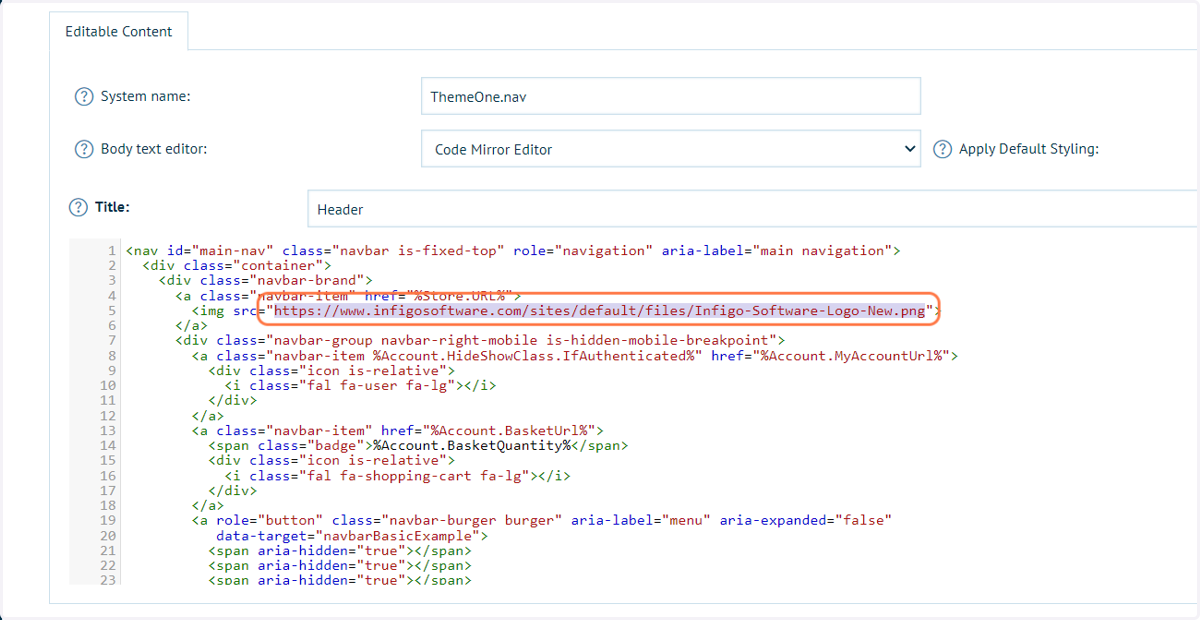
Locate the area in the code related to the header logo.
Even without HTML knowledge, it should be easy to identify relevant areas of this code.
The text highlighted in the image below shows the link to the Infigo logo which is currently in use on the storefront home page.
Infigosoftware
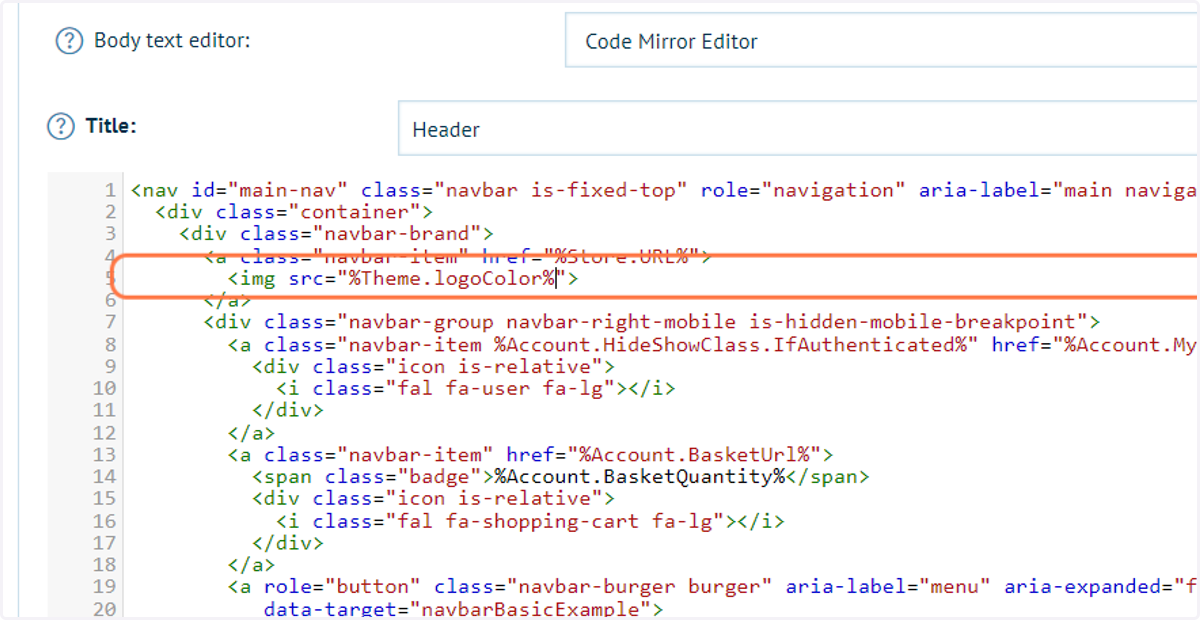
21. Paste "%Theme.logoColor%" into text area
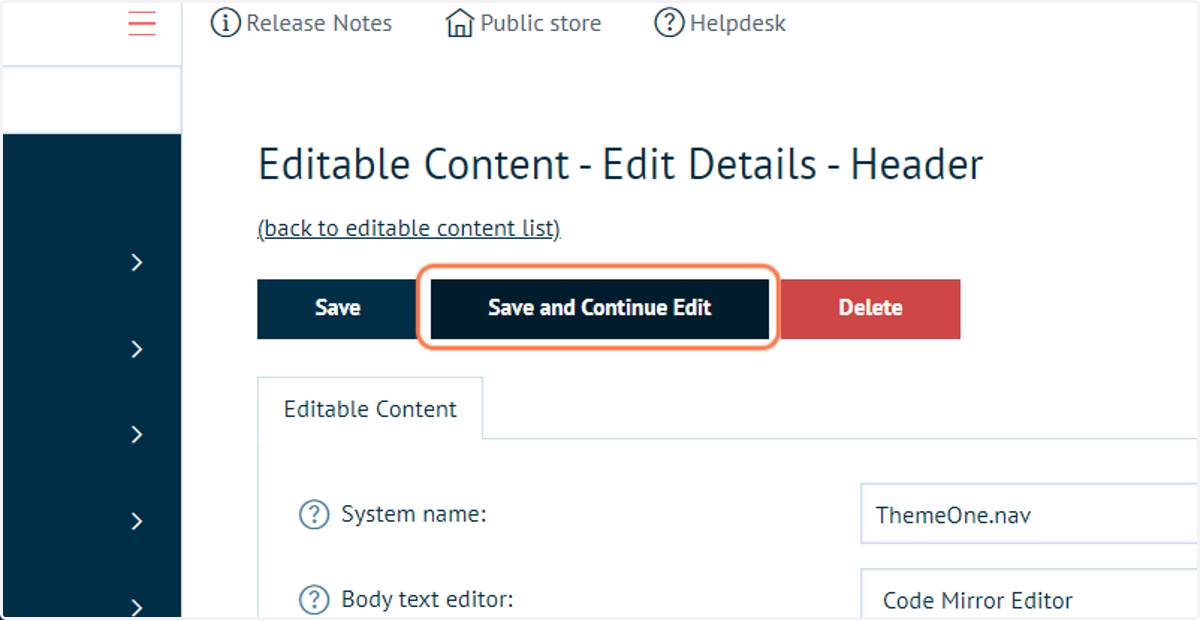
22. Click on Save and Continue Edit
23. Click on Public store
24. Your brand logo should now be visible on your storefront
Should you wish to update this logo, you can change the selected logo from the Appearance Settings, or modify the code in the Header code editor.