[Outreach]: How to create and map a custom field for prospect research notes
This guide helps you create a field from your CRM that maps into Outreach then pulls into Orum so that reps have prospect level research notes available during a cold call.
In this example we are working on the Lead Object, if your team works Contacts instead the process is the example same just replace Lead for Contacts when creating the field.
Orum - Dashboard
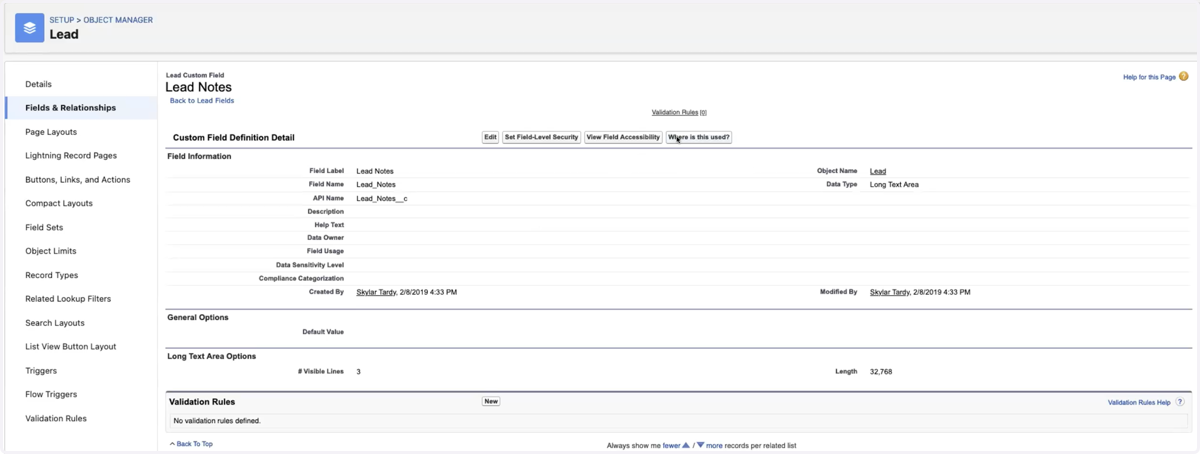
1. Find the name of existing CRM field for prospect notes
This example is titled Lead Notes under the Lead Object in Salesforce
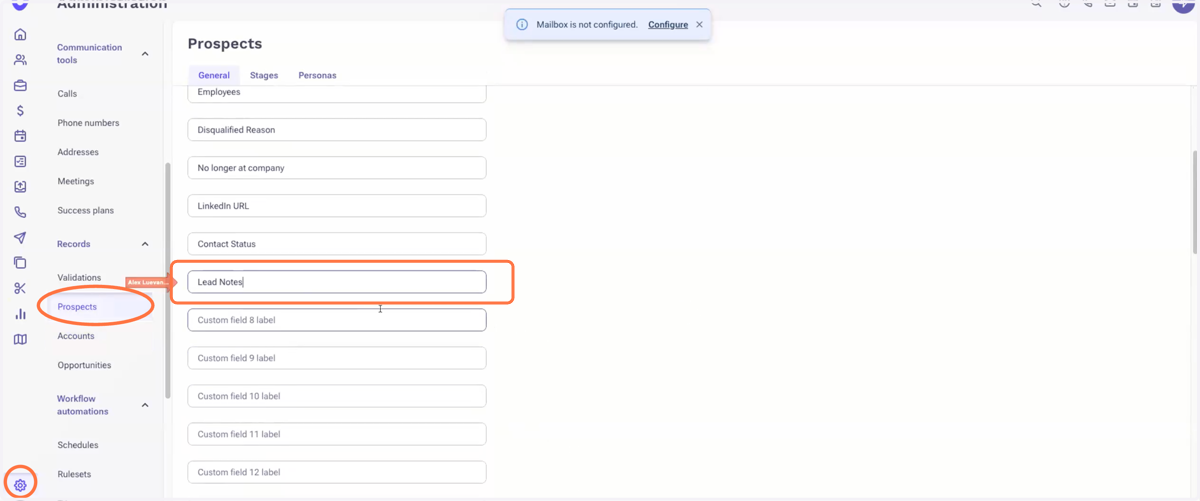
2. In Outreach, go into your Admin Settings and select 'Prospect' From there select a blank custom field and give it a new name to reflect the new field you will map.
In this example we matched the name 'Lead Notes' from the CRM
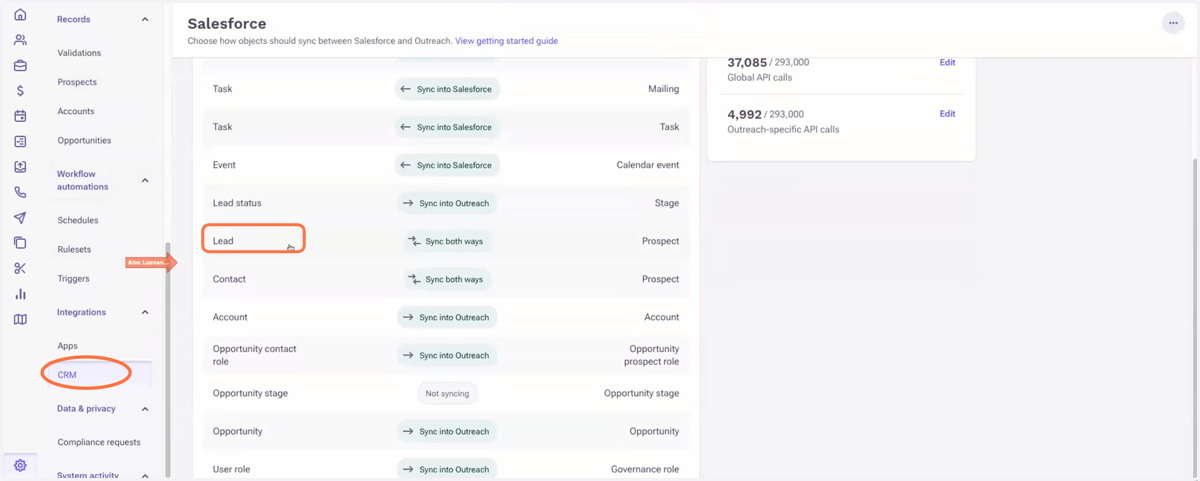
3. Next click on CRM and select Lead
4. Click on Add Mapping
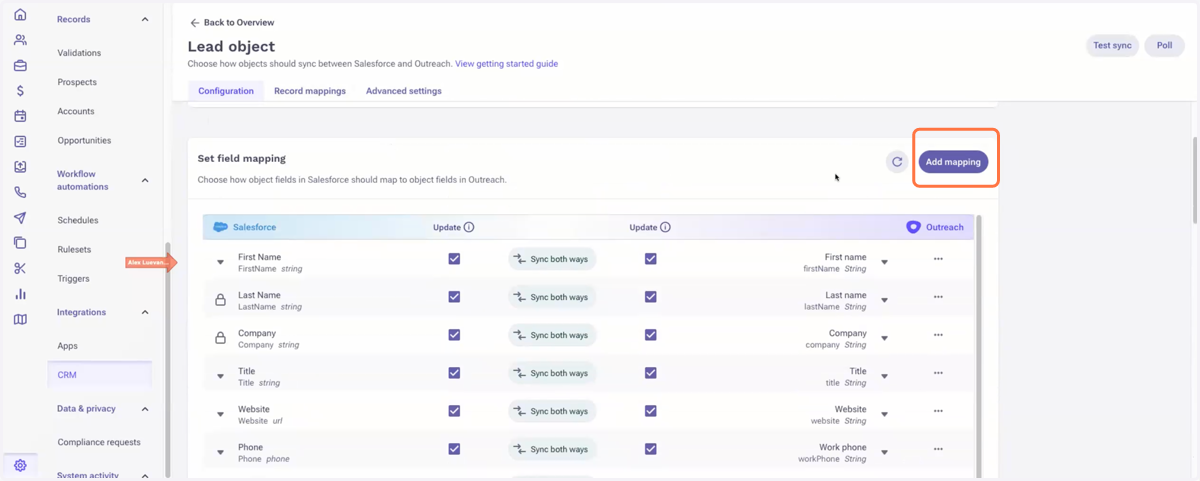
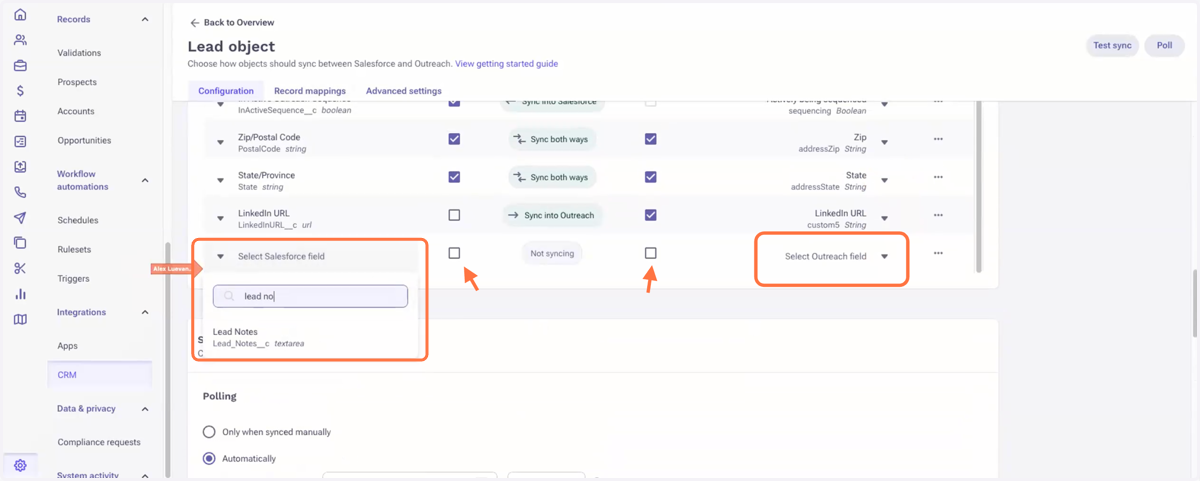
5. Type the field name for Salesforce and Outreach to complete the mapping. Then select both check boxes to turn on bidirectional sync with Outreach and CRM.
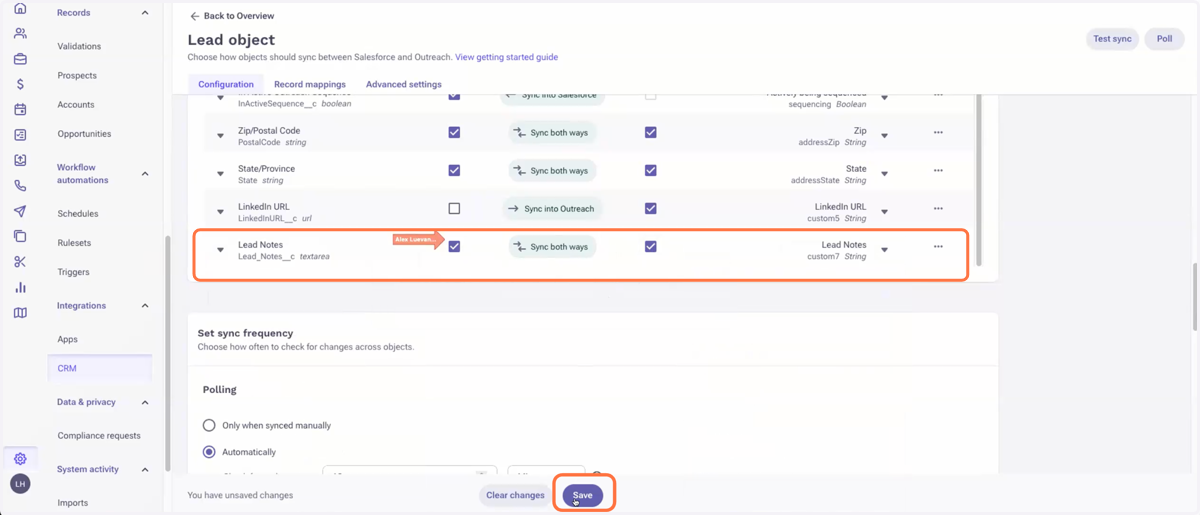
6. Confirm you have mapped both fields then click on Save button.
7. Go into Orum and pull in the new field as a displayed field under your personal settings.
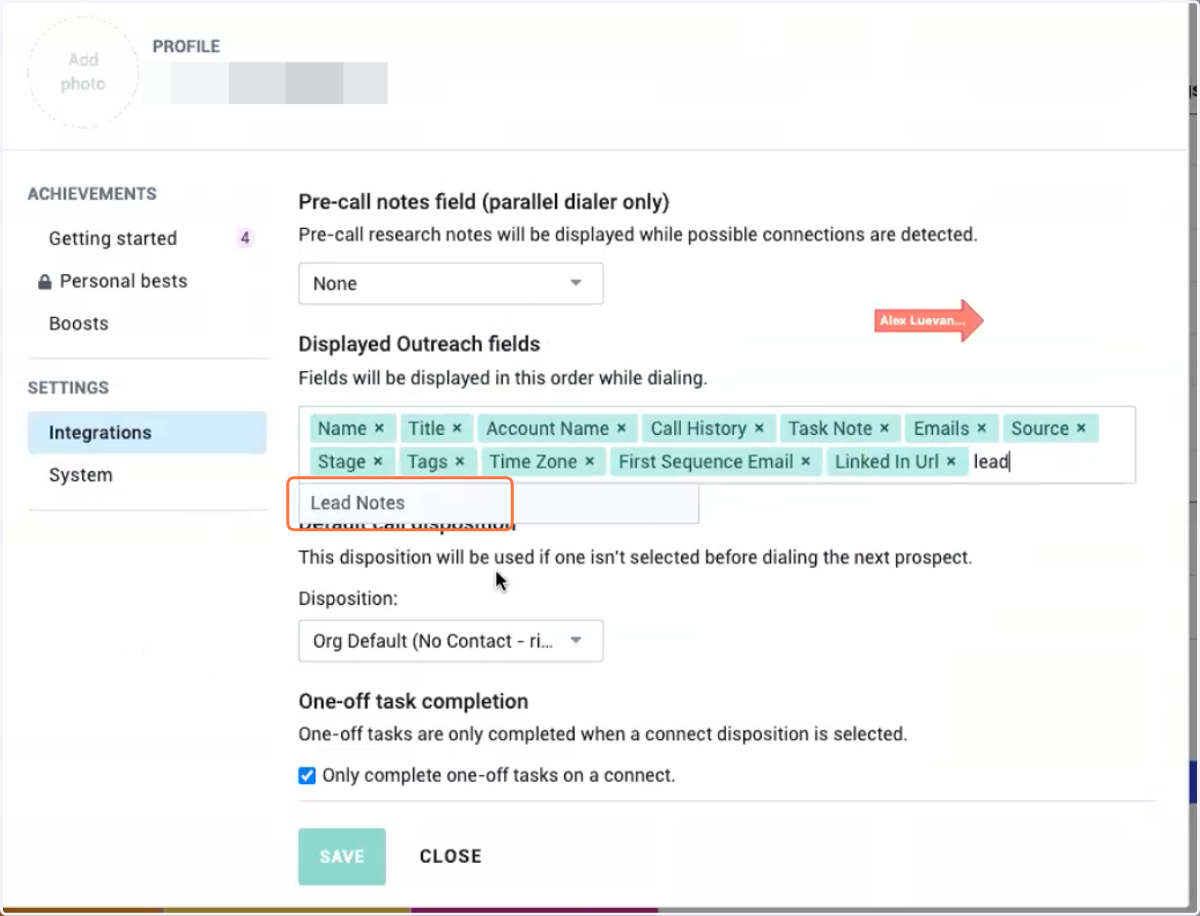
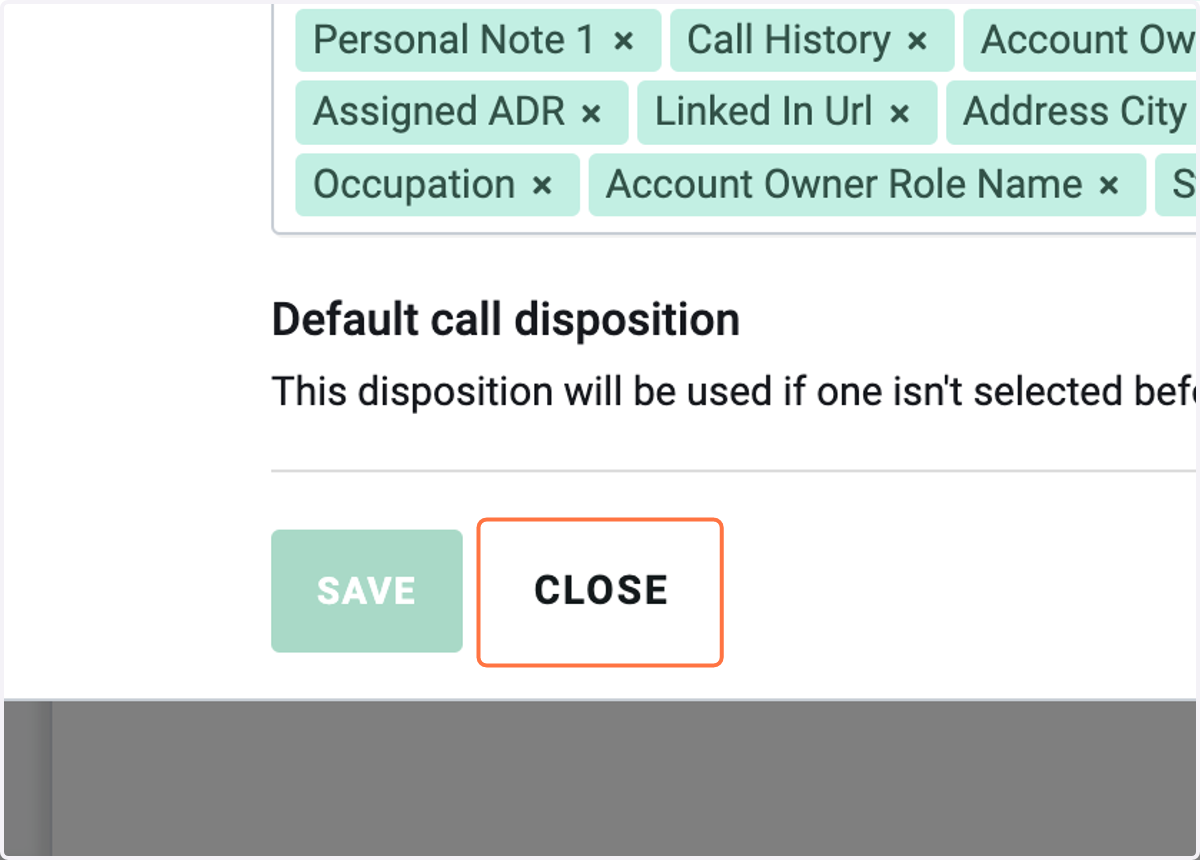
8. Click on Save then Close
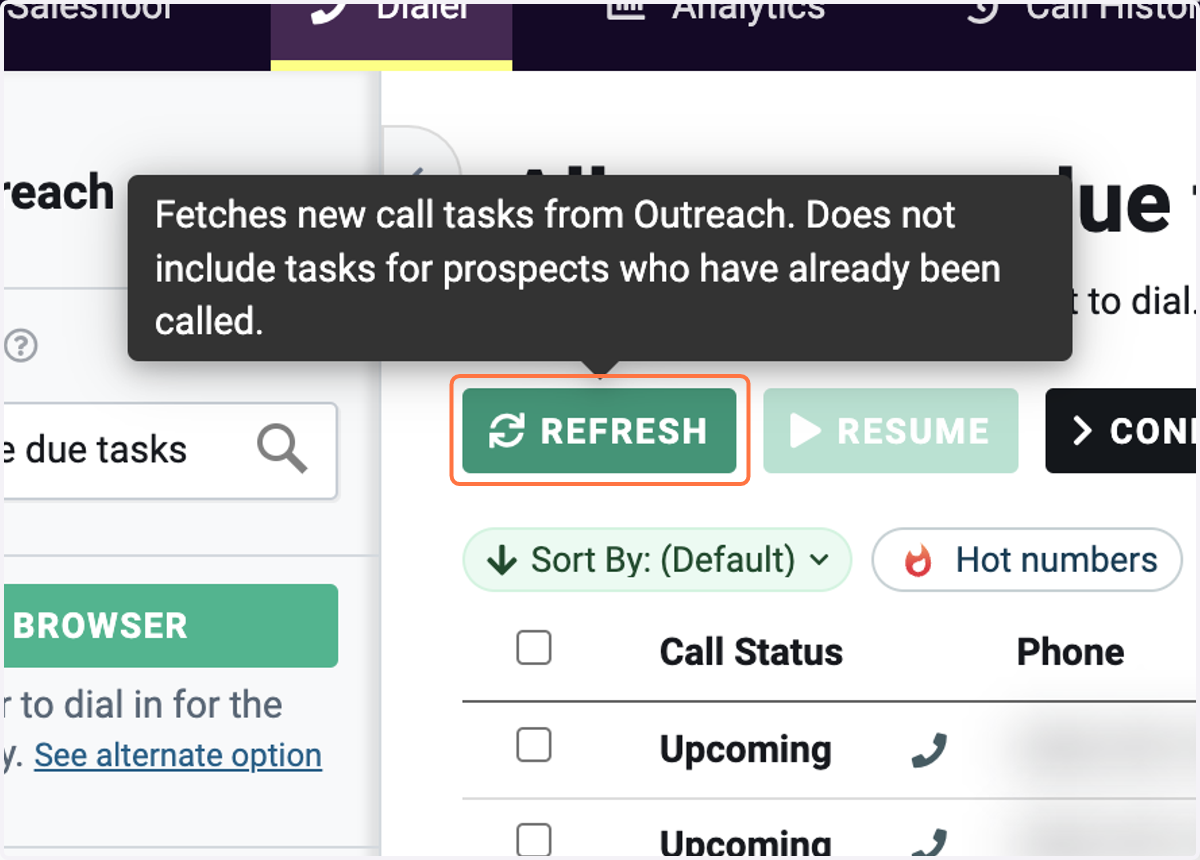
9. Click on REFRESH inside the Dialer tab to pull in the new field. Then you are done!