Completing Your Grant Report Through the GivingData Grants Portal
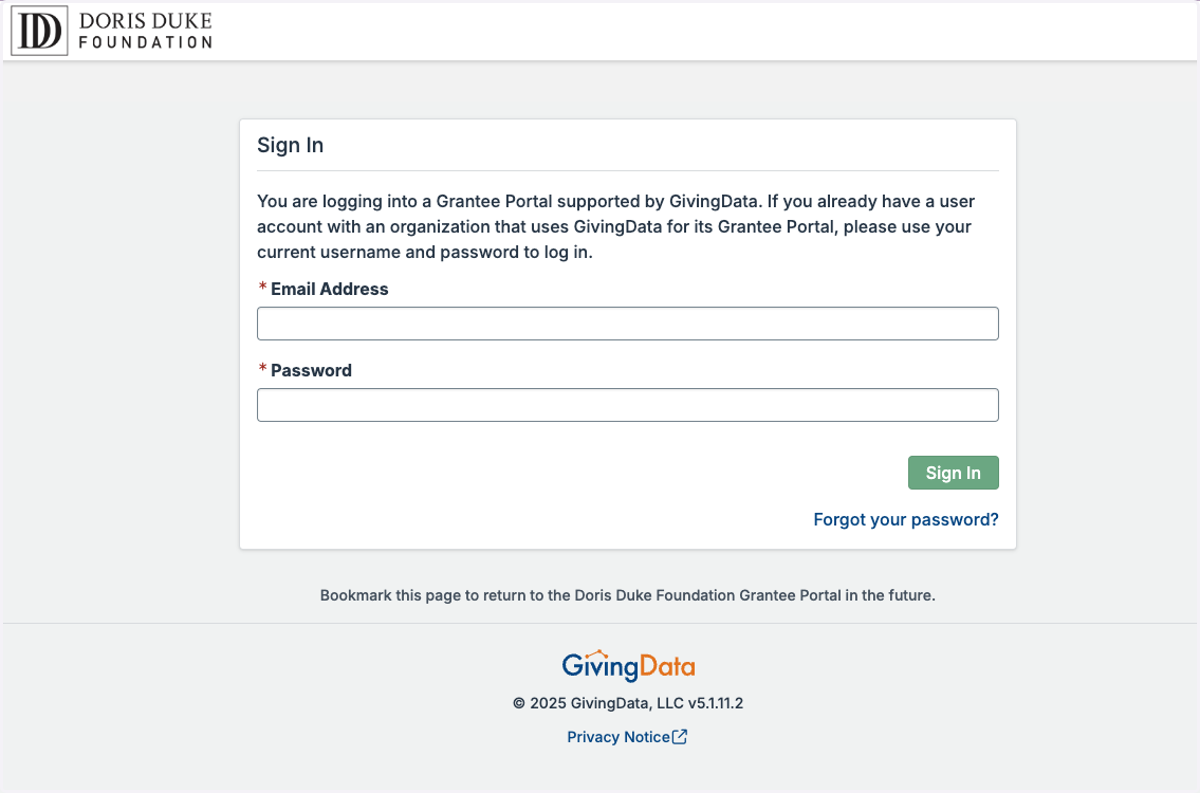
1. Sign in to the Grants Portal
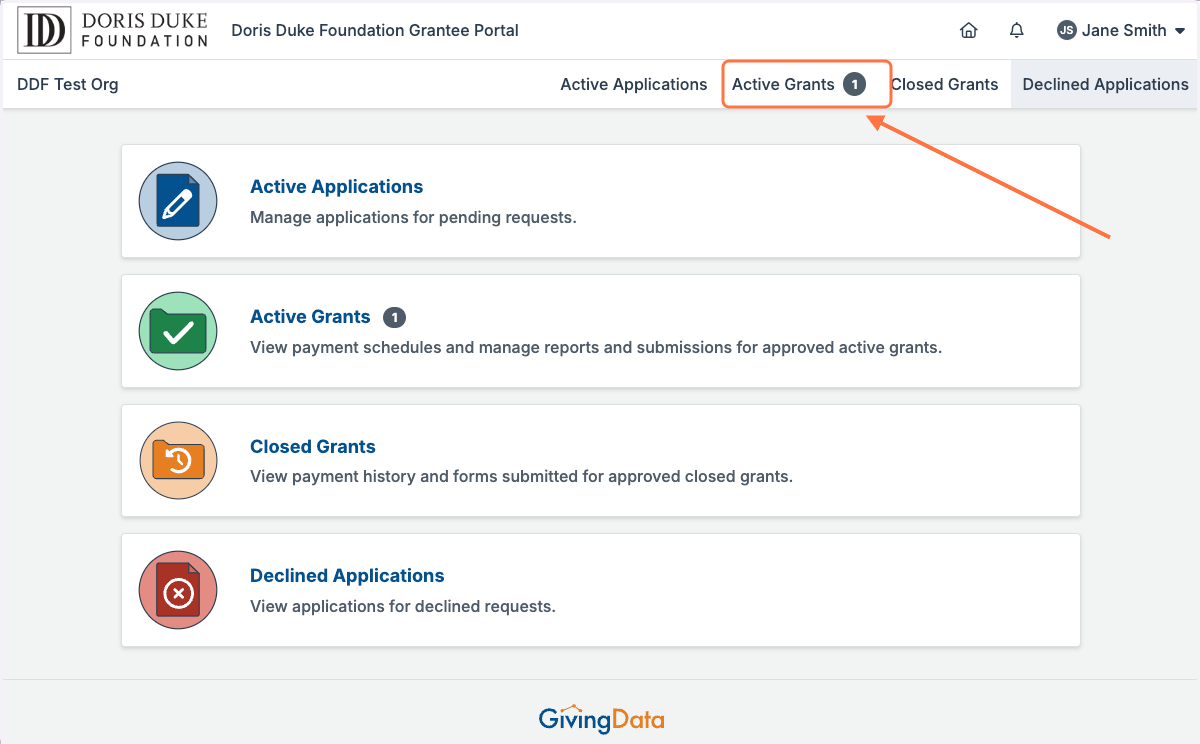
2. Click on 'Active Grants' from the Grantee Portal Home Page.
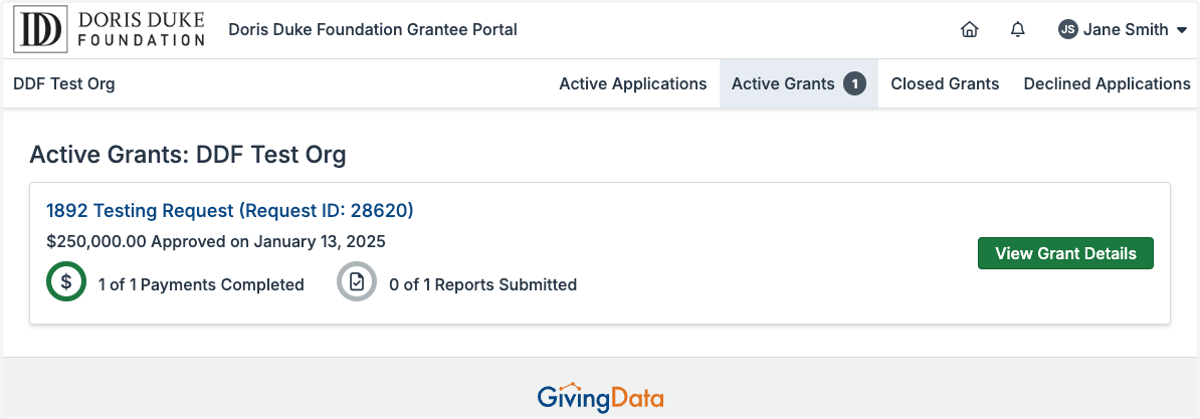
3. The Active Grants page will display current approved grants to your organization that have an upcoming report form attached. Click 'View Grant Details.
4. The active grant page will share important information such as your grant ID, grant period, assigned Program Officer, and estimated payment schedule.
If you have a question for staff about your grant, it is helpful to include the Request ID.
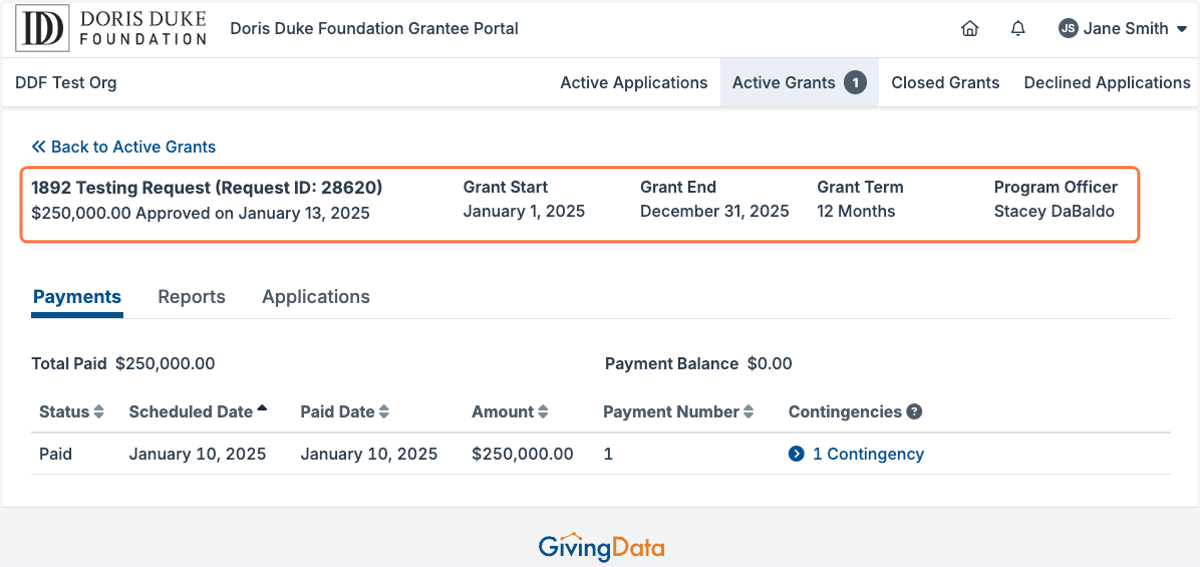
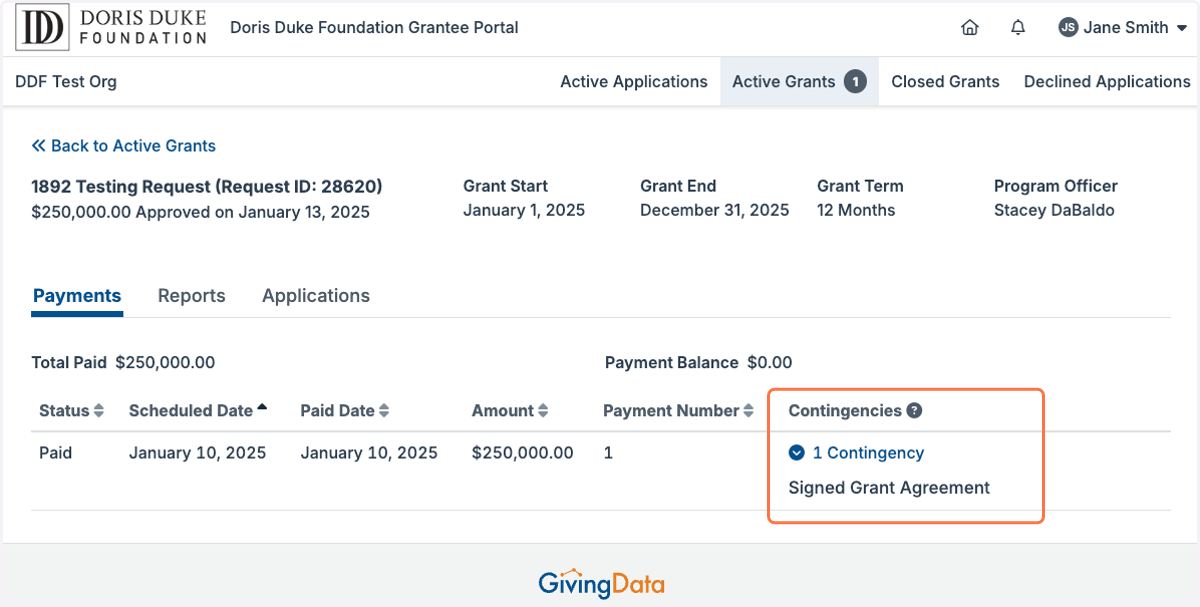
5. The active grant page will also display your estimated payment schedule, as well as any payment contingencies.
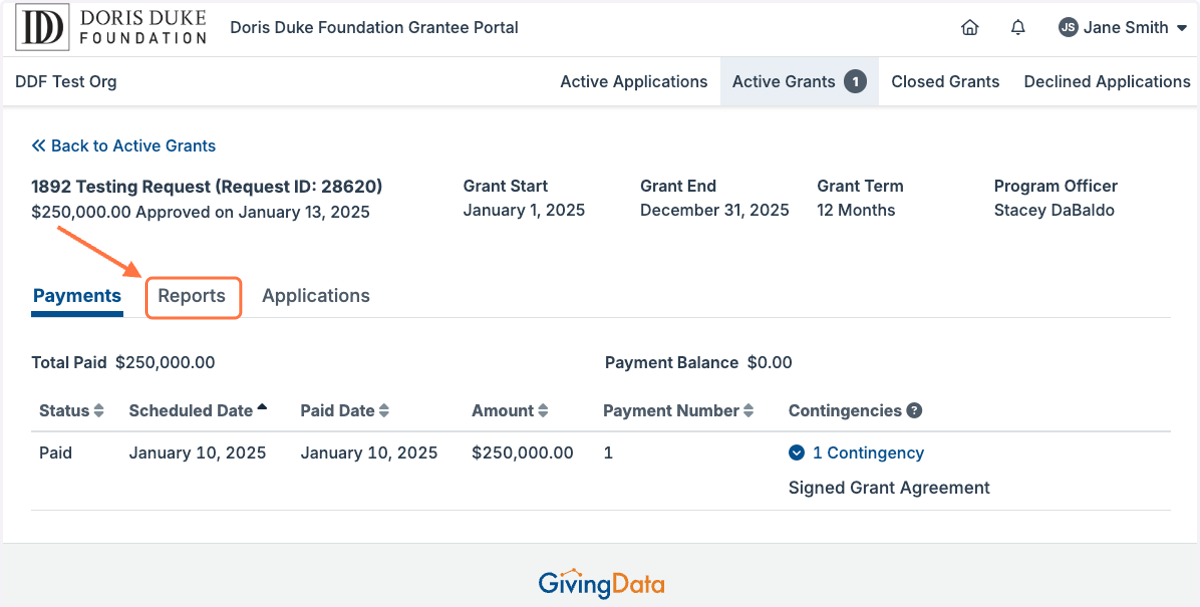
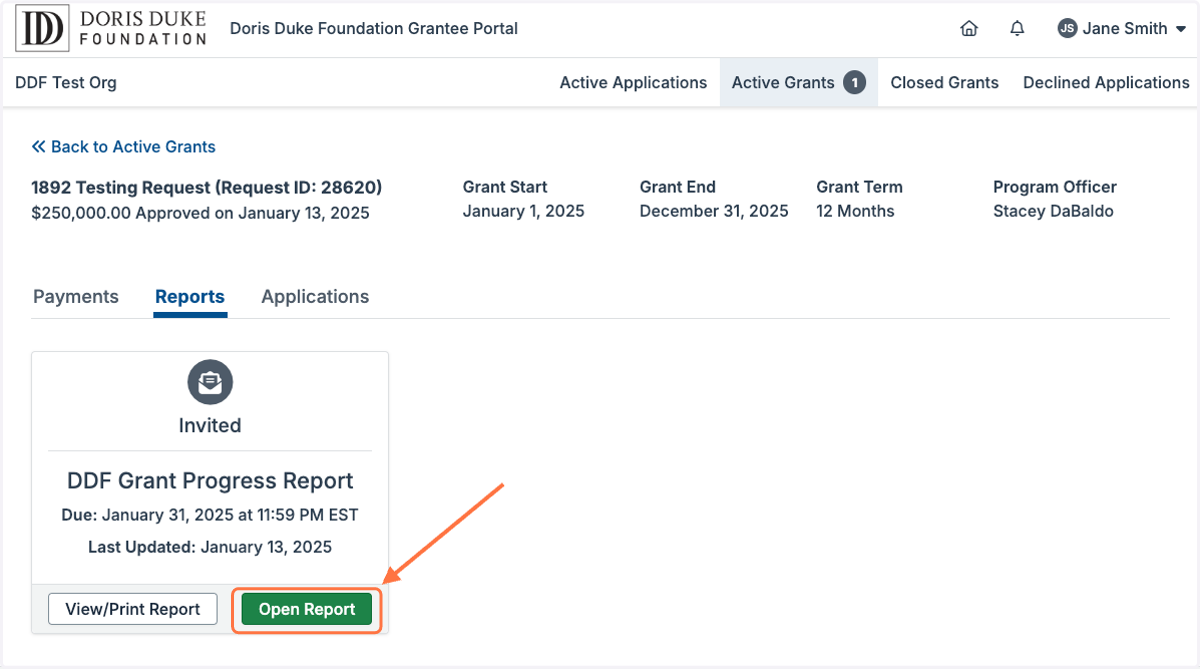
6. Click on the Reports tab.
7. The Reports tab will display all report forms for this grant that have been assigned to your user account.
If you have questions about your reporting schedule or would like to invite another staff member to complete the report, please contact us at grants@dorisduke.org.
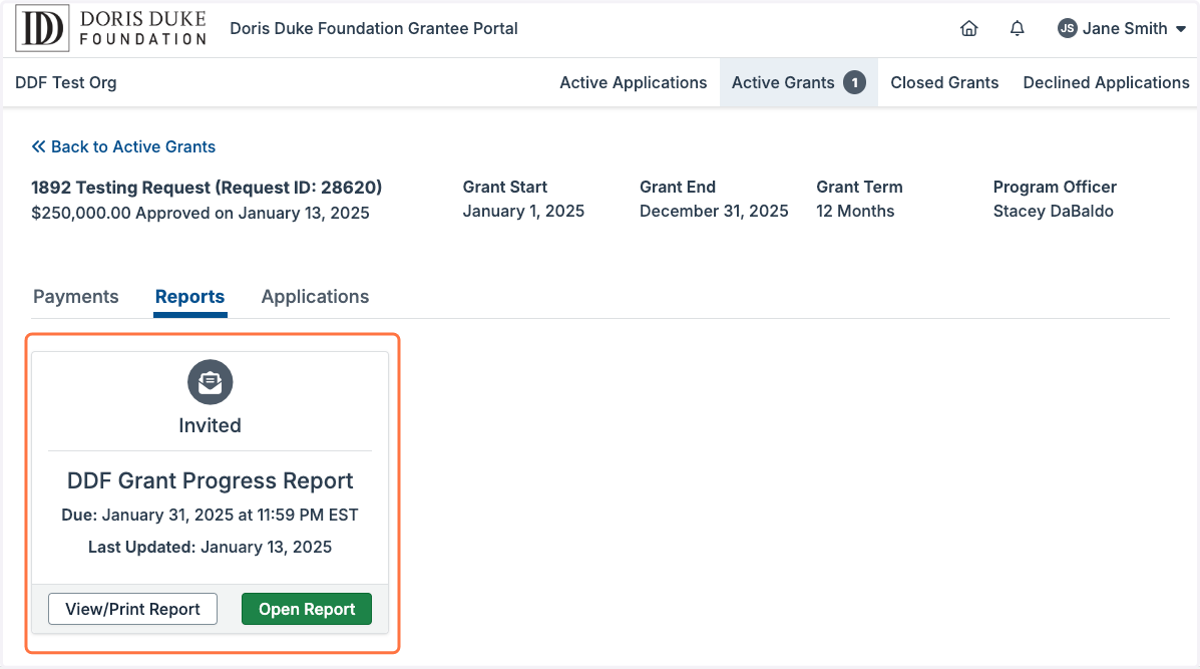
8. To begin working on your report form, click 'Open Report'.
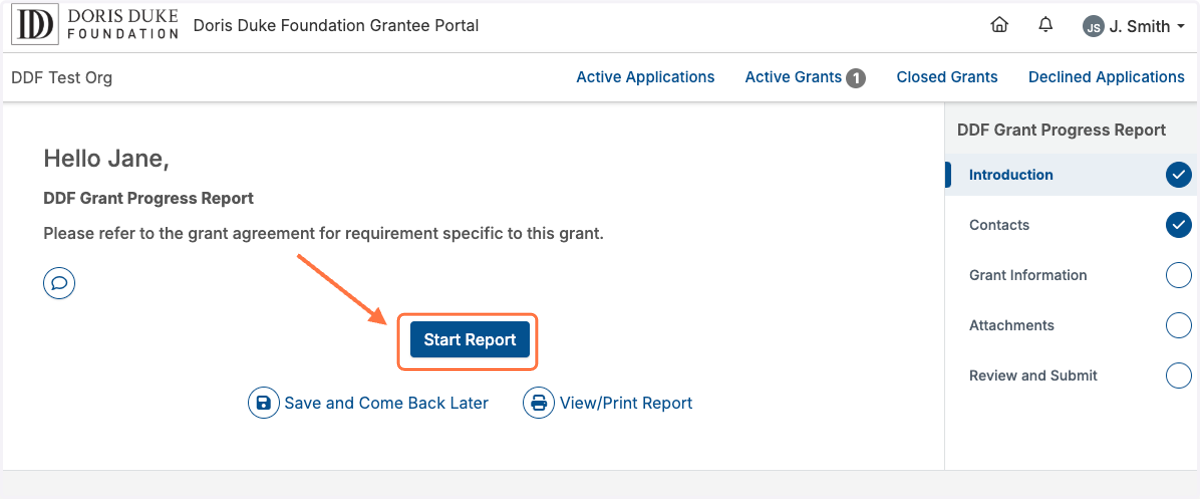
9. You may begin editing your report form by clicking 'Start Report' or by clicking any of the report pages listed on the right side panel.
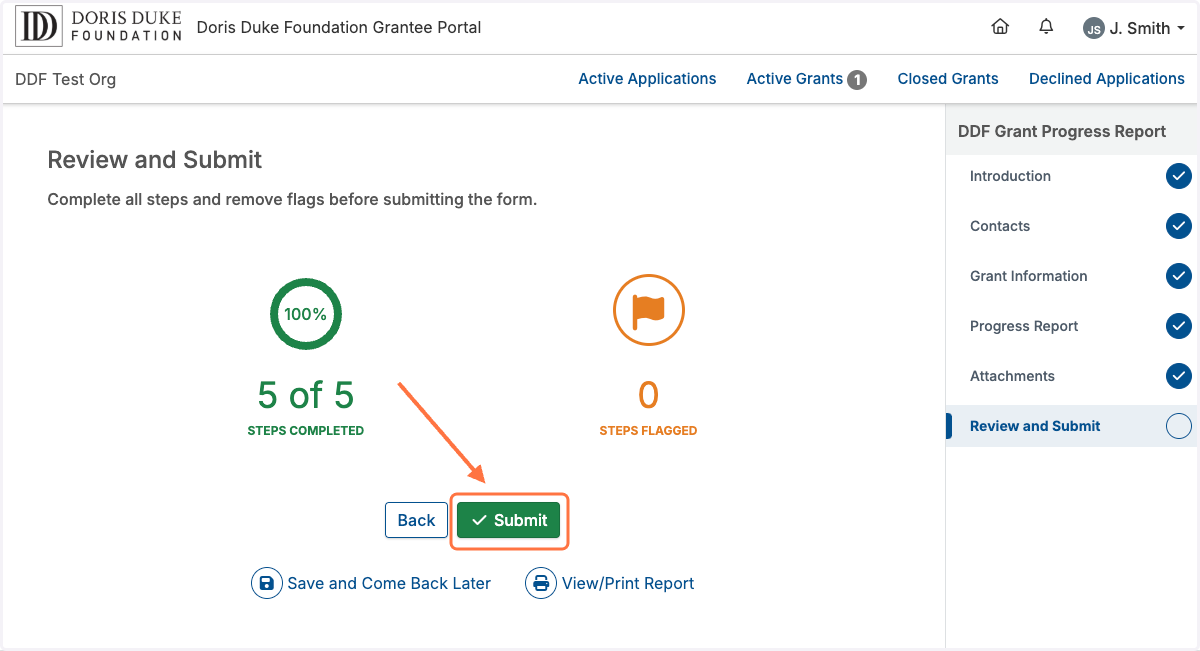
10. Once you have completed all fields within the report form, the Submit button on the last page will turn green. Click 'Submit'.
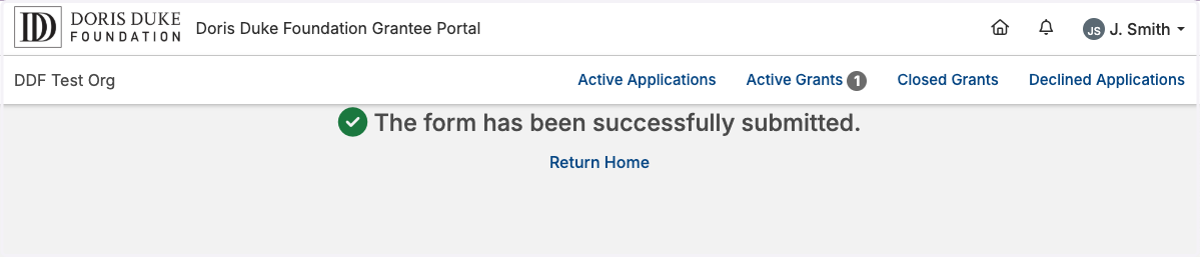
11. The page will display a confirmation once submitted, and you will also receive a confirmation email.
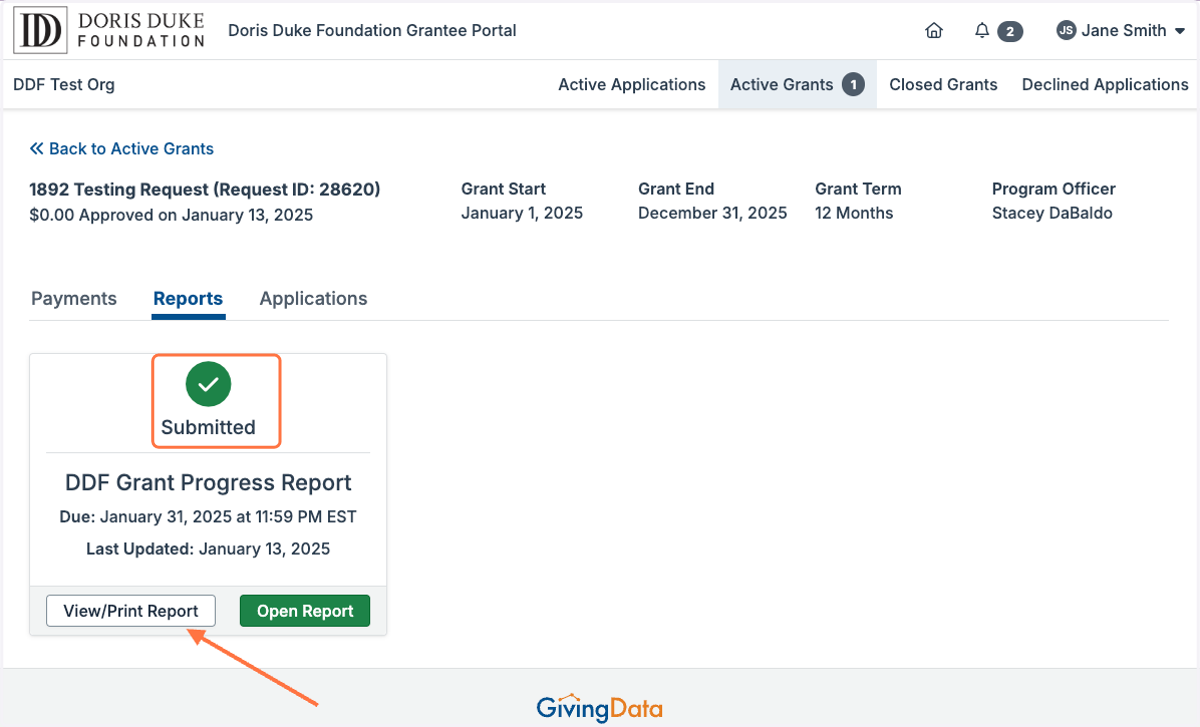
12. The report will display the status of 'Submitted' on the Active Grant page. The form is no longer editable and you can click 'View/Print Report' at any time to save a copy of your responses.