How to add a price tag to a specific customer
In order for the price engine to know which customers the discount applies to, you need to assign price tags to specific customers. See below on how to do this.
1. Go to your RunLoyal staff portal in a google chrome browser.
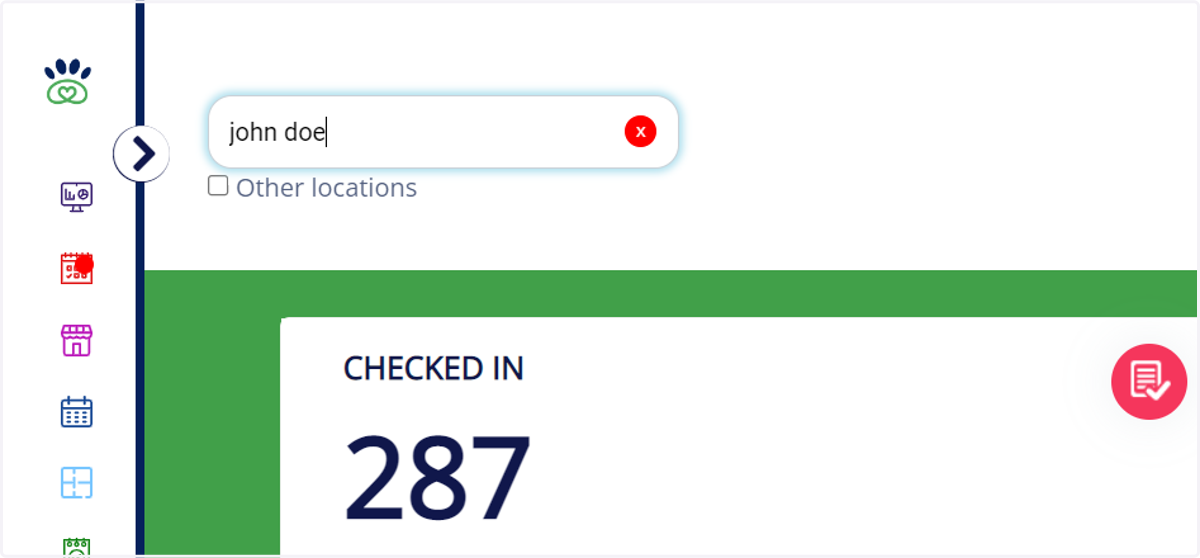
2. Type in the associated customers name in the top search bar and select their name. Example: "john doe"
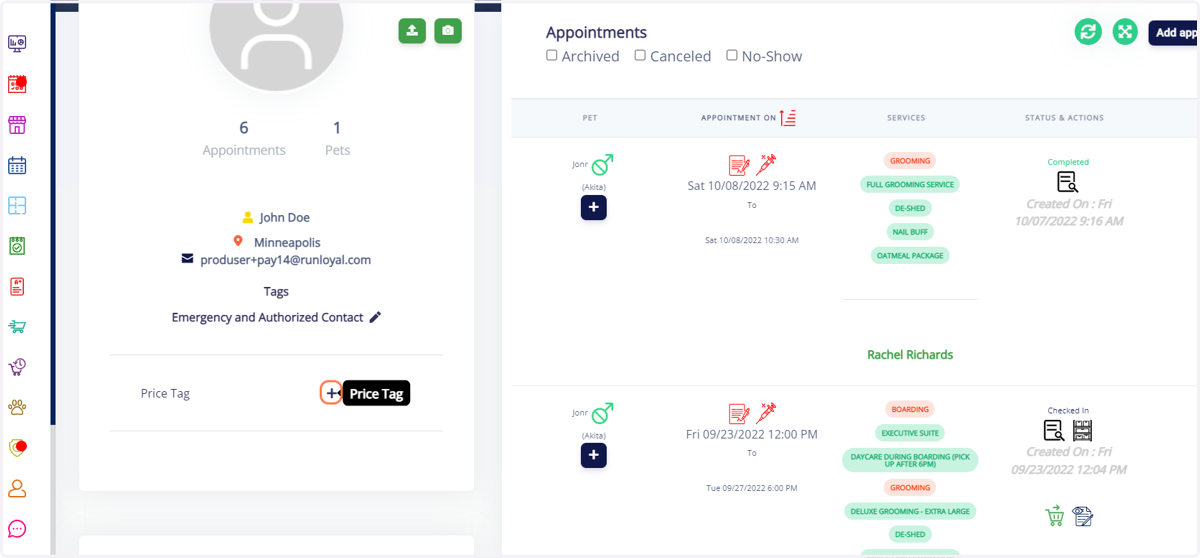
3. Click on the "+" button next to price tag.
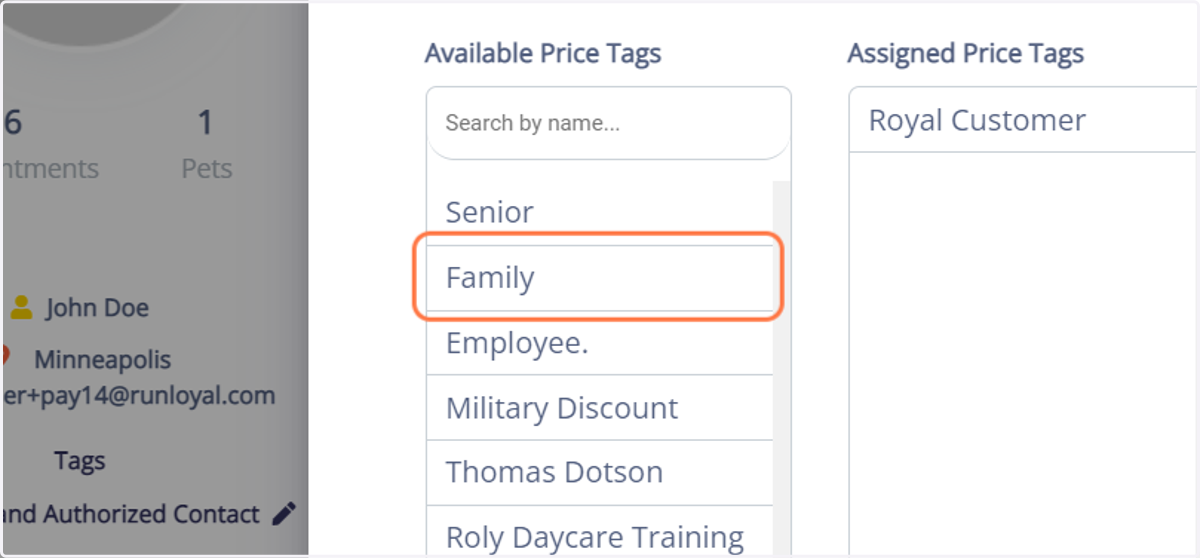
4. Then select the appropiate price tag that you would like to assign. Example: "Royal Customer or Family"
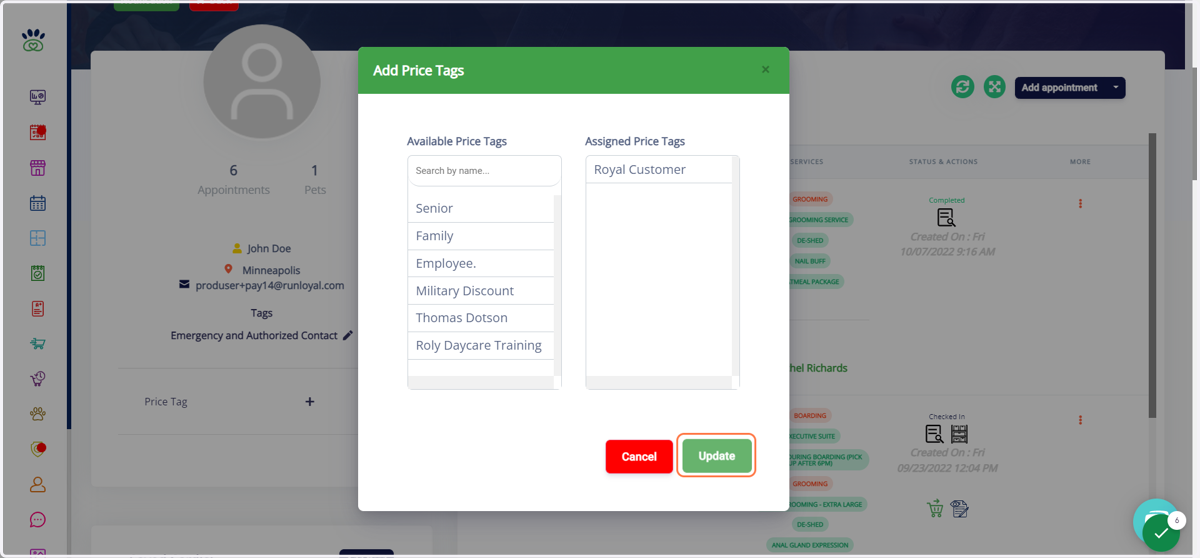
5. Click on Update to finalize.
Your price engine rules will automatically apply the discount to customers who have this price tag. Please click here >> https://app.tango.us/app/workflow/How-to-Create-a-Pricing-Rule-in-the-Price-Engine-Settings-0255d1a962d645be80a3853f72d907d8 to learn how to set up a price engine rule in your settings.