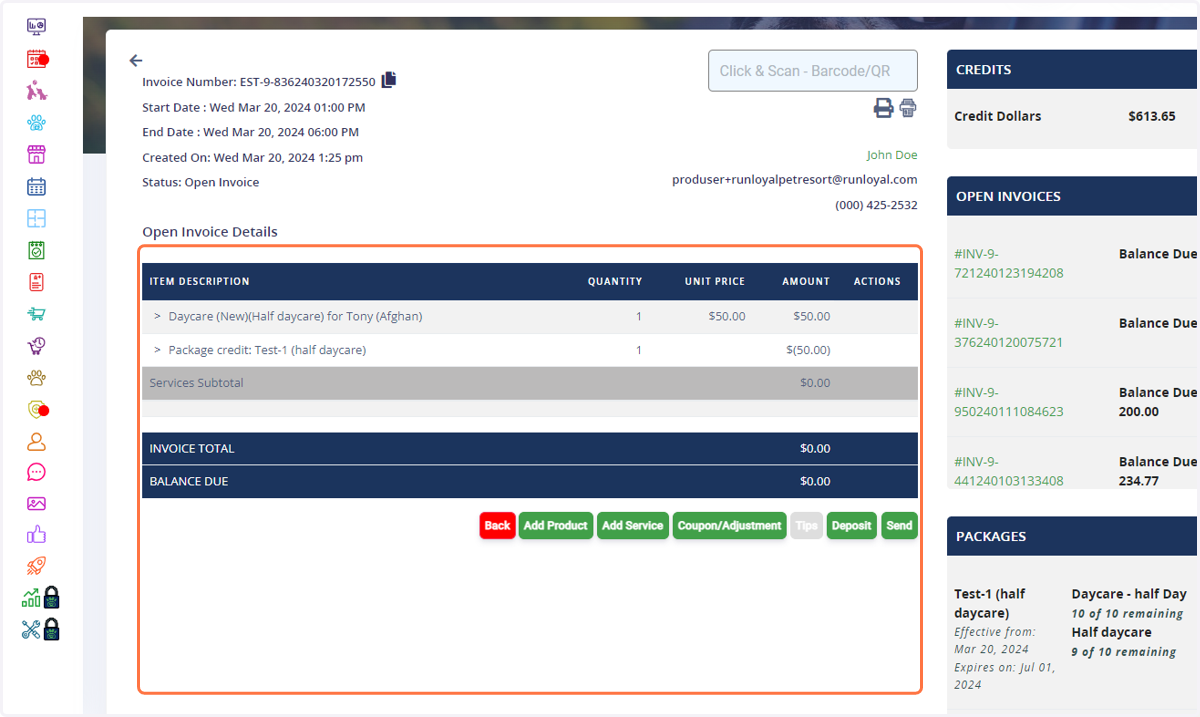
How to apply package credits to an appointment invoice.
Go to your RunLoyal staff portal on a google chrome browser.
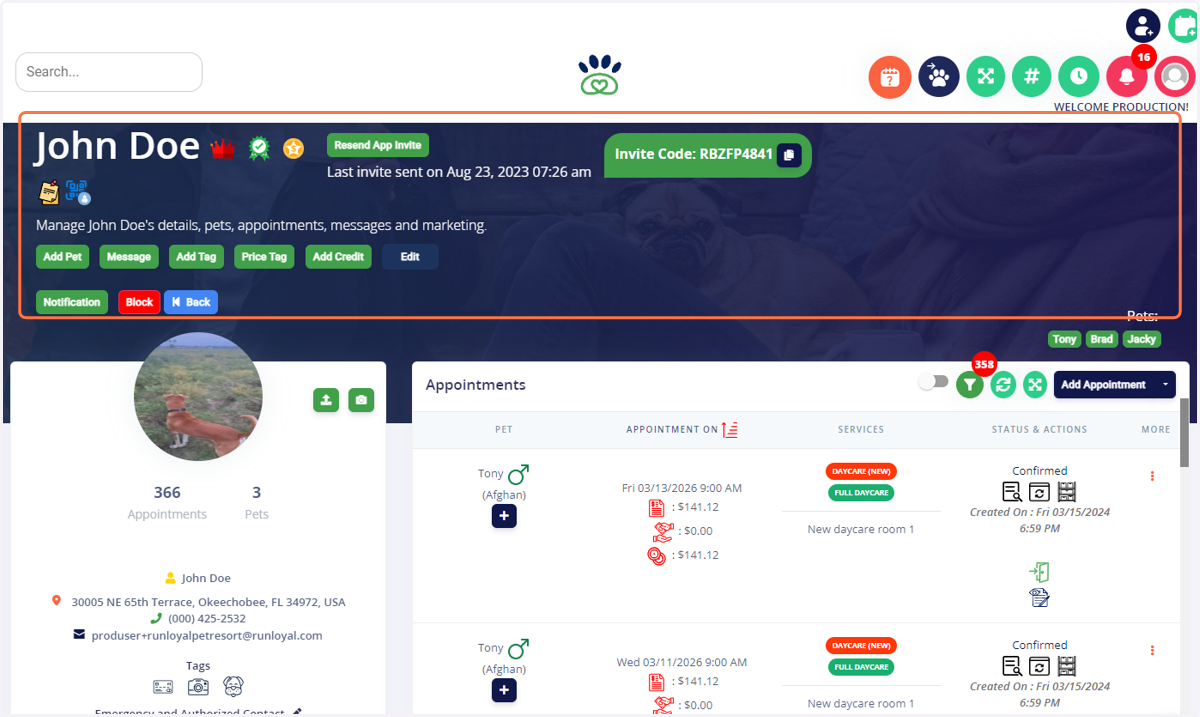
1. Locate the associated pet owner profile
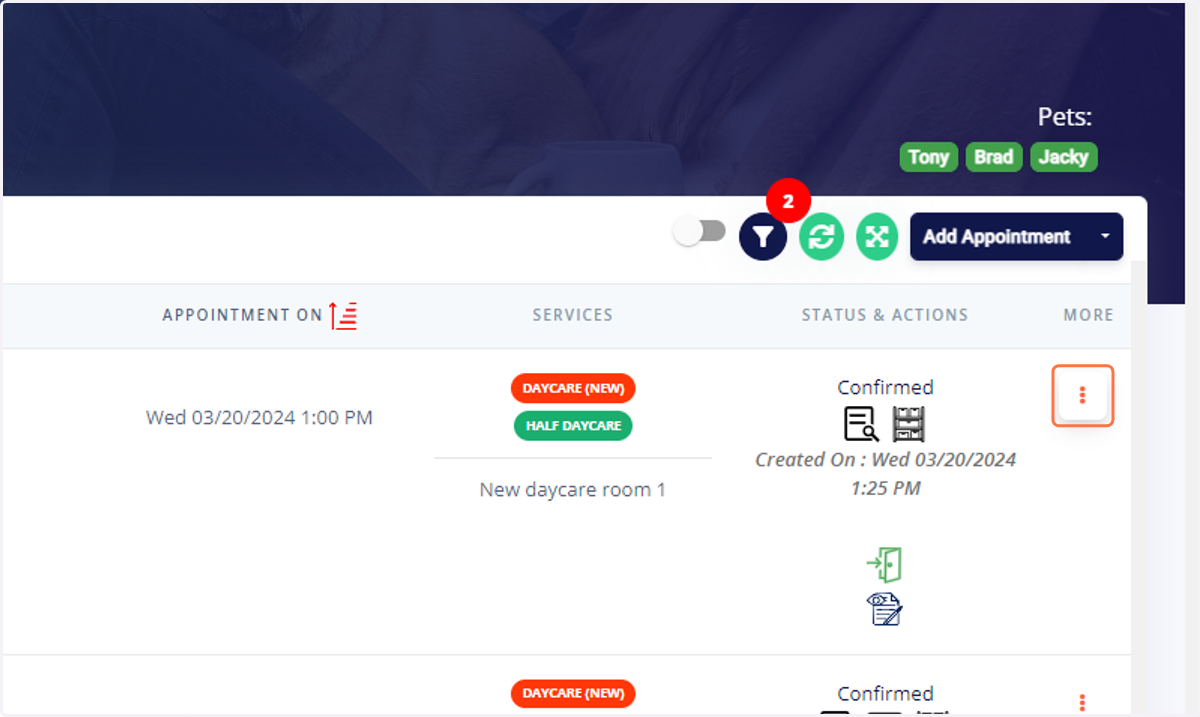
2. Click on three-dot menu button next to the associated invoice where you would like to apply a package credit.
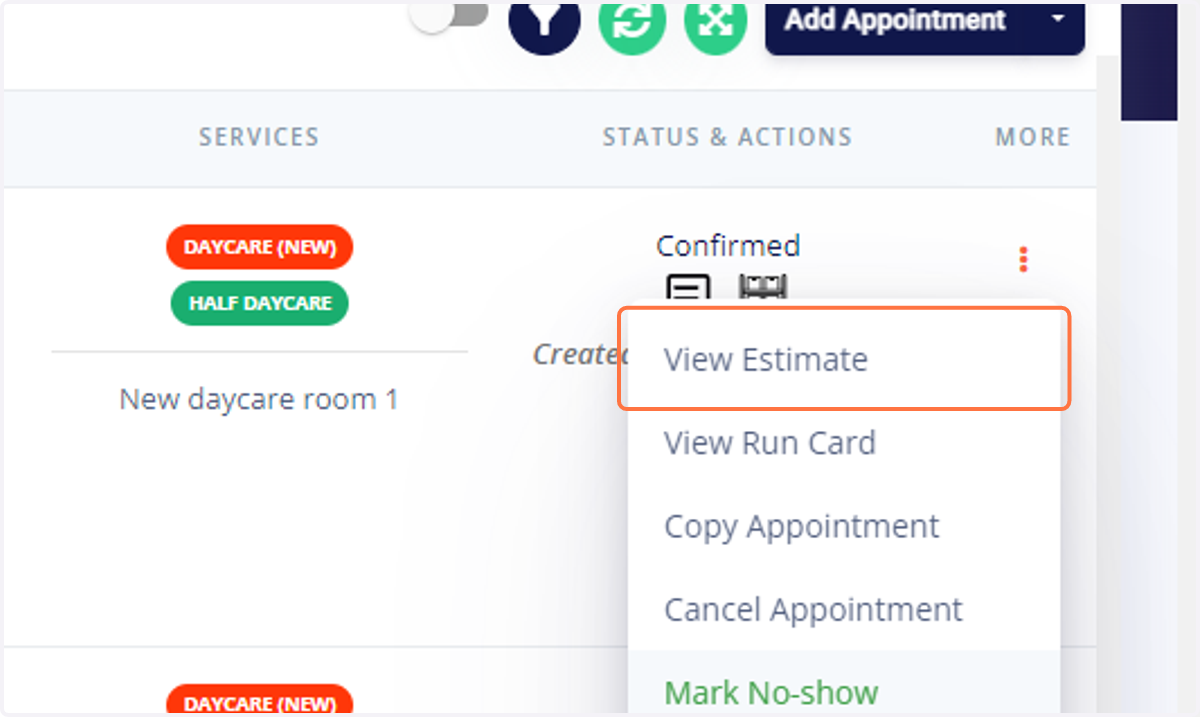
3. Click on View Estimate or View Invoice if checked in already
4. Package credits will automatically show up on the right hand side of any open invoice for the associated pet owner.
****Some package credits automatically apply and zero out the invoice if there are no conflicting pricing rules, other packages that can be applied etc.
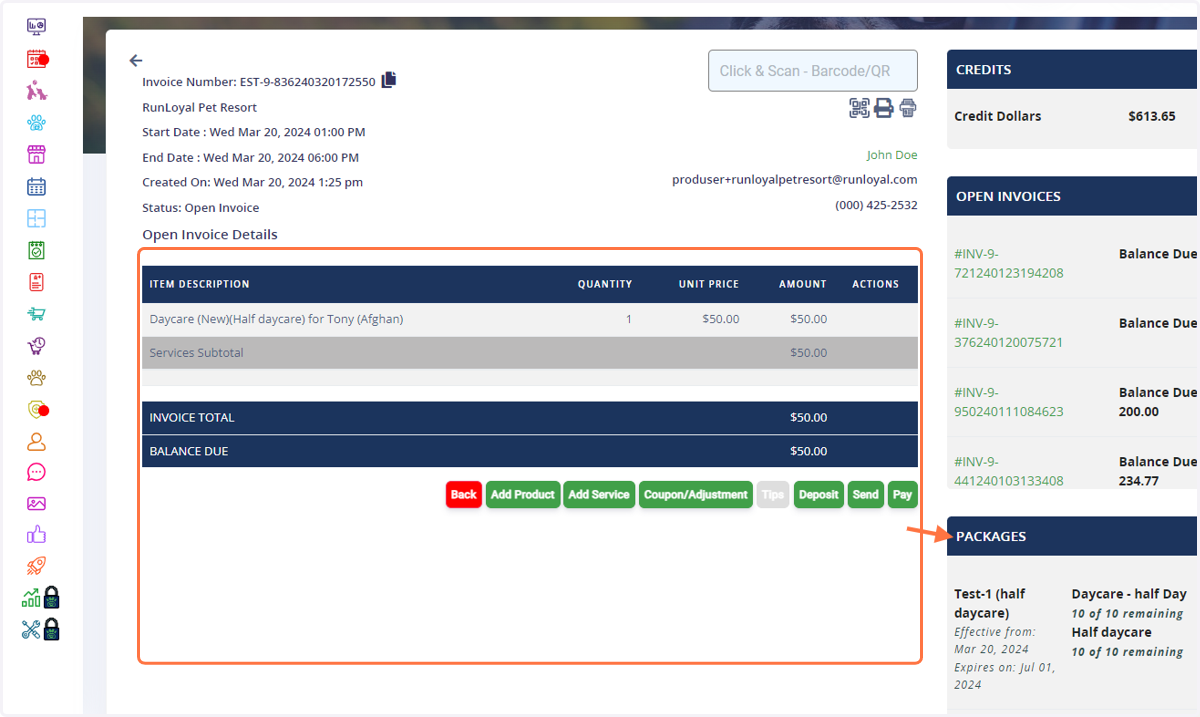
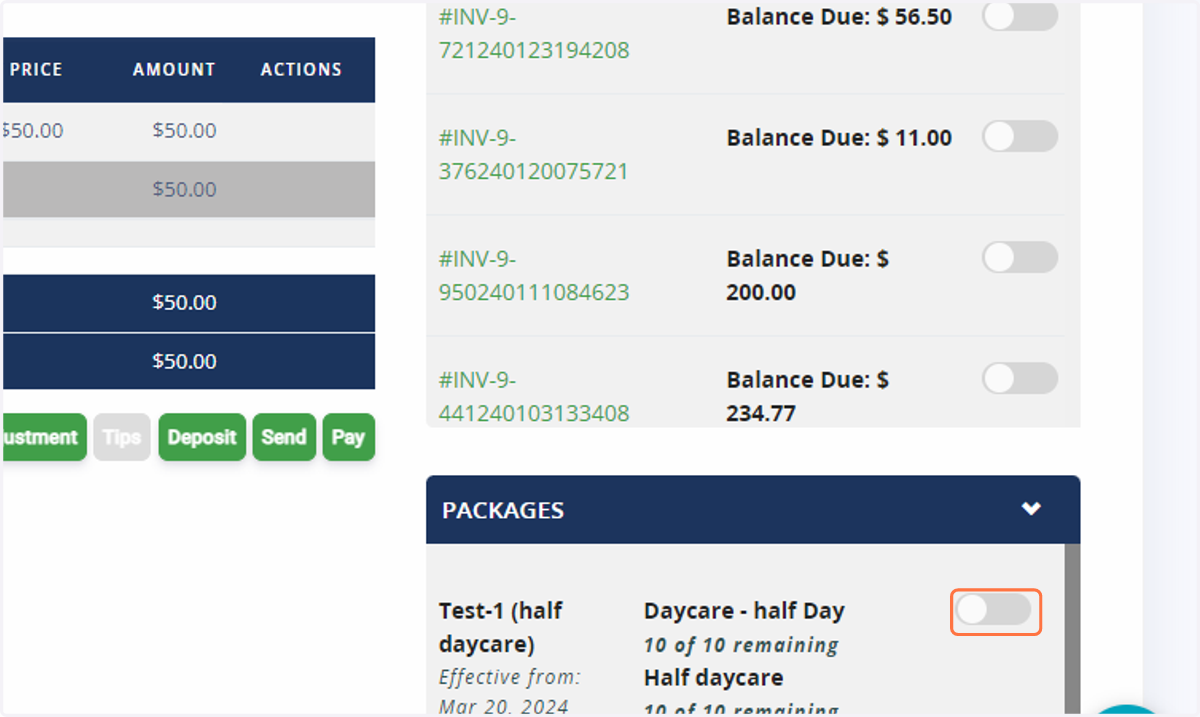
5. If it is not automatically applied, then you can select the grey toggle button to enable/apply manually.
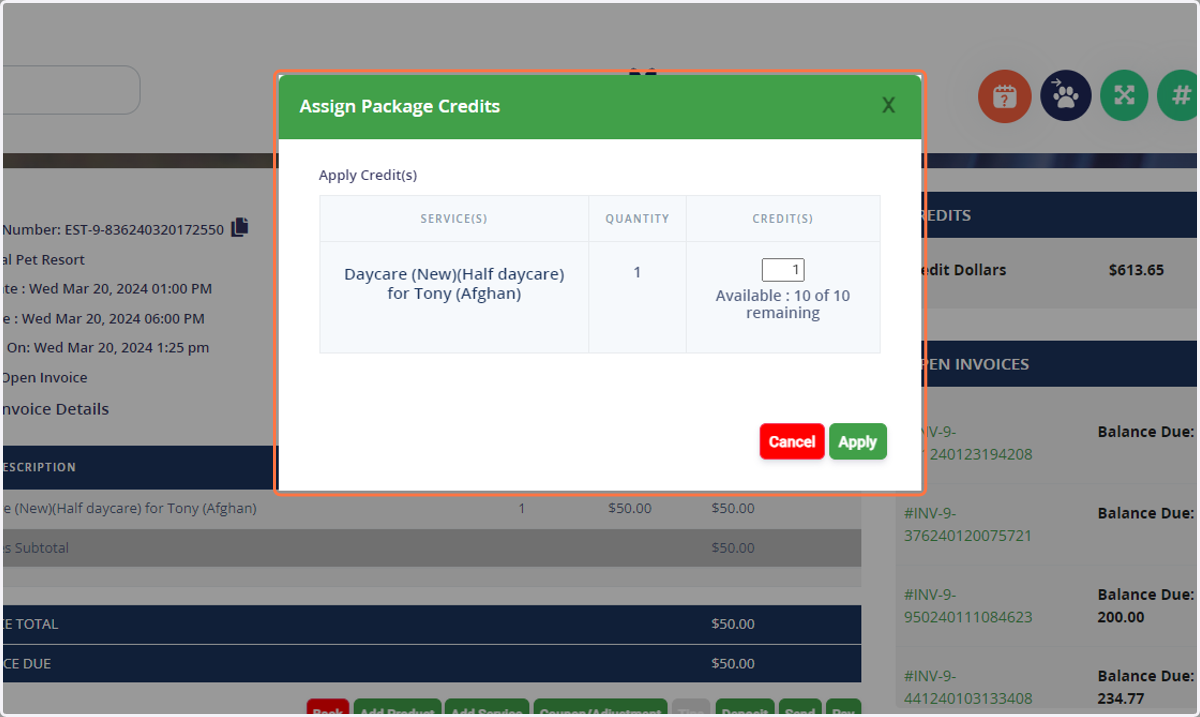
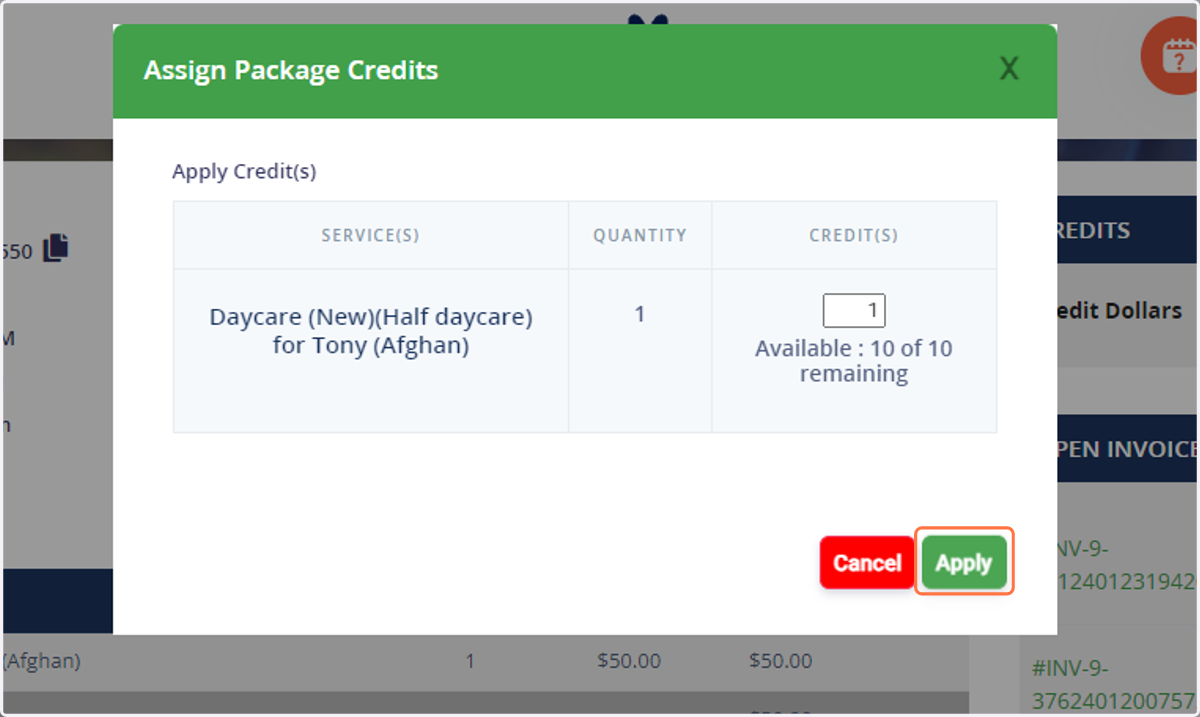
6. Add the total amount of credits you would like to assign for this invoice.
7. ****if you have a multi-pet invoice, you can select credits individually for each pet or have a single credit apply for both pets on the invoice. (this option will show on multi-pet appointments only.)
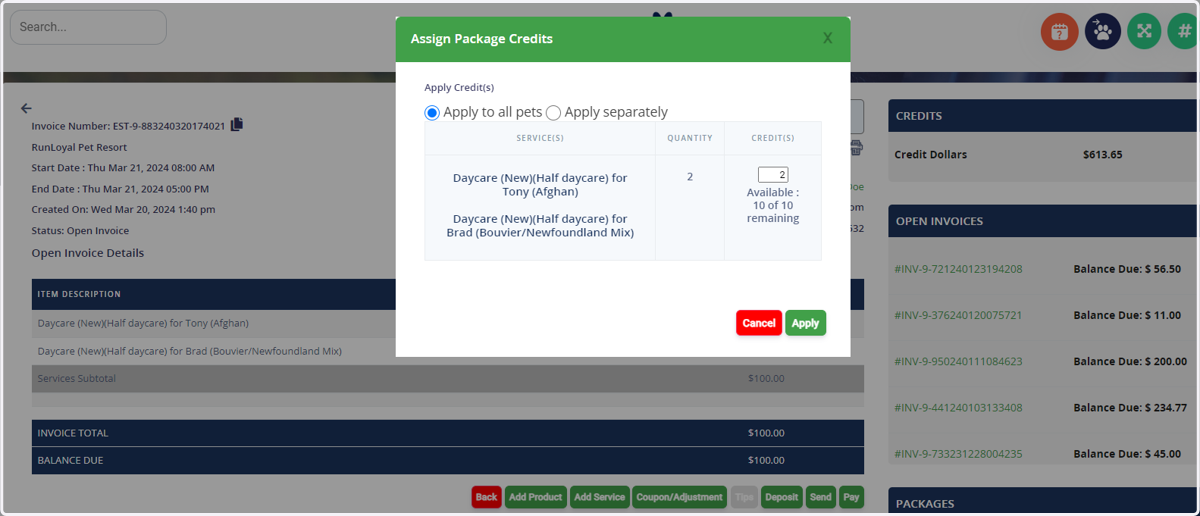
8. Click on Apply to finalize.
9. Once applied, the invoice will zero out automatically and you can checkout and/or exit as normal.