First Time Users
This guide walks you through what the Test Prep App will look like when you login for the first time
Logging in to the App
1. Continue with Email
When you first get to the Test Prep App, you will be prompted to enter your email
Click Continue with Email to move forward
Be sure to use the email address that you purchased the Test Prep App product with
For example, if you purchased on the PSI Online Store, the email that you purchased with would be the one where you received your Order Confirmation
If you have purchased on through the App Store or Google Play Store, then it would be the email associated with your Google Play account or Apple ID
Note: PSI only has the ability to view Order Confirmations for purchases made on the PSI Online Store.
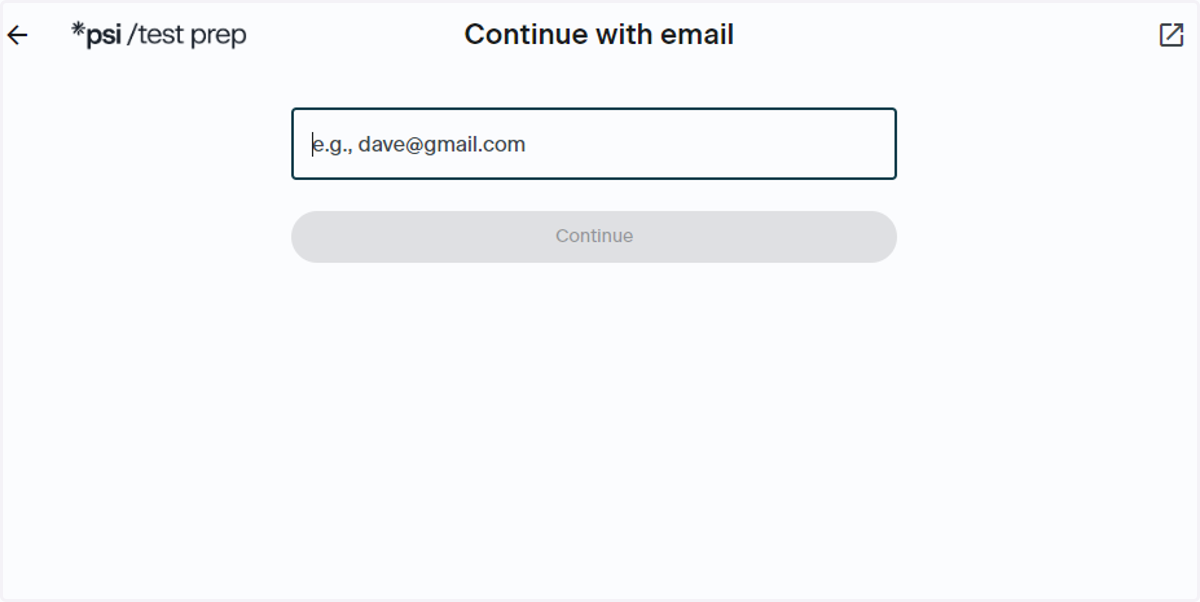
2. Enter Your Email
Enter the email address you used to purchase your order
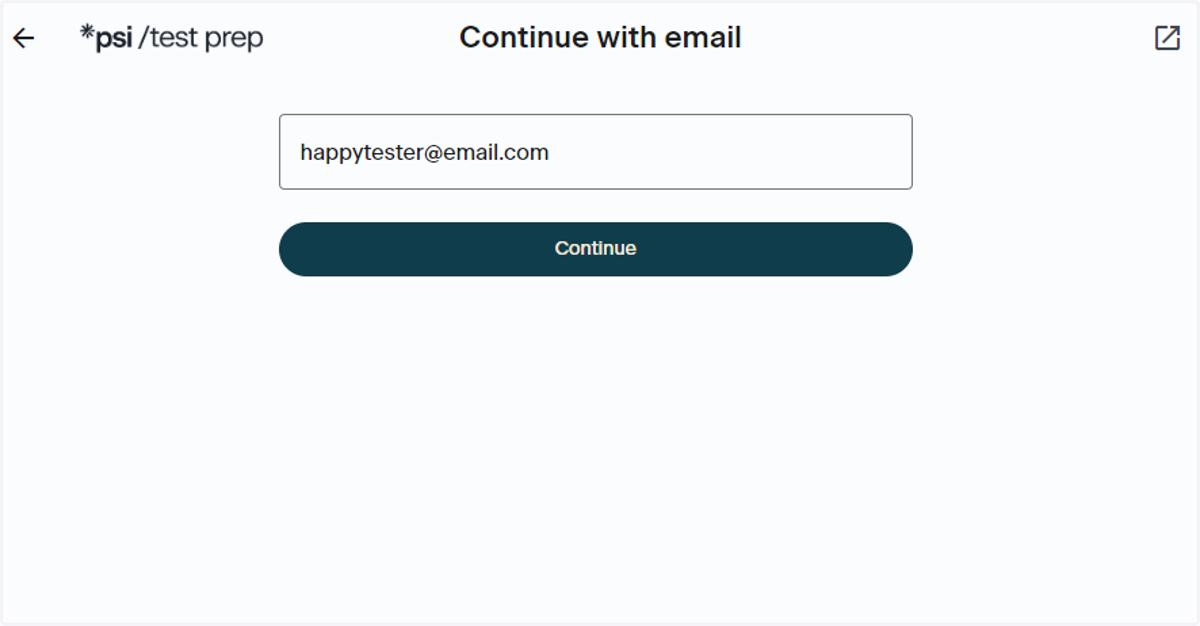
3. Click on Continue
Make sure to check that you have entered your email correctly. Once you have verified that the email is correct, click Continue.
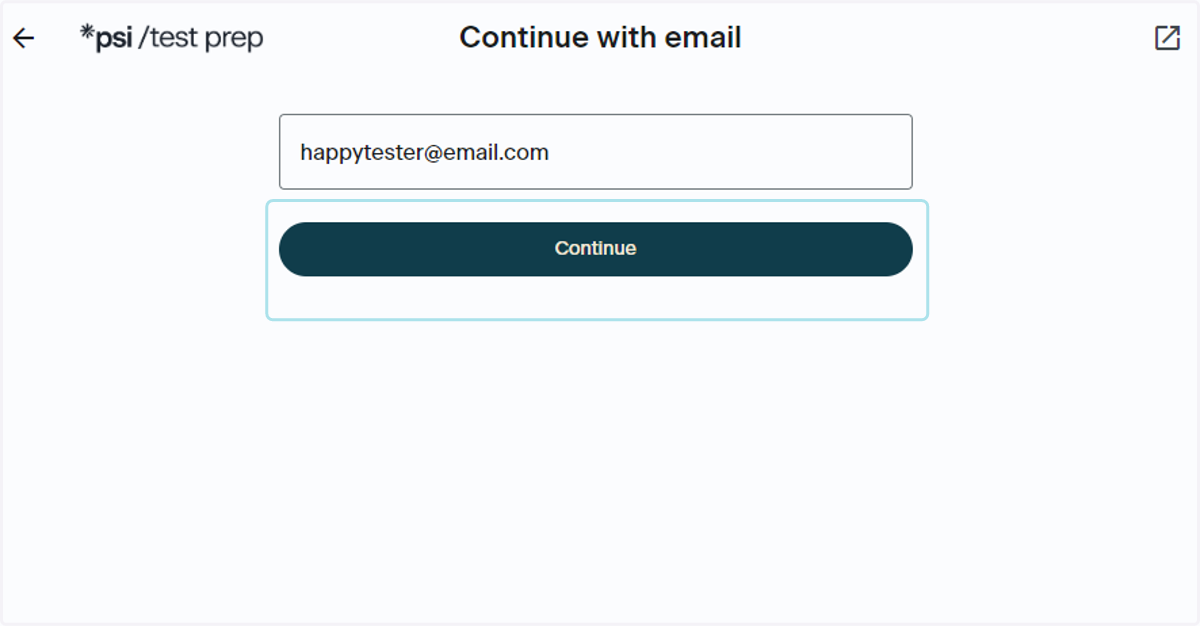
4. Click on Sign In
Once you have entered your email, you will receive an email from PSI Test Prep
Please note this is a No Reply email; if you are experiencing issues or need assistance please contact ptsupport@psionline.com
If you need to contact Support, please be sure to include your Order Number, First Name, Last Name, Email Address and the issue you are experiencing
Once you receive the email, click the Sign In button within the email to be automatically signed in- no code or password is needed
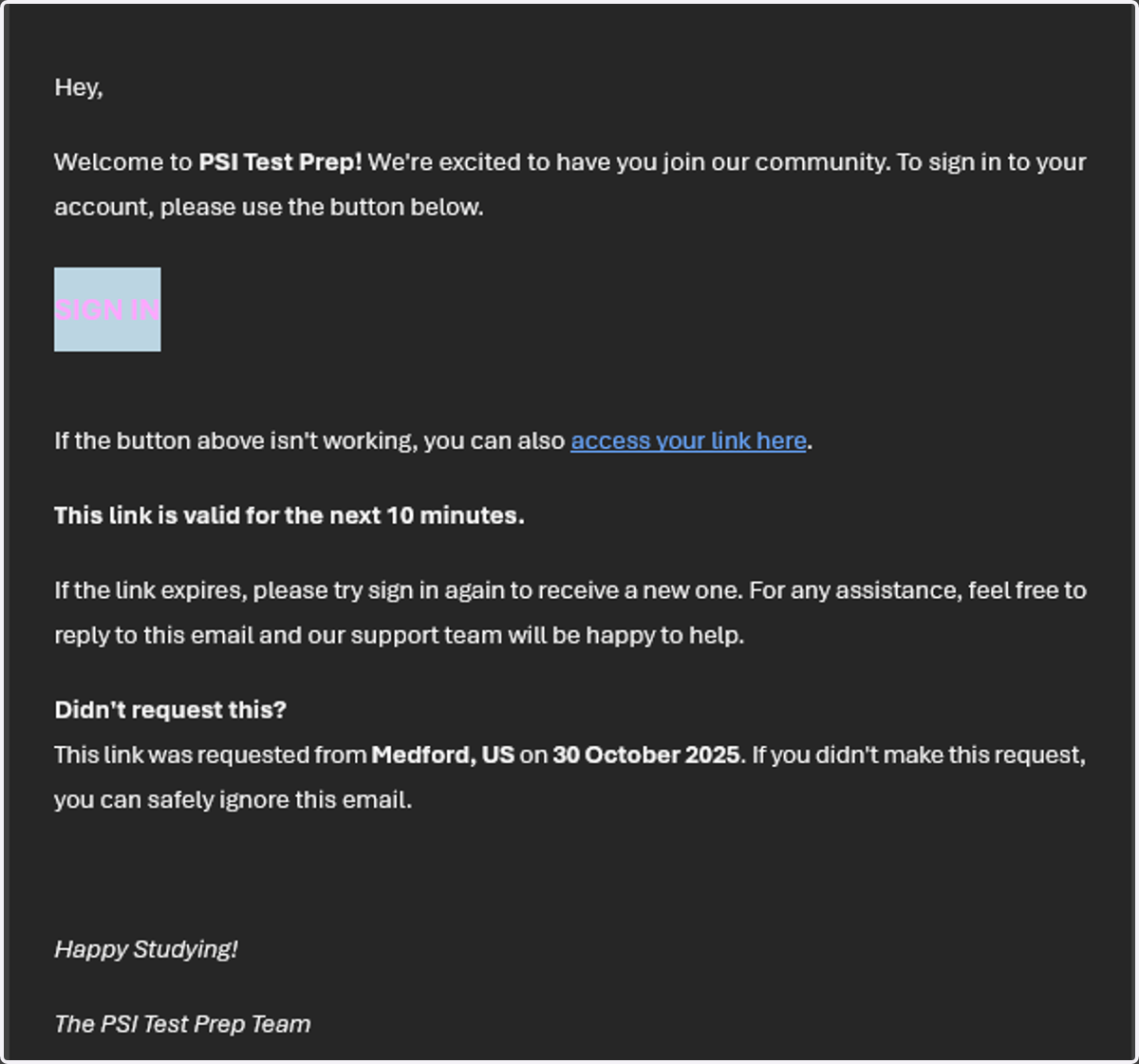
Redeem Your Purchase
How to enter an Access Code from your recent purchase
5. Enter Your Access Code
Use the Access Code you received post purchase to enter the details on the Redeem Purchase screen
Didn't receive an Access Code?
Check your junk mail
If more than 10 minutes has passed and you've checked junk and still do not have your Test Prep App Access Code, please reach out to ptsupport@psionline.com with
First name
Last name
Proof of purchase
Email you purchased with
If you ordered on the Online Store, please include your Order Number and Order Confirmation for the fastest assistance
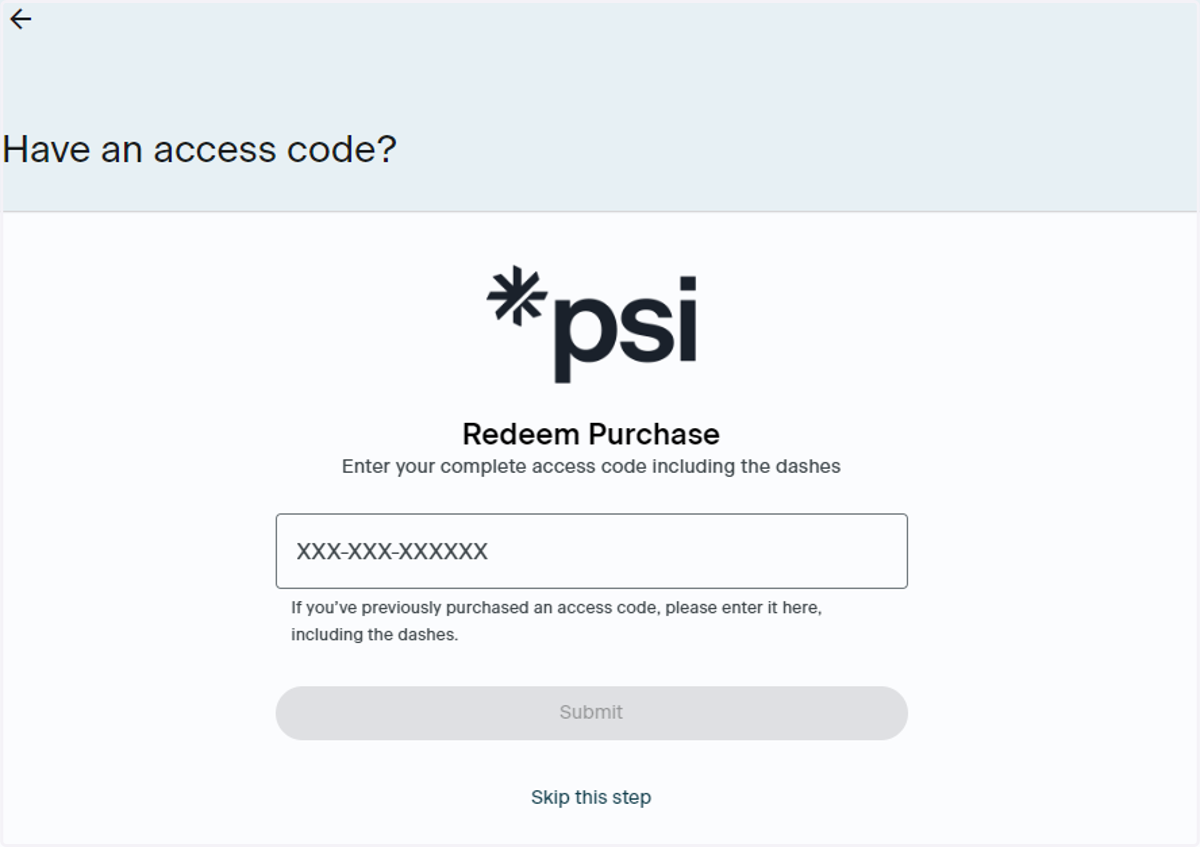
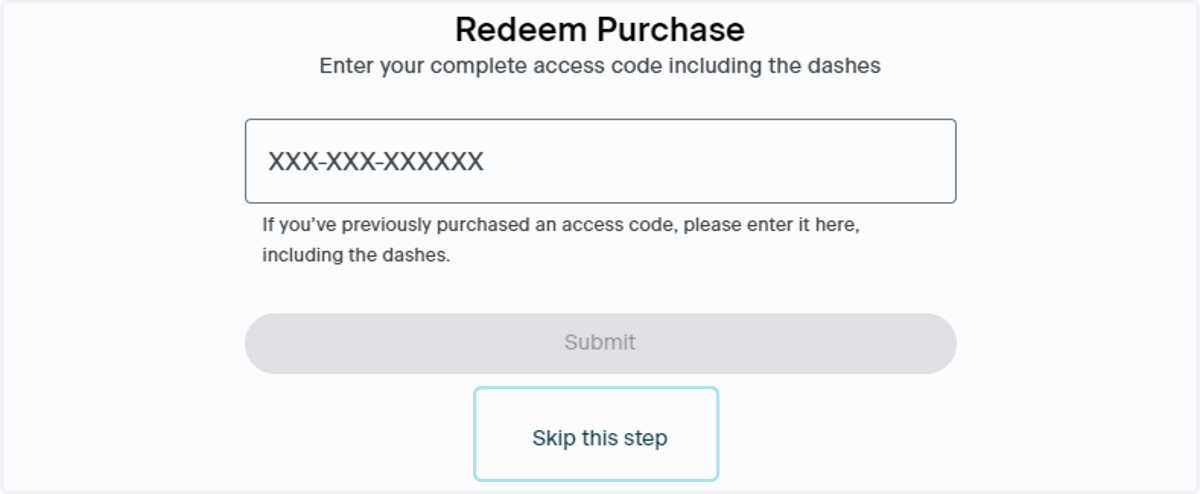
6. What Happens if I Click Skip this step?
You will need to enter your Access Code at a later point in time to access the product you purchased. You can do this in the lefthand navigation bar, under Redeem. This is also useful if you are trying out the Test Prep App and have not made a purchase yet.
7. Click on Submit
Once you've entered your Access Code, click Submit to continue
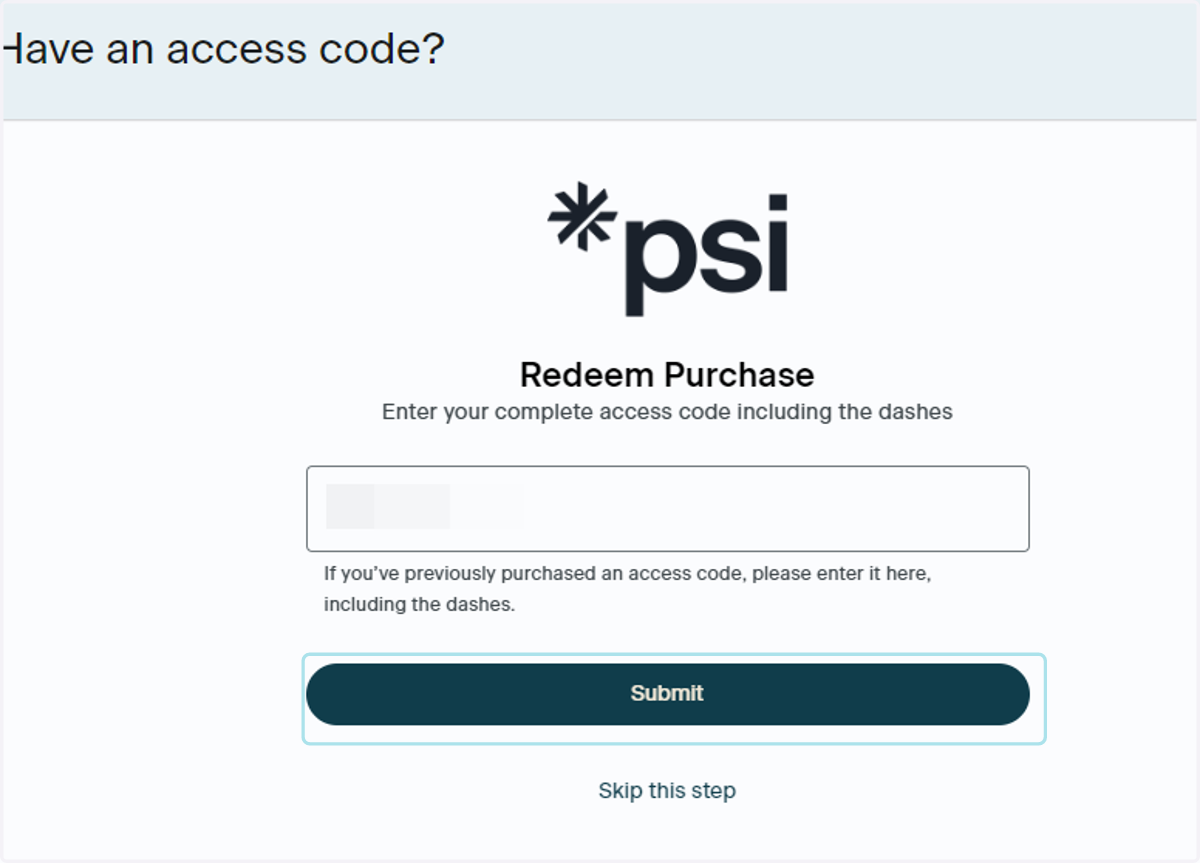
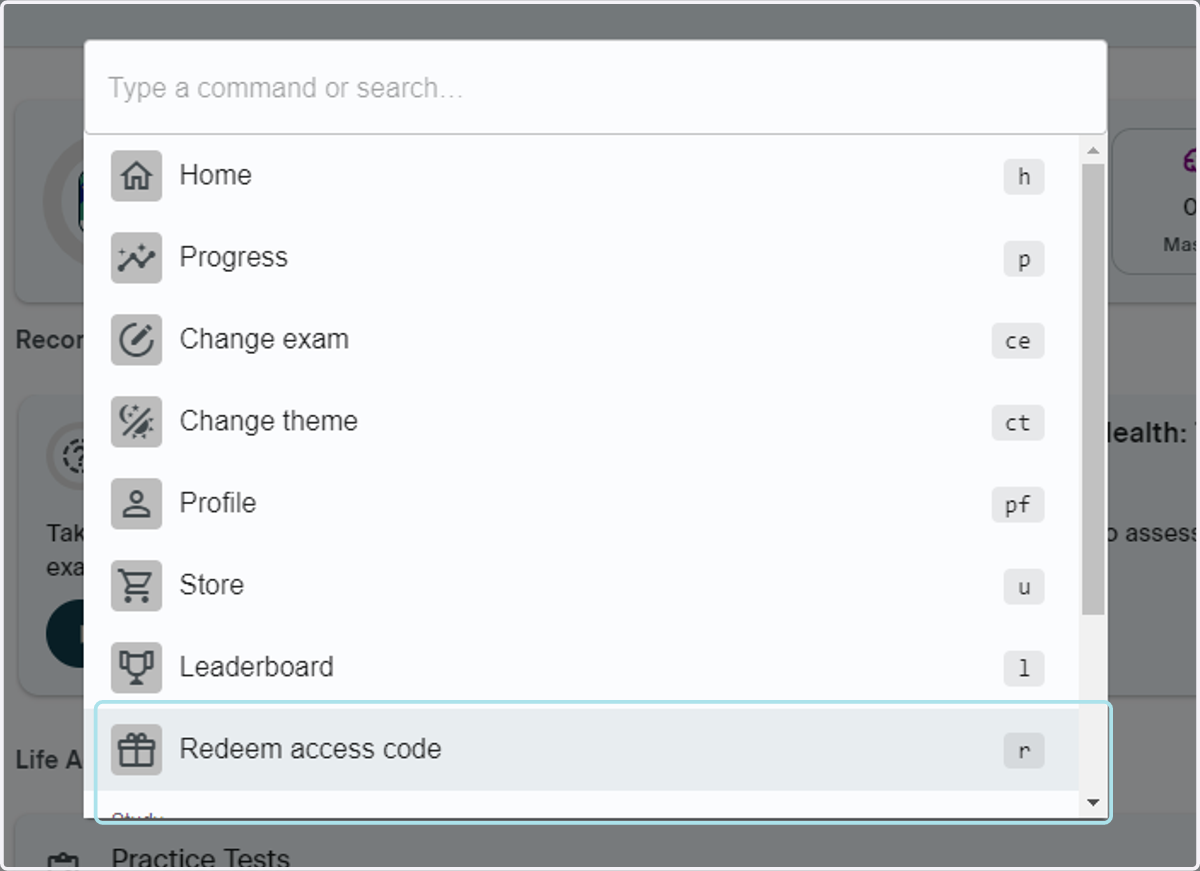
8. Redeem under the Find Anything section
At the top of your Home page screen, you will see a search bar that says Find Anything. Click it and navigate to Reedeem access code to enter the access code from your purchase
Select Your Product
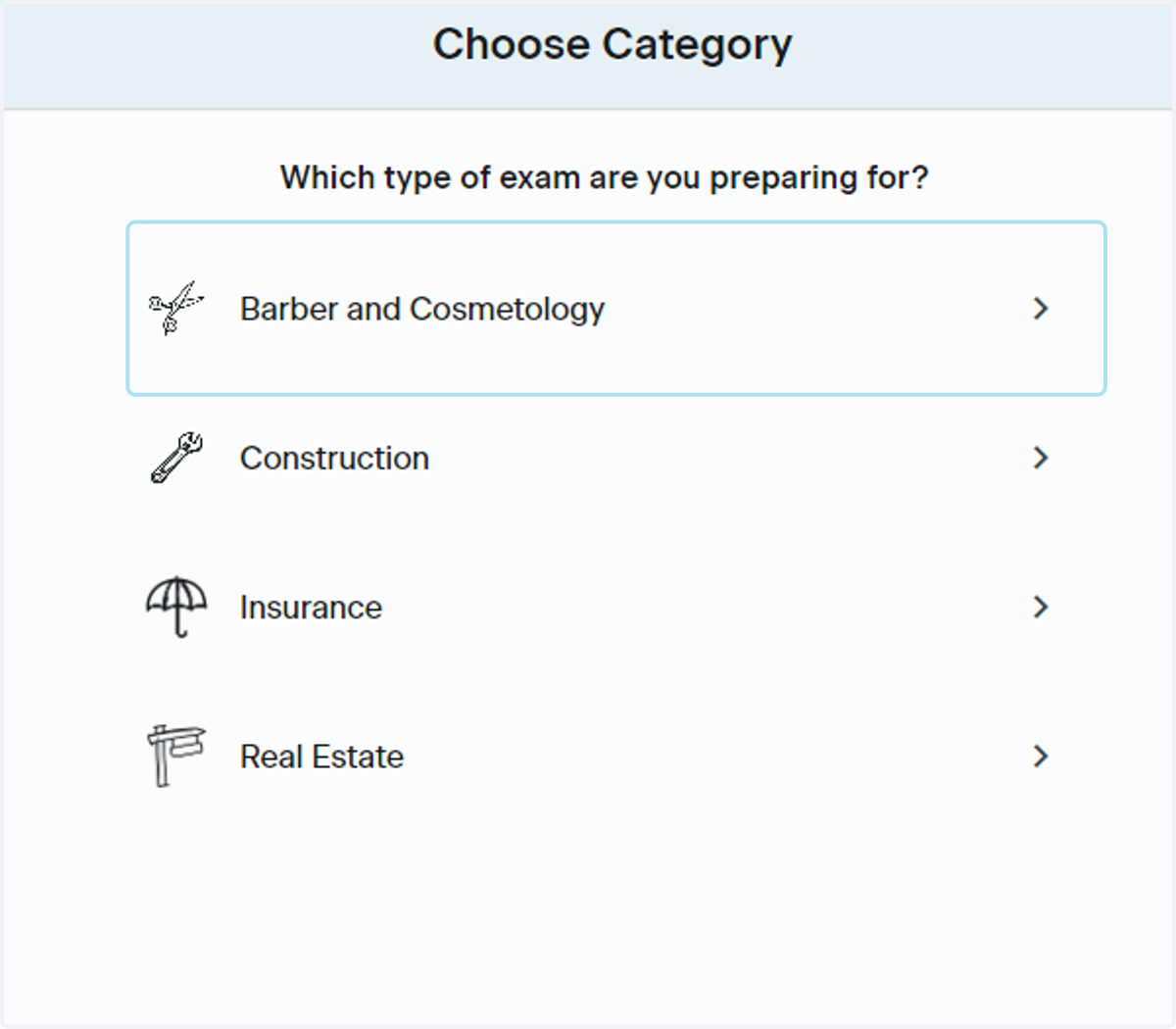
9. Choose the Industry of the Product You Purchased
When you first enter the App, you will be prompted to select the industry that your test is under. For example, if you purchased a Cosmetology Theory Study Pack, you would click Barber and Cosmetology to move forward. Be sure to select the right industry to get to the product you purchased.
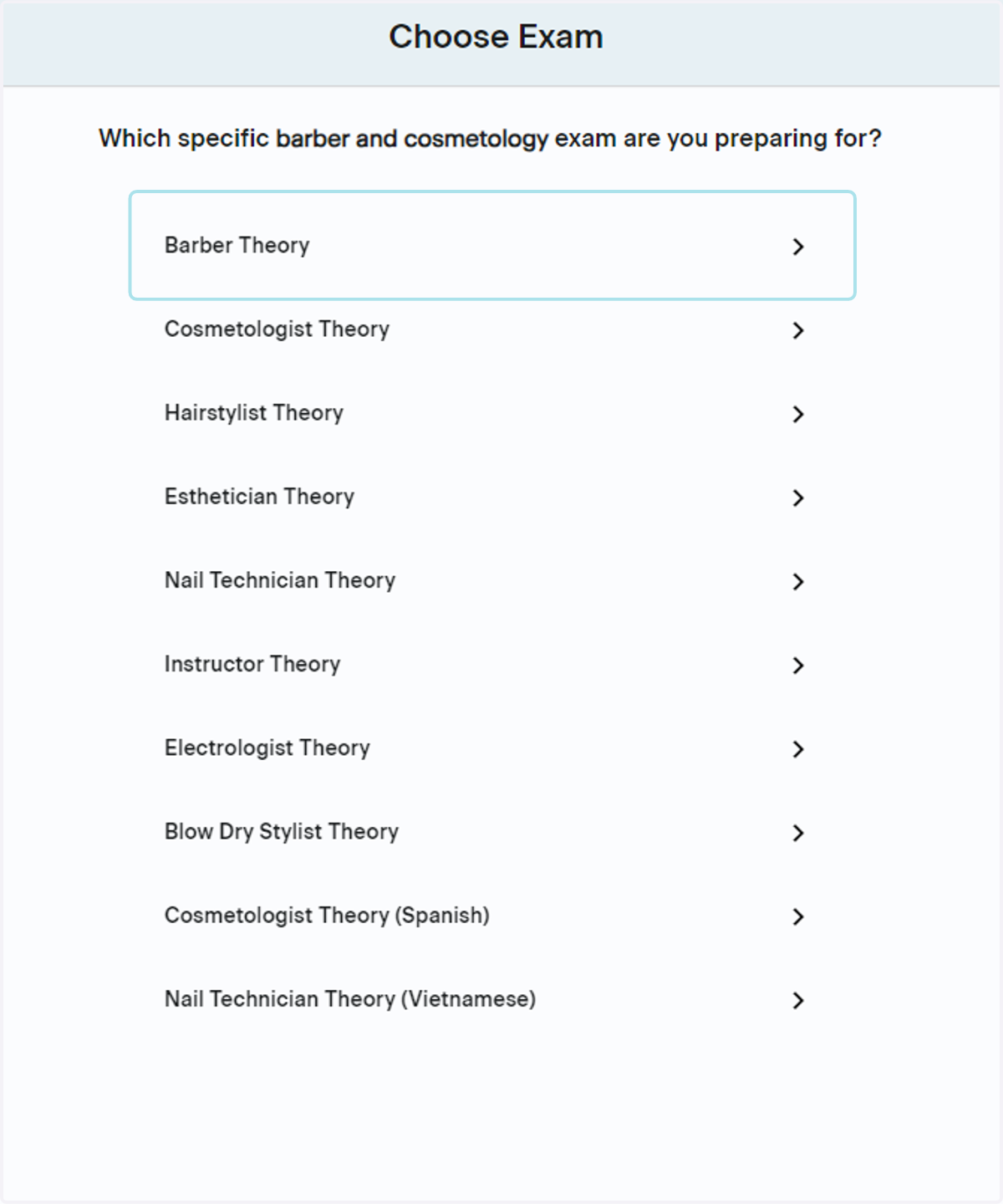
10. Select Your Sub Industry
Choose the name of the sub industry for the product you purchased For example, if you purchased anything from the selection of Cosmetologist Theory products, you would select Cosmetologist Theory. Make sure to choose the correct name of the product. This will ensure you are directed to your purchase accordingly.
Enter Your Test Date
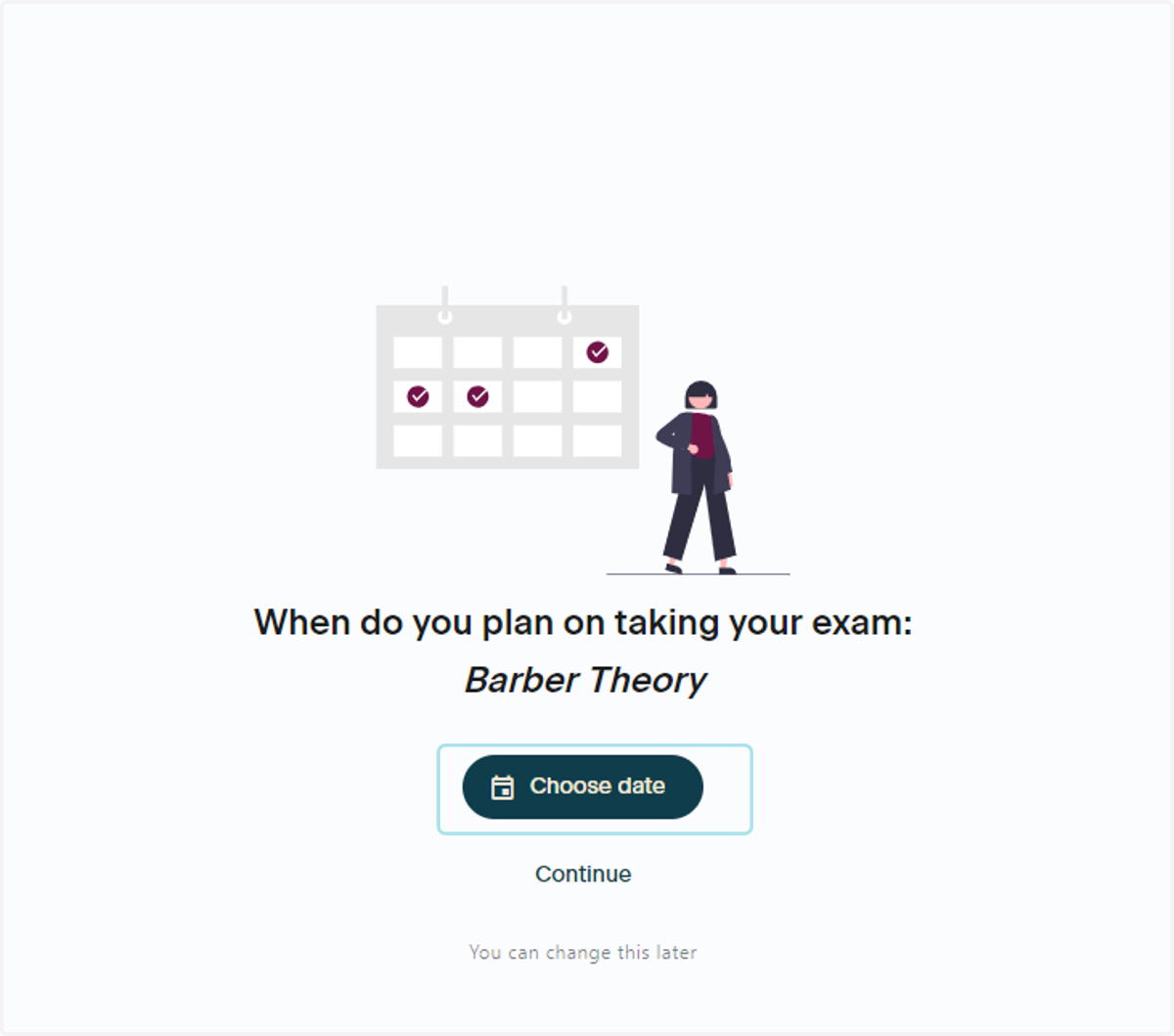
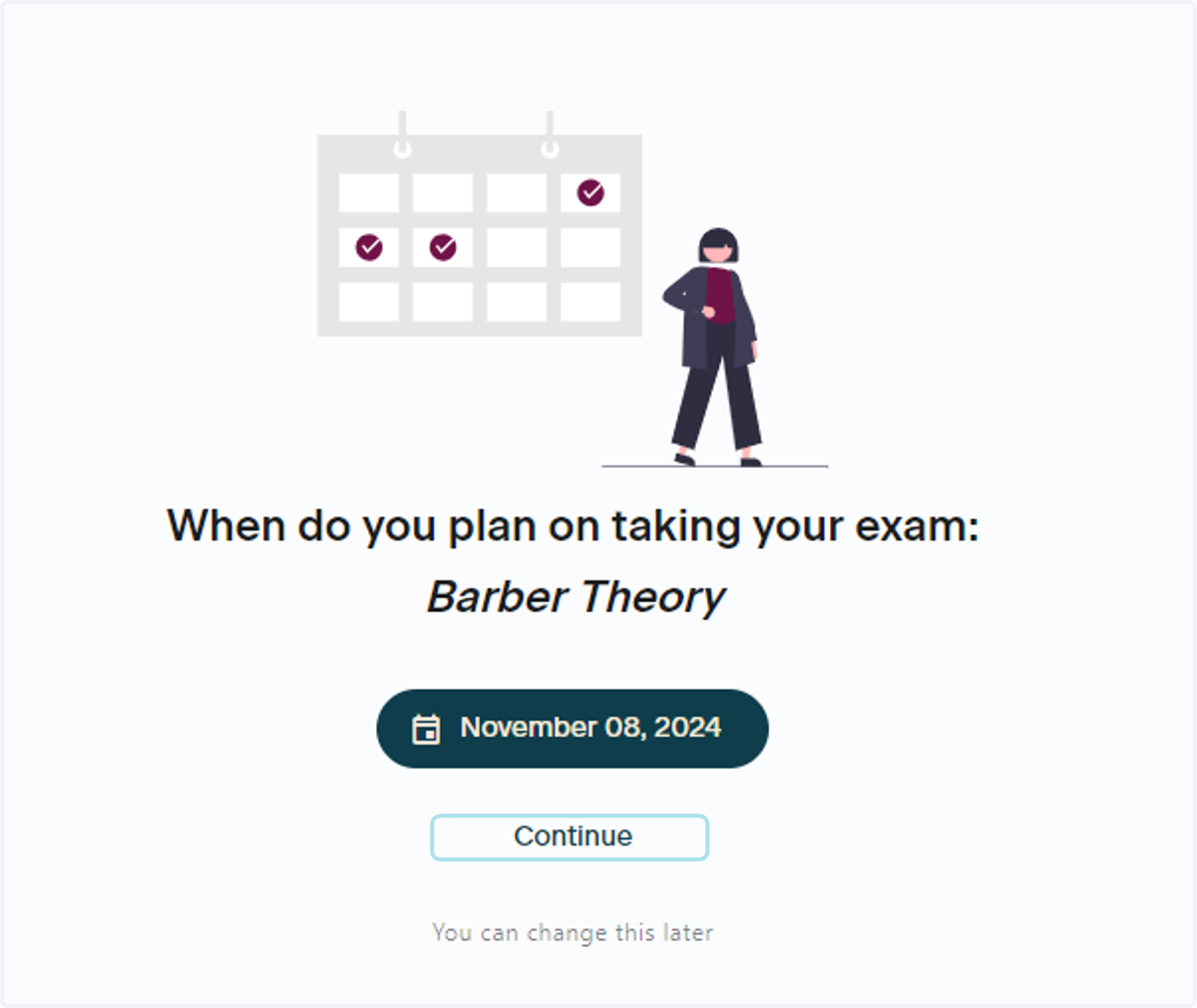
11. Enter Your Test Date
Entering your test date helps to serve as a reminder of how many days you have until your test. Additionally, the Test Prep App will use your test date to help guide your studies (in Study Packs and Bundle purchases).
12. Select Your Test Date
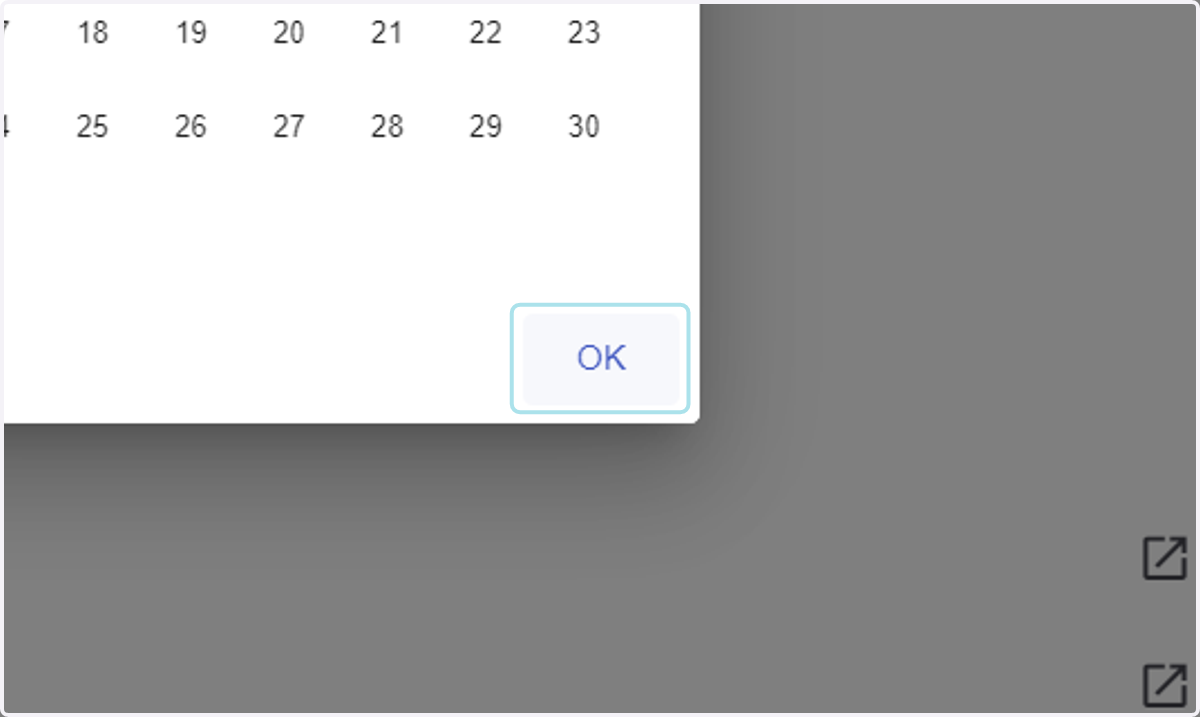
Use the calendar to select the date of your test
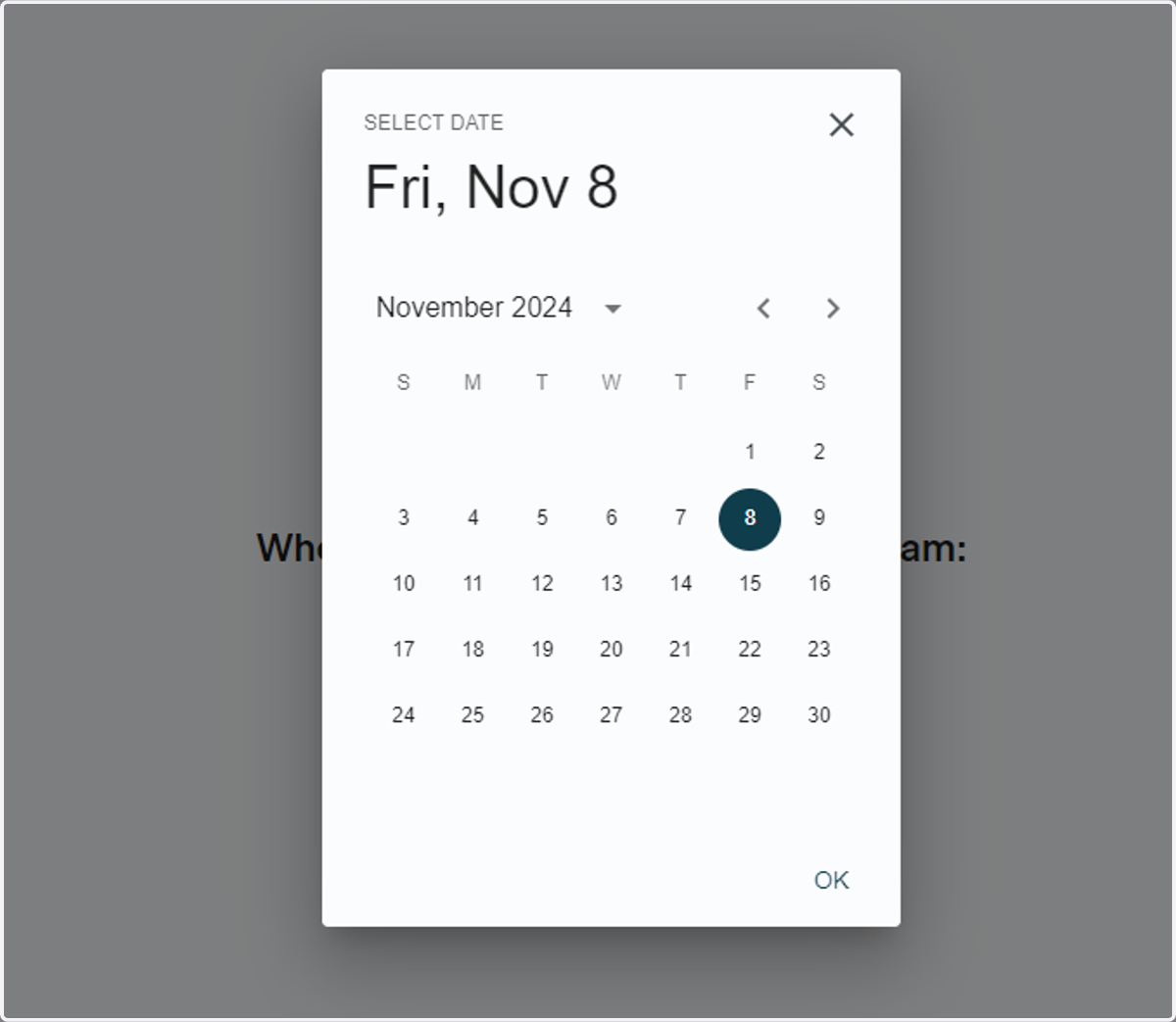
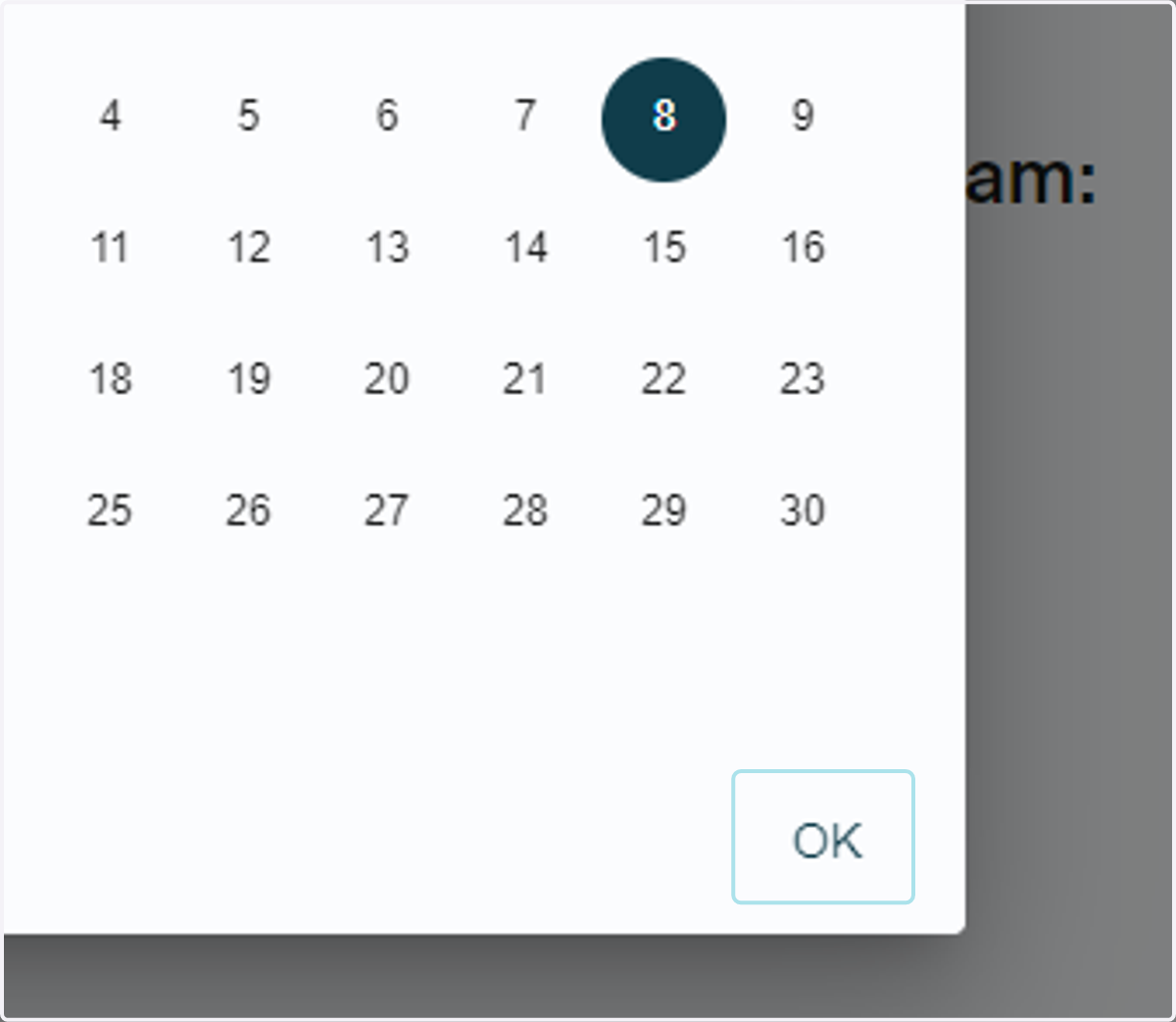
13. Click on OK
After you've selected your test date, click OK in the bottom righthand corner to move forward
14. Click Continue
Your test date will now be populated in the field. Click the Continue button to move forward.
Free Diagnostic
15. Diagnostic Assessment
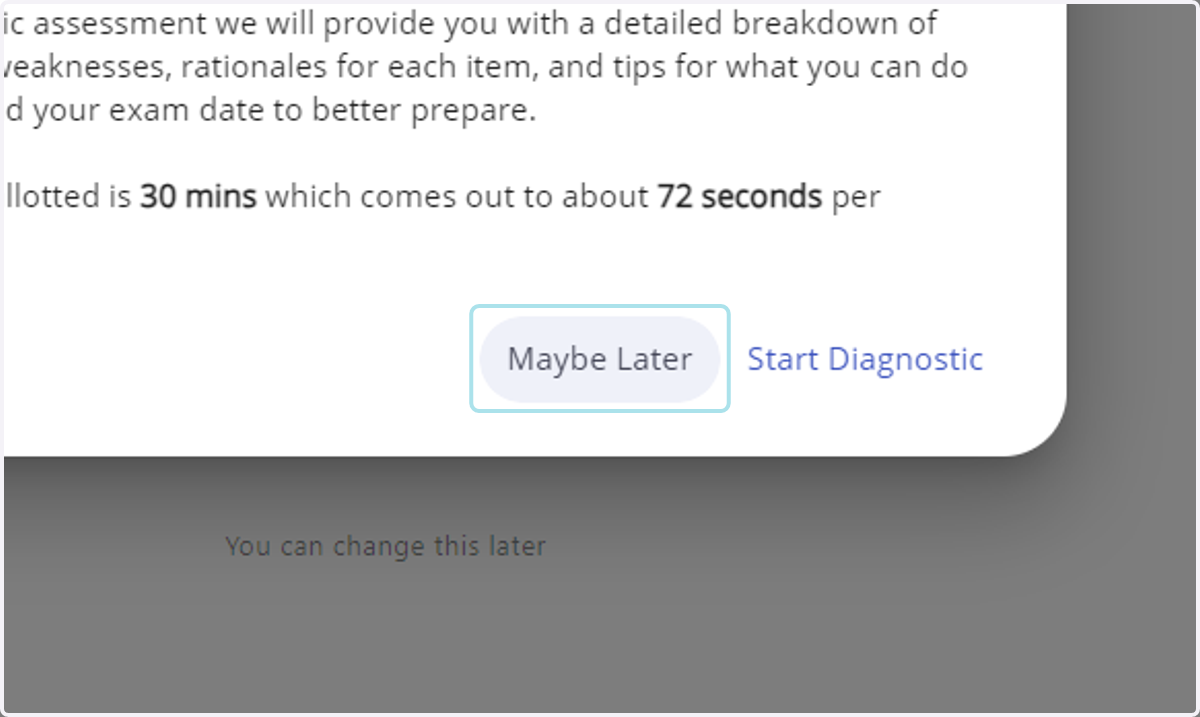
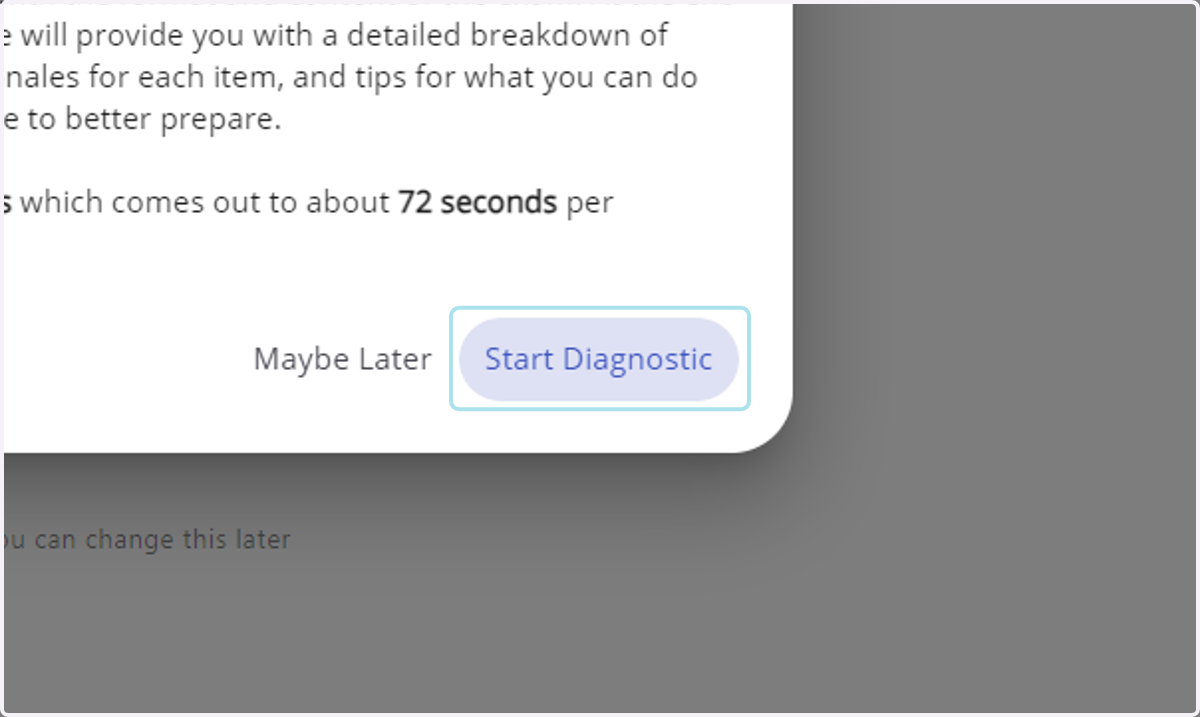
After you've gone through selecting your product and entering your test date (if applicable) then you will be brought to the Diagnostic Assessment for the sub industry you initially selected. You may take it now by clicking Start Diagnostic, or take it at a later time by clicking Maybe Later
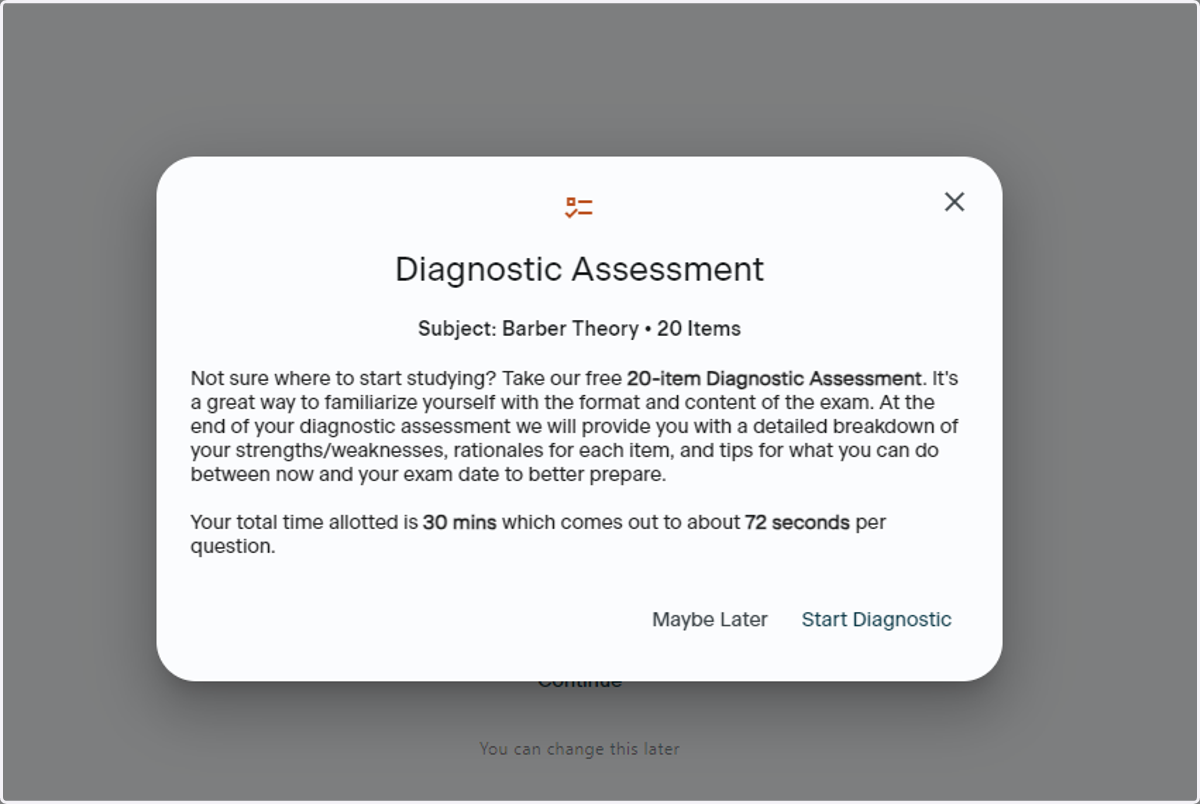
16. Start Diagnostic Later
If you're not ready to take the free diagnostic yet, just click Maybe Later
17. Click on Start Diagnostic
If you would like to take your diagnostic now, click Start Diagnostic to launch it
18. Click on Continue
19. Click on OK
Contact Support
20. Where to Contact Support
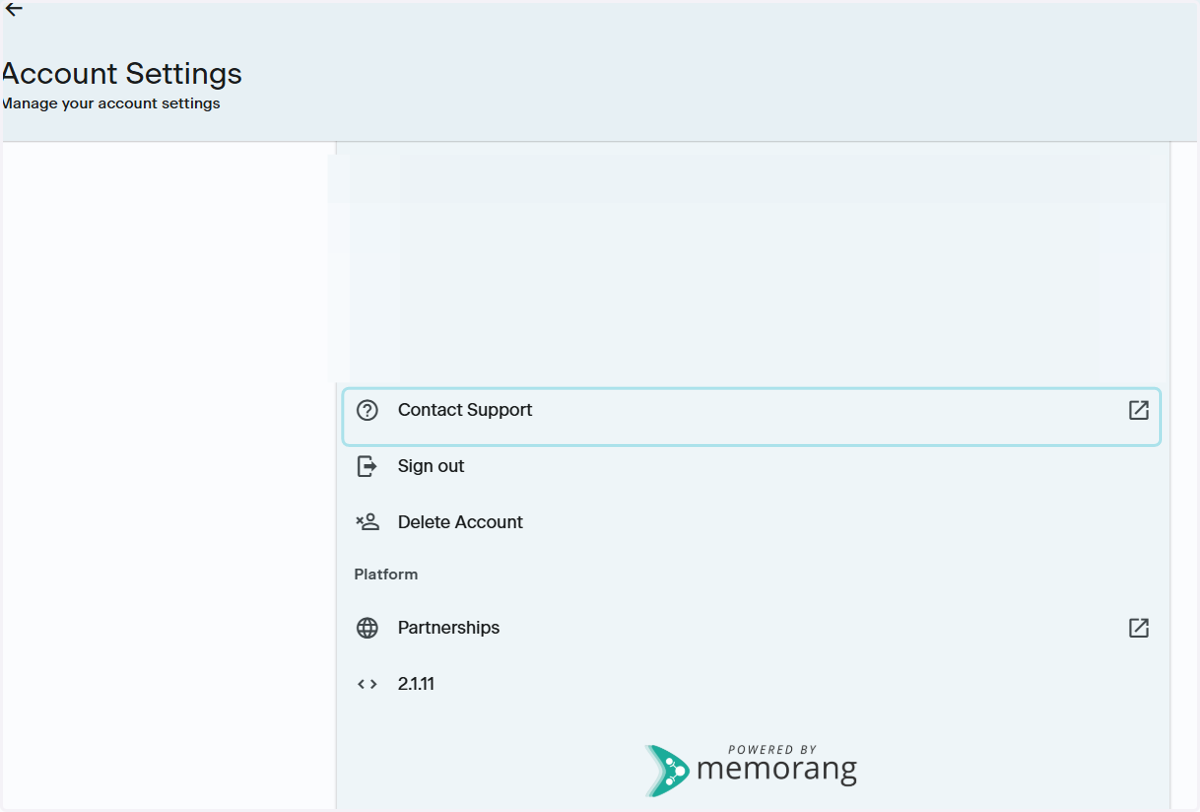
Go to your Account Settings by clicking the Gear icon in the upper righthand corner of the App and click Support. This will launch an email to the PSI Support Team, ptsupport@psionline.com
For help with:
Profile details
Order related issues
Access code assistance
Change username
Errors
Please be sure to take screenshots of any errors
Please include the following in your email:
First name
Last name
Email associated with your order
Order Number
Order Confirmation
Note: If you have made a purchase in-app, or through the App Store or Google Play Store, the PSI team will not be able to assist you with order related issues such as:
Copy of order confirmation
Refunds of purchases made through the App Store, Play Store or in-app