How to save favorite routes in MileMaker
Milemaker
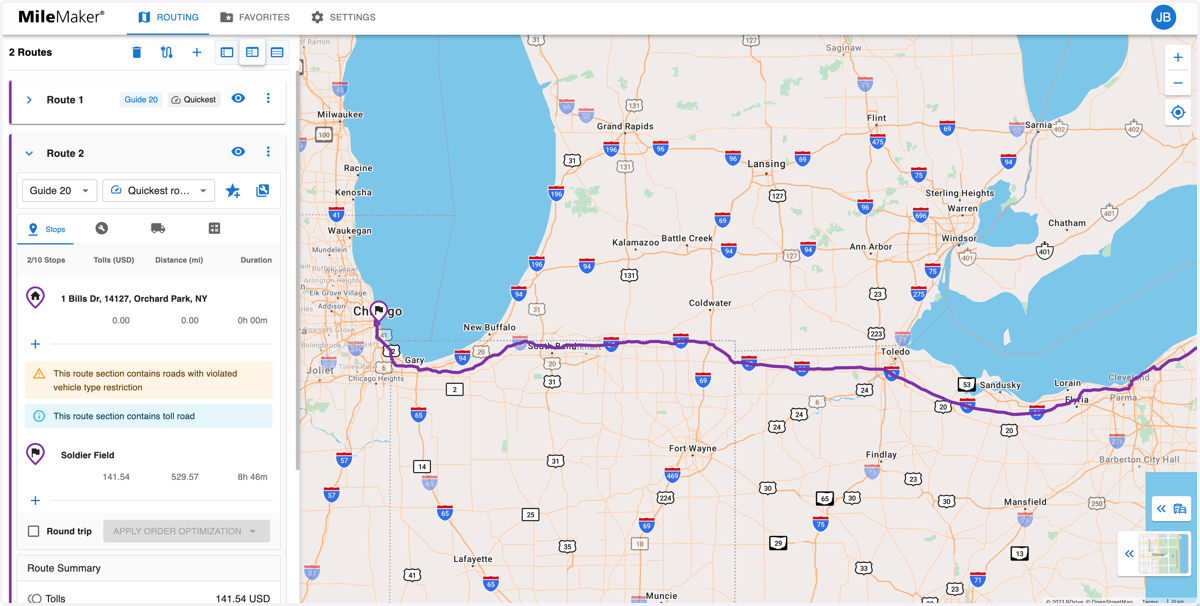
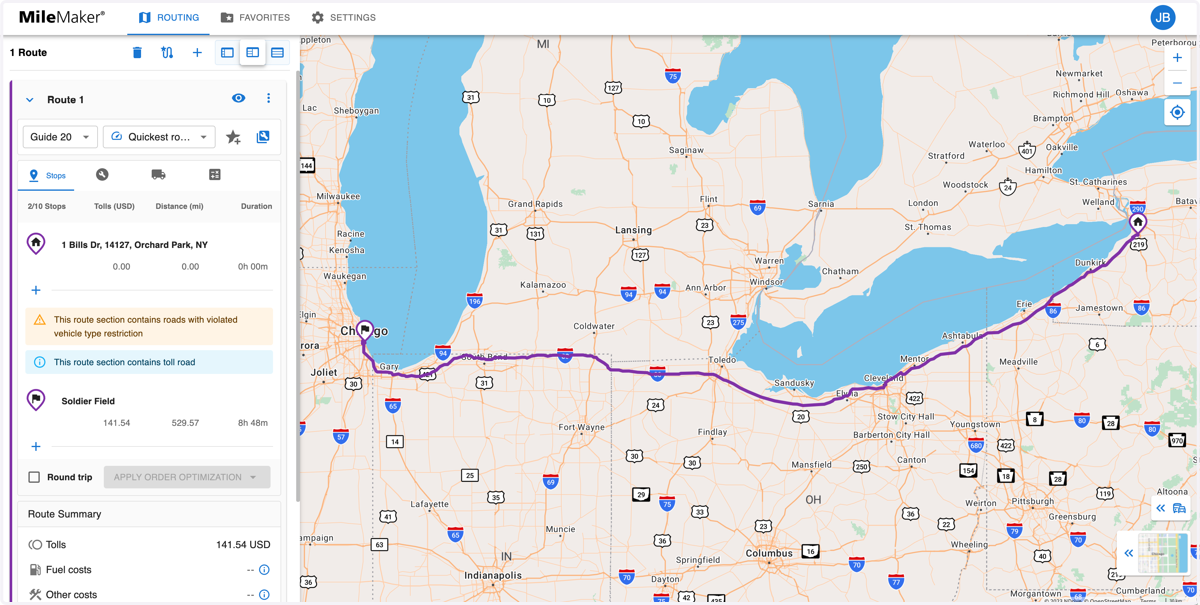
1. Start by creating a route in MileMaker.
For more information on how to create a route, please see the other guide, How to create a route in MileMaker.
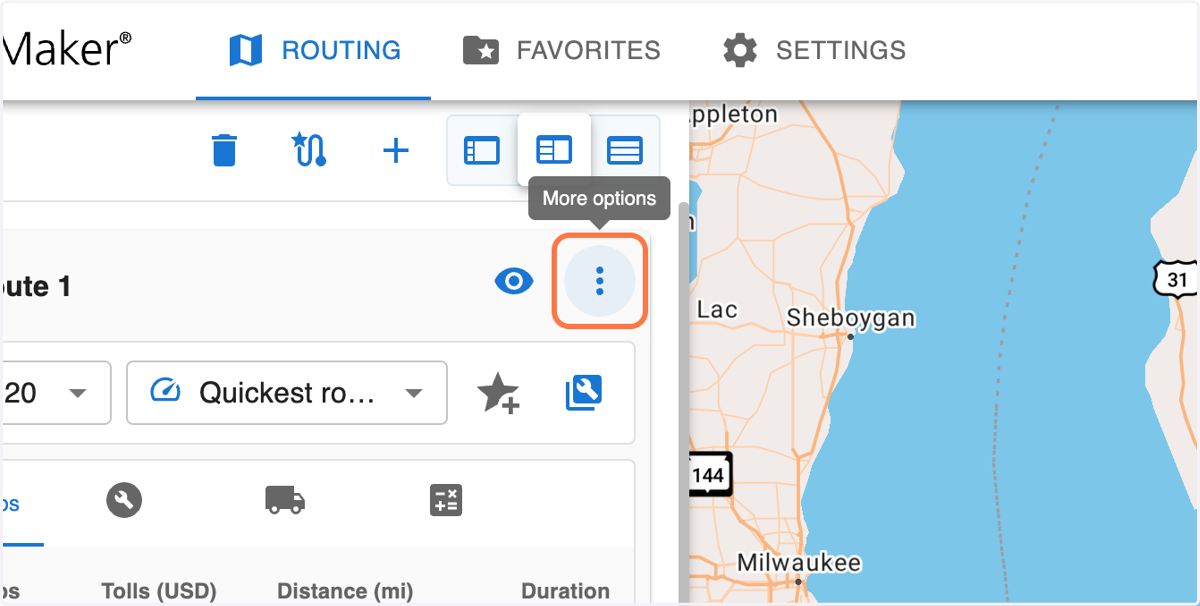
2. Click on the 'More options' menu to the right of the route you want to save.
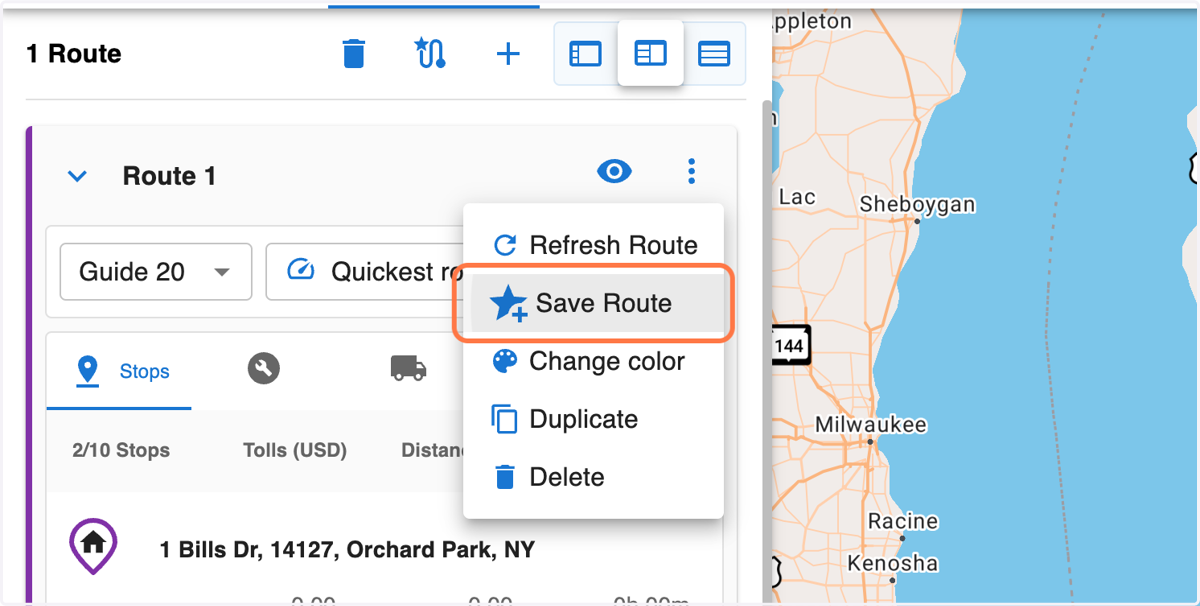
3. Click on 'Save Route'
4. Give your route a custom name to easily identify it
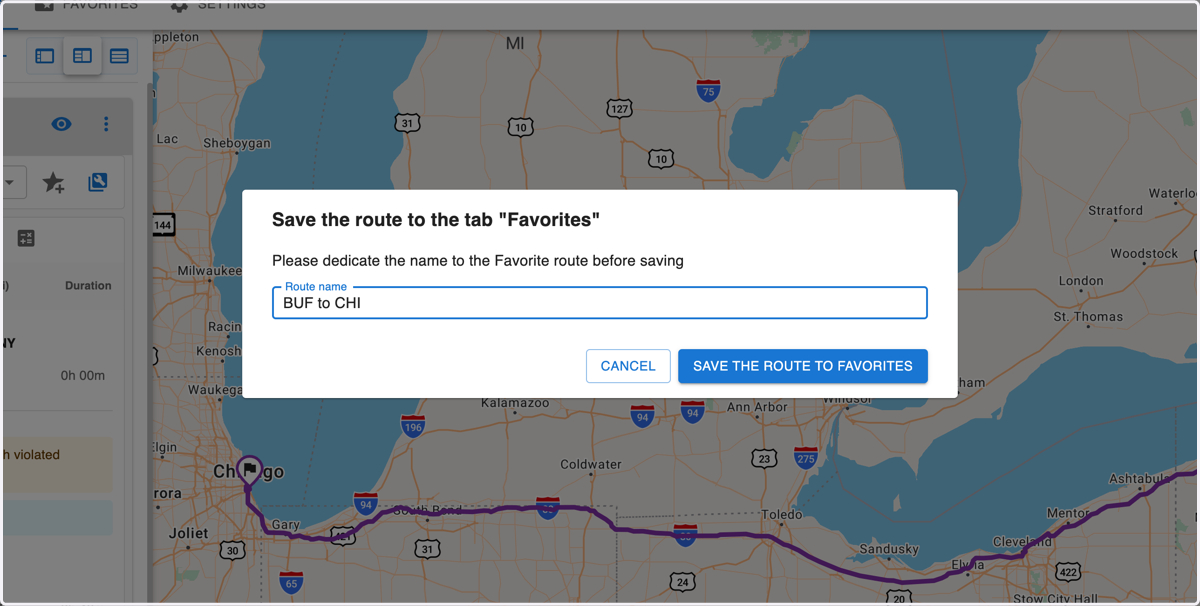
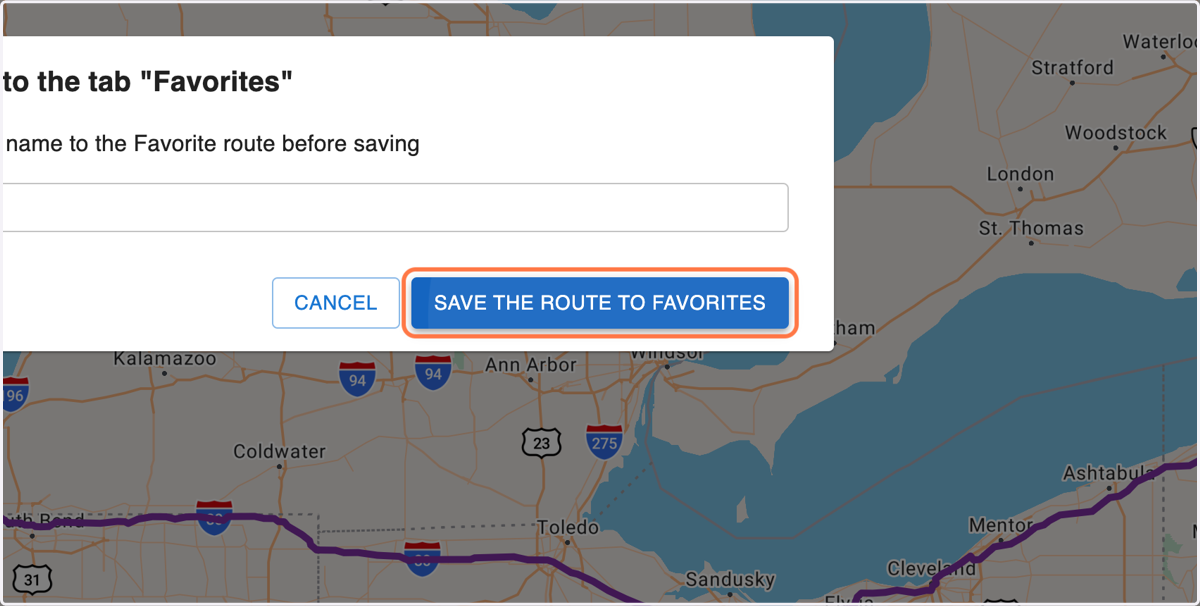
5. Click on SAVE THE ROUTE TO FAVORITES
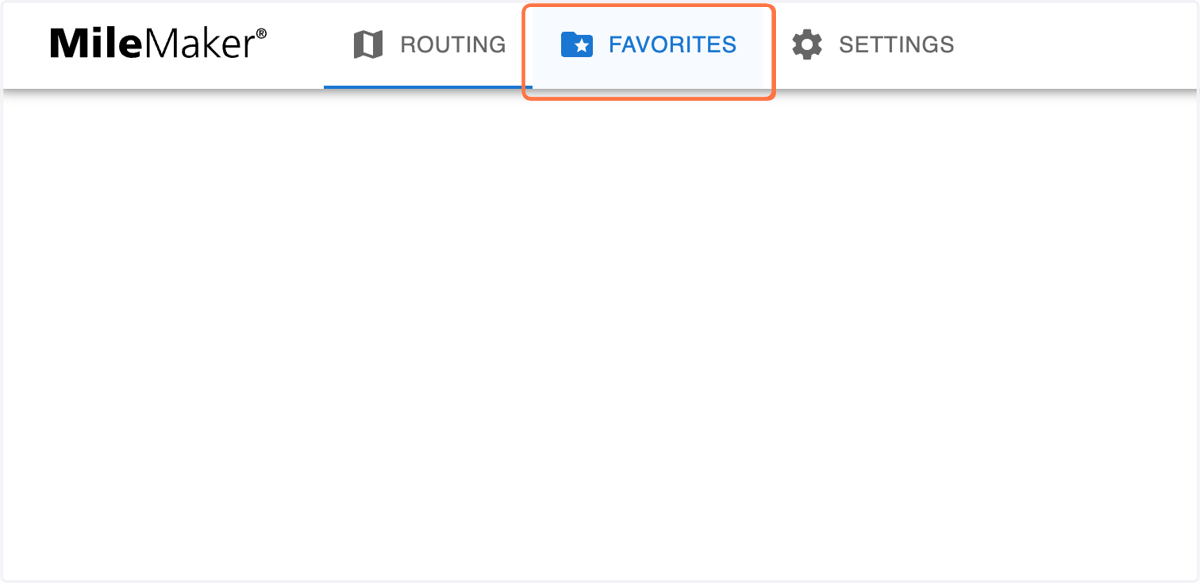
6. Your route has been saved successfully. To retrieve this route in the future, Click on the 'FAVORITES' tab in the top navigation bar
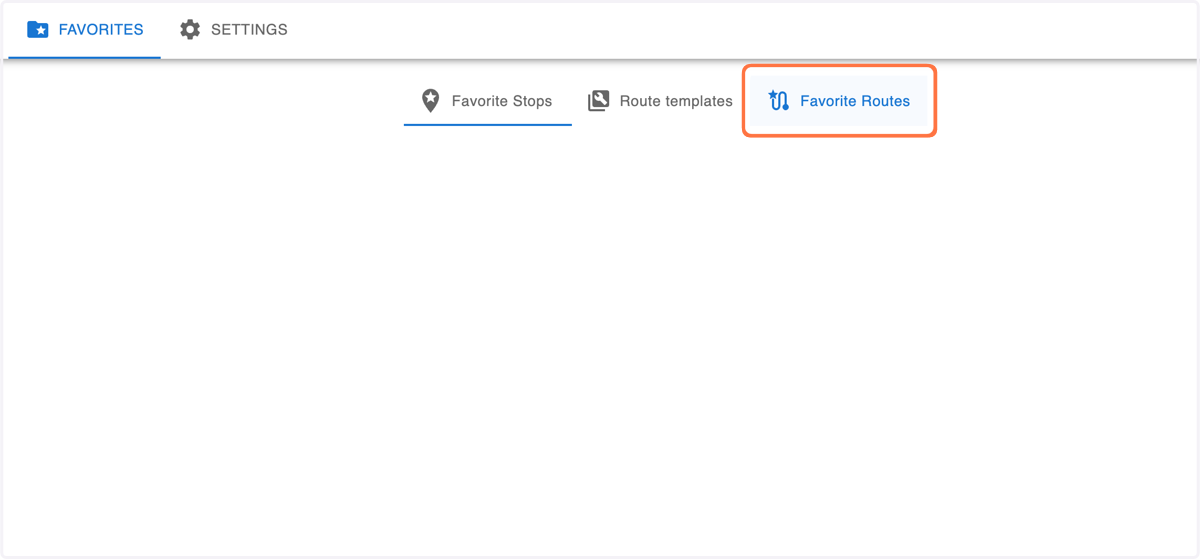
7. Click on the 'Favorite Routes' tab
8. Click on the 'More options' menu in the top right corner of the route you'd like to retrieve.
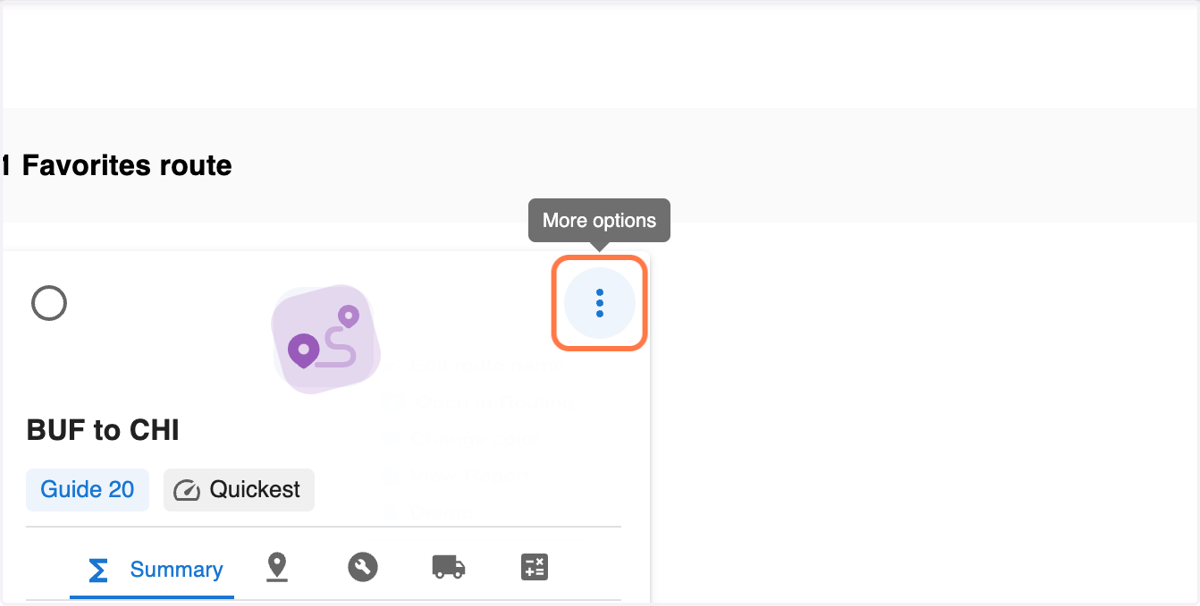
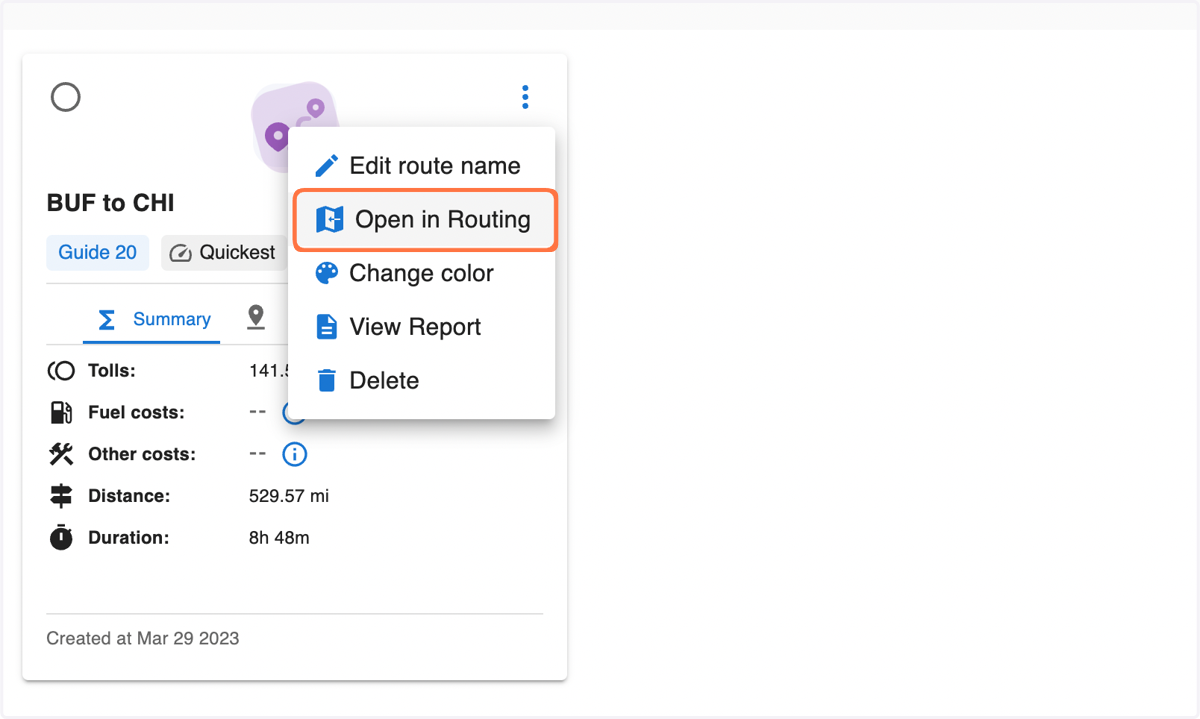
9. Click on 'Open in Routing'
10. Click on 'Go to Routing' on the notification, or just click the 'ROUTING' tab in the top navigation bar.
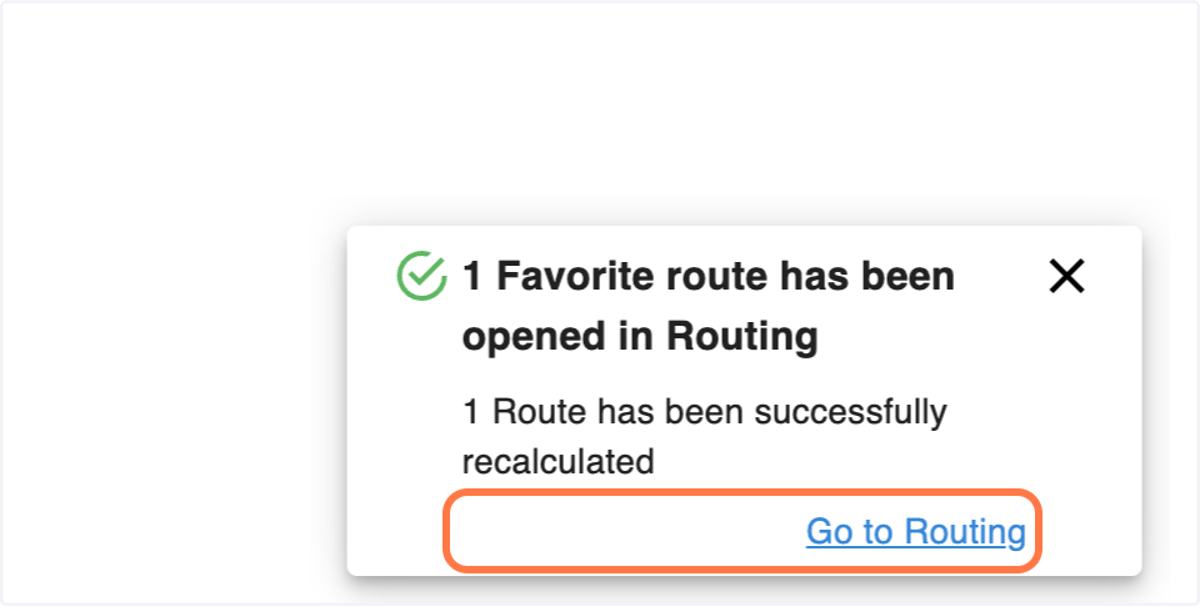
11. Your favorite route has been retrieved successfully.