AiLA in Practice Tests
A guide for features available after you have completed your practice test
Post Practice Test
1. View Practice Test Report
Once you have fully completed your practice test, you will be brought to the practice test overview screen. Here you will find a breakdown of your performance, including:
How many items you answered correctly
Your accuracy
Time it took you to complete your practice test
Average amount of time it took you to answer each question
To Exit the overview, click the Continue button

2. Practice Test Analysis
Every practice test offers an in-depth Analysis of your performance
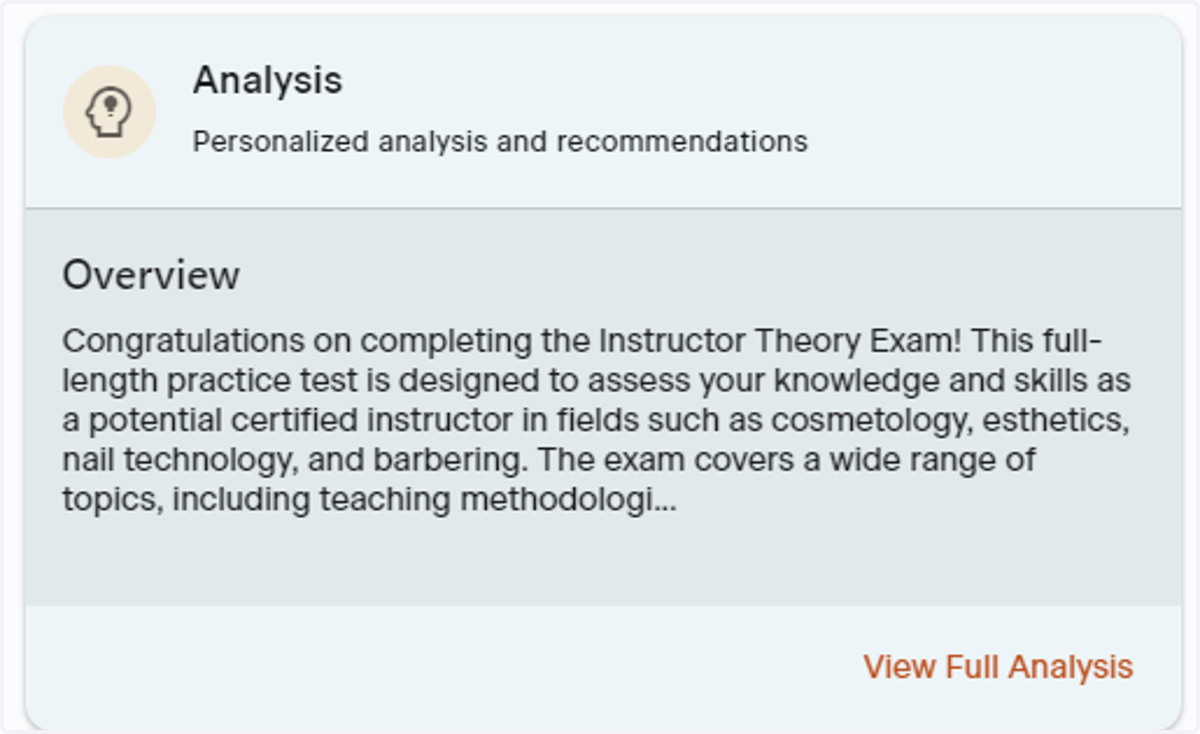
3. View Full Analysis
To read your full personalized performance analysis, click the text View Full Analysis

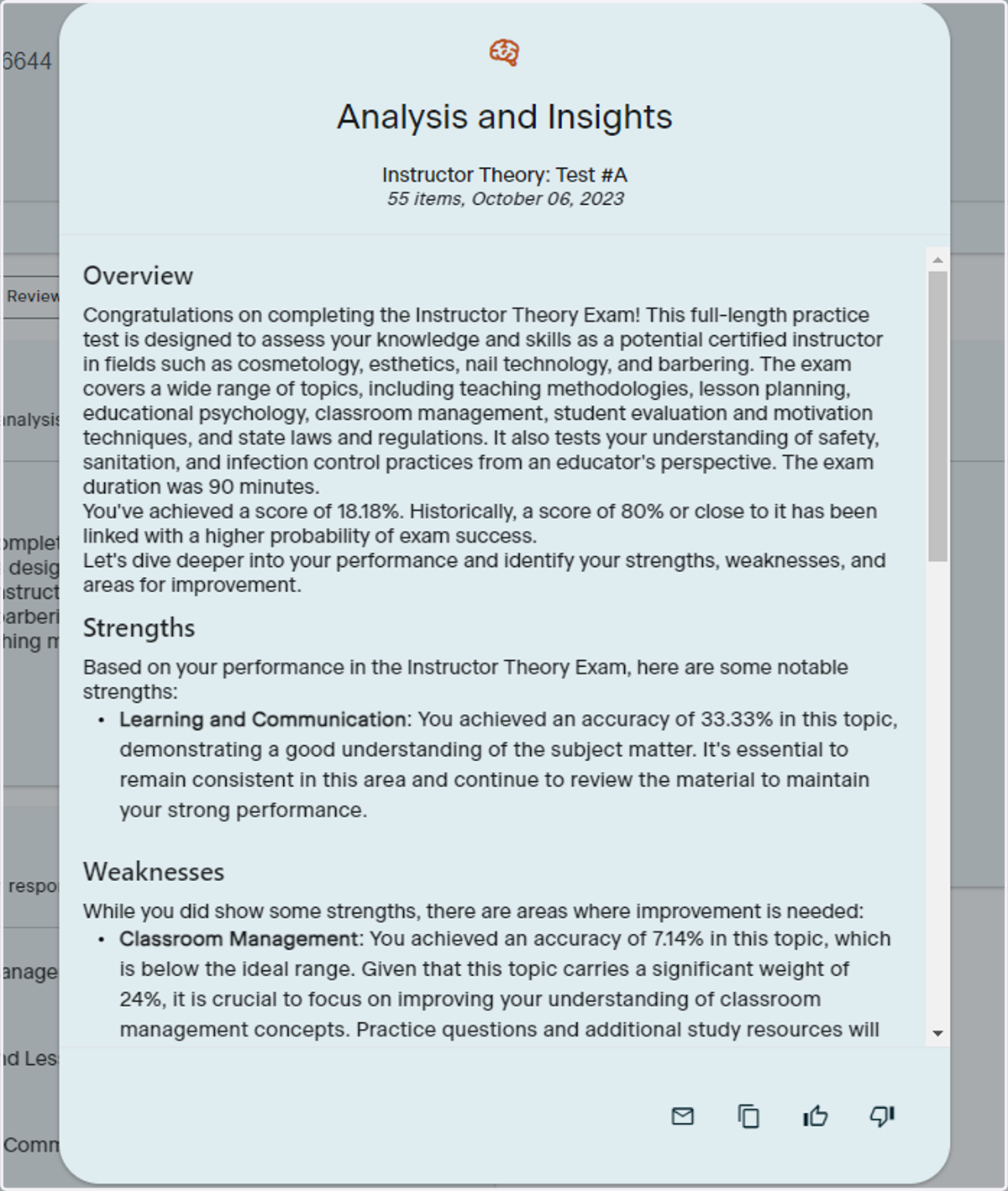
4. Read Your Analysis
Take the time to read through your full analysis. This is where you will see where you excelled and where you may need to practice more
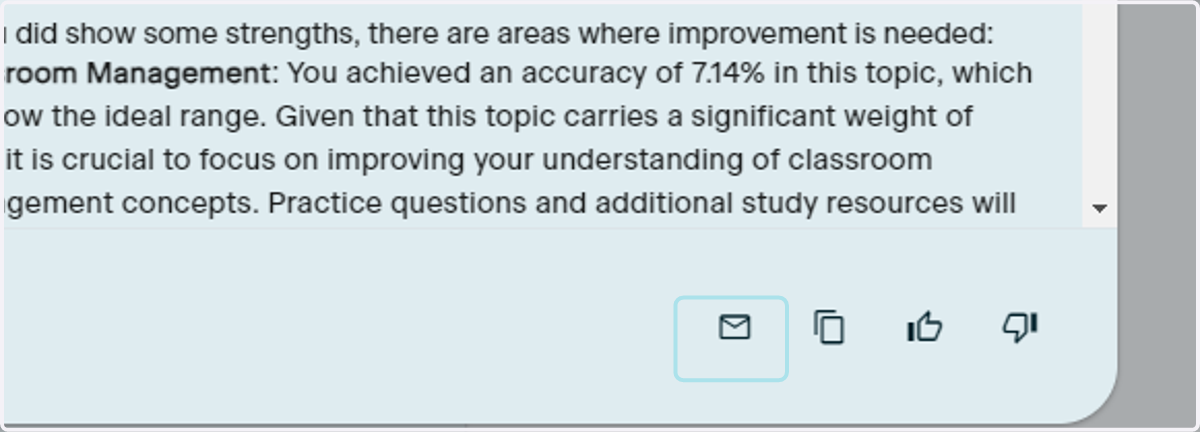
5. Email Your Analysis
If you would like a copy of your analysis, click the envelope button at the bottom righthand corner of the analysis window
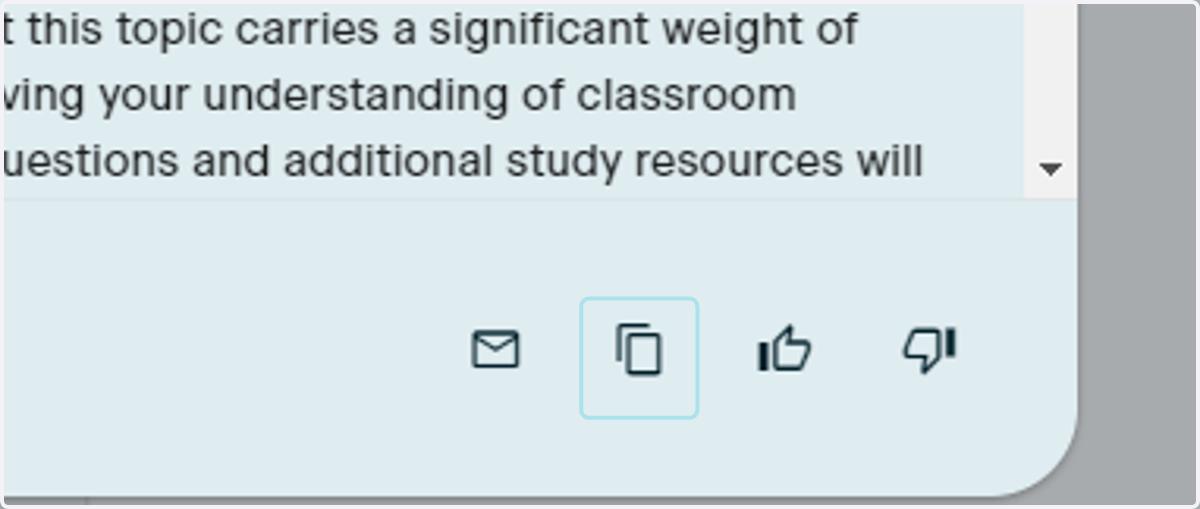
6. Copy Your Analysis
You can copy over your entire analysis by clicking the double rectangle button at the bottom righthand corner of your analysis window
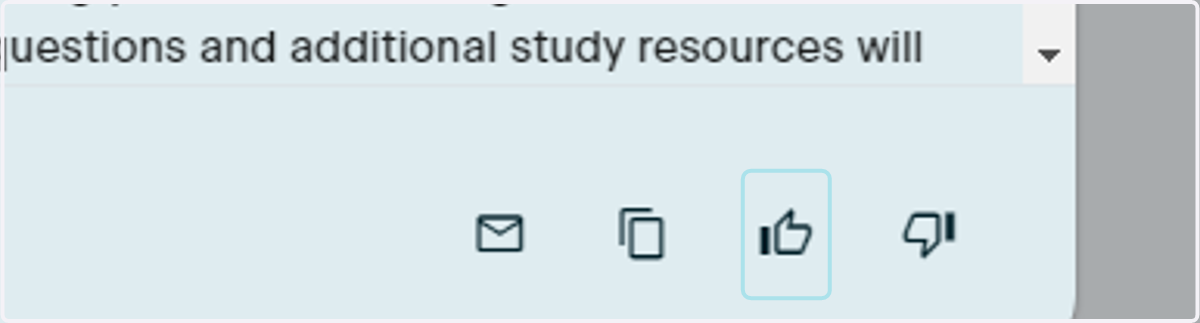
7. Mark as Helpful
If you were satisfied with the analysis provided, click the thumbs up button in the bottom righthand corner of your analysis window.
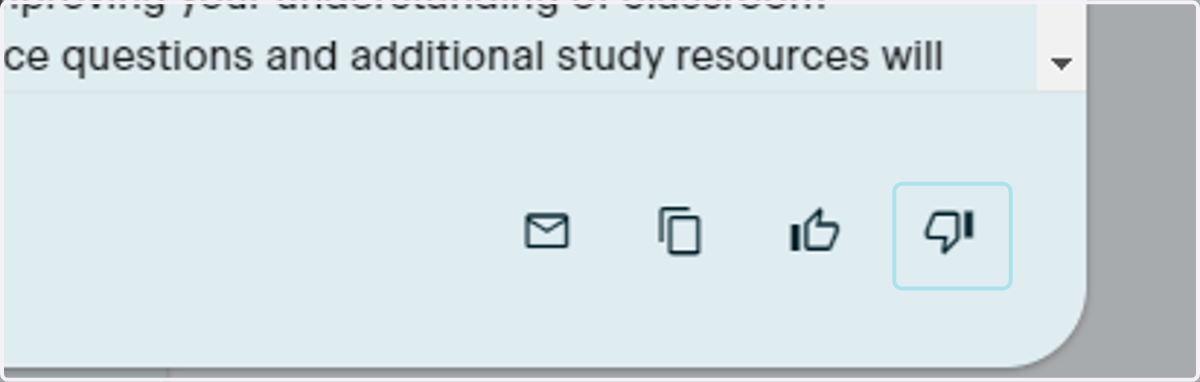
8. Mark as Not Helpful
If you were dissatisfied with your analysis, click the thumbs down button
9. Leave Feedback
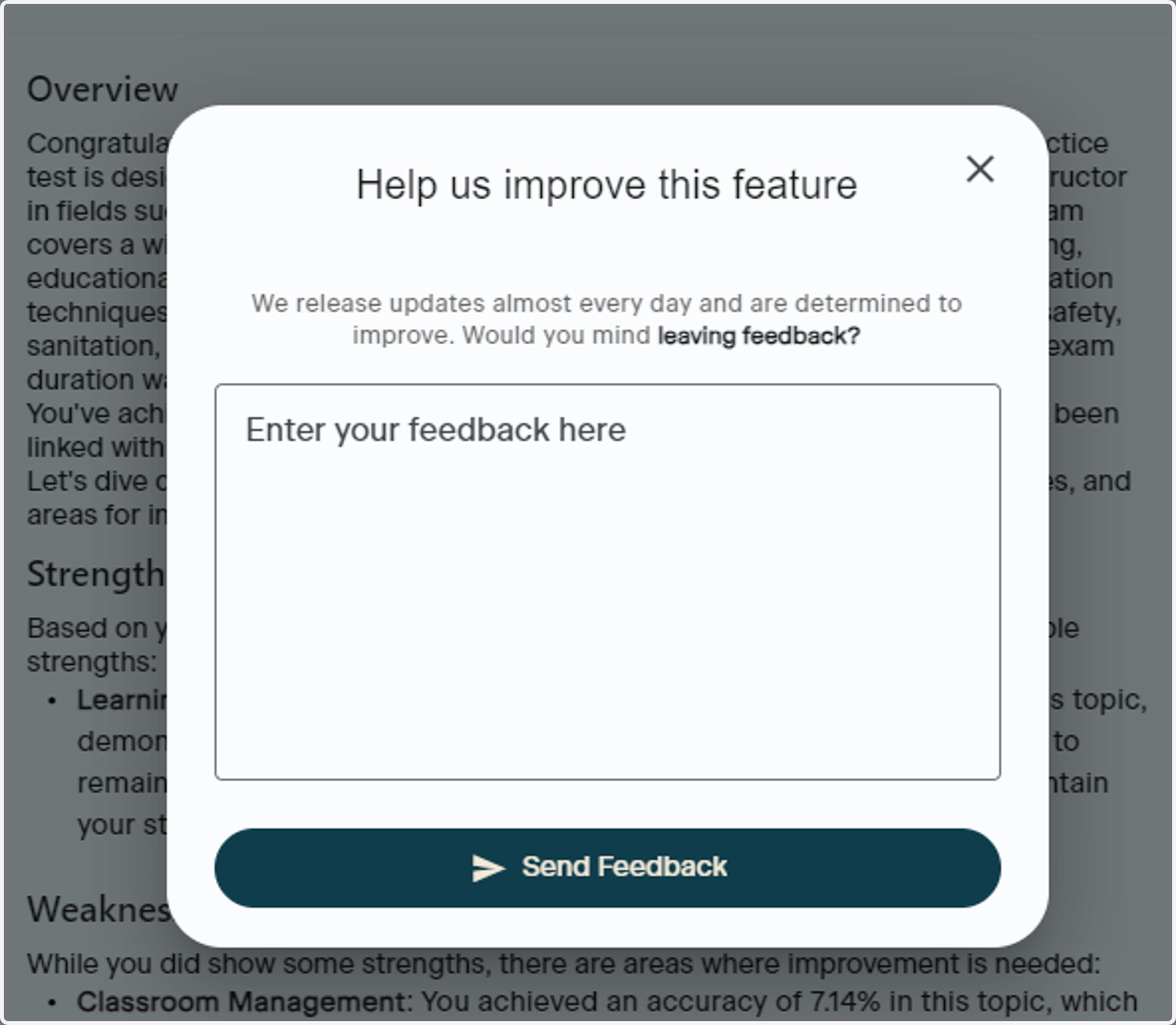
Once you click thumbs up or thumbs down, a feedback window will populate. You may submit a response or X it out to close it. The more feedback Memorang receives, the more intuitive the responses can become
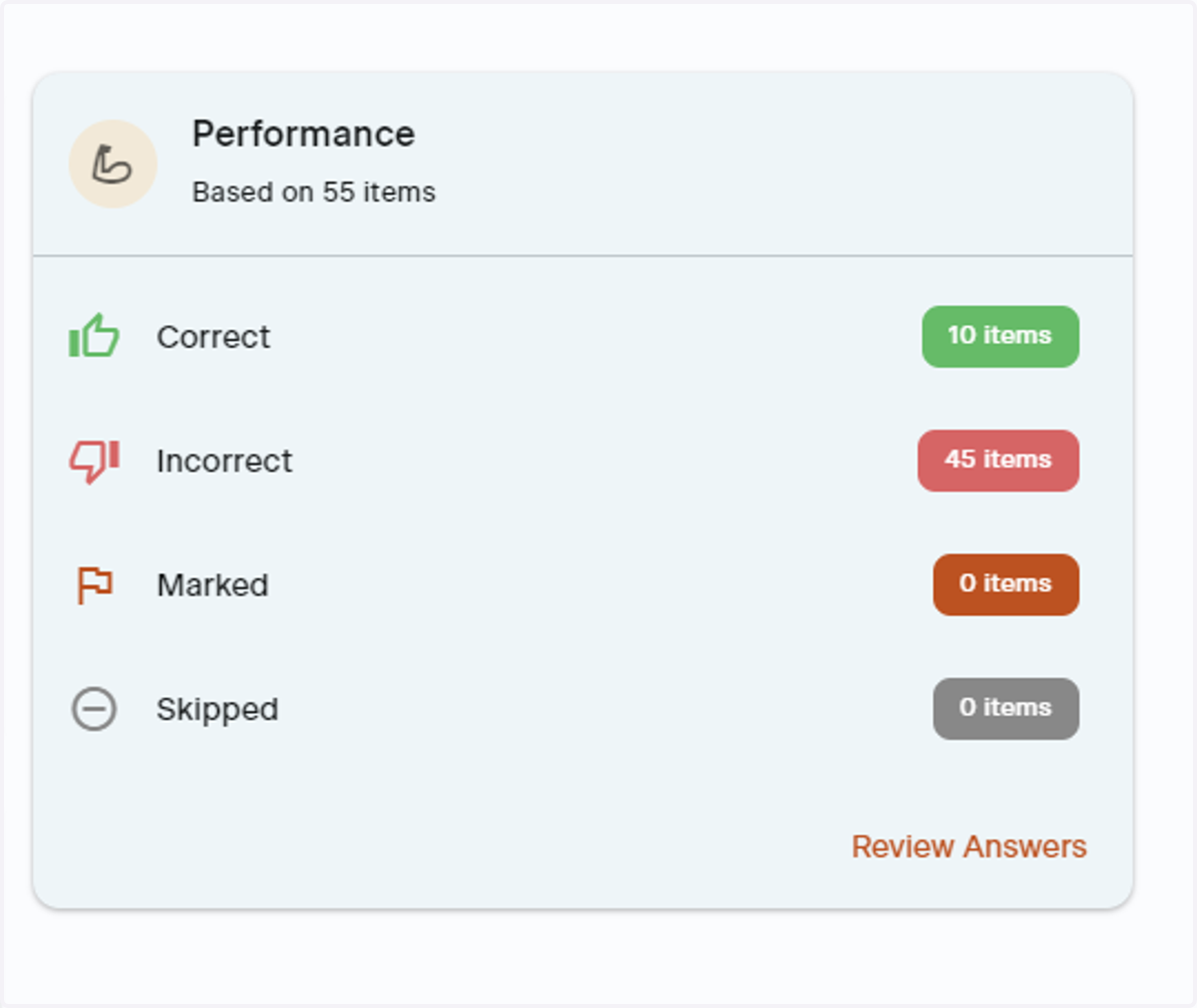
10. Performance
Performance provides an overview of the questions you answered or marked
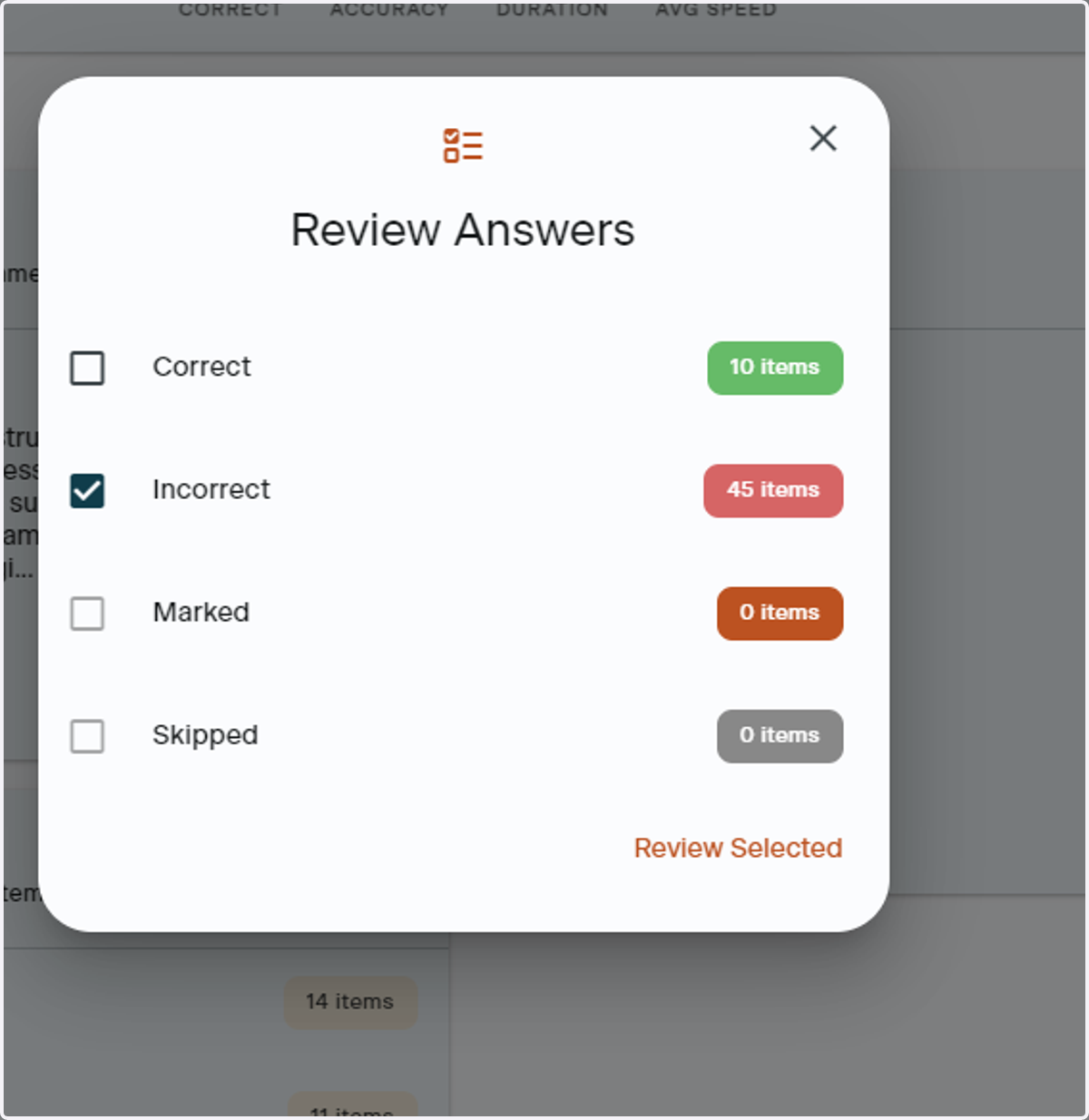
11. Review Responses
You can review how you responded to questions at anytime. Simply select which portions you would like to review, and click Review Selected
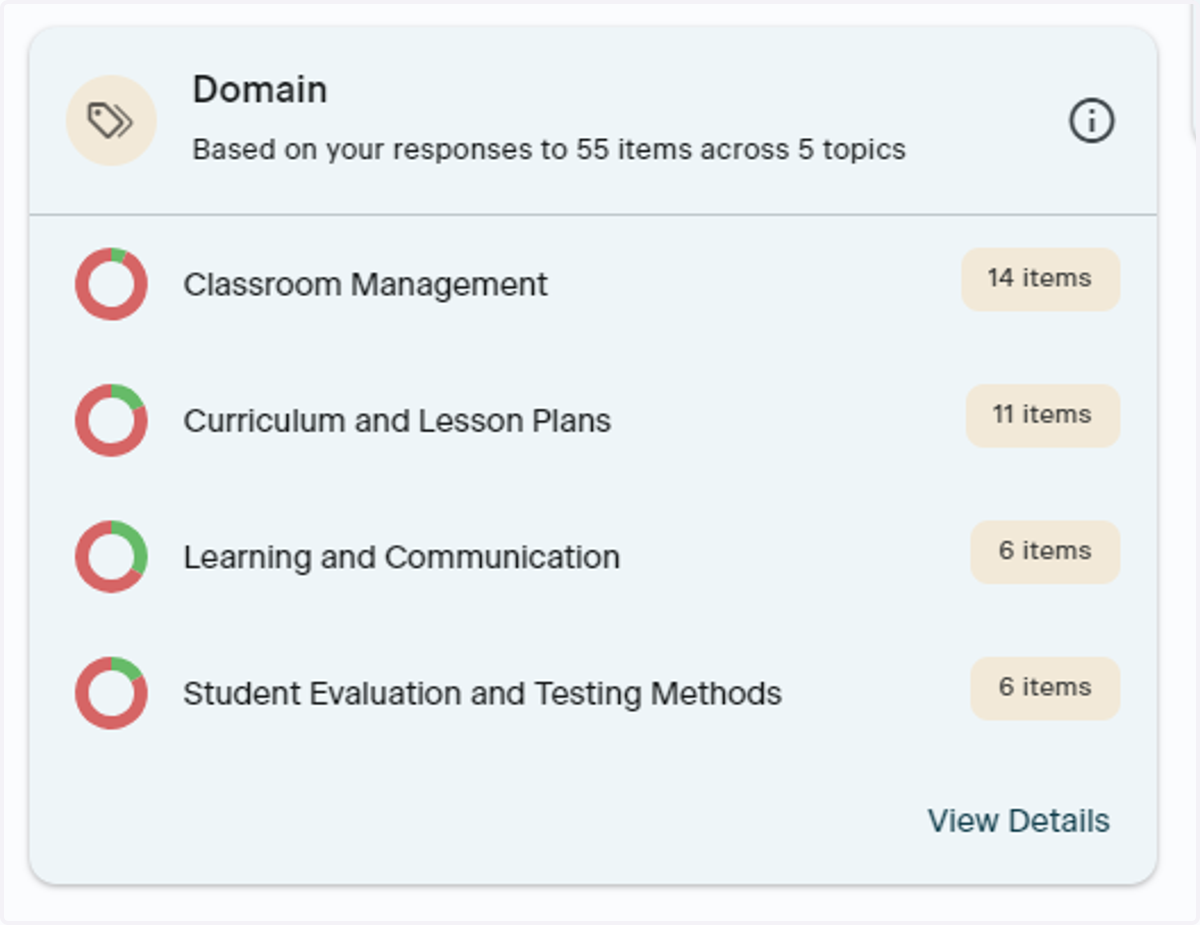
12. Domain
Domain shows insight to your performance in each topic
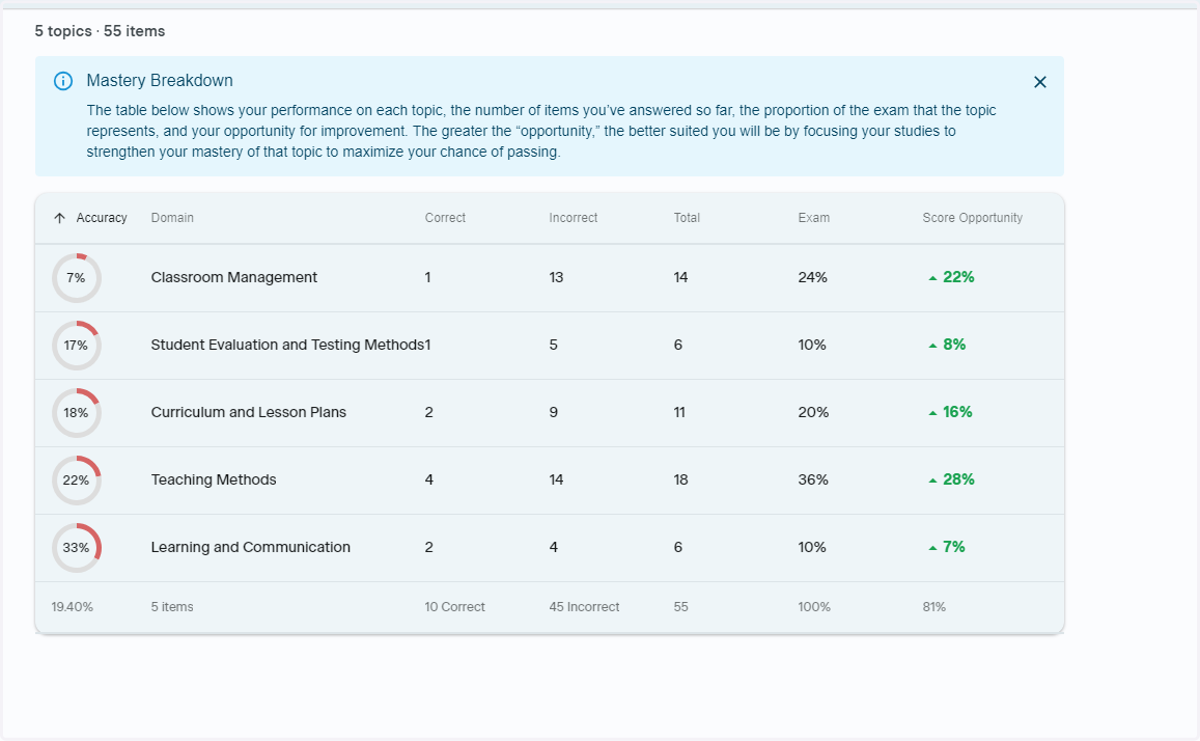
13. Mastery Breakdown
If you click Domain, you will be brought to the Mastery Breakdown screen to view a more in-depth report of your performance in each topic
Using AiLA Inside the Performance Section
Once you have clicked Performance and selected which sections you would like to review the answers to, you can use the AI Learning Assistant (AiLA) to better understand your responses and learn more about the why behind the correct answer
14. Read the Explanation
Read through the Explanation section to guide you on how to formulate questions to AiLA. Reading the Explanation can also provide valuable insight into the question you are reviewing
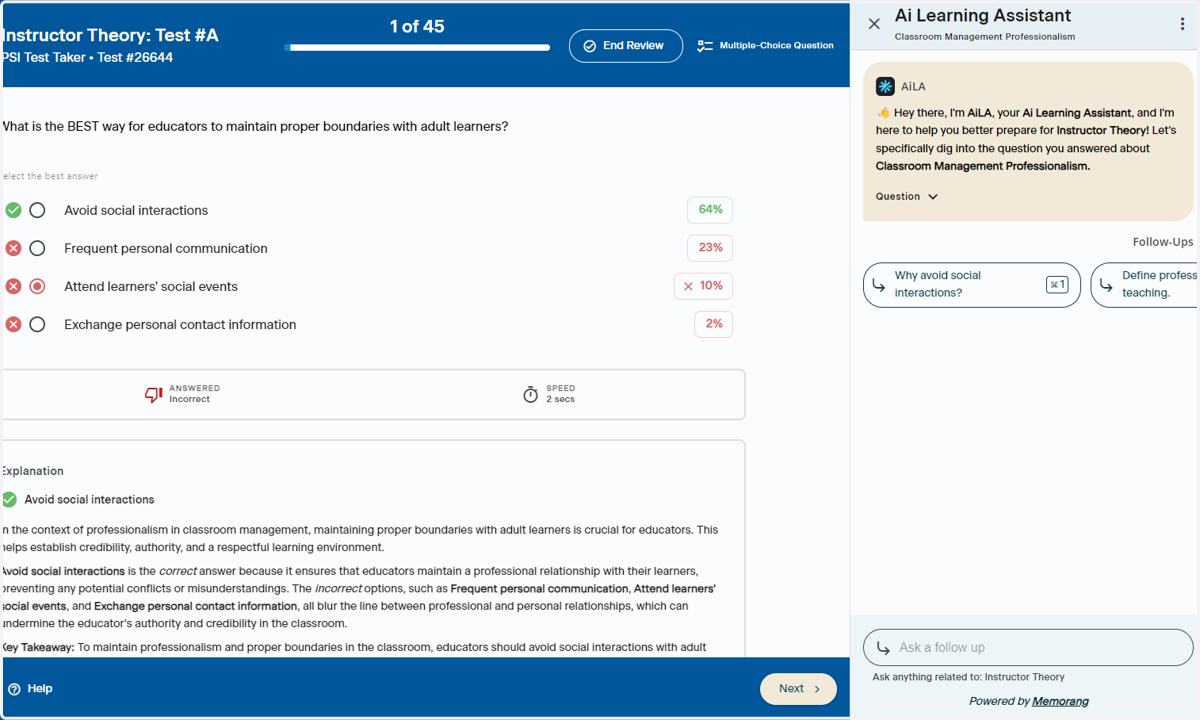
15. Ask Your Own Question
You can ask AiLA your own question based on the test you have taken
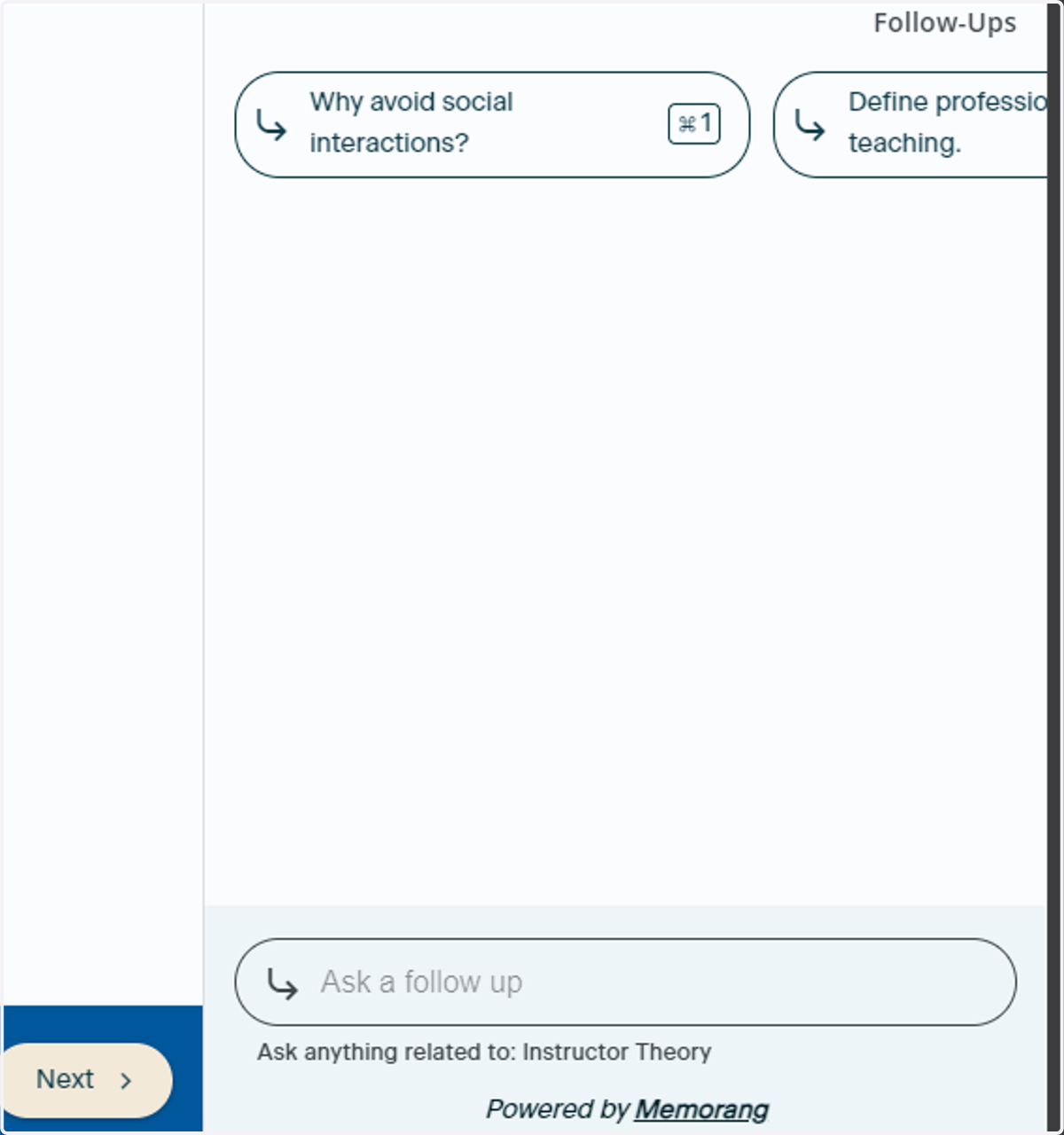
16. Click Send
Once you are satisfied with the question you have typed, click the Send button to ask AiLA
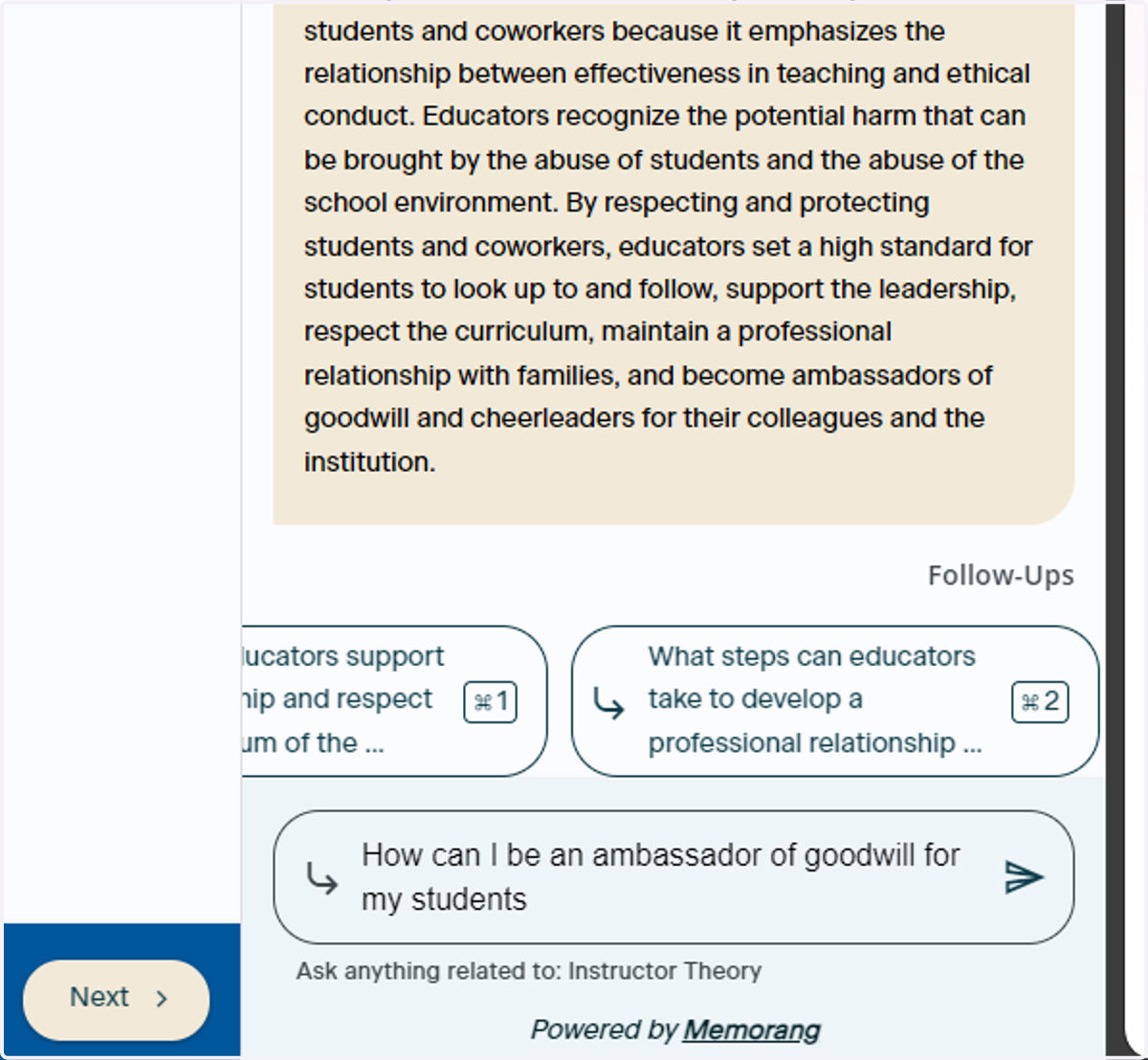
17. Read the Response
AiLA will generate a reply based on your question
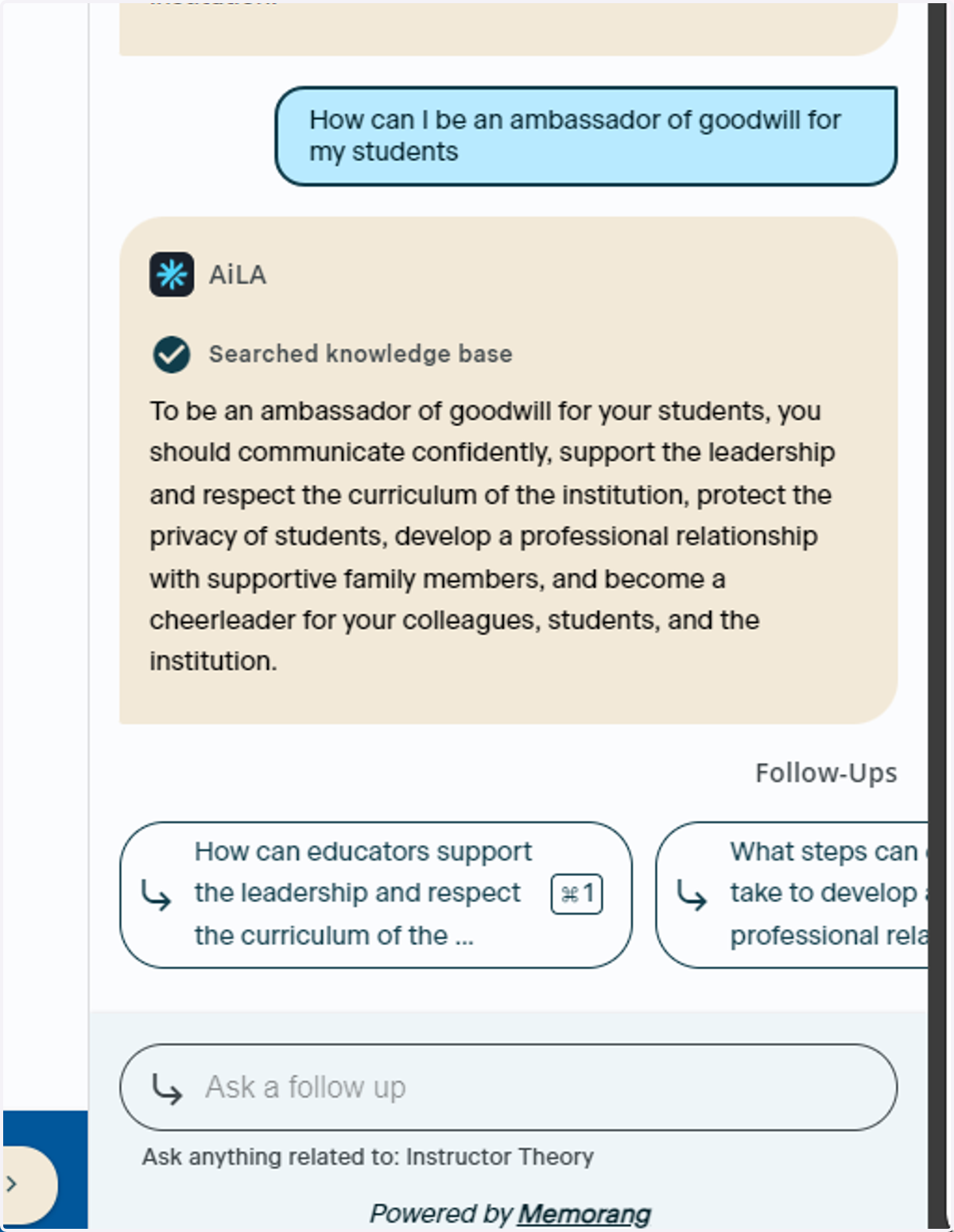
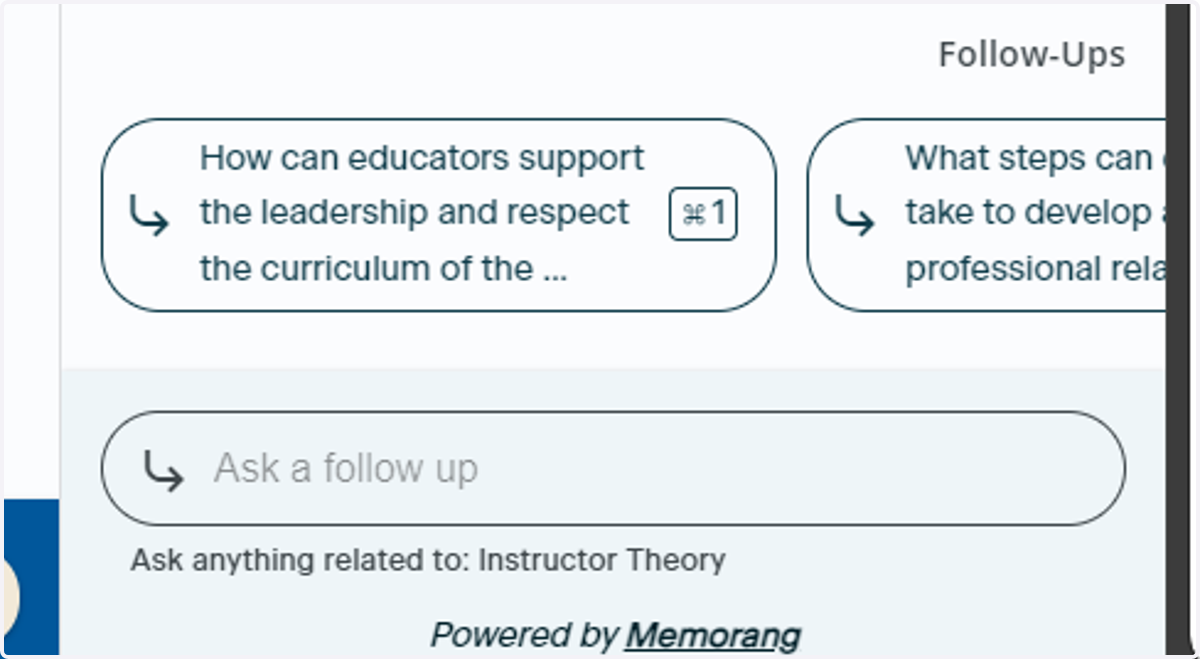
18. Using Pre Generated Questions
Use the pre generated questions to ask AiLA about the question you're on. Use the arrow button to view more pre generated questions. Once you are satisfied with your selection, click Send to ask AiLA
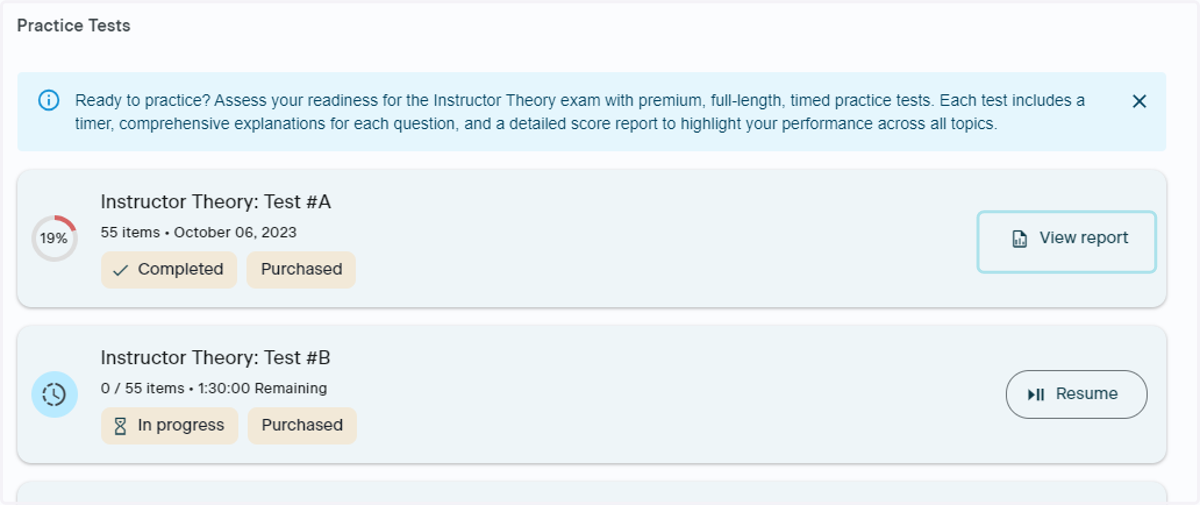
View Your Report Anytime
19. View Your Practice Test Report
On your practice test homepage, simply navigate to the practice test you have completed and click the view report button to revisit your results at any time
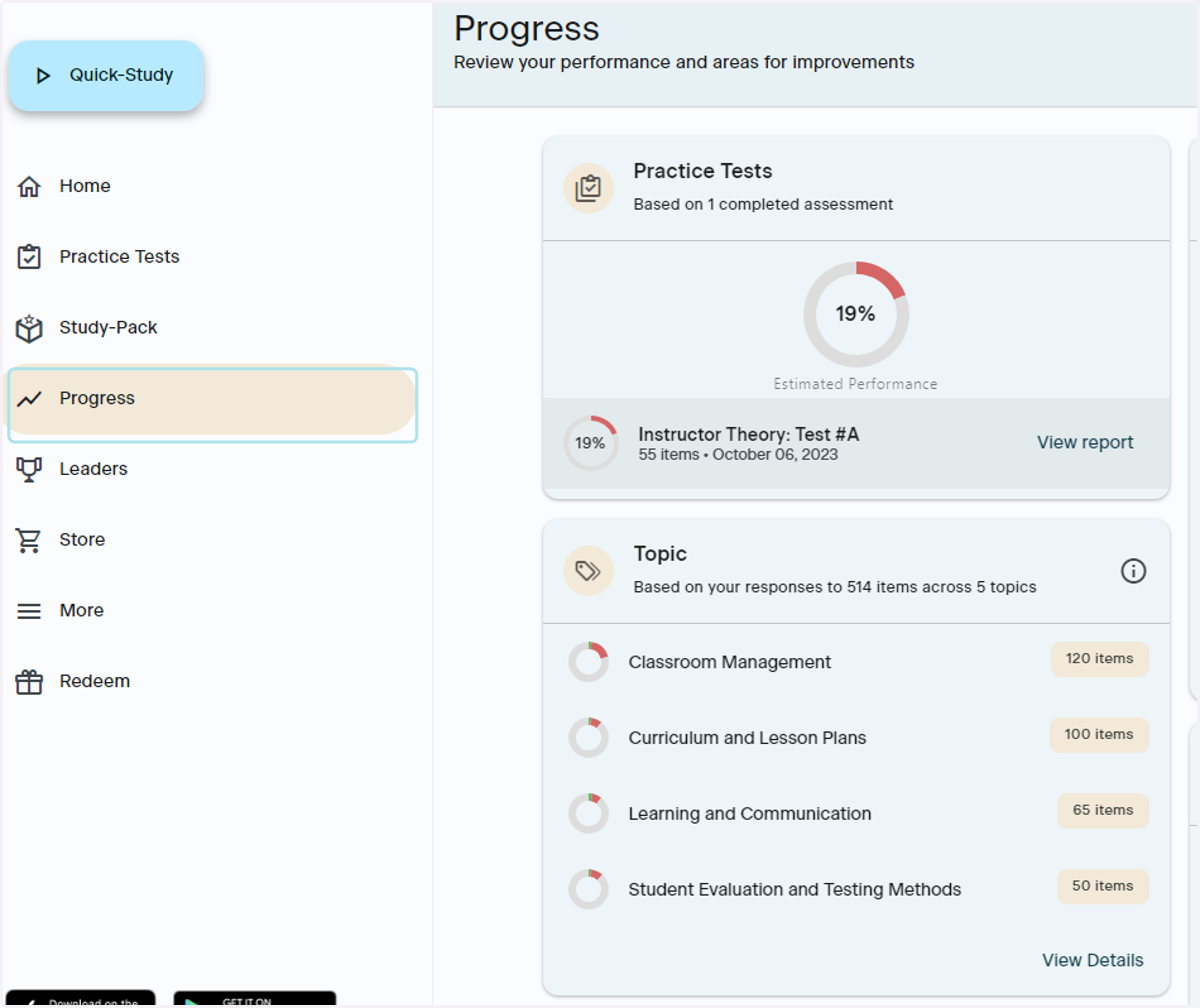
20. Progress Button
In the lefthand navigation, click the Progress button to get a full view of your activity in the Test Prep App
21. Topic
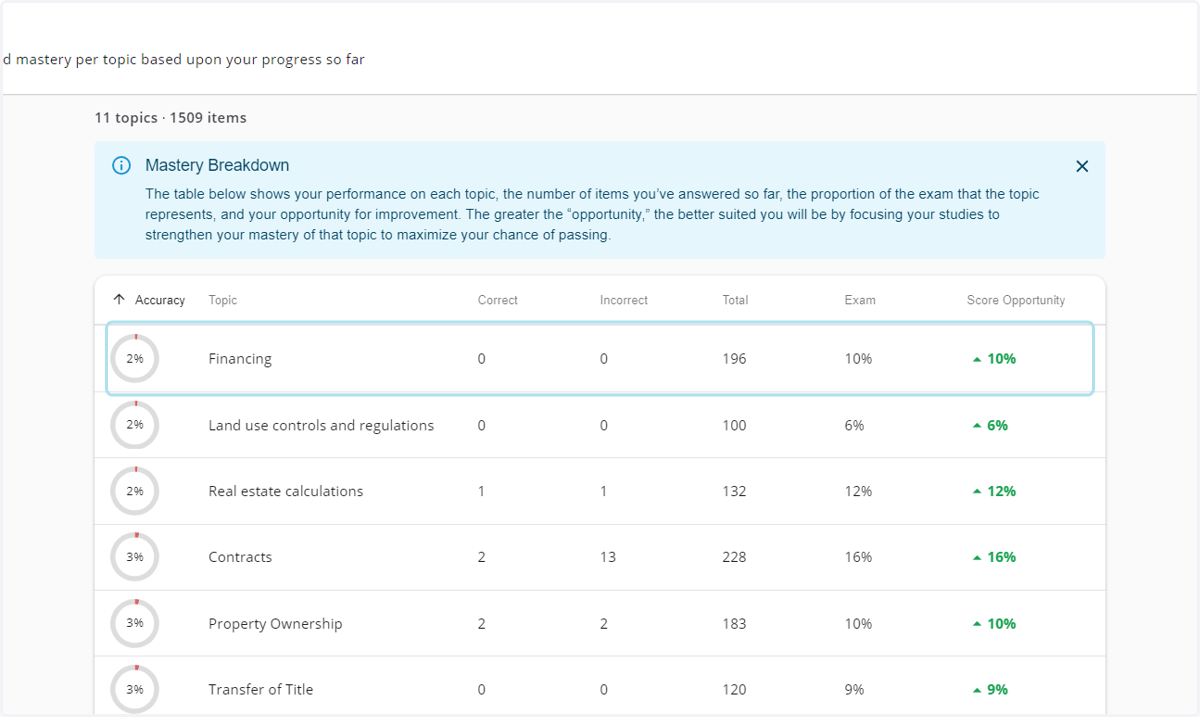
Similar to Domain in your practice test report, this is where you can see your performance in each topic
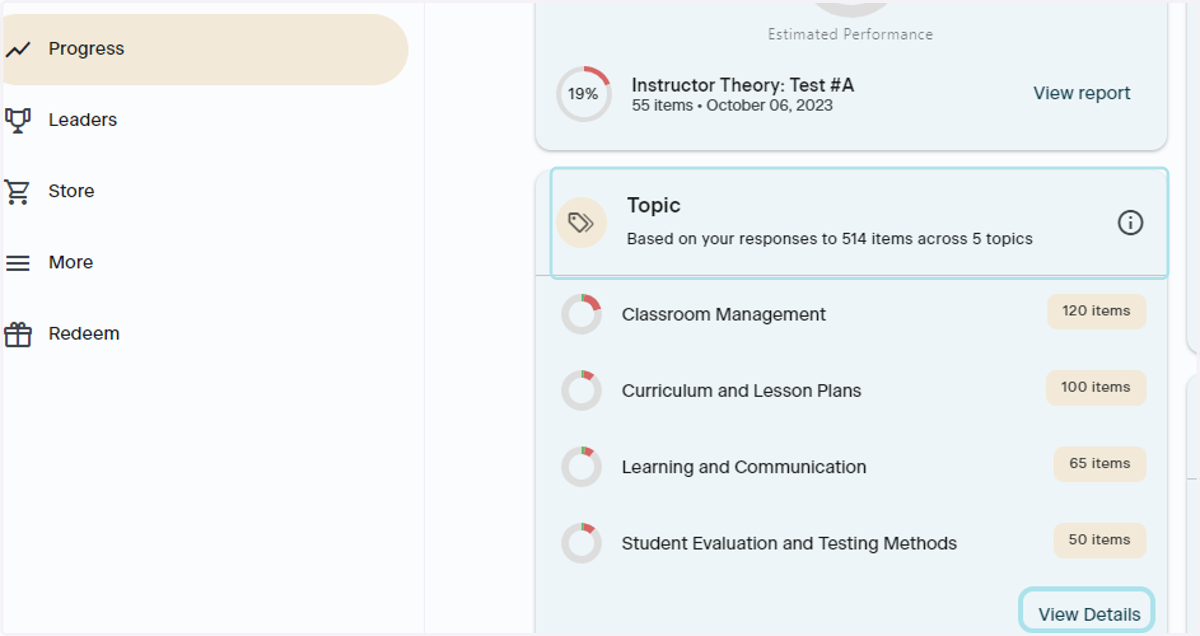
22. Mastery Breakdown
If you click View Details in the bottom righthand corner of the Topic section, you can view an in-depth report of your topic performance
Brush Up Your Skills
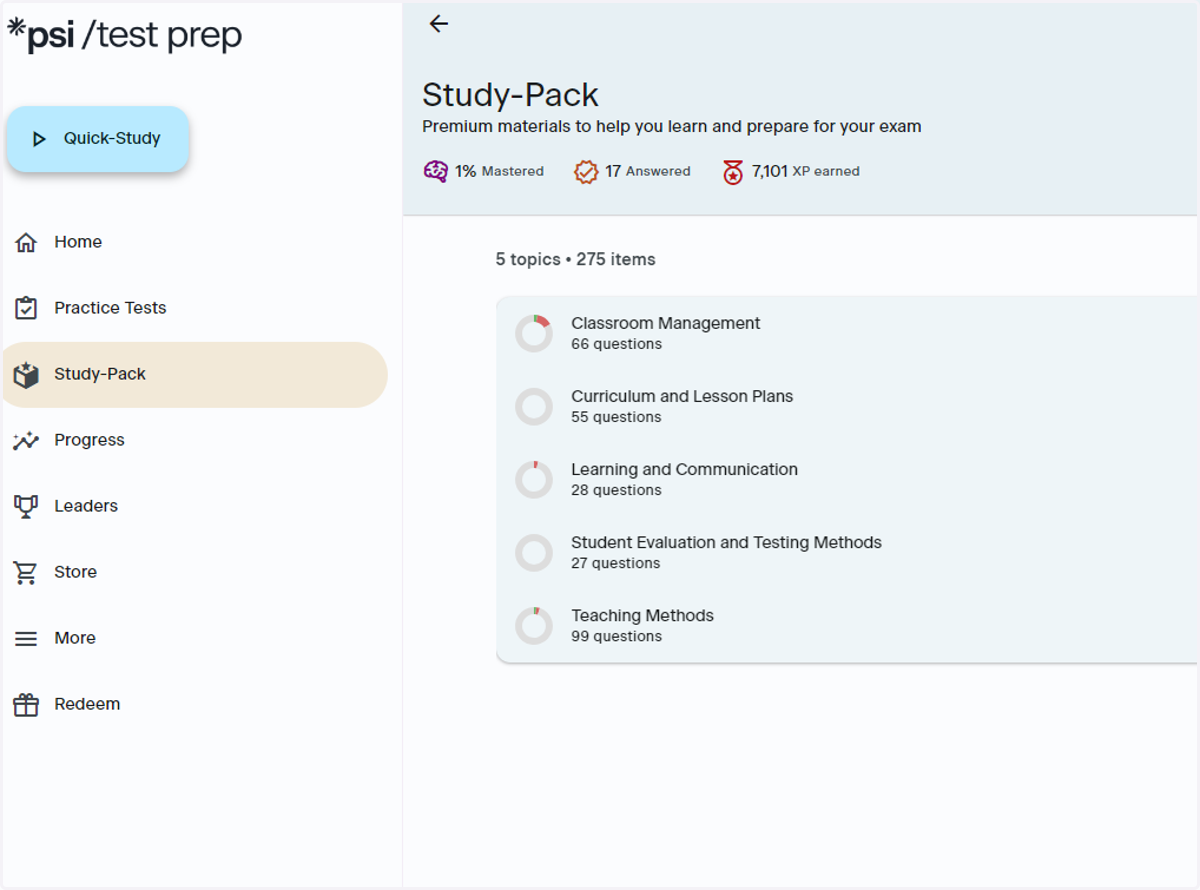
23. Get Your Study Pack
If you did not purchase a Test Prep Bundle and would like to get practice with guidance, go to the Study Pack button in the lefthand navigation bar. You will be prompted to upgrade to get a Study Pack.
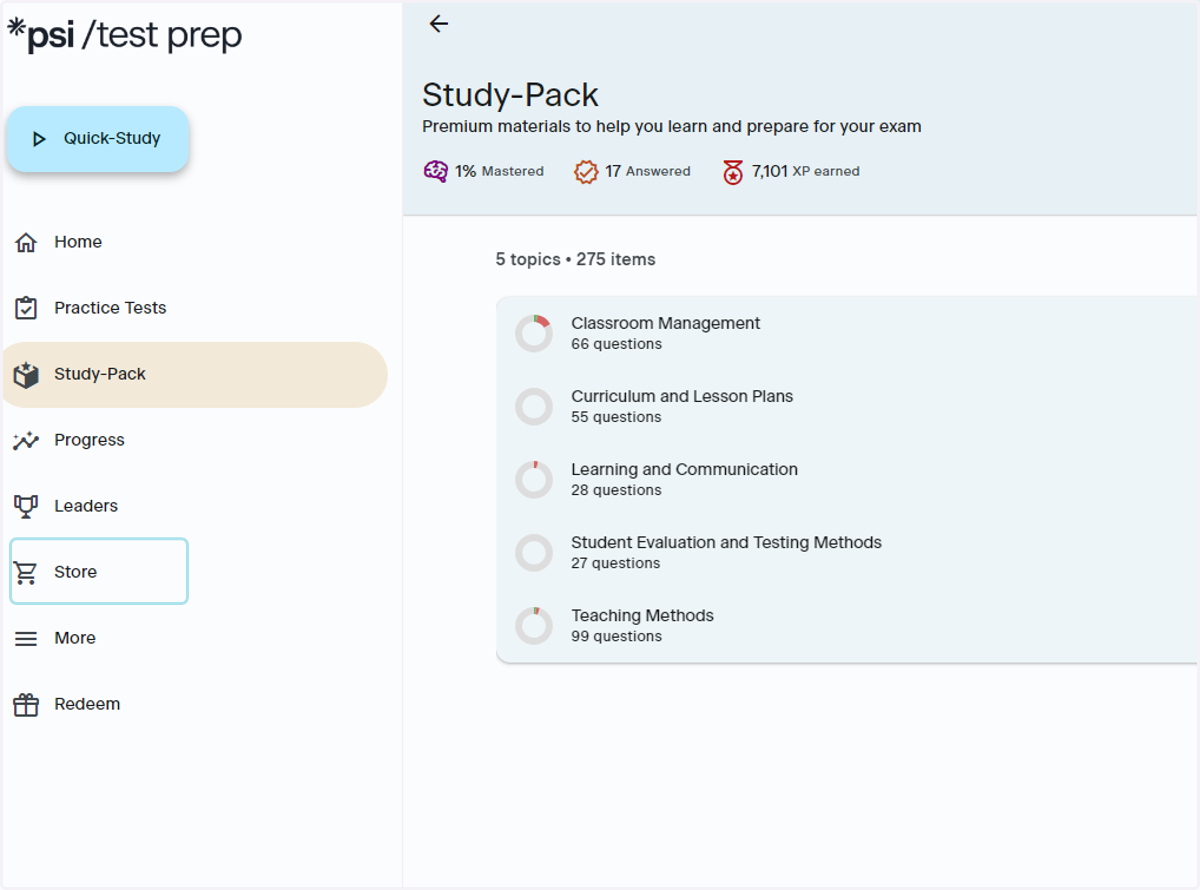
24. Purchase from the Store
You can also shop for more test prep products and upgrades in the Store. Go to the Store button in the lefthand navigation to shop for test prep products
Contact Support
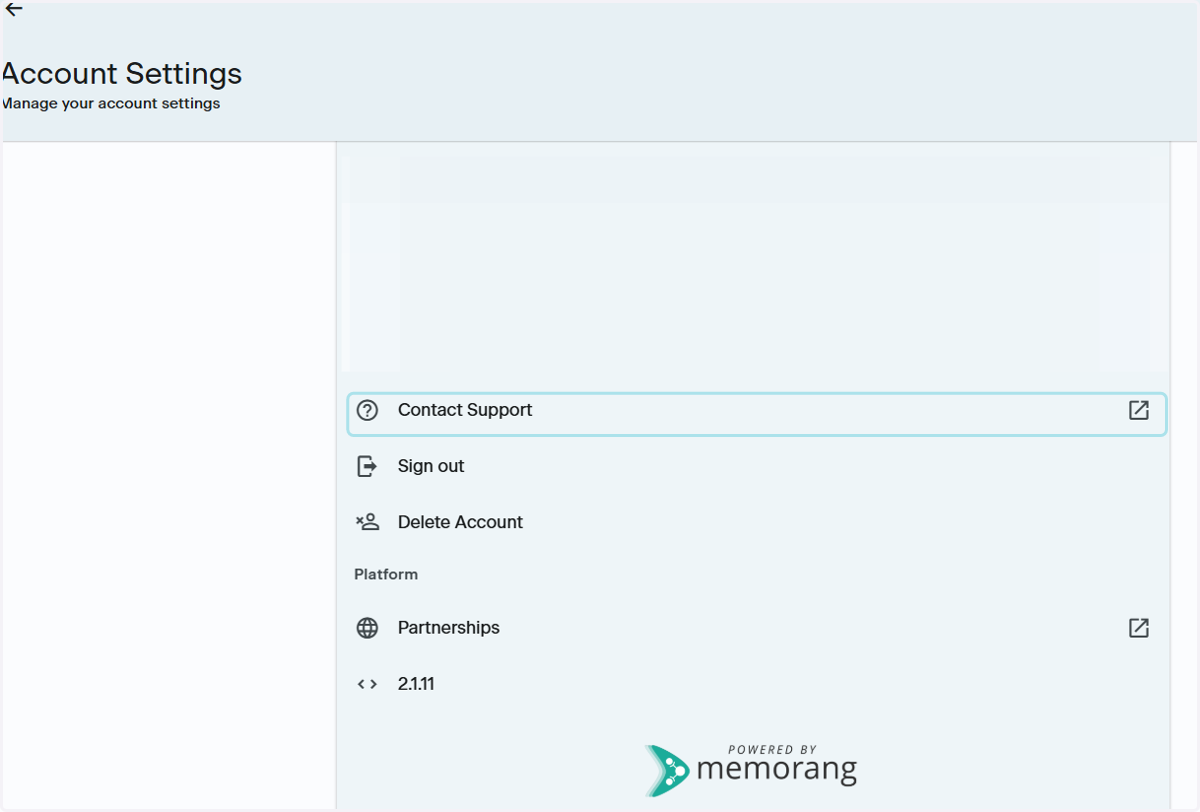
25. Where to Contact Support
Go to your Account Settings by clicking the Gear icon in the upper righthand corner of the App and click Support. This will launch an email to the PSI Support Team, ptsupport@psionline.com
For help with:
Profile details
Order related issues
Access code assistance
Change username
Errors
Please be sure to take screenshots of any errors
Please include the following in your email:
First name
Last name
Email associated with your order
Order Number
Order Confirmation
Note: If you have made a purchase in-app, or through the App Store or Google Play Store, the PSI team will not be able to assist you with order related issues such as:
Copy of order confirmation
Refunds of purchases made through the App Store, Play Store or in-app