Understanding the Progress Board
A comprehensive overview of how to use the Test Prep App
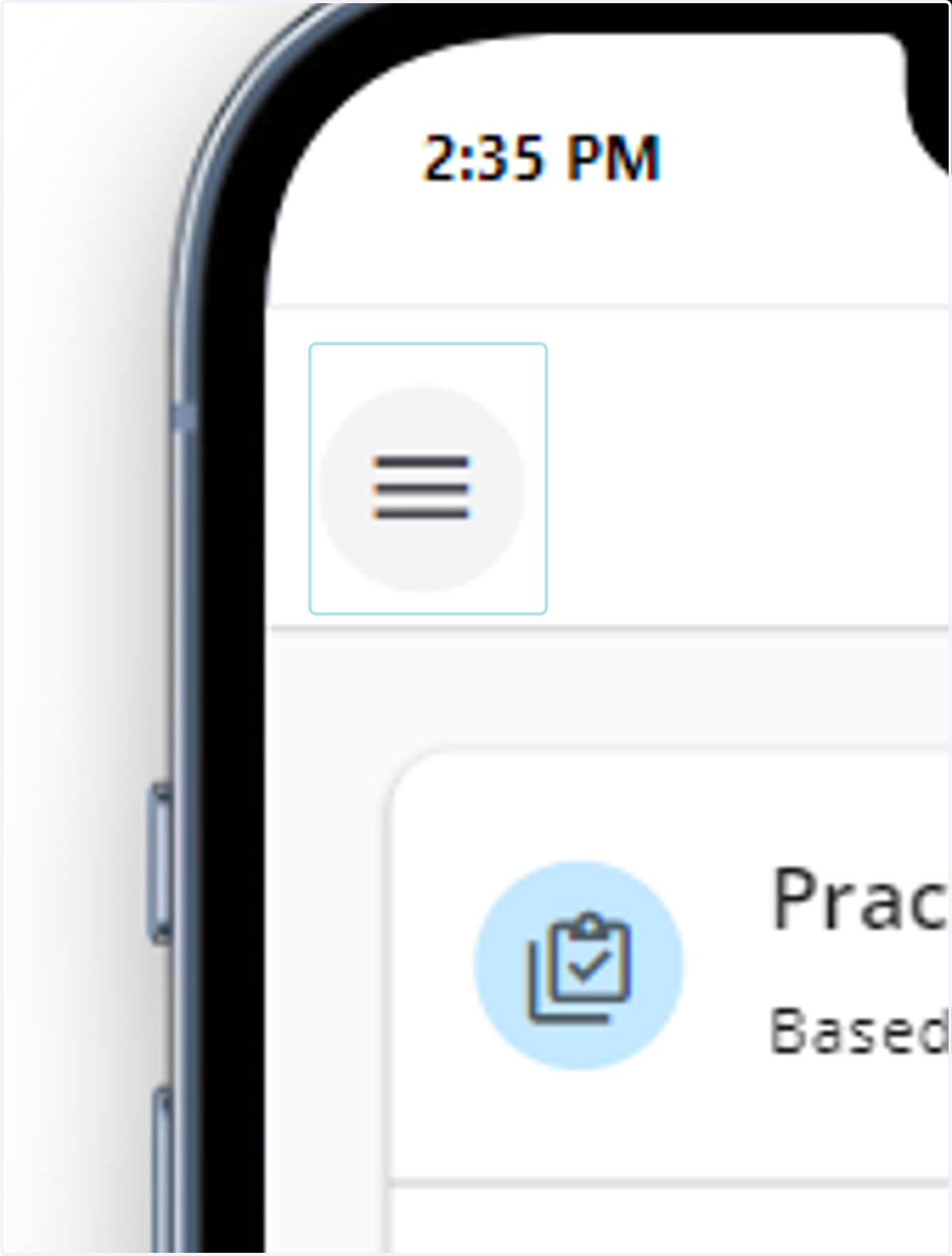
1. For Mobile: Click the Hamburger menu in the upper lefthand corner of your sc
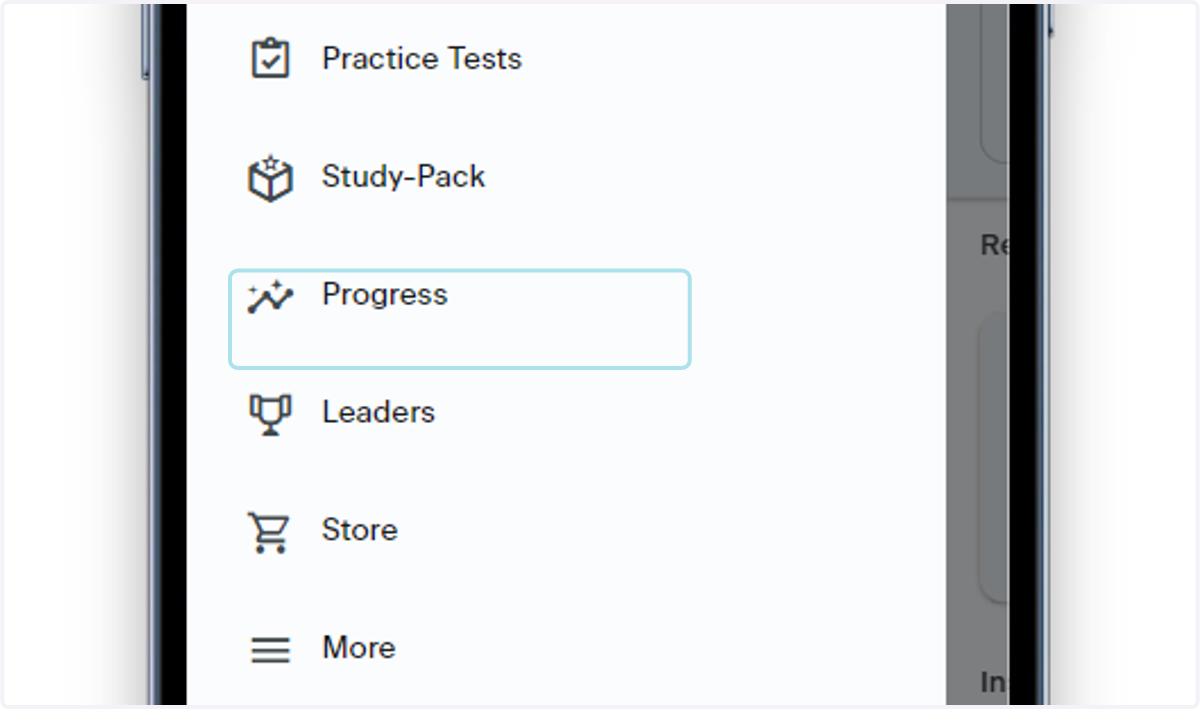
2. Click on Progress
Click on Progress in the lefthandhand navigation bar
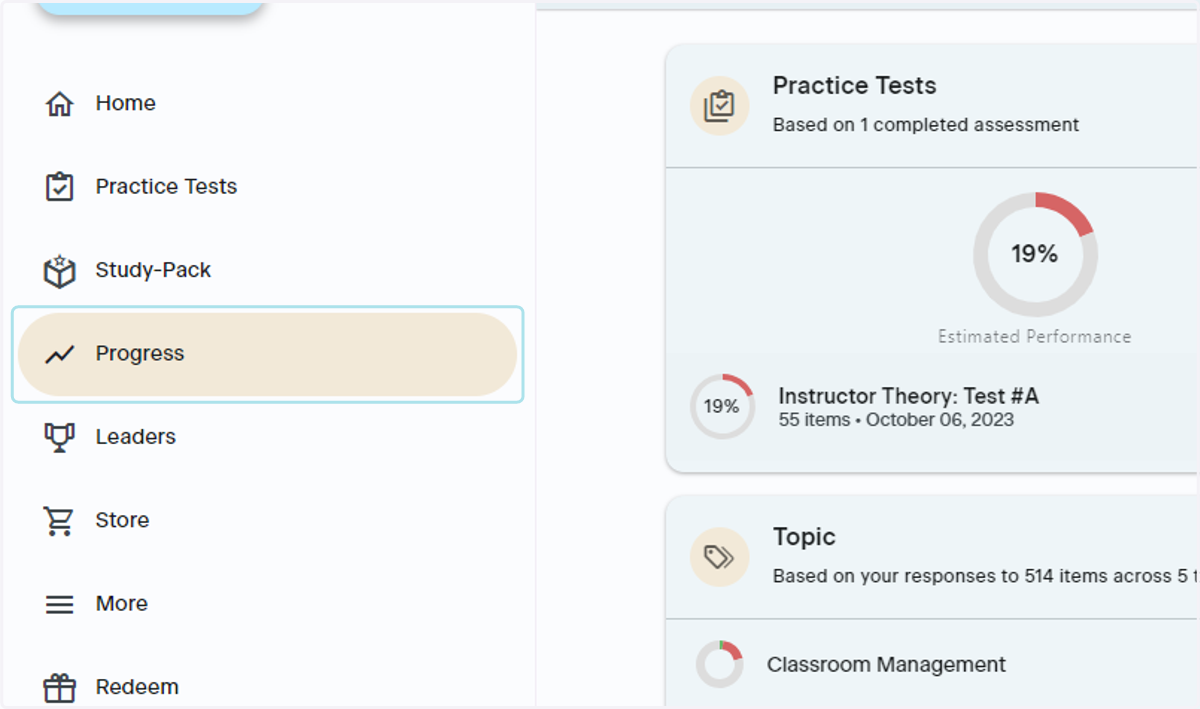
3. For Desktop: Click Progress in the lefthand navigation bar
Locating Your Progress
Where to find your progress within the Test Prep App
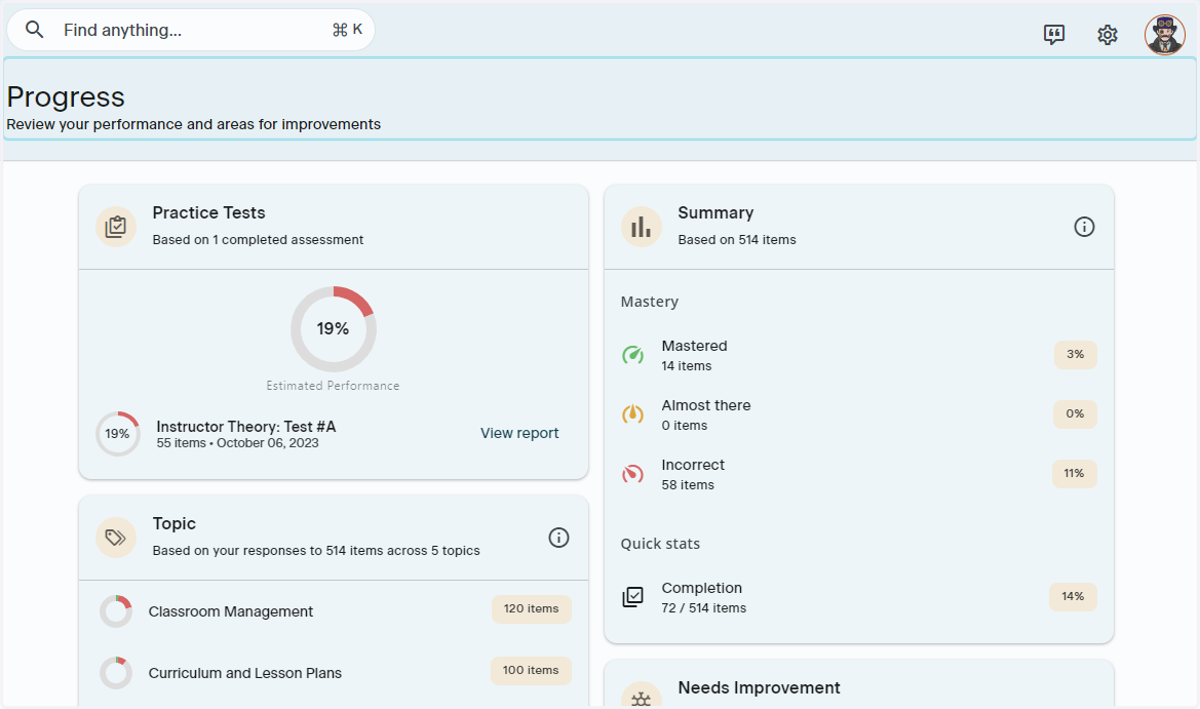
4. View Progress Overview
You can see everything you've done on the Progress overview page. Each section will contain material based on what you have completed within the Test Prep App
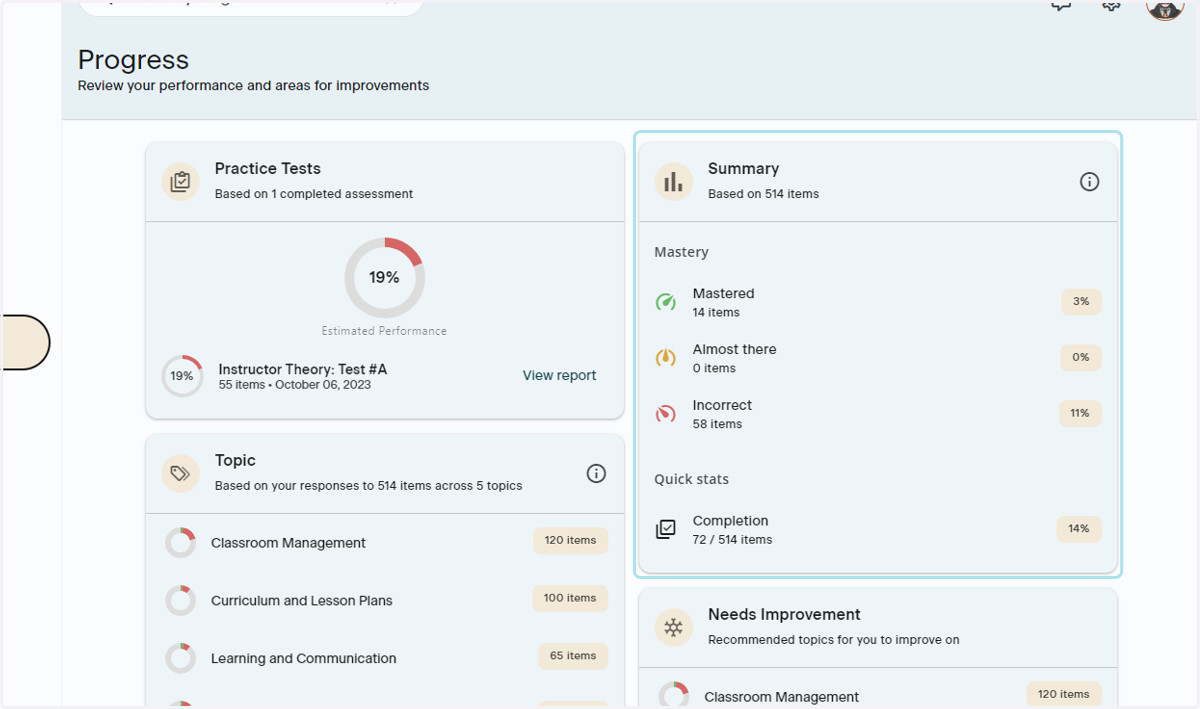
5. Summary Section
The Summary section is based on items answered in Study Packs. This shows an overview of what and what needs more attention
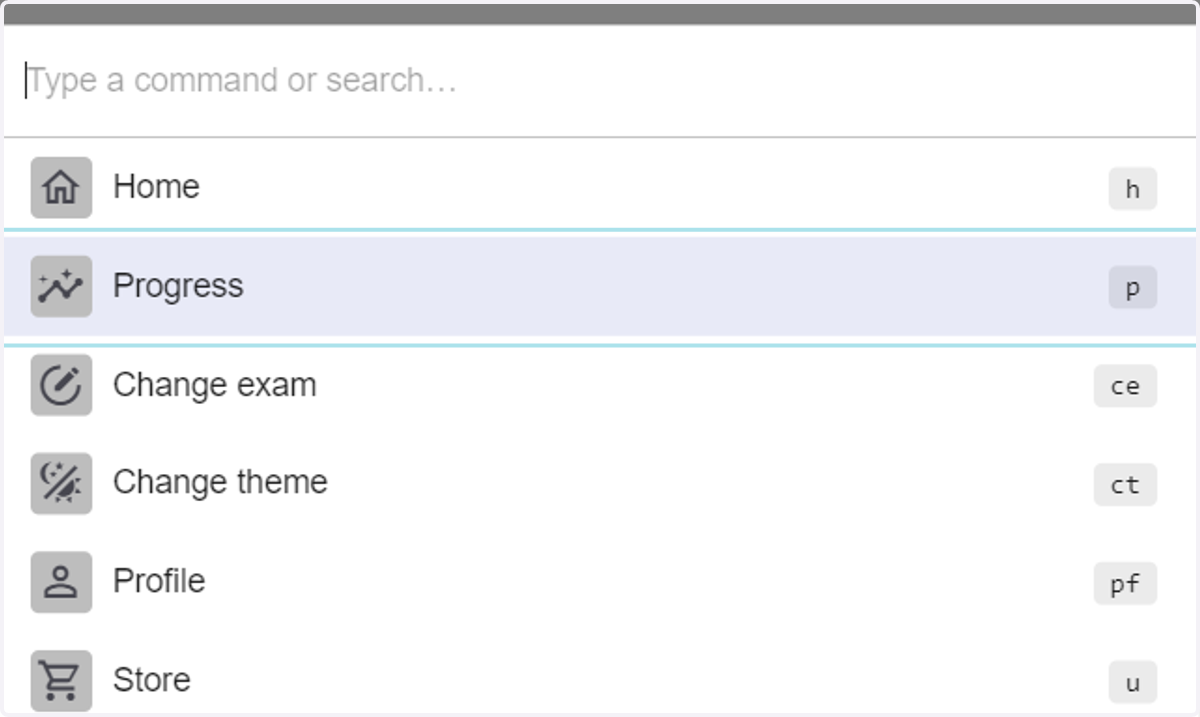
6. Progress Under Find Anything (Desktop only)
You can also navigate to the progress section under Find Anything. Please refer to using the Find Anything search bar section for guidance on how to use the Find Anything search bar
Practice Test Progress
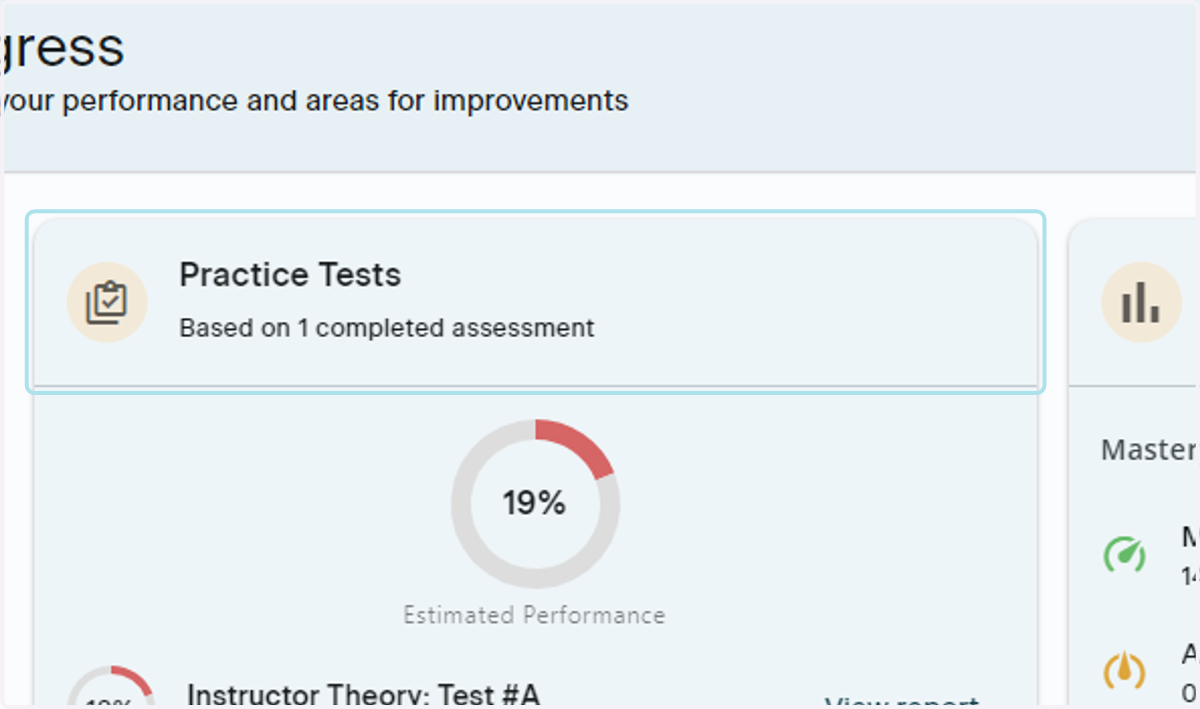
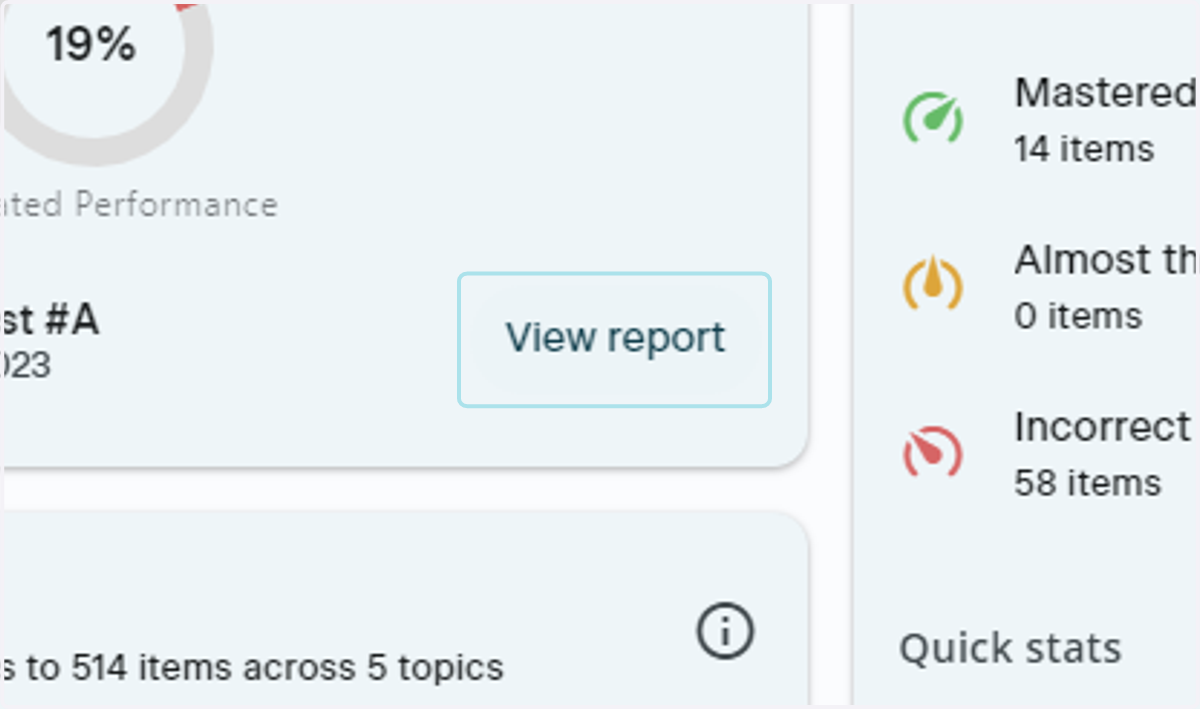
7. Practice Tests
Practice tests will show all of the practice tests that you have completed
8. View Practice Test Report
To view a report based on your results, click view report. This where you will find detailed information regarding your results, including a full breakdown and analysis
9. Practice Test Report Overview
Once you click View report, you'll be taken to this page to see all aspects of your Practice Test Report
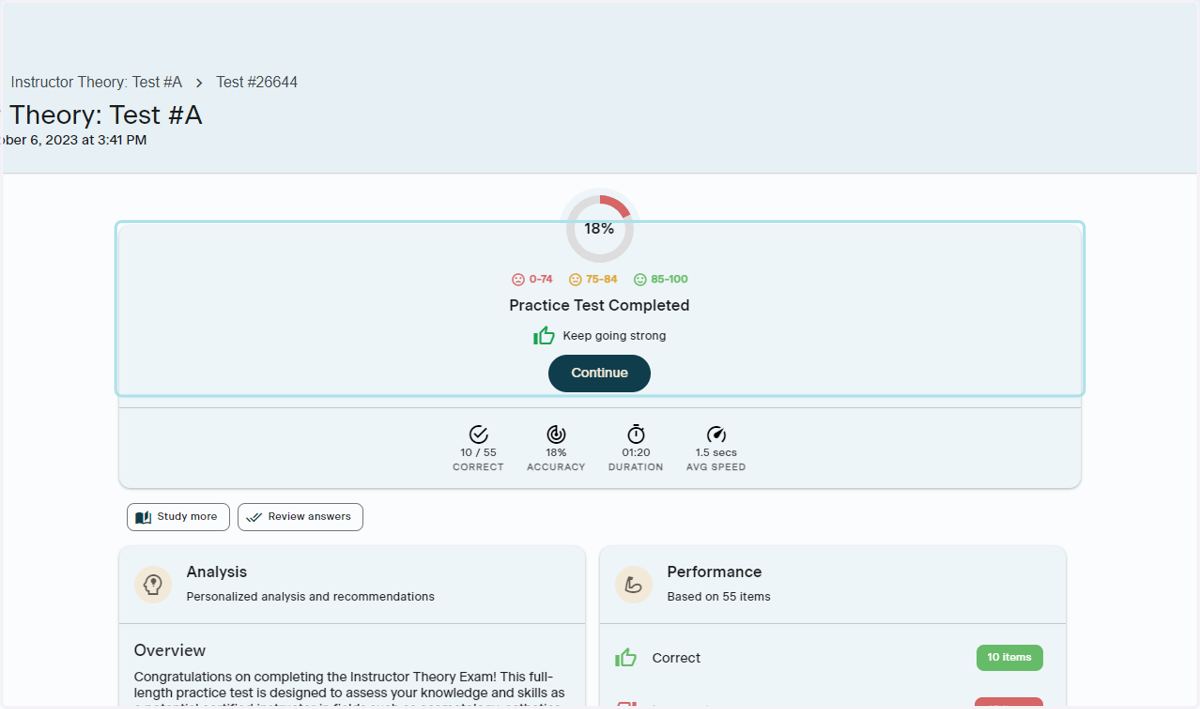
10. Analysis Section
The Analysis section breaks down your results and provides guidance for your studies
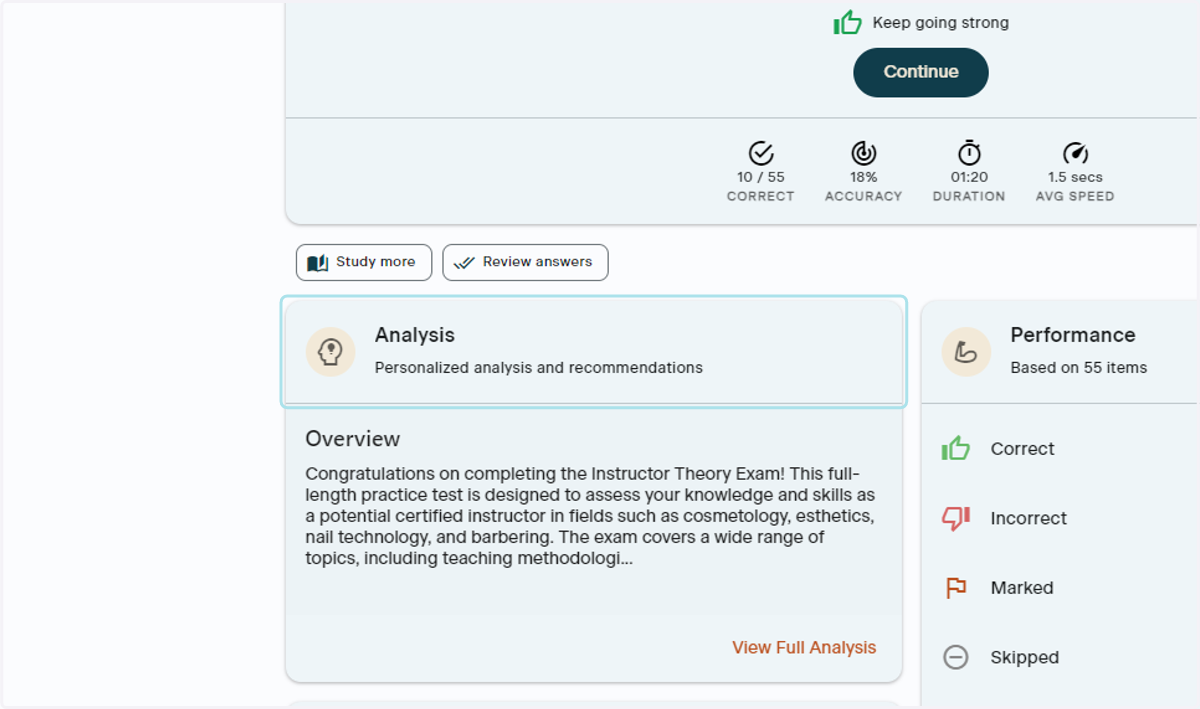
11. View Full Analysis
Click on View Full Analysis to read through your personalized report
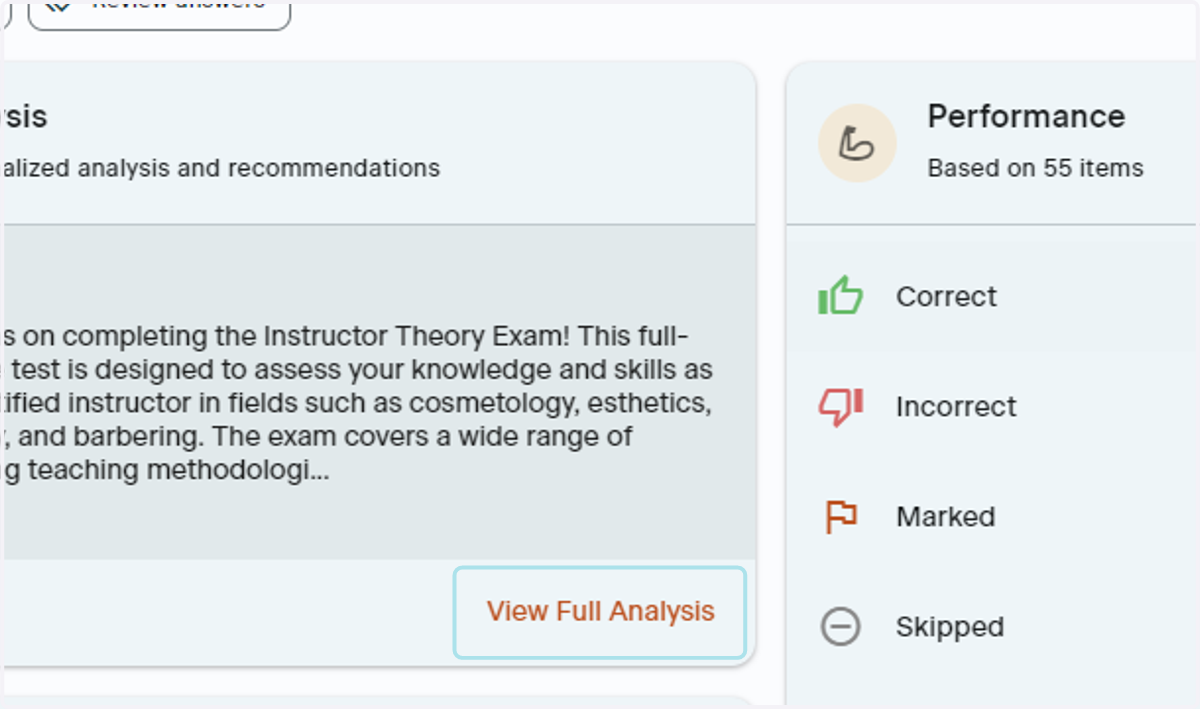
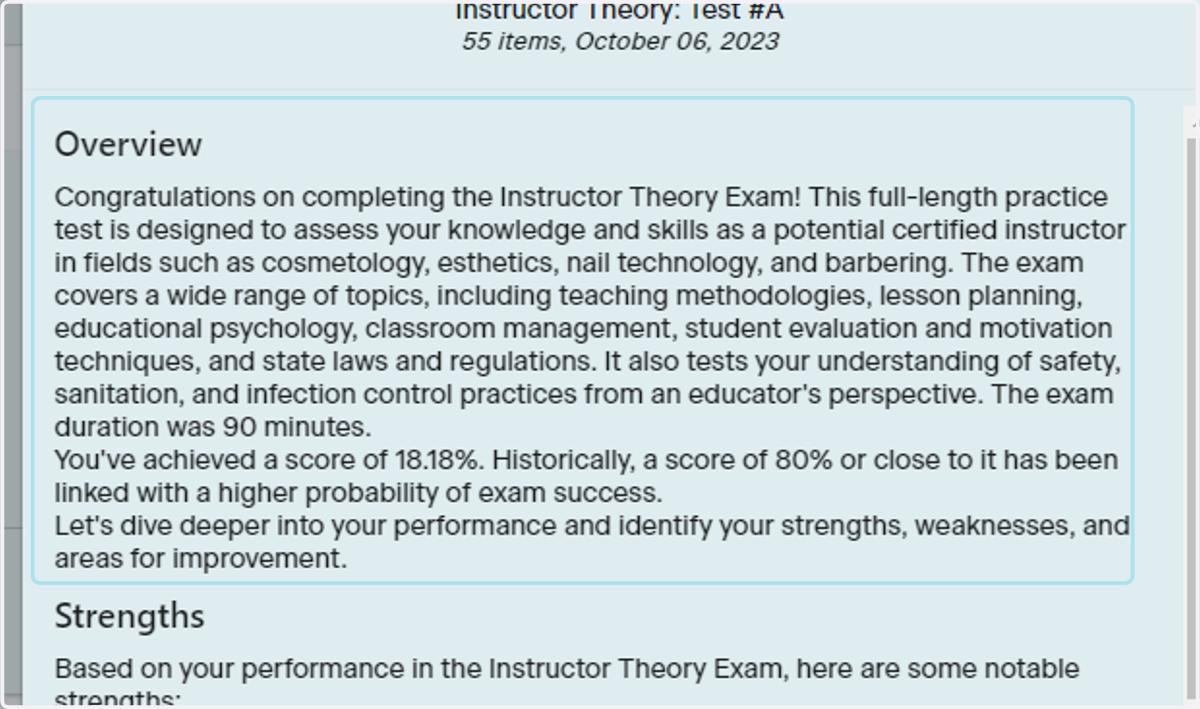
12. Analysis and Insights
The Overview section provides high level detail about your results
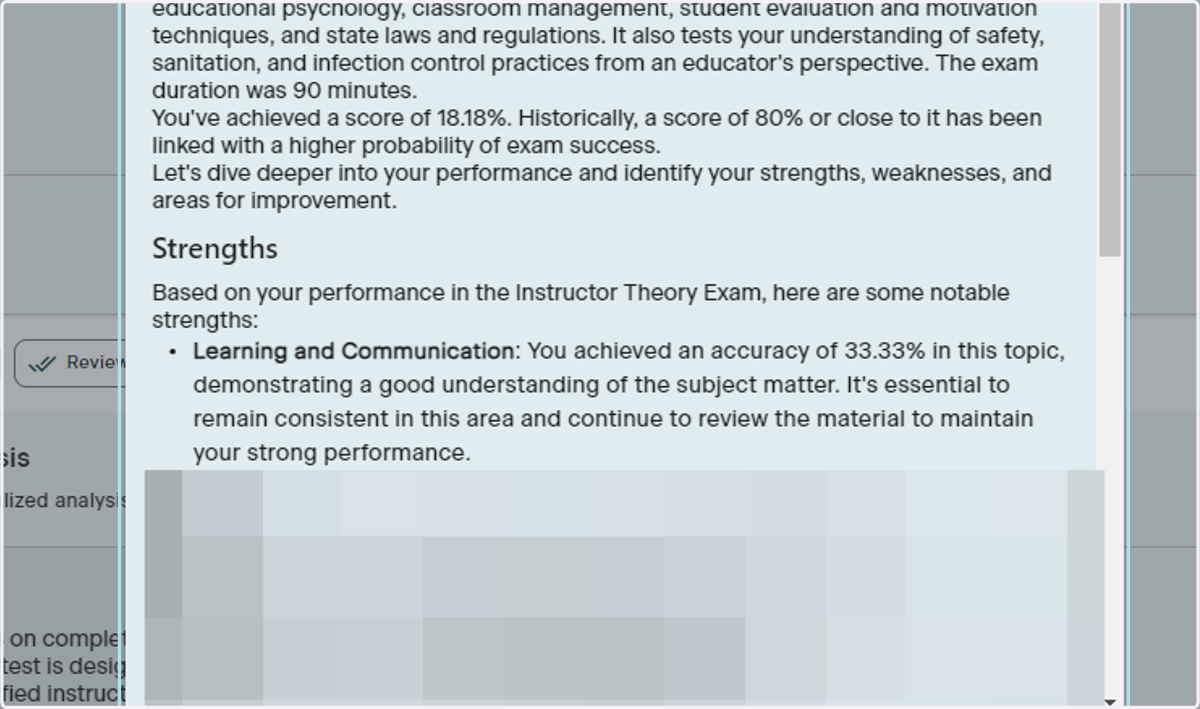
13. Strength
This section breaks down what you excelled in on your practice test
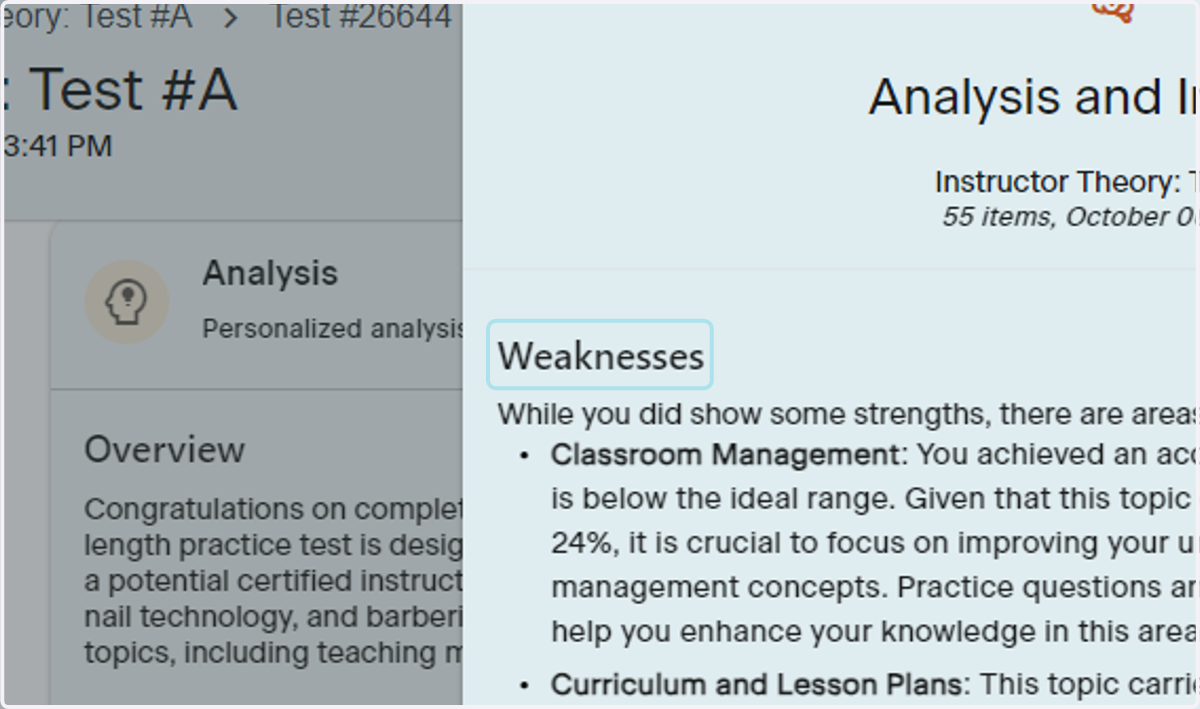
14. Weaknesses
This section shows what needs improvement based on your practice test result
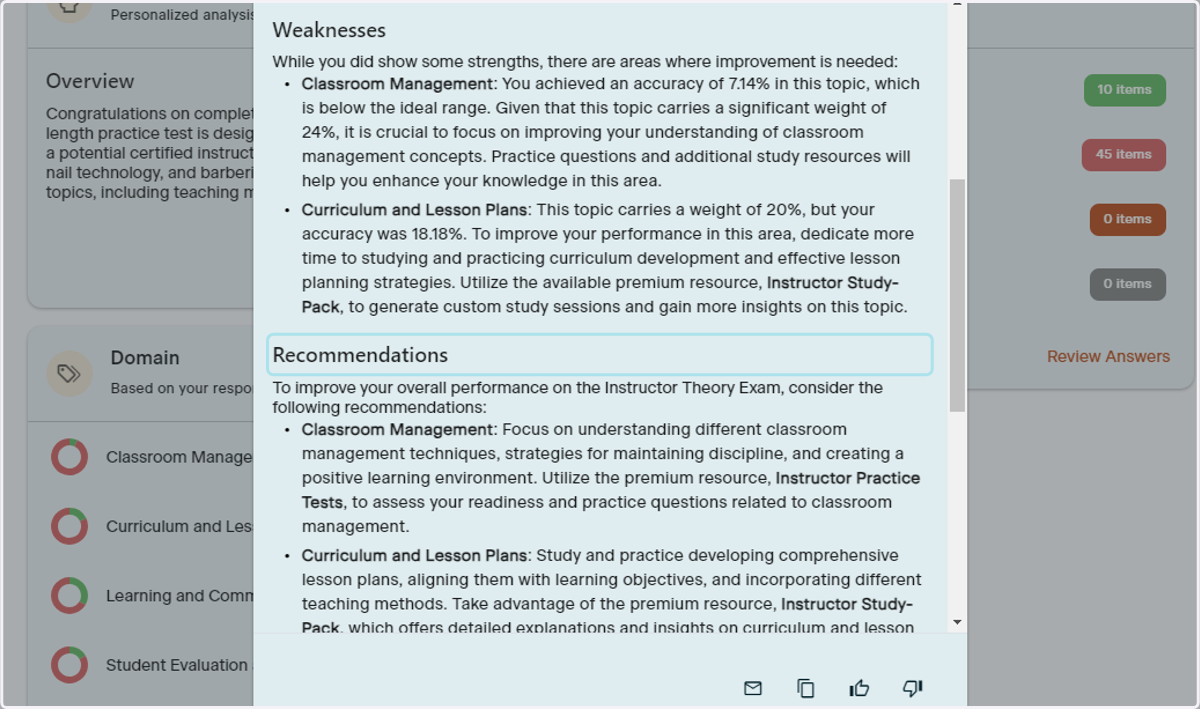
15. Recommendations
This section explores your result and helps to guide you on where to focus your studies
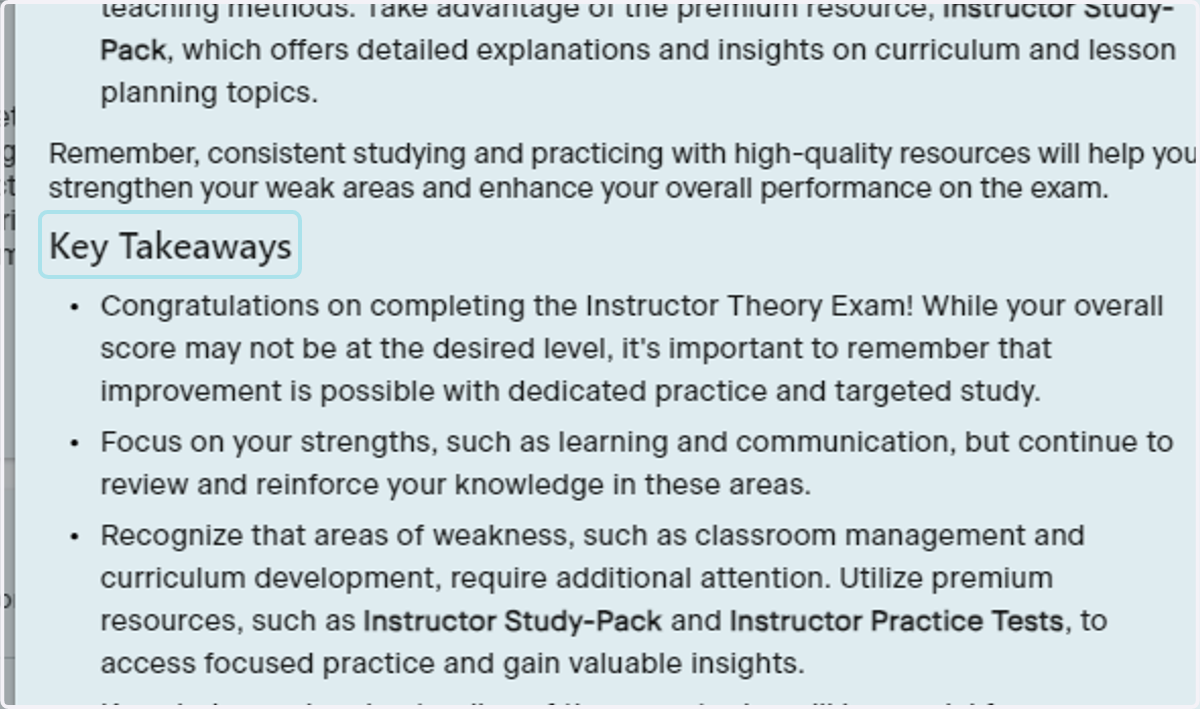
16. Key Takeaways
This section gives a closing statement about your results and guidance on ways to improve
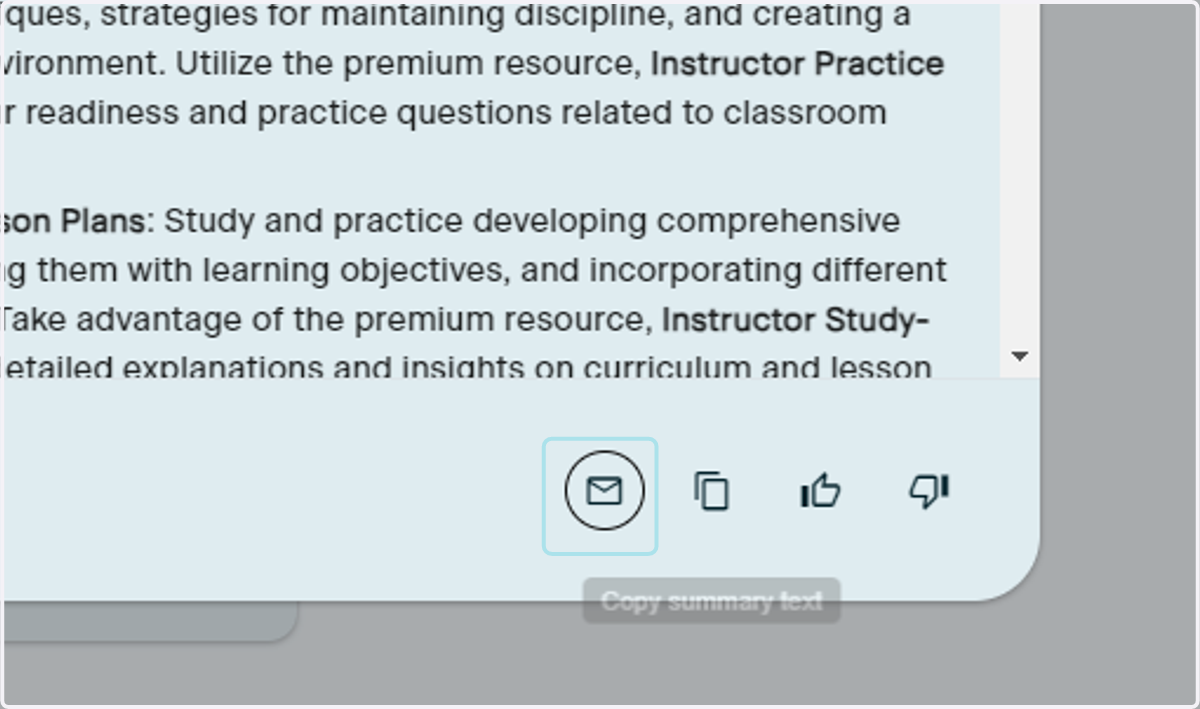
17. Get an Email Copy of Your Results
At the bottom of your report, you will see an email icon if you would like to email yourself a copy of the report. Reports are sent to the email associated with your account only
Topic Progress
18. Understanding Topic Progress
Topic Progress is available when you have worked through questions. This section then breaks down how well you performed in the topics available.
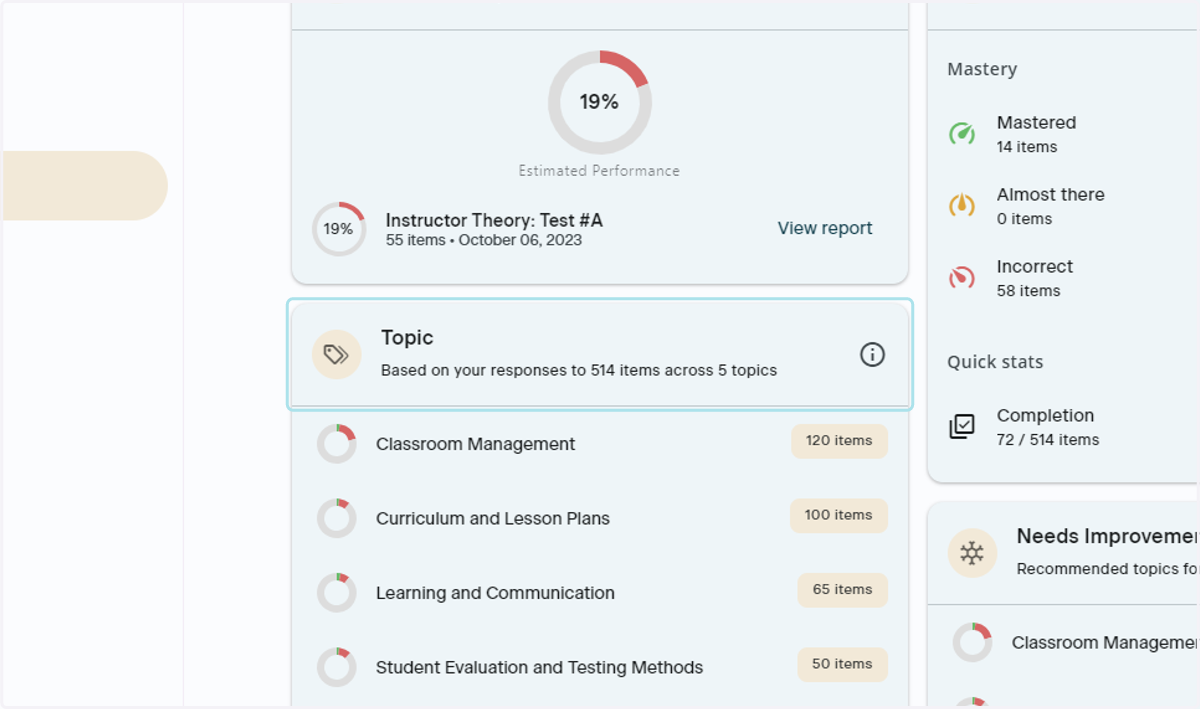
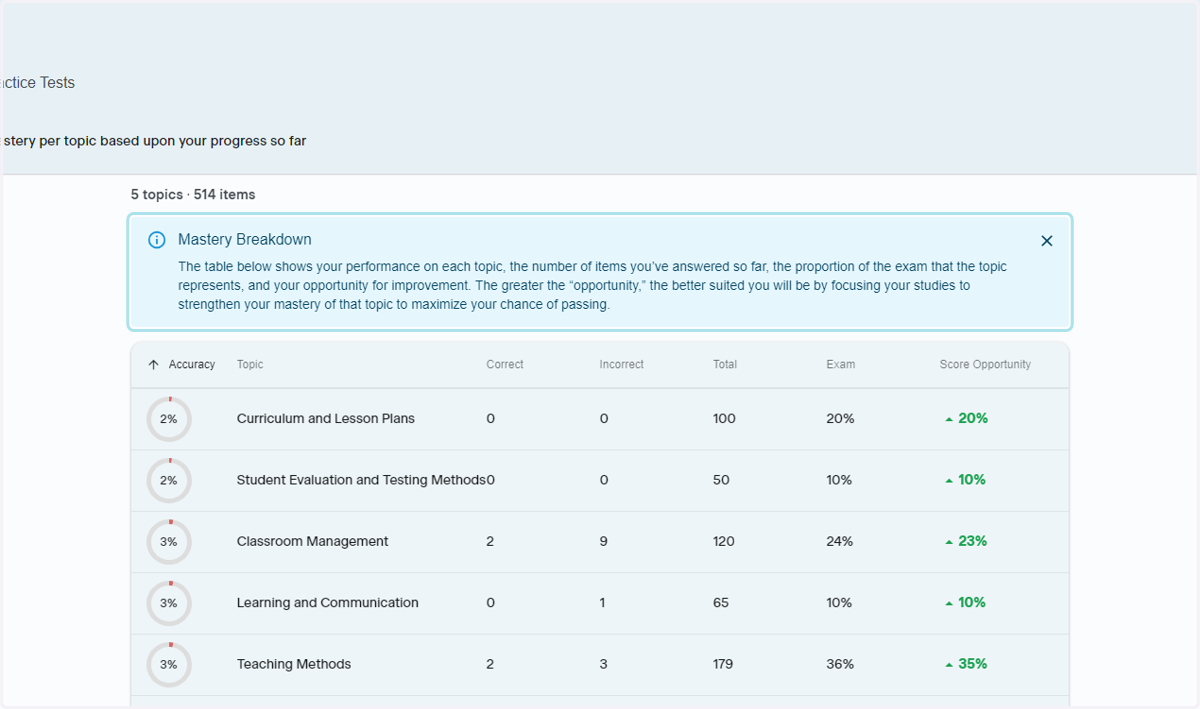
19. Click Topic and View Mastery Breakdown
Click on the word Topic to view your Mastery Breakdown. The Mastery Breakdown page shows your performance on each topic, the number of items you’ve answered so far, the proportion of the exam that the topic represents, and your opportunity for improvement.
Needs Improvment
This section is based off of items that have been answered in your Study Pack
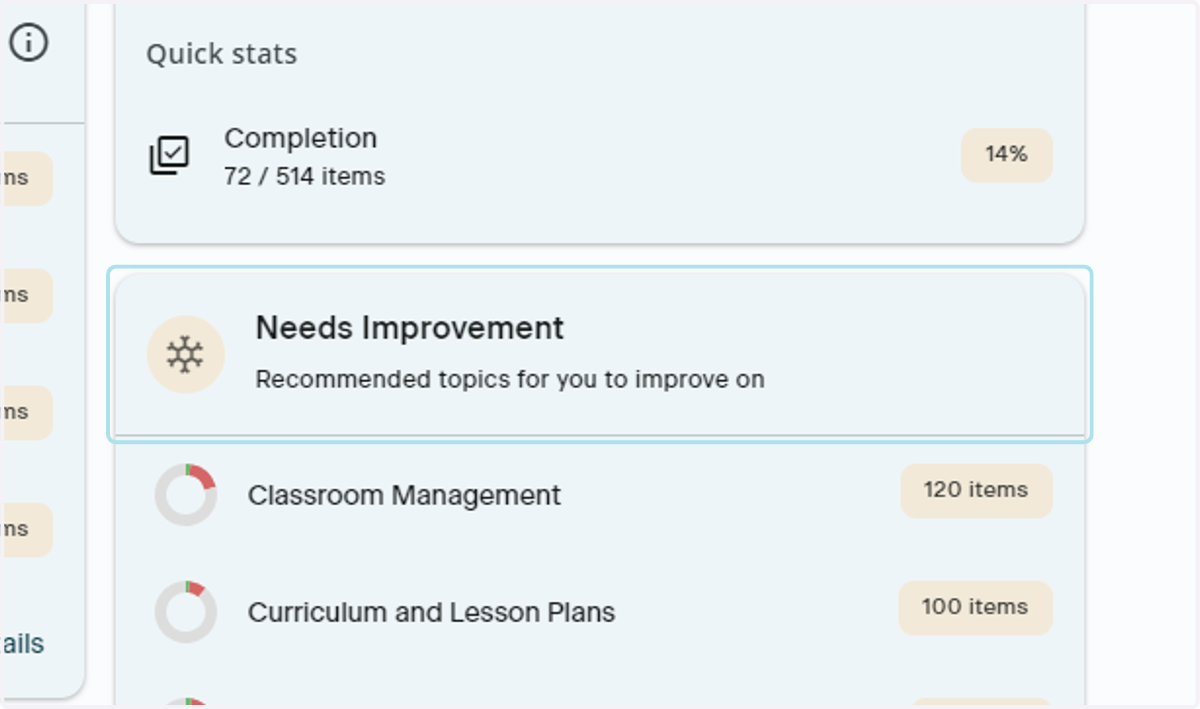
20. View and Click Needs Improvement
This shows the top areas that you may need to spend more time with. Click the word Need Improvement to launch a custom study session based on the items that are recommended for you to focus on
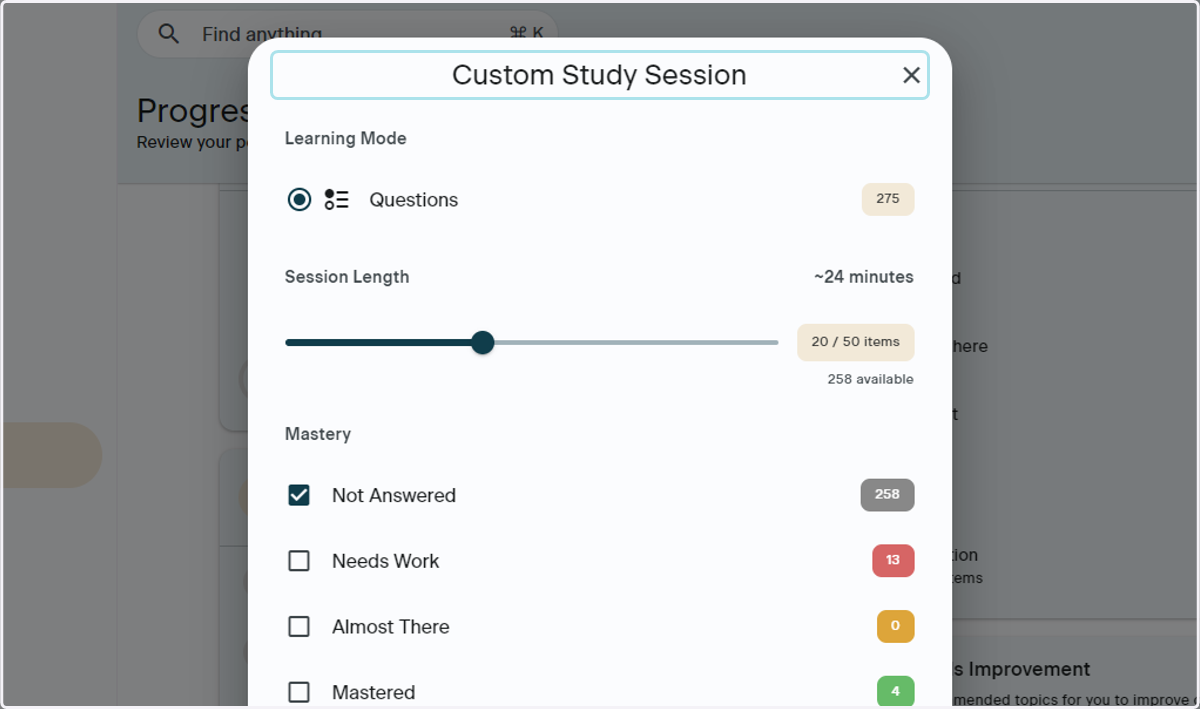
21. Start Custom Study Session
Once you have clicked Needs Improvement, your Custom Study Session will launch. You can start it, or X out of it to use this option at a later time.
Note: You can only use this feature if you have purchased a Study Pack
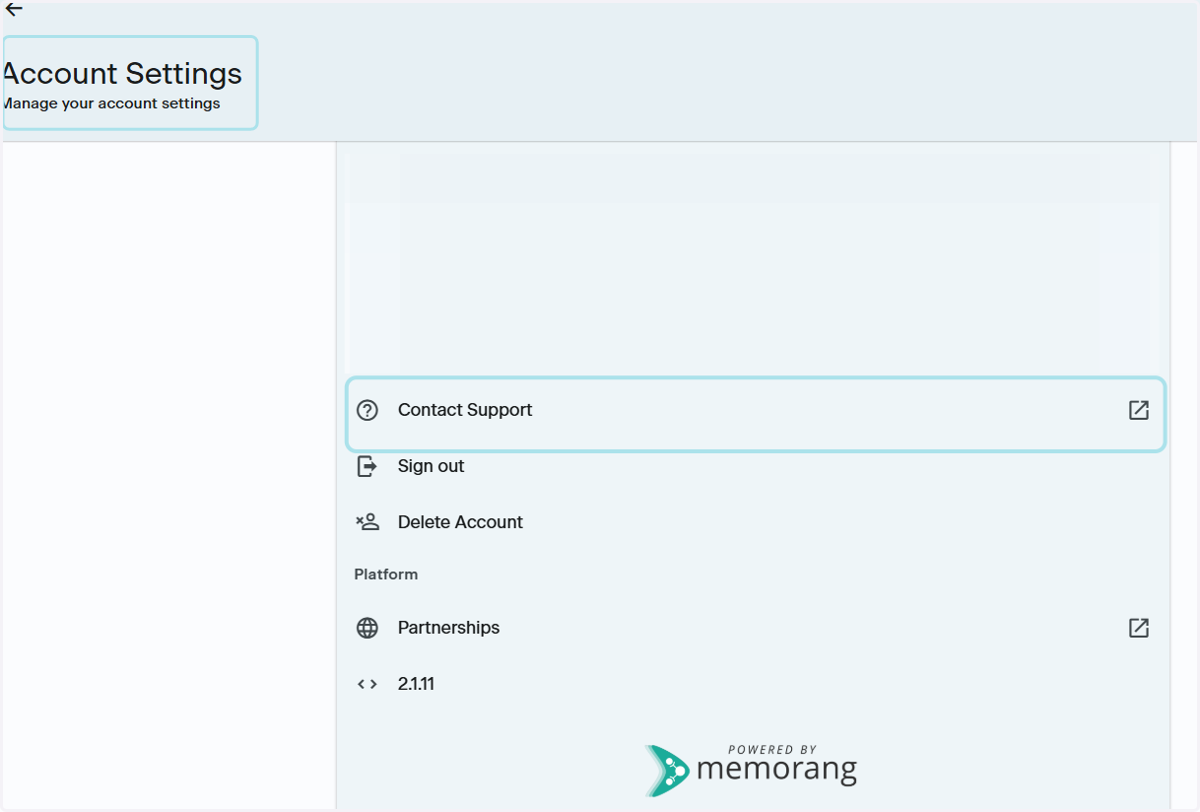
Contact Support
22. Where to Contact Support
Go to your Account Settings by clicking the Gear icon in the upper righthand corner of the App and click Support. This will launch an email to the PSI Support Team, ptsupport@psionline.com
For help with:
Profile details
Order related issues
Access code assistance
Change username
Errors
Please be sure to take screenshots of any errors
Please include the following in your email:
First name
Last name
Email associated with your order
Order Number
Order Confirmation
Note: If you have made a purchase in-app, or through the App Store or Google Play Store, the PSI team will not be able to assist you with order related issues such as:
Copy of order confirmation
Refunds of purchases made through the App Store, Play Store or in-app