Utilising predefined text in your fields (Form Builder) | FB_025
In this tutorial, we will learn how to create predefined text options in the Infigo Form Builder. The end result will be a dropdown list appearing in the main form, from which a user can select between available options. Selecting an option will subsequently populate the linked field on the form.
This example will focus on the simplest option, where you manually specify several options to choose from. This option is best in instances where only a small number of options are available.
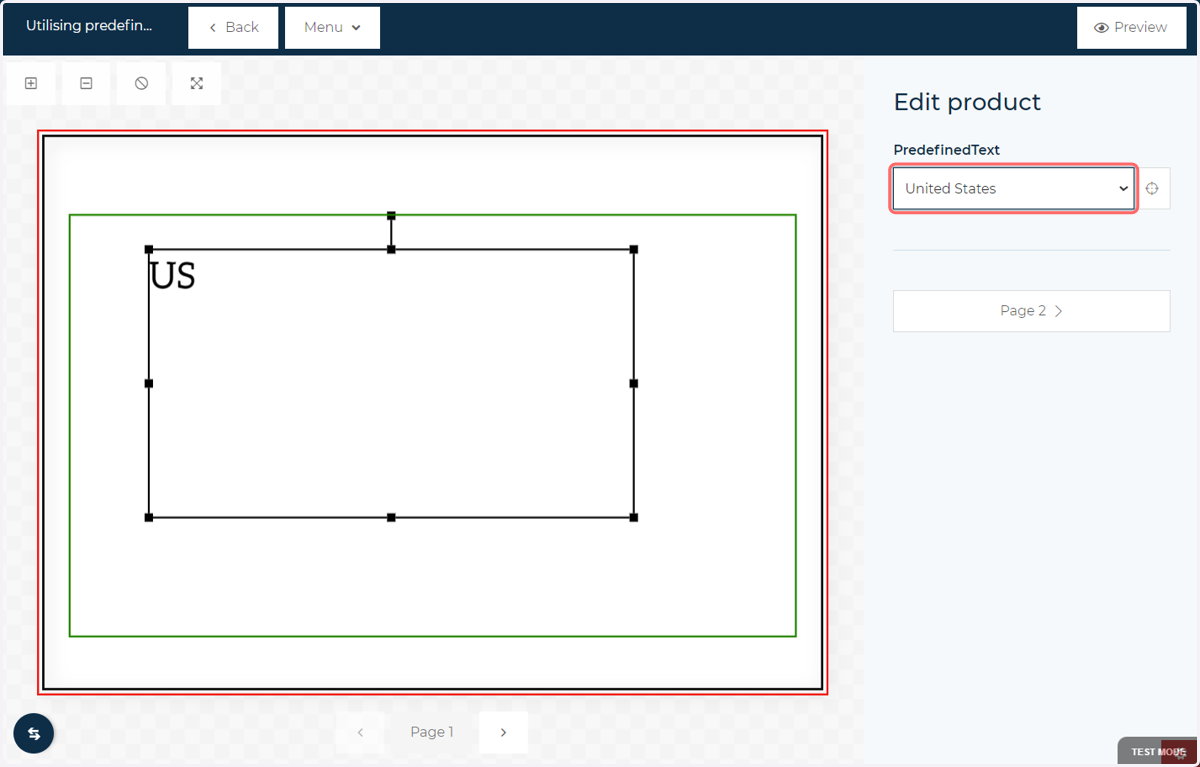
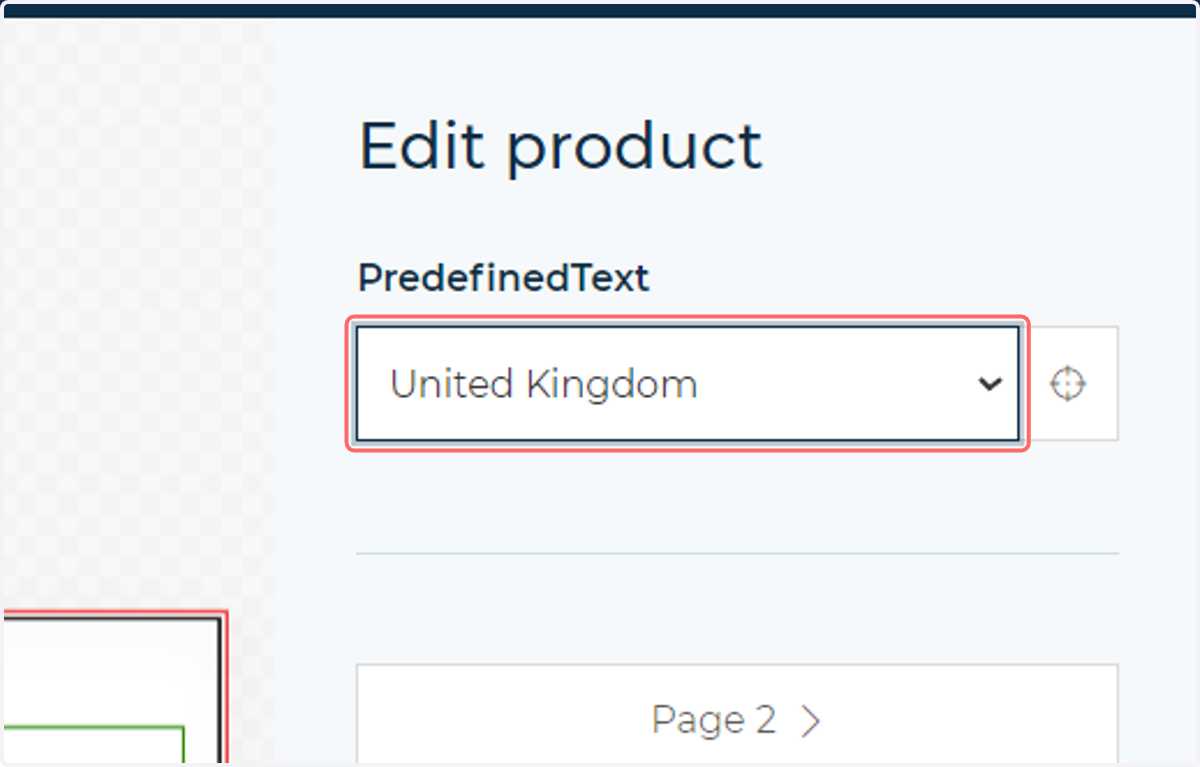
1. This is an example of our end result. A drop down list in the form which subsequently changes the value populated on the field
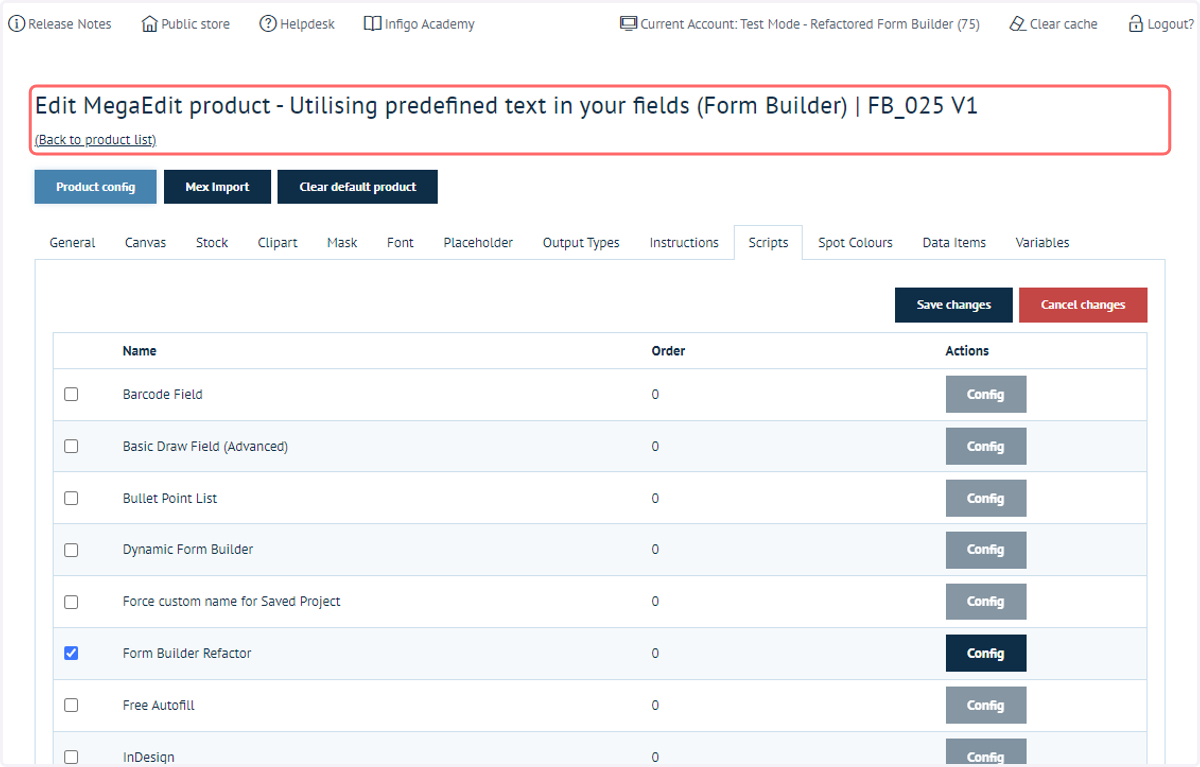
2. We begin to specify this functionality be navigating to the MegaEdit settings of the product in question
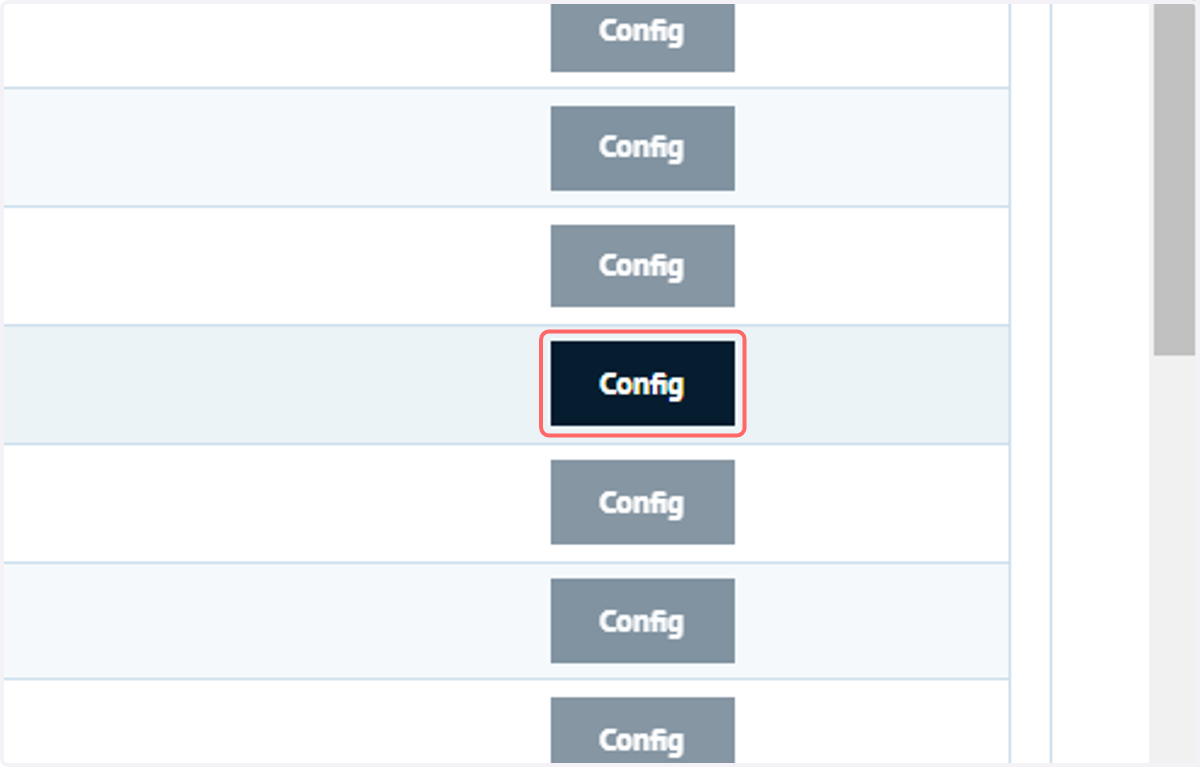
3. Locate the Form Builder script on this product and click Config
Note, you can also apply these changes on the global config level if it is preferable
4. Here we have example of a predefined dropdown within the script config
As a reminder, this is for the manual specification of a short list. There are other options available for more advanced or numerous options, which are covered in other tutorials.
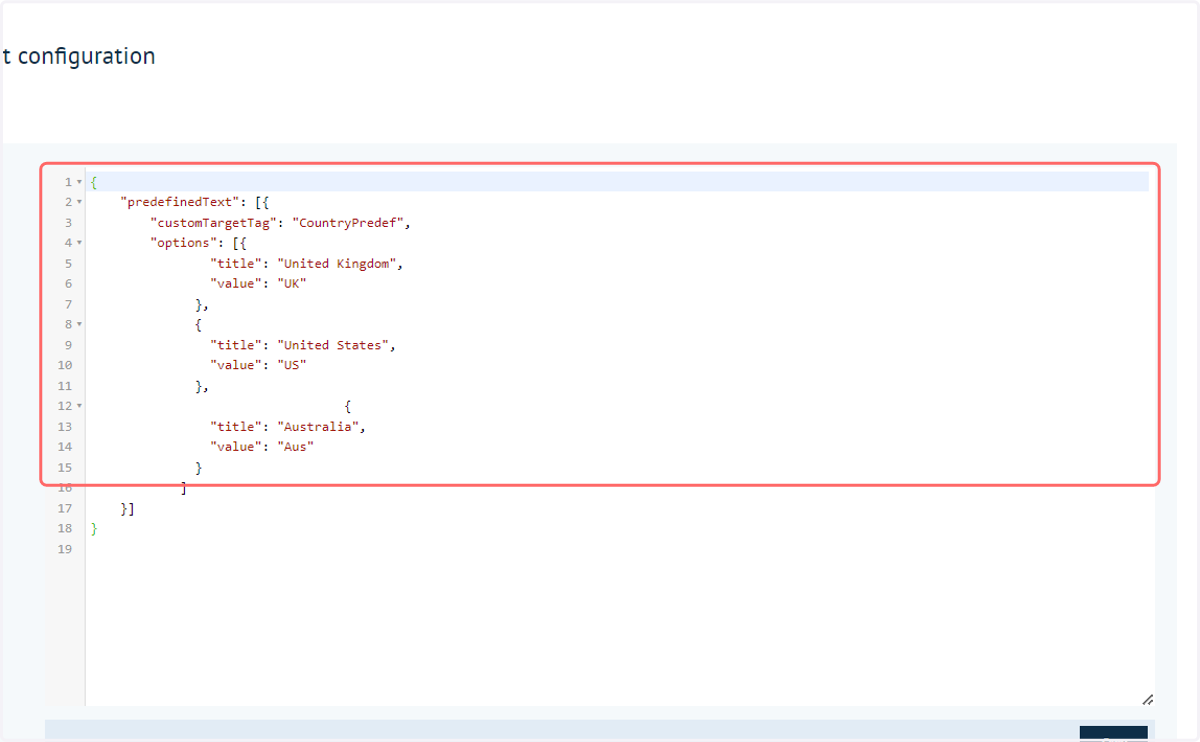
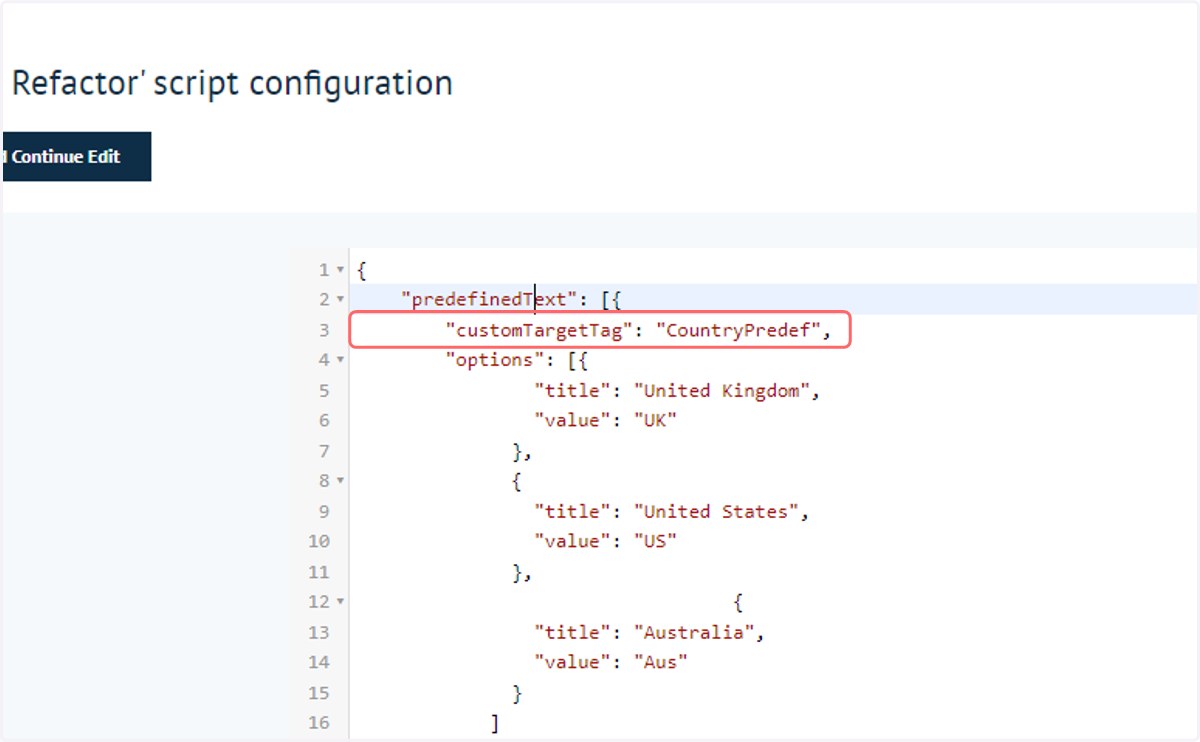
5. The customTargetTag line allows you to apply a name to the predefined text entry, used for identification purposes, later.
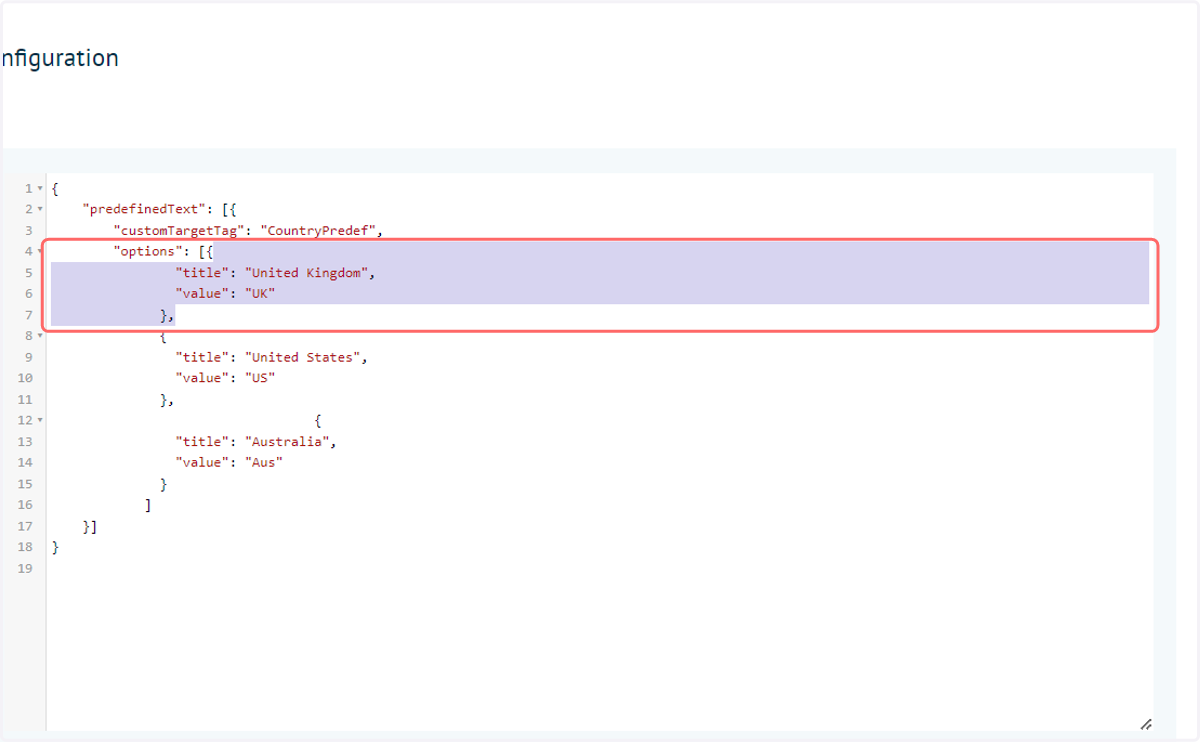
6. Each option in your dropdown should be placed within the "options" section of the predefined text config. These should also contain a title and a value
The "title" is the text that will appear in the form's dropdown field.
The "value" is the text that will be populated on the linked field on the form itself
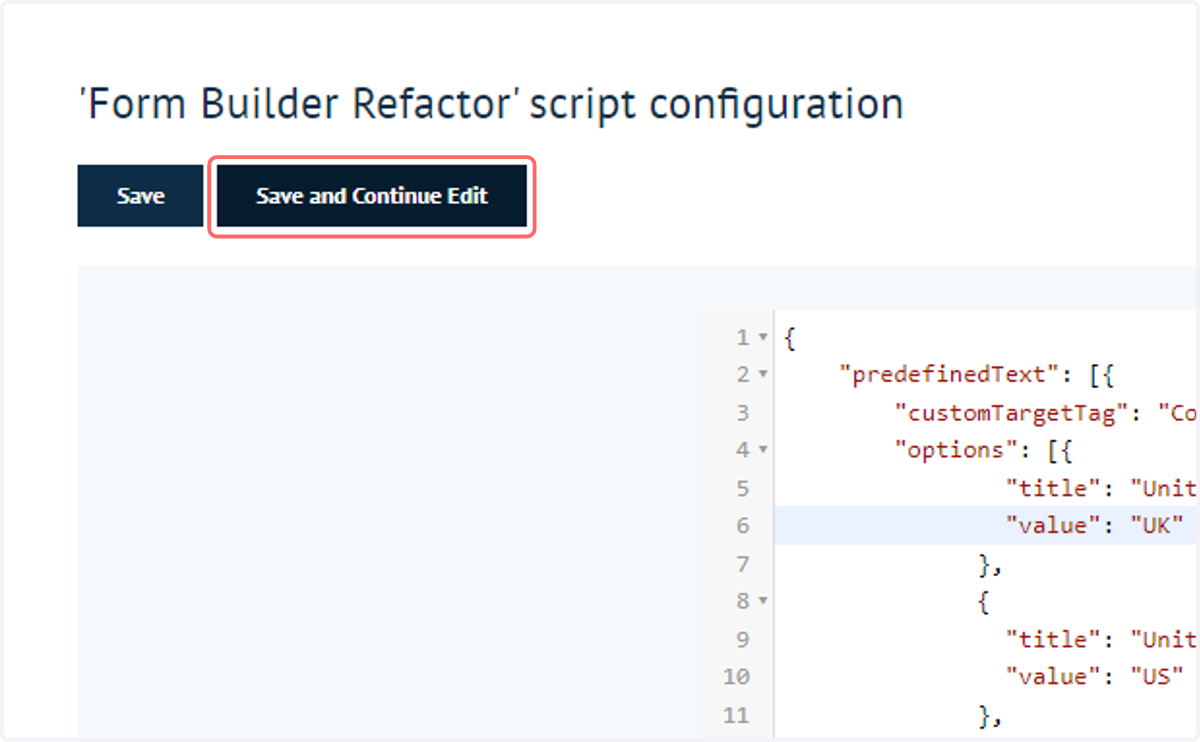
7. When you have populated all options, click on Save and Continue Edit
8. Relaunch the MegaEdit product and navigate to the field's advanced settings in the Custom Tab
Next, we will configure the Infigo Form Builder to recognise this field as a predefined text field.
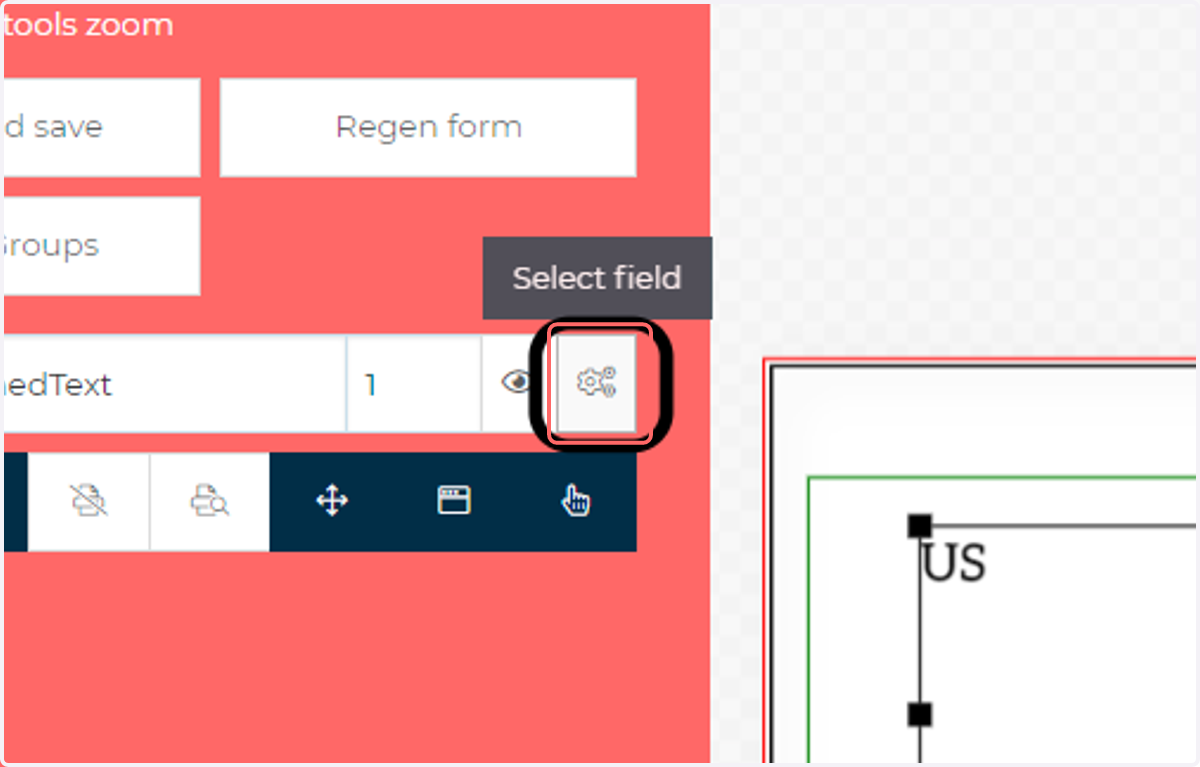
9. Select Predefined text from the list of field types
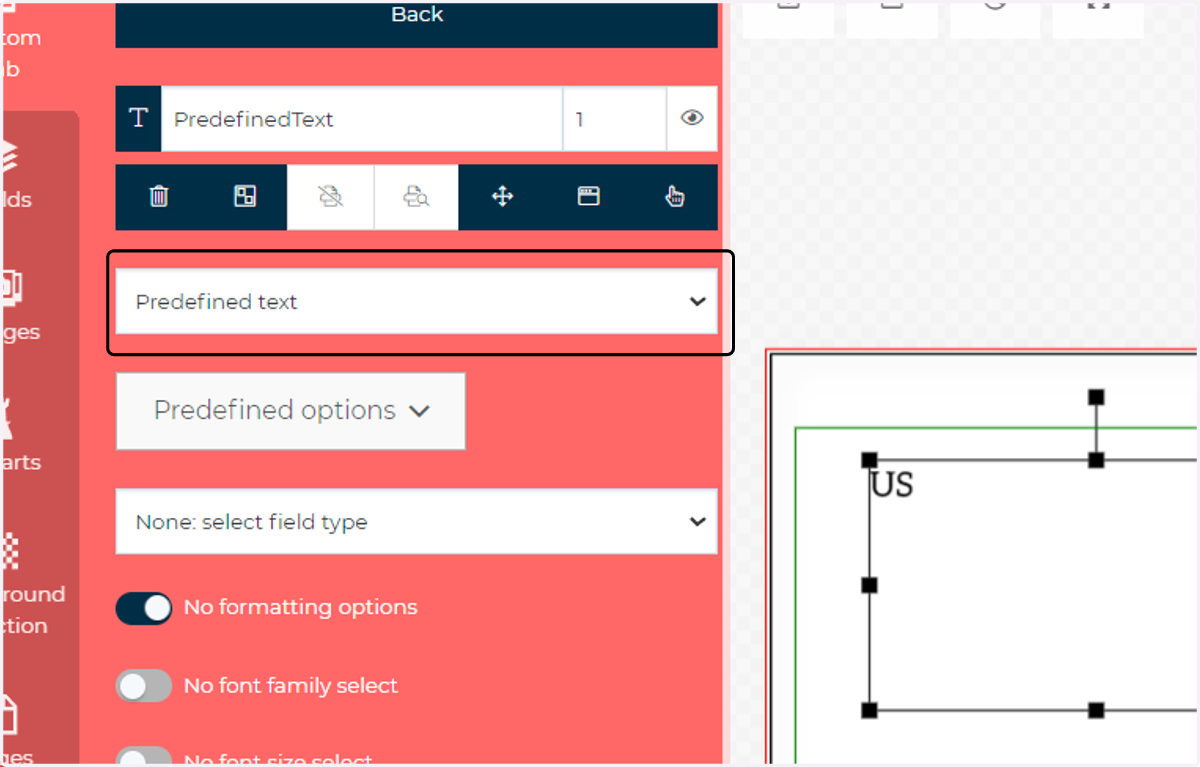
10. Select the predefined text option you wish to utilise in this field
You will be presented with a list of all the predefined text sections you have defined within your script config.
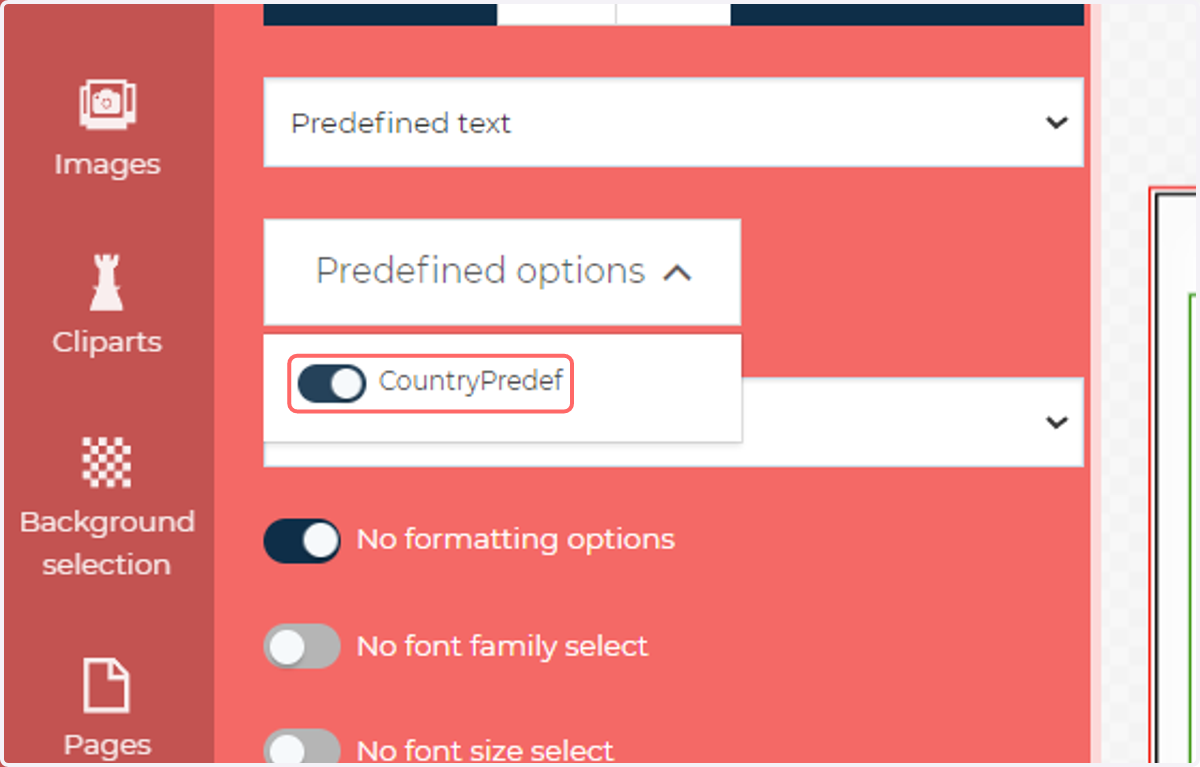
11. Confirm whether this is to be a single or a multiline text input
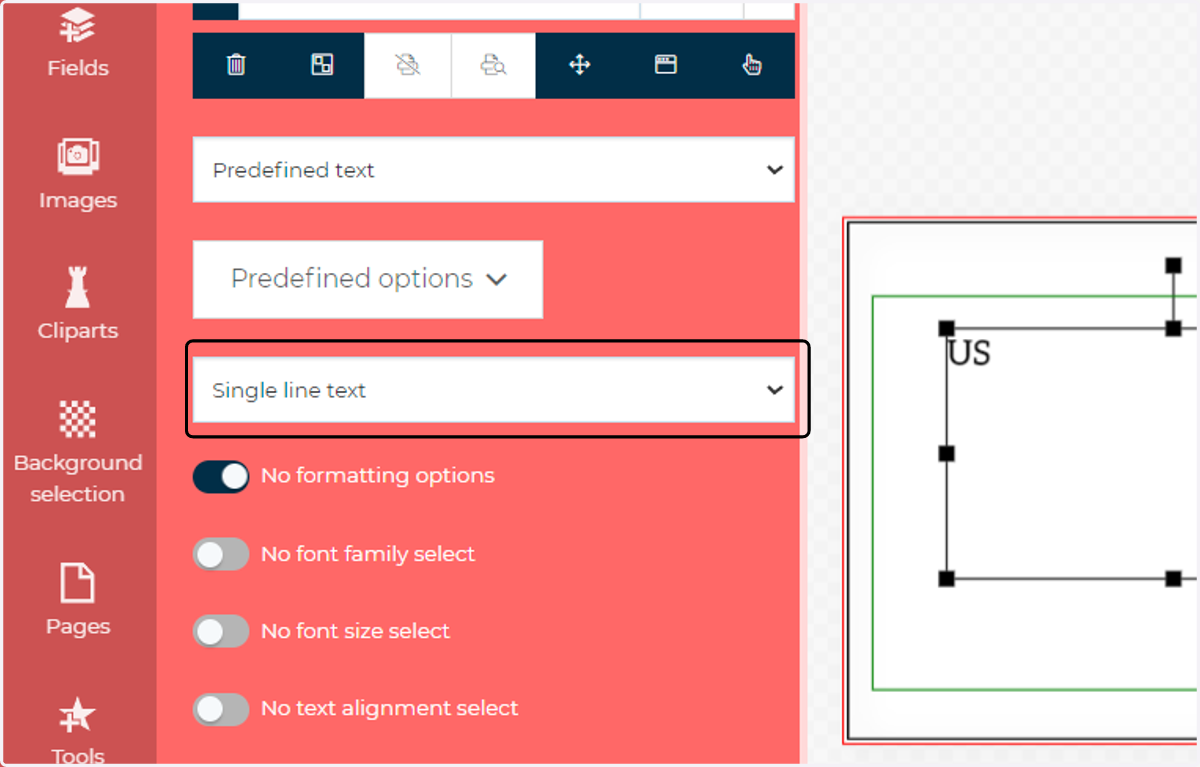
12. With this complete, your populated dropdown list will appear in the customer facing form and is available for use
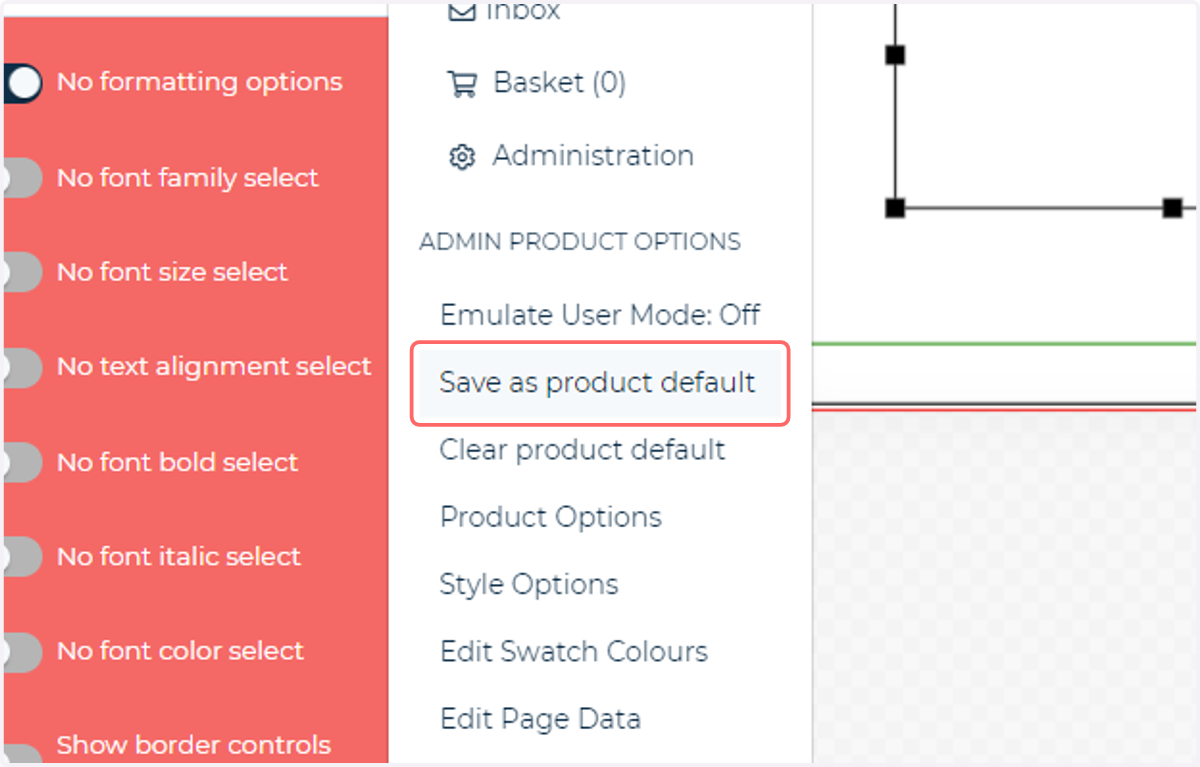
13. Remember to save your product!