Stock Management with Ordering Limits | GT_PR_007b
In this tutorial, we'll learn how to utilise the Stock Management feature. This allows you as the administrator to define how many of a product (or selection of products) a customer (or selection of customers) can purchase. In addition, we have the ability to automatically reset these limits on a monthly or annual basis.
This functionality operates in a very similar way to Access Permissions. For additional context on these features, search for Access Permissions content within the Infigo Academy.
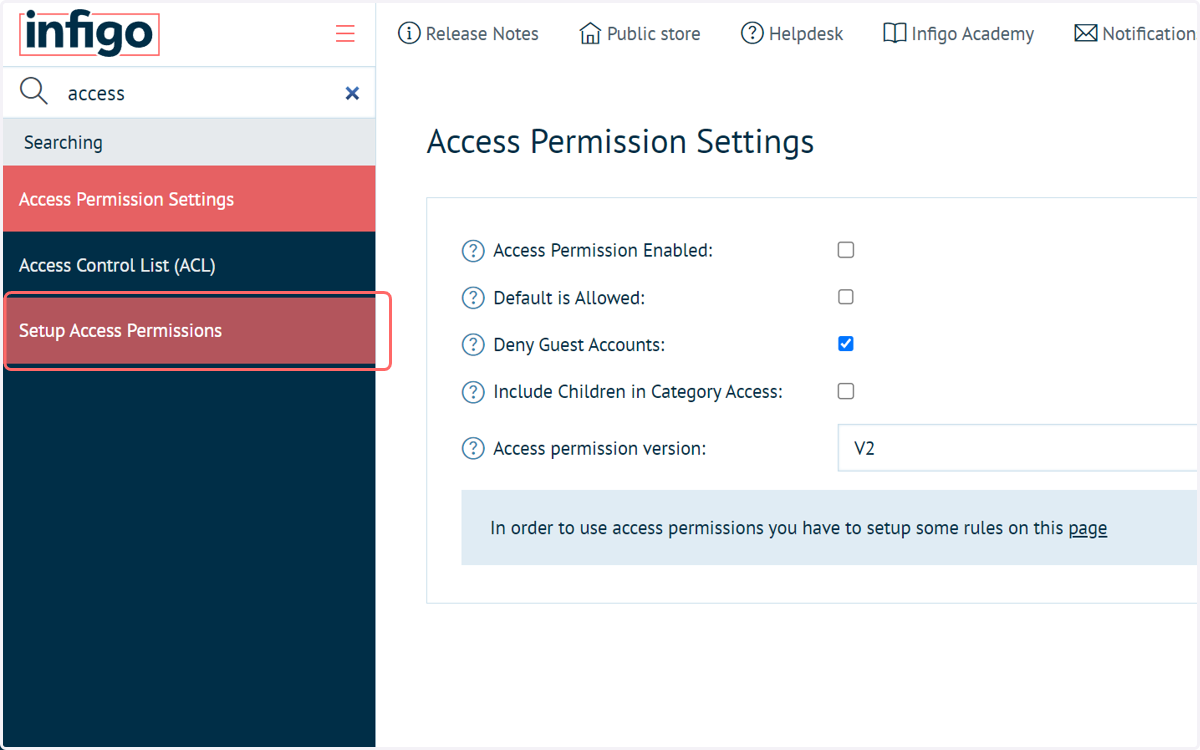
1. Navigate to Setup Access Permissions
The control of Stock Management can be found in the same area as the general Access Permission configuration options.
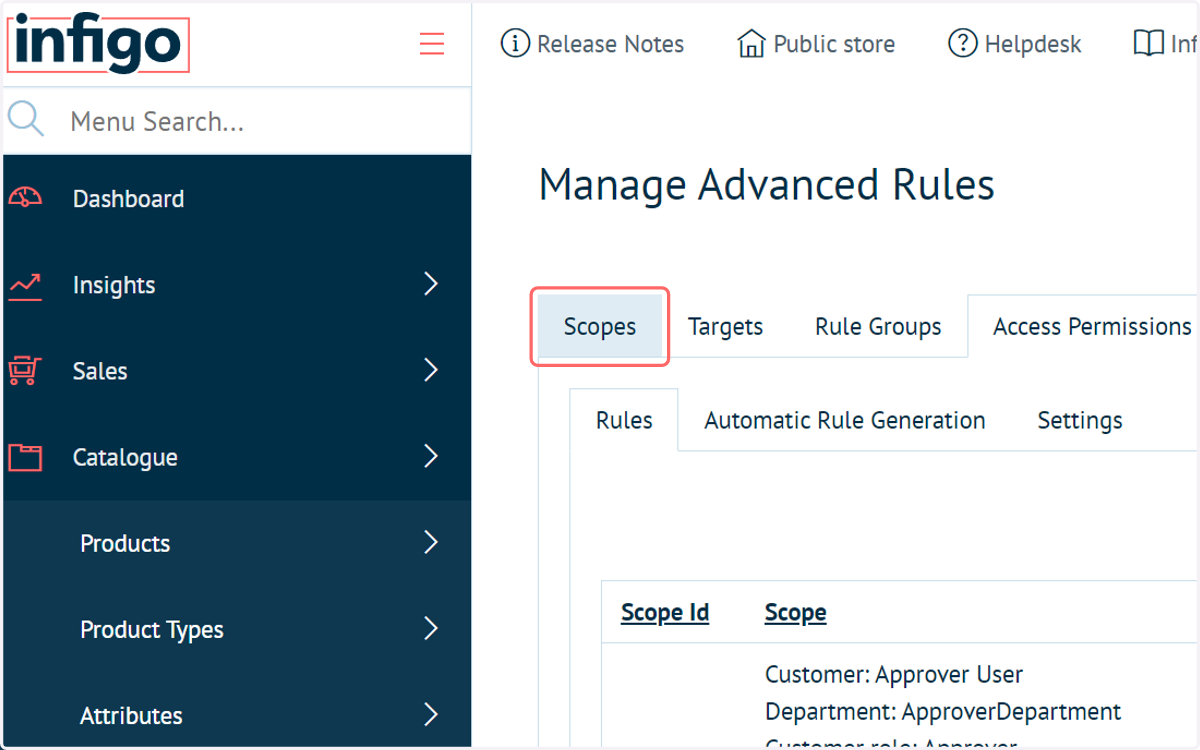
2. Click on Scopes
As with Access Permissions, we are required to configure Scopes for our eventual Stock Management rules.
Scopes define a customer (or a range of customers) that will be affected by this rule.
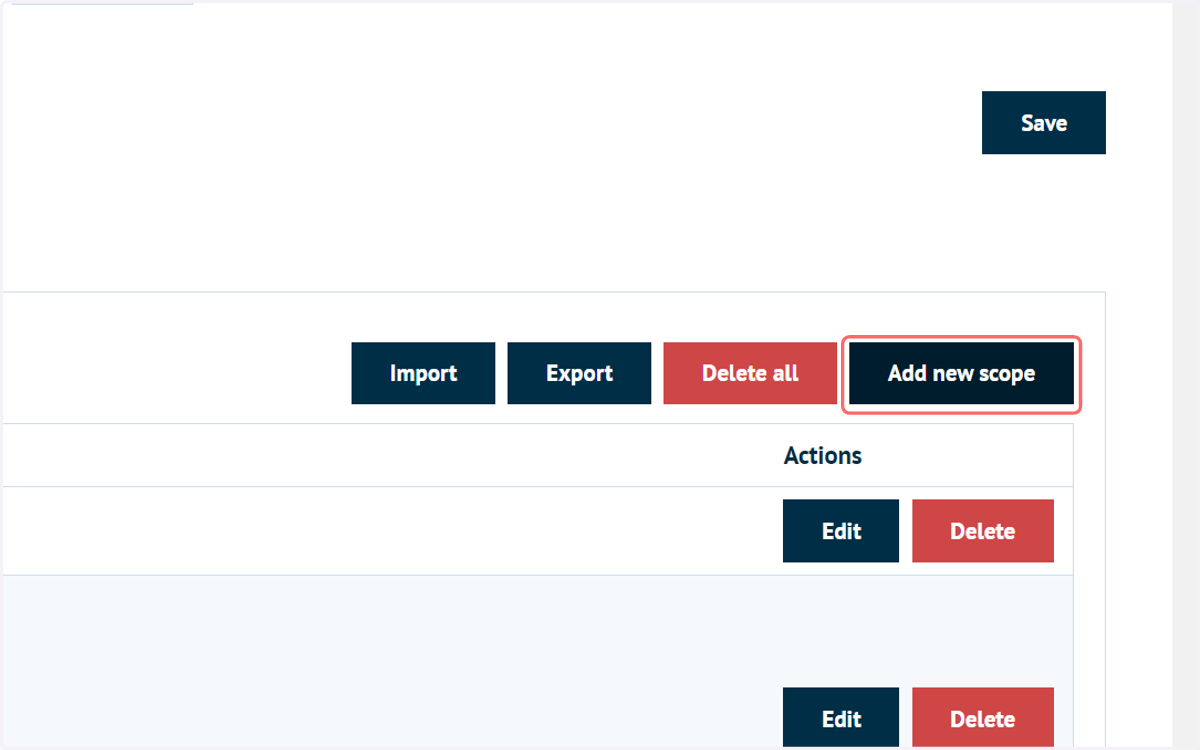
3. Click on Add new scope
4. Define the customers included in your Scope
In our example, we will stick to selecting a single customer, however a Scope can include definition by other means, such as department, customer role or shipping country.
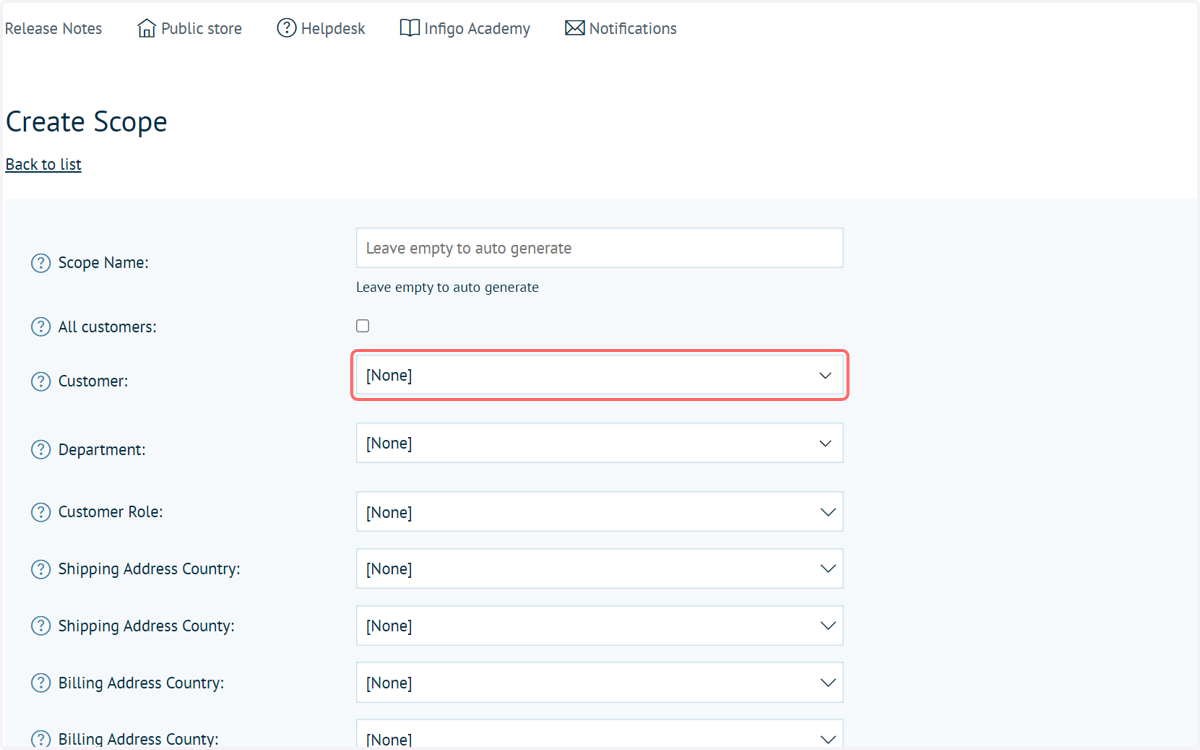
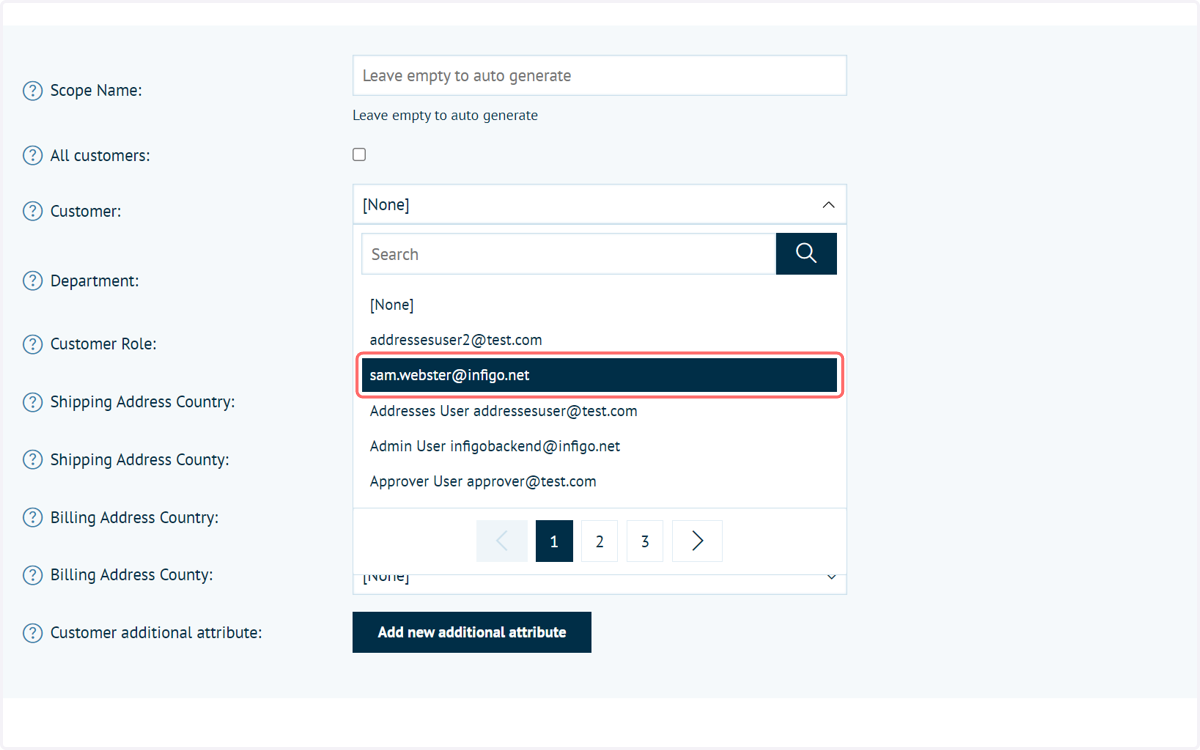
5. Define your scope
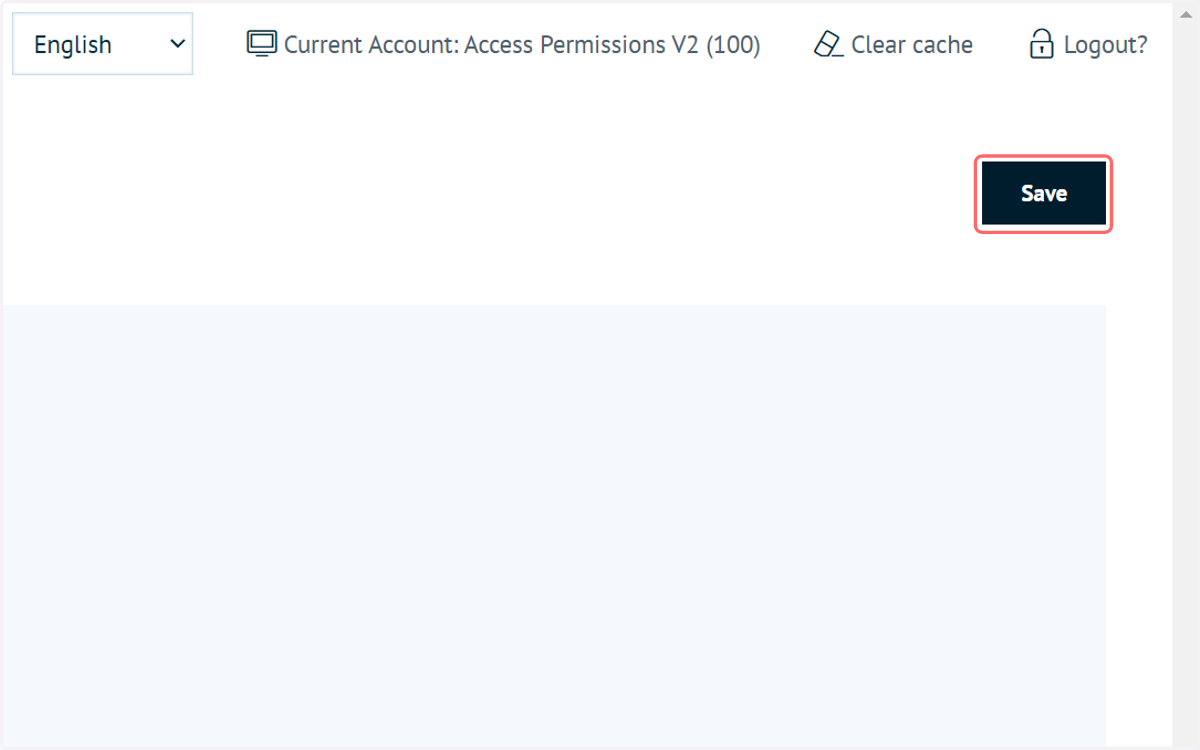
6. Click on Save
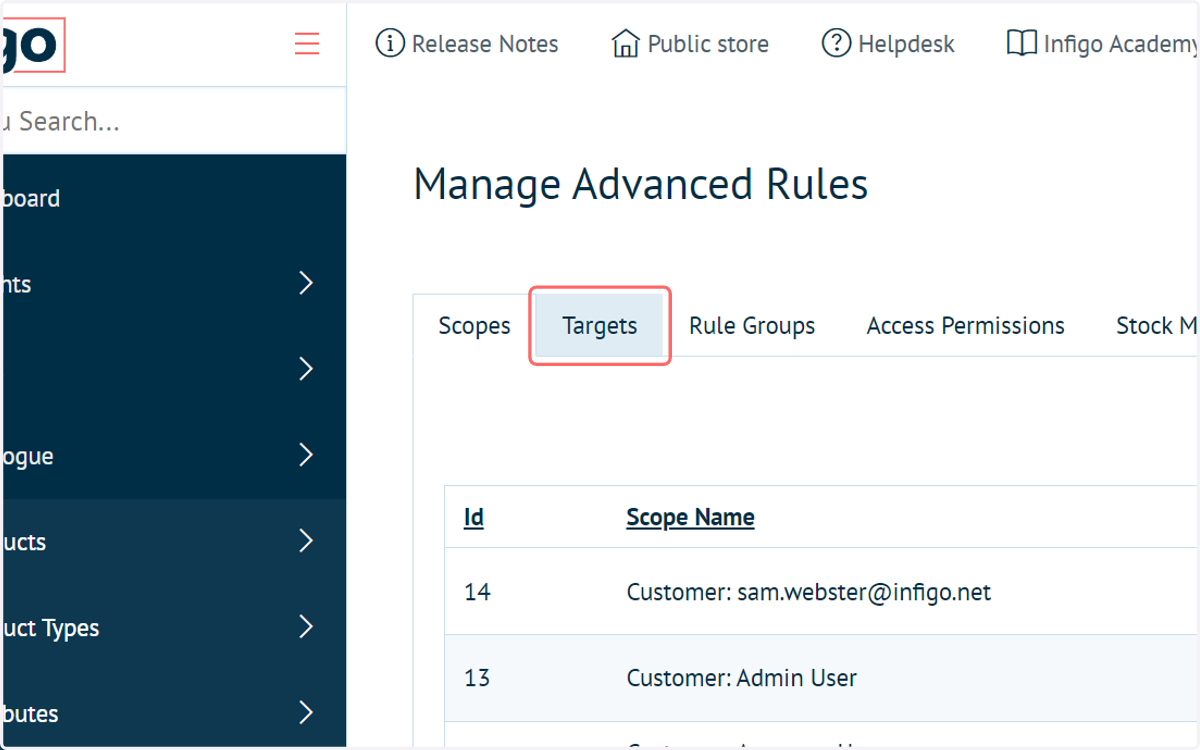
7. Click on Targets
As with Access Permissions, we are required to configure Targets for our eventual Stock Management rules.
Scopes define a product (or a range of products) that will be affected by this rule.
8. Click on Add new target
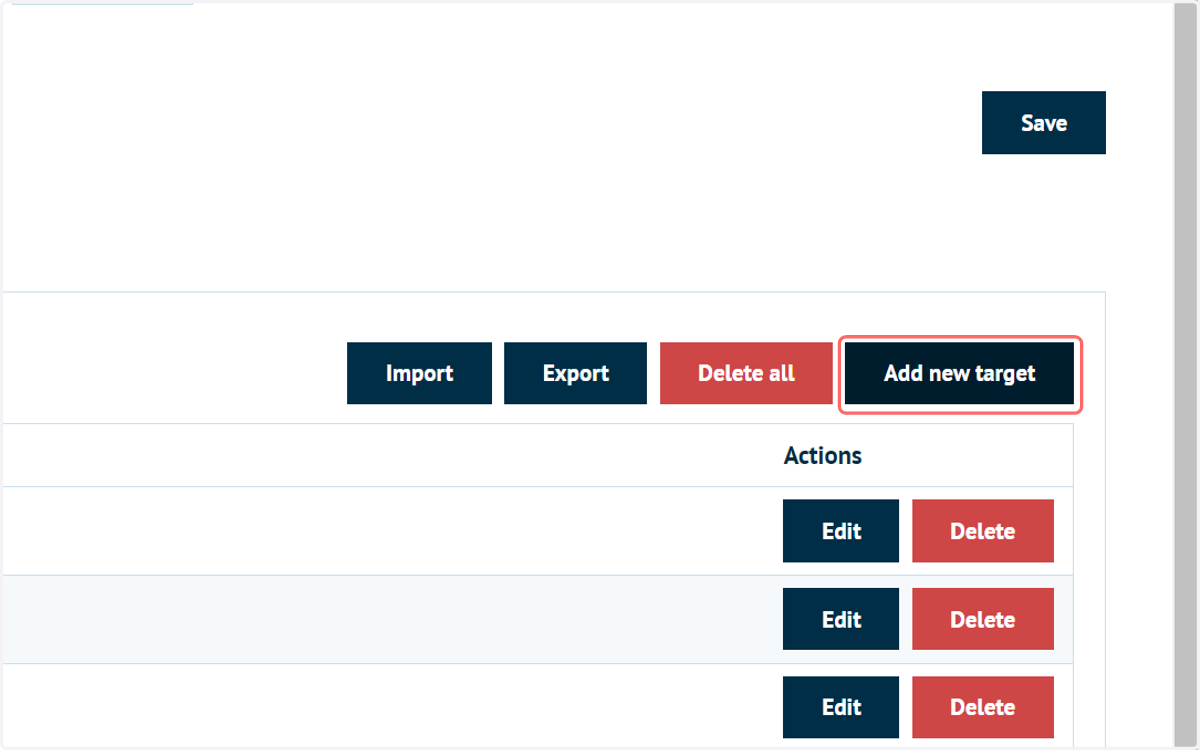
9. Select the type of Target
In our example, we will stick to selecting a single product, however a Target can include definition by other means, such as category or product group.
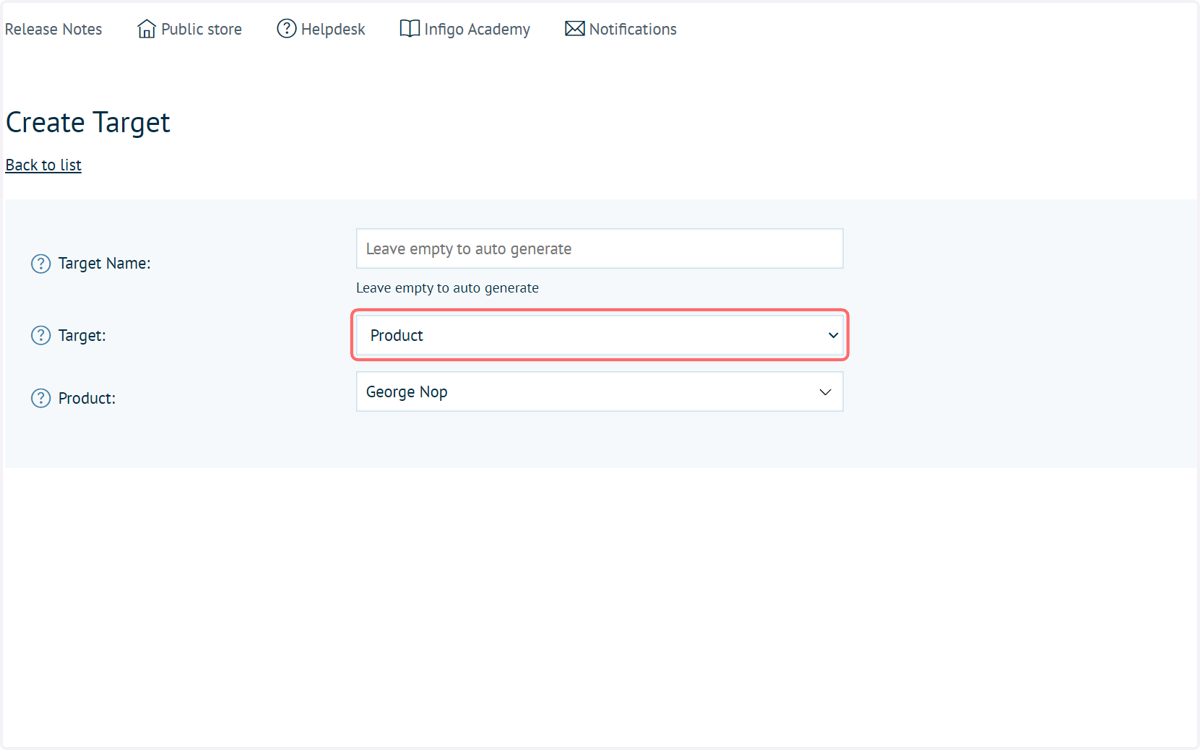
10. Define your Target
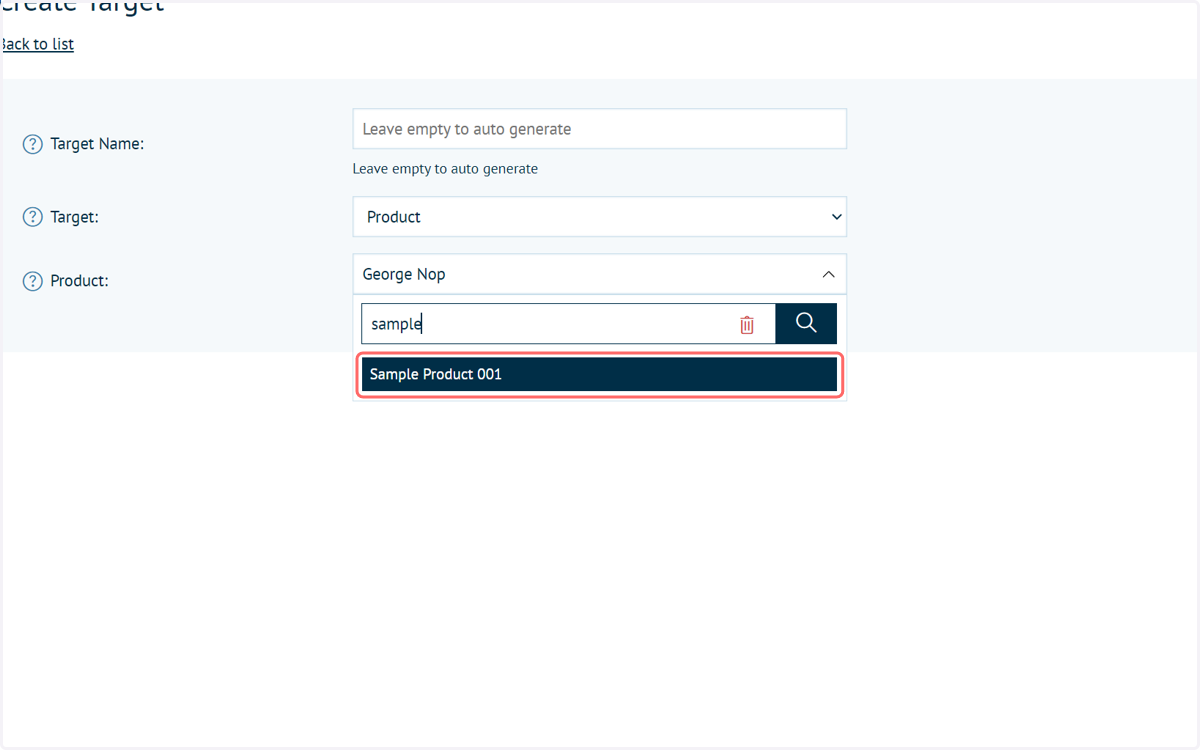
11. Click on Save
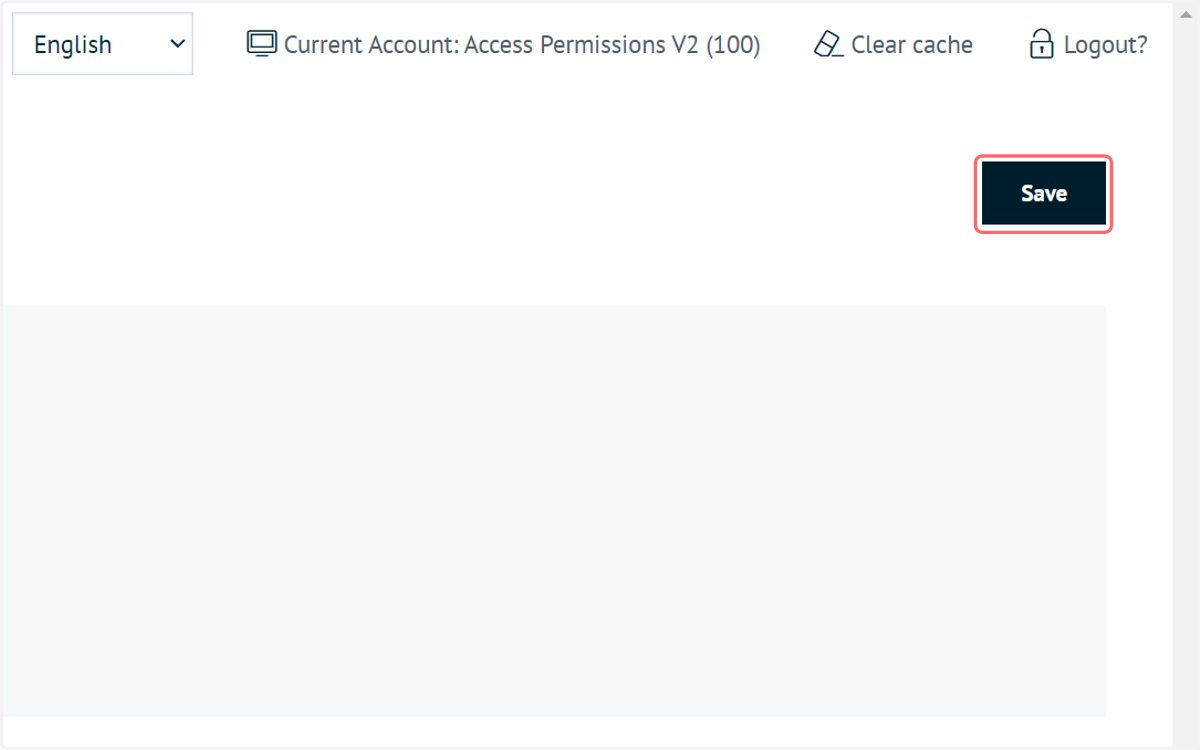
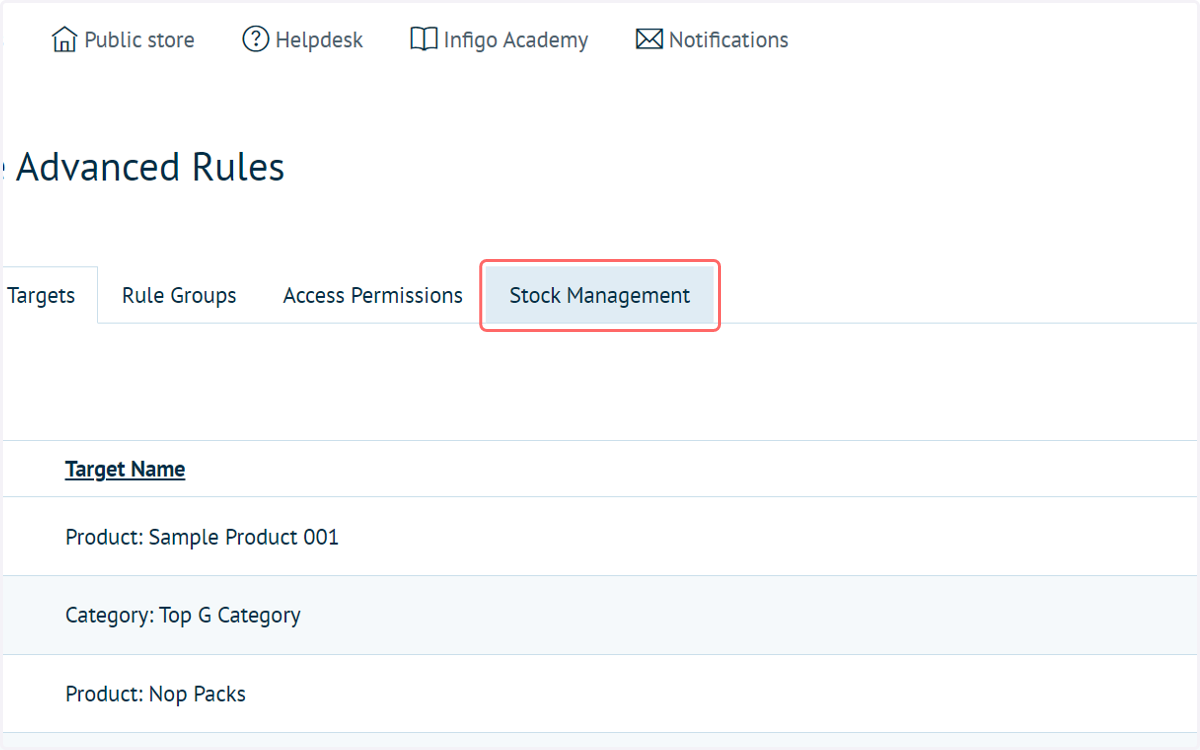
12. Click on Stock Management
This area allows us to define our Stock Management rules.
Note that although the functionality is similar to that of Access Permissions, they are independent. Access Permissions do not have to be activated for Stock Management to function.
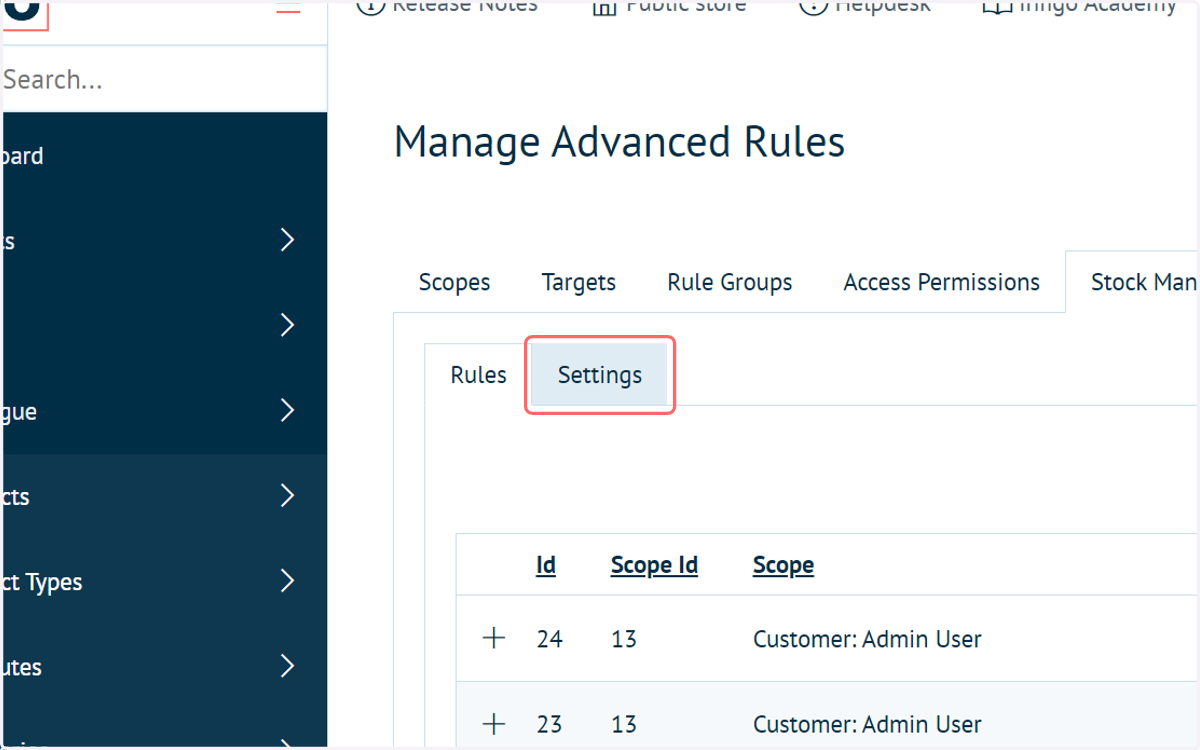
13. Click on Settings
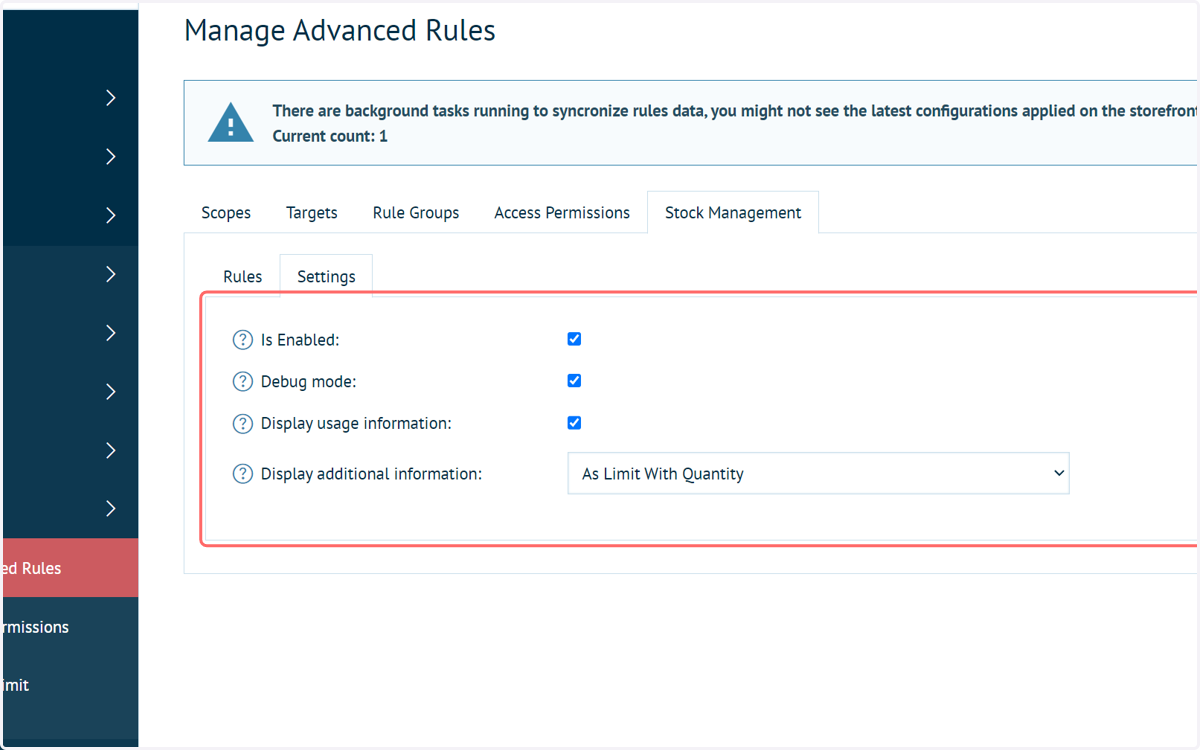
14. Select Stock Management options
This screen contains general settings for the Stock Management feature. It includes:
An overriding on/off switch for the functionality (Is Enabled)
A debug mode
The ability to display usage information for the period (monthly or annually) defined in the rule
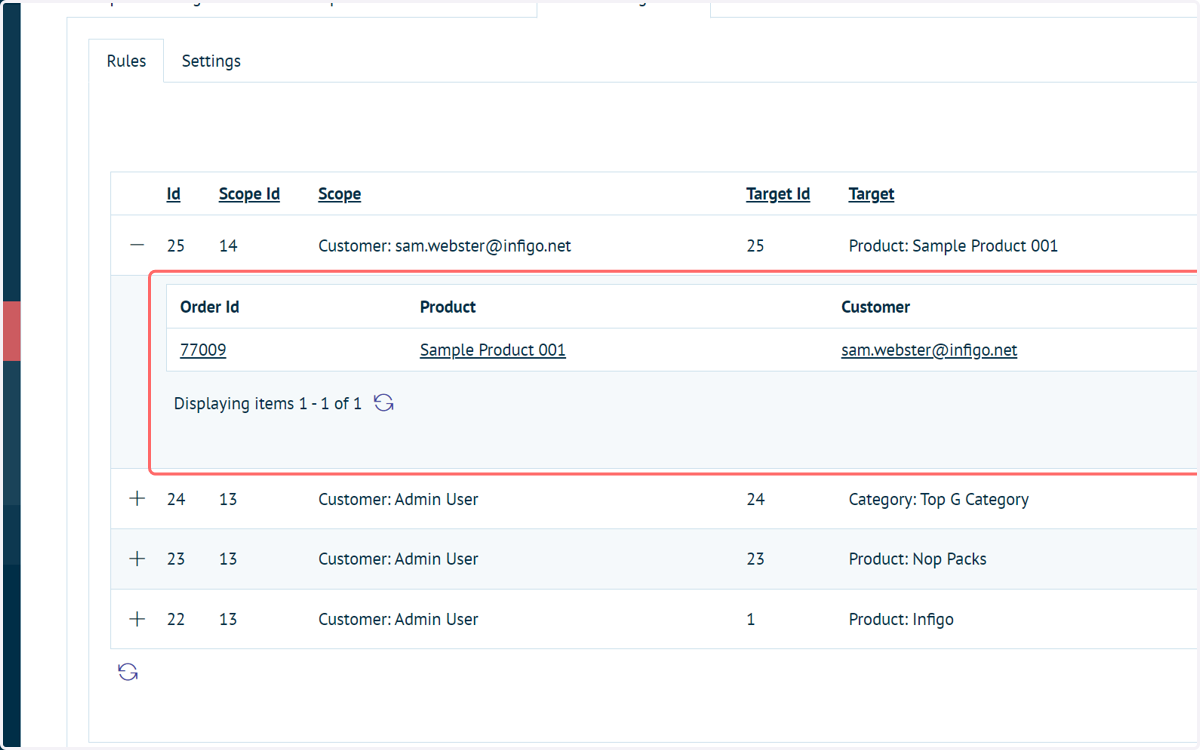
The ability to display availability of the product in different forms (such as a simple "in stock" message or the remaining stock based on defined limits.
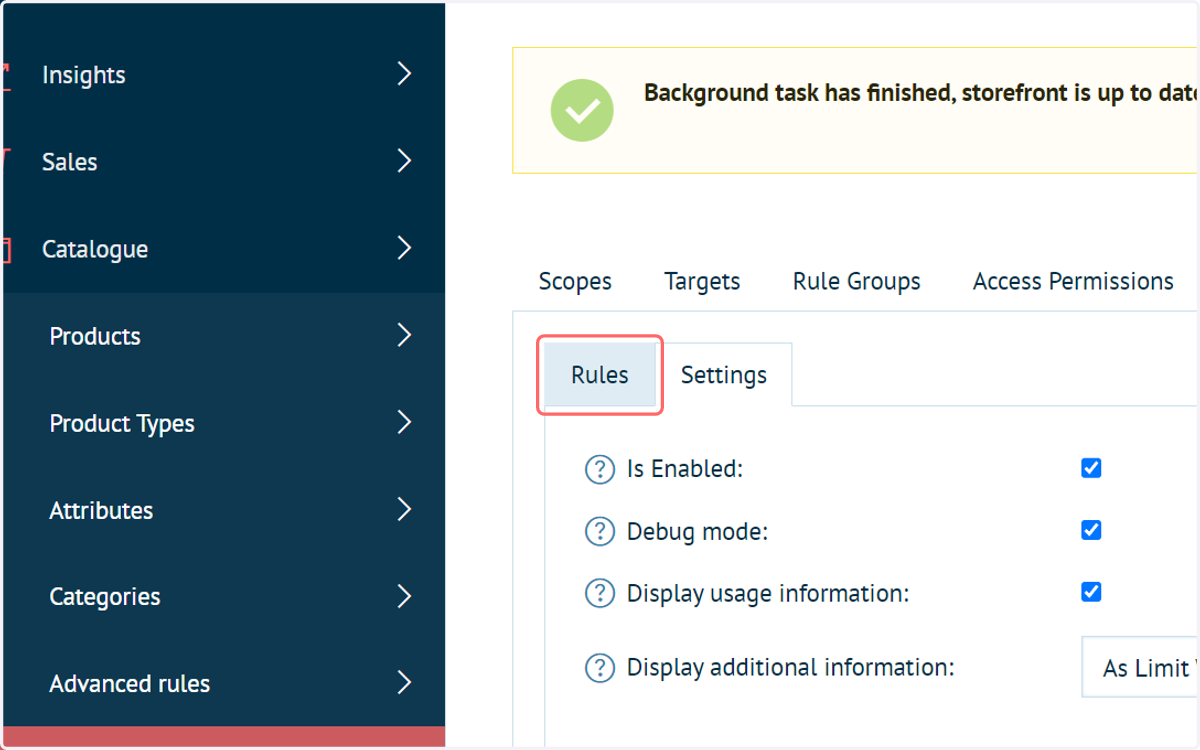
15. Click on Rules
Next we will define our rule
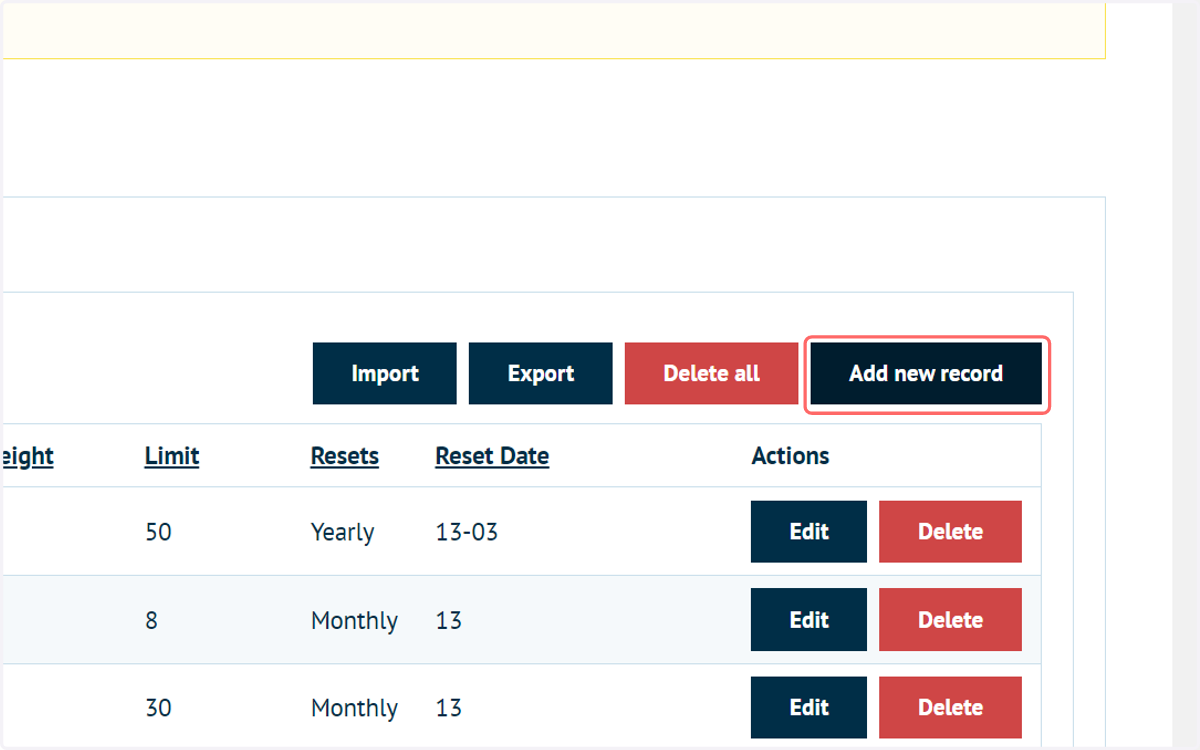
16. Click on Add new record
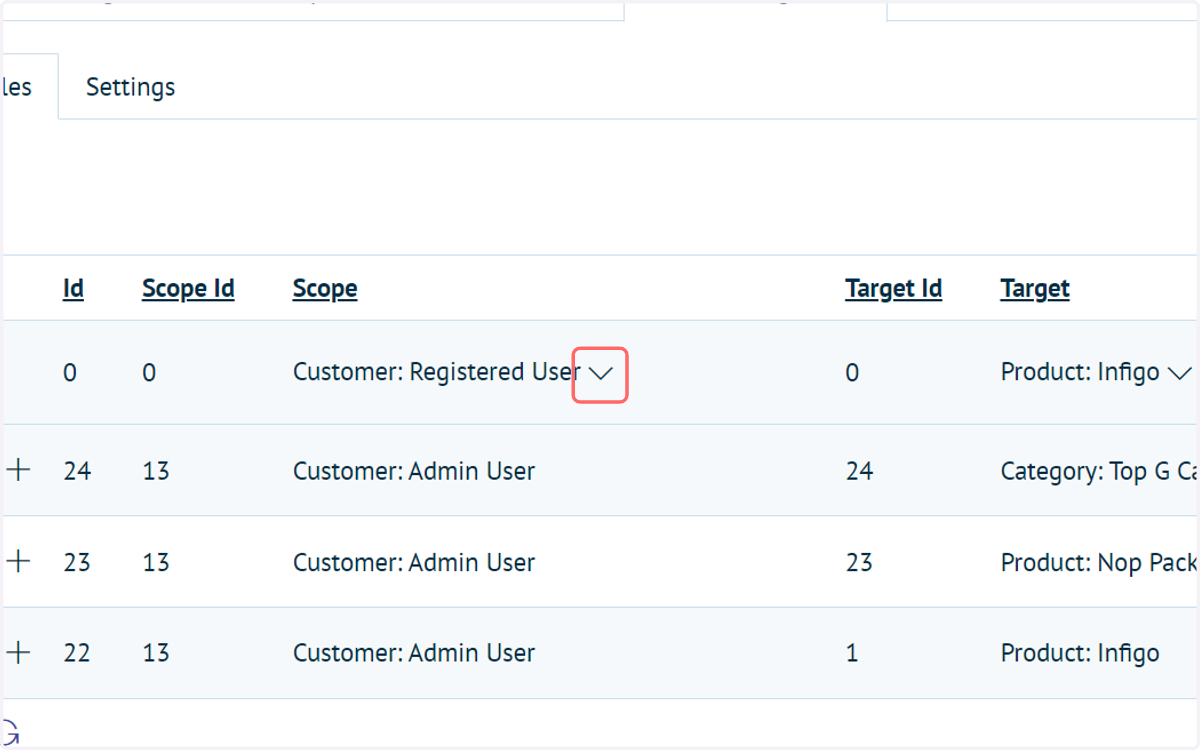
17. Select your Scope
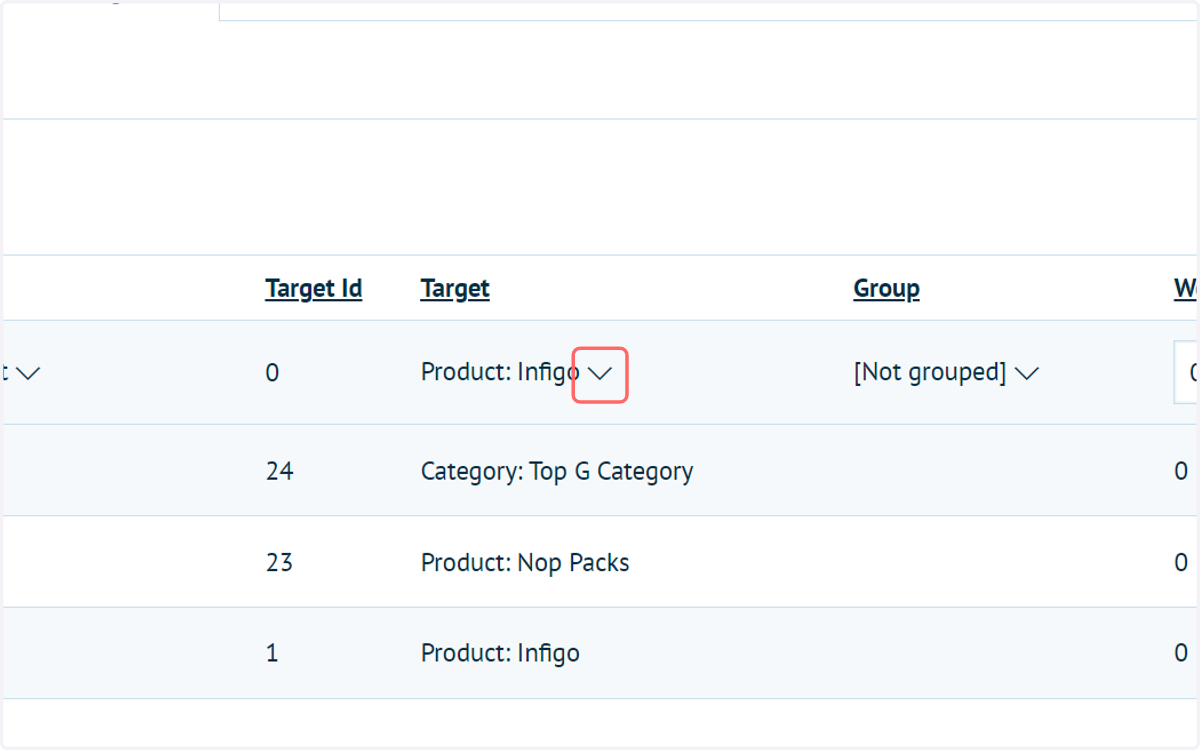
18. Select your Target
19. Specify a limit. This is the quantity of this product you wish the customer to be able to order.
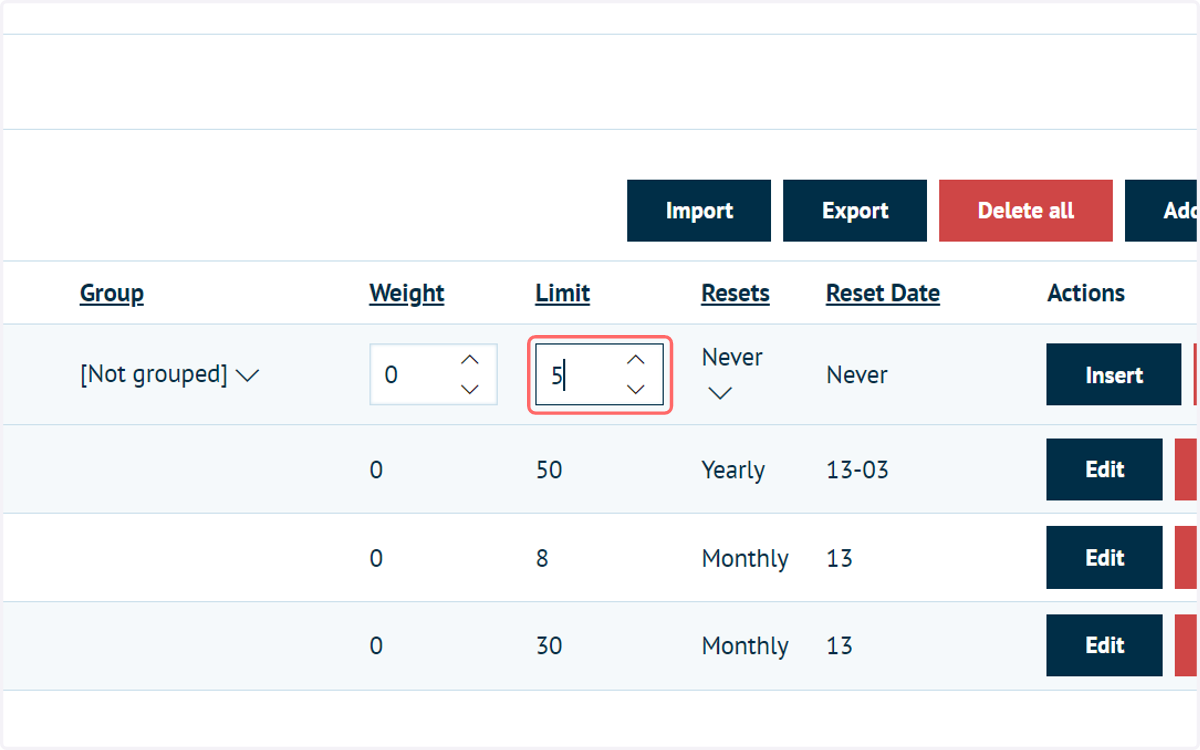
20. Define how often this limit resets
You have the option of never, monthly or yearly.
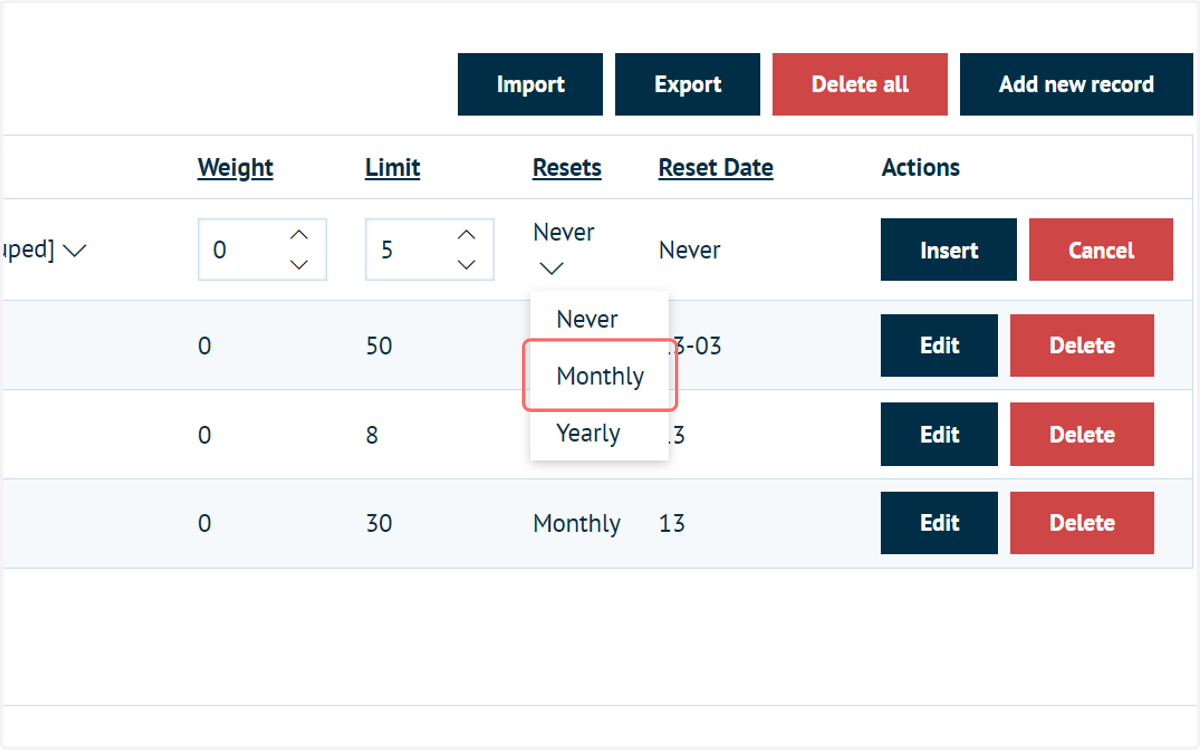
21. If applicable, specify a reset date
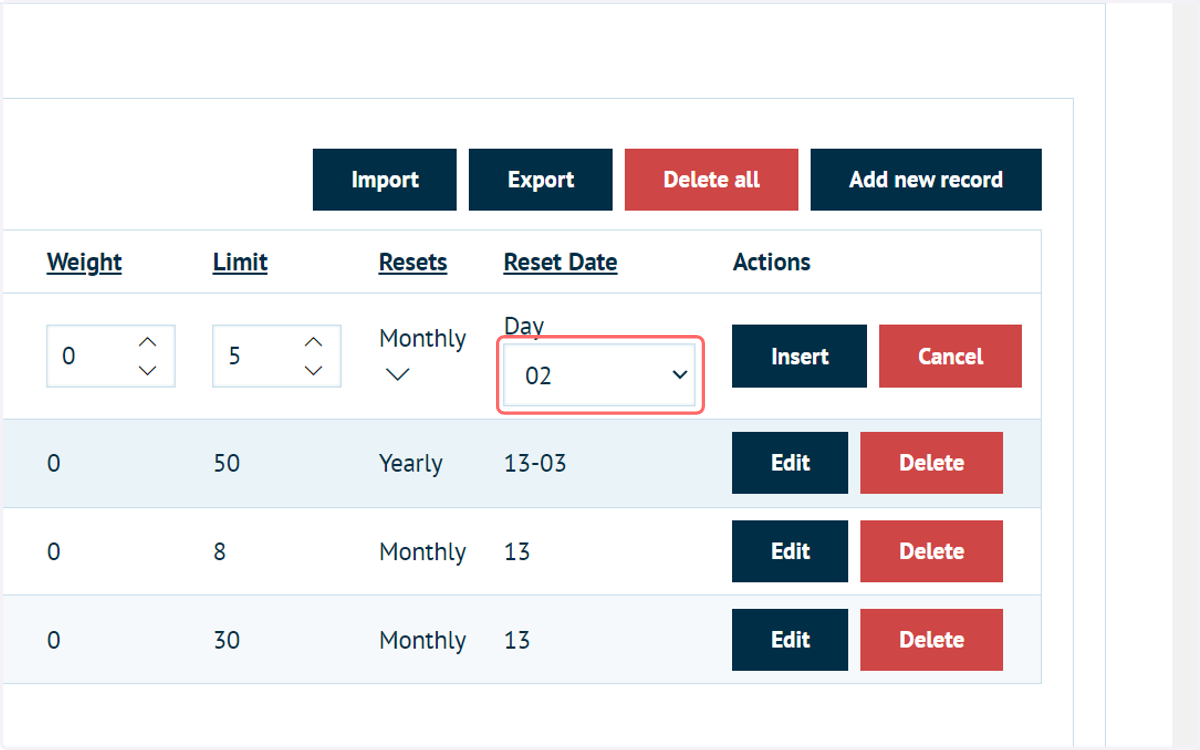
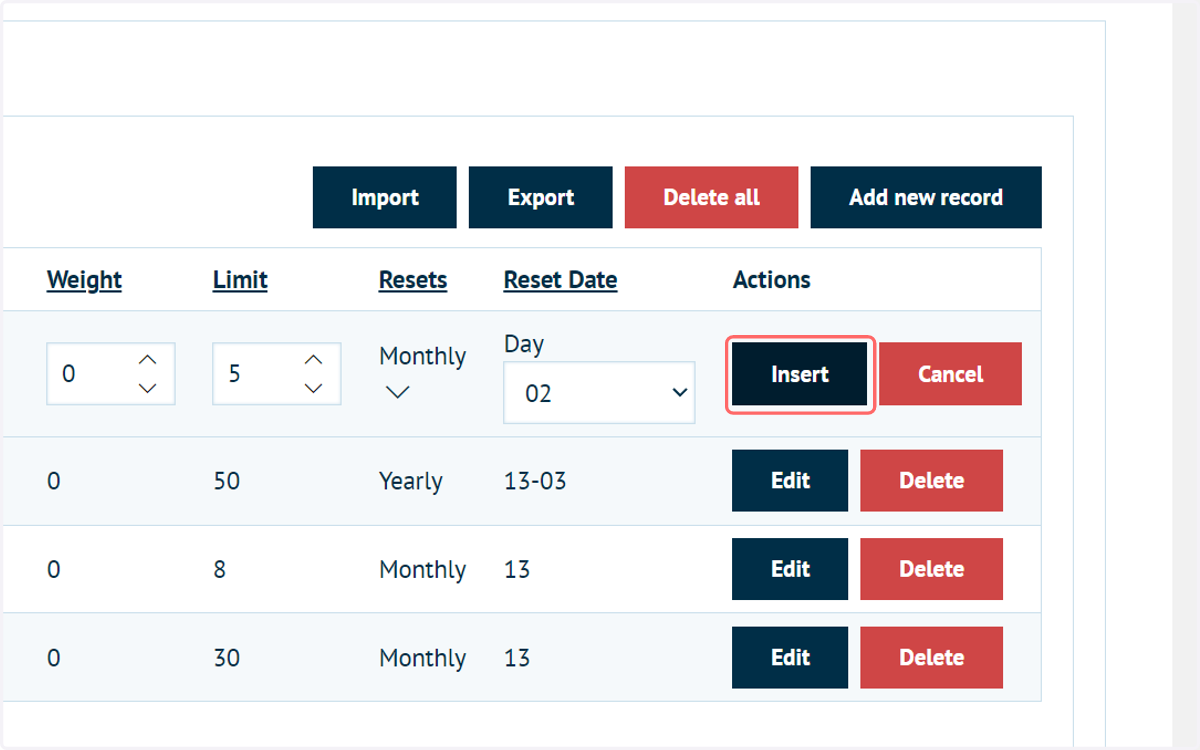
22. Click on Insert
23. Click on Save
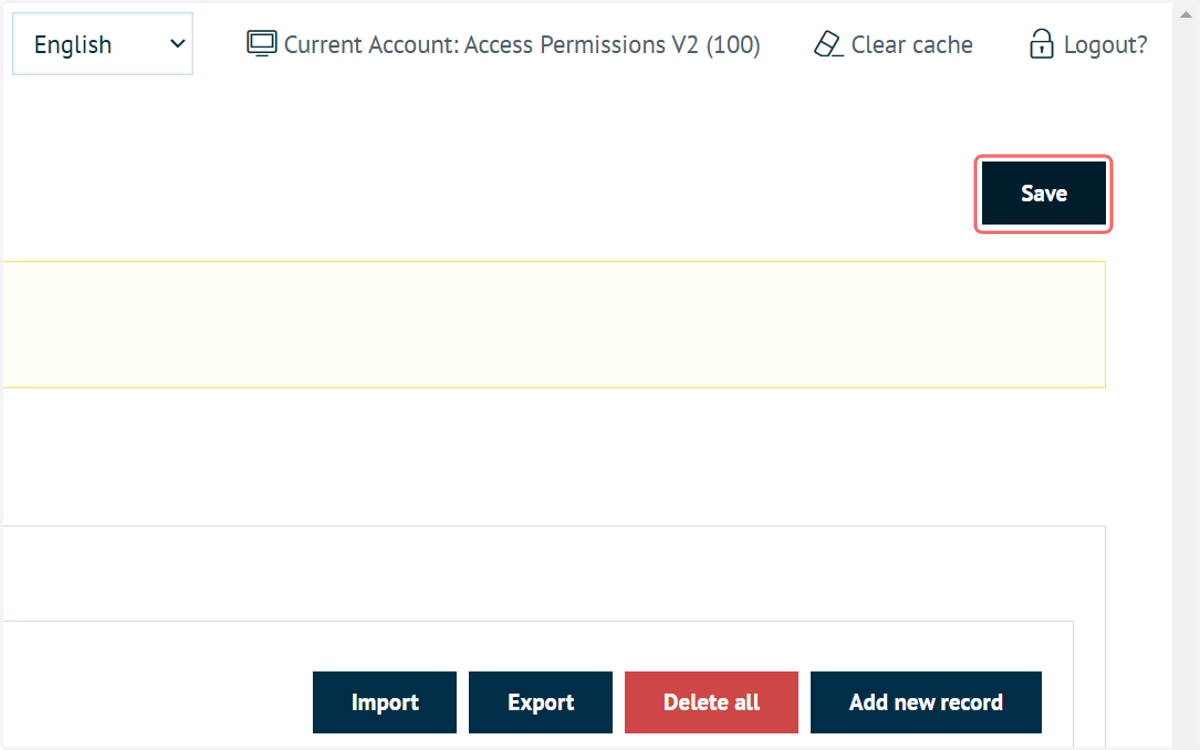
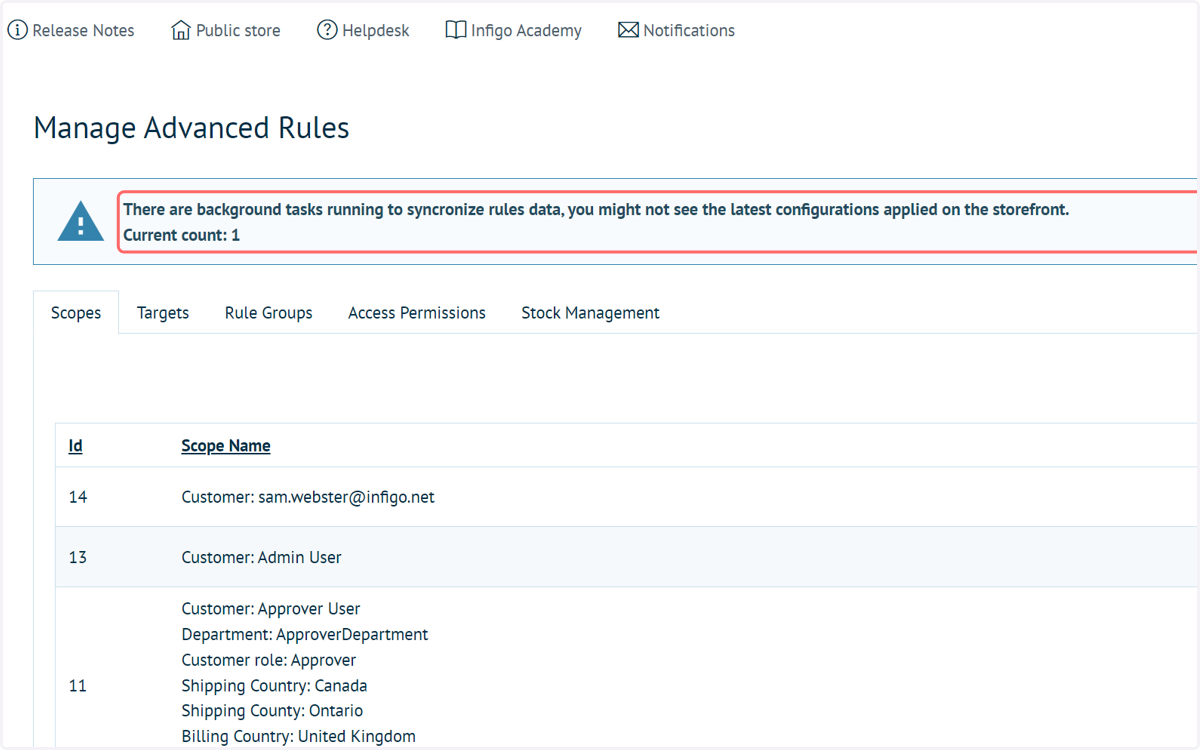
24. Before you can utilise these changes on the front end of the Storefront, you will need to wait for background update tasks to be run. This shouldn't take more than a minute.
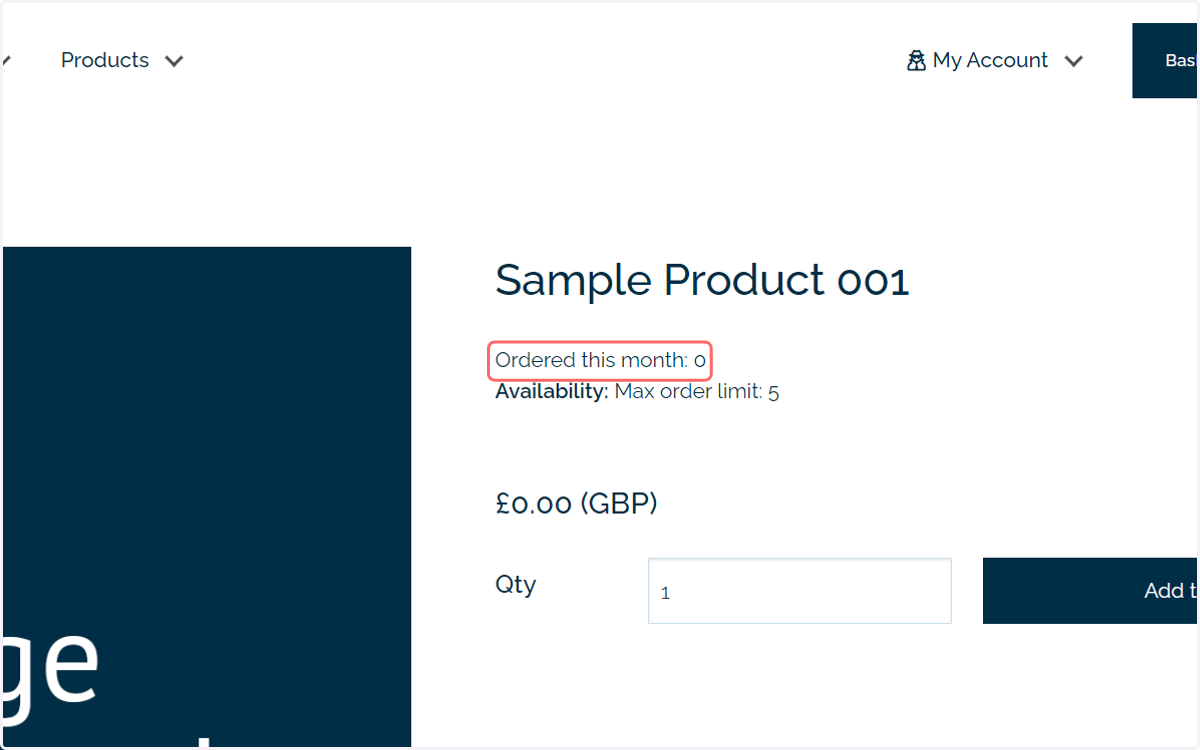
25. Launch the product to see your updated stock limits and display options
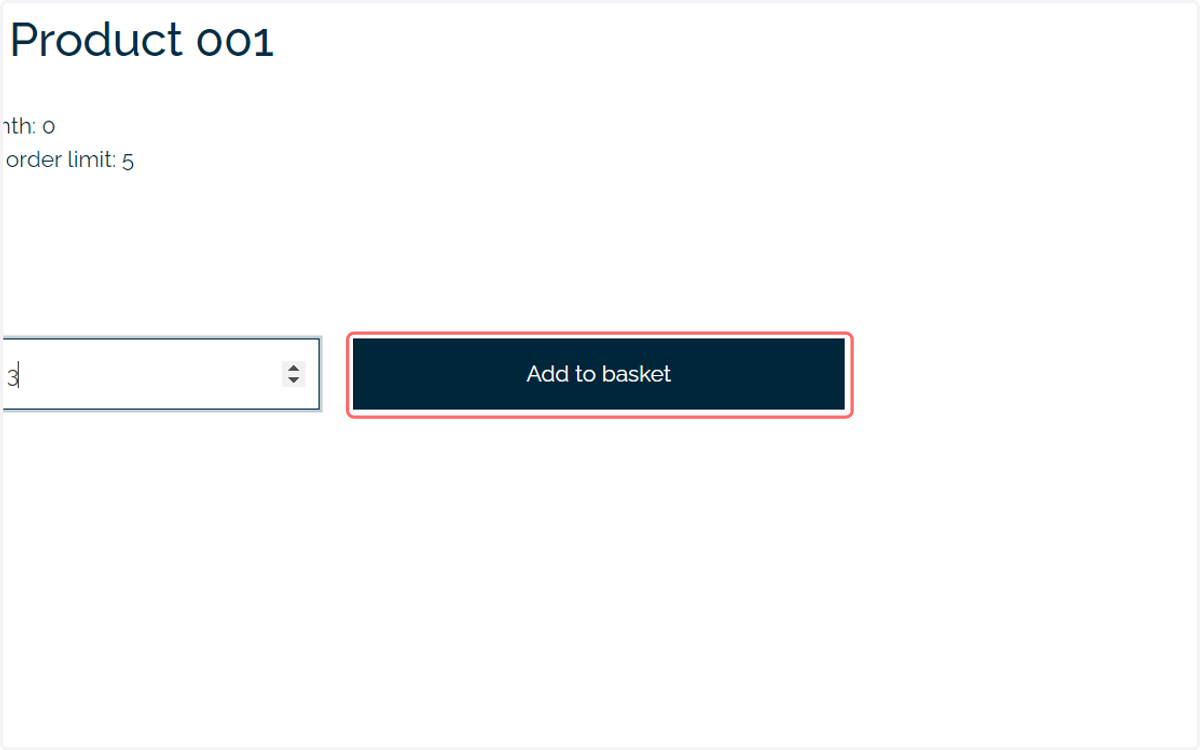
26. Place an order
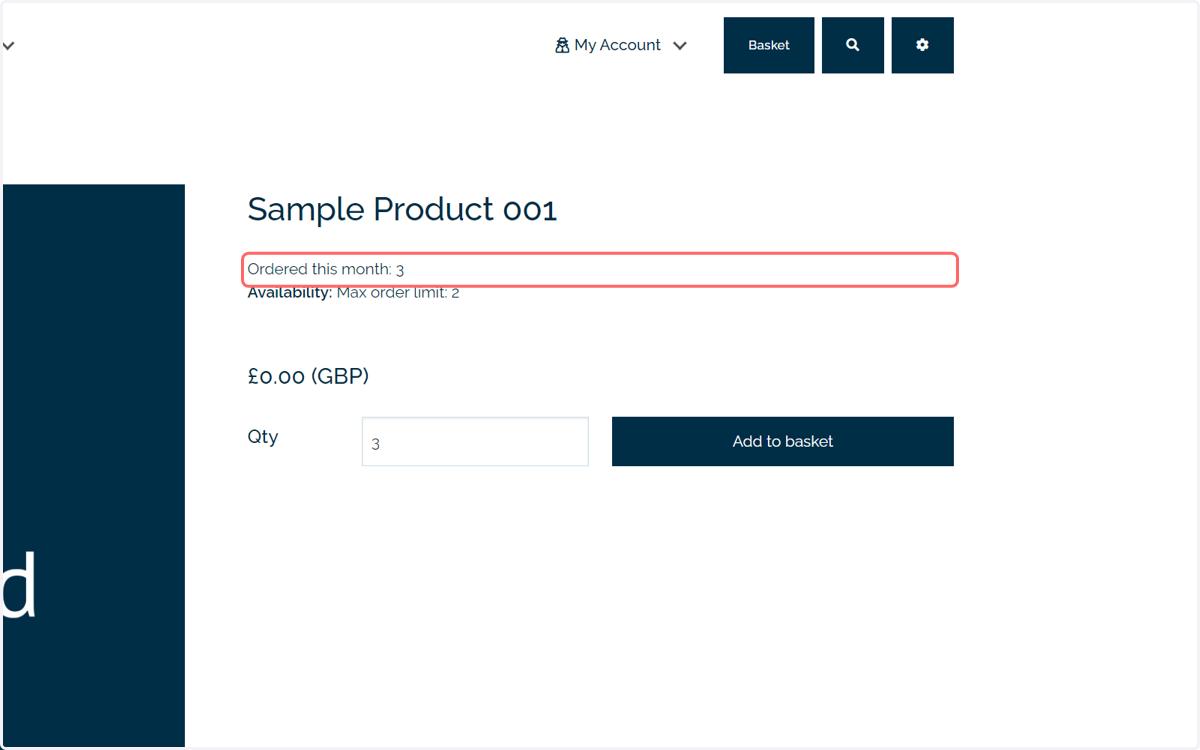
27. Once the order is placed, return to your product
You will see an updated measure of how many of this product can be purchased.
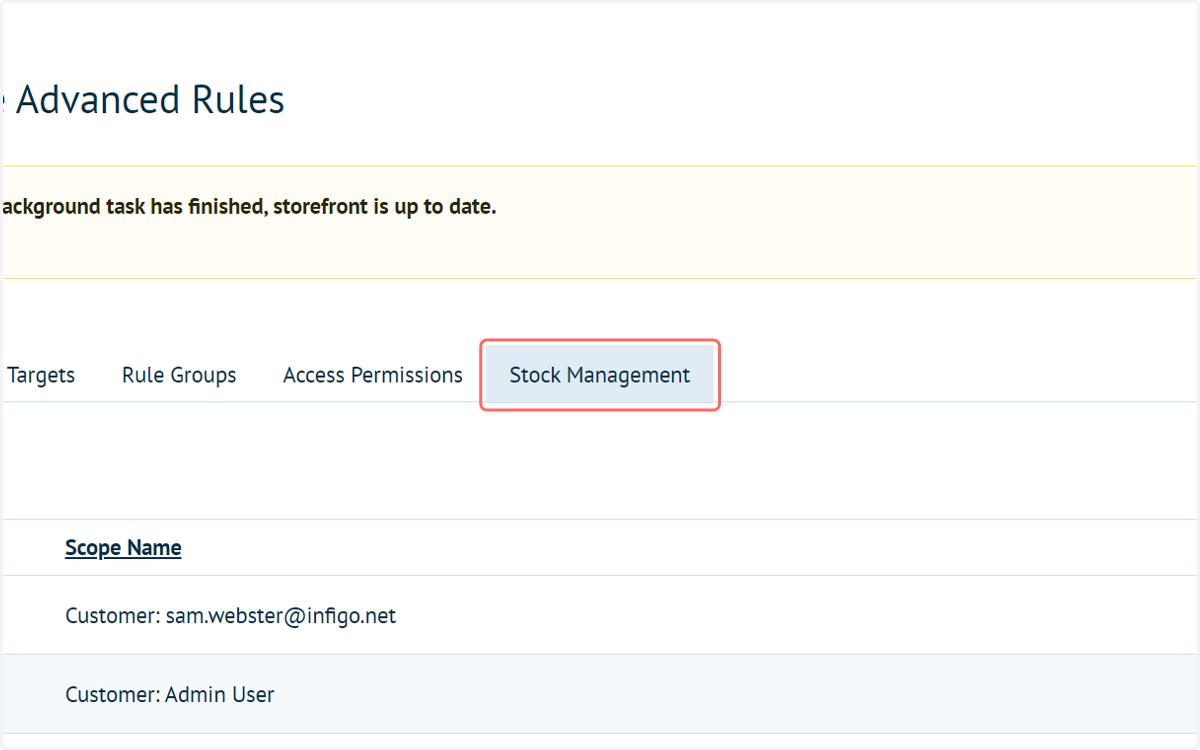
28. In the admin area, click on Stock Management
29. Click the '+' icon next to your related Stock Management rule
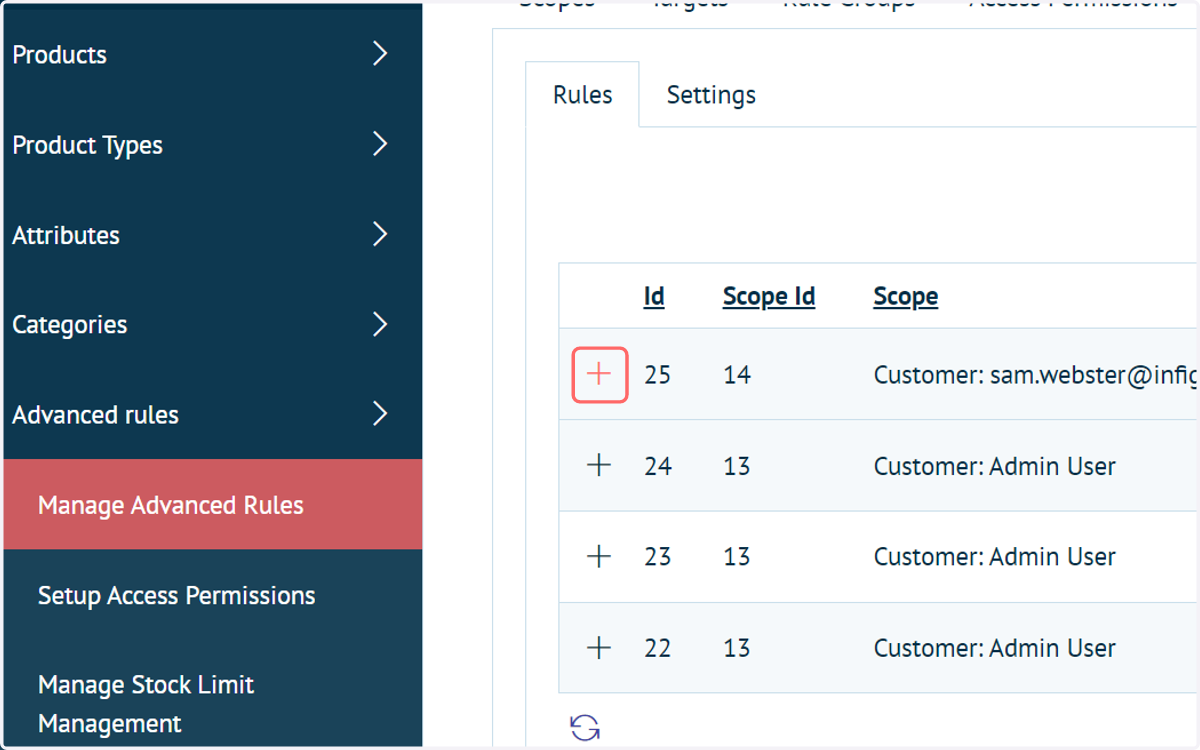
30. Here, you will see an interactive record of all the orders placed which fall under this rule