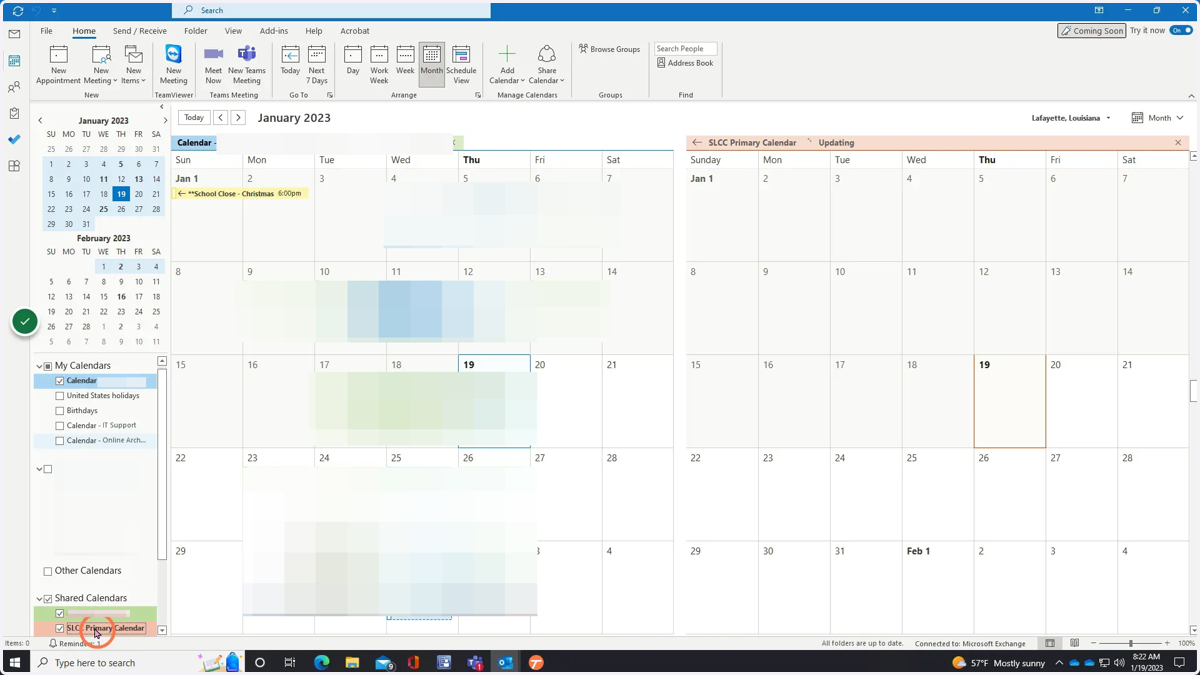
Adding an existing calendar to Outlook
Open Outlook and complete these steps to add a calendar
microsoft
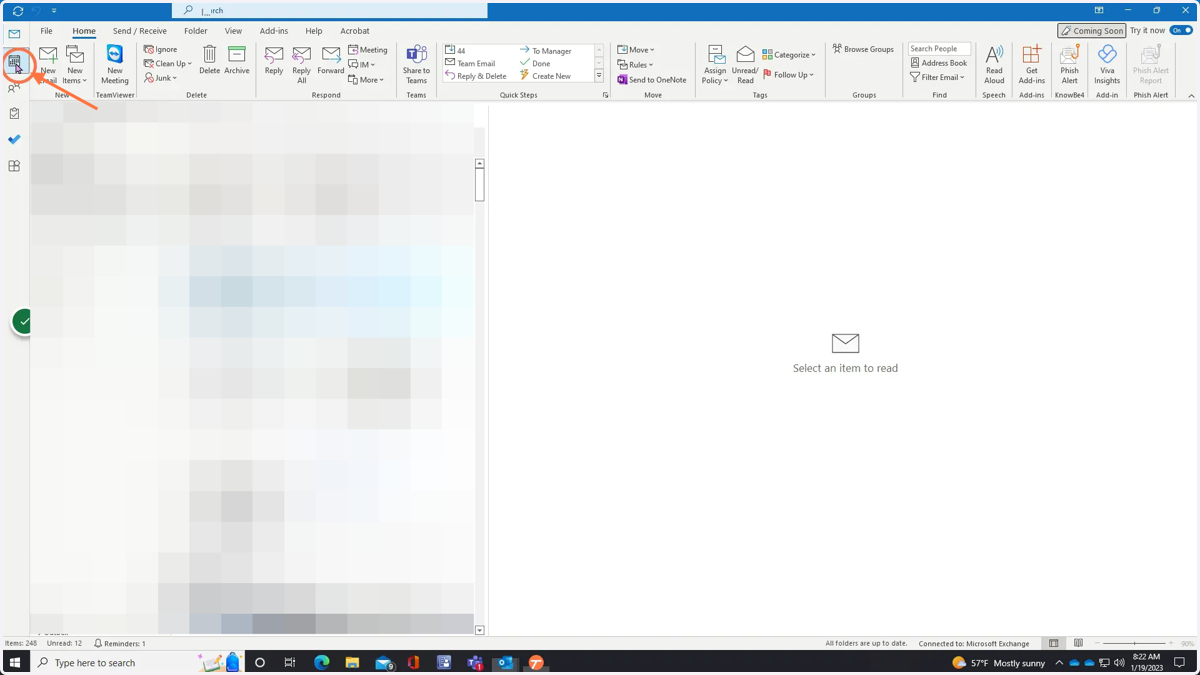
1. From your email, click the calendar icon on the left
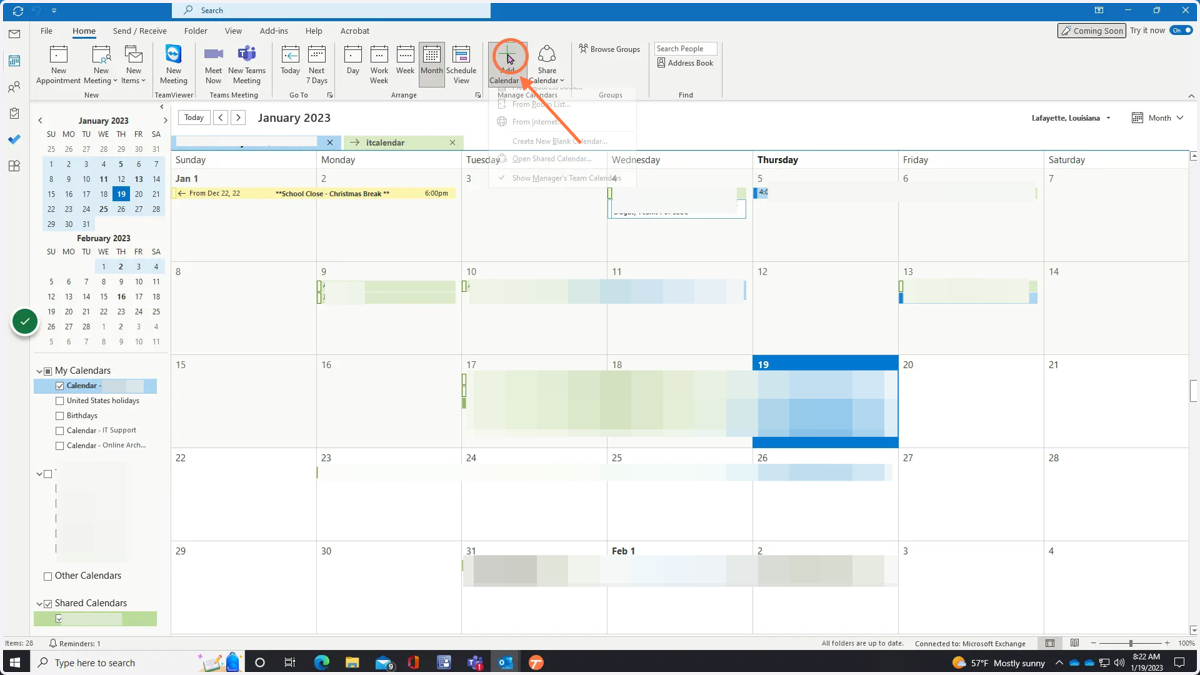
2. Click the Add Calendar button at the top (shown)
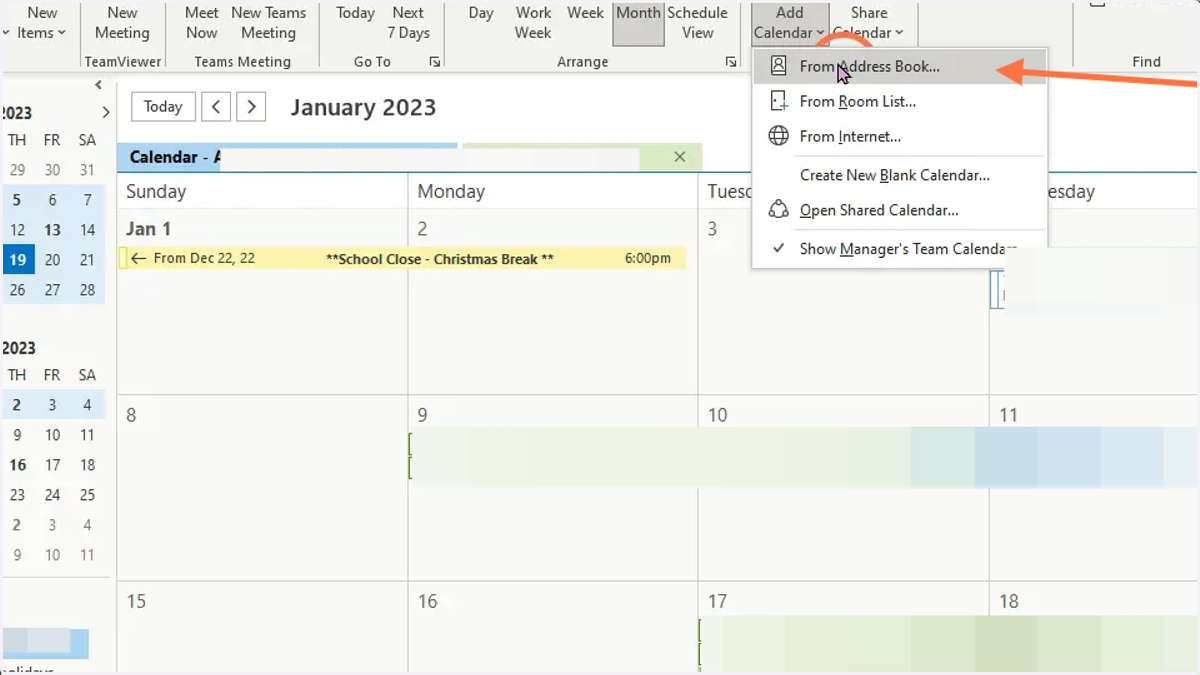
3. A drop-down will appear. Click From Address Book
4. Search for the calendar you want to add
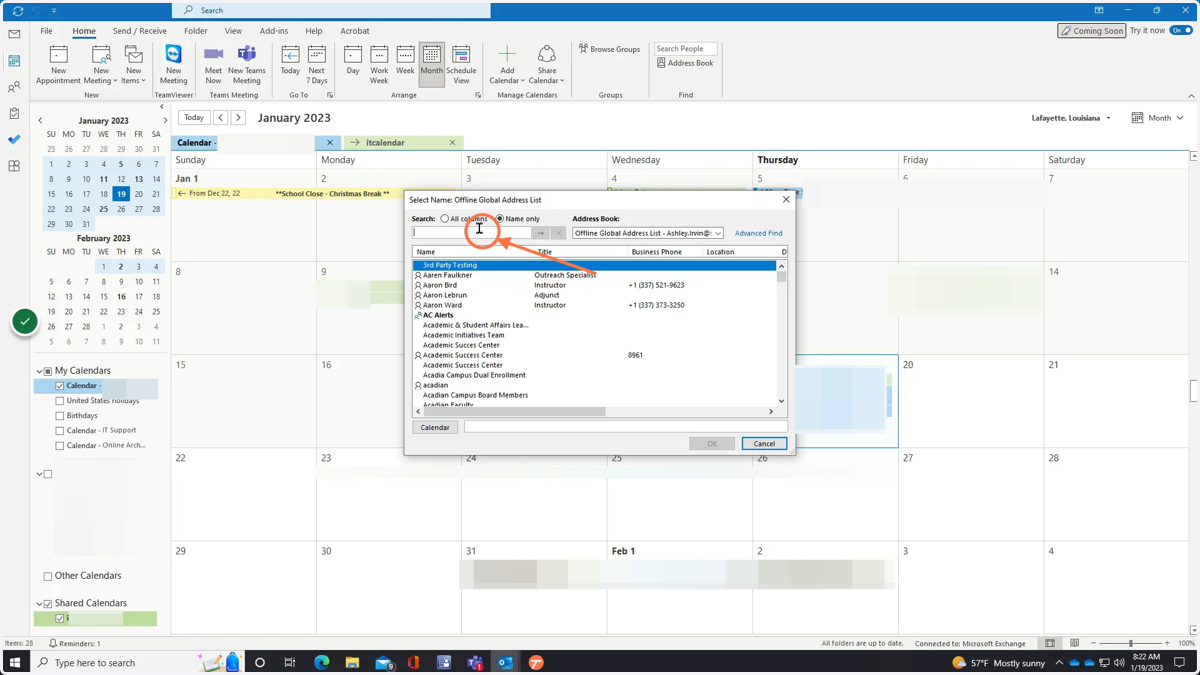
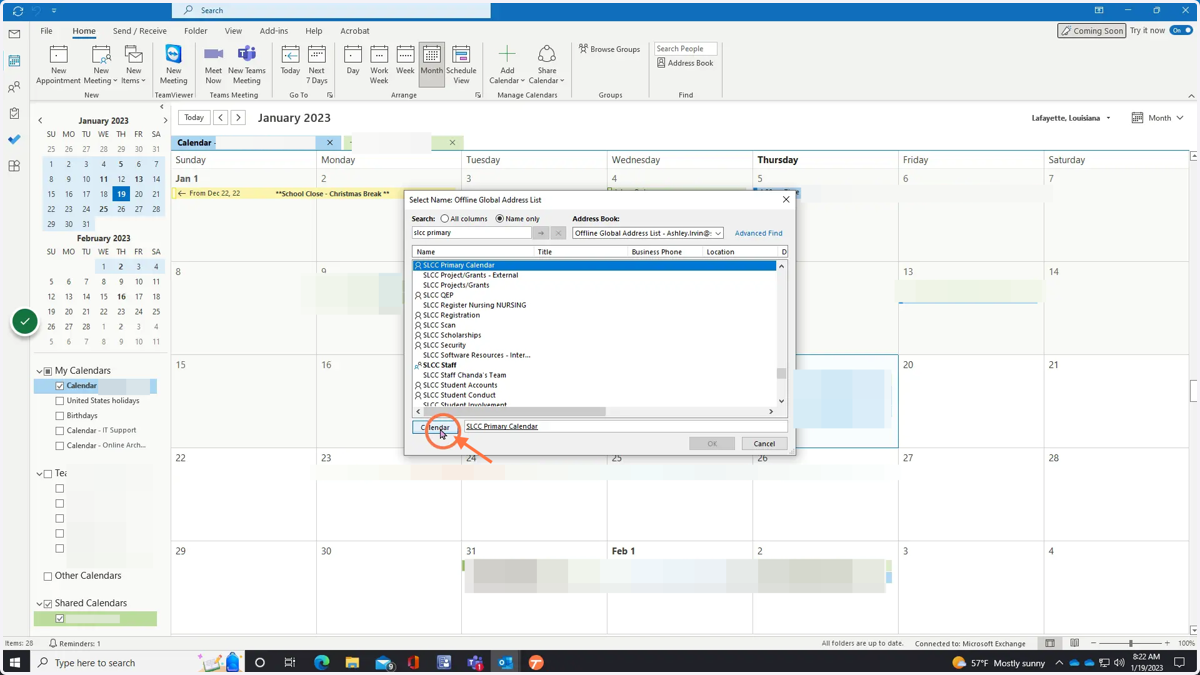
5. Once you type the calendar in, click it then click Calendar
6. Click OK
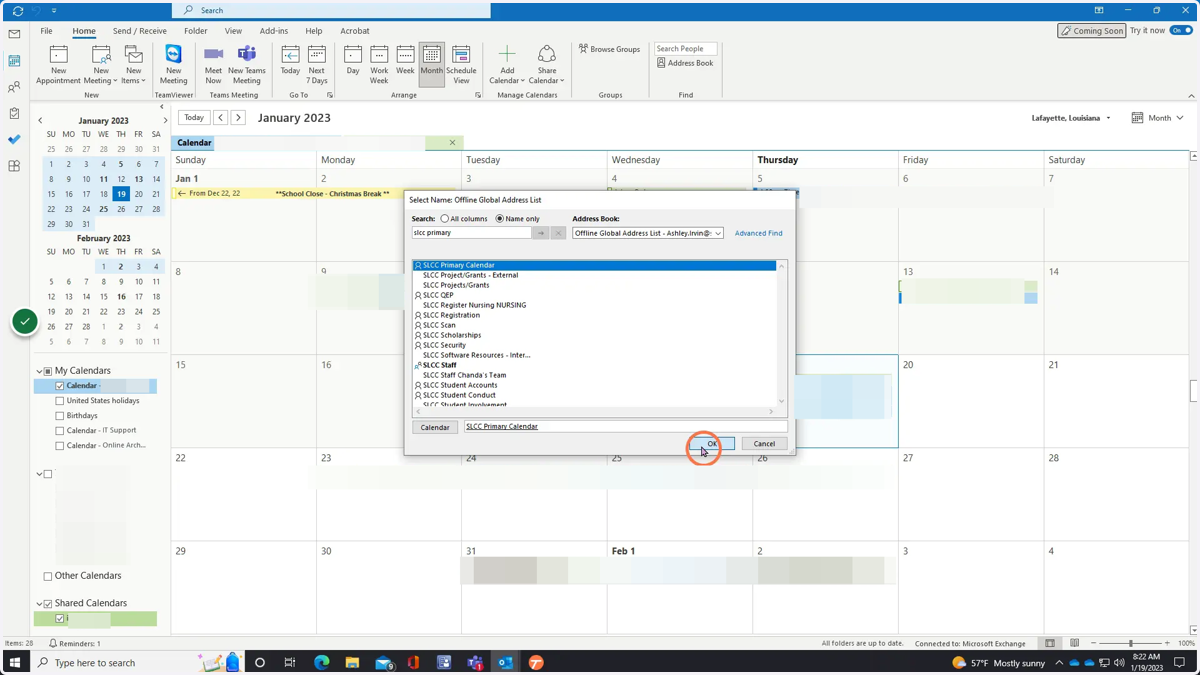
7. You can see here that the calendar was added