Set Up OpenAI API in AIZONIX

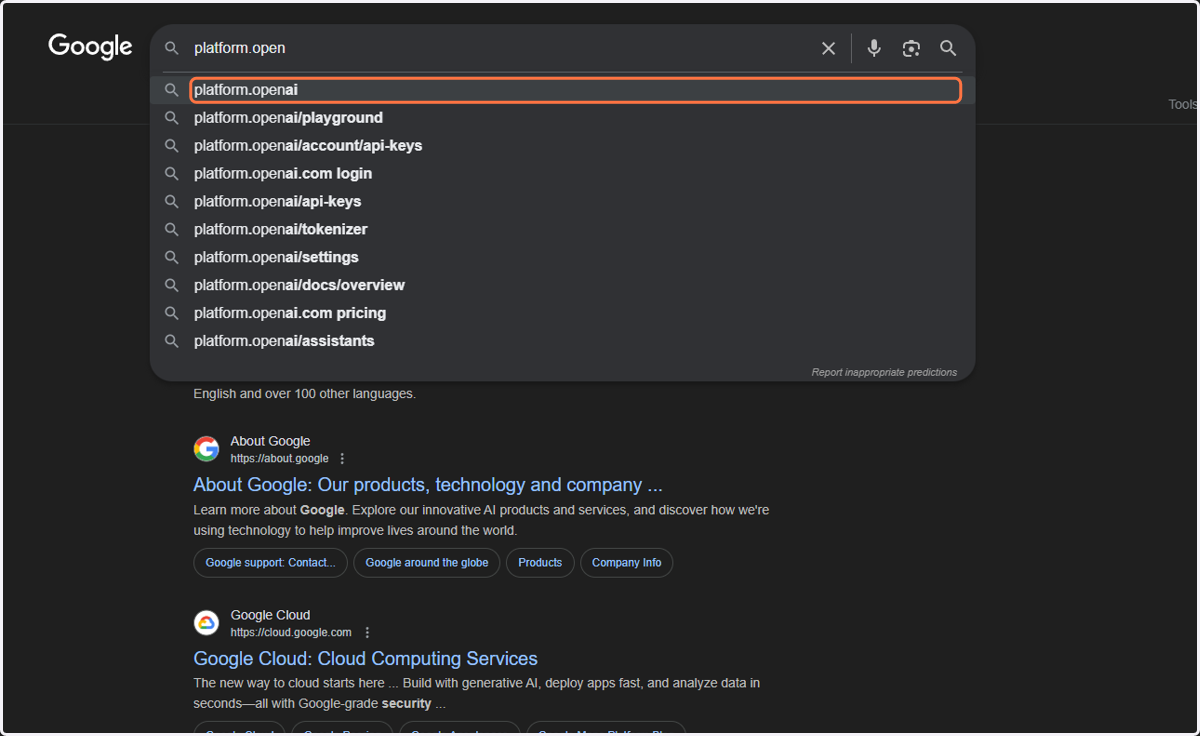
google - Google Search

  1. 1. Go to https://platform.openai.com/

    Go to https://platform.openai.com/
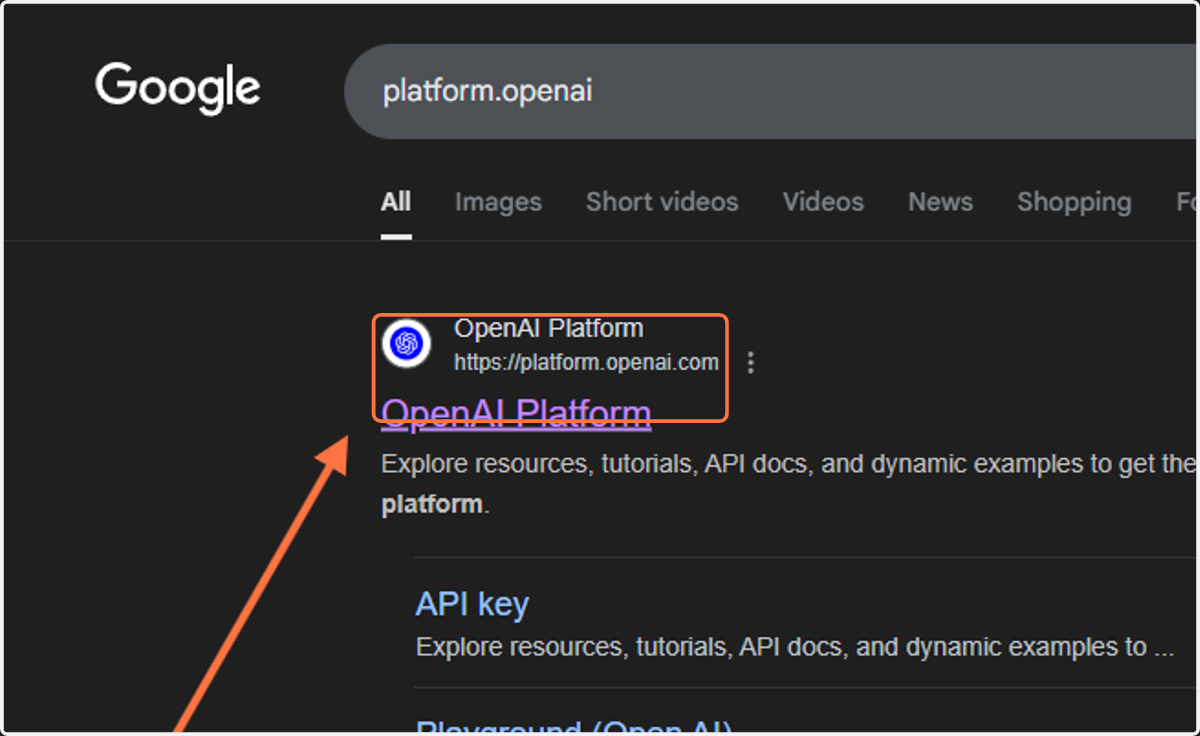
  2. 2. Click on OpenAI Platform…

    Click on OpenAI Platform…

OpenAI Platform

  1. 3. Click on OpenAI developer platform…
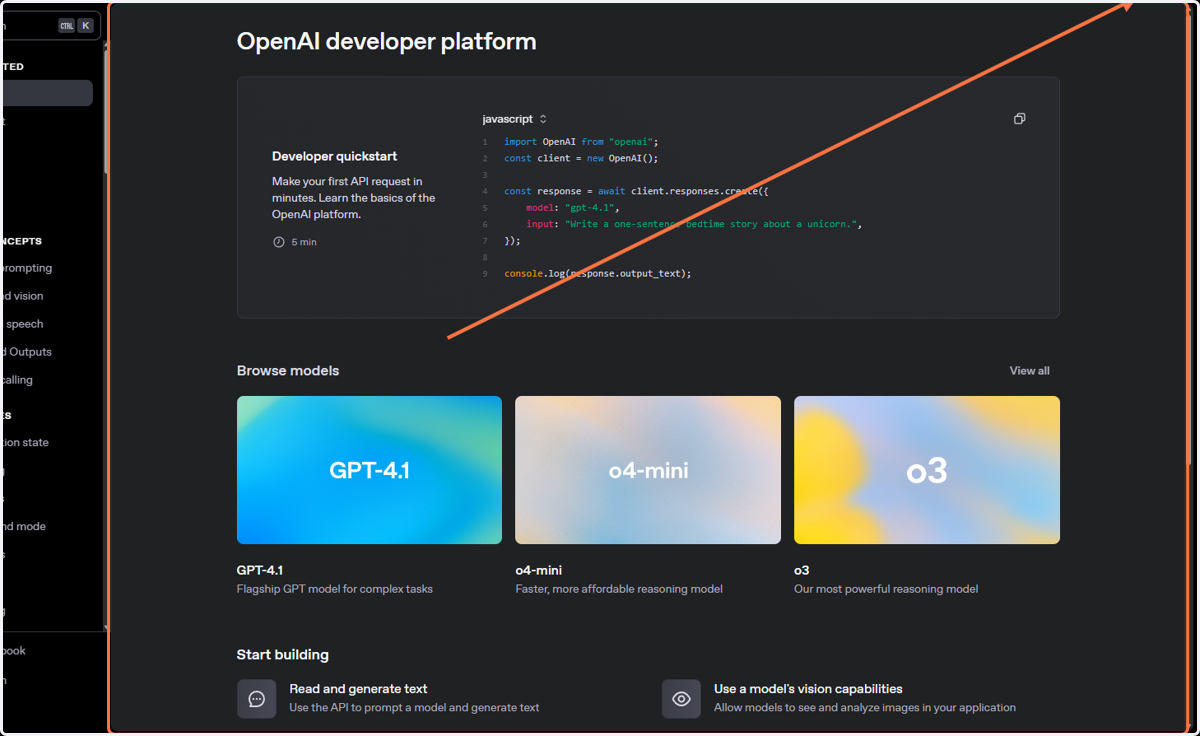
    Click on OpenAI developer platform…
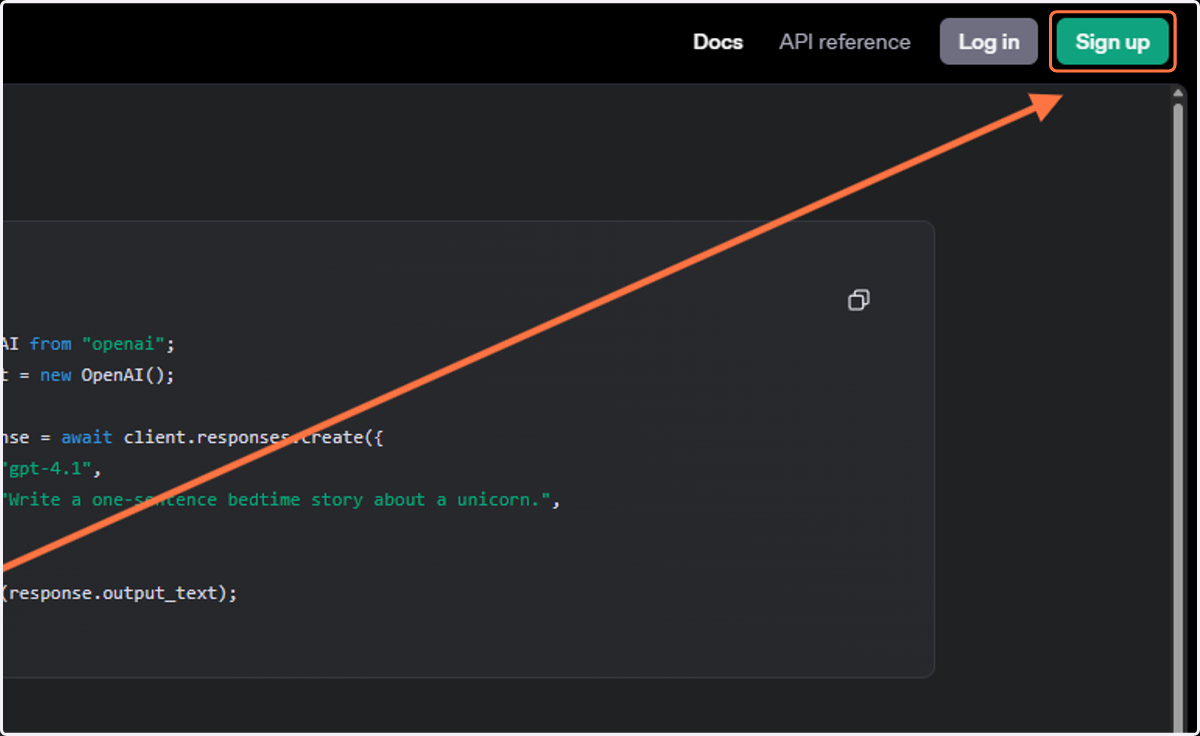
  2. 4. Click on Sign up

    Click on Sign up
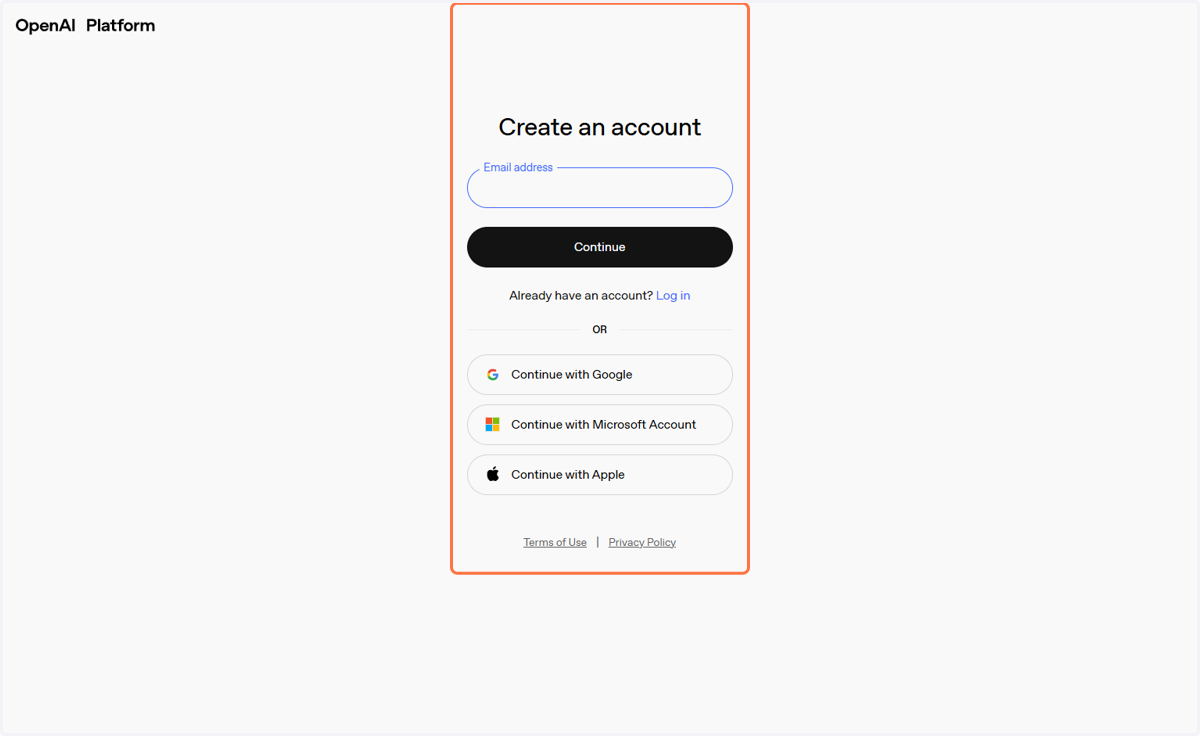
  3. 5. Click on Create an account…

    Click on Create an account…
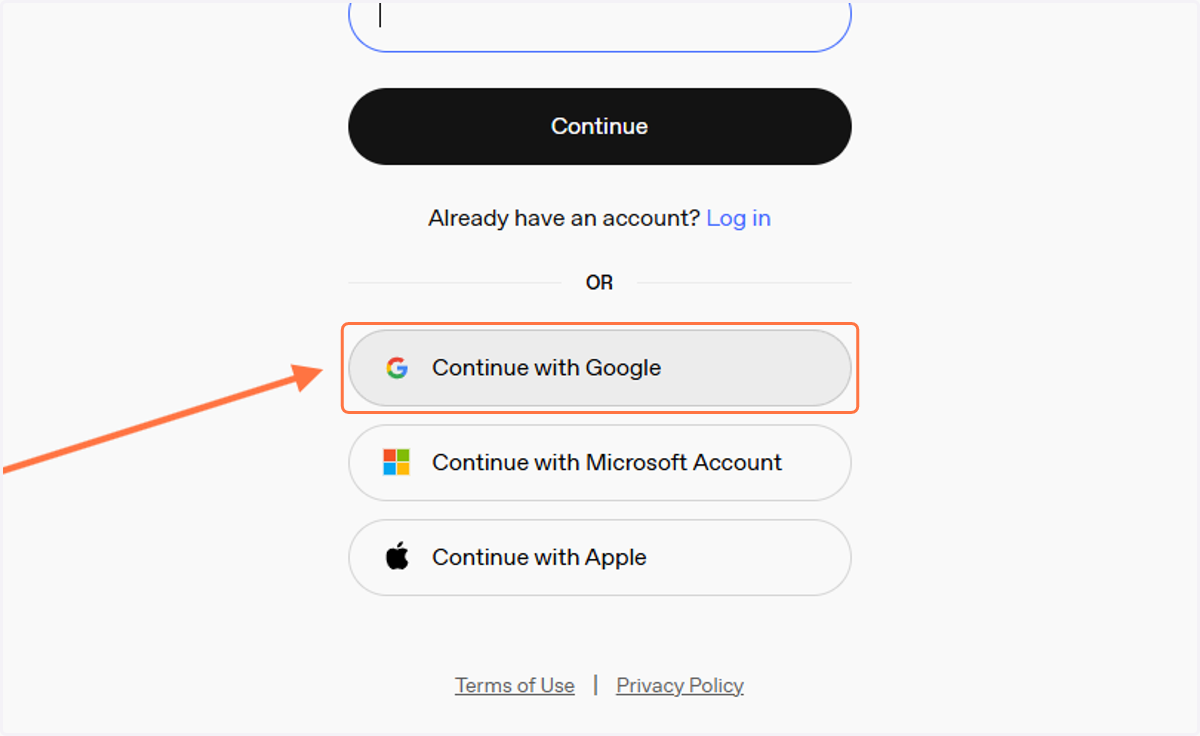
  4. 6. Click on Continue with Google

    Click on Continue with Google
  5. 7. Click on OpenAI developer platform…
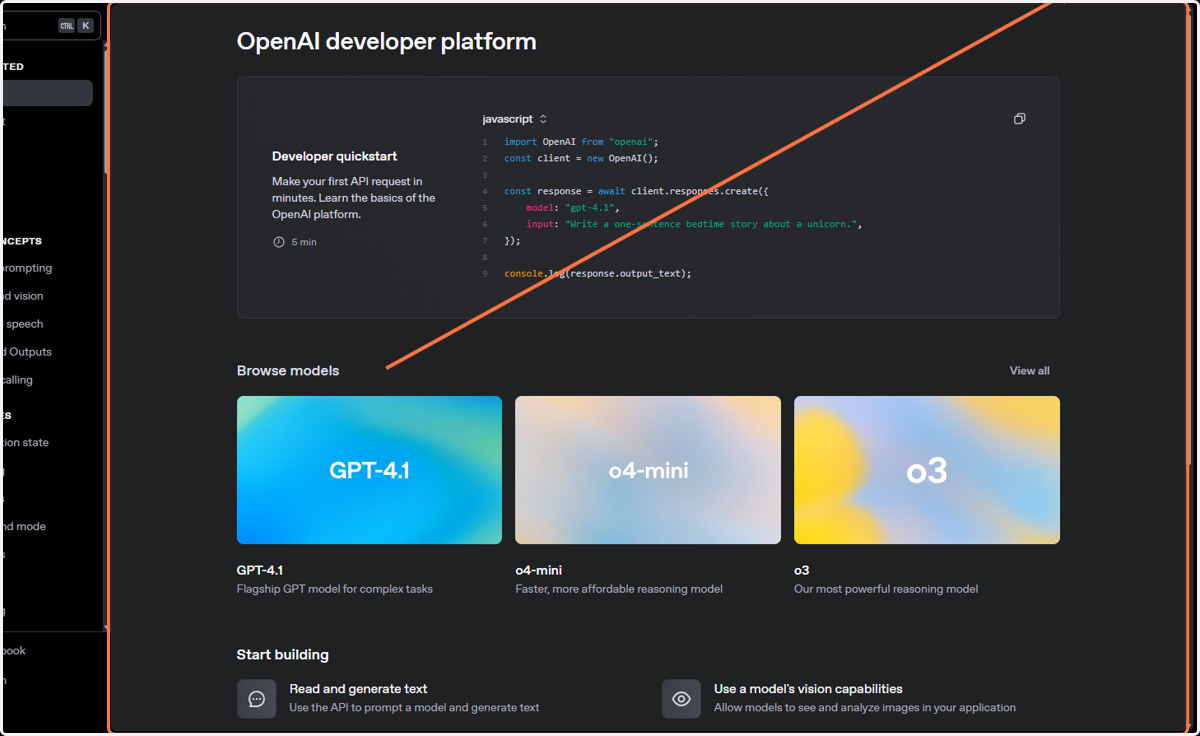
    Click on OpenAI developer platform…
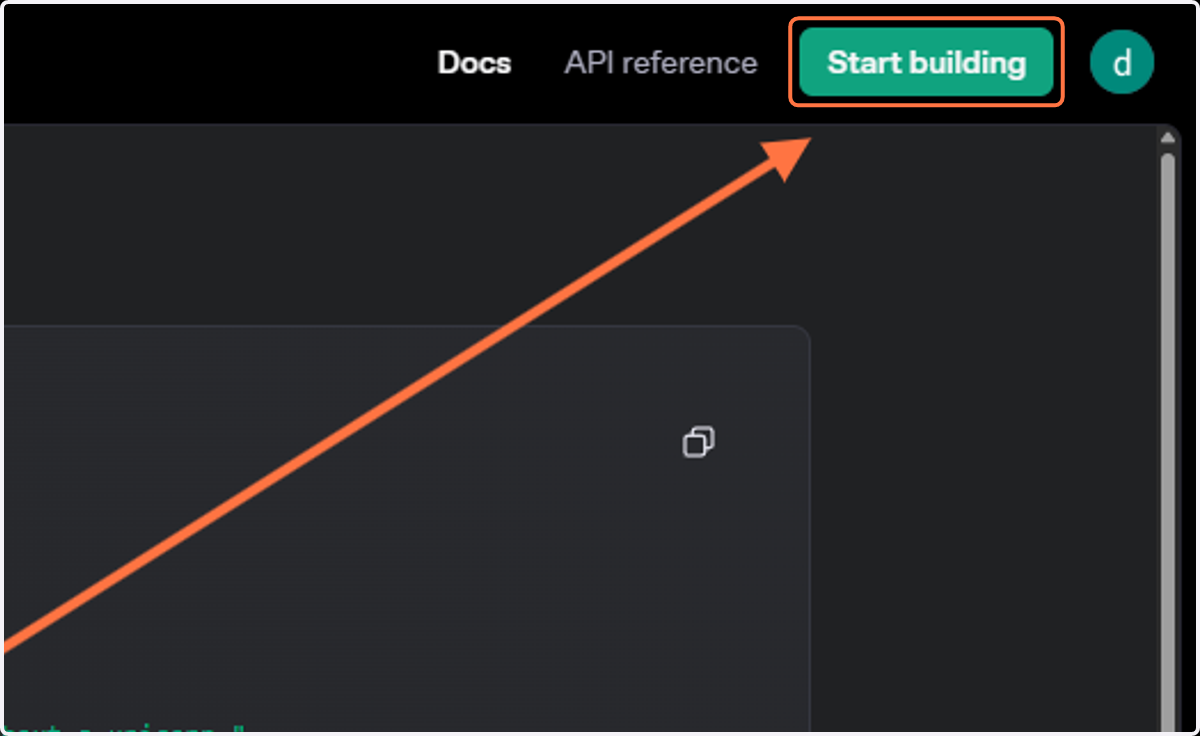
  6. 8. Click on Start building

    Click on Start building
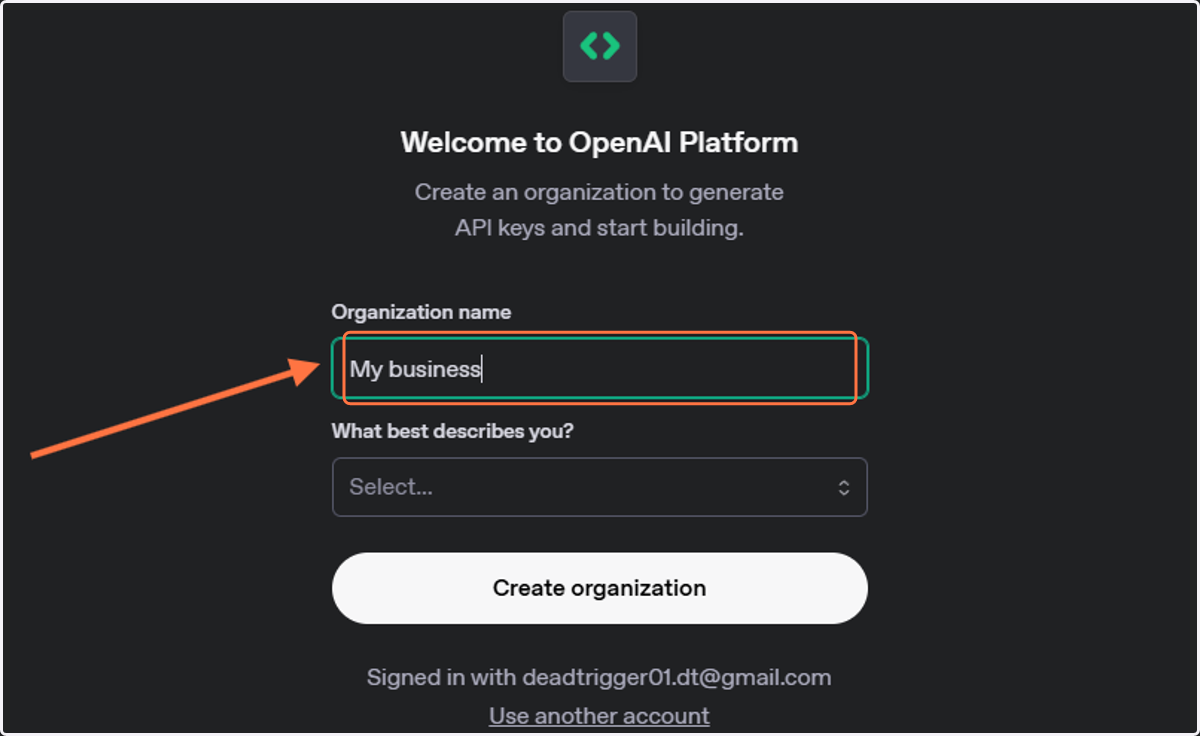
  7. 9. Type "My business"

    Type "My business"
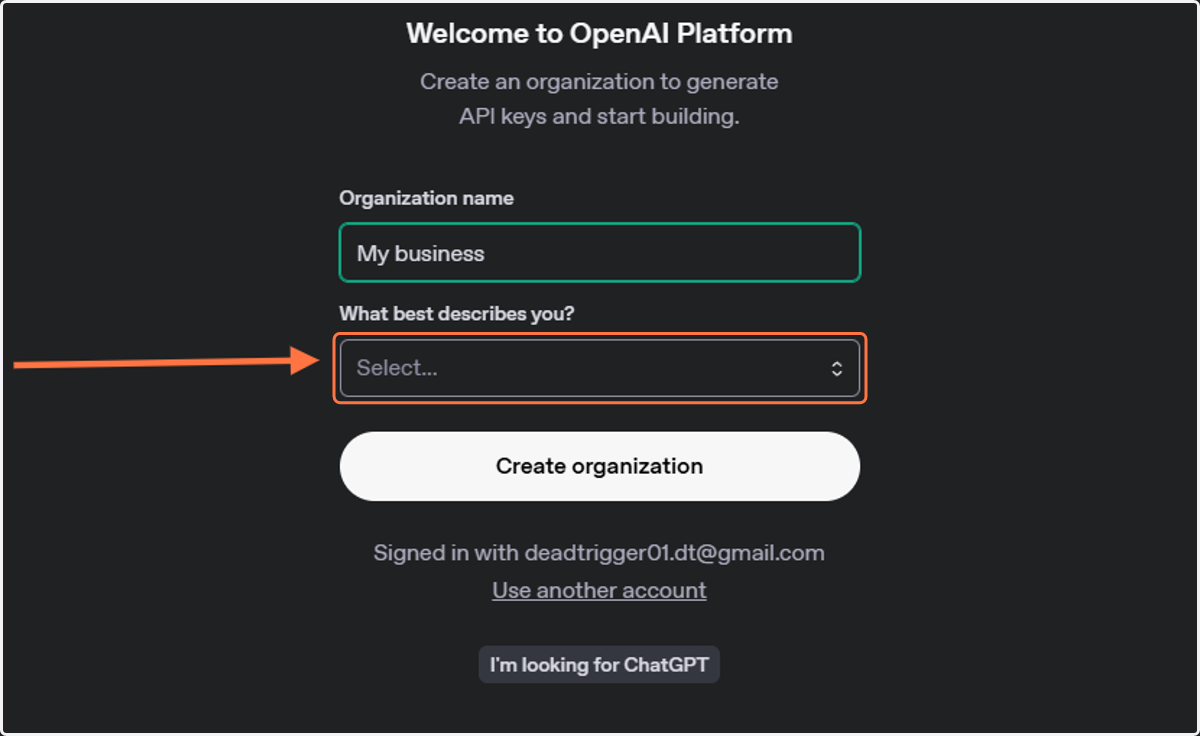
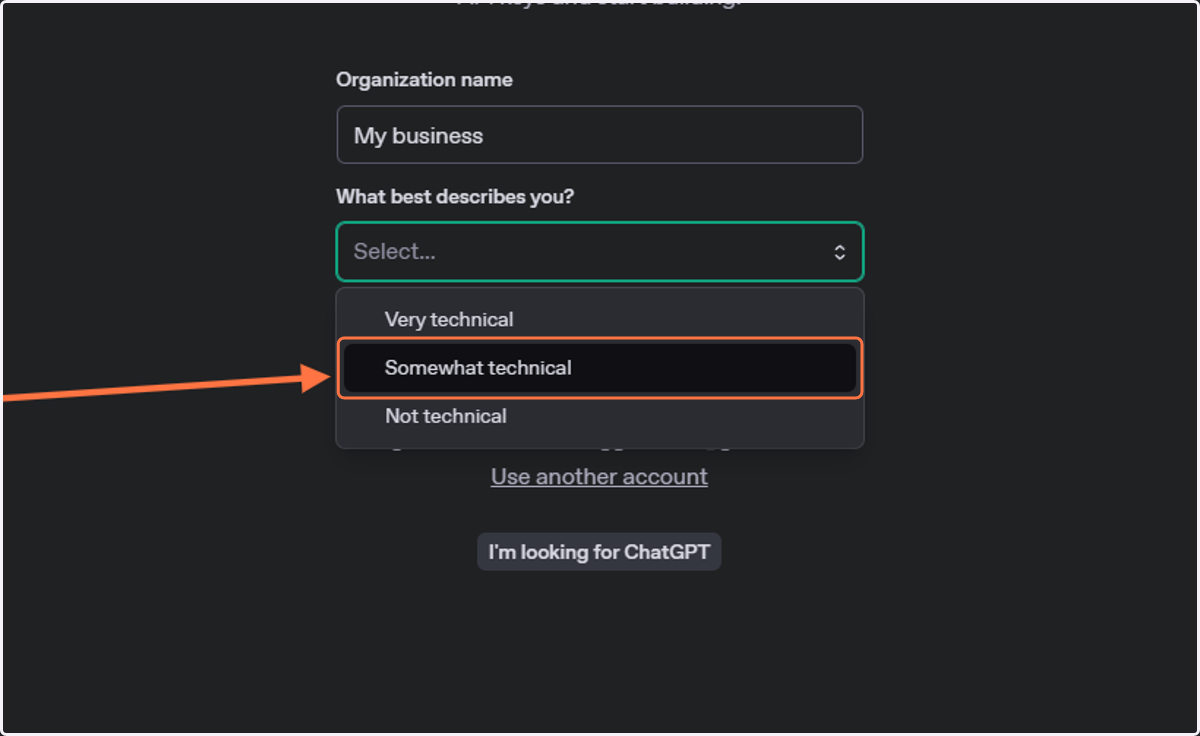
  8. 10. Click on Select...

    Click on Select...
  9. 11. Click on Somewhat technical

    Click on Somewhat technical
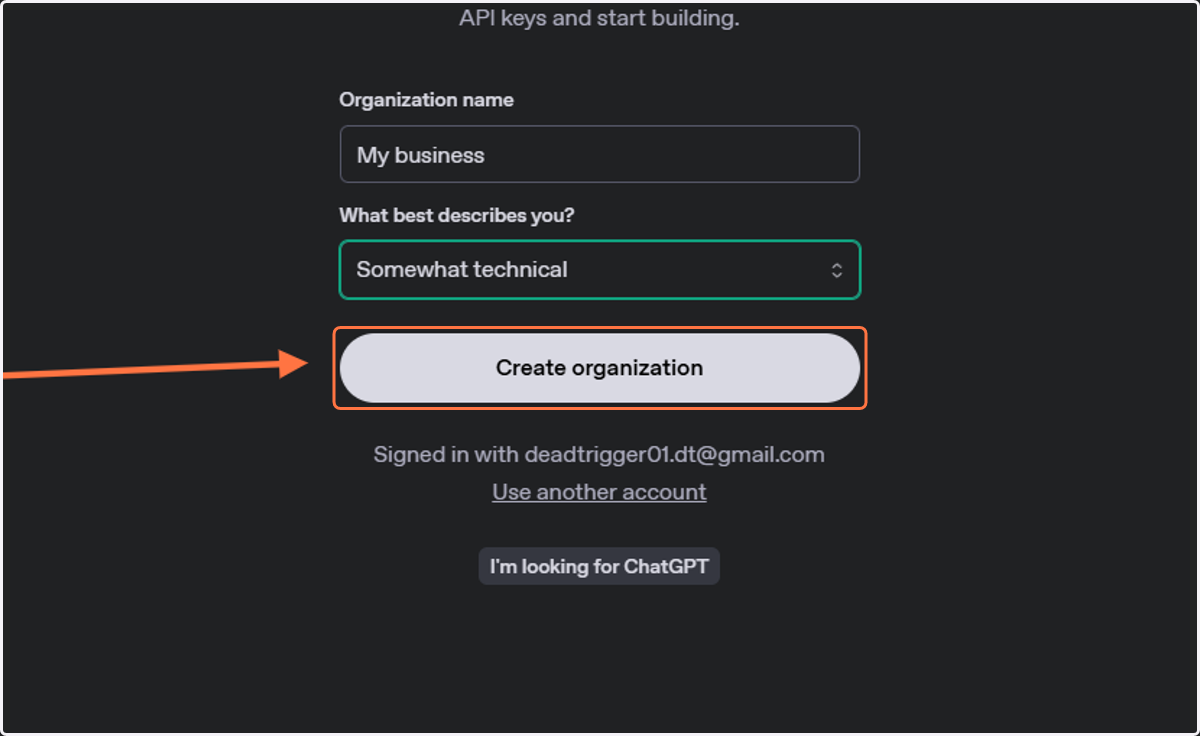
  10. 12. Click on Create organization

    Click on Create organization
  11. 13. Click on I'll invite my team later
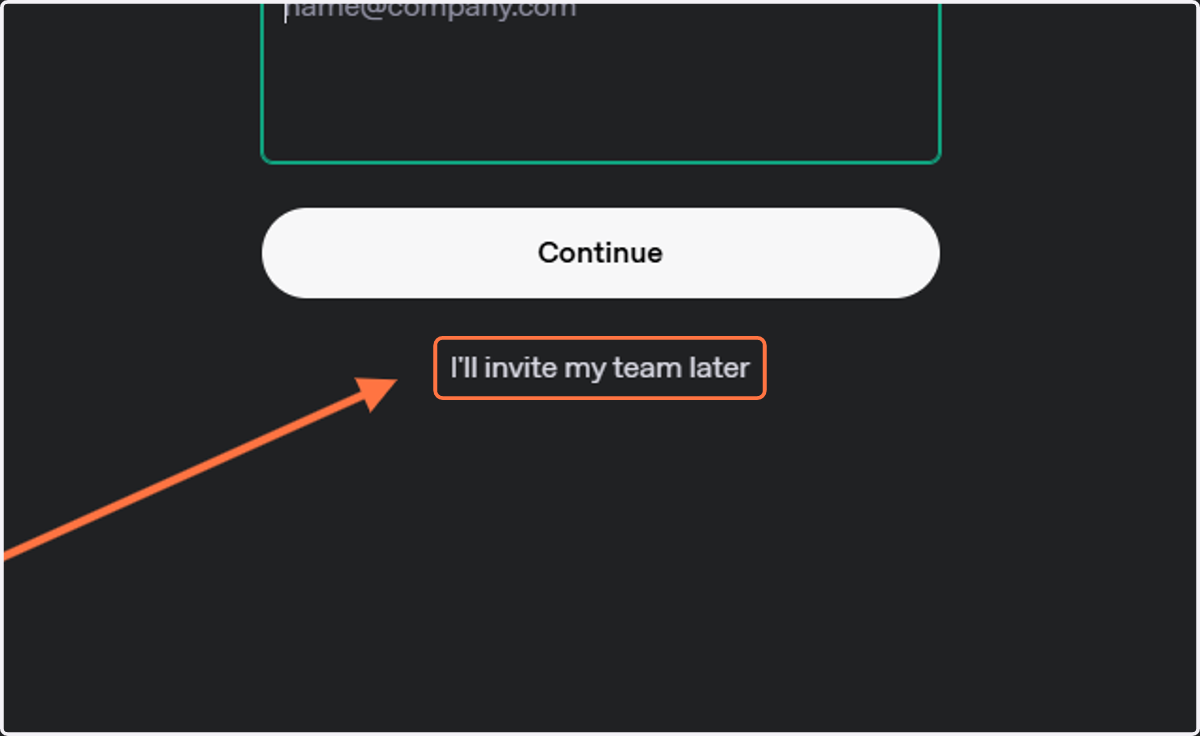
    Click on I'll invite my team later
  12. 14. Click on Make your first API call…
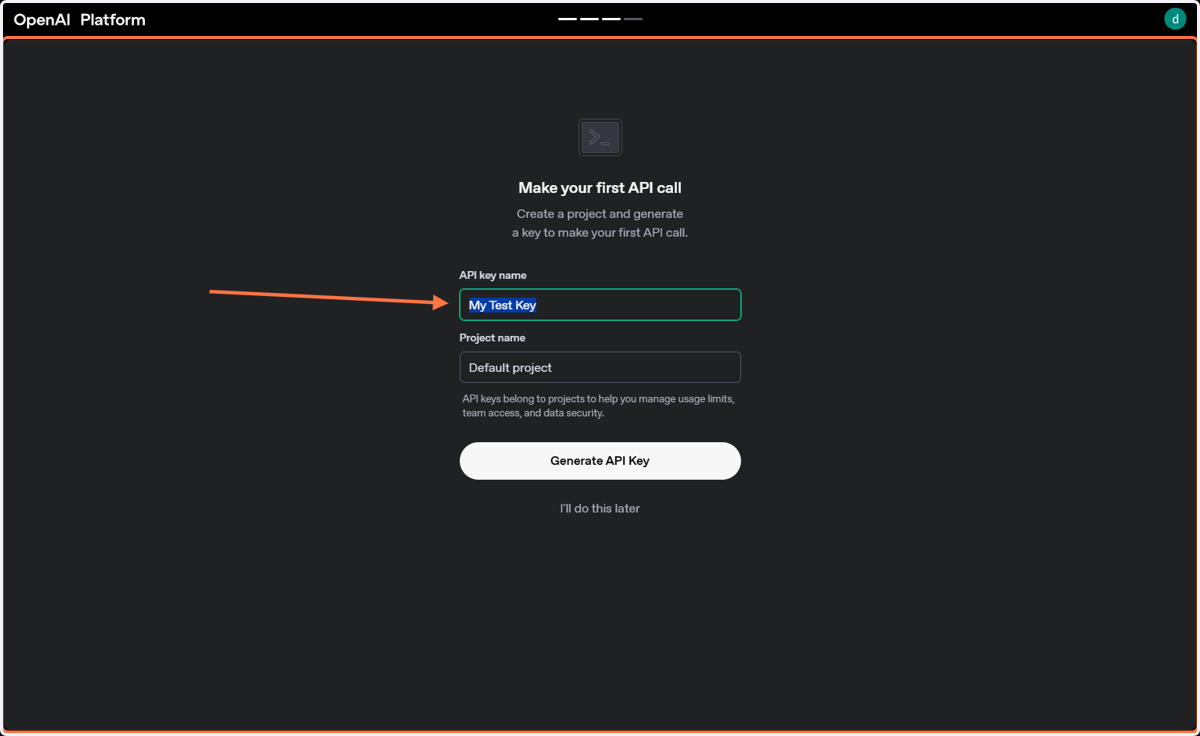
    Click on Make your first API call…
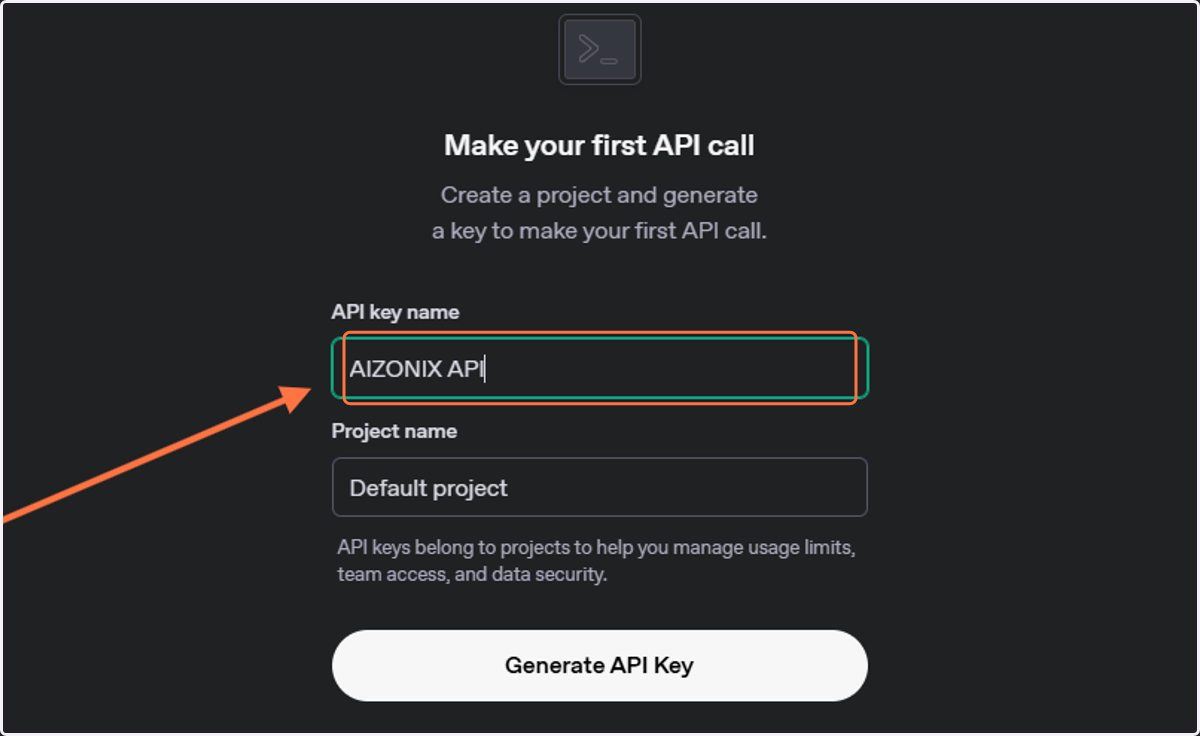
  13. 15. Type "AIZONIX API"

    Type "AIZONIX API"
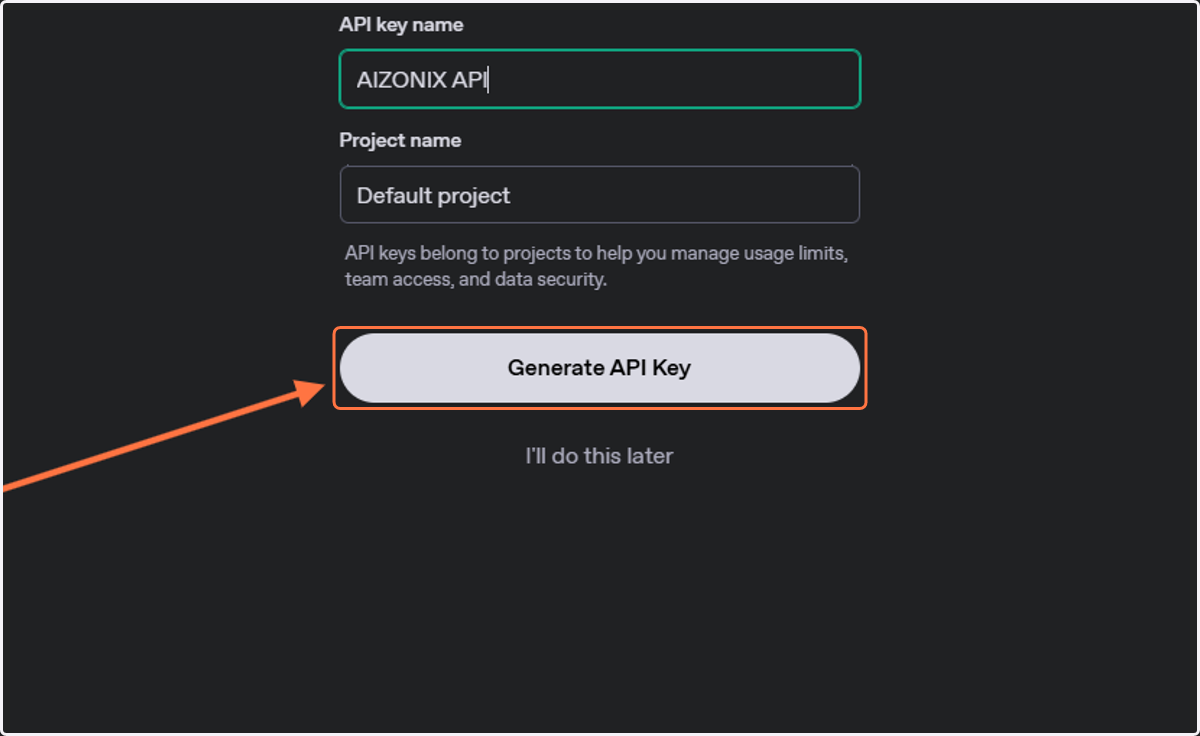
  14. 16. Click on Generate API Key

    Click on Generate API Key
  15. 17. Click on Make your first API call…
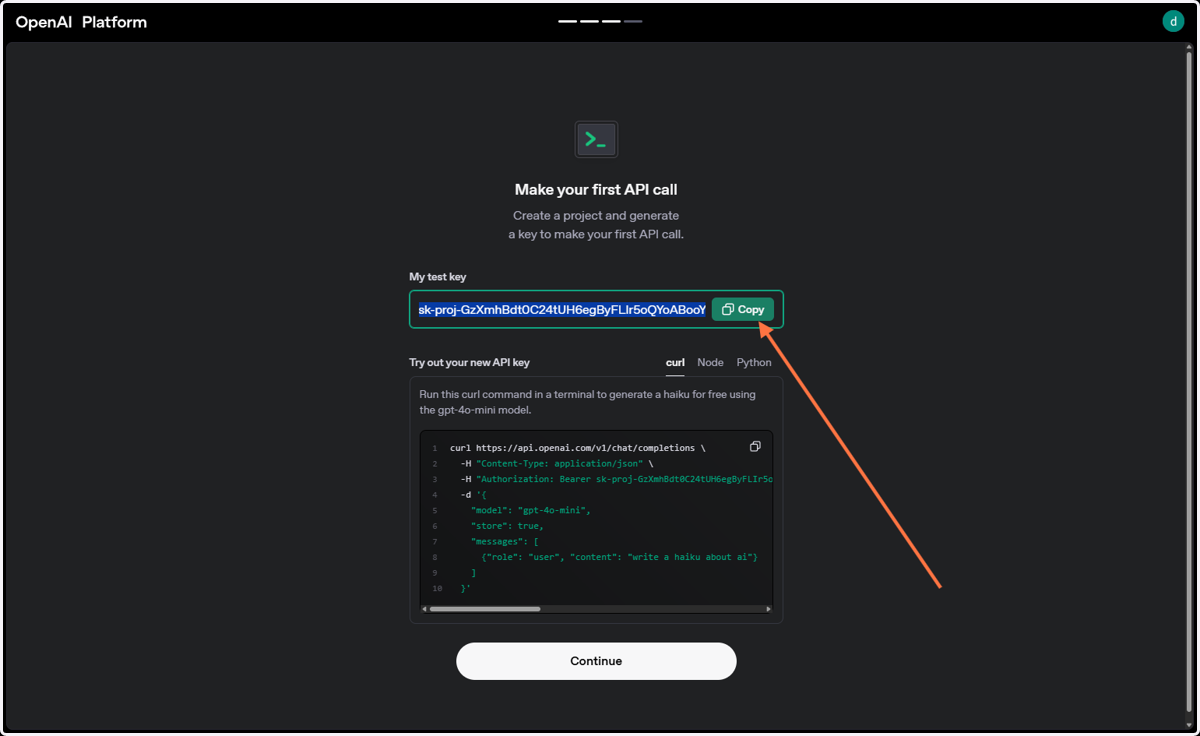
    Click on Make your first API call…
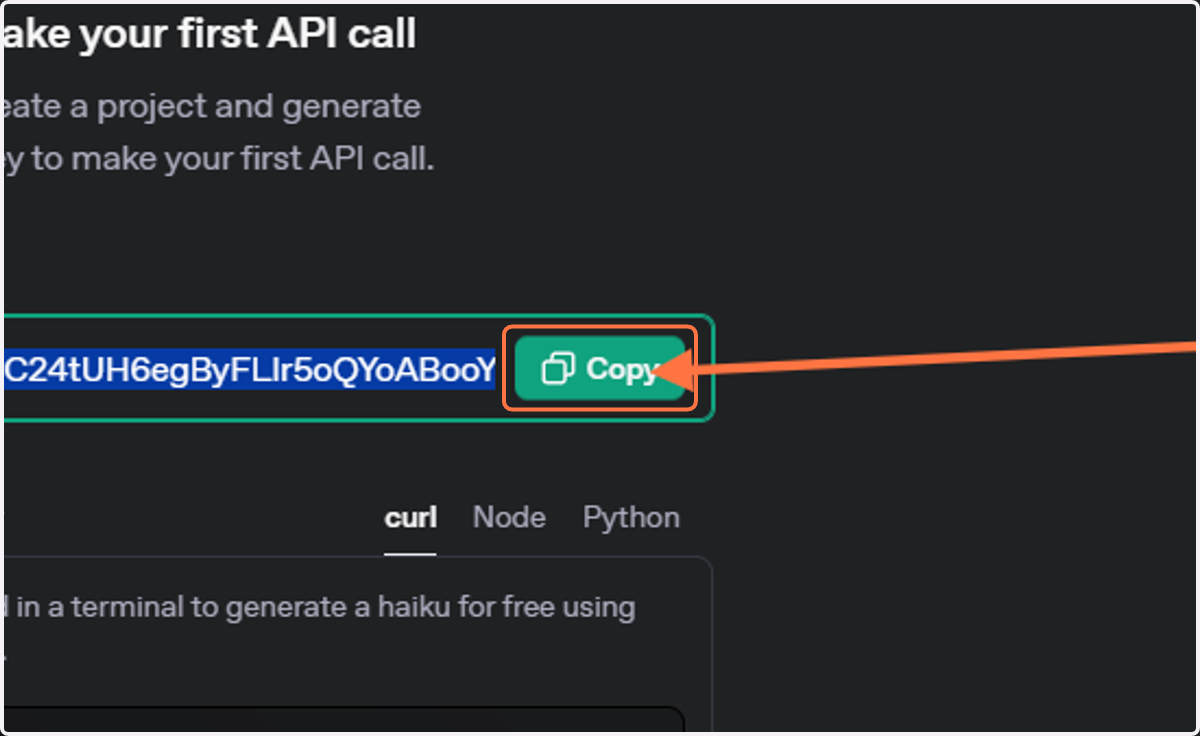
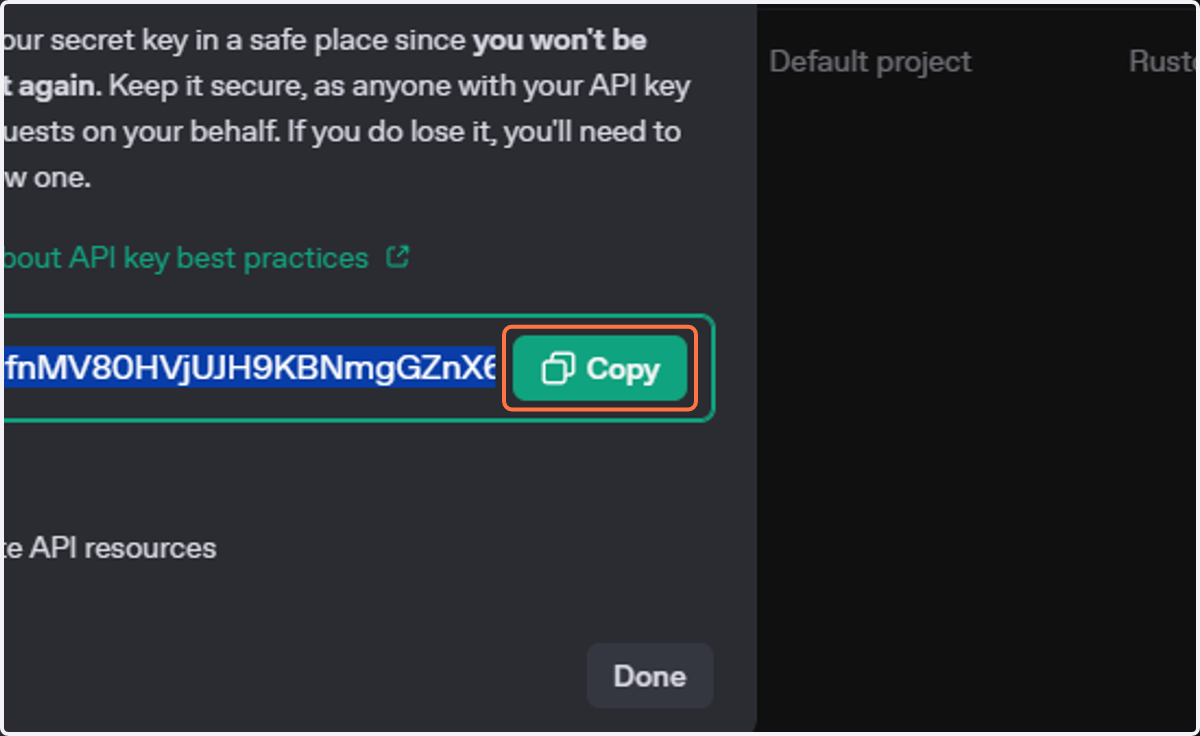
  16. 18. Click on Copy

    Click on Copy
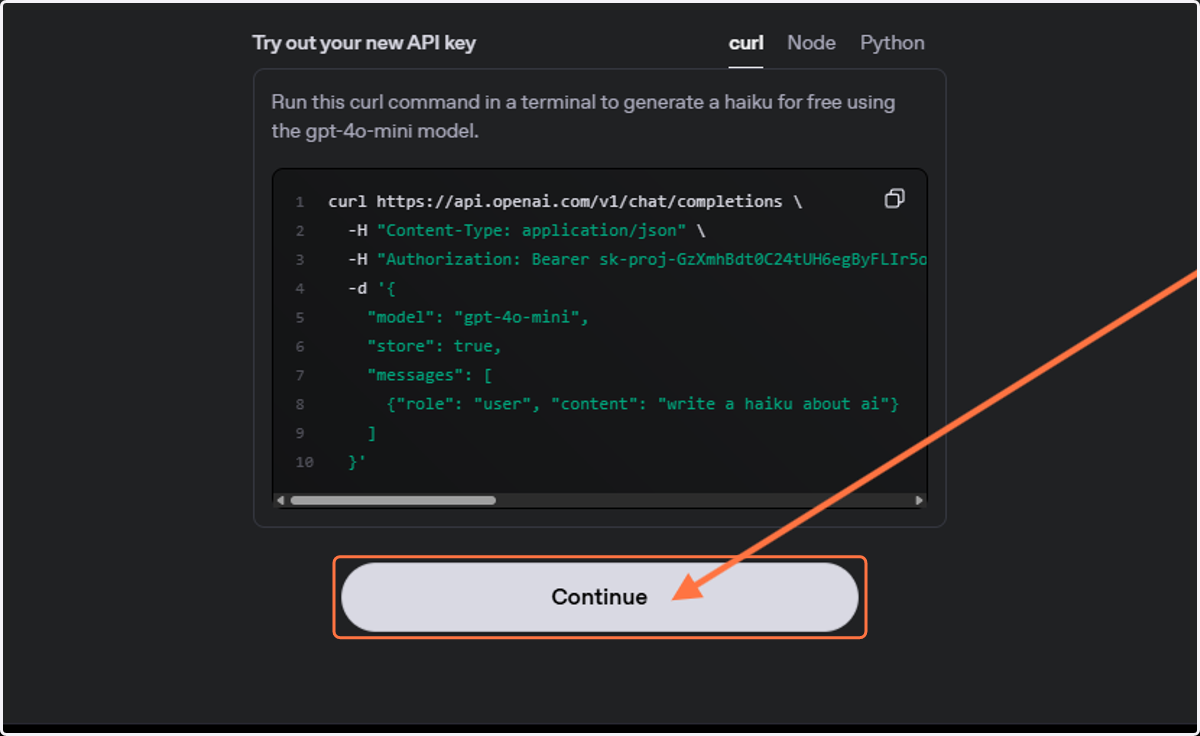
  17. 19. Click on Continue

    Click on Continue
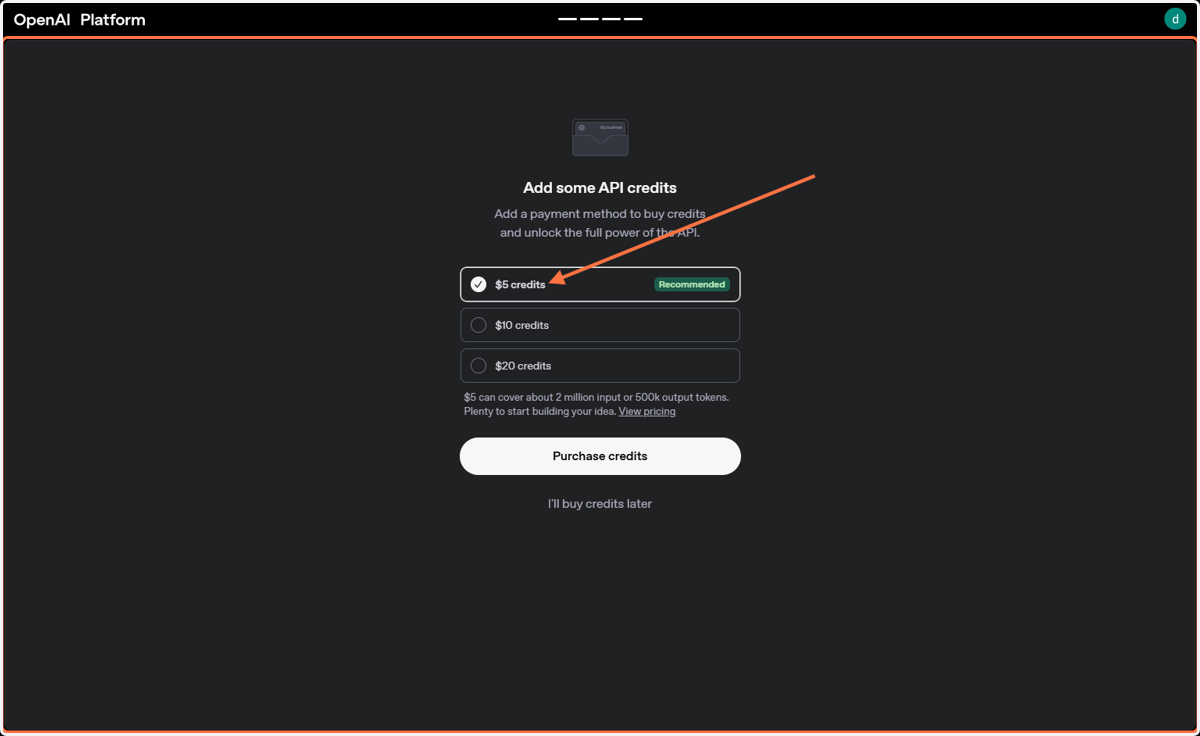
  18. 20. Click on My business…

    Click on My business…
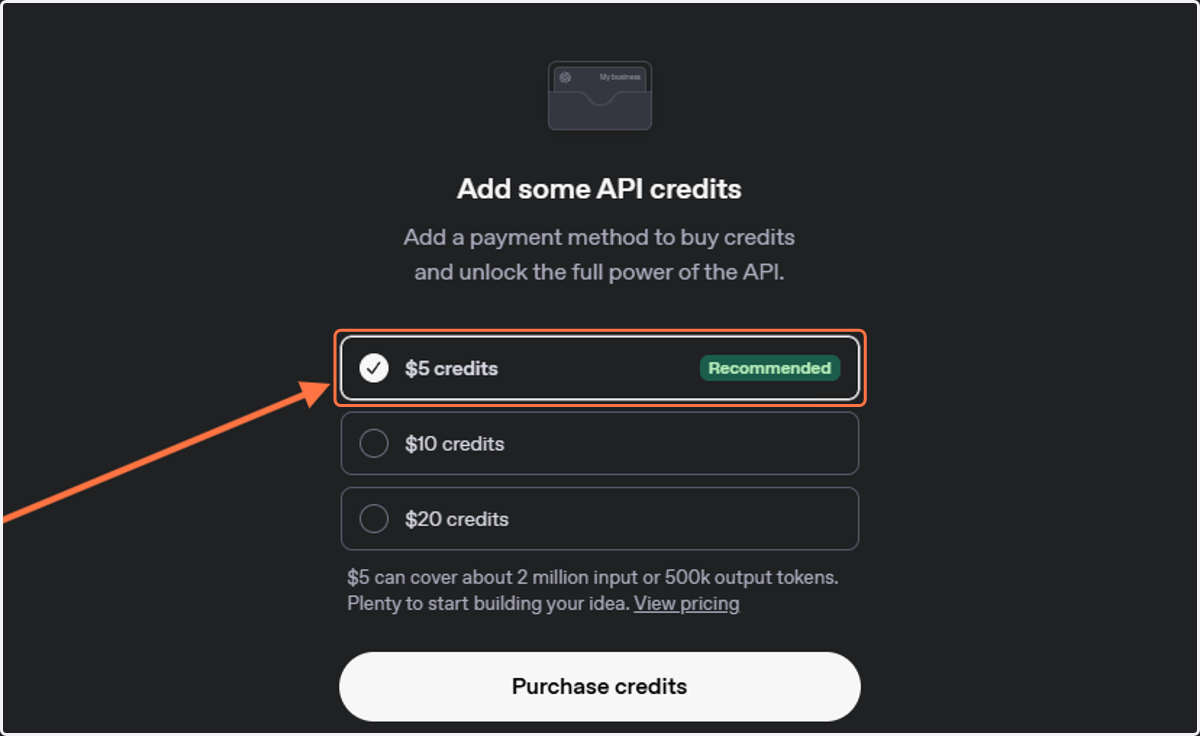
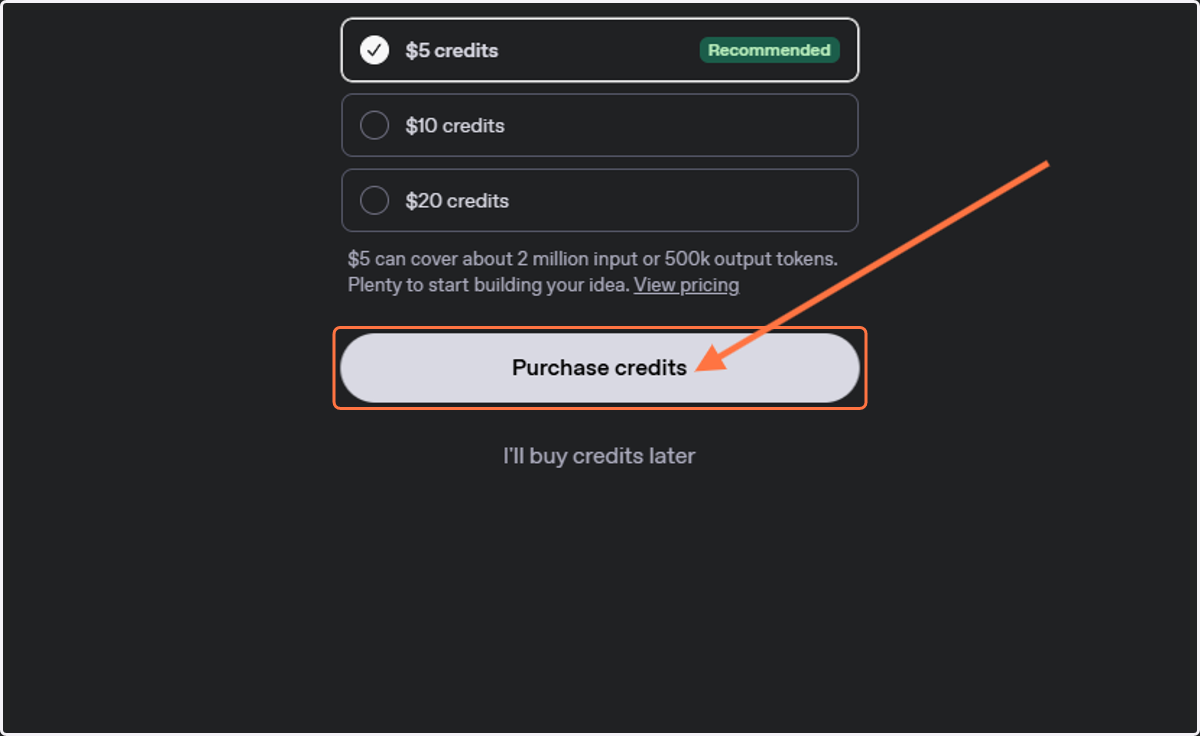
  19. 21. Click on $5 credits…

    Click on $5 credits…
  20. 22. Click on Purchase credits

    Click on Purchase credits
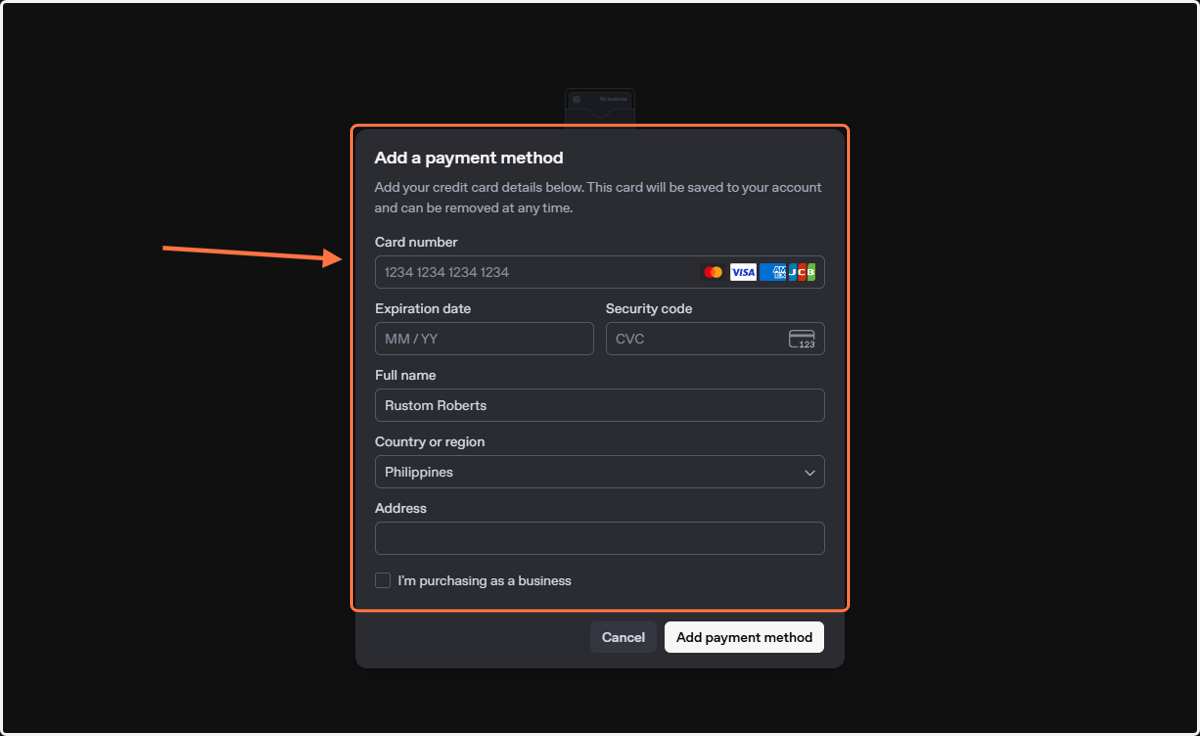
  21. 23. Click on Add a payment method…

    Click on Add a payment method…
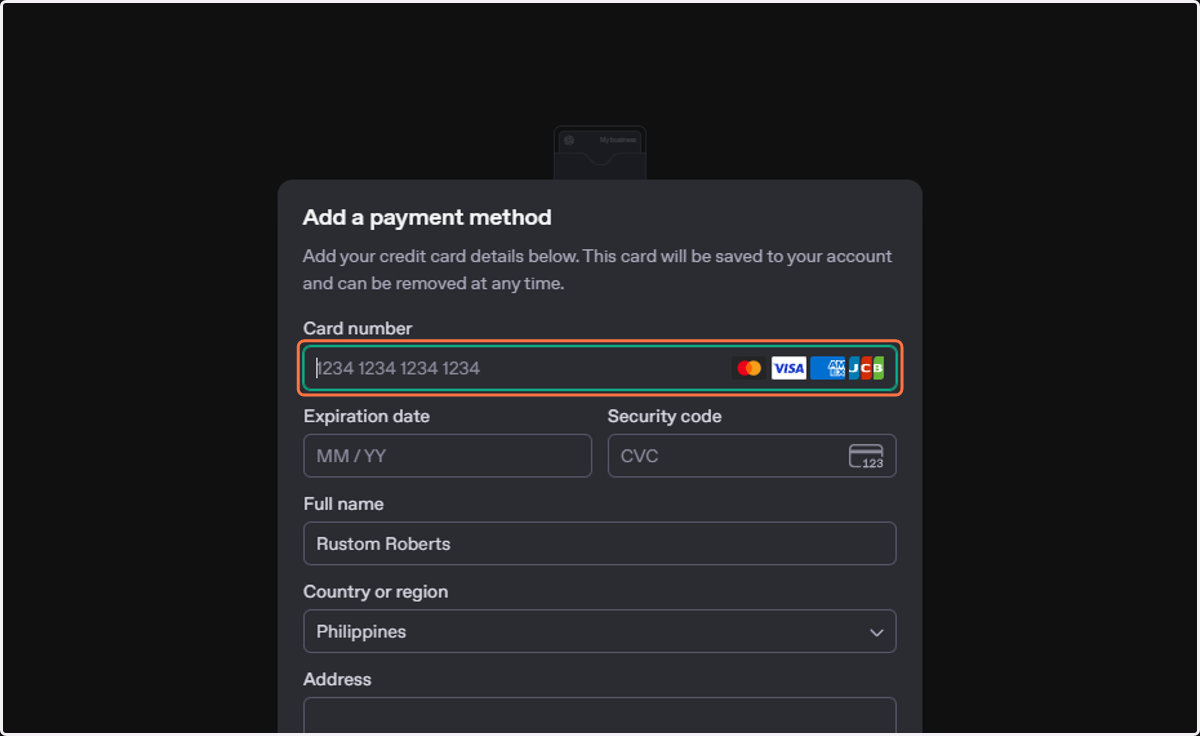
  22. 24. Click on Card number

    Click on Card number
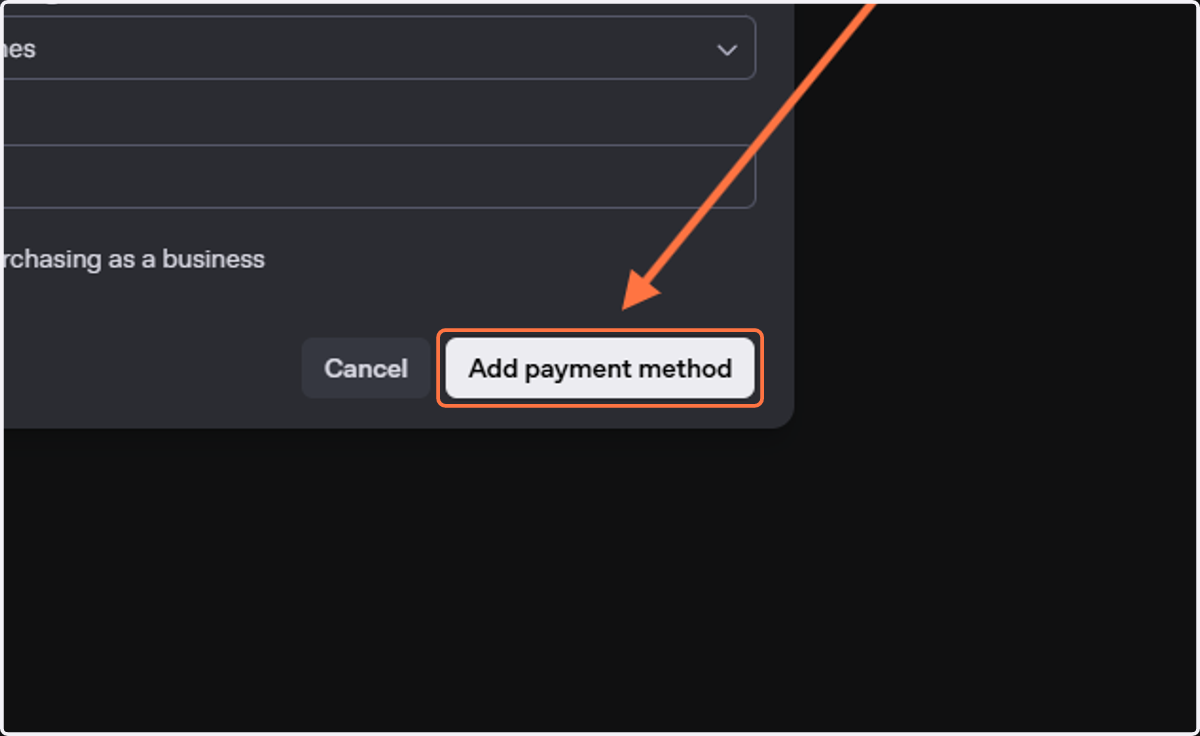
  23. 25. Click on Add payment method

    Click on Add payment method
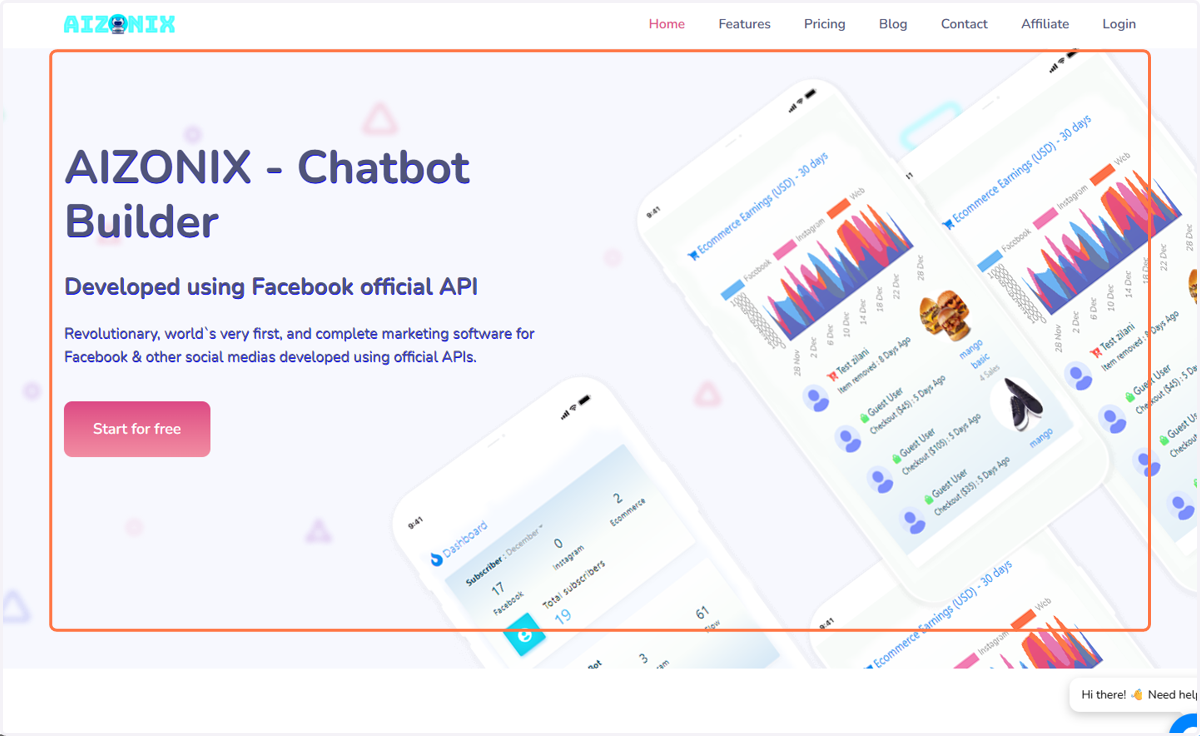
  24. 26. Go to aizonix.com

    Go to aizonix.com
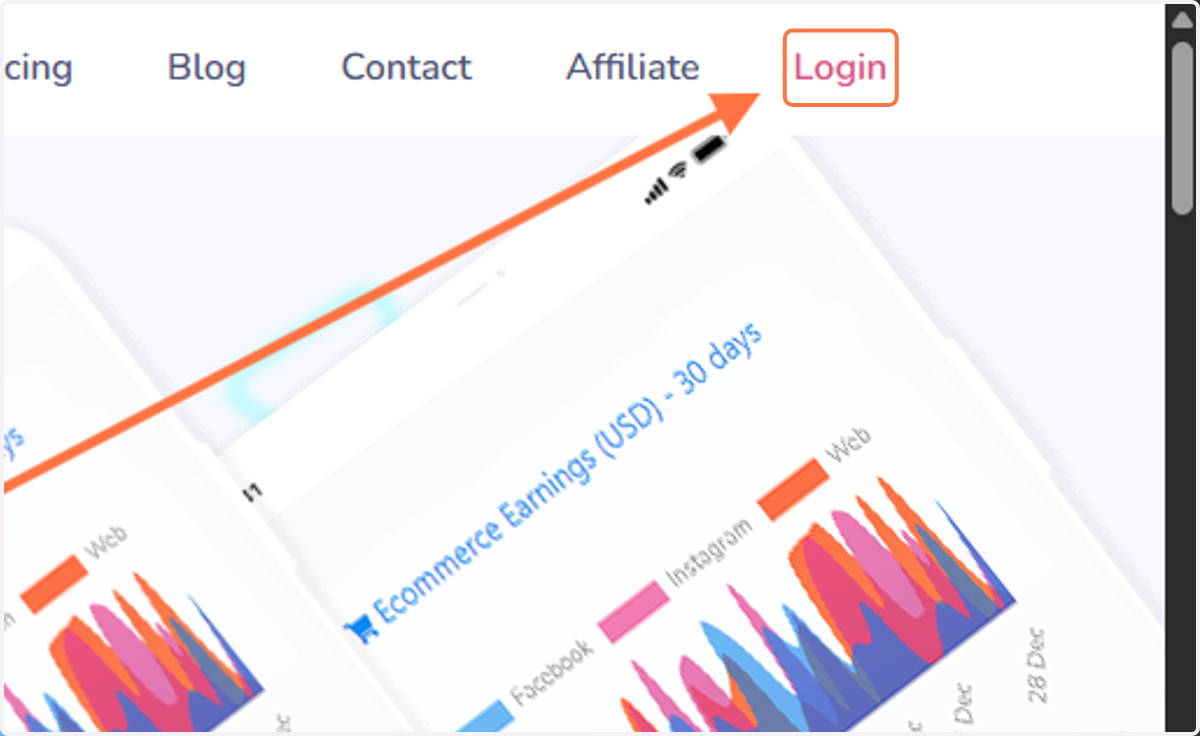
  25. 27. Click on Login

    Click on Login
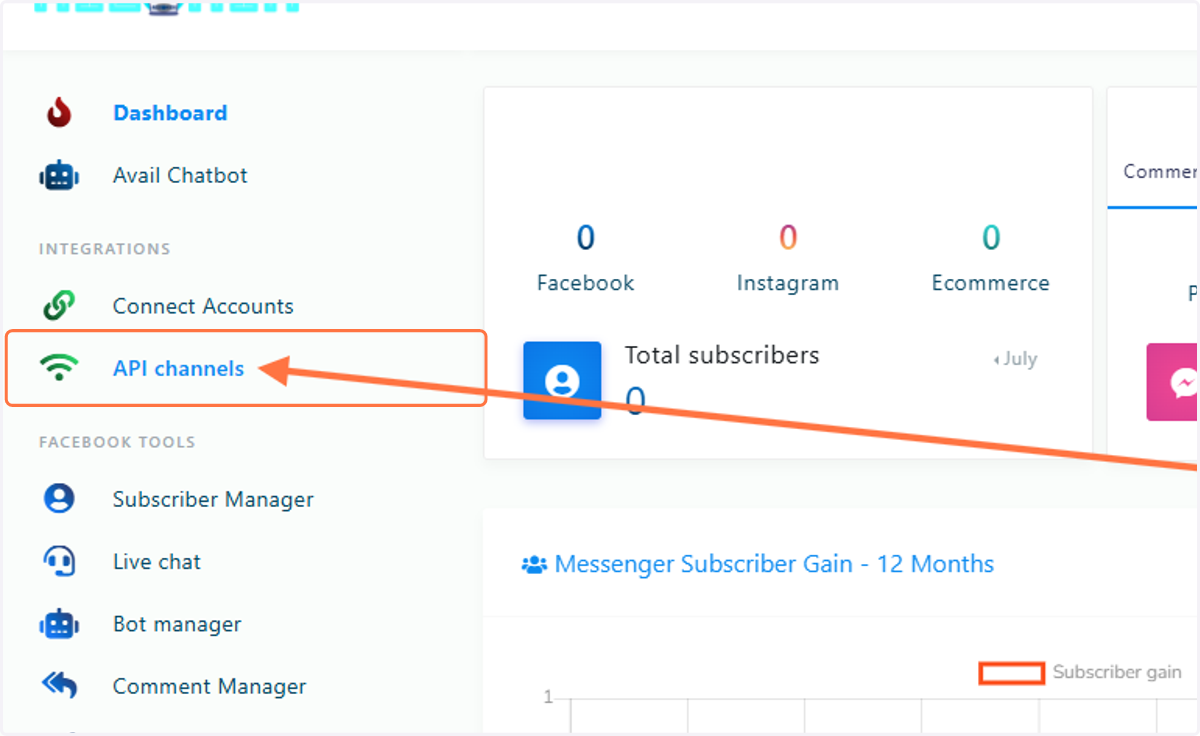
  26. 28. Click on API channels

    Click on API channels
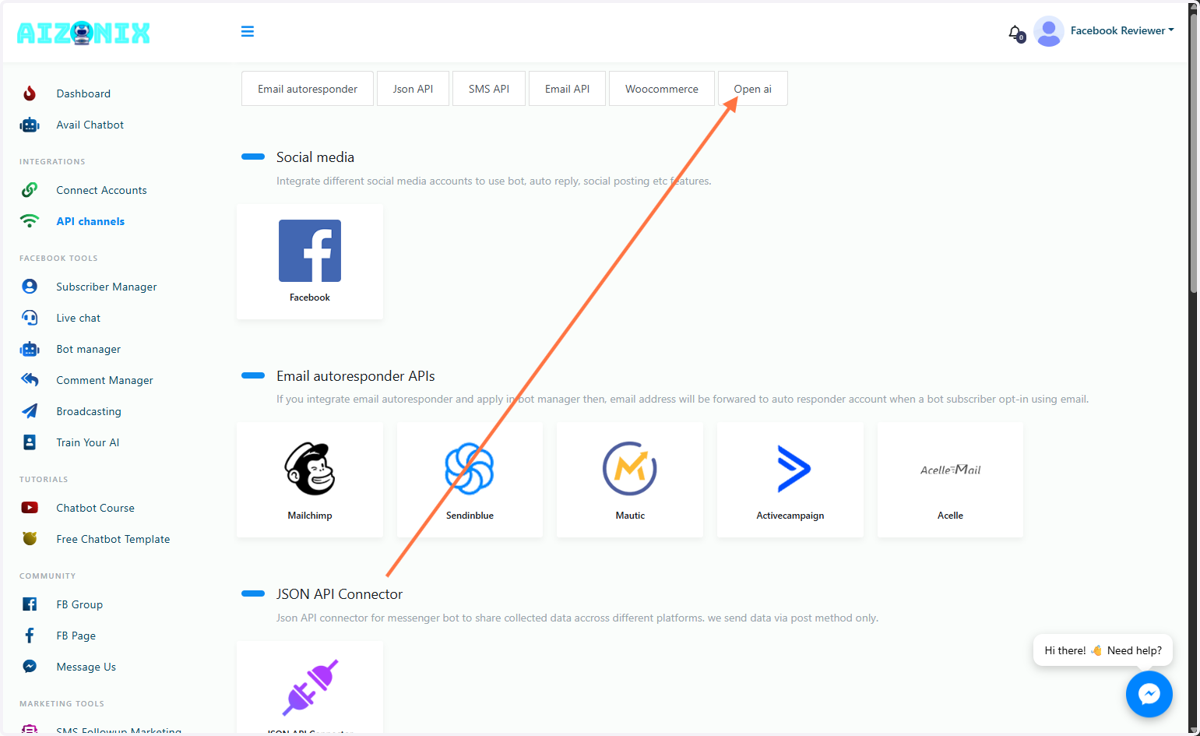
  27. 29. API Channel will appear

    API Channel will appear
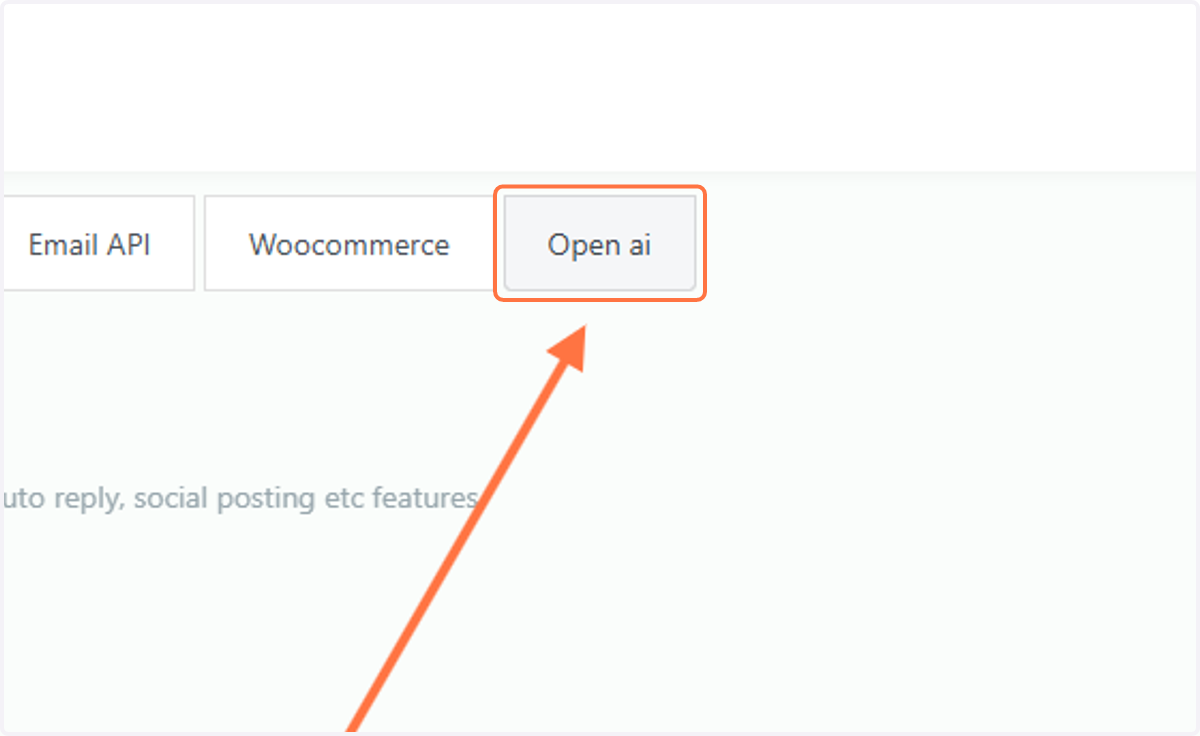
  28. 30. Click on Open ai

    Click on Open ai
  29. 31. Scroll down and click on OpenAI Api
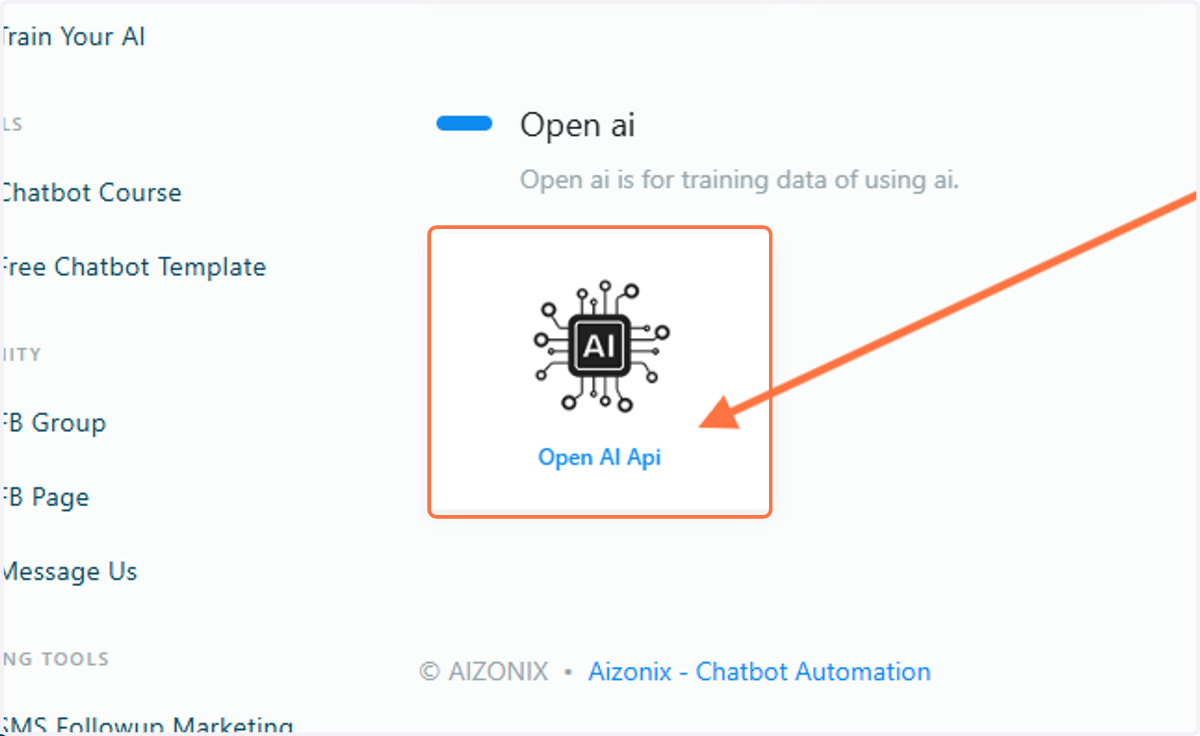
    Scroll down and click on OpenAI Api
  30. 32. Type$ {label}

    Type$ {label}
  31. 33. Click on Copy

    Click on Copy

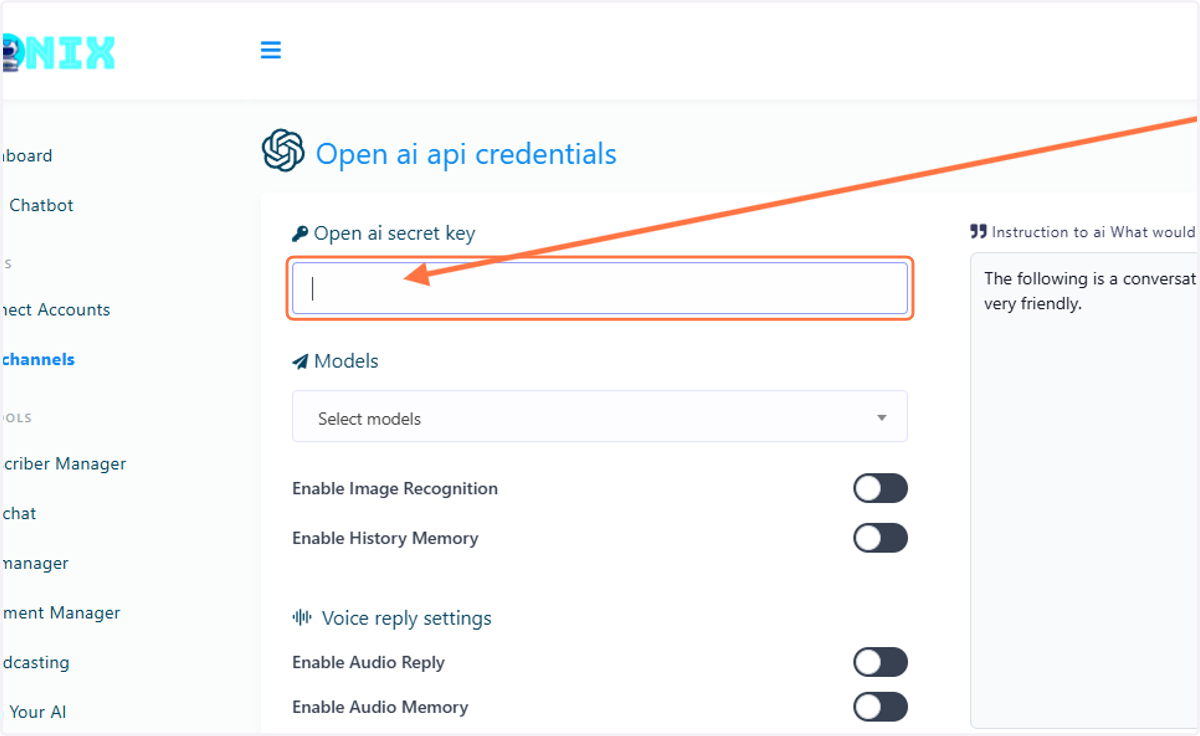
AIZONIX - Chatbot Builder | Open ai api credentials

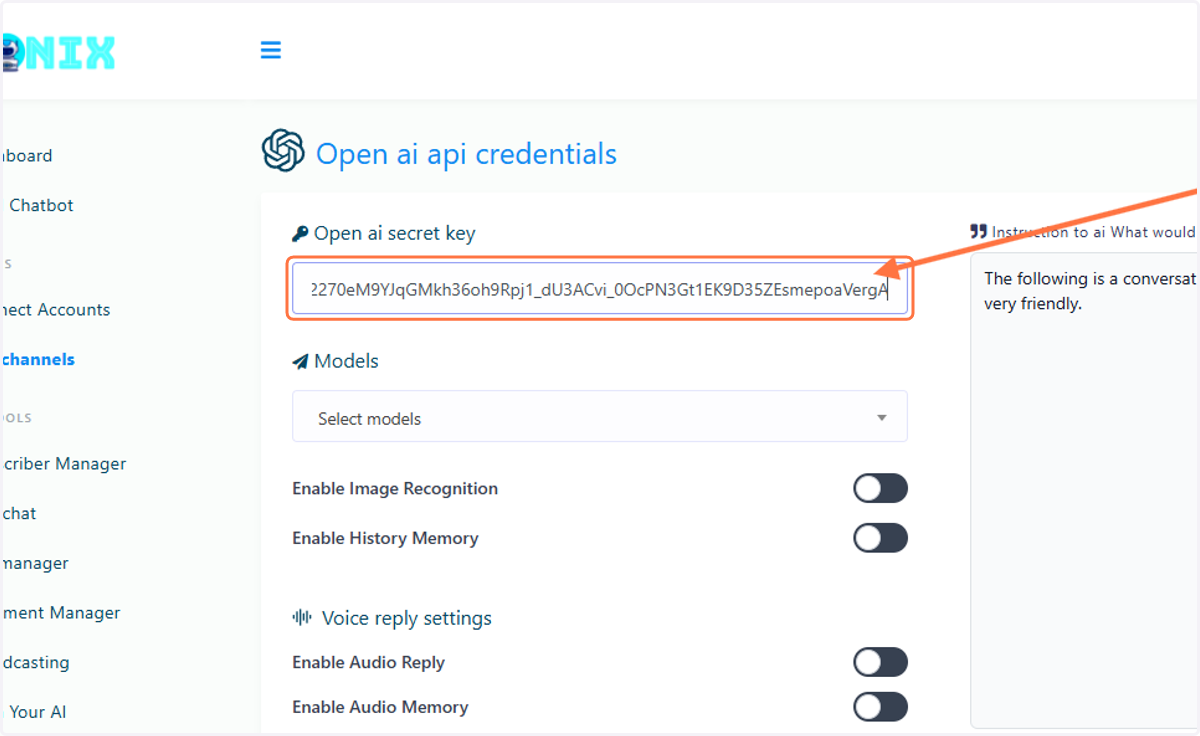
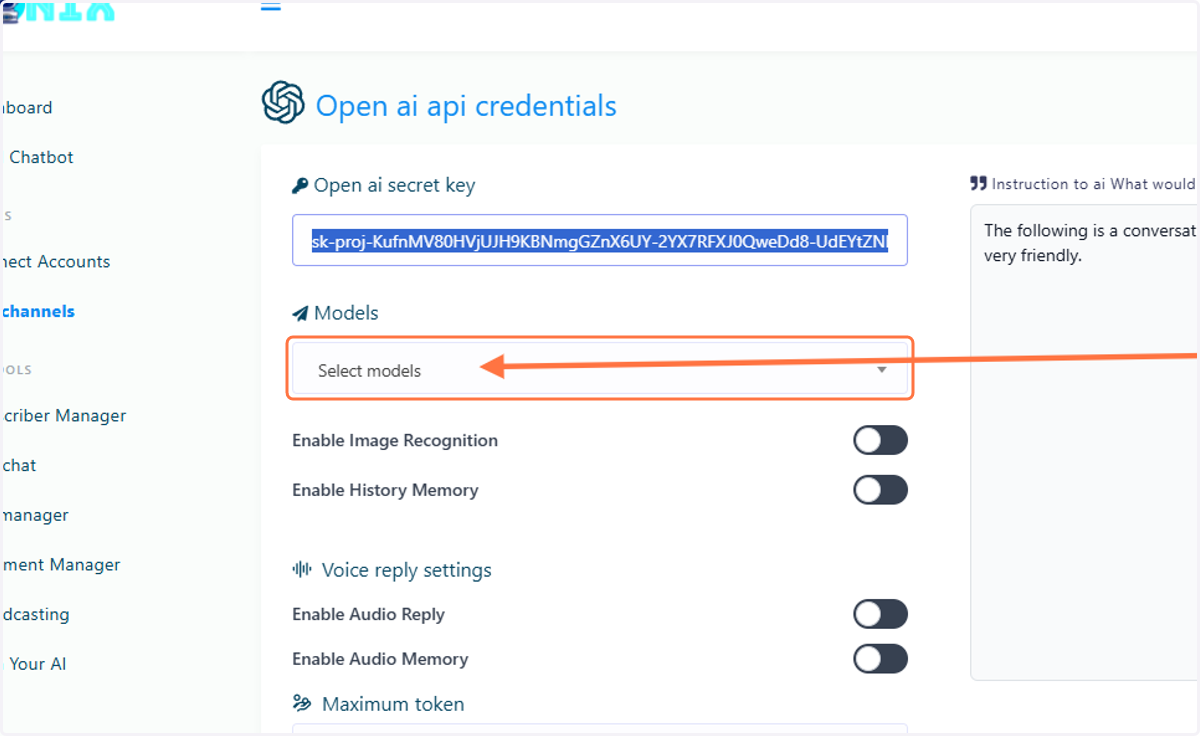
  1. 34. Paste your API Key

    Paste your API Key
  2. 35. Click on Select models

    Click on Select models
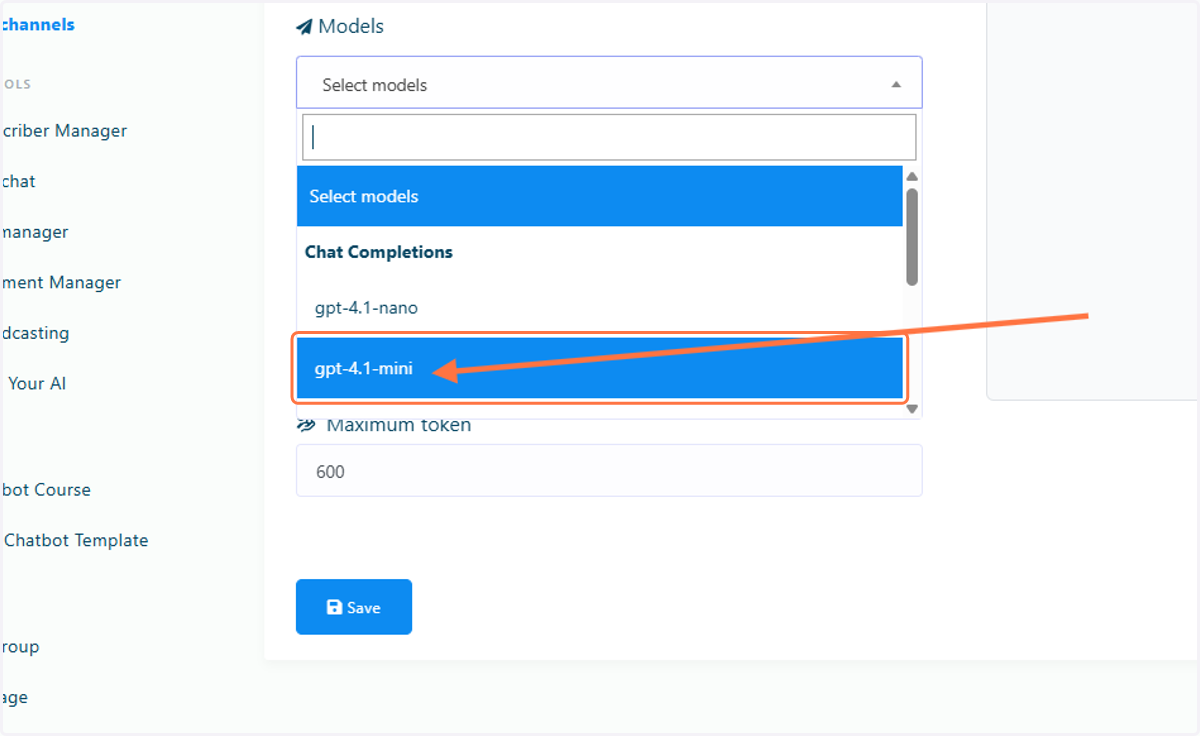
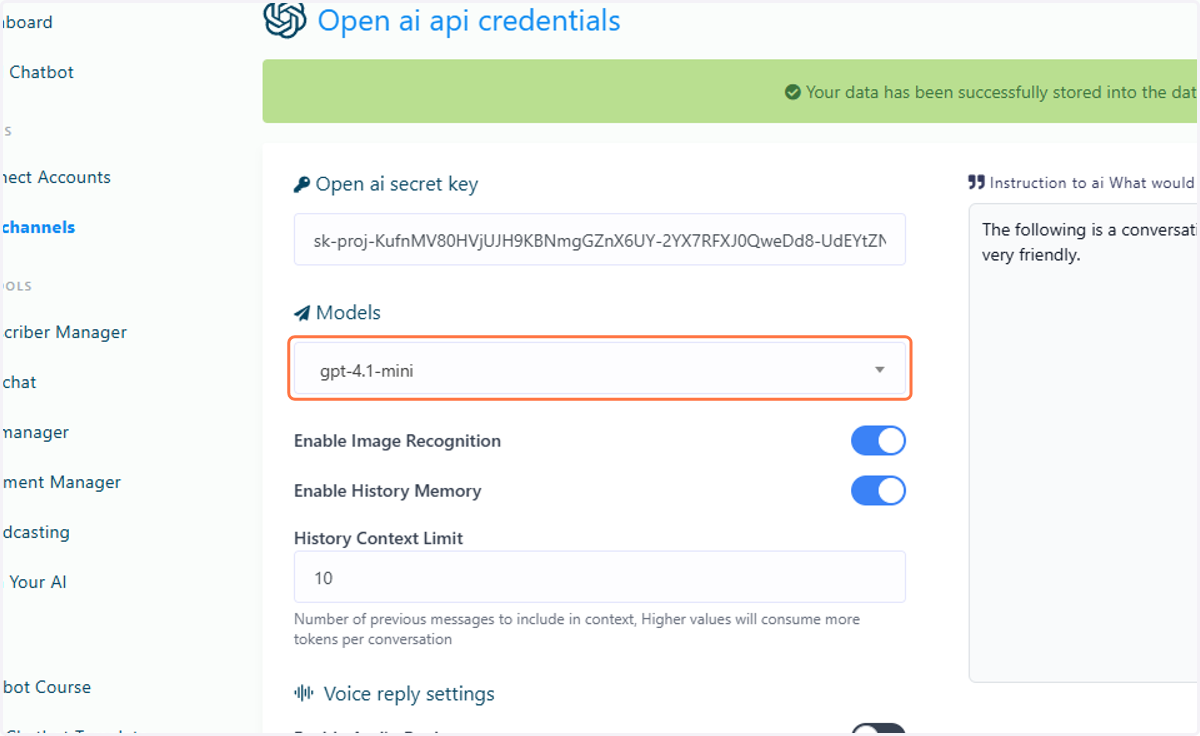
  3. 36. Click on gpt-4.1-mini

    Click on gpt-4.1-mini
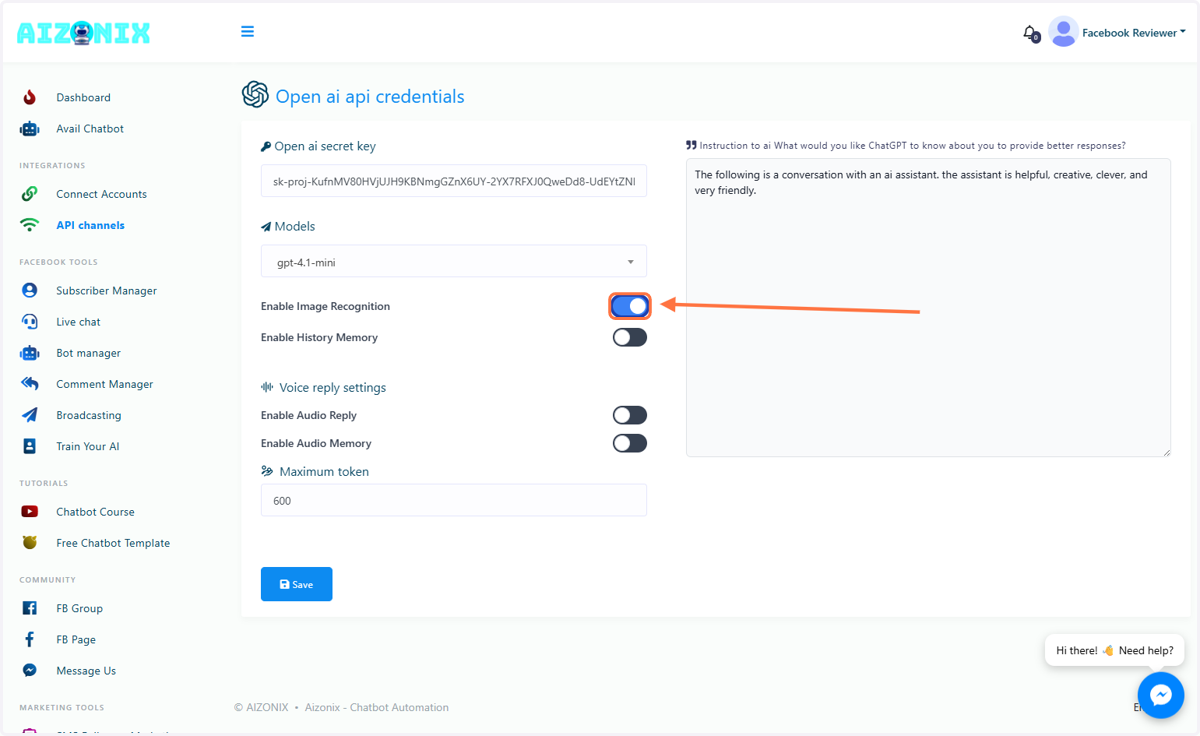
  4. 37. Check enable_image_recognition

    Check enable_image_recognition
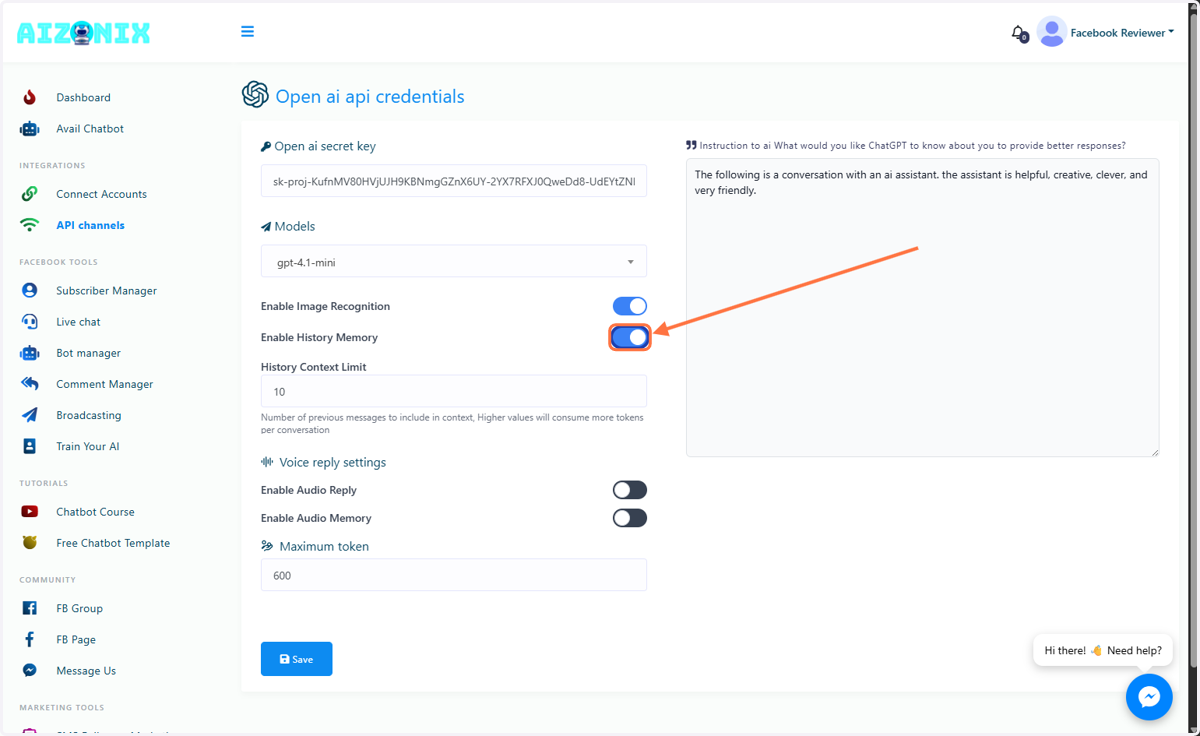
  5. 38. Check enable_history_memory

    Check enable_history_memory
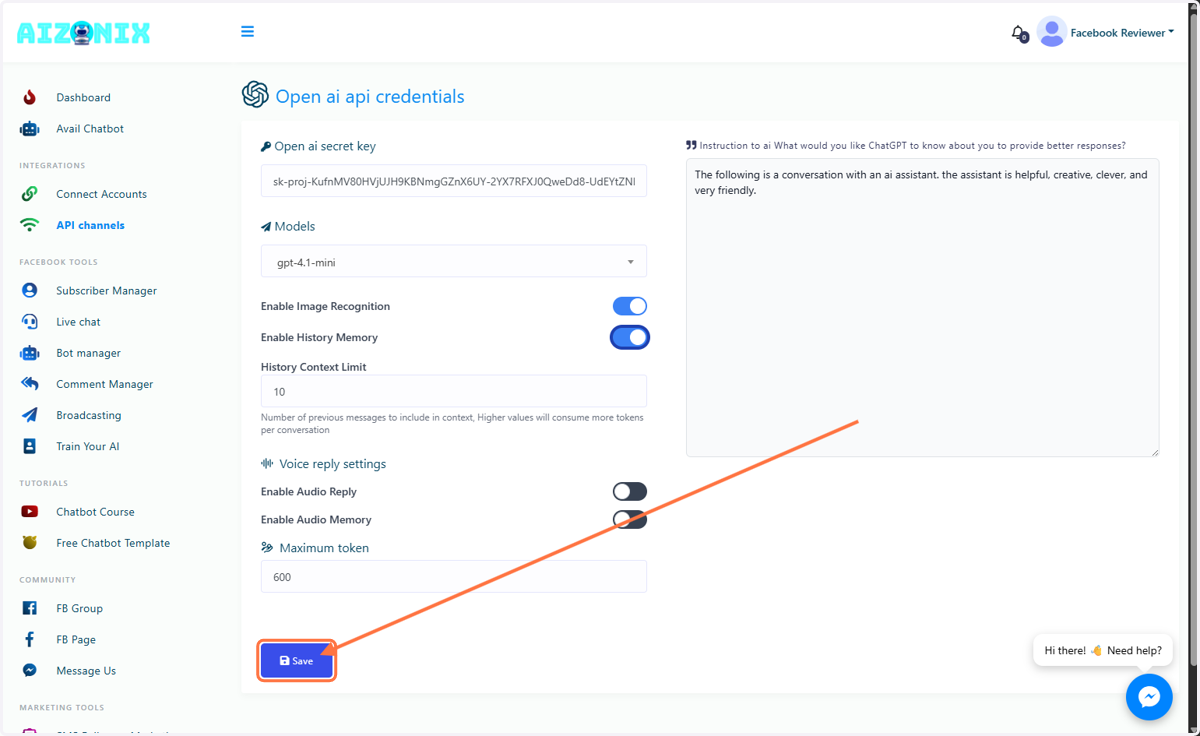
  6. 39. Click on Save

    Click on Save
  7. 40. ALL SET

    ALL SET