Insights | Creating a Dashboard |II_003
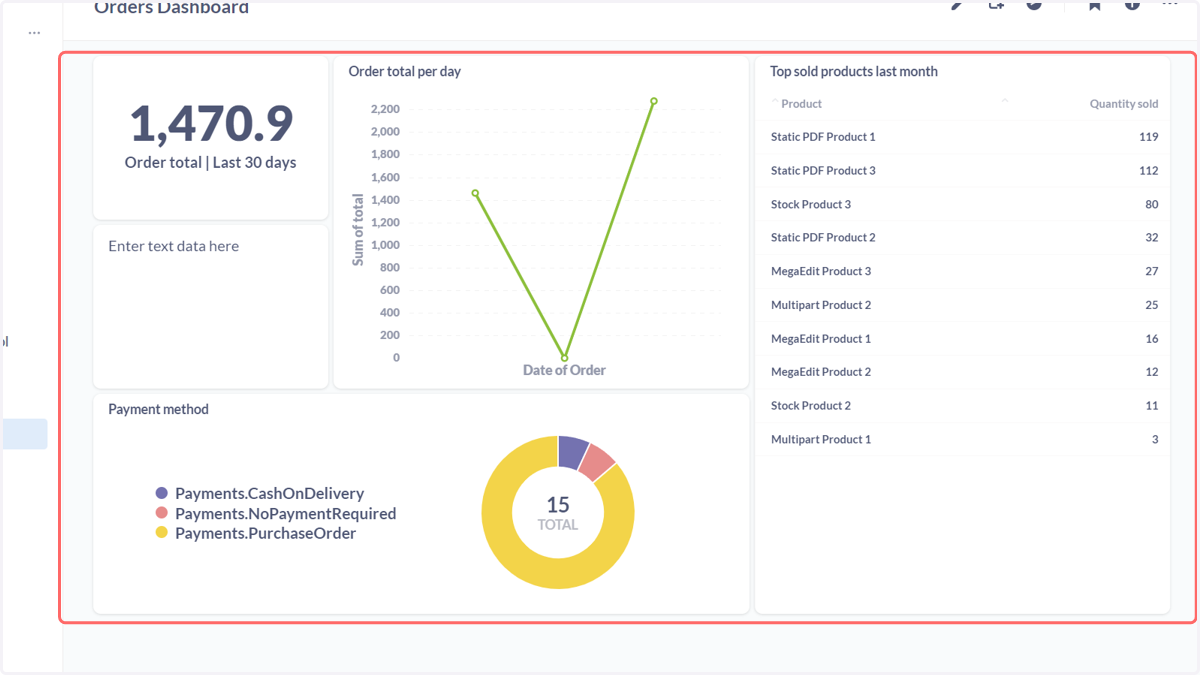
Infigo Insights and Metabase gives you the ability to generate information packed dashboards, based on the questions you've specified (such as we've seen in previous tutorials).
Multiple questions are placed onto and positioned within one dashboard.
These dashboards can be viewed from within Metabase, or from within your Infigo admin area (if covered by your Insights plan).
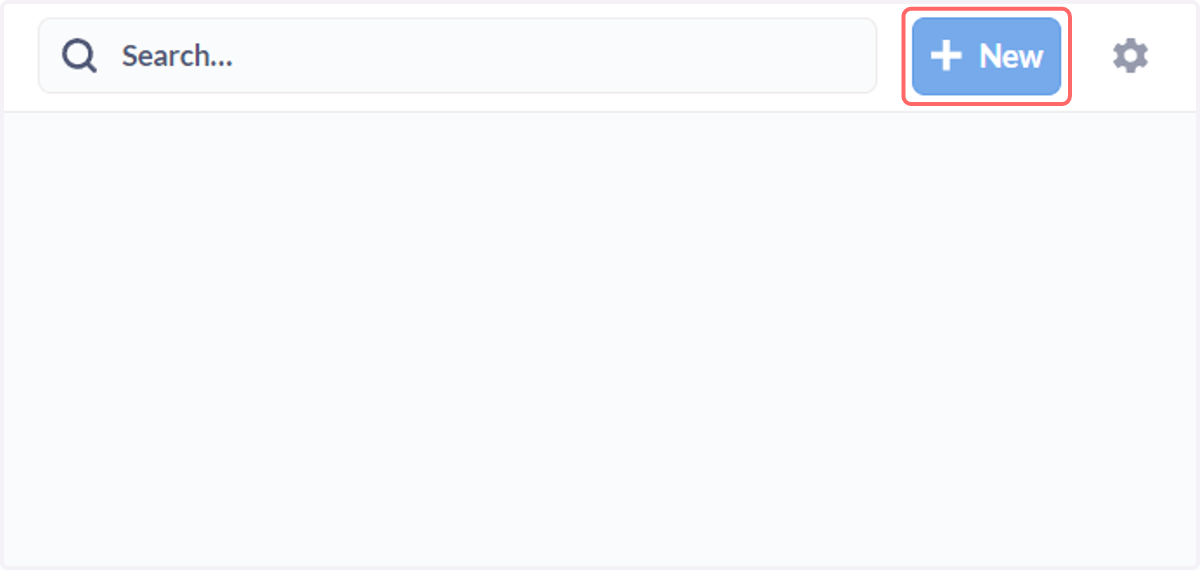
1. Click on New
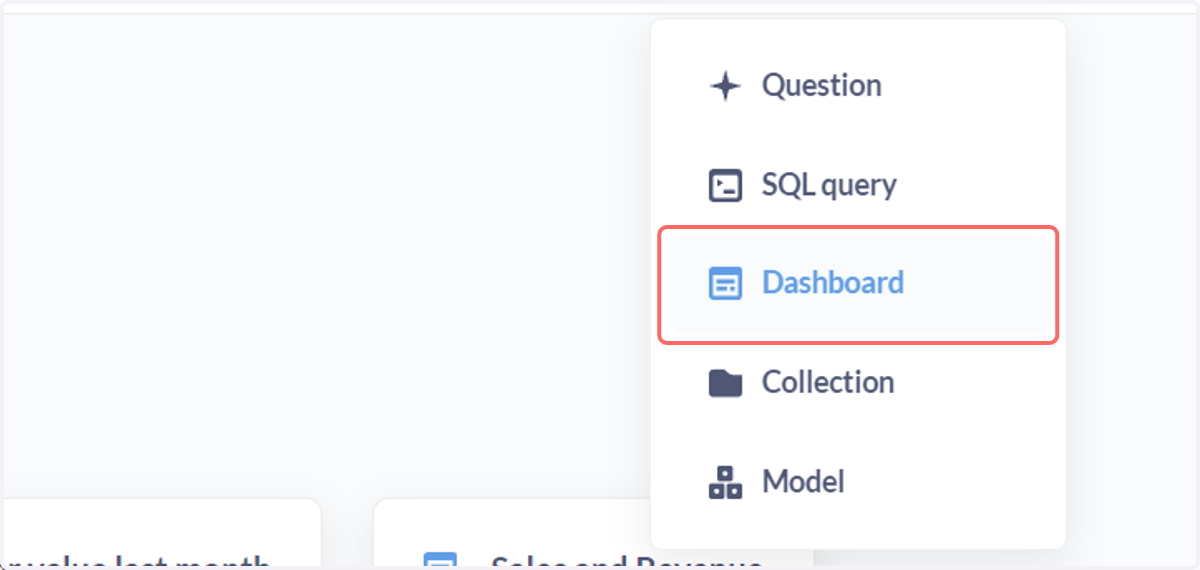
2. Click on Dashboard
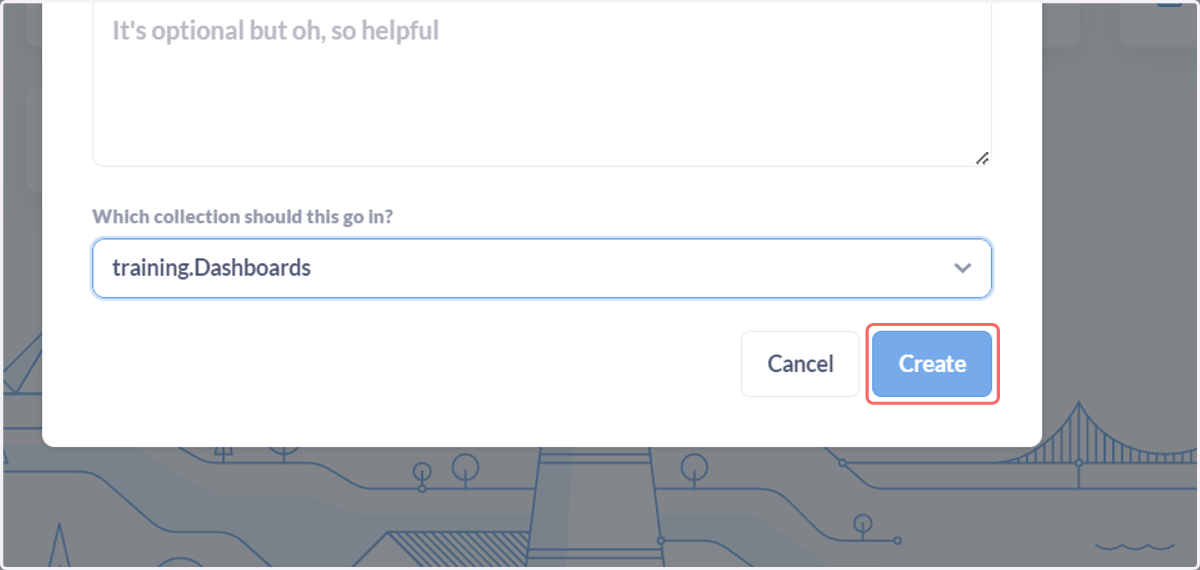
3. Input Dashboard name, description and location, then click Create
If you have the correct Insights level, and wish for these Dashboards to be available within Infigo admin, place them into your ".Dashboards" area.
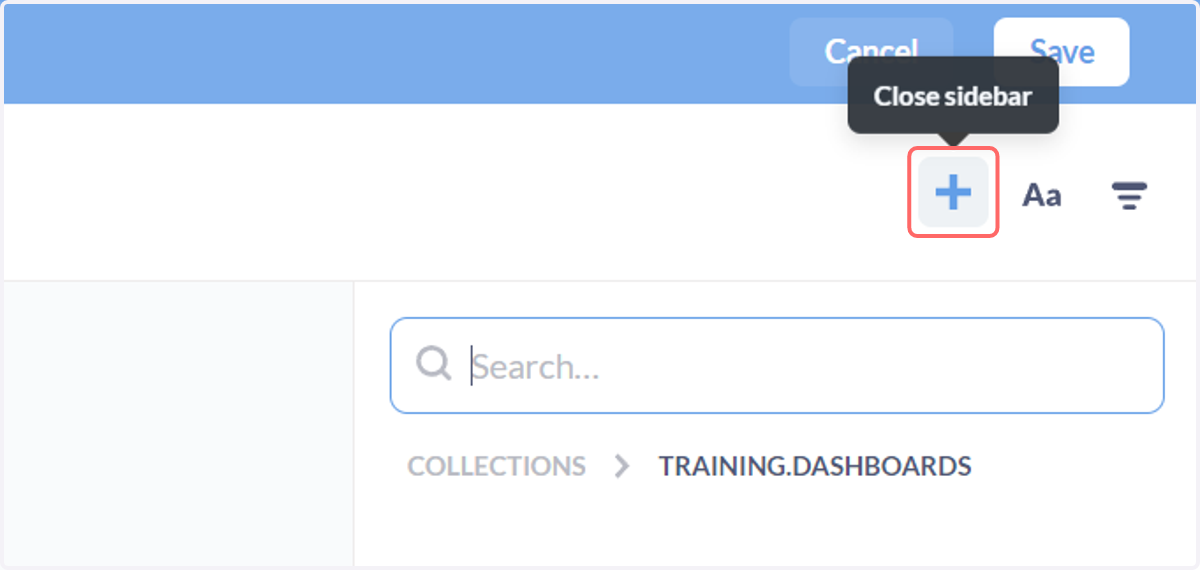
4. Click the + icon to add elements to your newly created dashboard
You will be able to add the results of your previously specified questions.
These could be, for example, tables of data or preconfigured charts.
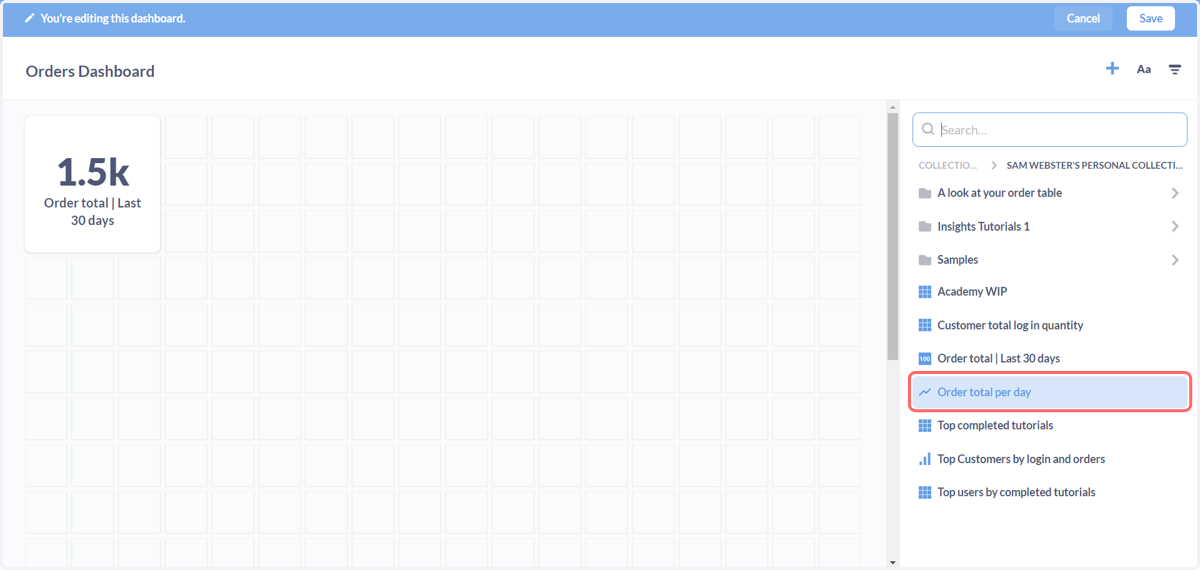
Search through your collections and locate your questions of interest.
5. Add your questions
Click once on each question you would like to include in the dashboard.
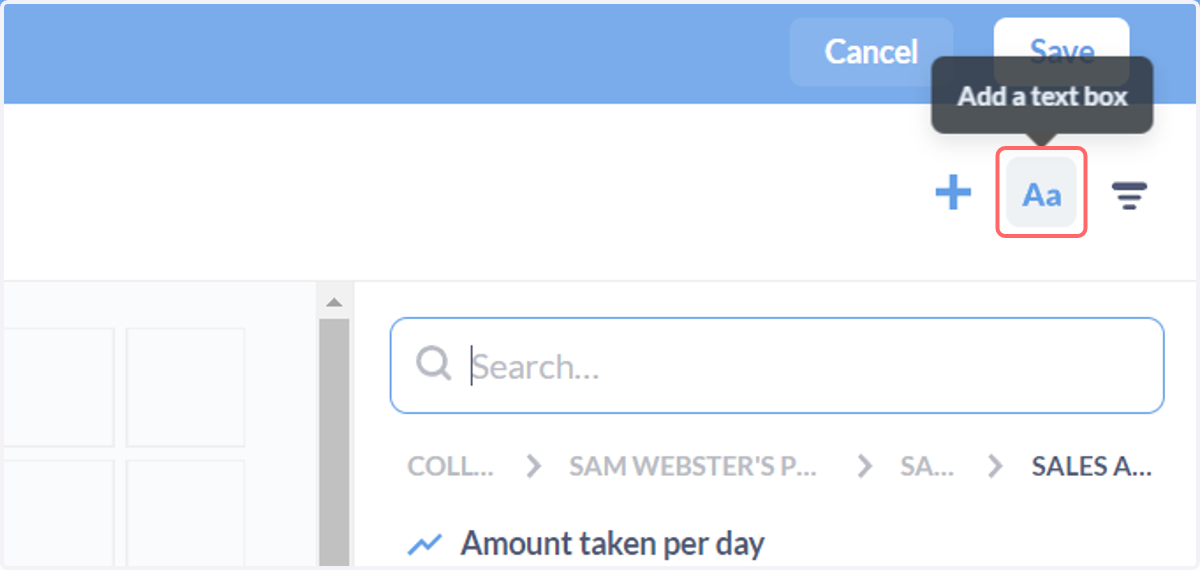
6. Add text box
You can add text box areas onto the dashboard using this icon. This allows you to specify specific text (with markdown if required).
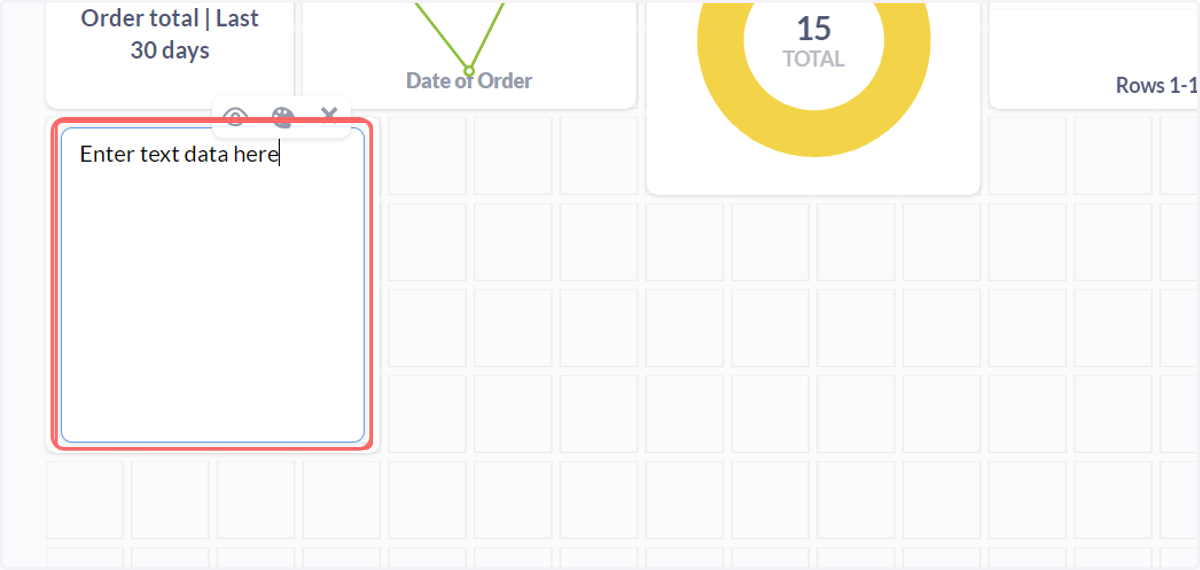
7. Type in the text boxes
8. Dashboard layout
Every element you have added will be displayed on the dashboard. They will all be quite small and bunched up by default.
Each element can be repositioned and resized using a simple drag and drop process.
The faint boxes in the background are the grid on which this process works.
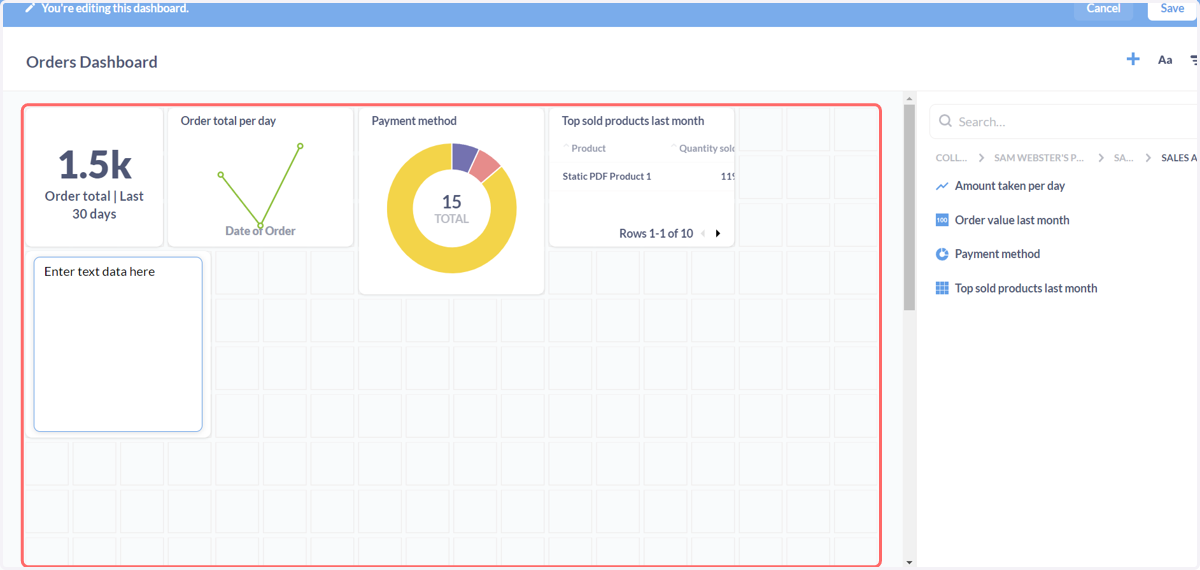
9. Dashboard layout
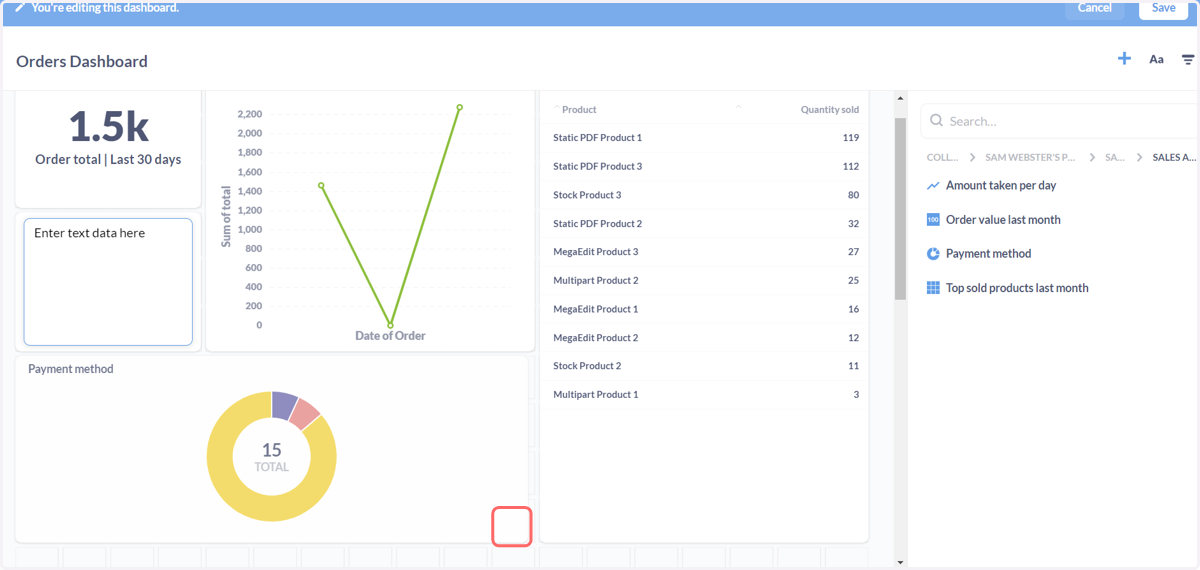
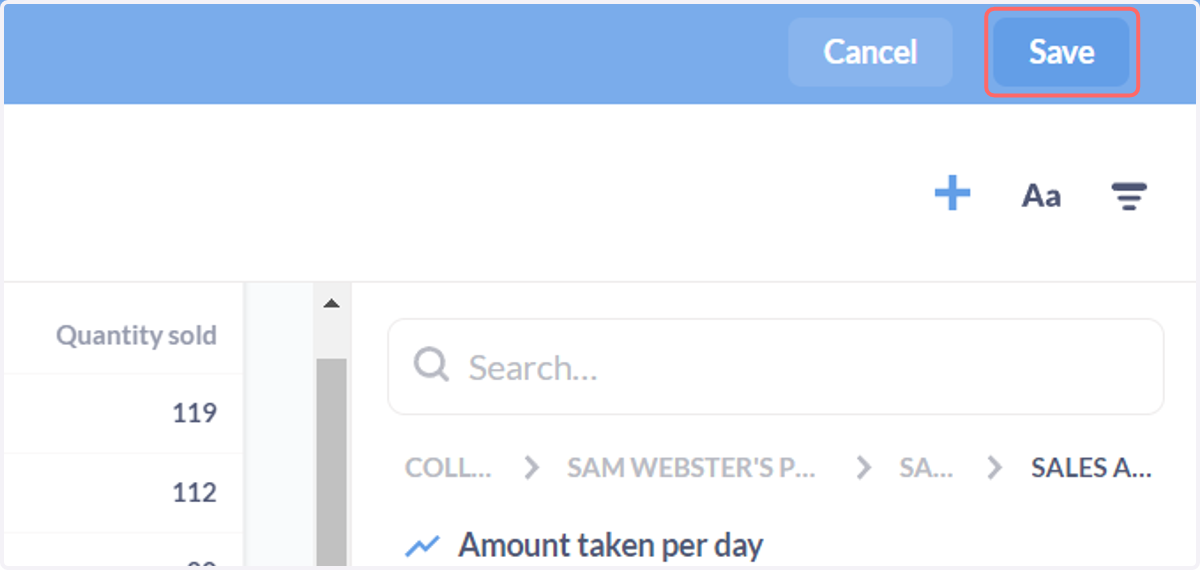
10. Click on Save to confirm the dashboard layout
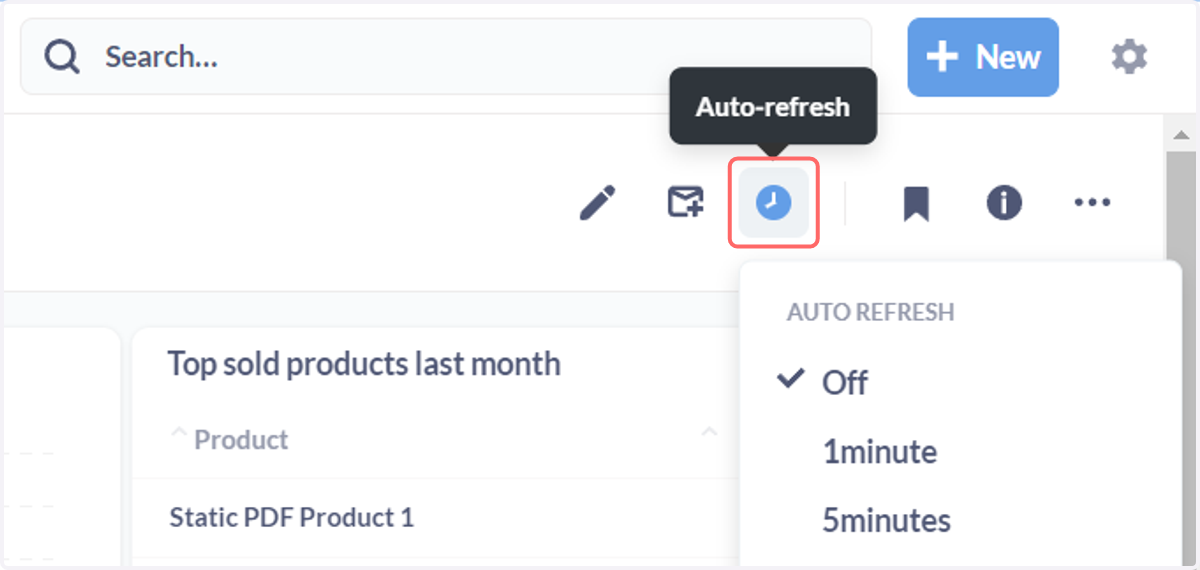
11. Auto-refresh interval
This icon lets you control the frequency of the data refresh
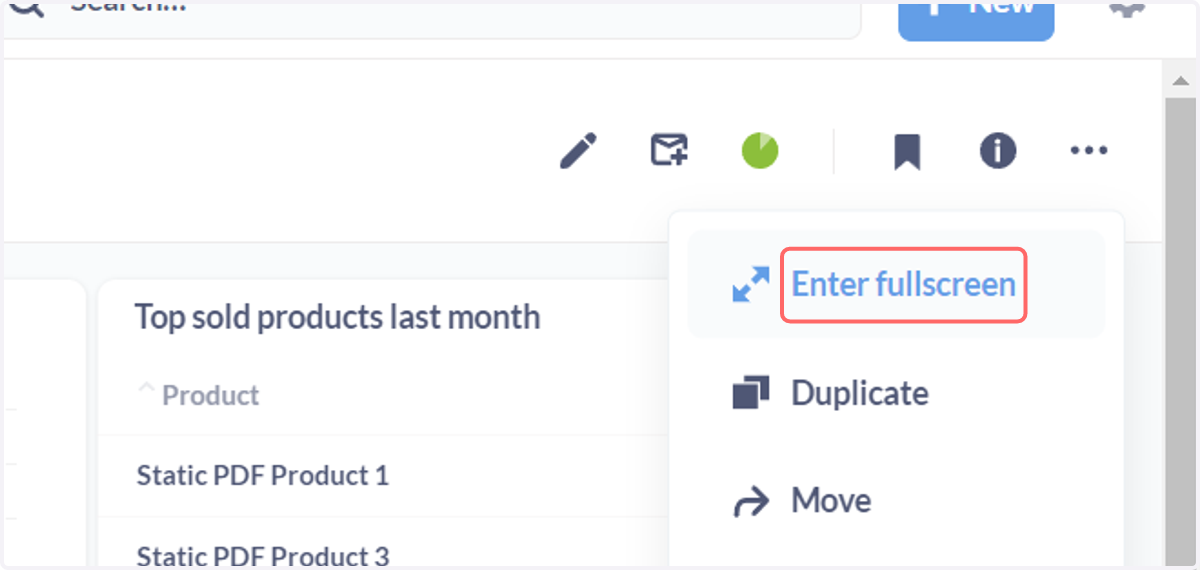
12. Click on Enter fullscreen to see a larger view of the dashboard
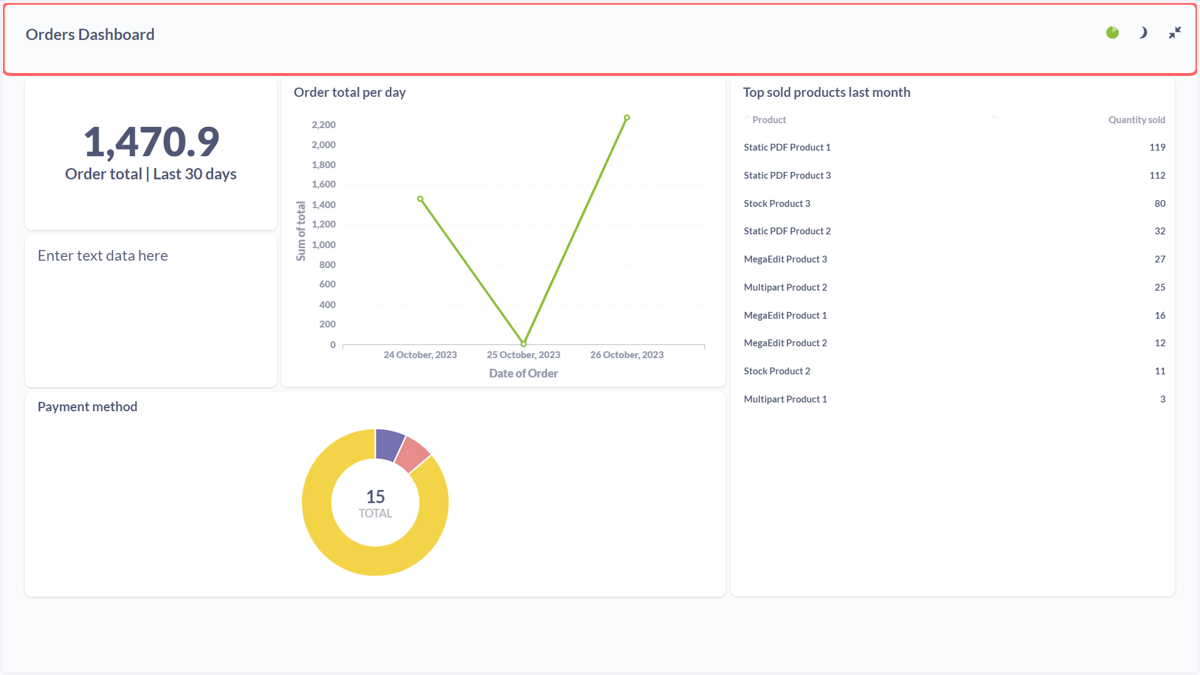
13. Enlarged dashboard
14. Modifying questions
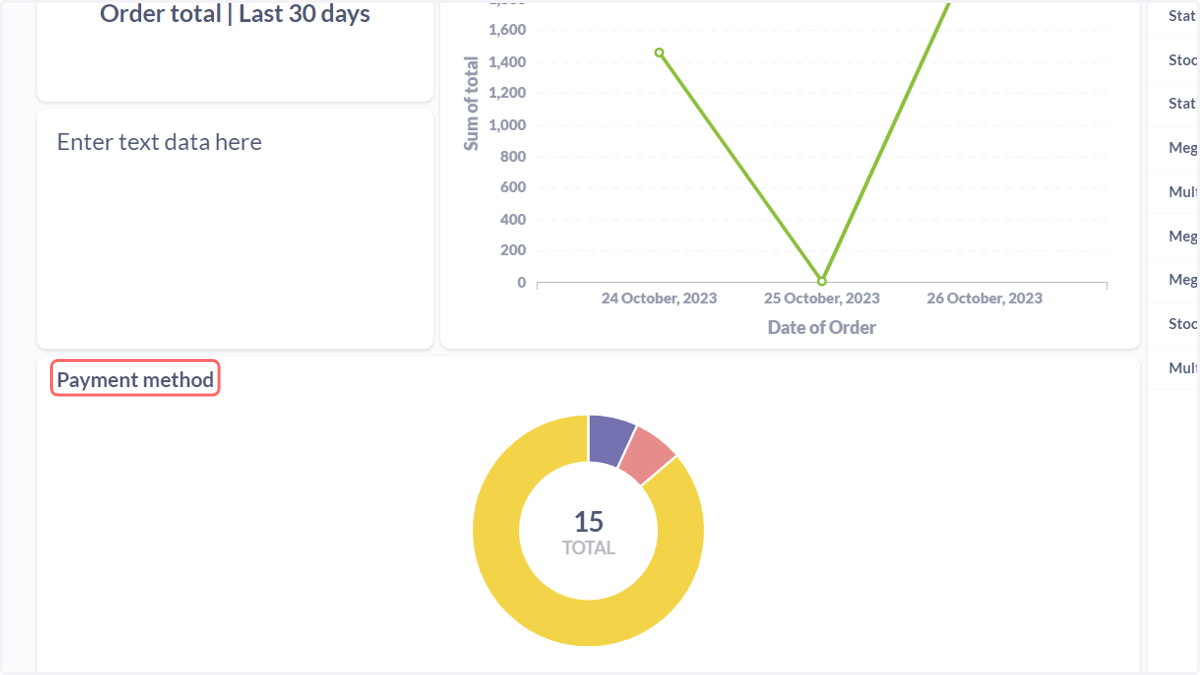
If you wish to modify any of the questions on your dashboard, you can do so from within the dashboard itself.
Simply click on the title of the question box to be taken directly to that question.
15. Modify question
From here, you can modify the question in the same manner we've seen in previous tutorials.
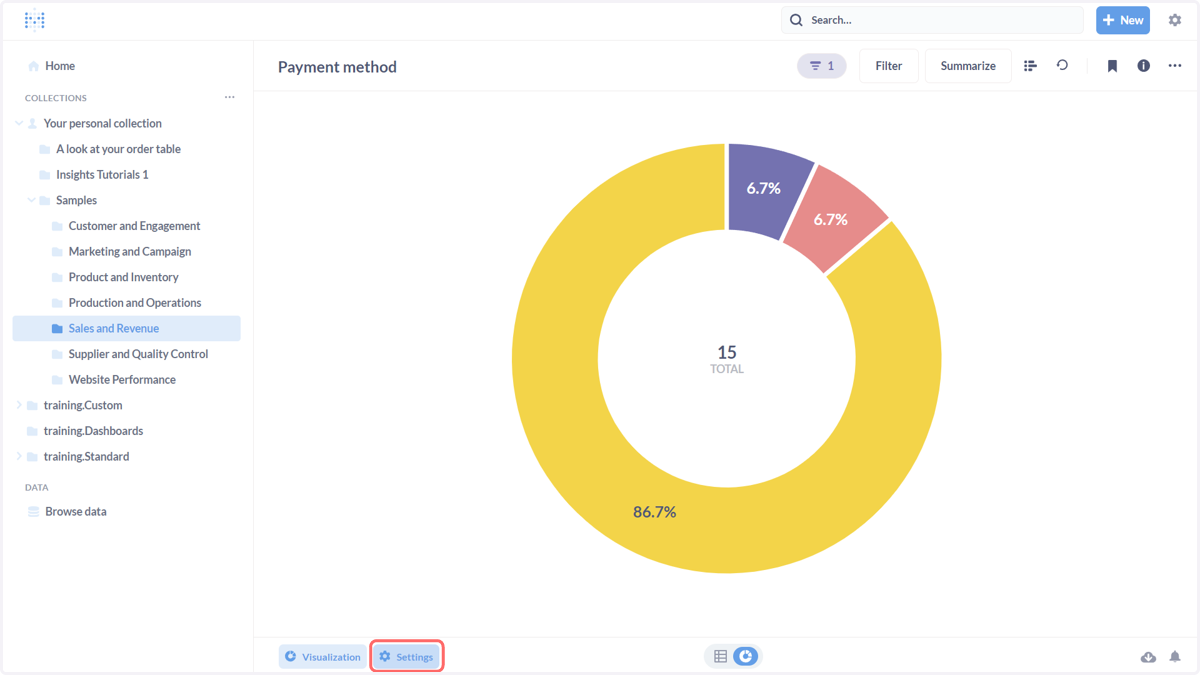
16. Click on Save
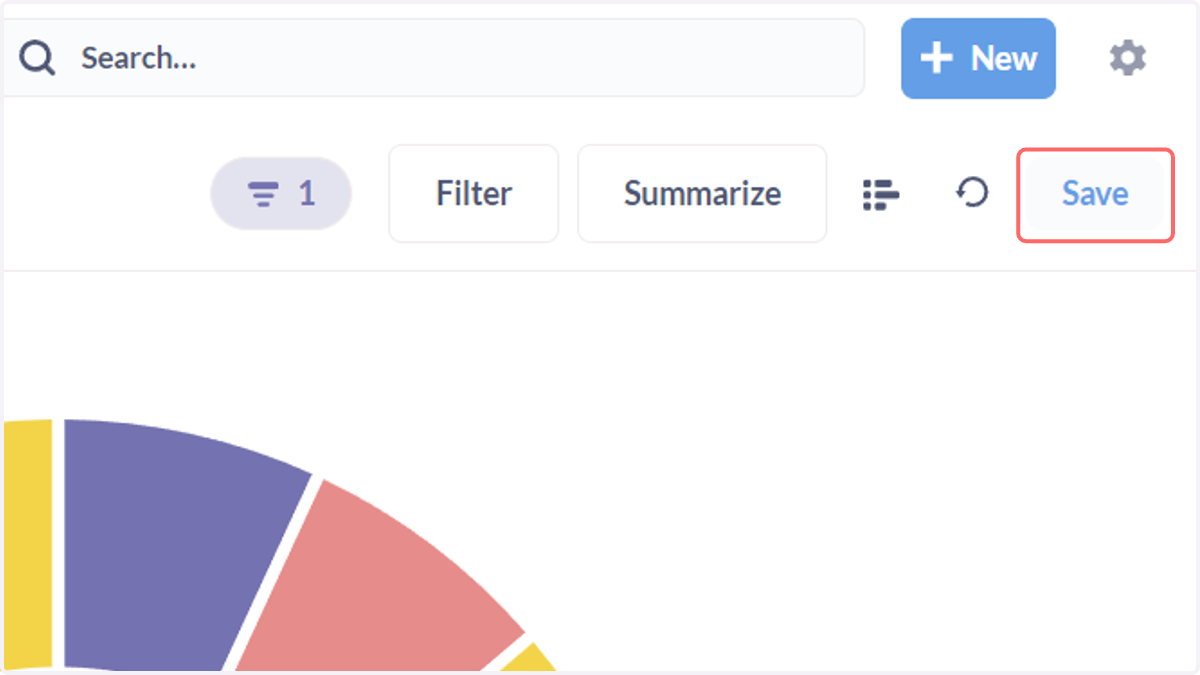
17. Click on Save
You will have the option to choose whether the question is REPLACED with your updates, or you save these changes as a new question.
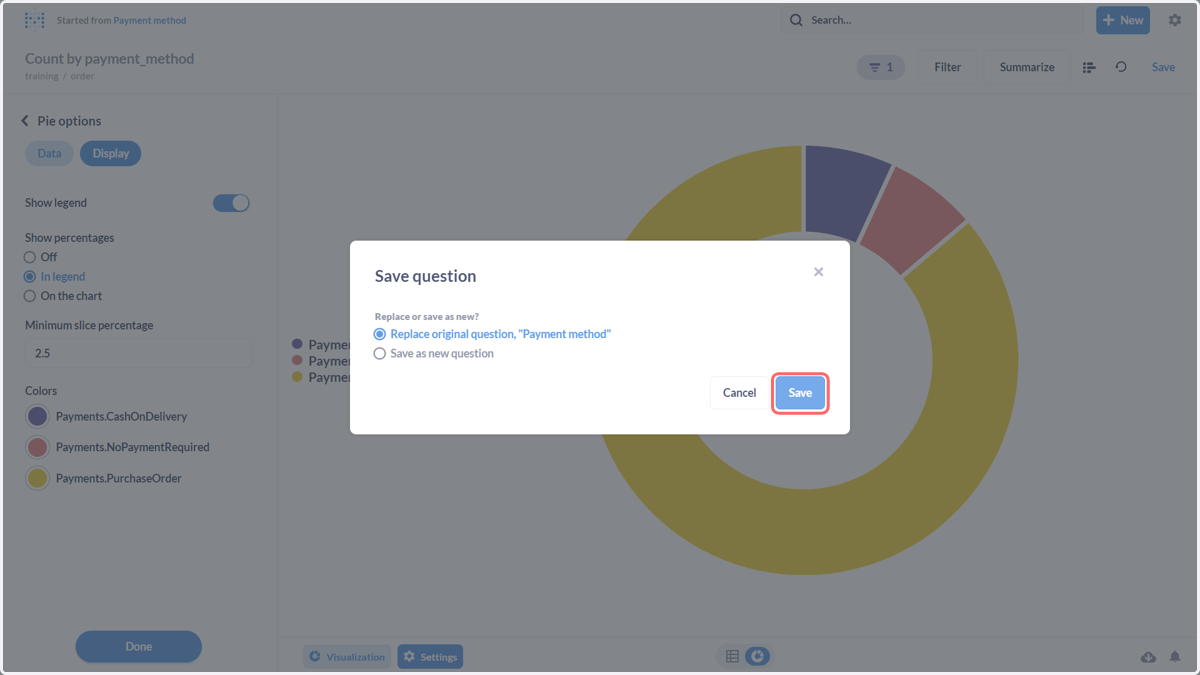
18. Your dashboard will display the updated question