BG_ADV_CCT_003_Using repeaters to duplicate content blocks in custom Content Templates
In this tutorial, we will learn how to use the Repeater field type within our custom Content Templates.
The Repeater field type allows us to create easily duplicated code and input fields within the same Content Template.
For example, if we require several text and image combinations (in the same format, but with different content) then we could easily accomplish this using a repeater.
In this example, we will add a Repeater to our custom Content Template to allow the input of additional text and image data.
Infigosoftware
1. Boilerplate code
To begin, a new section of boilerplate code has been added to our HTML markup.
This is not a necessity, but will create a completely new section on our page, allowing us to keep this section of the tutorial isolated.
The additional code section added consists of the following:
<section class="section is-medium has-background-default has-text-default additional-section">
    <div class="container content is-flex">
        <h2 class="title">
            Additional information is shown below
        </h2>
        <div class="box is-light additional-container">
            Additional information goes here
        </div>
    </div>
</section>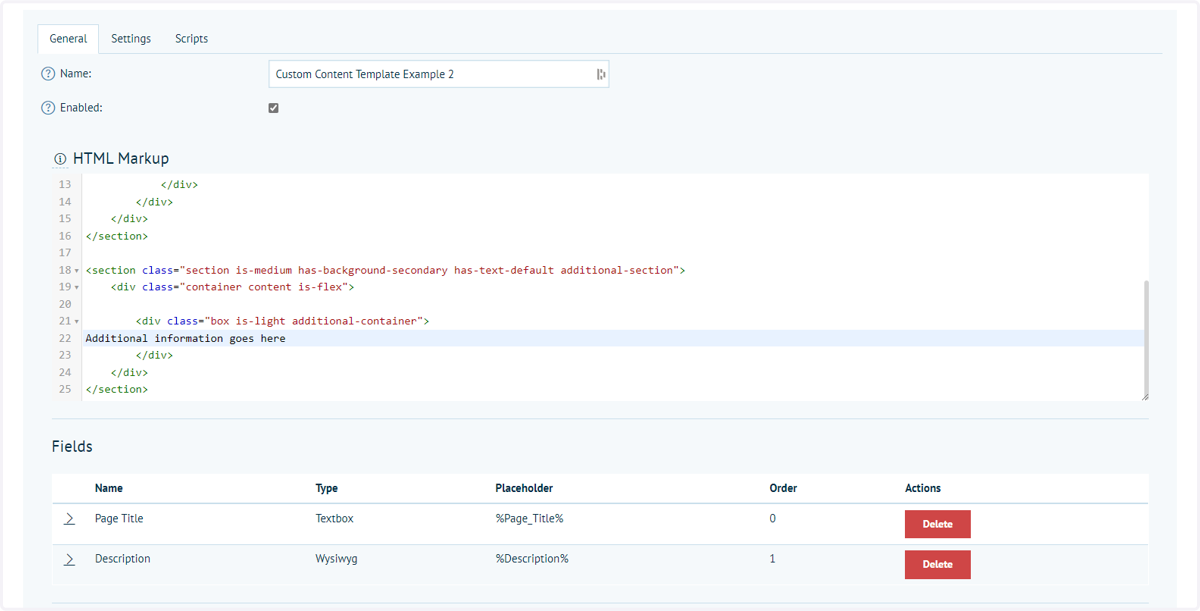
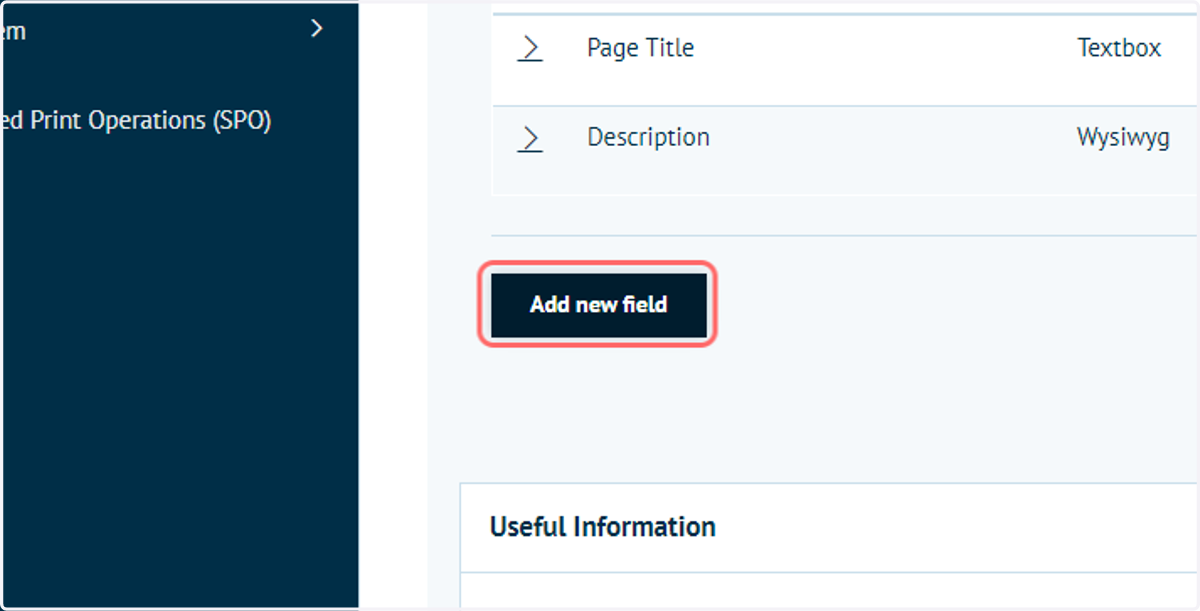
2. Click on Add new field
We will create a new field, in the same area we previously created the Page Title and Description fields.
3. Type a field name
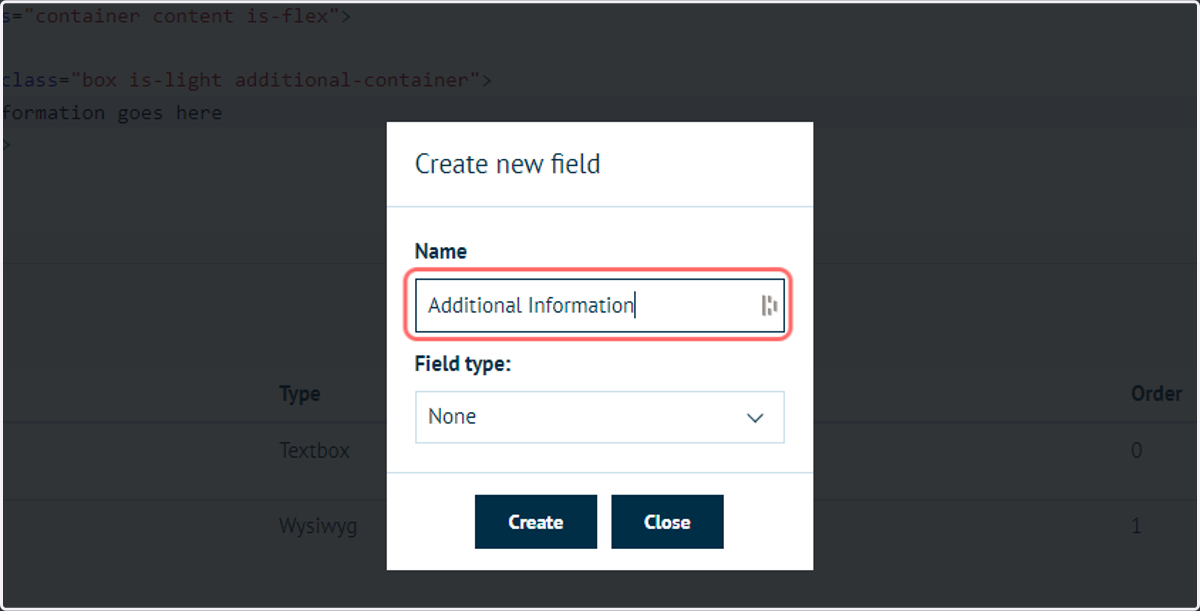
4. Select Repeater from the field type
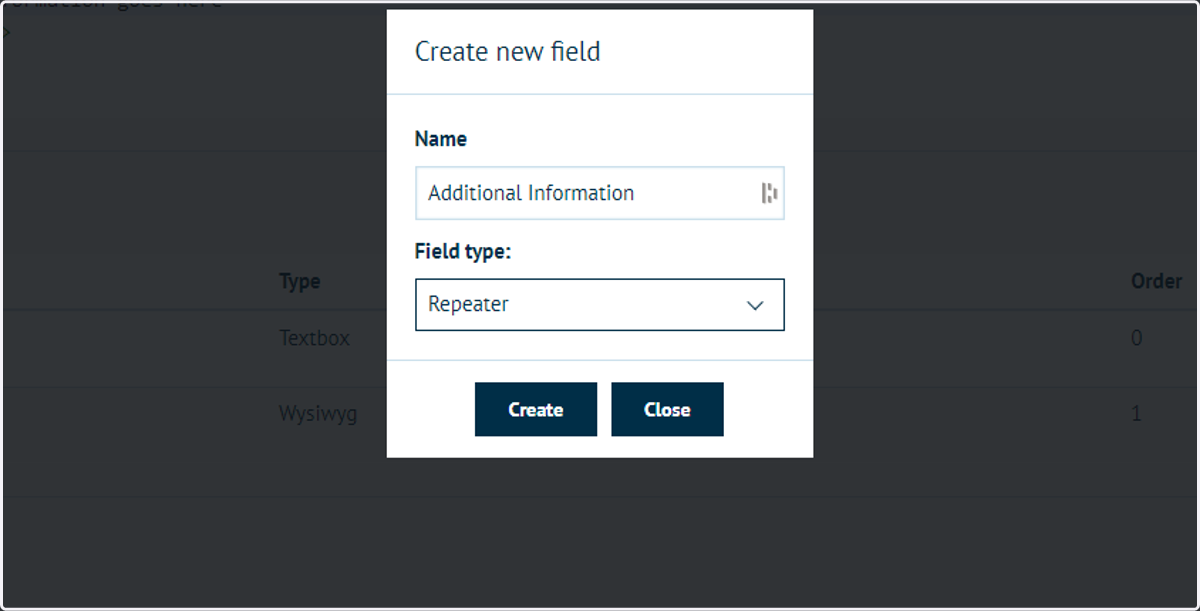
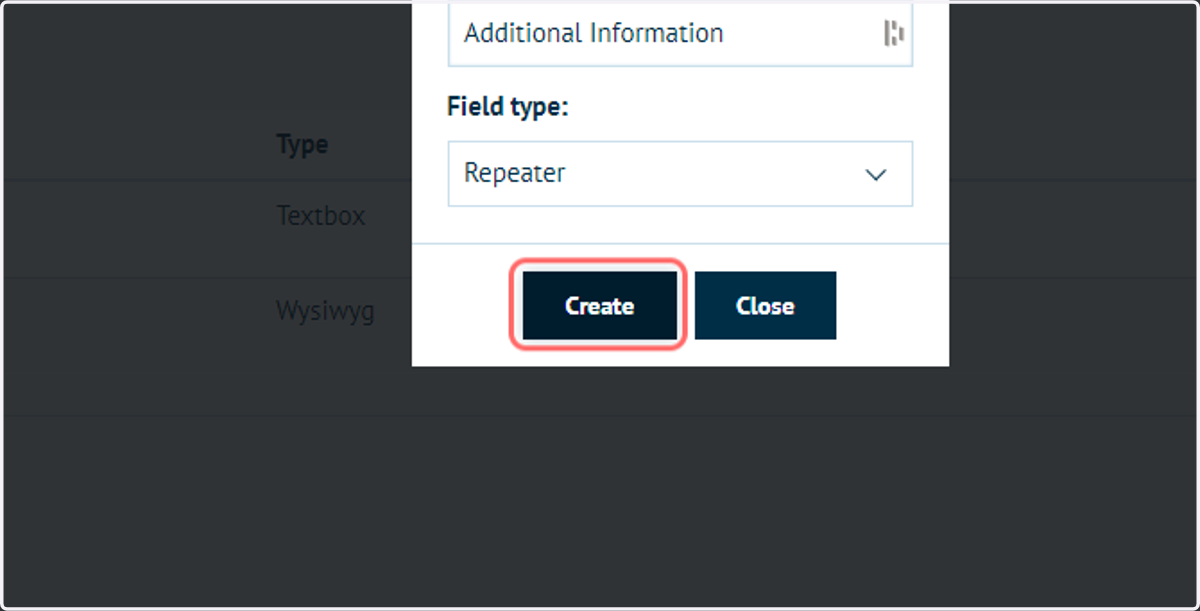
5. Click on Create
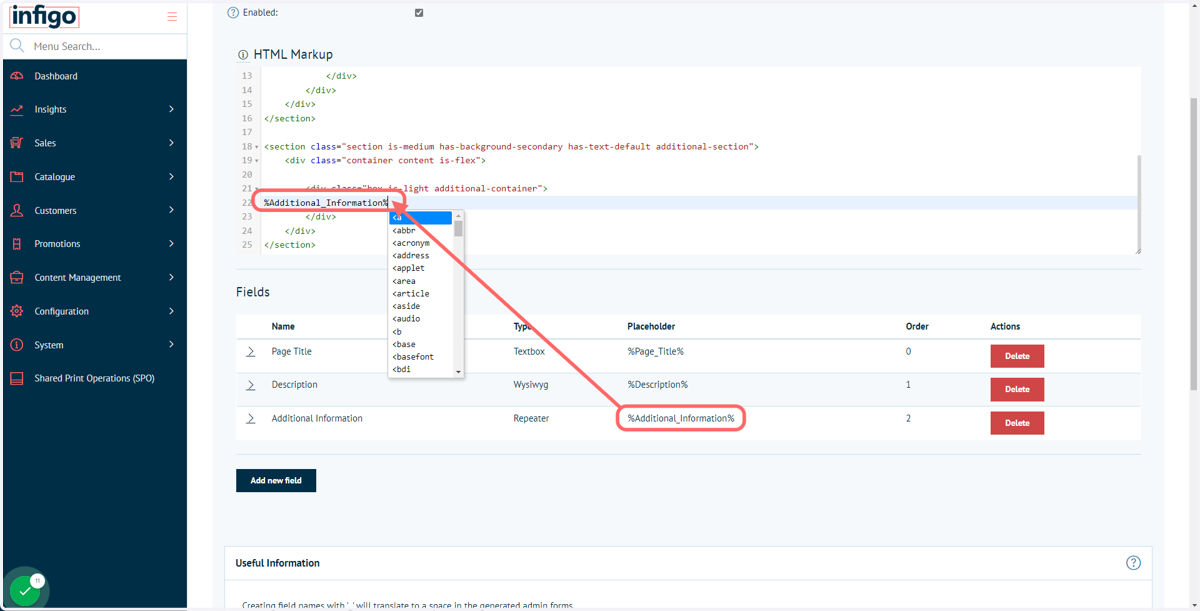
6. Input the newly generated Placeholder for the repeater in to the HTML markup code
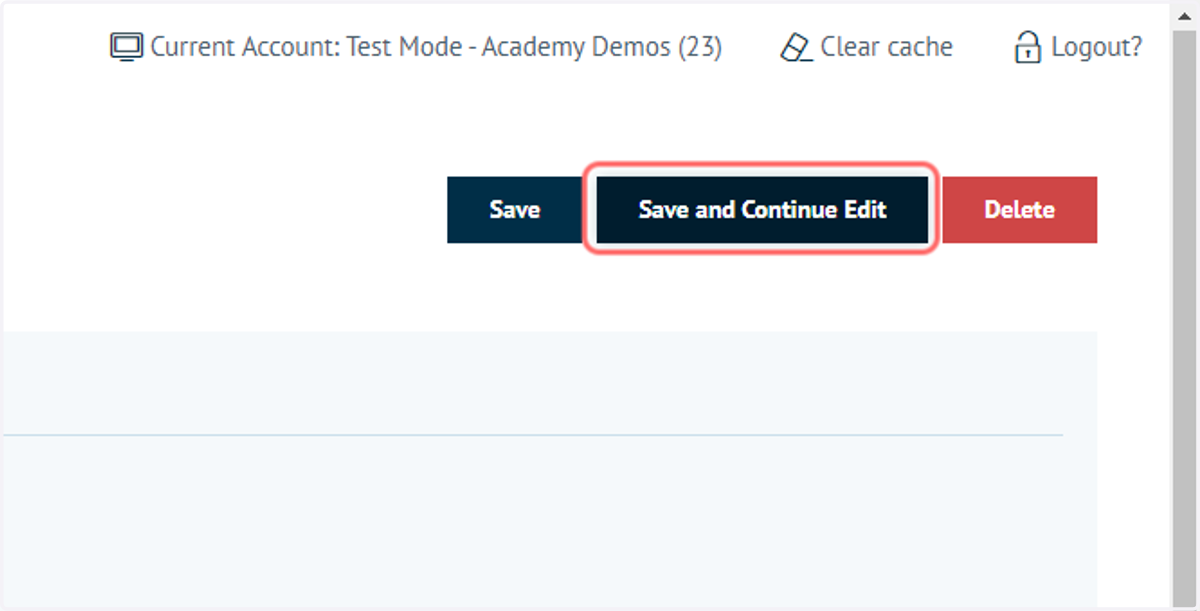
7. Click on Save and Continue Edit
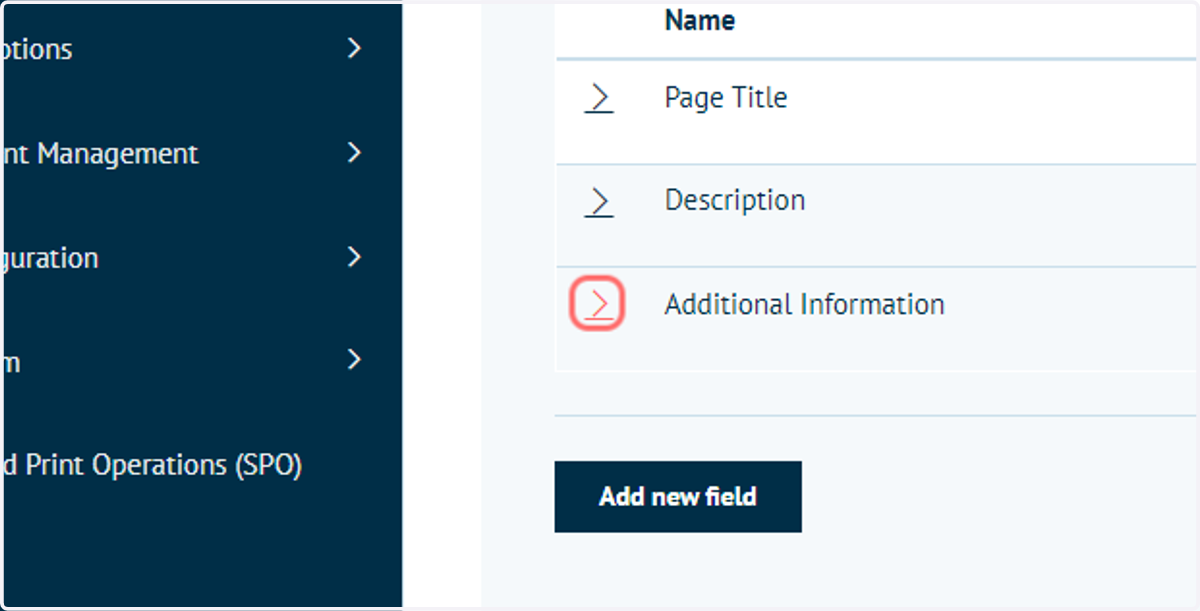
8. Next, we will begin to populate the Repeater itself
The process is virtually identical to the creation of HTML markup and fields done in this and previous tutorials.
The primary difference is that this section is isolated, meaning we can easily duplicate its content within this Content Template.
9. Click on button
10. HTML editor
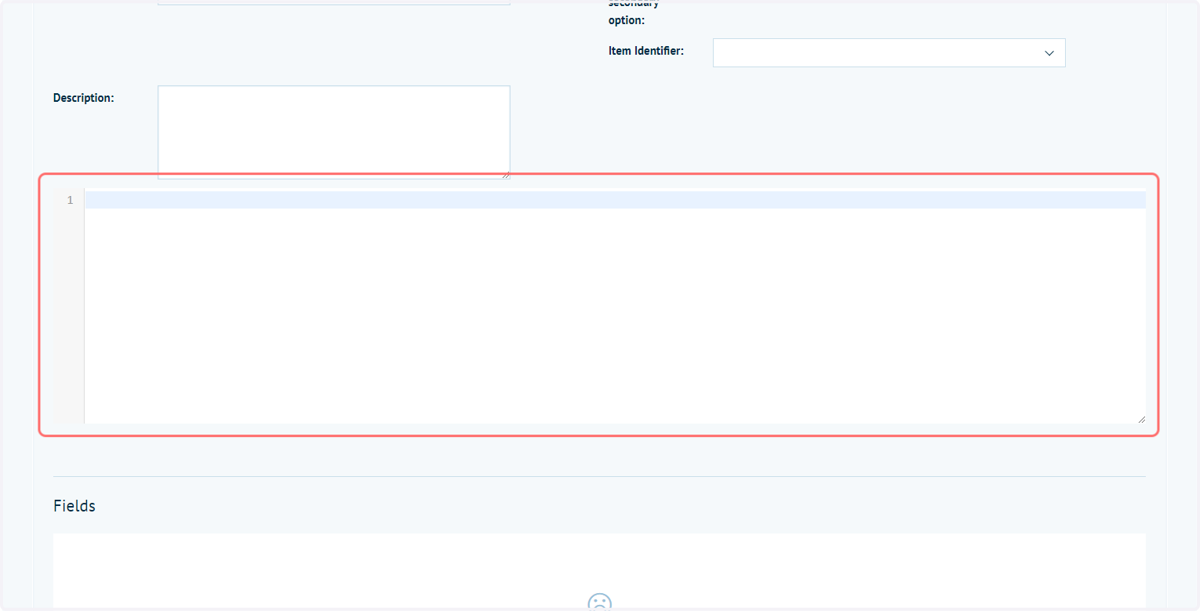
The Repeater contains another HTML editor. The contents of this editor will be placed where the Repeater field placeholder is located in the main HTML markup code.
11. Click on Add new field
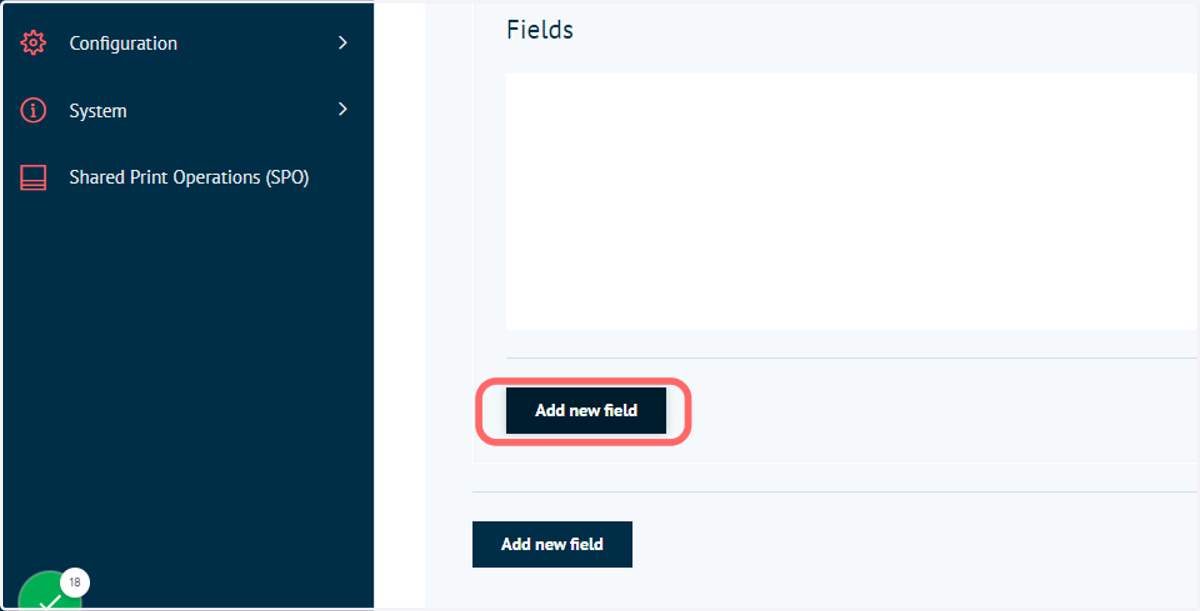
Fields can be created within the Repeater itself, for use in the Repeater HTML editor
12. Create new fields
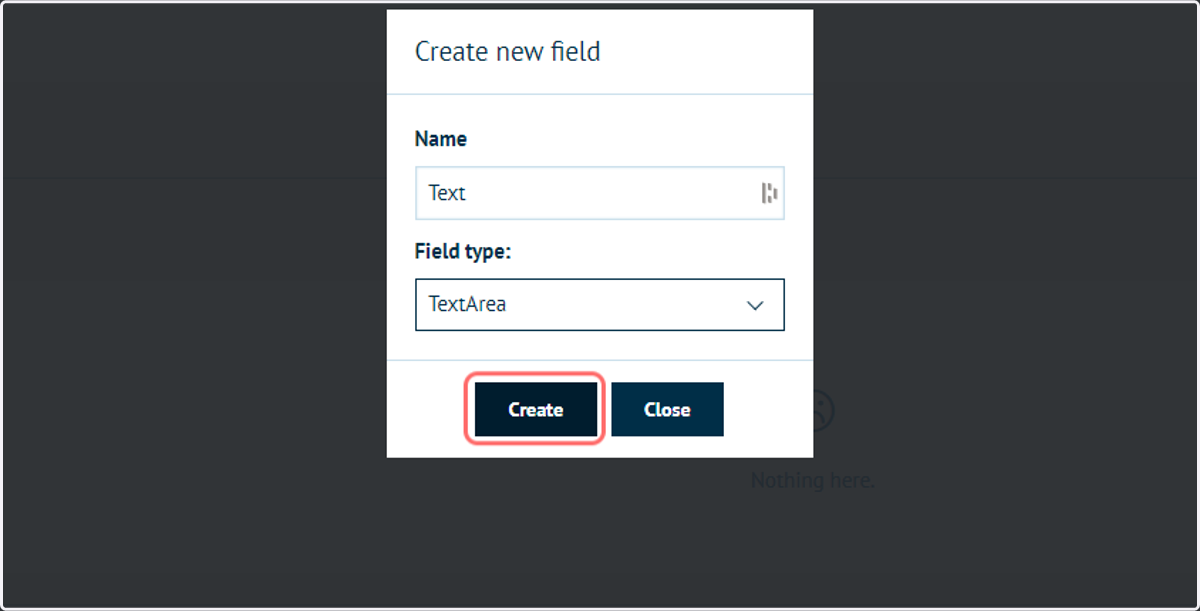
In this example, we will create a new TextArea (for paragraph text) and image fields.
13. Input code into the Repeater HTML editor
Code can be placed in this editor as with the primary HTML Markup editor.
In our example, we will utilise some boilerplate code providing text and an image
<div class="block">

</div>

<div class="block has-text-inherit">
    <div class="is-inline-block ">
        <div class="ict-image image   is-as-image   ">
            <img src="" alt="" class="">
        </div>
    </div>
</div>
<hr />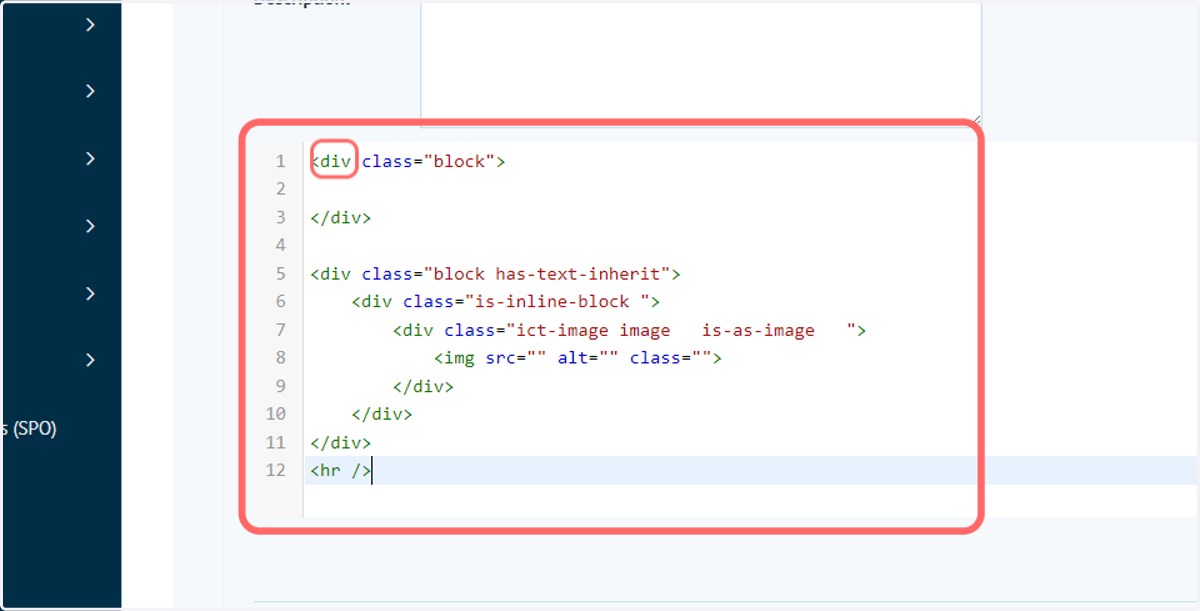
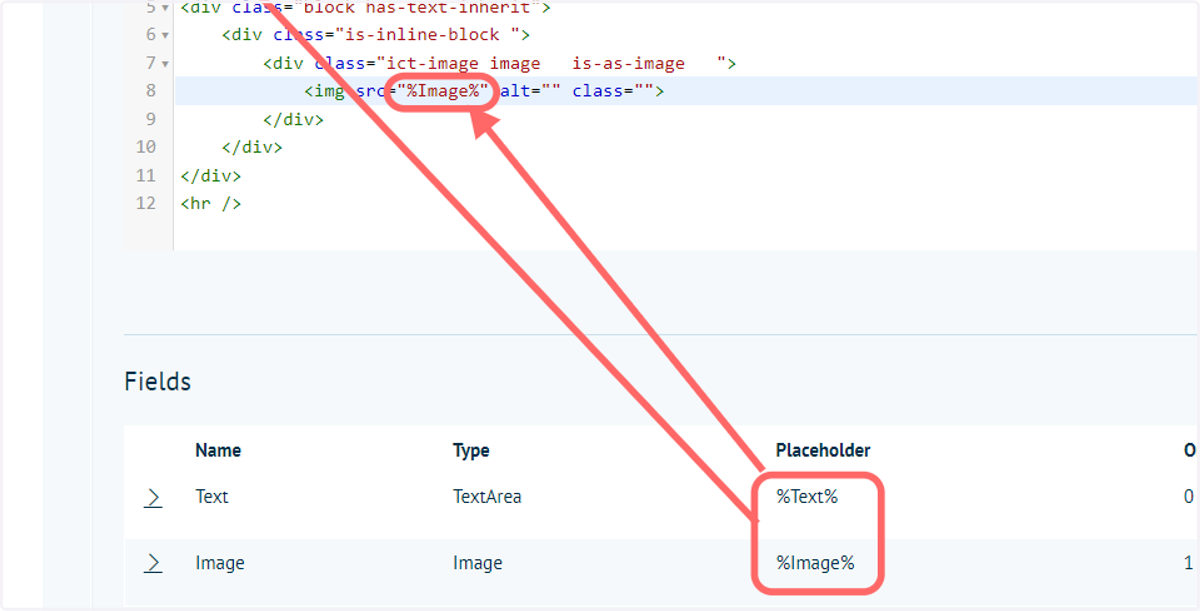
14. Input the Repeater field placeholders into the Repeater HTML editor
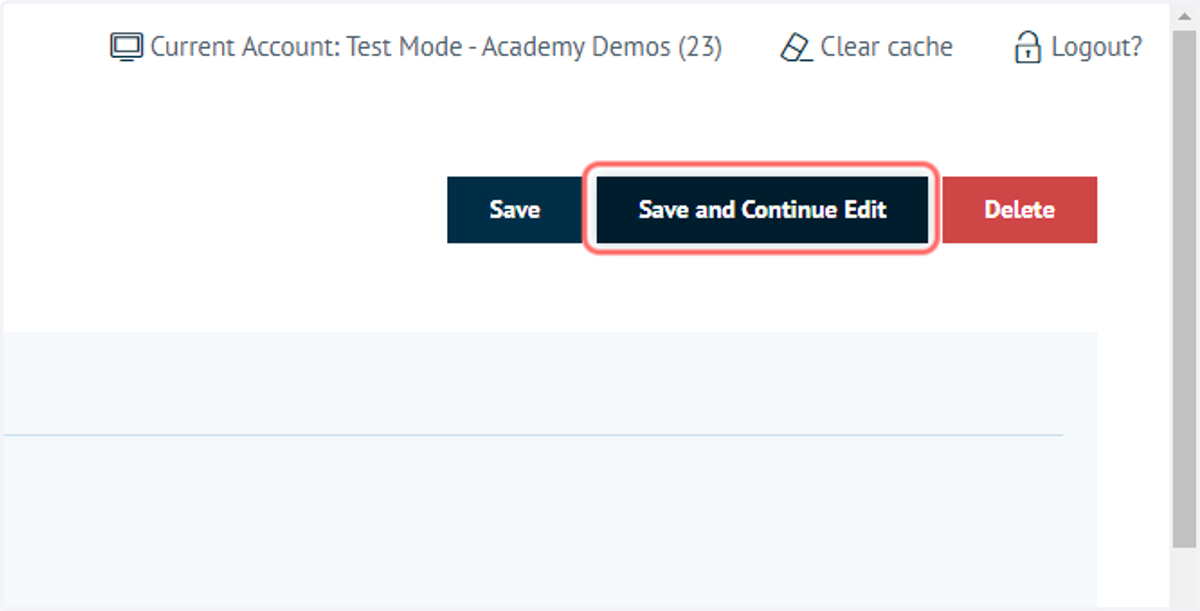
15. Click on Save and Continue Edit
16. Launch the Content Page and select the custom Content Template
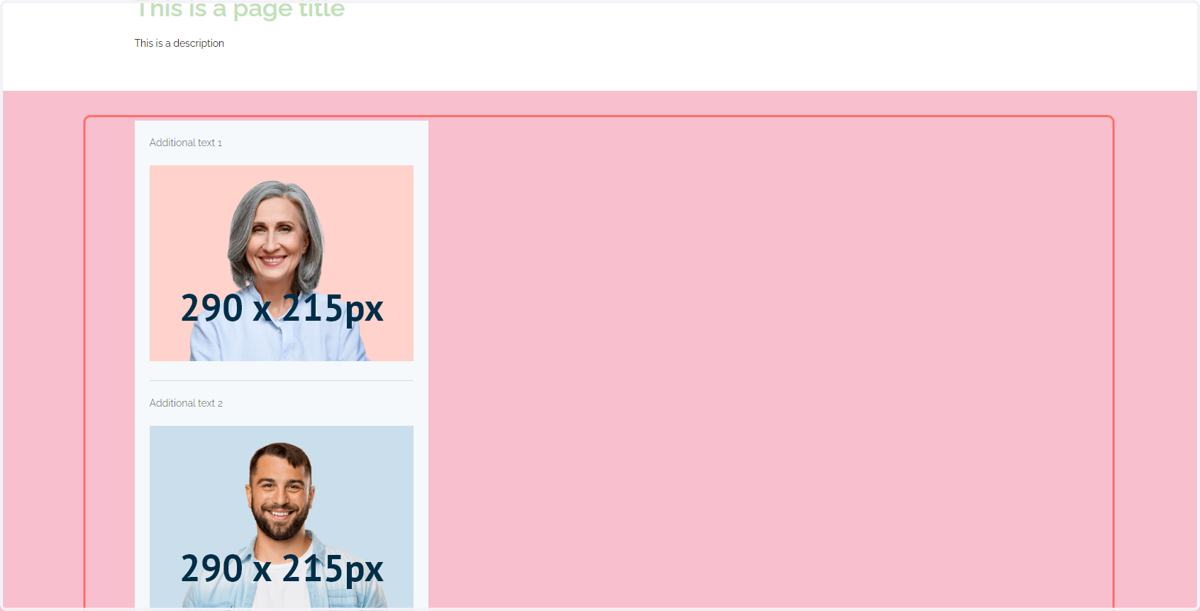
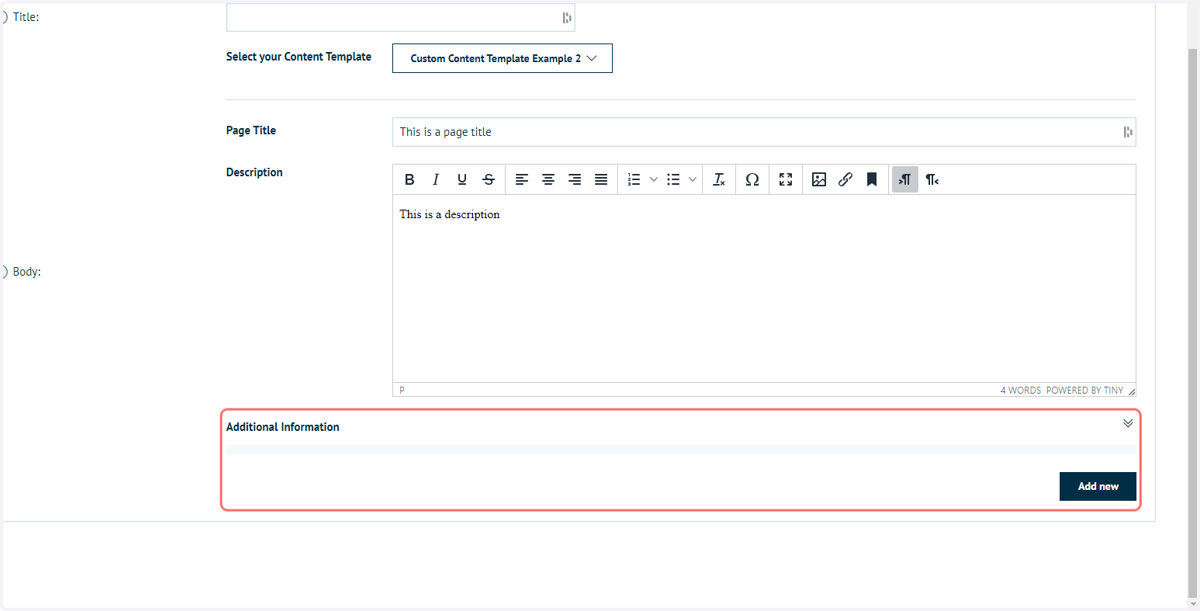
Our Additional Information section is now available at the bottom of the custom Content Template, along with an "Add New" button.
By default, Repeater content is excluded until specifically added. Each click of "Add New" will add a new instance of our Repeater HTML code and fields, allowing different data to be placed in each.
17. Click on Add new (x2)
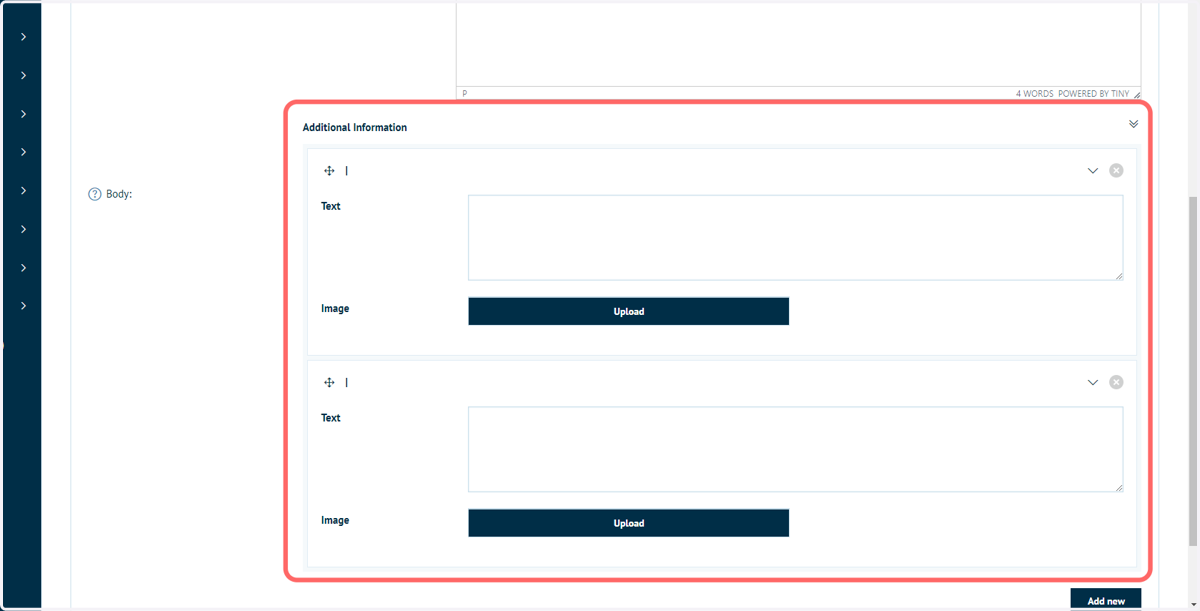
18. Two instances of our Repeater code have now been added and are ready to populate
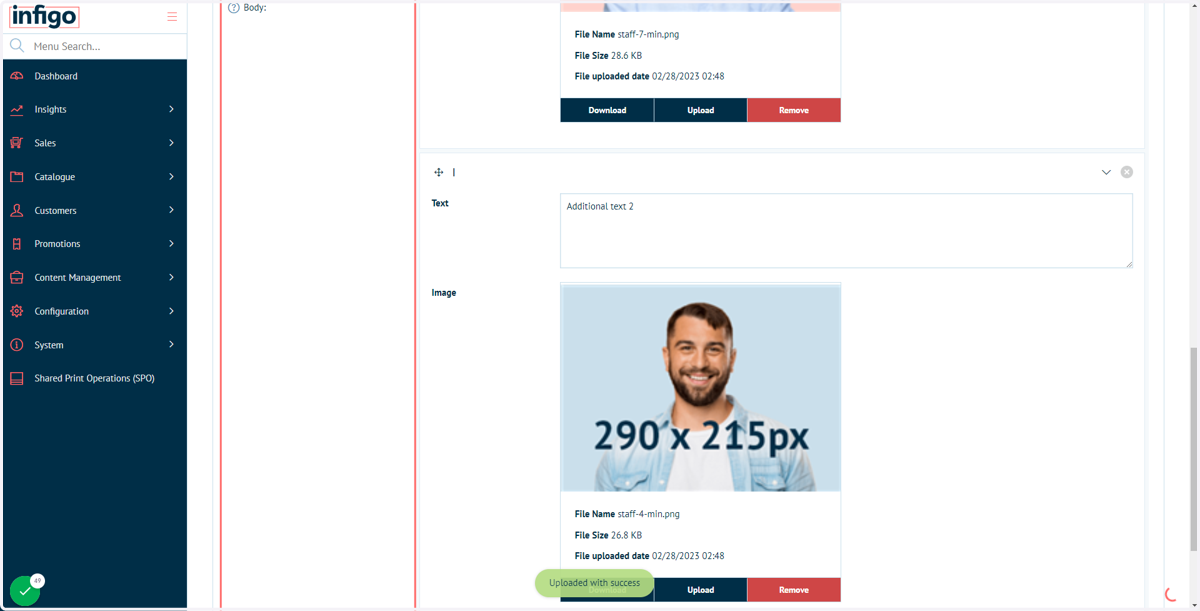
19. Populate the field contents
20. Click on Save and Continue Edit
21. Launch the Content Page to see the populated data