Adding a question(s) to the registration process
1. Log into Protech
2. Click on My Work
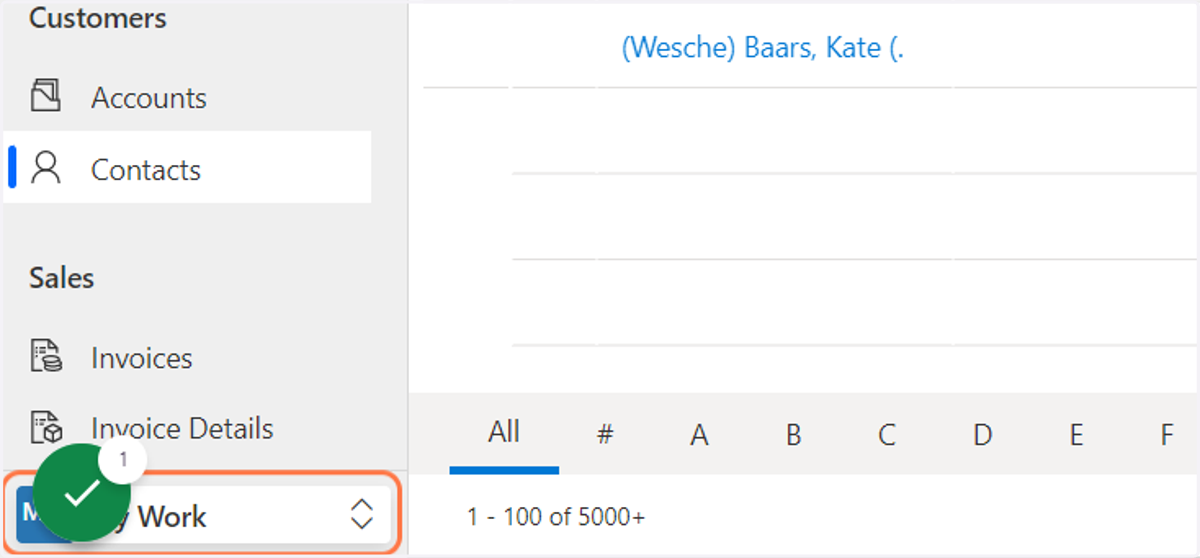
3. Click on "Meetings"
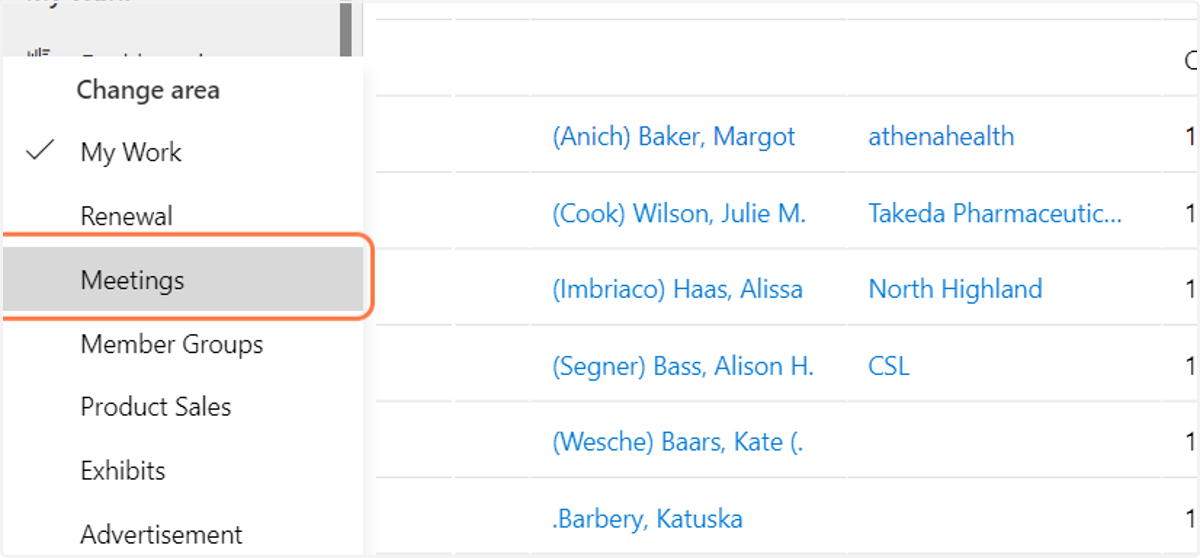
4. Click on Meeting Setup
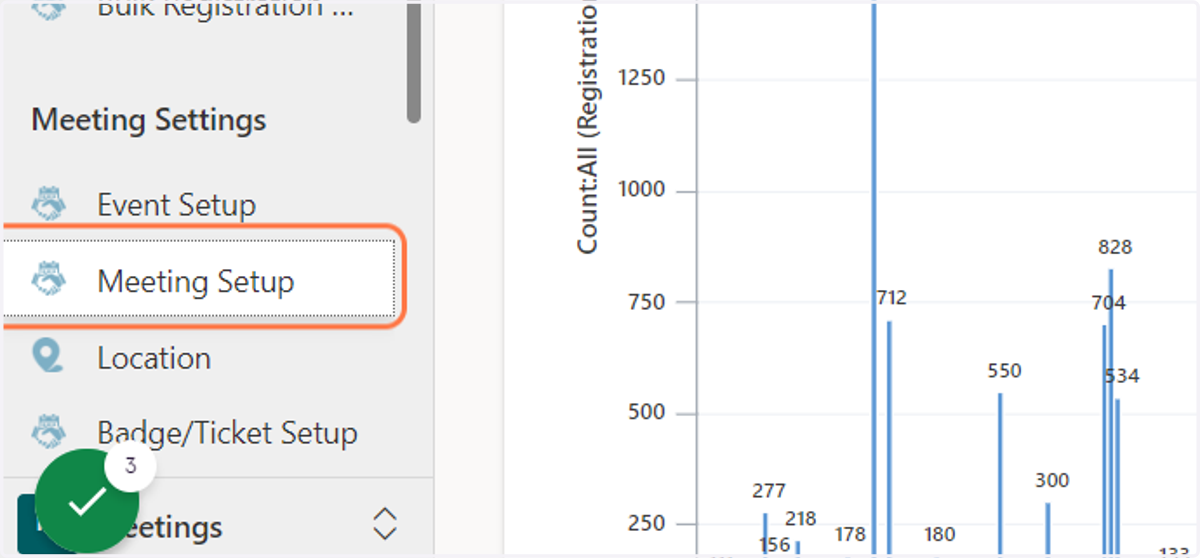
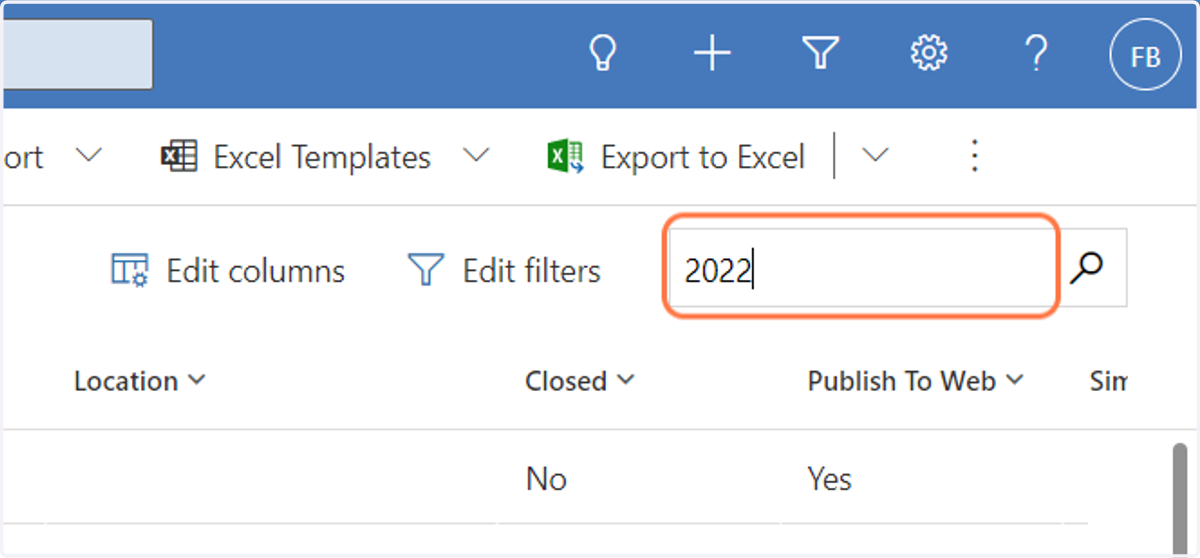
5. In the search bar, start typing the name of the event. In this example we typed: 2022
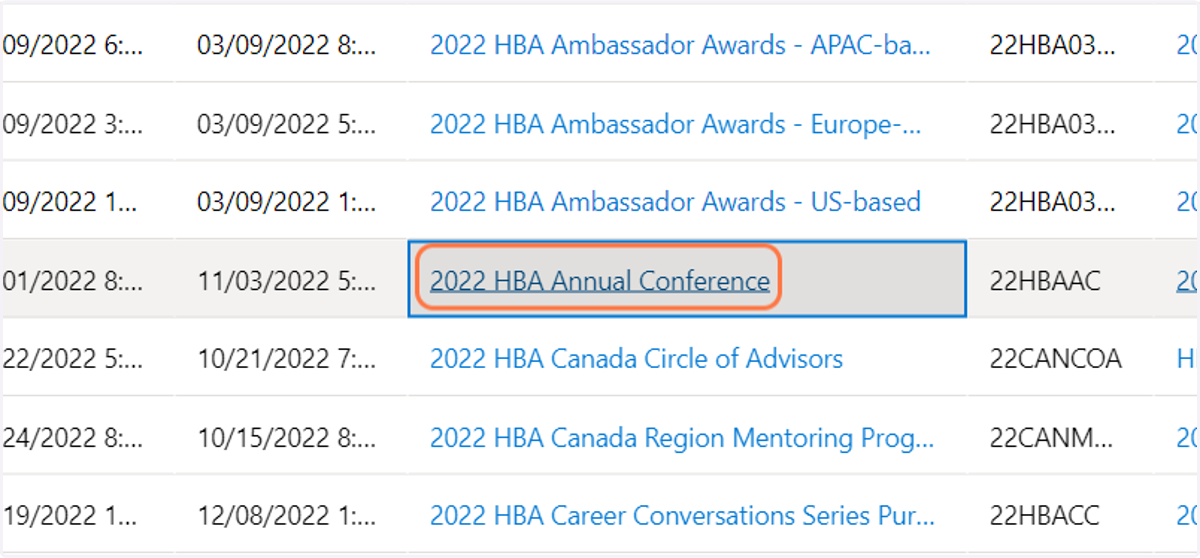
6. Double click on the event. In this example we used 2022 HBA Annual Conference
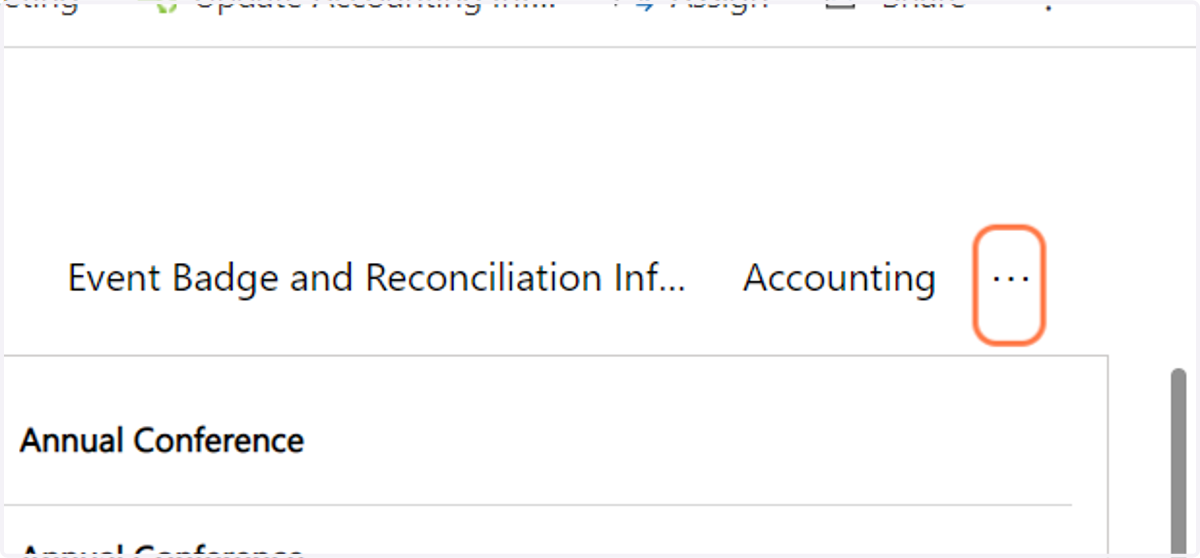
7. Click on More Tabs
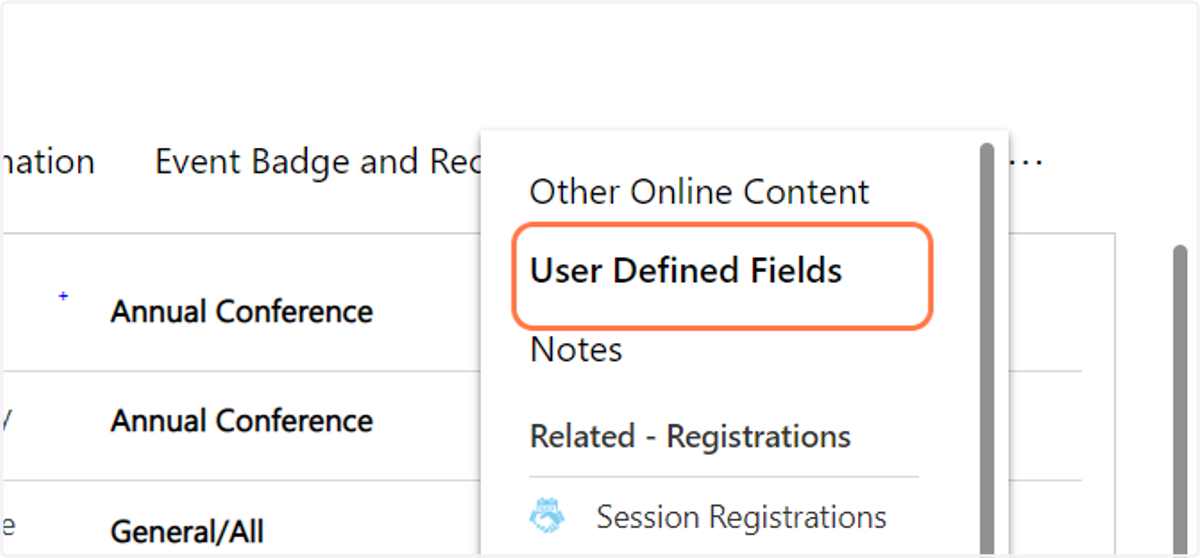
8. Click on User Defined Fields
9. Depending on the type of question you are wanting to add you will select the appropriate fields to add the question.
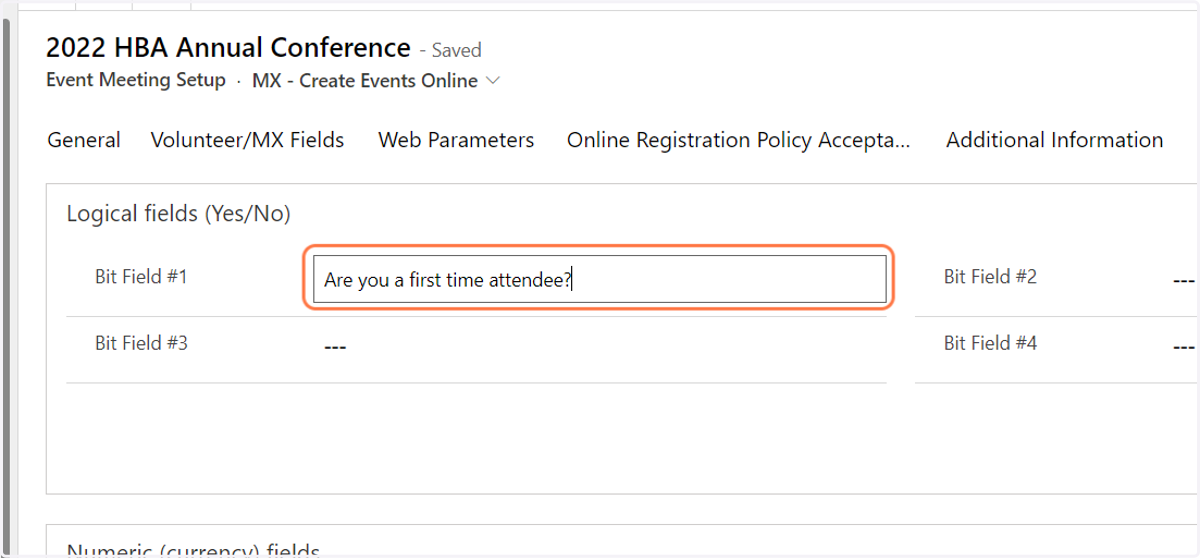
Logical fields (Yes/No) section - is used for asking simple questions that you just need a Yes or No response.
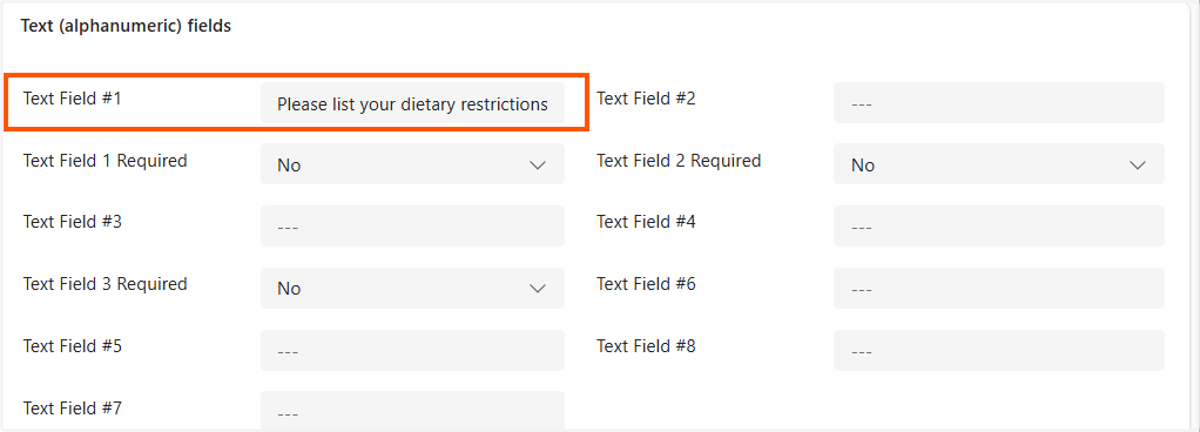
Text (alphanumeric) fields section - is used for asking a question that the person can type in their response.
10. If you are asking a Yes/No question: In the "Logical fields" section type your question. In this example we used "Are you a first time attendee?"
11. If you are asking a question that the person will type their response: In the Text (alphanumeric) fields section type your question. In this example we asked if there were any dietary restrictions
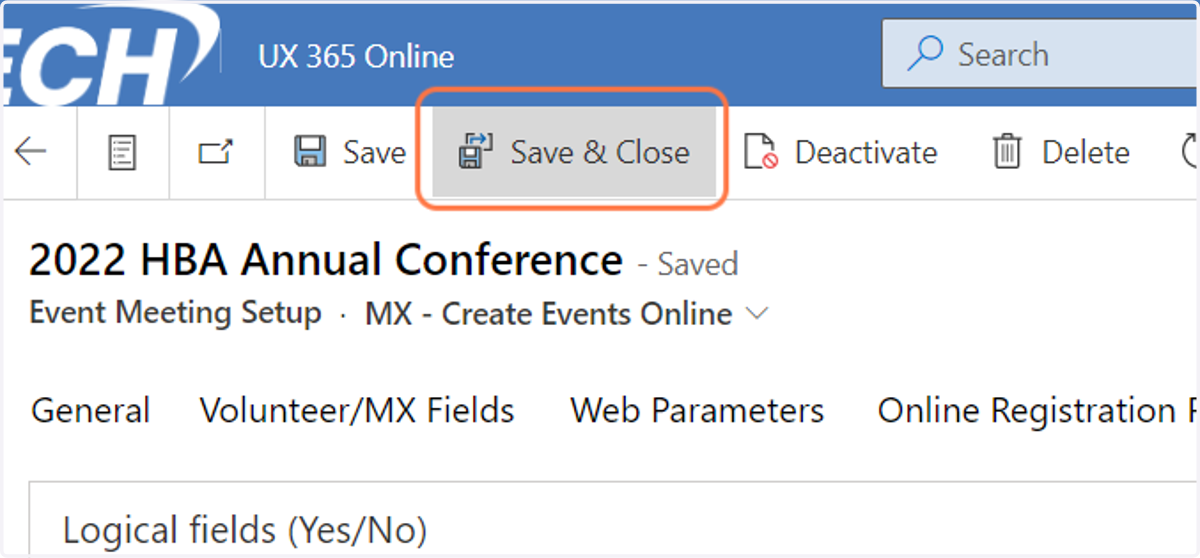
12. Click on Save & Close
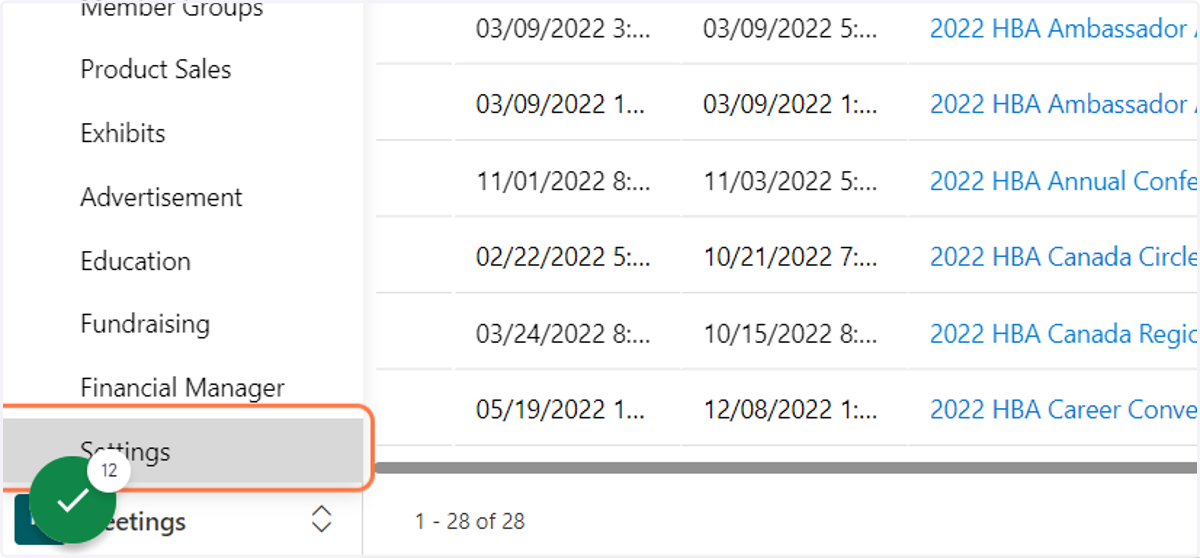
13. Click on Meetings
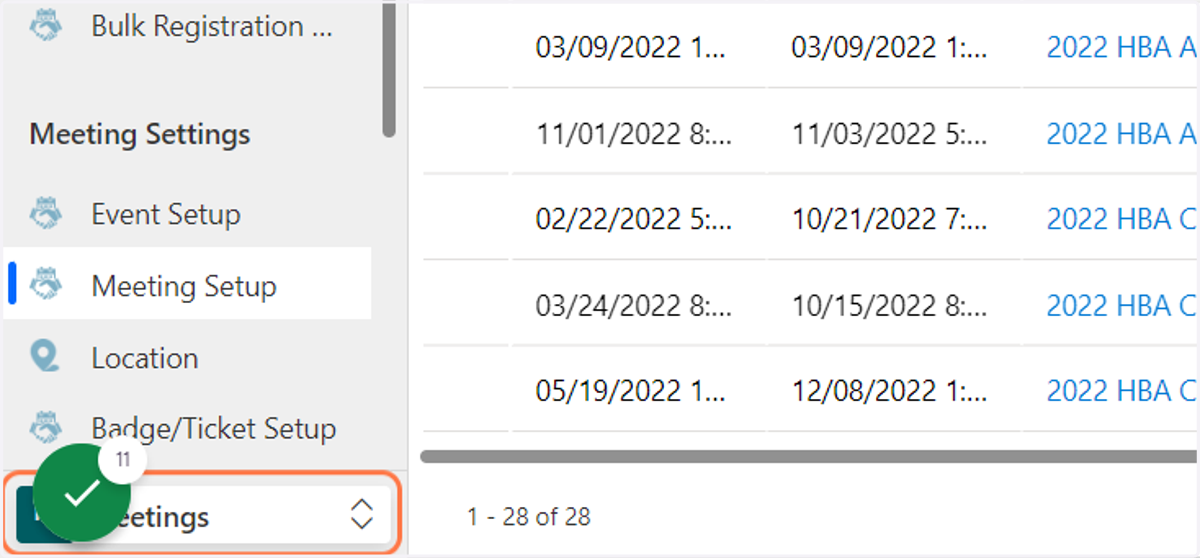
14. Click on Settings
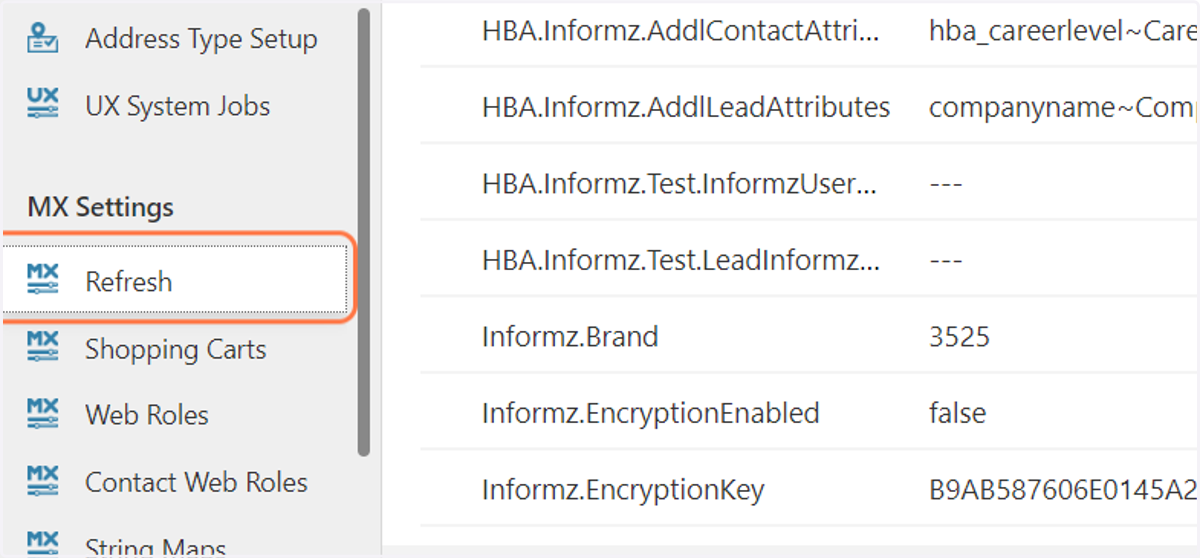
15. Click on Refresh
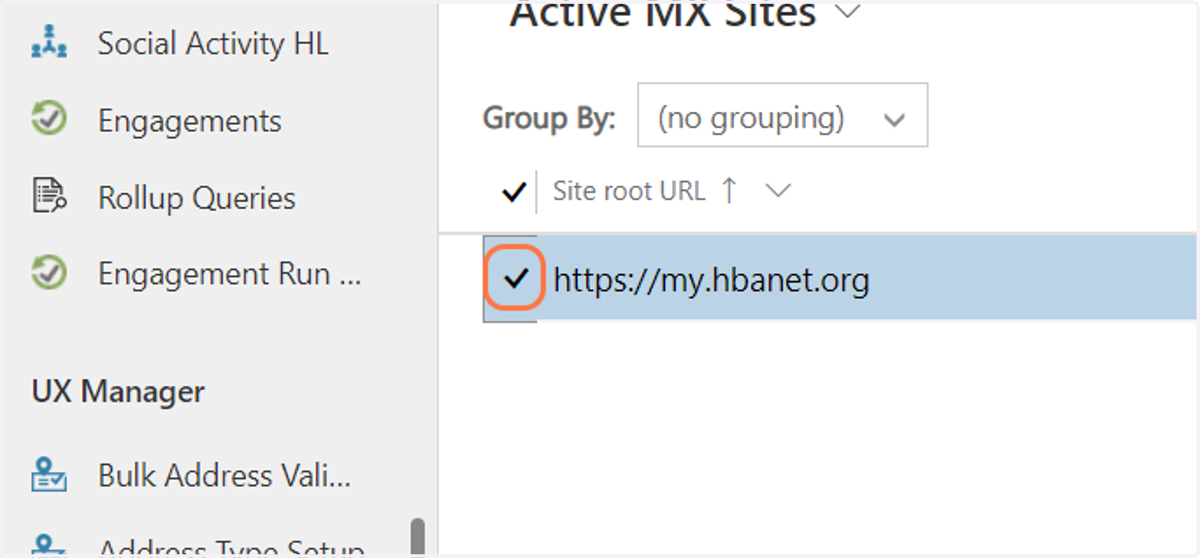
16. Select the box next to "https://my.hbanet.org"
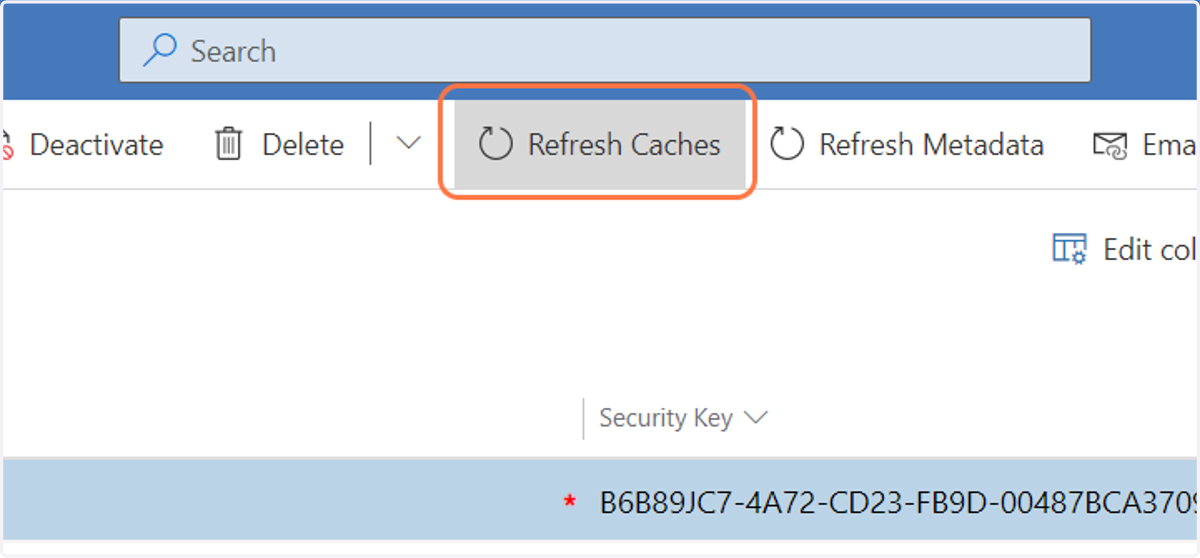
17. Click on Refresh Caches