Configuring image fields for image uploads in the Form Builder | FB_007
Following on from the previous tutorial, we'll this time look at configuring our form field to accept uploaded imagery from our users. The process is virtually identical to the process of configuring for clipart.
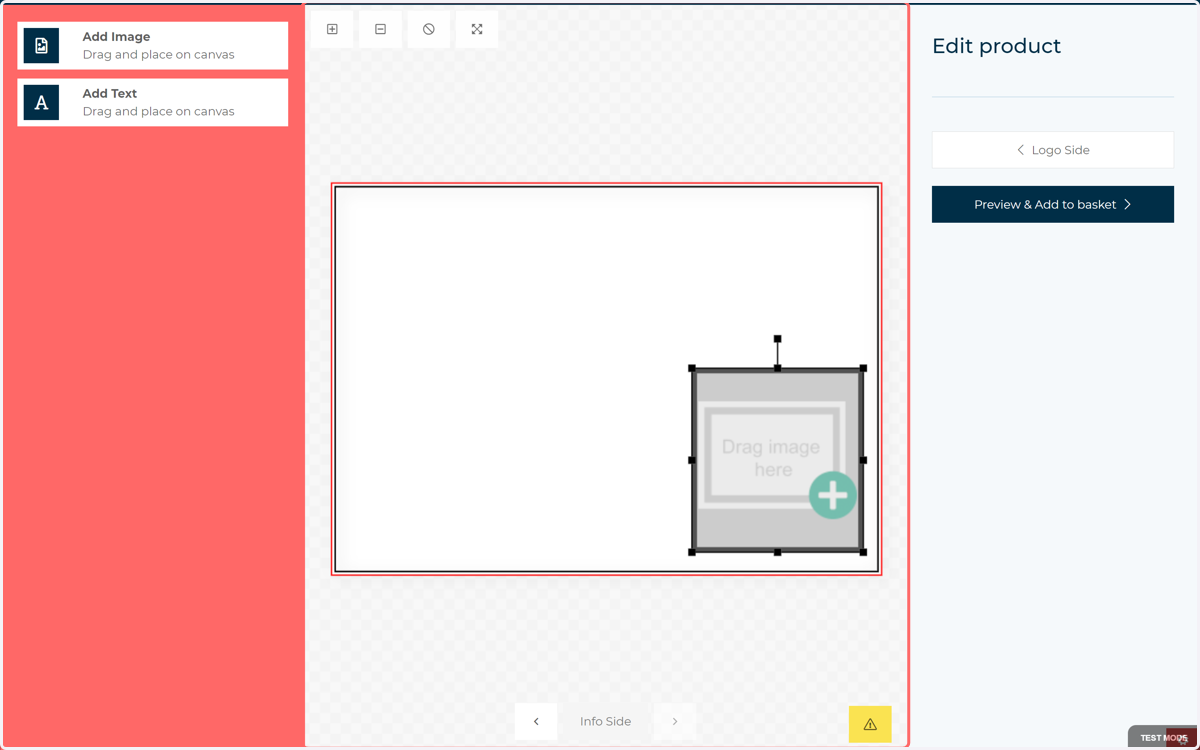
1. Begin by adding and positioning an image field on your canvas
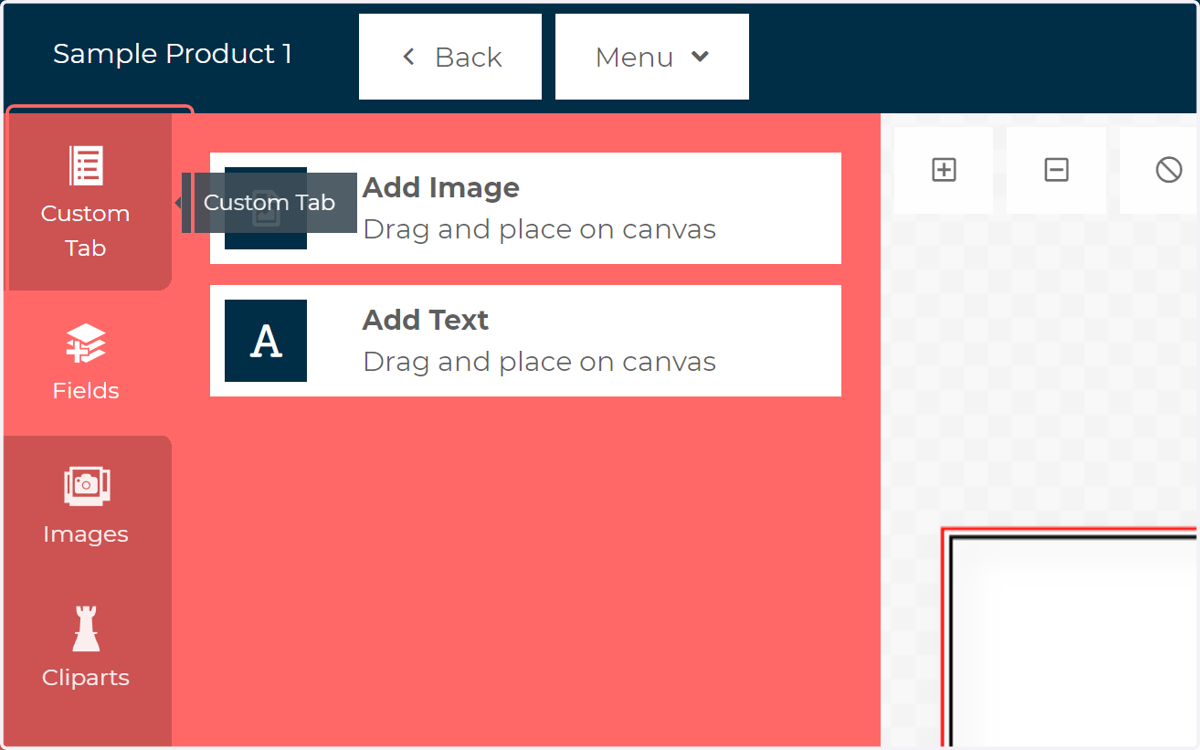
2. Click on Custom Tab
3. Click on the field icon to select the field on the canvas it relates to
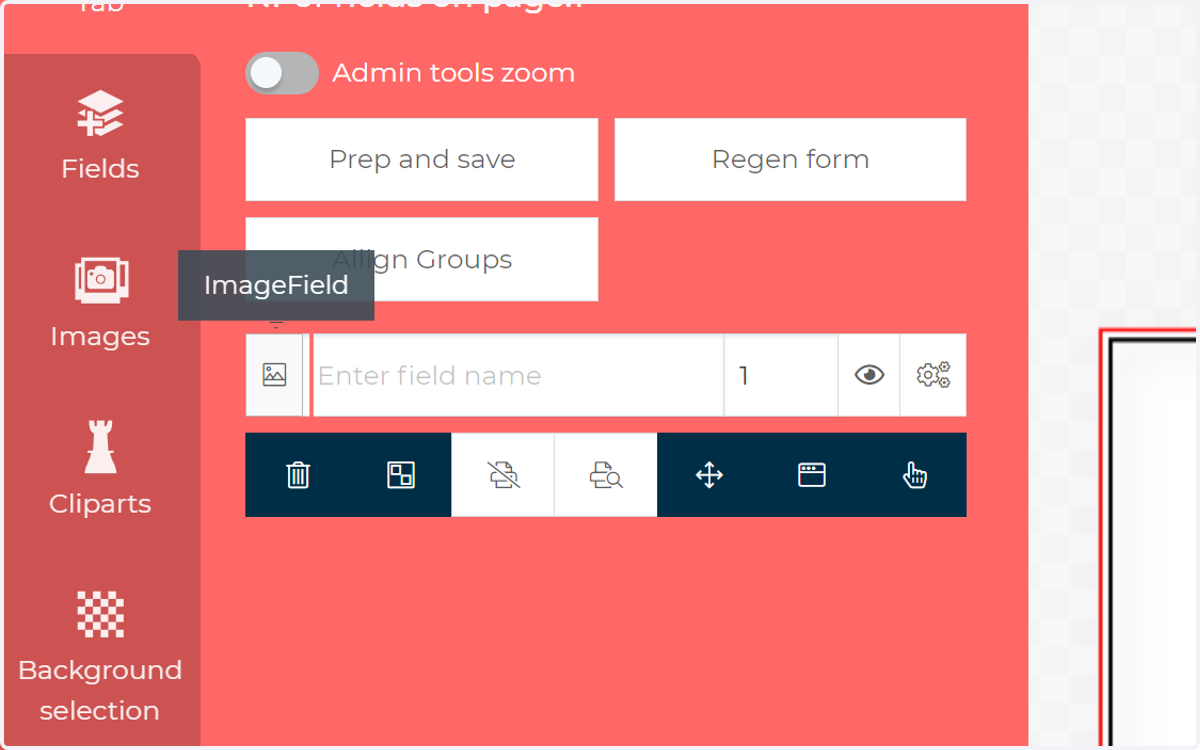
4. Enter a field name
This will be displayed above the field on the form itself. If you wish to hide the field title on the form, simply type "***" in front of the field name you require.
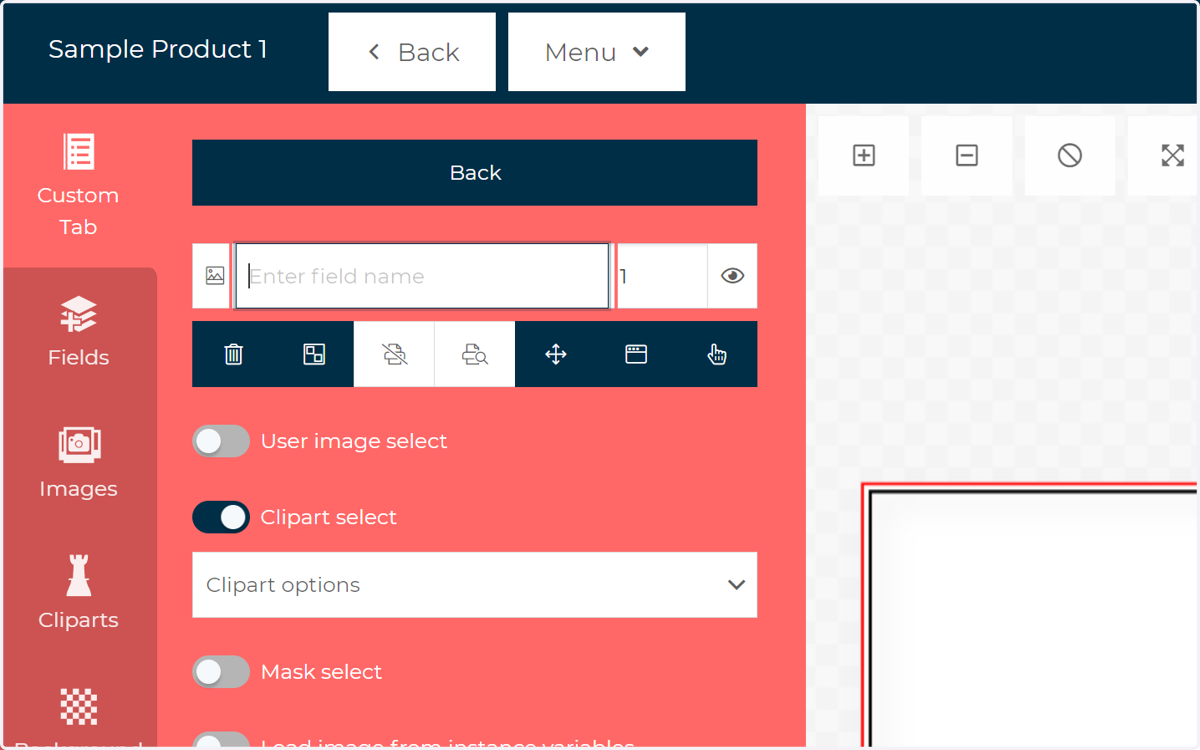
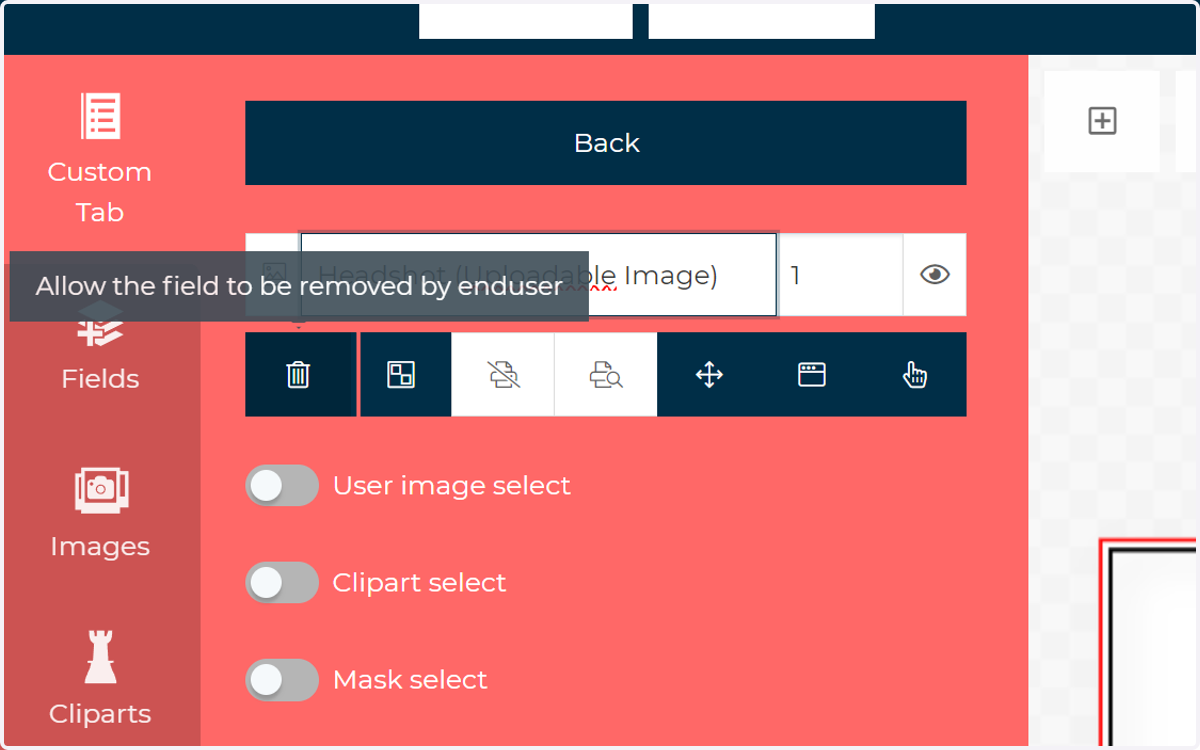
5. Interactivity Options
Use these toggles to quickly define common interactivity preferences for this field on the canvas. This includes features such as preventing users from selecting, deleting or moving the field.
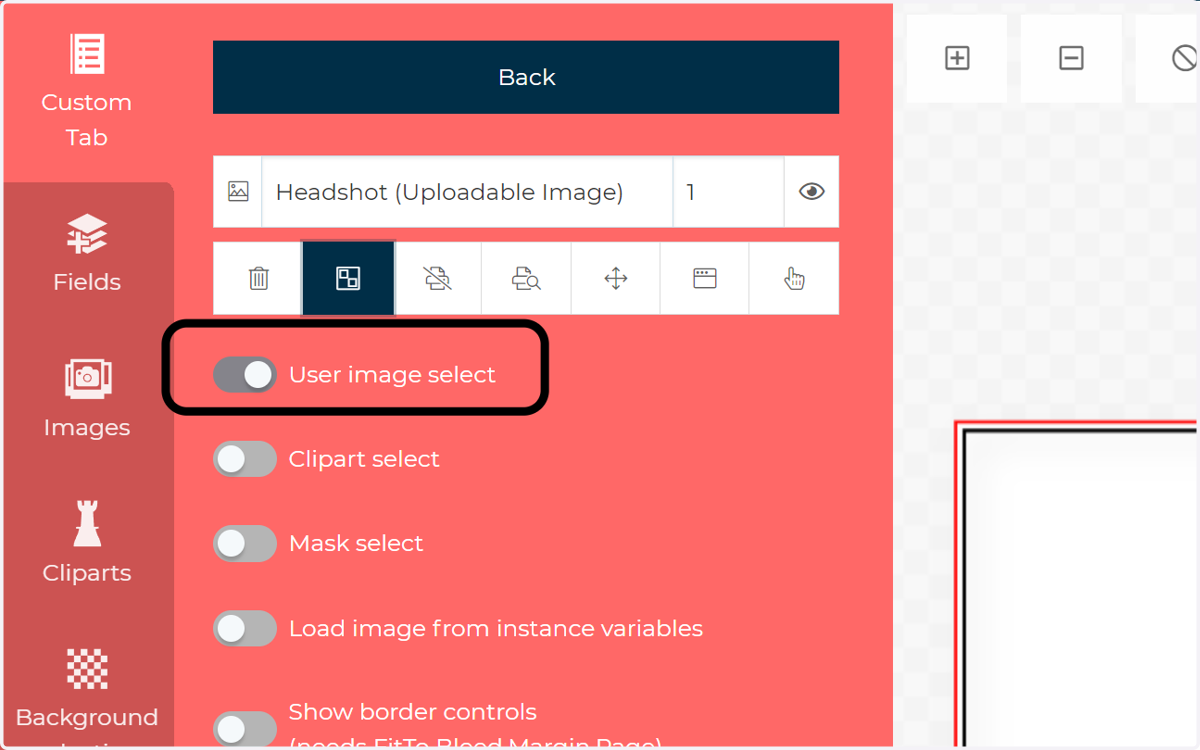
6. Check User image select
This will ensure that your customers are provided with an upload option for this field on the form. This will allow them to select an image to upload from their device.
7. The field will now be available on the form to the right of the screen, ready to interact with
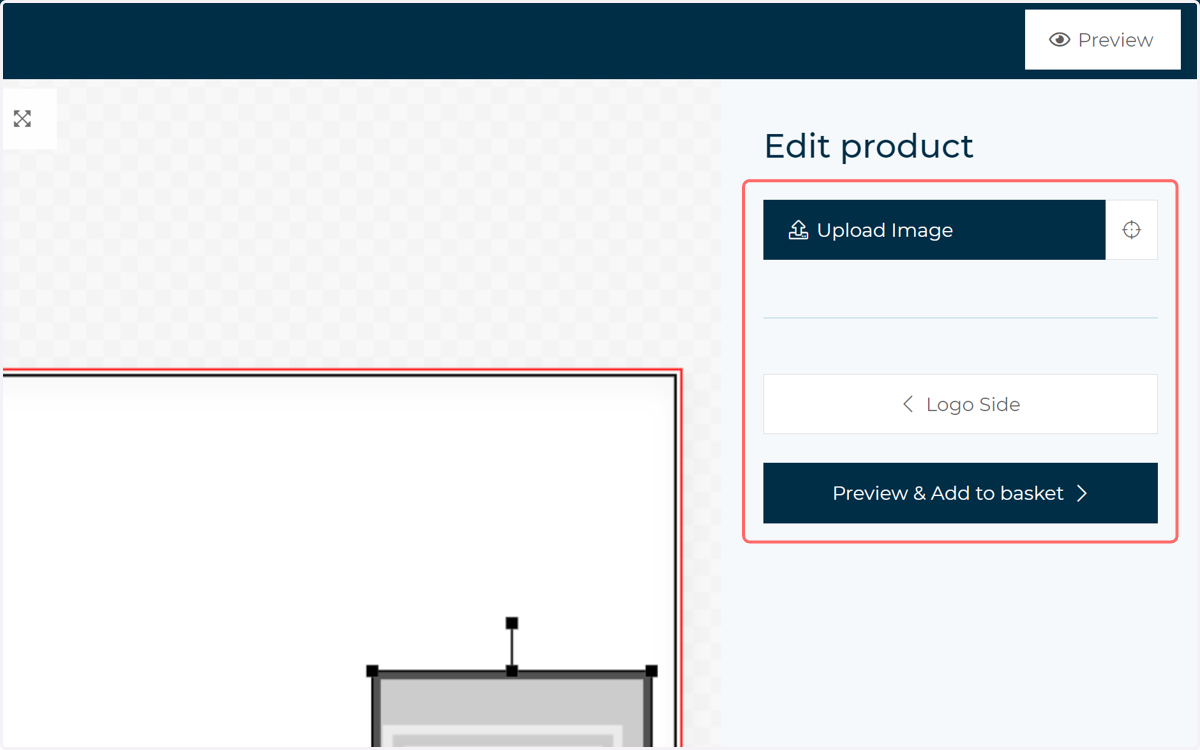
8. Click on Upload Image
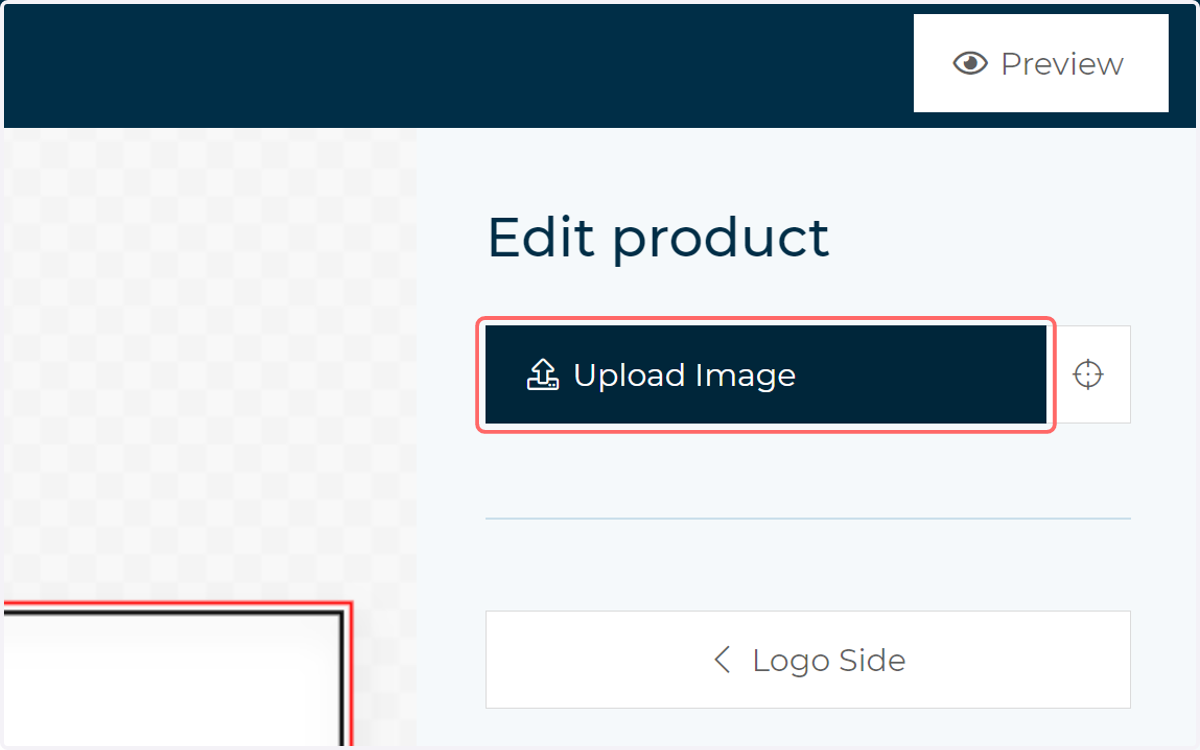
9. You or your customers select an image from their device
You are then required to create or select an album in which this image is placed. These are saved to the users account
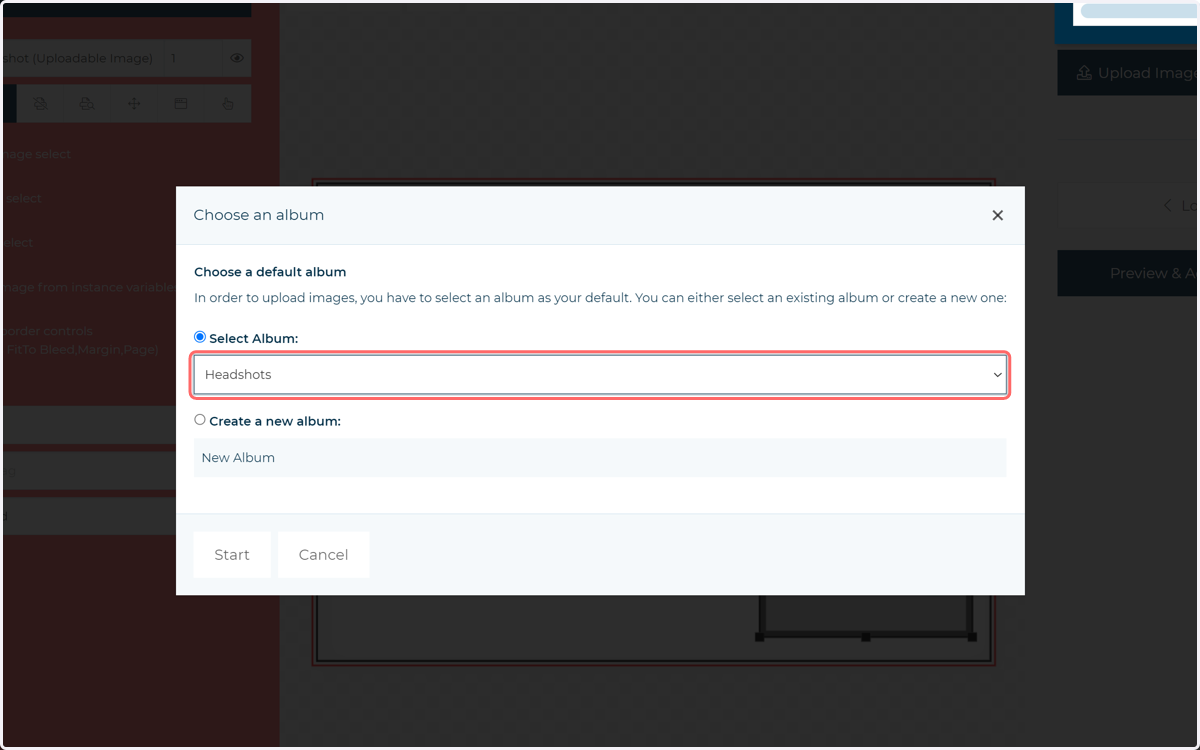
10. Click on Start
11. The image is added to the canvas
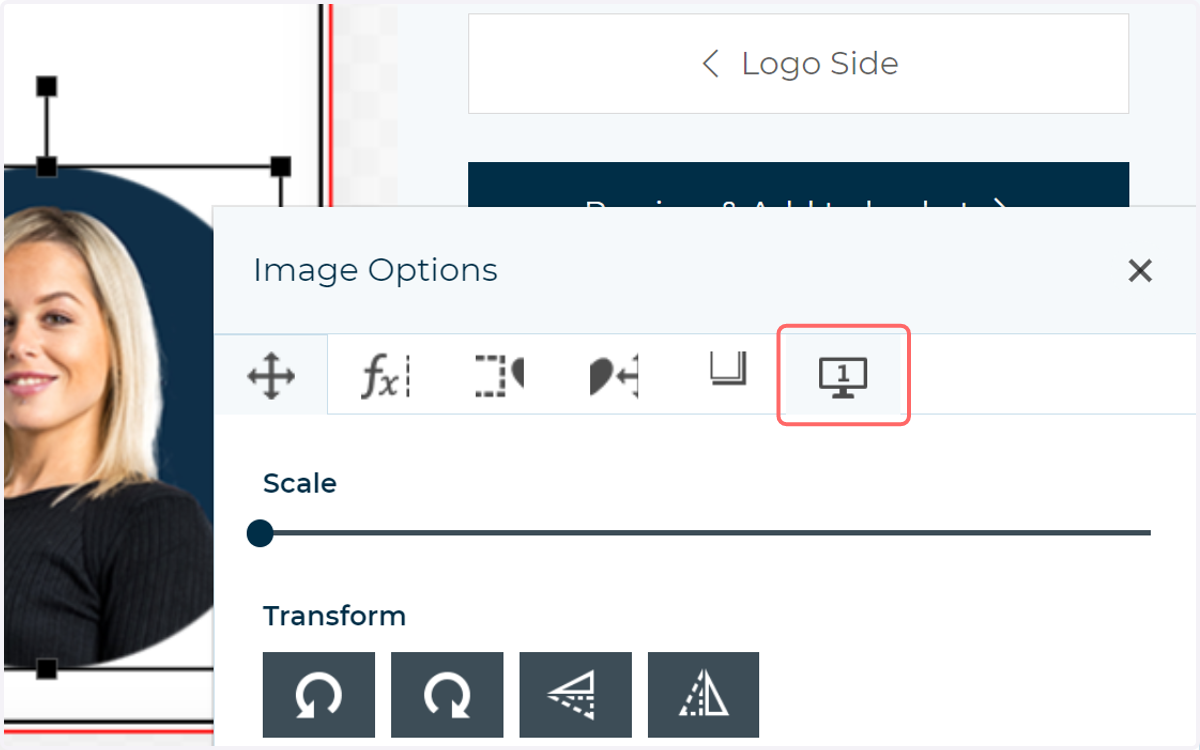
You have additional customisation options on the form when the image is selected, for example rotating or repositioning the image within the frame itself.
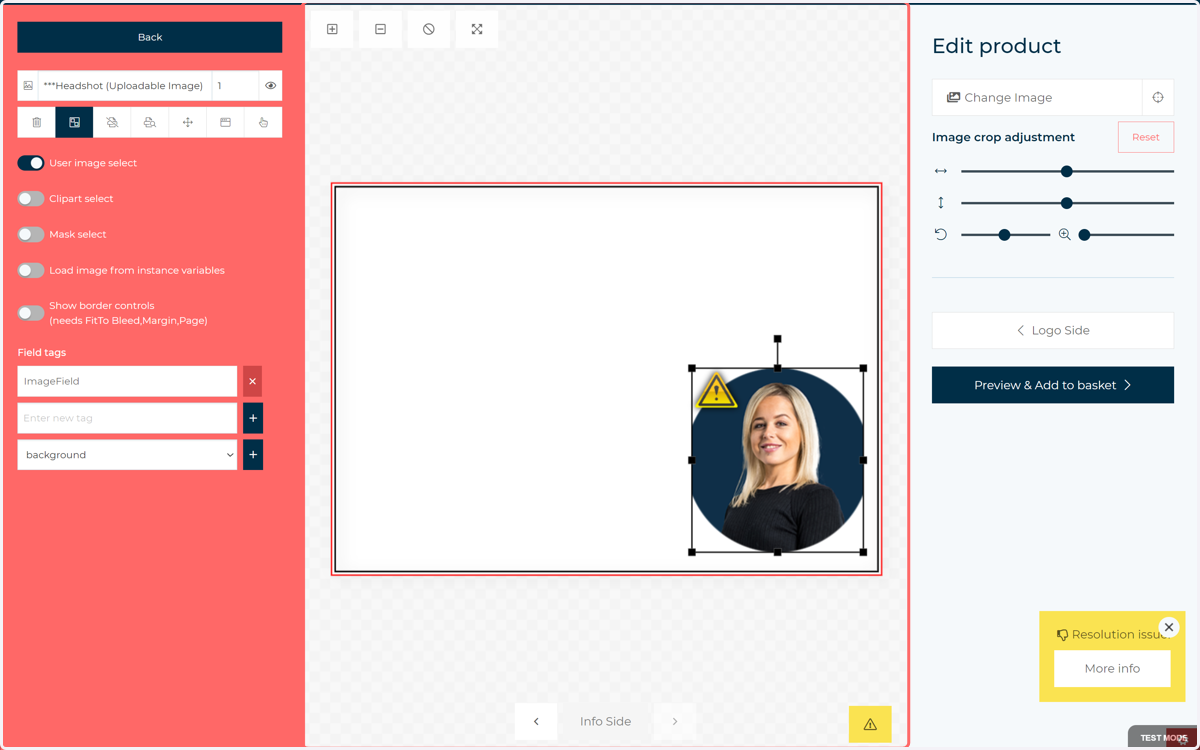
12. Remember, you can access additional configuration and user restriction controls by double clicking the field on the canvas and heading to the Details tab. Not ALL settings are shown on the Form Builder tab.
13. Click the Menu dropdown
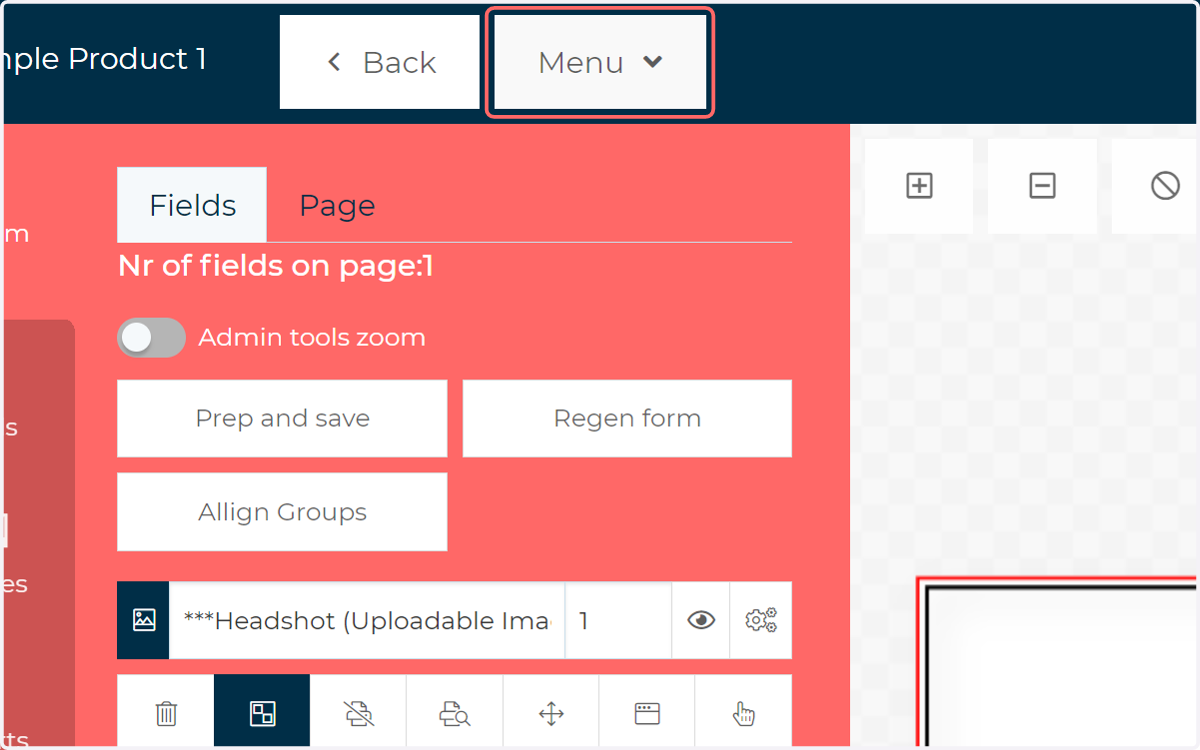
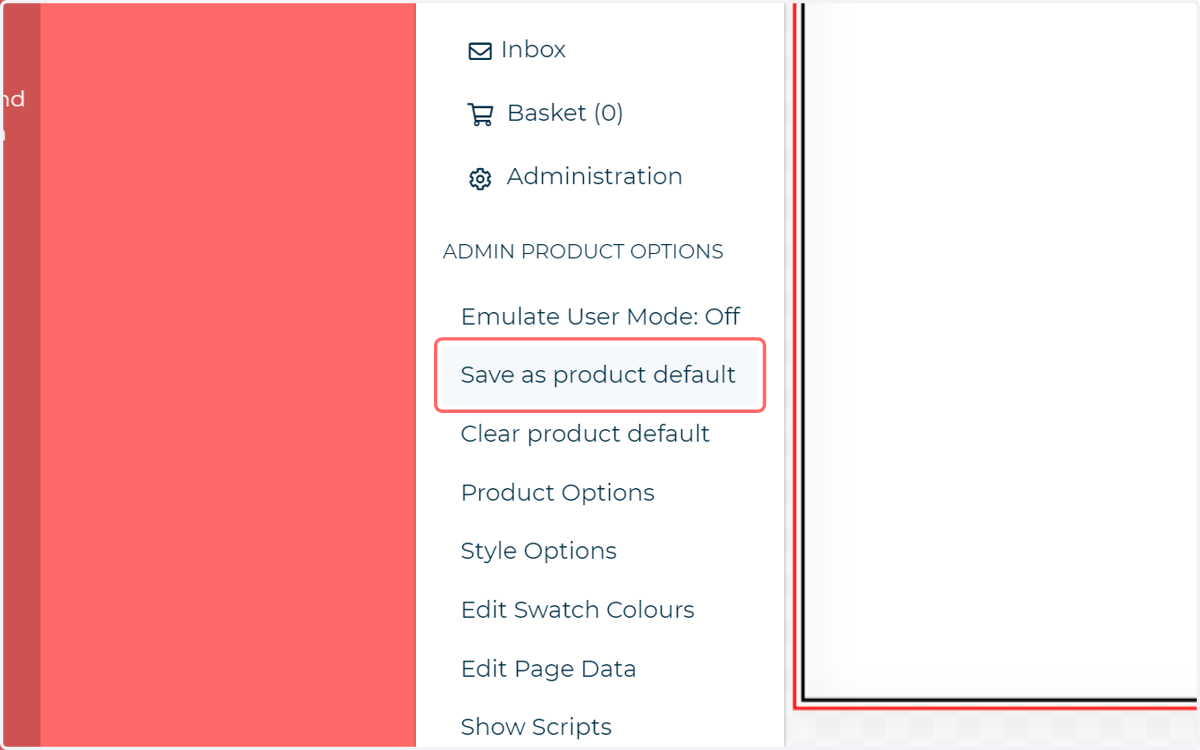
14. Click on Save as product default
Remember the save your updated configuration as the product default.