How to access Workflow Version History and Workspace Audit Logs in Tango
Tango
1. A. Click Overflow Menu
Access the version history and audit logs by clicking the overflow menu on the desired Tango.1. B. Select Version History
Access previous versions of the workflow by selecting Version History from the popover menu. Enterprise workspaces can access versions up to 365 days.
Access the version history and audit logs by clicking the overflow menu on the desired Tango. Access previous versions of the workflow by selecting Version History from the popover menu. Enterprise workspaces can access versions up to 365 days.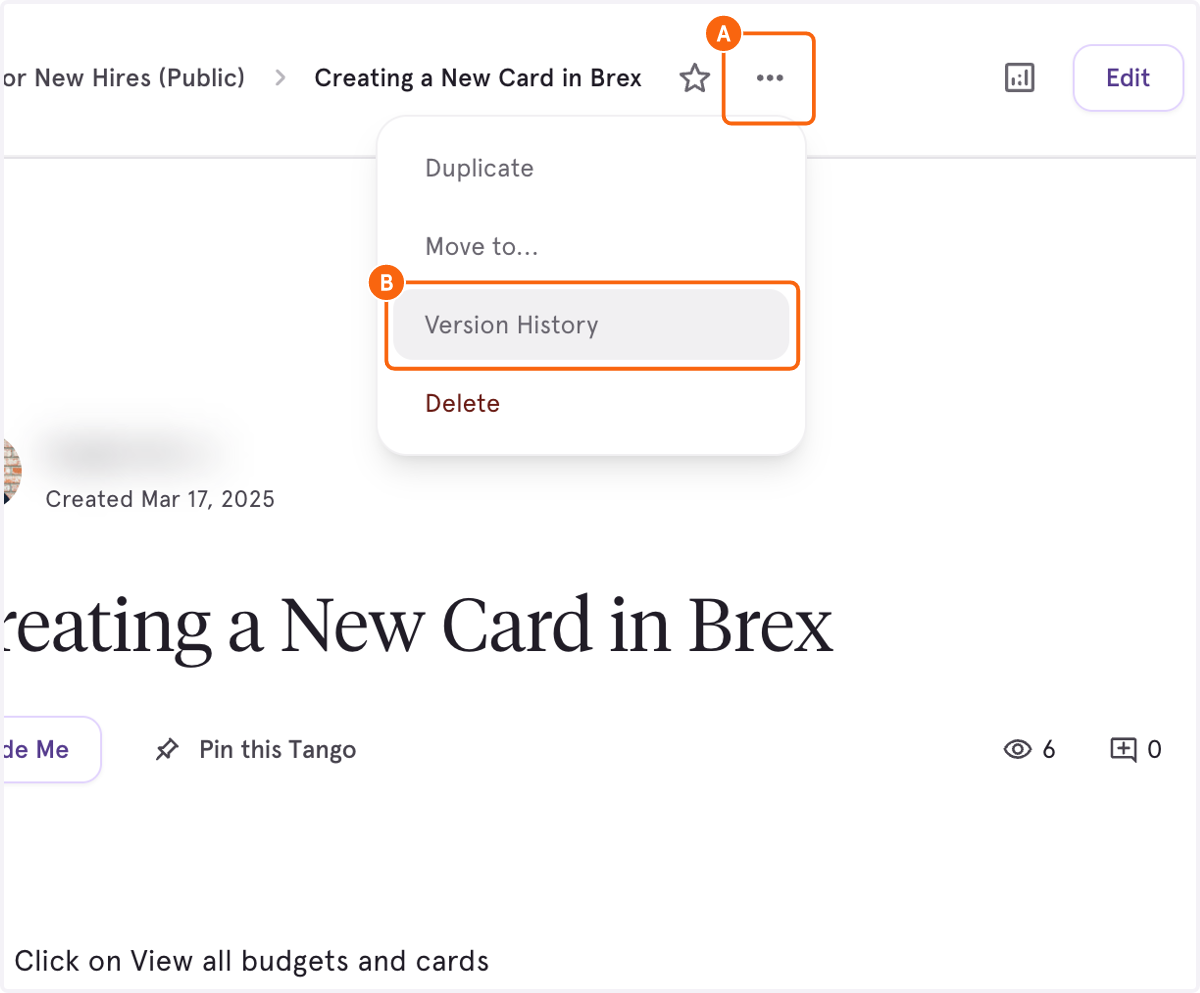
2. A. Select Previous Version
Choose a prior version to view how the data existed at that specific point in time.2. B. Select Overflow Menu
Access options to restore, rename, or duplicate the workflow by selecting the overflow menu.
Choose a prior version to view how the data existed at that specific point in time. Access options to restore, rename, or duplicate the workflow by selecting the overflow menu.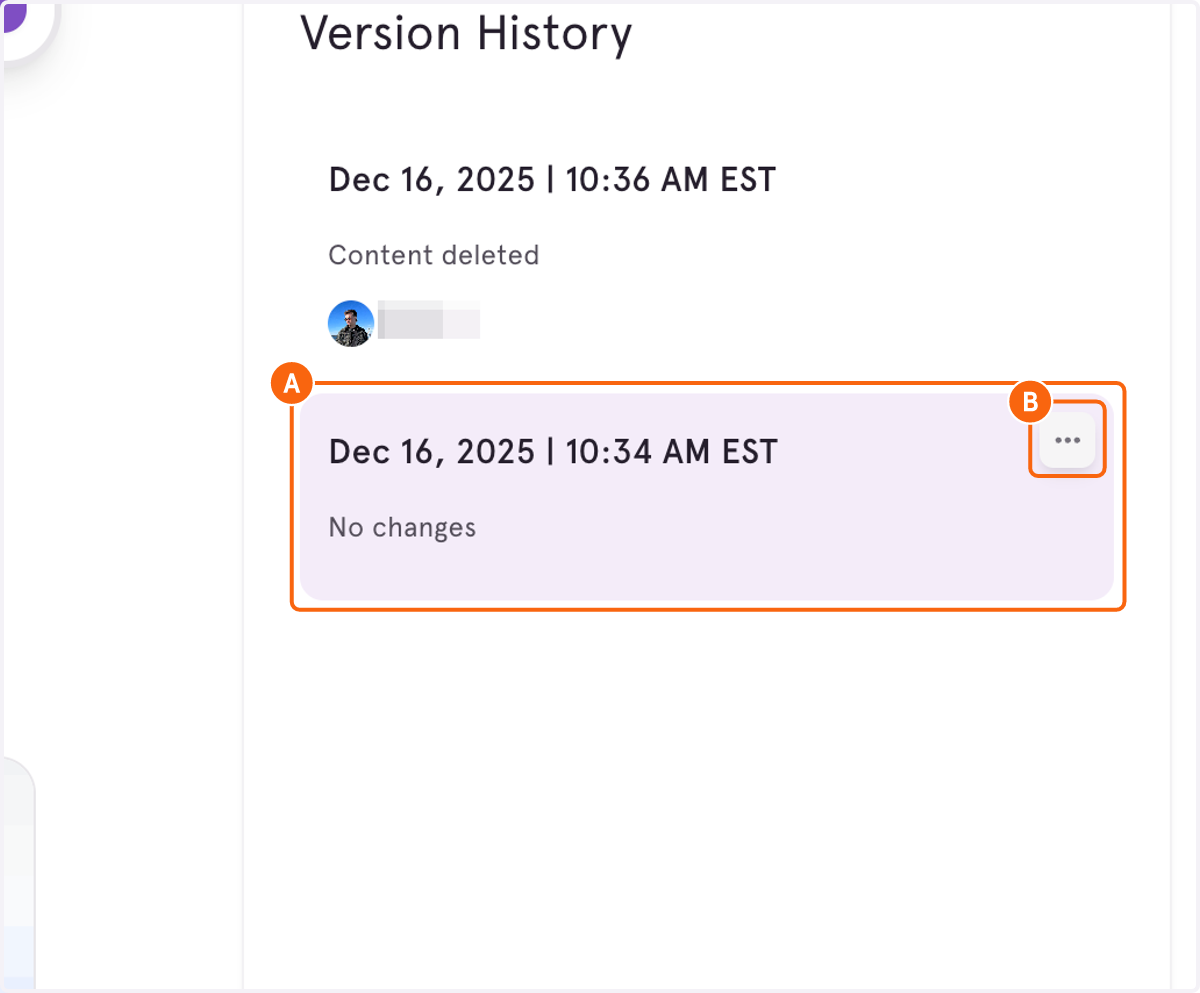
3. Click Restore
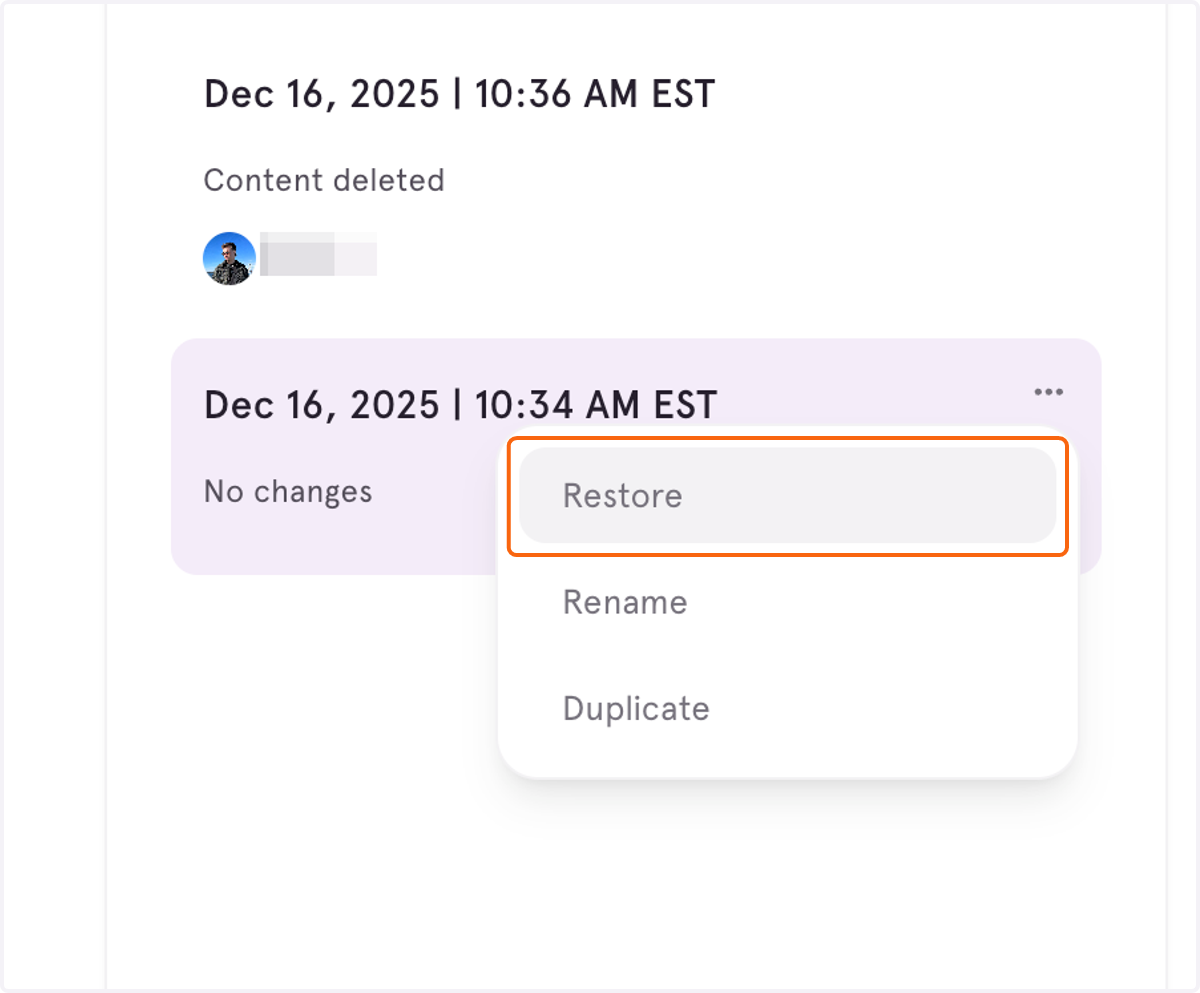
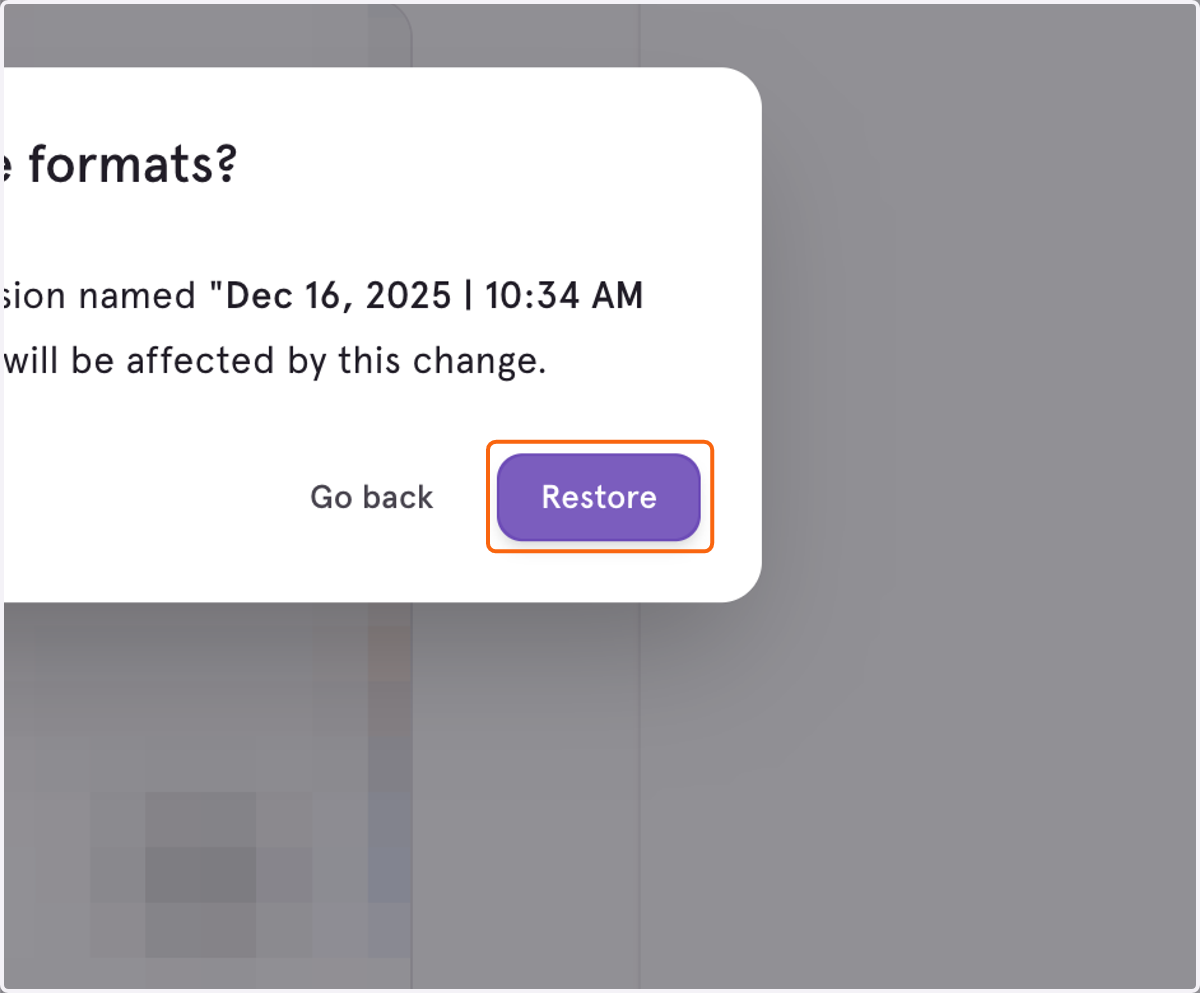
4. Confirm Restore
5. Click on your workspace logo
In order to access Workspace-wide Audit Logs, first navigate to the Team Library
6. Navigate to Settings & Members
Access the audit log by navigating to Settings & Members.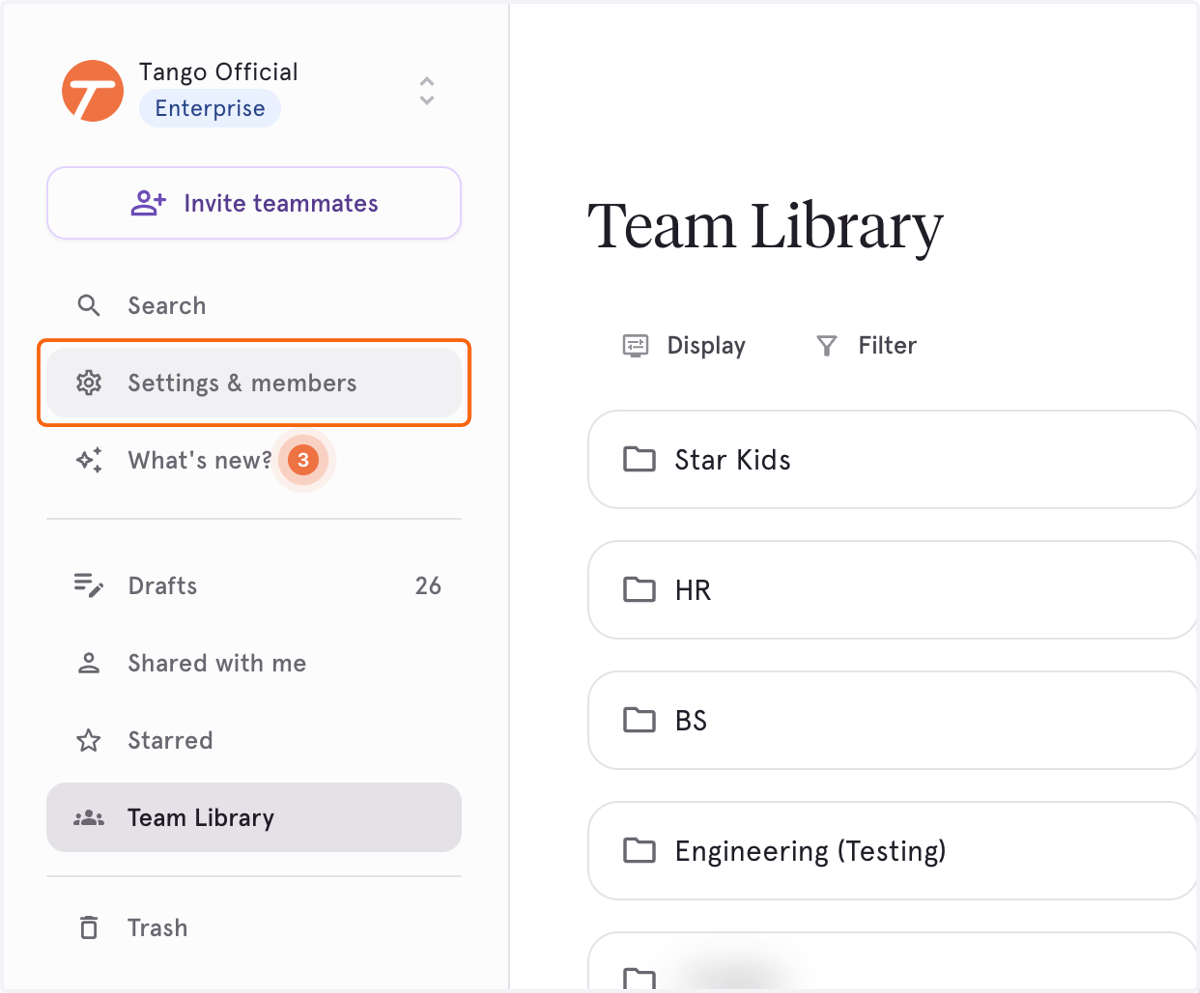
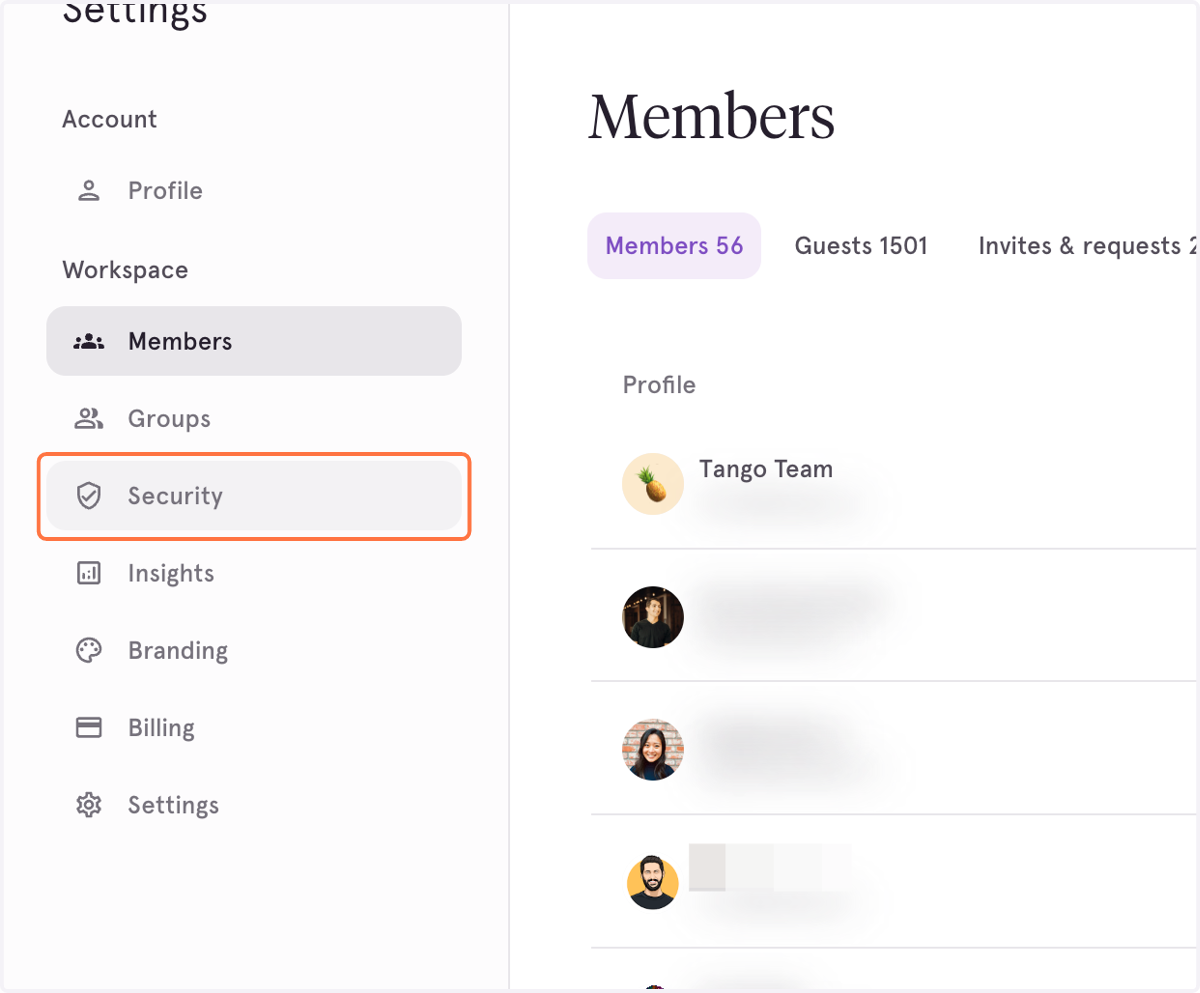
7. Click on Security
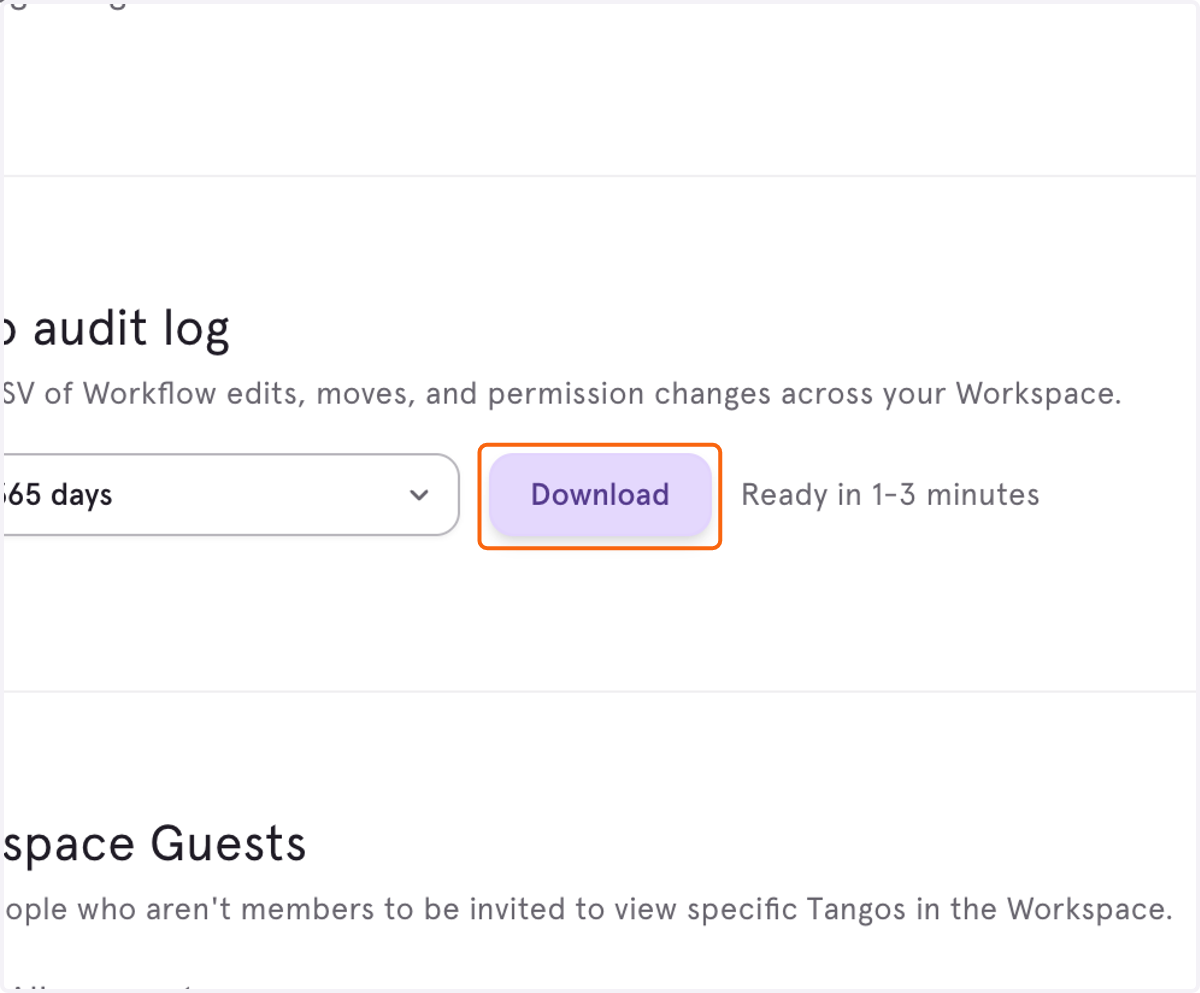
8. Download Tango Audit Log
Download the Tango audit log from the available options. Keep the tab open to allow the CSV file to generate.