Setting up an account with Easypost
CI_Easypost_002
Easypost
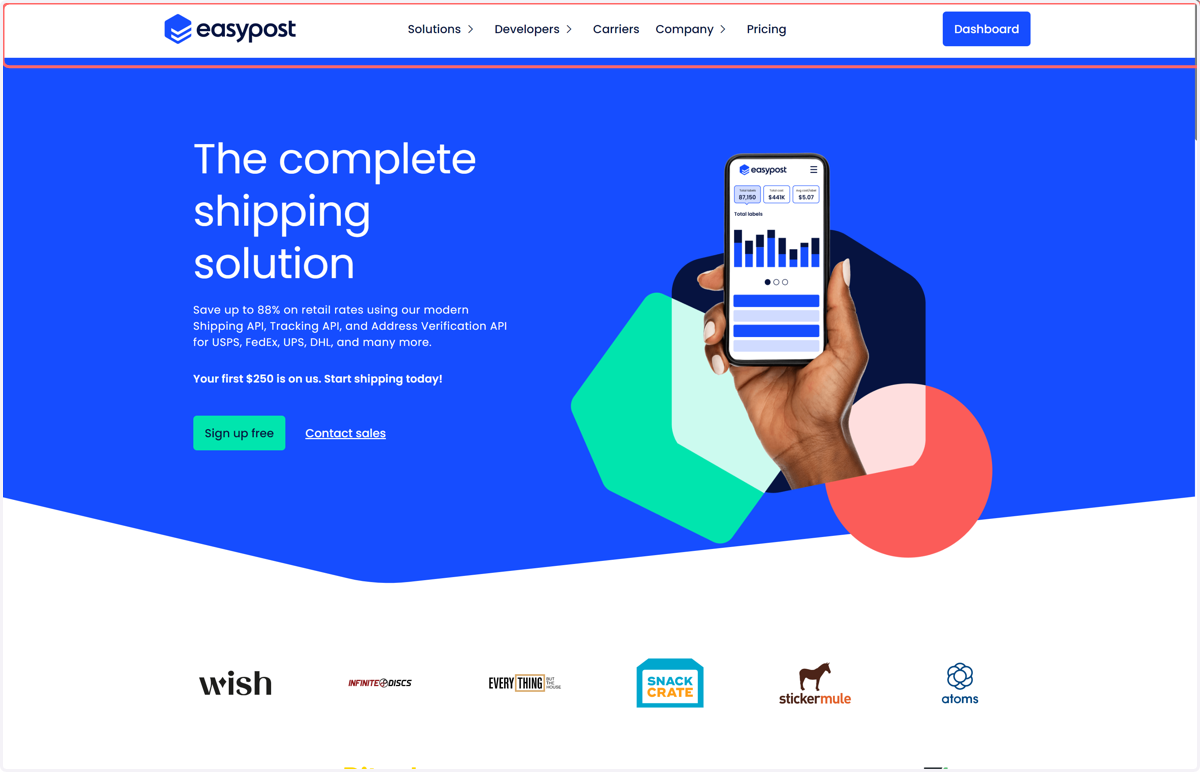
1. Go to www.easypost.com
2. Create an account
In order to use our Easypost plugin you must ensure you have created an Easypost account which, if you haven't done already you can do so here. For information on Easypost costs you can check their rates here.
3. Click on Dashboard to access your account
4. Link carrier accounts
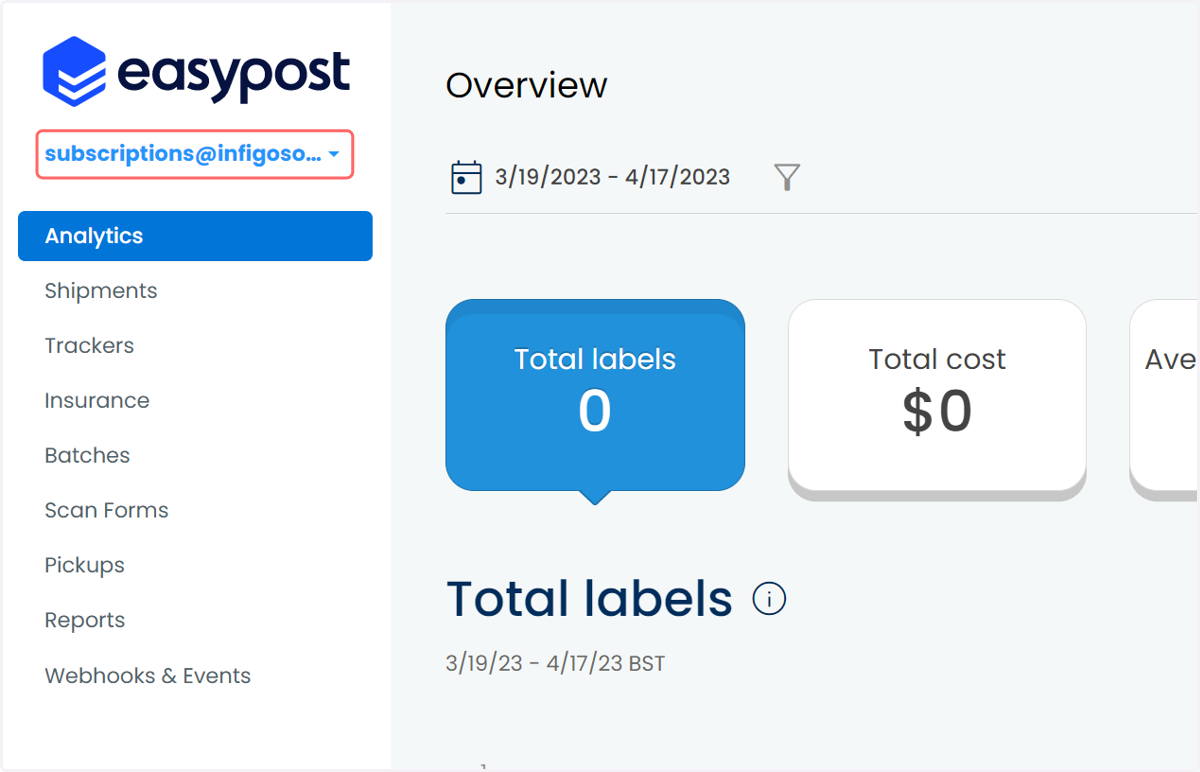
Now you have an Easypost account the first thing you need to do is link up all your carrier accounts with Easypost, so that you can start to use them and Easypost has access to fetch rates and generate shipments.
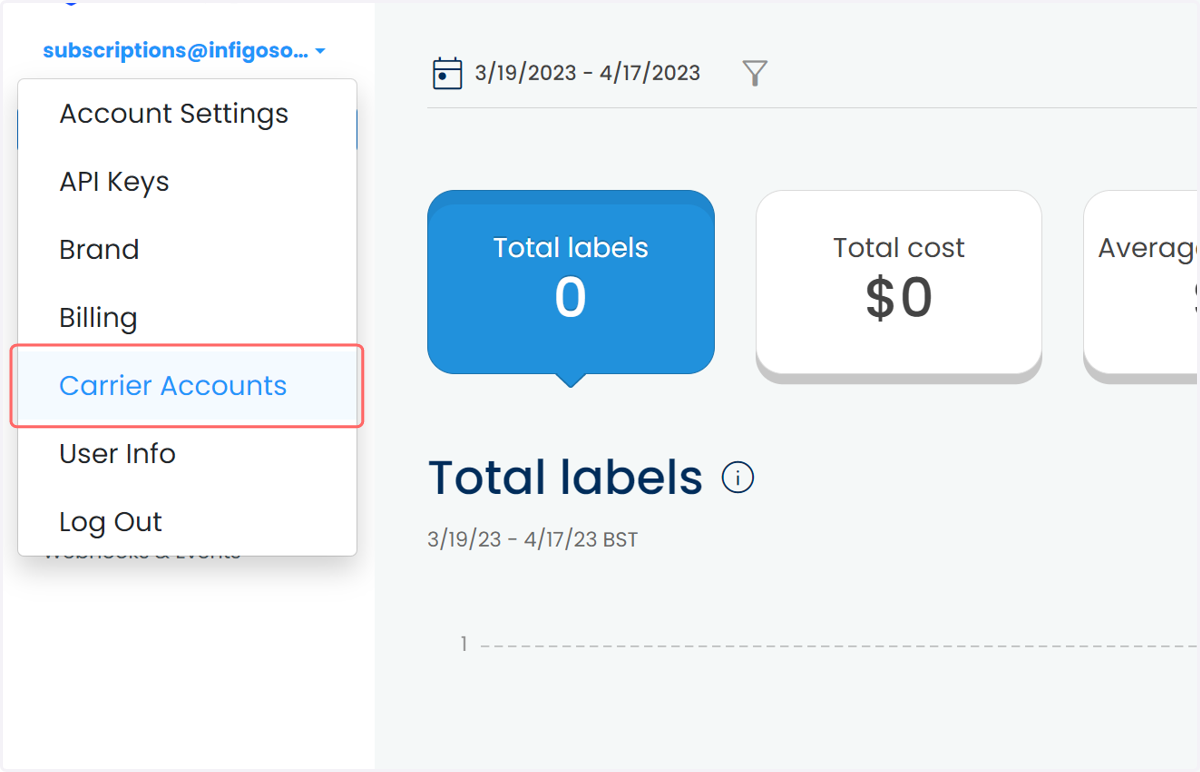
Login to your Easypost account and then click on the down arrow next to your email address in the top left corner.
5. Click on Carrier Accounts
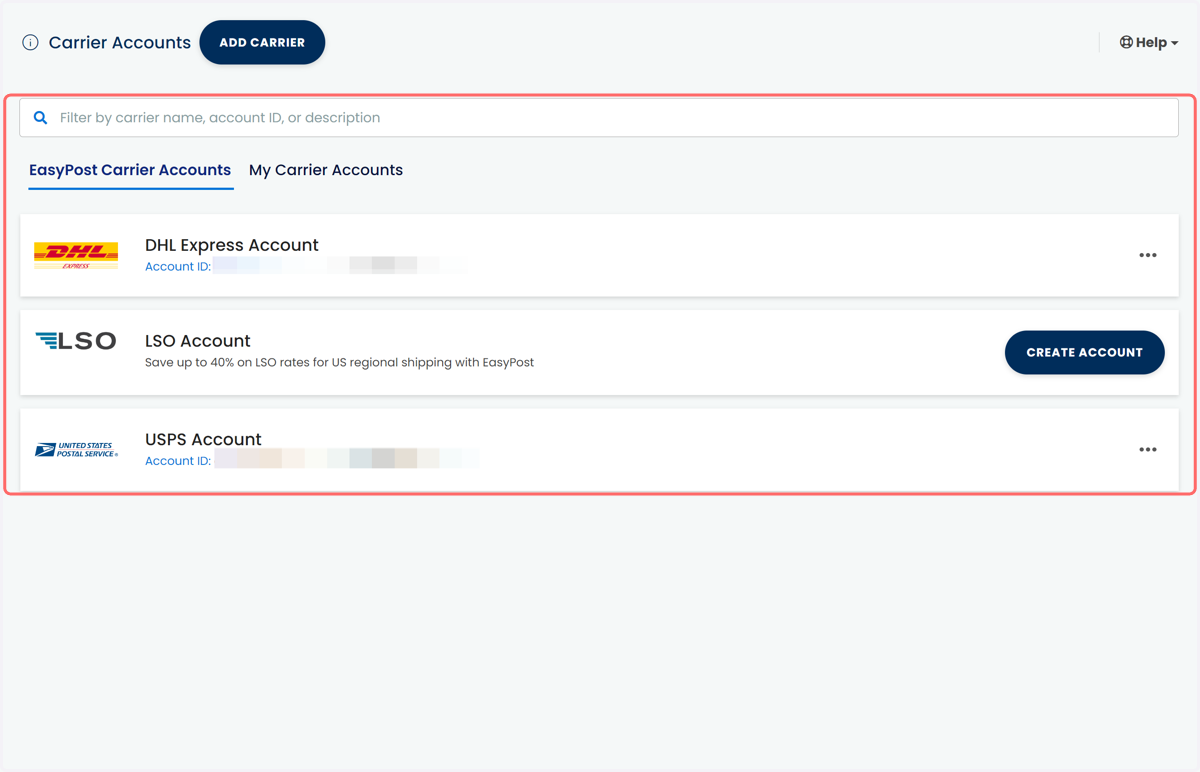
6. Existing carriers
Any carriers already linked to your account will be displayed here.
From this screen, you can also edit to information associated with those carrier accounts.
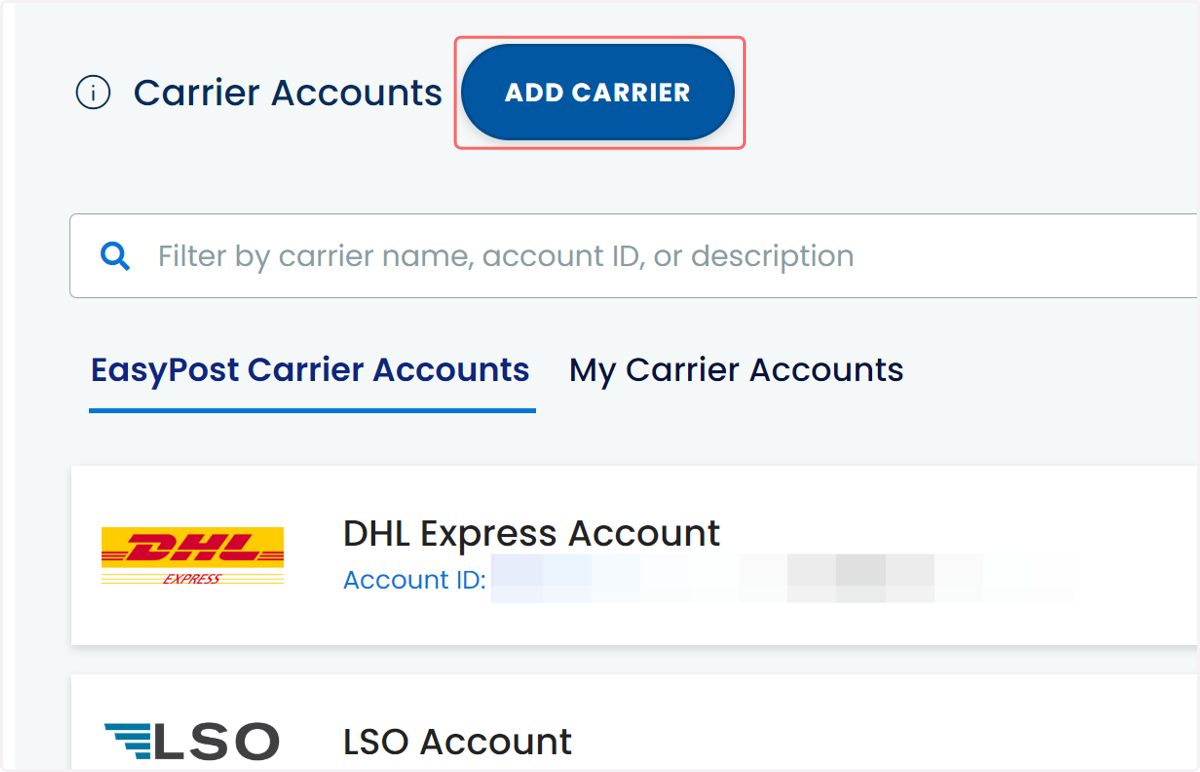
7. Click Add Carrier to input new carrier information
8. Search for the carrier you wish to add
Here is a list of all the carriers that Easypost currently supports https://www.easypost.com/carriers. If there are carriers missing that you would like adding, then you can reach out to Easypost directly to see if they can add them to their supported list.
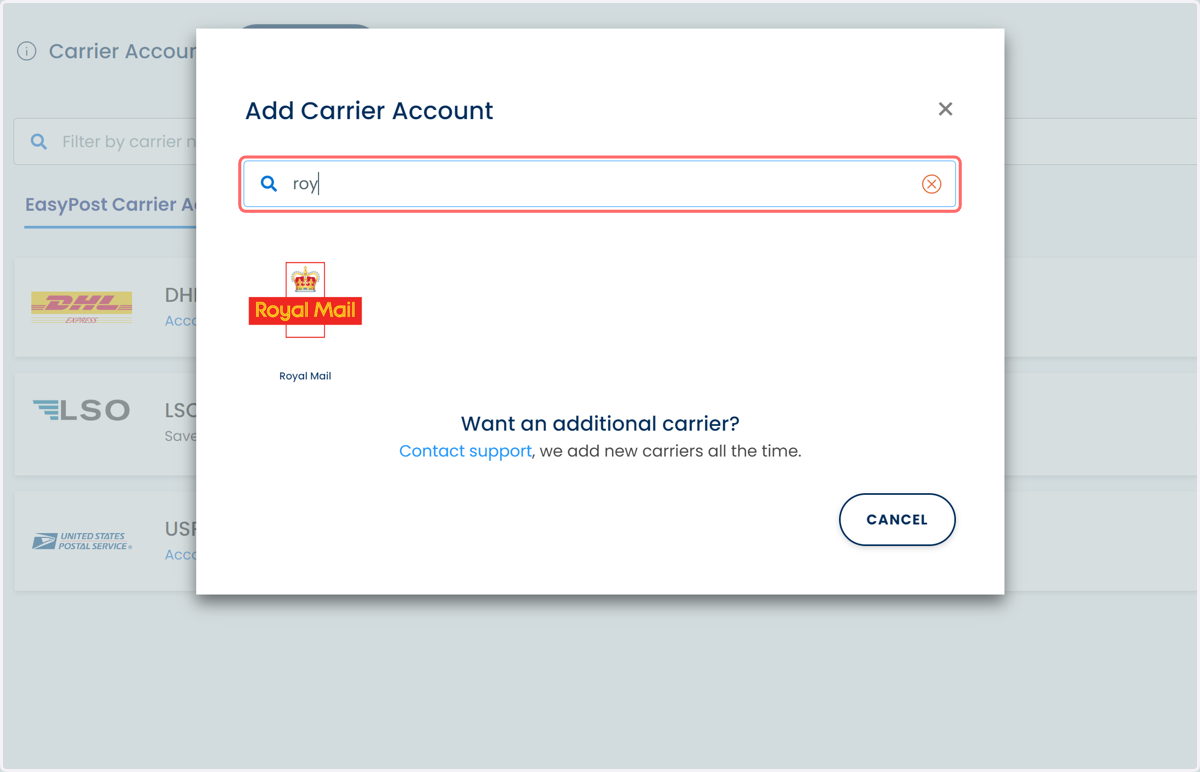
9. Click on your chosen carrier
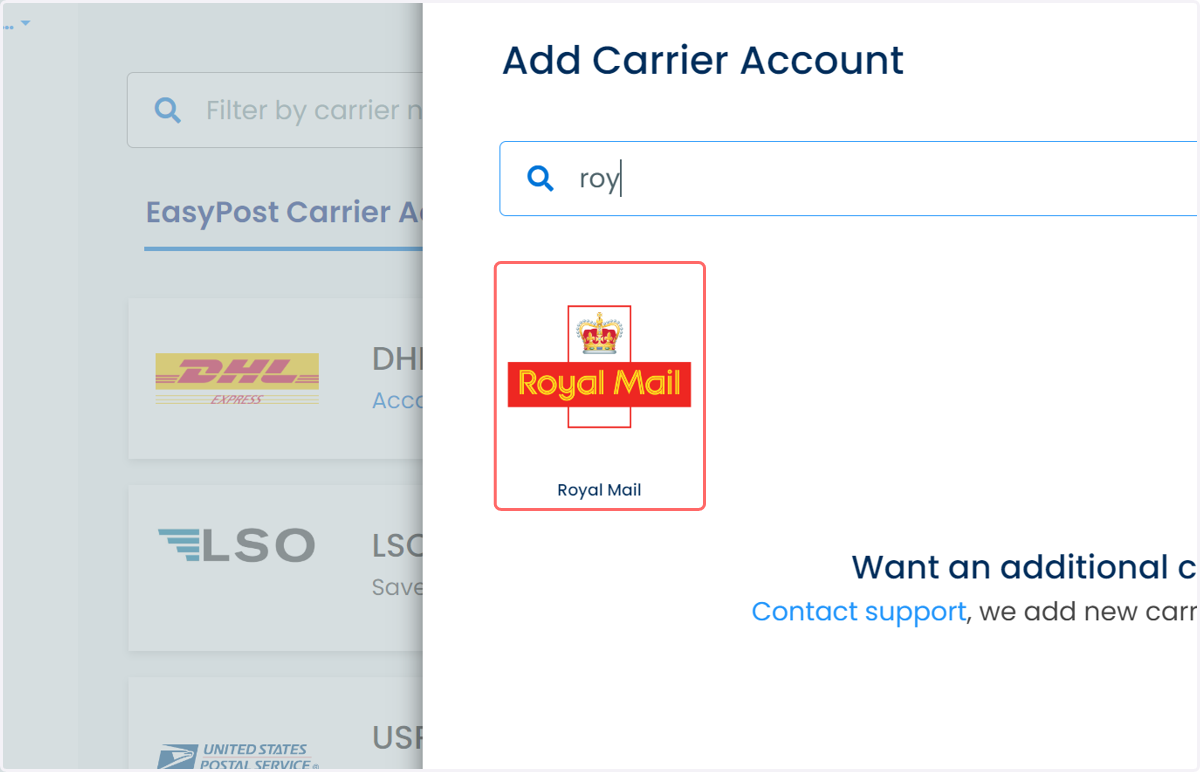
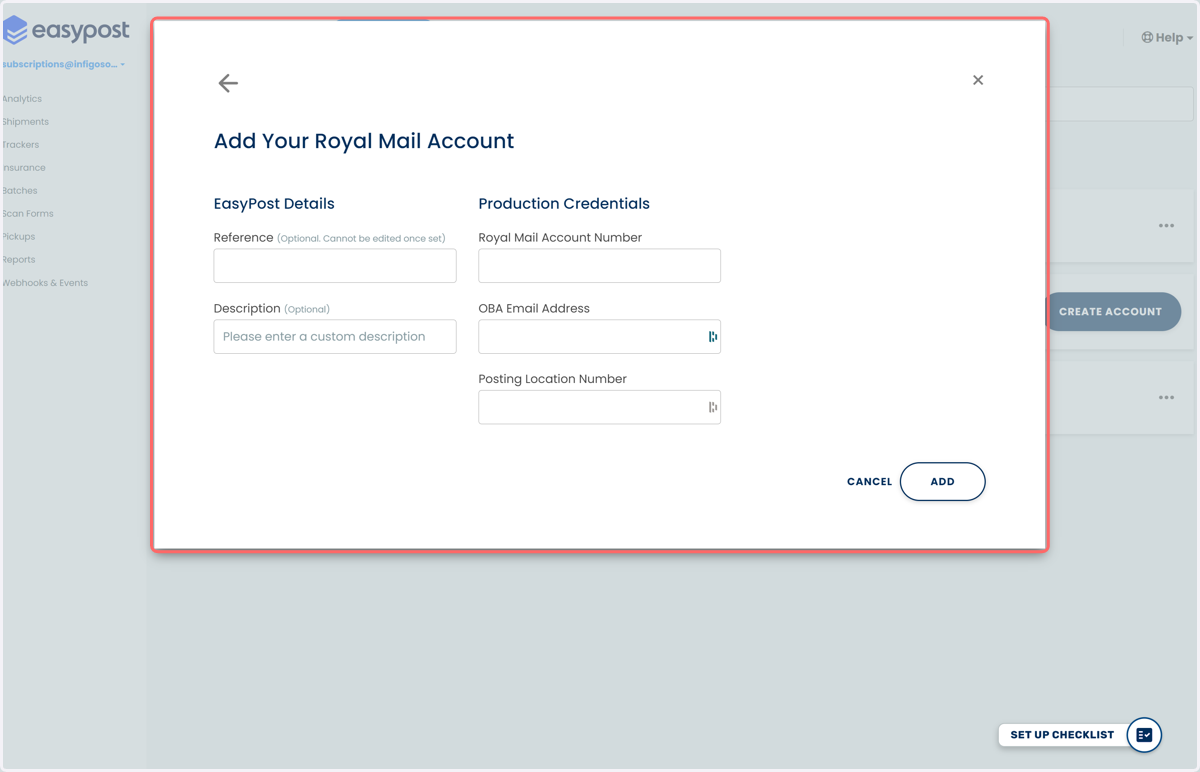
10. Add carrier account information
Once you have located and selected the carrier you want to add, you will need to populate all the details required to connect to that carrier. This information usually includes your account number, address details and any other carrier specific details so its best to have these to hand before you start.
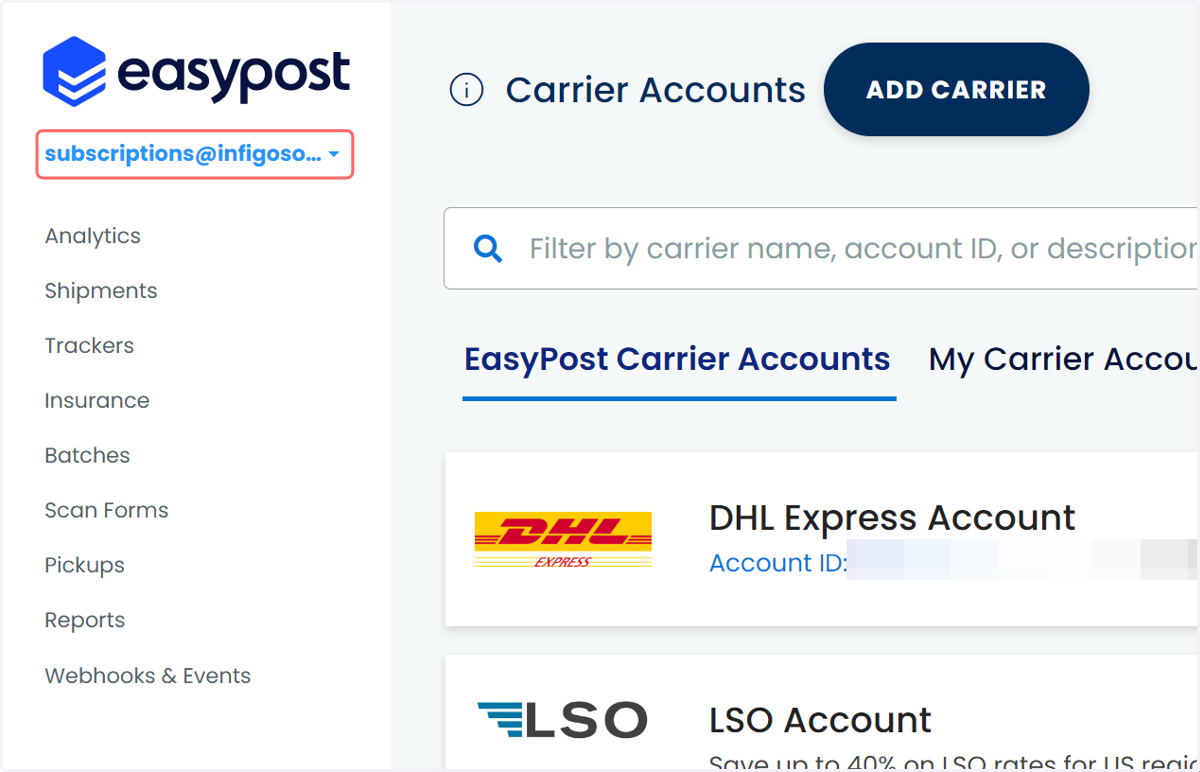
11. Next, we will set up payment information. Click on your email address to begin
12. Click on Billing
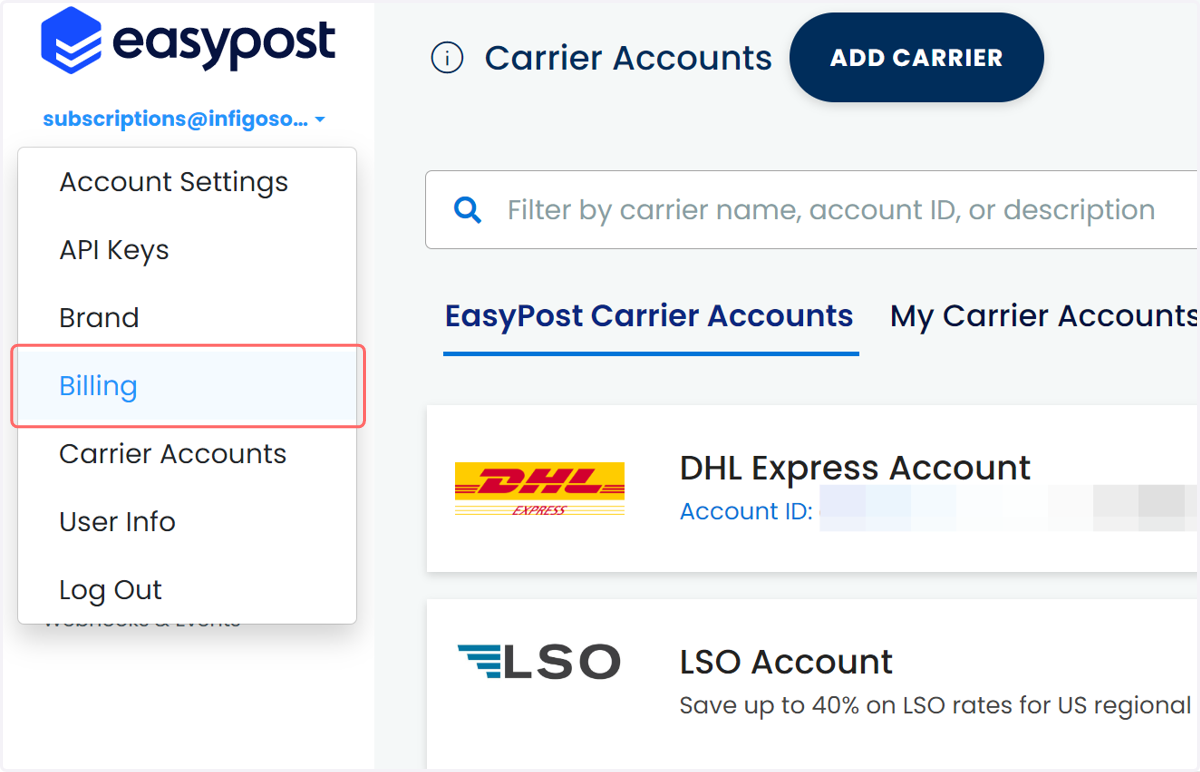
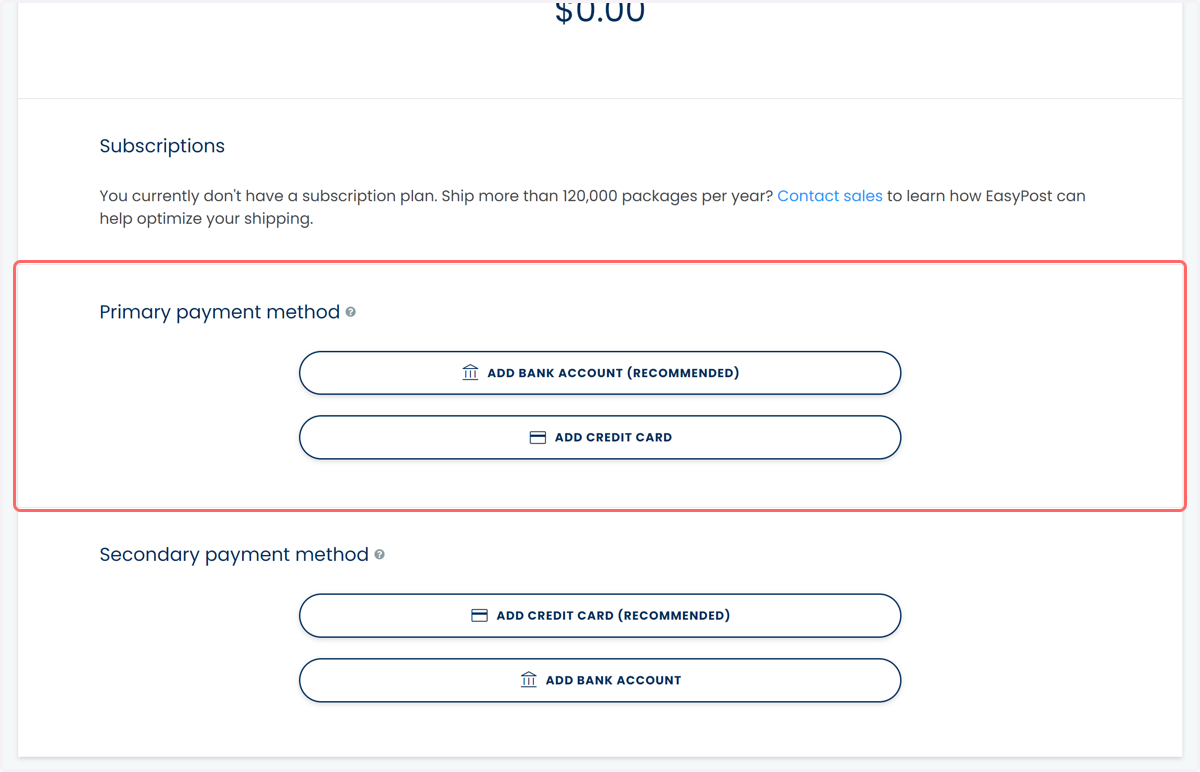
13. Set up payment methods
From here you can then add bank details or credit card details for any chargeable usages of your Easypost account.
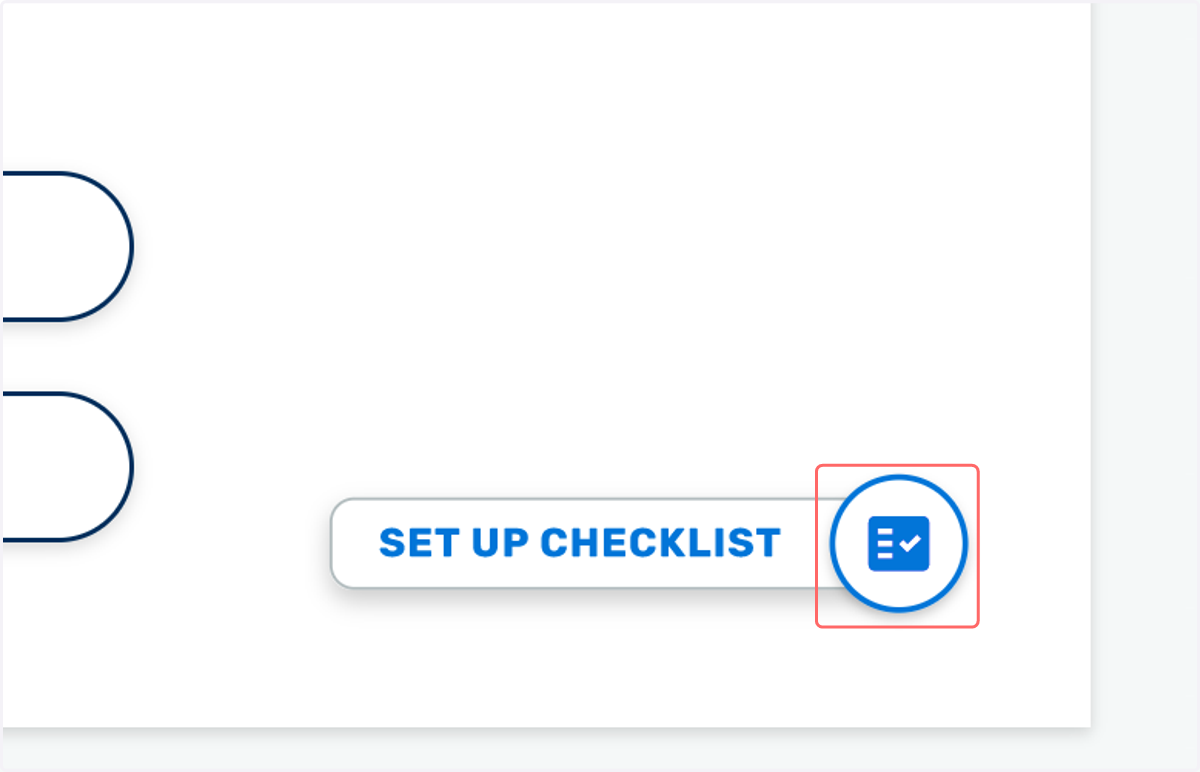
14. Click on Set Up Checklist
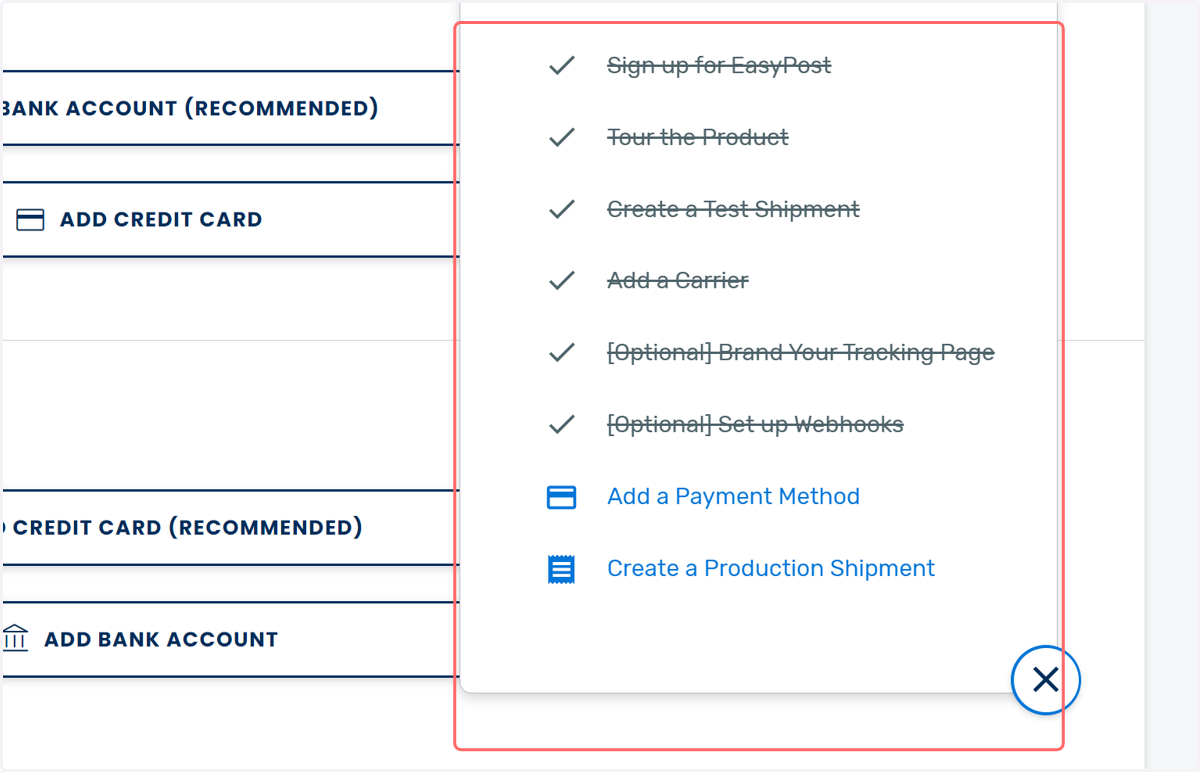
Easypost have a handy Checklist feature if you click on the symbol in the bottom right of the screen it will guide you through the steps to get setup.
15. Complete checklist
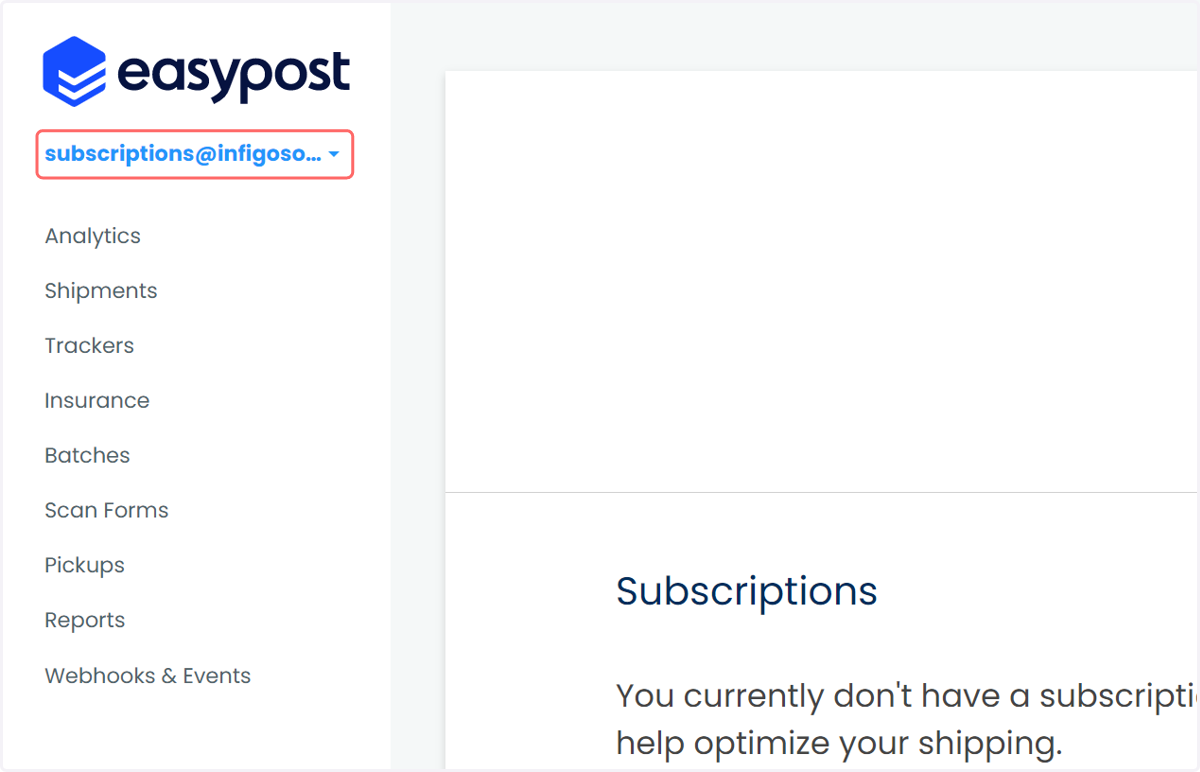
16. Next, we need to obtain the API keys to connect with Infigo. Begin by clicking your email address
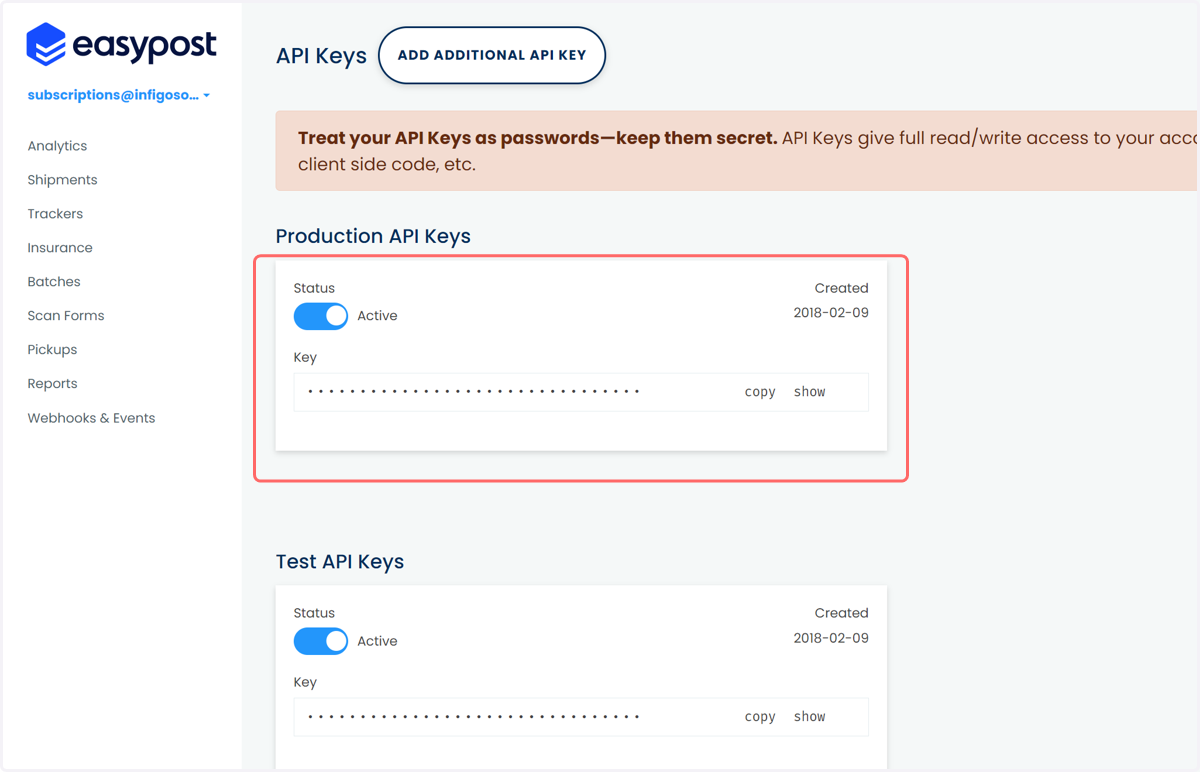
In order to connect to your Easypost account from Infigo we require your Easypost API Keys.
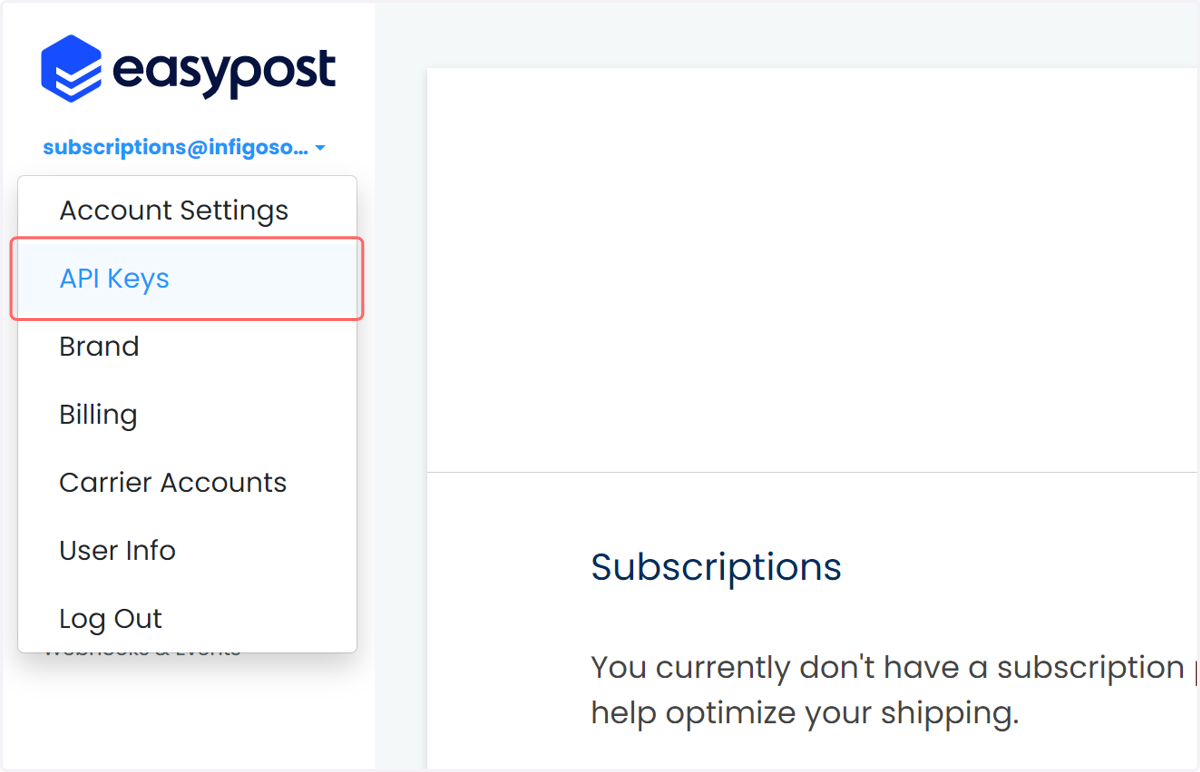
To retrieve these from your account click on the down arrow next to your email address in the top left corner and then from the menu select 'API Keys'.
17. Click on API Keys
18. API Keys page
On this page you are presented with two API keys. One for Production and one for Test. For now, copy and save both API keys somewhere safe and secure as we will use these later when setting up your Easypost Infigo plugin.