Generic Pricing Script | Multi-part CSV Pricing | GT_PR_£_Pricing Scripts_003
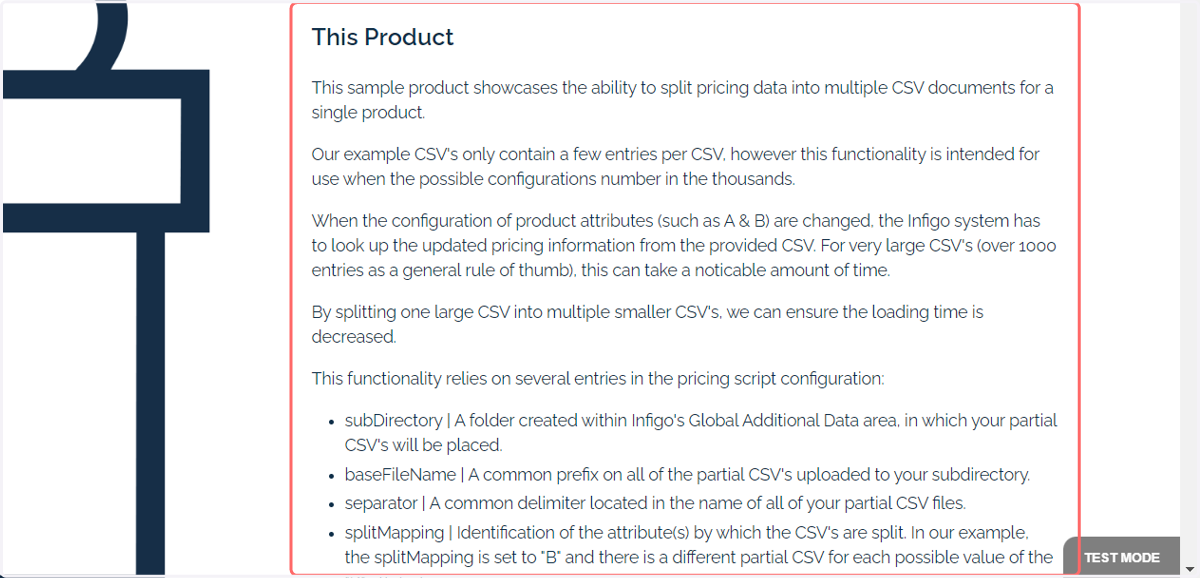
This sample product showcases the ability to split pricing data into multiple CSV documents for a single product.
Our example CSV's only contain a few entries per CSV, however this functionality is intended for use when the possible configurations number in the thousands.
When the configuration of product attributes (such as A & B) are changed, the Infigo system has to look up the updated pricing information from the provided CSV.
For very large CSV's (over 1000 entries as a general rule of thumb), this can take a noticable amount of time.
By splitting one large CSV into multiple smaller CSV's, we can ensure the loading time is decreased.
1. Sample Product
You can an example of this in action by navigating to the following Infigo storefront and selecting product "3 _ Multipart CSV Pricing Script".
2. Example details
This sample product contains:
Description of its purpose
The configuration of the pricing script
A downloadable version of the pricing CSV for this product
Functional for use as a pricing script | Select relevant attributes and quantities to see the price update.
3. Example configuration
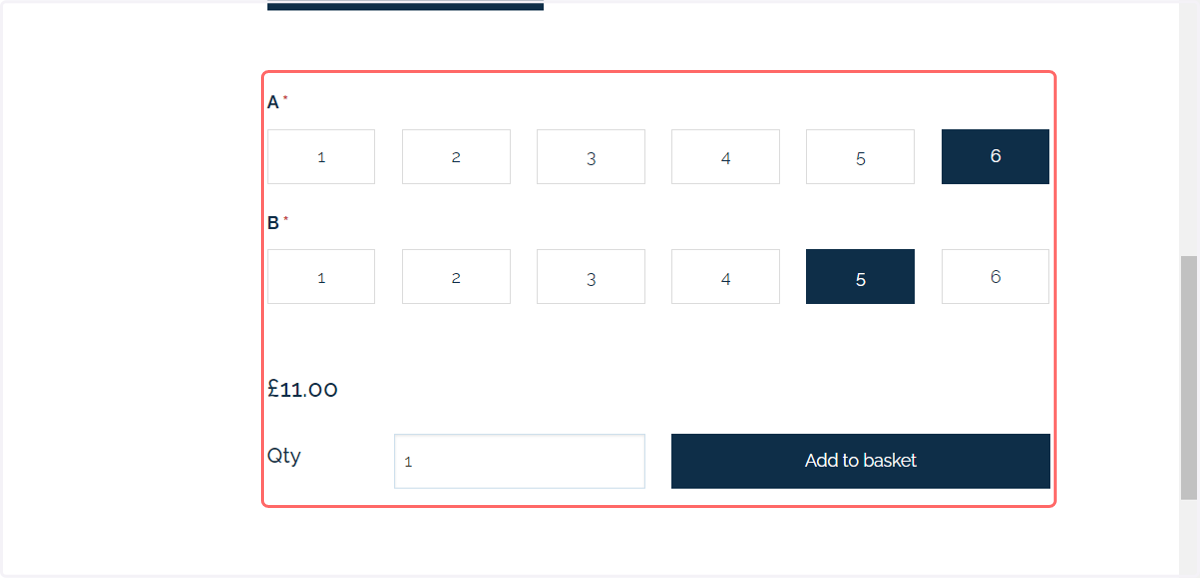
This example contains two attributes (A & B) each with 6 options.
A relevant price will be shown for any configuration of A & B.
Only a quantity of 1 is supported in this example.
This example demonstrates how we can split potentially expansive pricing data over multiple CSV's. In this example, we will see a different CSV being utilised for each of the "B" attribute values.
4. CSV format
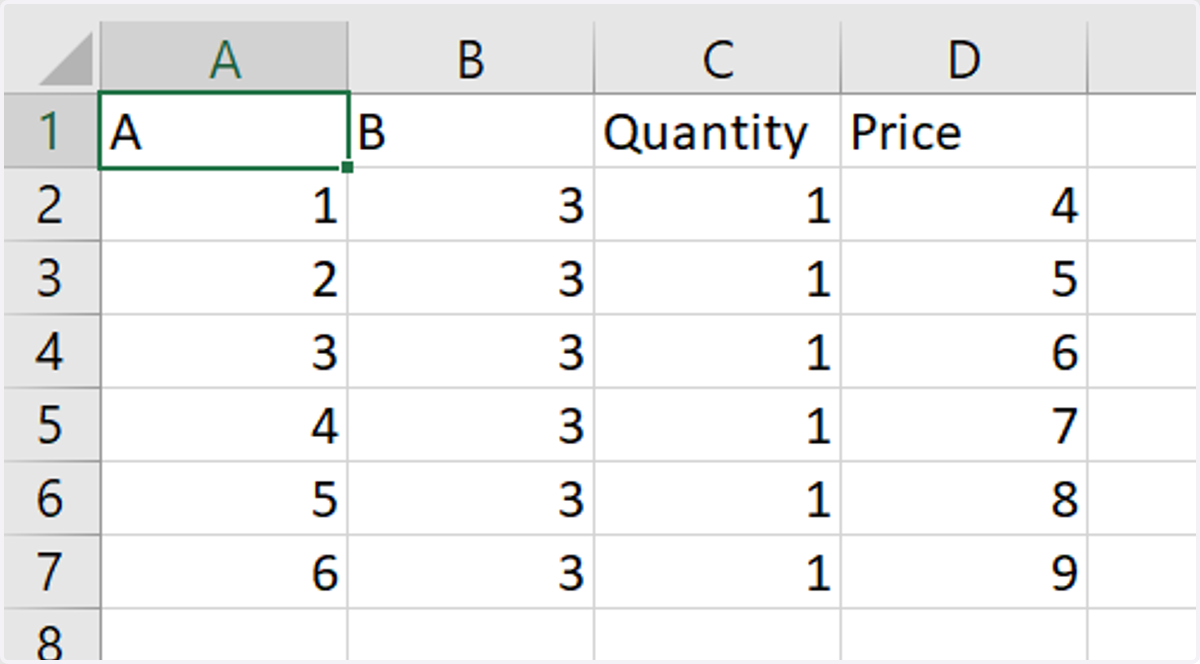
The data has been split into 6 CSV's. Each CSV covers the data for one selection of attribute "B".
This means a CSV for B(1), another for B(2), etc.
Each CSV contains data for every alternate product variation whilst that value of "B" is selected.
1 of the 6 CSV's is shown below.
5. Navigate to Global Additional Data
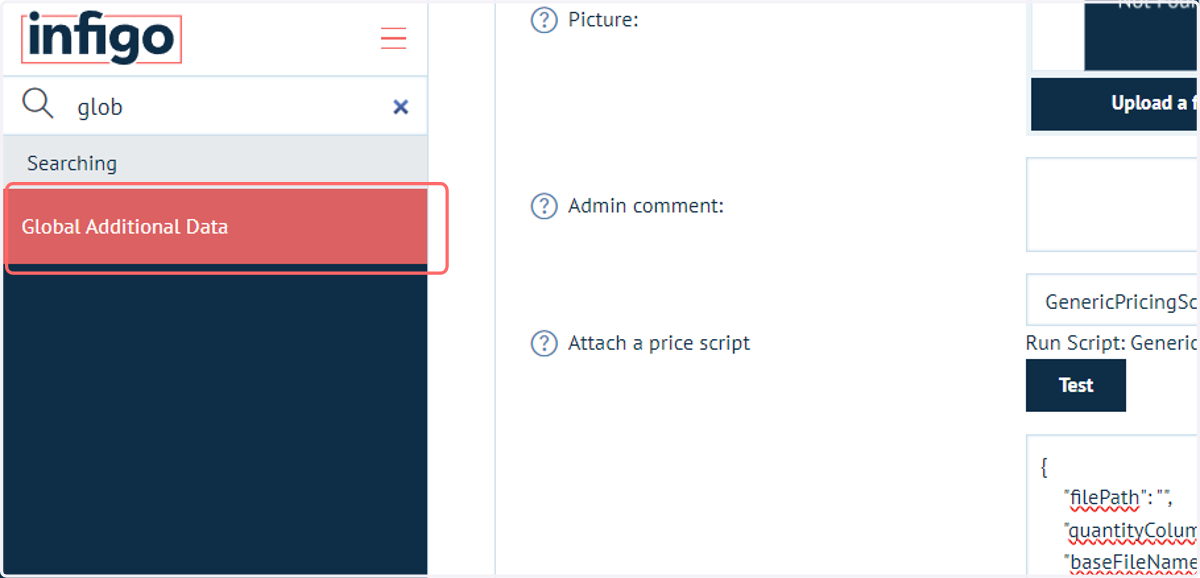
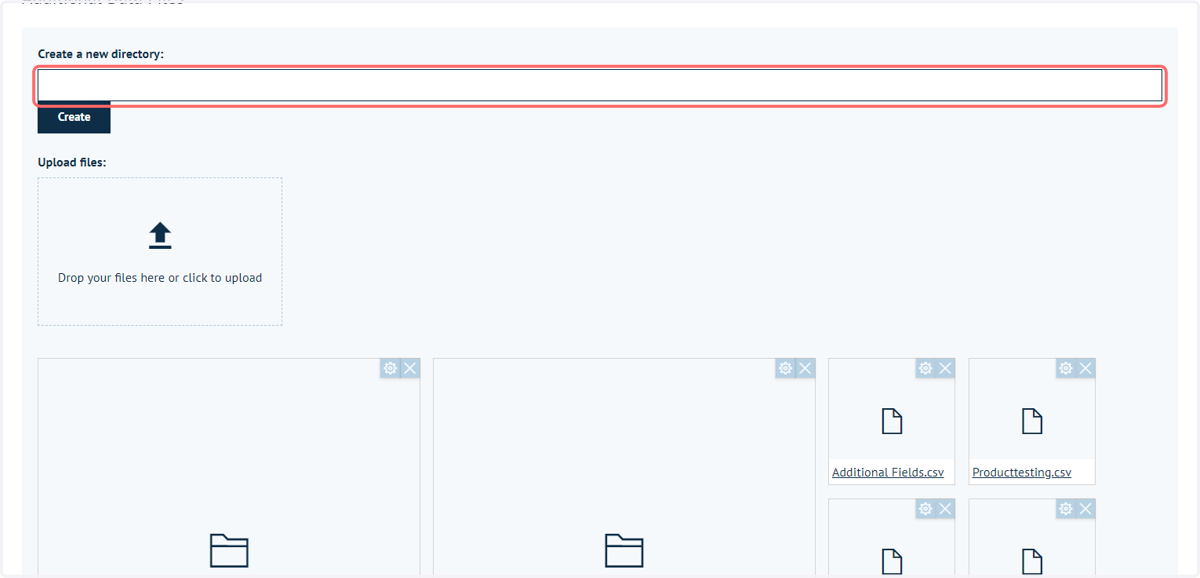
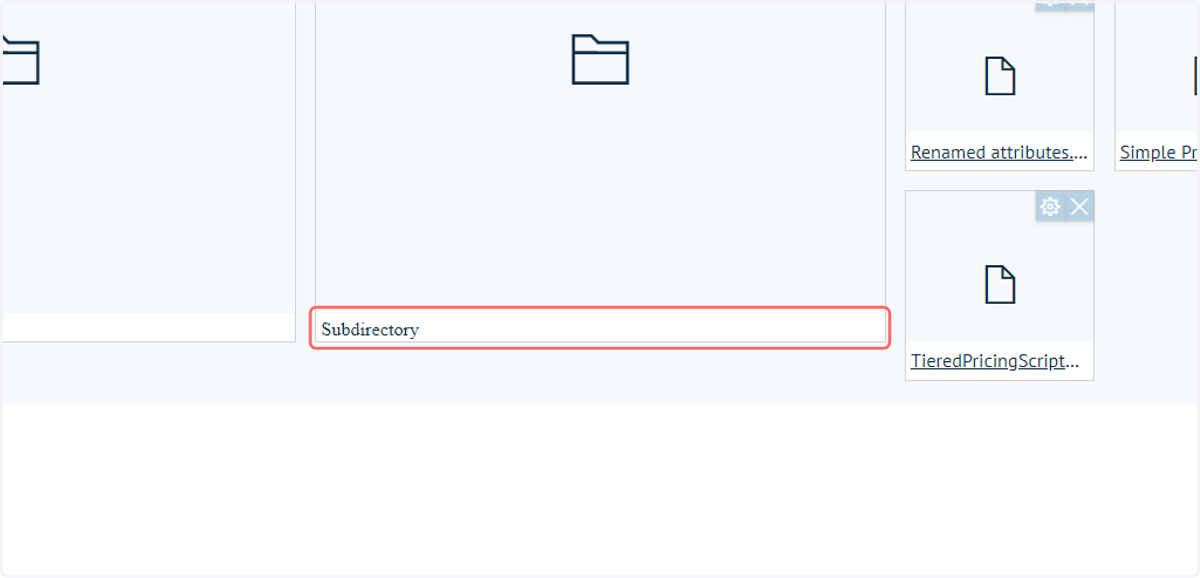
We must upload these CSV's into a subdirectory within our Global Additional Data section.
We then specify the subdirectory we wish to target as part of the script configuration on the product.
6. To create a new subdirectory, enter a name and click Create
7. Click on the newly created subdirectory to access it
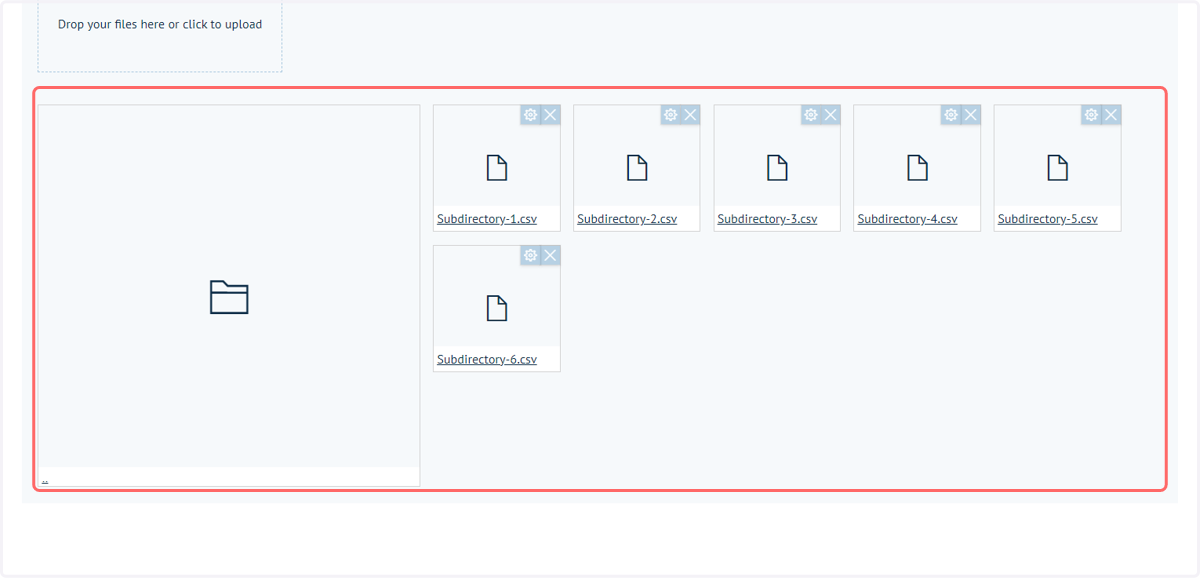
8. Upload CSV's relevant to this product to the new subdirectory
Ensure the uploaded CSV's all have a matching naming format. This includes:
A common file prefix (such as "Subdirectory" or "File")
A common separator (such as "-" or "_")
A unique suffix which matches the attribute value it is associated with. In our example we have a CSV for each value of "B" (which is 1 to 6), so each file has a different suffix ranging from 1 to 6.
9. Continue the configuration in the product variant settings of the product in question
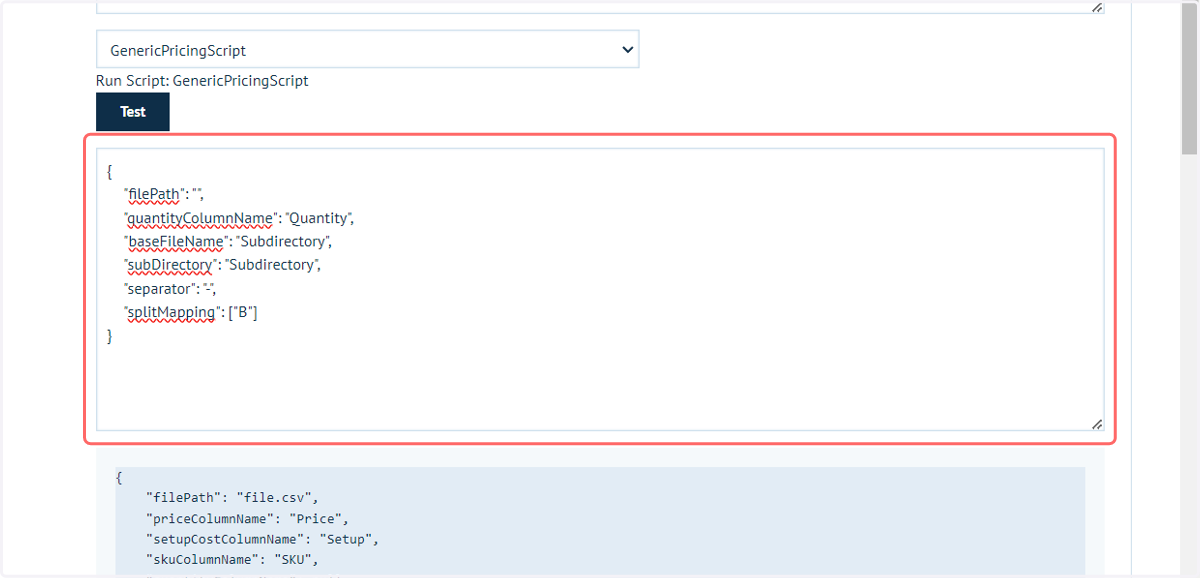
This functionality relies on several entries in the pricing script configuration:
subDirectory | A folder created within Infigo's Global Additional Data area, in which your partial CSV's will be placed.
baseFileName | A common prefix on all of the partial CSV's uploaded to your subdirectory.
separator | A common delimiter located in the name of all of your partial CSV files.
splitMapping | Identification of the attribute(s) by which the CSV's are split. In our example, the splitMapping is set to "B" and there is a different partial CSV for each possible value of the "B" attribute.
filePath | Leave blank
10. Save the page and click on Test
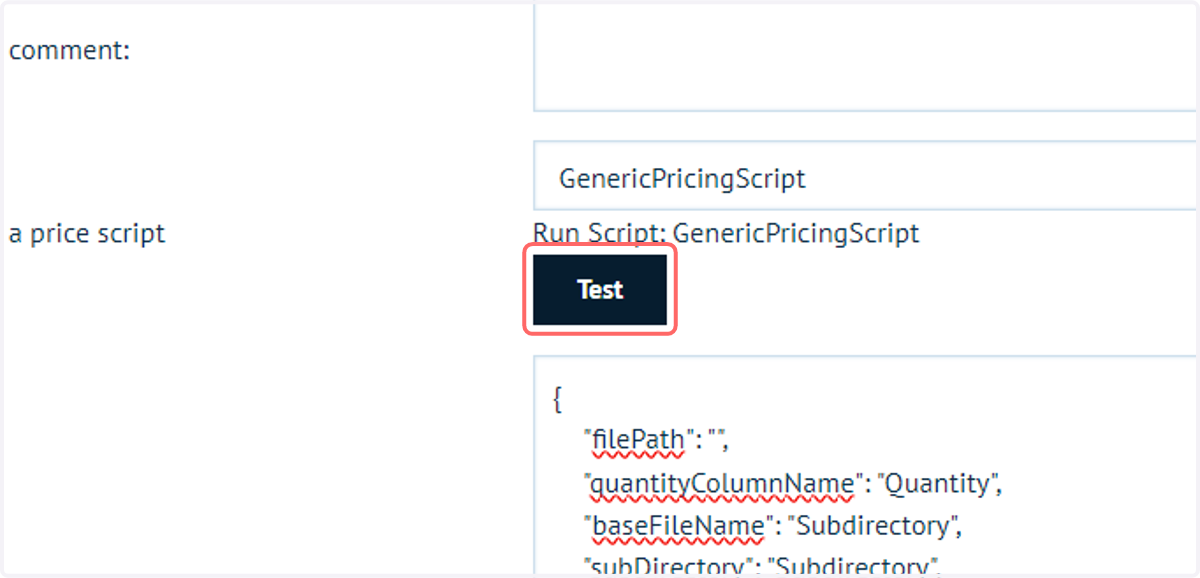
Test mode runs the default configuration of the product within the admin area, and provides feedback on the data returned.
In order to utilise this, you will need a default configuration which is expected to return a price. For example, you may have to specify pre-selected attribute values.
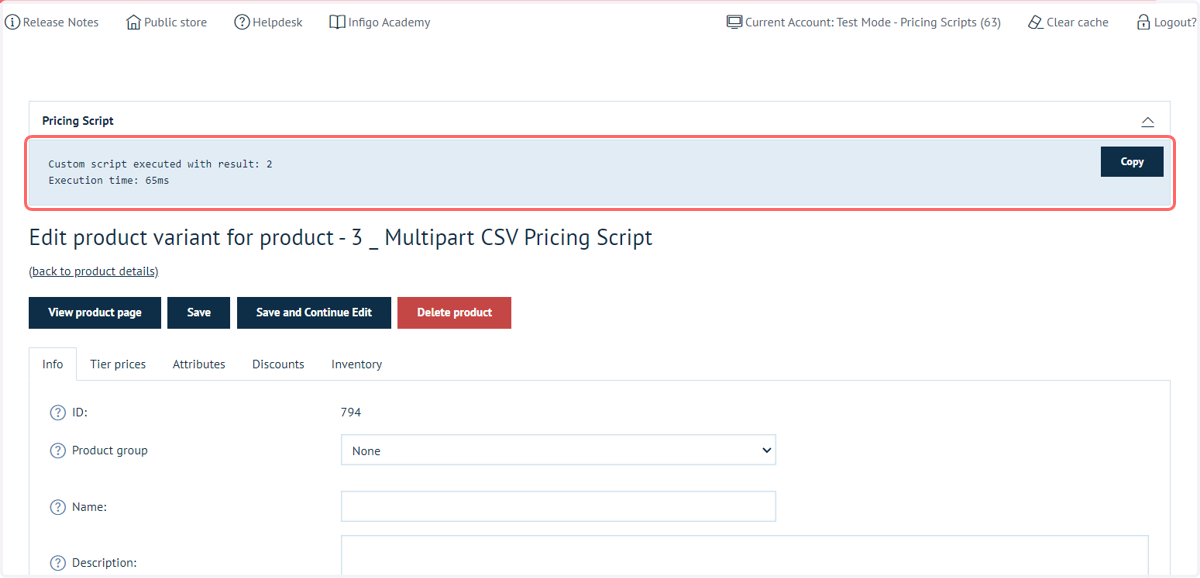
11. Basic feedback will be displayed within this same screen
You can also access the product from the front-end to check if the pricing is successfully utilised.